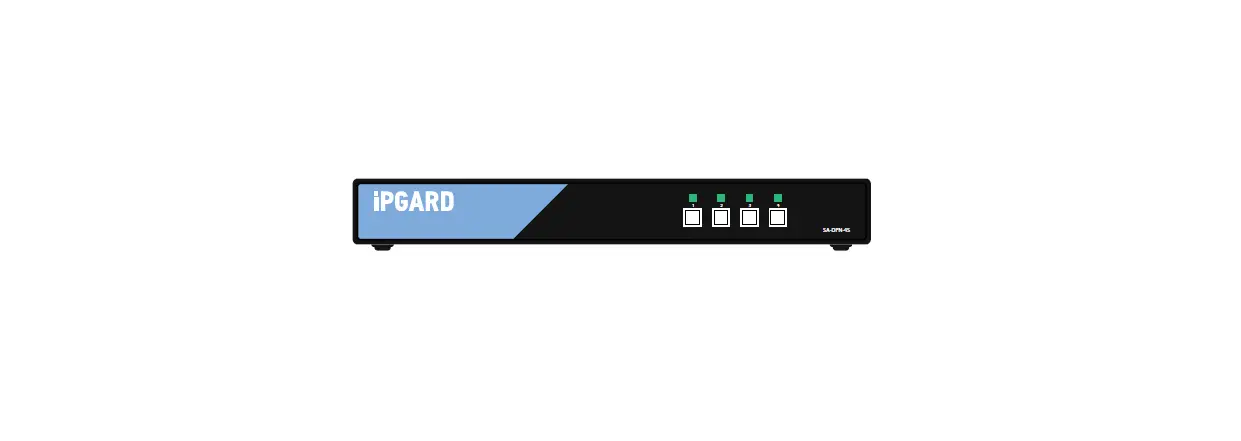
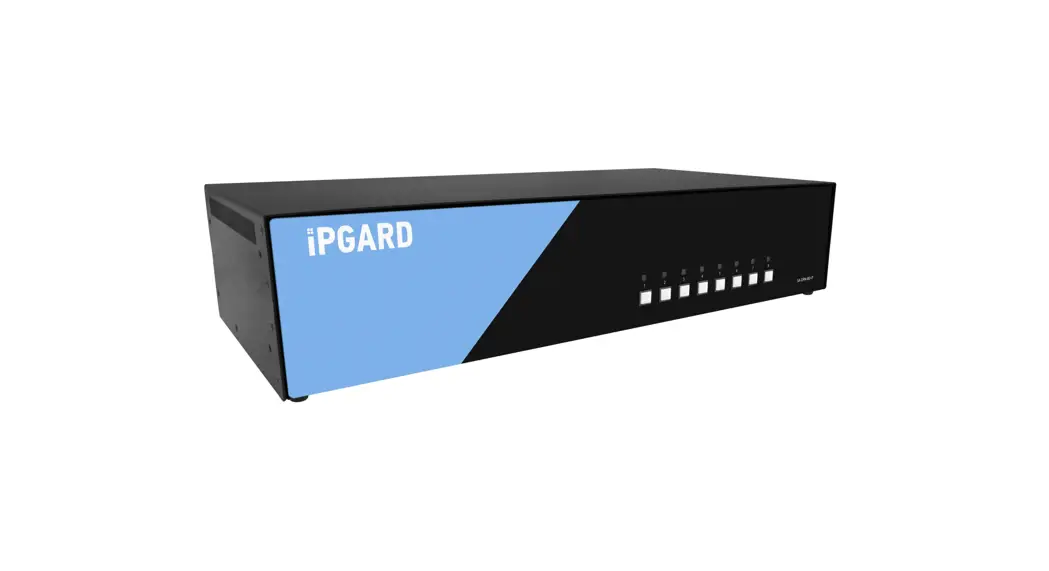
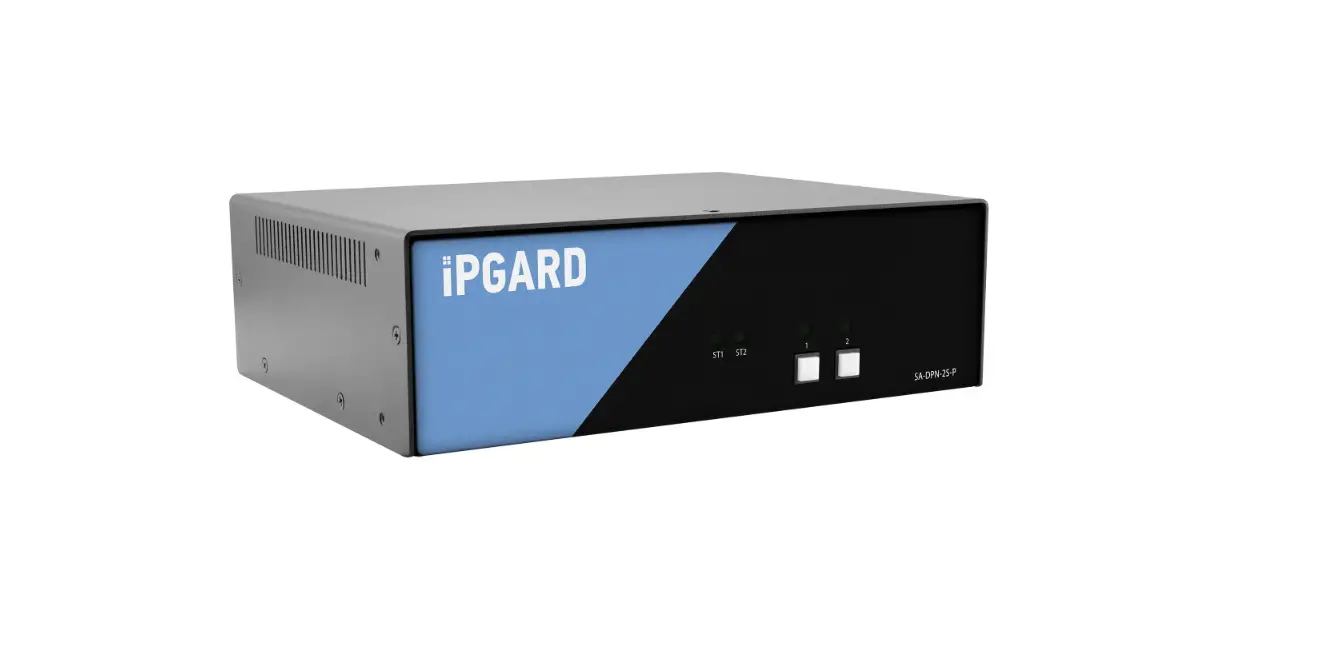
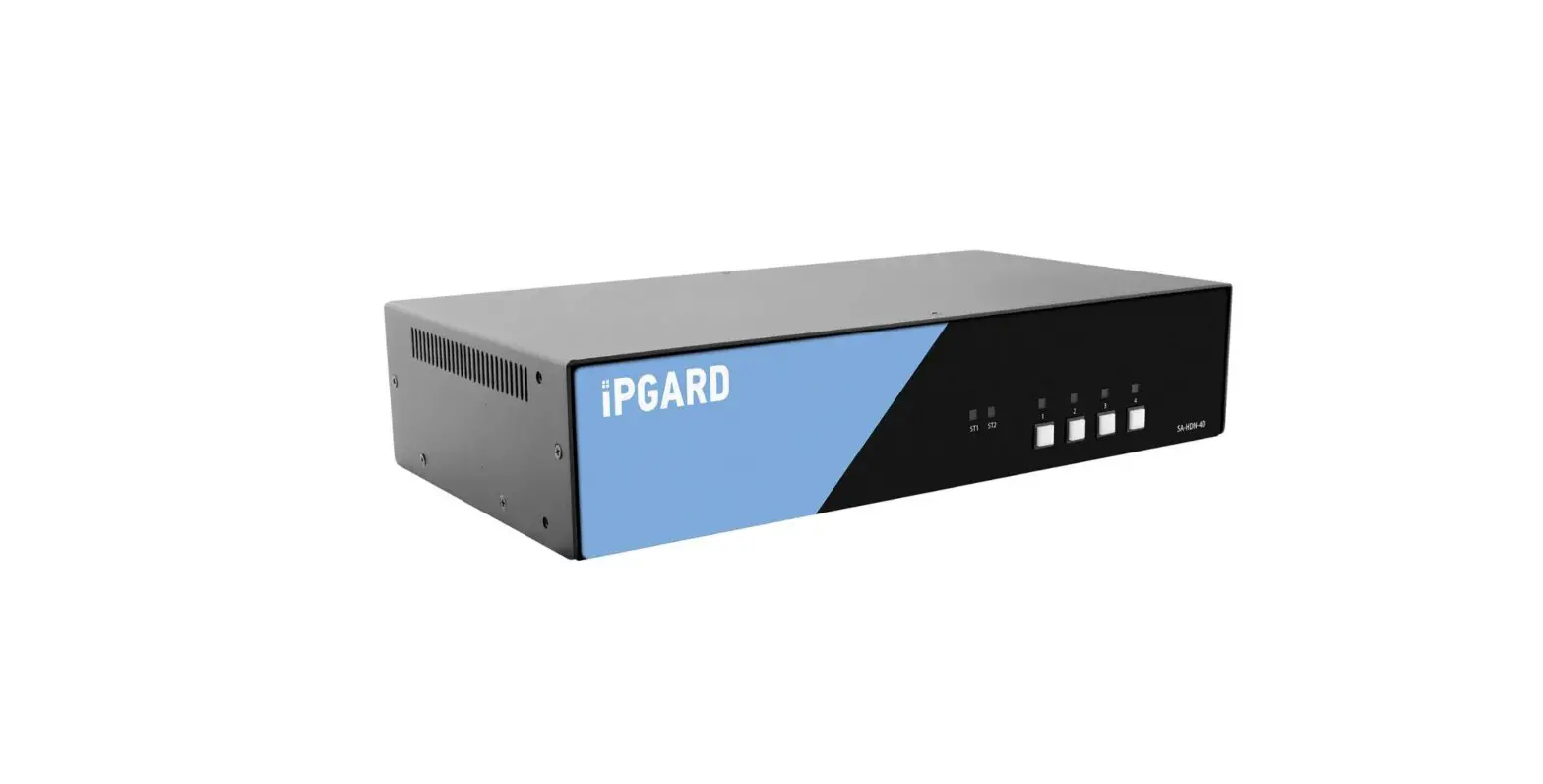
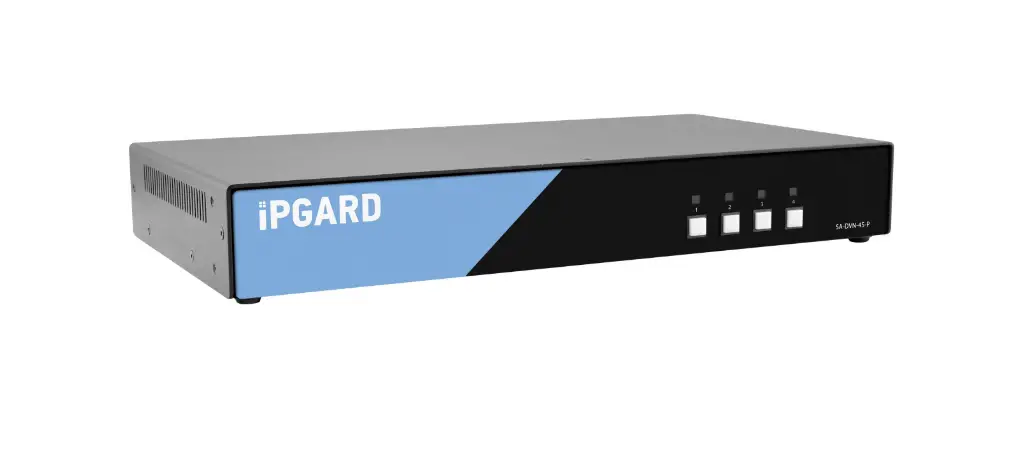
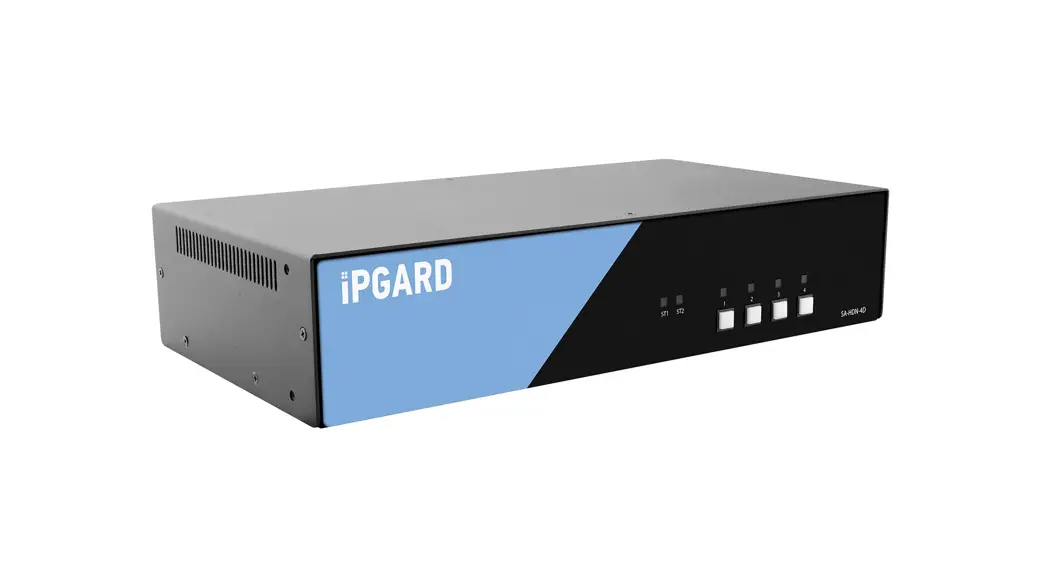
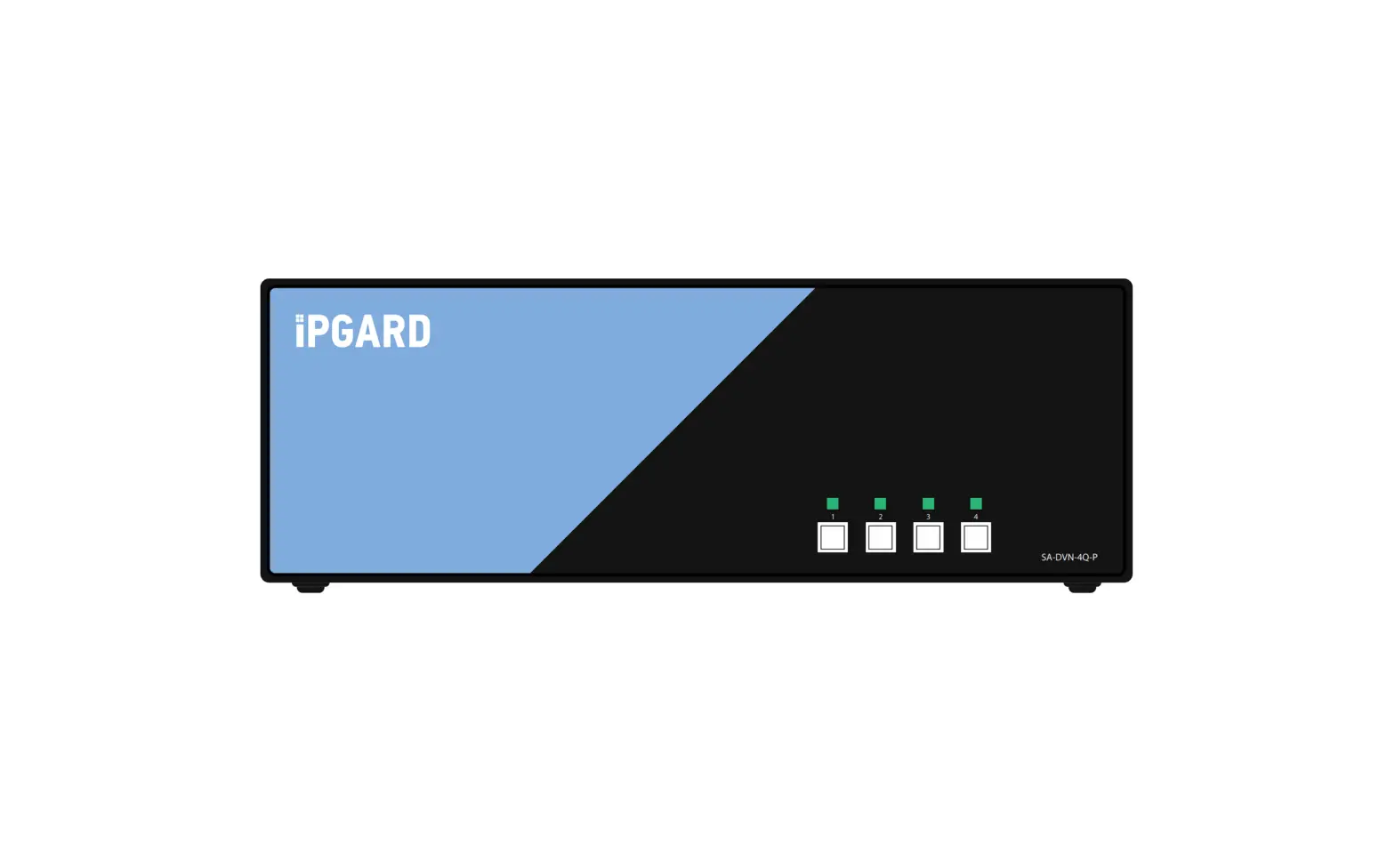
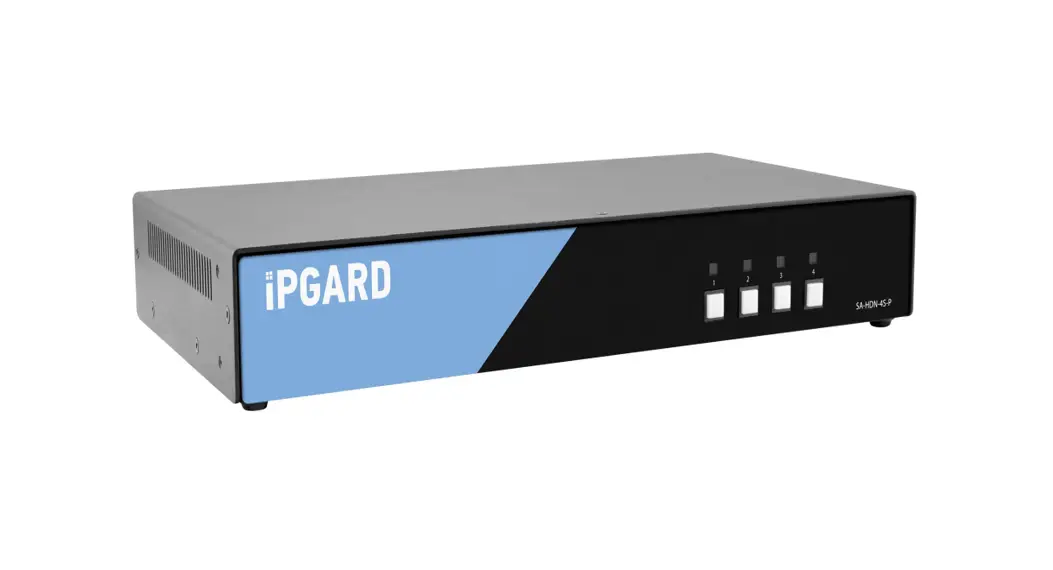
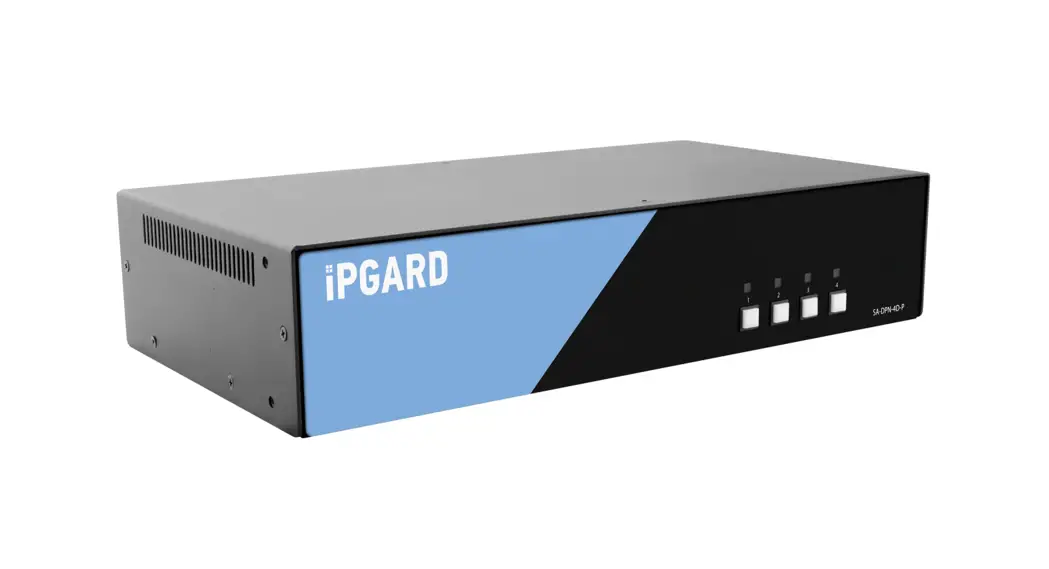
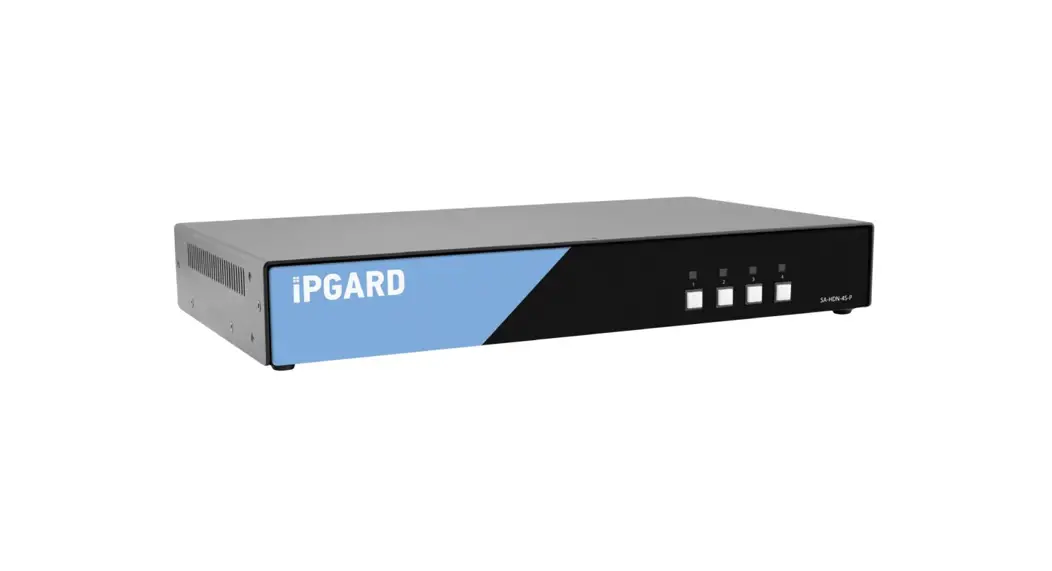
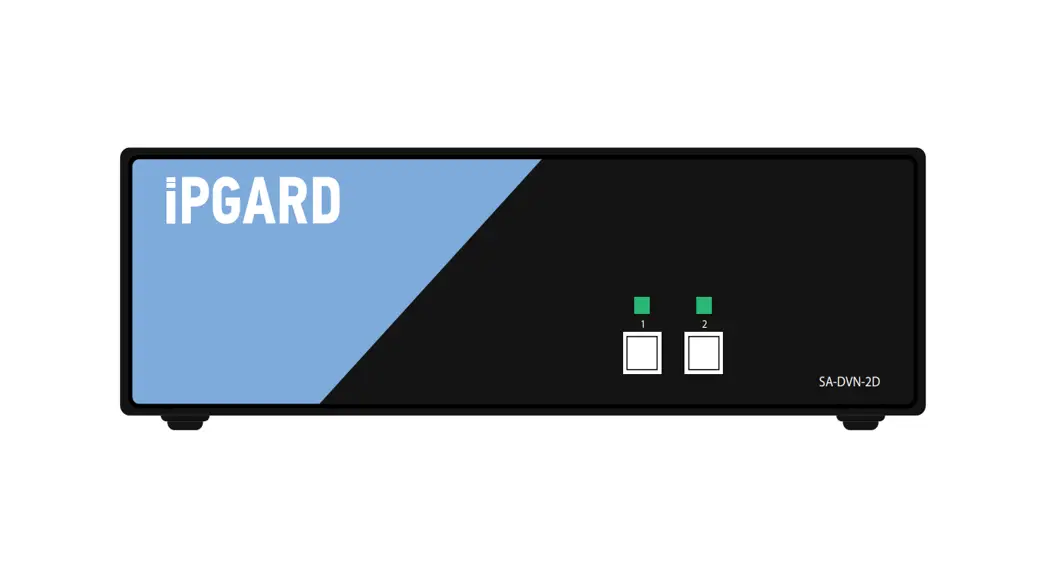
SA-DPN-4D 4 Port DP Secure KVM Switch
Technical Specifications
- VIDEO
- Host Interface: (8) DisplayPort 20-pin F
- User Console Interface: (2) DisplayPort 20-pin F
- Max Resolution: 3840 x 2160 @ 60Hz
- DDC Input Equalization: 5 volts p-p (TTL) Automatic
- Input Cable Length: Up to 20 ft.
- Output Cable Length: Up to 20 ft.
- USB
- Signal Type: USB 1.1 and 1.0 Keyboard and Mouse only
- USB Connectors: (4) USB Type B
- User Console Interface: (2) USB Type A for keyboard/mouse
connections
- AUDIO
- Input: (4) Connector stereo 3.5 mm female
- Output: (1) Connector stereo 3.5 mm female
- POWER
- Power Requirements: 12V DC, 3A power adapter with center-pin
positive polarity
- Power Requirements: 12V DC, 3A power adapter with center-pin
- ENVIRONMENT
- Operating Temp: N/A
- Storage Temp: N/A
- Humidity: N/A
- CERTIFICATIONS
- Security Accreditation: Common Criteria Validated To NIAP,
Protection Profile PSS Ver. 4.0
- Security Accreditation: Common Criteria Validated To NIAP,
- OTHER
- Emulation: Keyboard, mouse, and video
- User Controls: Front-panel buttons
Product Usage Instructions
- Ensure that power is turned off or disconnected from the unit
and the computers. - Use DisplayPort cables to connect the DisplayPort output ports
from each computer to the corresponding DP IN ports of the
unit. - Use a USB cable (Type-A to Type-B) to connect a USB port on
each computer to the respective USB ports of the unit. - Optionally, connect a stereo audio cable (3.5 mm to 3.5 mm) to
connect the audio output of the computer(s) to the audio in ports
of the unit. - Connect monitor(s) to the DP OUT console port of the unit using
DisplayPort cable(s). - Connect a USB keyboard and mouse in the two USB console
ports. - Optionally, connect stereo speakers to the audio out port of
the unit. - Finally, power on the secure KVM switch by connecting a 12-VDC
power supply to the power.
Note: The KVM switch is designed to learn a connected monitor’s
EDID upon power up. In the event of connecting a new monitor to the
KVM, a power recycle is required. The KVM switch will indicate the
unit’s EDID learn process is active by flashing the front panel’s
LEDs in sequential order. Starting with the LED above button 1 on
the front panel, each LED will flash green for approximately 10
seconds upon beginning the EDID learn. Once all the LEDs stop
flashing, the LEDs will cycle, and the EDID learn will be complete.
If the KVM switch has more than one video board (such as dual-head
and quad-head models), then the unit will continue to learn the
EDIDs of the connected monitors and indicate the progress of the
process by flashing the next port selection green and blue
push-button LEDs respectively. A monitor must be connected to the
video output port located in the console space at the back of the
KVM switch during the EDID learn process. If the read EDID from the
connected monitor is identical to the current stored EDID in the
KVM switch, then the EDID learn function will be skipped.
TECHNICAL SPECIFICATIONS
VIDEO Host Interface User Console Interface Max Resolution DDC Input Equalization Input Cable Length Output Cable Length
(8) DisplayPort 20-pin F
(2) DisplayPort 20-pin F
3840 x 2160 @ 60Hz 5 volts p-p (TTL) Automatic Up to 20 ft. Up to 20 ft.
USB
Signal Type
USB 1.1 and 1.0 Keyboard and Mouse only
USB Connectors
(4) USB Type B
User Console Interface
(2) USB Type A for keyboard/mouse connections
AUDIO
Input
(4) Connector stereo 3.5 mm female
Output
(1) Connector stereo 3.5 mm female
POWER
Power Requirements
12V DC, 3A power adapter with center-pin positive polarity
ENVIRONMENT Operating Temp Storage Temp Humidity CERTIFICATIONS
Security Accreditation
OTHER
Emulation User Controls
32° to 104° F (0° to 40° C) -4° to 140° F (-20° to 60° C) 0-80% RH, non-condensing
Common Criteria Validated To NIAP, Protection Profile PSS Ver. 4.0
Keyboard, mouse, and video Front-panel buttons
WHAT’S IN THE BOX
PART NO. SA-DPN-4D
QTY DESCRIPTION
1
4-Port DH Secure DisplayPort KVM with Audio
PS12VDC2A
1
12-VDC, 2-A power adapter with center-pin positive polarity.
1 Quick Start Guide
NOTICE
The information contained in this document is subject to change without notice. iPGARD makes no warranty of any kind with regard to this material, including but not limited to, implied warranties of merchantability and fitness for a particular purpose. iPGARD will not be liable for errors contained herein, or for incidental or consequential damages in connection with the furnishing, performance, or use of this material. No part of this document may be photocopied, reproduced, or translated into another language without the prior written consent from iPGARD, Inc.
20170518
DESIGNED AND MADE IN THE USA
Toll Free: (888)-994-7427
Phone: (702) 800-0005 Fax: (702)-441-5590
WWW.iPGARD.COM
SA-DPN-4D
4 Port DP secure KVM switch
1
2
3
4
SA-DPN-4D
Advanced 4-Port Secure Dual-head DP KVM Switch
with Audio
Quick Start Guide
A full manual can be downloaded from www.ipgard.com/documentation/
EDID LEARN
The KVM switch is designed to learn a connected monitor’s EDID upon power up. In the event of connecting a new monitor to the KVM a power recycle is required.
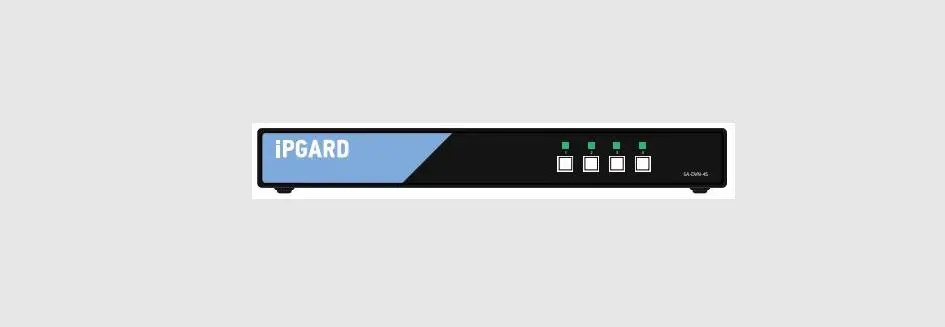
The KVM switch will indicate the unit’s EDID learn process is active by flashing the front panel’s LEDs in sequential order. Starting with the LED above button “1” on the front panel, each LED will flash green for approximately 10 seconds upon beginning the EDID learn. Once all the LEDs stop flashing, the LEDs will cycle and the EDID learn will be complete.
If the KVM switch has more than one video board (such as dual-head and quad-head models), then the unit will continue to learn the EDIDs of the connected monitors and indicate the progress of the process by flashing the next port selection green and blue push-button LEDs respectively.
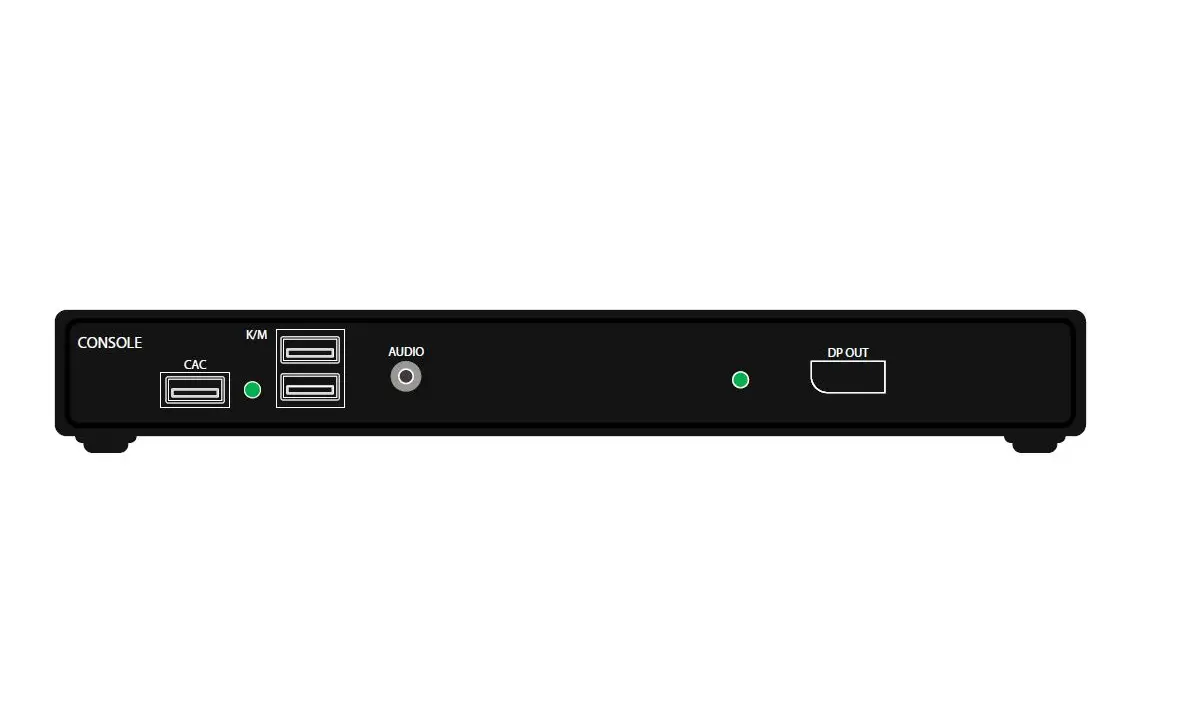
A monitor must be connected to the video output port located in the console space at the back of the KVM switch during the EDID learn process.
If the read EDID from the connected monitor is identical to the current stored EDID in the KVM switch, then the EDID learn function will be skipped.
DESIGNED AND MADE IN THE USA
HARDWARE INSTALLATION
1. Ensure that power is turned off or disconnected from the unit and the computers. 2. Use DisplayPort cables to connect the DisplayPort output ports from each computer to the
corresponding DP IN ports of the unit. 3. Use a USB cable (Type-A to Type-B) to connect a USB port on each computer to the
respective USB ports of the unit. 4. Optionally, connect a stereo audio cable (3.5 mm to 3.5 mm) to connect the audio output of
the computer(s) to the audio in ports of the unit. 5. Connect monitor(s) to the DP OUT console port of the unit using DisplayPort cable(s). 6. Connect a USB keyboard and mouse in the two USB console ports. 7. Optionally, connect stereo speakers to the audio out port of the unit. 8. Finally, power on the secure KVM switch by connecting a 12-VDC power supply to the power
connector, and then turn on all the computers.
Note: You can connect two monitors to the dual-head KVM switch. The computer connected to port 1 will always be selected by default after power up.
Note: You can connect up to 4 computer to the 4 port KVM.
CONSOLE 12VDC
K/M AUDIO
DP OUT B
DP OUT A IN-4
K/M AUDIO
DP IN4 B
DP IN3 B
DP IN4 A
DP IN3 A
IN-3 K/M
AUDIO
DP IN2 B
DP IN1 B
DP IN2 A
DP IN1 A
IN-2 K/M
AUDIO
IN-1 K/M
AUDIO
SA-DPN-4D
DP IN AUDIO OUT DP OUT
USB IN USB OUT AUDIO IN
A full Manual can be downloaded from
www.ipgard.com/documentation/