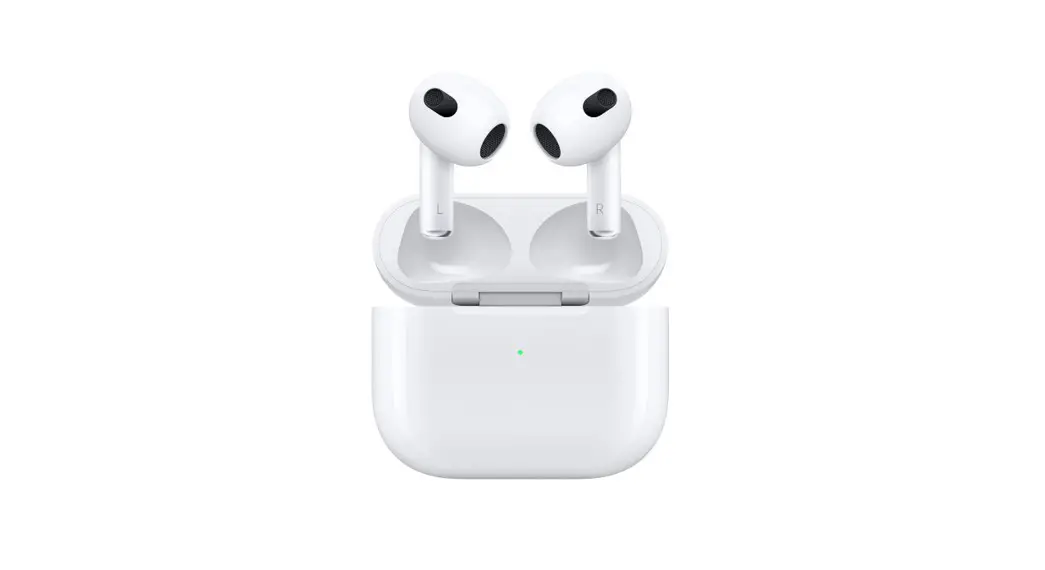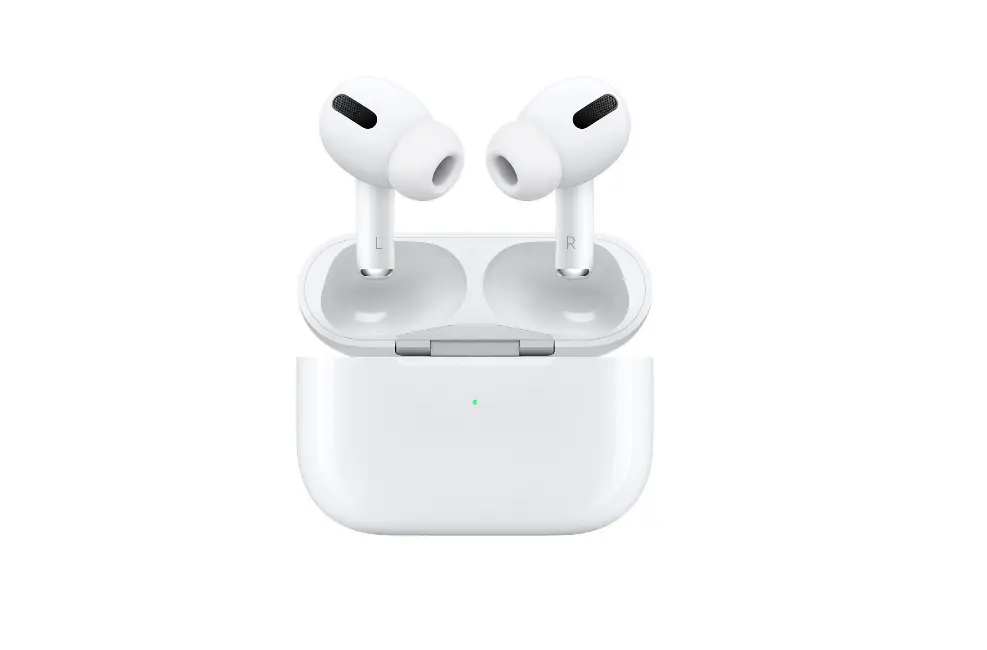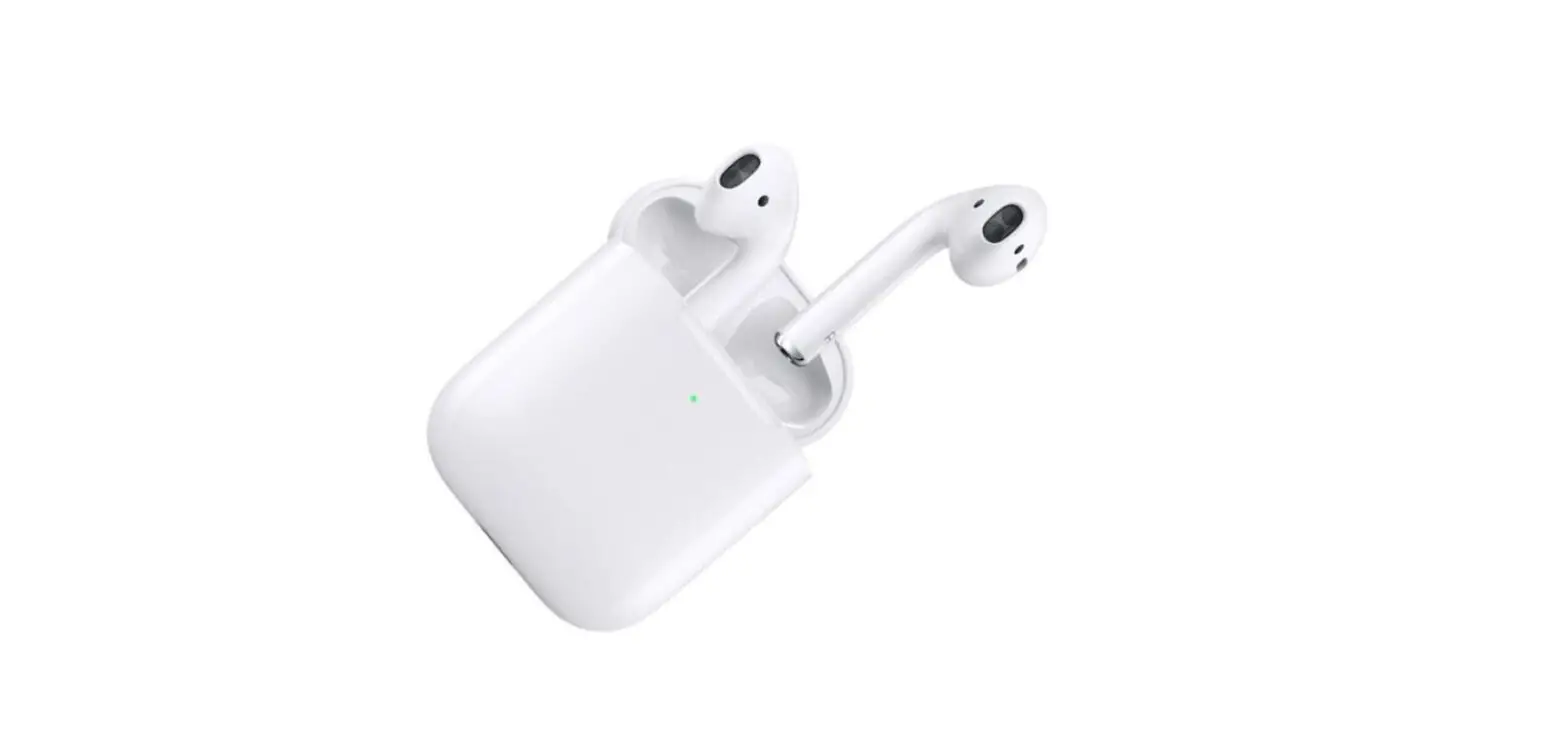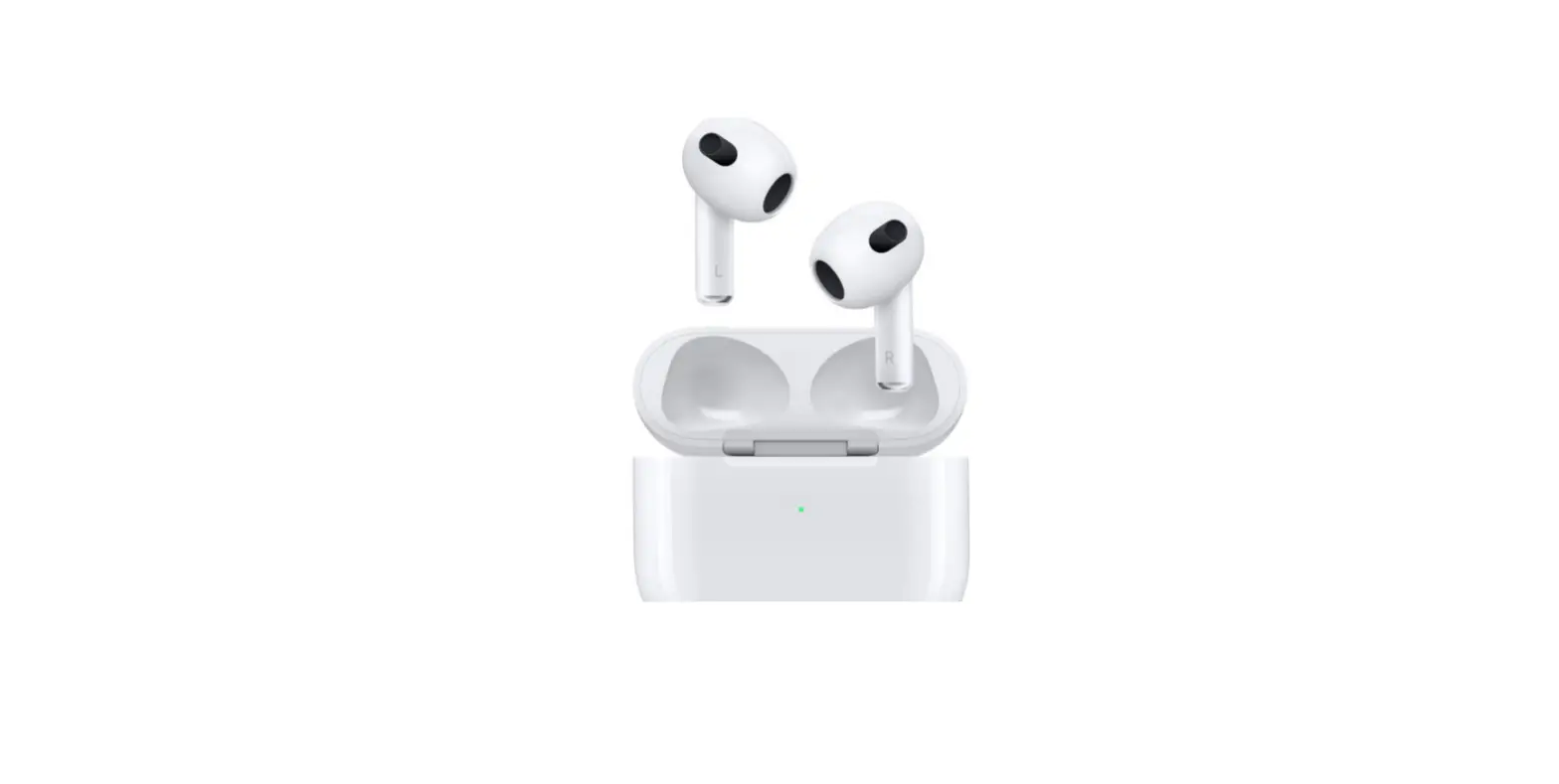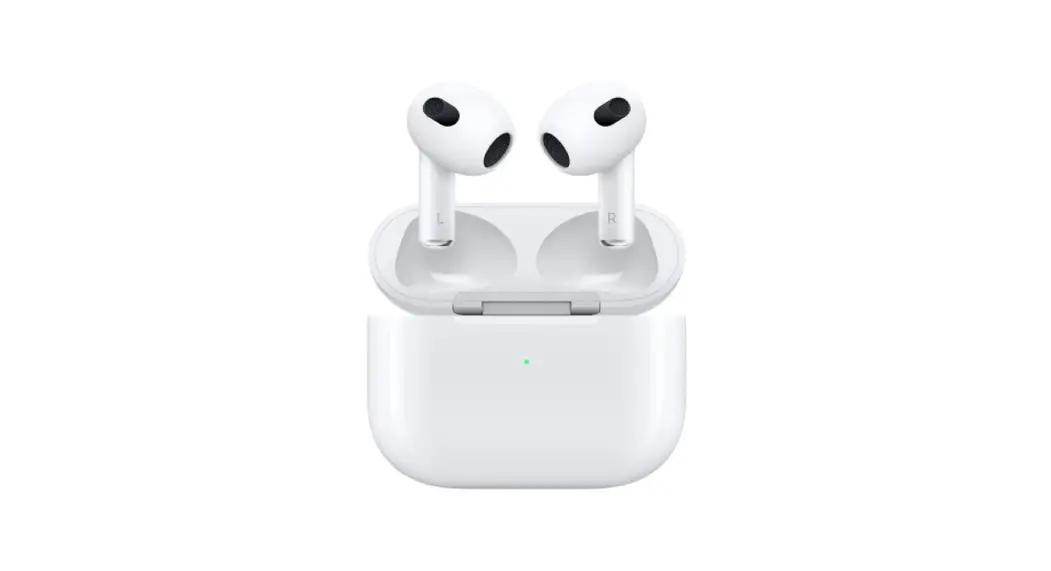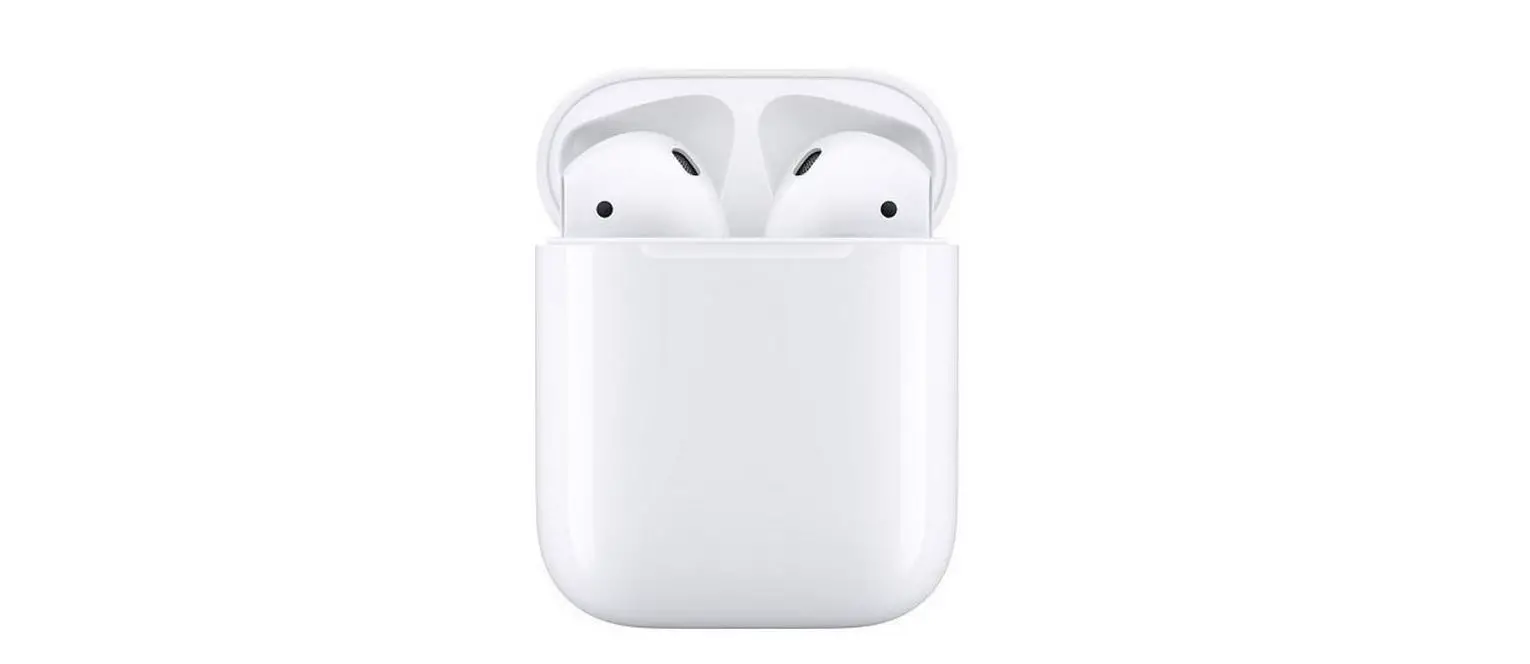

Apple MV7N2 AirPods with Charging Case
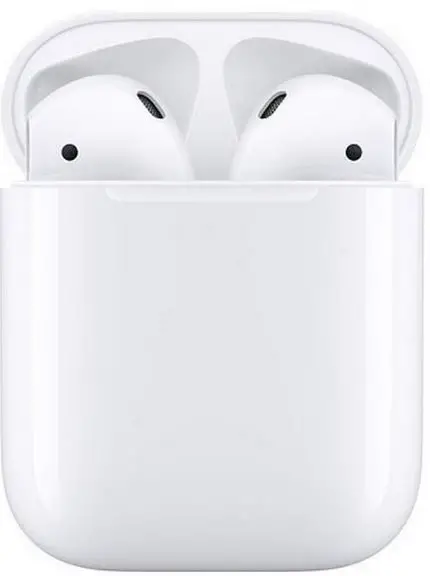
Connect to other devices
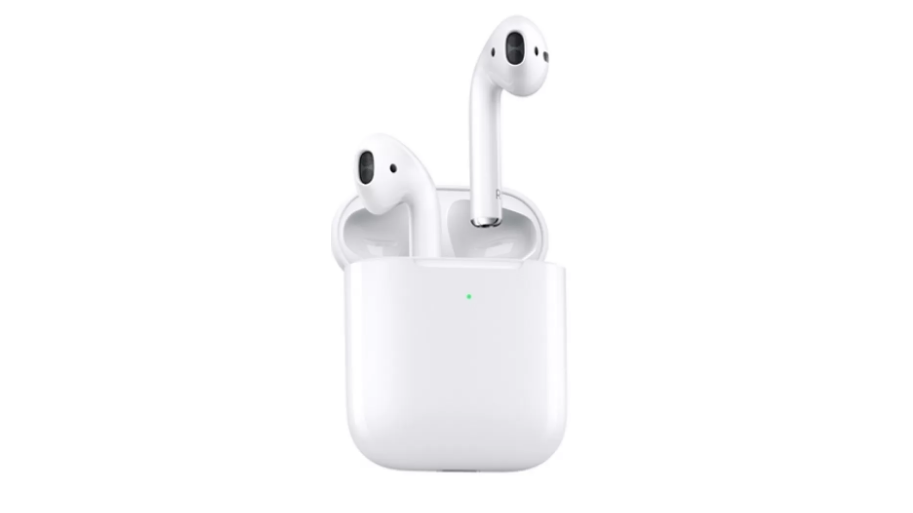
With AirPods in case and lid open, press button until light blinks. Then go to Bluetooth settings and choose AirPods.

Control AirPods
Double-tap AirPods to play or skip forward. Say “Hey Siri” to do things like play a song, make a call, or get directions.
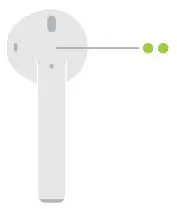
Check charge status
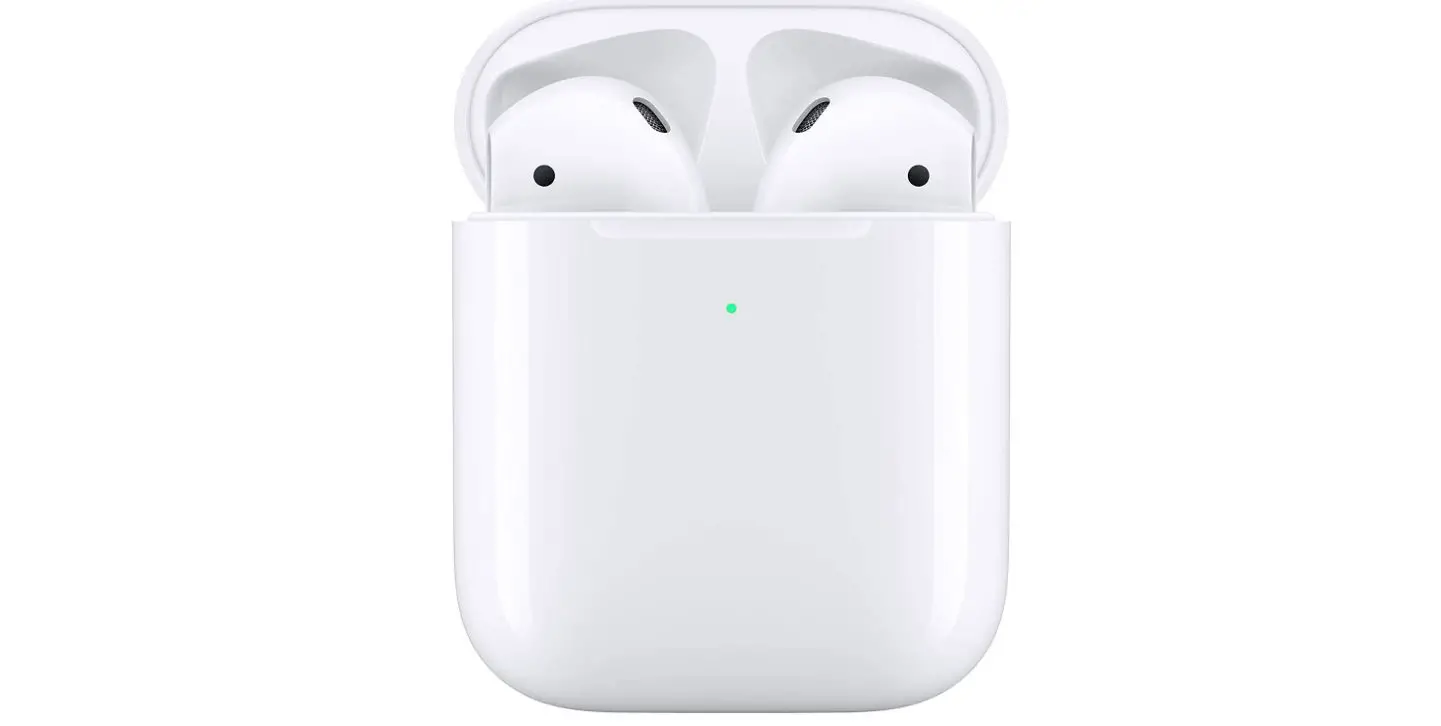
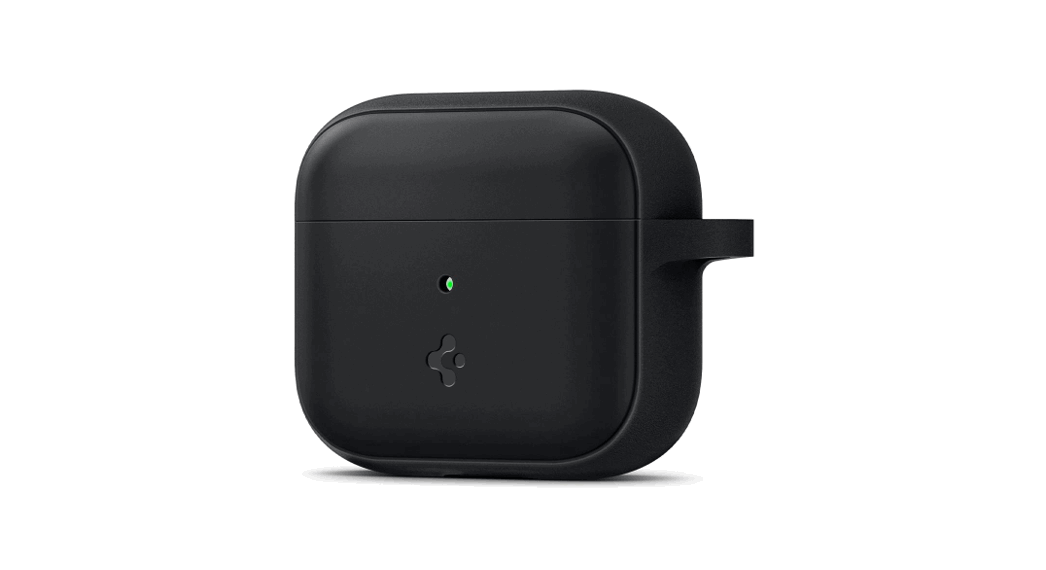
Light shows charge status of AirPods when they’re in the case. Otherwise, light shows charge status of the case.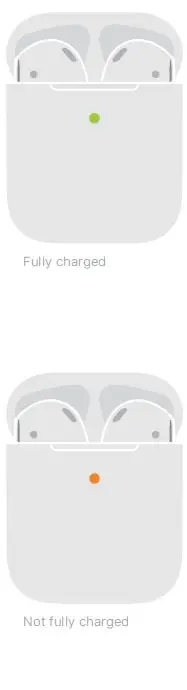
Charge wirelessly
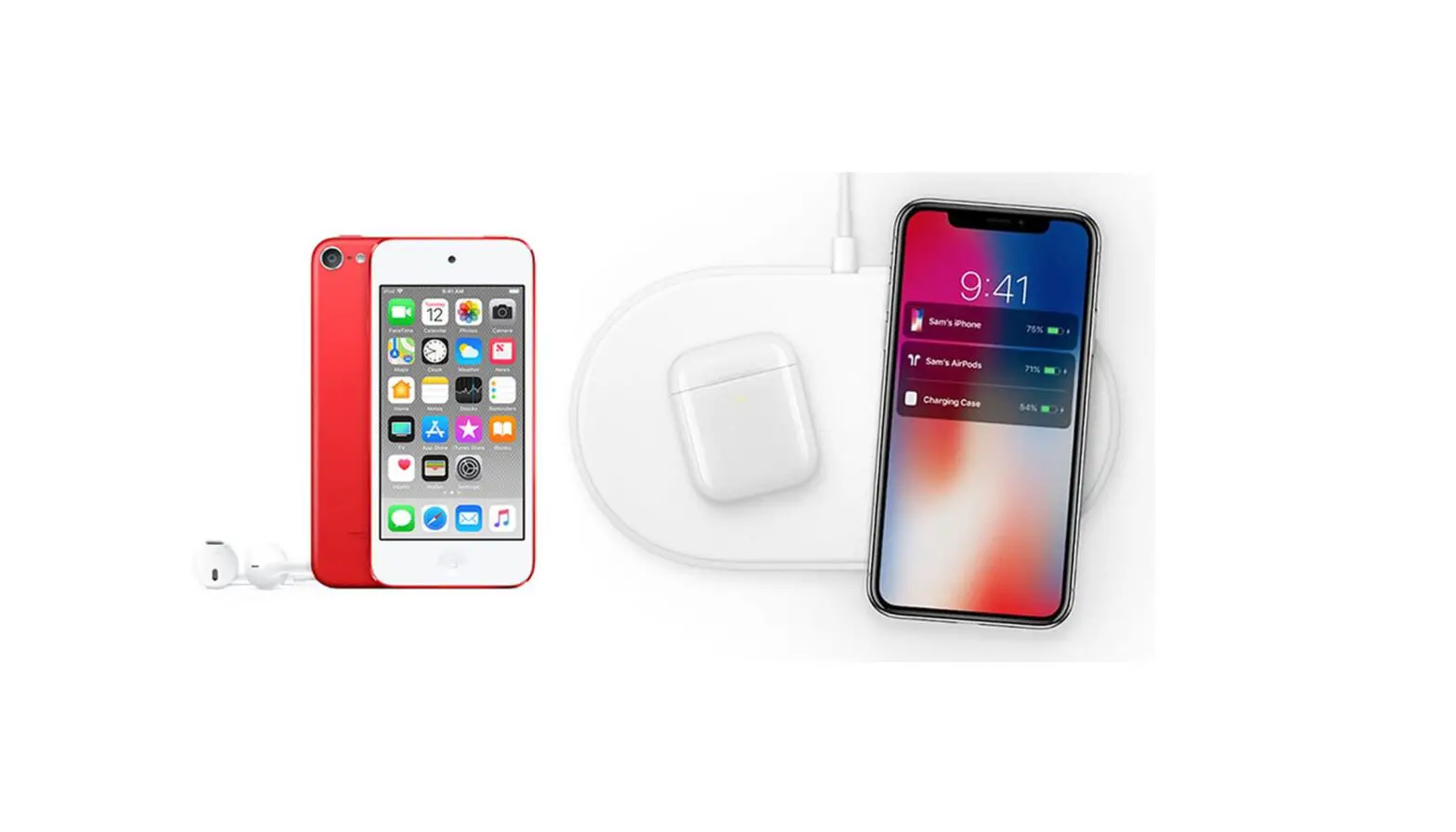
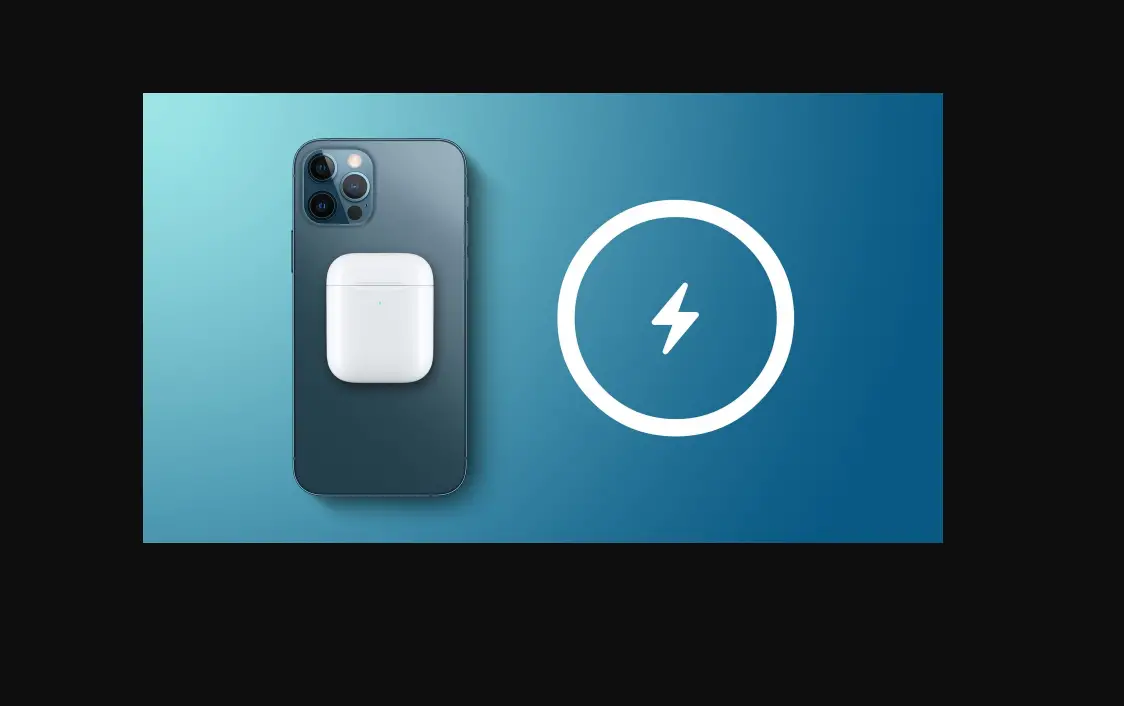
AirPods charge while in the case. Place case with status light facing up on a compatible wireless charger. Or charge using the Lightning connector.

To connect to iPhone with the latest version of iOS
follow steps 1–3. For all other devices, see the back of this guide.
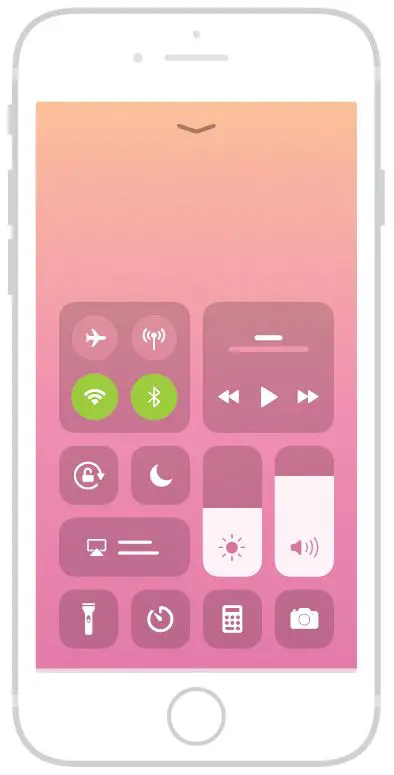
Turn on Bluetooth®
Connect to Wi-Fi and turn on Bluetooth.
Connect AirPods
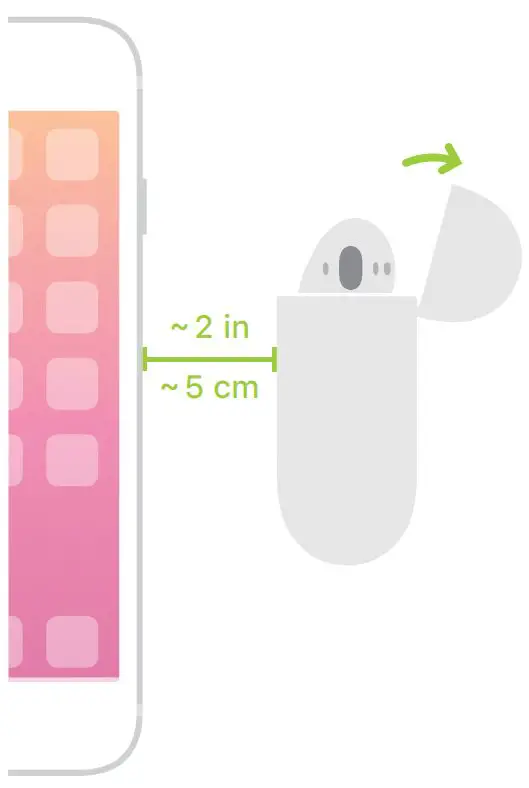
Open case, hold near unlocked iPhone, then follow onscreen instructions.
Start listening
Place in ears and adjust until you hear the tone. AirPods are ready to play.

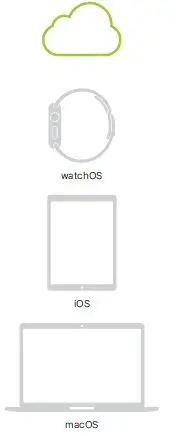
Use with your other Apple devices
AirPods now work with your other devices signed in to iCloud. Select AirPods in Control Center (iOS) or menu bar (macOS).