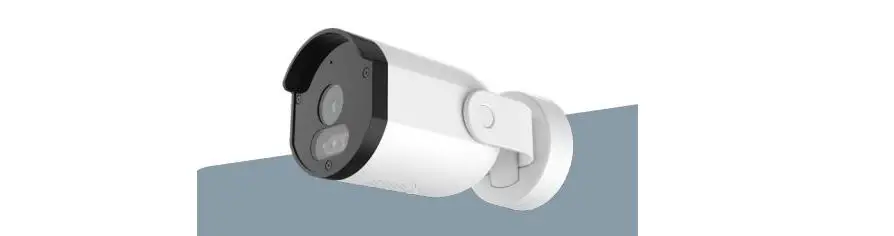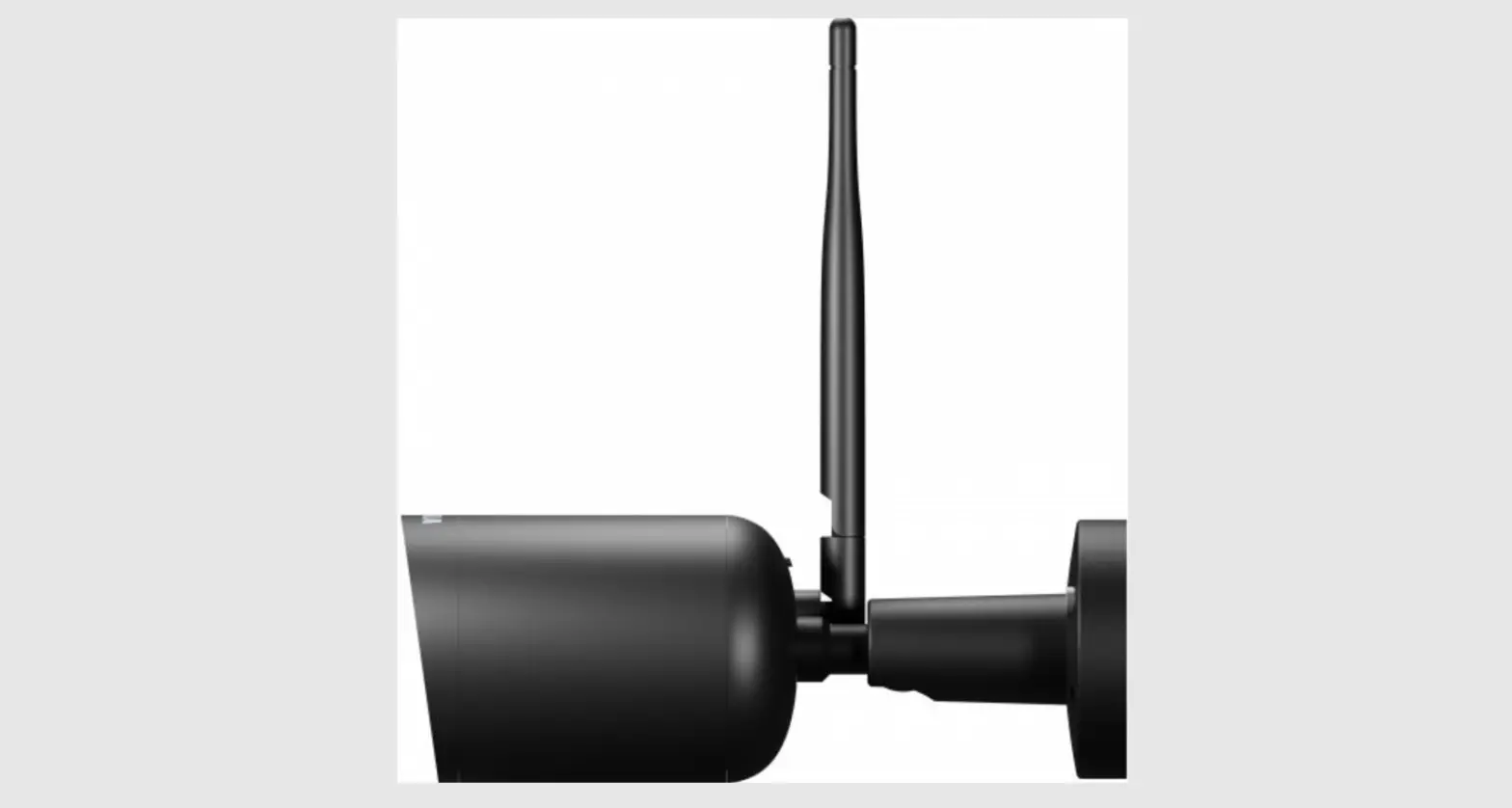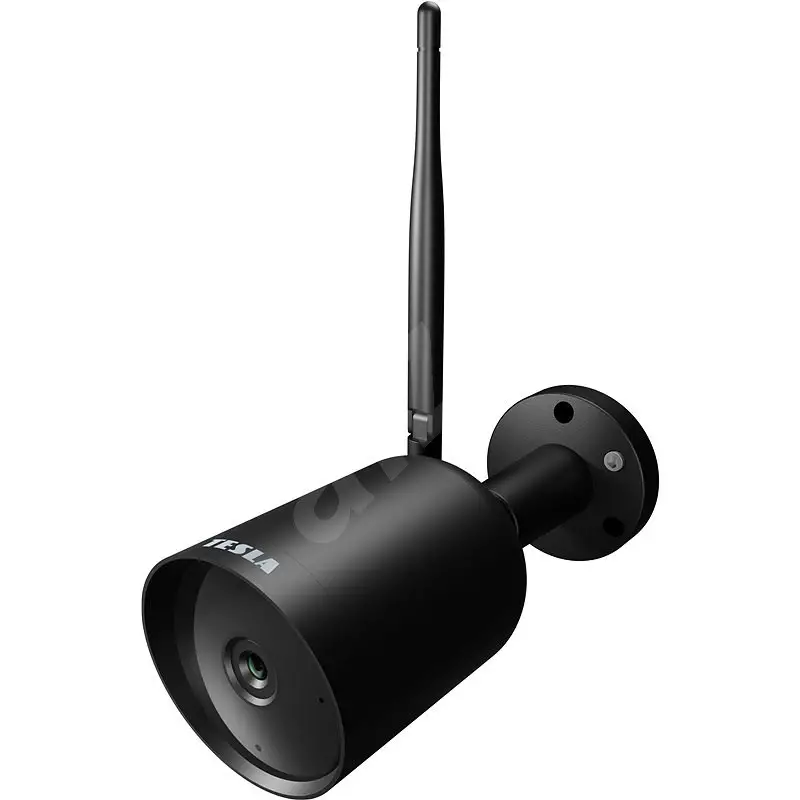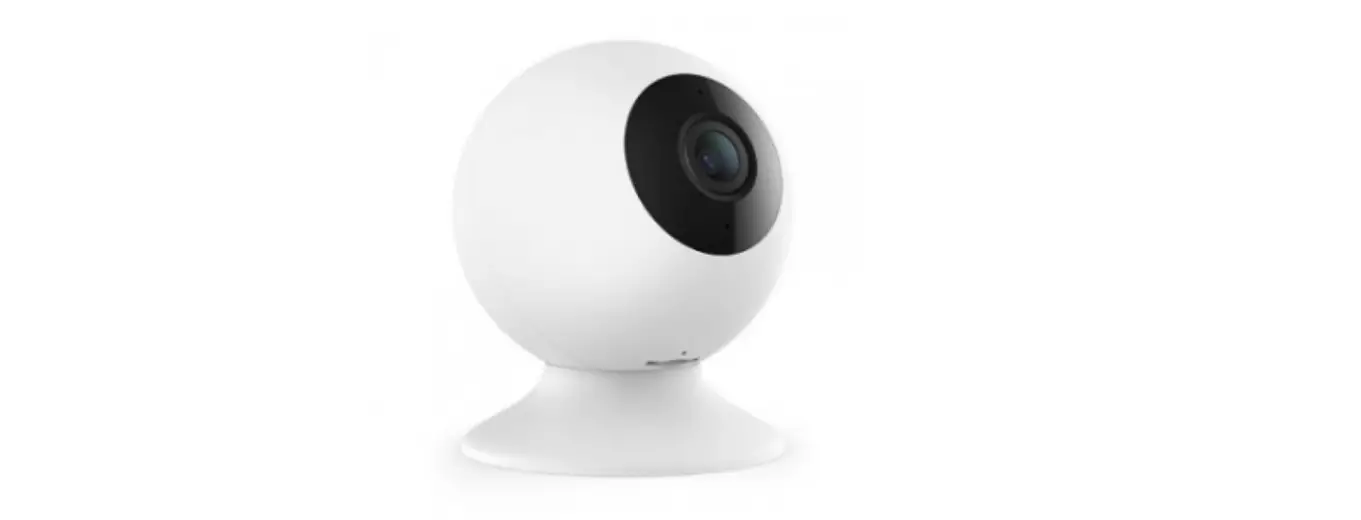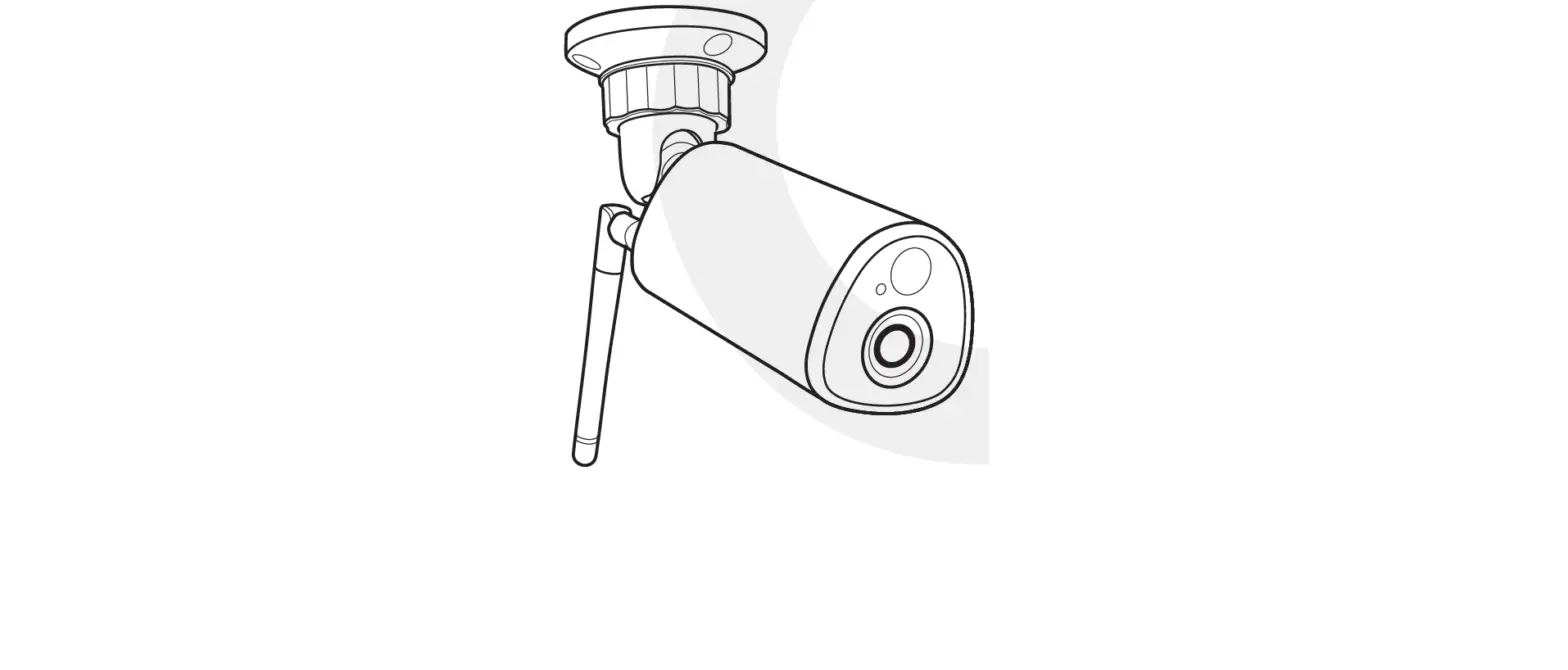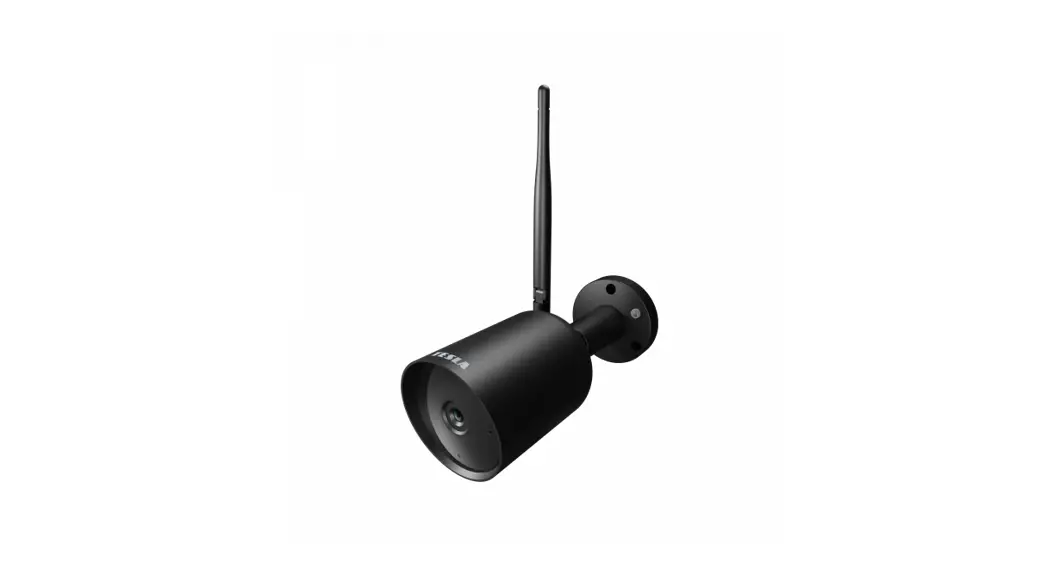
TSL-CAM-BULLET3Q Smart Camera Outdoor 2K

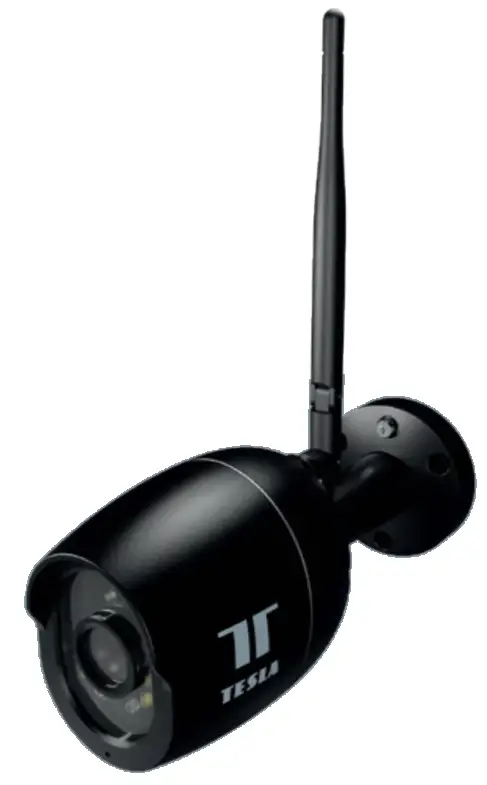
TESLA SMART CAMERA
OUTDOOR 2K
USER MANUAL
WHAT‘S IN THE BOX
Please consult this checklist for all parts.
- Tesla Smart Camera Outdoor 2K
- Power adapter
- Screw package
- User manual
- Screwdriver
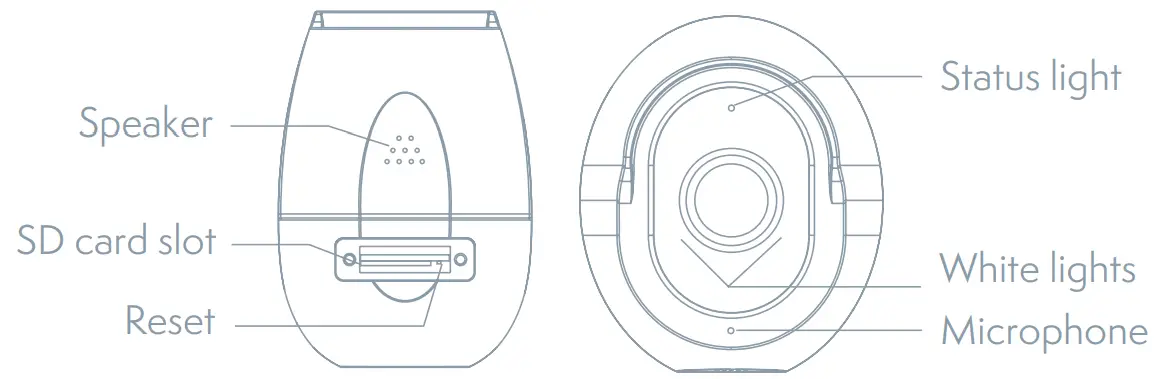
| Power | DC 12V/1A |
| Status light | Red light solids on the camera or network are abnormal Blinking red light: awaiting WiFi connection (faster blinking), awaiting WiFi connection (slow blinking) Blue light solids on camera running correctly |
| Microphone | Captures sound for your video |
| SD card slot | Supports local SD Card storage (Max.128G) |
| Reset | Press and hold for .5 seconds to reset the camera (if you have modified settings, they will return to factory defaults) |
| White lights | Provide supplementary light during the night to get a colorful vision |
INSTALL
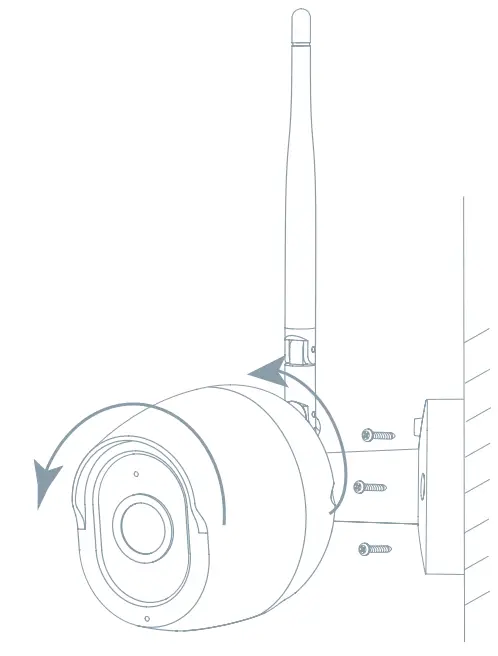
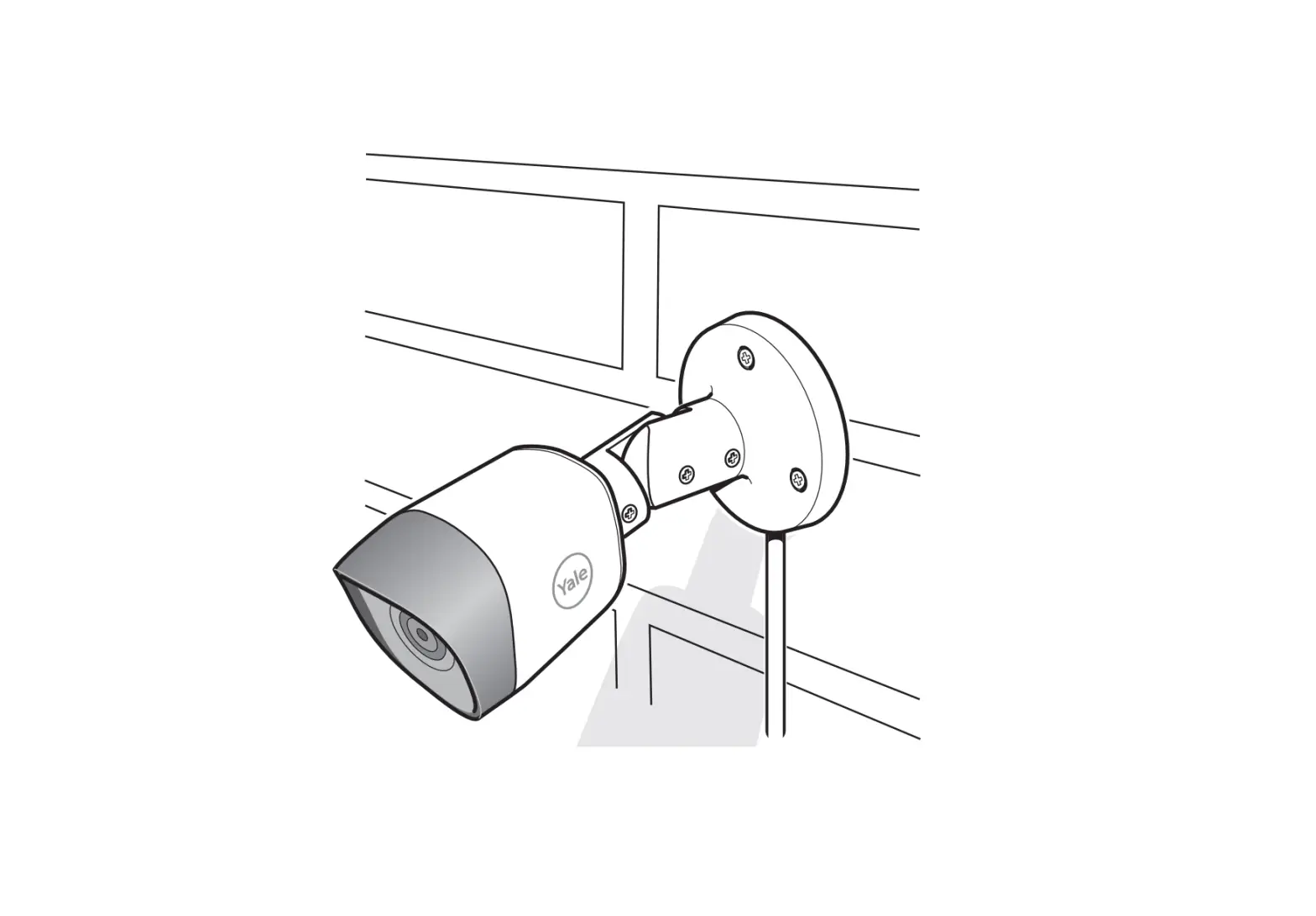
- Fix the Camera to the wall with screws
- Adjust camera angle to a correct view (as shown in the picture)
CONNECT
Download
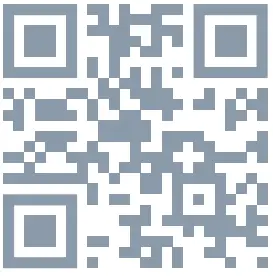
Tesla Smart is available for both iOS and Android OS. Search the name ‚Tesla Smart‘ in App Store or Android Market, or scan the QR-Code to download the App.
SET UP ROUTER
The router supports 2.4GHz WiFi (doesn‘t support the 5GHz), and is connected to the WiFi network. Please set the parameters of the router before connecting to the WiFi network, and record the SSID and password of your WiFi. Please keep the network available
REGISTRATION PROCESS
Step 1 Open the Tesla Smart App, click „Register“, and read the „Privacy
Policy“ and click „Agree“.
Step 2 Input a legal and valid Mobile number or Email address and click „Continue“. Input the Verification Code, then log in to the app.
QR CODE CONFIGURATION
- Open the Tesla Smart App, click „Create a family“, and you can customize the Family name and related settings.
- Continue to click „Security & Sensor“ >> „Smart Camera“, and then choose“ Add Device“ or „+“, ready to add a camera.
- In „Add Device“ this interface, continue to click „next step“, and then you should input your WiFi passwords. Note 1) Camera only supports a 2.4GHz WiFi network. 2) The number of bits in the SSID and passwords of the router should not exceed 24 digits.
- In this interface, you should scan the QR code in your phone with the camera, when the camera comes out „dong dong dong“. And you can complete the configuration in about 30s.
- When connecting, you should make sure your router, mobile, and camera are as close as possible. When camera is added successfully, click „ „ you could also DIY the camera‘s name.
SETTINGS
In the „Smart Camera“ interface, click „ „, and you can set the camera’s common functions.
FAQ
– A: Check whether the network is normal, you can place the camera close to the router, and if not, it is recommended to reset the device and add it again.
– A: The reset device only resets the network configuration of the camera, but cannot change the configuration on the App, remove the camera, and must be deleted by the App.
– A: First remove and reset the device on the App and then configure the device again by the App.
– A: It is recommended to plug in an SD card after the power cut. Confirm whether the SD card is normally available and the format is FAT32.
– And the TF card can’t be identified when the internet environment is not good.
– A: Please confirm that the App has been running on the phone, and the relevant reminder function has been opened; Message notification and authority confirmation in the mobile phone system has been opened.
FUNCTIONS
Video flip
Flip your video stream up or down for maximum flexibility.
Motion detection
Built-in motion sensors detect movement, and the camera will send you to push notifications and app alerts.
Record
Record every moment using high-capacity SD card storage.
Day & Night
Never miss a moment, even in complete darkness, with powerful night-vision technology.
White light supplement
When you turn on the white light function, you can get colorful vision at the night.
TECHNICAL SPECIFICATION
| Product name | Tesla Smart Camera Outdoor 2K |
| Resolution | 2560 x 1440 |
| Power supply | 12V/1A |
| Sensor | 1/2.9‘‘ 4MPx, CMOS |
| IR Distance | Up To 15 m |
| Lens | [email protected] |
| Dimensions | 63 x 160 x 191 mm |
| Storage | MicroSD Card, Cloud, NVR |
| App | Tesla Smart for Android and iOS |
| Connectivity | Wi-Fi 2,4 GHz IEEE 802.11b/g/n |
| Model | TSL-CAM-BULLET3Q |
INFORMATION ABOUT DISPOSAL AND RECYCLING
This product is marked with the symbol for a separate collection. The product must be disposed of in accordance with the regulations for disposal of electrical and electronic equipment (Directive 2012/19/EU on waste electrical and electronic equipment). Disposal together with regular municipal waste is prohibited. Dispose of all electrical and electronic products in accordance with all local and European regulations at the designated collection points which hold the appropriate authorization and certification in line with the local and legislative regulations. Correct disposal and recycling help to minimize impacts on the environment and human health. Further information regarding disposal can be obtained from the vendor, authorized service center, or local authorities.
EU DECLARATION OF CONFORMITY
Hereby, Tesla Global Limited declares that the radio equipment type TSL-CAM-BULLET3Q is in compliance with Directive 2014/53/EU.
The full text of the EU declaration of conformity is available at the following internet address: tel. sh/doc
Connectivity: Wi-Fi 2,4 GHz IEEE 802.11b/g/n
Frequency band: 2.412 – 2.472 GHz
Max. radio-frequency power (EIRP): < 20 dBm

Manufacturer
Tesla Global Limited
Far East Consortium Building
121 Des Voeux Road Central
Hong Kong
www.teslasmart.com
TESLA SMART CAMERA
OUTDOOR
 Sign in to your account
 TESLA | Smart home in your hands