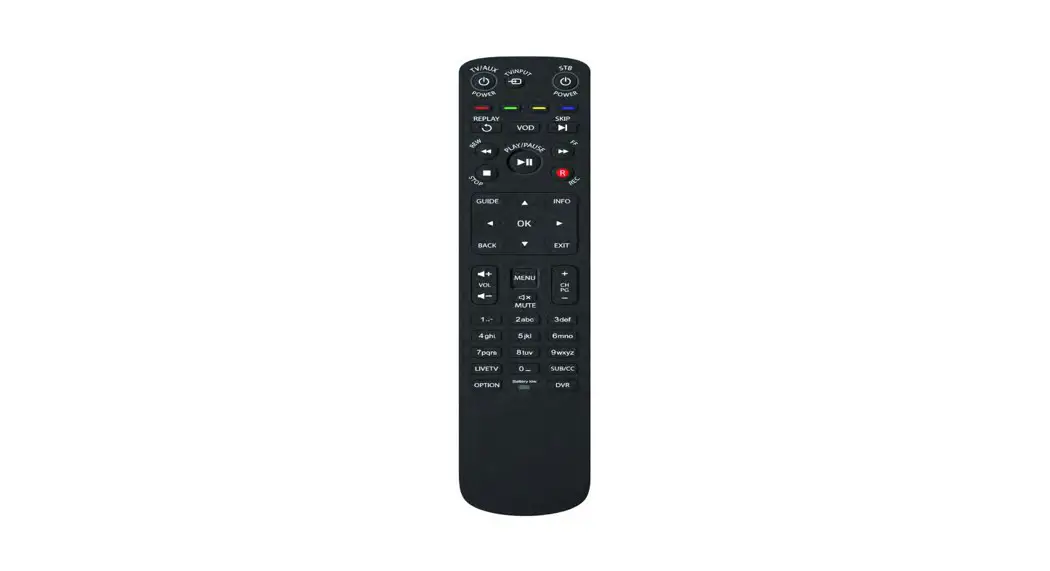

 Maxi ATV Remote
Control User Guide
Maxi ATV Remote Control
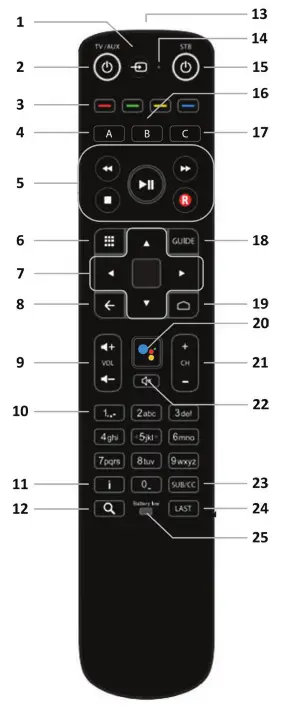
| 1. TV Input 2. TV/AUX Power 3. Color Navigation 4. ‘A’ button 5. Playback Controls 6. TV Apps 7. Navigation and OK 8. Back 9. Volume Up/Down 10. Channel select and text entry 11. Information 12. Search 13. Infra-red (IR) window | 14. Microphone 15. STB Power 16. ‘B’ Button 17. ‘C’ Button 18. Guide 19. Home 20. Voice Control 21. Channel Up/Down 22. Mute 23. Subtitles/Closed captions 24. Last Channel recall 25. Low Battery warning LED |
Note: Some functionality may not be available on specific models of set-top box (STB), also functionality may vary with the TV service delivered by your service provider.
Quick Tips
Watch Live TV
Watch from Guide
- Press the “Guide” Button on the remote, it will display current and scheduled shows.
- Use the navigation keys to highlight the show you would like to watch
- Press the “OK/Enter” Button to play
Watch from Home Page
- From the Home page, use navigation arrows to highlight one of the shows that are Trending Now.
- Press the “OK/Enter” button to play a show
- Once the show is selected, it begins to play in progress.

Record a Program
- Press the “Guide” button.
- Navigate to the program you wish to record using the Navigation keys
- Press the “OK” button on the remote
- Select “Record” from the sub-menu on the right-hand side of the screen
- Recording Options Window will open, Select the desired recording settings.
Access Recordings
- From the Home page, use navigation arrows to highlight “My Recordings”
- Press “Ok/Enter” to select
- Recorded shows will display on the screen
Voice Activated Channel Switch
- Press the “Voice Control” Key
- Say “Tune to” and the Network name
- Channel will tune to desired Network

Open Catch-Up TV Guide
- Press the “Guide” button on the remote
- Press the left navigation key to open Filter’s Sub Menu
- Press “OK/ Enter” to select Open Catch-Up TV to open the Guide for previously aired shows
- Press the left navigation key to access the Catch-Up
TV guide
- Use the navigation keys to highlight the show you would like to watch
- Press “OK/ Enter” to select
- Select “Play” to start showing
Inserting Batteries
| 1. Slide the battery housing cover downwards | 1. Slide the battery housing cover downwards | 3. Refit the battery housing cover |
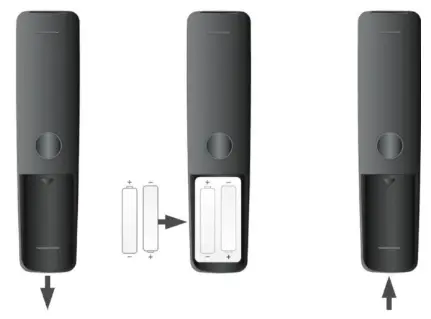 | ||
Frequently Asked Questions
- How long can I pause live TV? For up to 120 minutes. After 120 minutes the paused program will start playing again.
- How many programs can I record at once? There are 5 simultaneous streams available between Live TV and recordings. Additional streams are available for purchase, see the rate sheet for details.
- What happens when my Cloud DVR storage is full? If your cloud DVR storage is full and you attempt to schedule a new recording, you’ll be notified that your storage is full, and you’ll be unable to start a new recording until you delete an existing recording. Additional storage is available for purchase, see rate sheets for details.
- How can I see how much recording space I have left? From the Homepage, select My Recordings. It will provide you access to your recordings, schedule recording, and the information on your recording storage.
 Home - Summit Broadband