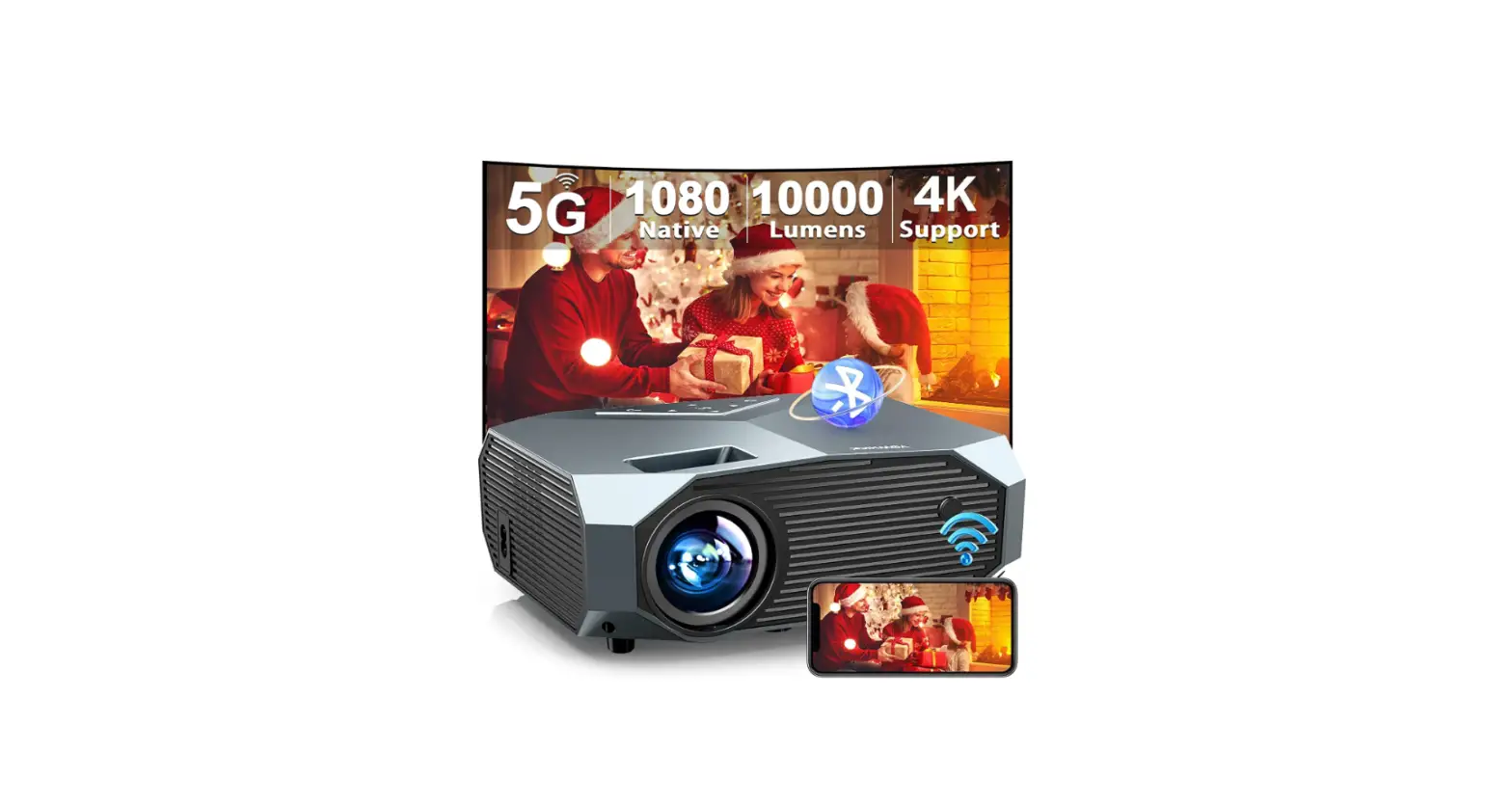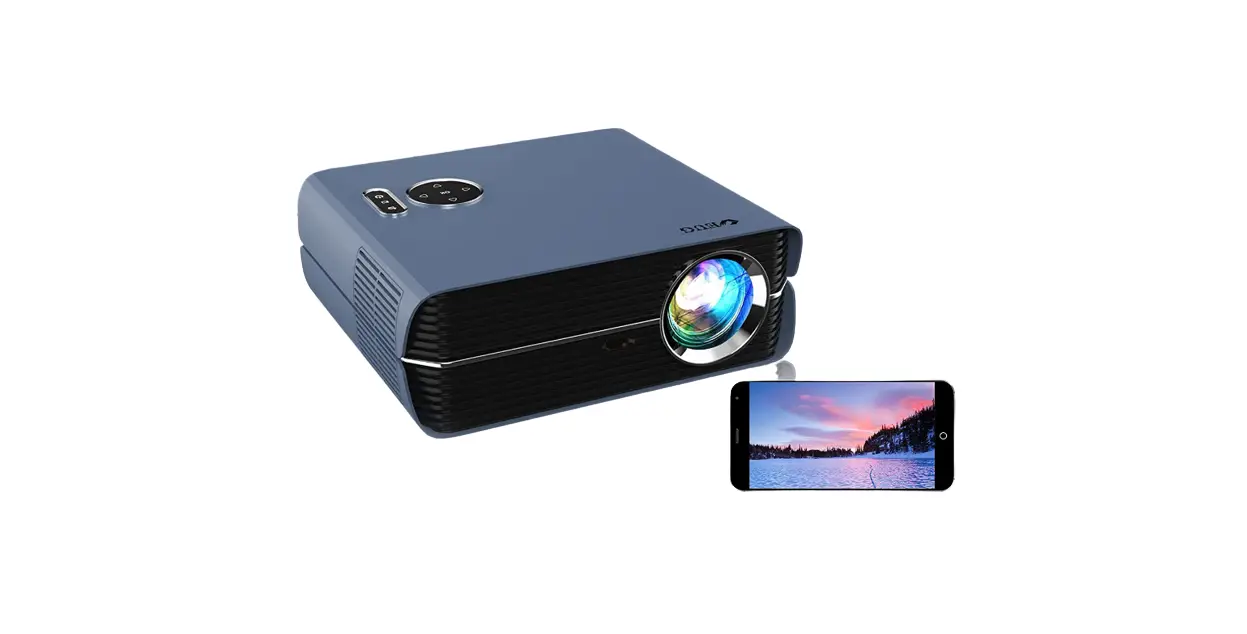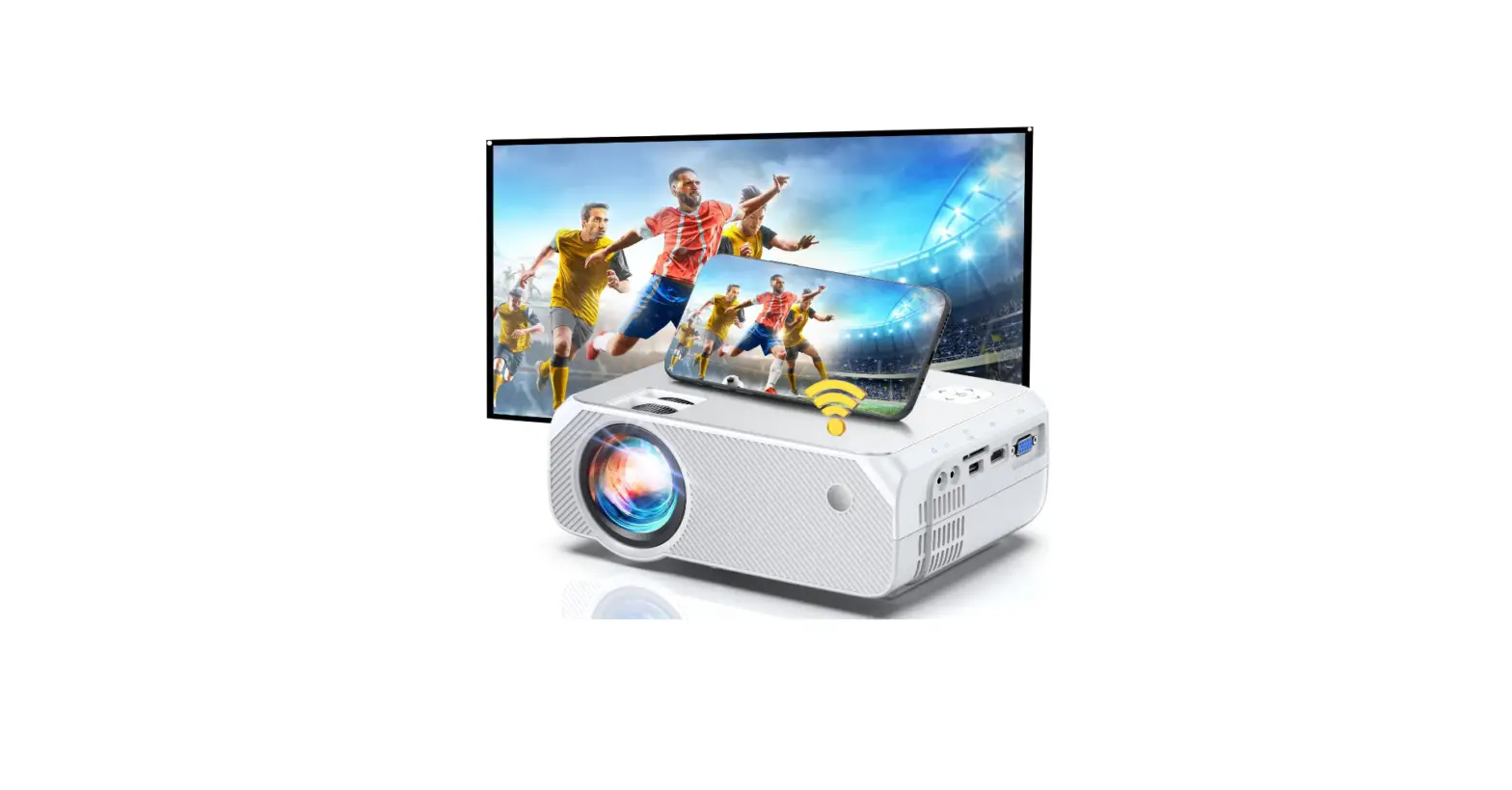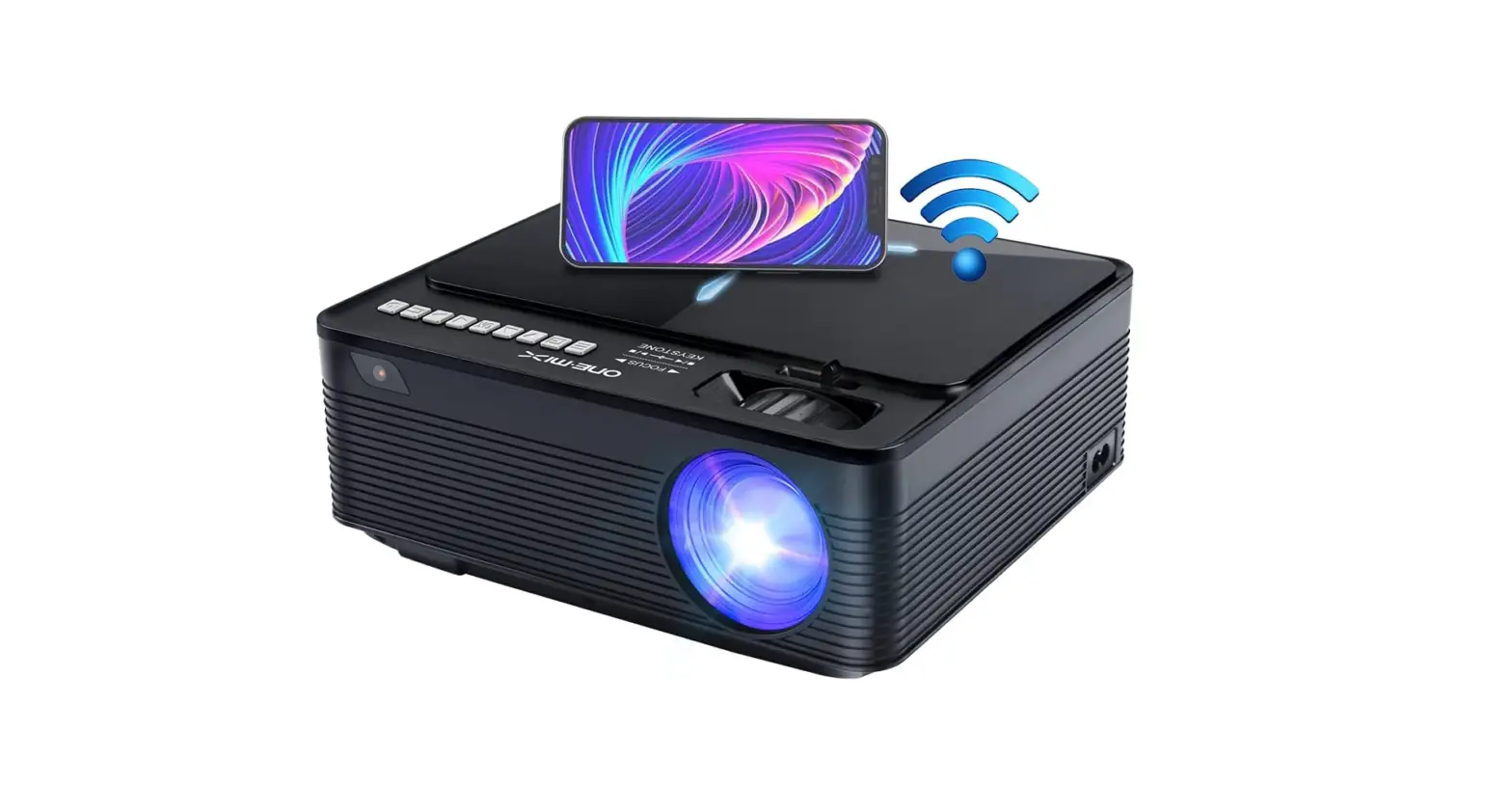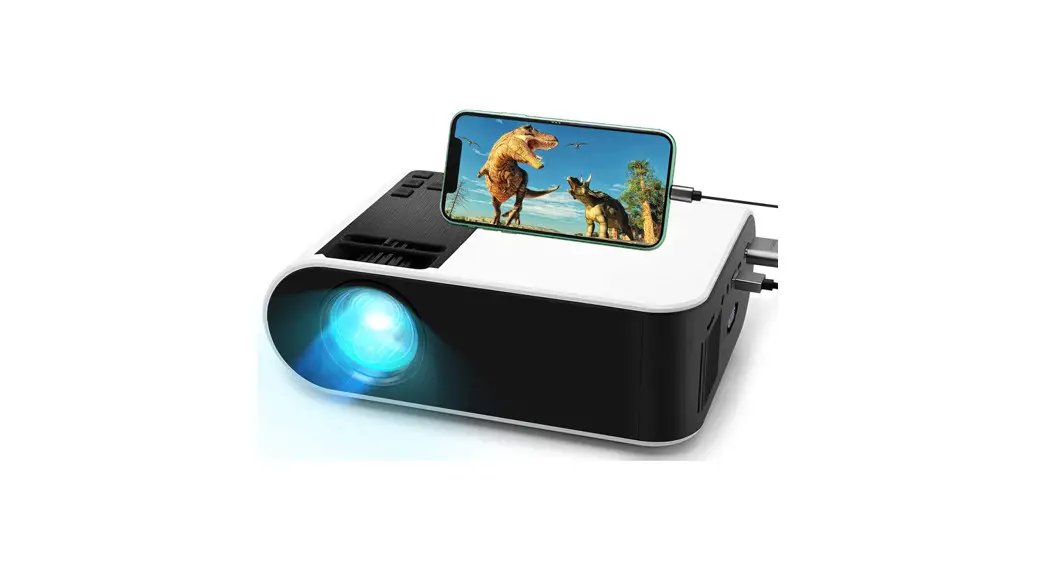

Projector Instruction
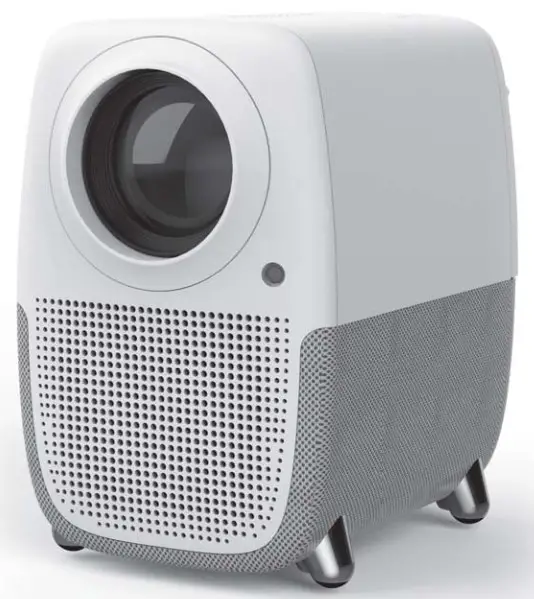
Please read this manual carefully before use and keep it for future use.
Important Safety Considerations
Thank you for your purchase.
Please read through this user manual before use.
Please keep the manual properly for reference after reading.
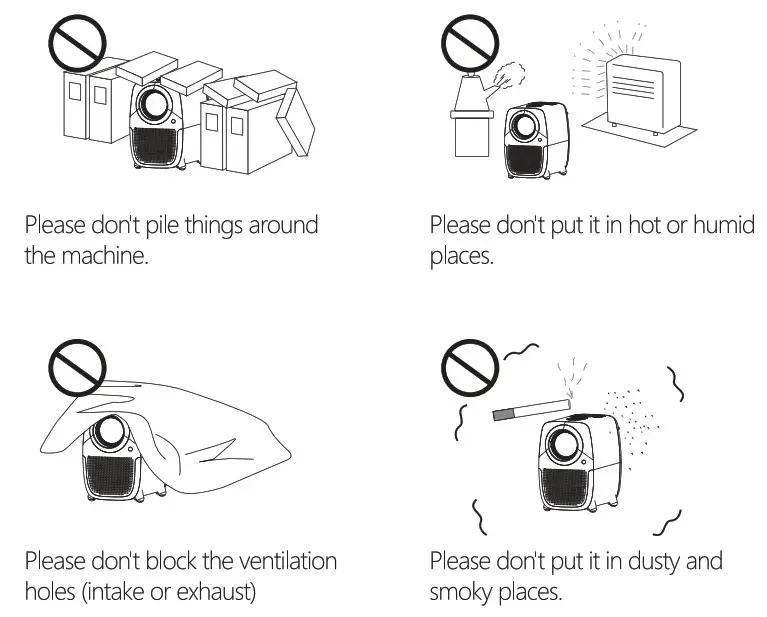
- Please don’t put the projector in the place where the cold/warm air of the air conditioner blows directly. Condensation of water or high temperature will lead to product damage.
- Please make sure don’t gather things around the projector and the vent is not blocked to avoid overheating.
- Please prevent foreign objects such as nails or paper scraps from falling into the machine. Never insert any metal objects such as iron wires or screwdrivers into the machine. If a foreign object falls into the machine accidentally, please turn off the power immediately and try to remove the foreign object
- Please don’t let any liquid into the machine to avoid leakage.
- Please use soft packing material when you move the projector To protect the lens from scratch, please use the lens protection cover. Please dolt subject the projector to strong vibrations.
- Please be aware that the vent will be heated after projection. Please don’t touch it or it might burn your skin
- Please don’t look at the lens/lamps directly after the projector is on, it might hurt your eyes.
 Attention
Please don’t open the machine by yourself to avoid leakage. If there is anything wrong, please contact customer service for help. Attention
Please don’t put the machine into a rain or moist environment to avoid fire or leakage
Important Safety Considerations
Names and Functions of Projector Parts
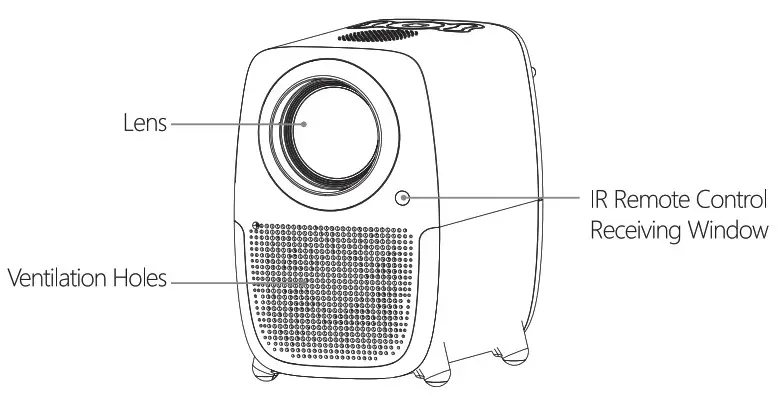
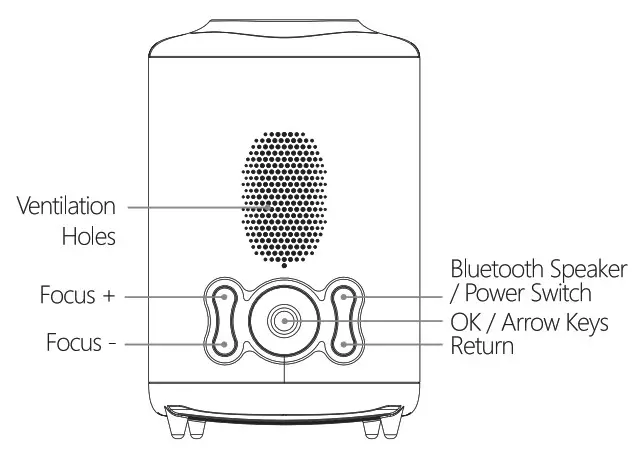
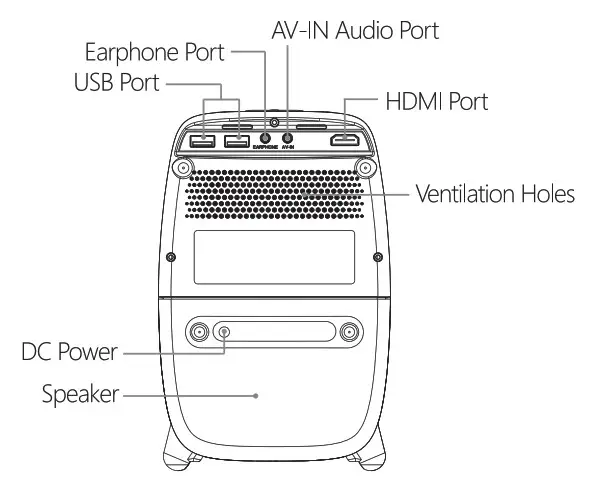
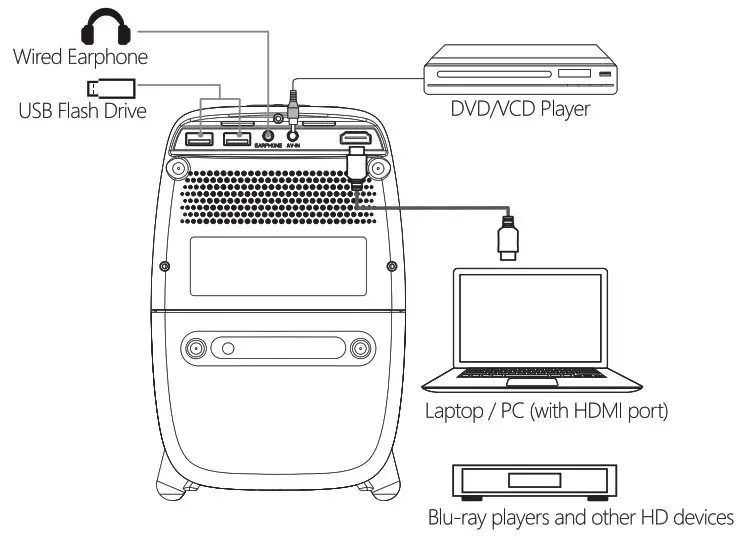
Equipment Connection
Get To Know The Remote Control
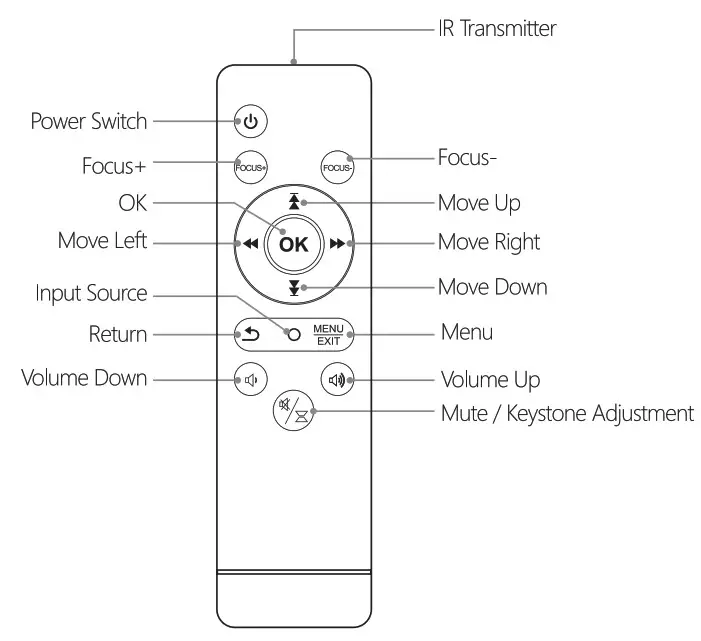
Attention:
* Please use AM battery
* Please don’t drop or tread on it, or splash any kind of liquid into it.
* Please don’t place it near a heat source or in a place exposed to direct sunlight or in a damp room.
Installment and Adjustment
- Setup
Place the projector horizontally or make it face the ceiling. Keep it in charge. Press the power switch button on the remote control or top of the projector.
- Adjust Focus and Keystone
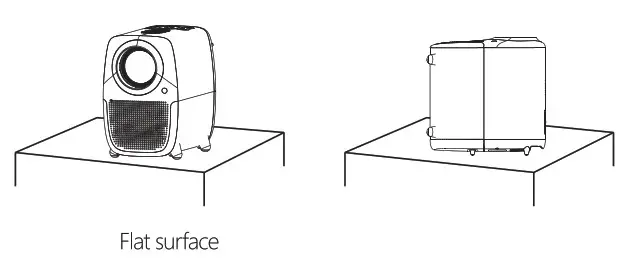
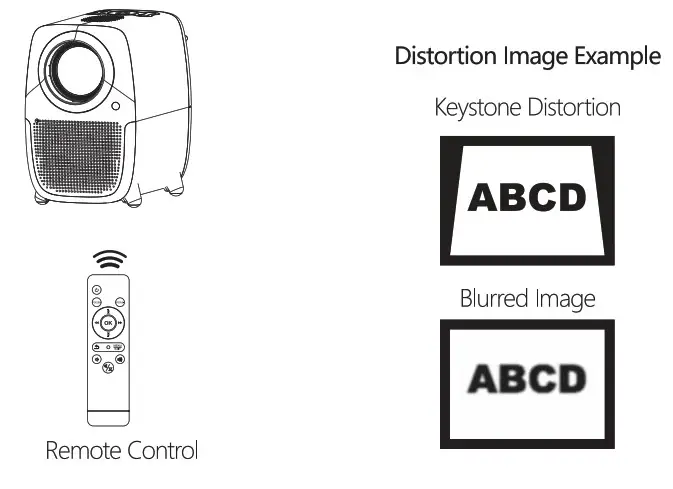
How to Adjust Keystone
Press the’ Mute/Keystone Adjustment’ button on the remote > Use Up/Down arrow key to adjust image > Press the’ Mute/Keystone Adjustment’ button again to bring back sound.
* After pressing the mute button, it is normal that the sounds disappear:
How to Adjust Focus
Press the Focus± button on the top of the projector or the remote control to adjust focus.
3. Project Distance
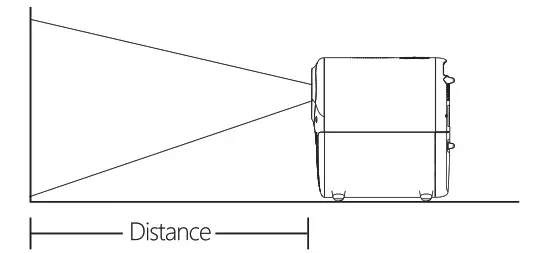
| Screen Size (inch) | Project Distance (meter) |
| 30 inch | 1 m |
| 60 inch | 2 m |
| 90 inch | 3 m |
| 120 inch | 4 m |
| 150 inch | 5 m |
| 200 inch | 6 m |
| 250 inch | 8 m |
*The measurement data may have deviation, please take the actual as the standard.
4. Turn Off After Use
Press the power switch button on the remote control or top of the projector. Turn off the device according to the system prompt.
*Please store the device in a dry and cool place after use.
System Setting
Press the Menu button on the remote or choose the setting on the main menu to access the system setting page.
Use arrow keys to choose and press the OK button to access.
There are many pages inside of system setting. Please use arrow keys to choose the one you need: PICTURE’ – ‘SOUND’ – ‘OPTION’
Image and Display Setting
Image page: Use arrow keys to choose Picture Mode, Color Temperature, Aspect Ratio, Keystone, etc.
▪ Picture Mode
Press the OK button to access Image Mode > Press arrow keys to choose different display modes > Adjust brightness, contrast color saturation according to your needs
*Color Temperature
Choose warm colors, cool covers, standard colors as you like. Adjust red, green, blue colors if you want.
*Aspect Ratio
Choose from 4:3, 16:9 and auto adjustment.
*Keystone Setting
Press the’ Mute/Keystone Adjustment’ button on the remote > Use Up/Down arrow key to adjust image > Press the Mute/Keystone Adjustment’ button again to bring back sound.
* After pressing the mute button, it is normal that the sounds to disappear.
Sound Setting
It has many sound effects like Standard, User, Music, Movie, Sports Al. Set bass and treble according to your needs.
*Note: NOT support Dolby sound. If the video doesn’t have sound, please check if it uses Dolby sound in the source video.
System Setting
*Language Setting: set the language of the system. *Restore Factory Default restore the factory default setting.
Bluetooth Function
* It can only be used as a speaker when you turn on BT function.
* Long press the power switch button until the lamp of the projector is off > Release the button and the connection tip tone comes out > search ‘BT PROJECTOR’ on your device > connect it with your device
* In Bluetooth mode, you can/ use the projection function.
* Please control the volume on your device.
* Turn off Bluetooth mode: press the return button to access the main menu page and disconnect the Bluetooth connection.
Wireless Mirroring WiFi/DLNA Connection Function
*Don’t recommend OS buyer to use ‘Screen Mirroring Connection With Projector. If you use a mirroring connection to project the video on your phone, you have to use mobile traffic/data to access the Internet.
Screen Mirroring Connection With Projector
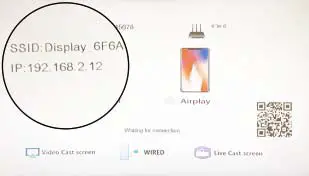
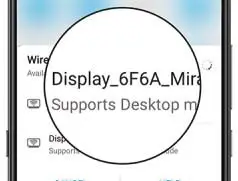
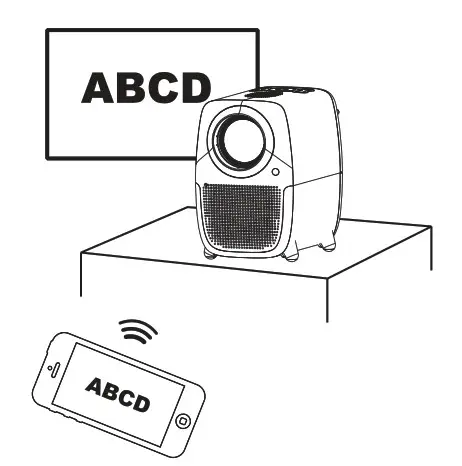
Choose  icons and press the OK button > Wait for the completion of initial setup in seconds > The WiFi name of the projector shows up on the screen(Display_6F6A) > Connect the WiFi of the projector
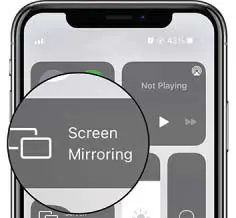
1. iOS Display.
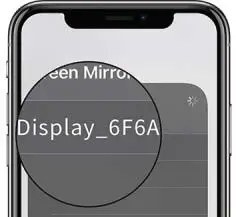
Open the Screen Mirroring / AirPlay function > Find the same WiFi name > Click and connect >Done *Name(SSID) and password(PSK) is on the projection screen.
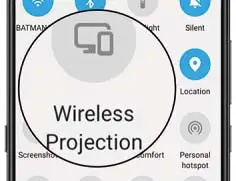
2. Android Display
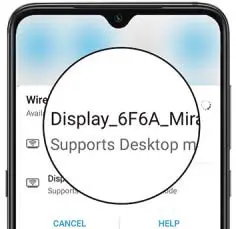
Open the Multi-screen / Miracast function on the Android device > Find the same WiFi name > Click and connect >Done *Name(SSID) and password(PSK) is on the projection screen.
Note: Some APPs only accept up to 720P resolution.
Not all devices support Multi-Screen/Wireless Display. If the device can’t search projector WiFi name, please restart the projector.
Screen Mirroring Connection With Projector
- Choose
 an icon and press OK
- Wait a few seconds. The connection page shows up. Use your phone to connect the WIFI of the projector (Name: Display 6F6A, Password: 12345678)
iOS Display
Click the Screen Mirroring / AirPlay function
Connect the device named ‘Display 6F6A’
Android Display
Click the Multi-screen / Miracast function
Connect the device named function ‘Display 6F6A’
Screen Mirroring Connection With Same WIFI
IOS/Android Display
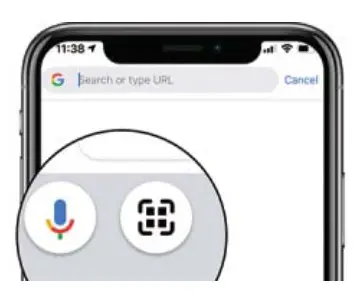
* Download a browser APP like Chrome that supports QR scan function on your phone first
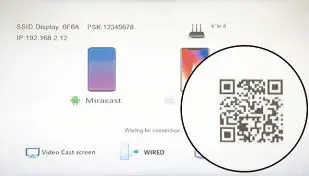
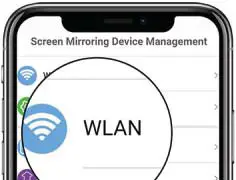
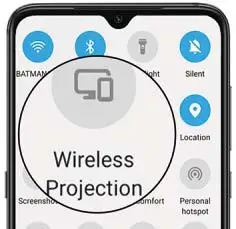
Choose icon and press OK button > Use your phone to connect with the WIFI you want(not support 5G) > Use browser to scan QR code on the bottom of the projection screen > Choose the same WiFi that your phone is connecting with > Open the Multi-Screen/Miracast function on your phone > Choose the WIFI name of projector: “Display 6F6A” > Choose ‘Trust if your phone asks > Done
IOS/Android Display
*Download a browser APP like Chrome that supports the QR scan function on your phone first.
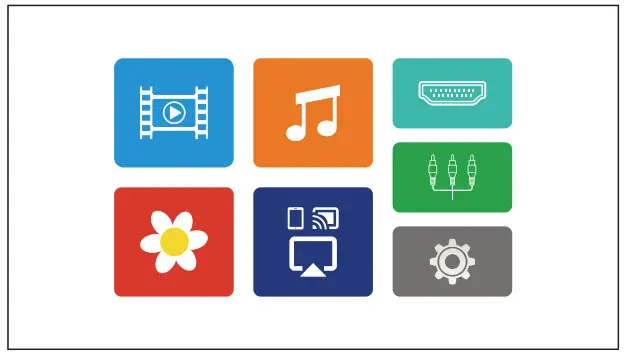
- Choose an icon and press OK
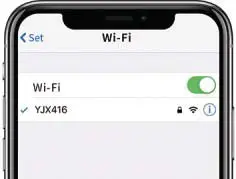
- Use your phone to connect with the WIFI you want(not support 5G)

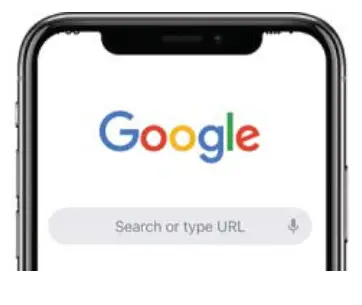
- Take Chrome as an example

- Click the Scan icon Open it and click the Search Bar

- Scan QR code on the bottom of

- Choose the same WiFi that the projection screen your phone is connecting with

- Open the Multi-Screen/Miracast function on your phone

- Connection succeed
- Connect the device named “Display 6F6A” *Choose ‘Trust’ if your phone asks
DLNA Connection
Step 1:
Choose icon and press OK button > Wait for the completion of initial setup in seconds > The WiFi name of the projector shows up on the screen
Step 2: Connect your phone with your home WiFi Open the WiFi setting on your phone > Connect the WiFi in your home Step 3: Connect projector with the same home WiFi
*Download a browser APP like Chrome that supports QR scan function on your phone first Scan QR code on the bottom of the projection screen > Choose the same WiFi in your home > Enter password > Wait for the connection
*If the top of the projection screen shows up your home WiFi name, it means the connection is successful.
*NOT: support 5G wifi
*Note:
Some APPs don’t support DLNA connections due to copyright issues.
Some APPs only accept up to 720P resolution.
Step 4: DLNA Display
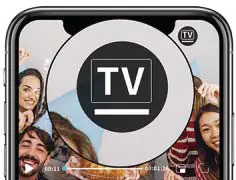
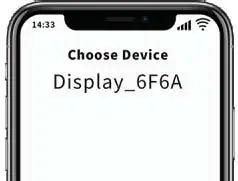
*Some APPs have TV/Project Screen function. Please find and click on it in the video playback page. *Find the name of the projector (Display 6F6A) in your phone > Connect it > Projector will display the video on your phone.
How to change WiFi on the projector
*If you would like to change the WiFi, please enter the IP address of the projector is on the side of the projection screen), or scan the QR code to access the setting page to choose a different WiFi
Note: DLNA connection supports up to 720P If the video doesn’t play or gets stuck please choose a lower resolution format.
If you would like to use a different device to connect with the projector, please disconnect the first device first
- DLNA Wireless Connection
*Download a browser APP like Chrome that supports the QR scan function on your phone first
Choosean icon and press OK - Waft a few seconds. The connection page shows up
- Use your phone to connect with the WIFI you want(not support 5G)
- Take Chrome as an example Open it and click the Search Bar
- Click the Scan icon
- Scan QR code on the bottom of the projection screen
- Choose the same WiFi that your phone is connecting with
*If the top of the projection screen shows up your home WiFi name, it means the connection is successful. - Some APPs have TV/Project Screen function. Please find and click on it in the video playback page.
- Connect the device named (Display_6F6A)

- Connection succeed

How to Clean
Please disconnect the power adapter before cleaning.
Please don’t use insecticide or other volatile chemicals on the Projector or its lens.
Please don’t let rubber or ethylene products contact the products for a long time. The coating will be damaged or peeled off.
Clean Projector
Please wipe with a soft and dry cotton cloth. If it is very dirty, please wipe with a soft cloth dampened with diluted neutral detergent and use a dry cloth to make it dry. If you use chemical fiber cloth, please be careful.
To avoid damage or coating peeled off please don’t use thinner, benzene or other solvents.
Do not scratch the projector with nails or other hard objects to avoid scratching
Clean Lens
Please use a professional cleaning kit such as an air blower, lens cleaning tissue, etc. to clean the lens. Or it will cause a scratch.
Clean Ventilation Holes
Too much dust will cause the projector to overheat. Please clean ventilation holes at least every 1000 hours of use.
Turn off the projector > Disconnect the power adapter > Insert the brush into a mini vacuum cleaner > Use it to clean outside of projector Avoid direct use of vacuum cleaners without connectors, or use nozzles for cleaning.
Q&A
If you have any questions, please contact us via Amazon email. Please send us your order ID and some pictures to make things clear
- There is no sound during video playing
Check if you press the Mute button on the remote > Check if the video use Dolby sound > Turn down the Dolby sound mode on the video. (The projector doesn’t support Dolby sound) - The image got blurred.
Check the resolution of the video. If its resolution is low, please shorten the projection distance. Use the focus button on the remote to adjust the focus until the image is clear. Recommend to use it in a dim environment to get a better viewing experience. - How to change the WiFi connection of the projector
Please enter the IP address of the projector(k is on the side of the projection screen), or scan the QR code to access the setting page to choose a different WiFi. - The projector keeps turning off
It might be due to overheating Please check if there is something blocking the ventilation holes. Please don’t pile things up around the projector - Insert USB flash drive but can’t access it on the projector
The projector supports up to 32G USB flash drives. Please check if your flash drive is 32GB or below. - Can’t connect my phone with the projector.
Please send some pictures and describe the issue to us. Please contact us via Amazon email and we are happy to help. - Remote Control is not working.
Please change the battery and keep the remote point to the IR remote control receiving window of the projector. - The fans are too loud.
It is normal that it has noise when the cooling system is working because the projector with high brightness needs heat dissipation in time. So please do not put the projector in a hot environment or too long to use at one time,lf the sound of the video is not enough, we recommend you use an extra speaker to get a better sound effect.
Specification
| Lamp Life | Up to 50,000 hours |
| Screen Size | 30-250 inch |
| Projection Distance | 1-8 m |
| Speaker | 3W*2 |
| Electric Focusing Mode | Yes |
| Keystone | ± 40 degree |
| File Type | Support Format |
| Video | MPG, VOB, AVI, MKV, MP4, MOV, 3GR FLV, WMV, ASF, MKV |
| Music | MP3, WMA, MP2, MC, FLAC, 3GR WAV |
| Image | jpg, png, BMP |
 *When you use wireless Mirroring WiFi Connection, the projector supports up to 1080P video. When you use a DLNA connection, it only supports up to 720P
*If the projector can’t access your files, please check if the files are damaged or the format is not included in the form.
FCC Statement
This equipment has been tested and found to comply with the limits for a Class B digital device, pursuant to part 15 of the FCC rules. These limits are designed to provide reasonable protection against harmful interference in a residential installation. This equipment generates, uses, and can radiate radio frequency energy and, if not installed and used in accordance with the instructions, may cause harmful interference to radio communications. However, there is no guarantee that interference will not occur in a particular installation. If this equipment does cause harmful interference to radio or television reception, which can be determined by turning the equipment off and on, the user is encouraged to try to correct the interference by one or more of the following measures:
-Reorient or relocate the receiving antenna.
-Increase the separation between the equipment and receiver.
-Connect the equipment into an outlet on a circuit different from that to which the receiver is connected.
-Consult the dealer or an experienced radio/TV technician for help.
To assure continued compliance, any changes or modifications not expressly approved by the party.
Responsible for compliance could void the user s authority to operate this equipment. (Example- use only shielded interface cables when connecting to computer or peripheral devices).
This equipment complies with Part 15 of the FCC Rules. Operation is subject to the following two conditions: (1) This device may not cause harmful interference, and (2) This device must accept any interference received, including interference that may cause undesired operation.
FCC Radiation Exposure Statement: The equipment complies with FCC radiation exposure limits set forth for an uncontrolled environment. This equipment should be installed and operated with a minimum distance 20cm between the radiator and your body