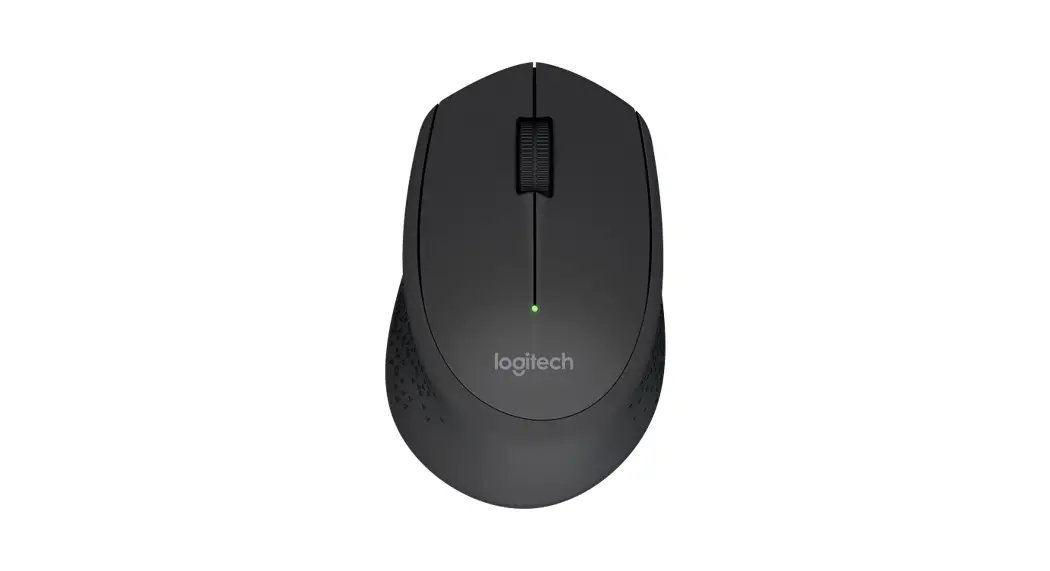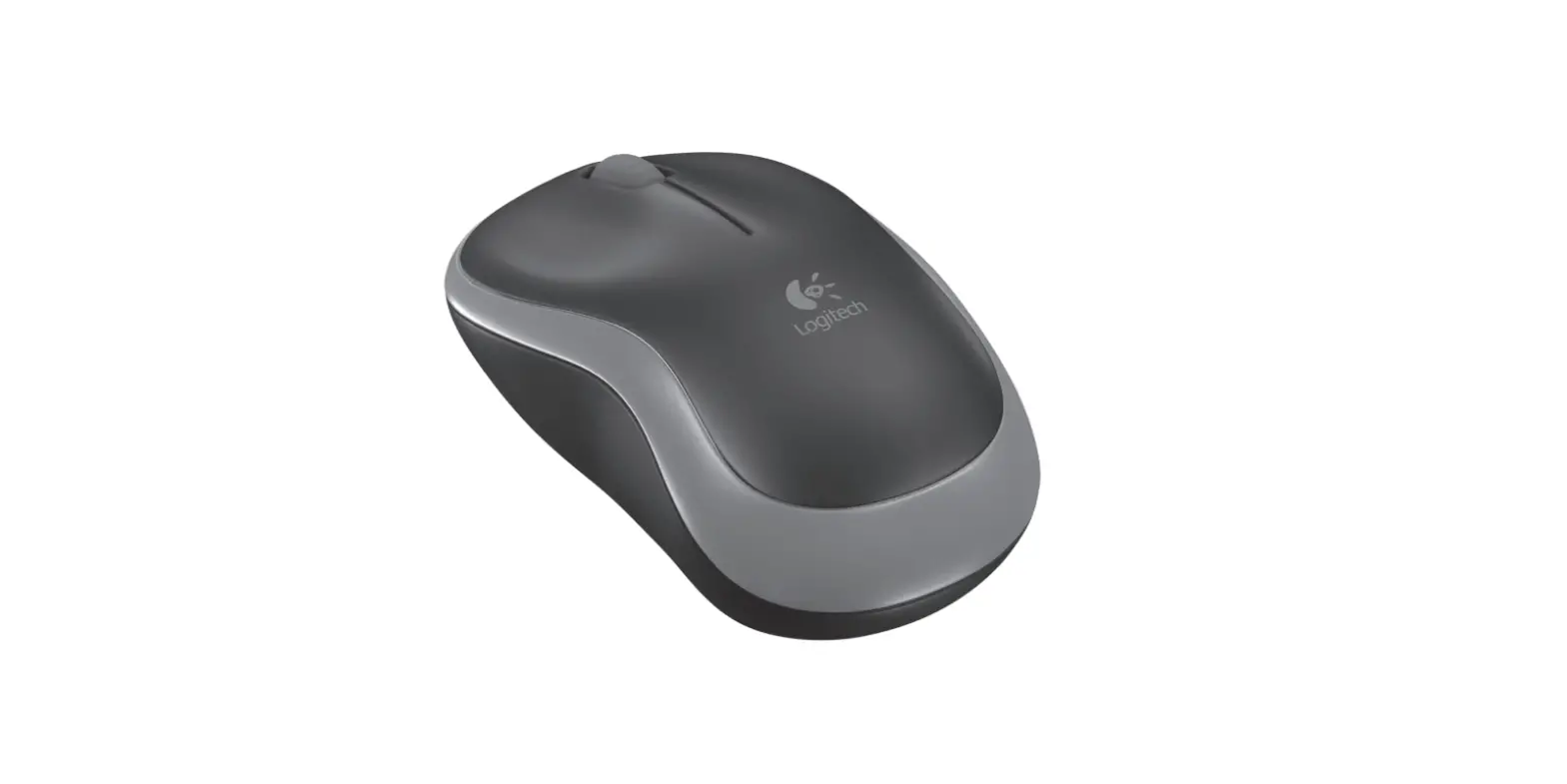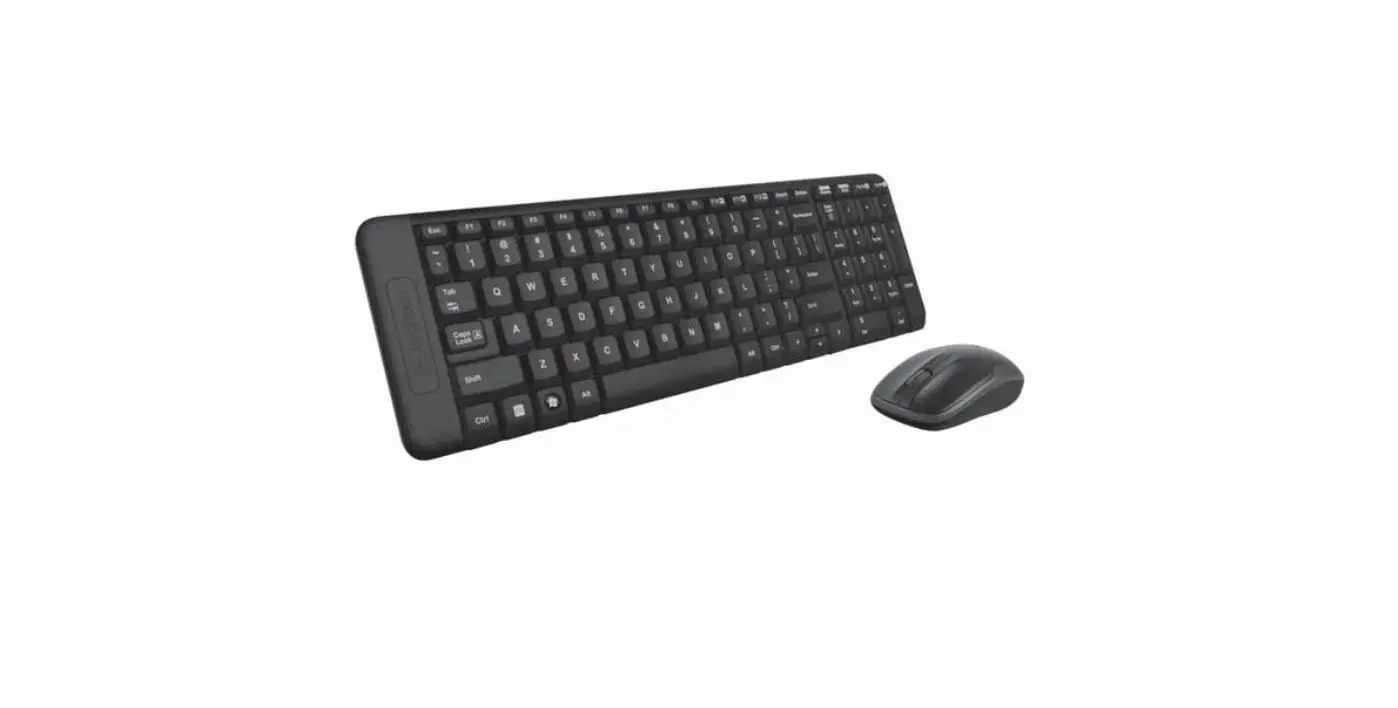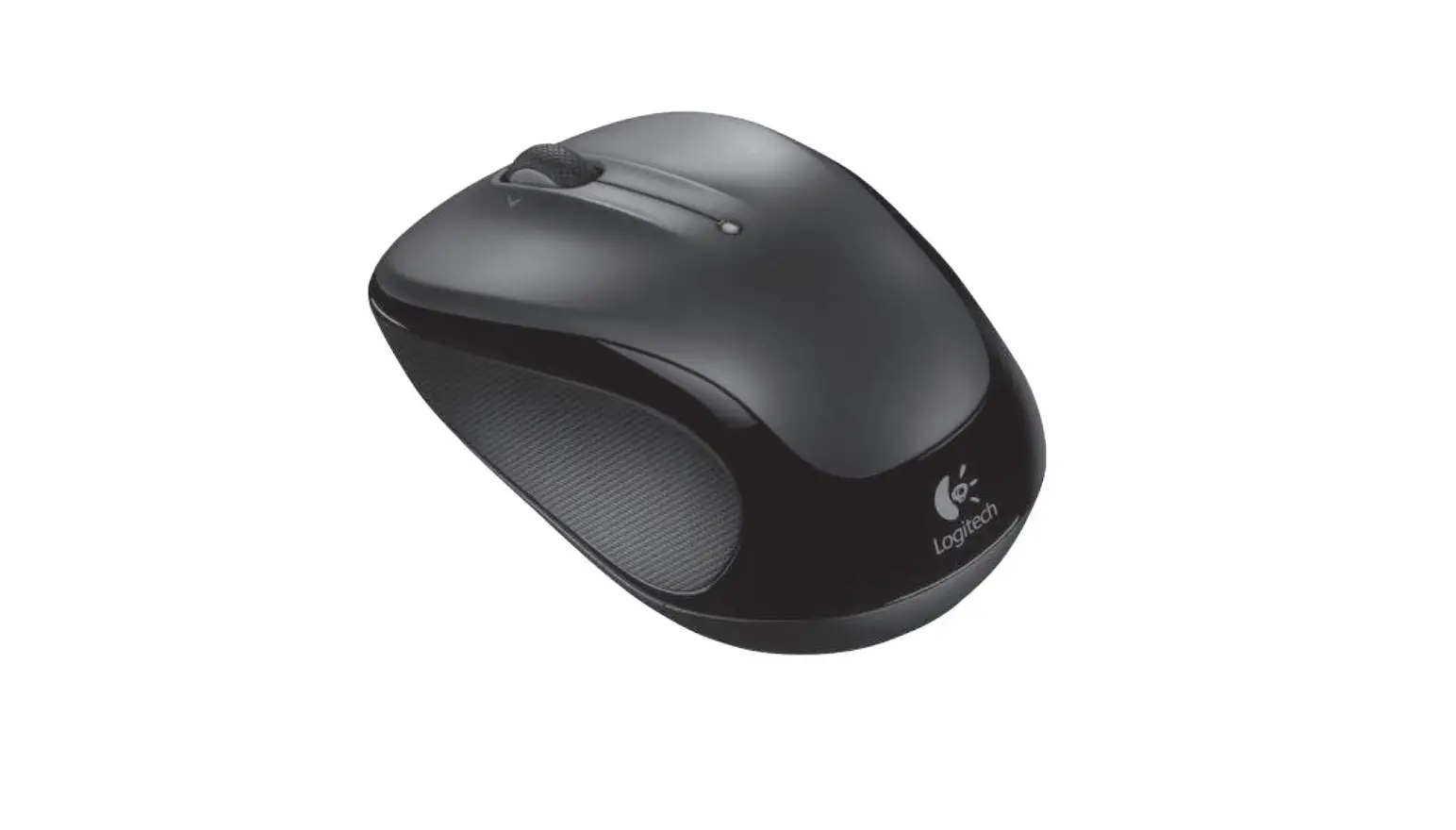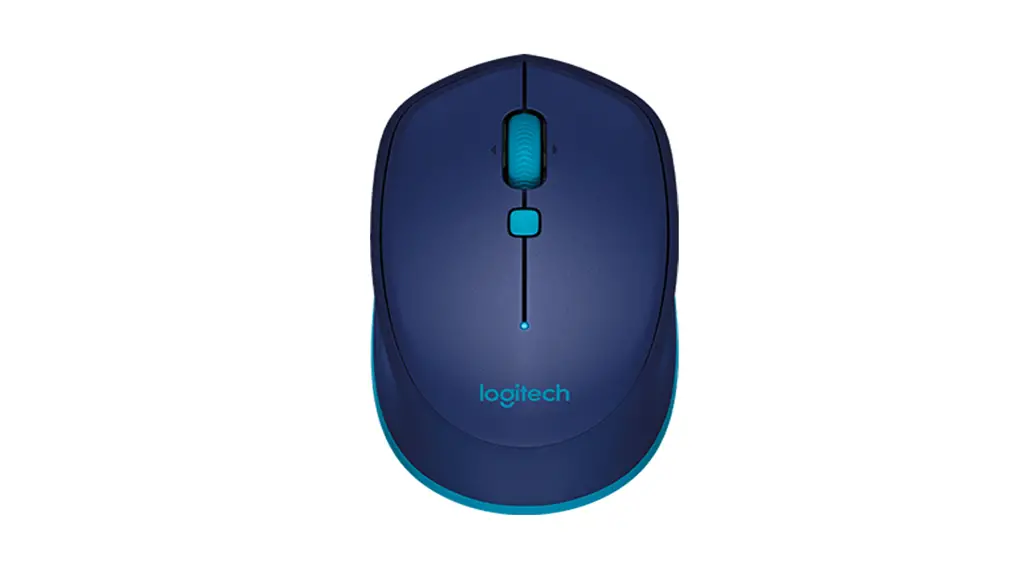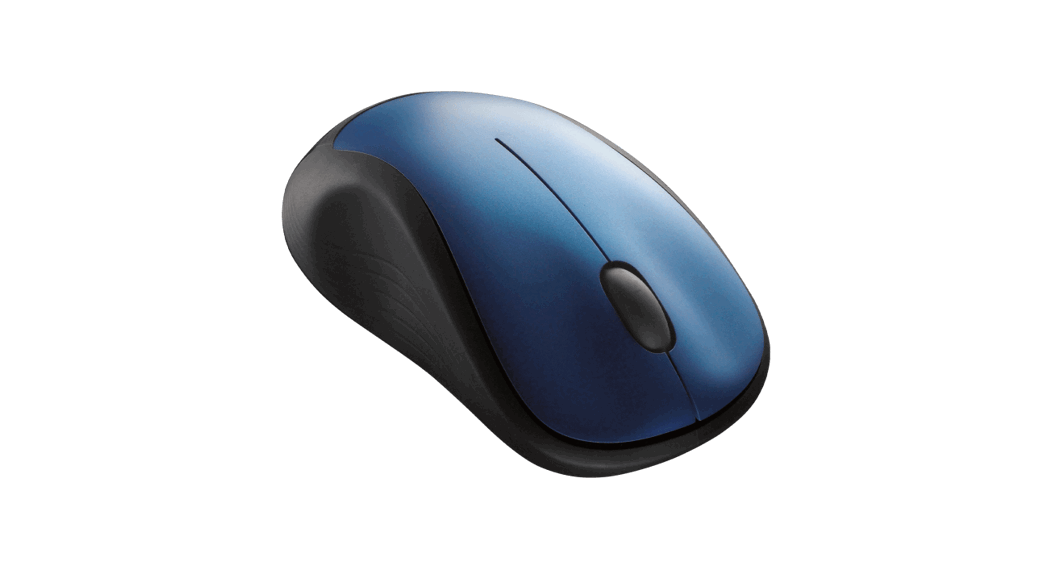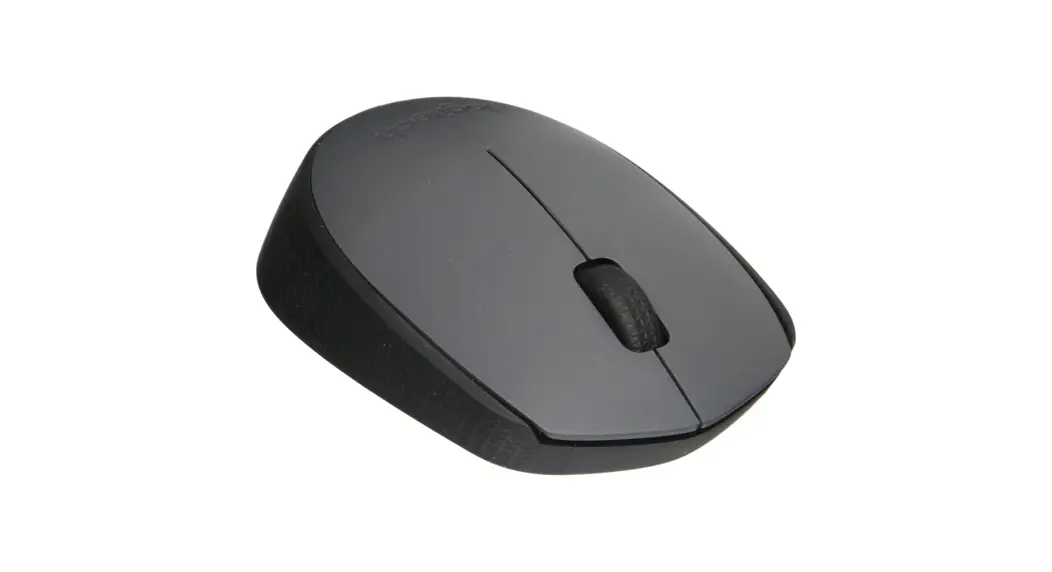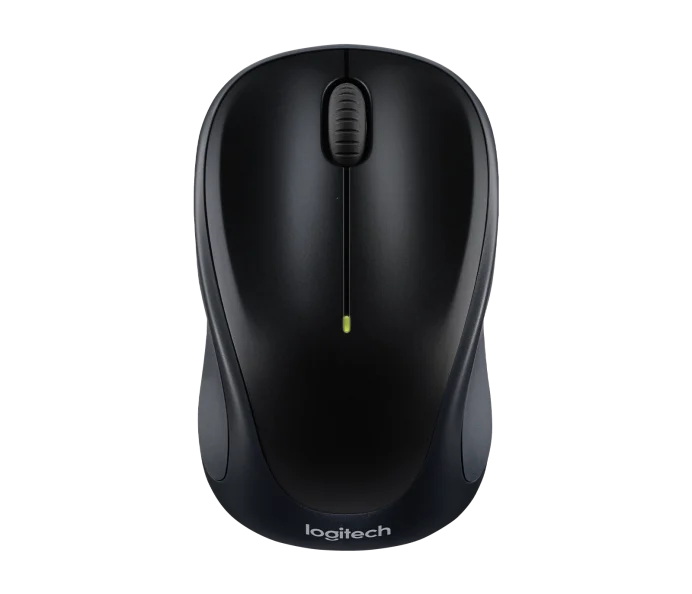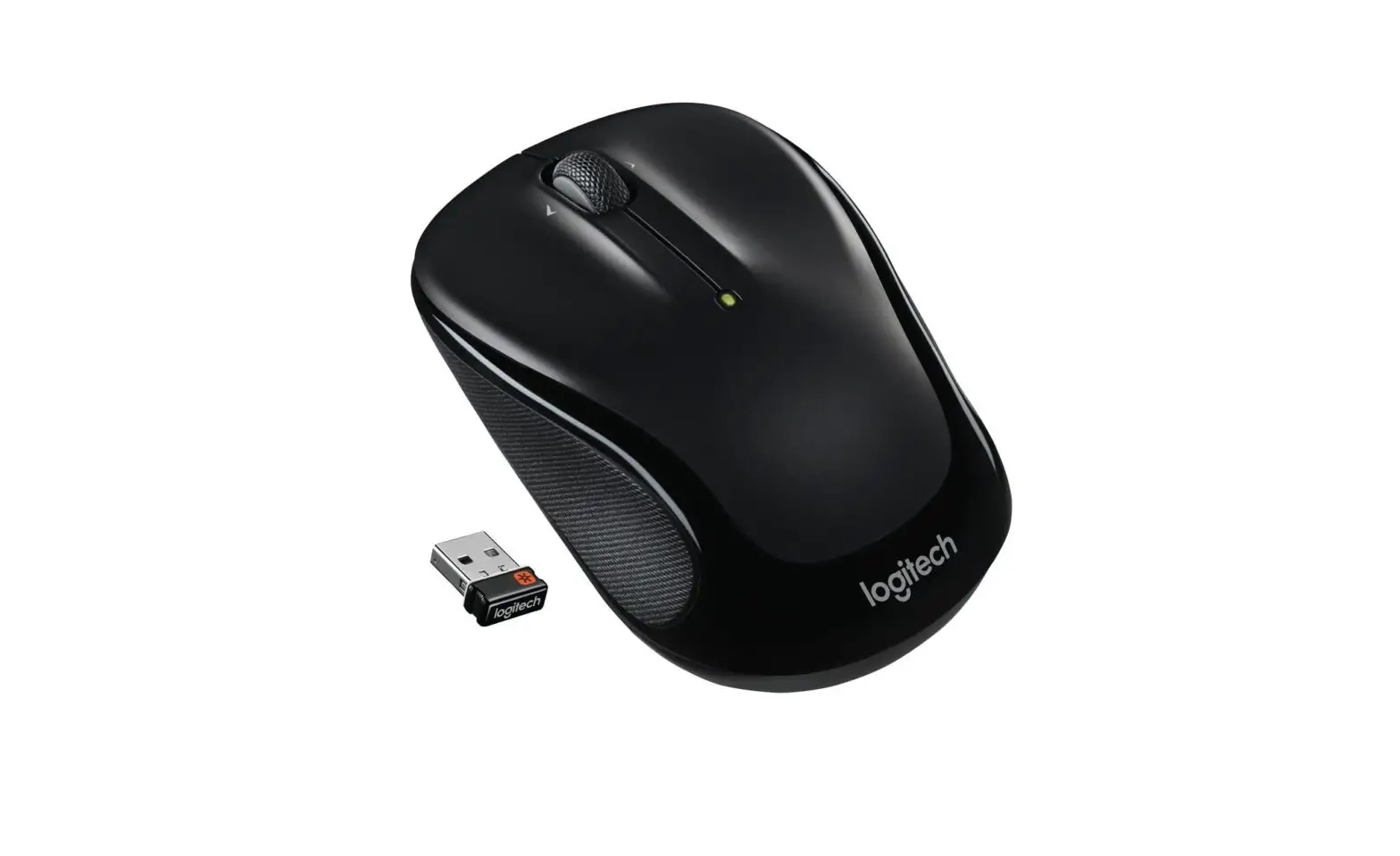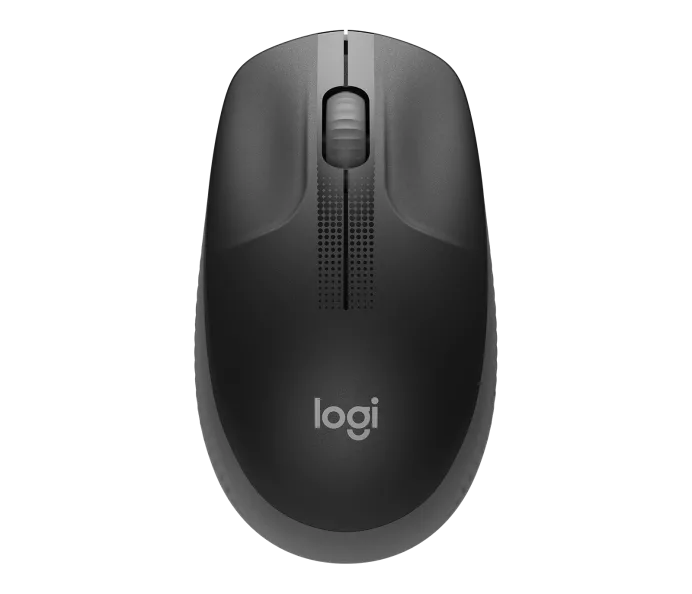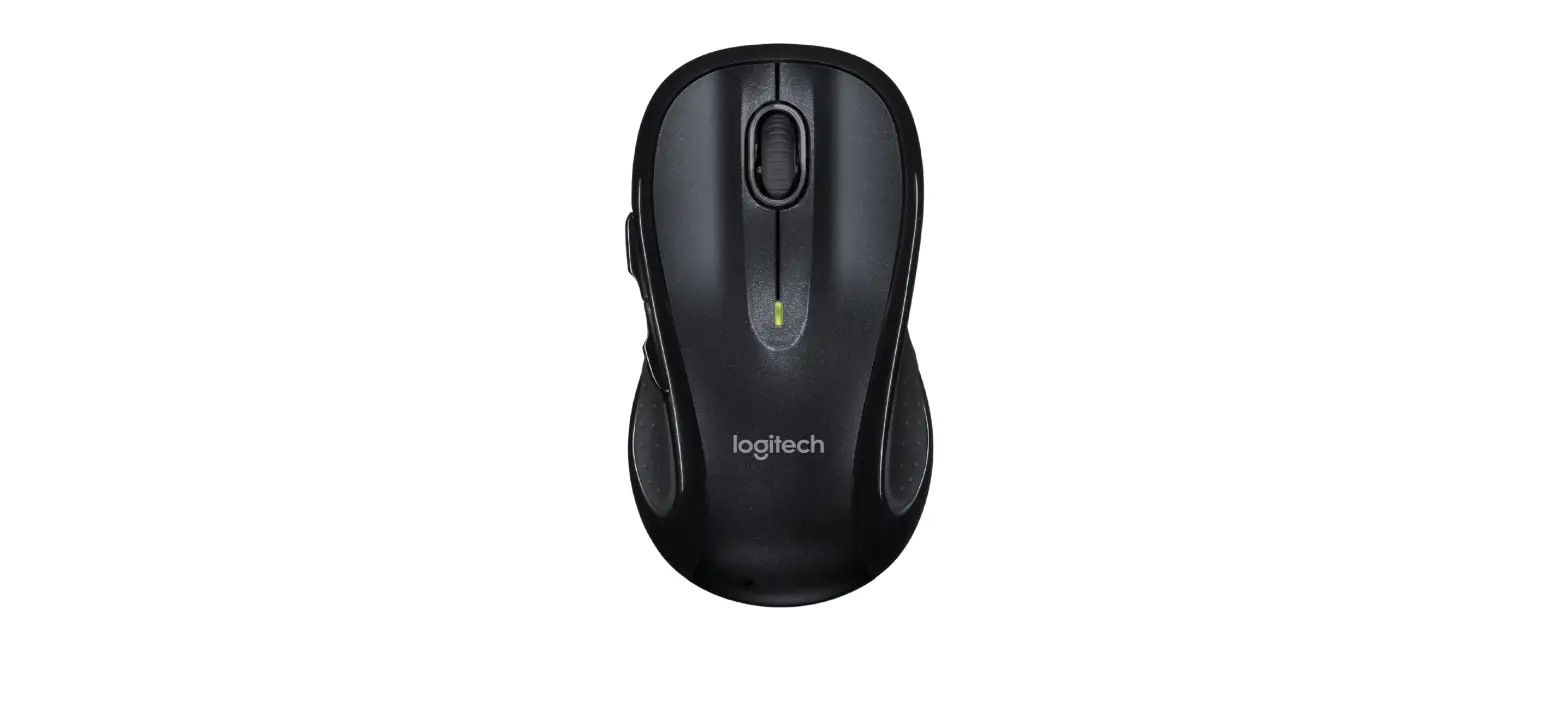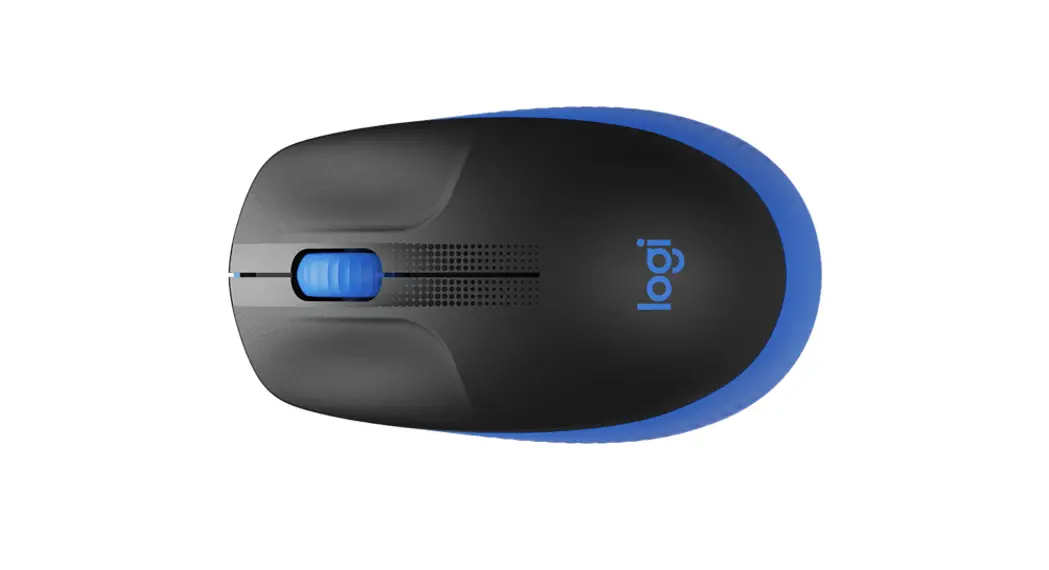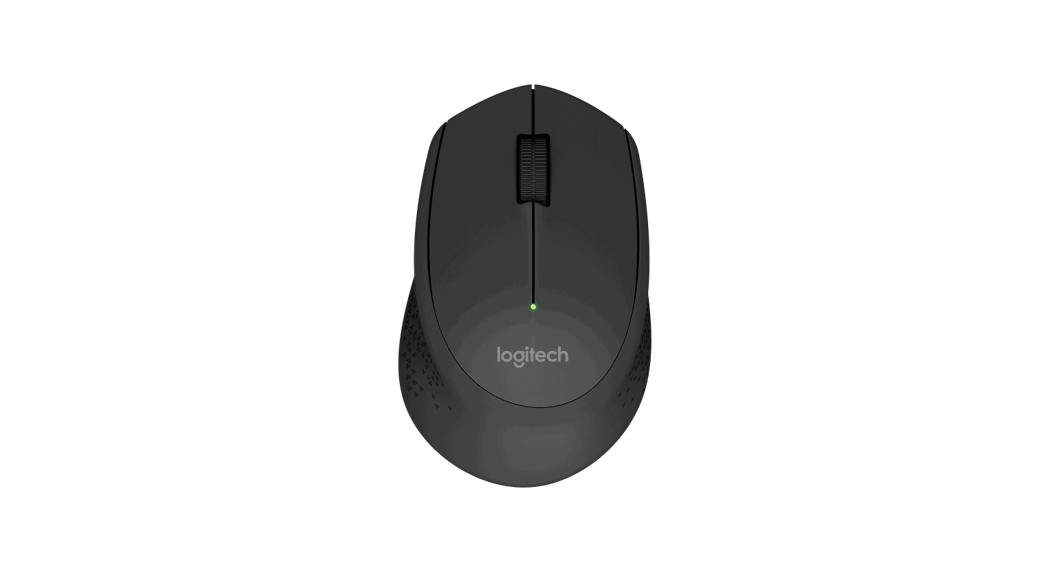
 Wireless Mouse
User Guide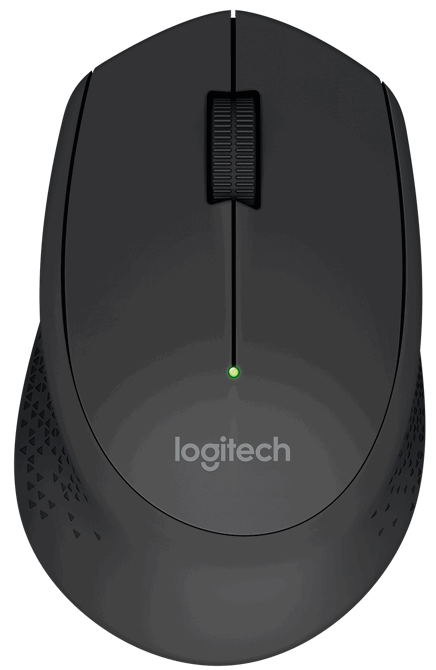 M275, M280, M320, M330
M275, M280, M320, M330 Wireless Mouse
 www.logitech.com/support/m275
www.logitech.com/support/m280
www.logitech.com/support/m320
www.logitech.com/support/m330
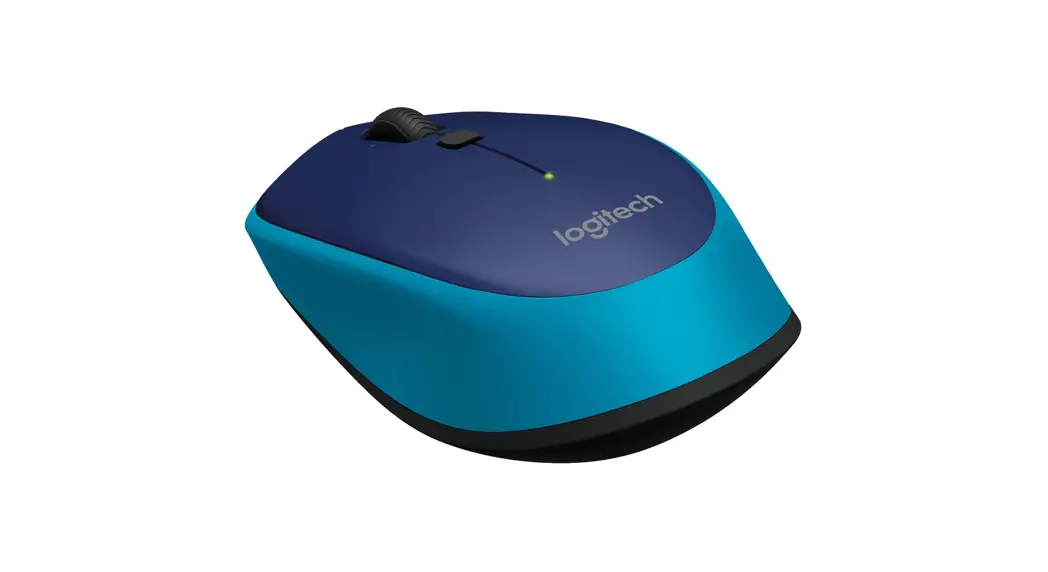
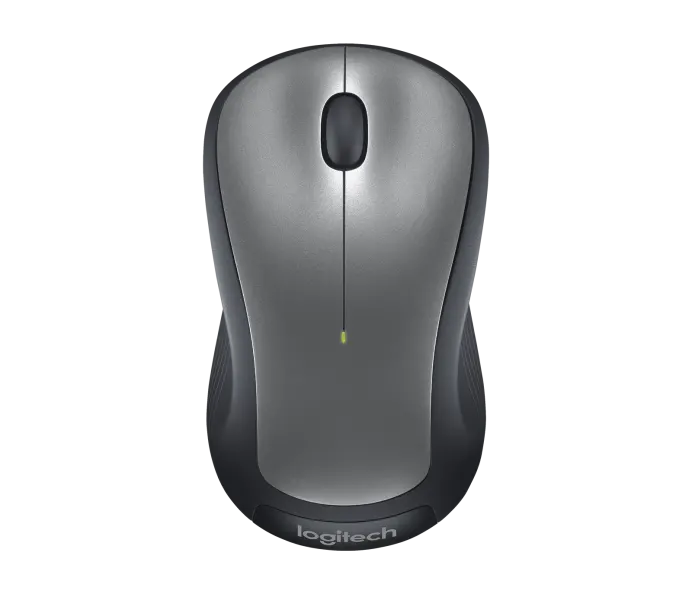
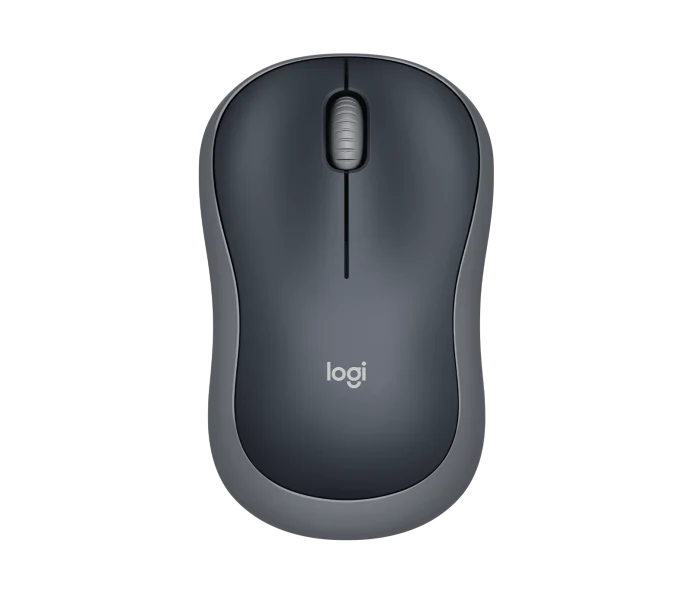
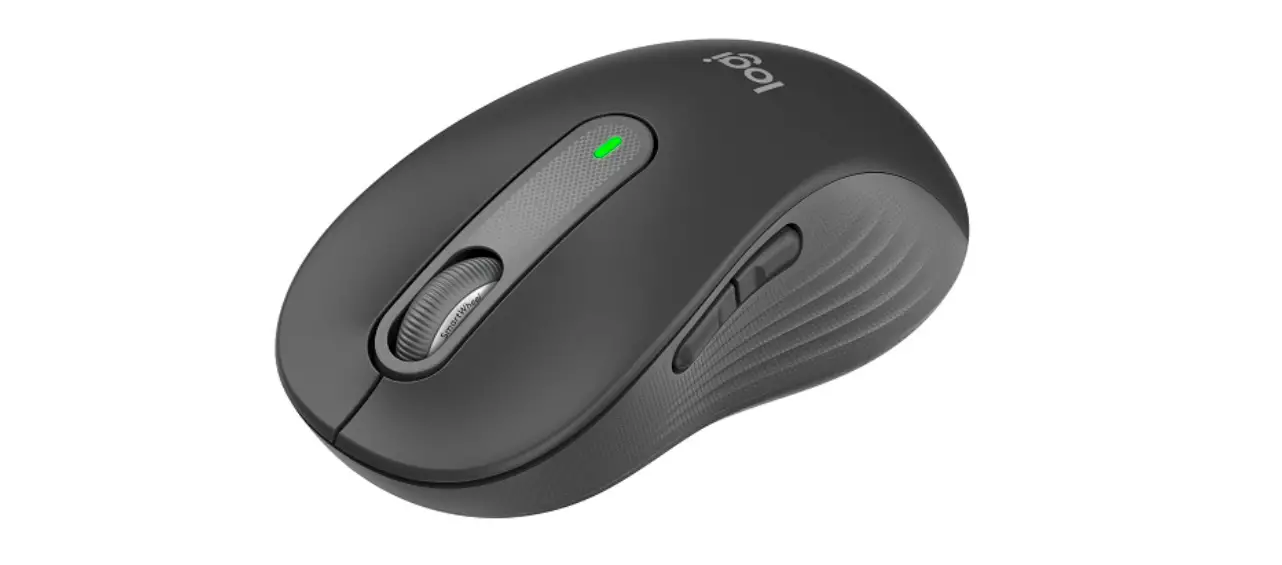
MOUSE FEATURES
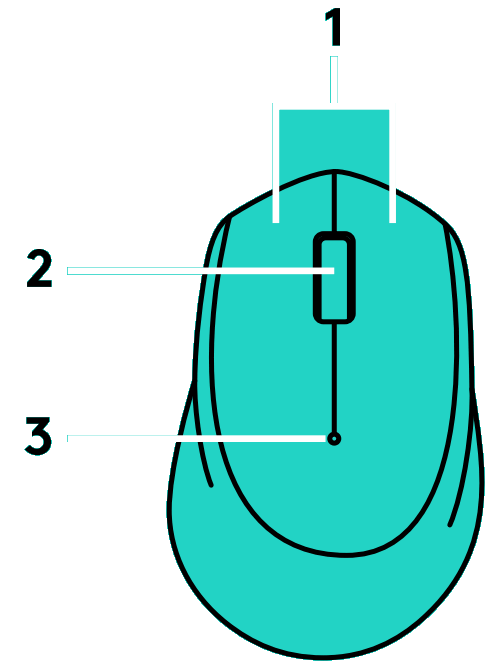
- Left and right buttons
- Scroll wheel
Press the wheel down for middle click Function can vary by software application:
– In most Internet browsers, the middle click will close browser tabs by clicking anywhere on the tab, without the need of clicking the X
– In most Internet browsers, the middle click on a link will open the link in a new tab
– In most Internet browsers, when you middle-click a folder located in your bookmarks/favorites bar, each website in the folder will open in its own tab
– In many applications, if you click and hold the middle button, you will then be able to scroll in any direction by dragging the mouse.
- Battery LED
Flashes red when battery power is low If the battery is not low, the LED indicator will turn green for 10 seconds when the mouse is switched on or after deep-sleep mode recovery - On/Off slider switch
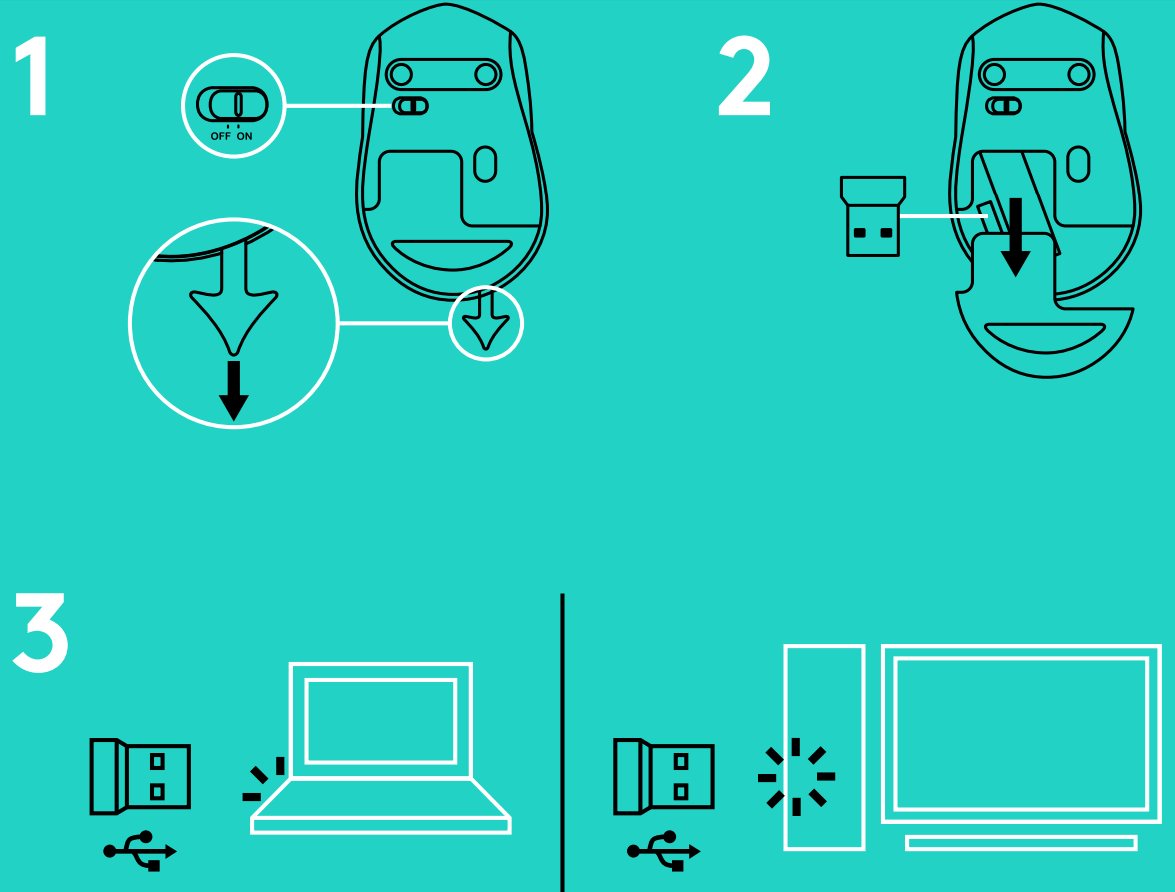
The mouse will go into sleep mode if no movement is detected We recommend switching the mouse off to avoid accidental clicking when carrying it around and to further save battery life - Battery door release
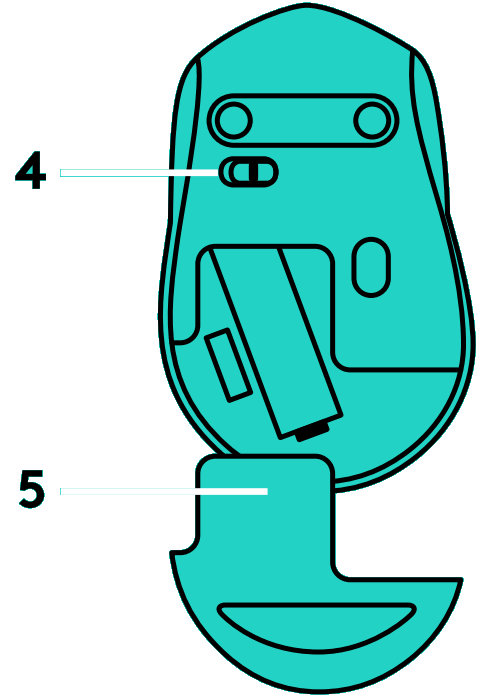
SLEEP MODE
The mouse will go into sleep mode after 10 seconds of inactivity and can be woken up by clicking or moving the mouse The mouse will go into deep sleep mode after 5 minutes of inactivity and can be woken up by clicking

The receiver with this mouse does not integrate the Logitech® Unifying technology
However, the mouse itself is Unifying-ready and can be used with any Logitech® Unifying receivers you may already have Logitech®
Unifying technology connects up to six compatible Logitech mice and keyboards to the same receiver, using only one USB port for multiple devices
To learn more, visit www.logitech.com/unifying
TROUBLESHOOTING
Mouse is not working
– Is the mouse powered on?
– Is the receiver securely plugged into a USB port?
Try changing USB ports
– If the receiver is plugged into a USB hub, try plugging it directly into a USB port on your computer
– Check the orientation of the battery inside the mouse
– Try a different surface Remove metallic objects between the mouse and the receiver
– Try moving the receiver to a USB port closer to the mouse
© 2016 Logitech Logitech, Logi and other Logitech marks are owned by Logitech and may be registered All other trademarks are the property of their respective owners Logitech assumes no responsibility for any errors that may appear in this manual Information contained herein is subject to change without notice.
 Logitech Support + Download