Star Eye App for IT Camera
Product Information:
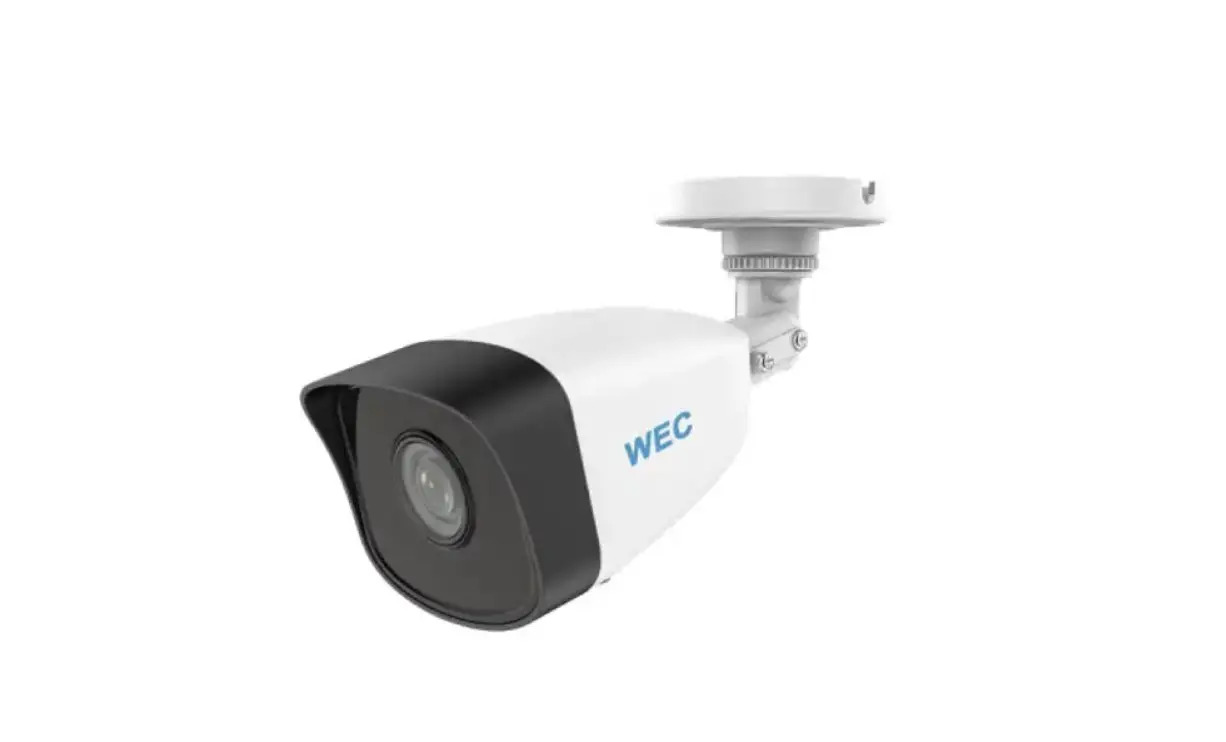
The IT Camera is a wireless camera that allows users to monitor
their surroundings remotely. It can connect to a WiFi network and
be controlled through a mobile app.
Equipment Description:
- Before downloading the app, ensure all necessary permissions
are granted. - Factory settings should be restored before configuring the
network for the camera. - Plug in and turn on the camera before setting it up. Place it
near the router with a strong WiFi signal. - The camera only supports the 2.4GHz WiFi band.
Product Usage Instructions:
- Tap the “Start configure wifi” button in the app.
- Connect to the WiFi network named “AYS-xxx” or “XYX-xxx”, which
represents the camera hotspot. - Return to the app after successfully connecting to the
camera. - If using an Android system, ignore any warning windows about
Internet availability. Maintain the current network
connection. - If using an IDS system, ignore any warning windows about an
unsecured Internet connection. Maintain the current network
connection. - Click the “Configure wifi” button to proceed.
- Select the 2.4GHz WiFi network and enter its password, then tap
the “Next step” button. - Click the “Join” button to configure the device network. After
configuration is complete, you will be redirected to the home page
of the app. - Follow the prompt tones for various camera status
indications. - To reset the camera, power it on and press and hold the reset
key. - Before pairing the camera, ensure your phone is connected to a
2.4GHz WiFi network. - Tap the “+” button in the app.
- Select “QR code connection” and choose the corresponding camera
type. - Enter your email address and tap the “Verification” button.
Retrieve the verification code from your email and input it. - Confirm that the red light on the camera is flashing, then tap
the “Next step” button. - Select the 2.4GHz WiFi network and enter its password, then tap
the “Next step” button. - Maintain a suitable distance from the camera to scan the code
and wait for the prompt. - After hearing four beeps, the connection is successfully
established.
IT Camera manual
5 Tap “Start configure wifi” button, then connect to WiFi name starting with “AYS-xxx” or “XYX-xxx”, which is your camera hotspot. Then you can return back to App page, next you add camera successfully.
After the connection is done, return to the App.
·
e:· … “”
·:=:·
J
3i 8 w
C lf
i
“} ·i i
i
NOTE:If you use Android system, a warning window may pop up saying “Internet unavailable”.Ignore the message andkeep on current network connection.If you useIDS system, a warning window may pop up saying “UnsecuredInternet”. Ignore the message and keep on current network connection –5-
I Equipment Description
l When downloading the app, all the rights reminded should be opened.
2 Before configuring the network for the new camera, please restore the factory settings.
3 Before setting the camera, please plug in and turn it on, and set it within the range close to the router with strong WiFi signal.
I (The wifi band only supports 2.4HZ) Indicator Status
Reset complete Network not configured Network connection
Network connection successful
Blue lightf, red Iight off Blue light off, red light flashing slowly The blue light flashes quickly, the red light is off
Blue light is always on, red light is off
Abnormal network connection Equipment upgrade
Steady red light off blue light flashing q,l,kly Blue light off, red light always on
Not present configuration
fBalsute light flashes fast, red light flashes -1-
6 Please click the “Configure wifi” button to enter the next step.
7 Select 2.4GHz WiFi network and input password, next tap “Next step” button.
8Click the “Join” button to enter the device configuration network, and jump to the home page after the network configuration is done.
I Prompt tone Description
A prompt tone
Camera reset succeeded
Two continuous prompt tones
Camera waiting for network configuration
Three continuous prompt tones
Camera network connection
Four continuous prompt tones
Camera network connection succeeded
Five continuous prompt tones
Camera upgrade successfully
Six continuous prompt tones Camera low power
I APP download and reg1strat1on
lPlease search ” star eye” in the mobile app store
stoeldeoctwtnhleocaodrrtehsepaopnpd,inogr
scan the QR code to system of the mobile
phone to download.
-2-
I QR Code Conne
Power on the device, then press and hold the reset key toresetthe device.Please connect your phone to a2.4GHz WiFi network firstly before you pair the camera. 1Tap “+” button. 2 Select “QR code connection”. 3Select the corresponding camera type.
..J
I c,
— 6-
— 7-
2 Enter your email address, next tap “Verification” button, next go to your email to get the code and input it for verification.
E«
00
NOTE: Verify code email may be classified as spam by the mailbox, please check out the spam box. Please allow all tips when you launch the app for the first time. Otherwise the App may not work correctly.
-3-
4Next tap “Confirm that the red light is flashing”, next to “Next step” button.
Select 2.4GHz WiFi network and input password, next tap “Next step” button. It’s important to know thatyour phone must be connected to thesame WiFi network as the camera during setup.
6 The camera maintains a suitable distance to scan the code to connect and wait for the prompt After four beeps, the connection is completed successfully.
I Add your camera (AP mode)
l Launch your app, and tap “+” button to add your camera.
2Tap “AP mode” button.
3Select the corresponding camera type.
··
l
4 Confirm that the status of the indicator light is blue light off, red light flashing, next tap “Next step” button.
-4-
I Share device
Your friend has to download the “Star Eye”App, then launch the app with an email. You open your App and tap·· button, then tap “Share device” button, then tap “Add friend”, then enter your friend’s registered email, then click ” Add” button, then your friend’s App will add the camera automatically.
–
_,.__ ,. .,
–··-·····’:·–··· ..
!
g
-8–
— 9-
FCC Warning
This device complies with part 15 of the FCC rules. Operation is subject to the following two conditions: (1) this device may not cause harmful interference, and (2) this device must accept any inte rference received, including interference that may cause undesired operation.
Changes or modifications not expressly approved by the party responsible for compliance could void the user’s authority to operate the equipment.
NOTE: This equipment has been tested and found to comply with the limits for a Class B digital device, pursuant to part 15 of the FCC Rules. These limits are designed to provide reasonable protection against harmful interference in a residential installation. This equipment generates uses and can radiate radio frequency energy and, if not installed and used in accordance with the instructions, may cause harmful interference to radio communications. However, there is no guarantee that interference will not occur in a particular installation. If this equipment does cause harmful interferenceto radio or television reception, which can be determined by turning the equipment off and on, the user is encouraged to try to correct the interference by one or more of the following measures: · Reorient or relocate the receiving antenna. · Increase the separation between the equipment and receiver. · Connect the equipment into an outlet on a circuit different from that to which the receiver is connected. · Consult the dealer or an experienced radio/TV technician for help.
Radiation Exposure Statement
This equipment complies with FCC radiation exposure limits set forth for an uncontrolled environment. This equipment should be installed and operated with minimum distance 20cm between the radiator and your body.