 A636 SuperLive Plus Mobile Surveillance App
User Manual
A636 SuperLive Plus Mobile Surveillance App
Super Live Plus is a new generation of independent research and development surveillance App based on mobile platform. This App enhances the interfacial design, function integration and technology optimization compared with the last version. Additionally, it is compatible with our new generation of platform NVR.
Main Features:
- Re-designing the interface makes the operation easier and the interface look better.
- The P2P connection makes the connection faster and more stable.
- Support H264/H265 decoding
- Gesture lock makes the surveillance system safer.
- Support push settings and notifications
- The functions of sharing to the third App or platform, including screenshot sharing, device sharing, drobox sharing, downloading address sharing and Email sharing, help to approach each other anytime and anywhere.
- Support varies of notable features, eg., device preview, remotely playing back multiple channels and many convenient gesture operations.
- Support fisheye mode preview (only available for fisheye camera)
- Support search face image by image
Network Configuration
1.1 Access Device via WLAN
- Connect device (IPC/DVR/NVR) via wireless router. Then check DHCP both in router and device to automatically obtain IP address or enter the IP address manually.
- Use WIFI function in your mobile phone to connect the wireless router.
- Add the IP address and port of the device or scan the QRCODE of the device to add the device in the mobile phone surveillance client.
Note: Make sure your phone network and device network are in the same network segment on LAN.
1.2 Access Device via 2G/3G/4G Network
- Set the device (IPC/DVR/NVR) network. Please go to the network setup interface of the device.
▻ If you use PPPoE to connect device, please enable PPPoE and enter username and password received from you ISP in the network interface. Then click “Apply”. If you want to utilize dynamic domain name, please apply for a domain name in a DNS server supported by the device.
▻ If you have a static WAN IP address, please go to network setup interface to enter your IP address, gateway and port.
▻ If you use LAN IP address, please go to network setup interface to enter your IP address, gateway and port and then forward IP address and port number in virtual server setup of the router or virtual server (If you has enabled the UPnP function in both the device and router, you can skip this step). Port forwarding setting may be different in different routers and servers. Please refer to the router’s manual for details. After you forward your LAN IP address and port, please check the WAN IP address in the router or server. - Add the WAN IP address or domain name of the device or scan the QRCODE of the device to add the device in the mobile phone surveillance client.
Install APP
This surveillance APP can be searched and installed through iPhone/iPad and Android smartphones.
The installation steps are as follows.
- Run “Play Store” (or “APP Store”) program.
- Search “Super Live Plus”.
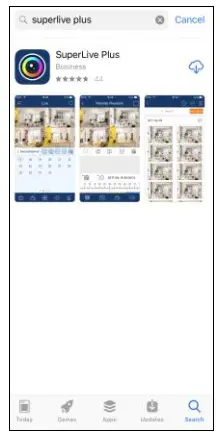
- Click “Super Live Plus” to download the software.
- Follow directions to install the software.
Setting and Application
3.1 Login
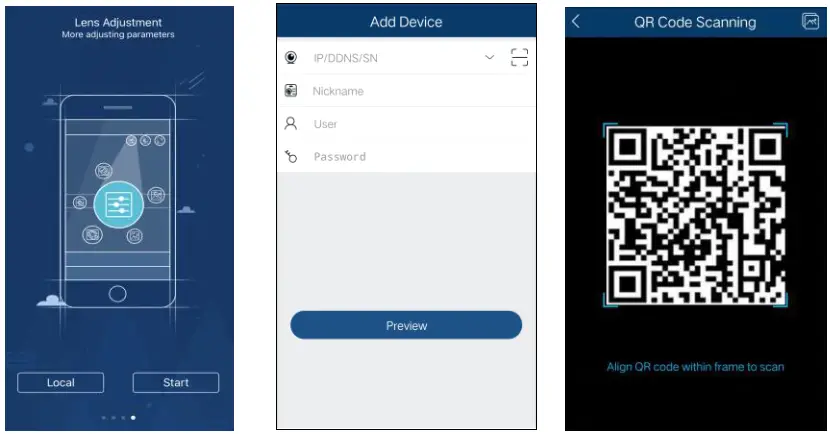
▻ Login by scanning the QRCODE
Click to scan the QRCODE of the device through your mobile phone, and then it will automatically obtain serial number and user. After manually inputting nick name and the password, click “Preview” button to go to the live interface.
Note: If the device and the mobile client are in the different network segment, the device shall support QRCODE and enable the NAT.
▻ Login by domain name or IP Address
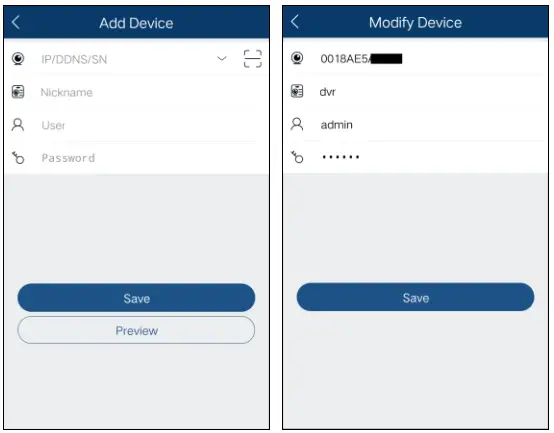
- Input IP address/domain name, nick name, user and password.
- Click “Preview” to go to the live interface.
Domain name/IP Address: WAN IP address (or domain name) plus HTTP port of the device. For example: 210.21.183:89 or 123.dvrdydns.com:89.
User and Password: The login user and password of the device. The default user name is admin and the default password is 123456.
Note: To search and add the device in the same network segment, click  button.
3.2 Live View
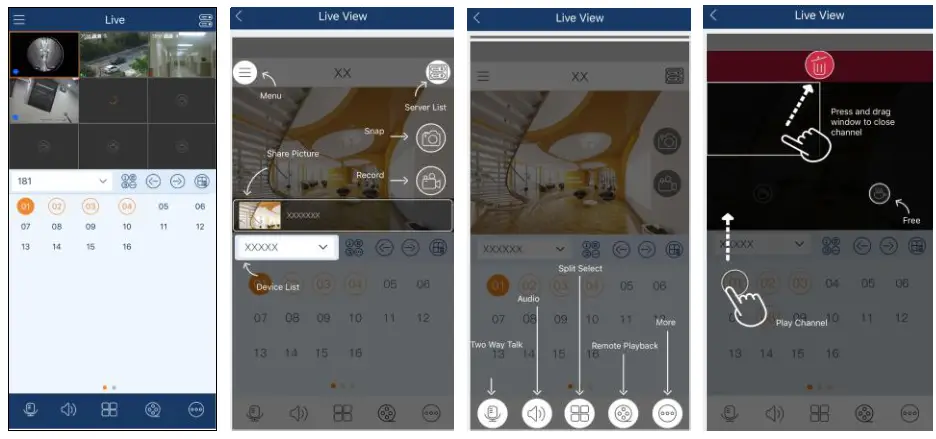
Close channel preview: Drag the window to the deletion button to close the channel preview.
Channel preview: Choose a window and click the channel number to preview the channel.
Device preview: Choose a device name and drag it to the window area. Then it will play according to the following rules.
- If the channel quantity is less than or equal to the current screen display mode, all channels of the device will be previewed in the current screen display mode.
- If the channel quantity is more than the current screen display mode and the current screen display mode is more than 9, the channel of the device will be previewed in the current screen display mode.
- If the channel quantity is more than the current screen mode and the current screen display mode is less than or equal to 9, it will play as the following rules. a) if the channel quantity is more than or equal to 9, 9 channels of the device will be previewed; b) if the channel quantity is less than 9, all channels of the device will be previewed.
Channel indication light in the live interface. : Initial state.
 : Sensor alarm/sensor alarm based recording
 : Manual recording
 : Intelligence alarm based recording
 : Motion alarm/motion alarm based recording
 : Schedule recording
Icons in the live interface : Click it to go to remote setting, local setting, sever list, file and so on.
 : Click it to go to server list.
 : Free channel.
 : Channel display.
 : Click it to play the previous channel group.
 : Click it to play the next channel group.
 :Close all previews.
 : Open/close two-way talk.
 : Open/close the audio.
 : Click it to choose 1/4/9/16 screen(s) display mode. Click “More” to choose more screen display modes.
 : Click it to go to the remote playback interface.
 : Click it to view more menus, such as add favorite, manual alarm, etc.
 : Snap. Choose the channel and click it to capture the channel image.
 : Open/close the local record.
It will go to the single channel display mode by double clicking one channel. After clicking this single channel, the following icons will be displayed.
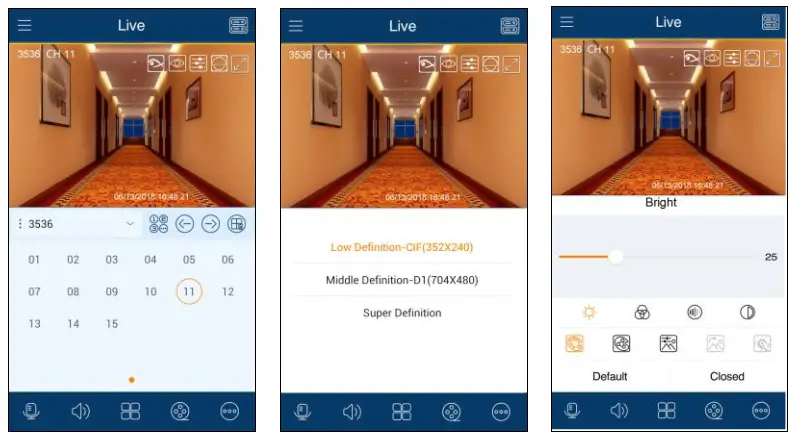
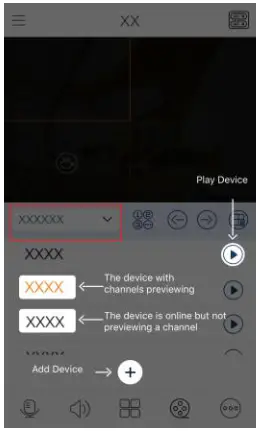
Click the device name (like “3536”) to show device name list as sown below. Click button to play all channels of this device. Click “
 ” button to add new devices.
 : Fisheye mode. This icon appears only when this channel is a fisheye camera. Click this icon to go to fisheye display mode as shown below. Different view modes can be selected in this interface.
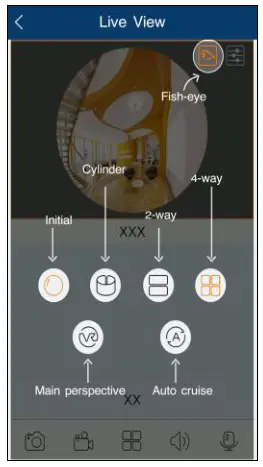
: Click it to choose the definition of the current image. : Click it to adjust the image. The brightness, white balance, sharpness, image mirror and zoom can be set.
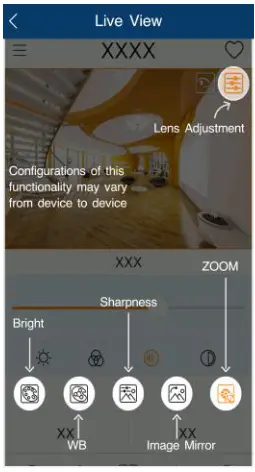
 : Zoom adjustment (this function is only available for cameras with motorized lens).
 : Click it to go to PTZ mode. You may control the PTZ by sliding the screen.
 : Full screen.
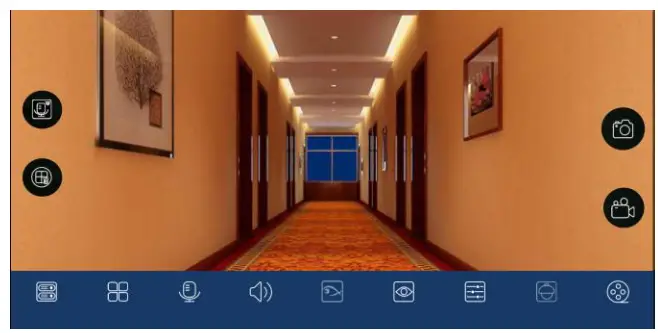
Turn you phone and make the live image display in landscape mode or go to the full screen mode.
Then the following icons will be displayed by clicking the current image.
- PTZ Control
The added device must support PTZ function, or PTZ mode cannot be enabled. Click button to see the following image.

Please control the PTZ by sliding the image in direction of the arrow marked on the image. The PTZ will automatically focus on the little red circle by clicking the image. Then the 3D function can be enabled (the added device must be support 3D function, or this function is ineffective).
- Add Favorite Group
In the live interface, click and then select “Add Favorite” to add favorite group.
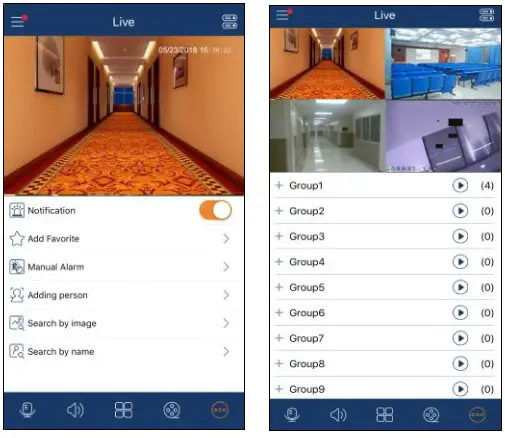
Click “+” in front of the group name to save the current channels to the favorite group.
You can also click to select other screen display mode and channels. Then save these channels to the favorite group. Click to play the favorite channels of the group immediately.
- Manual Alarm
Click “Manual Alarm” to go to the following interface. If your device don’t support alarm out function, please skip the instruction.
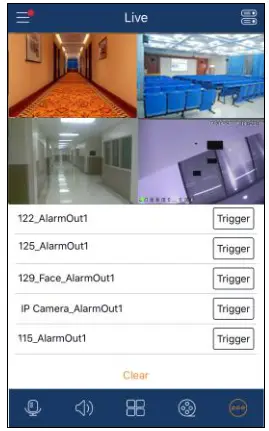
Select the desired alarm output and then click “Trigger” button to trigger alarm out manually. Click “Clear” to clear alarm output.
- Face Search
Only the device with face search function supports the following applications.
- Adding new members
① Click and select “Adding person” to go to the following interface.
② Take a snapshot of a person or click to select a face in your album.
③ Fill in the relevant information of the person and save it.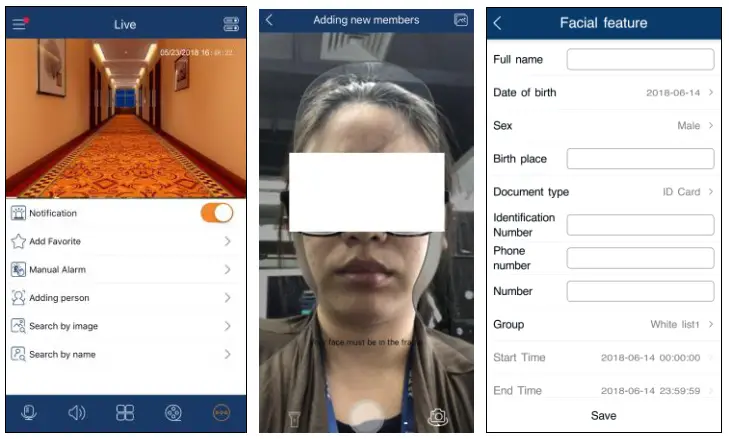
- Search by image
① Select “Search by image”.
② Take a photo of a person or click to select a face in your album.
③ Set the similarity, max. count, start and end time.
④ Click “Start Searching” to search the result.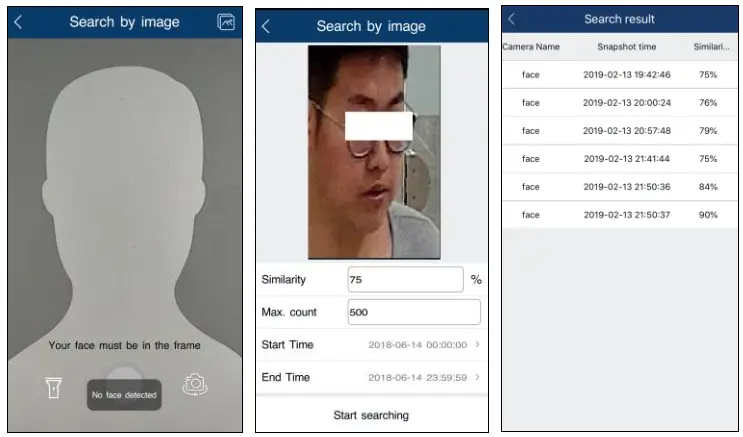 ⑤ Click the searched result to view the details, including snapshot time, camera name, face ID and so on.
⑥ Click in the middle of the image to play the record.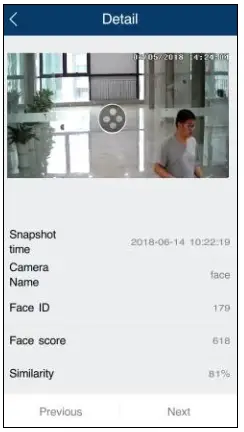
- Search by name
① Select “Search by name”.
② Select the relevant group and then enter the name you want to search.
③ Click the searched name and then choose a face.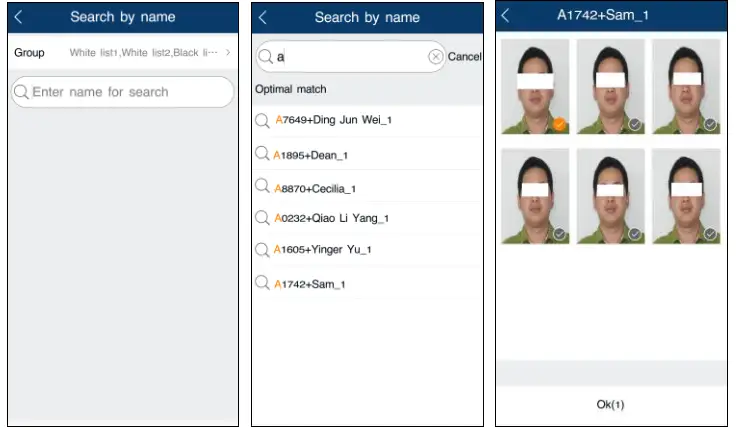 ④ Set the similarity, max. count, start and end time.
⑤ Click “Start Searching” to search the result.
⑥ Click the searched result to view the details, including snapshot time, camera name, face ID and so on.
Note: If just one face picture is selected to search the result, the trajectory tracking information can be viewed in the search result interface.
⑦ Click in the middle of the image to play the record.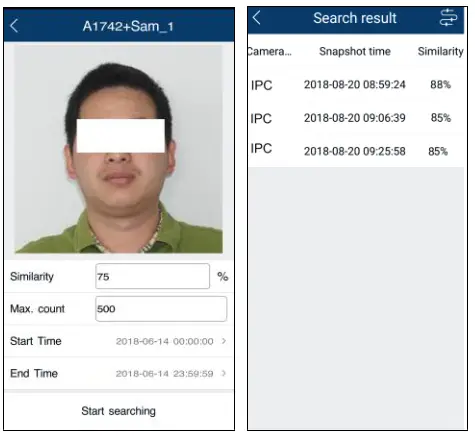 Trajectory tracking:
Click to view the target in different places. Click one file and click button to play the record. Note that the next trace will be automatically played.
Click to play all trace records automatically.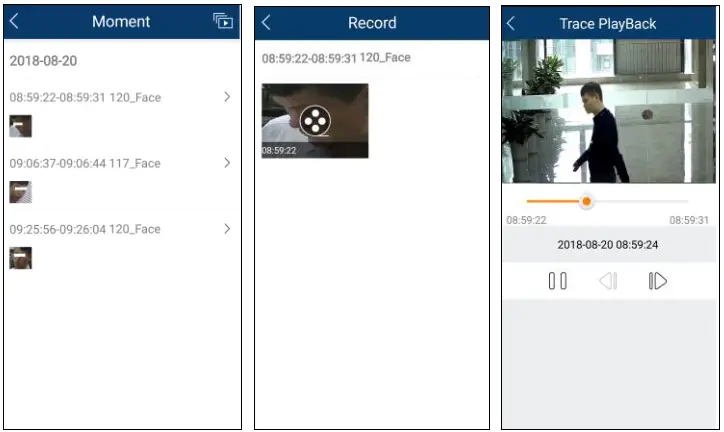
3.3 Remote Playback
Click icon in the live interface to remotely play the record saved in the HDD(s) of the device.
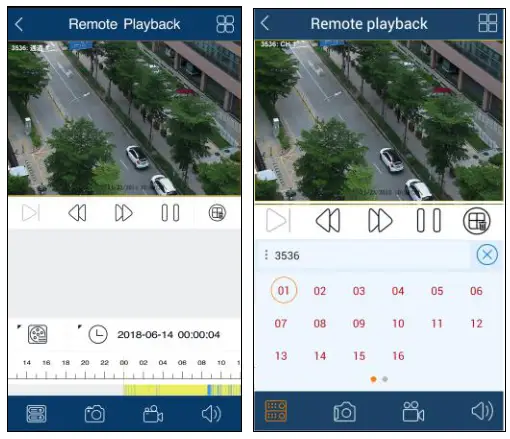
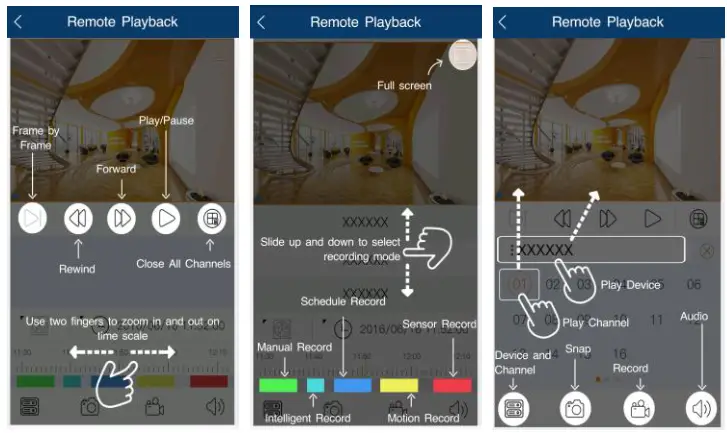
Please control the playback by using the buttons mentioned above. Then turn you phone and make the remote playback display in landscape mode.
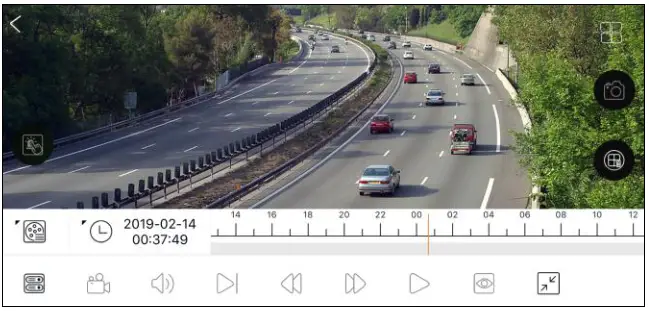
 : Choose the recording mode.
 : Click it to choose date.
 : Click it to choose the channel.
 : Open/close the local record.
 : Open/close the audio.
 : Click it to choose the definition of the current image.
 : Exit the full screen mode.
3.4 Remote Setting
In the live interface, click icon. This will bring the following menu setup items. Select “Remote setting” to go to the remote setting interface. Then click the device name to view its function panel (Different devices have different remote setting items. The following pictures are for reference only).
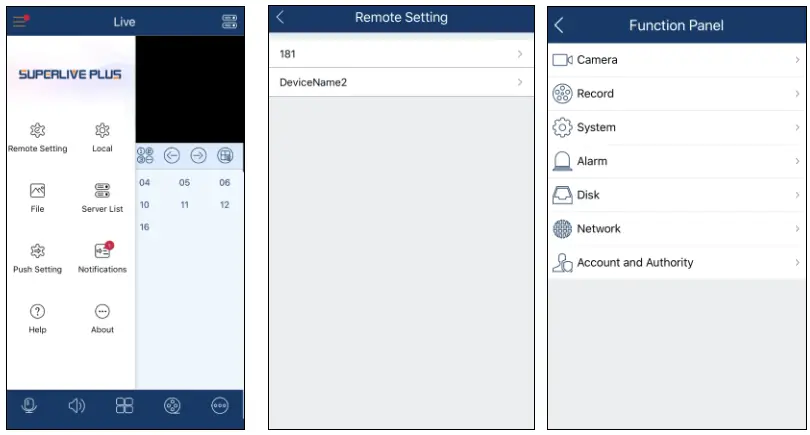
Please refer to the user manual of the device to set the relevant items.
3.5 Local Setting
Select “Local setting” to go to the following interface. Slide down to see all setting items.
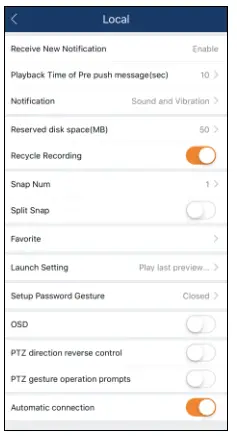
Receive New Notification: please enable or disable it as needed.
Playback Time of Pre push message (sec): Choose the time as needed.
Notification: You can choose “No Disturb” or “Sound and Vibration.
Reserved disk space (MB): 50/100/200/500/1024MB can be optional.
Recycle Recording: Enable/disable record recycle. If enabled, the system will automatically delete the old records and recycle the space if it is completely utilized.
Snap num.: Set the number of snap.
Split snap: Enable/disable split snap.
Favorite: Set the favorite group here after you collect the favorite group.
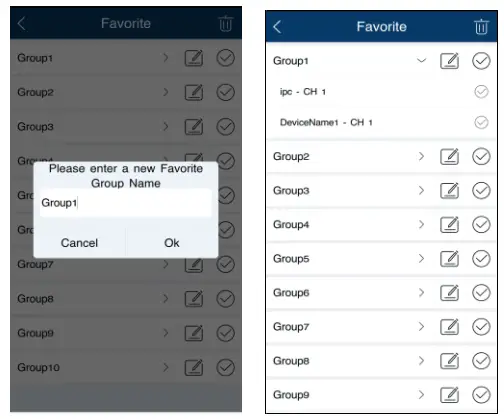
Select the name of the favorite group and click icon to modify the name of the favorite group.
Click icon > to show the channels of the group. Select the channel of the favorite group and click icon to delete the channel. Select the group name and click icon to delete all channels of the group.
Launch setting: Set to play favorite group or play device or play last preview channels after starting this software.
Setup Password gesture: For your client privacy safety, you can set password gesture.
Screen Rotation Correction: Please enable it as needed.
OSD: You can enable or disable the local OSD.
PTZ direction reverse control: Please enable it as needed.
PTZ gesture operation prompts: Please enable it as needed.
Auto connection: Enable or disable it as desired.
3.6 Server List
In the server list interface, you can add, modify and check the information of the device.
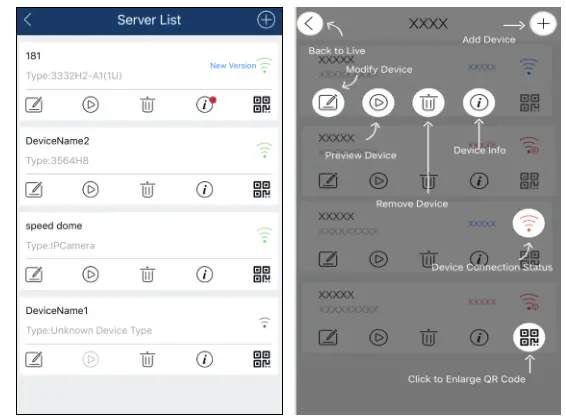
After you go to the server list interface, the added devices will be listed. :Click this icon to return to the live view interface.
 : Connection Status; green means successful connection; grey means connection failure.
 : Click it to delete the device. : Click it to modify the device.
 : Click it to view the device information (like device name, firmware version, etc.)
 : Click it to preview the device.
 : Click it to enlarge QR code. Press and hold the QR code to share this device.
Click to add a device. You can add the device through IP address/domain name/serial number/scanning the QR code.
3.7 File Management
Go to the file interface as shown below.
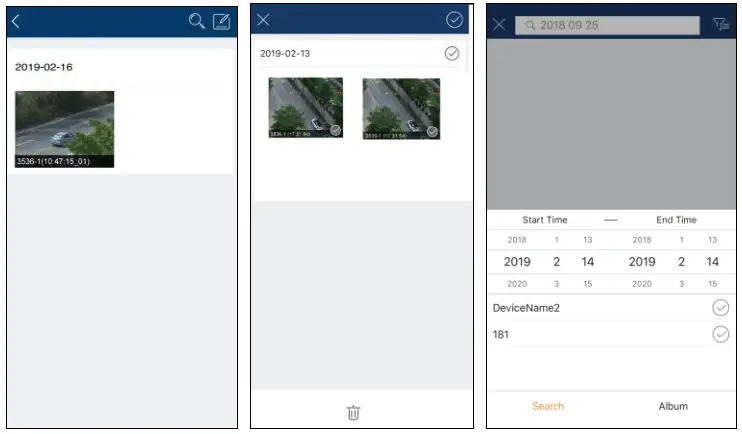
Icon Instruction: : Return to the live view interface. : Selection.
 : Search
 :Click it to set the specific start and end time and choose the desired devices.
Click to search files. You can search files by entering date, time, device name and/or channel. Separate terms with a space.
Click and then click to select files. Then click to delete these selected files.
Picture View:
Select one picture and click it to view this picture as shown below.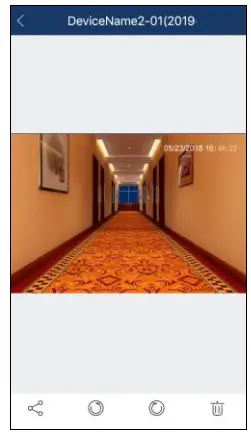
 : Return to the previous interface.
 : Click it to rotate a picture to the left.
 : Click it to rotate a picture to the right. : Click it to delete the picture.
 : Click it to share pictures on different social media platforms, like Twitter, Facebook, etc. Additionally, videos can be shared on Dropbox here.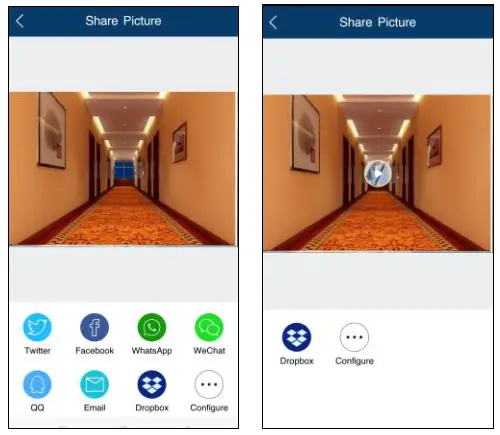
3.8 Local Playback
In the file management interface, the local record file can be searched. Click the play button in the middle of the picture to play the local record file.
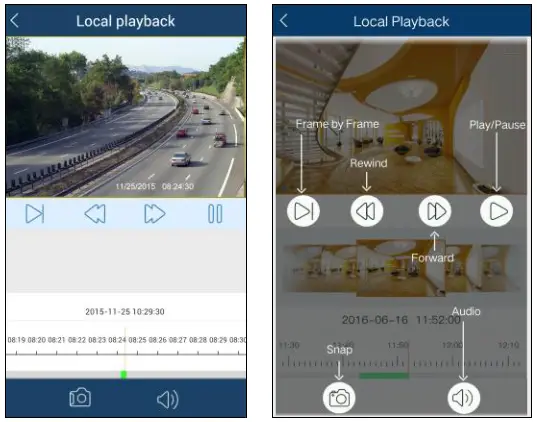
Slide the timeline to select the play time.
Green block indicates manual record. Turning your phone can make the local playback display in landscape mode.
3.9 Push Setting
You can push the information of online devices as shown below.
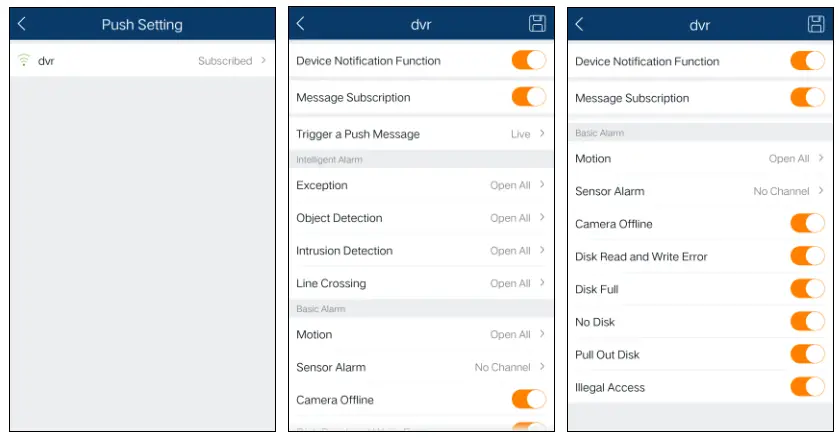
When an alarm event happens, the alarm information will pop up as shown below.
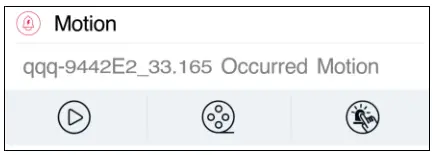
Click to view the current video.
Click to view the record.
Click to set alarm out.
3.10 Notifications
After you enable the device notification function in Push Setting, you can receive the relative information.
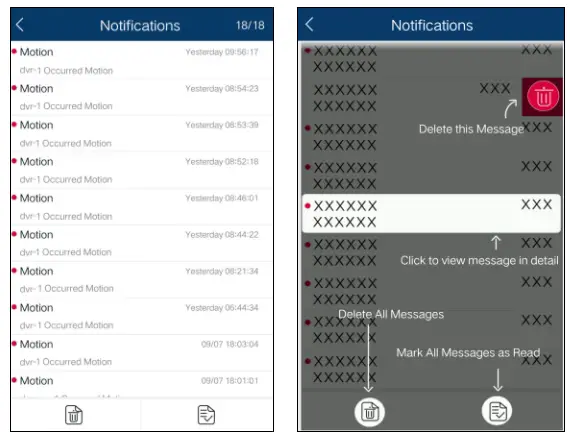
3.11 Help
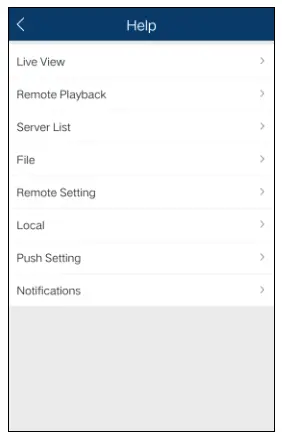
You may view the help documentations in respect of live view, remote playback, server list, file, remote setting, local setting and so on in the help interface.
3.12 About
In this interface, you can check the information of the software version.
Choose Share APP and then press and hold the QRCODE to share the information of the software.
Click “Detect new version to find the new version.
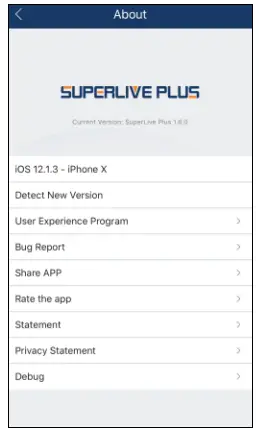
Select “Rate the app” to give a score for the APP.
Bug Report: when the APP crash or failure occurs, you can choose this item and send the bug report to the technical support of the APP for quickly solving the problem.
To send a bug report:
- Click “User Experience Program” to agree the privacy statement.
- Click the log report to show a Rode.
- Save this Rode and send it to the technical support of the APP.
Note: You also can click the “Send bug report” button to generate a bug report.