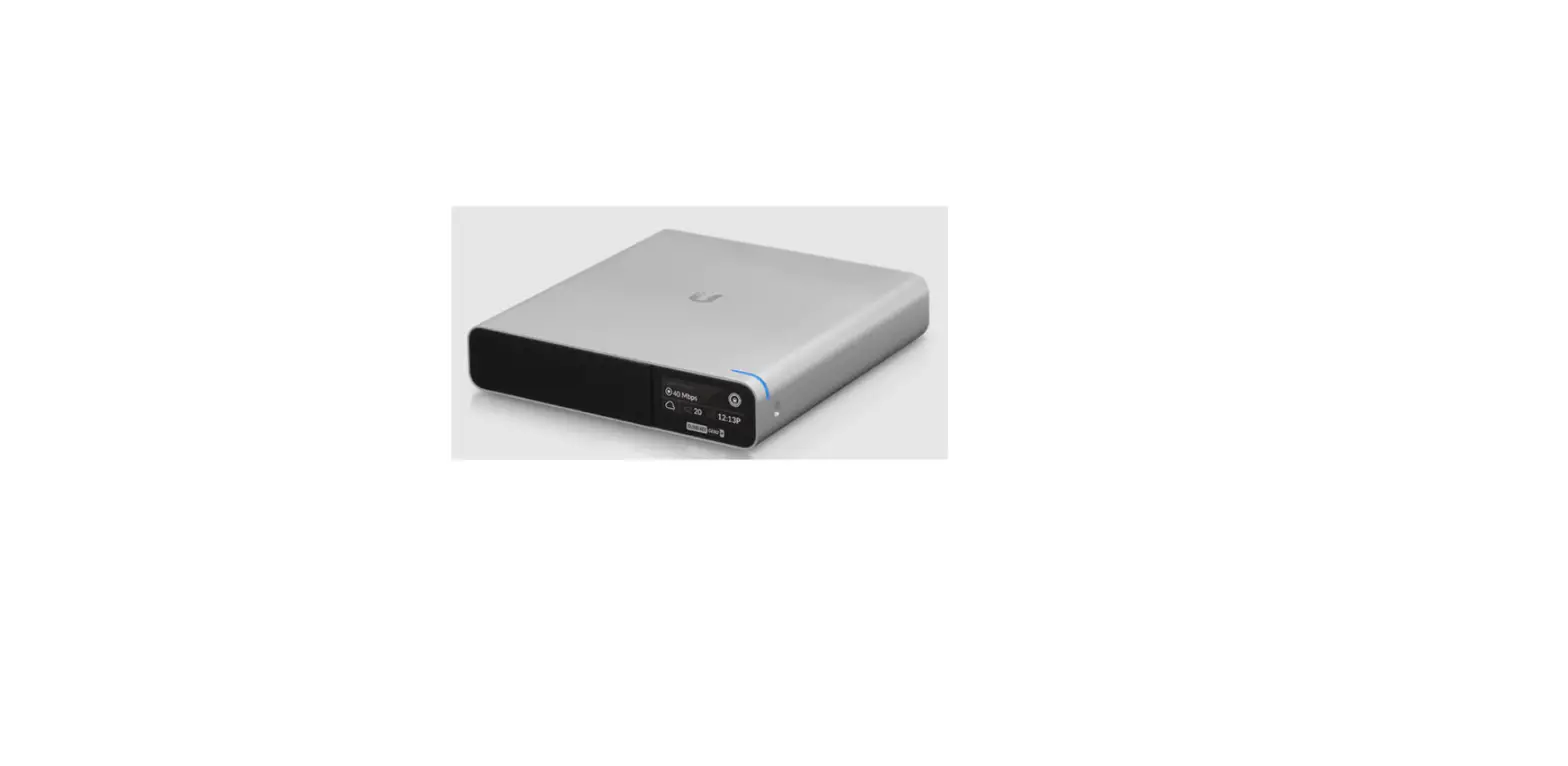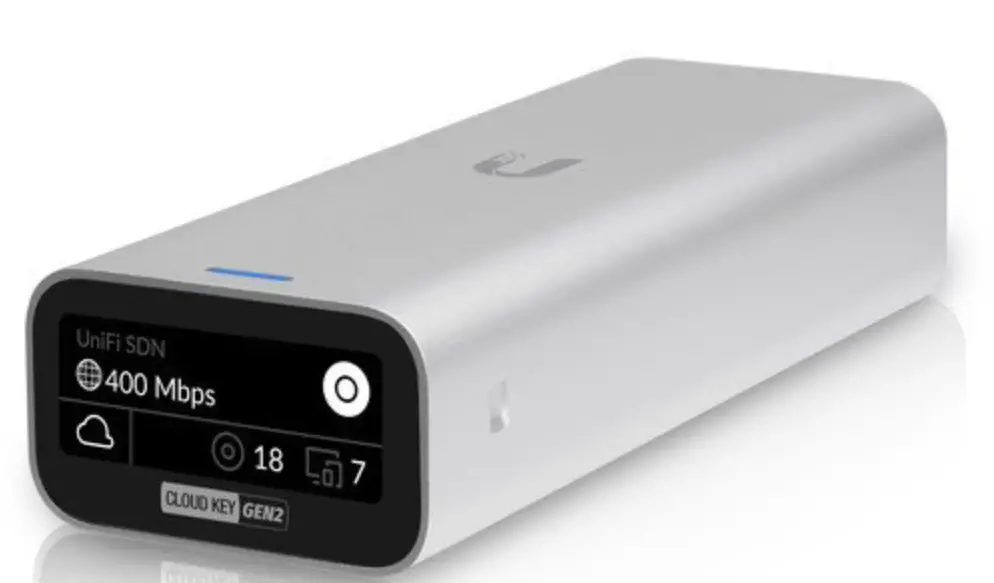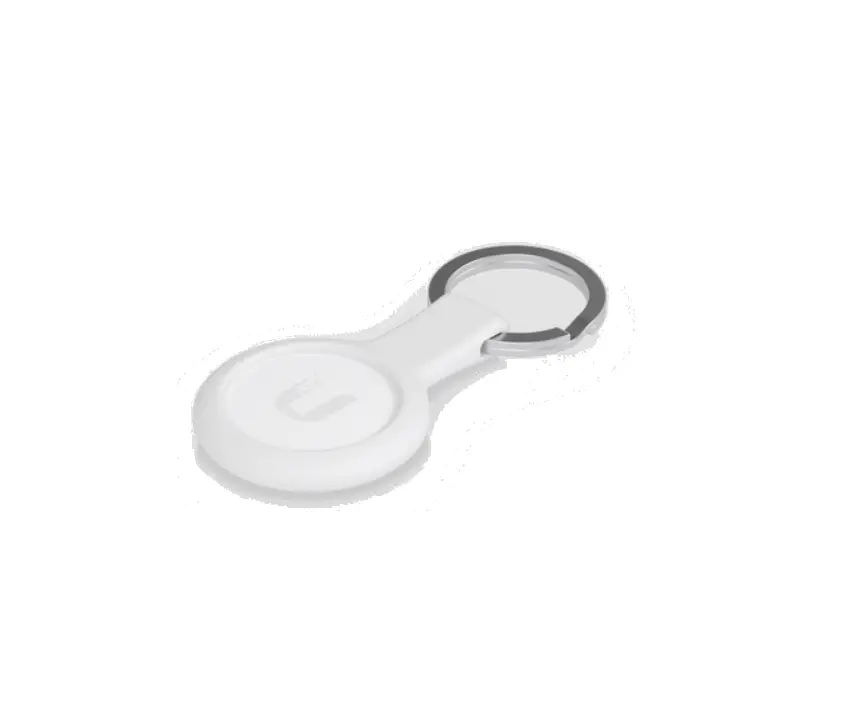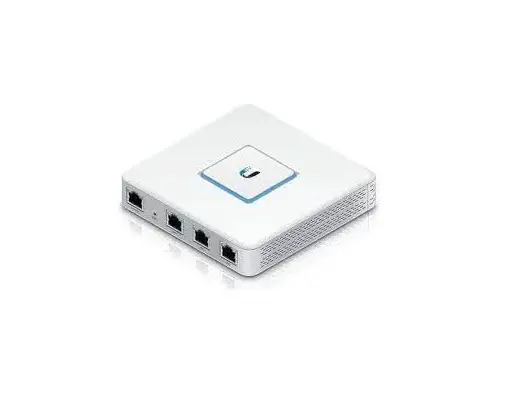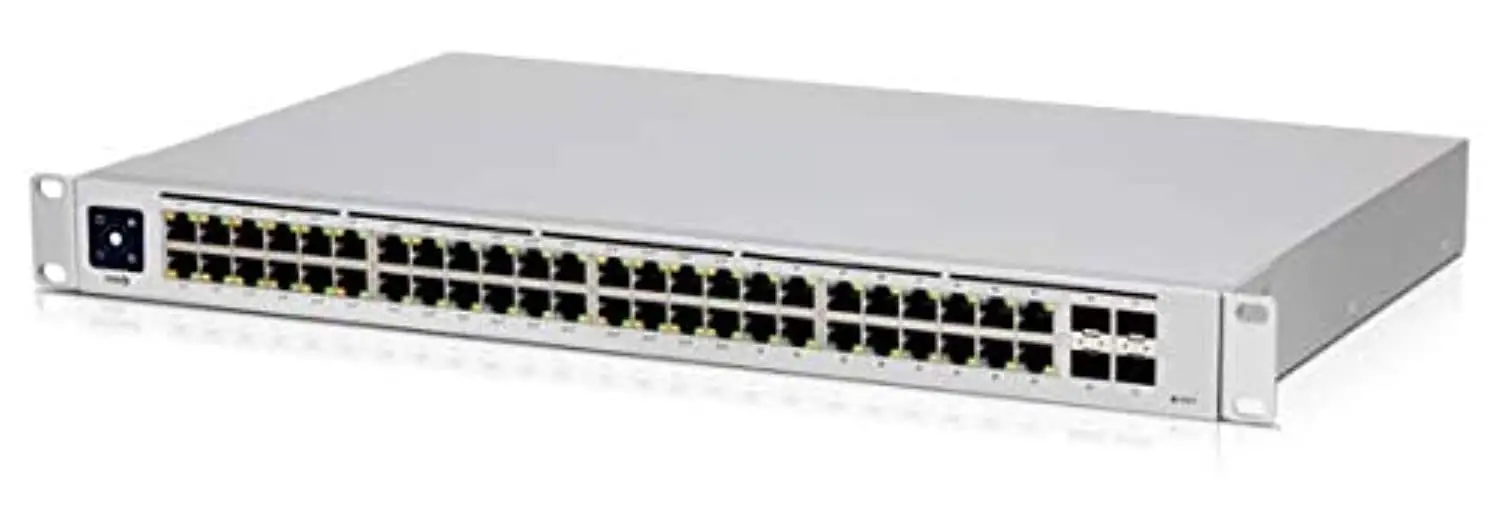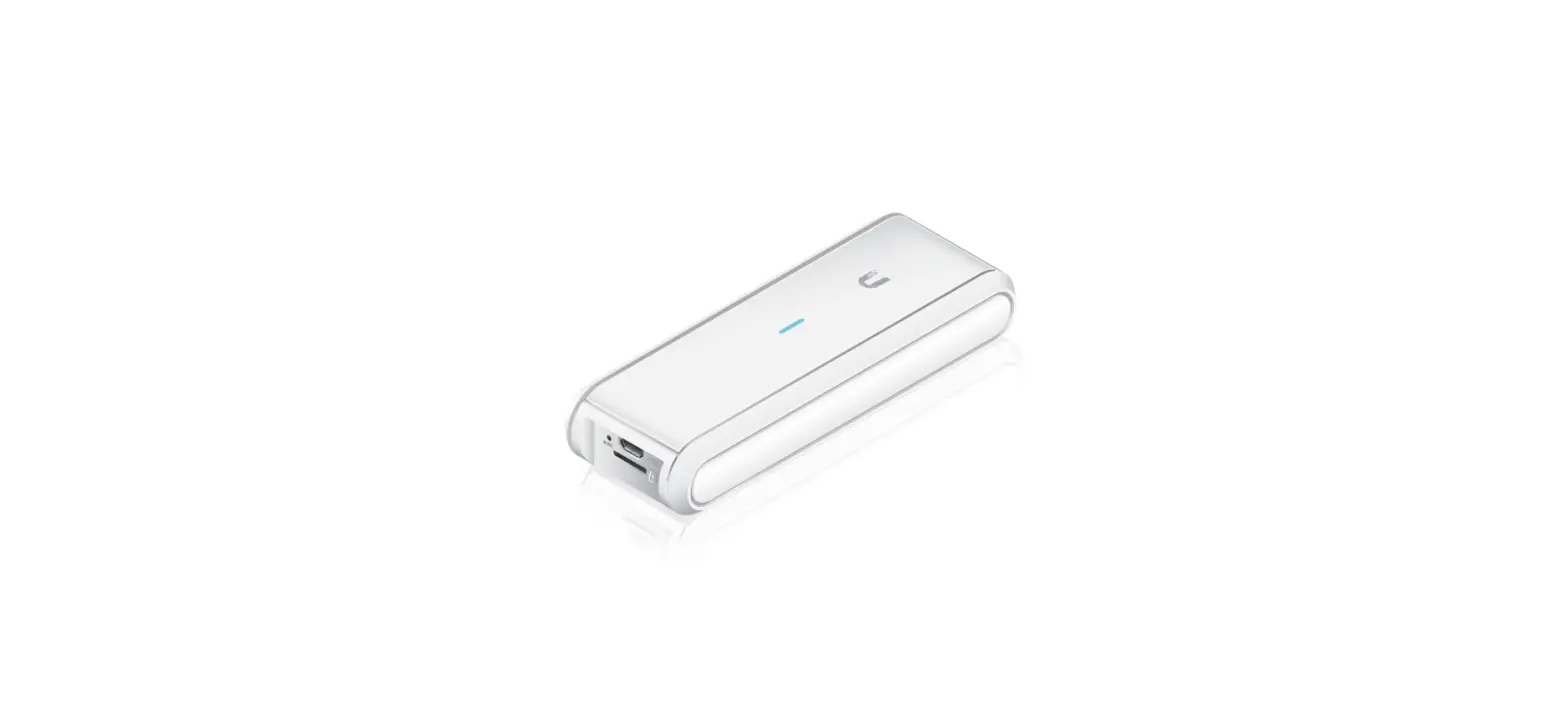

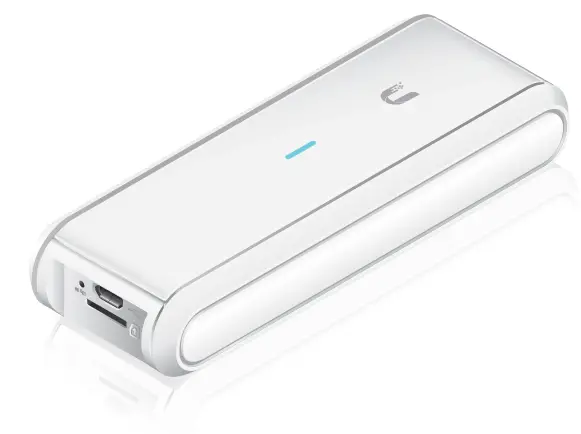
Unifi UC-CK Ubiquiti cloud key
Introduction
Thank you for purchasing the Ubiquiti Networks® UniFi® Cloud Key. This Quick Start Guide is designed to guide you through installation and also includes warranty terms.
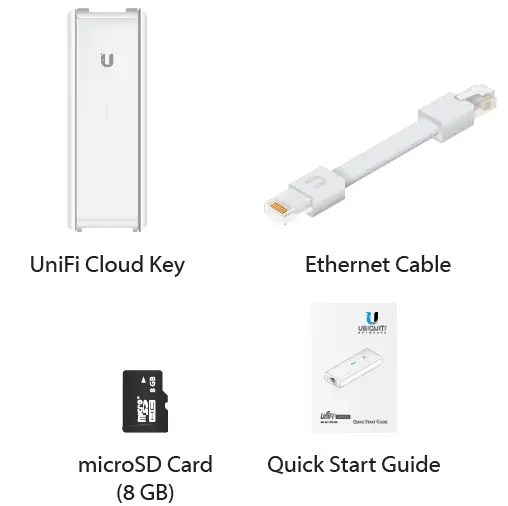
Package Contents
System Requirement
Web Browser: Mozilla Firefox, Google Chrome,
Microsoft Edge, or Microsoft Internet Explorer 11
TERMS OF USE: All Ethernet cabling runs must use CAT5 (or above). It is the customer’s responsibility to follow local country regulations, including operation within legal frequency channels, output power, indoor cabling requirements, and Dynamic Frequency Selection (DFS) requirements.
Network Topology Requirement
A DHCP-enabled network (for the UniFi Cloud Key to obtain an IP address)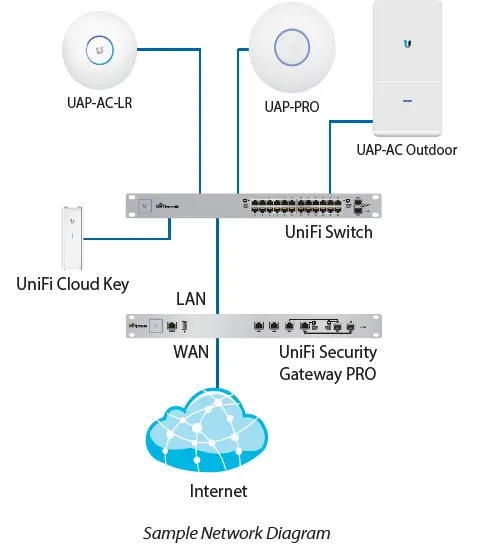
All UniFi devices also support off-site management controllers. For setup details, see the User Guide on the website: documentation.ubnt.com/unifi
Hardware Overview
Front Panel LED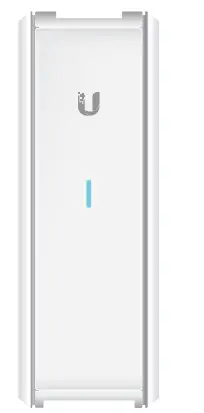
| LED Color Status | |
| White | Factory defaults. |
| Flashing White | Initializing. |
| Alternating White/Blue | The device is busy; do not touch or unplug it. This usually indicates that a process such as a firmware upgrade is taking place. |
| Blue | The device is working properly. |
Top Panel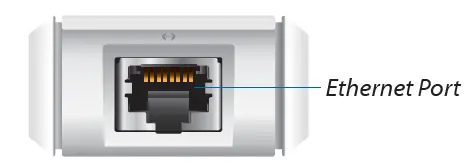
Ethernet This Gigabit Ethernet port is used to connect the power and should be connected to the LAN and DHCP server. Power can be provided by an 802.3af PoE switch, such as the Ubiquiti Networks UniFi Switch.
Bottom Panel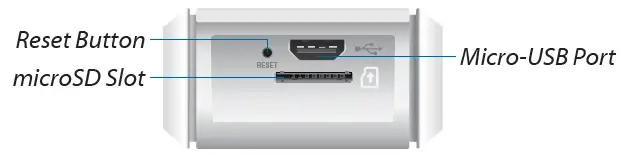
Reset The Reset button serves two functions:
- Restart Press and release the Reset button quickly.
- Restore to Factory Default Settings Press and hold the Reset button for more than five seconds.
Micro-USB Optional power source (5V, minimum 1A) if PoE is not available.
microSD Reserved for future use.
Hardware Installation
- Connect the Ethernet Cable to the Ethernet port.

- Connect the other end of the Ethernet Cable to a port on a network switch, such as an UniFi Switch.

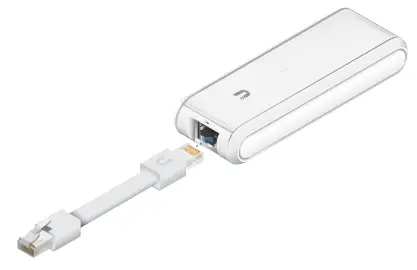
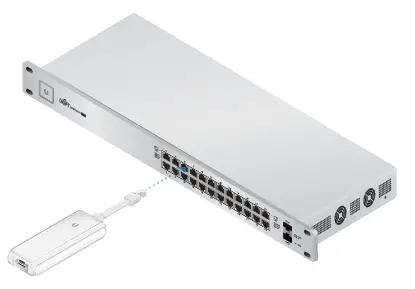
Powering the UniFi Cloud Key
Use an 802.3af-compliant switch, such as a UniFi Switch, or a USB power source (not included).
UniFi Switch
The UniFi Cloud Key can be powered by a UniFi Switch or other 802.3af-compliant switch.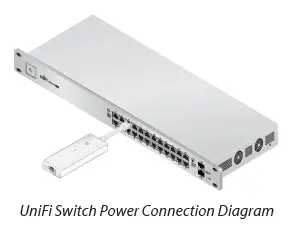
USB Power Source
Connect the USB cable (not included) from the UniFi Cloud Key directly to a USB power source (5V, minimum 1A).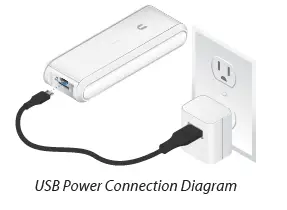
Software Installation
The UniFi Controller software is pre-installed on the UniFi Cloud Key. Use one of the following methods to launch the software:
- If you are using Chrome, go to the Chrome Instructions section (recommended).
- If you are using a different web browser, go to the Instructions for Other Web Browsers section.
Chrome Instructions
- Ensure that your host system is on the same Layer-2 network as the UniFi Cloud Key.
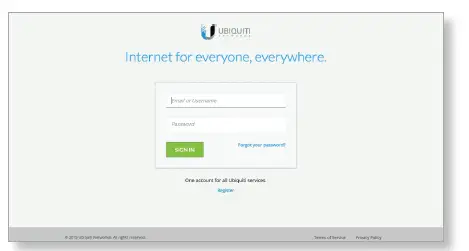
- Launch the Chrome web browser and type https://unifi.ubnt.com in the address field.
Press enter (PC) or return (Mac).
- Enter the username and password for your UBNT account. Click Sign In.

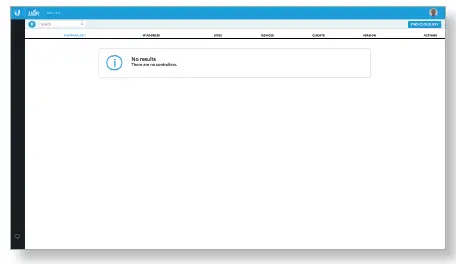
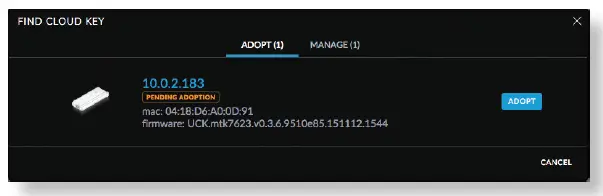
- Click Find Cloud Key.

- If the Ubiquiti® Device Discovery Tool is already installed, proceed to step 7.
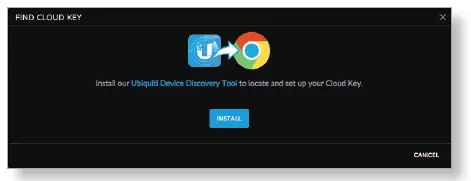
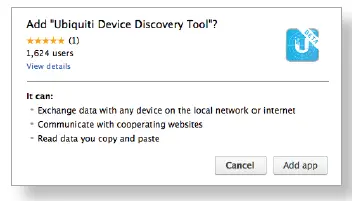
If the tool is not installed, you will be prompted to add it. Proceed to step 6. - To install the tool:
- Click Install.

- Click Add app to confirm.

- Click Install.
- The Ubiquiti Device Discovery Tool will search for the UniFi Cloud Key. Select it to continue.

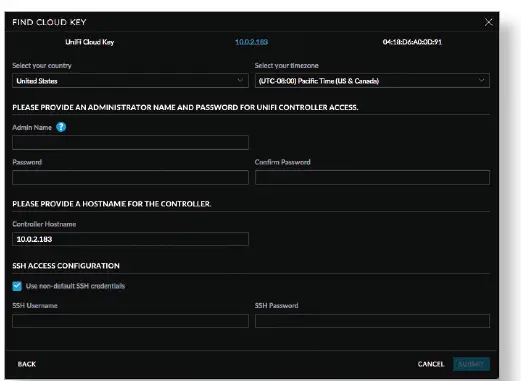
- Configure the UniFi Controller:
- Select the appropriate country.
- Select the appropriate time zone.
- Enter an admin name in the Admin Name field and a password in the Password field to use when accessing the management interface.
- Confirm your password in the Confirm Password field.
- Keep the IP address or enter a hostname in the Controller Hostname field.
- If you have changed the default username or password of the UniFi Cloud Key, then you must set up login credentials. Select Use non-default SSH credentials. Enter a username in the SSH Username field, and enter a password in the SSH Password field.
- Click Submit to save your changes.

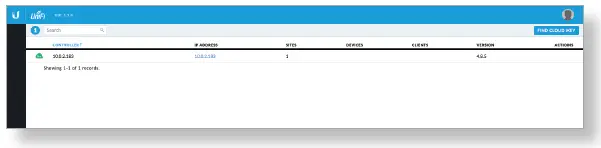
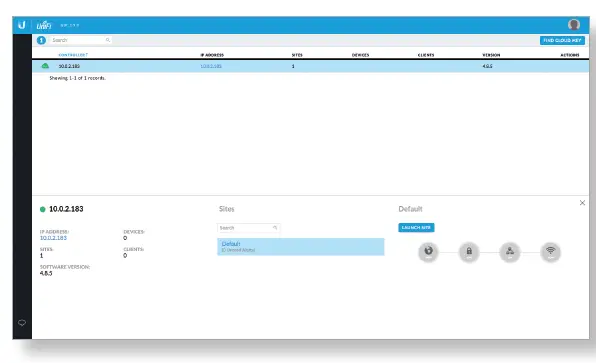
- Wait for the UniFi Controller to be adopted, and then select it.

- Click Launch Site.


Instructions for Other Web Browsers
- Ensure that your host system is on the same Layer-2 network as the UniFi Cloud Key.
- The UniFi Cloud Key is set to DHCP by default, so it will try to automatically obtain an IP address. Assign a specific IP address to the UniFi Cloud Key, or check the DHCP server for its IP address.
Note: The default fallback IP address of the UniFi Cloud Key is 192.168.1.30. - Launch the web browser. In the address field, type https://followed by the appropriate IP address. Press enter (PC) or return (Mac).

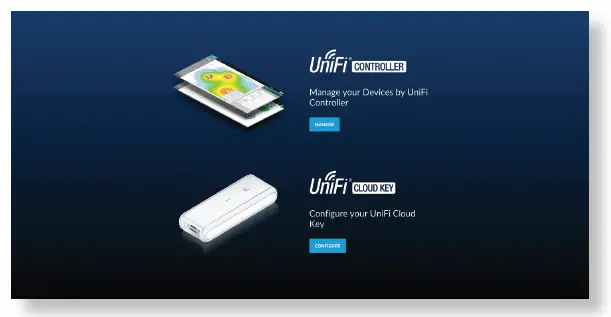
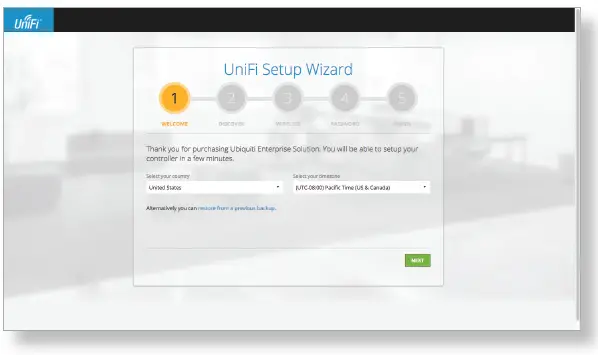
- Click Manage to run the UniFi Setup Wizard.

Note: You can click Configure to change the settings of the UniFi Cloud Key. The default login is ubnt/ubnt. - The UniFi Setup Wizard screen appears. Follow the on-screen instructions. For step-by-step instructions, refer to the User Guide, which is available at documentation.ubnt.com/unifi

After the UniFi Setup Wizard is finished, the UniFi Controller management interface will appear. Log in with the Admin Name and Password that you created, and then you can manage your UniFi devices and view network statistics using the UniFi Controller management interface.
For information on configuring and using the UniFi Controller software, refer to the User Guide.

Specifications
| UC-CK | |
| Dimensions | 21.7 x 43.4 x 121.9 mm (0.85 x 1.71 x 4.80″) |
| Weight | 110 g (3.88 oz) |
| Networking Interface | (1) 10/100/1000 Ethernet Port |
| Buttons | (1) Reset to Defaults |
| Power Method PoE
Micro-USB | 48V 802.3af or Passive PoE (Pairs 4, 5+; 7, 8 Return) 5V |
| Power Supply | 802.3af PoE or Micro-USB 5V, Minimum 1A |
| Max. Power Consumption | 5W |
| Certifications | CE, FCC, IC |
| Operating Temperature | 0 to 40° C (32 to 104° F) |
| Operating Humidity | 20 to 90% Noncondensing |
Safety Notices
- Read, follow, and keep these instructions.
- Heed all warnings.
- Only use attachments/accessories specified by the manufacturer.
- WARNING: Do not use this product in a location that can be submerged by water.
WARNING: Avoid using this product during an electrical storm. There may be a remote risk of electric shock from lightning.
Electrical Safety Information
- Compliance is required with respect to voltage, frequency, and current requirements indicated on the manufacturer’s label. Connection to a different power source than those specified may result in improper operation, damage to the equipment or pose a fire hazard if the limitations are not followed.
- There are no operator-serviceable parts inside this equipment. Service should be provided only by a qualified service technician.
Limited Warranty
UBIQUITI NETWORKS, Inc (“UBIQUITI NETWORKS”) warrants that the product(s) furnished hereunder (the “Product(s)”) shall be free from defects in material and workmanship for a period of one (1) year from the date of shipment by UBIQUITI NETWORKS under normal use and operation. UBIQUITI NETWORKS’ sole and exclusive obligation and liability under the foregoing warranty shall be for UBIQUITI NETWORKS, at its discretion, to repair or replace any Product that fails to conform to the above warranty during the above warranty period. The expense of removal and reinstallation of any Product is not included in this warranty. The warranty period of any repaired or replaced Product shall not extend beyond its original term.
Warranty Conditions
The above warranty does not apply if the Product:
- has been modified and/or altered, or an addition made thereto, except by Ubiquiti Networks, or Ubiquiti Networks’ authorized representatives, or as approved by Ubiquiti Networks in writing;
- has been painted, rebranded or physically modified in any way;
- has been damaged due to errors or defects in cabling;
- has been subjected to misuse, abuse, negligence, abnormal physical, electromagnetic or electrical stress, including lightning strikes, or accident;
- has been damaged or impaired as a result of using third-party firmware;
- has no original Ubiquiti MAC label, or is missing any other original Ubiquiti label(s); or
- has not been received by Ubiquiti within 30 days of issuance of the RMA.
In addition, the above warranty shall apply only if: the product has been properly installed and used at all times in accordance, and in all material respects, with the applicable Product documentation; all Ethernet cabling runs use CAT5
(or above), and for outdoor installations, shielded Ethernet cabling is used, and for indoor installations, indoor cabling requirements are followed.
Returns
No Products will be accepted for replacement or repair without obtaining a Return Materials Authorization (RMA) number from UBIQUITI NETWORKS during the warranty period, and the Products being received at UBIQUITI NETWORKS’ facility freight prepaid in accordance with the RMA process of UBIQUITI NETWORKS. Products returned without an RMA number will not be processed and will be returned to freight collection or subject to disposal. Information on the RMA process and obtaining an RMA number can be found at: www.ubnt.com/support/warranty.
Disclaimer
EXCEPT FOR ANY EXPRESS WARRANTIES PROVIDED HEREIN, UBIQUITI NETWORKS, ITS AFFILIATES, AND ITS AND THEIR THIRD PARTY DATA, SERVICE, SOFTWARE, AND HARDWARE PROVIDERS HEREBY DISCLAIM AND MAKE NO OTHER REPRESENTATION OR WARRANTY OF ANY KIND, EXPRESS, IMPLIED OR STATUTORY, INCLUDING, BUT NOT LIMITED
TO, REPRESENTATIONS, GUARANTEES, OR WARRANTIES OF MERCHANTABILITY, ACCURACY, QUALITY OF SERVICE OR RESULTS, AVAILABILITY, SATISFACTORY QUALITY, LACK OF VIRUSES, QUIET ENJOYMENT, FITNESS FOR A PARTICULAR PURPOSE AND NON-INFRINGEMENT AND ANY WARRANTIES ARISING FROM ANY COURSE OF DEALING, USAGE OR TRADE PRACTICE IN CONNECTION WITH SUCH PRODUCTS AND SERVICES.
BUYER ACKNOWLEDGES THAT NEITHER UBIQUITI NETWORKS NOR ITS THIRD-PARTY PROVIDERS CONTROL BUYER’S EQUIPMENT OR THE TRANSFER OF DATA OVER COMMUNICATIONS FACILITIES, INCLUDING THE INTERNET, AND THAT THE PRODUCTS AND SERVICES MAY BE SUBJECT TO LIMITATIONS, INTERRUPTIONS, DELAYS, CANCELLATIONS AND OTHER PROBLEMS INHERENT IN THE USE OF COMMUNICATIONS FACILITIES. UBIQUITI NETWORKS, ITS AFFILIATES AND ITS, AND THEIR THIRD-PARTY PROVIDERS ARE NOT RESPONSIBLE FOR ANY INTERRUPTIONS, DELAYS, CANCELLATIONS, DELIVERY FAILURES, DATA LOSS, CONTENT CORRUPTION, PACKET LOSS, OR OTHER DAMAGE RESULTING FROM ANY OF THE FOREGOING. In addition, UBIQUITI NETWORKS does not warrant that the operation of the Products will be error-free or that operation will be uninterrupted. In no event shall UBIQUITI NETWORKS be responsible for damages or claims of any nature or description relating to system performance, including coverage, buyer’s selection of products (including the Products) for buyer’s application and/or failure of products (including the Products) to meet government or regulatory requirements.
Limitation of Liability
EXCEPT TO THE EXTENT PROHIBITED BY LOCAL LAW, IN NO EVENT WILL UBIQUITI OR ITS SUBSIDIARIES, AFFILIATES OR SUPPLIERS BE LIABLE FOR DIRECT, SPECIAL, INCIDENTAL, CONSEQUENTIAL OR OTHER DAMAGES (INCLUDING LOST PROFIT, LOST DATA, OR DOWNTIME COSTS), ARISING OUT OF THE USE, INABILITY TO USE, OR THE RESULTS OF USE OF THE PRODUCT, WHETHER BASED IN WARRANTY, CONTRACT, TORT OR OTHER LEGAL THEORY, AND WHETHER OR NOT ADVISED OF THE POSSIBILITY OF SUCH DAMAGES.
Note
Some countries, states and provinces do not allow exclusions of implied warranties or conditions, so the above exclusion may not apply to you. You may have other rights that vary from country to country, state to state, or province to province. Some countries, states and provinces do not allow the exclusion or limitation of liability for incidental or consequential damages, so the above limitation may not apply to you. EXCEPT TO THE EXTENT ALLOWED BY LOCAL LAW, THESE WARRANTY TERMS DO NOT EXCLUDE, RESTRICT OR MODIFY, AND ARE IN ADDITION TO, THE MANDATORY STATUTORY RIGHTS APPLICABLE TO THE LICENSE OF ANY SOFTWARE (EMBEDDED IN THE PRODUCT) TO YOU. The United Nations Convention on Contracts for the International Sale of Goods shall not apply to any transactions regarding the sale of the Products.
FCC Compliance
Changes or modifications not expressly approved by the party responsible for compliance could void the user’s authority to operate the equipment.
This device complies with Part 15 of the FCC Rules. Operation is subject to the following two conditions.
- This device may not cause harmful interference, and
- This device must accept any interference received, including interference that may cause undesired operation.
This equipment has been tested and found to comply with the limits for a Class A digital device, pursuant to Part 15 of the FCC Rules. These limits are designed to provide reasonable protection against harmful interference when the equipment is operated in a commercial environment. This equipment generates, uses, and can radiate radio frequency energy and, if not installed and used in accordance with
the instruction manual, may cause harmful interference to radio communications. Operations of this equipment in a residential area is likely to cause harmful interference in which case the user will be required to correct the interference at his own expense.
Industry Canada
CAN ICES-3(A)/NMB-3(A)
This Class A digital apparatus complies with Canadian CAN ICES-003.
CE Marking
CE marking on this product represents the product is in compliance with all directives that are applicable to it.