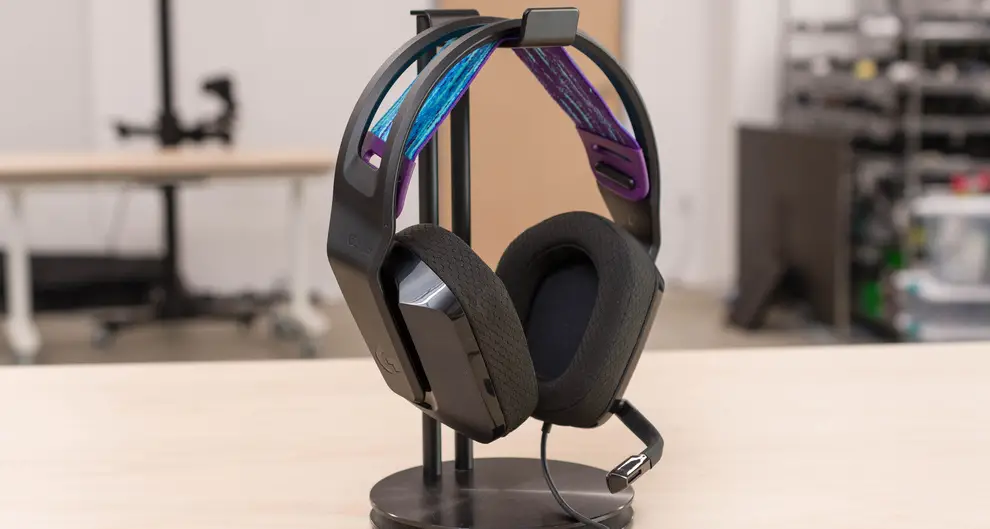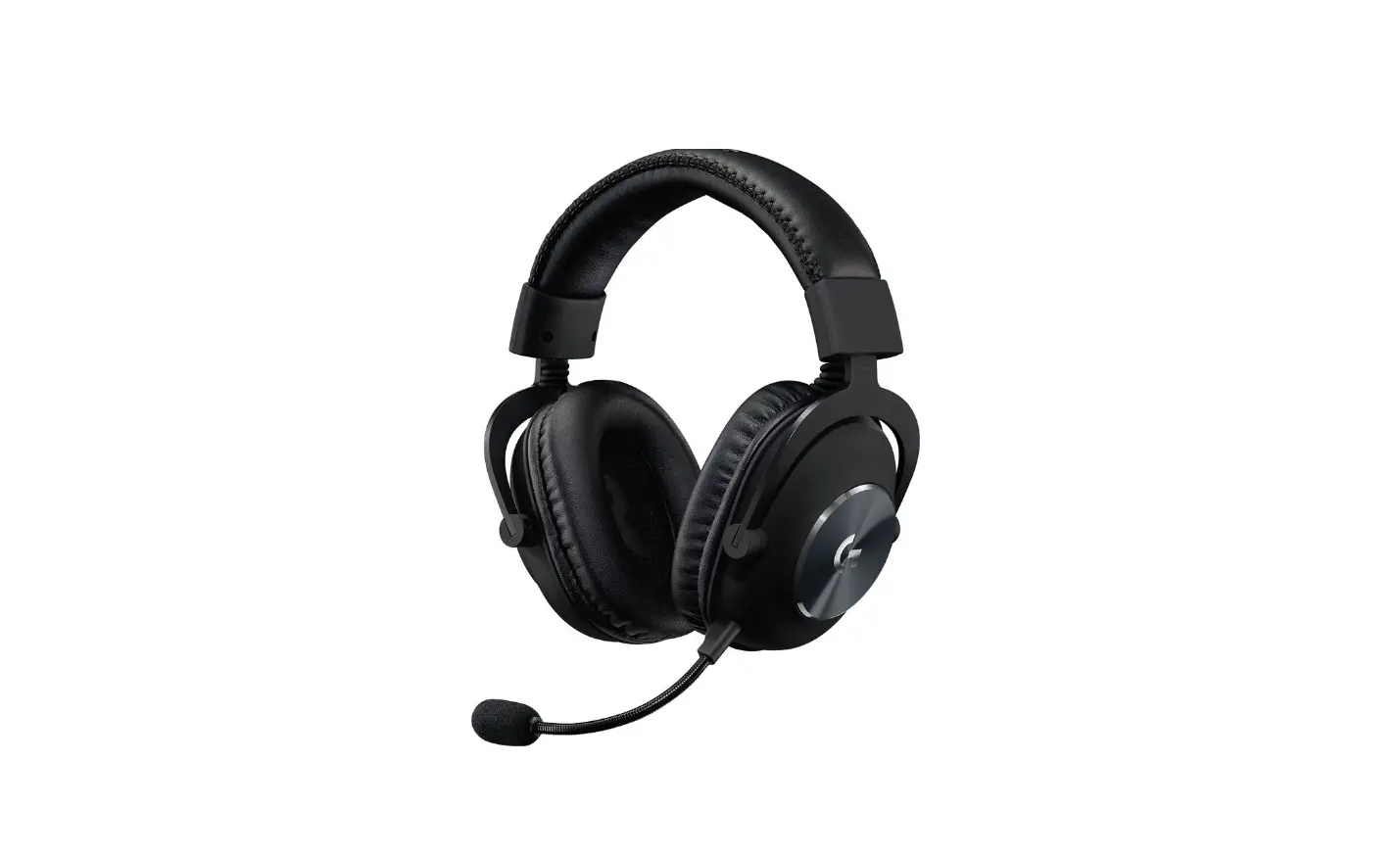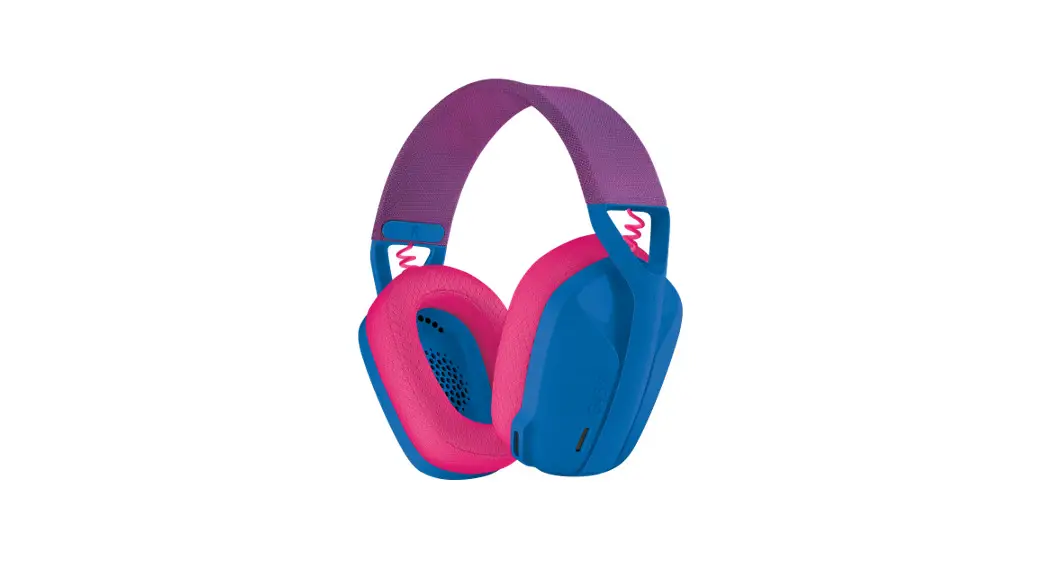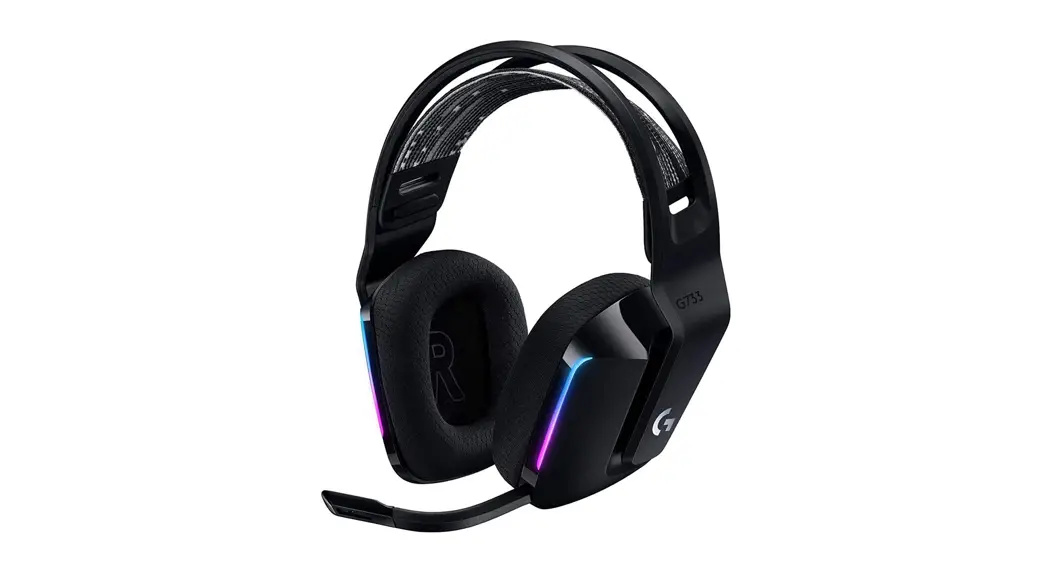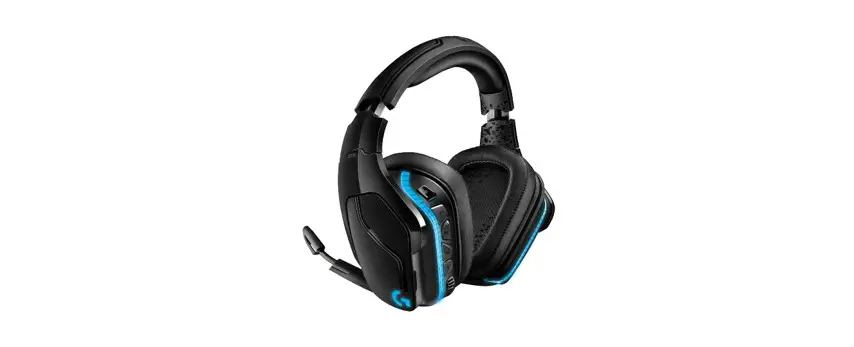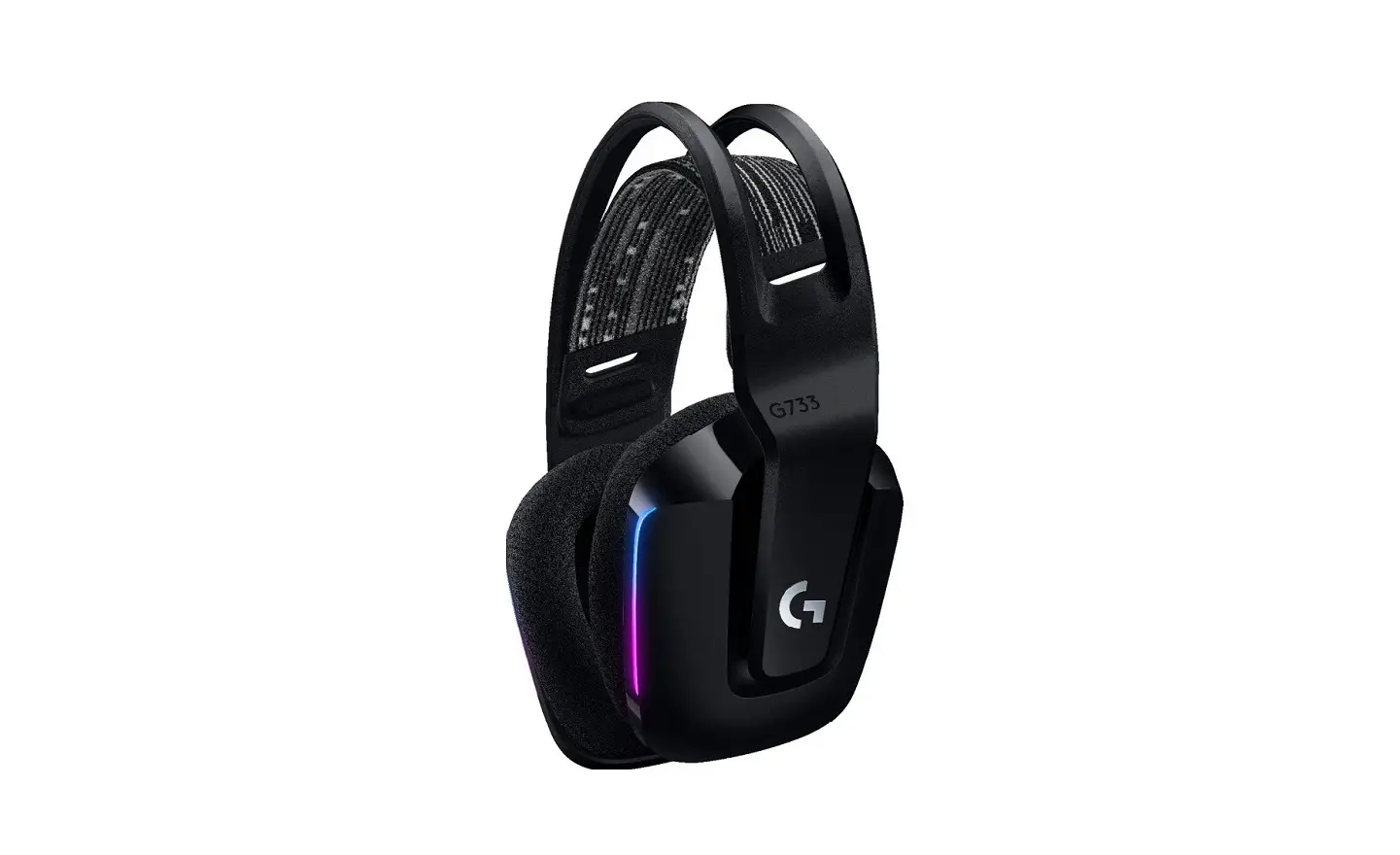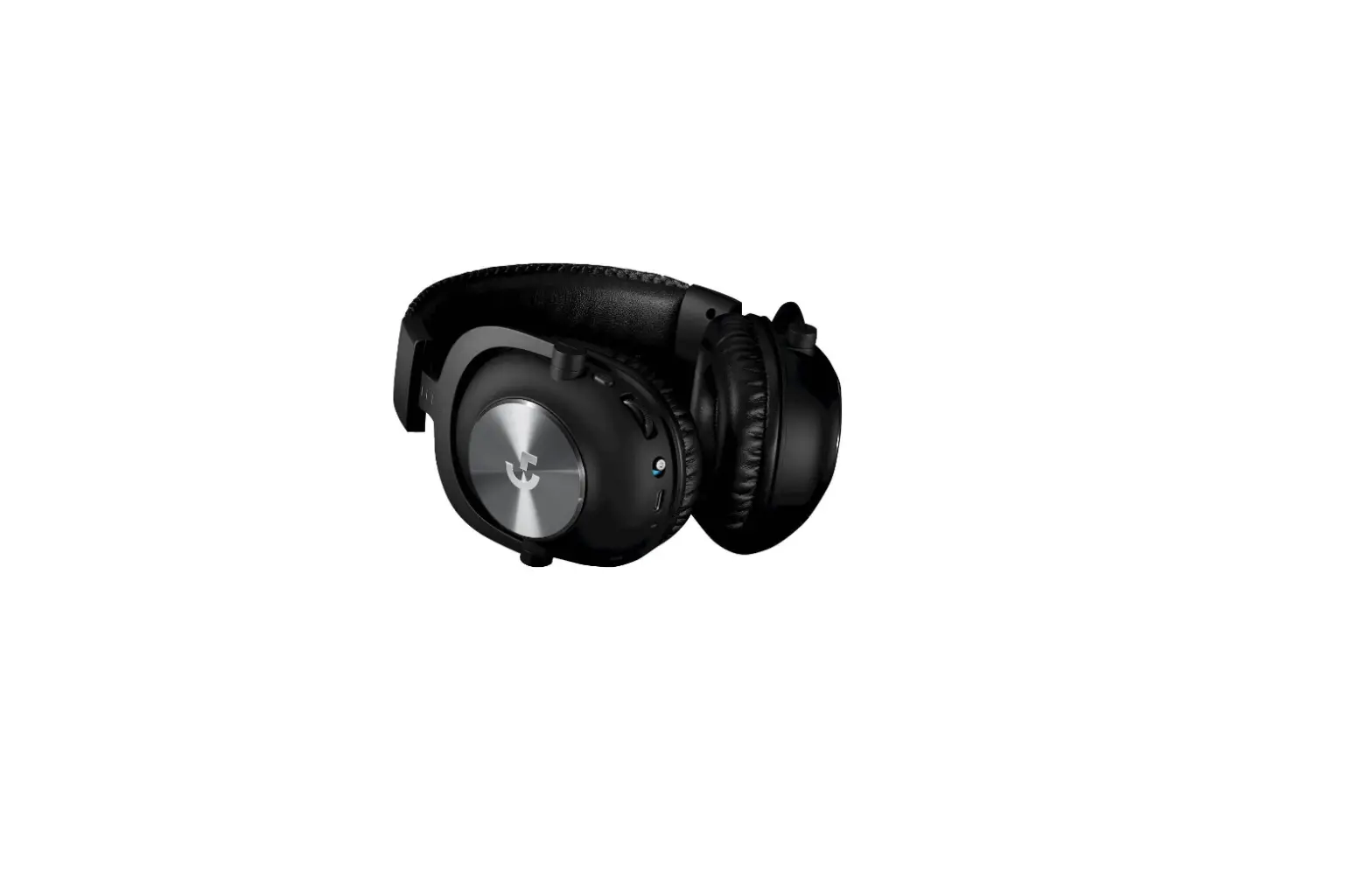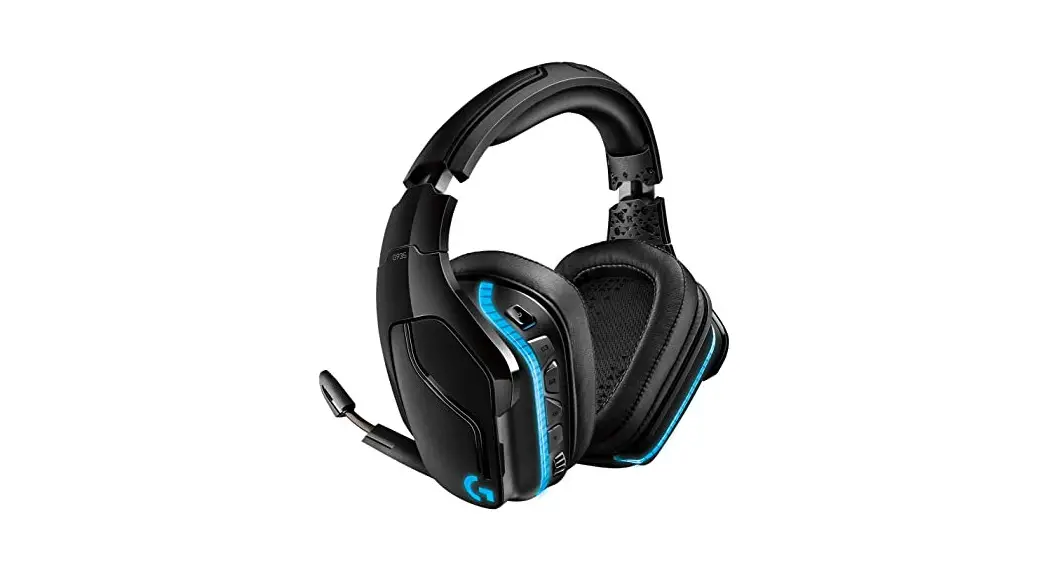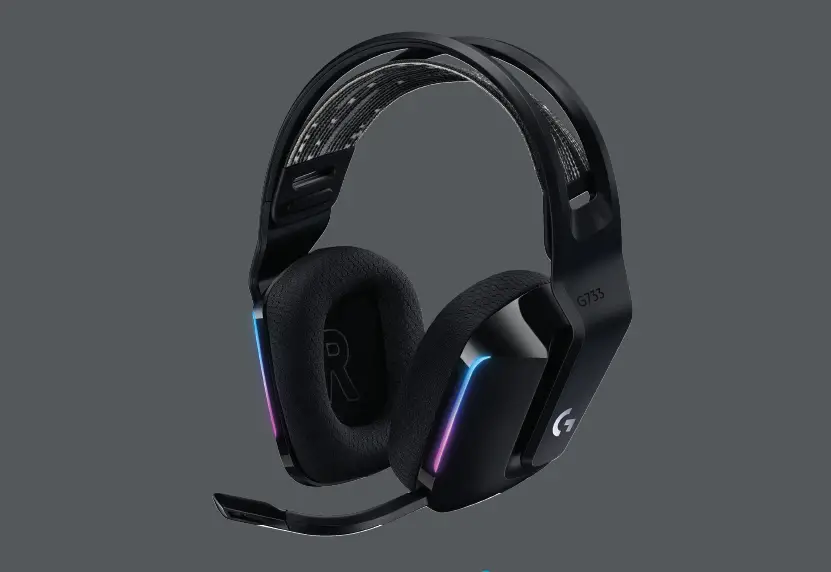
 G733
G733
SETUP GUIDE
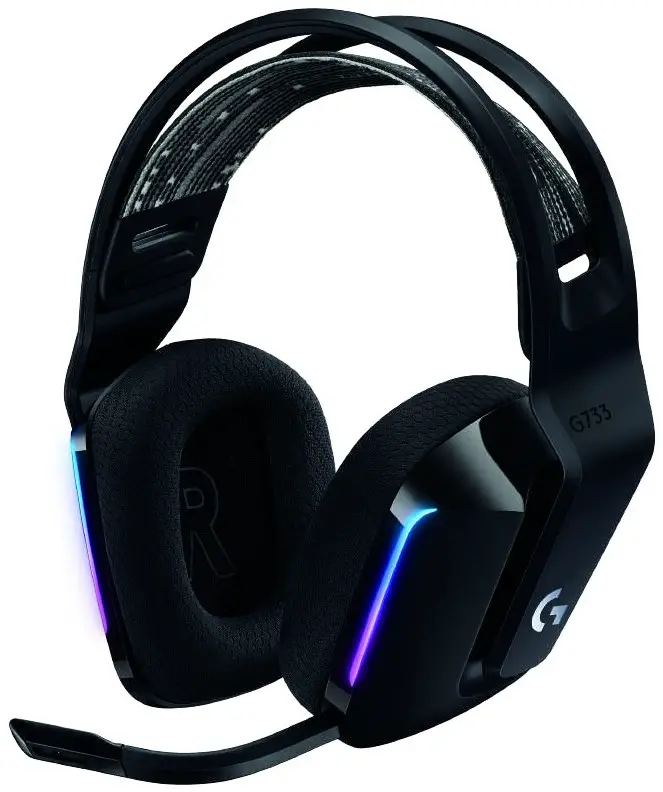
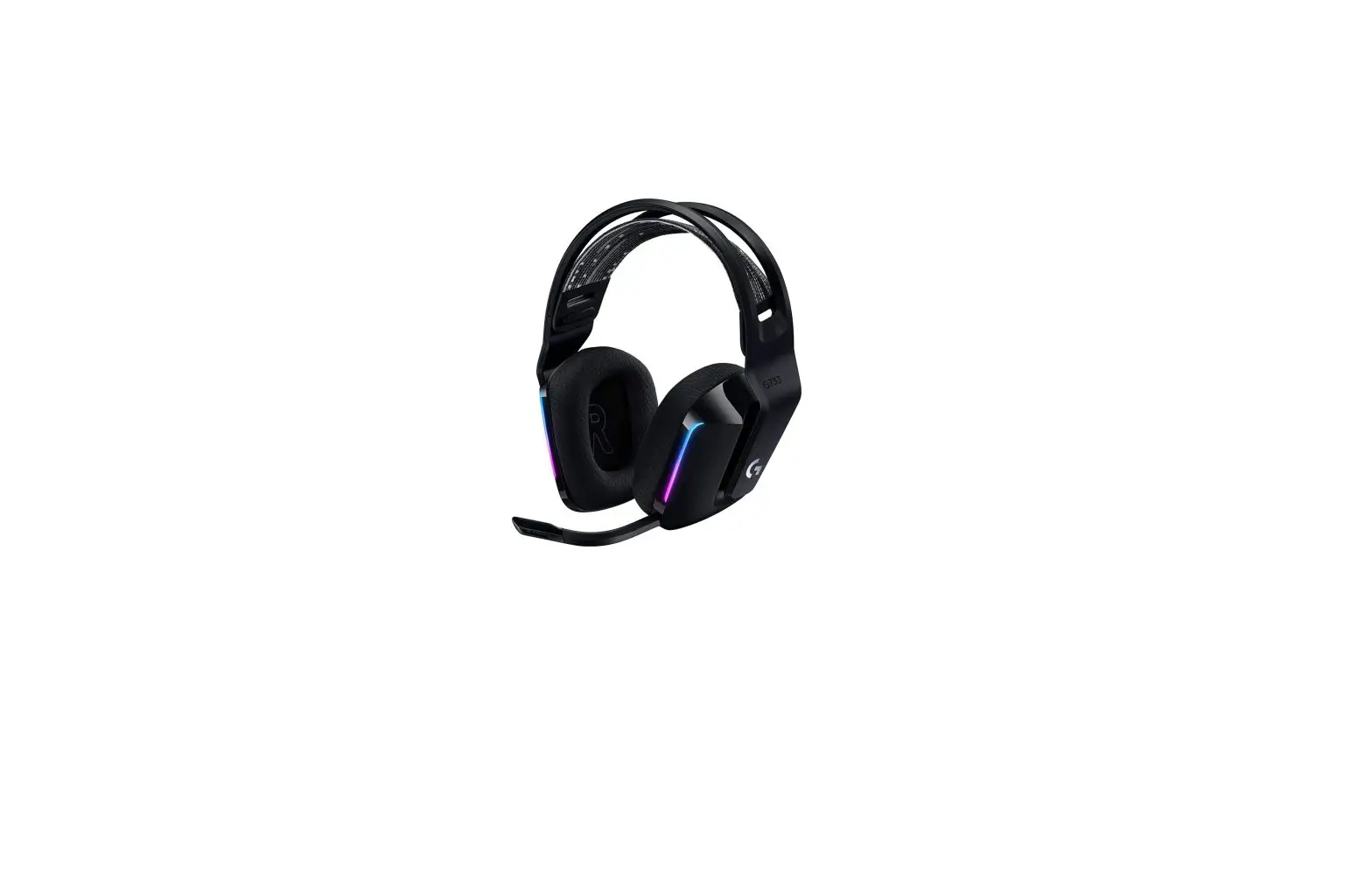
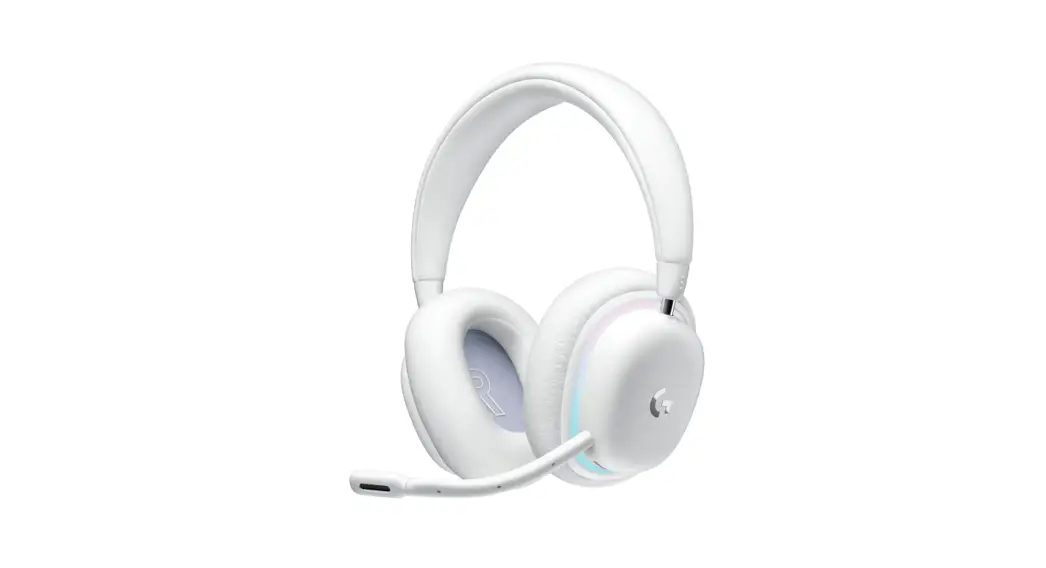
G733 Lightspeed Wireless RGB Gaming Headphone
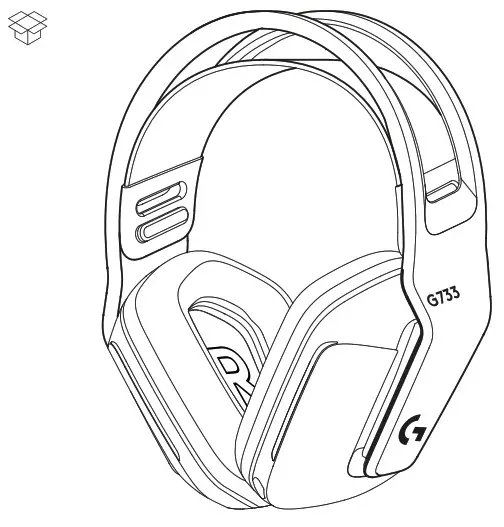
SETUP INSTRUCTIONS
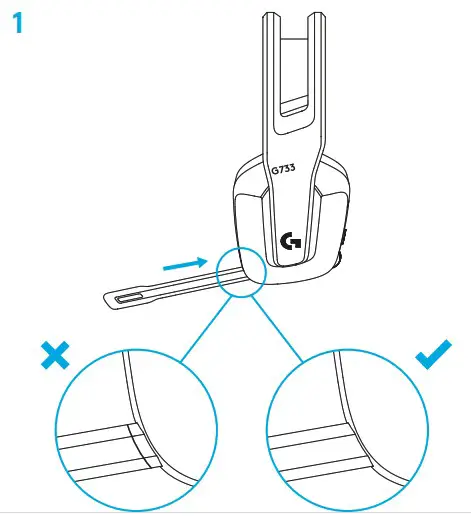
- Insert the mic boom completely into the headset.

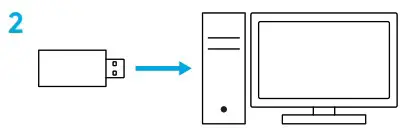
- Insert receiver into the USB port of your PC.

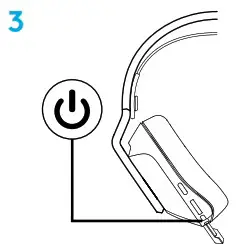
- Short press to turn ON.

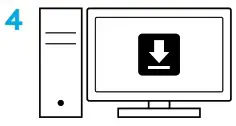
- (Optional) Download Logitech G HUB software to access advanced features. Download at logitechG.com/ghub
 logitechG.com/ghub
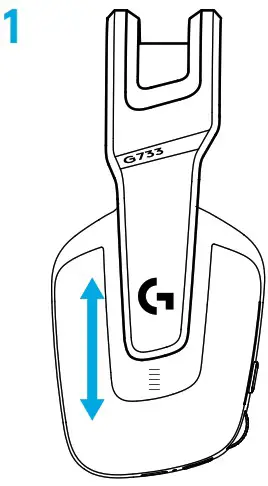
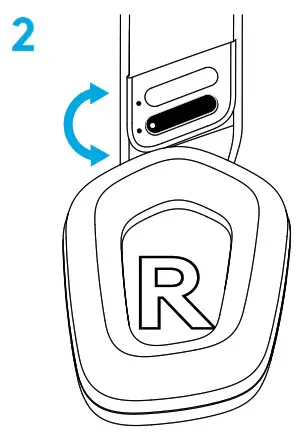
SIZE ADJUSTMENT
- The earcups can be adjusted up and down.

- The length of the headband can be adjusted.

FEATURES
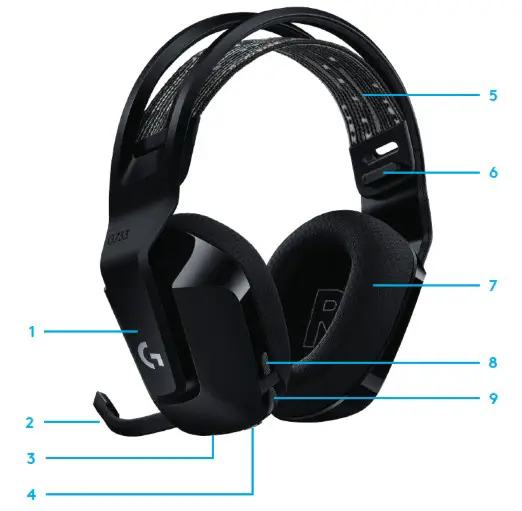
| 1 Size-adjustable earcups 2 Removable and replaceable mic 3 USB-C port for charging 4 ON/OFF button 5 Reversible and replaceable headband strap | 6 Headband strap adjusting feature 7 Removable and replaceable earpads 8 Mute/unmute button 9 Volume roller |
UNDERSTAND
- When battery life is below 10%, the audio will beep every 15 min.
- When battery life is below 2%, the lights will flash red and the audio will beep every 15 min.
- When plugging the charging cable, the lights will breath green 5 times and revert to its previous state.
- When muting the mic, the lights will flash red and the audio will beep twice.
- When unmuting the mic, the lights will flash green and the audio will beep three times.
- When using G HUB software, pressing the ON/OFF button once when the headset is ON will let you know the battery life remaining.
LOGITECH G HUB SOFTWARE
(Optional) Download Logitech G HUB software to access advanced features. Download at logitechG.com/GHUB. Logitech G HUB software lets you customize many features, including:
- Enable/disable DTS Headset: X 2.0 Surround Sound
- Enable/disable Blue VO!CE mic enhancement
- Adjust EQ settings
- Side tone
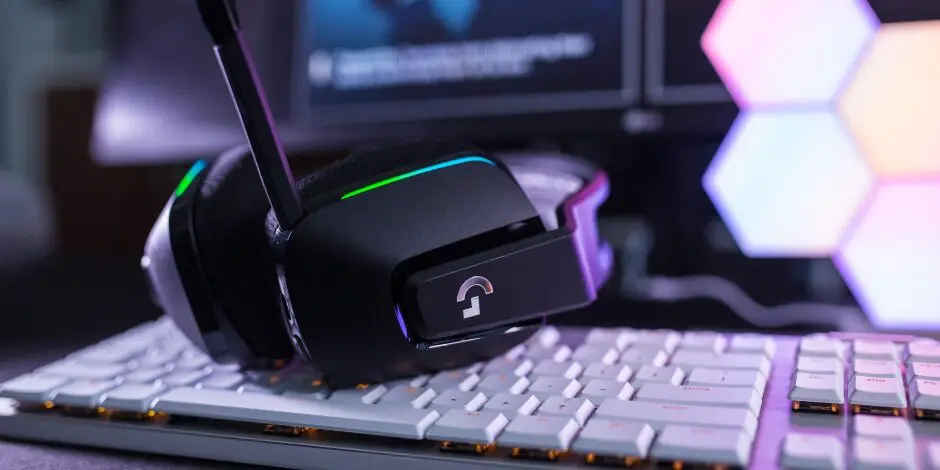
- Lighting
- Mute button assignment
SPARE PARTS
You can find replacement parts at logitechG.com in selected regions, including:
- Headband strap
- Earpads
- Mic
- Cable
- Receiver
RECYCLING
We encourage you to resell or donate working products.
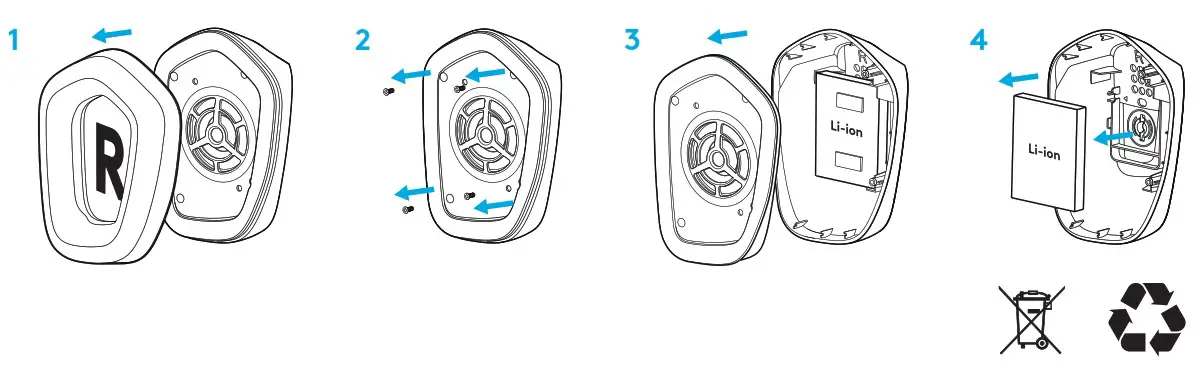
Otherwise, batteries, electronic and electrical equipment should not be disposed of with household waste. Wherever possible, they should be segregated and brought to an appropriate collection point to enable recycling and avoid potential impacts on the environment and human health.
For more information, contact your local authorities or place of purchase, or visit www.logitech.com/recycling
BATTERY REMOVAL FOR RECYCLING
QUESTIONS?
logitechG.com/support/g733
www.logitech.com/recycling
©2020 Logitech. Logitech, Logitech G, Logi and their respective logos are trademarks or registered trademarks of Logitech Europe S.A. and/or its affiliates in the U.S. and other countries. All other trademarks are the property of their respective owners. Logitech assumes no responsibility for any errors that may appear in this manual. Information contained herein is subject to change without notice.
WEB-621-001665.002
 Logitech G | Advanced Gaming Experiences for All
 Global Recycling Program for Ewaste and Batteries - Logitech