 CR310 Remote Control
User Guide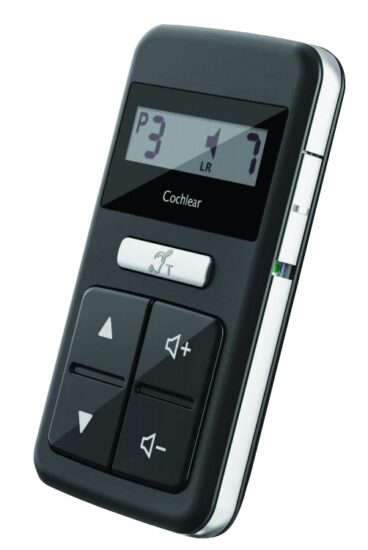
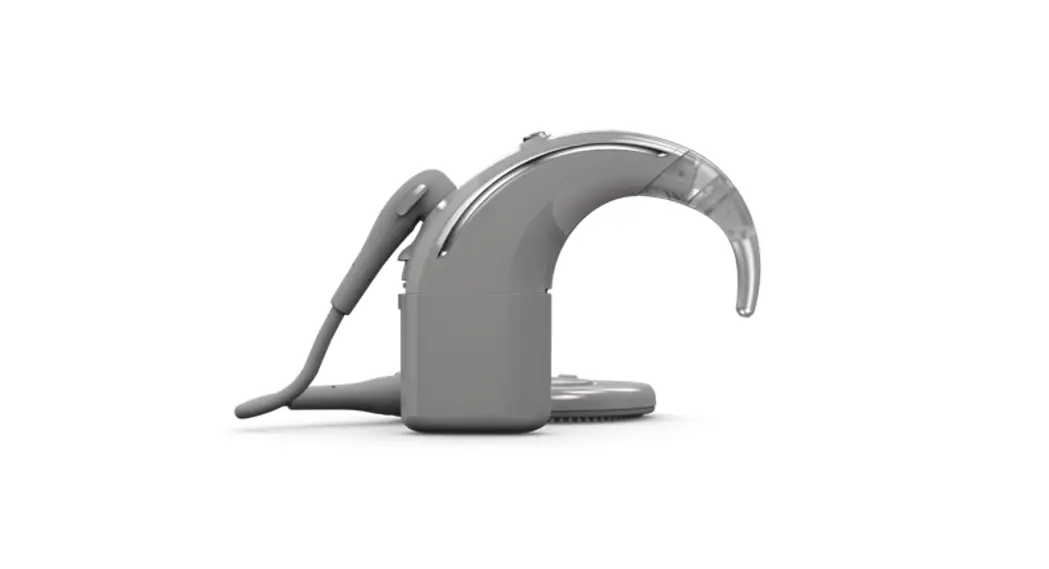
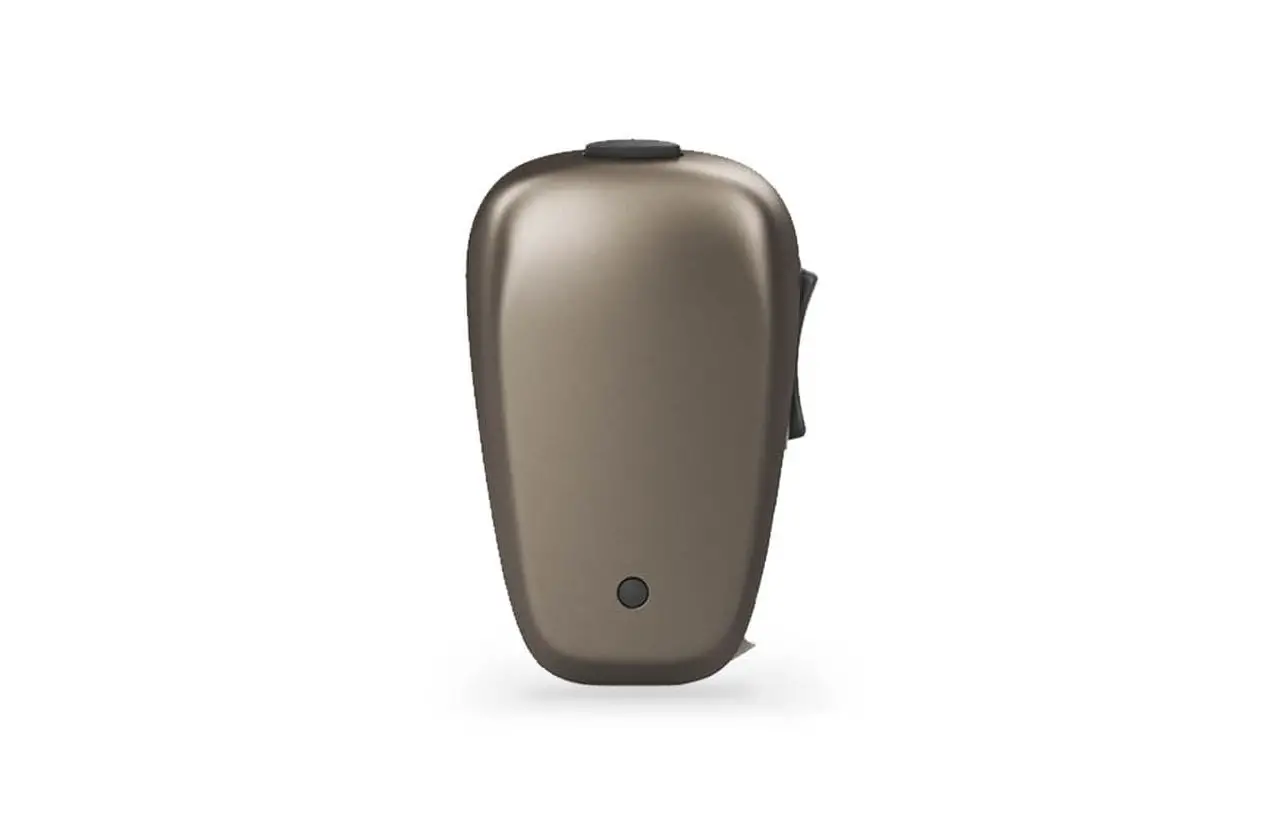
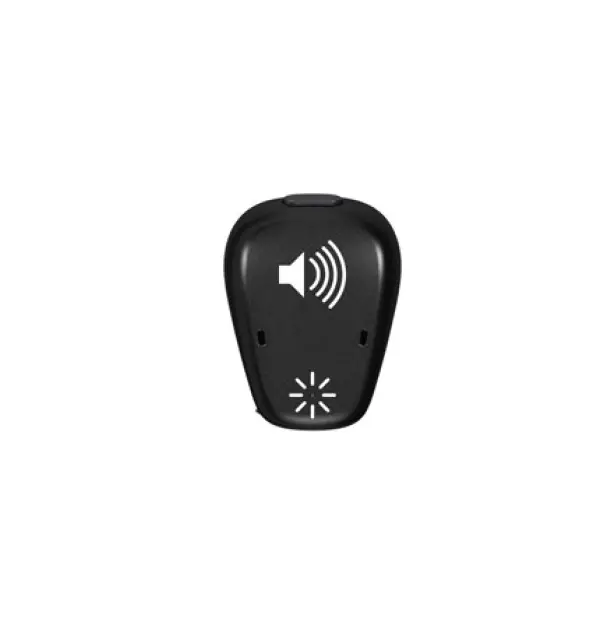
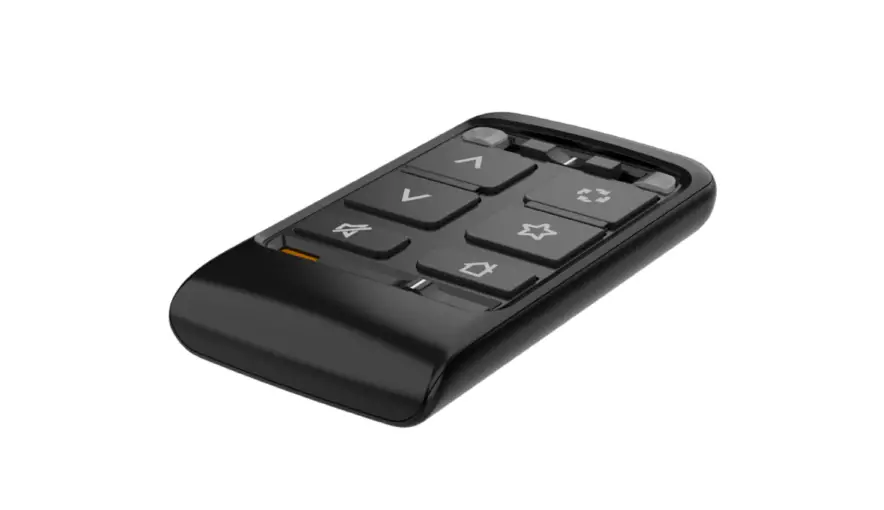
The Cochlear™ CR310 Remote Control is a hand-held device for controlling the commonly used functions of your Cochlear™ Kanso® 2 Sound Processor (model number: CP1150).
The remote control allows you to:
- change programs
- turn volume or sensitivity (if available) up and down
- control audio streaming from True Wireless™ Accessories.
If you have two sound processors:
- two Kanso® 2 Sound Processors (bilateral)
- two Nucleus® 7 Sound Processors (bilateral)
- a Kanso 2 Sound Processor and Nucleus 7 Sound Processor (mixed bilateral)
your remote control can communicate with both processors at once.
This guide is intended for Cochlear implant recipients and their carers using the Kanso 2 Sound Processor. For more information, refer to the Kanso 2 Sound Processor User Guide.
 NOTE
NOTE
Refer to the Warnings section for warnings and cautions relating to the use of the remote control and batteries.
Symbols used in this guide
| NOTE Important information or advice. |
 | TIP Time-saving hint. |
 | CAUTION (no harm) Special care to be taken to ensure safety and effectiveness. Could cause damage to equipment. |
 | WARNING (harmful) Potential safety hazards and serious adverse reactions. Could cause harm to a person. |
CR310 Remote Control
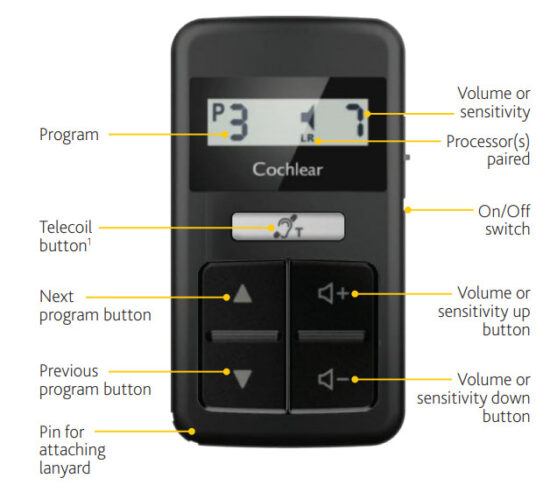
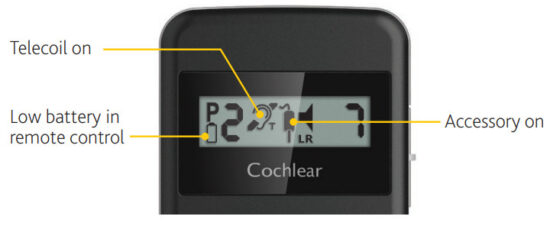
Other indicators on your remote control
 CR310 REMOTE CONTROL USER GUIDE FOR KANSO® 2
Battery
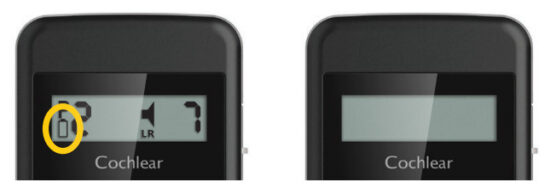
Change the battery whenever you see the low battery indicator, or if the display stays blank when you try to turn the remote control on. A battery should last up to three months (if the remote control is used about 15 times a day).
Change the battery
WARNING
Swallowing Lithium batteries may lead to serious injury or death. If swallowed, immediately go to a hospital emergency room. Keep out of reach of children. Keep in original packaging until ready to use. Dispose of used batteries immediately.
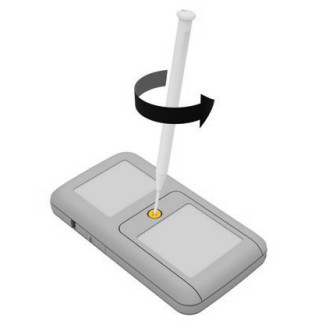
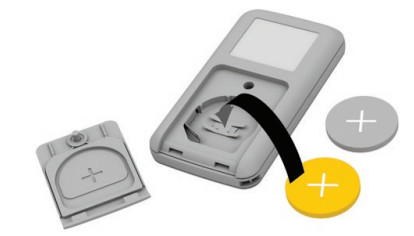
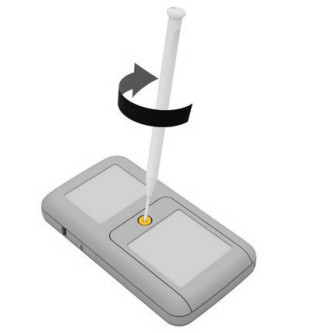
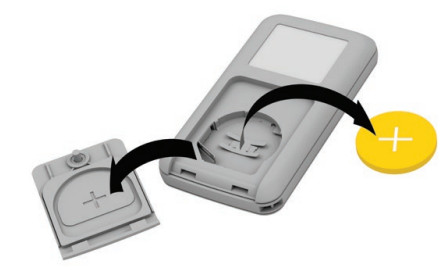
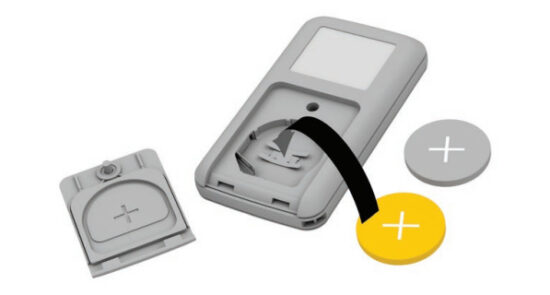
- Unlock the battery cover by turning the screw anticlockwise with a small Phillips head (cross-head) screwdriver.

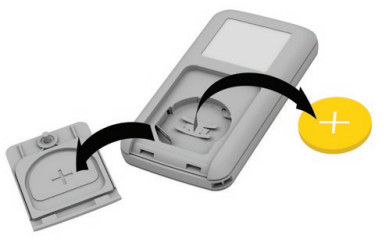
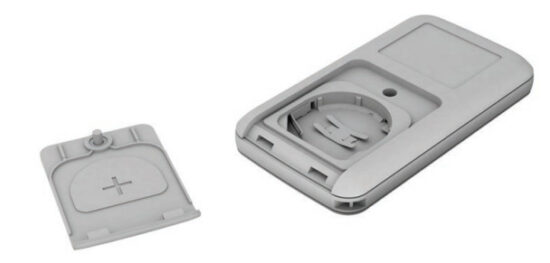
- Slide off the battery cover and remove the battery.

- Insert the new battery. Make sure the plus sign “+” is facing up. Take care not to damage the battery contacts.
 CAUTION
Use ONLY disposable CR2032 or 5004LC 3V standard lithium coin cell batteries in your remote control. NEVER use rechargeable coin cell batteries or other battery types. - Replace the battery cover, and bottom edge first.

- Lock the battery cover in place by turning the screw clockwise with a small Phillips head screwdriver until tight.

 CAUTION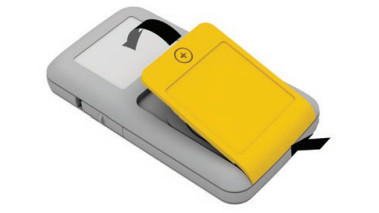
Turn on
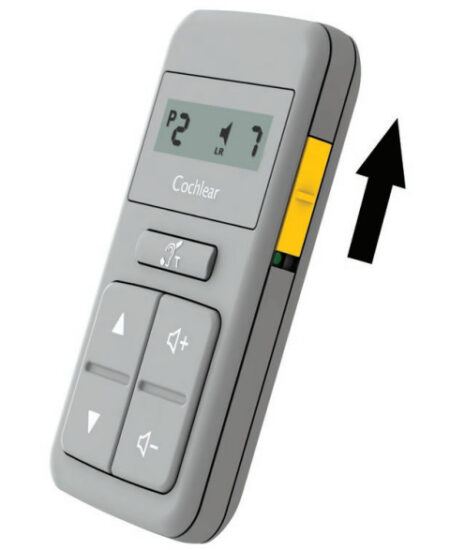
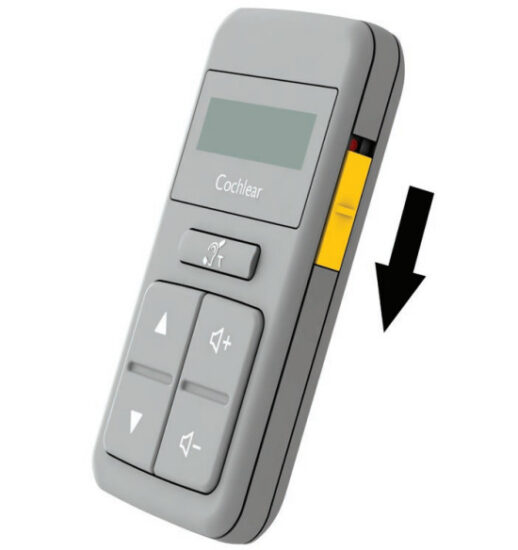
When the switch is in the up position, the remote control will “go to sleep” when not in use. Press any button to “wake” it again.
Turn off
Slide the switch down to turn it off.
TIP
Turn off your remote control to stop it from “waking” when not in use, for example, when carried in your pocket.
Out of range
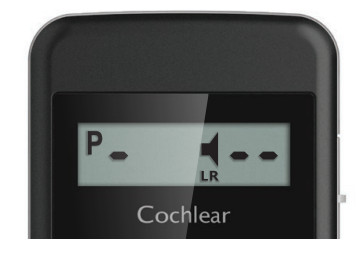
If your processor is out of range or experiencing interference, the remote control displays dashes (shown at left).
Pair
Pairing allows two devices to communicate with each other.
Your clinician may have already paired your remote control with your processor. If not, you will need to pair it the first time you use it.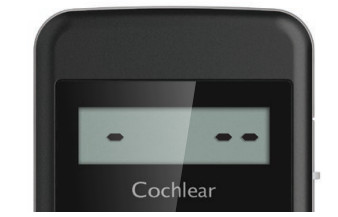
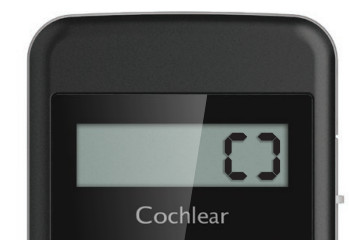
If your remote control is not paired to any processor, it displays dashes (shown left) and “blinks” when you press buttons.
Pair your processor and remote control
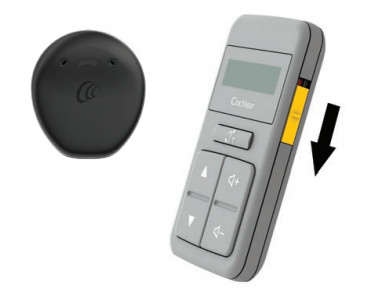
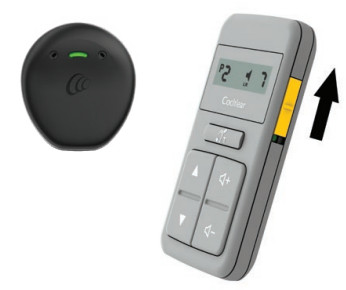
- Turn off your processor and remote control.

- Turn on your processor and remote control. They must both be ‘awake’ and on at all times while pairing.

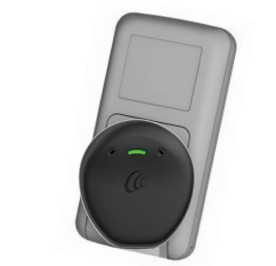
- Place the processor on the back of your remote control.

- The remote control will show pairing in progress.

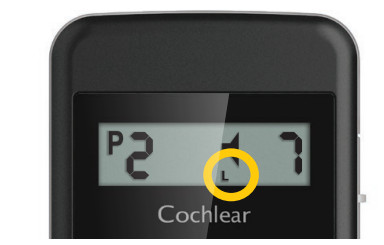
- The remote control then shows successful pairing of either the left (L) or right(R) processor.

- If you have two processors (bilateral), repeat steps 1-5 for your second processor.

Change programs
Your clinician may program your processor with up to four programs which you can choose with your remote control.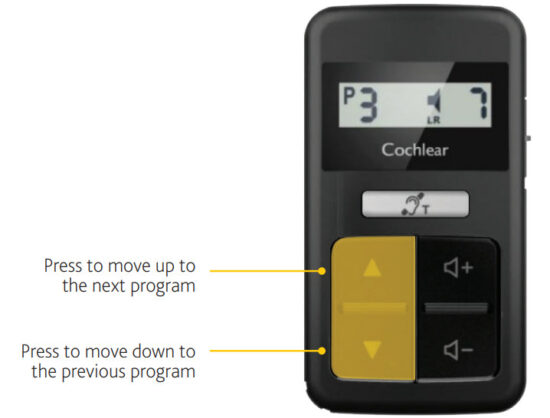
Control two processors
If you have two sound processors:
- two Kanso 2 Sound Processors (bilateral)
- two Nucleus 7 Sound Processors (bilateral)
- a Kanso 2 Sound Processor and Nucleus 7 Sound Processor (mixed bilateral) your remote control can communicate with both processors at once.
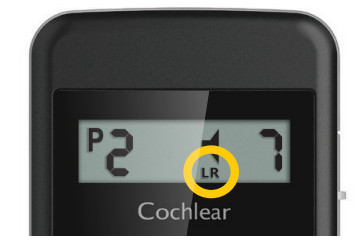
If your processors have different settings (perhaps because you adjusted one using the processor button), the remote will display the program and volume/sensitivity settings for the left processor. If either processor has a telecoil or a wireless accessory turned on, the remote will display the relevant indicators.
Display current settings
When you turn on your remote, it always displays the current settings (e.g. volume), even if you have adjusted those settings using the processor button (or the Nucleus Smart App), while the remote was off.
Adjust volume or sensitivity
Usually, your clinician will set up your remote control to adjust the volume of the sound you hear. But your clinician can set it up to adjust sensitivity instead (if available).CAUTION
If you are adjusting volume settings often or if adjusting volume levels causes discomfort, consult your clinician.
Volume is the level of sound you hear. Sensitivity is the range of sounds you hear, for example, soft, background, close or far away. You can set Volume up to level 10 or Sensitivity up to level 20.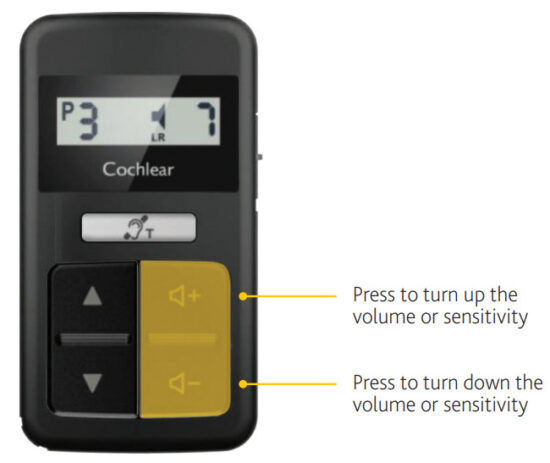
Wireless accessories
If you use Cochlear True Wireless™ Accessories with your processor, your remote control can be used to control the wireless accessory and monitor its status.
NOTE
Before you can stream audio, you must first pair the wireless accessory to your processor. See the True Wireless Accessories User Guide for details.
To use a Mini Microphone or TV Streamer
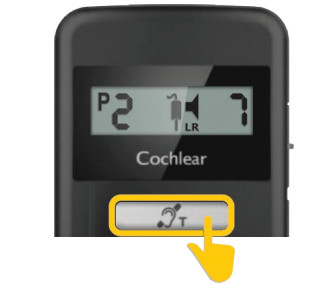
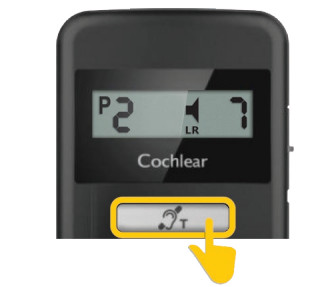
- To start streaming audio, press and hold the telecoil button for 2 seconds, then release.
The accessory icon will appear.
 TIP
TIP
You can long press the telecoil button again to select the next paired wireless accessory. - To stop streaming audio, short-press the telecoil button.
The accessory icon will disappear.
 NOTE
NOTE
You use the controls on the Phone Clip to make and receive calls.
Telecoil
The telecoil feature is not supported for the Kanso 2 Sound Processor through the CR310 Remote Control. The telecoil button instead, allows the selection of active audio sources. The use of telecoil is available via the Mini Microphone 2+.
Telecoil
The telecoil feature is not supported for the Kanso 2 Sound Processor through the CR310 Remote Control. The telecoil button instead, allows the selection of active audio sources.
The use of telecoil is available via the Mini Microphone 2+.
Travel
Your remote control transmits high-frequency radio waves when switched on.
Place it in a flight-safe mode (e.g. turn it off) during takeoff and landing. Check with airline staff before flying if you are unsure.
Clean
Keep your remote control clean and dry.
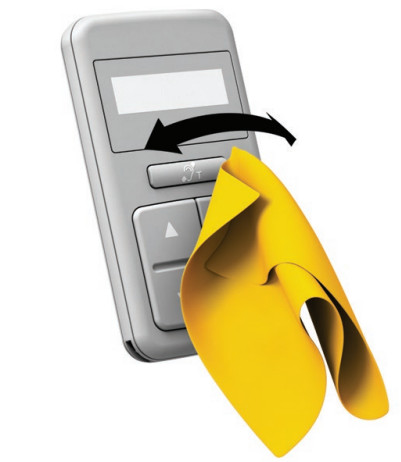
Clean your remote control by wiping the display and buttons with a soft dry cloth.
If your remote control gets wet
- Dry the remote control with a soft dry cloth.

- Remove the battery. See Change the battery on page 4.

- Leave the remote control in a warm and well-ventilated place (out of reach of children and out of direct sunlight) to dry for approximately 12 hours.
 CAUTION
Do not use a drying kit or household appliance (e.g. hairdryer) to dry the remote control.
- Insert a new battery.
See Change the battery on page 4.
NOTE
Before replacing the battery, check for any remaining moisture. If moisture remains, repeat the earlier steps.
Troubleshoot
| PROBLEM | RESOLUTION |
Remote control won’t change the program or adjust volume/sensitivity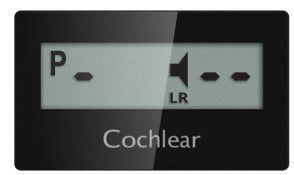 | • If you have two processors, check both processors are turned on. • Move the remote control closer to your processor(s). • Move the remote control away from metal objects (e.g. keys) or other objects that might cause interference (e.g. mobile phones, Bluetooth, and Wi-fi devices). |
Remote control shows only dashes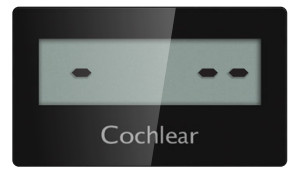 | • Pair your remote control with your processor. See Pair your processor and remote control on page 8. |
Remote control shows pairing error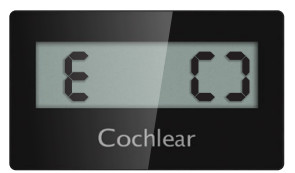 | • Contact your clinician. |
Remote control won’t turn on or ‘wake up’ (display remains blank)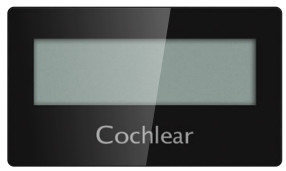 | • Replace the battery. See Change the battery on page 4. |
| The processor doesn’t pair with remote control | • Make sure the processor and the remote control are both turned on and “awake”. • Make sure you hold the coil in place until the remote control has finished pairing. • Contact your clinician. |
| The telecoil button doesn’t start/stop streaming audio from a wireless accessory | • Check that the wireless accessory is turned on. • Make sure the wireless accessory is paired to your processor(s). |
Warnings
- Swallowing Lithium batteries may lead to serious injury or death. If swallowed, immediately go to a hospital emergency room. Keep out of reach of children. Keep in original packaging until ready to use. Dispose of used batteries immediately.
- Do not use your remote control if it becomes unusually warm. Notify your clinician immediately.
- Small parts such as the coin battery could pose a choking hazard. Keep the battery cover locked at all times. Change battery out of reach of children. Do not allow small children to change the battery.
- No modification of this equipment is allowed.
- Do not disassemble, modify, deform or immerse your remote control in the water. If your remote control is not working, return it to your clinician. The warranty will be void if opened.
- Use a soft dry cloth ONLY to clean the surface of your remote control.
- Do not use alcohol, household cleaners or abrasive materials to clean your remote control.
- Do not bend or compress the display on your remote control.
- Keep your remote control dry.
- Do not expose the remote control to heat (e.g. never leave it in sunlight, behind a window or in a car).
- Protect your remote control in environments where excessive moisture and dirt can damage it.
- Protect the display from objects that may scratch it.
- When the remote control is on, keep metal objects away from the display as they may cause interference.
- Do not place the remote control inside any part of your body (e.g. mouth).
- Keep the remote control out of reach of very young children.
- Your remote control radiates electromagnetic energy that may interfere with life-supporting devices, (e.g. cardiac pacemakers and ICDs). Keep your remote control at least 15 cm (6 in) from such devices. Contact the manufacturer of the specific device to find out more.
Magnetic resonance imaging (MRI)

The Kanso 2 Sound Processor, remote and related accessories (such as the Wireless Programming Pod) are MR Unsafe.
Full MRI safety information is available at www.cochlear.com/warnings or by calling your regional Cochlear office (contact numbers are available at the end of this document).
Other information
Physical configuration
The remote control comprises:
- analog and digital integrated circuits based on a microprocessor design, with bidirectional wireless communication capabilities
- buttons and a switch for the operation of the unit
- buttons for remote control of the sound processor
- a display for indicating system status and activity
- in-built coil sensor
- lanyard pin.
Materials
The remote control housing and buttons are made of polycarbonate and acrylonitrile butadiene styrene (ABS). The display is made of ABS.
Environmental conditions
| CONDITION | MINIMUM | MAXIMUM |
| Storage & transport temperature | -10° C (+14° F) | +55° C (+131° F) |
| Storage & transport humidity | 0% RH | 90% RH |
| Operating temperature | +5° C (+41° F) | +40° C (+104° F) |
| Operating relative humidity | 0% RH | 90% RH |
| Operating pressure | 700 hPa | 1060 hPa |
Dimensions
| COMPONENT | LENGTH | WIDTH | DEPTH |
| CR310 Remote Control | 66.0 mm | 36.5 mm | 10.6 mm |
Weight
| COMPONENT | WEIGHT |
| CR310 Remote Control (with battery) | 35 g |
Operating characteristics
| CHARACTERISTIC | VALUE/RANGE |
| Wireless technology | Proprietary low power bidirectional wireless link |
| RF frequency | 2.4 GHz (range 2.40 – 2.83 GHz) |
| Max. RF output power | 0 dBm |
| Battery type | One disposable CR2032 or 5004LC lithium coin cell battery |
| Operating battery voltage | 2.12 – 3.00 V |
| Button and switch functions | Remote control lock and unlock, wireless accessories on and off, program adjust, volume or sensitivity settings adjust |
| Remote communication range | At least 2 m |
| Display | Custom, icon-based monochrome LCD |
Wireless communication link
The remote control wireless communication link operates in the 2.4 GHz ISM band using GFSK (Gaussian frequency-shift keying) on 4 channels. The link uses a proprietary bidirectional communication protocol and operates over a distance of at least 2 meters from the processor. The wireless communication link continuously switches between the 4 channels to avoid interference on any specific channel. The remote control indicates via its display when the processor is out of operating distance (or switched off) or when the link is interrupted due to broad-spectrum interference (see page 7).
Environmental protection
Your remote control contains electronic components subject to the Directive 2002/96/EC on waste electrical and electronic equipment.
Help protect the environment by not disposing of your remote control or batteries with your unsorted household waste. Please recycle your remote control and batteries according to your local regulations.
Equipment classification
Your remote control is an accessory to a medical device as described in the international standard IEC 60601-1:2005/A1:2012, Medical Electrical Equipment – Part 1: General Requirements for Basic Safety and Essential Performance.
Certification and applied standards
The CR310 Remote Control fulfills the essential requirements listed in Annex 1 of the EC directive 90/385/EEC on Active Implantable Medical Devices as per the conformity assessment procedure in Annex 2.
 0123
0123
The year in which authorization to affix the CE mark was granted was 2017.
The CR310 Remote Control also fulfills the essential requirements listed in the EC directive 2014/53/EU on Radio Equipment as per the conformity assessment procedure in Annex III. The declaration of conformity may be consulted at www.cochlear.com/wps/wcm/connect/intl/about/companyinformation/declaration-of-conformity
FCC (Federal Communications Commission) and Canadian ISED compliance
This device complies with part 15 of the FCC Rules and with RSS-210 of Innovation, Science, and Economic Development Canada.
Operation is subject to the following two conditions:
- This device may not cause harmful interference.
- This device must accept any interference received, including interference that may cause undesired operation.
Changes or modifications made to this equipment not expressly approved by Cochlear Limited may void the FCC authorization to operate this equipment.
This equipment has been tested and found to comply with the limits for a Class B digital device, pursuant to Part 15 of the FCC Rules. These limits are designed to provide reasonable protection against harmful interference in a residential installation.
This equipment generates, uses, and can radiate radio frequency energy and, if not installed and used in accordance with the instructions, may cause harmful interference to radio communications. However, there is no guarantee that interference will not occur in a particular installation.
If this equipment does cause harmful interference to radio or television reception, which can be determined by turning the equipment off and on, the user is encouraged to try to correct the interference by one or more of the following measures:
- Reorient or relocate the receiving antenna.
- Increase the separation between the equipment and receiver.
- Connect the equipment into an outlet on a circuit different from that to which the receiver is connected.
- Consult the dealer or an experienced radio/TV technician for help.
FCC ID: WTO-CR310
ISED: 8039A-CR310
CAN ICES-3 (B)/NMB-3(B)
Labeling symbols
The following symbols may appear on your remote and/or packaging:
 | Refer to the instruction manual |
| Specific warnings or precautions associated with the device, which are not otherwise found on the label |
 | Manufacturer |
 | Compatible sound processors |
 | Authorized Representative in the European Community |
 | Catalog number |
 | Serial number |
 | Batch code |
 | Date of manufacture |
 | Temperature limits |
| 0123 | CE registration mark with notified body number |
 | Radio compliance certification for Australia and New Zealand |
 203-JN0605 203-JN0605 | Radio compliance certification for Japan |
 | Radio compliance certification for Korea |
 | By prescription |
 | Recyclable material |
 | Dispose of electrical components in accordance with your local regulations |
 | Keep dry. |
Legal statement
The statements made in this guide are believed to be true and correct as of the date of publication. However, specifications are subject to change without notice.
© Cochlear Limited 2021
CR310 REMOTE CONTROL USER GUIDE FOR KANSO® 2
 Cochlear Americas | Hear Now And Always | Cochlear Implants