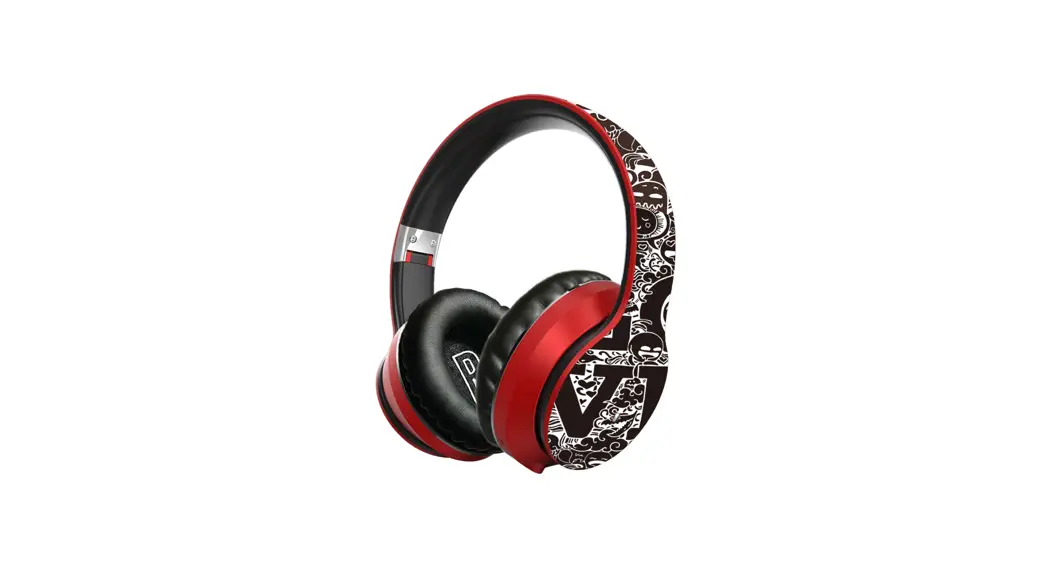
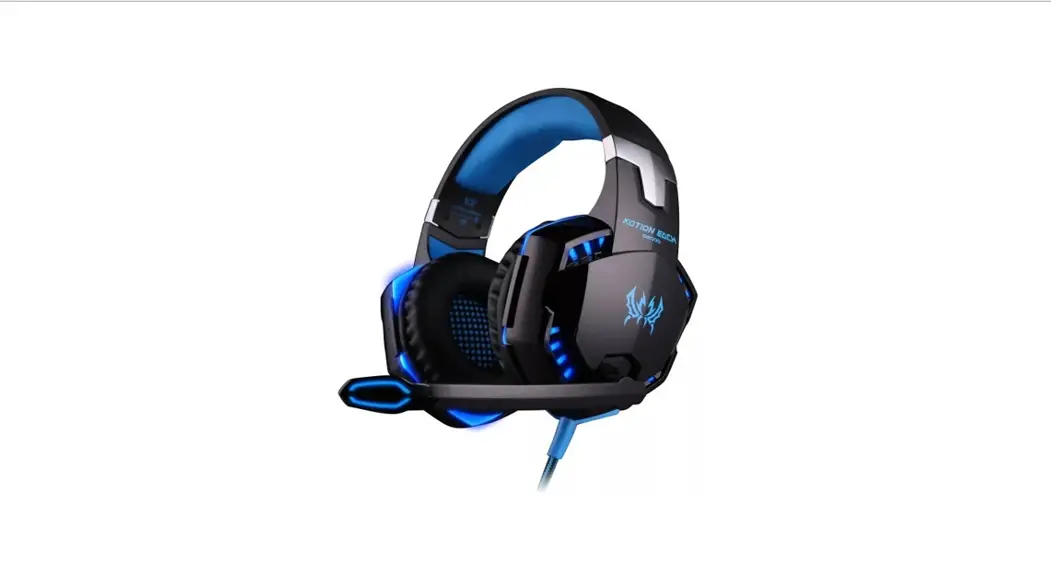
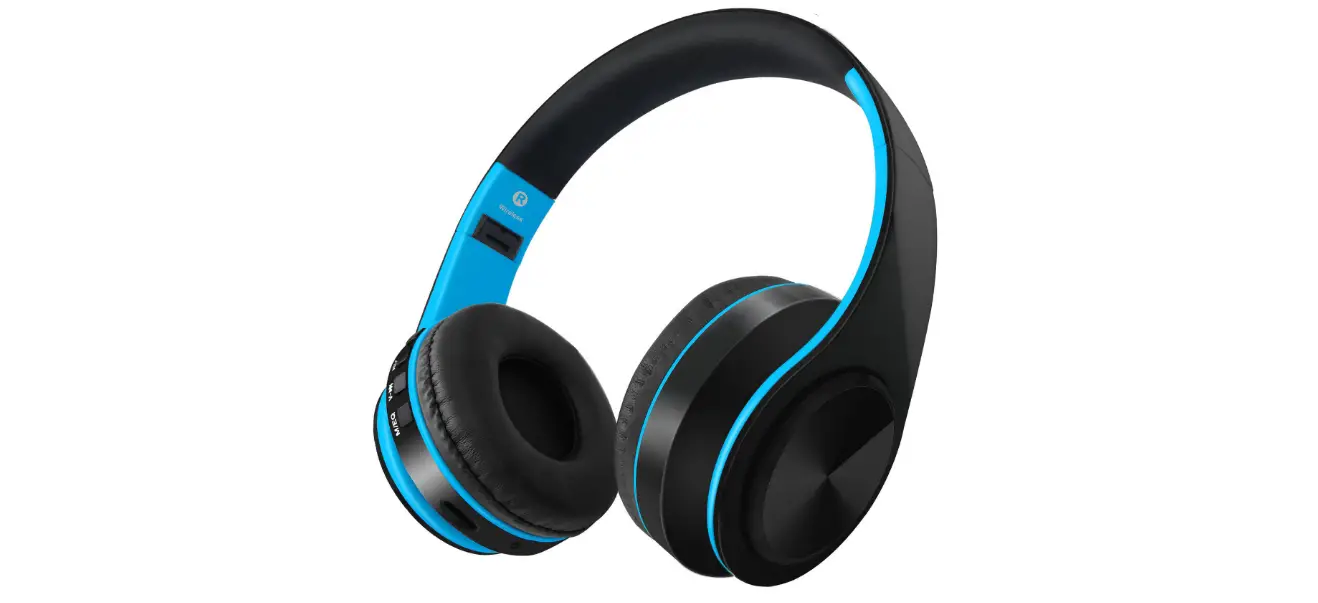
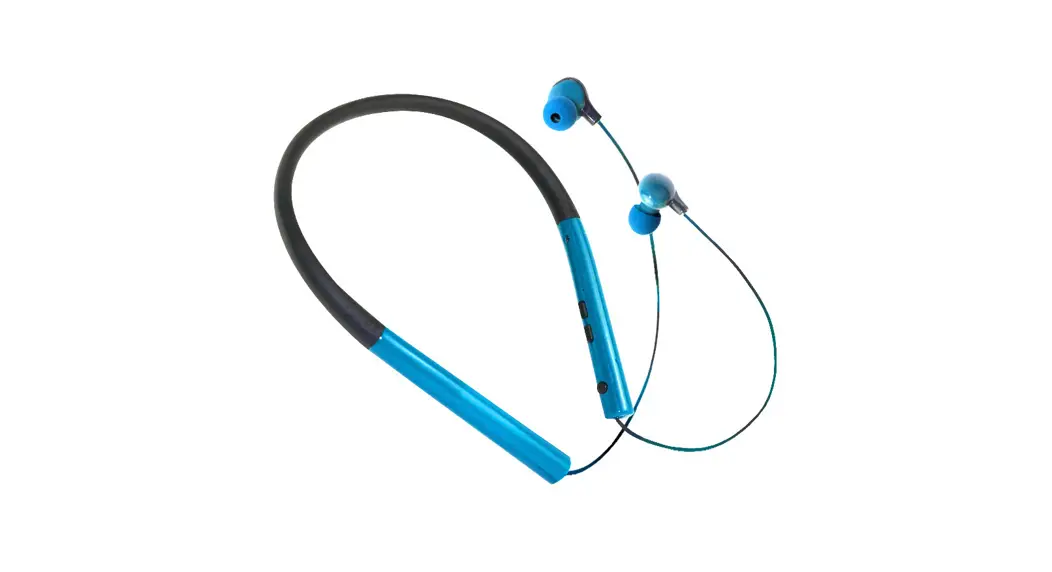
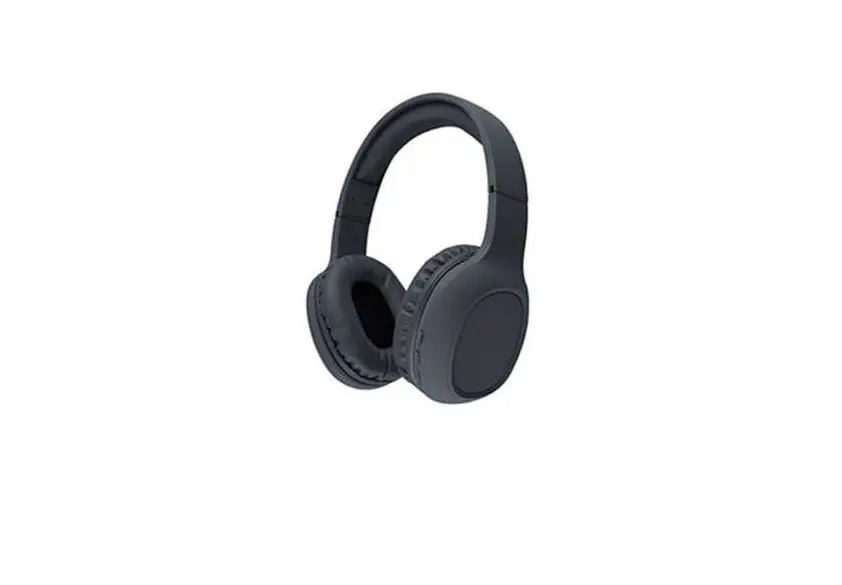
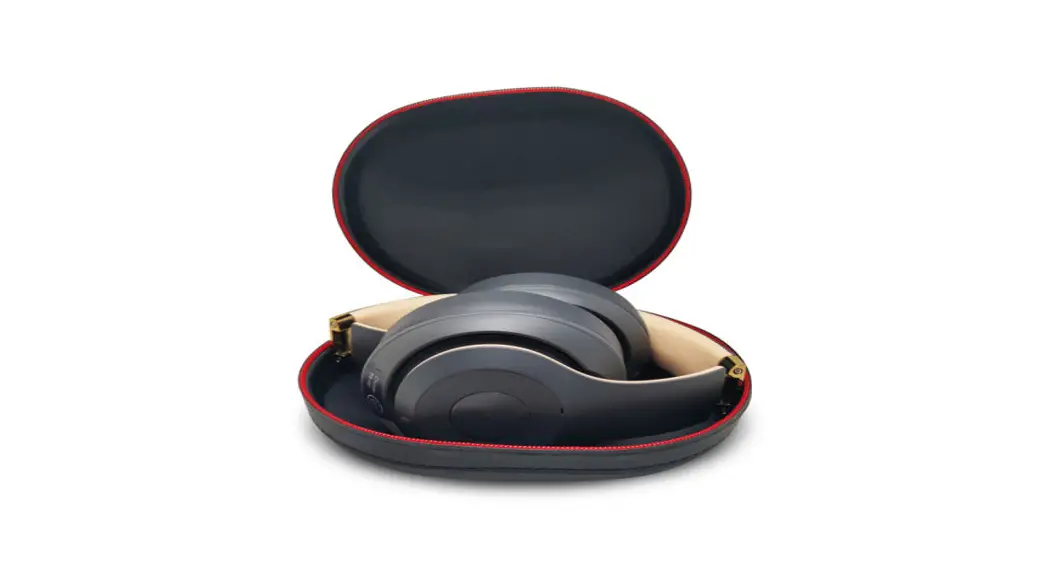
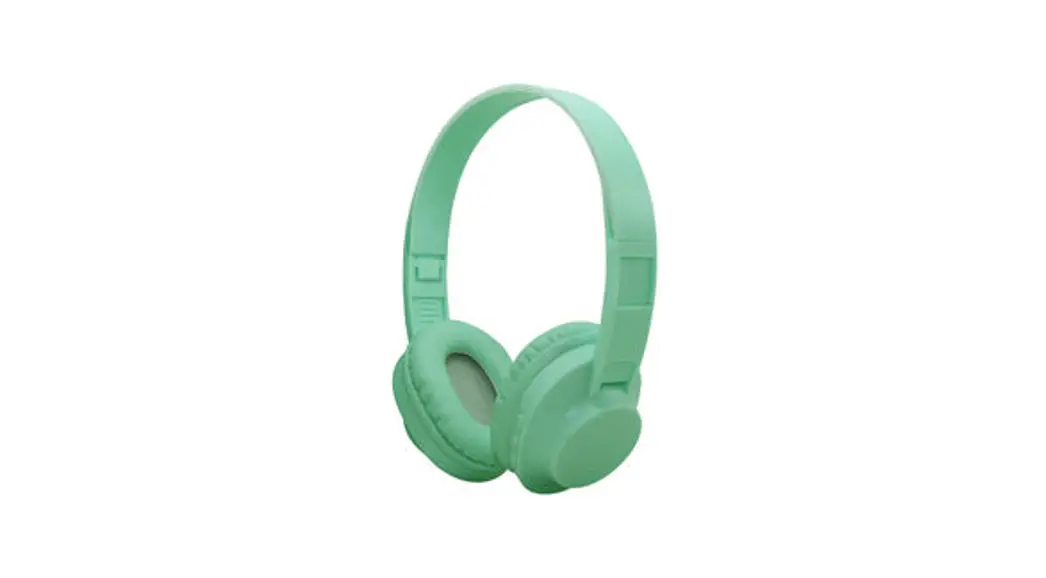
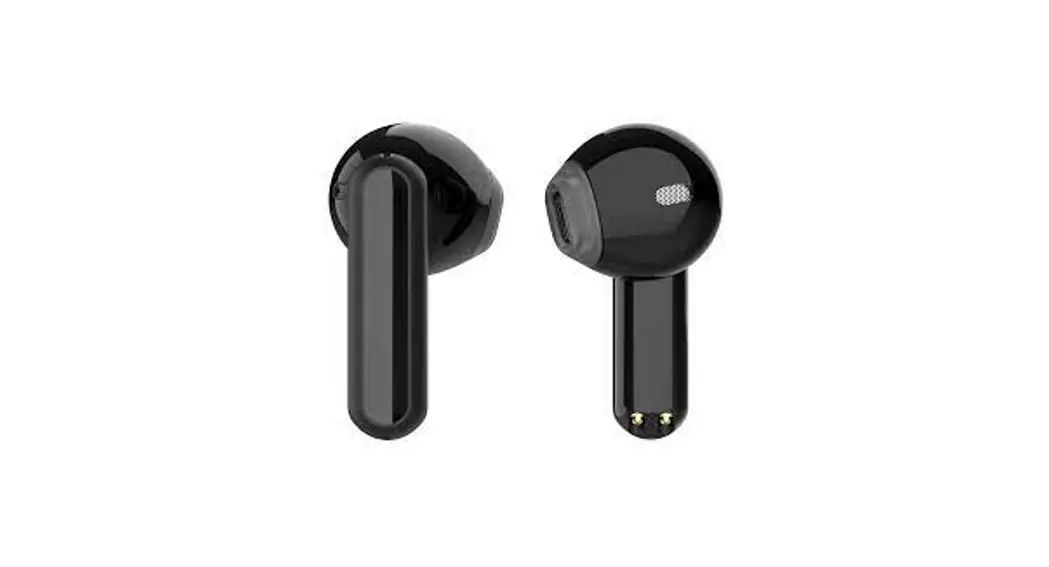
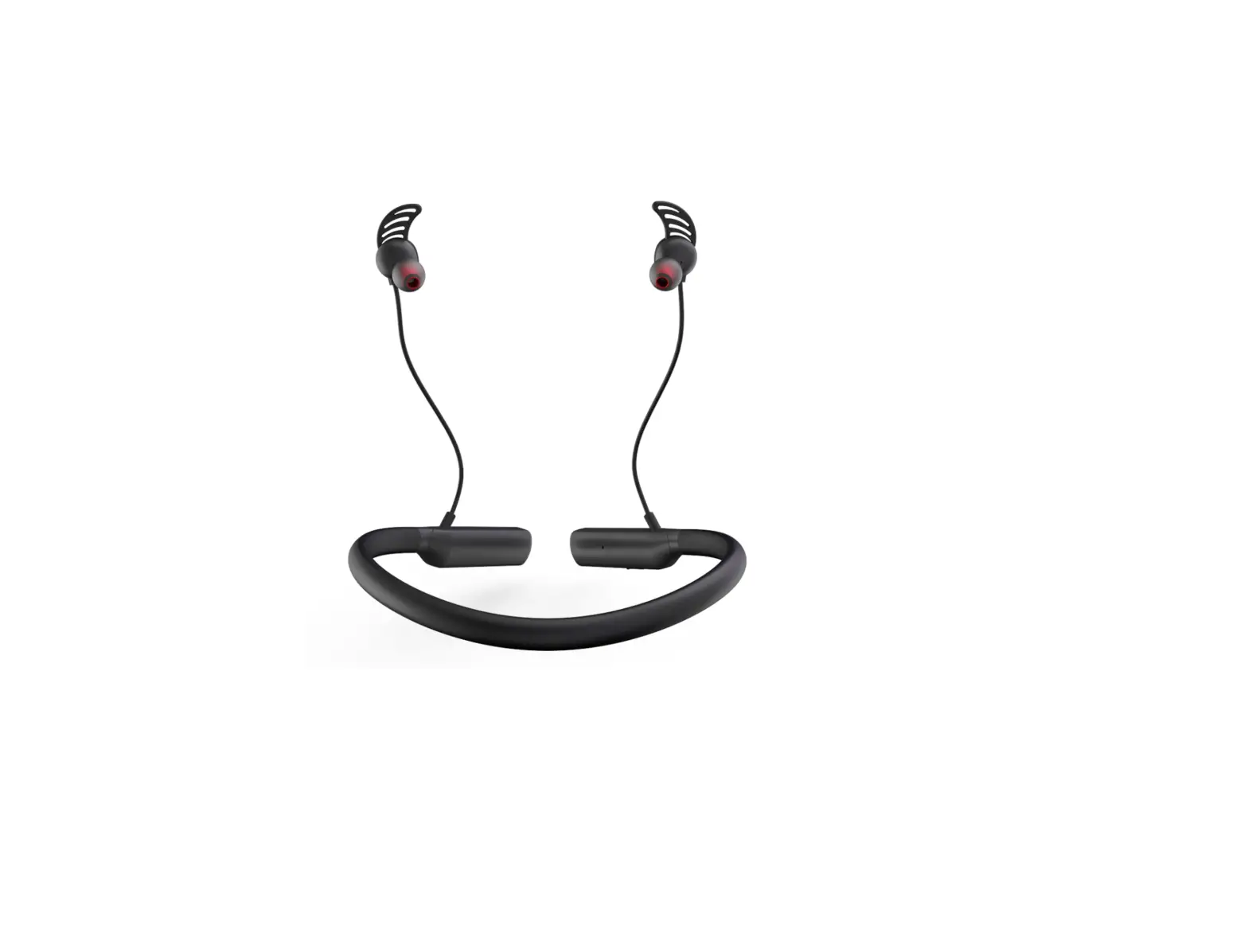
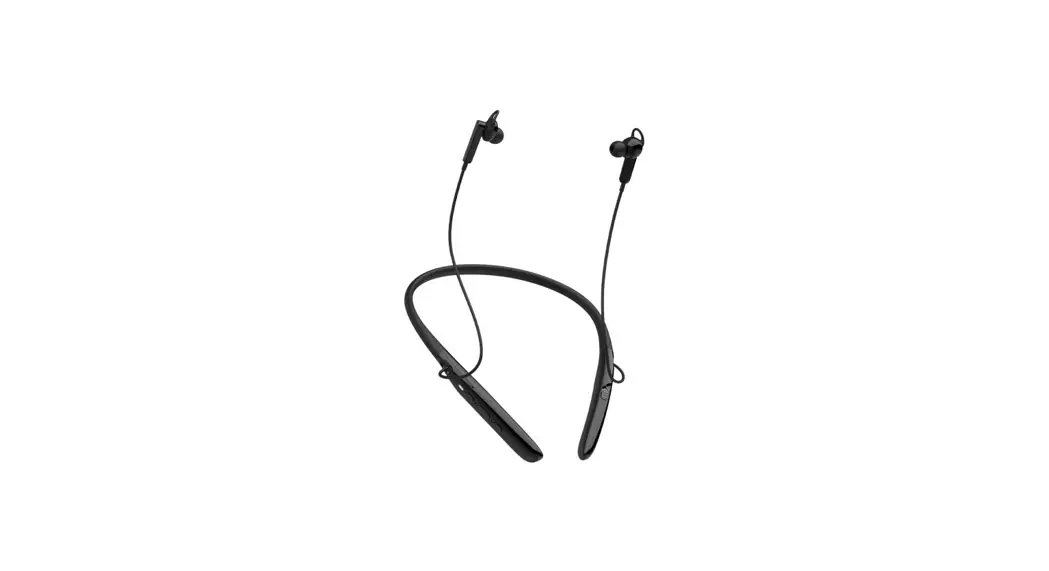
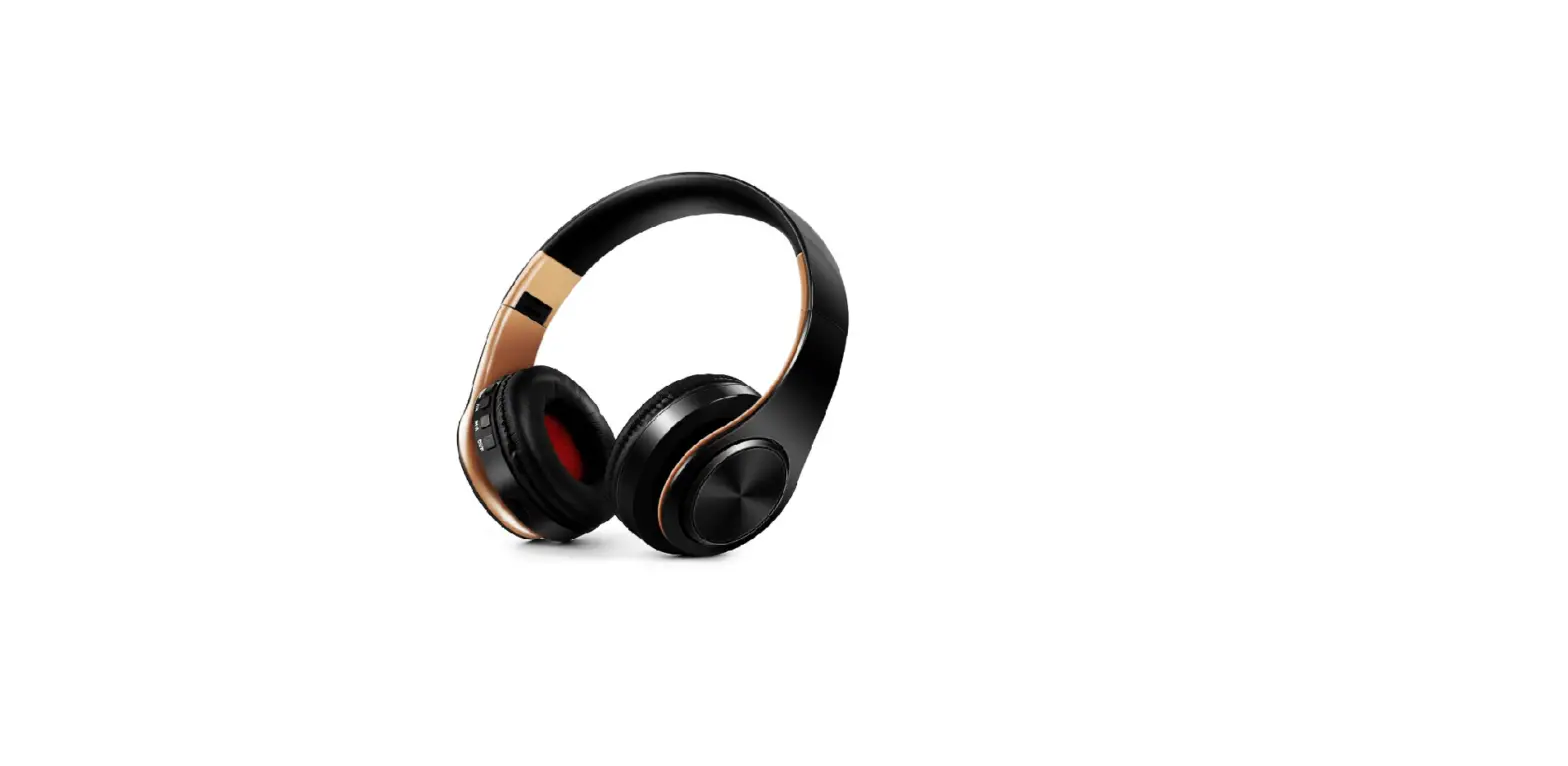
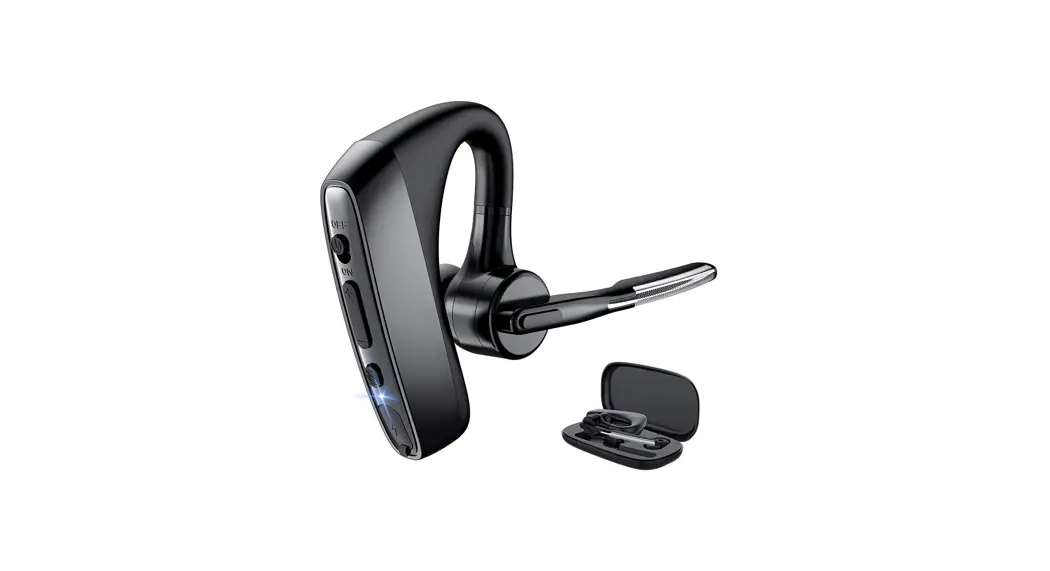
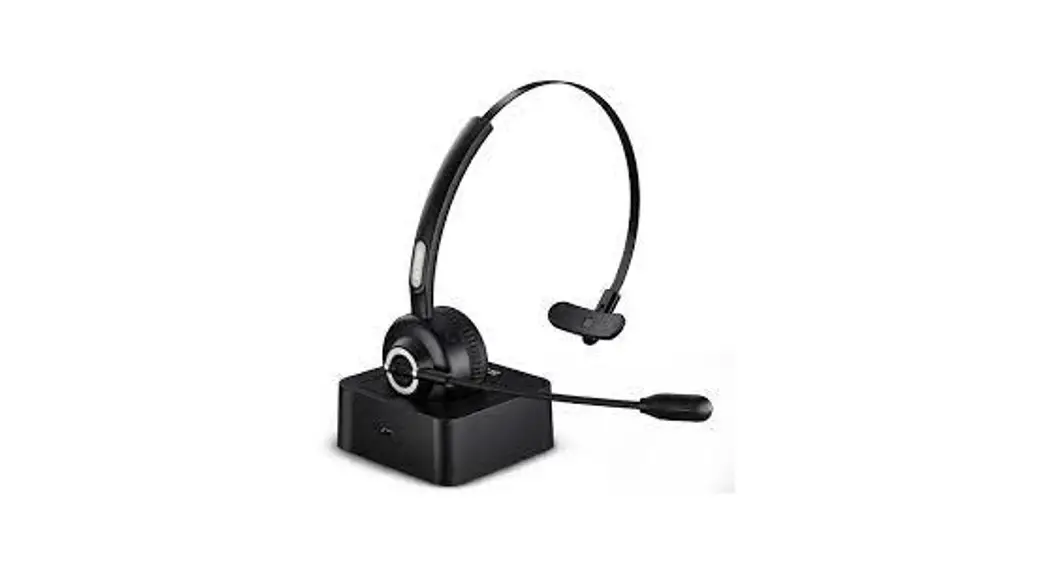
3A Bluetooth Headphone
Product Information
Product Name: Bluetooth Headphone
Model: 3A
Bluetooth Version: BT5.0
LED Light Instructions
The LED lights on the Bluetooth Headphone provide important
information about the device’s status. Here is a breakdown of the
different LED light indications:
- Solid Blue Light: The headphone is powered on
and connected to a Bluetooth device. - Blinking Blue Light: The headphone is in
pairing mode and ready to connect to a new Bluetooth device. - Blinking Red Light: The headphone battery is
low and needs to be charged. - Solid Red Light: The headphone is
charging. - Blinking Blue and Red Lights Alternately:
There is a Bluetooth connection issue. Try reconnecting or
resetting the headphone.
Product Usage Instructions
To use the Bluetooth Headphone, please follow these steps:
- Make sure the headphone is charged by connecting it to a power
source using the provided USB cable. The LED light will turn solid
red while charging and will turn off once fully charged. - To pair the headphone with a Bluetooth device, ensure that the
headphone is turned off. Then, press and hold the power button
until the LED light starts blinking blue, indicating that it is in
pairing mode. - On your Bluetooth device, enable Bluetooth and search for
available devices. Select the “Bluetooth Headphone 3A” from the
list of available devices. - If prompted, enter the PIN code “0000” to complete the pairing
process. - Once successfully paired, the LED light will turn solid blue,
indicating that the headphone is connected to your Bluetooth
device. - To control playback and volume, use the buttons on the
headphone. Consult the headphone’s user manual for specific button
functions. - To disconnect the headphone from the Bluetooth device, turn off
the Bluetooth on your device or manually disconnect it from the
Bluetooth settings. - To power off the headphone, press and hold the power button
until the LED light turns off.
Product manual
On-product information
Product nameBluetooth Headphone model:3A Bluetooth versionBT5.0
LED light instructions
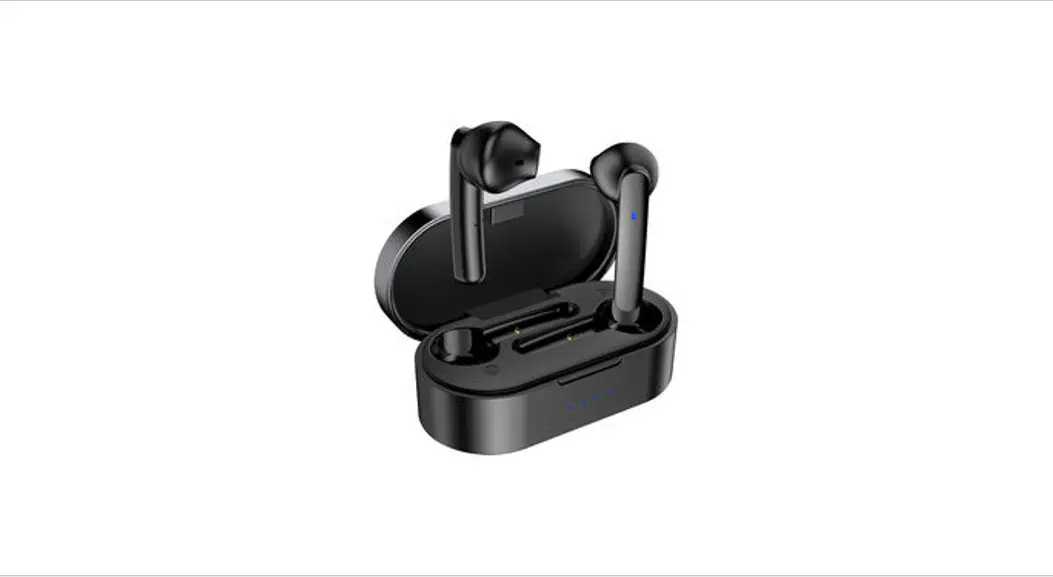
Charging warehouse open cover-The green light is off for 10S Charging box cover-Off after the green light turns for 3s The cell phone is paired with the headphones-Long press the charging compartment button for 3 seconds, and the white LED indicator light in the charging compartment flashes slowly The headphones leave / put into the warehouse-Take the green light once (left and right ears) Low power-Orange light flash Charging warehouse electricity(Press the key short)-Power> 10%, green light flashing once; power <10%, and orange light flashing four times Connect the charging line-Orange lights are long on for 10S Power full grid-Green light is on for 10S
Function Introduction
· starting upOpen the lid of the charging compartment and light on the green
light for 10 seconds
·power offWhen the headset is back in the charging compartment, close the
lid
·The headphones are automatically pairedUnder the case of closing the
cover, under the normal working condition of the battery voltage in the charging compartment, put the headset in the charging compartment, and the left ear and the right ear will be matching within 10 seconds. If the left ear and the right ear cannot be paired, put the left ear and the right ear into the charging compartment, the lid, open the lid of the charging compartment, press the charging compartment button for more than 3 seconds, the indicator light becomes the white light slow flash 3 times, then complete the ear pairing
·Mobile phone pairingOpen the lid of the charging compartment and close to
the Apple phone, the phone will pop up the connection interface, click connect, press the charging compartment button for more than 3 seconds, the white indicator light flash slowly 3 times, wait for a moment. If it is an Android phone, enter the phone Bluetooth interface search device, select Airpods Pro (Apple phone can operate on the phone, modify the Bluetooth name of the headset) for matching connection
·Automatic backOpen the lid of the charging compartment, if the left and
right ears before the team, the left and right ears will first automatically connect, and will be connected after the phone
·Cancel the pairingTurn off the Bluetooth or close the headset into the
charging compartment, close the cover, cancel the headset in the charging compartment, open the cover, press the charging compartment button for 3 seconds, flash the white light in the charging compartment for 3 times, make left / right ear team and send pop-up data
·Refuse to answer the phoneLeft / right ear press twice; pressure sensing
works when not in the ear
·Answer / close the callLeft / right ear press once to answer / end the phone;
effective
·The last songLeft / right ear presses three times; pressure sensing works
when not in the ear
·The next song:Left / right ear press twice; pressure sensing works when not
in the ear
·Pause / play:Left / right ear press once to play / pause; the pressure sensing
operation is effective when not in the ear
·Start voice assistantThe iPhone, left / right ear press for 1 second, the
default is noise reduction, or start Siri (specific functions need to be set by the iPhone;For Android phone, press left ear for 1 second to start Siri; right ear press for 1 second to reduce noise, close, and switch in transparent mode
·In-ear detection function switchApple mobile phone can normally set
whether the ear function on the phone; Android mobile phone connected to the headset, left / right headset pressed 5 times to switch whether the ear function; single headset into the ear, automatically switch to transparent mode; two ear automatically switch to noise reduction mode; noise reduction mode one headset automatically switch to transparent mode; two ear out, will close transparent mode
Product maintenance
1Disassembling your Bluetooth headset can cause damage, and the warranty will expire. 2Please wipe your headphones with a clean, soft, dry cotton cloth. 3Do not place your headset in an overheated or excessively cold environment, otherwise it may be unused.
This device complies with part 15 of the FCC Rules. Operation is subject to the following two conditions: (1) This device may not cause harmful interference, and (2) this device must accept any interference received, including interference that may cause undesired operation.
Any Changes or modifications not expressly approved by the party responsible for compliance could void the user’s authority to operate the equipment.
Note: This equipment has been tested and found to comply with the limits for a Class B digital device, pursuant to part 15 of the FCC Rules. These limits are designed to provide reasonable protection against harmful interference in a residential installation. This equipment generates uses and can radiate radio frequency energy and, if not installed and used in accordance with the instructions, may cause harmful interference to radio communications. However, there is no guarantee that interference will not occur in a particular installation. If this equipment does cause harmful interference to radio or television reception, which can be determined by turning the equipment off and on, the user is encouraged to try to correct the interference by one or more of the following measures: -Reorient or relocate the receiving antenna. -Increase the separation between the equipment and receiver. -Connect the equipment into an outlet on a circuit different from that to which the receiver is connected. -Consult the dealer or an experienced radio/TV technician for help.