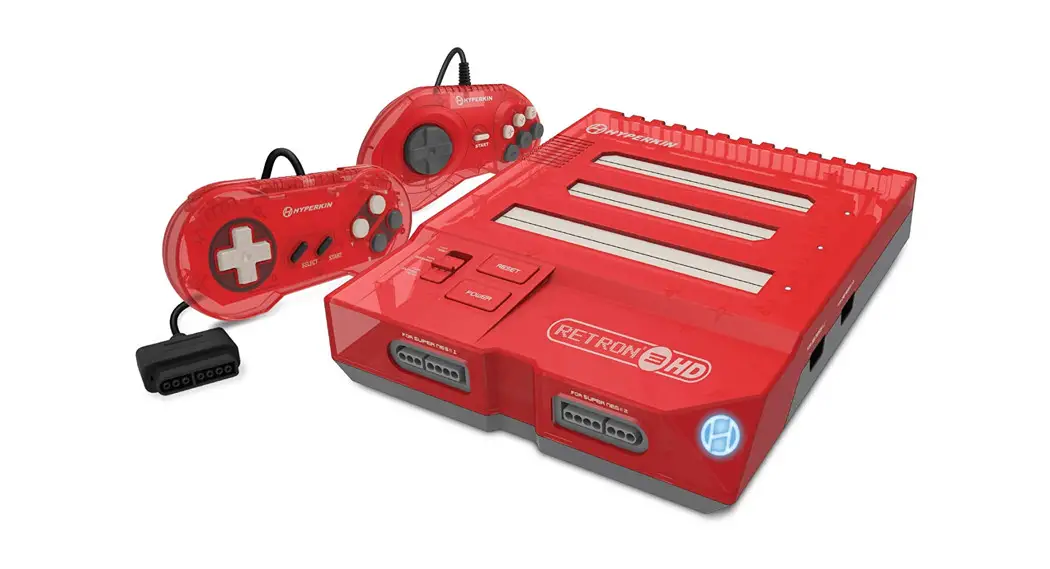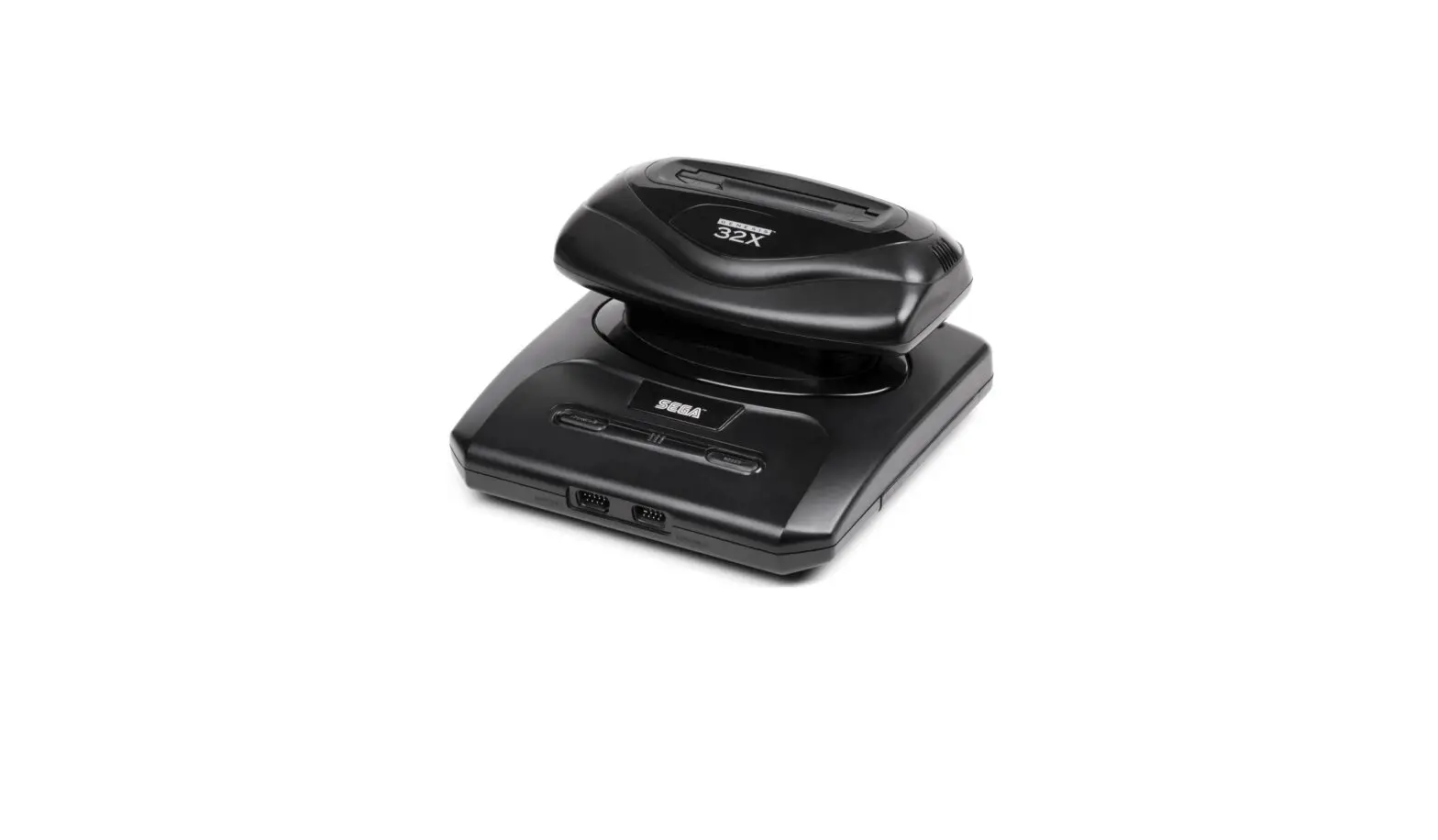
HYPERKIN B07JC66GKX Premium Retro Gaming
Genesis Instruction Manual
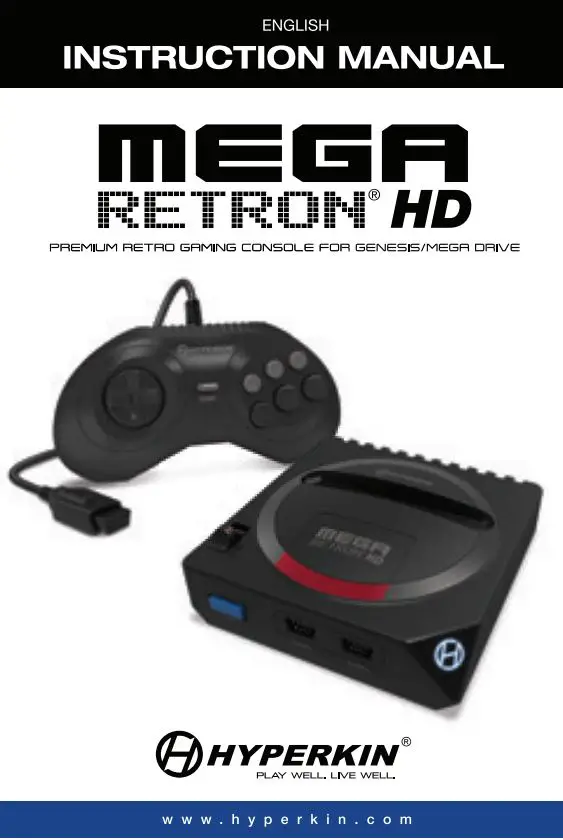
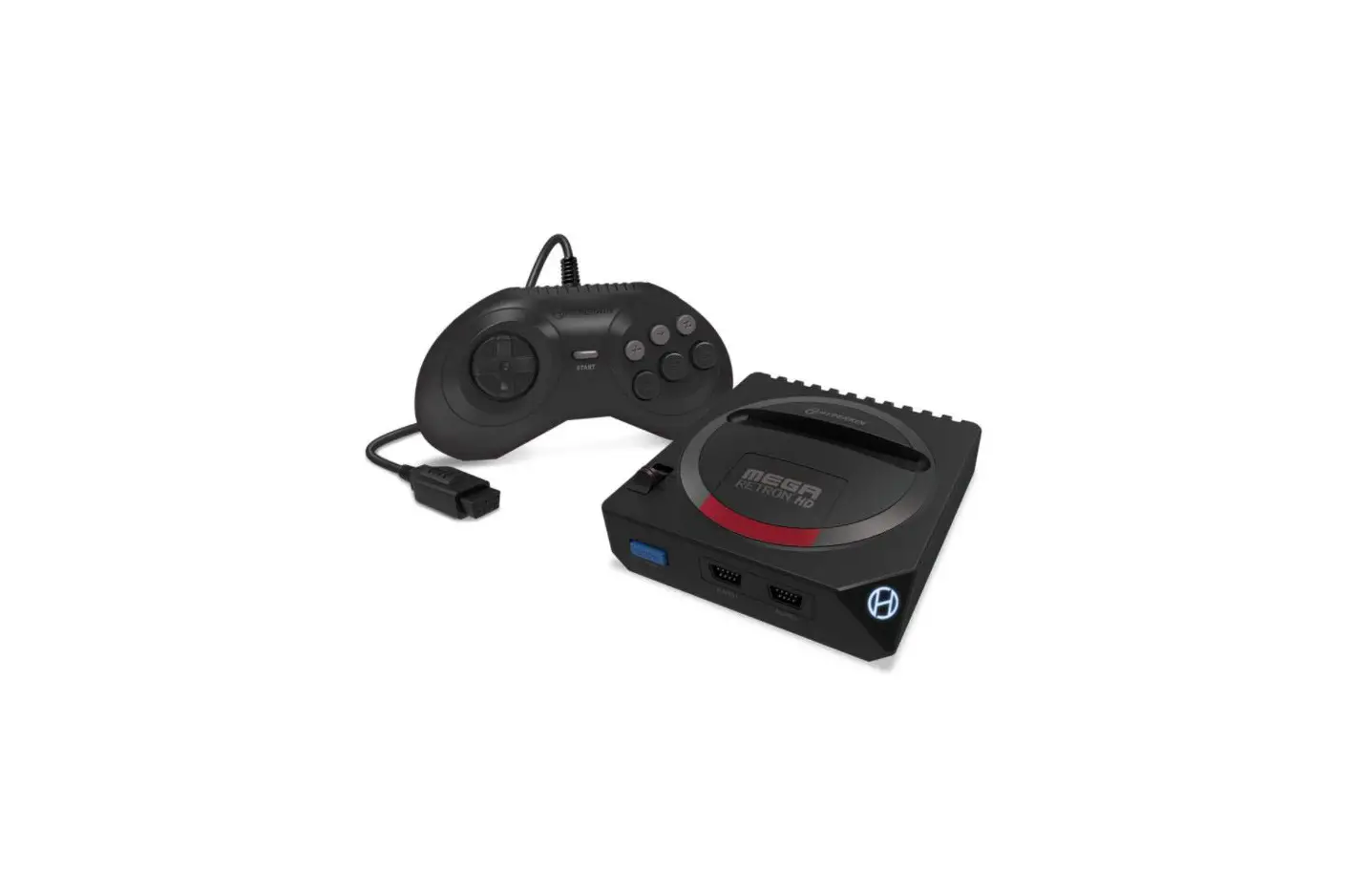
Thank you for purchasing the MegaRetroN® HD Gaming System. For your safety, and the safety of others, please carefully read the instruction manual before using this product.
MegaRetroN® HD LAYOUT
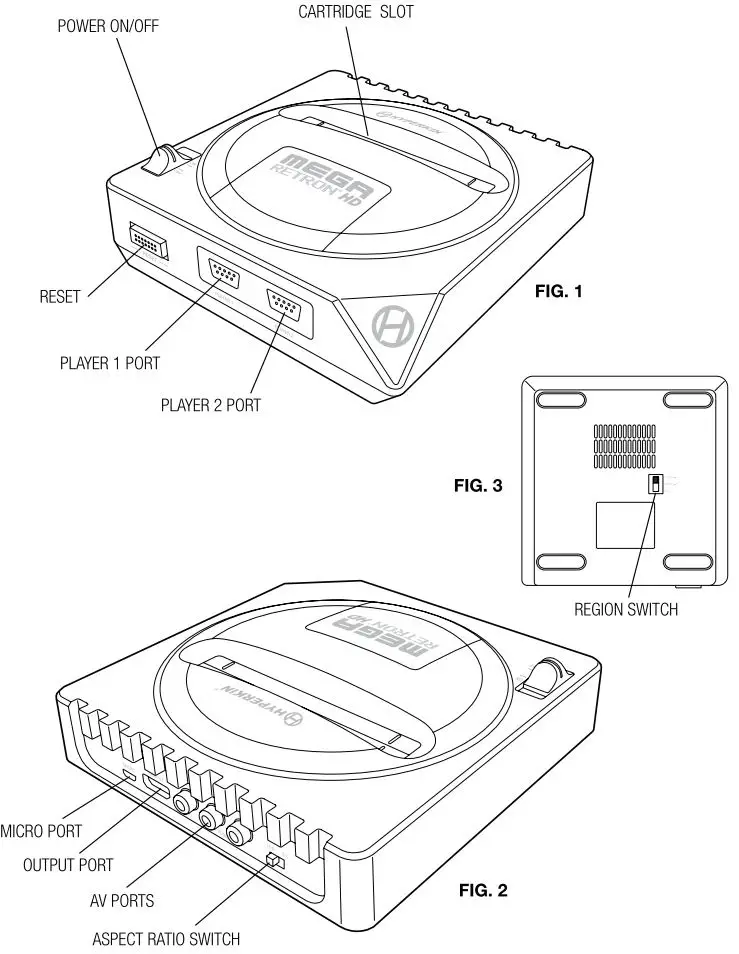
SETTING UP THE MegaRetroN® HD VIA HD CABLE (FIG. 2)
- Insert the HD cable into the OUTPUT PORT on the MegaRetroN® HD.
- Insert the other end of the HD cable into the HD input on your HDTV.
- Insert the MICRO CABLE into the MICRO PORT on the MegaRetroN® HD.
- Insert the other end of the MICRO CABLE into a power source. If AC adapter is not included, we strongly advise you use a 5 Volt 1 Amp USB wall AC adapter.
- Plug the AC adapter into a power outlet.
- Before powering on, make sure your aspect ratio is configured. Located on the BACK (Fig. 2) of the MegaRetroN® HD is the ASPECT RATIO SWITCH. Moving the switch to the LEFT position indicates a 16:9 ratio. Moving the switch to the RIGHT position indicates a 4:3 ratio. Aspect ratio can only be toggled when using HD cable.
SETTING UP THE MegaRetroN® HD VIA AV CABLE (FIG. 2)
- Insert the AV cable into the AV PORTS on the MegaRetroN® HD.
- Insert the other end of the AV cable into the AV input on the TV.
REGION SWITCH (FIG. 3)
BEFORE powering on your MegaRetroN® HD, make sure your aspect ratio (via HD cable only) and region are configured.
- Located on the BOTTOM (Fig. 3) of the MegaRetroN® HO is the REGION SWITCH. With the front of the console oriented downwards and the BOTTOM facing you, moving the switch to the UP position indicates you are using a NTSC-J cartridge. Moving the switch to the MIDDLE position indicates you are using an NTSC-US cartridge. Moving the switch to the DOWN position indicates you are using a PAL cartridge.
PLAYING GENESIS AND MEGA DRIVE CARTRIDGES ON THE MegaRetroN® HD (FIG. 1)
- Insert the cartridge into the CARTRIDGE SLOT.
- Tum ON the MegaRetroN® HD by moving the POWER SWITCH to the ON position. The Hyperkin logo located on the right-hand corner of the console will light up BLUE when powered on.
- While ON, you can reset the MegaRetroN® HD by pressing the RESET button.
- When done playing, move the POWER SWITCH to the OFF position to tum OFF the MegaRetroN® HD.
- Lastly, to remove your cartridge safely, place one hand firmly on the console and use your free hand to gently lift the cartridge out of the slot.
Note: Make sure your aspect ratio and region are configured before powering on the MegaRetroN® HD.
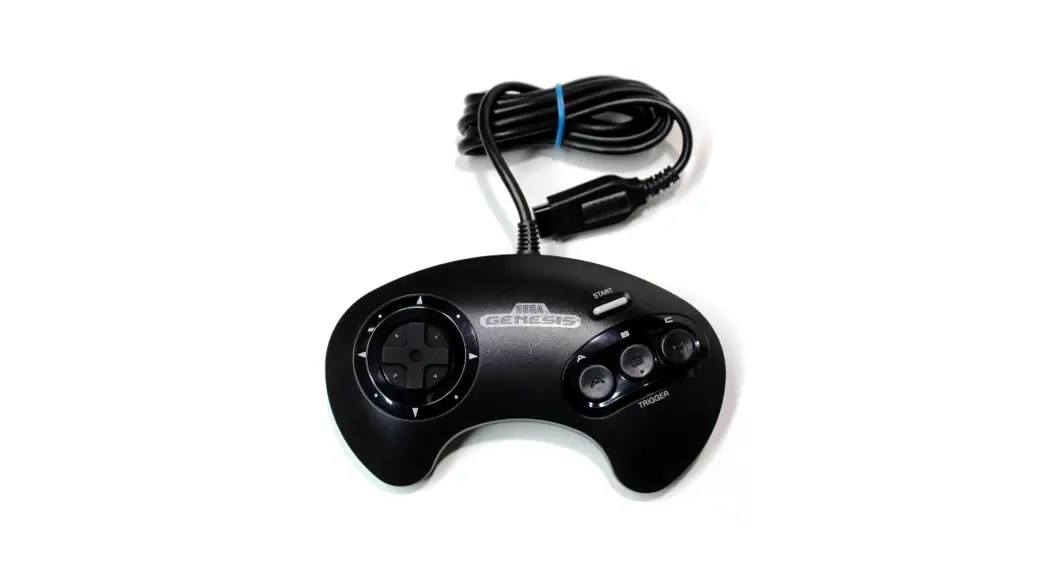
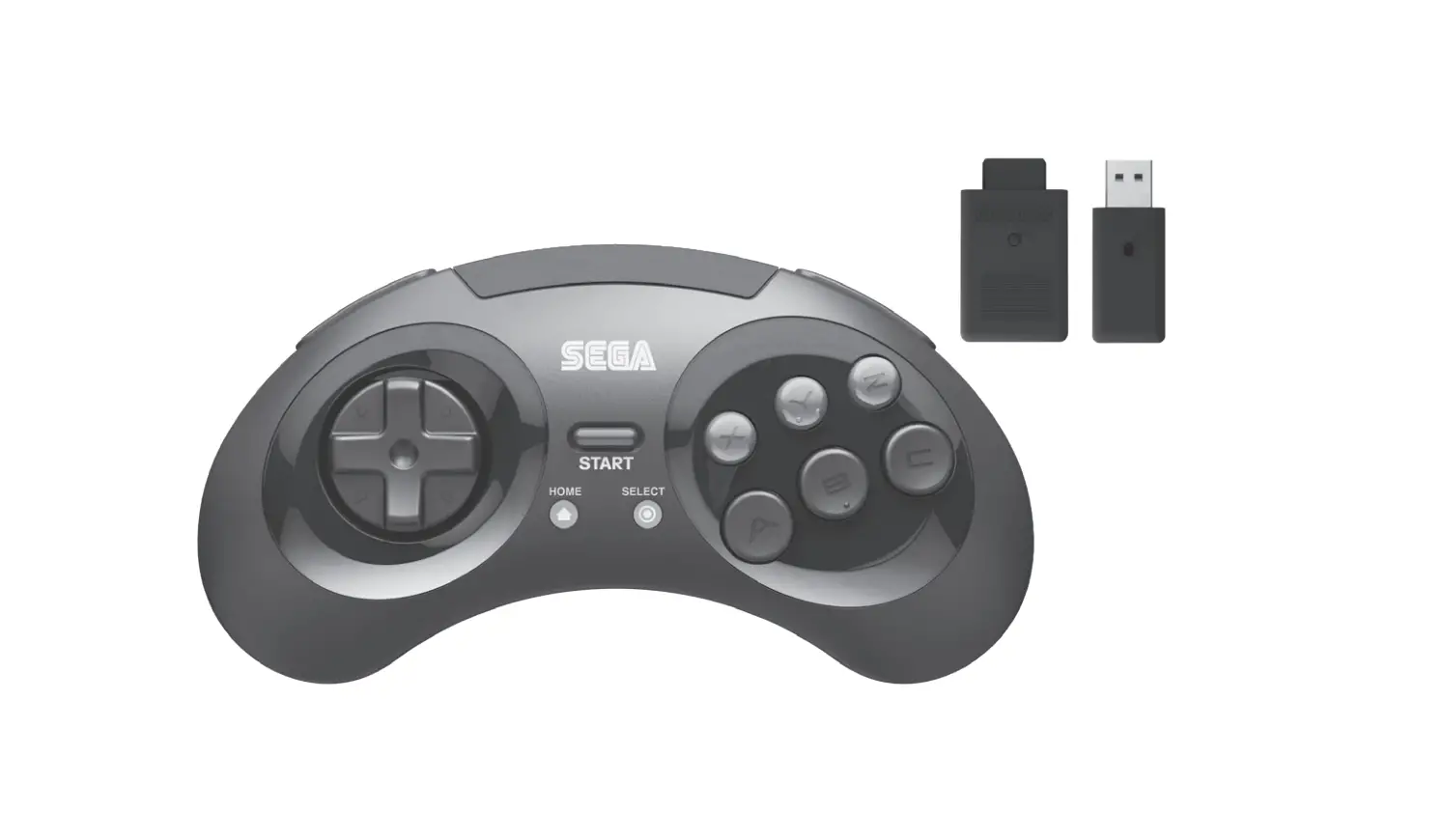
With the MegaRetroN® HD turned OFF, insert a SQUIRE into PLAYER 1. For two-player games, insert a second controller into PLAYER 2. The MegaRetroN® HD is also compatible with original Genesis and Genesis-compatible controllers.
Please visit www.Hyperkin.com/warranty to register your official Hyperkin product for Hyperkin’s Warranty.

<0 2019 Hyperkin Inc. Hyperkin® and Rectron® are registered trademarks of Hyperkin Inc. Perfect Pin™ is a trademark of Hyperkin Inc. Genesis® is a registered trademark of Saga Games Co., Ltd. This pn:xluct is not designed, manufactured, sponsored, endorsed, or licensed by Saga Games Co., Ltd. in the United States and/or other countries. All rights reserved. Patent Pending. Made in China.