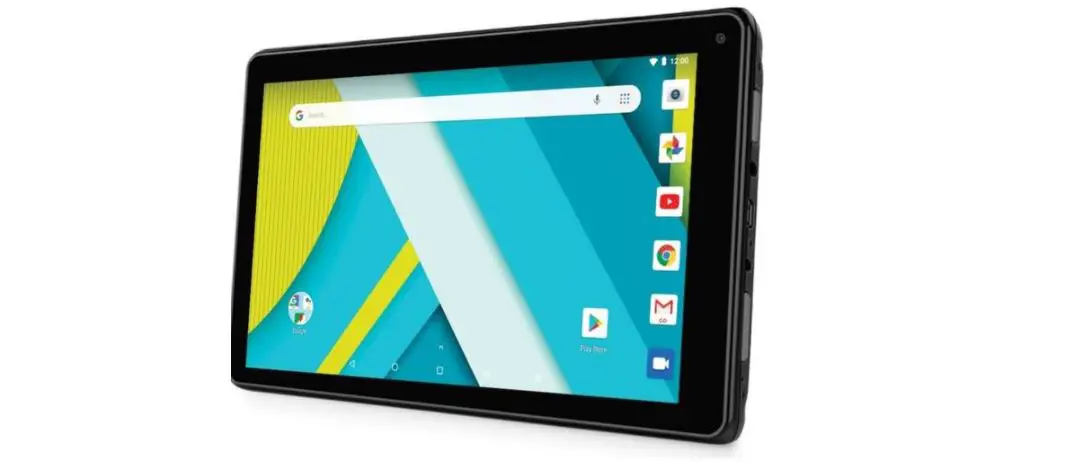
Tablet Asset Library
Product Information
The user manual provides instructions on how to find different
types of images related to Makita products, such as product images,
action images, F&B cards, promotion images, POS images, and
logos. The images can be found on the Makita Library website, and
users can search for them using keywords or product codes. The
website also allows users to browse the images by tags and refine
their search by selecting subfolders.
Product Usage Instructions
How to Find a Product/Action Image
- Go to https://library.makita.com.au.
- Tap on “for more search options”.
- On the top left-hand side, enter the product code or keyword in
the Search bar. Make sure the Products box is ticked. - Partial search is possible by adding an asterisk * at the end
of the search. E.g., TD001* will return all assets tagged with
TD001 partially in it. - Select the image type you want or leave it blank to search both
image types. Then, tap on Search. - You can sort out/find your results by relevance,
ascending/descending order & number per page. The page up/down
arrow is located middle right-hand side. - To find more than one product, you can conduct a bulk search.
Tap on More, then Bulk Search, located on the left-hand side next
to Advanced Search. - Enter a list of product codes into the search box (one code per
line). Make sure Products box is ticked & select your image
type or leave it blank. Then tap on Submit & Download. - A small pop up will appear. Tap on Download.
- Tap on “…” and select the zip folder you just downloaded. The
downloaded zip folder can be found in your Files folder under
Favourites – Downloads.
How to Find F&B Cards
- Go to https://library.makita.com.au.
- Tap on “for more search options”.
- On the top left-hand side, enter the code or keyword in the
Search bar. Make sure the F&B Cards box is ticked. - Tap on Search.
How to Find a Promotion Image
- Go to https://library.makita.com.au.
- Tap on “for more search options”.
- On the top left-hand side, enter the code or keyword in the
Search bar. Make sure the Promotions box is ticked. - Tap on Search.
How to Find a Point of Sale (POS) Image
- Go to https://library.makita.com.au.
- Tap on “for more search options”.
- On the top left-hand side, enter the code or keyword in the
Search bar. Make sure the POS box is ticked. - Tap on Search.
How to Find a Logo Image
- Go to https://library.makita.com.au.
- Tap on “for more search options”.
- On the top left-hand side, enter the code or keyword in the
Search bar. Make sure the Logos box is ticked. - Tap on Search.
How to Browse by Tag
- Go to https://library.makita.com.au.
- Tap on Browse, which is located on the left-hand side of your
screen. - Tap on the arrow if you want to refine your search. For
example, to find all XGT 40V Angle Grinders, continue to tap on the
arrow until you find the desired sub folder Products 40V Max XGT
Skins Angle Grinders.
How to Download an Image
- Tap on the image you want to download.
- Select the resolution option (if available) & tap
Download. - A small pop up will appear with the options to View or
Download. - If you select View, the image will appear on your screen. Then
tap on this icon which is located top right-hand corner of your
screen. Here, you have quite a few options to copy/save image, send
image to your Messages, Mail, Outlook, Teams etc.
Asset Library Guide Tablet
CONTENTS
HOW TO FIND A PRODUCT/ACTION IMAGE HOW TO FIND F&B CARDS HOW TO FIND A PROMOTION IMAGE HOW TO FIND A POINT OF SALE (POS) IMAGE HOW TO FIND A LOGO IMAGE HOW TO BROWSE BY TAG HOW TO DOWNLOAD AN IMAGE HOW TO SHARE AN IMAGE HOW TO ADD AN IMAGE TO YOUR DEFAULT COLLECTION HOW TO DELETE IMAGES FROM YOUR DEFAULT COLLECTION HOW TO SHARE YOUR COLLECTION HOW TO ADD YOUR OWN COLLECTION HOW TO COPY IMAGES FROM ONE COLLECTION TO ANOTHER HOW TO EDIT A COLLECTION HOW TO DELETE A WHOLE COLLECTION HOW TO DELETE IMAGES FROM A COLLECTION YOU’VE ADDED HOW TO GENERATE A COLLECTION TO A CONTACT SHEET PDF HOW TO DOWNLOAD A WHOLE COLLECTION
P2 P3 P3 P3 P3 P4 P5 P6 P6 P7 P8 P9 P10 P10-11 P11 P12 P12 P13
Page 1 of 13
HOW TO FIND A PRODUCT/ACTION IMAGE
1. Go to https://library.makita.com.au
2. Tap on
for more search options
3. On the top left-hand side, enter the product code or keyword in the Search bar. Make sure the Products box is ticked as per below
4. Partial search is possible by adding an asterisk * at the end of the search. E.g., TD001* will return all assets tagged with TD001 partially in it
5. There are 2 types of images. Product Image & Action Image. Select the image type you want or if you leave it blank it will search both image types. Then, tap on Search
6. You can view your search results in 3 different views large thumbnails, strip view or list view
7. You can sort out/find your results by relevance, ascending/descending order & number per page. The page up/down arrow is located middle right-hand side
8. To find more than one product, you can conduct a bulk search. Tap on More, then Bulk Search, located on the left-hand side next to Advanced Search
9. Enter a list of product codes into the search box (one code per line). Make sure Products box is ticked & select your image type or leave it blank. Then tap on Submit & Download
10. A small pop up will appear. Tap on Download
11. Tap on
and select the zip folder you just downloaded. The downloaded zip folder can
be found in your Files folder under Favourites – Downloads
Page 2 of 13
HOW TO FIND F&B CARDS
1. Go to https://library.makita.com.au
2. Tap on
for more search options
3. On the top left-hand side, enter the code or keyword in the Search bar. Make sure the F&B Cards box is ticked as per below. Then, tap on Search
HOW TO FIND A PROMOTION IMAGE
1. Go to https://library.makita.com.au
2. Tap on
for more search options
3. On the top left-hand side, enter the code or keyword in the Search bar. Make sure the Promotions box is ticked as per below. Then, tap on Search
HOW TO FIND A POINT OF SALE (POS) IMAGE
1. Go to https://library.makita.com.au
2. Tap on
for more search options
3. On the top left-hand side, enter the code or keyword in the Search bar. Make sure the POS box is ticked as per below. Then, tap on Search
HOW TO FIND A LOGO IMAGE
1. Go to https://library.makita.com.au
2. Tap on
for more search options
3. On the top left-hand side, enter the code or keyword in the Search bar. Make sure the Logos box is ticked as per below. Then, tap on Search
Page 3 of 13
HOW TO BROWSE BY TAG 1. Go to https://library.makita.com.au 2. Tap on Browse, which is located on the left-hand side of your screen
3. Tap on Browse by Tag. Here you can browse by different categories Products, Logos, Promotions, F&B Cards & POS
4. Tap on the arrow if you want to refine your search. For example, to find all XGT 40V Angle Grinders, continue to tap on the arrow until you find the desired sub folder Products 40V Max XGT Skins Angle Grinders
Page 4 of 13
HOW TO DOWNLOAD AN IMAGE 1. Tap on the image you want to download 2. Select the resolution option (if available) & tap Download
3. A small pop up will appear with the options to View or Download
4. If you select View, the image will appear on your screen. Then tap on this icon which is located top right-hand corner of your screen. Here, you have quite a few options to copy/save image, send image to your Messages, Mail, Outlook, Teams etc.
5. If you select Download, this icon will appear on the top right-hand corner of your screen
once download is complete. Tap on the icon if you want to view the image. Otherwise, tap
on
for more options to copy/save or share image (refer to the above)
Page 5 of 13
HOW TO SHARE AN IMAGE
1. Tap on the image you want to share 2. At the bottom of the image, tap on
3. Copy & paste URL link to recipient
HOW TO ADD AN IMAGE TO YOUR DEFAULT COLLECTION 1. Tap on the image you want to add to your Default Collection 2. At the bottom of the image, tap on 3. The image will now appear in your Default Collection folder, which is located at the bottom left-hand corner of your screen. Alternatively, you can view your Default Collection by tapping on Browse, then Collections & selecting Default Collection
4. To quickly add images to your Default Collection, you can change your search results view to
Line View
and tap on
all the images you want to add to that collection folder
Page 6 of 13
HOW TO DELETE IMAGES FROM YOUR DEFAULT COLLECTION
1. At the bottom left-hand side of your screen, tap on Current collection tab & select Default Collection.
2. Lightly tap on the image you want to delete. Three icons will appear at the bottom righthand corner
3. To delete, tap on this icon
4. Alternatively, tap on Browse, then Collections & select Default Collection. Make sure your
view setting is line view
and tap on
all the images you want to delete
5. You can also delete using the Actions tab, located middle right-hand side of the screen. Tap
on this blank box
all the images you want to delete. Then tap on Actions tab & select
Remove selected from collection
6. If you want to delete all the images from your Default collection, tap on Actions tab and select Remove all resources
7. A small screen will pop up, tap on OK
Page 7 of 13
HOW TO SHARE YOUR COLLECTION
1. Tap on Current collection or, tap on Browse, then Collections & select the collection you want to share.
2. Tap on Actions tab & select Share 3. There are 2 options to share your image URL link or via E-mail collection 4. To share via URL link copy & paste URL to recipient
5. To share via E-mail, tap on E-mail collection
6. Enter your message & email address and tap on collection
. Then tap on E-mail
Page 8 of 13
HOW TO ADD YOUR OWN COLLECTION 1. Tap on Current collection tab & select Create new collection 2. Enter the name of your collection, then tap on Return 3. Your newly added collection should now be part of your Current collection 4. Alternatively, tap on Browse, then Collections & select Create new collection 5. Enter the name of your collection, then tap on Save
Page 9 of 13
HOW TO COPY IMAGES FROM ONE COLLECTION TO ANOTHER 1. Tap on Current collection or, tap on Browse, then Collections & select the collection you want the images to be copied over. For example, Drills
2. Tap on the Actions tab & select Copy from collection 3. You can copy from any collections you have saved in the asset library. Then tap on Copy
HOW TO EDIT A COLLECTION 1. Tap on Current collection or, tap on Browse, then Collections & select the collection you want to edit 2. Tap on the Actions tab & select Edit collection 3. Here you can rename your collection, add a description, change access level either public or private & share your resources with other users.
4. Then tap on Save
Page 10 of 13
5. Here you can manage all your Collections. You can also create a new collection, delete collections, view public & shared collections.
HOW TO DELETE A WHOLE COLLECTION 1. Tap on Current collection or, tap on Browse, then Collections & select the collection you want to delete. Please note you cannot delete the Default Collection 2. Tap on the Actions tab & select Delete collection 3. A small screen will pop up, tap on OK
Page 11 of 13
HOW TO DELETE IMAGES FROM A COLLECTION YOU’VE ADDED 1. For collections you’ve added, you can only delete all the images on that collection. You cannot pick & choose what you want deleted 2. Tap on Current collection or, tap on Browse, then Collections & select the collection folder you want to delete all your images 3. Tap on the Actions tab & select Remove all resources 4. A small screen will pop up, tap on OK
HOW TO GENERATE A COLLECTION TO A CONTACT SHEET PDF 1. Tap on Current collection or, tap on Browse, then Collections & select the collection you want to create a contact sheet
2. Tap on the Actions tab & select Contact Sheet
3. This will take you to Contact sheet configuration. You can configure your sheet according to Display, Size, Columns & Orientation
4. Once you are happy with your configuration, tap on Create. Then tap on this icon which is located top right-hand corner of your screen. Here, you have quite a few options to copy/save, send contact sheet to your Messages, Mail, Outlook, Teams etc.
Page 12 of 13
HOW TO DOWNLOAD A WHOLE COLLECTION
1. Tap on Current collections or, tap on Browse, then Collections & select the collection you want to download
2. Tap on the Actions tab & select Download 3. Select the download size you want. Leave the format as Standard archive download & tap
on Download
4. A small screen will pop up, tap on Download
5. Tap on
& select the zip folder you just downloaded. The downloaded zip folder can
be found in your Files folder under Favourites – Downloads
Page 13 of 13
 Makita Asset Library