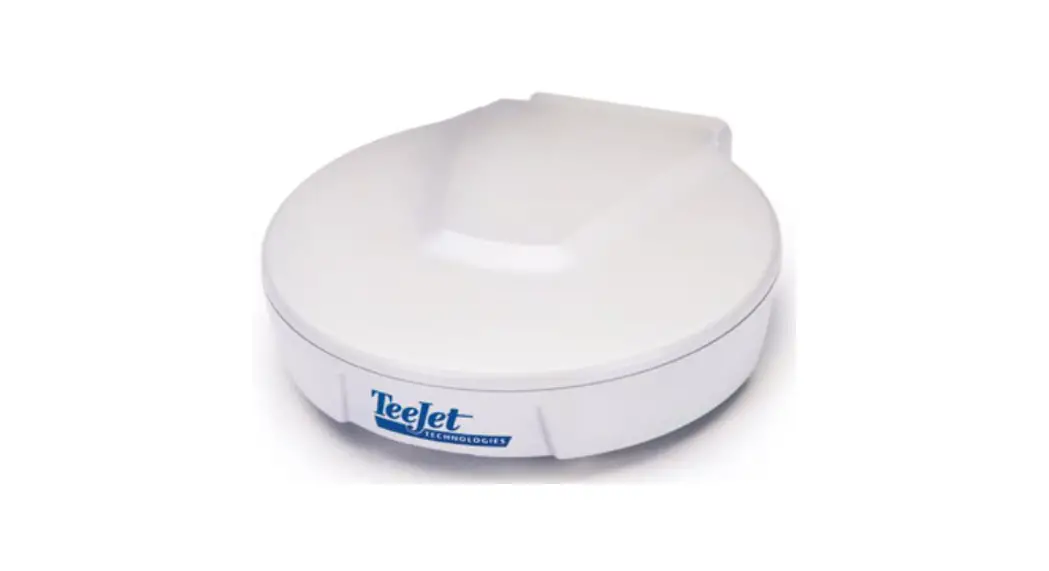
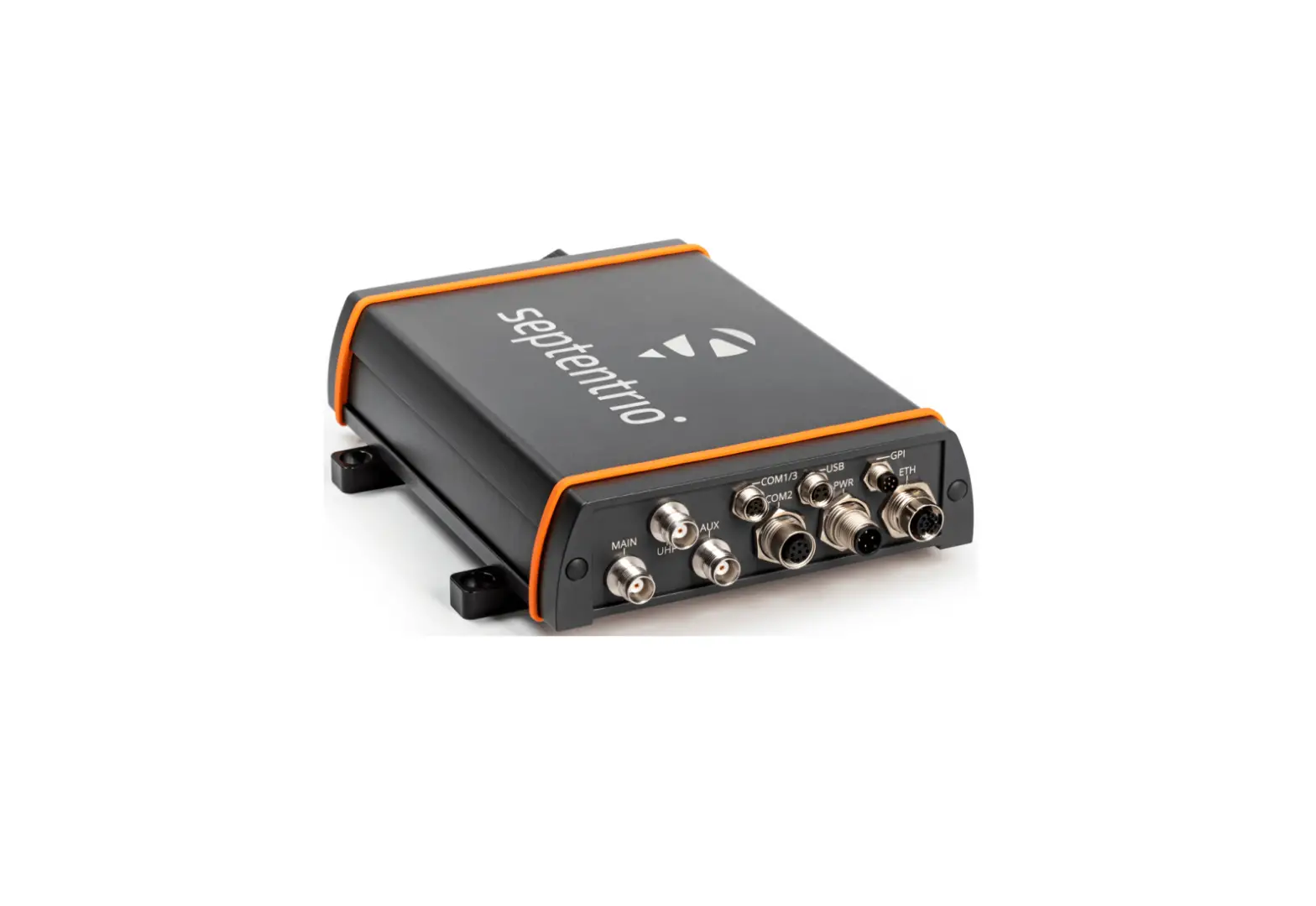
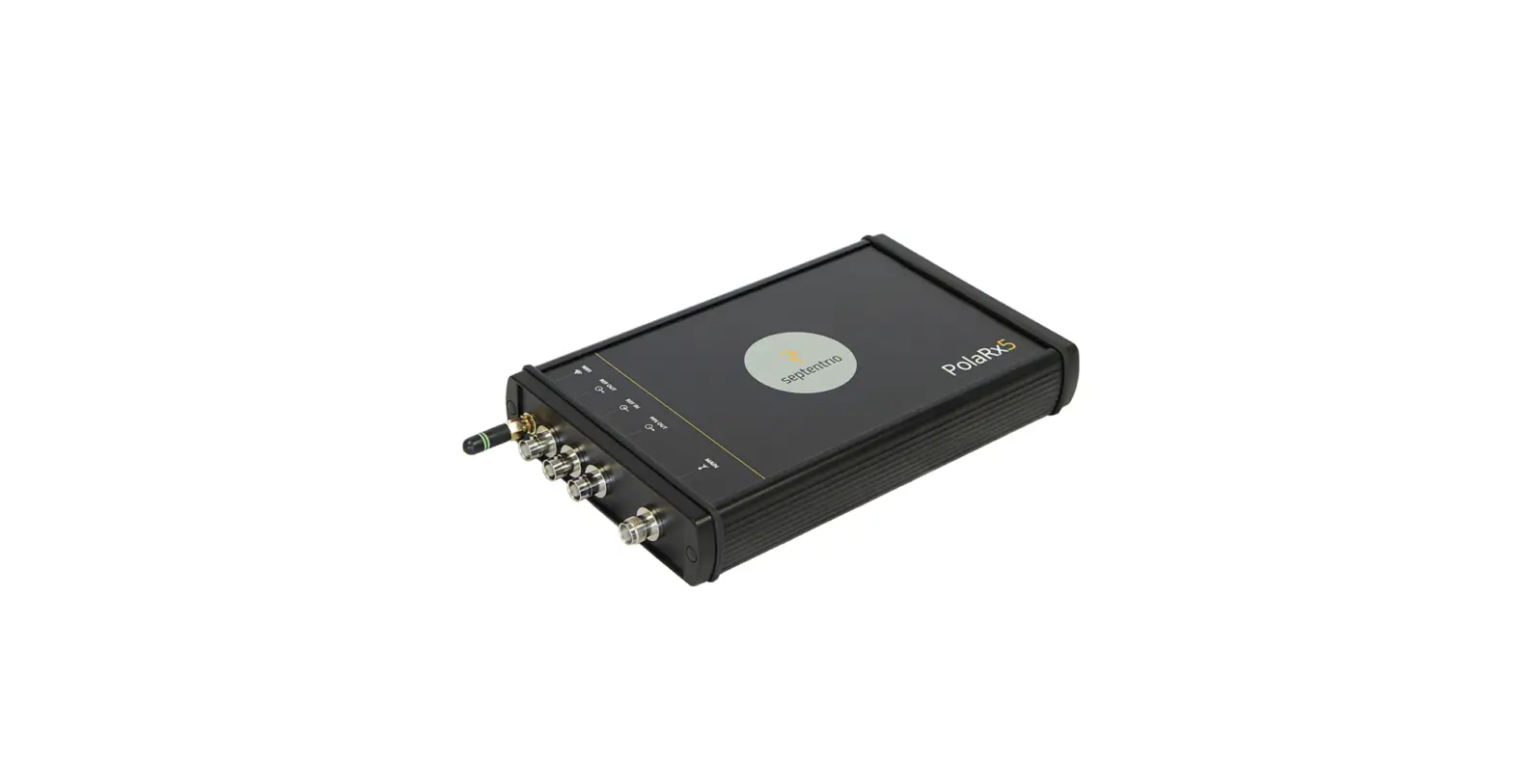
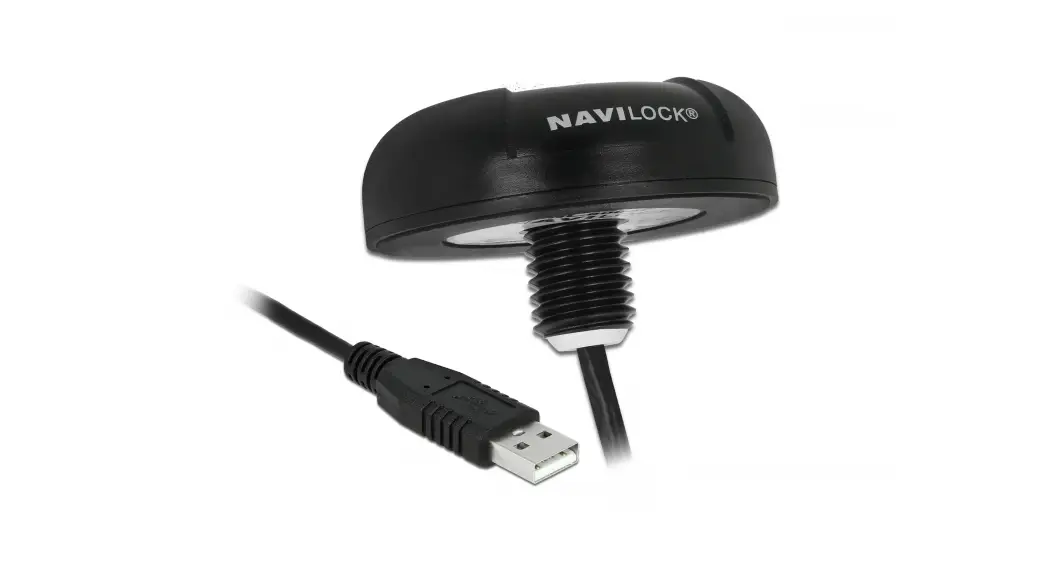
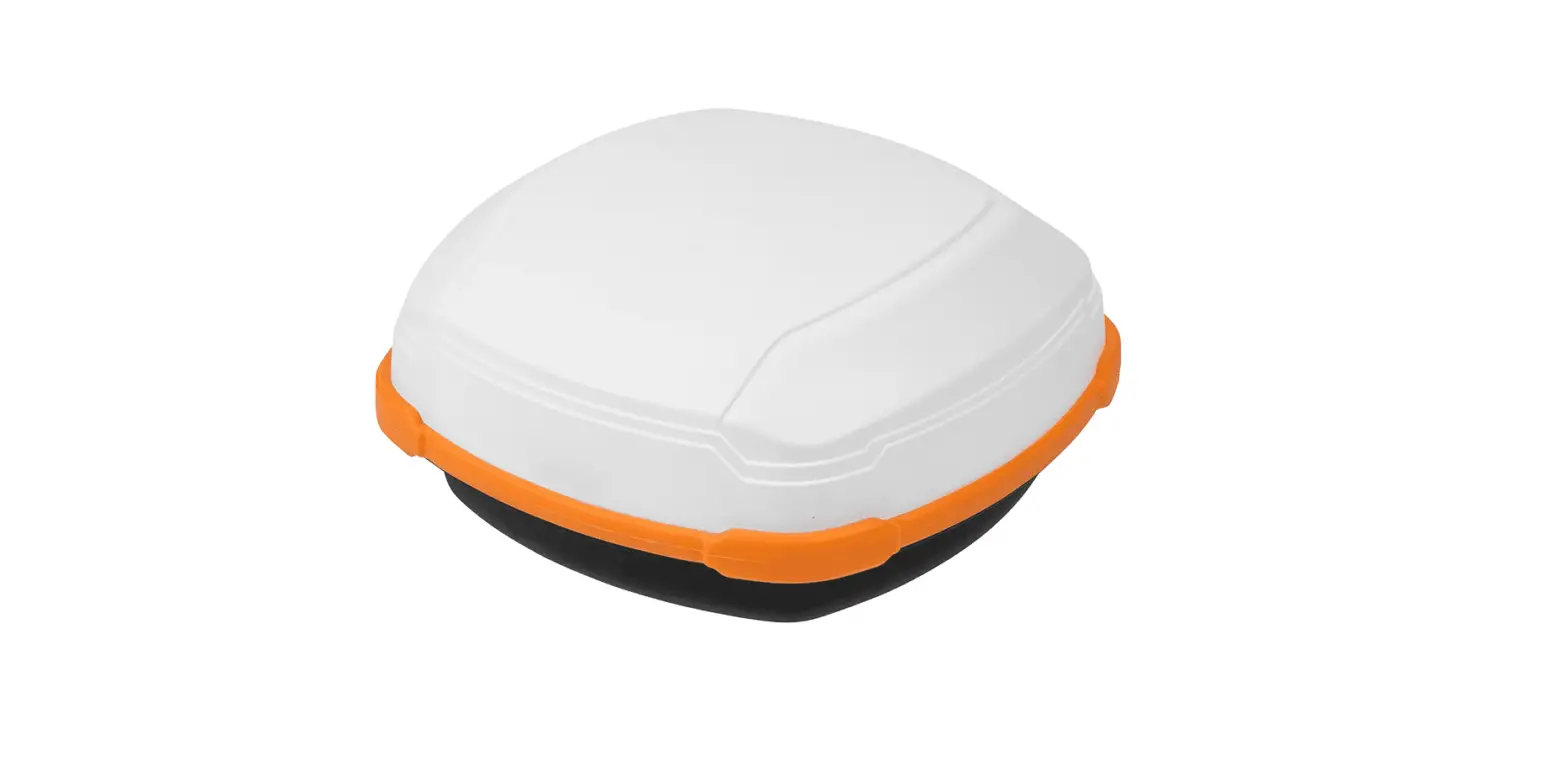
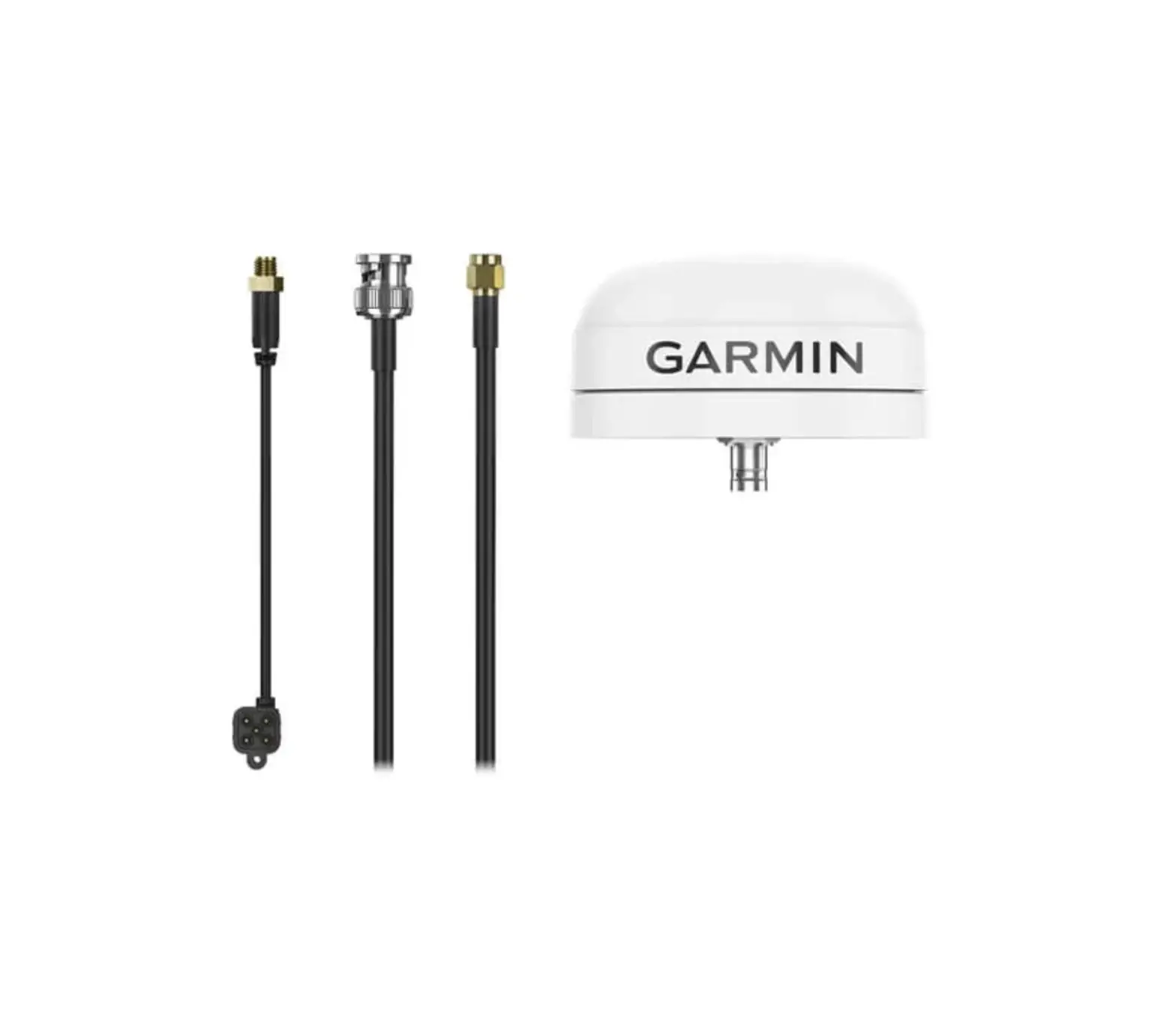
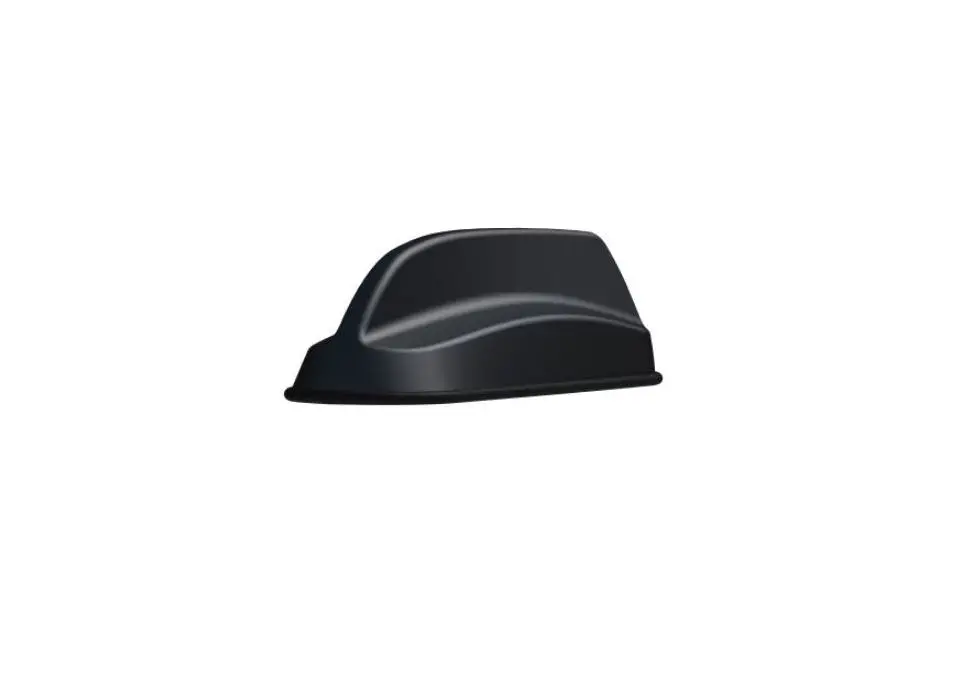
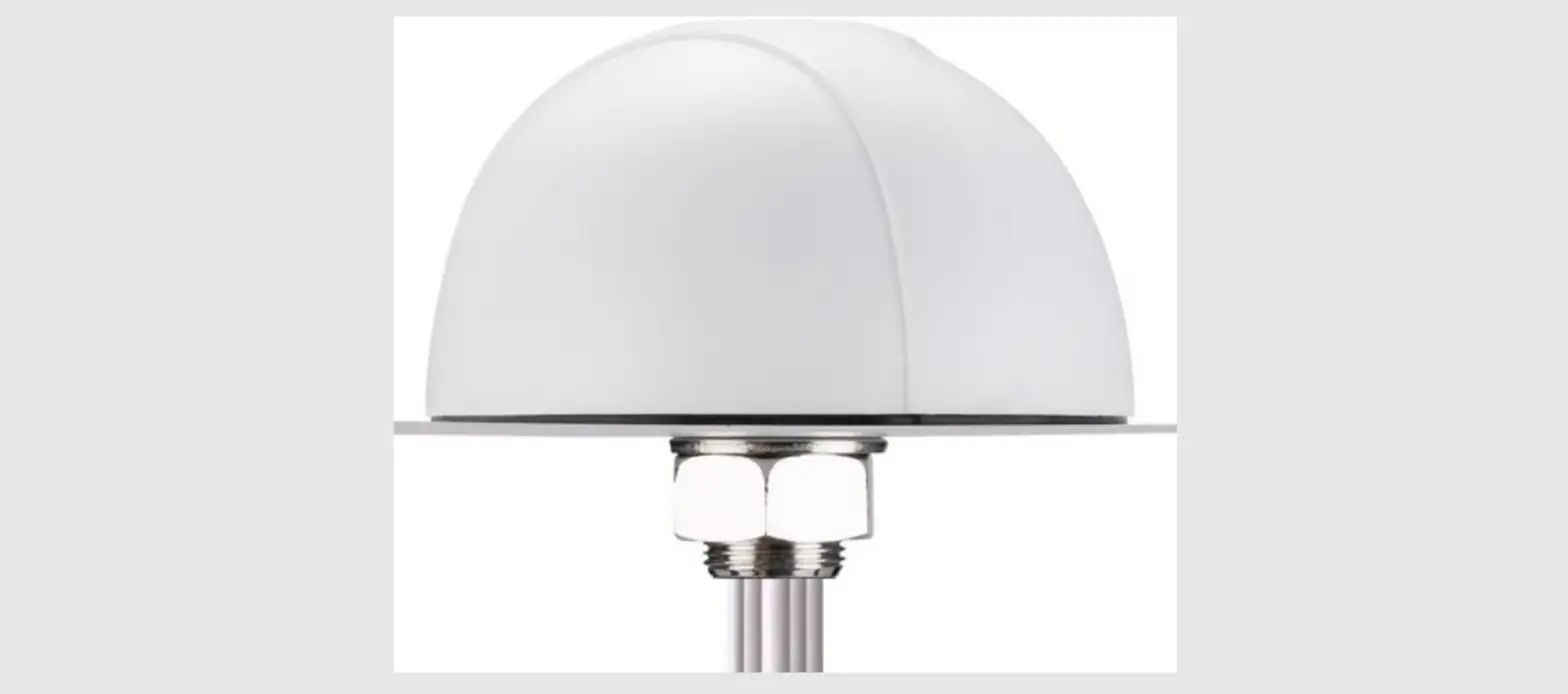
INS402 Active Multi-Constellation Multi-Band GNSS Antenna
Product Information: INS402 Active Multi-constellation
Multi-band GNSS Antenna
The INS402 Active Multi-constellation Multi-band GNSS Antenna is
a high-performance navigation device that utilizes multiple GNSS
(Global Navigation Satellite System) constellations and bands to
provide accurate positioning and orientation information for
vehicles. The device comes with various hardware components
including the INS402 wire harness connector, 12 V DC adapter with
5.5 mm x 2.1 mm jack, 100Base-TX to 100BaseT1 converter, Ethernet
cable, and CANalyst-CAN wire harness connector. Additionally, the
device requires software components such as AceNav.exe, Npcap.exe,
CAN Transfer.exe, and MountAngle Calculation.exe for setup and
configuration.
Product Usage Instructions
1. Setup
To set up the INS402 device, follow the below steps:
- Prepare the required equipment including the INS402 device,
wire harness connector, 12 V DC adapter, Ethernet cable,
CANalyst-CAN wire harness connector, and software components. - Mount the INS402 device on a flat rigid panel in the vehicle
and align the x-axis with the forward driving direction of the
vehicle. - Mount the antenna to a secure and stable structure with a clear
view of the sky and connect it to the FAKRA RF terminal. - Connect the wire harness connector to the main connector of the
INS402 device. - Use the Ethernet cable to connect the Ethernet converter to the
Ethernet port on the PC. - Connect the jack from the wire harness to the 12 V power
adapter and connect the power adapter to a power supply.
2. Configuring User Parameters
After setting up the INS402 device, follow the below steps to
configure user parameters:
- Open ins402.json in Acenav.exe (path:
Acenav.clisettingRTK_INSins402.json). - Configure the value in userParameters (from line 6 to line 65)
as required. - For GNSS lever arm configuration (paramId: 1-3), follow the
pattern to show the translation offset in each direction of x, y,
z. The IMU to the GNSS master antenna lever arm is [x, y, z] =
[2.0, 0.0, -2.0] m. - For user lever arm configuration (paramId: 4-9), set the
initial value to [x, y, z] = [0.0, 0.0, 0.0] if the INS is on a
boat. If the INS is in a car, measure the IMU to rear axle center
lever arm and set in the paraID4-6. - For rotation align configuration (paramId: 10-12), if the
coordinate system of INS402 installed on the carrier is consistent
with the carrier coordinate system, follow the pattern to show the
rotation alignment in each direction of x, y, z.
INS402 Quick Application Guide
Contents
INS402 Quick Application Guide ……………………………………………………………………………………………… 1 1. Setup …………………………………………………………………………………………………………………………… 2 1.1 Equipment to be prepared:……………………………………………………………………………………..2 1.2 INS402 Setup mode ……………………………………………………………………………………………… 2 1.3 INS402 Connection mode………………………………………………………………………………………2 1.4 CANalyst- install mode………………………………………………………………………………………3 2. Configuring User Parameters …………………………………………………………………………………………. 3 2.1 INS402 User Parameters Configuration……………………………………………………………………3 2.2 CAN Transfer Configuration……………………………………………………………………………………6 2.3 Misalignment Calibration …………………………………………………………………………………………….. 7 3. Data Log & Analysis ………………………………………………………………………………………………………. 9 3.1 Data log……………………………………………………………………………………………………………….9 3.2 Data Analysis………………………………………………………………………………………………………..9
1
1. Setup
1.1 Equipment to be prepared:
HARDWARE
INS402 Active Multi-constellation Multi-band GNSS Antenna (double) INS402 Wire Harness Connector 12 V DC Adapter with 5.5 mm x 2.1 mm Jack 100Base-TX to 100BaseT1 Converter (3-ETH_TRX_N-, 4ETH_TRX_P+) Ethernet Cable CANalyst- CAN Wire Harness Connector
1.2 INS402 Setup mode
SOFTWARE
AceNav.exe (download
link:
https://github.com/Aceinna/acenav-
cli/releases) Npcap.exe (download link:
https://navview.blob.core.windows.net/foru
m/upload/npcap-1.55.exe-kv7fw14u.zip) CAN Transfer.exe MountAngle Calculation.exe
a) Mount the INS402 on a flat rigid panel in the vehicle, align the x-axis with the forward driving direction of the vehicle
b) Mount the antenna to a secure, stable structure with a clear view of the sky c) Connect the antenna to the FAKRA RF terminal d) Connect the wire harness connector to the main connector of the INS402 e) Use the ethernet cable to connect the ethernet converter to the ethernet port on the PC f) Connect the jack from the wire harness to the 12 V power adapter and connect the power adapter to a power supply
1.3 INS402 Connection mode
Fig1. INS402 Connection Mode 2
1.4 CANalyst- install mode
CANalyst-(use DB9 or other ways) connect to CAN network, the connection mode can refer to the following figure:
Fig2. CAN connection mode And then check whether have data output from CAN port, you can use CANtest.exe to do this check:
Fig3. CANTest Check 1. Choose the right device: USBCAN-2E-U 2. Choose the right bitrate: 500k 3. Don’t confuse CAN-H & CAN-L If there is data output, the CAN connection is successful.
2. Configuring User Parameters
2.1 INS402 User Parameters Configuration
The coordinate system of INS402 is like follow:
3
Fig4. INS402 Coordinate System
Fig5. Carrier Coordinate System
Open ins402.json in Acenav.exe, the path is: “Acenav.clisettingRTK_INSins402.json”, The “value” in “userParameters” (from line6 to line65)
need to be configured.
Each parameter of “lever arm” is Measured from IMU to Projection point. It is required to have the lever arm accuracy of less than 2 cm.
“paramId”: 1-3 correspond to “gnss lever arm”:x, y, z Follow pattern show the translation offset in each direction of x, y, z. The IMU to the GNSS
master antenna lever arm is [x, y, z] = [2.0, 0.0, -2.0] m.
Fig6. GNSS Lever Arms Measure
Fig7. GNSS Lever Arm Configuration
“paramId”: 4-6 correspond to “user lever arm”: x, y, z 1. If the INS on boat, ignore these three values, Set the initial value: [x, y, z] = [0.0, 0.0, 0.0] 2. If the INS in car, measure the IMU to rear axle center lever arm and set in the paraID4-6
Fig8. GNSS Lever Arm Configuration 4
“paramId”: 7-9 correspond to “user lever arm”: x, y, z If we take the GNSS master antenna as the Projection point. follow pattern show the translation
offset in each direction of x, y, z. The IMU to the Projection point lever arm is [x, y, z] = [2.0, 0.0, -2.0] m.
Fig9. User Lever Arms Measure
Fig10. User Lever Arm Configuration
“paramId”: 10-12 correspond to “rotation align”: x, y, z If the coordinate system of INS402 installed on carrier is consistent with the carrier coordinate
system, then rotation align [x, y, z] = [0.0, 0.0, 0.0] deg. This is the initial value, fill in the corrected value after misalignment calibration. (See2.3)
Fig11. Rotation Align Configuration “paramId”: 13-15 correspond to “sec lever arm”: x, y, z
Follow pattern show the translation offset in each direction of x, y, z. The IMU to the GNSS slave antenna lever arm is [x, y, z] = [4.0, 0.0, -1.0] m.
5
Fig12. User Lever Arms Measure
Fig13. User Lever Arm Configuration
“paramId”: 16-18 correspond to “rotation align”: x, y, z Set the initial value: [x, y, z] = [0.0, 0.0, 0.0], no need to change
Fig14. Rotation Align Configuration “paramId”: 19 correspond to “NHC switch”
0: Ocean (INS on boat) 1: Land (INS in car)
Fig15. NHC Switch Configuration
2.2 CAN Transfer Configuration
CAN-Transfer is a tool to listen odometer message(speed and gear) on canbus, and wrap the message( speed × gear ), then send to ethernet in frequency about 20Hz. If every things work, there is a can_speed.log in data/session_YYYYMMDD_hhmmss folder. It logs all received speed on canbus.
6
To use CAN-Transfer, you need to configure “devices_mac” (a list of INS402, it needs wrapped message from ethernet.) in config.json.
Fig16.Ethernet and device Choose your PC Ethernet and connect The CAN-transfer can read the device automatically, but for further using, you can write the
device mac in the square brackets show in Fig17.
Fig17. CAN-Transfer Configuration This config.json shows all the information we need to configure odometer
“device_mac” “can_bus” “odometer”: the dbc file of the vehicle or boat is needed to configure odometer If the customer is confused with this configuration, they can send us the dbc file and we will modify the config.json for them
2.3 Misalignment Calibration
Vehicle Online Calibration Procedure i. Vehicle stops at level road in open sky, signal good environment. ii. Start device and check device work normal. iii. Write INS initial configuration parameters, configure RTK correction and start data logging. iv. Start to run as “” (including left and right turns and keep straight after turning) after RTK
correction is received and INS convergence.
v. Confirm start point, keep run as straight line with > 5m/s speed for at least 250m. Then make a U-turn, run back to start point with > 5m/s speed. Do at least 3 iterations to make sure the desired accuracy reached.
7
*Notes
Log tool & tool command: a) Log tool: Acenav.exe
b) Tool command: ./acenav -i 100base-t1 –device-type=INS402 cli —-first step
>>upgrade <firmware> (firmware upgrade)—-second step
Fig18. Firmware upgrade
./acenav -i 100base-t1 –device-type=INS402 (log data) ./acenav -i 100base-t1 –device-type=INS402 – s (save the configuration, every time you change
the parameters in INS402.json, you need to use this command ) ./acenav parse t ins402 – p <file path> (decode data)
The steps of misalignment calibration on software is:
Fig19. Misalignment calibration on software
i. Select the device model for testing. (“INS401” can be used for both INS401&402)
ii. Drags the configuration file of the calibrated data into the specified location.
iii. Place the user.bin (logged by Acenav.exe) in the specified location.
iv. Decode the file. v. Process the decode file vi. Split a file into multiple pieces of data. vii. calculate each piece of data separately or a
whole piece of data. viii. The estimated parameter is shown in `8′
(Fig. 14). ix. The parameter value `9′ (Fig. 14) of the file
that is written to the ins402.json rotation RBV
The final configuration
8
Fig.20-22 The Final Configuration
3. Data Log & Analysis
3.1 Data log
Run AceNav.exe to establish a connection to the INS402, the following information will be displayed on the console.
Fig23. Acenav connection Every time AceNav.exe runs, a subfolder with the time tag will be created under “acenav/data” directory. It will contain a configuration file and four logged binary files:
configuration.json: INS402 configuration file read from the device flash. rtcm_base_<time_tag>.bin: GNSS RTK correction data in RTCM format. rtcm_rover_<time_tag>.bin: INS402 GNSS raw data in RTCM format. user_<time_tag>.bin: positioning solution, raw IMU and other related variance/status information shown in #6. ins_save_<time_tag>.bin: save last status of INS402 when power was off.
3.2 Data Analysis
Run the data parsing command below to decode the user_<time_tag>.bin in `Acenav.cli data’
Fig24. Acenav Data Parsing Process The decoded data from the user_<time_tag>.bin will contain the following files:
9
user_<time_tag>_dm.csv: INS402 system diagnostic messages user_<time_tag>_gnss.csv: GNSS solution at 1 Hz user_<time_tag>_imu.csv: raw IMU data at 100 Hz user_<time_tag>_ins.csv: INS solution at 100 Hz user_<time_tag>_gnss.kml: GNSS solution trajectory in kml format user_<time_tag>_ins.kml: INS solution trajectory in kml format user_<time_tag>_nmea.txt: GNSS solution in NMEA 0183 ASCII user_<time_tag>_odo.txt: vehicle odometer speed data received by INS402
10
 Releases · Aceinna/acenav-cli · GitHub