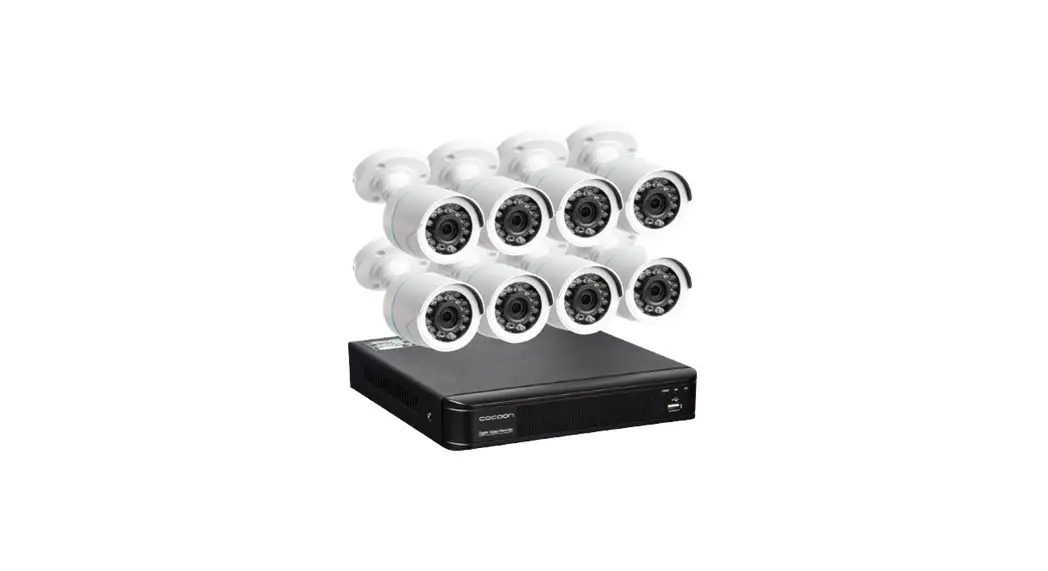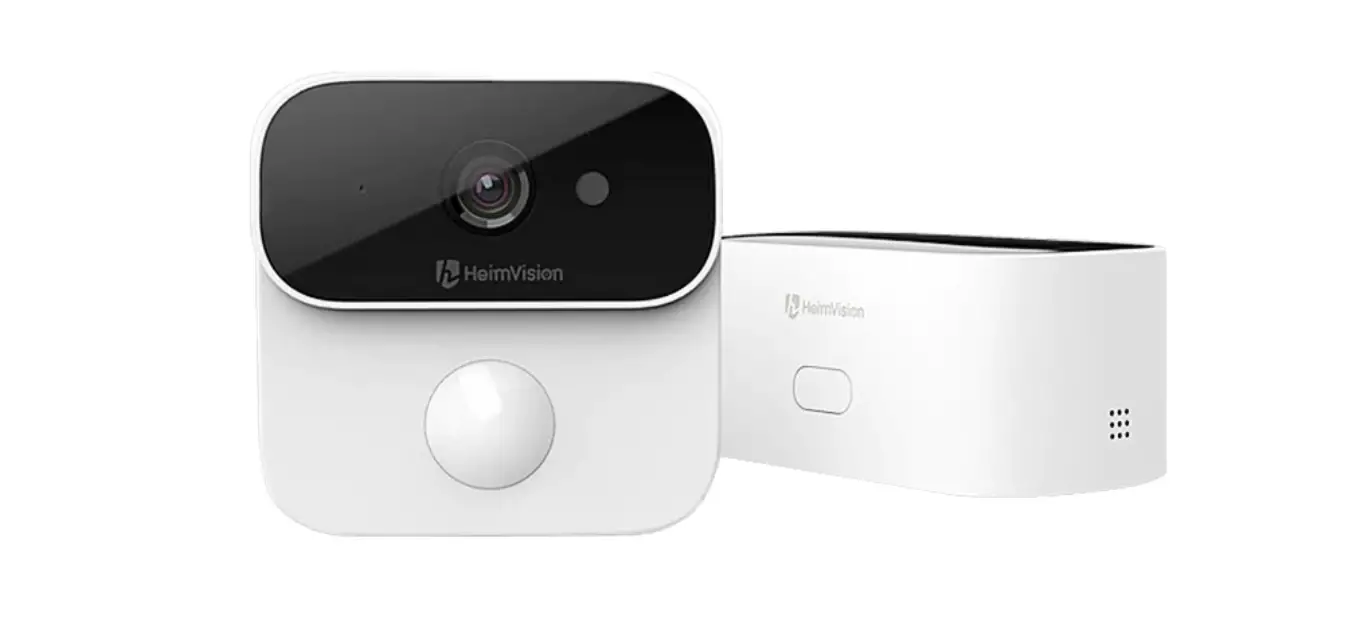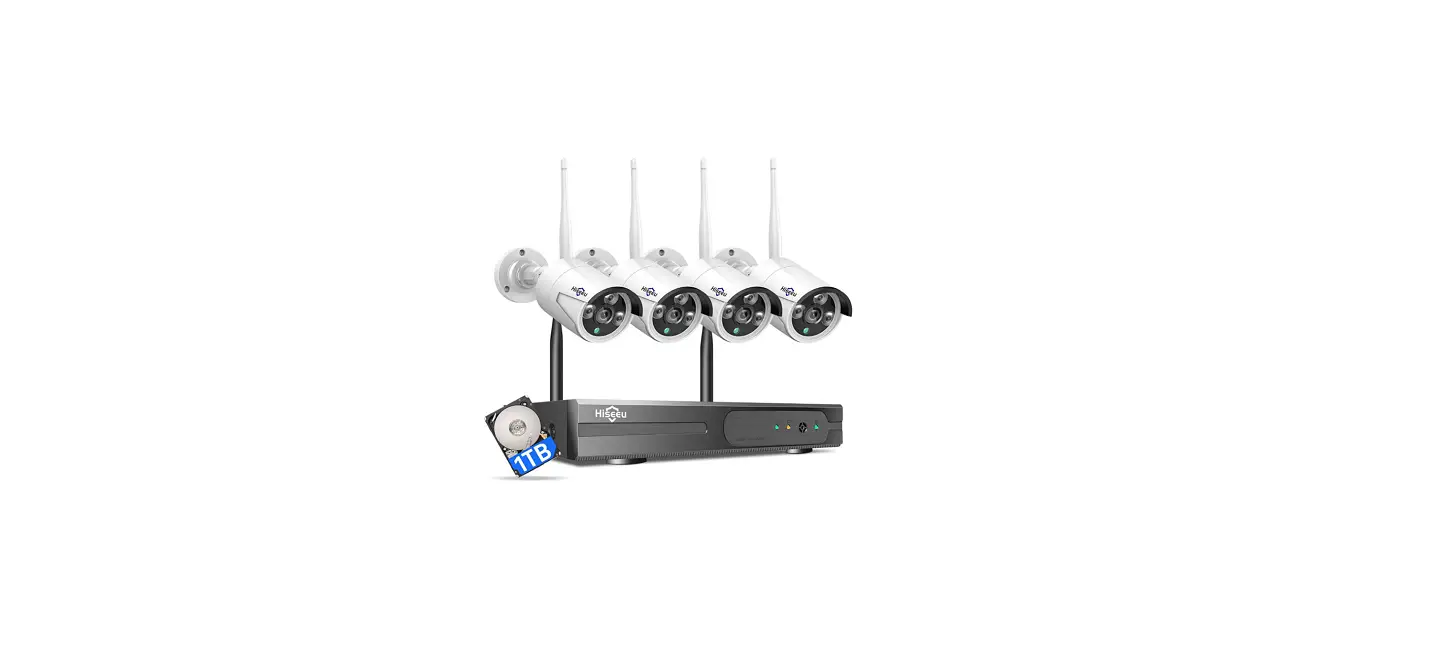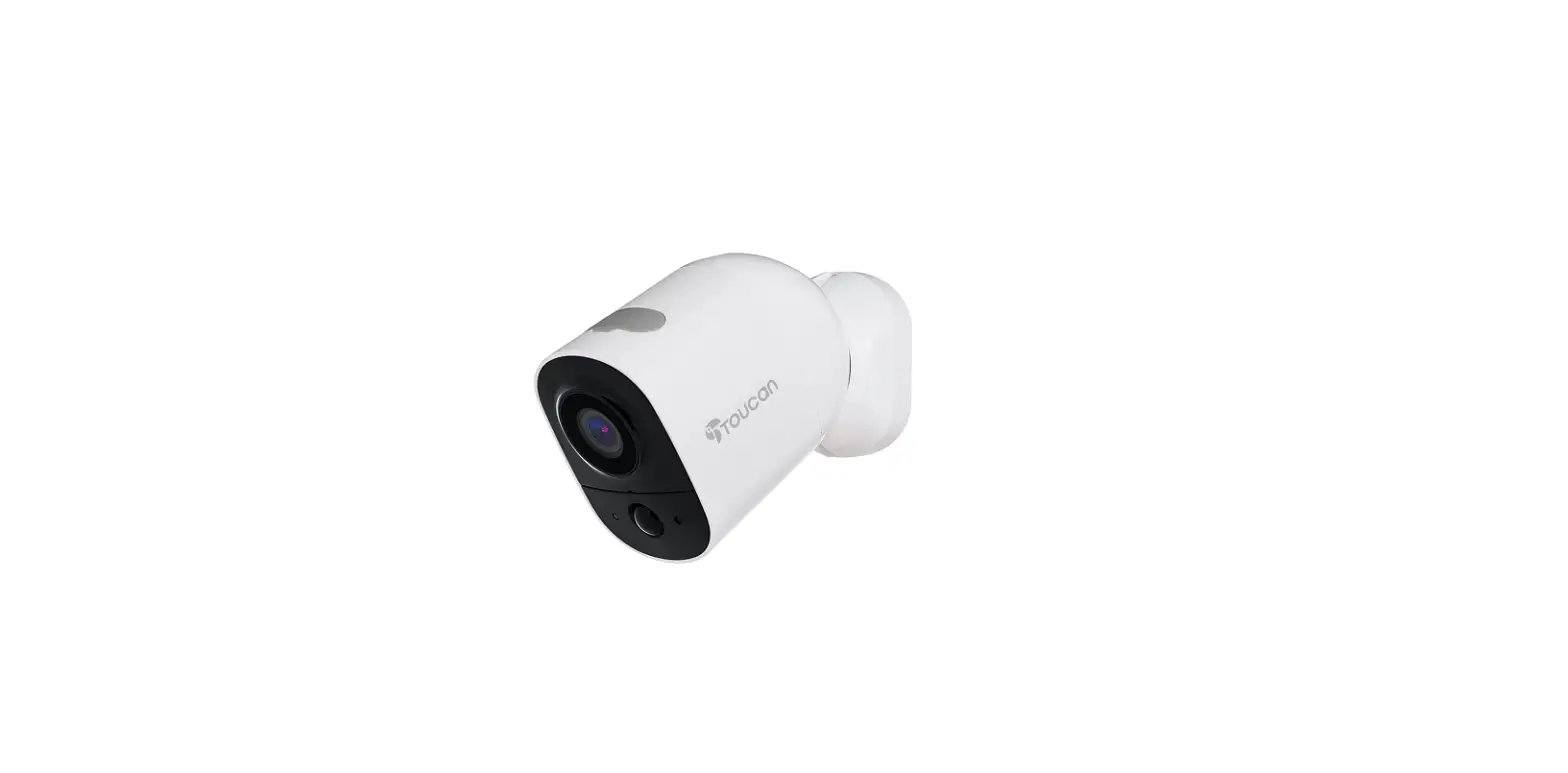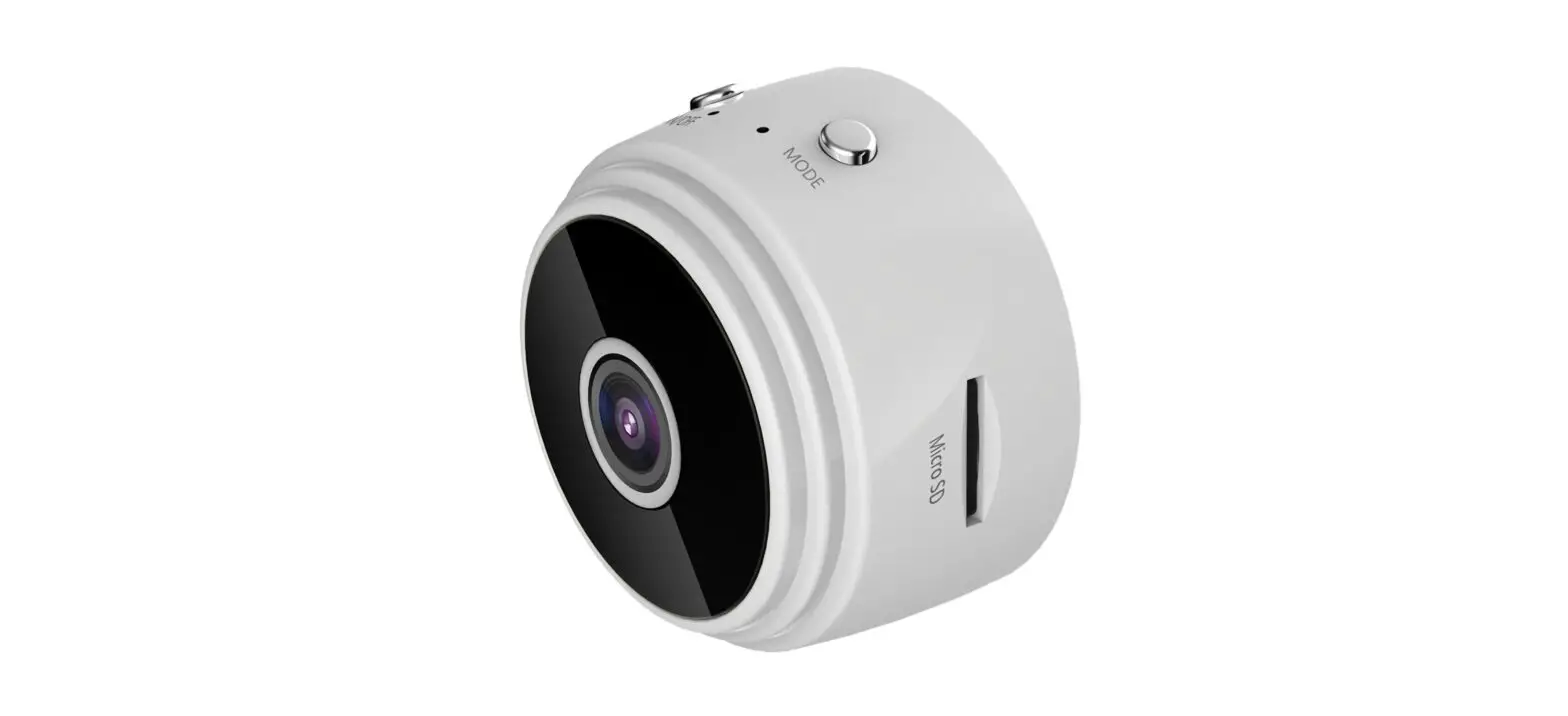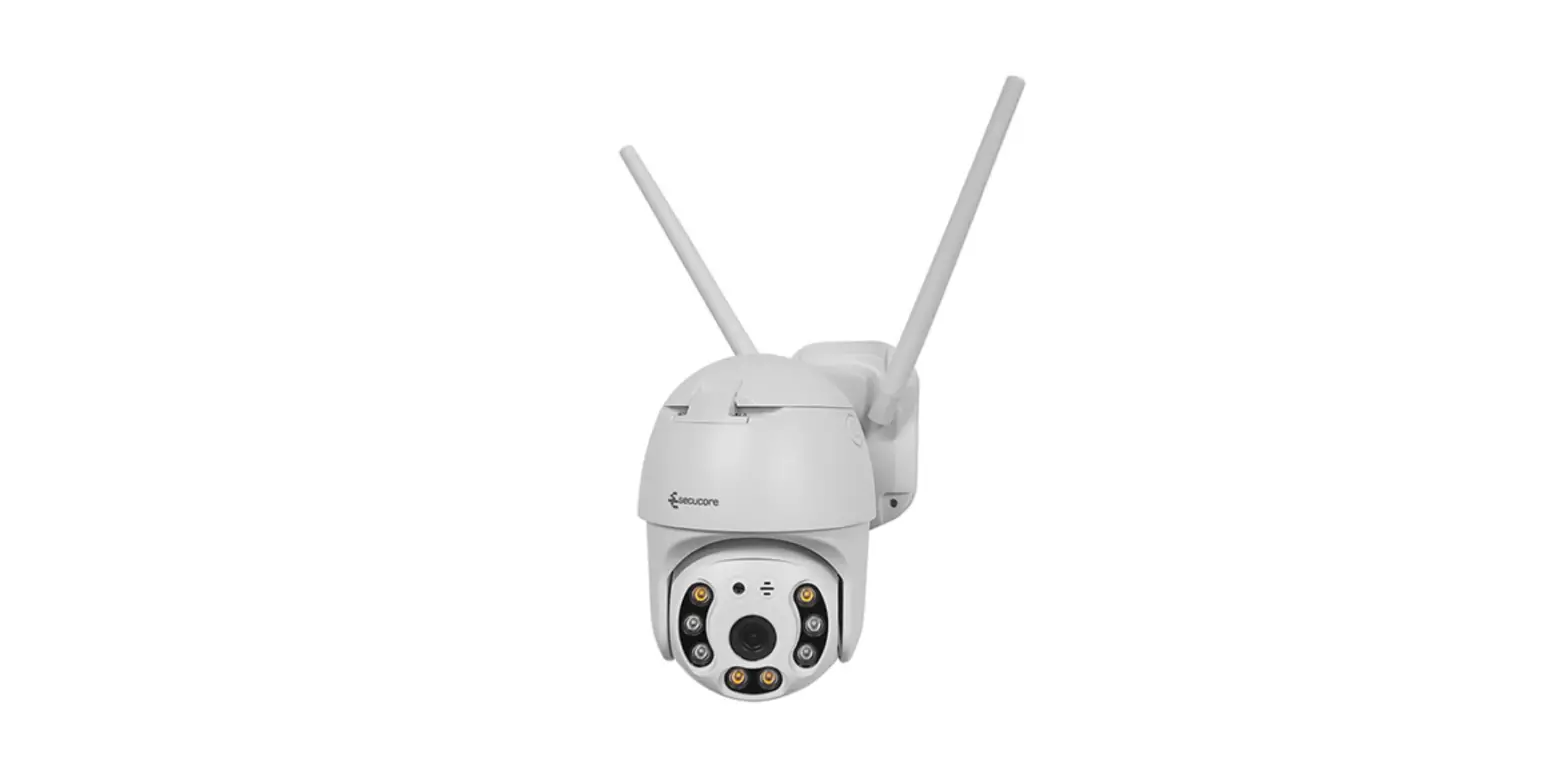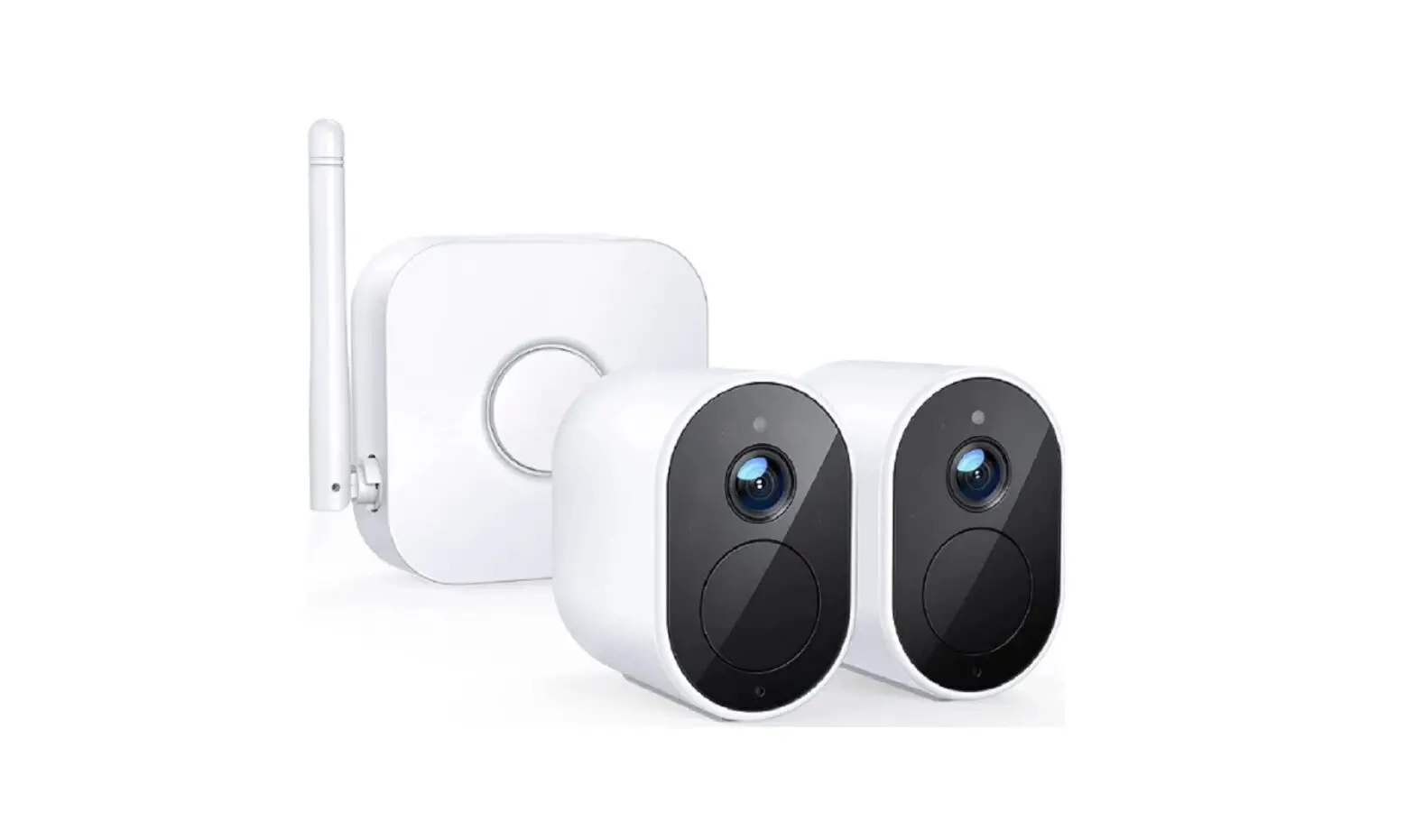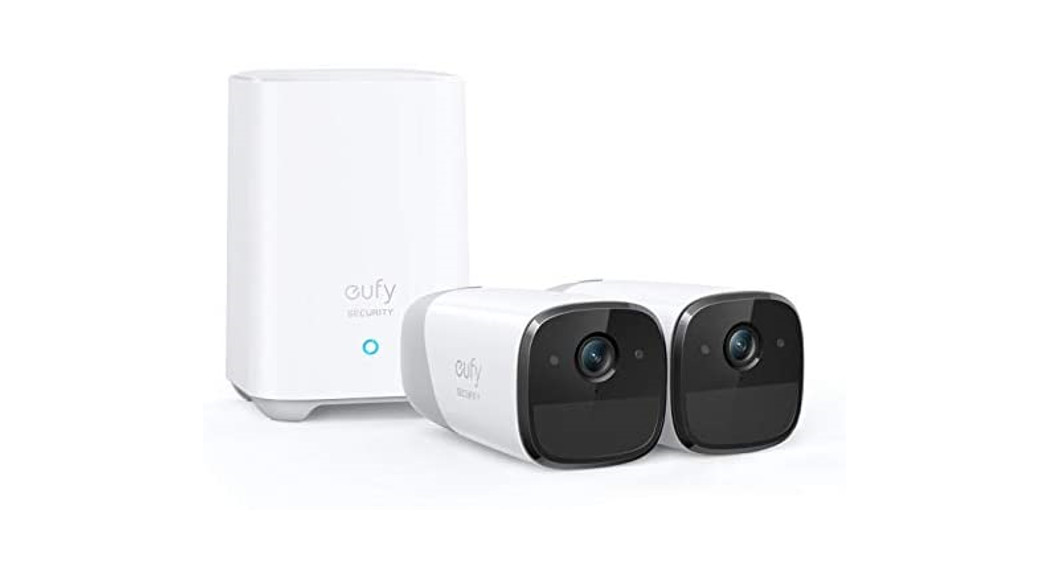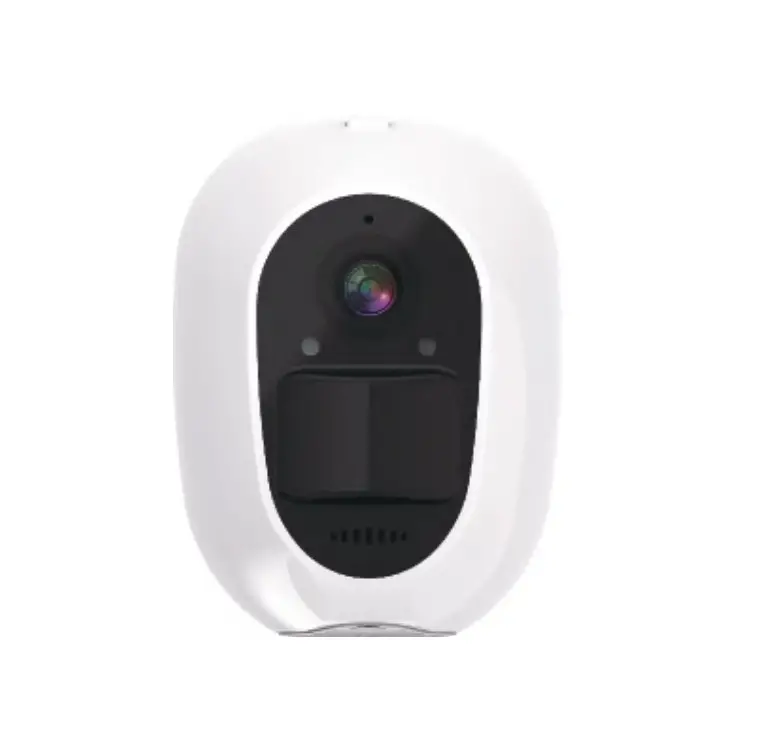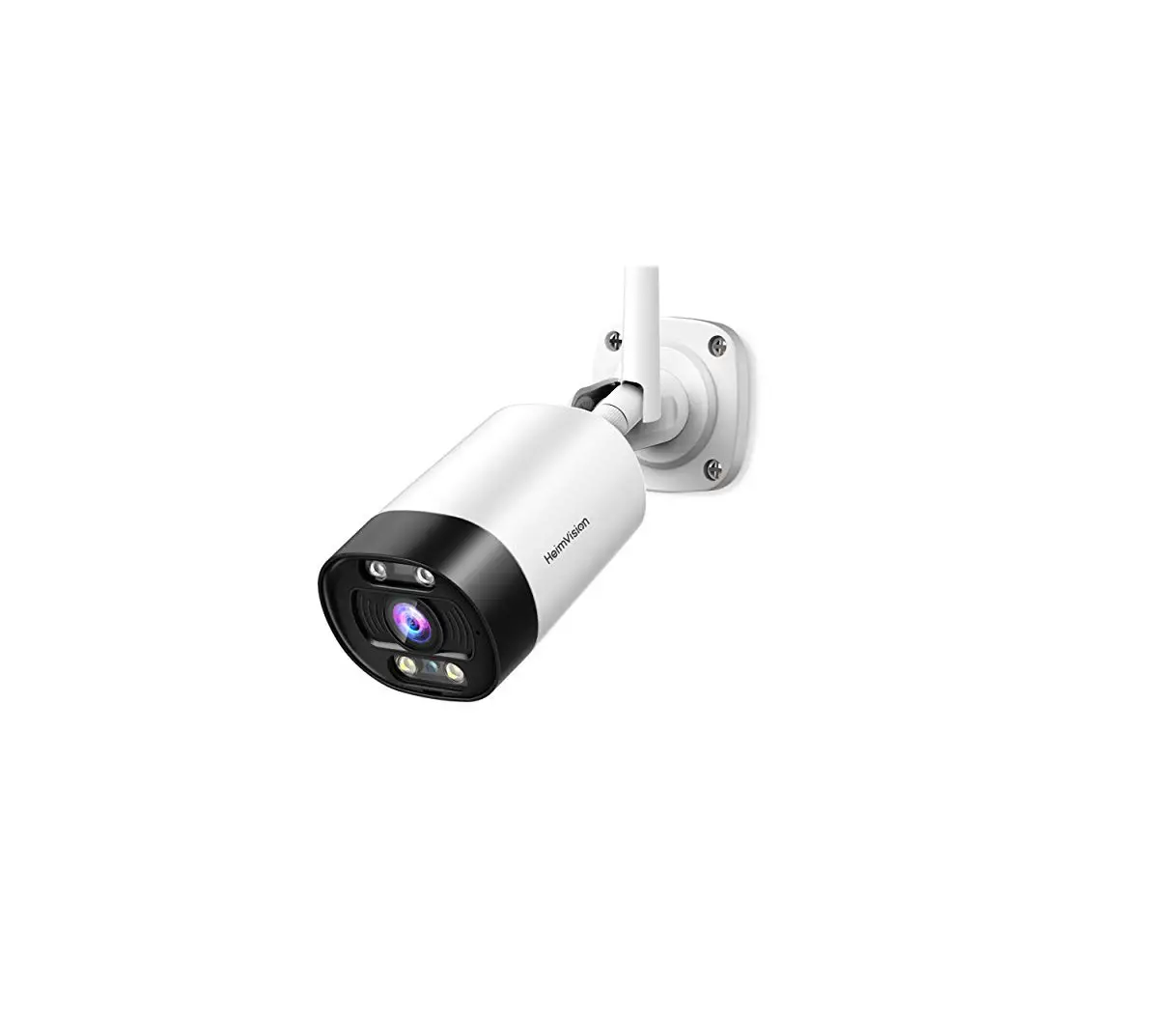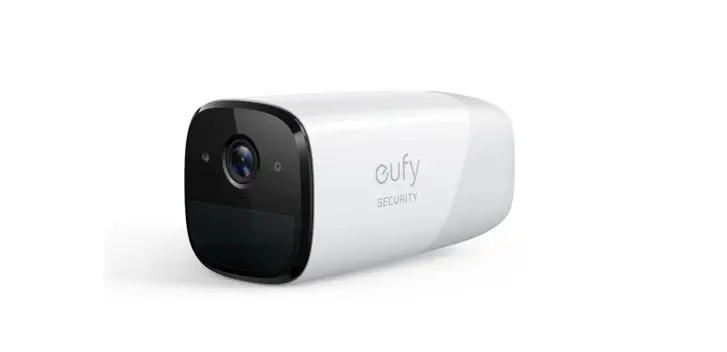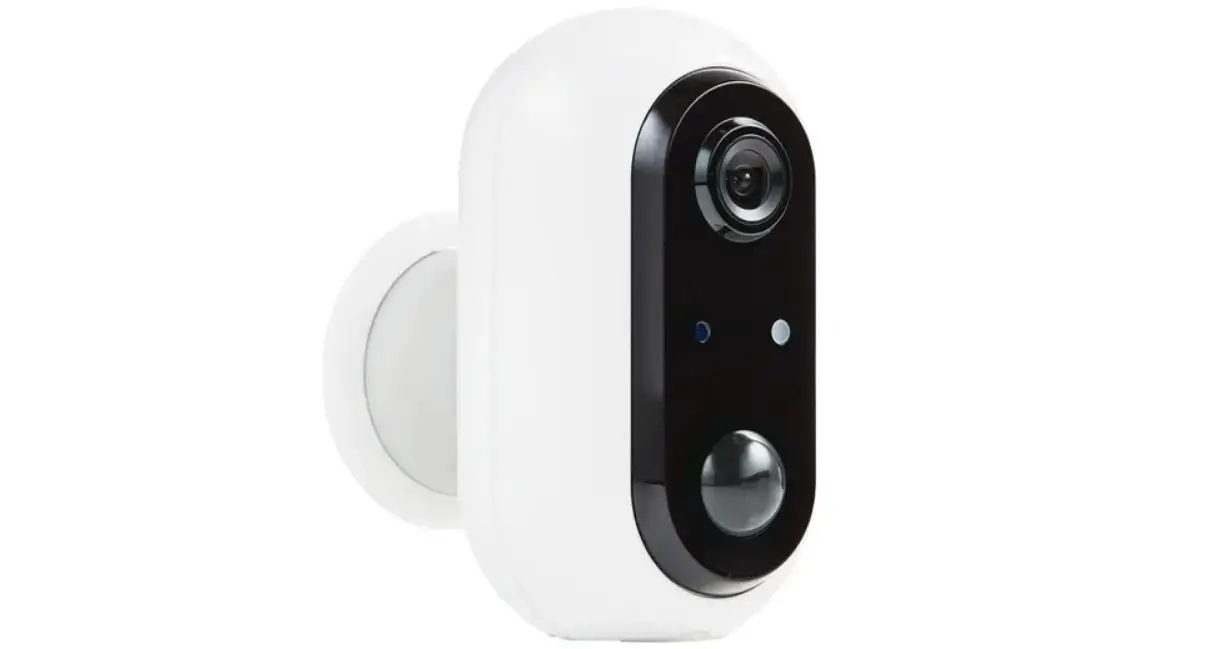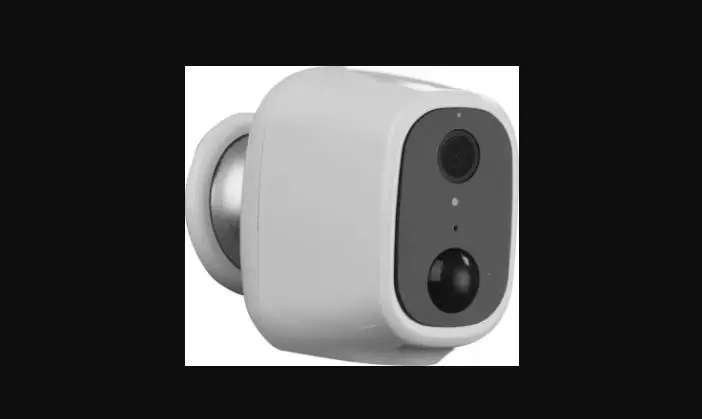

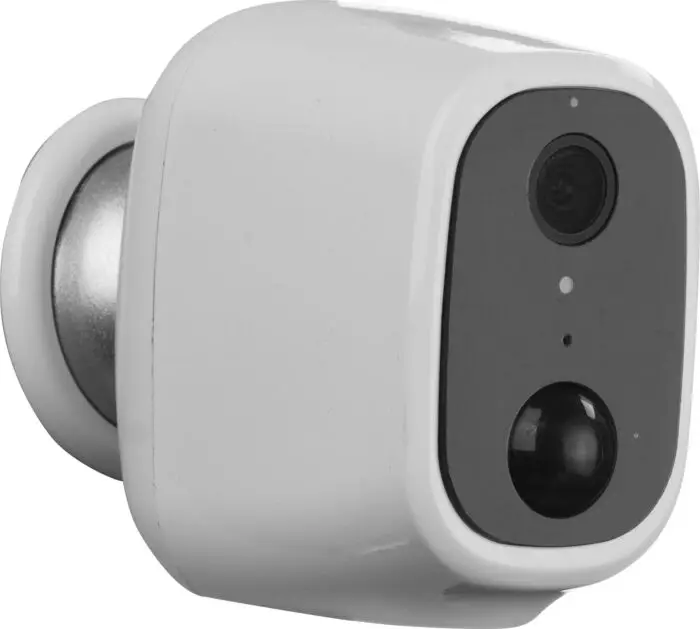
COCOON HE190087 Wireless HD Security Camera System
BEFORE YOU START
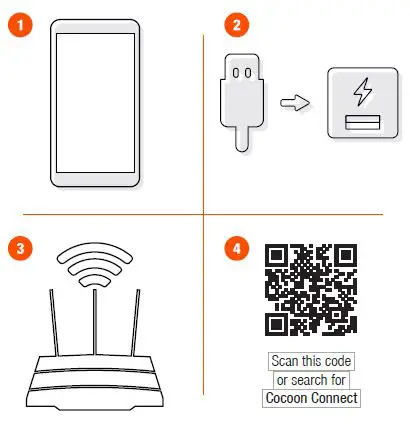
Before you begin, make sure you have:
- A mobile device – Android (V4.1 or later) or iOS (V8 or later)
- A USB power source to charge the cameras
- A Wi-Fi connection (have the password handy)
- Download the Cocoon Connect app
Charge Cameras
It is recommended you charge the batteries fully prior to use. Connect the included USB cables to a USB power source (not included)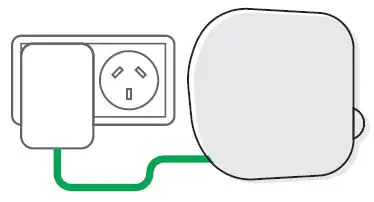
Connect Base Station
Connect the base station to your router using the ethernet cable. Connect the adapter into an electrical outlet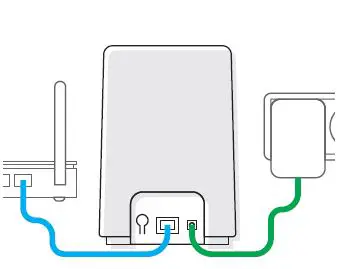
App Setup
First time users:
Register an account and follow the remaining prompts on screen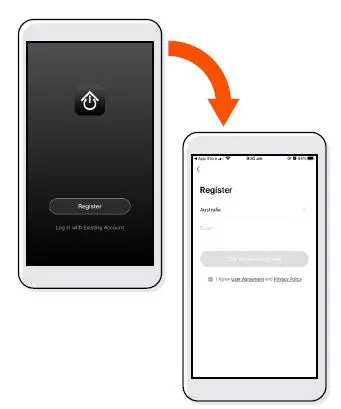
ADD Base Station To App
From the main screen of the Cocoon Connect app, add a new product and select Security Base Station, follow the prompts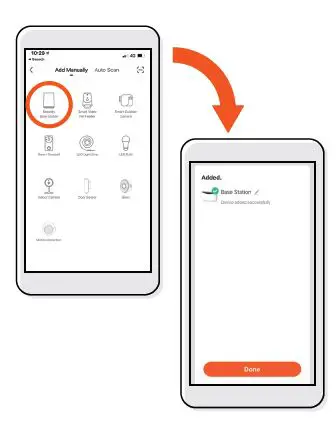
Add First Camera
To add the first camera, press +Add Device. You will be asked to confirm that red indicator is blinking. Press next step and then next to connect the camera. For further detailed instructions please reference the instruction manual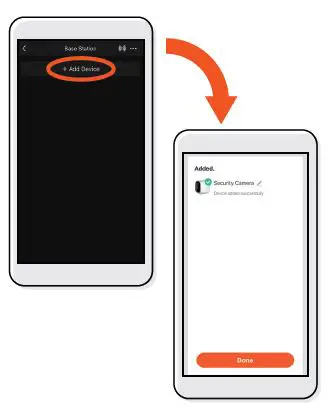
Add Second Camera
Repeat the exact same steps to connect the second camera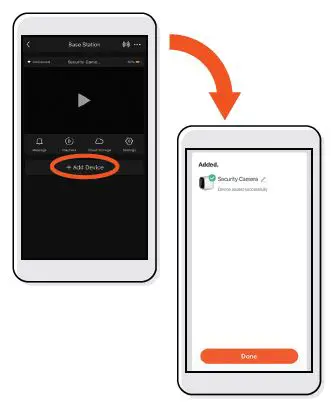
Control Your Wireless Security Camera System
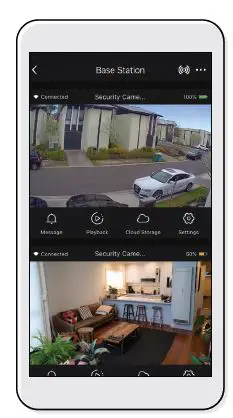
Use, manage and control your Wireless Security Camera System from the Cocoon Connect app