 Shine Link-X Wireless Monitoring Module
Installation Guide
ShineLink-X Wireless Monitoring Module
Some advantages of installing the datalogger and keeping it online:
- Real time monitoring:
Get the health status of the PV plant;
Receive the regularly reminder like daily reports, monthly reports and other free services. - Intelligent Operation and Maintenance:
Get the one-click diagnosis function to easy the troubleshooting;
Support the remote upgrade and parameters setting.
Unpacking
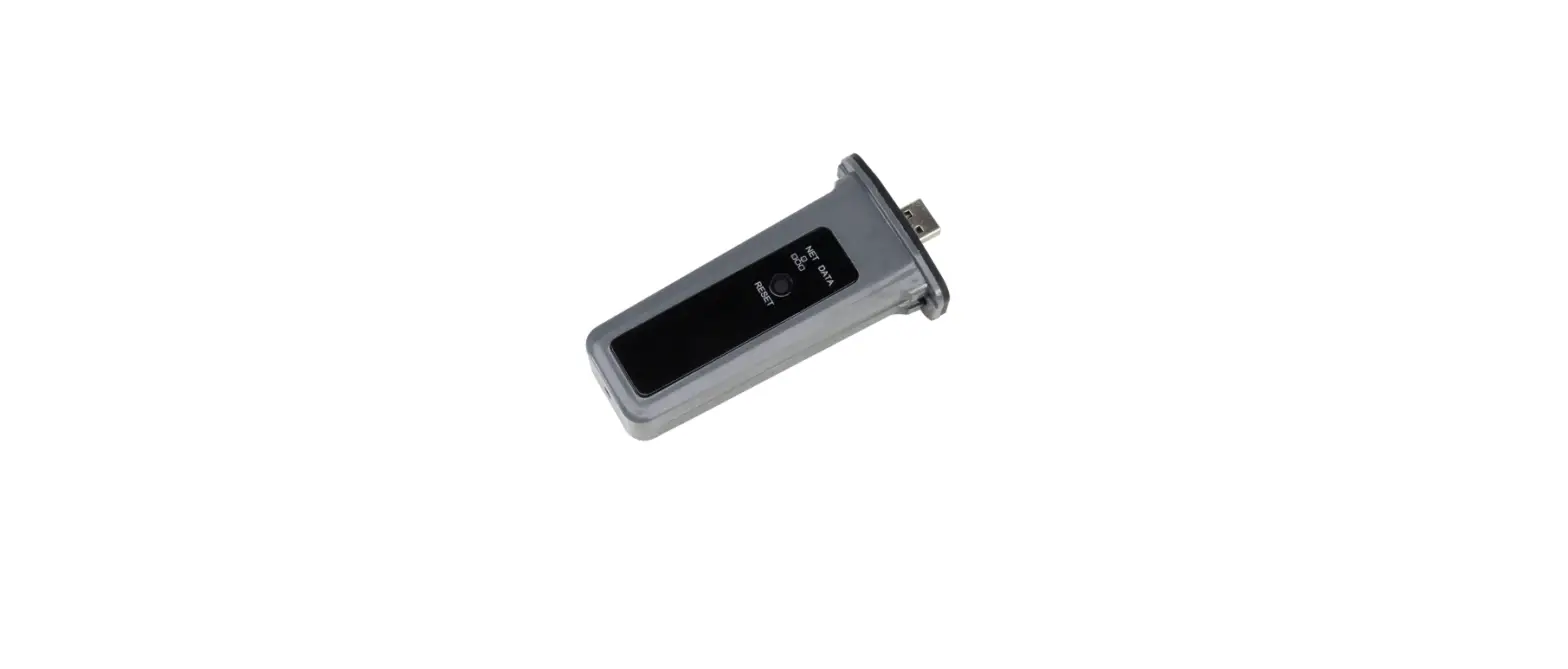
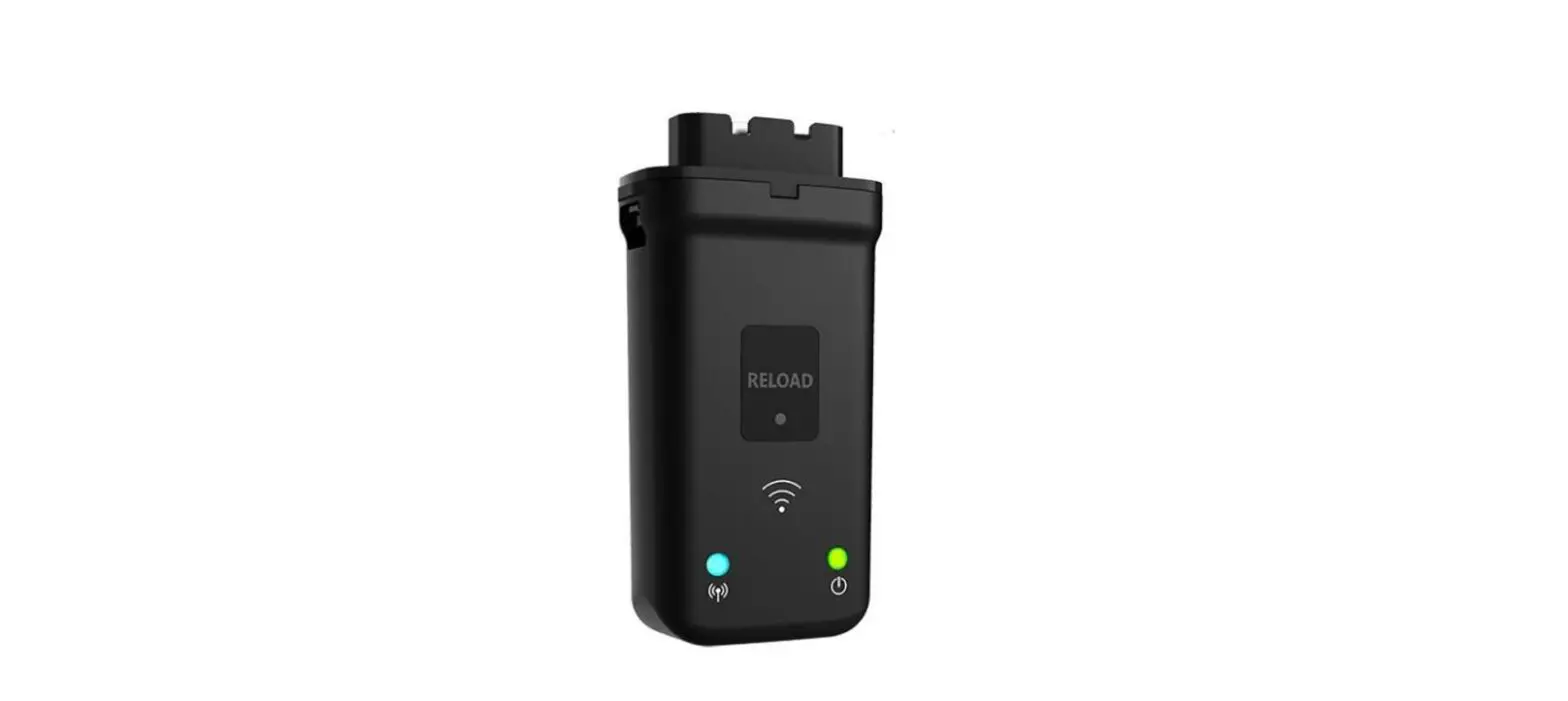
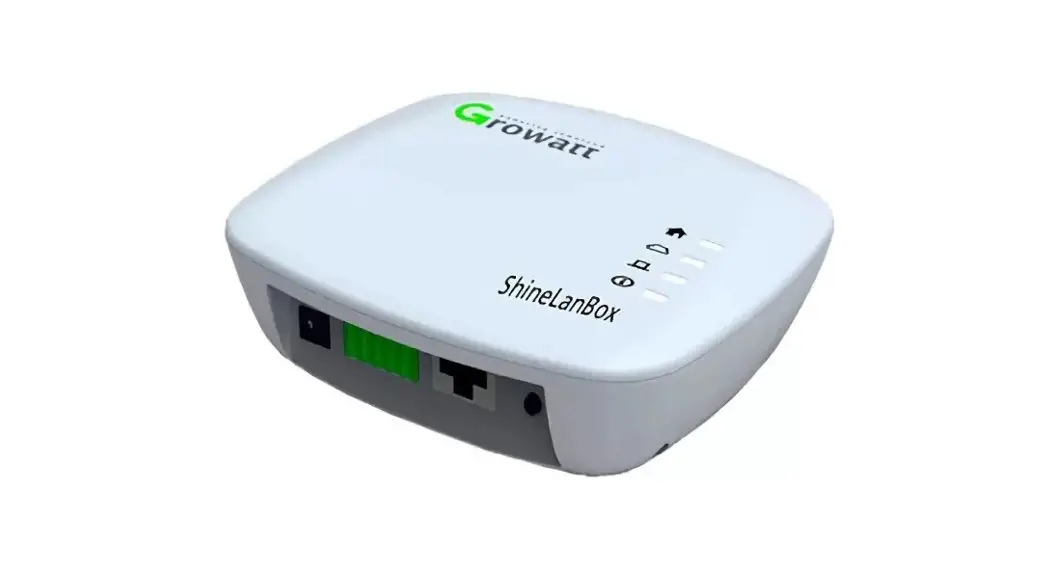
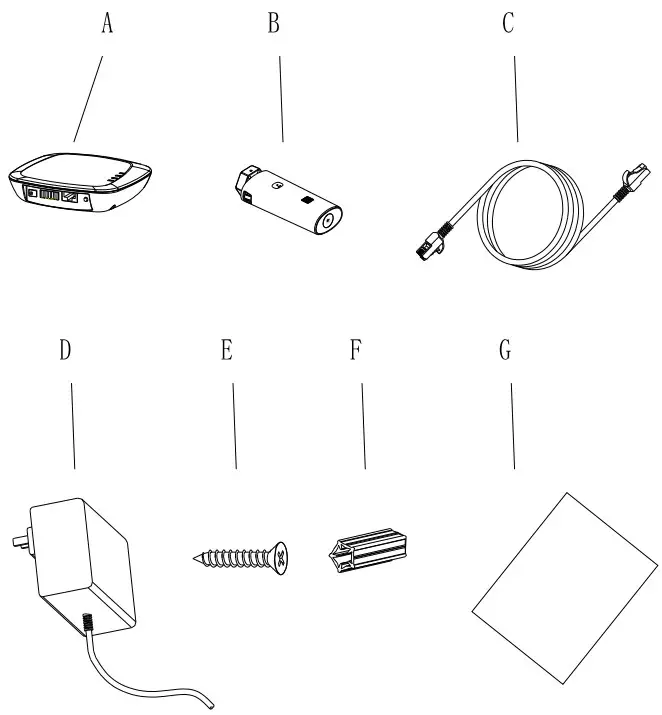
Unpack the box and take out Shine Lan Box, Shine RF Stick-X and other accessories, list as following.
| Item | Name | Quantity |
| A | ShineLanBox | 1 |
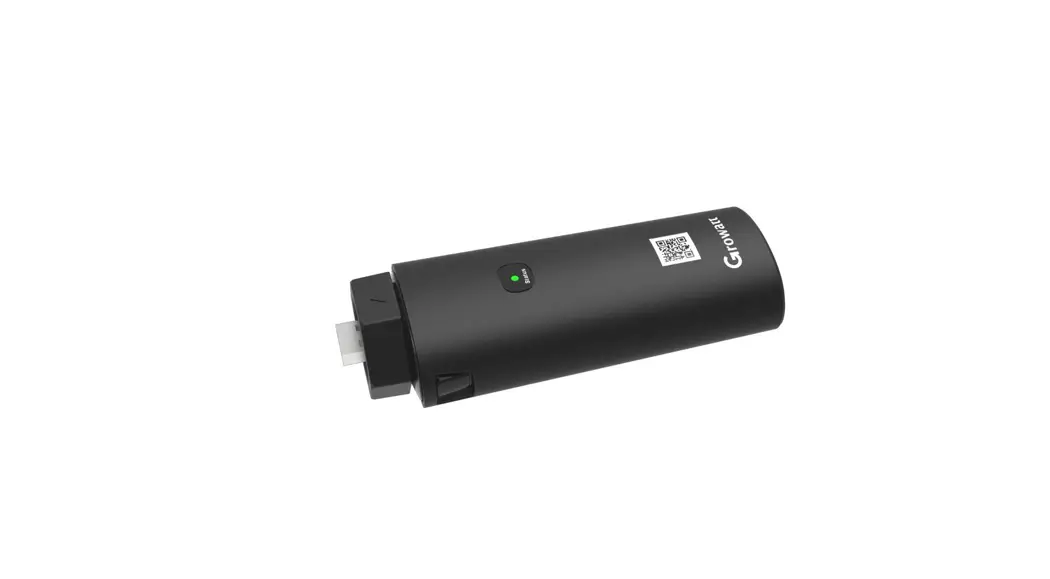
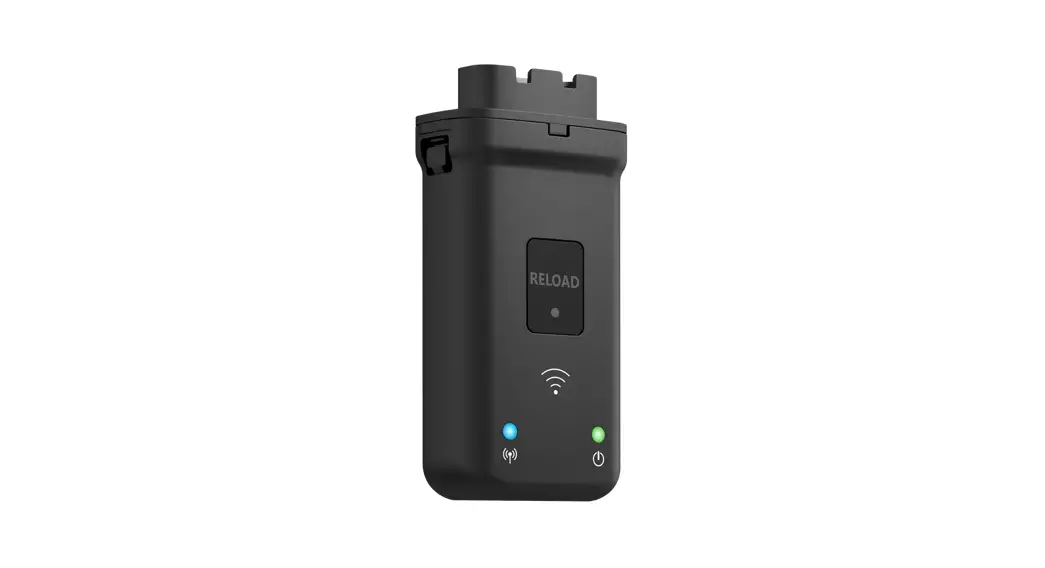
| B | ShineRFStick-X | 1 |
| C | Network cable | 1 |
| D | Power adapter | 1 |
| E | Fixing screws | 2 |
| F | Wall plastic posts | 2 |
| G | User manual | 1 |
Electrical connection
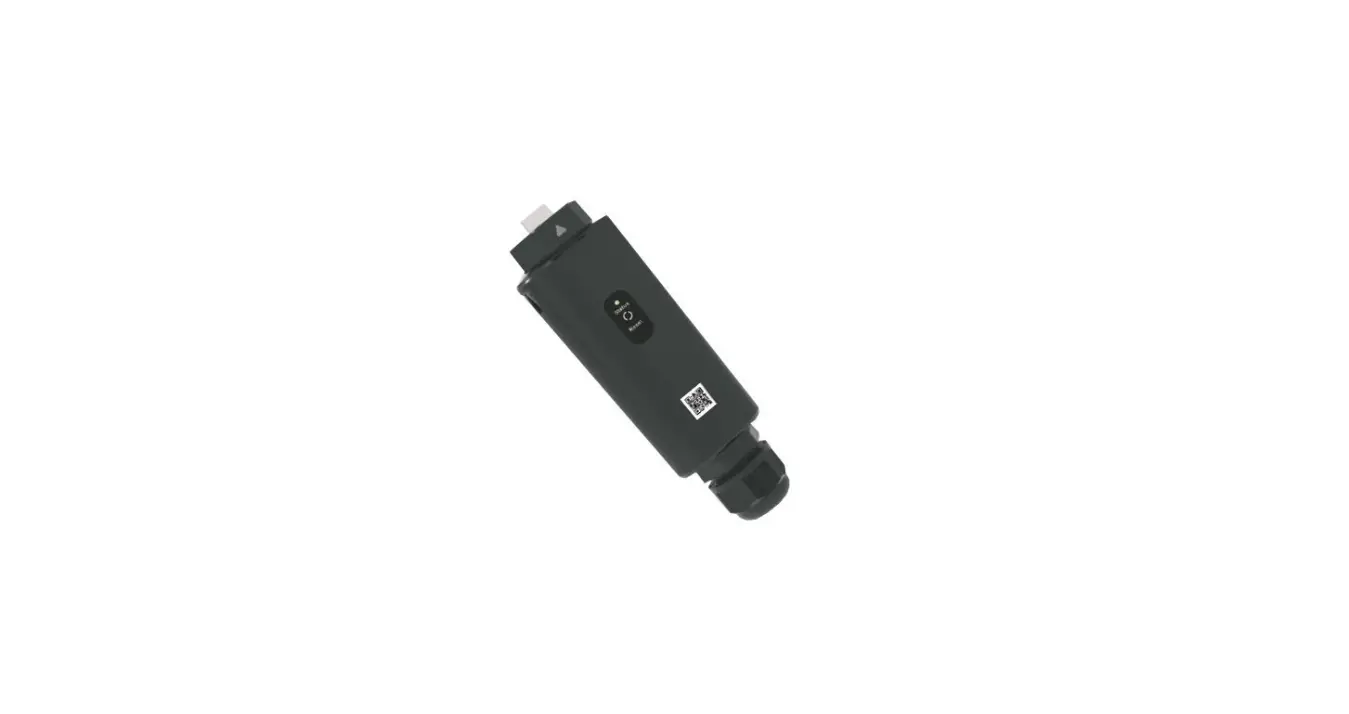
- Rotate the USB cover of the photovoltaic device counterclockwise.
- Rotate the datalogger locker on the upper, make sure the triangle is on the front side and in the middle.
- Connect the datalogger to the inverter USB port, make sure the triangle is on the front side, press the locker and rotate clockwise until it is tighten.
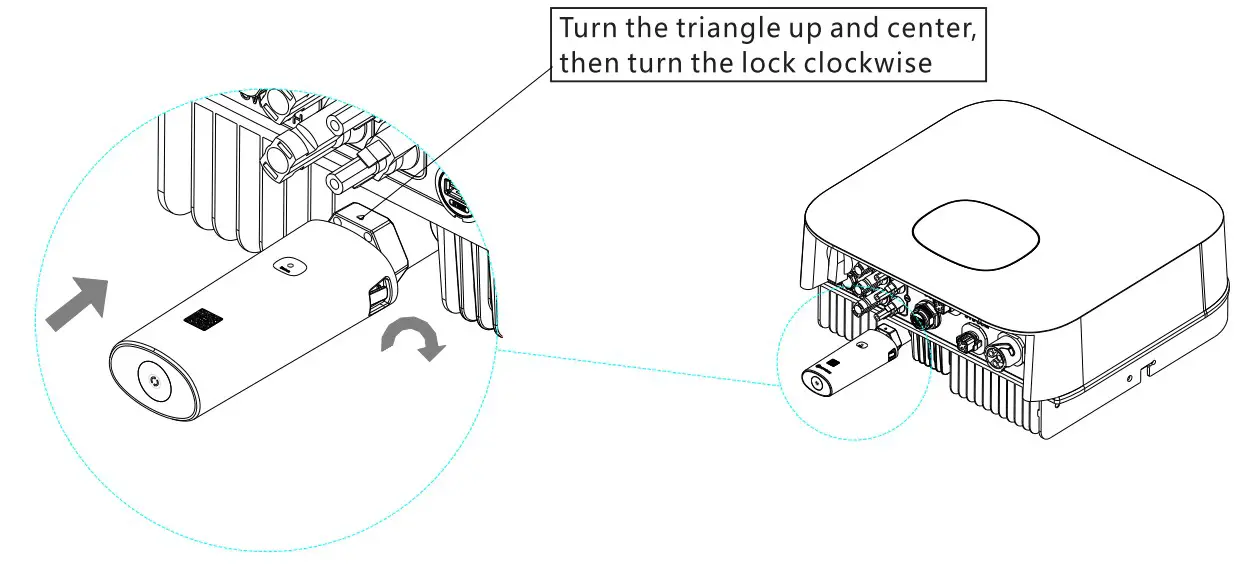
After the installation , if the LED light of Shine RF Stick-X flash quickly, it means installation works. If the LED light is off, please recheck the connection between Shine RF Stick-X and inverter.
| Shine RF Stick-X’s LED status | Status of the Shine RF Stick-X |
| Always on | The Shine RF Stick-X is initialing |
| Always off | Loose connection |
| Flashing quickly(every 0.2 second) | USB port find the inverter |
| Flaking slowly(every 1 second) | Connection works |
Shine Lan Box Electrical Connection
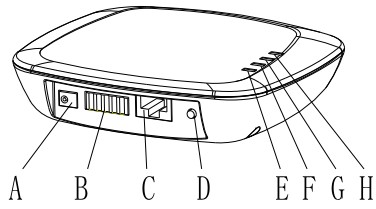
| Item | Name | Description |
| A | Power input | Connect to the power adapter |
| B | RS 485 | Resaved |
| C | RJ 45 | Connect to the network |
| D | Key | Function key |
| E | Configuration LED | Configuration the device |
| F | Device LED | Device number connected |
| G | Network LED | Connecting the network |
| H | Power LED | Connecting the power |
Connect ShineLanBox RJ45 port to the router, then plug in ShineLanBox with power adaptor. After initialization of ShineLanBox, the power LED is on, the network LED is on and the device LED flashing frequently. The power LED is on means it connected to power supply, the network LED is on means ShineLanBox connected to Internet, the flashing of Device LED means device works, the time of flashing means the number of RF.
| ShineLanBox LED lights | Status of working condition |
| Power light | The light is on means power is on |
| Web light | Flashing means connect to router, on means connect to web |
| Device light | Time of frequently flashing means the number of device connect to Shine Lan Box |
| Paired light | Flashing when pairing, go off if pairing successes |
Use ShineLink-X
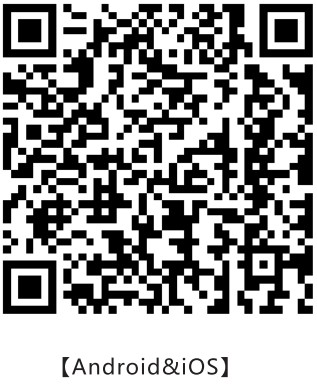
- You can go to Google Store or App Store to find “Shinephone” or scan below QR code to install the software.
Note: 1. Make sure you install the newest version.
For more information please visit server.growatt.com. http://server.growatt.com/app/xml/download_growatt.png.jsp
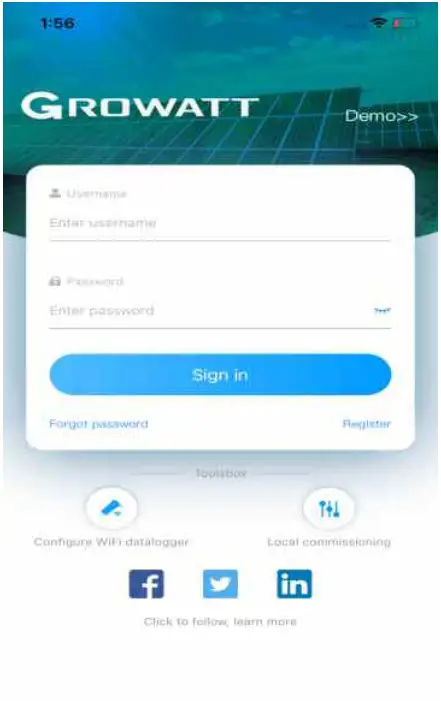
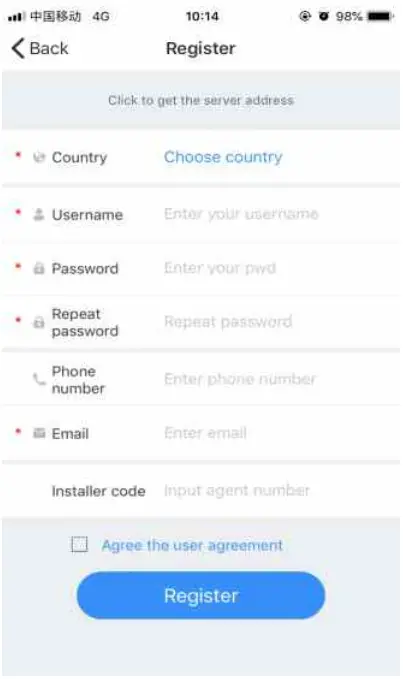
 - After installed Shine Phone App, get into log in, click the register and then go to the page register.

- Select the country and city according to the actual address, and the wrong selection will result in incorrect time for uploading data. Fill in the user information, click “Register” after completing the registration, and automatically log to the “Power Station List” page after successful registration.

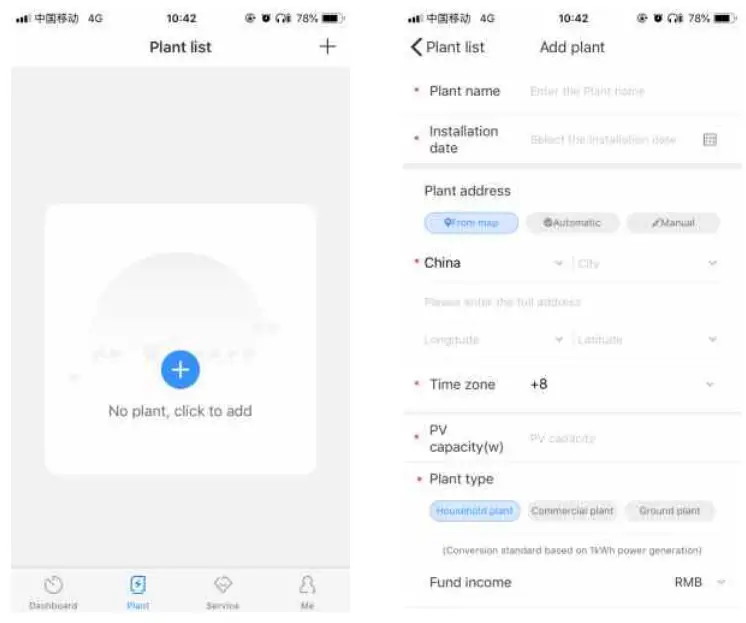
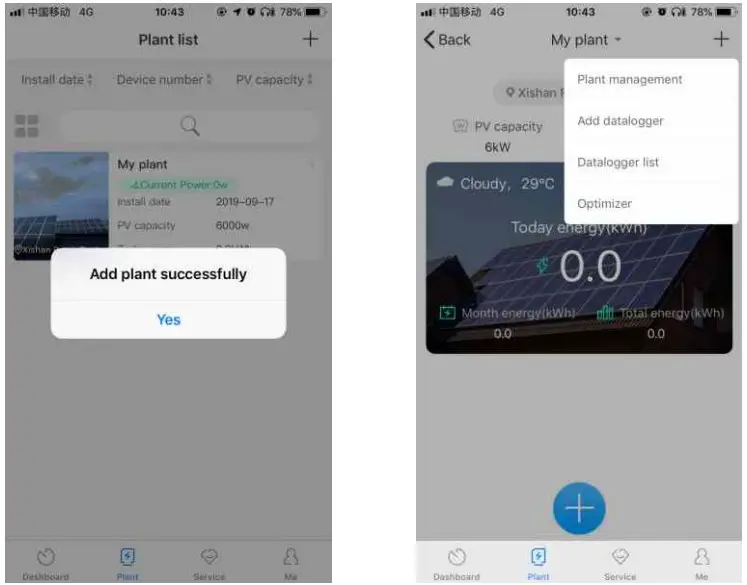
- Click the “+” button to enter the “Add Power Station” page, enter the plant information, click below to confirm. After successful addition, it will automatically jump to the power station list page.

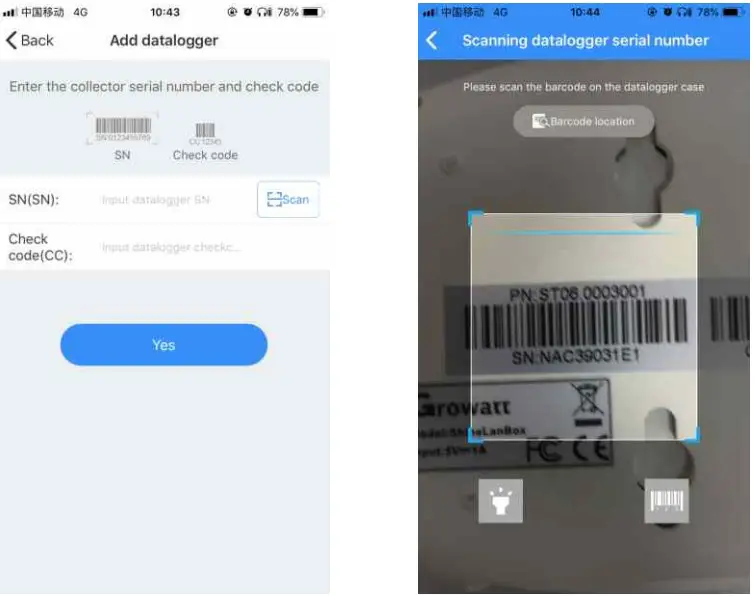
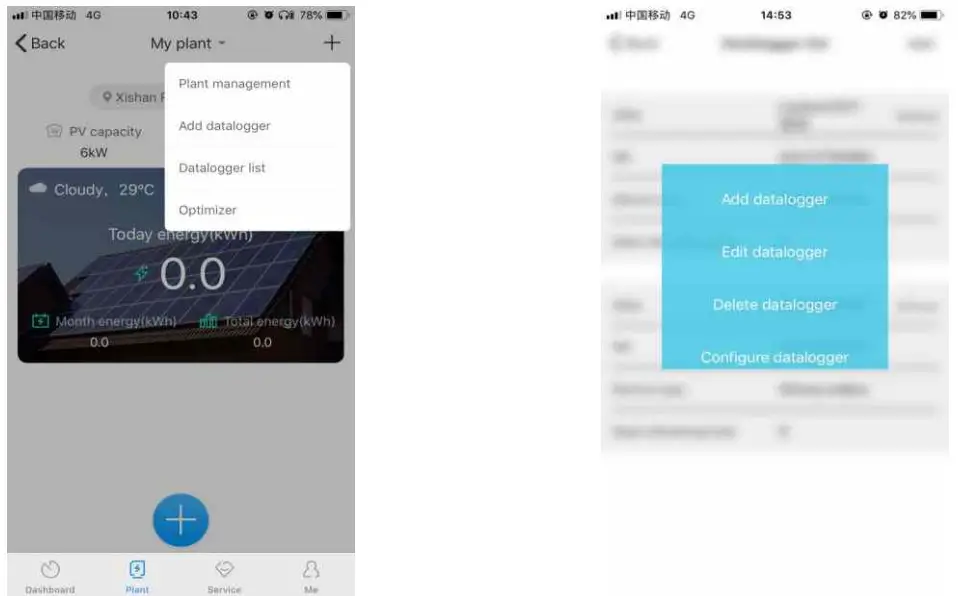
- Click the equipment power station to enter the power station page onthe power station list page, clickthe “+” inthe upper right corner to add the collector operation.

- Click on the scan code on the Add Collector page, and add the collector by scanning the code to collect the barcode.)

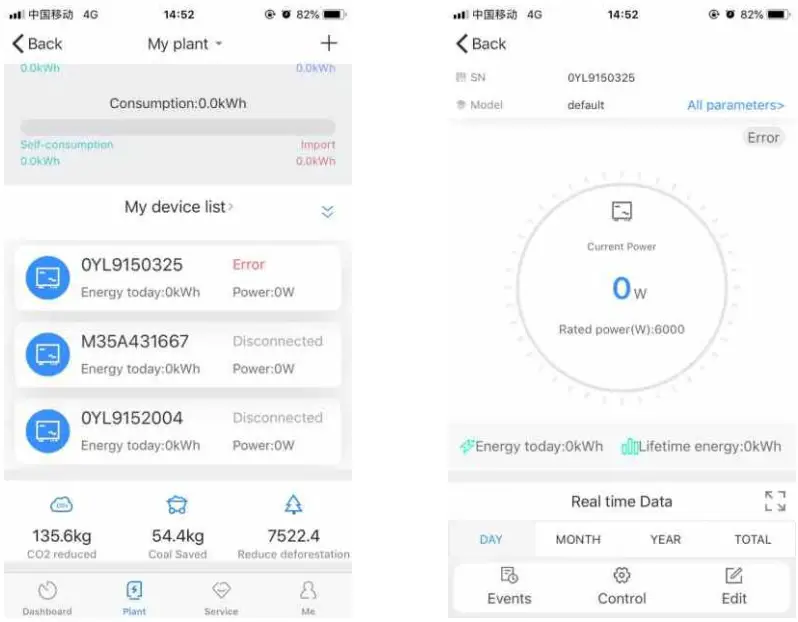
- In my plant you can monitor all the devices to check solar device’s information.

- If you need to add, inspect or delete datalogger and plant, please click the “+” at the top right corner
Note: After you successfully add the datalogger you can see the Shine Lenox’s conditions, if you can not find ShineLanBox please check the status of LED light to find out the trouble.
Tips1 Add new ShineRFStick-X device
Note: Only after resetting ShineLanBox or add new ShineRFStick-X then you need pairing ShineLanBox and ShineRFStick-X , all the devices will be paired when manufactured.
Quick press ShineRFStick-X (in less than 2 seconds), then quickly press ShineLanBox button, you can enter pairing mode, at this point ShineLanBox pairing light is flashing, ShineRFStick-X’s Blue light flashing quickly, if pairing is successful, ShineLanBox’s pairing light is off, ShineRFStick-X Blue web light change to slow flashing.(the light is on for one second, and off for a second.)
Note: The longest connection distance between ShineLanBox and ShineRFStick-X should be no more than 200 meters, if there is a wall between ShineLanBox and ShineRFStick-X the longest connection distance is 50 meters, if there are two walls between ShineLanBox and ShineRFStick-X the longest connection distance is 20 meters.
Tips2 Reset ShineLanBox
Purpose of resetting collector:
(1) Erase all the pairing records
(2 ) ShineLanBox IP changes to Automatic
Steps of resetting collector:
Press ShineLanBox button for more than 6 seconds, until all the four LED lights are on, then release the button, at this time all the setting had been erased. After resetting need repairing ShineLanBox and ShineRFStick-X , please refer to Tips1 above.
For more info, please download from
http://server.growatt.com
T +86 755 2747 1942 F +86 755 2747 2131
E. [email protected] www.growatt.com