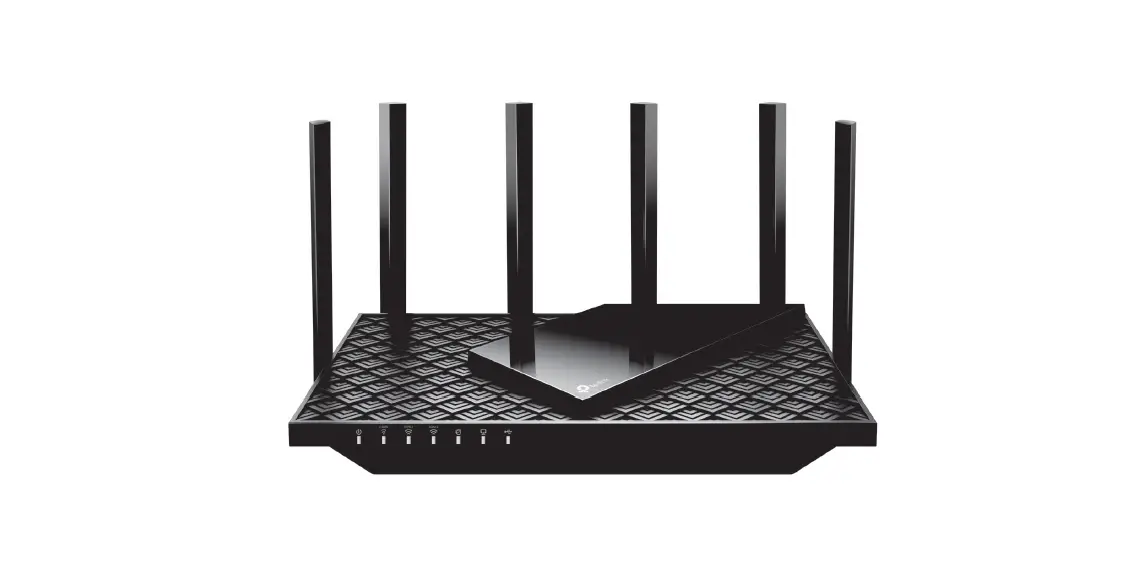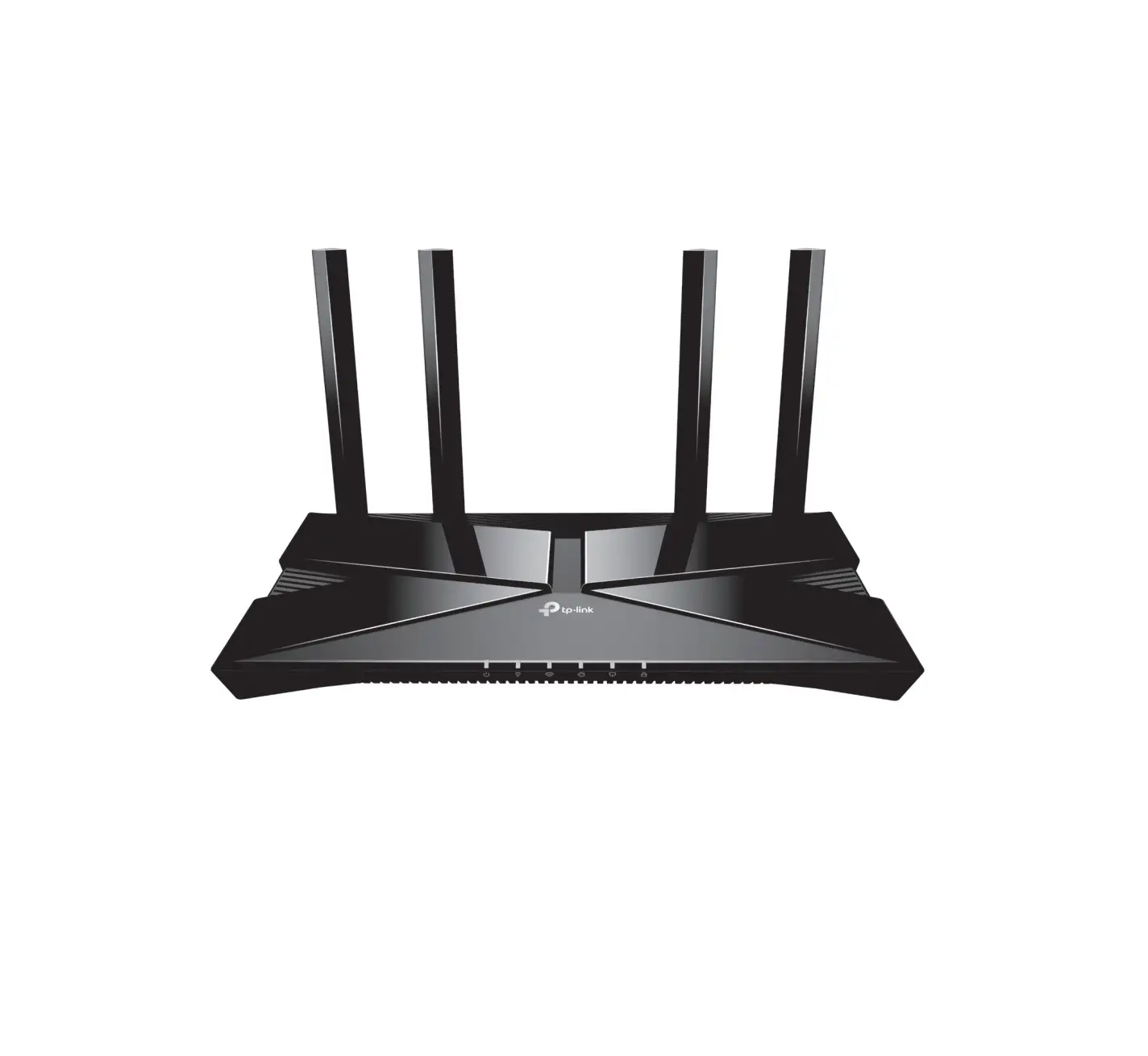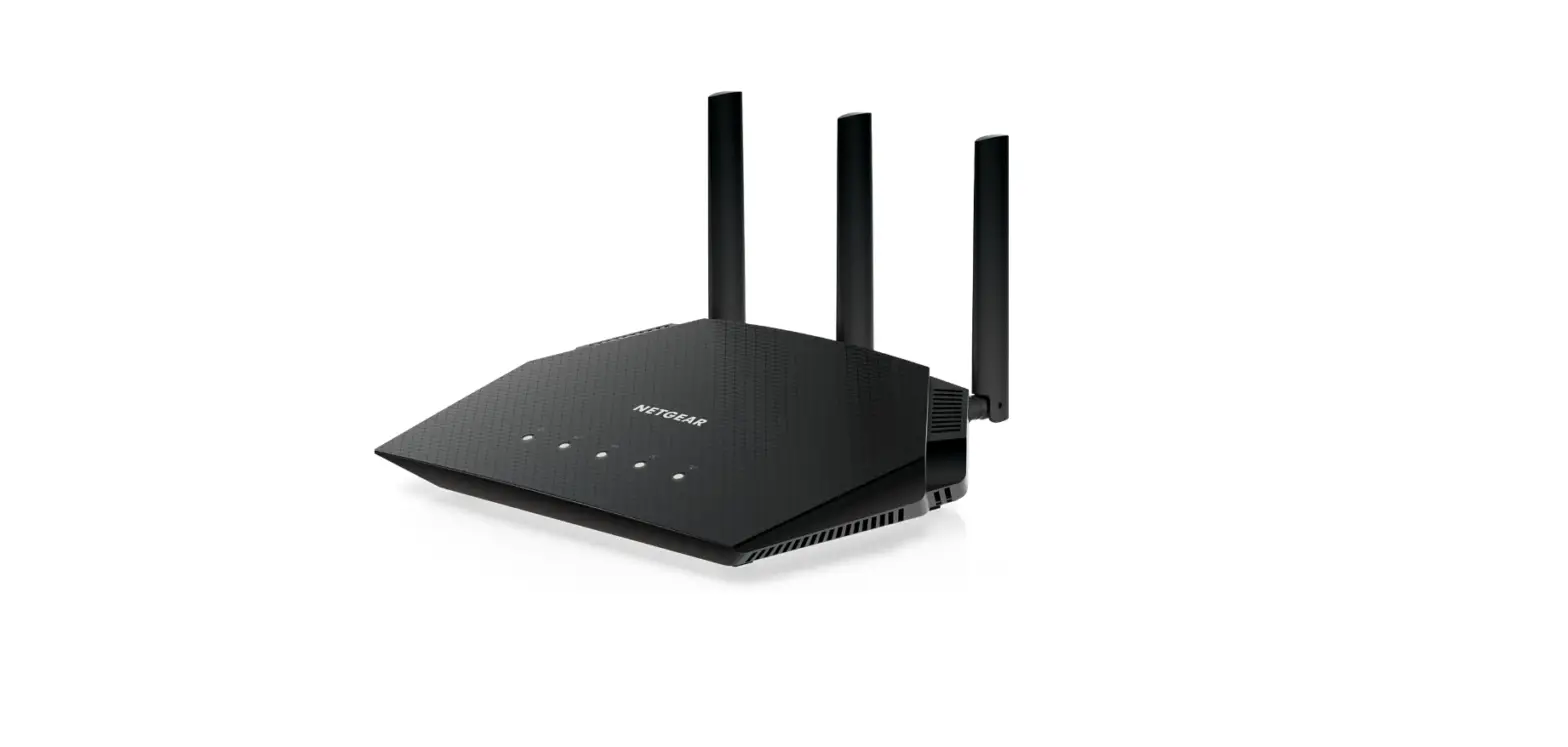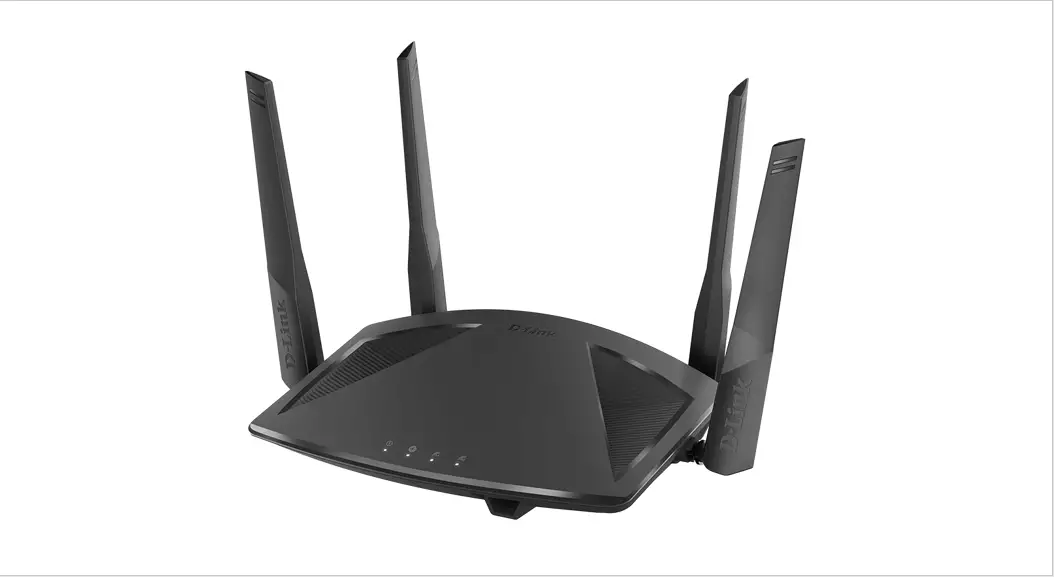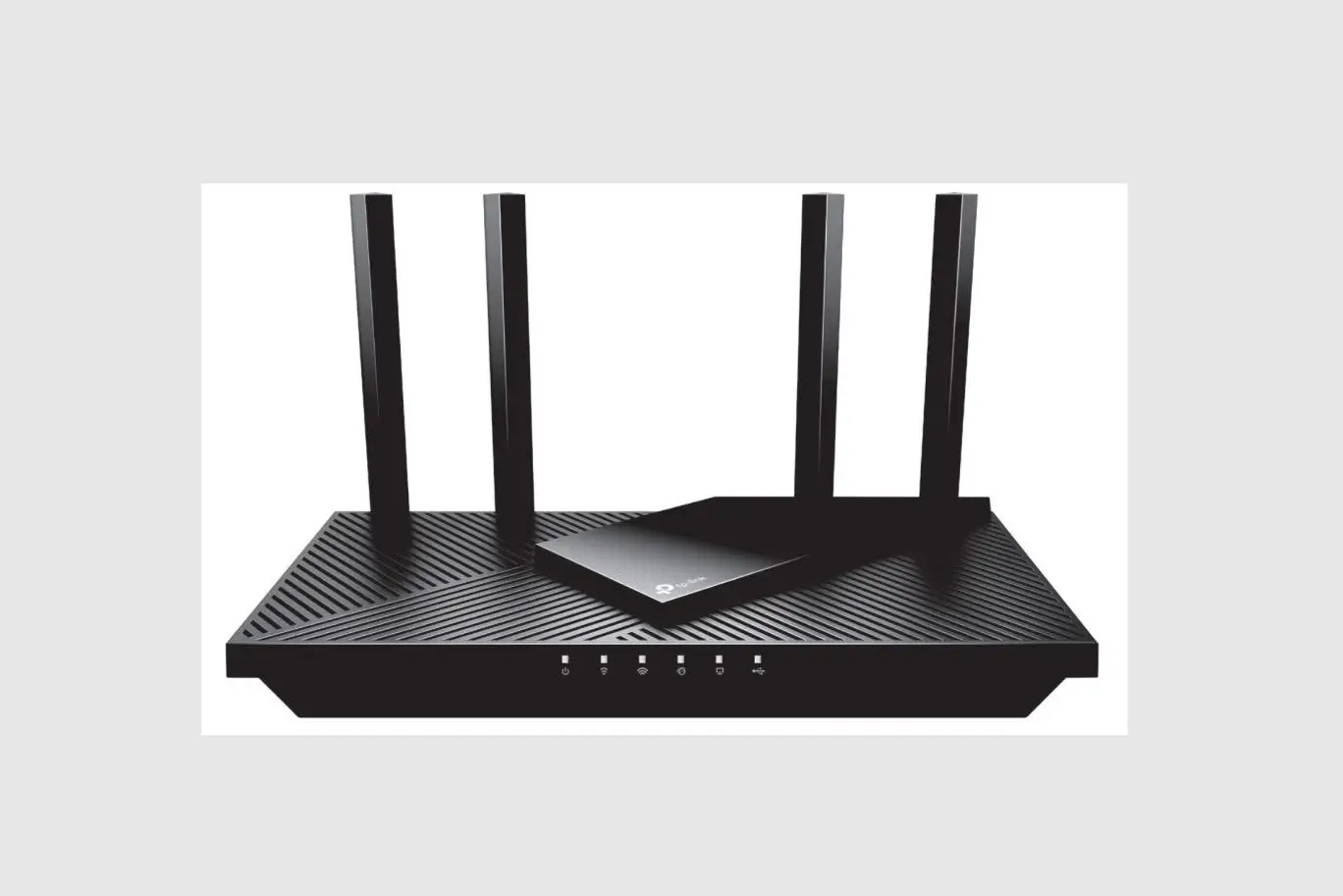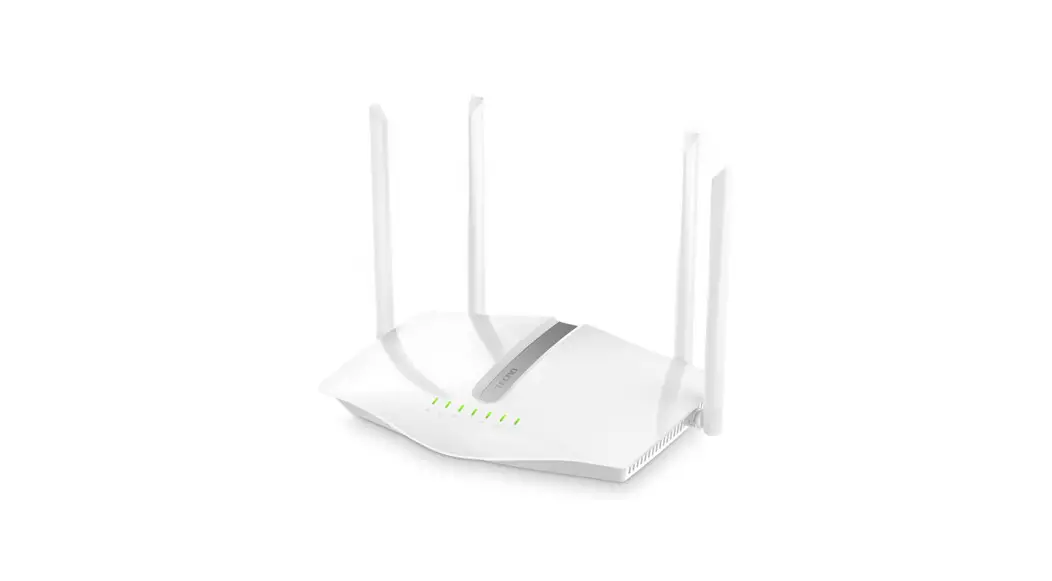

Model: TR660
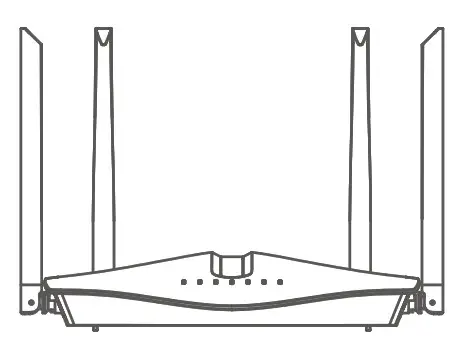
TECNO WiFi6 AX1800 Router
User Manual
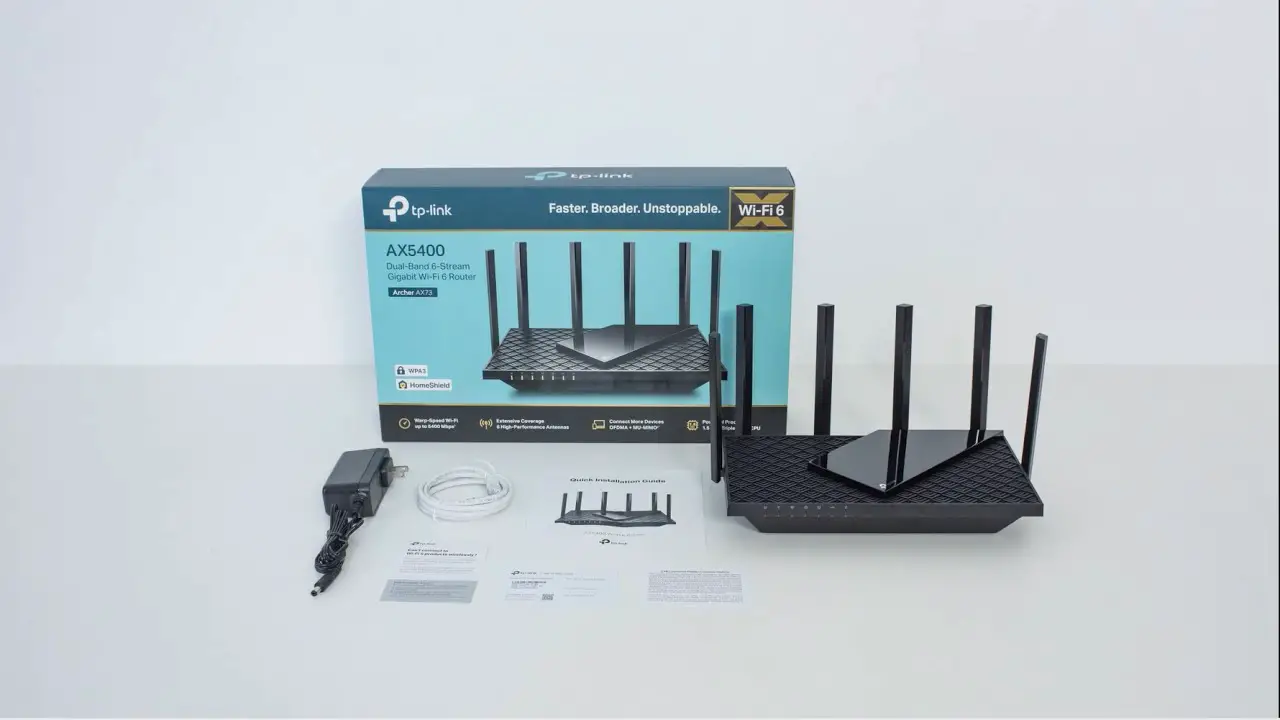
Package Contents
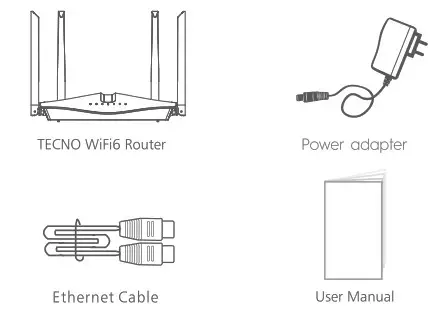
This user manual is for TECNO Wtf16 Router.
LED Explanation
| Name | Status | Indication |
Power | Solid on | Power on |
| Off | Power off | |
System | Solid on | System working |
| Off | System error, please reset | |
WAN | Solid on | Internet isn’t connected or setting error |
| Blinking | Internet-connected success | |
| Off | WAN port isn’t connected | |
2.46 Wifi | Blinking | 2.4GWiFi ready |
| Off | 2.4G WiFi off, please turn on | |
56 WiFi | Blinking | 5G WiFi ready |
| Off | 5G Wif off, please turn on | |
WPS Or MESH | Blinking | WPS on |
| Off | WPS off | |
LAN | Solid on | LAN port *connected |
| Off | LAN ports connected or Unidentified |
Hardware Connection
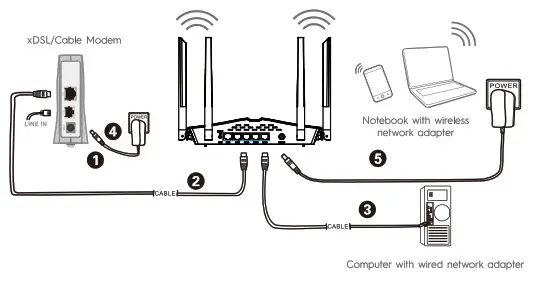
- Power off your Modem.
- Connect the WAN port on TECNO Router to the Modem’s LAN port with an Ethernet cable.
- Connect your computer to one of the LAN ports on TECNO Router with an Ethernet cable.
- Power on your Modem.
- Plug the provided Power Adapter into the PER jack of TECNO Router and the other end to a standard electrical socket. Then wait for one minute.
Configure the Router via Web Management Page
- Connect your PC to one of the LAN port on router with an Ethernet cable, or connect your WiFi device to the router’s default SSID. SSID: TECNO400000(-2.4G SSID: TECNO-XXXXXX-5G (“)(XXXXX”: last 6 digits of LAN MAC)

- Open your browser and type 192.168.188.1 in the address to visit the router’s web management page.

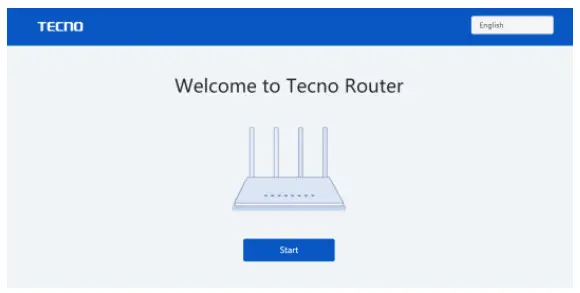
- Enter setup wizard to start configuring.

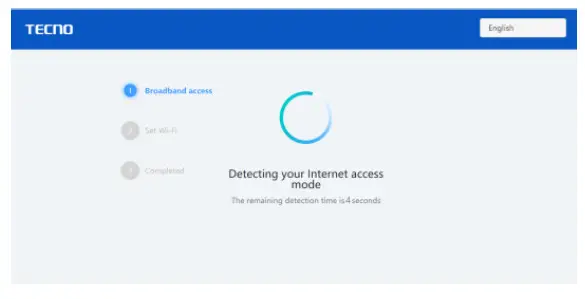
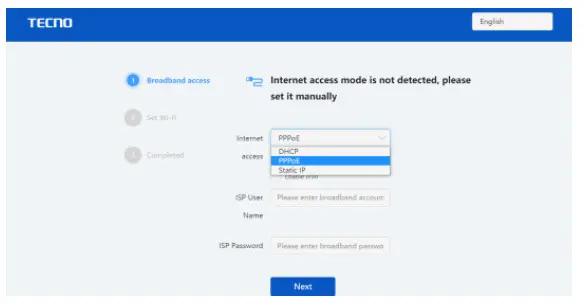
- The router will detect your Internet access mode automatically.

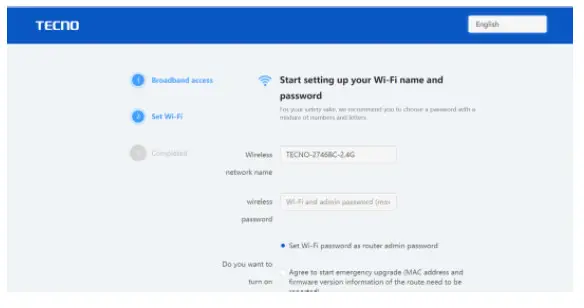
If Dynamic INDI-ICP) is selected, the router will automatically receive the IP parameters from your ISP(Internet Service Provider). If PPPoE is selected, please enter the Vser Name and Password provided by your ISP. If Static IP is required, please enter the IP Address/Subnet Mask/Default Gateway/DNS Servers provided by your ISP. - Configure your IM-Fi name and password as you required and dick “Save.

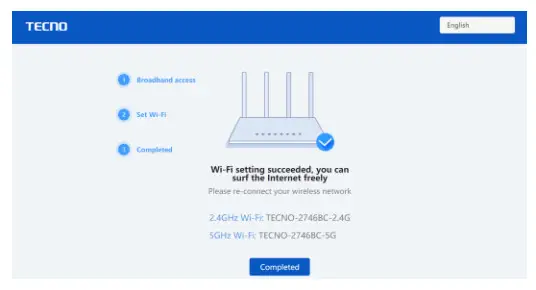
- Wi-Fi setting succeeded, you can surf the Internet now.
Easy Mesh
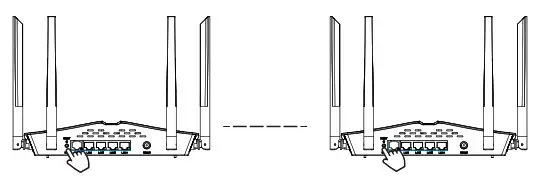
Method 1: Press the WPS button on each TECNO mesh router at the same time to configure the mesh connection automatically.
Method 2: Connect your TECNO mesh routers with an Ethernet cable to configure mesh automatically.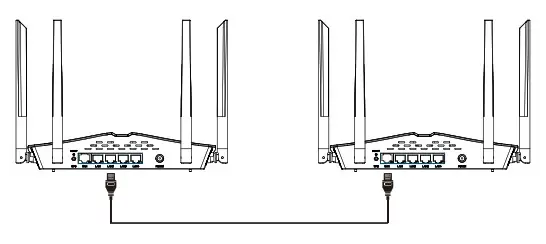
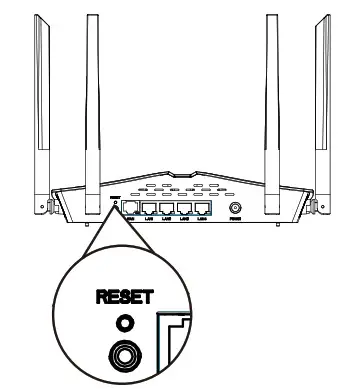
Reset router to factory default.
With the router powered on, use a pin to press and hold the reset button for 1 second. The router system will reboot and all configurations are back to factory default.
Warning
FCC PART 15.105 INFORMATION: This equipment has been tested and found to comply with the limits for a Class B digital device, pursuant to part 15 of the FCC Rules. These limits are designed to provide reasonable protection against harmful interference in a residential installation. This equipment generates, uses and can radiate radio frequency energy and, if not installed and used in accordance with the instructions, may cause harmful interference to radio communications. However, there is no guarantee that interference will not occur in a particular installation. If this equipment does cause harmful interference to radio or television reception, which can be determined by turning the equipment off and on, the user is encouraged to try to correct the interference by one or more of the following measures:
-Reorient or relocate the receiving antenna.
-Increase the separation between the equipment and receiver.
-Connect the equipment into an outlet on a circuit different from that to which the receiver is connected.
-Consult the dealer or an experienced radio/TV technician for help.
PART 1519 COMPLIANCE INFORMATION:
This device complies with part 15 of the FCC Rules. Operation is subject to the following two conditions: (1) This device may not cause harmful interference, (2) this device must accept any interference received, including interference that may cause undesired operation.
15.21 / KDB784748 D01 v08 (P4)
Caution!
Any changes or modifications not expressly approved by the party responsible for compliance could void the user’s authority to operate this equipment. Operations in 5150-5250 MHz band is for indoor use only.
FCC Radiation Exposure Statement This equipment complies with FCC radiation exposure limits set forth for an uncontrolled environment. This equipment should be installed and operated with a minimum distance 20cm between the radiator and your body.

https://www.facebook.com/TECNO-US-105994651443681
 TKNO US
 [email protected]

FCC ID: 2ADYY-TR660
MADE IN CHINA