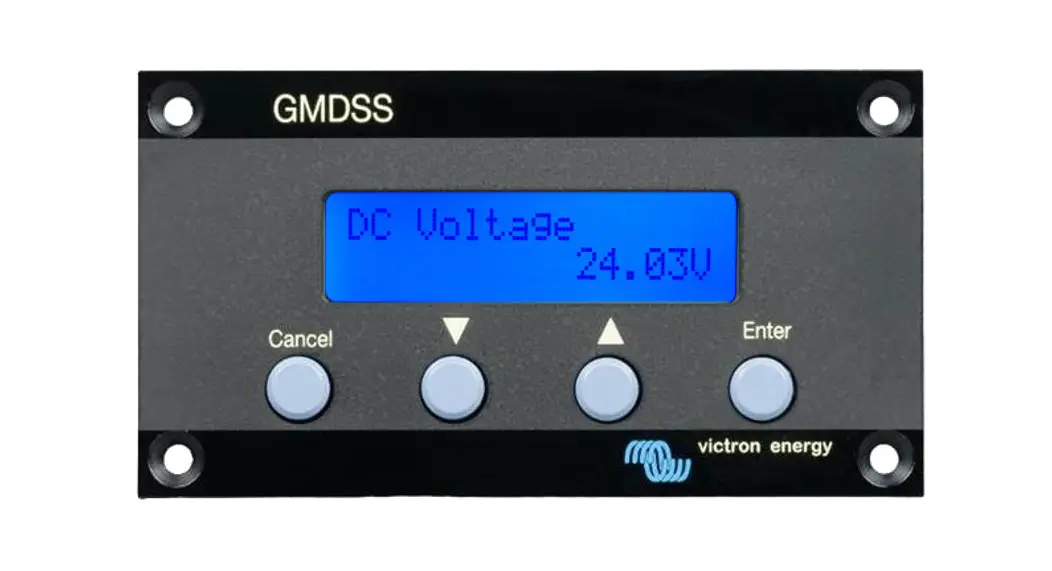

VE.NET GMDSS PANEL
USER MANUAL
INSTALLATION MANUAL
Copyrights 2007 Victron Energy B.V.
All Rights Reserved
This publication or parts thereof, may not be reproduced in any form, by any method, for any purpose.
For conditions of use and permission to use this manual for publication in other than the English language, contact Victron Energy B.V.
VICTRON ENERGY B.V. MAKES NO WARRANTY, EITHER EXPESSED OR IMPLIED, INCLUDING BUT NOT LIMITED TO ANY IMPLIED WARRANTIES OF MERCHANTABILITY OR FITNESS FOR A PARTICULAR PURPOSE, REGARDING THESE VICTRON ENERGY PRODUCTS AND MAKES SUCH VICTRON ENERGY PRODUCTS AVAILABLE SOLELY ON AN “AS IS” BASIS.
IN NO EVENT SHALL VICTRON ENERGY B.V. BE LIABLE TO ANYONE FOR SPECIAL, COLLATERAL, INCIDENTAL, OR CONSEQUENTIAL DAMAGES IN CONNECTION WITH OR ARISING OUT OF PURCHASE OR USE OF THESE VICTRON ENERGY PRODUCTS. THE SOLE AND EXCLUSIVE LIABILITY TO VICTRON ENERGY B.V., REGARDLESS OF THE FORM OF ACTION, SHALL NOT EXCEED THE PURCHASE PRICE OF THE VICTRON ENERGY PRODUCTS DESCRIBED HERE IN.
Victron Energy B.V. reserves the right to revise and improve its products as it sees fit. This publication describes the state of this product at the time of its publication and may not reflect the product at all times in the future.
Contents of the box
1x VE.Net GMDSS Panel
4x Black screw to mount the panel
1x Panel cutout
1x Installation and user manual
Introduction
Victron Energy has established an international reputation as a leading designer and manufacturer of energy systems. Our R&D department is the driving force behind this reputation. It is continually seeking new ways of incorporating the latest technology in our products. Each step forward results in value-added technical and economical features.
Definitions GMDSS charger
| GMDSS charger | in this manual a GMDSS charger refers to a Victron Energy SkyllaTG GMDSS charger, which can be remotely monitored by the VE.Net GMDSS panel. |
| Battery | Whenever battery is used in this manual it can equally well refer to a battery bank, depending on your setup. |
| Panel | refers to the VE.Net GMDSS panel |
Battery Panel
in this manual a GMDSS charger refers to a Victron Energy SkyllaTG GMDSS charger, which can be remotely monitored by the VE.Net GMDSS panel. Whenever battery is used in this manual it can equally well refer to a battery bank, depending on your setup. refers to the VE.Net GMDSS panel
VE.Net GMDSS panel
Since the GMDSS charger is in general located at a different location then the ships control, the GMDSS charger of Victron Energy can be remotely monitored and alarms are available where they should. The VE.Net GMDSS panel does not only monitor the state of the charger, but provides information about the connected battery as well.
Prerequisites
- This manual assumes that the GMDSS charger is already installed. (If this is not the case refer to the appropriate manual of the GMDSS charger)
Installation and configurations instructions
- Mount the panel
- If required connect the alarm relay. Refer to figure 1 for the locations of the connectors.
- Connect the panel to the GMDSS charger with a standard straight UTP cable. (The VE.Net GMDSS Panel will also be powered from this cable)
- The panel will start automatically and establish a connection with the GMDSS charger
- The panel displays the current state of the battery.
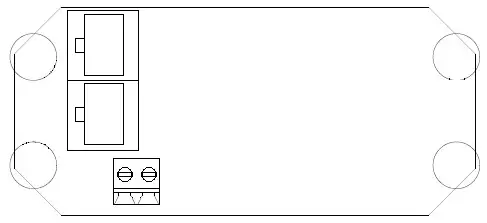
Figure 1. VE.Net GMDSS Panel Connections
The VE.Net GMDSS Panel
Using the Panel
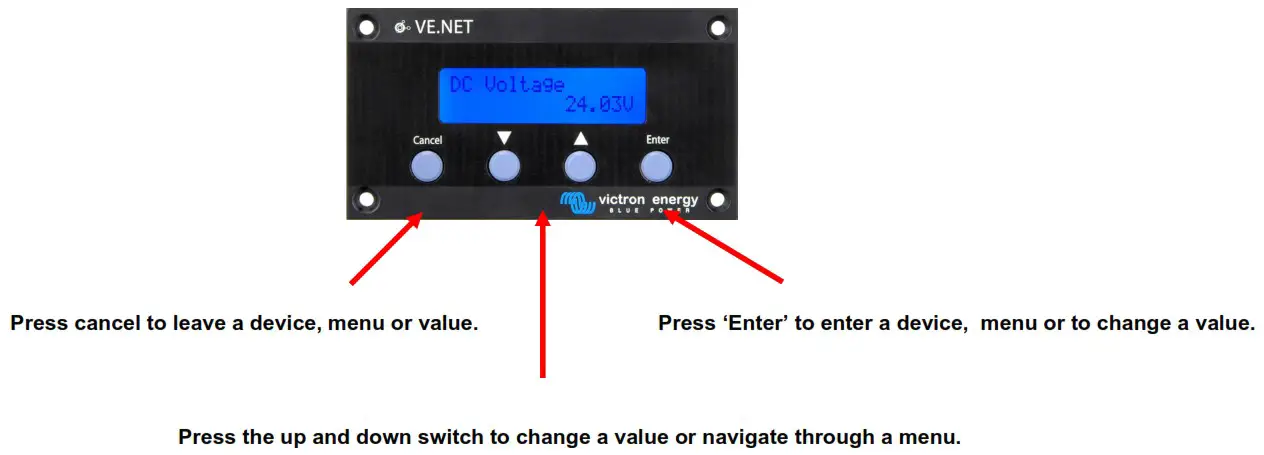
Reset the panel
To reset the panel, press and hold “Cancel” for three seconds
Navigating through the menu’s
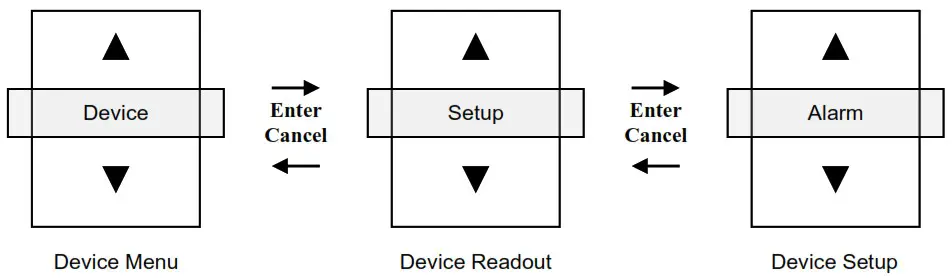
How to change a value with a VE.Net GMDSS panel
When a value is changeable you will see a little arrow in the lower left corner of the display.
If a value in the setup menu must be changed press enter. And the value will start to blink. If the value is blinking press up and down to change it. Press enter again and the new value will be stored. If the cancel button is pressed before the new value is stored it will return to its original value.

Devices
The GMDSS system contains two devices.
- The GMDSS monitor, which shows the state of the battery connected to the GMDSS charger.
- Panel Setup, which allows control over the panel itself
 | Step 1.) Press “▼” to scroll through the menu until you see “Panel Setup”. |
 | Step 2.) Press “Enter” to enter the “Panel Setup” |
The properties of the panel are clarified in the table below. All values except the software version can be changed. In paragraph 7.1 it is explained how values can be adjusted.
| Panel Setup | Default | Range | Step size | |
| Contrast | Contrast of the display | 100 | 0-100% | 5% |
| Backlight | Intensity of the backlight | 30 | 0-100% | 5% |
| Backlight off | Time before the backlight turns off automatically | l0s | 10s, Nev 1 min, Never | |
| Access level | In order to prevent accidental changes to settings, most setup parameters are hidden in user mode | User and install | User, User and Install | |
| Restrict Access | Disables changing the access level, only possible for OEM installers | No | Yes, No | |
| Restart panel | Restart the panel | No | No-Yes | |
| Software version | Version of the software in the panel | – | – | – |
Access level
Many device options only need to be changed during installation, and should not be adjusted during normal use. The panel has an access level setting to prevent accidental changes to the panel during normal use. Setting the panel access level to “user and install” mode allows access to all menu items. Setting the access level to “user” mode will hide all installation options. To view the hidden items again, simply set the access level setting back to “user and install” mode.
OEM installers can use the restrict access option to password protect the access level of the panel, in order to prevent users from changing the installation settings. The password is available on request from Victron Energy.
Alarms
Whenever an alarm is active on the GMDSS charger, the VE.Net GMDSS panel will draw attention from the user while showing relevant information on the screen. The relay will also indicate the presences of an alarm. The relay is closed during normal operation. It is open for as long as one or more alarm conditions are present. The behavior of the panel with respect to alarms is described in more detail below
If a new alarm conditions is present
- The audible alarm becomes active
- The relay is open
- the screen blinks
- Information about the alarm is shown on the screen, mentioning:
- Mentioning that an alarm is active and on which device
- Continuously alternated with a description of the alarm and relevant information.

Confirming the alarm
Press enter to confirm that the alarm has been noticed.
- The audible alarm silences
- The relay remains open
- the screen continues to blink as long as the alarm condition is present
- A reminder of the alarm will periodically be shown

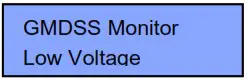
The alarm condition is removed
- The relay is closed
- If the alarm condition was confirmed on the panel, it will resume normal operation.
- If the alarm condition was not yet confirmed the audible alarm will silence and information about the alarm will remain visible on the screen to indicate that an alarm has occurred. By pressing enter normal operation is resumed.
If multiple alarms are present at the same time, all of them must be confirmed once and all alarms will be repeated. The relay will close after all alarm conditions are removed.
GMDSS Monitor
Quick status line
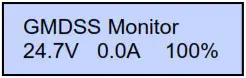
The GMDSS monitor is designed to give quick access to all relevant information, without having to scroll though abundant information. The `quick status’ simultaneously displays the most important parameters; the battery voltage, the battery current and the state-of-charge (SOC). In the root menu of the VE.Net GMDSS Panel you will see this screen
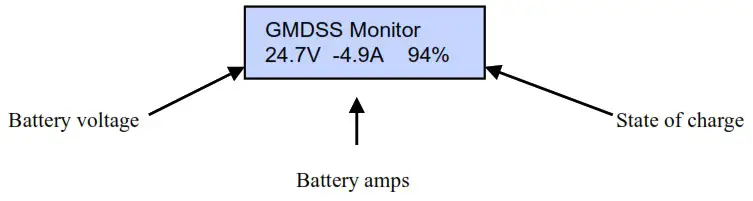
Notes:
- You can always return to this position by pressing “Cancel” repeatedly.
- If you can’t see the state of charge, the GMDSS monitor isn’t synchronized with the battery yet. It can take some time before the GMDSS charger completely charges the battery.
| Quick status | |
| DC Voltage | Displays the actual voltage of the battery. |
| DC Current | Displays the DC current that flows in or out of the batteries. |
| State of charge | The state of charge is a representation of the energy left in the battery 100% is full and 0% is empty. This is the best way to see when the batteries need to be recharged. Note that most battery types will be damaged if they are discharged below 50%. |
To go to the read out menu, press “Enter” when you are looking at the quick status line. In this menu you will find the following read outs. Notice: these read out only have a meaning in case of a charger or mains failure.
| Read out menu | |
| Consumed Ah | Displays the used ampere-hours since the battery was fully charged. |
| Time to go | Displays time left before the batteries need to be recharged at the current load. |
Settings of the GMDSS Monitor
In order to prevent accidental change of the settings of the GMDSS monitor, access to setup values during operation should in general be prevented. If the setup values are not visible, make sure the panel is in “User and Install” mode. For details about the access level, refer to paragraph 7.4. If the OEM installer has locked the panel at the user level, it is not possible to change the access level!
| Step 1.) Press “Enter” to enter the GMDSS Monitor menu. |
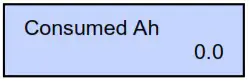 | Step 2.) Press “▼” to scroll through the menu until you see “Setup Alarms”. Note: If you can’t find the Setup Alarms” menu, make sure that your panel is in “User and Install” mode. |
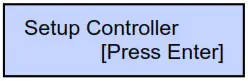 | Step 3.) Press “Enter” to enter the “Setup Controller” menu. |
Several alarms can be adjusted to suit the needs of a particular setup. The High Voltage and Low Voltage alarms are however always enabled and can not be turned off. The “charger failure” alarm is also always enabled and indicates the failure of the GMDSS charger to charge the battery.
| Setup Alarms | Default | Range | Step size | |
| Low Voltage | The DC Voltage has to be below this threshold to trigger the Low Voltage alarm. | 20 | 8 – 33 | 0.1 |
| Low Voltage Clr | The threshold that has to be reached again to cancel a Low Voltage alarm. | 22 | 8 – 33 | 0.1 |
| High Voltage | The DC Voltage has to be above this threshold to trigger the High Voltage alarm. | 32 | 8 – 33 | 0.1 |
| High Voltage Clr | The threshold that has to be reached again to cancel a High Voltage alarm. | 31 | 8 – 33 | 0.1 |
| Low SOC | The low State of Charge threshold that will activate the alarm. | 60% | 0 – 100 | 1 |
| Low SOC Clr | The State of Charge threshold that has to be reached to cancel a State of Charge alarm. | 60% | 0 – 100 | 1 |
| Low SOC Alarm | Enables and disables the low SOC alarm. | off | on – off | |
| Low Current | The current has to be below threshold to trigger the Low Current alarm. | -100 | -100 – 100 | 0.5 |
| Low Current Clr. | The threshold that has to be reached again to cancel a Low Current alarm. | -98 | -100 – 100 | 0.5 |
| Low Current Alarm | Enables and disables the low current alarm. | off | on-off | |
| High Current | The current has to be above this threshold to trigger the High Current alarm. | 35 | -100 – 100 | 0.5 |
| High Current Clr | The threshold that has to be reached again to cancel the High Current alarm. | 32 | -100 – 100 | 0.5 |
| High Current | Enables and disables the high Current Alarm. | off | on – off | |
| Step 1.) Press “Enter” to enter the GMDSS Monitor menu. |
| Step 2.) Press “▼” to scroll through the menu until you see “Setup Controller”. |
| Step 3.) Press “Enter” to enter the Setup Controller menu. |
| Setup Controller | Default | Range | Step size | |
| Battery Capacity | The battery capacity in amp hours (Ah) at a 20h discharge rate. | 200Ah | 20-65535 | 5 |
| Volt charged par | The battery controller considers the battery as fully charged if the voltage is above this level. | 26.4V | 8-33 | 0.1 |
| Curr charged par | If the charge current is below this percentage of the battery capacity, the battery can be considered as fully charged. | 4% | 1-10 | 1 |
| Charged time par | The minimum time that the above two parameters must be met to consider the battery as fully charged. | 4 min | 1-4 | 1 |
| Charge eff. Factor | When a battery is charged, energy is lost. The charge efficiency factor compensates for the lost energy, where 1 is no loss of energy and 0.5 is a 50% loss of energy. | 0.9 | 0.5-1 | 0.05 |
| Resynchronize? | Resets the state of charge manually to 100%. | |||
Technical specifications
| VE.Net | |
| Maximum cable length | 25 meter |
| VE.Net GMDSS Panel | VPN |
| Power supply voltage range | 9 — 35 V DC |
| Operating temp. range | -20 — +50°C (0 – 120°F) |
| Potential free contact | 3A 130 V DC / 250 V AC I (Normally closed) |
| ENCLOSURE | |
| Measurements front panel (w x h) | 12 x 6,5 cm (Standard PROS3 Panel) |
| Measurements body (w x h) | 10 x 4,5 cm |
| Weight | 0,1 Kg |
Contact:
Victron Energy De Paal 35 1351 JG Almere The Netherlands
[email protected]
www.victronenergy.com
revision 1.01
 ve.net - This website is for sale! - ve Resources and Information.
 Victron Energy