 Maga System Technologies
Quick Start Guide
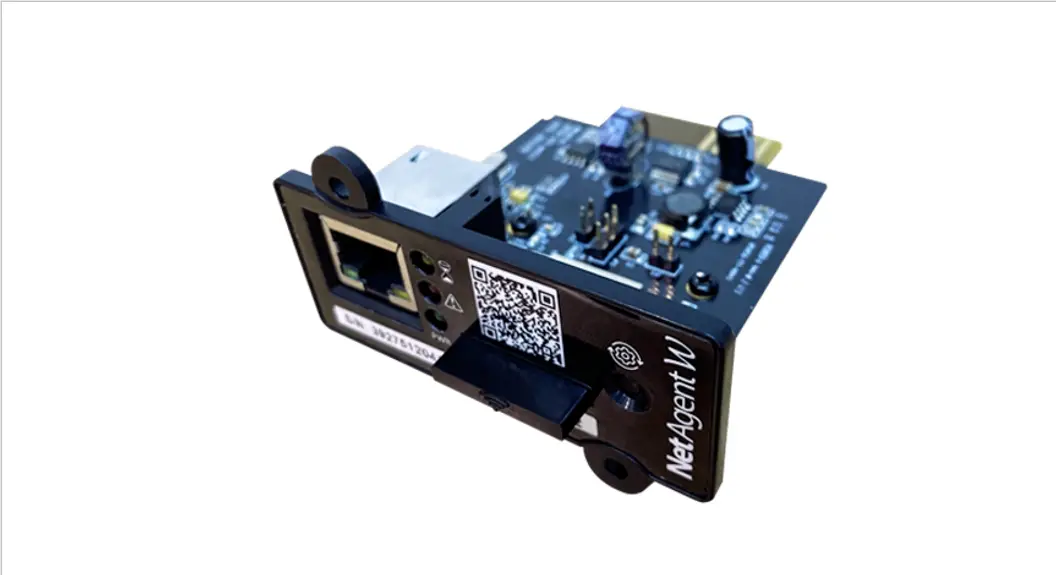
NetAgentW Cloud Card
Step 1: Application installation
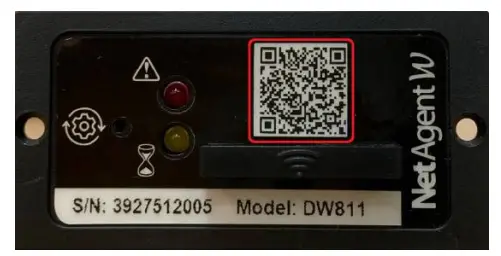
Install the “Cloud4UPS” APP by scanning the QR code from the device label
 Or, the ” Cloud4UPS” application is available for download from Apple APP store, or Google Play.
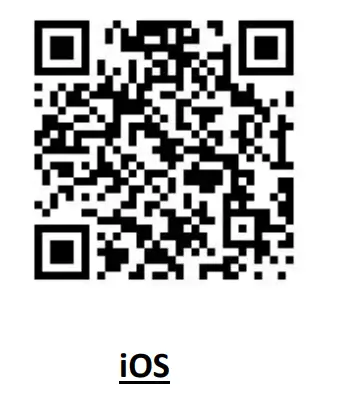 | 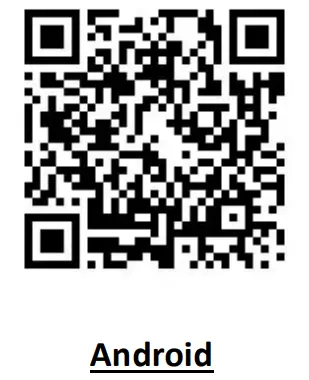 |
| https://apps.apple.com/tw/app/cloud4ups/id1579441535 | https://play.google.com/store/apps/details?id=com.cloud4ups |
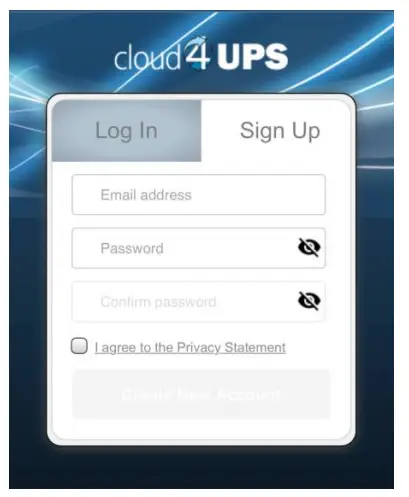
Step 2: Sign up, activate the account, and Login
 Step 3: Scan and add the device
Click “+” in the upper right corner of the homepage
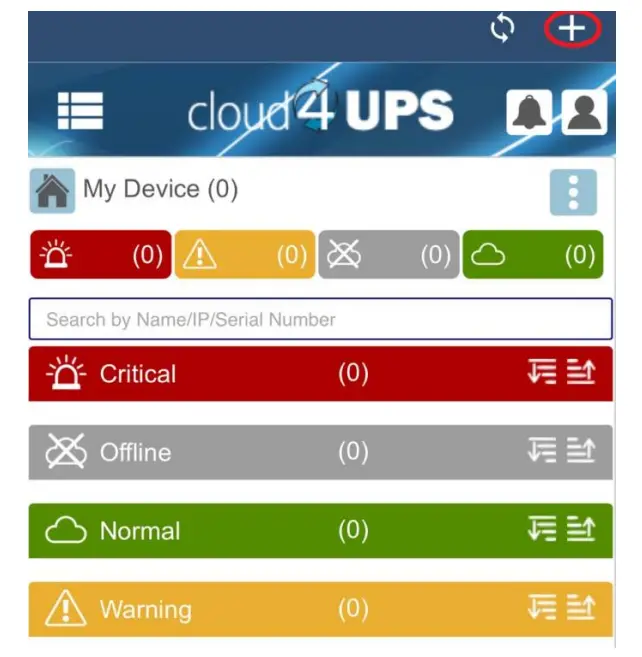 Select “BT Scanning” to search and add a device that is within 1 meter from the mobile device (Bluetooth must be enabled)
Select “Search in LAN” if the device has been removed, this is to search available devices under the same network as the mobile device to be added again
Step 4: Setup completed, start to monitor your UPS.
Once the device is successfully added, it will be listed in the homepage
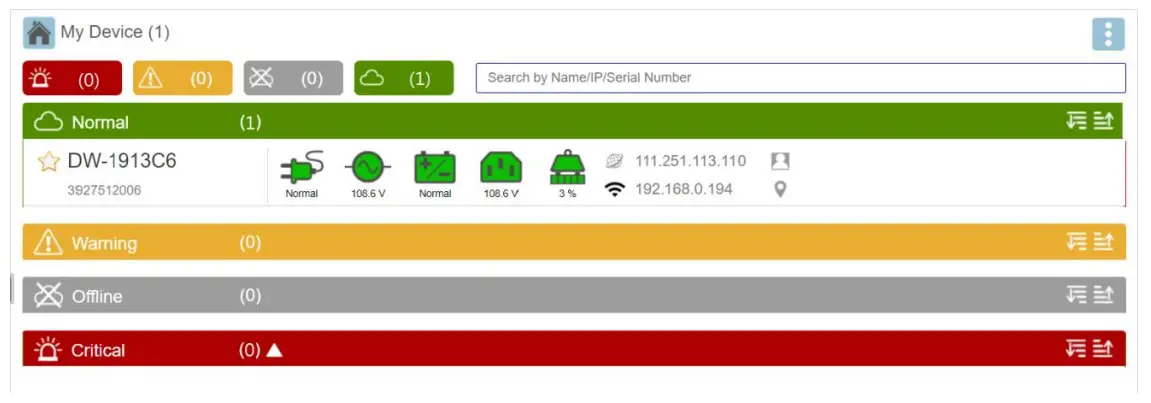 In addition to the APP, the Cloud4UPS account can also be accessed through a web browser https://cloud4ups.com
Firmware Upgrade
Firmware updates are functionality improvements and enhancements. When a newer firmware version is available, the following icon appears on the interface.
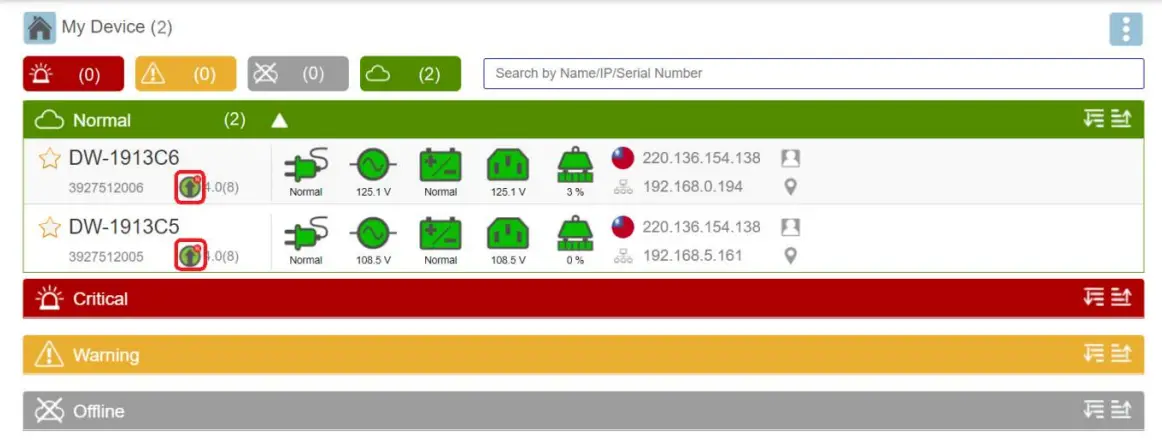 Click on “Device Upgrade” from the menu, and select the device that to execute the firmware upgrade.
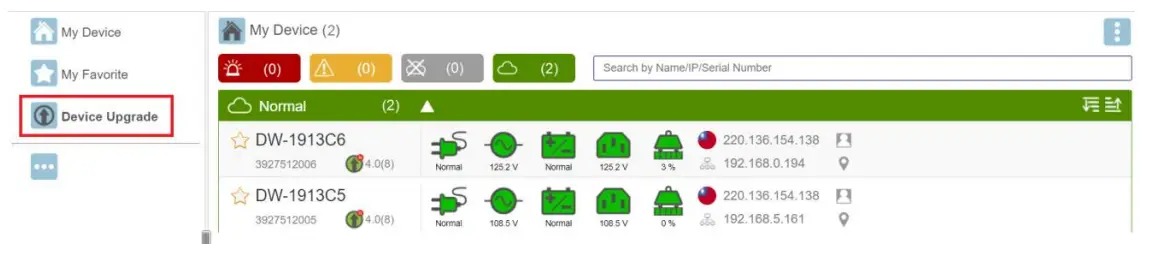 IMPORTANT: Do NOT turn OFF the power or press the reset button of the device during the upgrade process.
Hardware Description
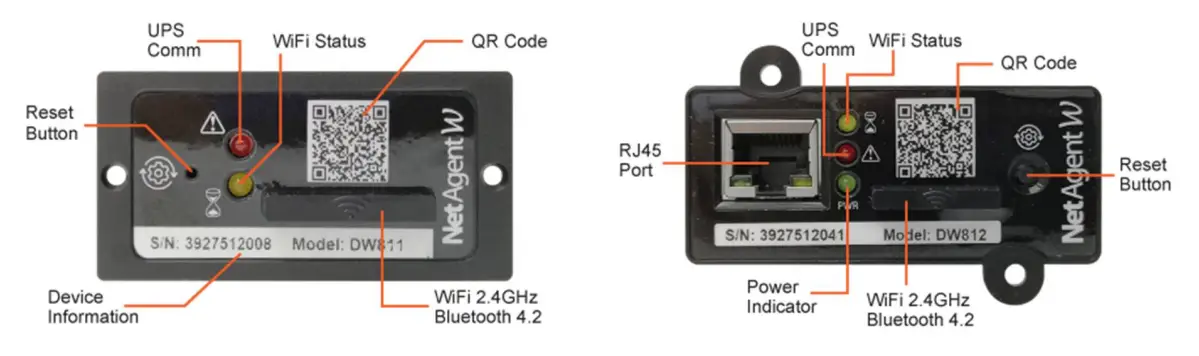
| Action (release to trigger) | Orange | Red | Description |
| Press once | Blinking | Off | WPS pairing |
| Press for 3–10 seconds | Off | Blinking | Clear WiFi setting then reboot |
| Press for 12 seconds | Blinking | Blinking | Reset to factory default |
LED Indication Table
| LED Color | Behavior | Description |
| Green | Solid | Power On |
| Orange | Blinking | WiFi not connected (No SSID) |
| Orange | Fast Blinking (3 times every 2 seconds) | Connecting to SSID |
| Orange/Red | Alternate Blinking | Firmware Upgrading |
| Orange | Gradually Brighter | WiFi connection normal but fail to connect with Cloud server |
| Orange | Solid | Normal connection with Cloud |
| Orange | Fast Blinking | Data transmitting |
| Red | Solid | No connection with UPS |
| Red | Blinking | Communication with UPS abnormally |
Mega System Technologies, Inc
www.megatec.com.tw For technical support, please contact [email protected]
Copyright © 2021 Mega System Technologies, Inc. All Rights Reserved.
 Mega System Technologies
 Cloud4UPS Server