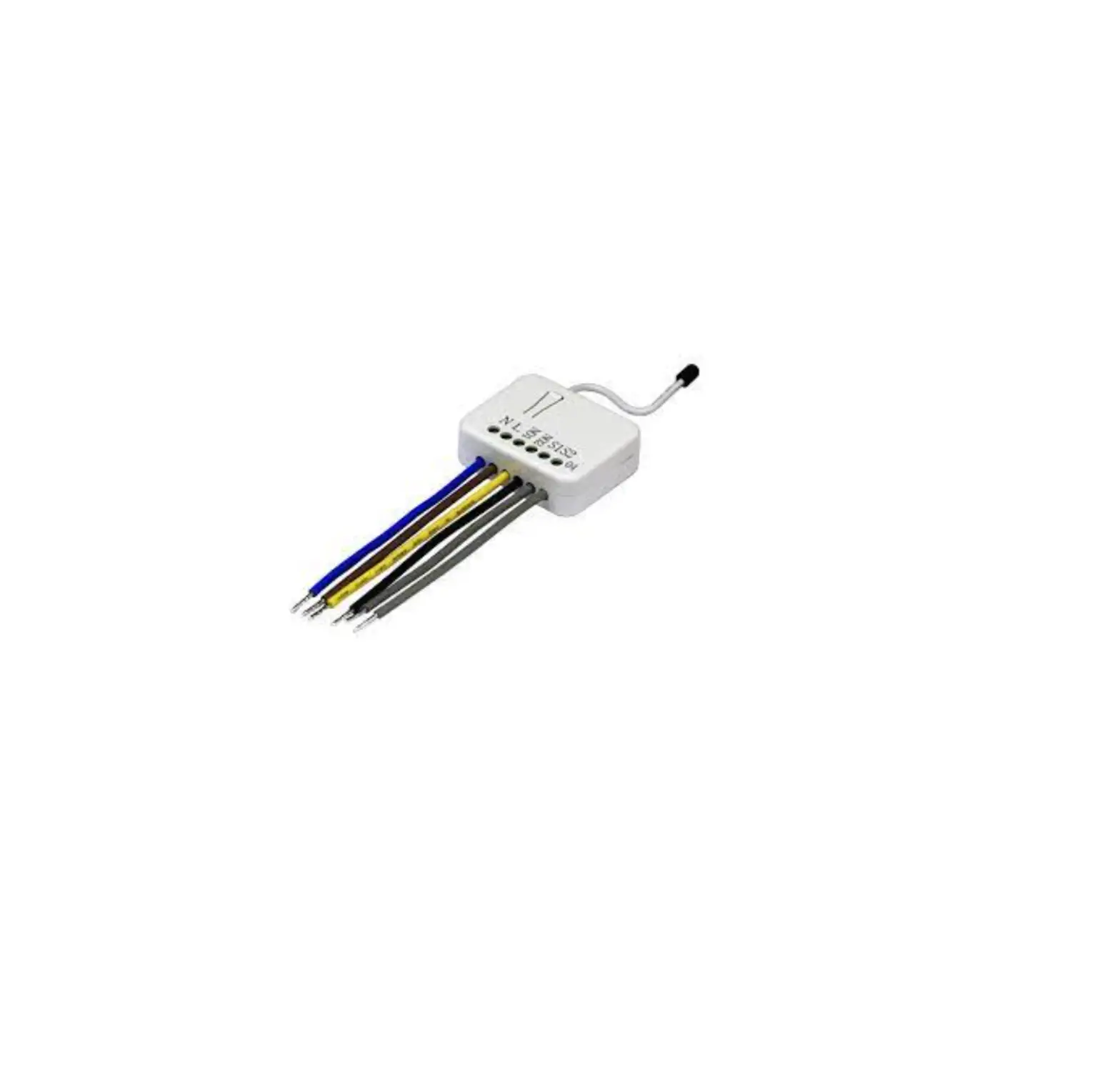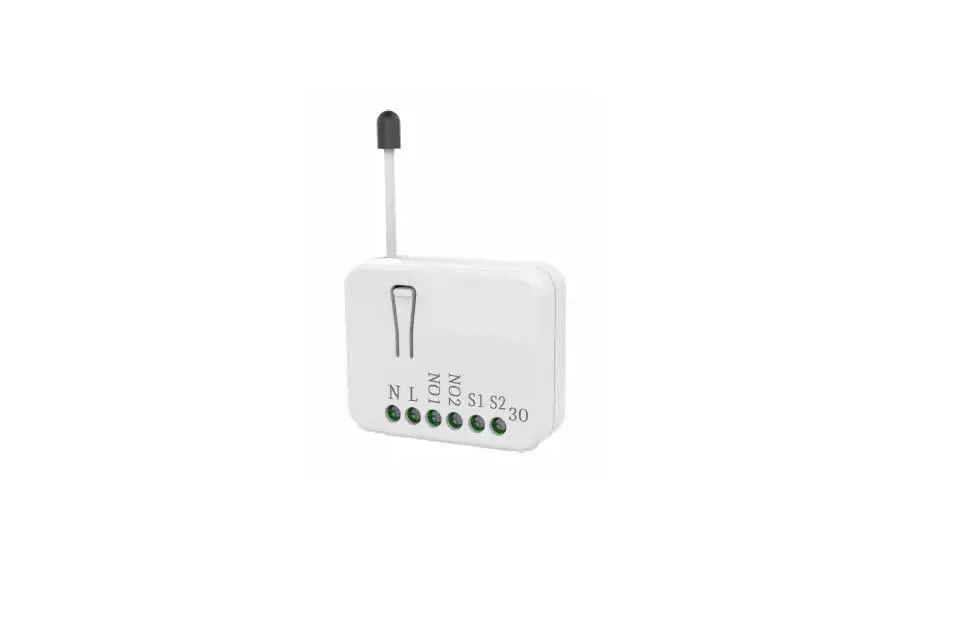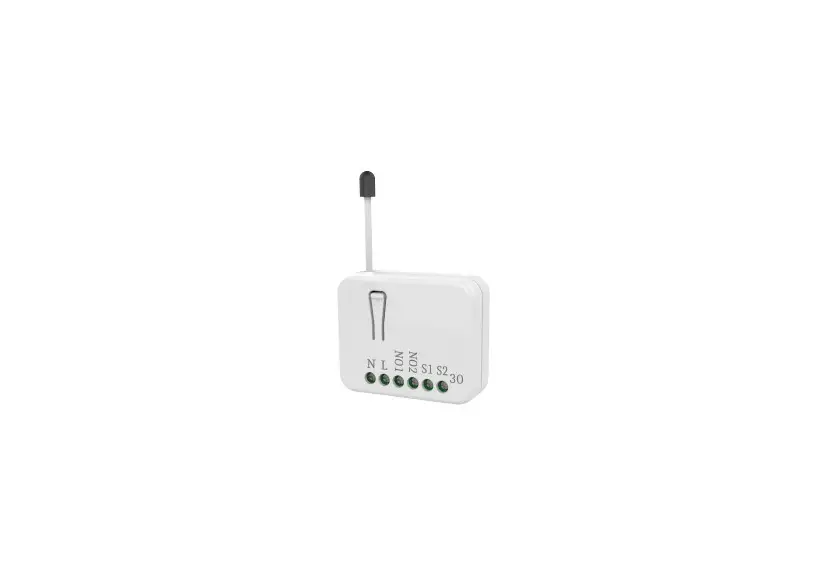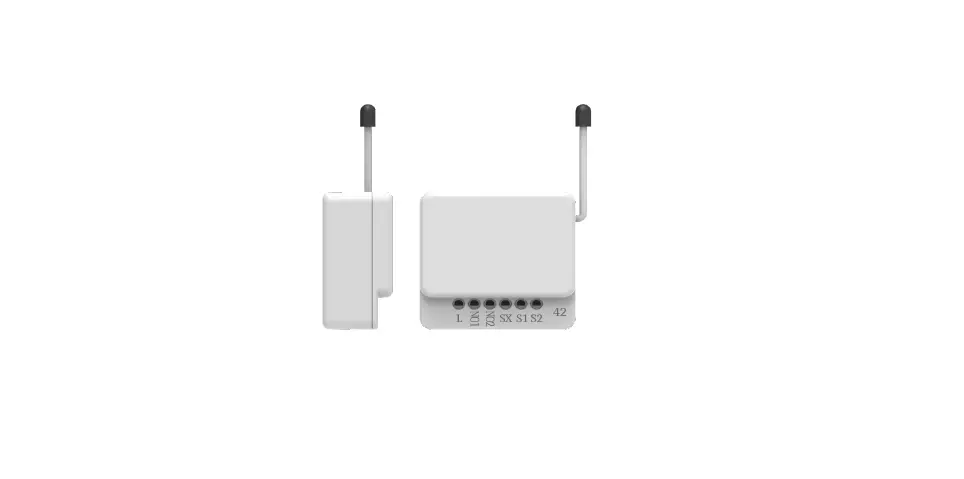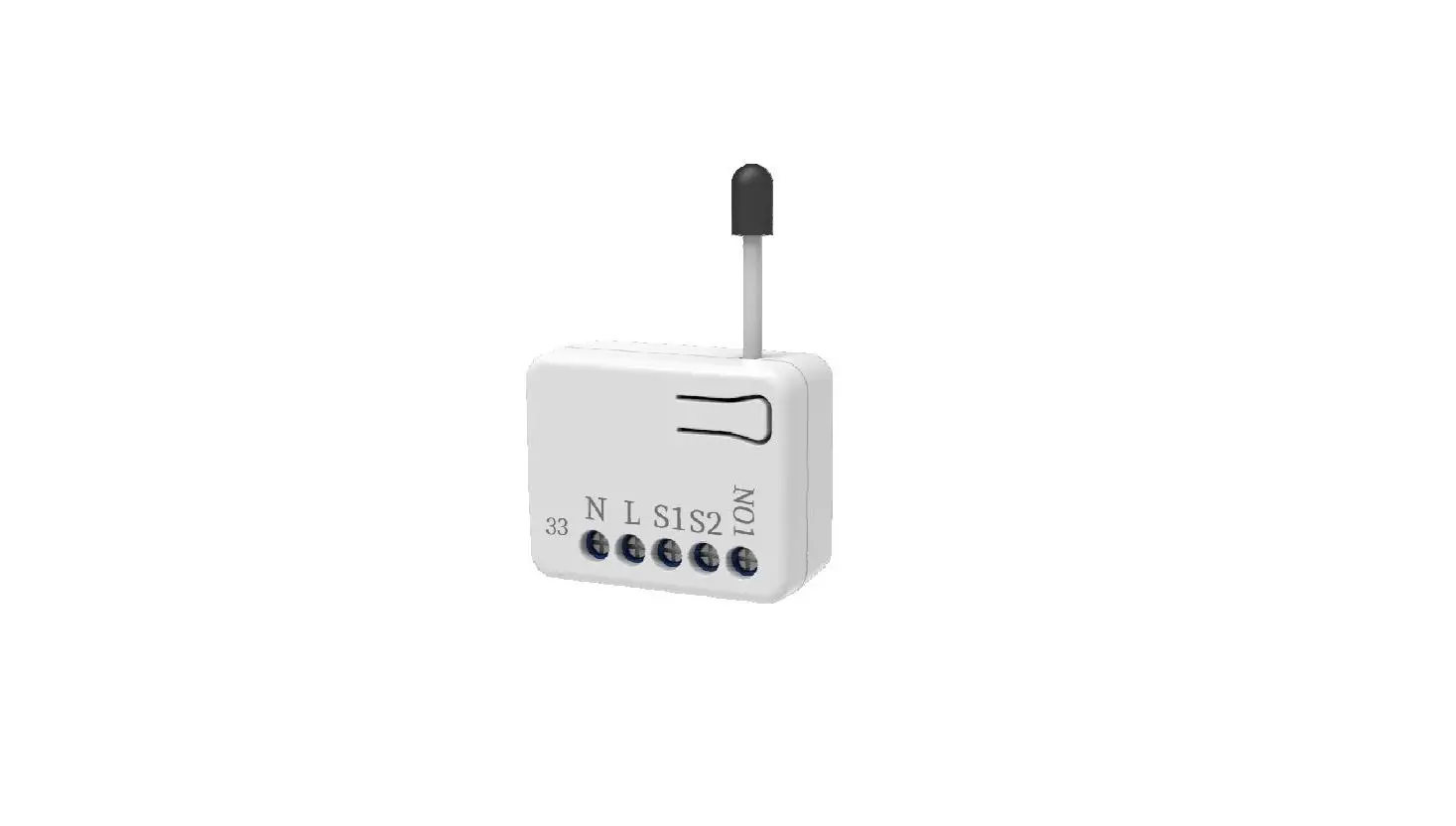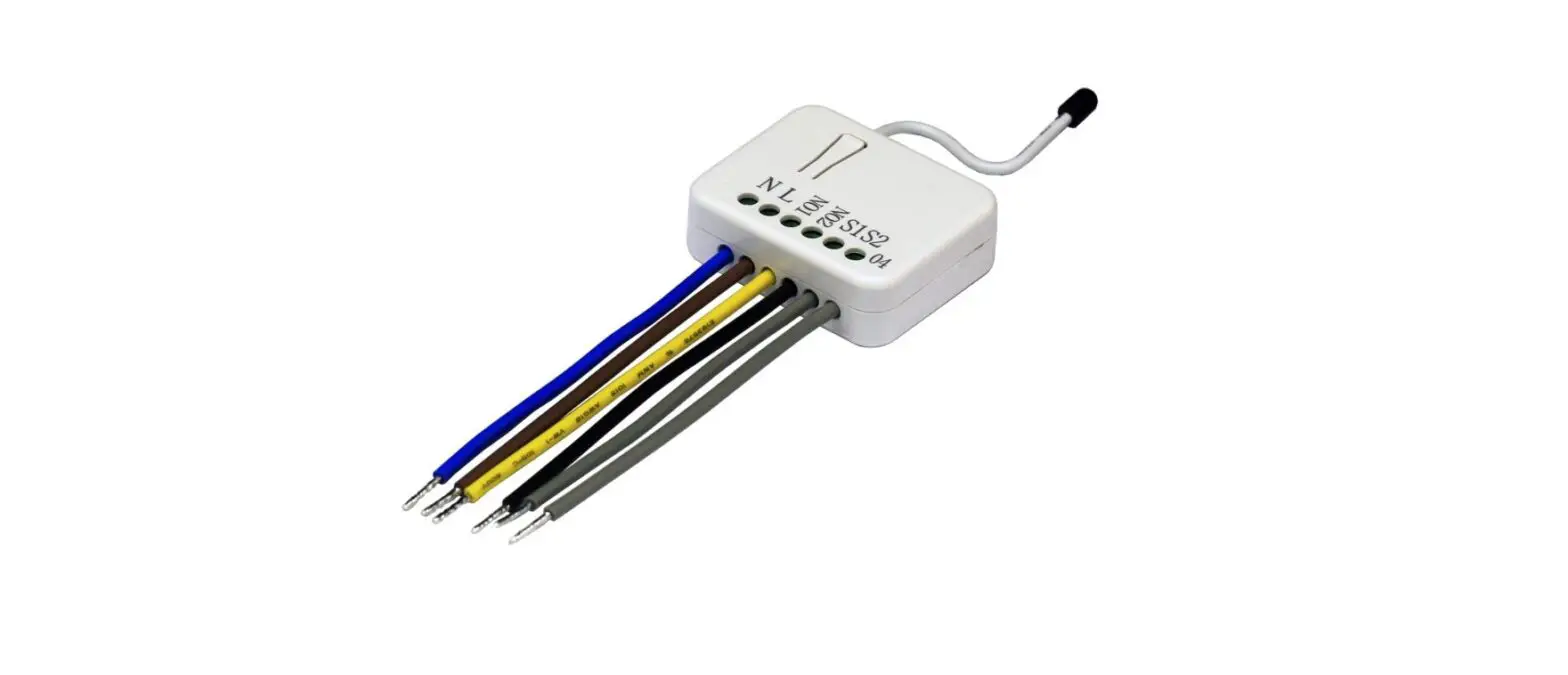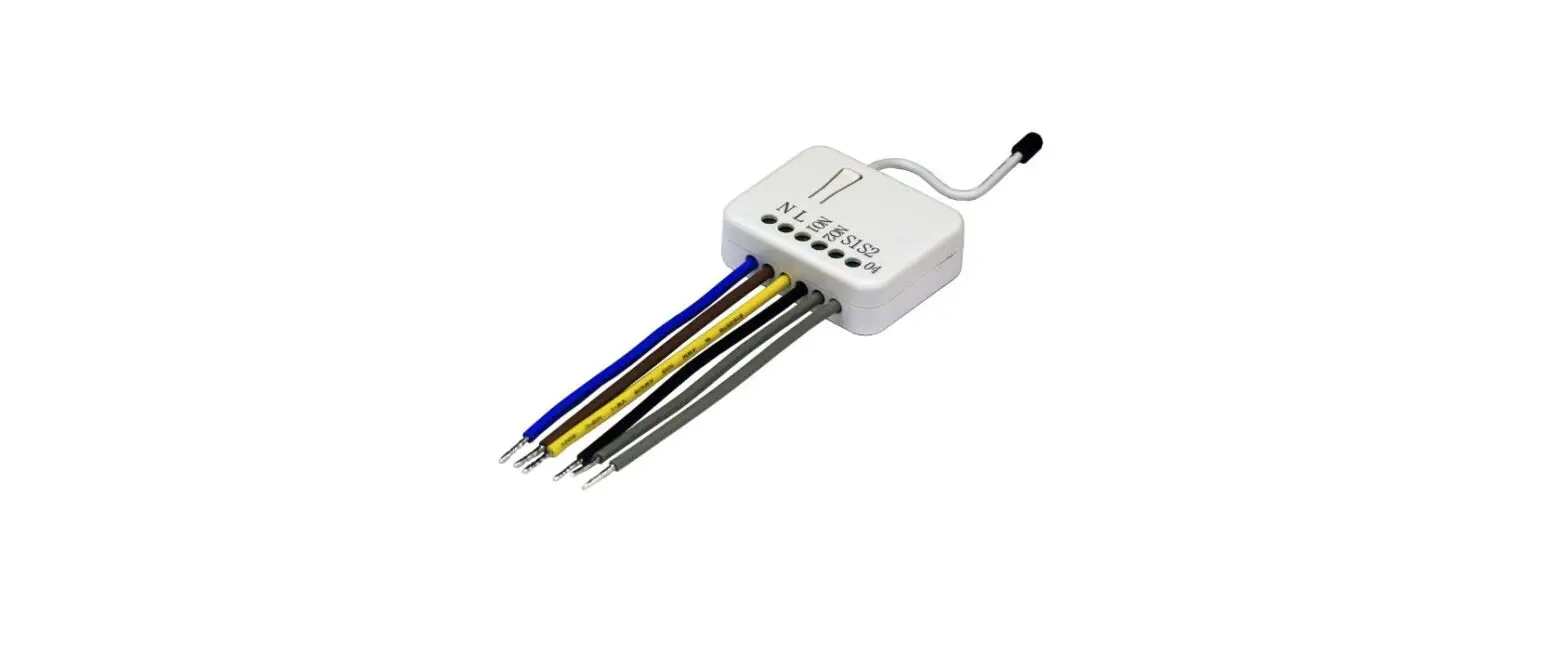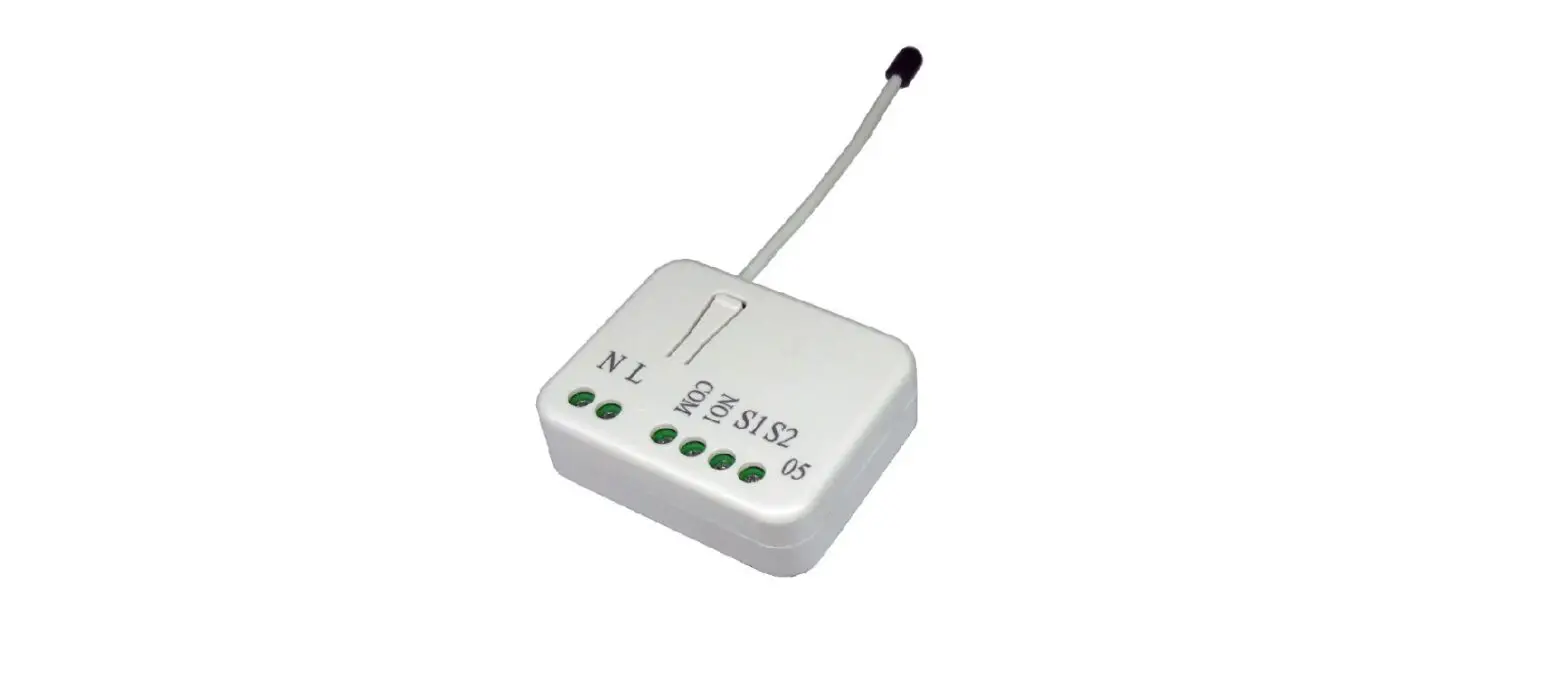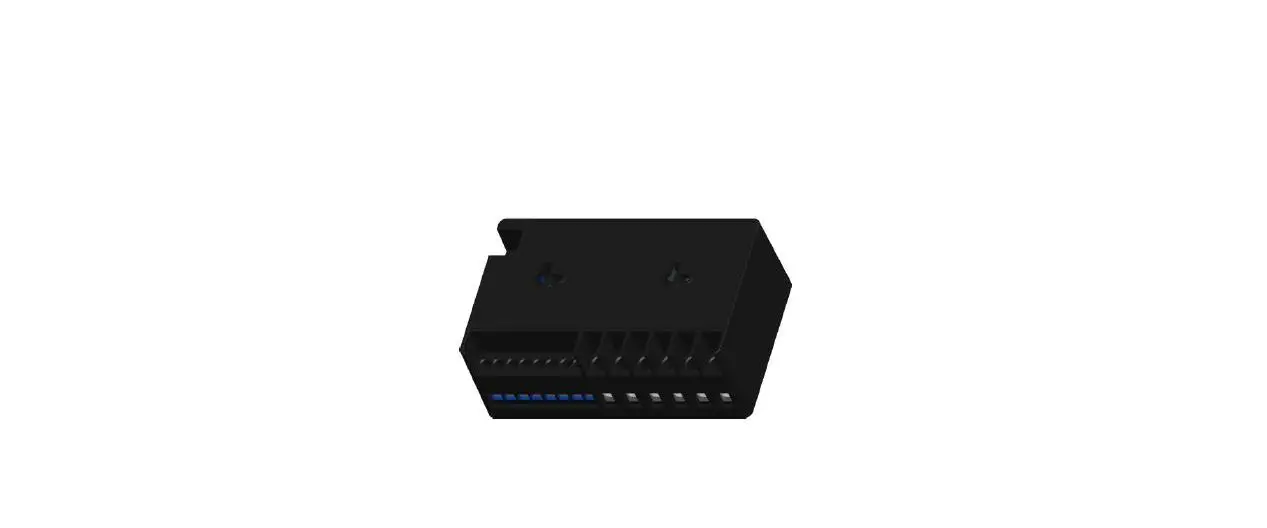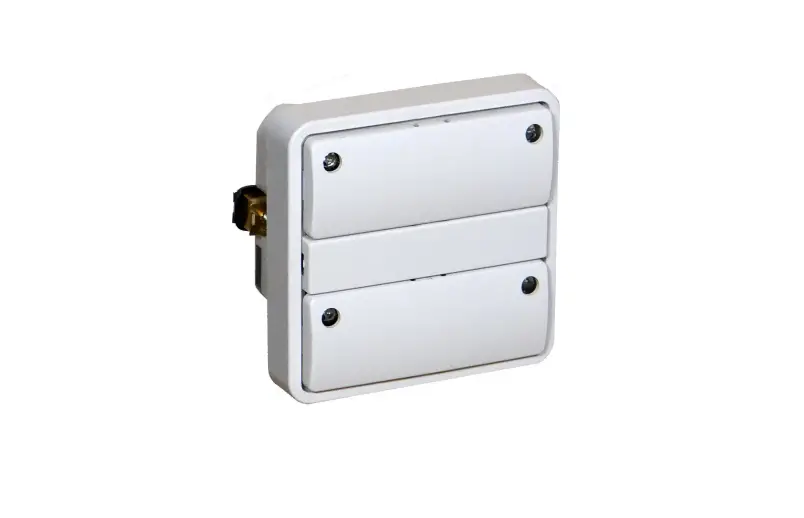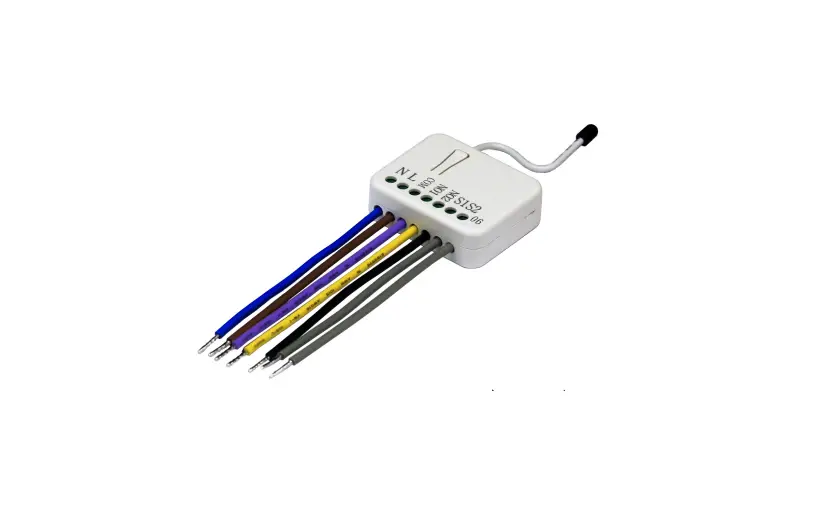

Z-WAVE PAN06 In Wall Dual Relay Switch Module Instruction Manual
Introduction
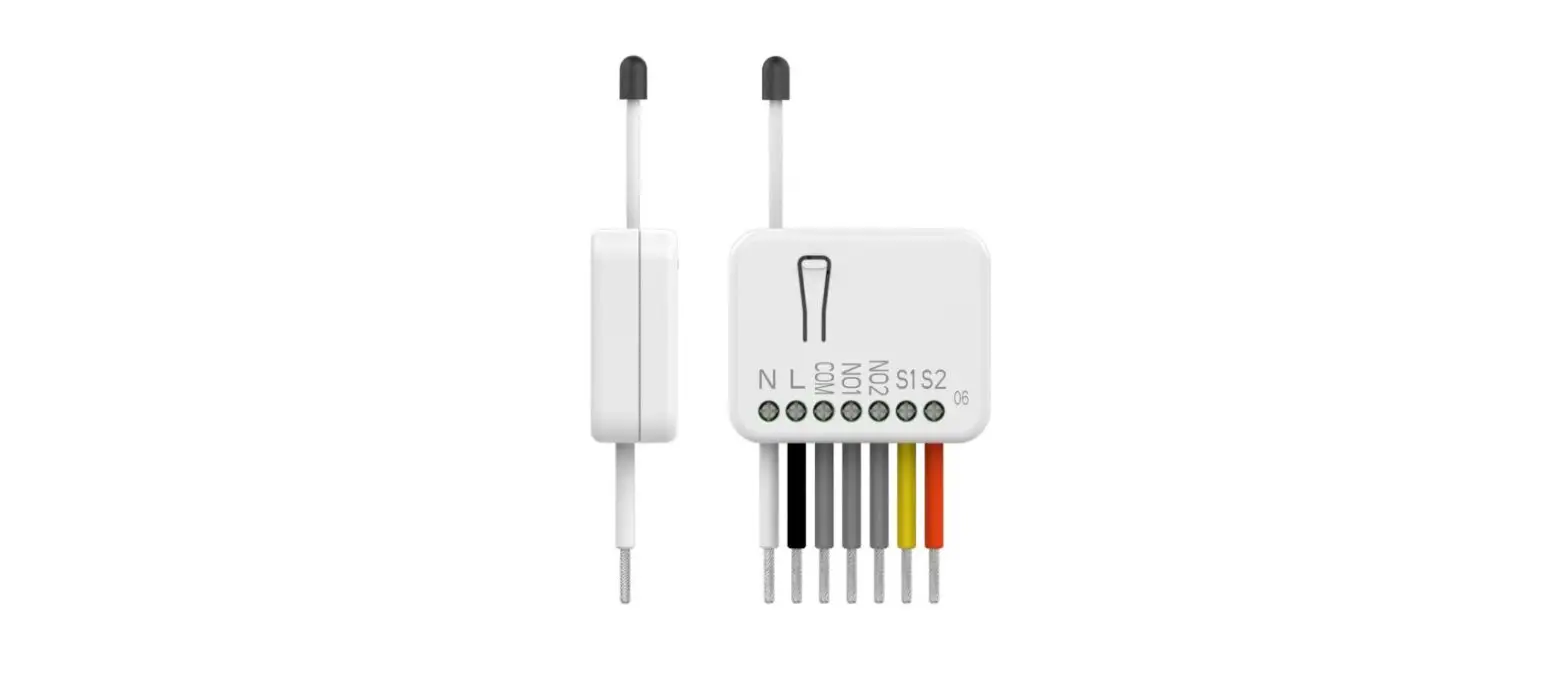
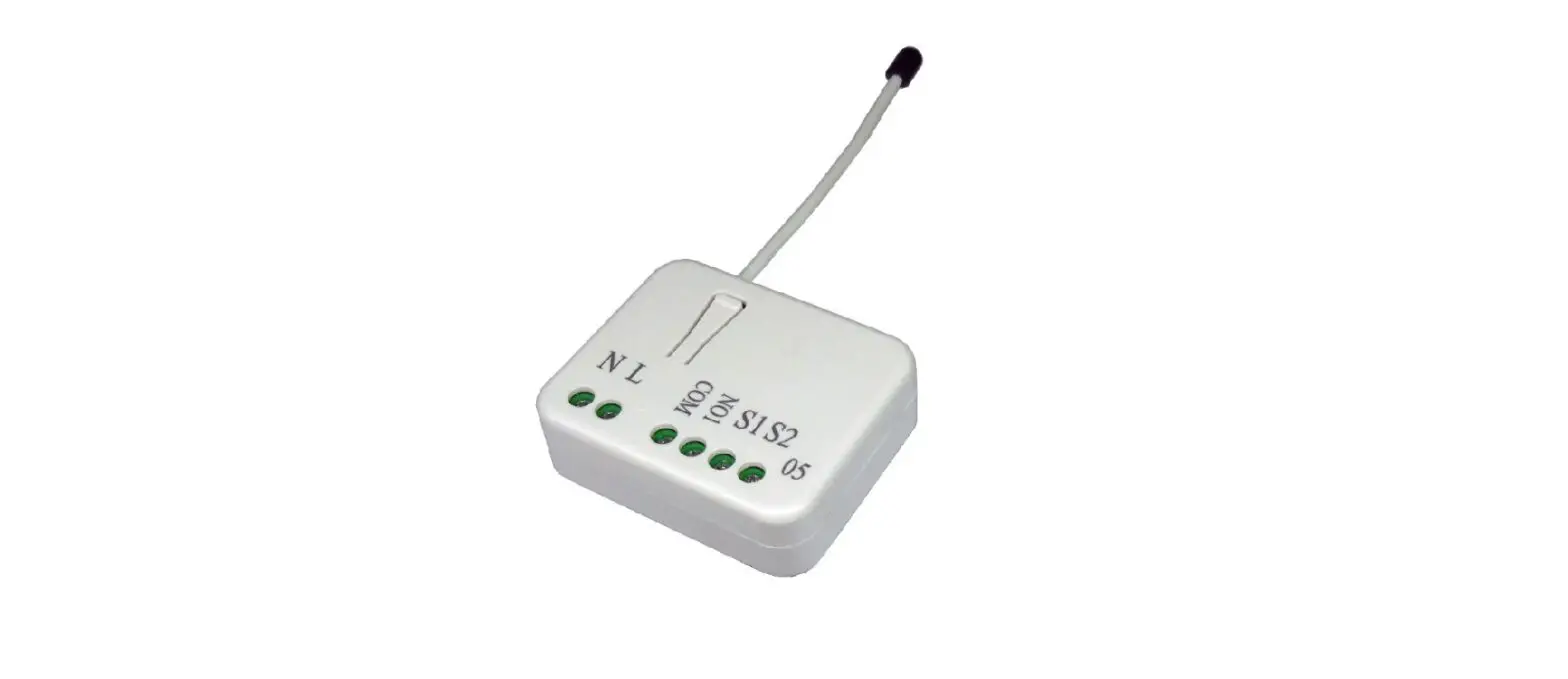
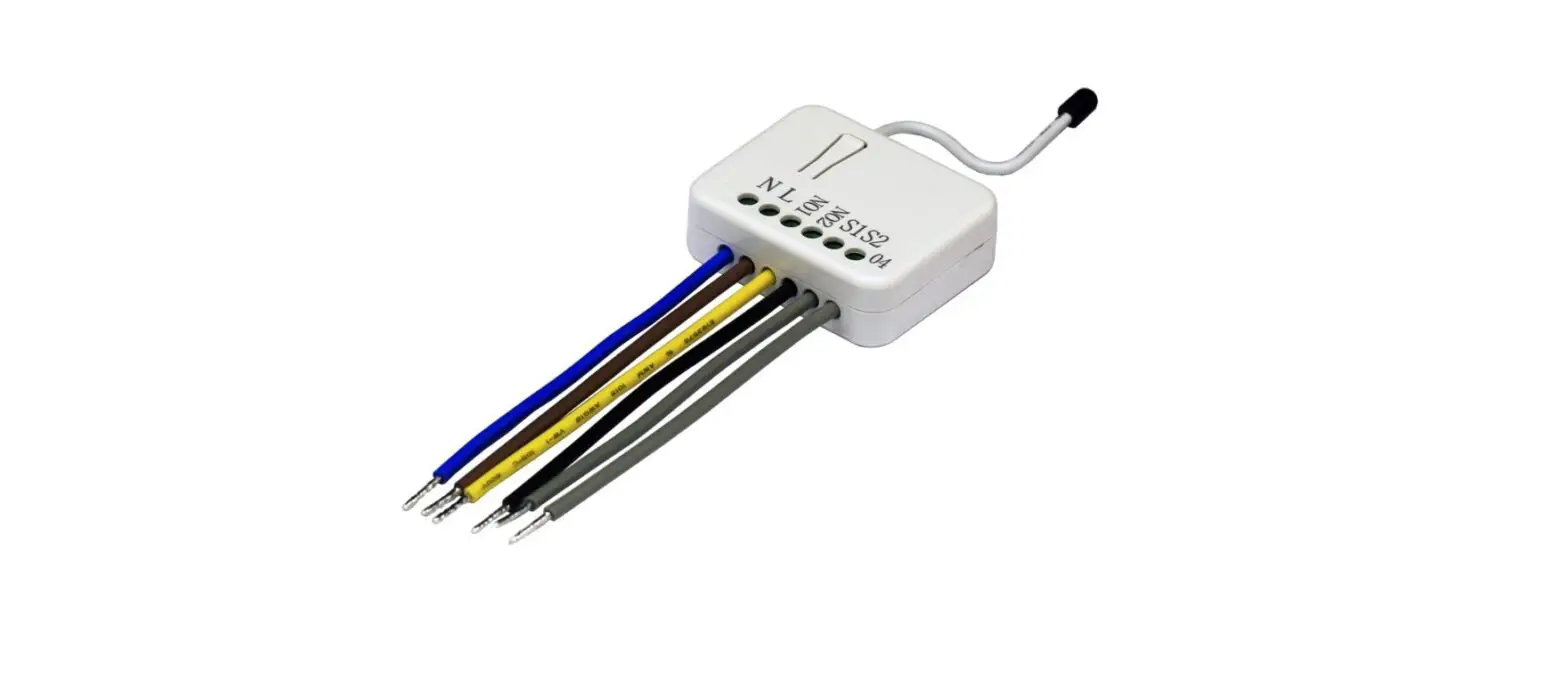
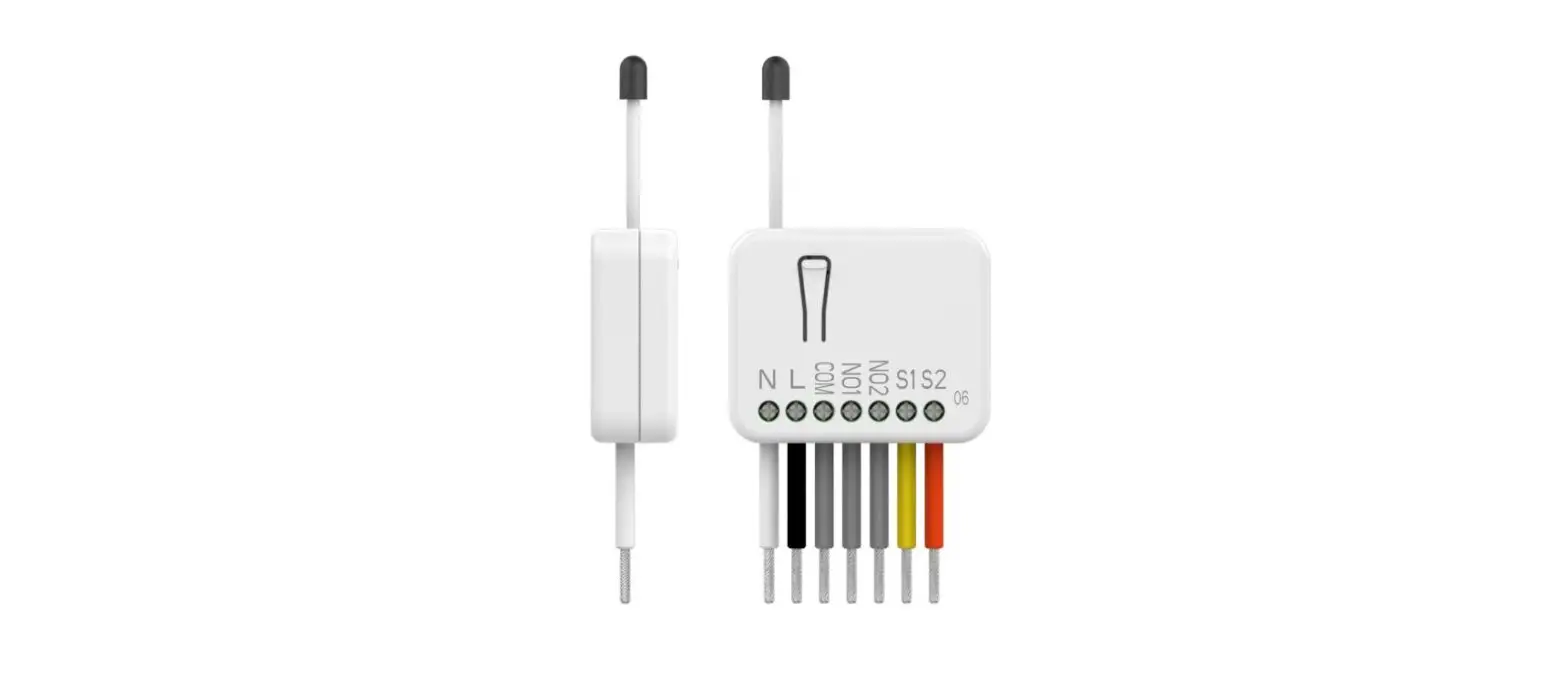
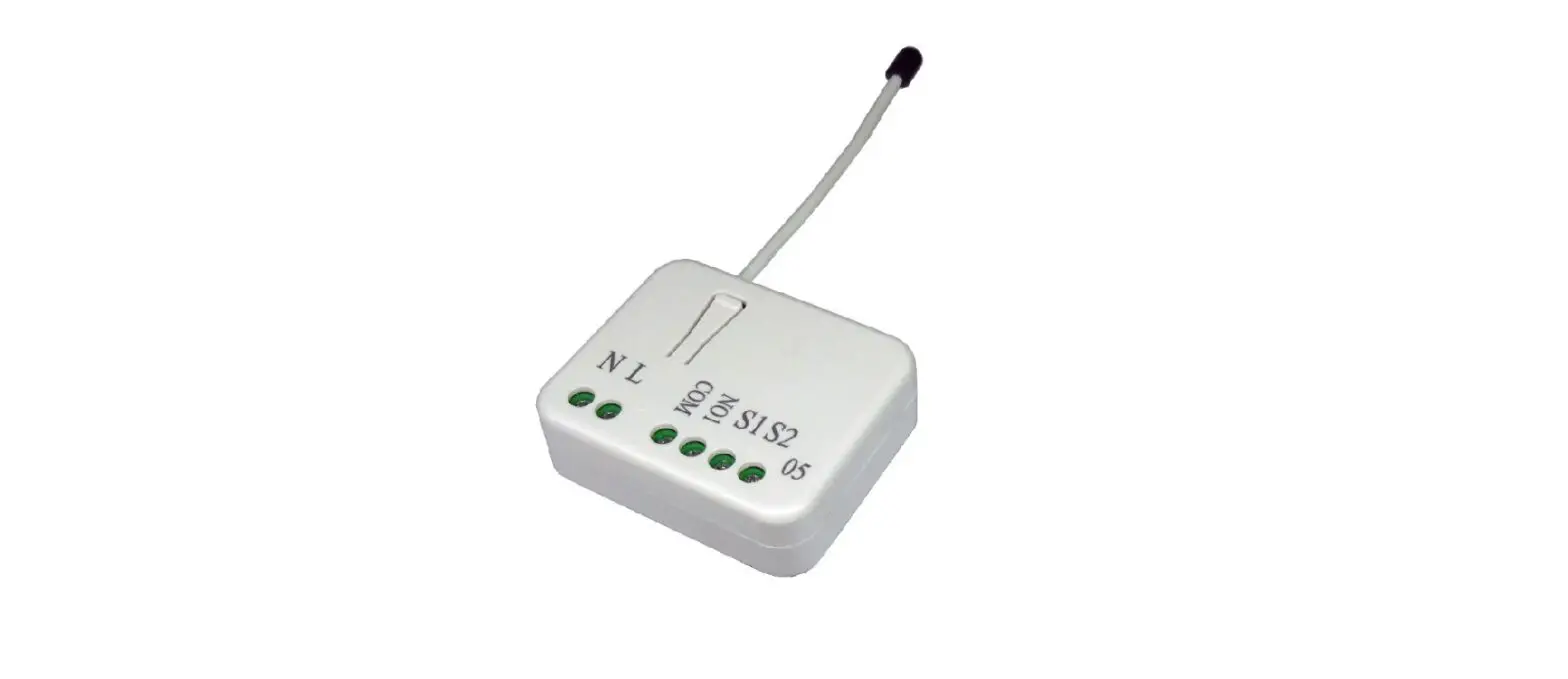
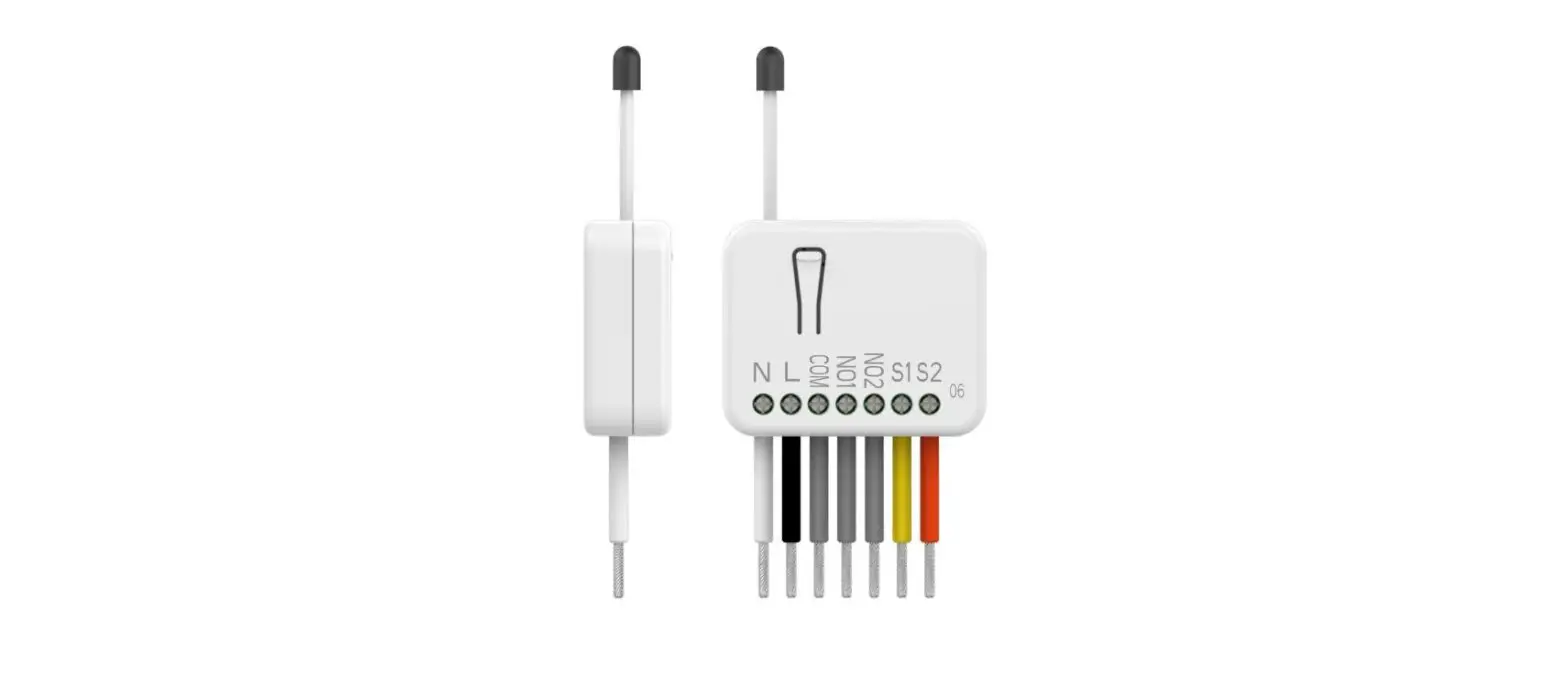
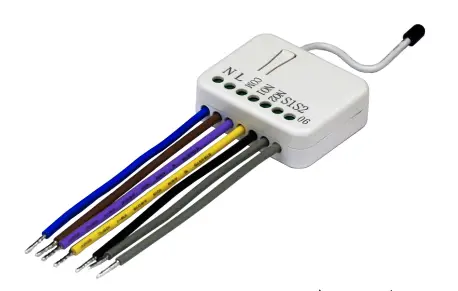
This in-wall switch module is a transceiver which is a Z-Wave PlusTM enabled device and is fully compatible with any Z-WaveTM enabled network. Mini size design let the module can easily hide itself into the wall box and that will be good for the house decoration.
There are many kind of application by using the module to switch Load On and Off, one main application is the light control. If connect the COM port directly to AC Line terminal, the new smart relay calibration technology can reduce the inrush current caused by the load and let the module work perfectly with many kind of light like incandescent, fluorescent and LED light. This module can also connect to alternative power supply like DC 12V to switch on/off 12V MR-16 light as follow picture.
Safety Precautions and Installation
- Avoid installing the unit in storming or raining weather.
- Be sure to isolate or switch off power source before installing or maintenance.
- Do ensure that the power supply circuit protected by a 16A circuit breaker or suitable equivalent fuse.
IMPORTANT
- Installation must be performed by skilled technicians who are informed about the standards and technical requirements of the appliance and its proper installation.
- Check your local codes as they apply to your situation. If the house wiring is of aluminum, consult with an electrician about proper wiring methods.
Before proceeding with the installation, TURN OFF THE POWER TO THE LIGHTING CIRCUIT AT THE CIRCUIT BREAKER OR FUSE BOX TO AVOID ELECTRICAL SHOCK
Specification
Operating Voltage
100-240VAC 50Hz/60Hz 6.5A 24-60V DC ±10%
| Maximum Load | 6.5A (230Vac / 120Vac) (Resistive load) |
| Range | Minimum 40m indoor, 100m outdoor line of sight |
| Operating Temperature | 0°C to 40°C |
| Humidity | Up to 85% max. |
| Storage Temperature | -20°C to 60°C |
| Location | Indoor use only |
| Frequency Range | 868.40MHz; 869.85MHz (EU) 908.40MHz; 916.00MHz (USA/Canada) 920.90 MHz, 921.70 MHz, 923.10 MHz (Taiwan) |
| RF Power | +5dBm |
| OTA | support |
| FCC ID | RHHPAN06 |
| Dimensions | 47.5 x 39 x16 mm |
| Wire | 0.75mm², 18AWG |
Specifications are subject to change and improvement without notice.
Troubleshooting
| Symptom | Cause of Failure | Recommendation |
| The Switch not working and LED off | 1. The Switch is not connect to the Main power 2. The Switch break down | 1. Check power connections 2. Don’t open up the Switch and send it for repair. |
| The Switch LED illuminating, but cannot | Check if the load connect into the Switch has its | Set the ON/OFF switch of the attached load to ON |
| control the ON/OFF Switch of the attached load | own ON/OFF switch | |
| The Switch LED illuminating, but the detector cannot control the Switch | 1. Not carry out association 2. Same frequency interference | 1. Carry out association 2. Wait for a while to re-try |
| LED keep flashing continuously, but cannot control | Overload occurs | Remove the attached load or check max. load cannot exceed 85°C (230Vac/120Vac) (Resistive load) |
Installation
For Instruction to http:// www.philio-tech.com
DANGER
Danger of electrocution!
All works on the device may be performed only by a qualified and licensed electrician. Observe national regulations. Any works introducing changes into the configuration must be always performed with disconnected voltage.
Choosing a Suitable Location
- Do not locate the Module facing direct sunlight, humid or dusty place.
- The suitable ambient temperature for the Module is 0°C~40°C.
- Do not locate the Module where exists combustible substances or any source of heat, e.g. fires, radiators, boiler etc.
- After putting it into use, the body of Module will become a little bit hot of which phenomenon is normal.
Adding to Z-WaveTM Network
In the front casing, there is an on/off button with LED indicator below which is used to toggle switch on and off or carries out inclusion, exclusion, reset or association. When first power is applied, its LED flashes on and off alternately and repeatedly at 0.5 second intervals. It implies that it has not been assigned a node ID and start auto inclusion.
Auto Inclusion
The function of auto inclusion will be executed as long as the in wall switch does not have Node ID and just connect the switch to main power.
Note:
Auto inclusion timeout is 2 minute during which the node information of explorer frame will be emitted once every several seconds. Unlike “inclusion” function as shown in the table below, the execution of auto inclusion is free from pressing the On/Off button on the Switch.
The table below lists an operation summary of basic Z-Wave functions. Please refer to the instructions for your Z-WaveTM Certificated Primary Controller to access the Setup function, and to include/exclude/reset/associate devices
| Function | Description | LED Indication |
| No node ID | The Z-Wave Controller does not allocate a node ID to the Switch. | 2-second on, 2-second off |
| Add (Inclusion) | 1. Have Z-Wave Controller entered inclusion mode. | One press one flash ø To support handling of the device when already installed the external switch can be used for inclusion or exclusion for 3 minutes after power up. |
| 2. Pressing Include button of PAN06 three times within 2 seconds will enter inclusion mode. | ||
| Remove (Exclusion) | 1. Have Z-Wave Controller entered exclusion mode. | One press one flash ø To support handling of the device when already installed the external switch can be used for inclusion or exclusion for 3 minutes after power up. |
| 2. Pressing Include button of PAN06 three times within 2 seconds will enter exclusion mode. | ||
| 3. Node ID has been excluded. | 0.5s On, 0.5s Off (Enter auto inclusion) | |
| Reset | 1. Pressing Include button of PAN06 three times within 2 seconds will enter inclusion mode. | One press one flash |
- ø Adding a node ID allocated by Z-Wave Controller means inclusion. Removing a node ID allocated by Z-Wave Controller means exclusion.
- øFailed or success in including/excluding the node ID can be viewed from the Z-Wave Controller.
- øSometimes people are not easy to execute exclusion or inclusion especially when PAN06 already installed in a wall box. To solve this issue, PAN06 support a special feature that can use S1 or S2 to execute “exclusion, inclusion, Reset or Association” at the first 3 minutes when first time connect to main power.
LED Indication
To distinguish what mode the switch is in, view from the LED for identification.
| State Type | LED Indication |
| Normal | Whenever we switch On and off of the PAN06 by S1 S2 or On/Off button or RF command, the LED will lights up 1 second and then off. |
| No node ID | Under normal operation, when the Switch has not been allocated a node ID, the LED flashes on and off alternately at 2-second intervals. By pressing S1 S2 or On/Off button, it will stop flashing temporarily. |
| Learning | When PAN06 is in learning mode, LED flashes on and off alternately and repeatedly at 0.5 second intervals. |
| Overload | When overload state occurs, the Switch is disabled of which LED flashes on and off alternately at 0.2 second intervals. Overload state can be cleared by disconnect and reconnect the Switch to the main power. |
Installation
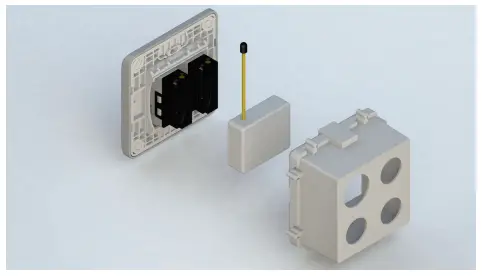
- Put the in wall switch into a wall box and connect the AC power wire L, N to PAN06 connector L, N.
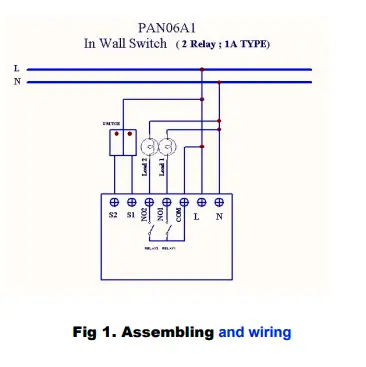
- Connect the wall switch to the PAN06 as Fig1.
- There are 3 mode PAN06 can be configured to match different kind of wall switch, please refer to 3-2 Edge / Pulse / Edge-Toggle mode which described in next section of this user manual
- If Edge-Toggle mode has been set, and the S1 S2 is connect to normal bi-stable switch, every time when change the state of the wall switch will also swap the state of Relay1 or Relay2
Programming
- Basic Command Class / Binary Switch Command Class
The Switch will respond to BASIC and BINARY commands that are part of the Z-Wave system.- BASIC_GET / BINARY_SWITCH_GET
Since the switch have two relay, the Switch will report its On/Off state to the node of Group by setting Configuration parameter 1.
- BASIC_GET / BINARY_SWITCH_GET
- Configuration parameter 1=1(default)
- Report ON either relay 1 ON or relay 2 ON
- Report OFF when both relay 1 and relay 2 OFF
- Configuration parameter 1=2 Report ON when relay 1 ON
- Report OFF when relay 1 OFF
- Configuration parameter 1=3 Report ON when relay 2 ON
- Report OFF when relay 2 OFF
Basic Get Command: [Command Class Basic, Basic Get]
Basic Report Command:
Report OFF: [Command Class Basic, Basic Report, Value = 0(0x00)]
Report ON:[Command Class Basic, Basic Report, Value = 255(0xFF)]
Binary Switch Get Command:[Command Class Switch Binary, Switch Binary Get]
Binary Switch Report Command:
Report OFF:[Command Class Switch Binary, Switch Binary Report, Value =0(0x00)]
Report ON:[Command Class Switch Binary, Switch Binary Report, Value = 255(0xFF)]
BASIC_SET / SWITCH_BINARY_SET
Since the switch has two relays, the load attached to the Switch will turn on or off upon receipt of the following commands from a Z-Wave Controller by setting Configuration parameter 1.
- Configuration parameter 1=1(default) switch ON and OFF both relay 1 and relay 2
- Configuration parameter 1=2 switch ON and OFF of relay 1
- Configuration parameter 1=3 switch ON and OFF of relay 2
| [Command Class Basic, Basic Set, Value = 1~99,255(0xFF)]: the load attached to the Switch turns on. |
| [Command Class Basic, Basic Set, Value = 0(0x00)]: the load attached to the Switch turns off. |
| [Command Class Switch Binary, Switch Binary Set, Value = 1~99,255(0xFF)]: the load attached to the Switch turns on. |
| [Command Class Switch Binary, Switch Binary Set, Value = 0(0x00)]: the load attached to the Switch turns off. |
Z-Wave’s Groups (Association Command Class Version 2)
The Switch can be set to send reports to associated Z-Wave devices. It supports 3 association groups which every group has one node support. Group1~Group3 support SWITCH_BINARY_REPORT.
- For group 1, the Switch will report ON/OFF status of Relay1 and Relay2
- For group 2, the Switch will report ON/OFF status of Relay1
- For group 3, the Switch will report ON/OFF status of Relay2
Auto report to Grouping 1 ~3(Maximum Node 1)
On/Off Event Report
When “on” or “off” state has been changed (ex. Press S1 S2 or include on/off button), it will send Binary Switch Report to the nodes of Group1~3.
Binary Switch Report
ON:[Command Class Switch Binary, Switch Binary Report, Value =255(0xFF)]
OFF:[Command Class Switch Binary, Switch Binary Report, Value =0(0x00)]
Overload alarm report command
When PAN06 detect the overload, it will send Alarm Report to the correspond Group.
The content of Alarm Report
Alarm report command:[Command Class Alarm, Alarm Report, Alarm Type = 0x08, Alarm Level = 0xFF]
Multi Channel Command Class Version 3
PAN06 also support Muti channel command class(version 3) , which include BINARY_SWITCH_GET, BINARY_SWITCH_SET, BASIC_GET, BASIC_SET You may control or get report from 3 endpoint of PAN06
BINARY_SWITCH_GET,
You may get the ON/OFF state from every endpoint, when endpoint set to 1, PAN06 will reply state of Relay1. If endpoint set to 2, PAN06 will reply state of Relay2. If endpoint set to 3 and PAN06 will reply ON(0xFF) either Relay 1 or Relay2 is ON, report OFF (0x00) when both Relay 1 and Relay2 are OFF. Below is an example show a source endpoint 5 send a Get command to PAN06 endpoint 1
| COMMAND_CLASS_MULTI_CHANNEL |
(this is the endpoint of command owner here we assume endpoint is 5,if the owner doesn’t support multi Channel this value will be 0) (Bit Address =0;Destination End Point range from 1~3)
(Command_Class_Switch_Binary = 0x25)
(Switch_Binary_Get = 0x02) |
| MULTI_CHANNEL_CMD_ENCAP | |
| Source End Point = 0x05 | |
| (Bit Address+Destination End Point = 0x01) | |
| Command Class = 0x25 | |
| Command =0x02 |
Below is the example show PAN06 report to last command
| COMMAND_CLASS_MULTI_CHANNEL |
Since the endpoint is 1 so PAN06 will reply ON(0xFF) either Relay 1 or Relay2 is ON, report OFF (0x00) when both |
| MULTI_CHANNEL_CMD_ENCAP | |
| Source End Point = 0x01 |
| Relay 1 and Relay2 are OFF
(Bit Address =0;Destination End Point)
(Command_Class_Switch_Binary = 0x25) (Switch_Binary_Report = 0x03) (ON=0xFF , OFF=0x00) | |
| (Bit Address+Destination End Point = 0x05) | |
| Command Class = 0x25 | |
| Command =0x03 | |
| Parameter 1 = 0xFF |
BINARY_SWITCH_SET
By using BINARY_SWITCH_SET Command of Multi Channel Command Class Encapsulation Command, you can switch Relay1 ON/OFF by setting endpoint to 1 or switch Relay2 ON/OFF by setting endpoint to 2 or switch both Relay1 and Relay2 ON/OFF by setting endpoint to 3. The example of the command show that switch off relay1 of PAN06
| COMMAND_CLASS_MULTI_CHANNEL |
(this is the endpoint of command owner here we assume endpoint is 1,if the owner doesn’t support multi Channel this value will be 0) (Bit Address =0;Destination End Point range1~3) |
| MULTI_CHANNEL_CMD_ENCAP | |
| Source End Point = 0x01 | |
| (Bit Address+Destination End Point = 0x02) |
| Command Class = 0x25 | (Command_Class_Switch_Binary = 0x25)
(Switch_Binary_Set = 0x01) |
| Command =0x01 | |
| Parameter 1 = 0x00 | (ON=0xFF , OFF=0x00) |
Z-Wave’s Configuration
| Configuration Parameter | Function | Size (Byte) | Value | Unit | Default | Description |
| 1 | Slected Relay | 1 | 1-3 | 3 | 1:Relay1 2:Relay2 3:Relay1 & Relay2 | |
| 2 | Edge or | 1 | 1-3 | 1 | 1:Edge mode 2:Pulse mode 3:Edge-Toggle mode | |
| Pulse | ||||||
| mode or | ||||||
| Edge- | ||||||
| Toggle | ||||||
| mode | ||||||
| 3 | Restore | 1 | 0-2 | 1 | 0 : Switch off | |
| switch | 1 : Last switch | |||||
| state mode | state 2 : Switch on |
| 4 | Auto off timer | 2 | 0- 0x7FFF | 1s | 0 | 0 : Disable auto off function 1-0x7FFF : 1s ~ 32767s |
| 5 | RF off command mode | 1 | 0-3 | 0 | 0 : Switch off 1 : Ignore 2 : Switch toggle 3 : Switch on | |
| 6 | Existence of Endpoint3 | 1 | 1-2 | 1 | 1 : Endpoint3 exist 2 : No Endpoint3 | |
| 31 | Select Auto Report Type | 1 | 1-2 | 1 | 1 : Basic type 2 : MultiChannel type |
Selected Relay
If Controller not using Multi_Channel command class to access the relay of PAN06, you may configure the select value to react the Basic Command Class or Binary Switch Command Class.
Selected Relay1 and Relay2: Default select is 3
| Set command | Relay state | |
| Basic Set or Binary_Switch_Set ON | Relay1 ON & Relay2 ON | |
| Basic Set or Binary_Switch_Set OFF | Relay1 OFF & |
| Relay2 OFF |
| Get command | Relay state | Report to command sender |
| Basic_Get or Binary_Switch_Get | Relay1 ON or Relay2 ON | ON |
| Basic_Get or Binary_Switch_Get | Relay1 OFF & Relay2 OFF | OFF |
Selected Endpoint 1
Only relay1 can be controlled and report.
Selected Endpoint 2
Only relay2 can be controlled and report.
Edge / Pulse / Edge-Toggle mode
External switch S1 and S2 can set to Edge mode or Pulse mode or Edge-Toggle mode, default value is Edge mode.
Edge mode:
this mode is suitable for the bi-stable wall switch that has indicator point on the switch, and the same position correspond to same state of relay1 and relay2. if the PAN06 relay change the state because of receiving Z-Wave RF command, it may need two times of change (switch on to off or switch off to on) to let relay back to the correspond state.
Pulse mode:
this mode is suitable for the toggle type wall switch to swap the state of Relay1 or Relay2
Edge-Toggle mode:
this mode is suitable for the normal bi-stable switch, every time when change the state of the wall switch will also swap the state of Relay1 or Relay2 3-3 Restore switch state mode
Whenever the AC power return from lost, PAN06 will restore the switch state which could be SWITCH OFF、LAST SWITCH STATE、SWITCH ON. The default setting is LAST SWITCH STATE.
Auto off timer:
Whenever PAN06 switches to on, the auto off timer begin to count down. After the timer decrease to zero, it will switch to off automatically. However if Auto off timer
is set as 0, the auto off function will be disabled. The default setting is 0.
RF off command mode
Whenever a switch off command, BASIC_SET 、BINARY_SWITCH_SET 、 SWITCH_ALL_OFF, is received, it could be interpreted as 4 variety of commands. 3-5-1 Switch Off:It switches to OFF state. The default setting is Switch Off.
Ignore:
The switch off command will be ignored.
Switch Toggle:
It switches to the inverse of current state.
Switch On:
It switches to ON state.
Existence of Endpoint3:
The endpoint3 of Multi-Channel Command Class is related to relay1 and relay2. It may be redundant for the need to control relay1 or relay2 individually. When the Existence of Endpoint3 is set as 0, the endpoint3 of Multi-Channel Command Class will be disabled. The default value is 1.
Note :
When PAN06 is excluded from the network, its node id and all the association node id will be clear. However, the configuration setting values will still remain. The user can carry out Reset function to set to default value.
Select Auto Report type
Basic type :
PAN06 will send Switch_Binary_Report to the associated group node.
Multi Channel type :
PAN06 will send Switch_Binary_Report which are encapsulated by the Multi_Channel_Cmd_Encap to the associated group node.
Protection Command Classes
PAN06 supports Protection Command Class version 2, it can protect the switch against unintentionally control by e.g. a child. And it can also protect the switch from being turned off by setting it in “No RF Control” state.
After being set to “Protection by sequence” state, any intentional pressing of On/Off button or S1/S2 should be hold longer than 1 second, or the switch state will not change.
However, the operation of learn function does not change, because learning will not be protected.
Firmware update over the air (OTA)
PAN06 is based on 500 series SoC and supports Firmware Update Command Class, it can receives the updated firmware image sent by controller via the Z-wave RF me-dia. It is a helpful and convenient way to improve some function if needed.
Command Classes
The Switch supports Command Classes including…
- COMMAND_CLASS_ZWAVEPLUS_INFO
- COMMAND_CLASS_VERSION_V2
- COMMAND_CLASS_MANUFACTURER_SPECIFIC_V2
- COMMAND_CLASS_DEVICE_RESET_LOCALLY
- COMMAND_CLASS_ASSOCIATION_V2
- COMMAND_CLASS_ASSOCIATION_V1
- COMMAND_CLASS_CONFIGURATION
- COMMAND_CLASS_ASSOCIATION_GRP_INFO
- COMMAND_CLASS_POWERLEVEL
- COMMAND_CLASS_SWITCH_BINARY
- COMMAND_CLASS_BASIC
- COMMAND_CLASS_SWITCH_ALL
- COMMAND_CLASS_ALARM
- COMMAND_CLASS_SCENE_ACTIVATION
- COMMAND_CLASS_SCENE_ACTUATOR_CONF
- COMMAND_CLASS_PROTECTION
- COMMAND_CLASS_FIRMWARE_UPDATE_MD_V2
- COMMAND_CLASS_MULTI_CHANNEL_V3
- COMMAND_CLASS_CONFIGURATION
Warning:
- Plug out to disconnect from power supply; Do not plug in line.
- Do not exceed the max rating
Disposal
This marking indicates that this product should not be disposed with other household wastes throughout the EU. To prevent possible harm to the environment or human health from uncontrolled waste disposal, recycle it responsibly to promote the sustainable reuse of material resources. To return your used device, please use the return and collection systems or contact the retailer where the product was purchased. They can take this product for environmental safe recycling.
Philio Technology Corporation
8F., No.653-2, Zhongzheng Rd., Xinzhuang Dist., New Taipei City 24257,Taiwan(R.O.C)
www.philio-tech.com
FCC Interference Statement
This equipment has been tested and found to comply with the limits for a Class B digital device, pursuant to Part 15 of the FCC Rules. These limits are designed to provide reasonable protection against harmful interference in a residential installation. This equipment generates, uses and can radiate radio frequency energy and, if not installed and used in accordance with the instructions, may cause harmful interference to radio communications. However, there is no guarantee that interference will not occur in a particular installation. If this equipment does cause harmful interference to radio or television reception, which can be determined by turning the equipment off and on, the user is encouraged to try to correct the interference by one of the following measures:
- Reorient or relocate the receiving antenna.
- Increase the separation between the equipment and receiver.
- Connect the equipment into an outlet on a circuit different from that to which the receiver is connected.
- Consult the dealer or an experienced radio/TV technician for help.
This device complies with Part 15 of the FCC Rules. Operation is subject to the following two conditions: - This device may not cause harmful interference, and
- This device must accept any interference received, including interference that may cause undesired operation.
FCC Caution:
Any changes or modifications not expressly approved by the party responsible for compliance could void the user’s authority to operate this equipment. This transmitter must not be co-located or operating in conjunction with any other antenna or transmitter.
 philio-tech.com