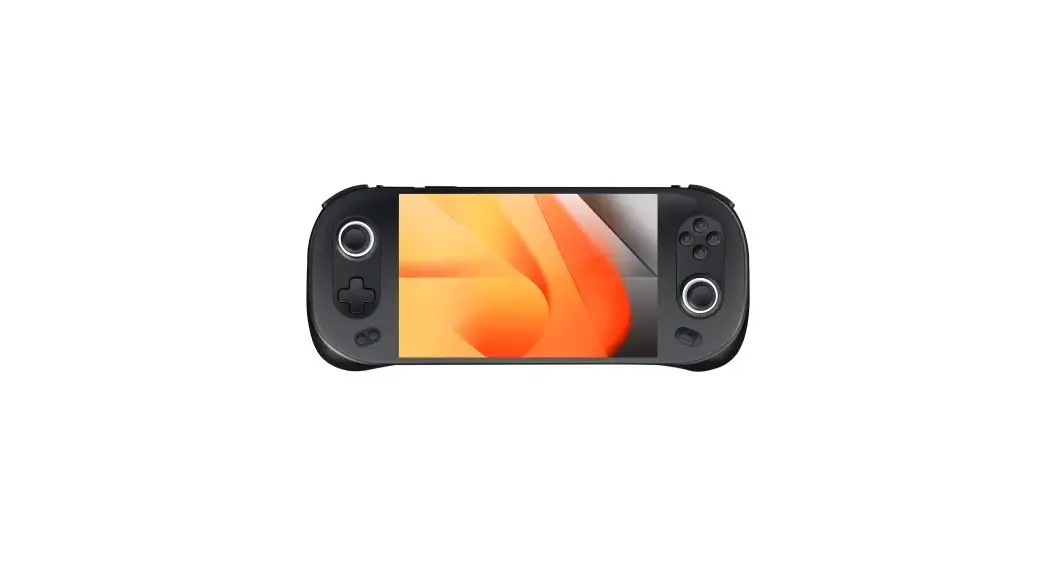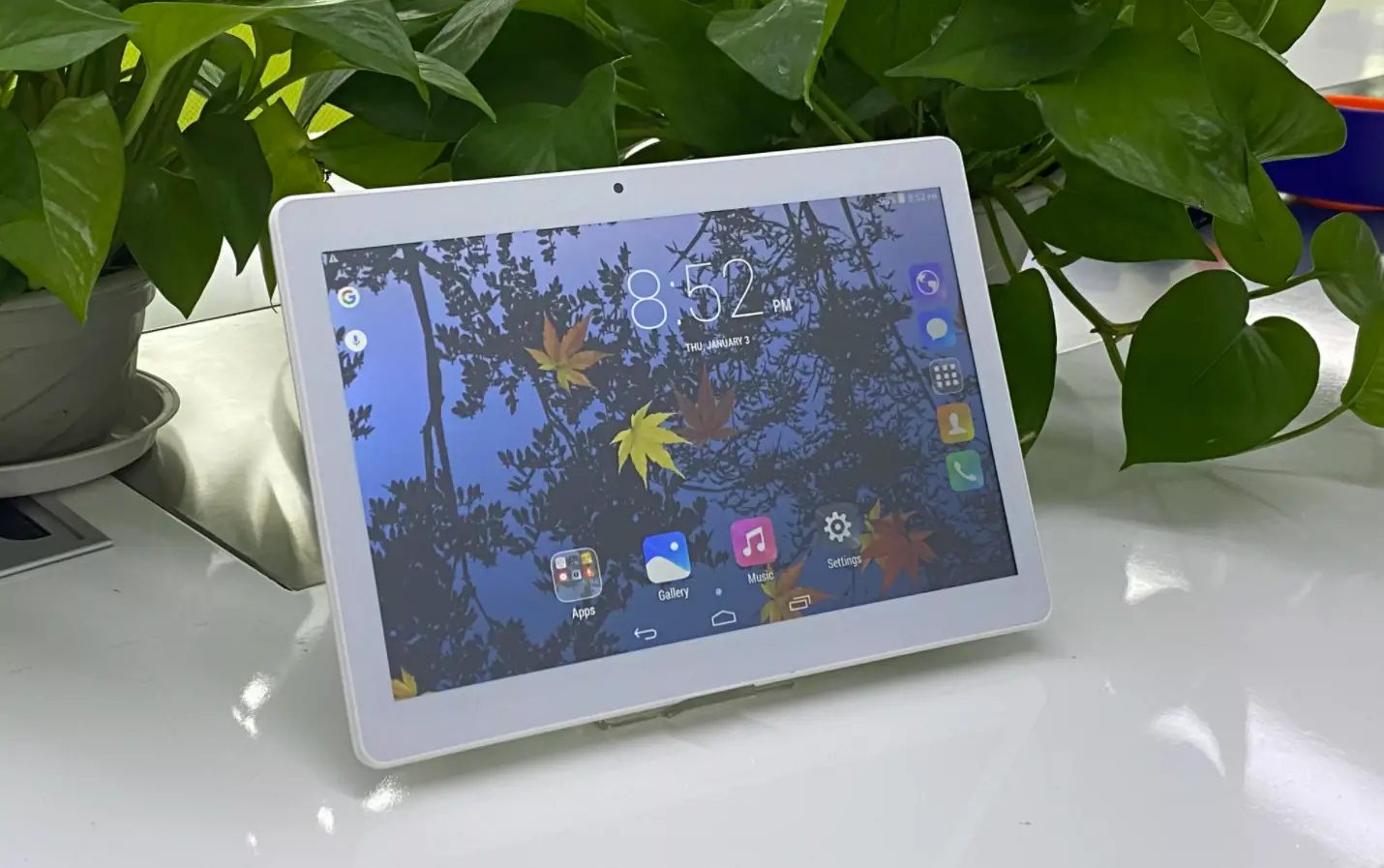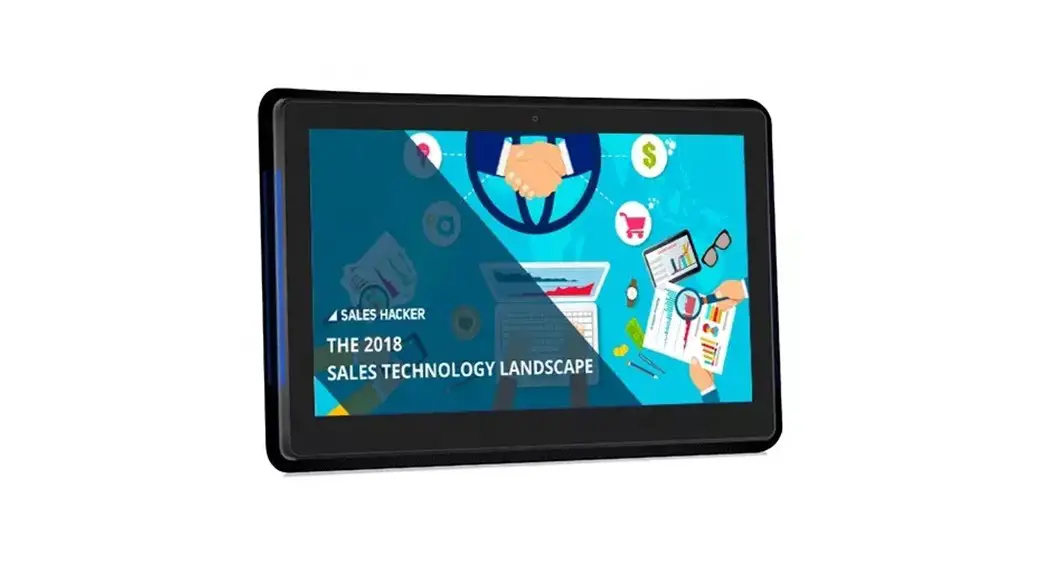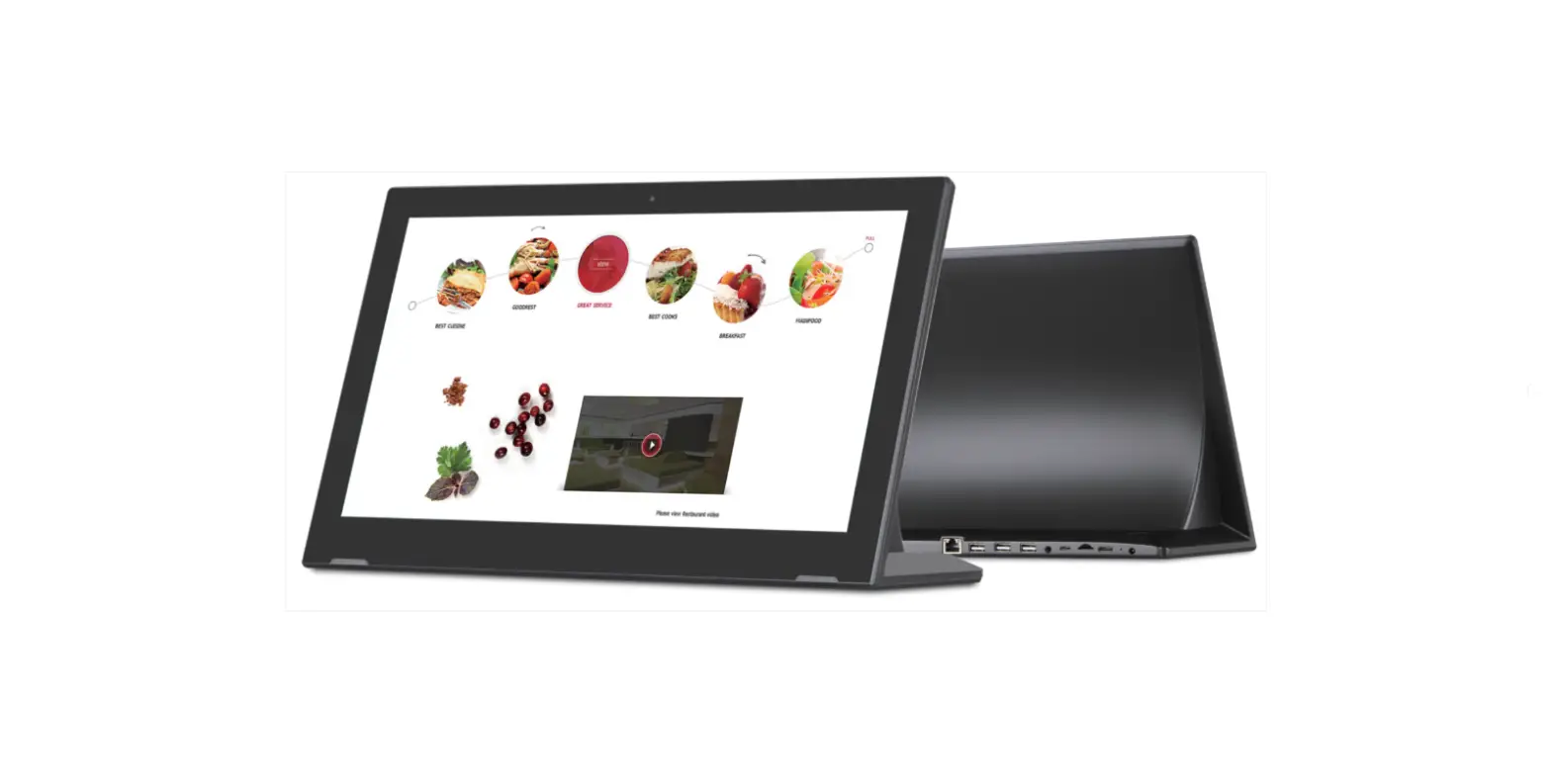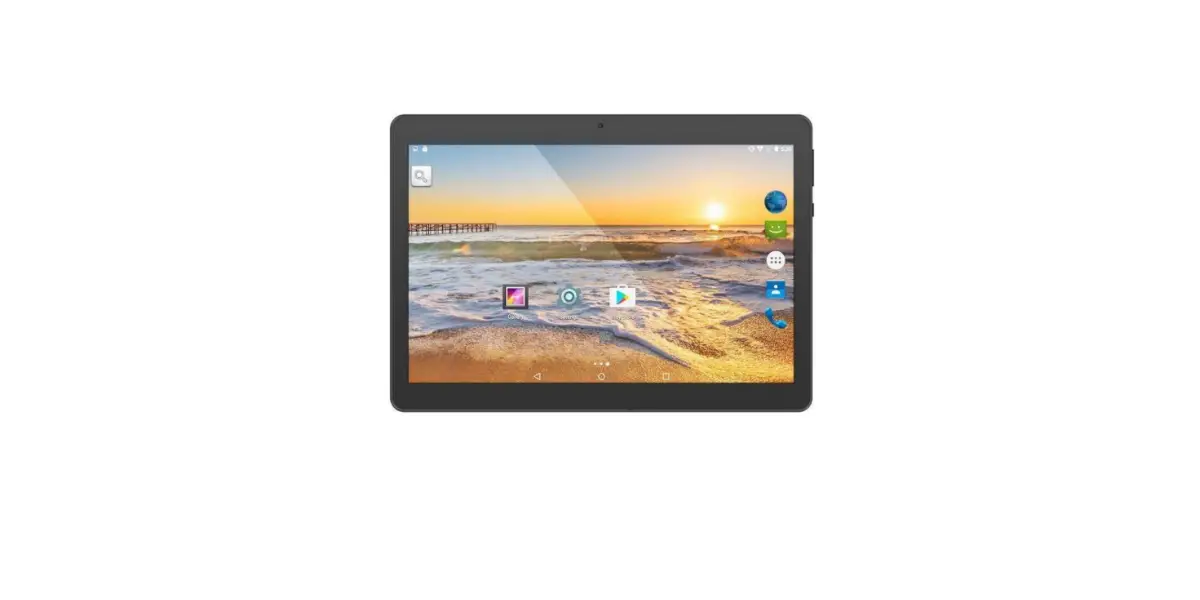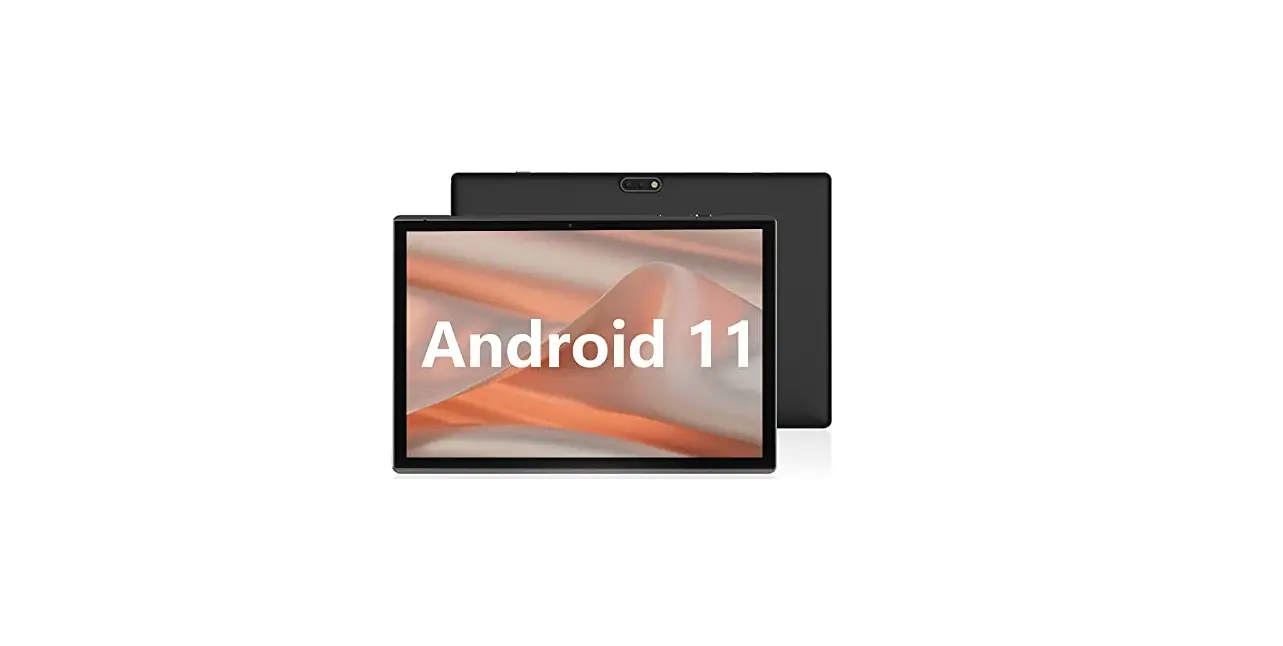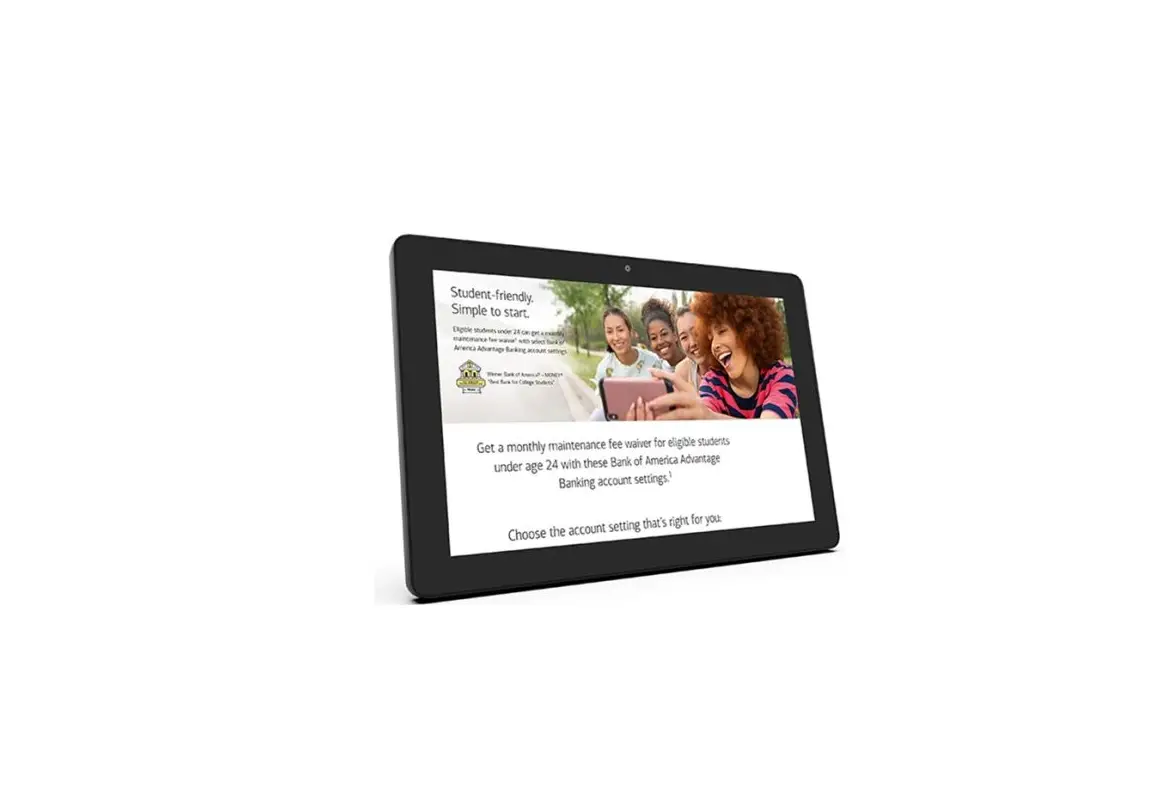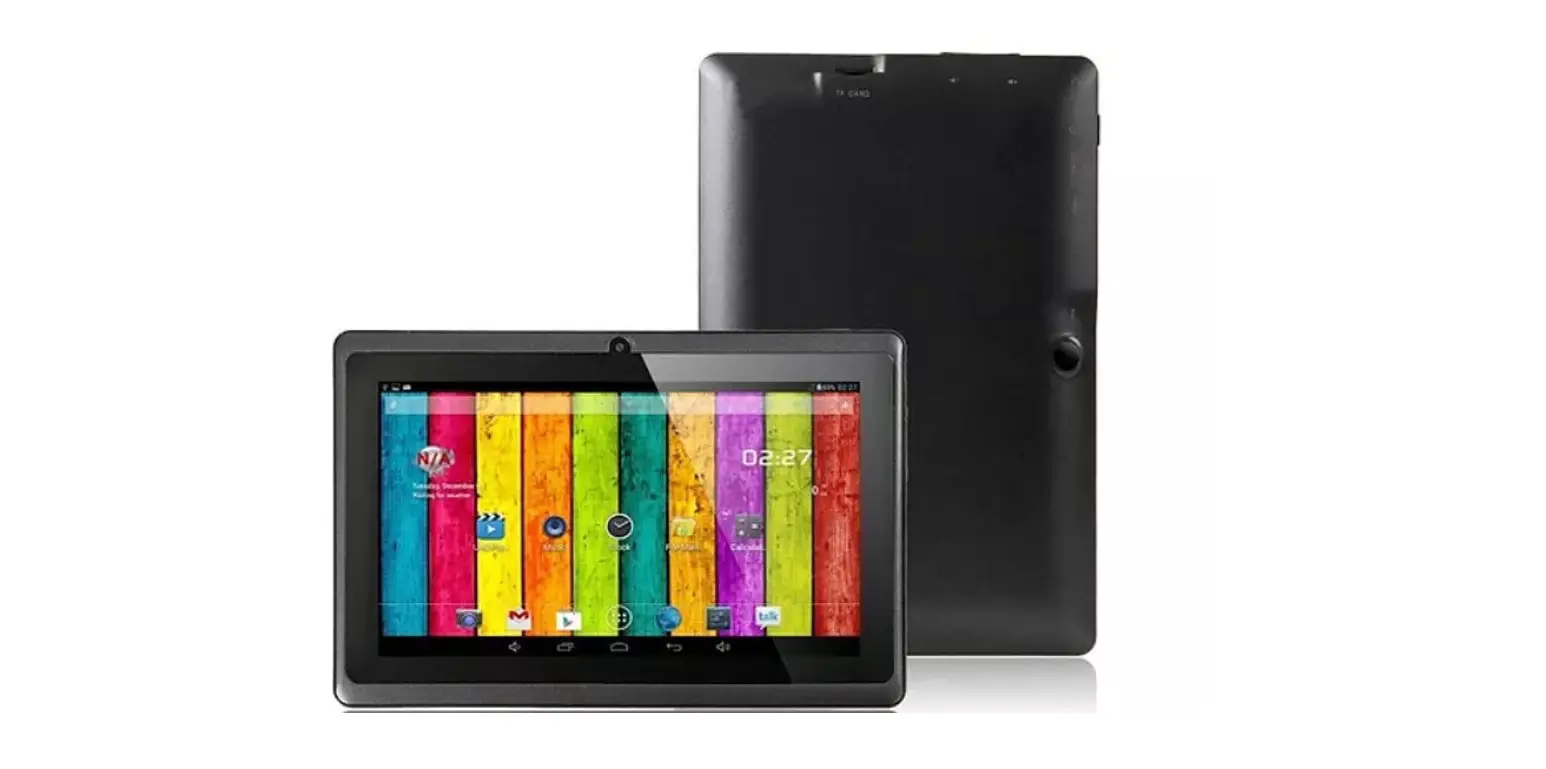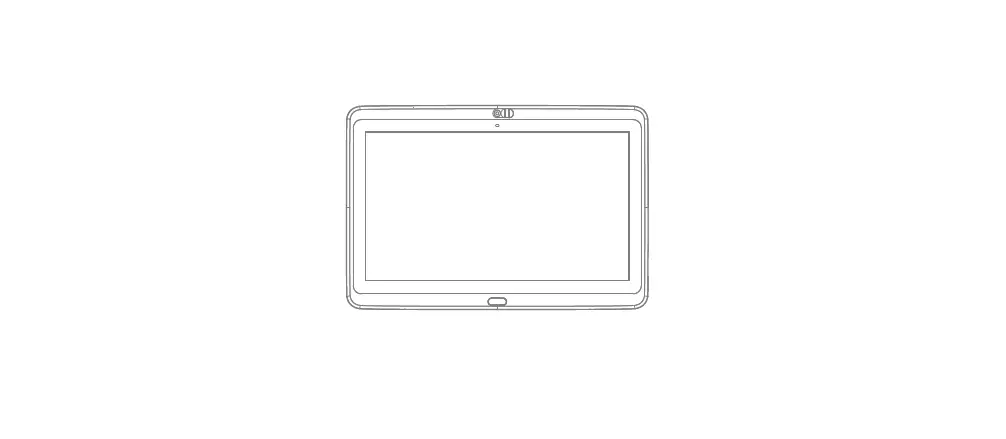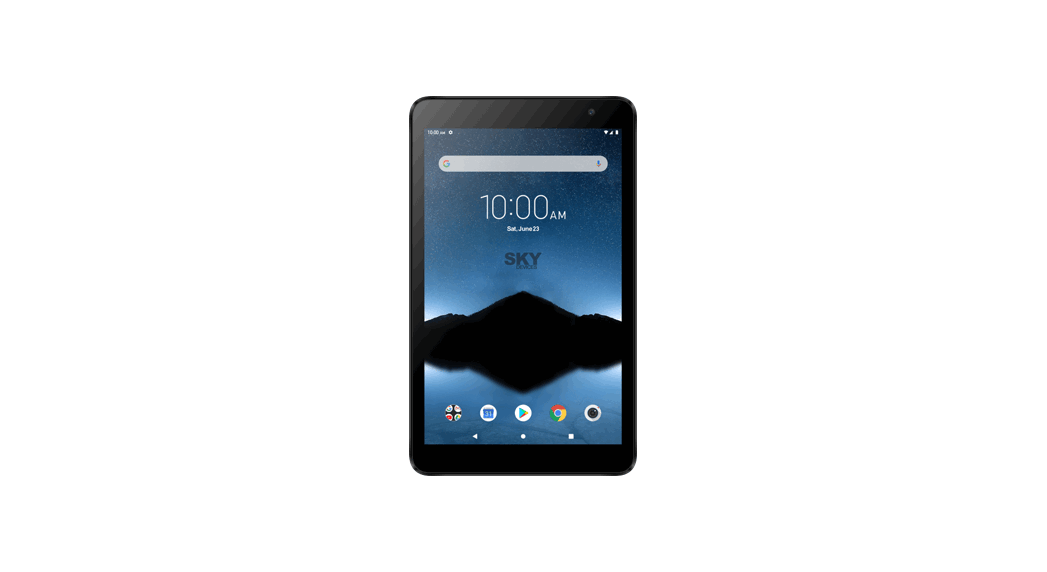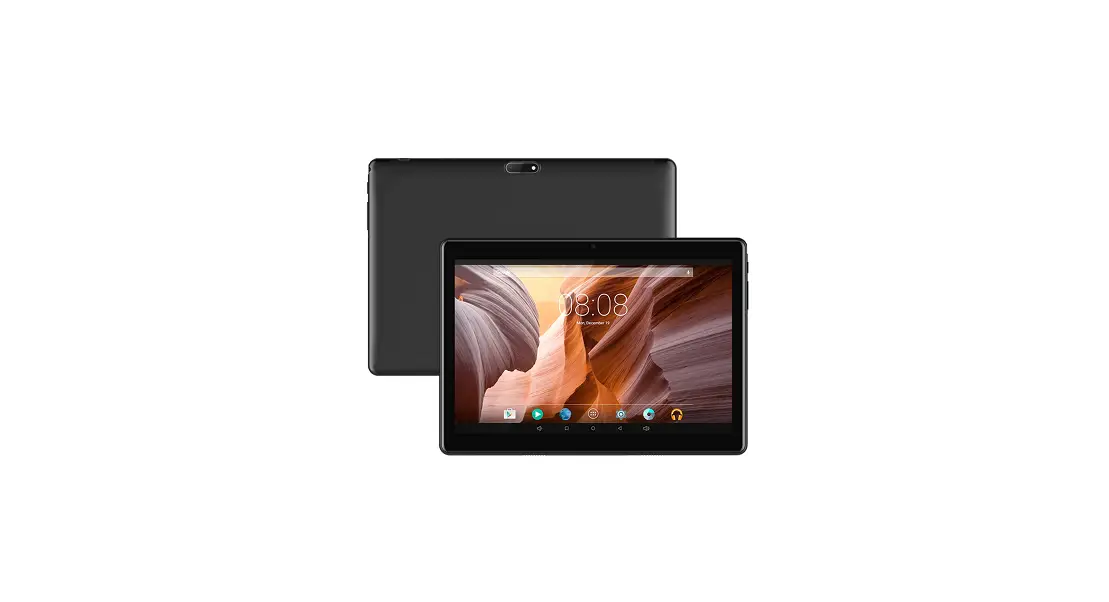
Shenzhen Highest-Heavens 2BBXA Tablet Device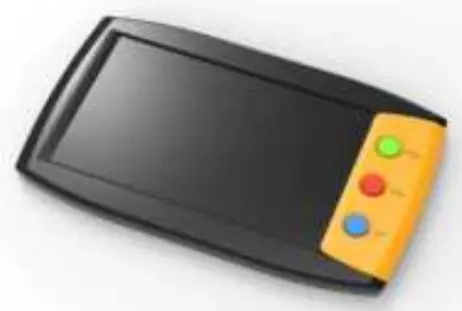
Descriptions
This document is used to introduce Sundial Manufacturing Tablet. Include:
- HW config ;
- Sundial’s button functions ;
- Upgrade firmware for sundial ;
- Install Application for Sundial ;
HW Config
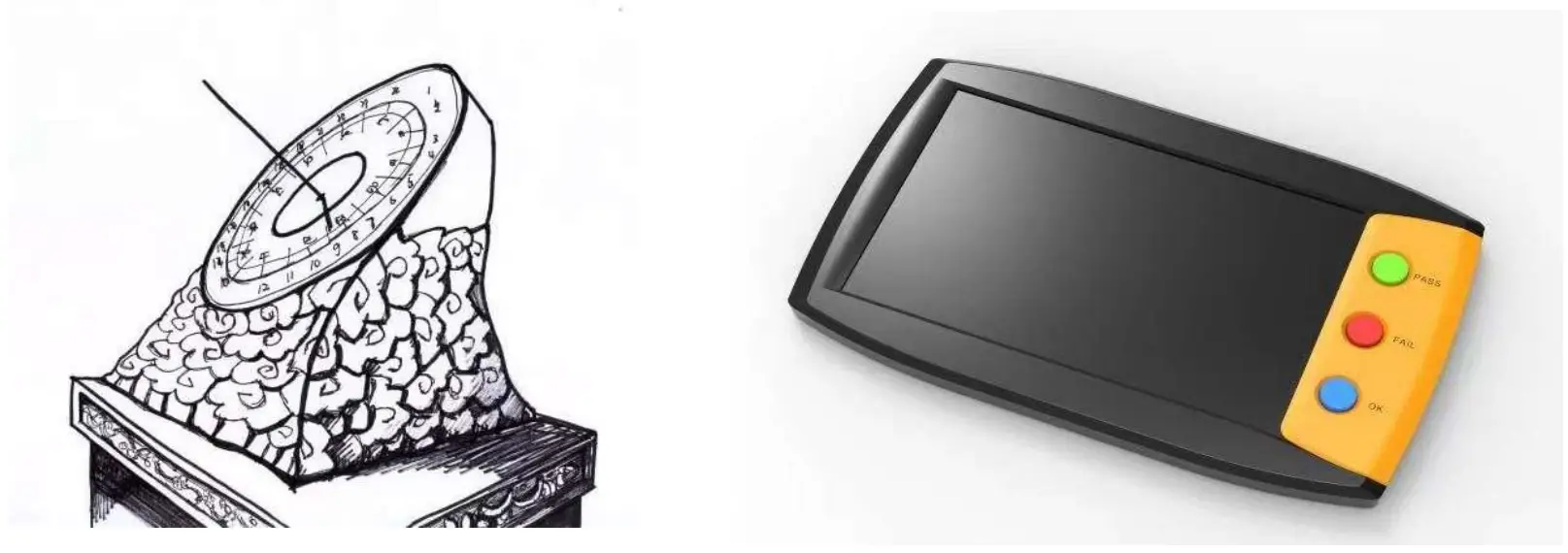
| Component | Information | Details |
| SoC | Rockchip RK3399 | dual-core (ARM v8) 64-bit SoC @ 2GHz , quad- core Cortex-53 (ARM v8) 64-bit SoC @ 1.8GHz |
| OS | Debian | same as Ubuntu |
| BT | BT5.0 | |
| WIFI | 2.4G/5G | |
| PCIE SSD | 256G+ | Optinal post PCBA build |
| EMMC | 64G+ | Optional for PCBA build |
| DDR | 4G+ LPDDR | Optional for PCBA build |
| Audio | Mic + Stero Speaker | On Device |
| Audio Jack | 4 pole 1*3.5mm | Mic , Stero headset |
| Thermal | support | protect MCU |
| Heat Fin | support | Heat conduction strip connect to steel back cover |
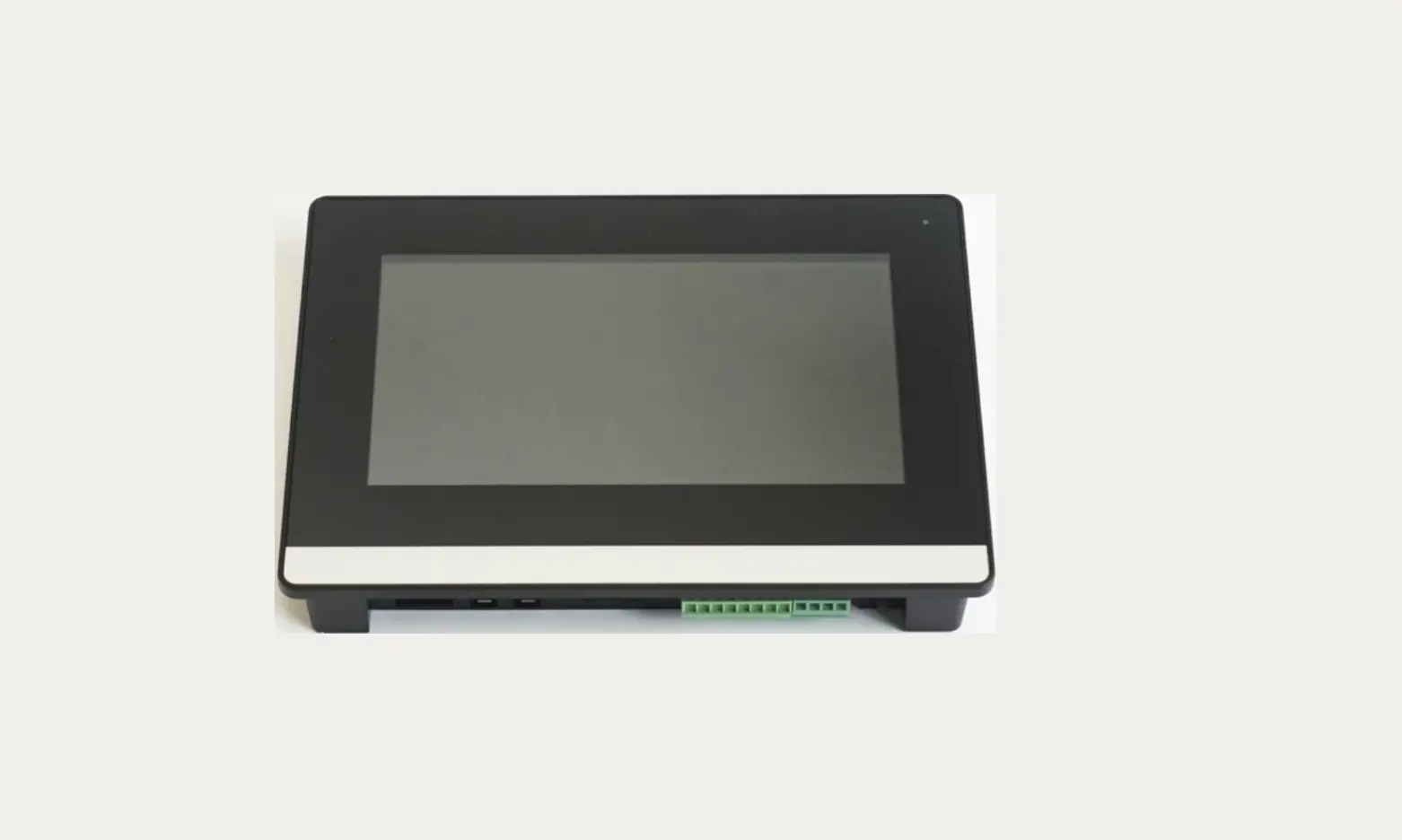
| Display | 7” IPS LCD 1280*800 | Landscape LCD |
| Touch | support | |
| HDMI | HDMI 2.0 | 2K , 60fps |
| Battery | Lion battery, 5000mA | |
| Charger | 30W Fast Charger | PC charger , through Type C |
| USB Host | 4*Blue Type A USB3.0 | CDP(BC1.2 ) support (must connect charger) |
| USB Client | 1*Type C USB2.0 | Charger Support |
| LAN | 1*1000M | |
| Camera | USB Camera | |
| Irda | USB IR accssory | |
| HID | USB keypad and mouse | |
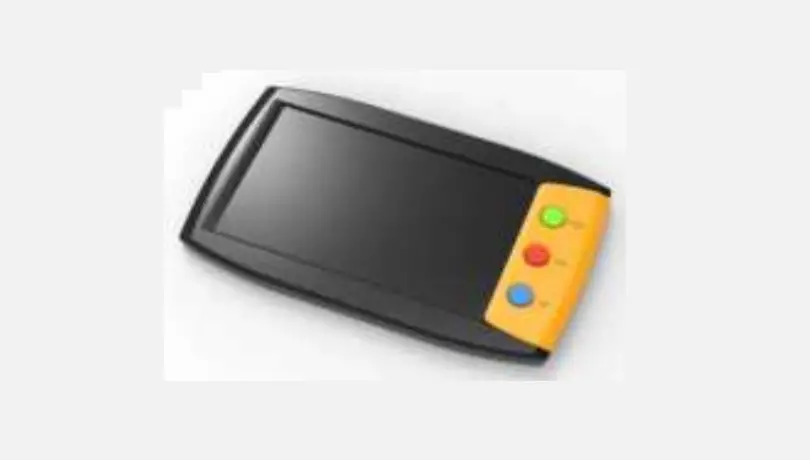
| Buttons | Support | Power, V+/- , Func , Pass , OK , Fail |
| Function | Button Combination | Action |
| On/Off | Power | Hold |
| Force off | Power | Long Hold |
| Screen on | Power | Press |
| Screen off | Power | Press |
| Volume Up | V+ | Press |
| Volume Down | V- | Press |
| Bright Up | Func plus V+ | Hold Func, Press V+ |
| Bright Down | Func plus V- | Hold Func, Press V- |
| Pass | Pass (Green) | |
| Fail | Fail (Red) | |
| OK | OK (Blue) | |
| Select | OK (Blue) | |
| Home | Func plus Pass | Hold Func , Press Pass |
| Return | Func plus Fail | Hold Func , Press Fail |
| Reset | Func plus V+ and OK | Hold Func , Press V+ and OK |
| Download 1 | V- / Fail Plus Power | Hold V-/Fail , Press Power (Cold power on) |
| Download 2 | V- / Fail Plus USB insert | Hold V-/Fail , Insert USB (Cold power on) |
| Download 3 | Func Plus V-/V+ and OK | Hold Func , Press V-/V+/Fail and OK (Warm power on) |
Upgrade FW for Sundial with Windows PC
Windows downloading tool: RKDevTool_Release_v2.84.zip .
Windows Driver: DriverAssitant_v4.91.zip .
Sundial Image : Image V3 .
3 ways to get Sundial enter Download mode
| Number | Key used | Actions in details |
| 1 | V- / Fail Plus Power | Hold V-/Fail , Press Power (Cold power on) |
| 2 | V- / Fail Plus USB insert | Hold V-/Fail , Insert USB (Cold power on) |
| 3 | Func Plus V-/V+ and OK | Hold Func , Press V-/V+/Fail and OK (Warm power on) |
- Please make sure the Sundial is full charged before downloading operation;
- Unplug USB cable and get Sundial enter download mode (3 ways above);
- There is no display in download mode;
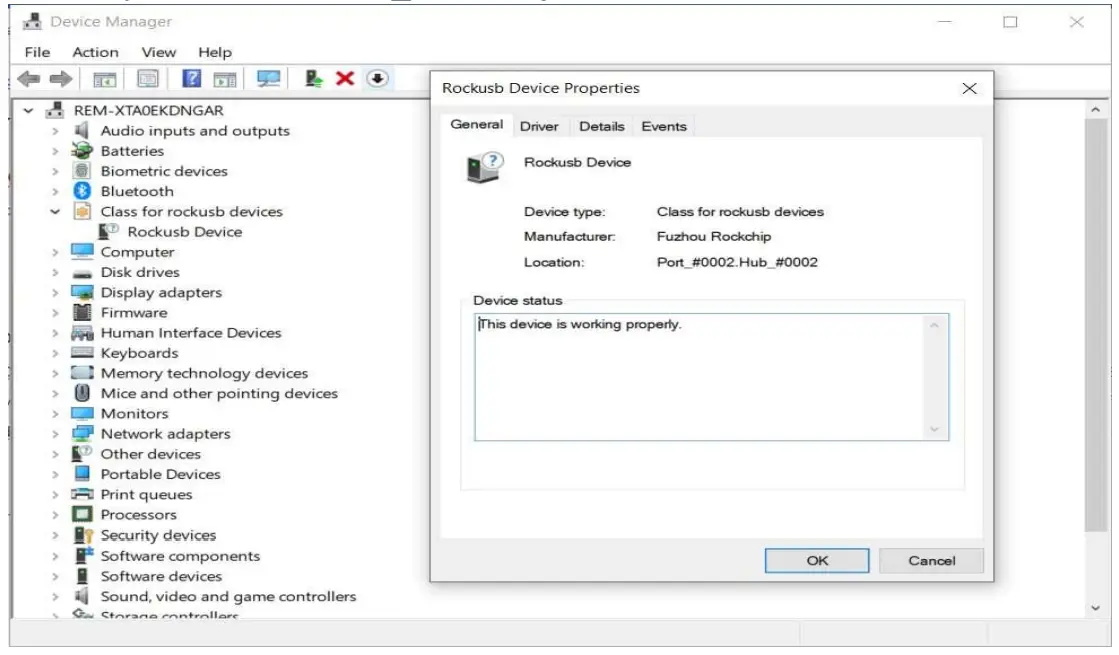
- Insert type-C USB cable and connect with PC , then check Device Manager to see whether a new device be recognized; (Note1)
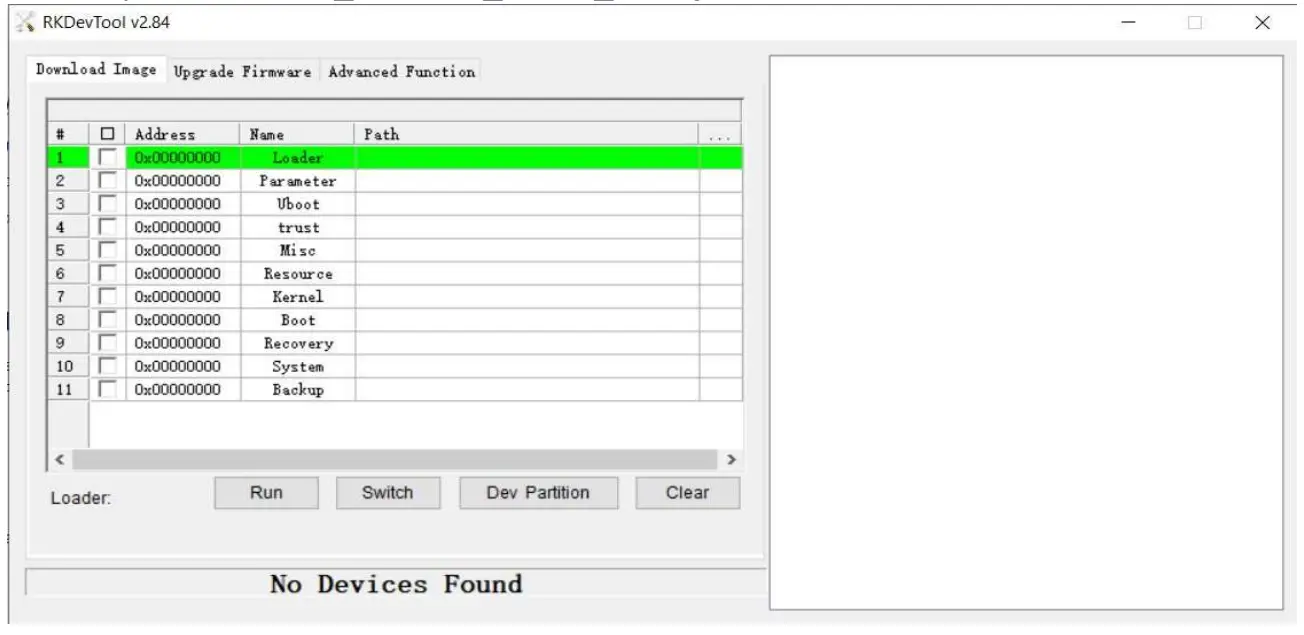
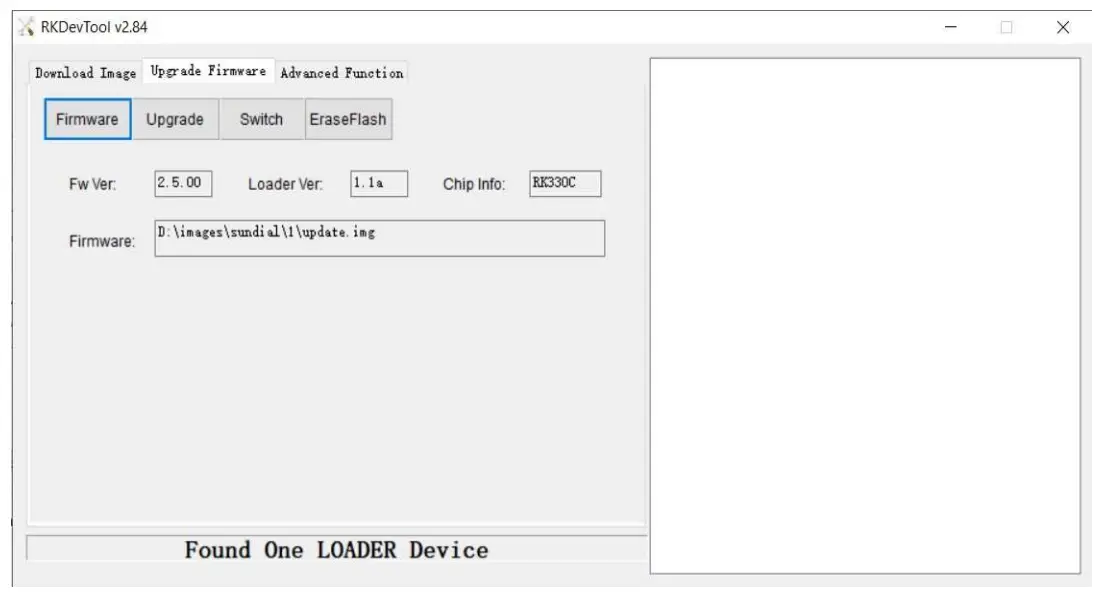
- Unzip RKDevTool_Release_v2.84_en.zip and launch RKDevTool.exe

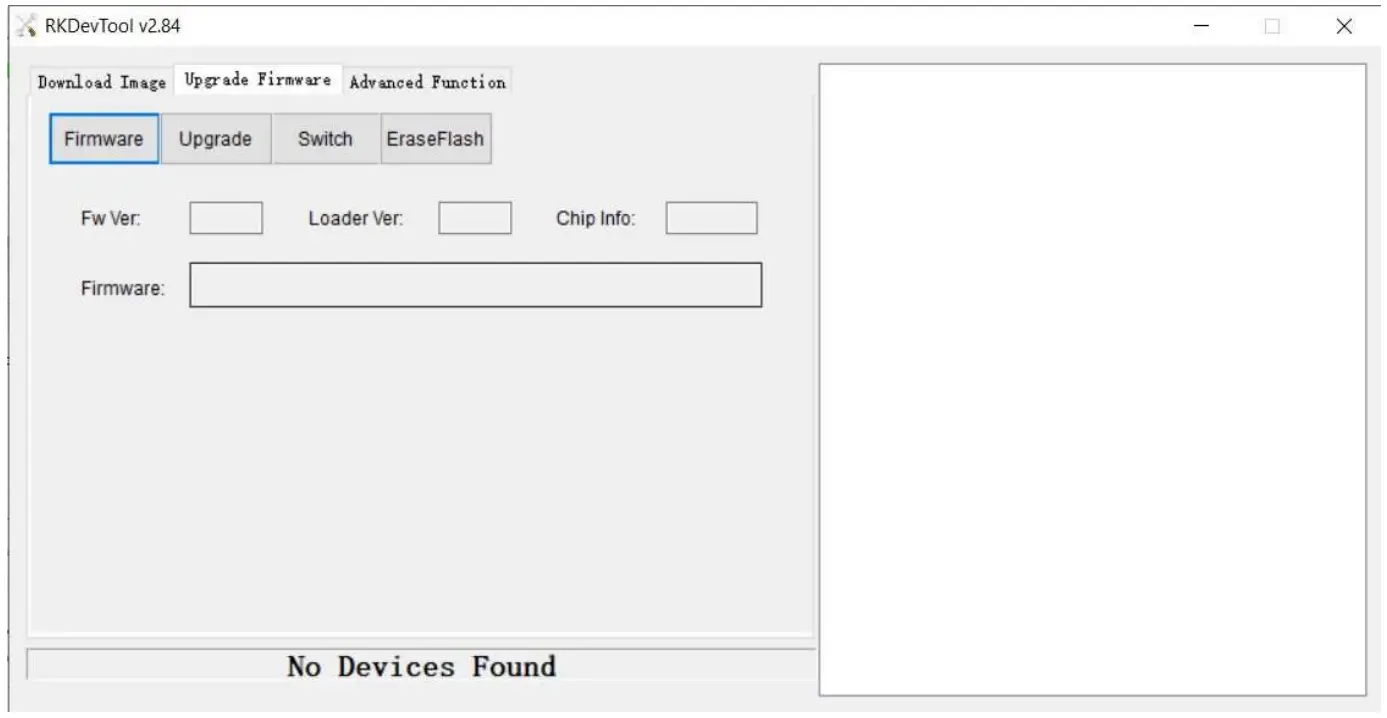
- Click “Upgrade Firmware”, then click “Firmware” and select Sundial-update-v3.img or a newer version;

- Unzip DriverAssitant_v4.91.zip and install driver from device manager.

- RKDevTool will recognize device as “LOADER Device” ;

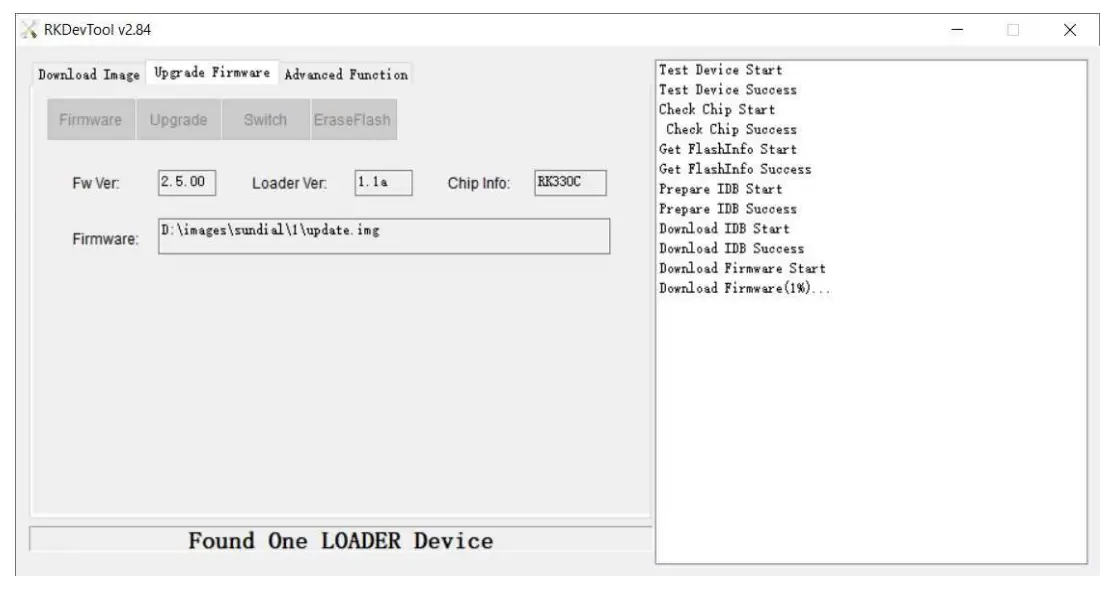
- Click “Upgrade” and download should start;

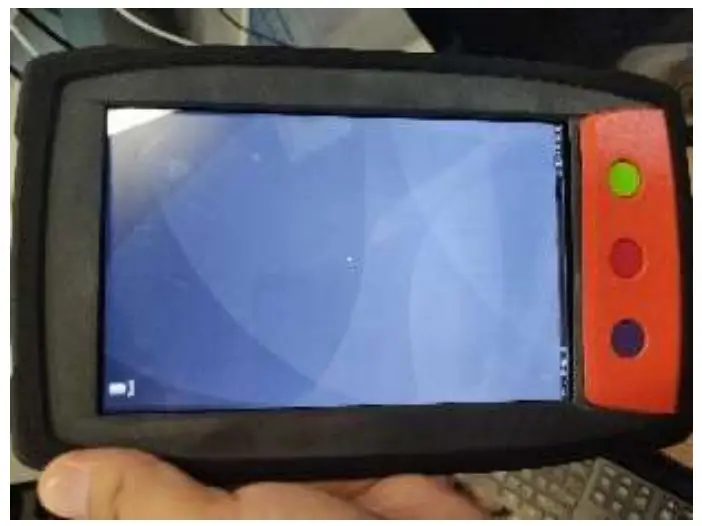
- After download successfully Sundial looks like this (Note2);

Note1:
- If no device be recognized, try to upside down the type-C cable;
- Sometimes Sundial may run into “Android Recovery” mode, just power down, and try again;
Note2:
The screen is not in landscape (vertical screen) after downloading. Need run a script to adjust it to landscape screen;
FCC Statement
Tablet device has been tested and found to comply with the limits for a Class B digital device, pursuant to part 15 of the FCC Rules. These limits are designed to provide reasonable protection against harmful interference in a residential installation. This equipment generates, uses and can radiate radio frequency energy and, if not installed and used in accordance with the instructions, may cause harmful interference to radio communications. However, there is no guarantee that interference will not occur in a particular installation. If this equipment does cause harmful interference to radio or television reception, which can be determined by turning the equipment off and on, the user is encouraged to try to correct the interference by one or more of the following measures:
- Reorient or relocate the receiving antenna.
- Increase the separation between the equipment and receiver.
- Connect the equipment into an outlet on a circuit different from that to which the receiver is connected.
- Consult the dealer or an experienced radio/TV technician for help.
Caution: Any changes or modifications to this device not explicitly approved by manufacturer could void your authority to operate this equipment.
This device complies with part 15 of the FCC Rules. Operation is subject to the following two conditions: This device may not cause harmful interference, and (2) this device must accept any interference received, including interference that may cause undesired operation.
Specific Absorption Rate (SAR) information:
Tablet device meets the government’s requirements for exposure to radio waves. The guidelines are based on standards that were developed by independent scientific organizations through periodic and thorough evaluation of scientific studies. The standards include a substantial safety margin designed to assure the safety of all persons regardless of age or health. FCC RF Exposure Information and Statement the SAR limit of USA (FCC) is 1.6 W/kg averaged over one gram of tissue. Device types: Tablet device has also been tested against this SAR limit.
This device was tested for typical body-worn operations with the back of the Tablet device kept 0mm from the body. To maintain compliance with FCC RF exposure requirements, use accessories that maintain an 0mm separation distance between the user’s body and the back of the Tablet device. The use of belt clips, holsters and similar accessories should not contain metallic components in its assembly. The use of accessories that do not satisfy these requirements may not comply with FCC RF exposure requirements, and should be avoided.