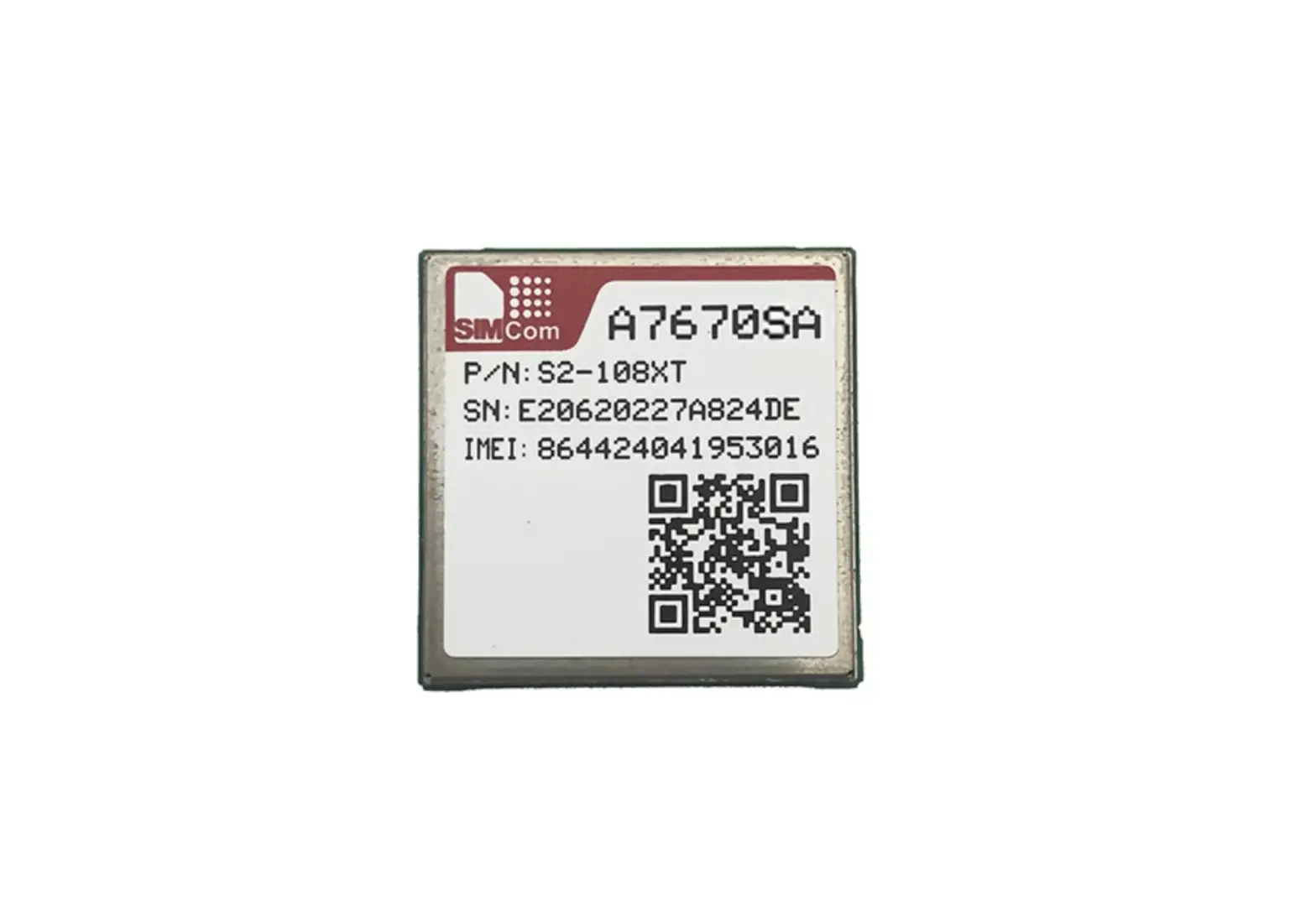
TL4GDUALMULTI Dual Active SIM Module
Product Information
Product: Tieline Dual Active SIM Module TL4GDUALMULTI
SIM Size: Micro Size (3FF)
Carrier 1 – IMEI Number: __________________________
Carrier 2 – IMEI Number: __________________________
Product Usage Instructions
- Ensure that the codec is turned off.
- Insert the SIM cards into the module.
- Insert the module into the ViA device.
- Power up the unit.
- Navigate to Settings > Transport Interfaces > Cellular
> Profiles. - Select a Not Configured profile to configure it for the
cellular carrier. - Populate the profile with the required information provided by
the carriers. - When finished, tap on Enable Radio [Disabled]. Note that this
must be disabled initially to change the APN settings for the
module.
Please note that before setting up the cellular module, you need
to contact your LTE Carrier and request the following:
- The IMEI Number(s) of your modems on the module. To find the
IMEI number, navigate to [Menu] > [About & Firmware] >
[Unit Details] > Cell Module # - The APN information for your new account. You must determine
the APN Name, Protocol Type, Authentication Type. If authentication
is required, you will need the Username and Password.
SIM Card Installation & Activation in the USA
To set up a cellular module call your LTE Carrier and request the following:
Your carrier may request the IMEI Number(s) of your modems on the module. To find the
IMEI number navigate to [Menu] > [About & Firmware] > [Unit Details] > Cell Module #
An APN must always be set for the Request the APN information from your carrier for this
new account. You must determine the: APN Name Protocol Type Authentication Type If authentication is required you will need the Username and Password
Tieline Dual Active SIM Module TL4GDUALMULTI:
SIM Size: Micro Size (3FF)
Carrier 1 – IMEI Number: __________________________ Carrier 2 – IMEI Number: __________________________
1. Ensure the codec is turned off. 2. Insert the SIM cards in the module and then insert the module into the ViA.
3. Power up the unit and navigate to Settings > Transport Interfaces > Cellular > Profiles. 4. Select a “Not Configured” profile to configure it for the cellular carrier. 5. Populate the profile with the required information provided by the carriers. When finished tap
the Save button in the top right-hand corner of the screen. – Name: This can be anything you’d like to reference this carrier – APN: Provided by the carrier. Note: search for the APN for your carrier and region. The APN can differ in various regions of the US. – Protocol: Provided by the carrier. Note: the protocol you configure must be correct. Tieline notes that IPv4 is the protocol often used by Verizon over US networks. – Authentication Mode: Provided by the Carrier – If Authentication Mode is enabled: – – Username: Provided by the Carrier – – Password: Provided by the Carrier 6. Once the APN is configured, tap the Back Arrow in the top left-hand corner of the screen (or press the Home button and navigate to Settings > Transport Interfaces > Cellular > Cellular Module: then select the Cellular Module for which you are configuring the SIM card. 7. Configure the following settings:
a. Enable Radio [Disabled]: this must be disabled initially to change the APN settings for the module.
b. Enable data [Enabled] c. Overwrite APN [Enabled] d. Insert the SIM PIN if provided by the Carrier, or the account administrator. 8. Once you have enabled Overwrite APN a new APN Profile appears. Select the Profile created in step 4. 9. Once the Profile has been selected, tap Save in the top right-hand corner. 10. Navigate back to Settings > Transport Interfaces > Cellular > Cellular Module > Enable Radio and tap the button to turn this setting ON. 11. Press the Power button and select the Reboot option. 12. After rebooting, navigate to Settings > Transport Interfaces > Cellular to observe the status of the Cellular Modules. Cellular Module 1 or 2 will change its status to Connected when it connects to the network.