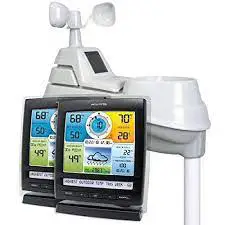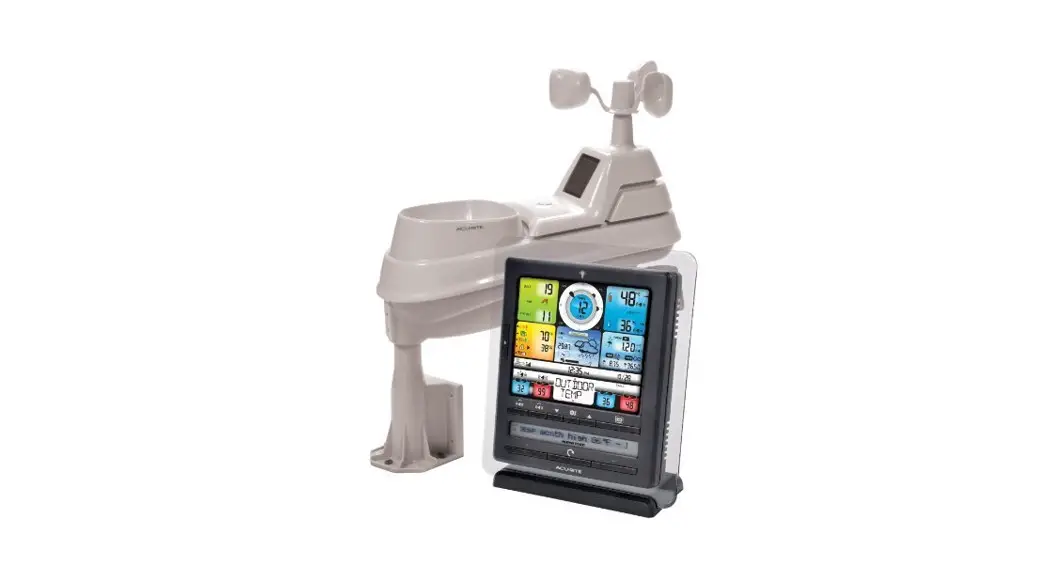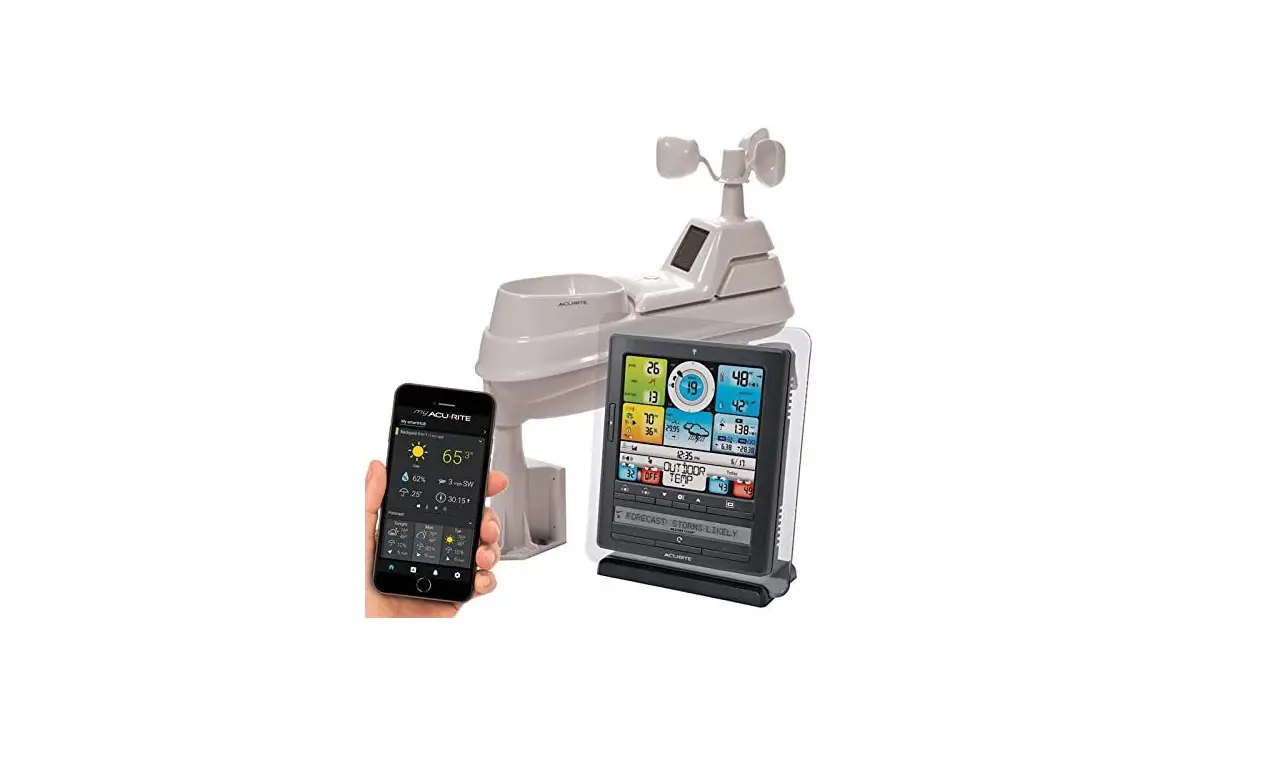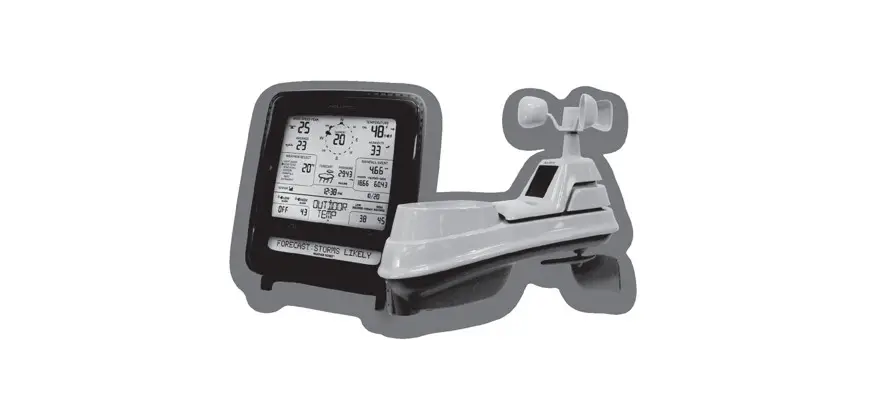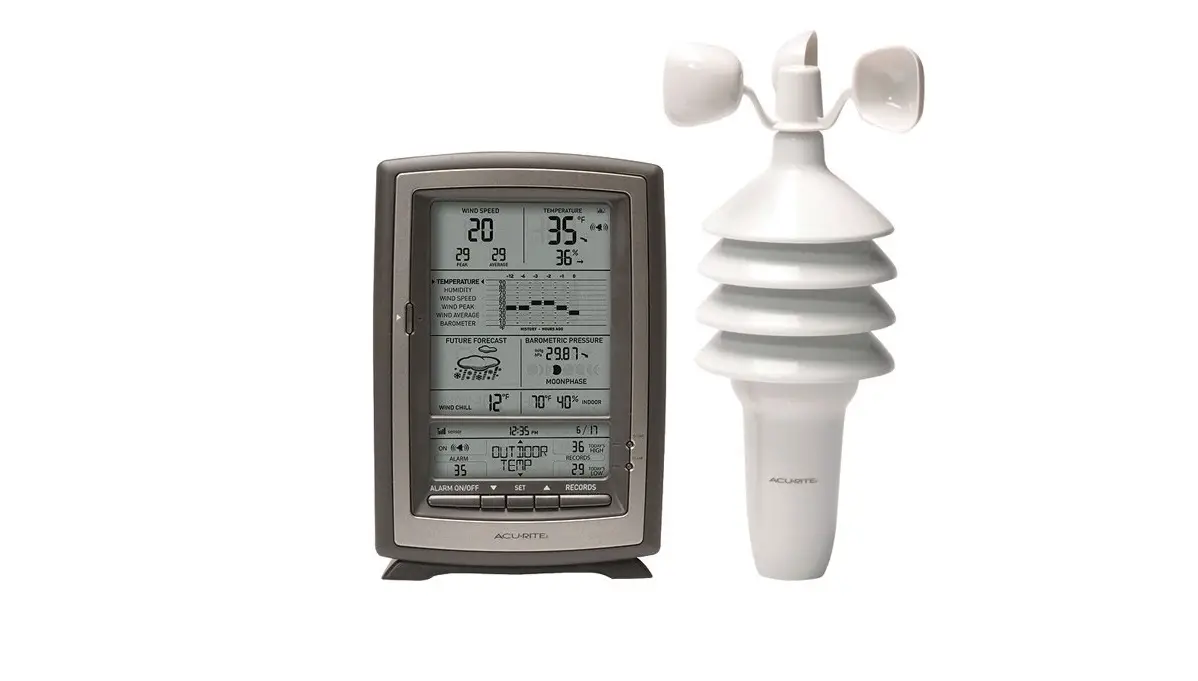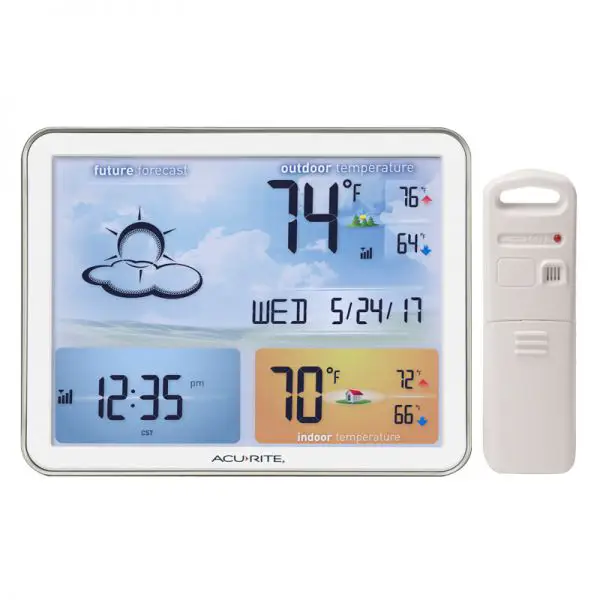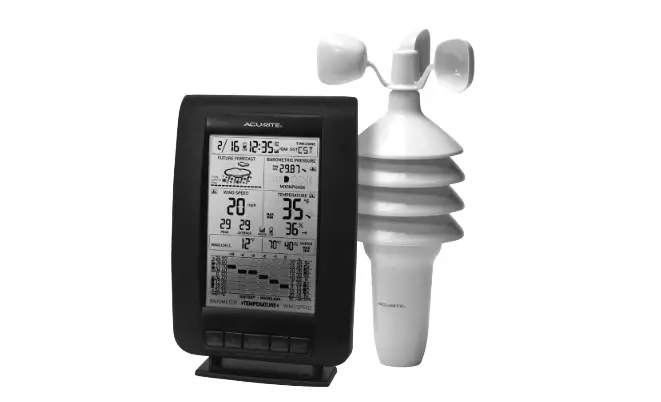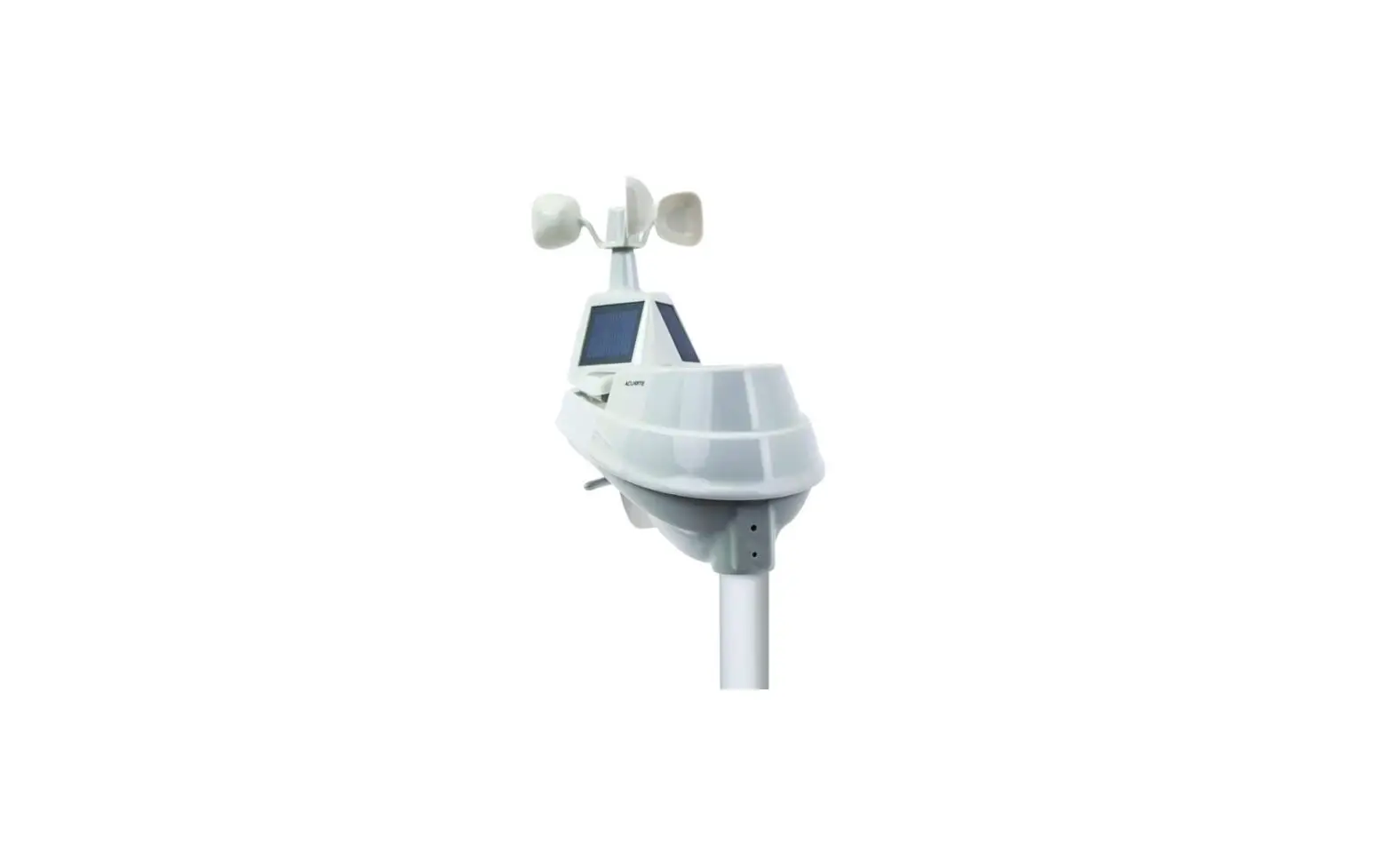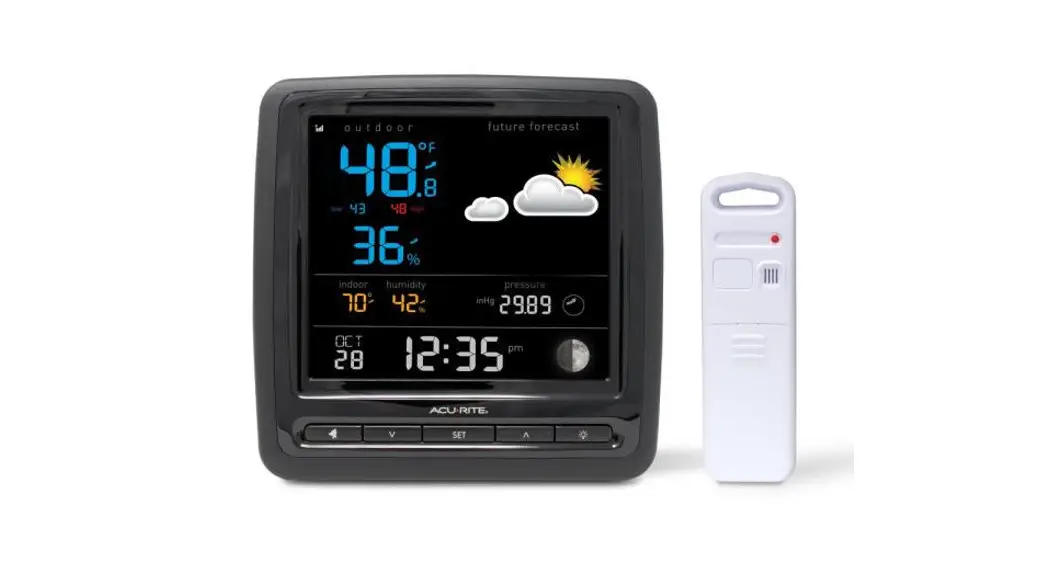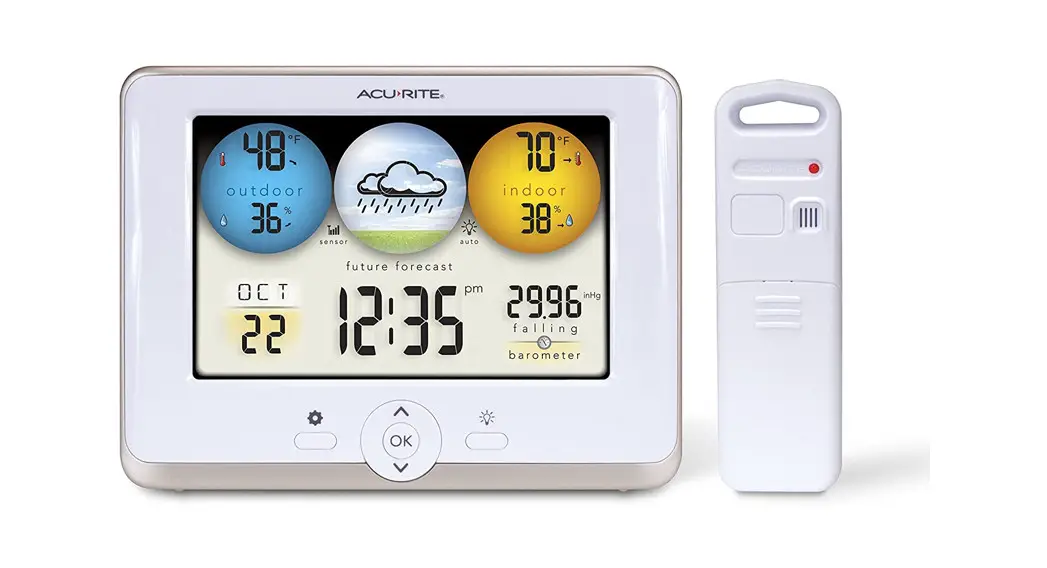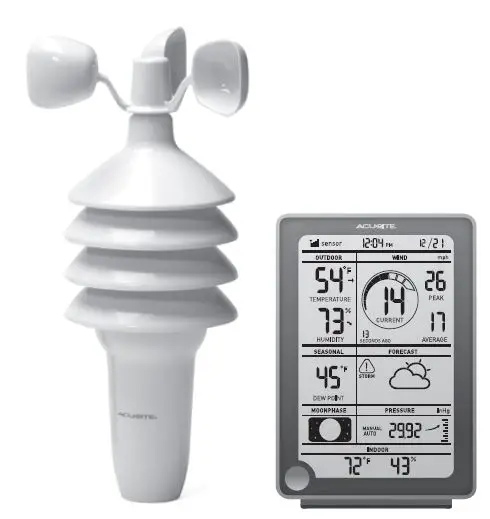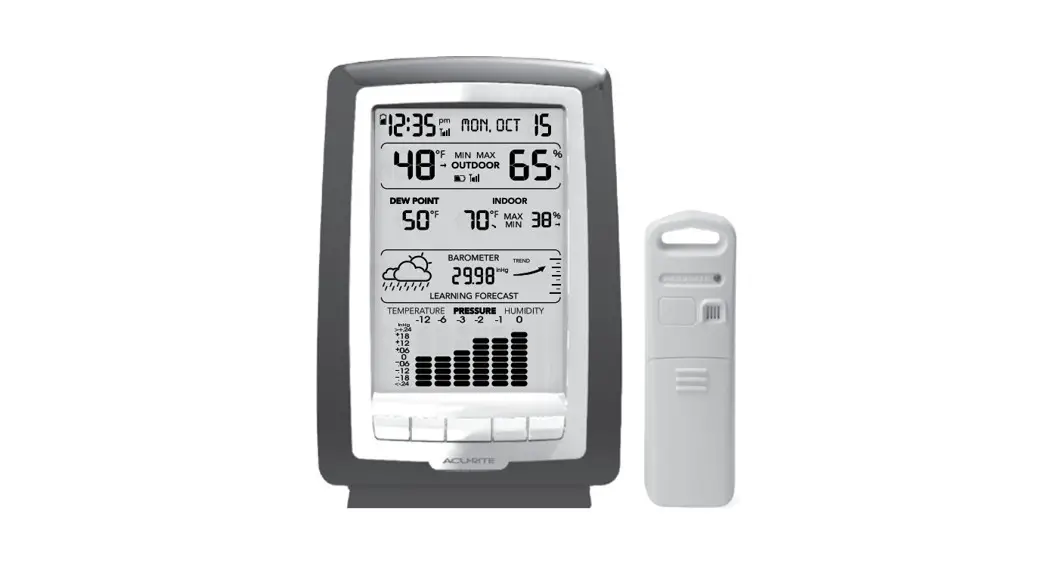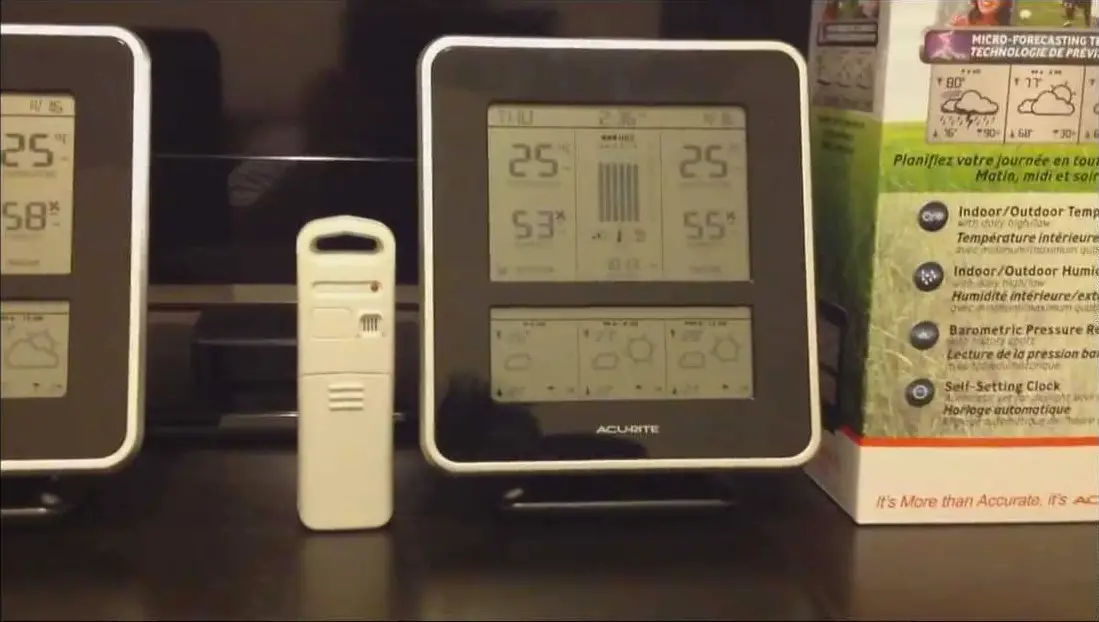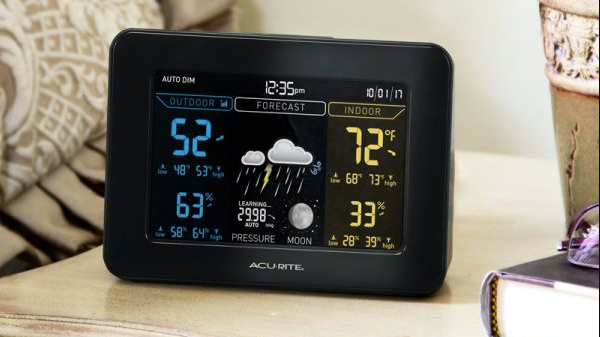
 AcuRite 01512 Iris Professional Weather Center
 AcuRite 01512 Iris Professional Weather Center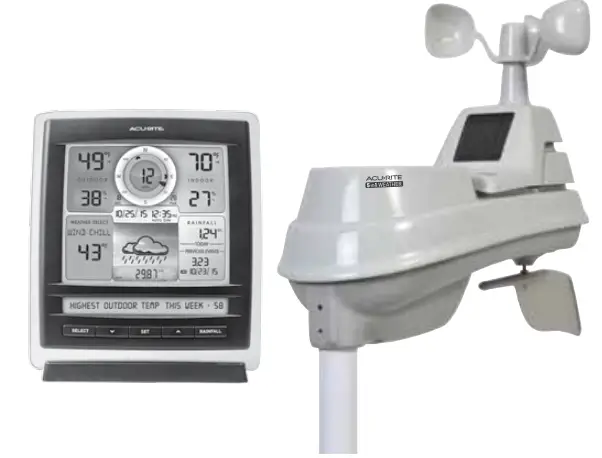
Congratulations on your new AcuRite product. To ensure the best possible product performance, please read this manual in its entirety and retain it for future reference.
Unpacking Instructions
Remove the protective film that is applied to the LCD screen prior to using this product. Locate the tab and peel it off to remove it.
Package Contents
- Display with Tabletop Stand
- 5-in-1 Sensor
- Sensor Mounting Bracket
- Mounting Hardware
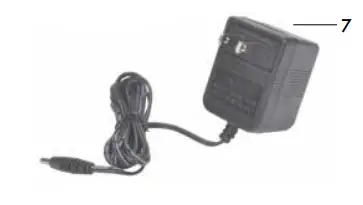
- Power Adapter
- Instruction Manual
IMPORTANT
PRODUCT MUST BE REGISTERED TO RECEIVE WARRANTY SERVICE
PRODUCT REGISTRATION
Register online to receive 1-year warranty protection at www.AcuRite.com
Features & Benefits
- Rainfall Collector Funnel
- Solar Cell Panel
Converts sunlight into power to run internal aspirating fan.
Internal Aspirating Fan (not shown)
Draws ambient air into sensor to reduce solar radiation heating, resulting in more accurate temperature measurement. - A-B-C Switch
ID code that must match display’s A- B-C switch to ensure units synchronize. - Battery Compartment
- Temperature & Humidity Sensors (internal)
- Mounting Point
- Wind Speed Anemometer
- Wind Direction Vane
- Mounting Bracket
- Mounting Hardware includes anchors & screws.
Qty Diameter Length- 5 #4 3/4”
- 1 #4 1/2”
- 1 #6 1/2”
- Debris Filter
Pre-installed to prevent debris from entering the rain gauge.
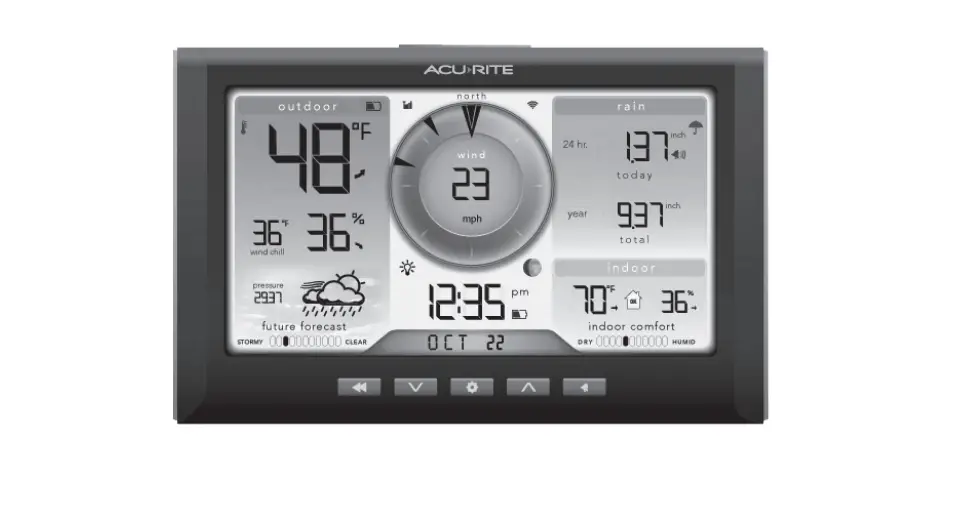
Display Unit
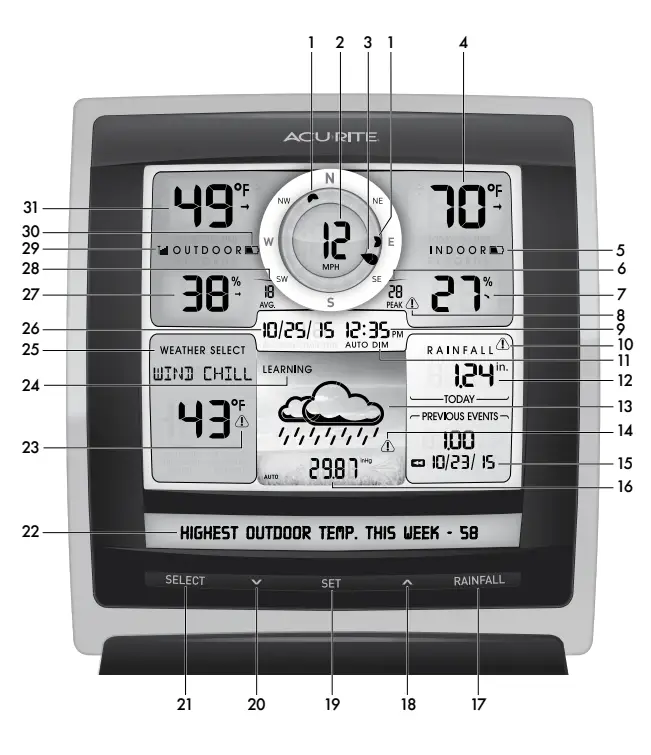
- Previous 2 Wind Directions
- Current Wind Speed
- Current Wind Direction
- Current Indoor Temperature Arrow icon indicates the direction temperature is trending.
- Display Low Battery Indicator
- Peak Wind Speed
Highest speed from the last 60 minutes. - Current Indoor Humidity
The Arrow icon indicates the direction humidity is trending. - Wind Speed Alert Indicator Activates when wind speed is over 50 mph.
- Clock
- Rainfall Alert Indicator Indicates rainfall of more than 1” (25 mm) of rain in 2 hours or less.
- AUTO DIM Indicator
Indicates display is in auto-dimming brightness mode (see page 9). - Current Rainfall Total Accumulates data during rainfall.
- 12 to 24-Hour Weather Forecast Self-Calibrating Forecasting pulls data from your 5-in-1 sensor to generate your personal forecast.
- Storm Alert Indicator
Activates when the barometric pressure drops. - Month/Year/All-Time Rainfall
- Current Barometric Pressure Arrow icon indicates direction pressure is trending.
- RAINFALL Button
Press to change the RAINFALL data being displayed (Month, Year, All-Time). - T Button
For setup preferences. - SET Button
For setup preferences. - V Button
For setup preferences. - SELECT Button
Press to change the WEATHER SELECT category data being displayed. - Weather TickerTM
- Heat Index/ Wind Chill Alert Indicator
Activates when heat index rises over 90ºF (32ºC) or when the wind chill drops below -17ºF (-27ºC). - Learning Mode Icon
Disappears after the weather forecast self-calibration is complete. - WEATHER SELECT
The displays heat index, dew point, wind chill, feels like, days with rain this month, and days since last recorded rainfall. - Date
- Current Outdoor Humidity Arrow icon indicates the direction humidity is trending.
- Average Wind Speed
Average of all speeds over the past 2 minutes. - 5-in-1 Sensor Signal Strength
- Sensor Low Battery Indicator
- Current Outdoor Temperature Arrow icon indicates the direction temperature is trending.
Back of Display Unit

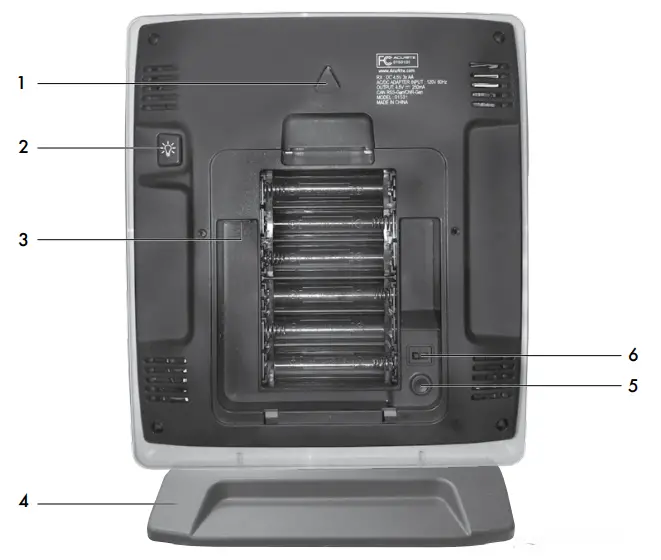
BACK OF DISPLAY UNIT
- Integrated Hang Hole
For easy wall mounting. - Button
Dimmer control while using the power adapter. Activates momentary backlight while on battery power. - Plug-in for Power Adapter
- Removable Tabletop Stand
- CLEAR ALL/RESET Button
Press to clear the record currently being viewed. Press AND HOLD for more than 10 seconds for a full reset to factory defaults. - A-B-C Switch
ID code that must match the 5-in-1 sensor’s A-B-C switch to ensure units synchronize. - Power Adapter
- Battery Compartment Cover (not shown)
SETUP
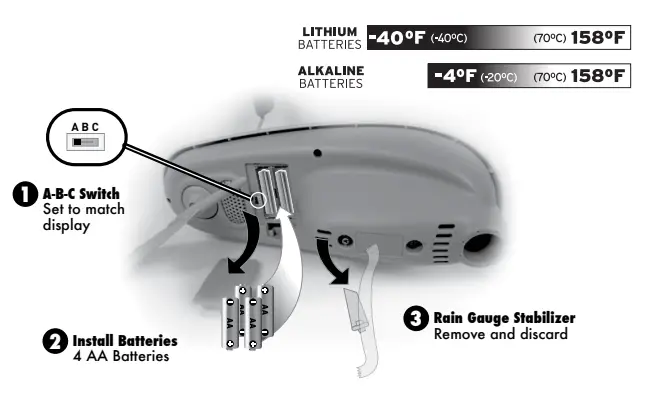
- Set the A-B-C Switch
Locate the A-B-C switch inside the battery compartment. Set the A-B-C switch to A, B or C. You must select the same letter choices for both the sensor and the display in order for the units to synchronize. - Install or Replace Batteries
Batteries MUST be installed for this product to operate. AcuRite recommends high-quality alkaline or lithium batteries for the best product performance. Heavy-duty or rechargeable batteries are not recommended.
The 5-in-1 sensor requires lithium batteries in low-temperature conditions. Cold temperatures can cause alkaline batteries to function improperly. Use lithium batteries in the 5-in-1 sensor for temperatures below -4ºF / -20ºC.- Slide off the battery compartment cover.
- Insert 4 x AA batteries into the battery compartment, as shown. Follow the polarity (+/-) diagram in the battery compartment.
- Replace the battery cover.
- Remove Rain Gauge Stabilizer
Locate and remove the rain gauge stabilizer (plastic tab) taped to the bottom of the sensor. The rain gauge will not function until this is removed.
Display Unit Setup
AcuRite recommends high-quality alkaline batteries for the best product performance. Heavy-duty or rechargeable batteries are not recommended.
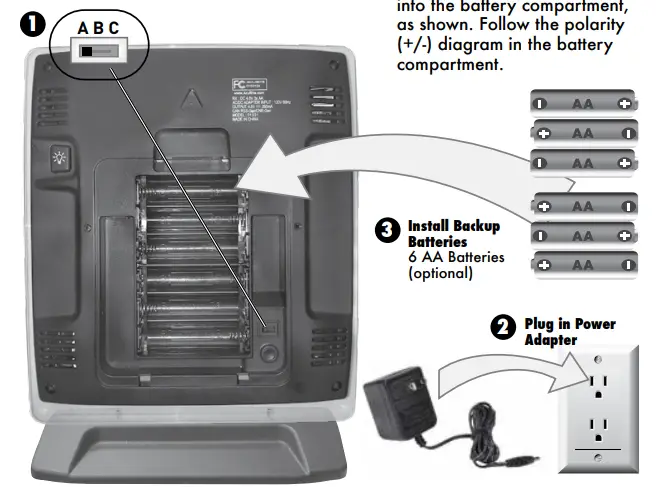
- Set the A-B-C Switch
The A-B-C switch is located inside the battery compartment. It can be set to A, B or C. However, you must select the same letter choices for both the sensor and the display unit in order for the units to synchronize. - Plug Power Adapter into Electrical Outlet
- Install or Replace Batteries (optional)
Insert 6 x AA alkaline batteries into the battery compartment, as shown. Follow the polarity (+/-) diagram in the battery compartment. IMPORTANT: Batteries are a backup power source to preserve records in the event of a power outage. Power adapter is the recommended primary power source to enjoy the full functionality of this product.
 IMPORTANT: Batteries are a backup power source to preserve records in the event of a power outage. Power adapter is the recommended primary power source to enjoy the full functionality of this product.
PLEASE DISPOSE OF OLD OR DEFECTIVE BATTERIES IN AN ENVIRONMENTALLY SAFE WAY AND IN ACCORDANCE WITH YOUR LOCAL LAWS AND REGULATIONS.
BATTERY SAFETY: Clean the battery contacts and also those of the device prior to battery installation. Remove batteries from equipment which is not to be used for an extended period of time. Follow the polarity (+/-) diagram in the battery compartment. Promptly remove dead batteries from the device. Dispose of used batteries properly. Only batteries of the same or equivalent type as recommended are to be used. DO NOT incinerate used batteries. DO NOT dispose of batteries in fire, as batteries may explode or leak. DO NOT mix old and new batteries or types of batteries (alkaline/standard). DO NOT use rechargeable batteries. DO NOT recharge non-rechargeable batteries. DO NOT short-circuit the supply terminals.
Set the Time, Date & Units
Press the “SET” button, located on the front of the display, to enter SET MODE. Once in set mode, the preference you are currently setting will blink on the display.
To adjust the currently selected (flashing) item, press and release the “T“ or “V“ buttons (press and HOLD to fast adjust).
To save your adjustments, press and release the “SET” button again to adjust the next preference. The preference set order is as follows:
- TOP DISPLAY
- CLOCK HOUR
- CLOCK MINUTE
- CALENDAR MONTH
- CALENDAR DATE
- CALENDAR YEAR
- TEMPERATURE UNITS (ºF or ºC)
- WIND SPEED UNITS (MPH, KPH, Knots)
- RAINFALL UNITS (in or mm)
- PRESSURE UNITS (inHg or hPa)
- TICKER DISPLAY
- LANGUAGE (English, French, Spanish)
- WEATHER TICKER SPEED (SLOW, MEDIUM, FAST)
- You will automatically exit SET MODE if no buttons are pressed for 20 seconds. Enter SET MODE at any time by pressing the “SET” button.
Display Backlight Settings
This weather station’s color display features three different lighting settings: High (100%) brightness, Medium (60%) brightness, and Low (30%) brightness.
Using battery power alone, the backlight is available momentarily for 10 seconds by pressing the button.
When the display is powered with the power adapter, the backlight remains on at 100% brightness. Press the button once to dim to 60% brightness; press again to dim to 30%, press a 3rd time to enter “AUTO DIM” mode. “AUTO DIM” will appear below the time.
| AUTO DIM MODE: Automatically adjusts display brightness based on time of day & year. | |
| MARCH 11- NOVEMBER 4 | 6:00 a.m. – 9:00 p.m. = 100% brightness |
| 9:01 p.m. – 5:59 a.m. = 30% brightness | |
| NOVEMBER 5 – MARCH 10 | 7:30 a.m. – 7:00 p.m. = 100% brightness |
| 7:01 p.m. – 7:29 a.m. = 30% brightness | |
Placement for Maximum Accuracy
AcuRite sensors are sensitive to surrounding environmental conditions. Proper placement of both the display and the sensor are critical to the accuracy and performance of this product.
Display Placement
Place the display in a dry area free of dirt and dust. To ensure accurate temperature measurement, place it out of direct sunlight and away from heat sources or vents. The display stands upright for tabletop use or is wall-mountable.
5-in-1 Sensor Placement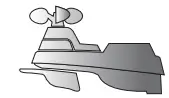
The 5-in-1 sensor is designed to remain outdoors all year long. Choose an open location with no obstructions above or around the sensor for the most accurate measurements.
Important Placement Guidelines
Display and sensor must be within 330 feet (100 m) of each other.
MAXIMIZE WIRELESS RANGE
Place units away from large metallic items, thick walls, metal surfaces, or other objects that may limit wireless communication.
PREVENT WIRELESS INTERFERENCE
Place both units at least 3 feet (.9 m) away from electronic devices (TV, computer, microwave, radio, etc.).
LOCATE AWAY FROM HEAT SOURCES
Position sensor away from heaters, air conditioners, chimneys, exhaust vents, asphalt and concrete (surfaces that radiate heat).
LOCATE AWAY FROM HUMIDITY SOURCES
Avoid installing the sensor near pools, spas, or other bodies of water. Water sources may impact humidity accuracy.
LOCATE AWAY FROM SPRINKLER HEADS
DO NOT install the sensor where it will be sprayed by a sprinkler system. This may force water inside the sensor.
LOCATE AWAY FROM WIND & RAIN OBSTRUCTIONS
DO NOT mount the sensor with obstructions around it.
Consider a location that is a wide open area, with few structures around to ensure accurate wind measurement.
Visit us online to view installation photos and video, or learn more about AcuRite technology: www.AcuRite.com/5in1
5-in-1 Sensor Installation Guidelines
INSTALLATION HEIGHT
Mount the sensor at a minimum height of 5 feet (1.5 meters) off the ground, in an open area. Higher is better for wind measurements – The National Weather Service recommends 33 feet high!
MOUNTING OPTIONS
The included mounting bracket it designed to screw directly onto wooden posts or surfaces that are 2×4 or larger. The sensor can also be mounted directly to a common 3/4” steel pipe (available at hardware stores and home centers).
LEVEL INSTALLATION
Use the bubble level (included on top of the sensor) to ensure level installation for accurate wind measurement.
SOLAR CELL INSTALLATION
Install the sensor with the solar cell facing SOUTH. This ensures the cell receives as much sun as possible and orients wind direction.
5-in-1 Sensor Installation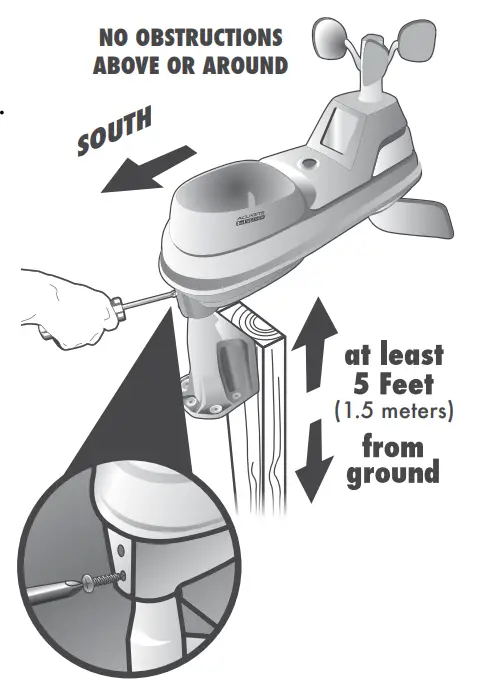
- Fasten mounting base (included) to a post or pole (not included) using the 4 longer screws included in the hardware bag.
- Insert the mounting base into the hole on the bottom of the sensor.
- Make sure the arrows on the top of the sensor are pointed in the proper direction and the bubble level is centered. The solar cell should be facing south to properly orient the wind direction.
- Fasten the sensor into the mounting base using the 2 shorter screws included in the hardware bag.
The 5-in-1 sensor is now ready to use.
Clear Data Collected During Installation
When the installation is complete, press and HOLD the “CLEAR ALL/RESET” button, located on the back of the display inside the battery compartment, to clear erroneous data from the display.
Basic Setup is Complete
The 5-in-1 sensor will now synchronize with the display. It may take a few minutes for synchronization to complete. If both or one of the units appear to be functioning improperly, please refer to the troubleshooting section.
OPERATION
Using the Professional Weather Center
Learning Mode
Self-Calibrating Forecasting use a unique algorithm to analyze changes in pressure over a time period (called Learning Mode) to determine your altitude. After 14 days, the Learning Mode icon disappears from the display screen. At this point, the self-calibrated pressure is tuned in to your location and the unit is ready for superior weather prediction.
Weather Forecast
AcuRite’s patented Self-Calibrating Forecasting provides your personal forecast of weather conditions for the next 12 to 24 hours by collecting data from
the sensor in your backyard. It generates a forecast with pinpoint accuracy – personalized for your exact location.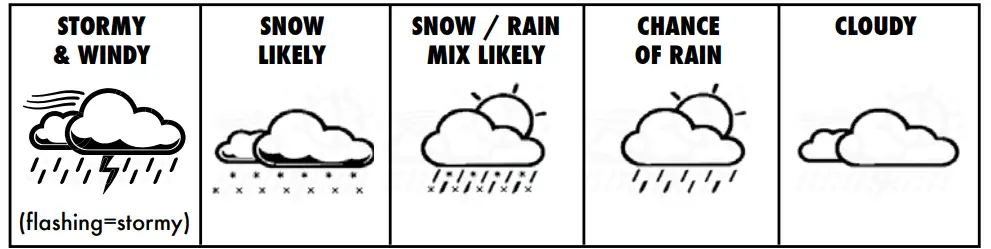
View the complete list of icons at www.AcuRite.com/acurite-icons
Weather Select
Weather Select displays data including wind chill, dew point, heat index, feels like, days with rain this month, and days since last recorded rainfall. To change the “Weather Select” category shown, press the “SELECT” button on the front of the display.
Barometric Pressure
Subtle variations in barometric pressure greatly affect the weather. This weather center displays the current pressure with an arrow icon to indicate the direction the pressure is trending (FALLING, STEADY, or RISING).
Rainfall Tracking
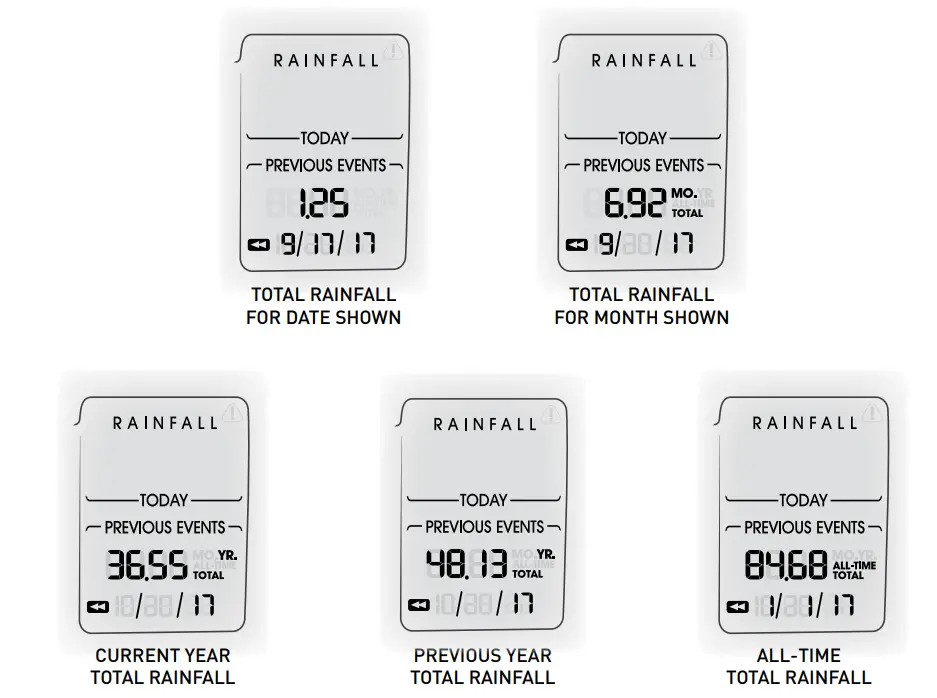
This weather station features enhanced tracking of historical rainfall data. Rain accumulation data is recorded for today, over all-time, by year, by month, and by rainfall event.
Press the “RAINFALL” button to review rainfall records. The icon is shown on the display while historical data is being viewed.
Records are shown in the following order:
- PREVIOUS RAINFALL #1*
- PREVIOUS RAINFALL #2*
- PREVIOUS RAINFALL #3*
- CURRENT MONTH TOTAL RAINFALL
- PREVIOUS MONTH TOTAL RAINFALL
- 2 MONTHS AGO TOTAL RAINFALL
- CURRENT YEAR TOTAL RAINFALL
- PREVIOUS YEAR TOTAL RAINFALL
- ALL-TIME TOTAL RAINFALL (date shown is the start date of the all-time total; the date the display was powered on)

*Previous rainfall is the amount of rain recorded from 12:00 am to 11:59 pm on the date shown.
Weather Ticker™
The Weather Ticker automatically flashes your real-time weather information and alerts as text in the lower part of the display screen.
The possible WEATHER TICKER messages are as follows:
- HEAT INDEX-XX
- WINDCHILL-XX
- DEW POINT-XX
- IT FEELS LIKE XX OUTSIDE
- 7-DAY HIGH TEMP. XX- MM/DD
- 7-DAY LOW TEMP. XX- MM/DD
- 30-DAY HIGH TEMP. XX- MM/DD
- 30-DAY LOW TEMP. XX- MM/DD
- ALL-TIME HIGH TEMP. XXX…RECORDED MM/DD/YY
- ALL-TIME LOW TEMP. XXX…RECORDED MM/DD/YY
- 24-HOUR TEMP. CHANGE +XX
- ALL-TIME HIGH WIND XX MPH…RECORDED MM/DD/YY
- 7-DAY AVERAGE WIND XX MPH
- TODAY’S AVERAGE WIND XX MPH
- MOON- NEW
- MOON- WAXING CRESCENT
- MOON- FIRST QUARTER
- MOON- WAXING GIBBOUS
- MOON- FULL
- MOON- WANING GIBBOUS
- MOON- LAST QUARTER
- MOON- WANING CRESCENT
- INDOOR HUMIDITY OK
- INDOOR HUMIDITY HIGH
- INDOOR HUMIDITY LOW
- NEW LOW TEMP. RECORD XX
- NEW HIGH TEMP. RECORD XX
- NEW WIND RECORD TODAY XX
- CURRENT RAINFALL X.XX/HR.
- RAIN EVENT STARTED XX HRS. AGO
- SENSOR BATTERIES LOW
- DISPLAY BATTERIES LOW
- SENSOR SIGNAL LOST…CHECK BATTERIES AND PLACEMENT CAUTION- HEAT INDEX IS XXX
- CAUTION- WIND CHILL IS XXX
- CALIBRATION
Troubleshooting
| Problem | Possible Solution |
|
No outdoor sensor reception no bars |
• Relocate the display and/or the 5-in-1 sensor. The units must be within 330 ft (100 m) of each other. • Make sure both units are placed at least 3 feet (.9 m) away from electronics that may interfere with the wireless communication (such as TVs, microwaves, computers, etc). • Use standard alkaline batteries (or lithium batteries in sensor when temperature is below -4ºF/-20ºC). Do not use heavy duty or rechargeable batteries. NOTE: It may take a few minutes for display and sensor to synchronize after batteries are replaced. • Synchronize the units: 1. Bring both the sensor and display indoors and remove power adapter/batteries from each. 2. Reinstall batteries in outdoor sensor. 3. Reinstall power adapter/batteries in display. 4. Let the units sit within a couple feet of each other for a few minutes to gain a strong connection. |
|
Outdoor temperature is flashing or showing dashes | Flashing of the outdoor temperature may be an indication of wireless interference.
• Make sure the A-B-C switch in the battery compartments of both the display and sensor are switched to the same letter. You may choose A, B or C; but both units must match to sync up. Sometimes changing to a different channel can help. |
|
Inaccurate forecast |
• Weather Forecast icon predicts conditions for the next 12 to 24 hours, not current conditions. • Has Learning Mode icon disappeared from the display? Learning Mode must complete before forecast and pressure will be accurate. • Allow unit to run continuously for 33 days. Battery removal or resetting the display will restart Learning Mode. After 14 days, the forecast should be fairly accurate, however, Learning Mode calibrates for a total of 33 days. |
| Problem | Possible Solution |
|
Inaccurate temperature or humidity |
• Make sure both the display and 5-in-1 sensor are placed away from any heat sources or vents (see page 10). • Make sure both units are positioned away from moisture sources (see page 10). • Make sure 5-in-1 sensor is mounted at least 5 ft off of the ground. • Calibrate indoor and outdoor temperature and humidity (see page 17). |
|
No rainfall |
• Check to ensure the rain gauge stabilizer (plastic tab) has been removed from the bottom of the sensor (see page 7). • Clear debris, such as leaves, out of the rain collector funnel and debris screen. • Calibrate the Rain Gauge (see page 18). |
|
Inaccurate wind readings |
• What is wind reading being compared to? Pro weather stations are typically mounted at 30 ft high or more. Make sure to compare data using a sensor positioned at the same mounting height. • Check the location of the sensor. Ensure it’s mounted a minimum of 5 ft in the air with no obstructions around it (within several feet). • Ensure wind cups are spinning freely. If they hesitate or stop try lubricating with graphite powder or spray lubricant. |
|
Display screen not working |
• Check that the batteries are installed correctly. Batteries may need to be replaced. • Reset the display by pressing and holding the CLEAR ALL/RESET button, located in the battery compartment of the display. The date and time will need to be entered after a reset. |
If your AcuRite product does not operate properly after trying the troubleshooting steps, visit www.AcuRite.com or call (877) 221-1252 for assistance.
Care & Maintenance
Display Care
Clean with a soft, damp cloth. Do not use caustic cleaners or abrasives. Keep away from dust, dirt and moisture. Clean ventilation ports regularly with a gentle puff of air.
5-in-1 Sensor Care
Clean the Sensor
Clean with a soft damp cloth. Do not use caustic cleaners or abrasives that will mar the polished surfaces of the rain collection funnel or the solar cell. Scratches will result in decreased performance and reliability.
Insect Prevention
Insects may cause obstructions and interrupt data by nesting in or on the 5-in-1 sensor. To limit this problem, spray the sensor with a household insect repellent. Consult the insect repellent instructions prior to use.
Snow & Freezing Weather
The 5-in-1 sensor will not be damaged by freezing conditions. NOTE: If the rain collector cup fills with snow and then melts, it will register as rain on the display.
Clean the Rain Collector Cup
Remove and empty the rain collector debris filter. The debris filter is located in the rain collector funnel. Remove from the top by gently squeezing and pulling out.
Clean the Wind Vane & Anemometer
Remove foreign matter from the outside of the sensor for free movement of the wind vane and anemometer. If needed, use a small amount of spray lubricant, clear silicone or graphite powder on the anemometer for improved movement.
Calibration
The indoor/outdoor temperature and humidity readings, and barometric pressure can be calibrated on the display to improve accuracy. Calibration can improve accuracy when sensor placement or environmental factors impact data accuracy.
- To access calibration mode, press AND HOLD the “T”, “SET”, and “V” buttons simultaneously for at least 5 seconds.
- To adjust the currently selected (flashing) item, press and release the “T“ or “V“ buttons to calibrate the data value higher or lower from the actual reading.
- To save your adjustments, press and release the “SET” button to adjust the next preference. The “ ” icon will remain illuminated next to calibrated values.
The preference set order is as follows:- OUTDOOR TEMPERATURE
- OUTDOOR HUMIDITY
- INDOOR TEMPERATURE
- INDOOR HUMIDITY
- BAROMETRIC PRESSURE (must be set to MANUAL mode to calibrate)*
*To change from AUTO to MANUAL pressure mode and vice versa, press and HOLD the “SET” button for at least 10 seconds. The display indicates the current pressure mode selected,“AUTO” or “MANUAL”.
After 20 seconds of inactivity, the display will save the adjustments and exit calibration mode. Note: Calibrations will be erased if the display is reset or if batteries are removed and the power adapter is unplugged.
Calibrate the Rain Gauge
The rain gauge on the 5-in-1 sensor can be calibrated to improve accuracy.
Items Needed: 5-in-1 sensor, display unit, plastic cup, pin, screwdriver
- First, ensure the 5-in-1 sensor is perfectly level using a built-in bubble level.
- Place the display unit close so you can monitor it during calibration.
- Make a pinhole in the bottom of a plastic cup. Hold the cup over the rain gauge and fill it with exactly 1 cup (8oz) of water, allowing the water to drip into the rain gauge. You should hear the internal buckets tip and see water drain through the rain gauge.
- A few seconds after each bucket tip, the display unit displays rainfall in approximately 0.01” or more increments.
- The cup of water should take more than 20 minutes to empty; a quicker period will result in an inaccurate calibration. Try to simulate a normal steady rainfall. When cup is empty of water, the display unit should register 1.06”.
Tips
- There should be nearly an equal number of water drops (about 25 water drops) between bucket tips. If not, adjust the calibration screws on the bottom of the 5-in-1 sensor until an equal number of water drops are tipping the buckets. Then, restart the calibration procedure.
- If you don’t hear the buckets tipping and see water dripping alternately out of each drain, there may be an issue with the rain gauge or its adjustment. See Troubleshooting on page 16.
Adjustment
If the rain gauge doesn’t register close to 1.06”, make an EQUAL adjustment to the two calibration screws on the bottom of the 5-in-1 sensor. Turning screws clockwise increases rainfall; counter-clockwise decreases rainfall.
- To adjust the rainfall reading by 2% turn both screws 1/8 of a turn.
- To adjust the rainfall reading by 4% turn both screws 1/4 of a turn.
- To adjust the rainfall reading by 8% turn both screws 1/2 of a turn.
Watch the video at www.acurite.com/5n1
Specifications
| TEMPERATURE RANGE | Outdoor: -40ºF to 158ºF; -40ºC to 70ºC |
| Indoor: 32ºF to 122ºF; 0ºC to 50ºC | |
| HUMIDITY RANGE | Outdoor: 1% to 99% |
| Indoor: 1% to 99% | |
| WIND SPEED | 0 to 99 mph; 0 to 159 kph |
| WIND DIRECTION INDICATORS | 16 points |
| RAINFALL MEASUREMENT | 0.01 inches (0.25 mm) and up |
| WIRELESS RANGE | 330ft / 100m depending on home construction materials |
| OPERATING FREQUENCY | 433 MHz |
| POWER | Display: 4.5V, 250mA AC adapter
6 x AA alkaline batteries (optional) |
| Sensor: 4 x AA alkaline or lithium batteries | |
| DATA REPORTING | Wind Speed: 18 second updates; Direction: 30 seconds Outdoor temperature & humidity: 36 second updates
Indoor temperature & humidity: 60 second updates |
If your AcuRite product does not operate properly, visit www.AcuRite.com or call (877) 221-1252 for assistance.
For more information, visit our Knowledge Base at http://www.AcuRite.com/kbase
FCC Information
This device complies with part 15 of FCC rules. Operation is subject to the following two conditions:
- This device may NOT cause harmful interference, and
- This device must accept any interference received, including interference that may cause undesired operation.
WARNING: Changes or modifications to this unit not expressly approved by the party responsible for compliance could void the user’s authority to operate the equipment.
NOTE: This equipment has been tested and found to comply with the limits for a Class B digital device, pursuant to Part 15 of the FCC rules. These limits are designed to provide reasonable protection against harmful interference in a residential installation. This equipment generates, uses, and can radiate radio frequency energy and, if not installed and used in accordance with the instructions, may cause harmful interference to radio communications. However, there is no guarantee that interference will not occur in a particular installation. If this equipment does cause harmful interference to radio or television reception, which can be determined by turning the equipment off and on, the user is encouraged to try to correct the interference by one or more of the following measures:
- Reorient or relocate the receiving antenna.
- Increase the separation between the equipment and the receiver.
- Connect the equipment into an outlet on a circuit different from that to which the receiver is connected.
- Consult the dealer or an experienced radio/TV technician for help.
NOTE: The manufacturer is not responsible for any radio or TV interference caused by unauthorized modifications to this equipment. Such modifications could void the user authority to operate the equipment.
This device complies with Industry Canada licence-exempt RSS standard(s).
Operation is subject to the following two conditions:
- This device may not cause interference, and
- This device must accept any interference received, including interference that may cause undesired operation of the device.
Customer Support
AcuRite customer support is committed to providing you with best-in-class service. For assistance, please have the model number of this product available and contact us in any of the following ways:
(877) 221-1252
Visit us at www.AcuRite.com
- Installation Videos
- Instruction Manuals
- Replacement Parts
- Register your Product
- Support User Forum
- Submit Feedback & Ideas
IMPORTANT
PRODUCT MUST BE REGISTERED TO RECEIVE WARRANTY SERVICE
PRODUCT REGISTRATION
Register online to receive 1-year warranty protection at www.AcuRite.com
Limited 1 Year Warranty
AcuRite is a wholly owned subsidiary of Chaney Instrument Company. For purchases of AcuRite products, AcuRite provides the benefits and services set forth herein. For purchases of Chaney products, Chaney provides the benefits and services set forth herein.
We warrant that all products we manufacture under this warranty are of good material and workmanship and, when properly installed and operated, will be free of defects for a period of one year from the date of purchase.
Any product which, under normal use and service, is proven to breach the warranty contained herein within ONE YEAR from the date of sale will, upon examination by us, and at our sole option, be repaired or replaced by us. Transportation costs and charges for returned goods shall be paid for by the purchaser. We hereby disclaim all responsibility for such transportation costs and charges. This warranty will not be breached, and we will give no credit for products that have received normal wear and tear not affecting the functionality of the product, been damaged (including by acts of nature), tampered with, abused, improperly installed, or repaired or altered by others than our authorized representatives.
Remedy for breach of this warranty is limited to repair or replacement of the defective item(s). If we determine that repair or replacement is not feasible, we may, at our option, refund the amount of the original purchase price
THE ABOVE-DESCRIBED WARRANTY IS THE SOLE WARRANTY FOR THE PRODUCTS AND IS EXPRESSLY IN LIEU OF ALL OTHER WARRANTIES, EXPRESS OR IMPLIED. ALL OTHER WARRANTIES OTHER THAN THE EXPRESS WARRANTY SET FORTH HEREIN ARE HEREBY EXPRESSLY DISCLAIMED, INCLUDING WITHOUT LIMITATION THE IMPLIED WARRANTY OF MERCHANTABILITY AND THE IMPLIED WARRANTY OF FITNESS FOR A PARTICULAR PURPOSE.
We expressly disclaim all liability for special, consequential, or incidental damages, whether arising in tort or by contract from any breach of this warranty. Some states do not allow the exclusion or limitation of incidental or consequential damages, so the above limitation or exclusion may not apply to you.
We further disclaim liability from personal injury relating to
its products to the extent permitted by law. By acceptance of any of our products, the purchaser assumes all liability for the consequences arising from their use or misuse. No person, firm or corporation is authorized to bind us to any other obligation or liability in connection with the sale of our products. Furthermore, no person, firm or corporation is authorized
to modify or waive the terms of this warranty unless done in writing and signed by a duly authorized agent of ours.
In no case shall our liability for any claim relating to our products, your purchase or your use thereof, exceed the original purchase price paid for the product.
Applicability of Policy
This Return, Refund, and Warranty Policy apply only to purchases made in the United States and Canada. For purchases made in a country other than the United States or Canada, please consult the policies applicable to the country in which you made your purchase.
Additionally, this Policy applies only to the original purchaser of our products. We do cannot and do not offer any return, refund, or warranty services if you buy products used or from resale sites such as eBay or Craigslist.
Governing Law
This Return, Refund, and Warranty Policy is governed by the laws of the United States and the State of Wisconsin. Any dispute relating to this Policy shall be brought exclusively in the federal or State courts having jurisdiction in Walworth County, Wisconsin; and the purchaser consents to jurisdiction within the State of Wisconsin.
It’s More than Accurate, it’s
AcuRite offers an extensive assortment of precision instruments, designed to provide you with information you can depend on to Plan your day with confidence™.
www.AcuRite.com
©Chaney Instrument Co. All rights reserved. AcuRite is a registered trademark of the Chaney Instrument Co., Lake Geneva, WI 53147. All other trademarks and copyrights are the property of their respective owners. AcuRite uses patented technology. Visit www.AcuRite.com/patents for details.
FAQS
The distance is 330 ft. However, be careful where you place the display from the station. Walls and other things can weaken the signal. It depends on what your house is made of. My house is primarily wood. The signal has no problem reaching the other end of my house (about 150 ft I believe). Also, don’t place the display near computers or radios or other electronic devices. It can cause interference with your station. Now the outside station itself does not need shading. I actually recommend you place the station as high as possible (like on a pole on your roof, if you can’t, place it no lower than 5ft-6ft from the ground) This ensures that your wind readings are accurate. The thermometer and hydrometer sensors are in the sensor and an internal fan circulates air past the sensors from outside, allowing the temperature readings to stay normal in the sun. Also, make sure that the station is in a wide open area with nothing around the sensor that could block the wind from reaching the station. Typically I would say 50 ft from obstacles but I’m not sure how close.
You can convert “anything” battery-powered to an AC-converted application. Just match your voltage and amperage and seal the hole wire that comes through. Easy. Just find a wall wart to match, and solder additional lead wires, as required for length. Heat shrink the soldered connection. Given the 4 AA required, and I don’t have this unit, my guess is something 5-6 volts with about 800 -1000 mA would work, just check the stats on it.
This isn’t a PC Connect unit (which are not Mac compatible) so it can’t connect to the internet by itself at all. You would need to get a “09150 Bridge” from Acurite to get your weather data online if you have a Mac. The Bridge would be compatible with this set.
Seems like usually, the 01512 is cheaper, but the 01036 is just more on sale right now. I didn’t get a bridge with this one, but it looks like the 01057rm comes with one.
It does have a banner at the bottom that continues showing the rain in the last 24 hrs, average wind, 30-day high/low temp and it also shows the forecast and all-time high/low.
We really enjoyed the weather station and check it every day. You also have the option to change what you see on the main screen. Very nice unit, and have had no problems with it at all.
So far it seems to work well. It’s only been up about 5 days though, and during that time we’ve had only 1 rain event. But it seemed to measure that rainfall accurately and in 1/100ths of an inch.
01512 is last year’s model of AcuRite 5 in 1 weather station and 010376 is this year’s model. The only difference is display on the newest model includes displays for temps and historical highs/lows are displayed. Model 01512of has performed flawlessly. Also, consider the color model with PC connectivity on sale this week at Amazon
The display has three settings, at night it automatically goes to the lowest light display. In the moonlight, it comes back to the setting you set for the display.
Yes, you can, you have to make sure the A B C switch is on the same letter as the 5-in1 Sensor.
Way beyond my experience. Never gets to -40° here.
Yes. Easily user selectable.
The screen measures 5 in. wide by 4 in. high. It is backlit and easy to read. There is also a text line at the bottom of the monitor (below the screen) that summarizes key weather parameters on a circulating basis. Highly recommended.
it comes with a small piece of plastic pipe and mount but I used a piece of 3/4 inch PVC irrigation pipe (about 3 feet) and a female-to-female coupler ( to get the sensors up higher for what I think will yield better wind measurements at my installation point.
the booklet that comes with the rain gauge answers all of your questions
No problem. Rain, snow, and freezing rain still work great with no maintenance.
Yes, the outdoor sensor comes with a mounting bracket and the hardware to attach it.