
APP User Manual
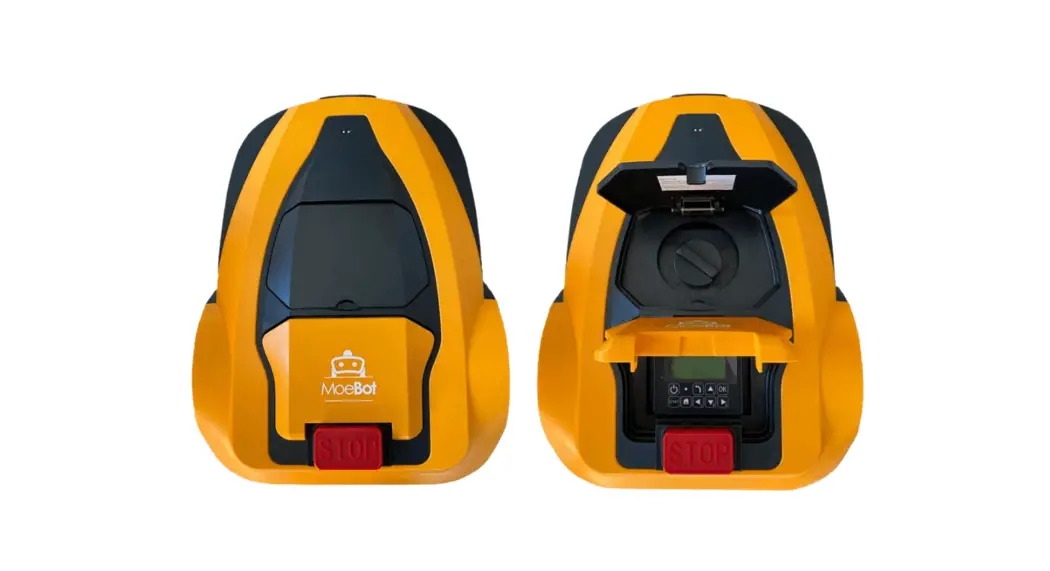
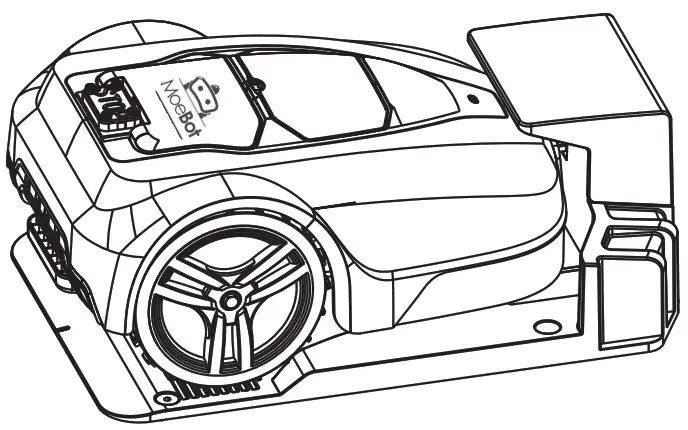
MoeBot S5 | S10
APP Download and Installation
The robot mower can be remotely controlled via the mobile phone APP. Please follow the instructions below or refer to the product guide in the APP interface.
1.1. APP Download and Installation
Please search the “smart life” in Google Play &App Store, then download and install.
Or scan the QR code as below, then download and install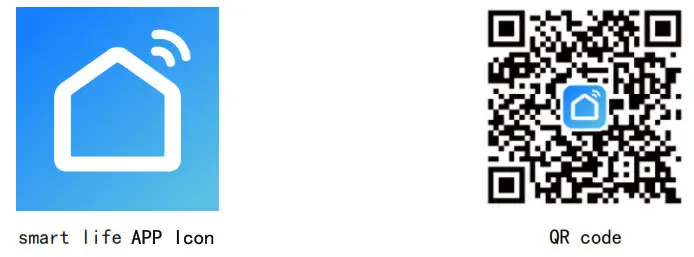
https://smartapp.tuya.com/smartlife
Activate Wi-Fi Mode On The Mower
- Please ensure your garden is in strong Wi-Fi signal range;
- Power on the mower;
- Setting –> Wi-Fi Setting –> Press ‘OK’ –> Update Success;
- Confirm Wi-Fi indicator light is now rapidly flashing.
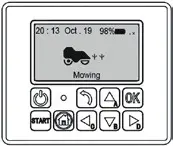
Wi-Fi Indicator Light:
Wi-Fi connecting standby: LED light blinking; Wi-Fi connecting successfully:
LED light keeps on for 2 minutes then light off; Wi-Fi connecting unsuccessfully:
LED light keeps blinking for 3 minutes then light off.
APP OPERATION
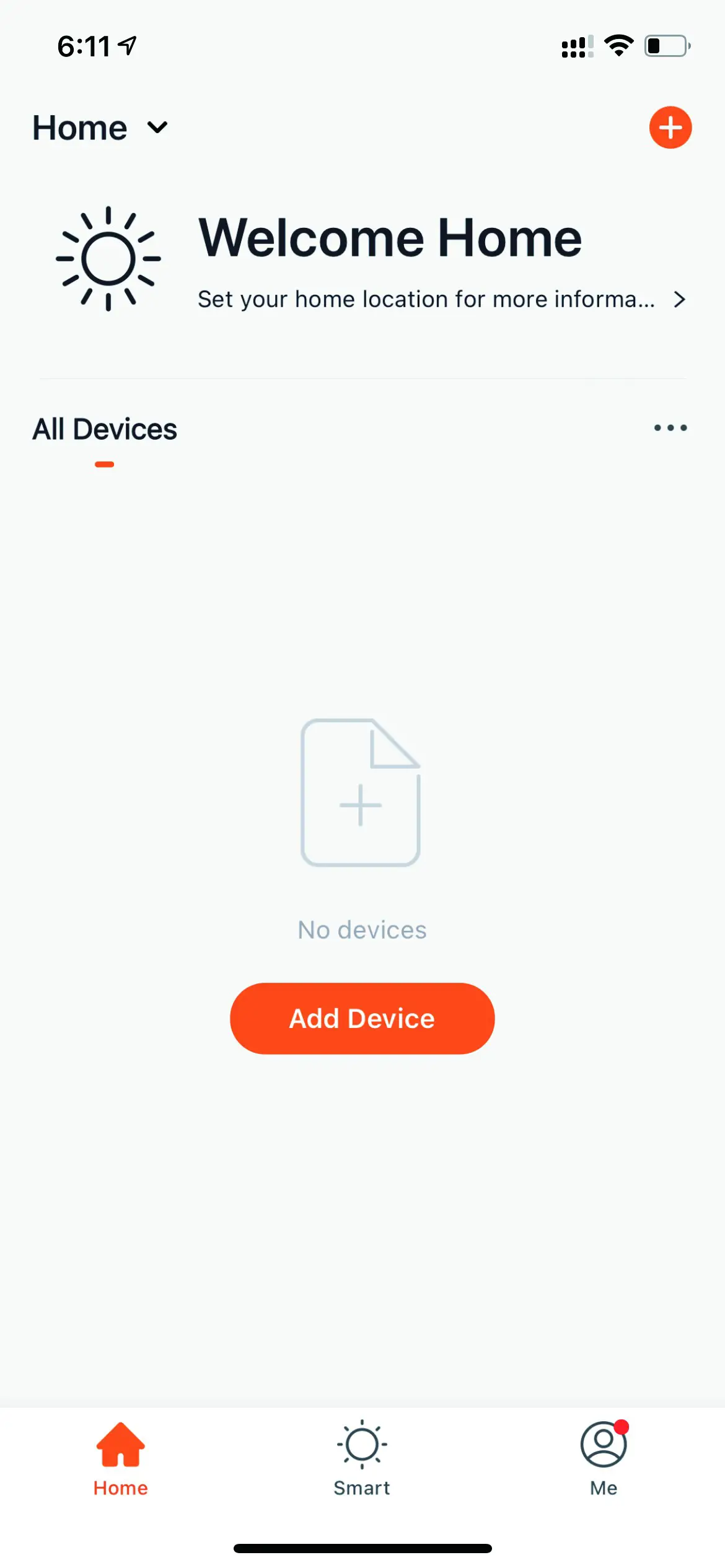
Step 1 & Step 2
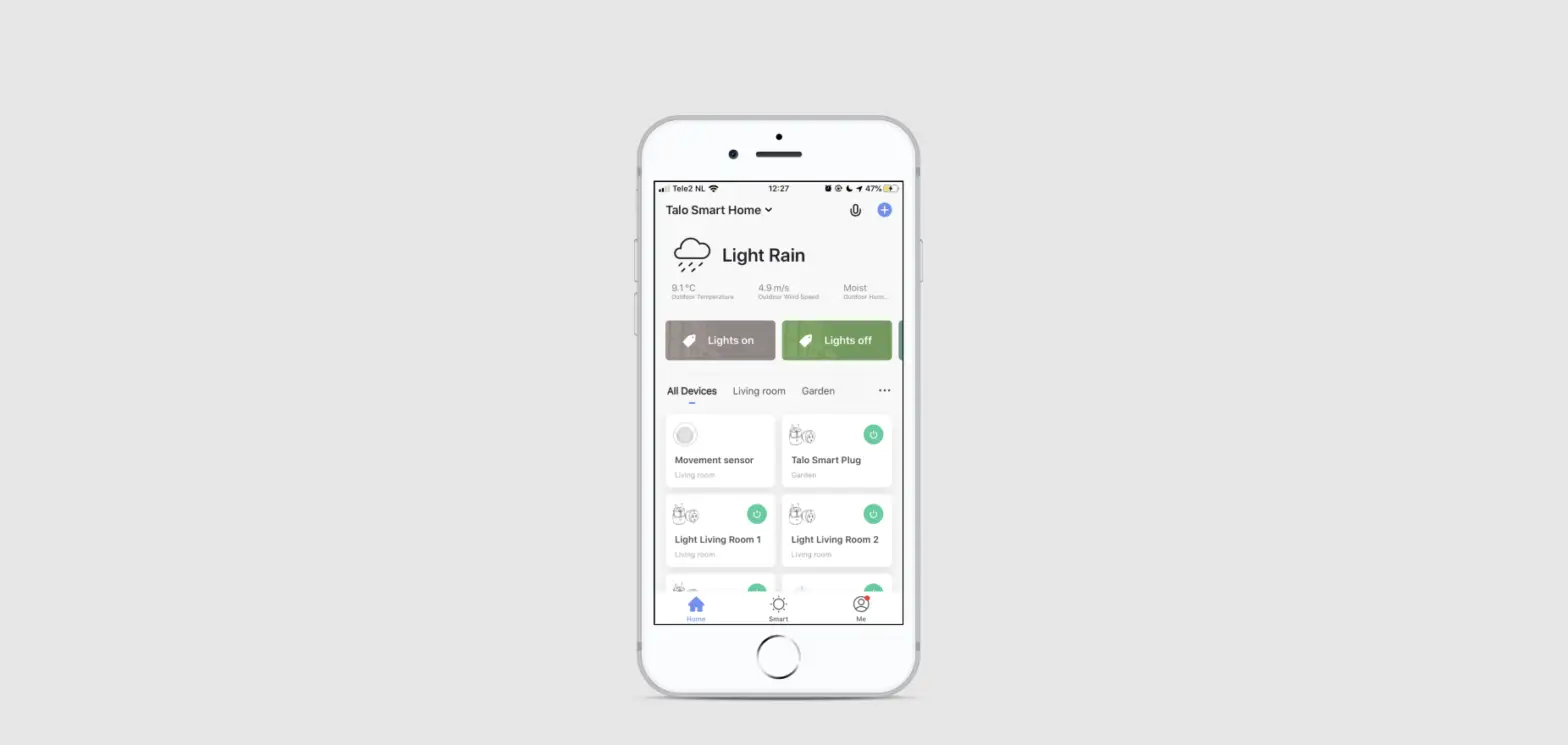
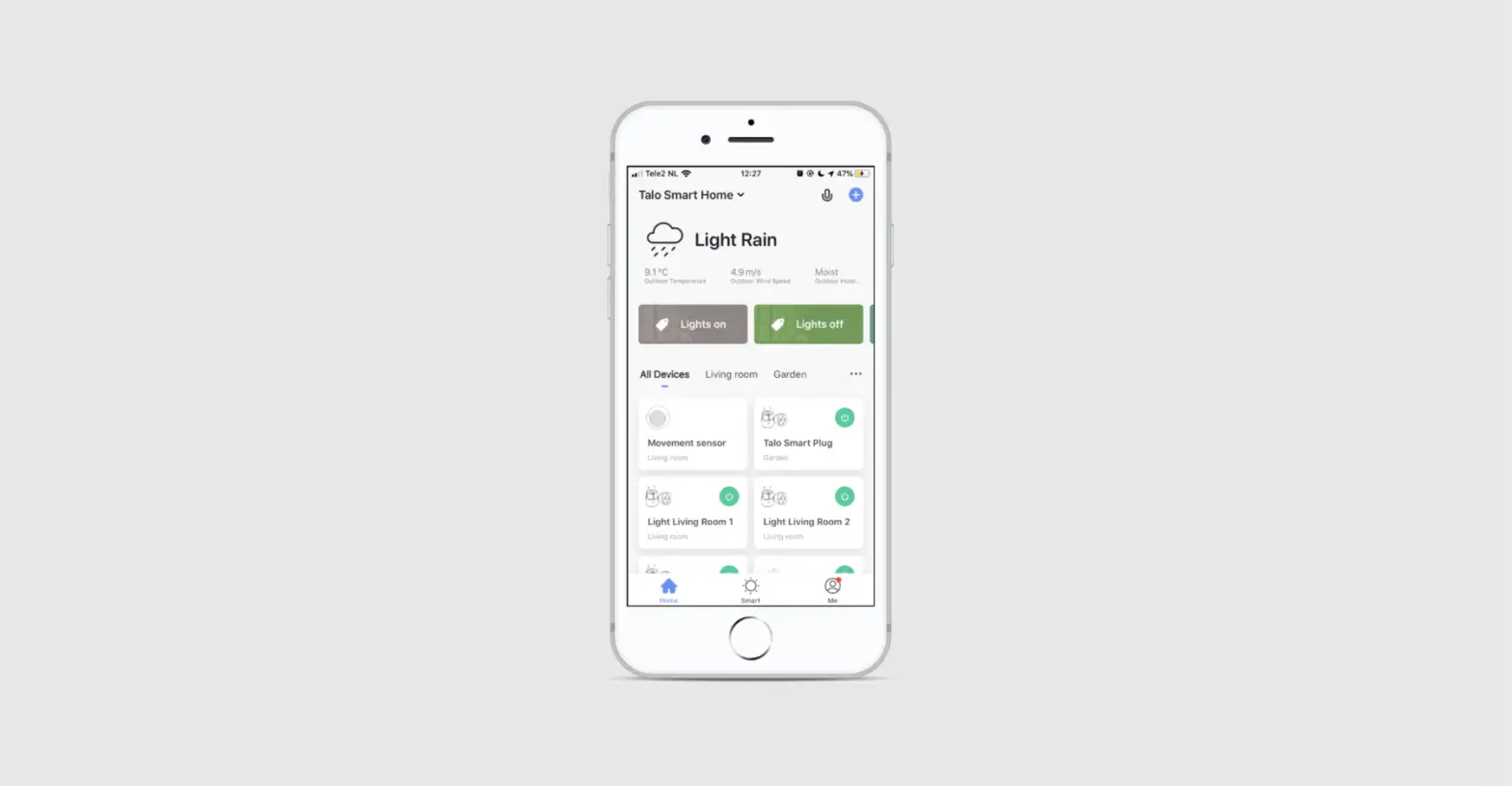
Open ayi robot APP, sign up and login; Then choose to add device;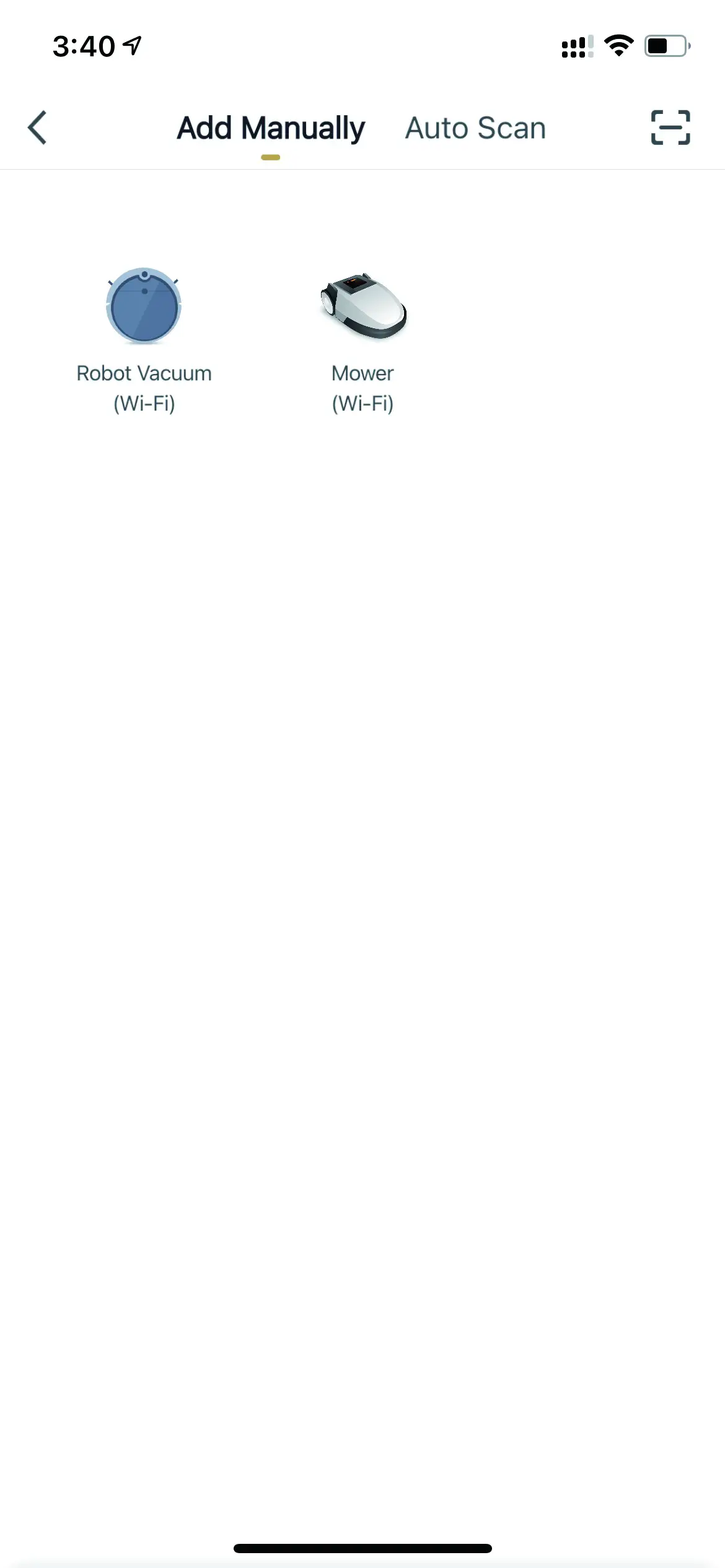
Step 3
Find “Small Home Appliances”, then on this category to find “Mower”: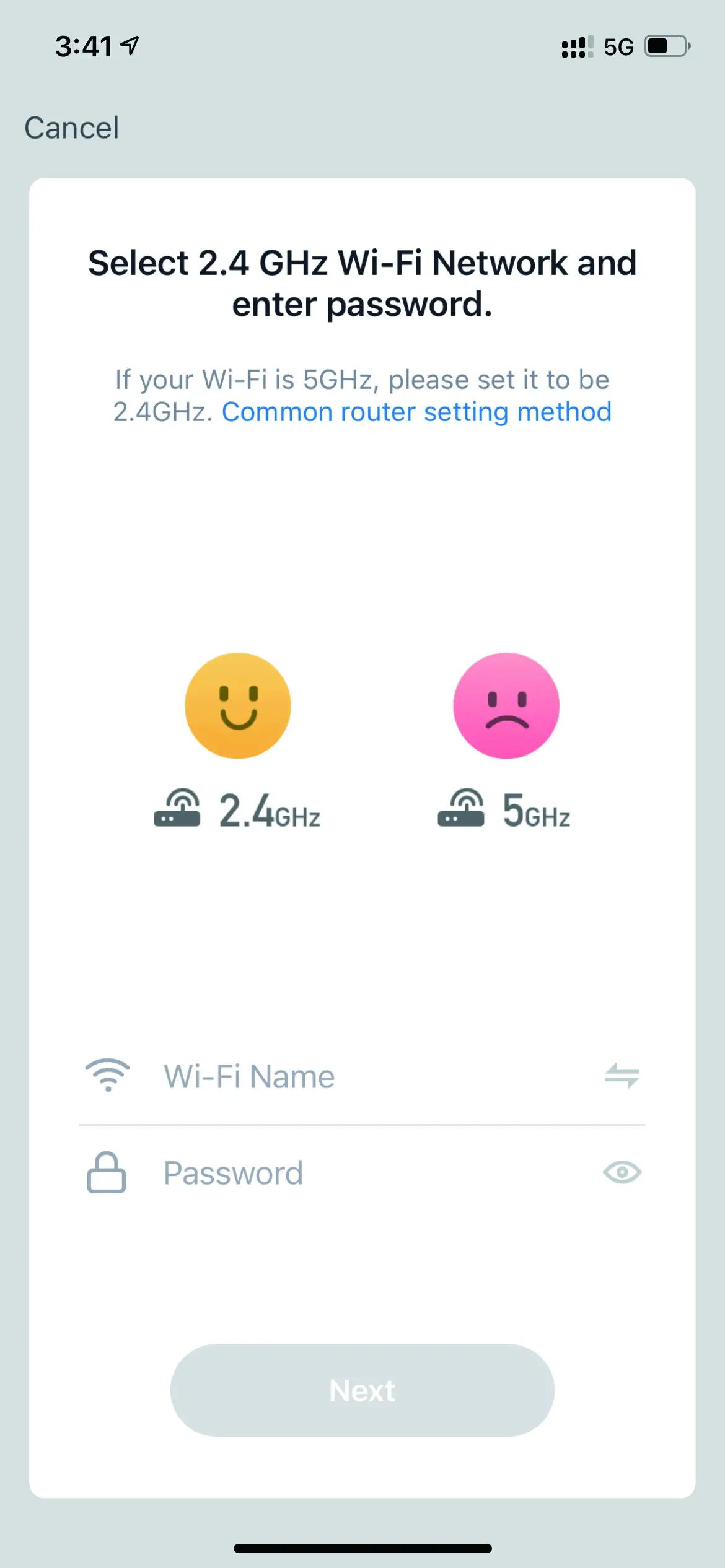
Step 4
Ensure the Wi-Fi indicator light is now rapidly blinking;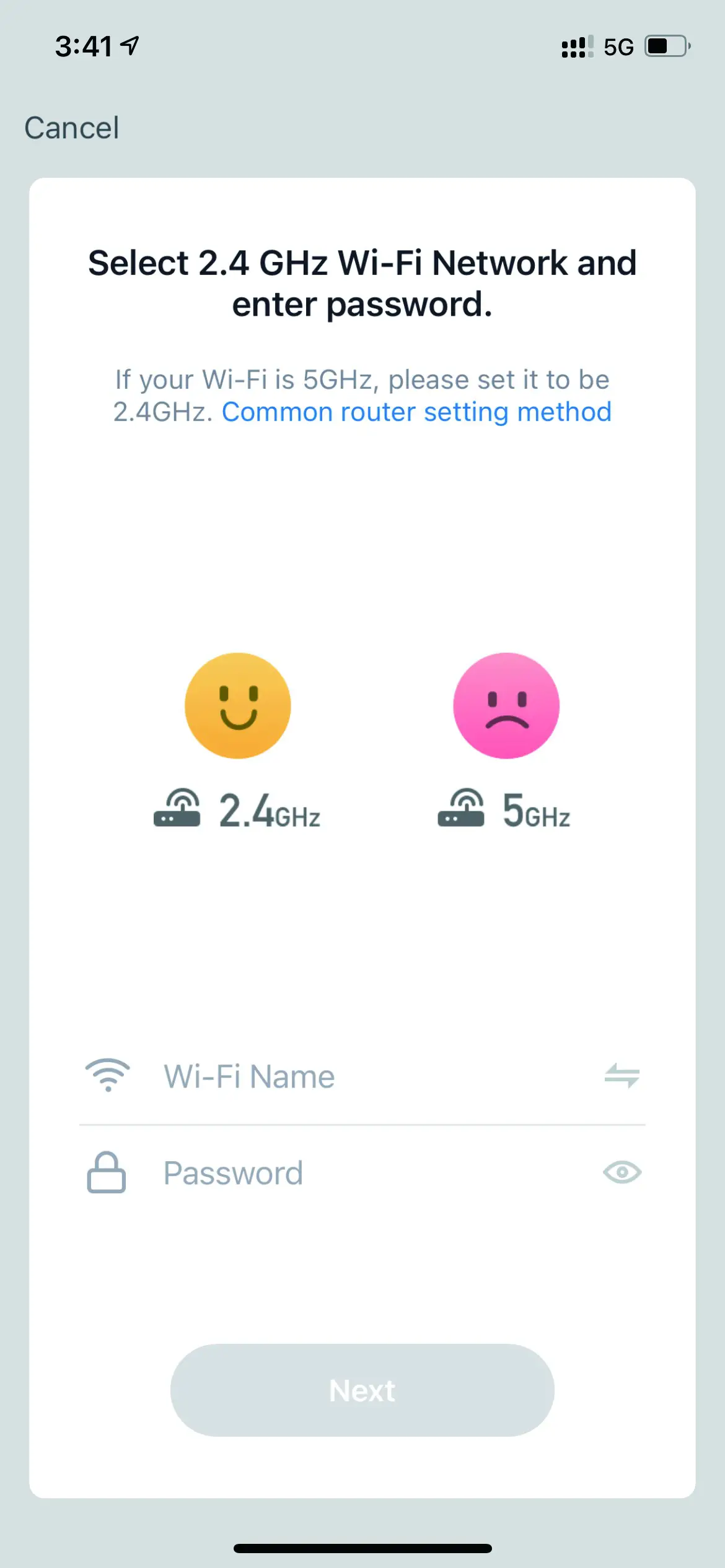 Step 5
Enter Wi-Fi password according to current Wi-Fi;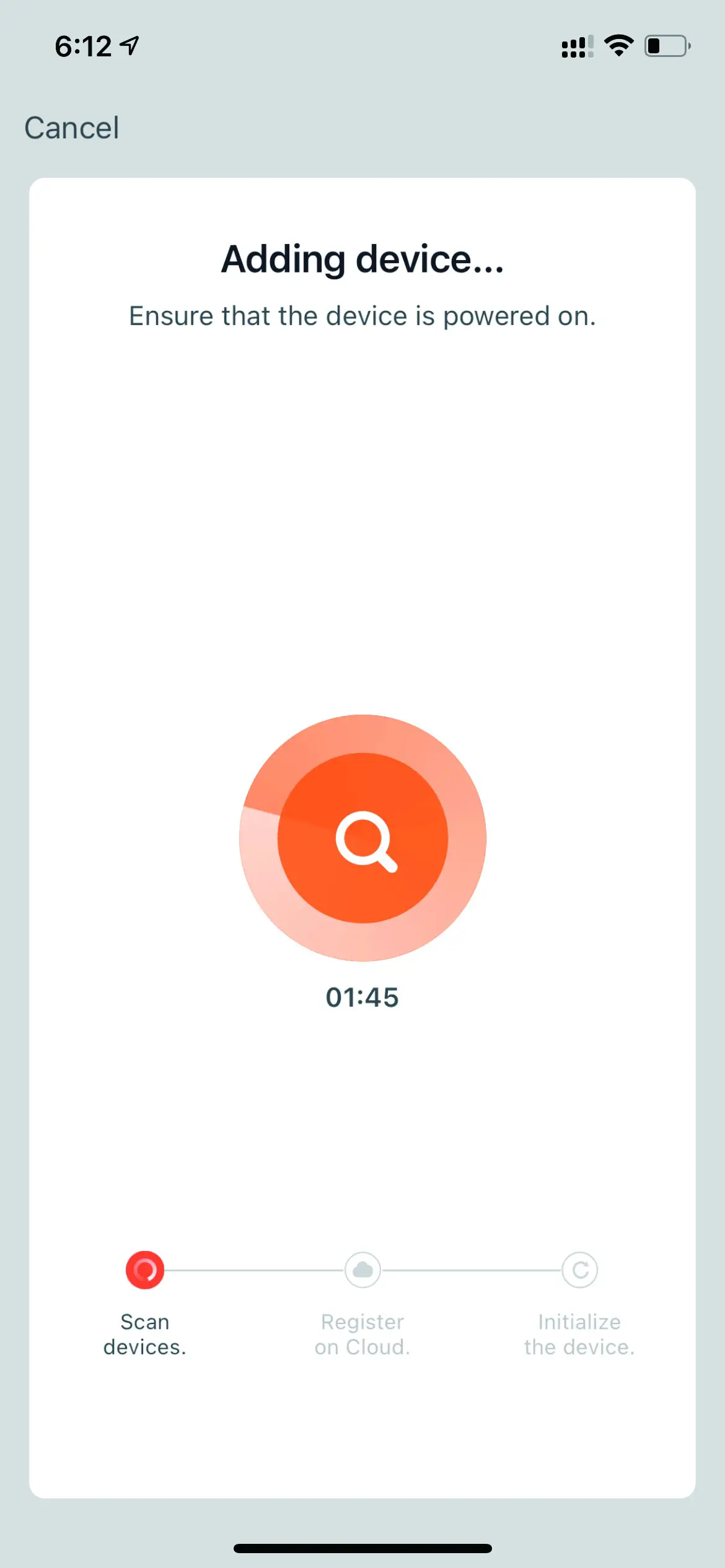
Step 6
Connecting;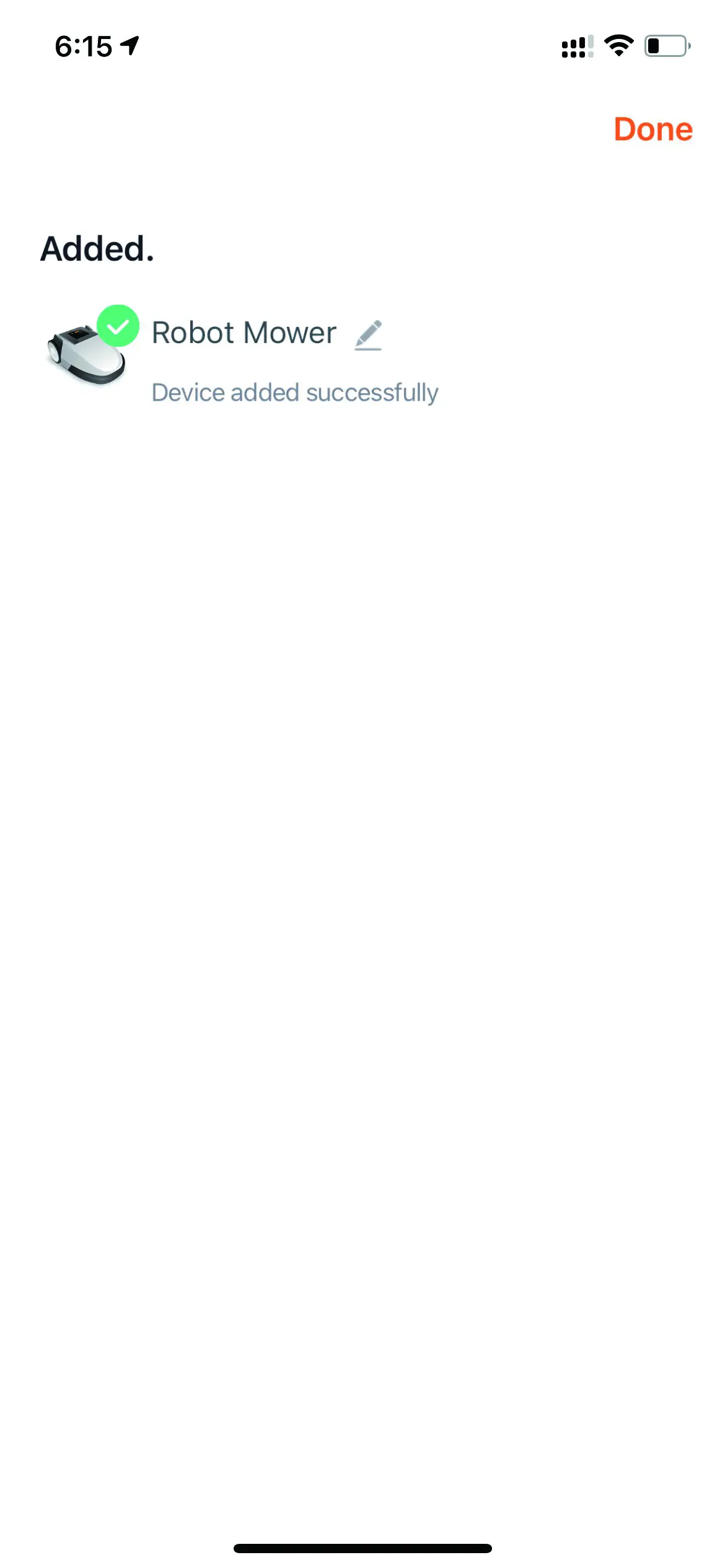
Step 8
After successful connection, you will enter operation interface.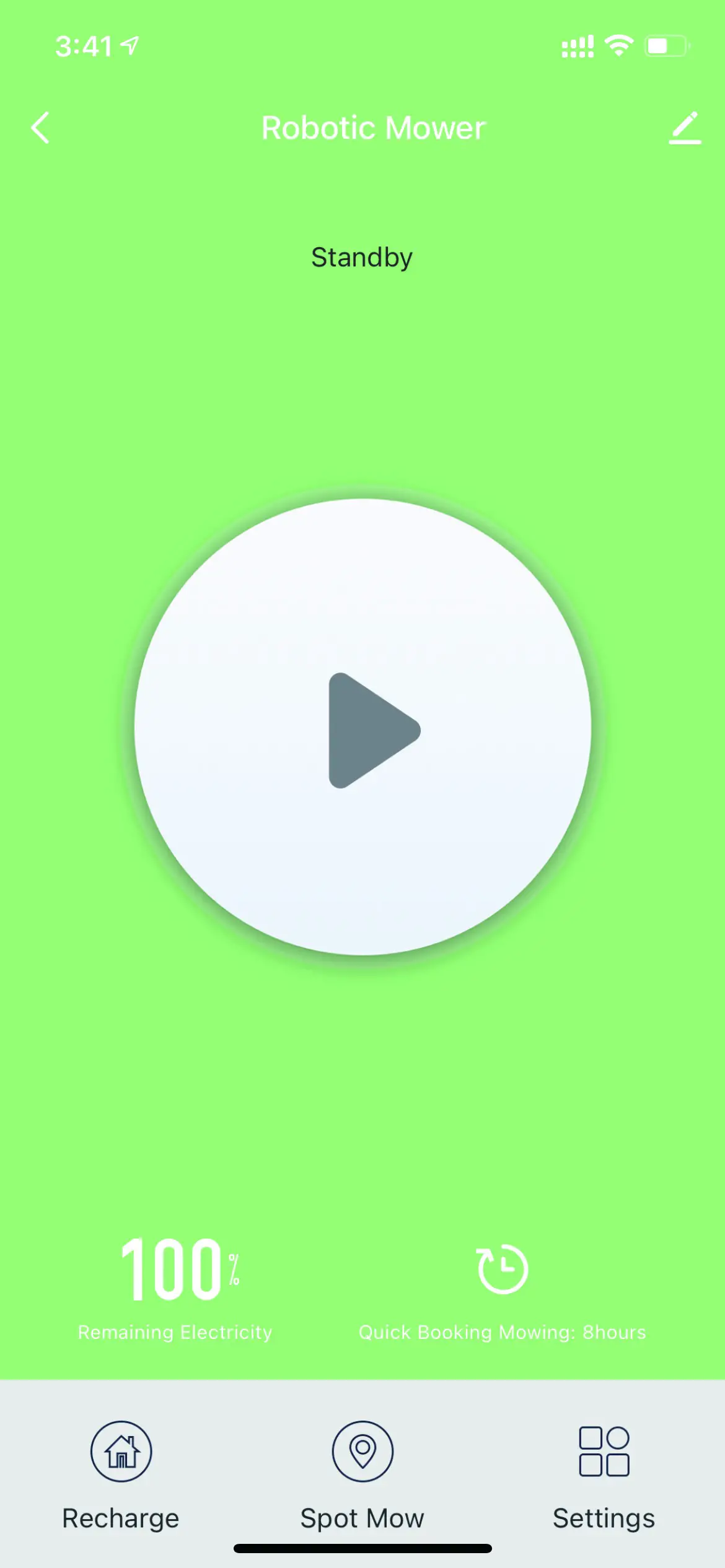
Step 8
After successful connection, you will enter operation interface.
APP FUNCTION
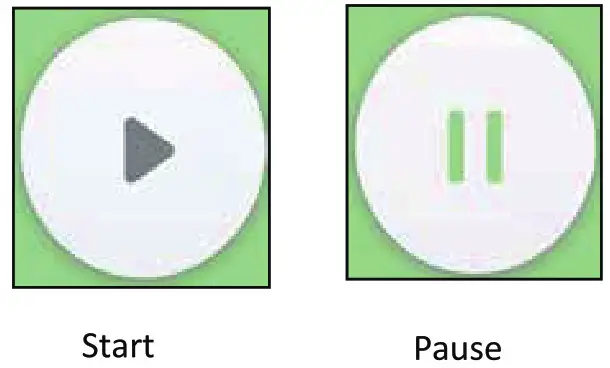
Start/ Pause Mowing
Under standby or mowing status, press ‘Start/ Pause’ button to start/ pause the mowing job.
Cancel Mowing
Cancel the current mowing job under Paused status, then switch to Standby status.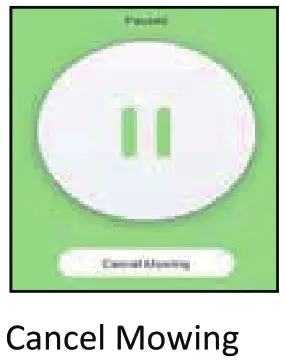
Recharge
Under standby status, press ‘Recharge’ button to return mower to dock station. Under recharging status, press ‘Recharge’ button can stop the recharging job.
Spot Mow
Under standby status, press ‘Spot Mow’ button to start the spot mow function. Under spot mow status, press ‘Spot Mow’ button can stop this job.
Quick Appointment
Under standby status, press ‘Quick Appointment’ to set the working time of the mower needs to work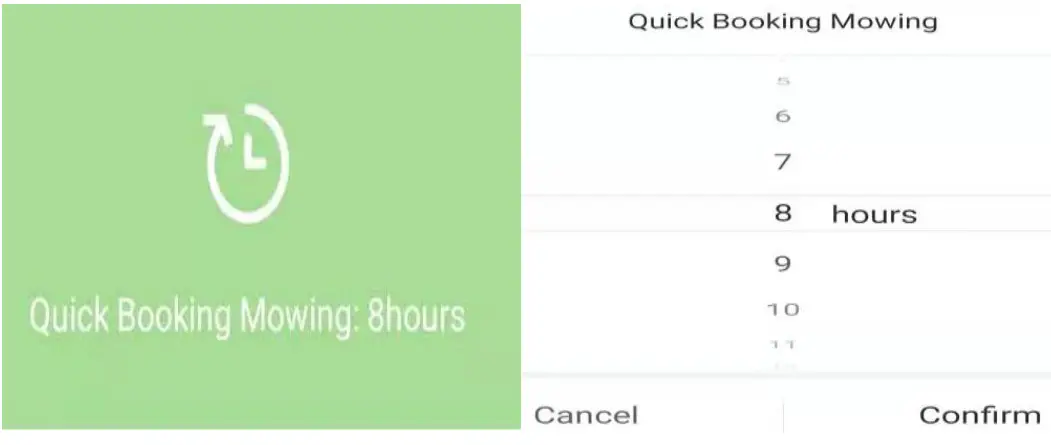
Booking Mowing
Under standby status, enter interface by Settings –> Booking Mowing, then the working time can be set.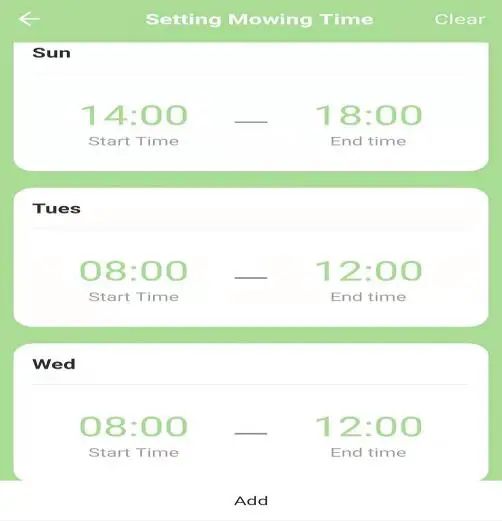
Zone Mowing
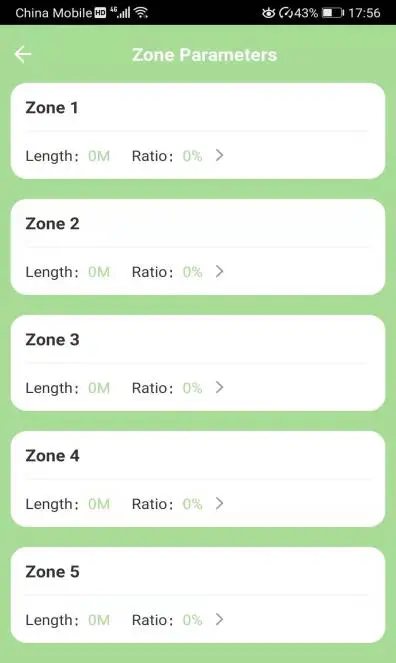
Under standby status, enter interface by Settings –> Zone Mowing, then use the zone mowing function by setting the zone parameters including length and ratio.
Notice:
- The distance refers to how far the mower will go along the boundary wire before entering into the yard. The percentage refers to how often the mower will start mowing from each zone.
- The value of distance should be 0-500m, while the percentage should be 0-100%. The sum of percentage of each zone should be 100%. Or the setting cannot be completed.