 LoveMiner
A1 User’s Guide
Product Overview
The miner A1 is the first version in the Cheetah Miner series. It boasts an advanced ASIC chip using 10nm technology and complies with restricted and reliable design and manufacturing standards, completely surpassing the mainstream miners in the current market.
Miner A1´s components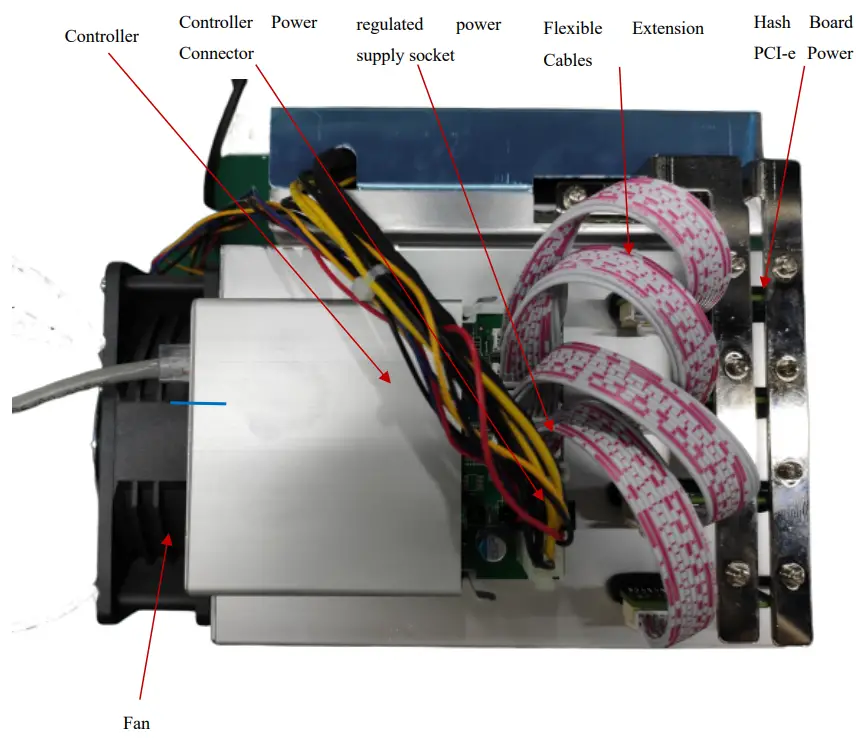
The miner A1´s controller front panel are shown in the following figures: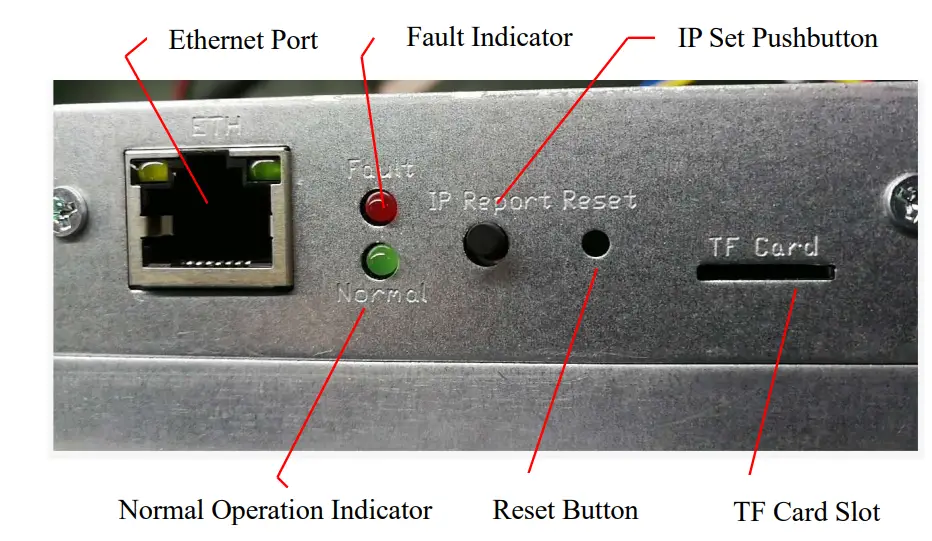
 Functional Description
- ETH port is used to connect the Ethernet cable.
- The red and green lights indicate the operation status of the miner. When the green light twinkles, it indicates OK; when the red light keeps on, it indicates a fault.
- Press and hold the IP Report button for more than 2 seconds to get the IP address of the miner.
- Press and hold the Reset button for more than 3 seconds to restore the default settings of the miner.
 Warning
 Warning
- Do not touch the rotating fan blades in case of personal injury.
- The standard A1 power supply is recommended to avoid damage to A1 Miner or any safety accident.
- The maximum power consumption of the A1 Miner is about 2250W. Please confirm whether your power socket meets the power requirements of the mining machine.
- Do not spill water or other liquids onto A1 Miner, especially the non-shell parts.
Specifications
| ASIC chip | A1-1001-32core | ||
| Hash rate | 24T±5% | ||
| The total quantity of chips | 288PCS | Hash rate of a chip | 86.7GH/s |
| The energy efficiency of a chip | 0.09J/GH | Power consumption of a chip | 7.5W/0.405V |
| Wall outlet power consumption | 2100W ± 7% | Rated voltage | 14.5— 15.7V ( Hash Board ) . 12V ( Controller Board ) |
| Operating ambient temp. | 0°C-40°C (32°F-104T) | Operating ambient humidity | 5%RH-95%RH, non-condensation |
| Network linking | 10/100/1000MB ase-T | Dimensions(LxWxH) | (L)226mm*(VV)180mm*(H)230mm |
| Noise | 65dB | Net weight | 4.5Kg |
Starting Your Miner
2.1 Preparatory Work
Prepare a network cable, a Miner A1, a power supply unit, an AC power cord, and a computer.
2.2 Connecting the Power Supply
Ten PCI-e connectors are located at the top of the Miner A1 for connecting the PSU.
Nine PCI-e connectors are for the hash boards and each hash board has a set of three PCI-e connectors.
One PCI-e connector located on the controller is for the controller. (See figure 1 in part 1.1)
To connect the power supply:
- Connect PSU power cable connectors to each of the eight PCI-e connectors on the top of the miner and the PCI-e connector on the controller.
- Connect the network cable to the ETH port.
- Check whether the flexible extension cables and the fan connection cable and regulated power supply socket on the top of the miner are connected properly.
- After all cables have been connected correctly, connect the AC power cord to the power
After connecting the power supply, please check whether the miner operates as follows:
- the front and rear fans operate normally;
- the green light on the controller twinkles;
- the green light on the ETH port keeps on and the orange one twinkles;
- the blue lights on the three sets of hash board PCI-e connectors keep on.
If the miner runs normally, you can move to the next step. If not, please troubleshoot the miner.
3. Setting Up Your Miner
- Go to this site: https://pan.baidu.com/s/18urvdKjU5zRioqliYFdnKA password: x69c
- Download the file: IP-Reporter.rar
- Extract the file.
- Install JAVA run time environment (if it is installed, skip this step): https://pan.baidu.com/s/1AmNTJ5hmUSUSs85jiLWQ2g password: gif
- Run the file: IP-Reporter.exe
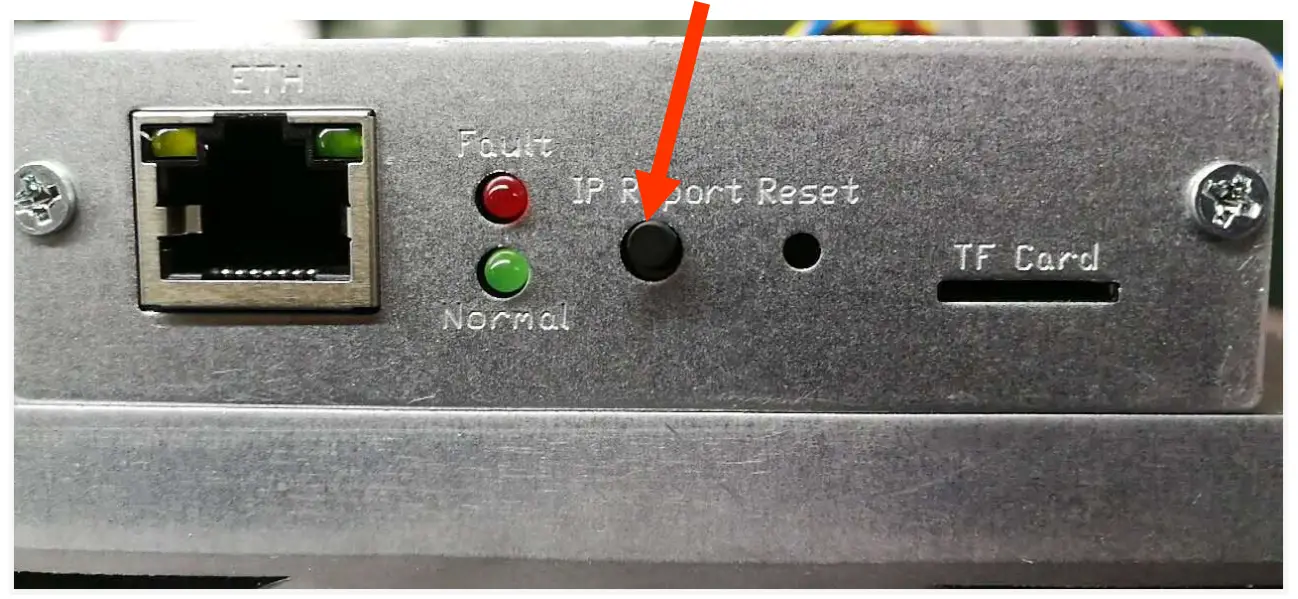
- Press the IP Set button for more than three seconds and then the IP address will
l be displayed in the IP-Reporter interface.

 Statement
- The file IP Reporter.zip is supported by Microsoft Windows only.
- The default DHCP network protocol distributes IP addresses automatically.
- The computer should be connected to the same LAN as the miner.
- If the IP report function is broken, maybe you should turn off the firewall.
In your web browser, enter the IP address provided and proceed to login using the username “root” and password “root”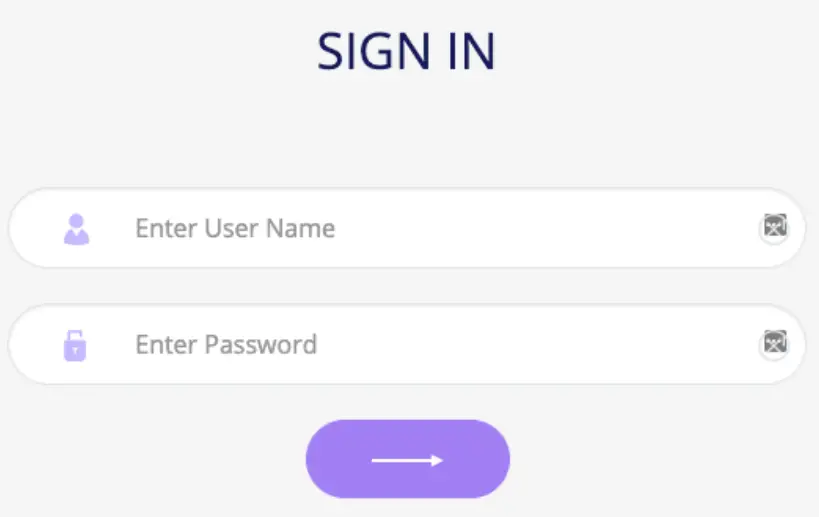
In the Network Setting of Settings section, you can assign a Static IP address (optional). 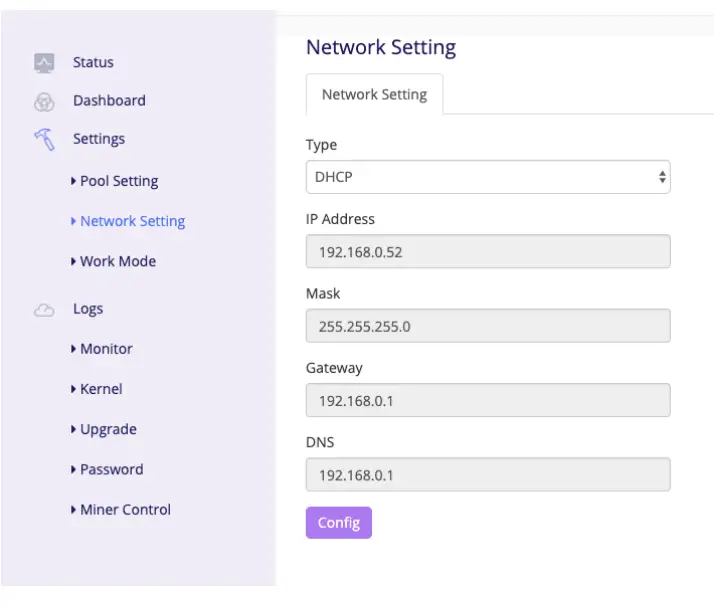
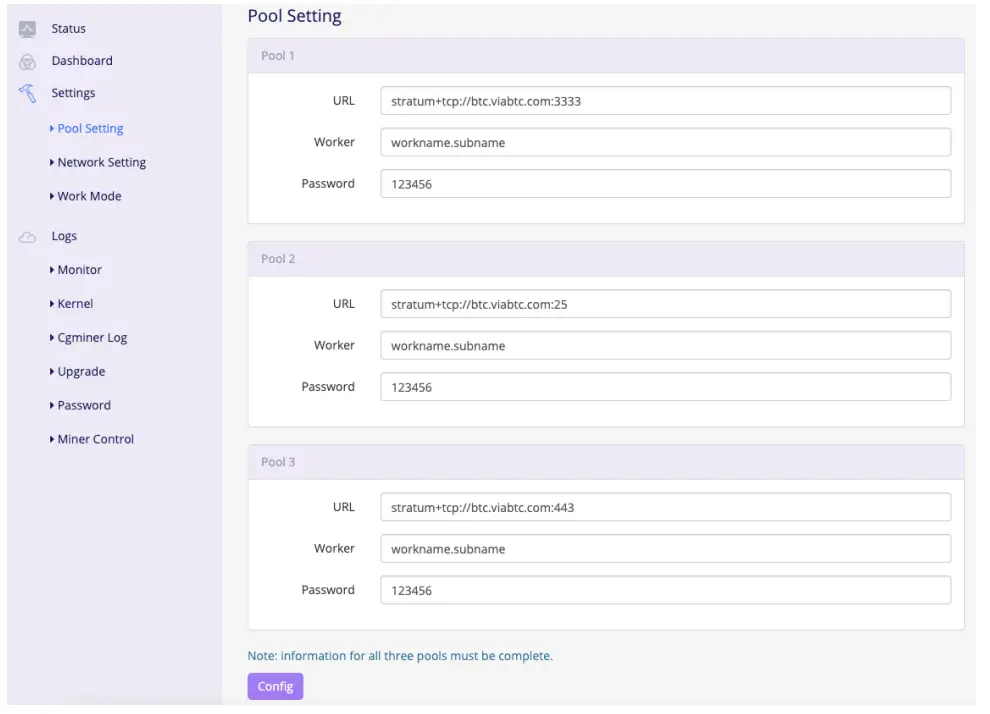
Setting up the pool. Click the Pool Setting in the Settings section to set the options. Take the Viabtc as an example:
- Pool URL: stratum+tcp://btc.viabtc.com
- Port: 443 / 25 / 3333
- Worker: set up according to the sub-account you create on the pool
- Password: arbitrary password
After finishing the three settings, click Apply button.
Statement
- The Miner A1 only supports the mining of pools using ASIC BOOST technology. It cannot support all kinds of pools.
- The pool URL should use the node address where the miner is placed.
In the Work Mode of Settings section, you can set up the work mode of the miner between Efficiency and Performance.
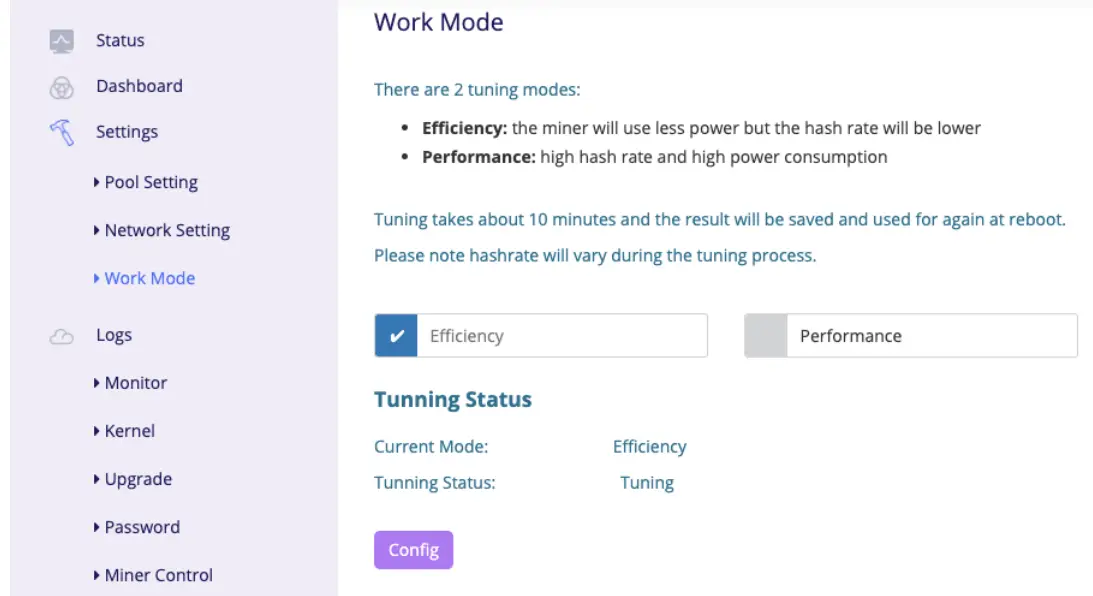
After finishing the three settings, click the Config button.
Monitoring Your Miner
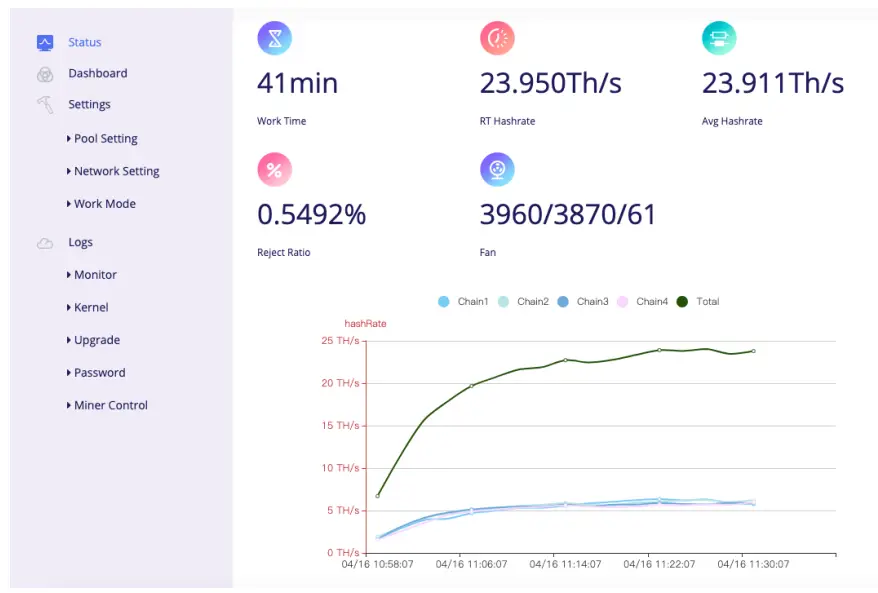
1) Click Miner Status.
2) Monitor your miner through the followings:
- Real-time hash rate: it shows the real-time hash rate of the miner in one minute. Average hash rate: it shows the average value of the hash rate produced by the operating miner.
- Working hour: it shows the uptime of the miner.
- Fan: it respectively shows the rotating speeds of the front and rear fans as well as the duty cycle.
- Curve graph: it shows the hash rate fluctuation of the corresponding hash board from the moment it starts to work to the moment you check it.
Administering Your Miner
1) Check your software version in the Dashboard section.
In the example below, the miner is using software version: A1_20190619_151951 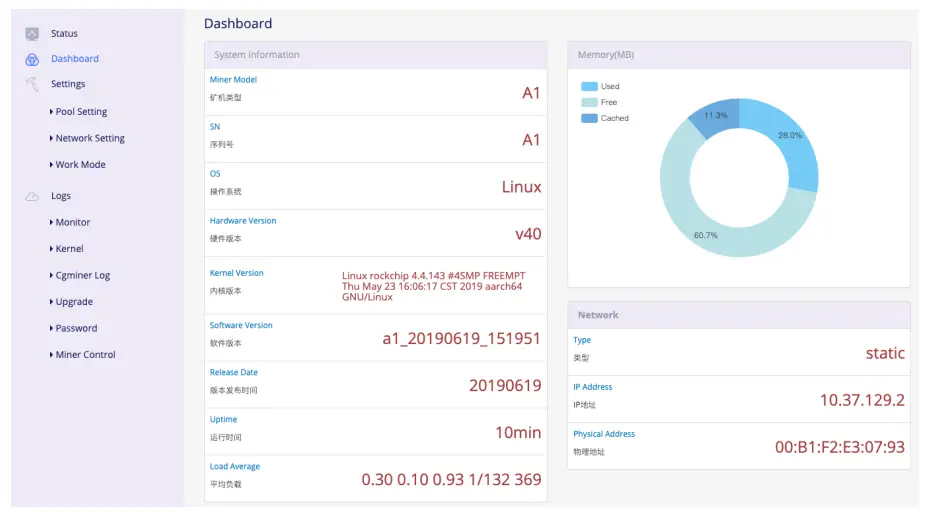 Upgrade your firmware
In the Upgrade of Logs section, select a .img or .zip formatted file and then click the Upgrade button. 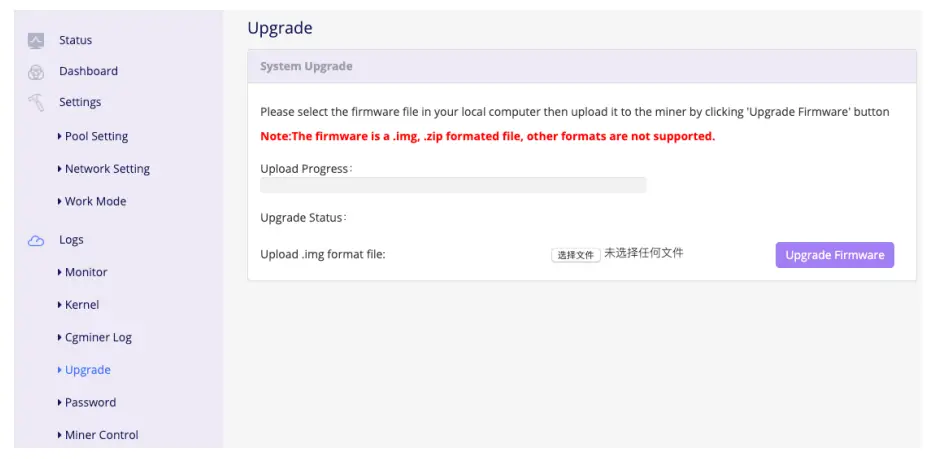
Statement
- When the upgrade is complete, the miner system will reboot. Therefore, you need to refresh the interface to log in again.
- The Monitor and Kernel in Logs section are designed for technicians to troubleshoot.
- Make sure that the miner remains powered during the upgrade process.
3) Modifying your password
In the Password of Logs section, input your current password and new password and then click Apply button to modify your password. 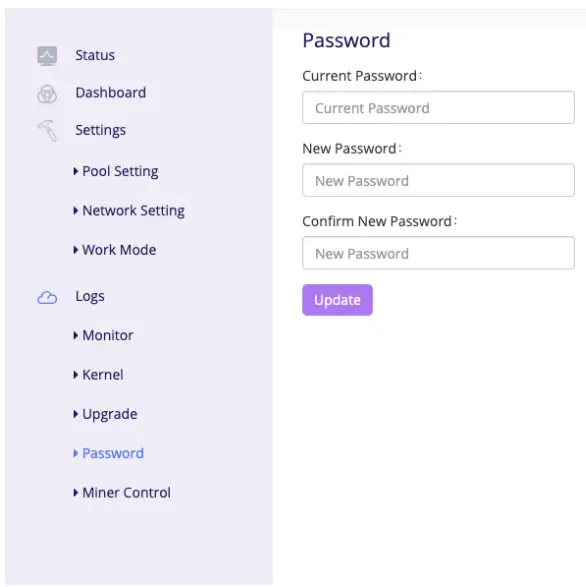 4) Reboot your miner
In the Miner Control of Logs section, click the Reboot button and Confirm button, the miner will reboot immediately. 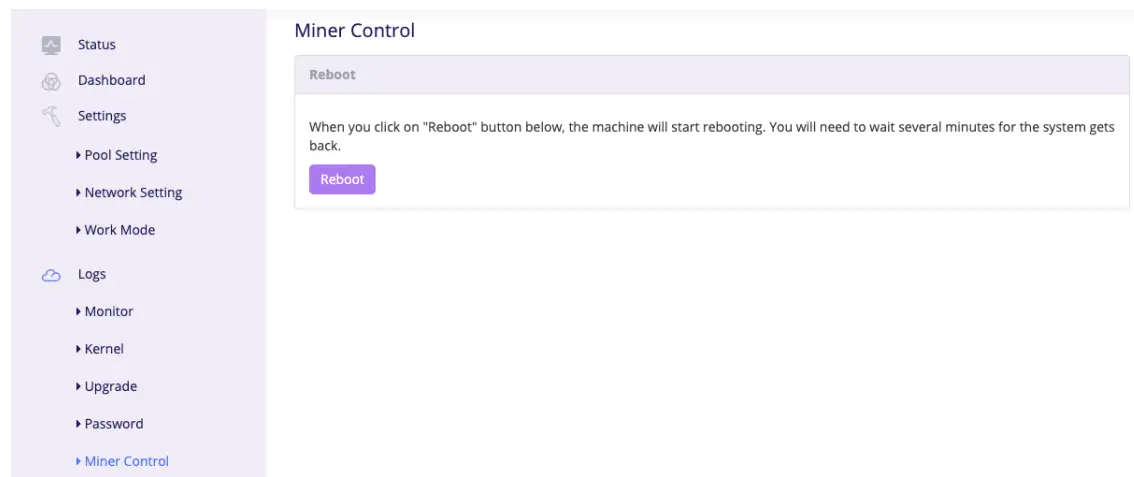 Statement
In the reboot process, the Miner Console is unavailable. After the reboot is complete, you can log in again.