Smart Projector User Manual
Note: All the pictures in this manual are for reference only, subject to our available products.
Safety Warning
- To avoid dangerous or illegal operations, read through the following precautions before using this device.
- In order to provide the device with a stable power supply, select the power supply line that conforms to the national electricity standard and the power sockets for which protection measures are taken, such as grounding.
- Use the type of power supply indicated on the device.
- Do not unpack and disassemble the machine by yourself, otherwise, we will not undertake any free warranty service.
- To avoid eye injury, do not look directly at the projector lens when this device is working.
- Do not place the device on any items that may block the ventilation openings, such as cloth, blankets, etc.
- Since this device is not waterproof, avoid water drenching or splashing, and do not place the items containing liquid next to the device, such as vases, water cups, etc.
- To prevent electric shock, do not expose the device to rain or water.
- Unplug the power cord if the device will not be used for a long time.
- Transport the device with the original foam.
- Do not try to repair by yourself the device with any damage, if any, and contact the dealer.
- Use the product in an environment with a temperature in the range of 5~35°, and do not use it in a place below 2,000 meters above sea level.
Statement
- Statement regarding intellectual property: Both the hardware design and software program of this product are copyrighted. Reproduction of the product and the contents of the manual without our authorization will bear the corresponding legal responsibility.
- This manual is for reference only, and the final functions are subject to the actual functions of the product actually ordered and received by the customer.
- All pictures herein are for reference only, and shall be subject to the actual product. We reserve the right to improve and change the product’s appearance and design without prior notice.
Accompanying Accessories
- Remote control × 1
- Adapter×1
- Power cord×1
Appearance
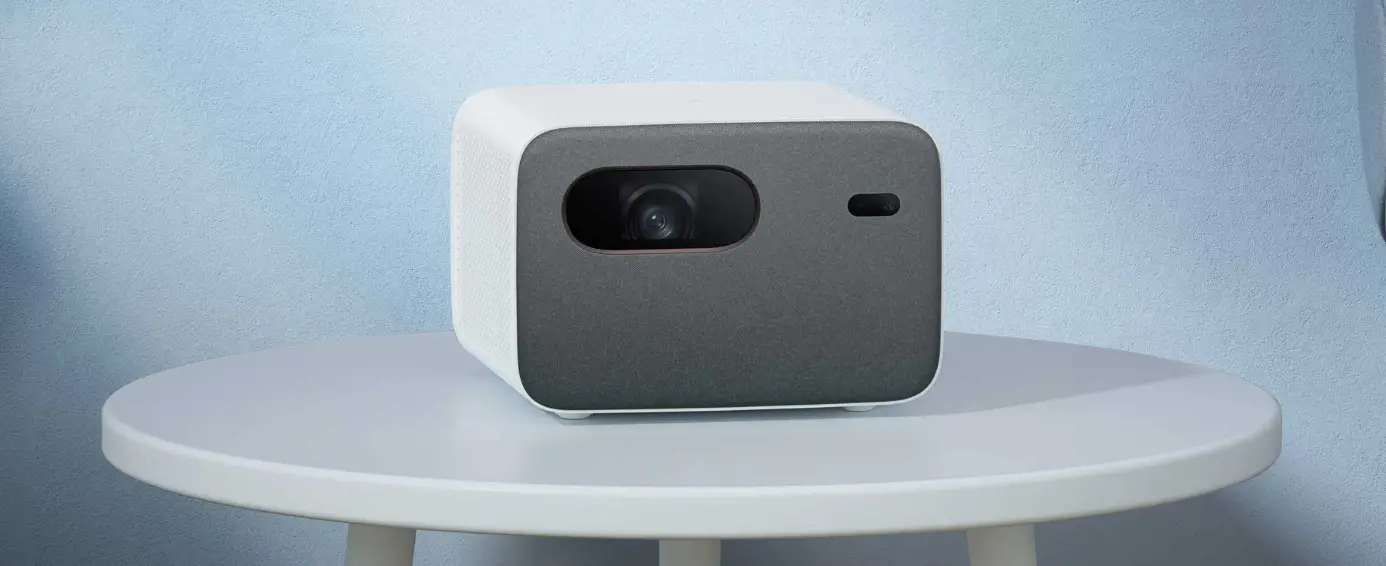
Before use, you are required to be familiar with the ports and keys of the device.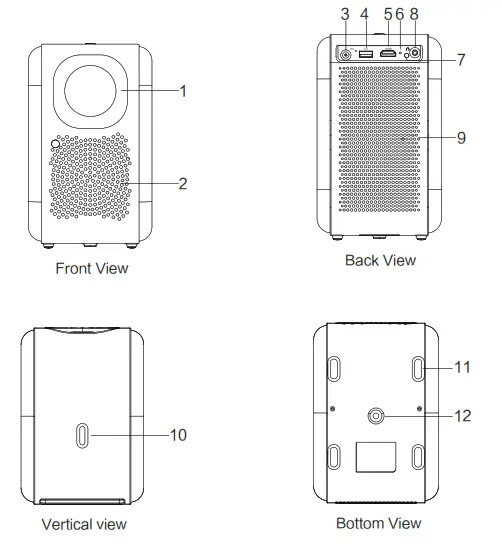
| No. | Description | No. | Description |
| 1 | Lens | 7 | Remote control window |
| 2 | Air outlet | 8 | Earphone |
| 3 | DC port | 9 | Two-channel audio |
| 4 | USB port | 10 | ON/OFF |
| 5 | EOM! port | 11 | Footpad k 4 |
| 6 | Indicator | 12 | Bracket’s screw hole |
Note: To avoid damage to the eyes, do not look at the lens directly.
Remote Control

| No. | Items | Description | No. | Items | Description |
| 1 |  | ON/OFF | 14 |  | Home |
| 2 |  | Mute switch | 15 |  | Left |
| 3 |  | Netflix hotkey | 16 | | Right |
| 4 |  | YouTube hotkey | 17 |  | Up |
| 5 |  | Prime Video hotkey | 18 | | Down |
| 6 |  | OPEN Browser hotkey | 19 | OK | OK |
| 7 |  | Red key | 20 |  | Volume +/- |
| 8 |  | Green key | 21 |  | Projection mode |
| 9 |  | Yellow key | 22 |  | Focus +/- |
| 10 |  | Blue key | 23 | 0-9 | Number |
| 11 |  | Set | 24 | U88 | USB Source |
| 12 |  | Return | 25 |  | Backspace |
| 13 |  | Signal Source |
Note: The remote control of the Bluetooth version can be paired as follows: When the remote control is close to the projector within 0.2m, press [OK] and [Volume-]
simultaneously, and the indicator light flashes quickly to indicate the pairing state.
Enable the projector’s Bluetooth function to search for the device, click Connect after searching for [Smart Remote], and the indication “Connected” means successful
pairing. If it fails, repeat the above steps or restart the device for connection.

Manufactured under license from Dolby Laboratories. Dolby, Dolby Audio and the double-D symbol are trademarks of Dolby Laboratories Licensing Corporation. HIGH-DEFINITION MULTIMEDIA INTERFACE
NOTICE: The terms HDMI and HDMI High-Definition Multimedia Interface, and the HDMI Logo are trademarks or registered trademarks of HDMI Licensing LLC in the
United States and other countries.
This product contains technology subject to certain intellectual property rights of Microsoft. Use or distribution of this technology outside of this product is prohibited without the appropriate license(s) from Microsoft.
Content owners use Microsoft PlayReadyTM content access technology to protect their intellectual property, including copyrighted content. This device uses PlayReady technology to access PlayReadyprotected content and/or WMDRM-protected content.
If the device fails to properly enforce restrictions on content usage, content owners may require Microsoft to revoke the device’s ability to consume PlayReady-protected content. Revocation should not affect unprotected content or content protected by other content access technologies. Content owners may require you to upgrade PlayReady to
access their content. If you decline an upgrade, you will not be able to access content that requires the upgrade.
The camera on the device will collect projection screen information when performing autofocus and auto keystone functions, and the information will be released afterward.
Such information shall not be saved or uploaded.
FCC STATEMENT :
This device complies with Part 15 of the FCC Rules. Operation is subject to the following two conditions:
This device may not cause harmful interference, and This device must accept any interference received, including interference that may cause undesired operation.
Warning: Changes or modifications not expressly approved by the party responsible for compliance could void the user’s authority to operate the equipment.
NOTE: This equipment has been tested and found to comply with the limits for a Class B digital device, pursuant to Part 15 of the FCC Rules. These limits are designed to provide reasonable protection against harmful interference in a residential installation. This equipment generates uses and can radiate radio frequency energy and, if not installed and used in accordance with the instructions, may cause harmful interference to radio communications. However, there is no guarantee that interference will not occur in a particular installation. If this equipment does cause harmful interference to radio or television reception, which can be determined by turning the equipment off and on, the
user is encouraged to try to correct the interference by one or more of the following measures:
Reorient or relocate the receiving antenna.
Increase the separation between the equipment and the receiver.
Connect the equipment to an outlet on a circuit different from that to which the receiver is connected.
Consult the dealer or an experienced radio/TV technician for help.
RF warning statement: The device has been evaluated to meet the general RF exposure requirements. The device can be used in portable exposure conditions without restriction.
This device complies with Industry Canada licence-exempt RSS standard(s).
Operation is subject to the following two conditions:
(1) this device may not cause interference, and (2) this device must accept any interference, including interference that may cause undesired operation of the device.”