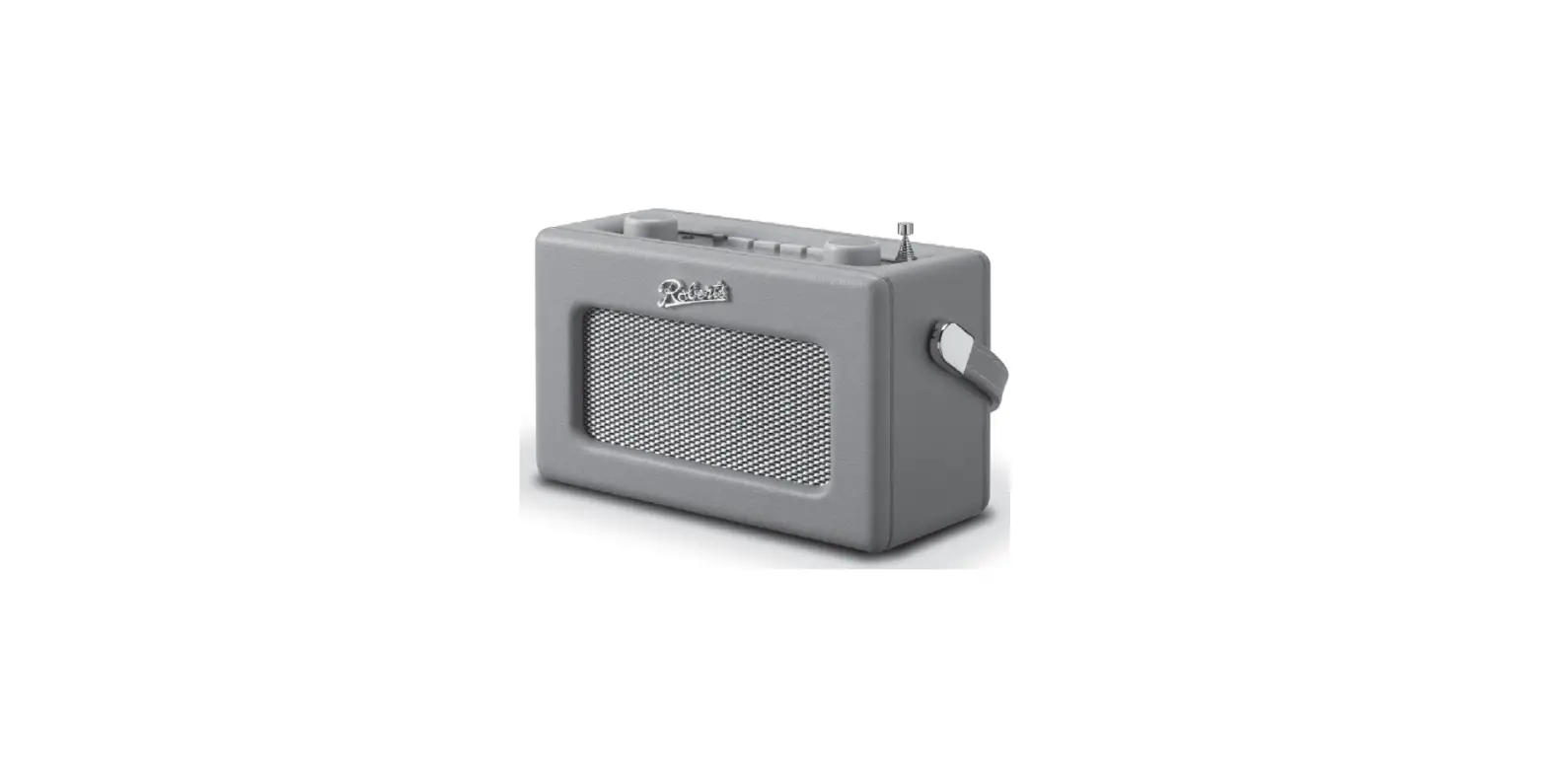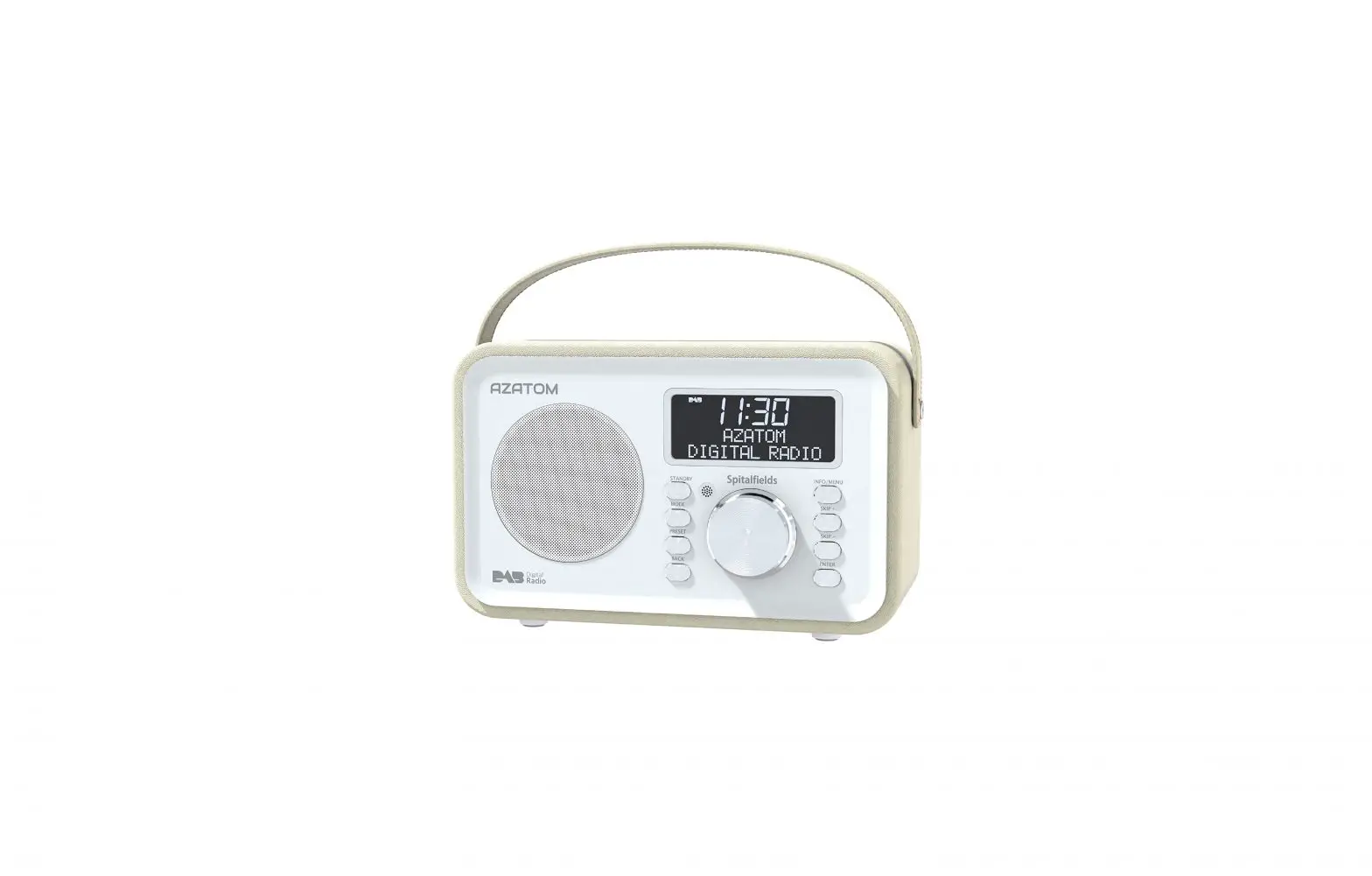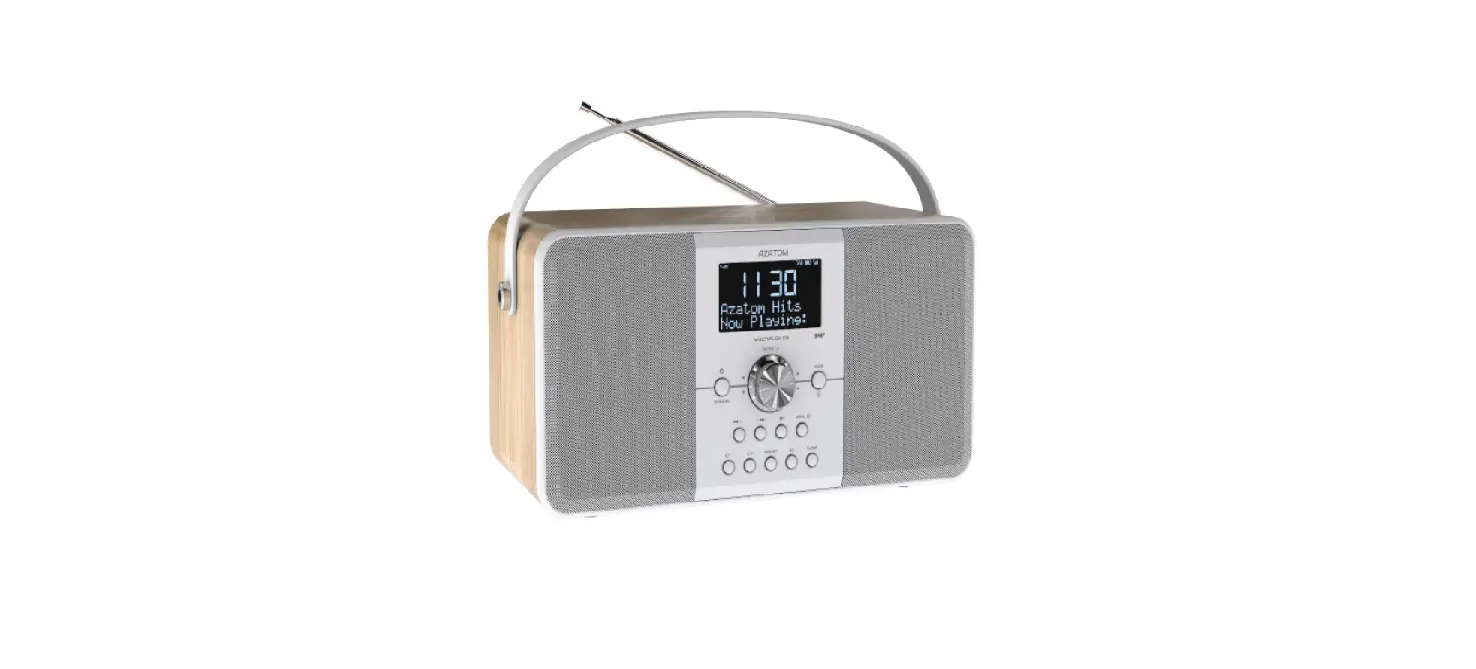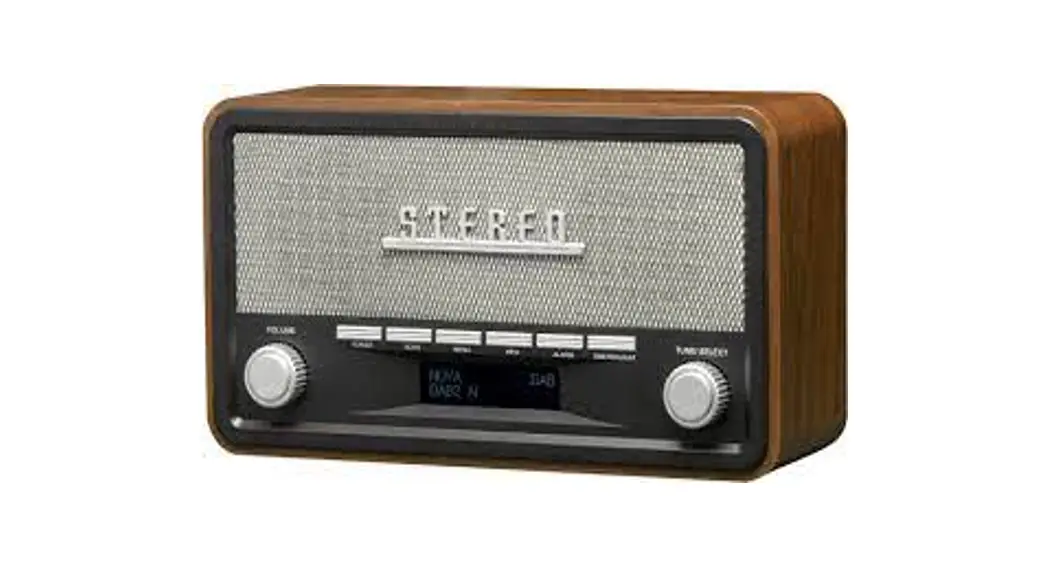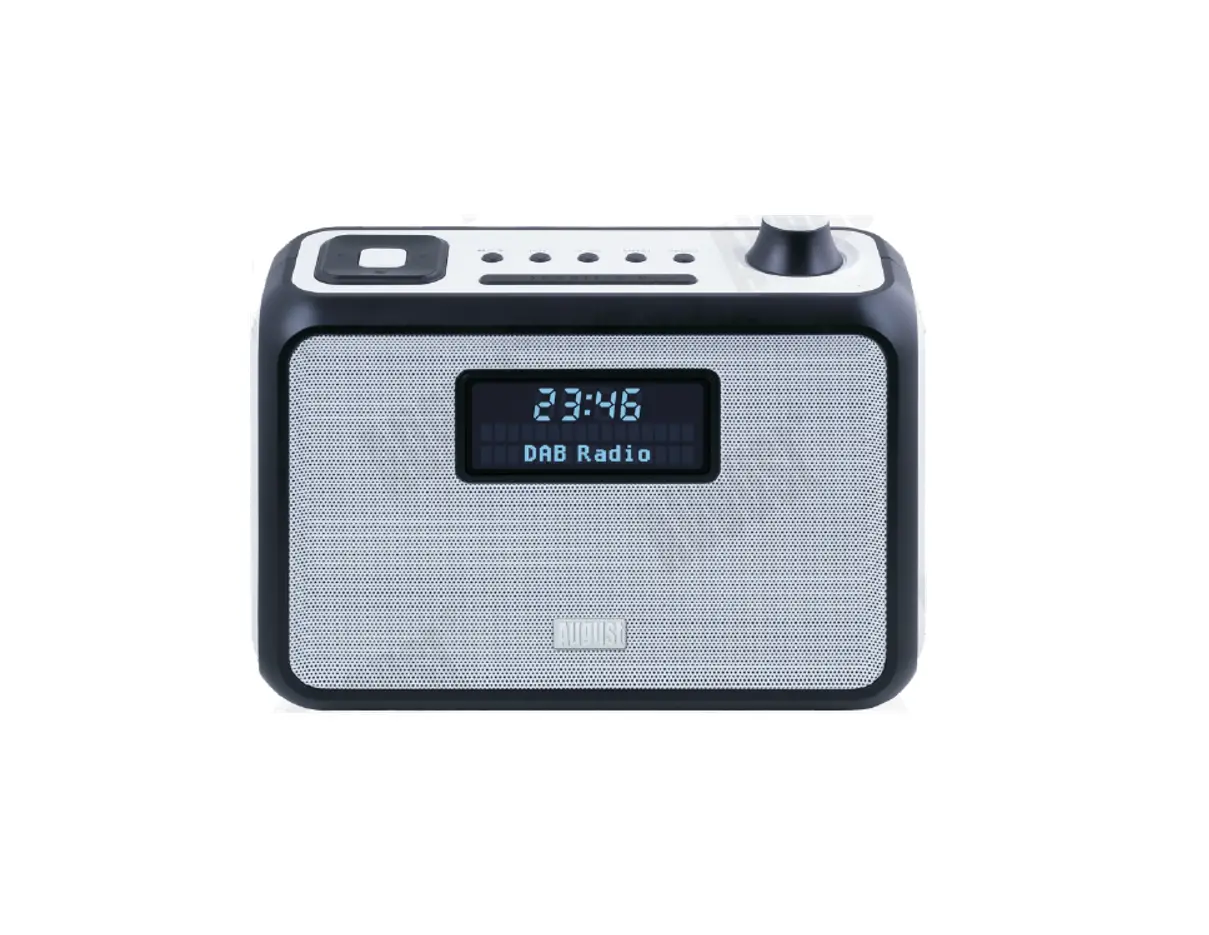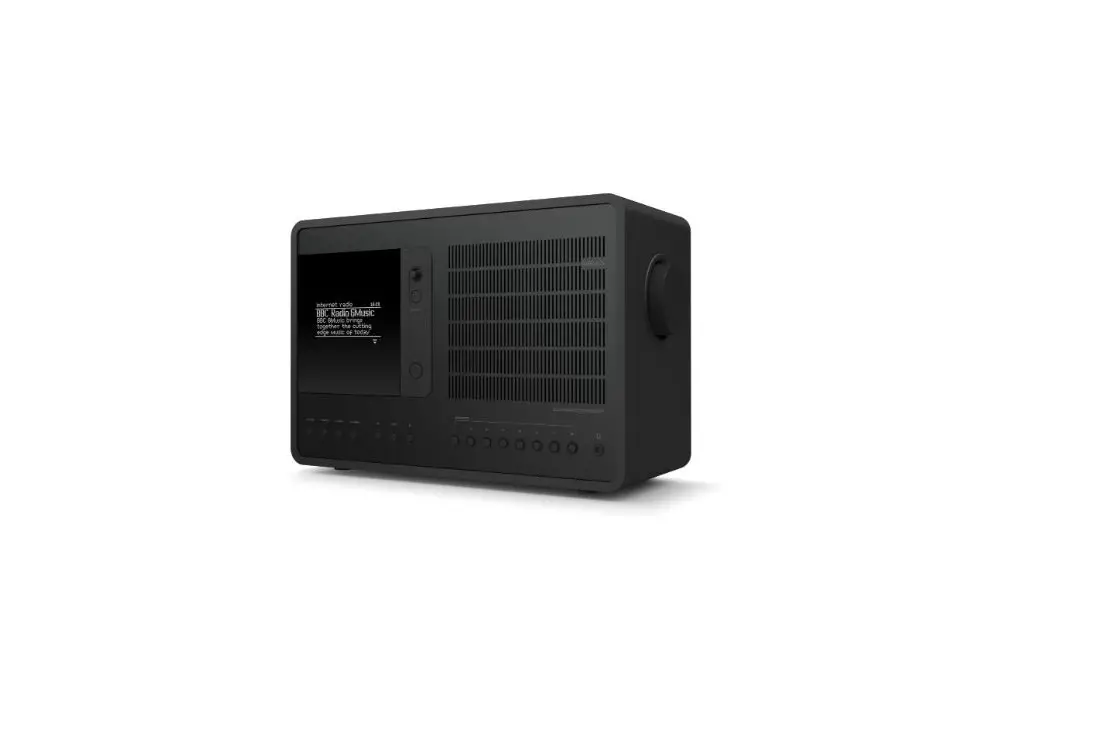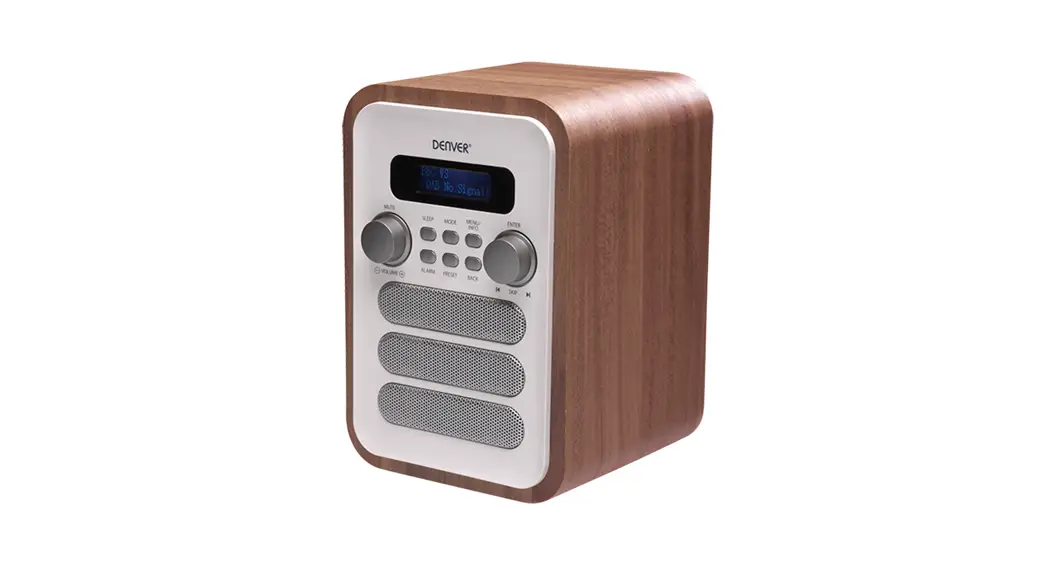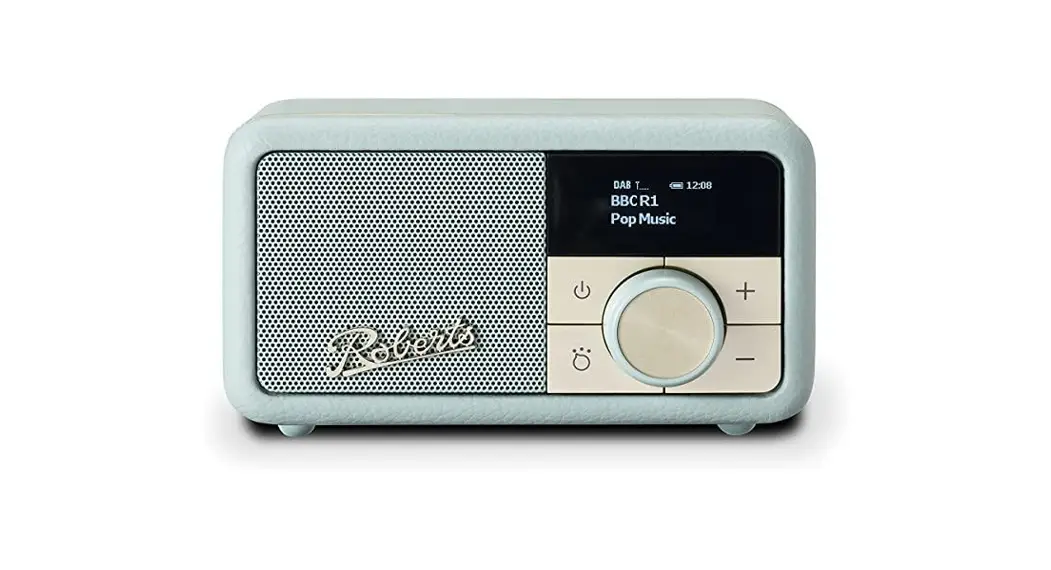
 Revival Petite
DAB / DAB+ / FM radio with Bluetooth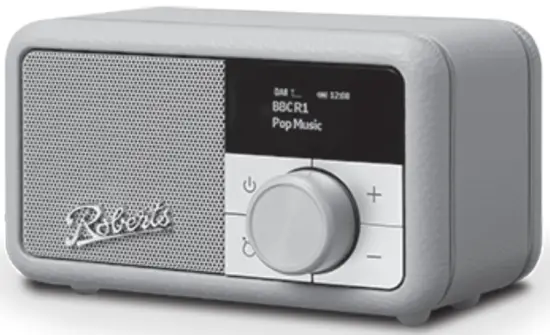

Please read this guide and the safety/warranty leaflet before use
What is in the Box?
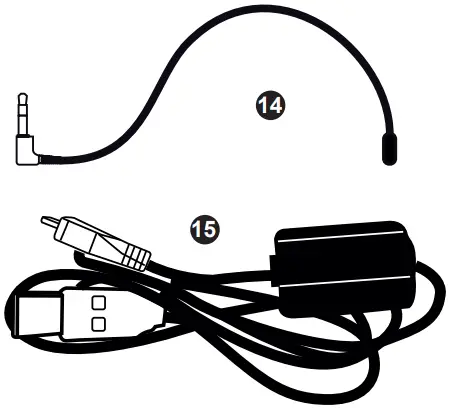
Radio, a micro USB lead, external wire antenna, quick start guide, and safety/warranty leaflet.
Features
- DAB / DAB+ / FM RDS digital radio
- Bluetooth audio streaming from a smartphone, tablet, or laptop
- Built-in rechargeable battery – up to 20 hours of play time
- Stores Bluetooth pairings for up to 8 devices
- Battery charge time – approx. 6 hours
- 40mm loudspeaker with passive radiator
- 20 radio station presets (10 DAB and 10 FM)
- Adjustable display brightness
- Search / manual tuning
- Internal antenna and external antenna for improved reception
- Included Micro USB lead (used to charge the battery)
- Auxiliary input 3.5mm jack for legacy devices
Controls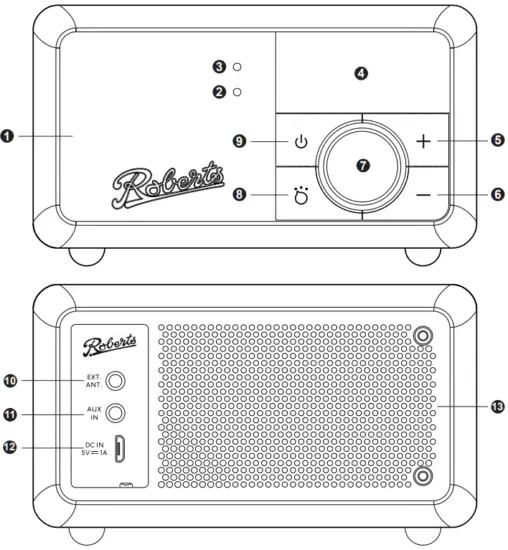
- Speaker
- The battery charging indicator (red LED)
- Bluetooth indicator (blue LED)
- OLED display
- Volume Up button
- Volume Down button
- Tuning / Select / Info / Menu control
- Mode button
- Power button
- External antenna socket
- Auxiliary input socket
- DC in 5V / 1A micro USB charging socket
- Passive radiator
- External wire antenna
- Micro USB charging lead

STEP 1 – Charge & play DAB radio
Please read the safety leaflet provided before charging your radio.
Your radio operates on a built-in Lithium-ion battery that can be recharged either using a USB charging port or from a USB power adaptor (not included) with a rated output of DC5V, 1000mA.
Note: You can begin using the radio whilst charging. Make sure the USB power source can provide 5V 1A of electrical current. If not, it may damage the USB power source.
A – Charging your radio
Before operating your radio for the first time please fully charge the battery. This may take up to 6 hours.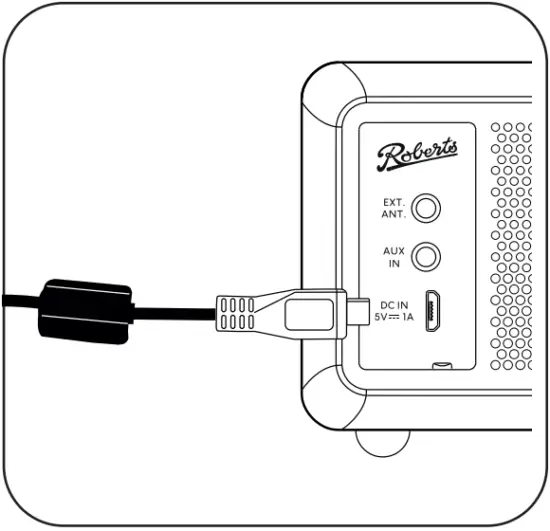
- Place your radio on a flat surface.
- Connect the Micro USB plug to the micro USB charging socket on the rear of the radio as shown.
- Connect the standard USB plug (the other end of the lead) to a USB power outlet.
- When the battery is charging, the battery indicator light will be solid red. When fully charged, the charging indicator will turn off.
B – Fit the external antenna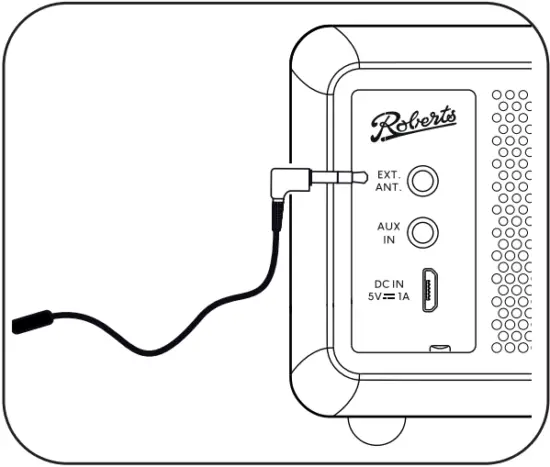
- Insert the external antenna plug into the antenna socket located on the rear of your radio. The antenna is used for both DAB and FM radio reception.
· It is recommended that the DAB band be used wherever possible as better results in terms of quality and freedom from interference will usually be obtained than on the FM band.
C – Switch on your radio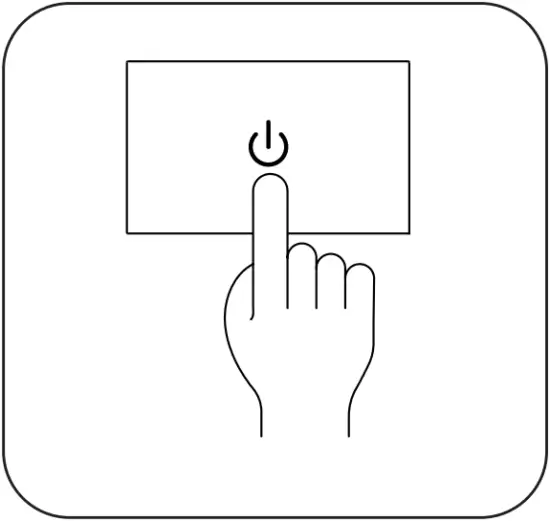
- Press and release the Power button to switch on the radio. A start-up screen will be displayed after a short delay and a station scan will be performed.
- If this is the first time the radio has used a scan of the Band III DAB channels will be carried out. After each uses the radio will remember the mode used and then switch on to that mode the next time it is used. To switch off your radio, press and release the Power button.
· Note: If no signals are found it may be necessary to relocate your radio to a position giving better reception and carry out a scan for new stations.
D – Select a DAB radio station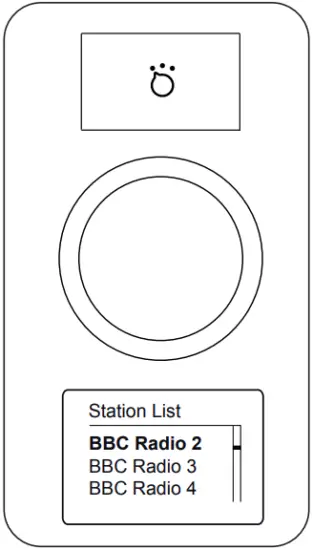
- If needed, press and release the Mode button until the DAB mode is selected.
- Rotate the Tuning control to step through the list of available DAB stations.
- Press the Tuning control to select the station.
- Press the Volume Up or Down buttons to adjust the Volume.
- Some radio stations may have one or more additional broadcasts associated with them. If these are available they will appear immediately after the main station.
· Press and release the Tuning / Info control to cycle through the various DAB display options. Choose from, scrolling text, program type, multiplex name, date, frequency, bit rate, audio type, coding information, and signal strength.
E – Scan for DAB stations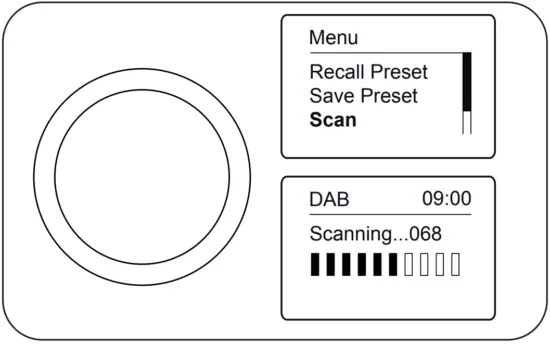 As time passes new stations may become available or you may have moved to a different part of the country.
- When in DAB mode, apply a long press on the Tuning control to enter the DAB menu.
- Rotate the Tuning control and select `Scan’.
- Press Tuning. Your radio will perform a scan of the Band III DAB channels. As new stations are found, they will be added to the list stored on the radio.
STEP 2 – Play FM radio
A – Search tuning – FM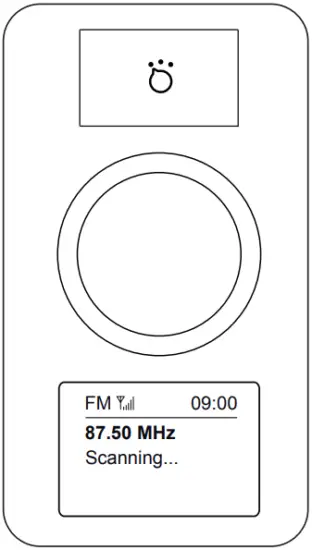
- Ensure the external wire antenna is inserted.
- Press and release the Mode button until FM is selected.
- Rotate the Tuning control clockwise or anti-clockwise one click to scan upwards (low to high frequency) or downwards (high to low frequency). The scan will stop automatically when it finds a station of sufficient strength.
- When the end of the waveband is reached your radio will recommence tuning from the opposite end of the waveband. If the signal is strong enough and there is RDS data present then the radio will display the station name.
- Adjust the Volume.
· Press and release the Tuning / Info control to cycle through the various FM display options. The display options are station name, scrolling text, program type, date, and frequency.
B – Manual fine-tuning – FM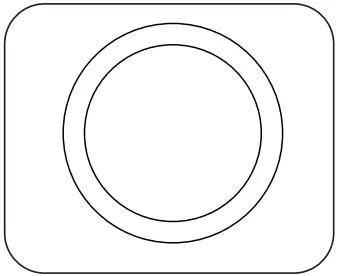
- Turning the Tuning control starts the auto scan. To stop the scan in the desired area, turn the control one more step.
- To change the frequency a small amount, first press the Tuning control, then turn. Each click changes 50 kHz.
- After a few seconds, the control will return to auto-scan mode.
STEP 3 – Bluetooth
Connecting Bluetooth devices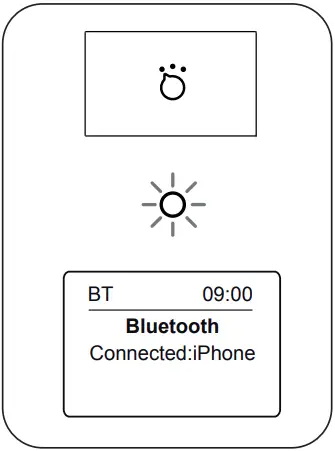
- Ensure Bluetooth is enabled on your smart device.
- With your radio switched on, press and release the Mode button until the Bluetooth mode is selected on your radio.
- The Bluetooth indicator will flash blue and your radio will become discoverable.
- On your smart device select `Revival Petite’. Once the connection is established you may play your music. The Bluetooth indicator will remain steady.
- Adjust the volume using the volume controls on the radio and on the connected Bluetooth device.
Playing audio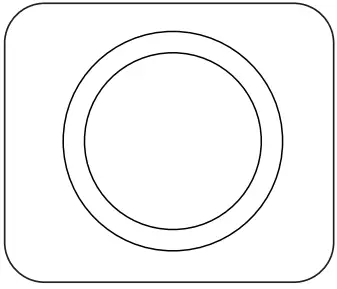
- The audio player in your smart device may be able to respond to the Play/Pause, Next Track, or Previous track controls on the radio.
- Press the Tuning control to pause playback. Press the control again to resume playback.
- Rotate the Tuning control clockwise or anti-clockwise to skip to the next or previous track.
Note: Not all player applications or devices may respond to all of these controls.
· Displayed information such as title, artist, and the album will cycle periodically. To disable the auto-scroll, enter the menu and choose the `Info Scroll’ menu item and then choose `No’. In this case, it will only display the name of the connected device. Choose `Yes’ if you wish to cycle the information again.
Connect a different device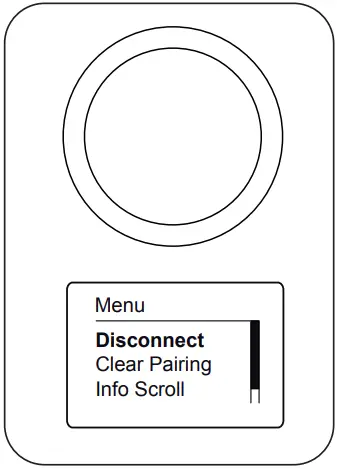
- To connect a different device, apply a long press on the Tuning control. Choose `Disconnect’. Your radio will become discoverable by other devices.
- To clear all Bluetooth pairings, apply a long press on the Tuning control. Choose `Clear Pairing’.
STEP 4 – Selecting menu options
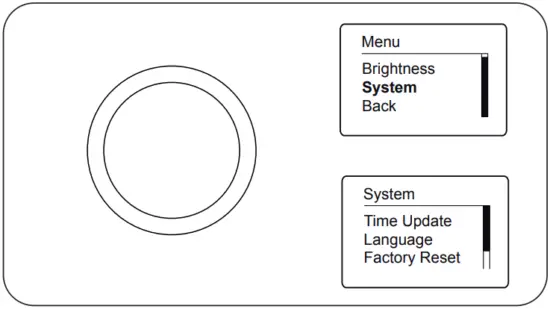
- To access your radio’s menu system, apply a long press on the Tuning / Menu control.
- To select menu options, rotate the Tuning control to highlight the option.
- Press the Tuning control to select the menu option.
- To exit a menu, apply a long press on the Tuning control. Alternatively, select the `Back’ option in the menu.
DAB menu
When in DAB mode, apply a long press on the Tuning / Menu control to access the following DAB menu options. Rotate the control and press to select an option.
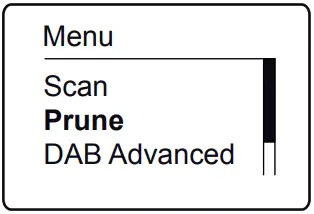
Scan – Choose `Scan’ to scan the band III DAB channels.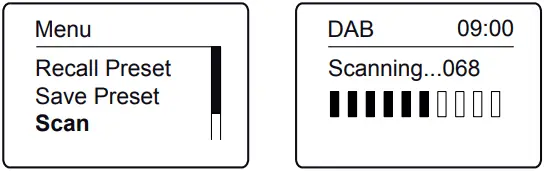 Prune – Choose `Prune’ to remove any stations that are no longer available.
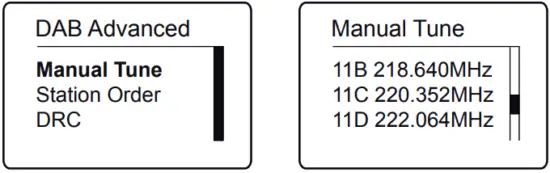
 Manual tune – Choose `DAB Advanced’ and then choose `Manual Tune’ and then choose the desired DAB channel. The signal strength will be displayed. The signal marker
(  ) shows the minimum strength needed for good DAB reception.
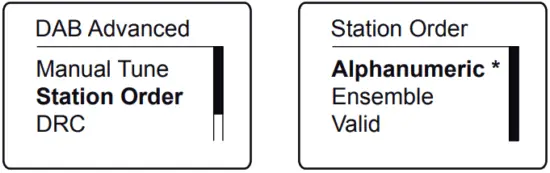
 Station order – Choose `DAB Advanced’, and `Station Order’ and then choose either Alphanumeric, Ensemble, or Valid (available stations).
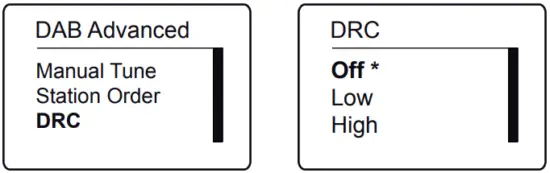
 DRC – Choose `DAB Advanced’, `DRC’ and then choose `Off’, `Low’ or `High’. The DRC facility can make quieter sounds easier to hear when your radio is used in a noisy environment. Note: Not all DAB broadcasts use the DRC function.
 FM menu
When in FM mode, apply a long press on the Tuning / Menu control to access the following FM menu options. Rotate the control and press to select an option.
Scan setting – Choose `Scan Setting’ and then choose `Distant’ (your radio will scan for both weak and strong signals) or `Local’ (your radio will scan for stations with good reception).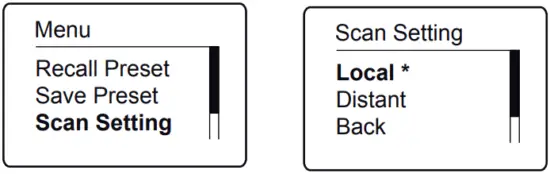 Preset radio stations
There are 20 memory presets, 10 for DAB and 10 for FM. Presets are remembered in the event of a power failure.
To store a preset
- Tune to the required radio station.
- Apply a long press on the Tuning /Menu control.
- Choose `Save Preset’.
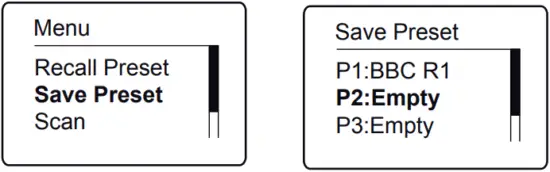
- Use the Tuning control to scroll to an unused preset or a preset you wish to change.

- Press the Tuning control to save the preset. `Preset 2 Saved’ will be displayed. The preset number will be shown on the playing display.
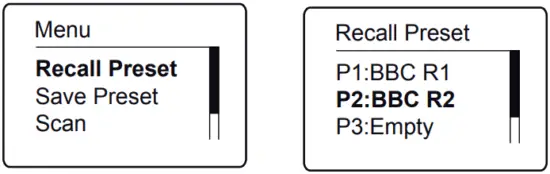
To recall a preset
- Choose DAB or FM mode.
- Apply a long press on the Tuning /Menu control.
- Choose `Recall Preset.
- Use the Tuning control to scroll to the desired preset.
- Press the Tuning control to select it.

System settings
System settings
Apply a long press on the Tuning / Menu control to access the current menu options. Rotate the control and press to select an option.
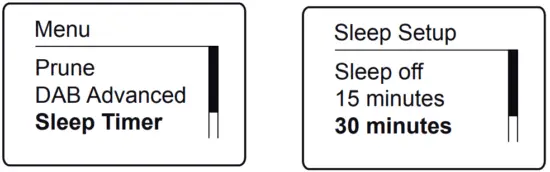
Sleep Timer – Your radio can be set to turn off after a preset time (between 15 and 120 minutes) has elapsed. Choose `Sleep Timer’ and then choose the desired sleep time. The sleep symbol will appear on the display  . If you wish to switch off the sleep timer, press the power button to cancel the sleep timer and switch your radio off.
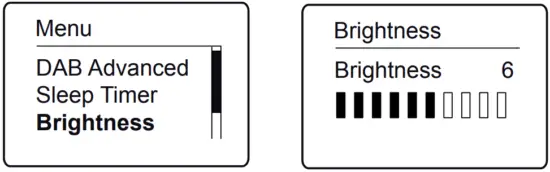
 Brightness – Choose `Brightness’ and then choose the desired brightness level.
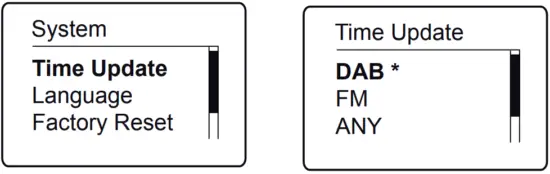
 Time Update – Your radio will usually set the time using the DAB signal. From the current menu choose `System’, and then `Time Update’. Choose to set the time from `DAB’, `FM’, or `ANY’.
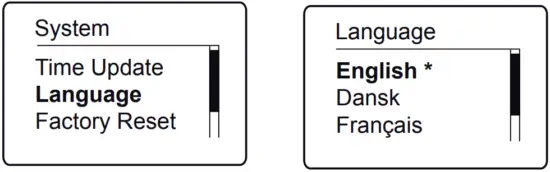
 Language – Choose `System’, and `Language’ and then choose a desired language from the list.
 SW Version – The software display cannot be altered and is just for your reference. Choose `System’ then `SW Version’. Press Tuning to exit the software display.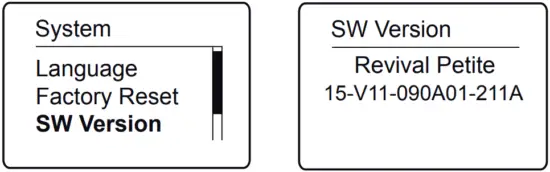
Other information
Factory Reset
Factory Reset – If you wish to completely reset your radio to its initial state perform a factory reset. Choose `System’ then `Factory Reset’ and then choose `Yes’. All user-entered settings will be erased.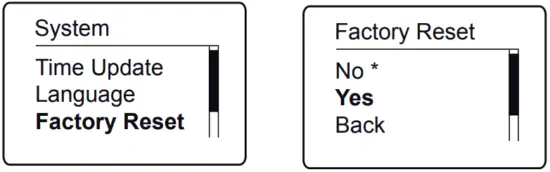 Note: If the unit is in the Bluetooth or Auxiliary input stop mode position for more than 15 minutes it will automatically switch off. To use the radio again, simply press the Power button.
Auxiliary input
Connect a stereo or mono audio source to the Auxiliary input socket. Press and release the Mode button until Aux In mode is selected. Adjust the volume. Note that audio will be played in mono through the speaker.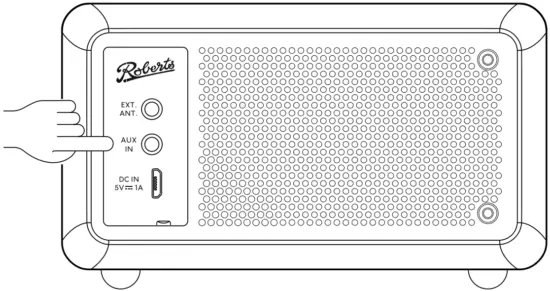
Battery safety
Please also read the safety leaflet provided before charging your radio.
- Do not puncture, crush, modify, or cause any unnecessary shock to the battery. The battery may present a risk of fire, explosion, or chemical burn if mistreated.
- Do not dispose of the battery in a fire or incinerator.
- Do not leave, charge or expose the battery to a heat source such as in a car under direct sunlight. Do not expose the battery to moisture.
- Do not use or charge the battery if it appears to be abnormally hot, swollen, leaking, or damaged in any way.
- Do not leave a charging battery unattended. Do not use any alternative power source as a charger.
- Check the room temperature range between 5-35°C (41-95°F) before charging the product/battery.
Note: Reduced power, distortion, and stuttering sounds or the battery indicator in low  are all signs that the battery needs to be recharged.
Specifications
Power requirements
| DC in | Micro USB jack 5V 1A |
| Charging current | 500mA |
| Battery | Rechargeable Lithium-ion 3.63V, 2600 mAh, 9.438Wh. |
| Battery playtime | Approx 20 hours from a full charge. This figure is only approximate and is very dependent on playback volume, battery age, and temperature. |
| Battery charge time | Approximately 6 hours. |
Circuit features
Auxiliary input socket – 3.5mm dia.
Aerial System – DAB / FM external antenna
| Bluetooth standards | A2DP, AVRCP |
| Bluetooth codecs supported | SBC and AAC |
Frequency coverage
FM 87.5 – 108MHz, DAB 174.928 – 239.200MHz
Bluetooth 5.0 frequencies 2.402 – 2.480GHz
Bluetooth BLE EIRP POWER (MAX.) 3.71dBm
Bluetooth EDR EIRP POWER (MAX.) 3.68dBm
Product markings This symbol indicates DC voltage.
Please handle it with care. The leather-cloth finish may be susceptible to damage if mistreated. Avoid all contact with any abrasive material, chemical substances, or cleaning solutions. Your radio may be wiped with a clean lightly damp cloth. Please ensure that the product is unplugged before attempting this procedure.
The nameplate is located underneath the radio.
The company reserves the right to amend the specification without notice.
Designed & Engineered in the UK
Made in China
Please read this guide and the safety/warranty leaflet before use
Issue 1
2021-06-23 ROBERTS RADIO LIMITED
www.robertsradio.com
© 2021 Roberts Radio Limited

 Official Roberts Radio Online Shop | British Audio