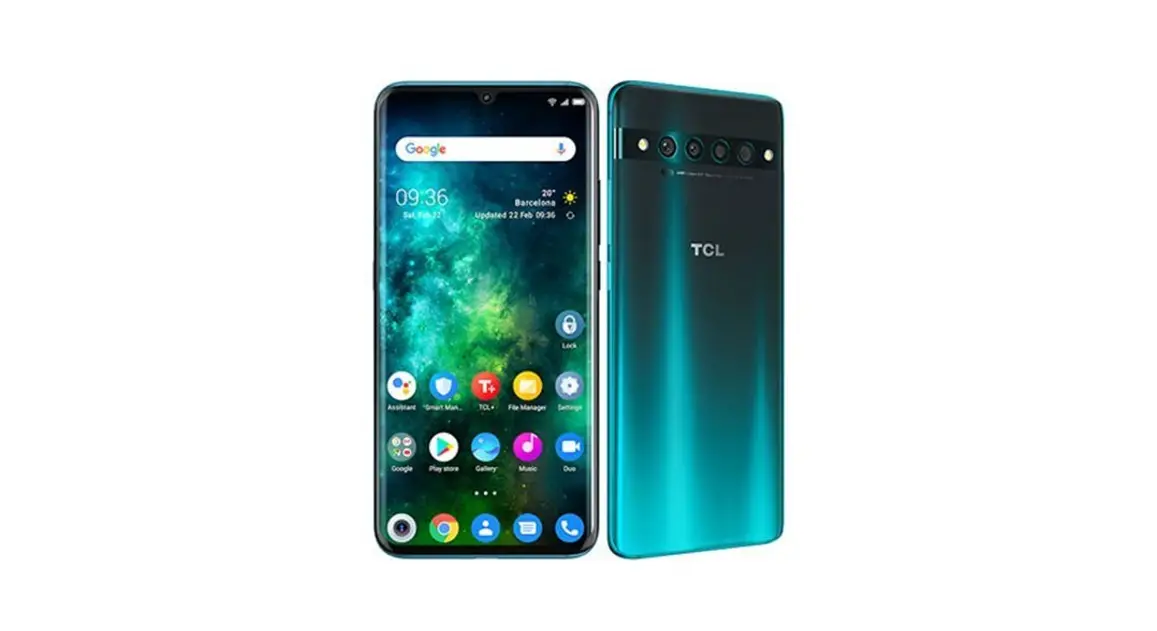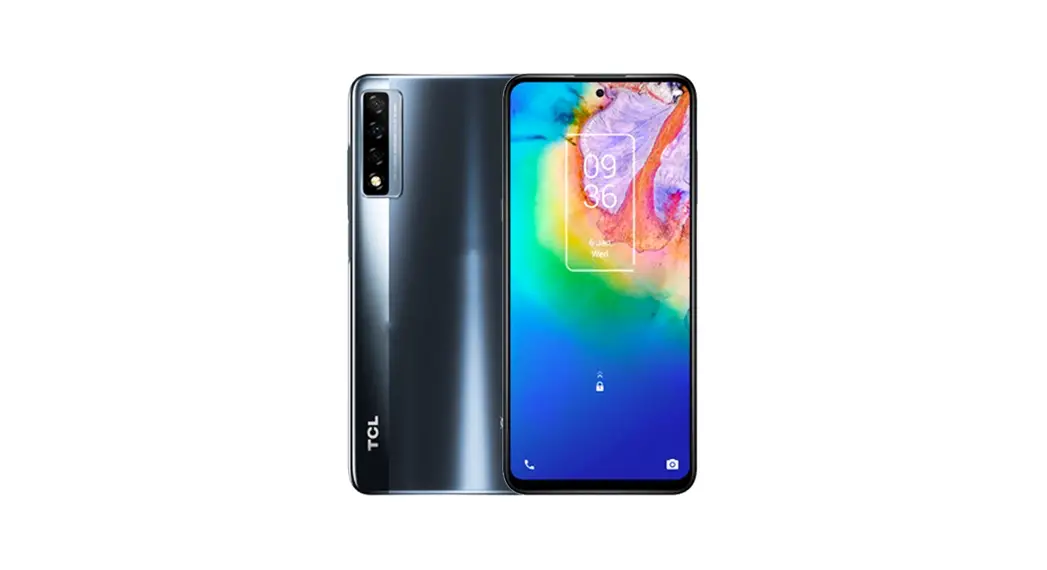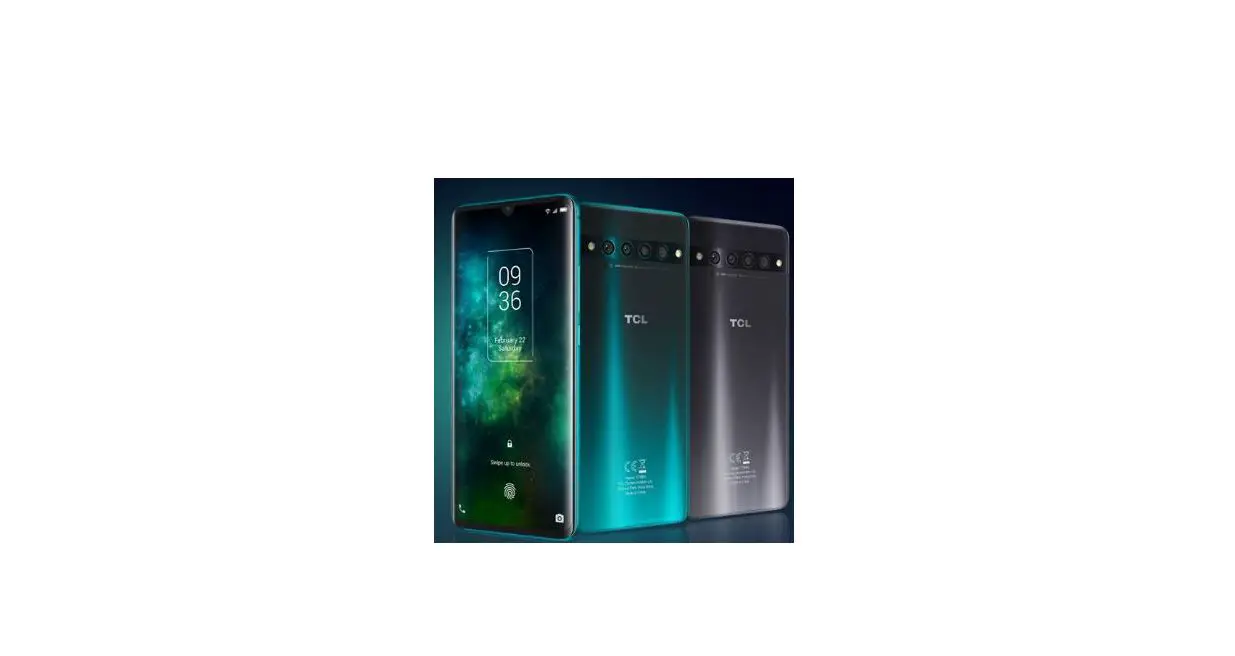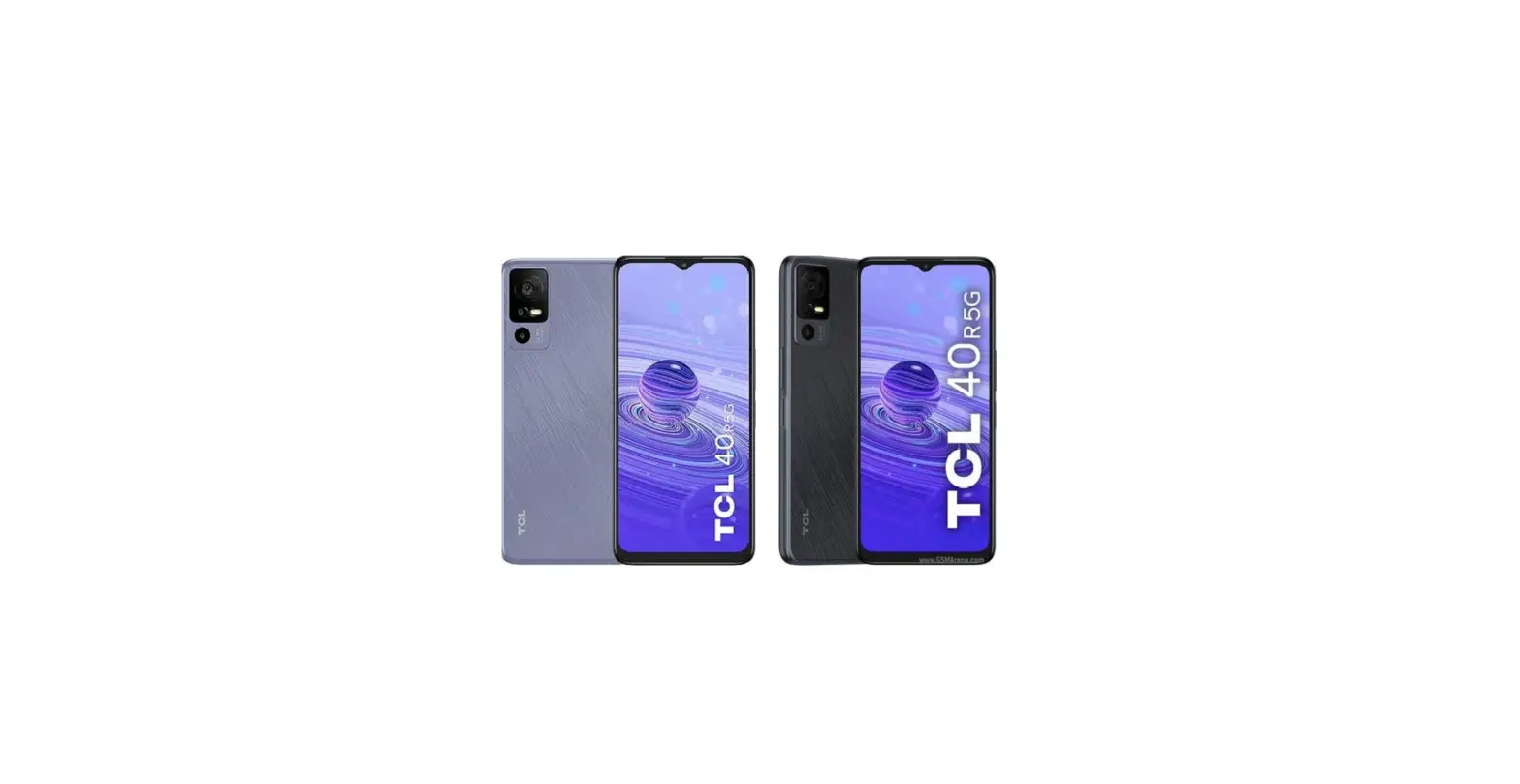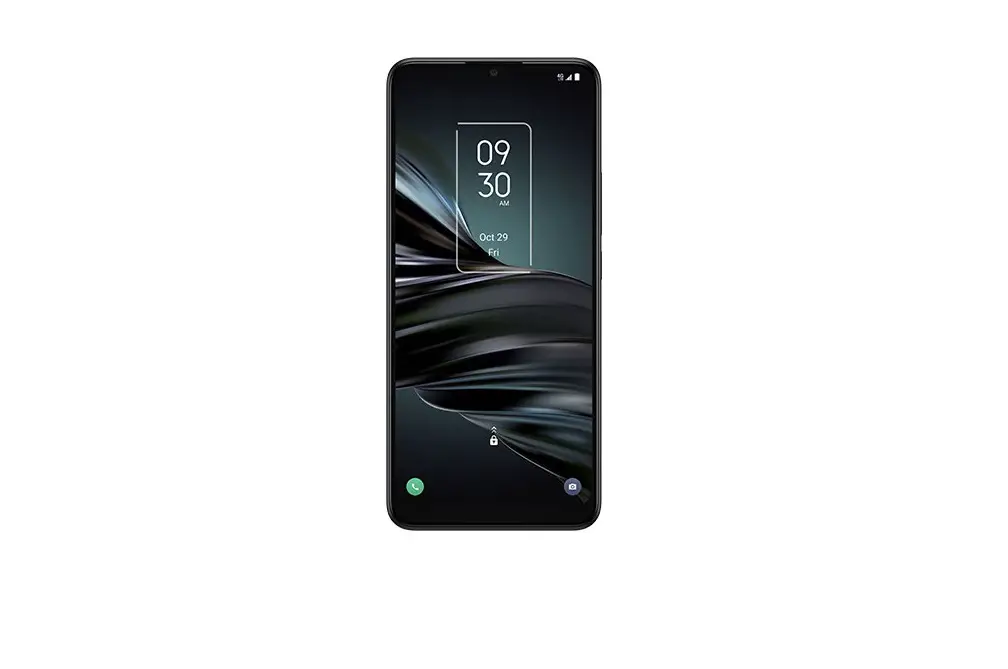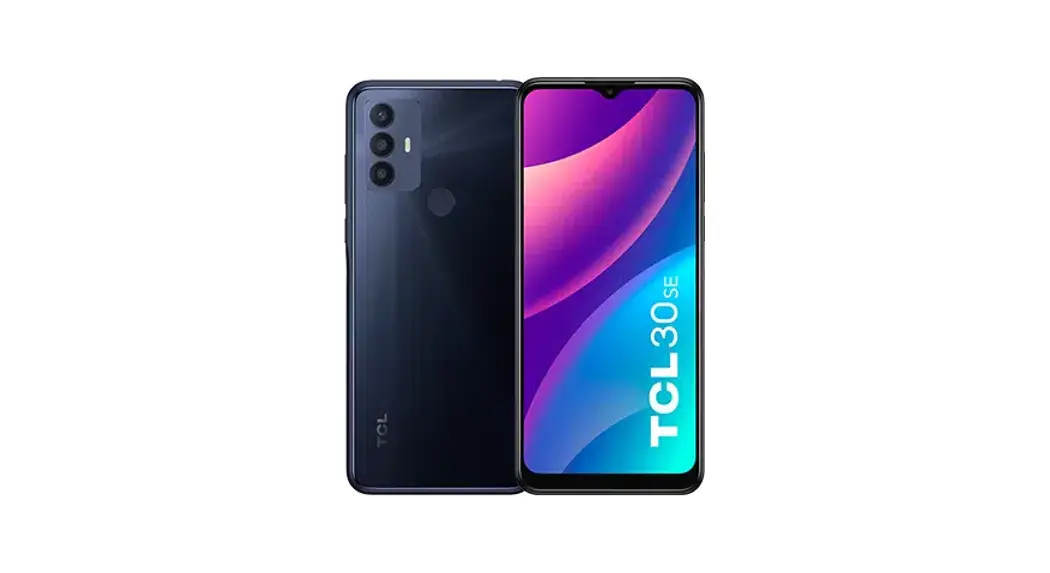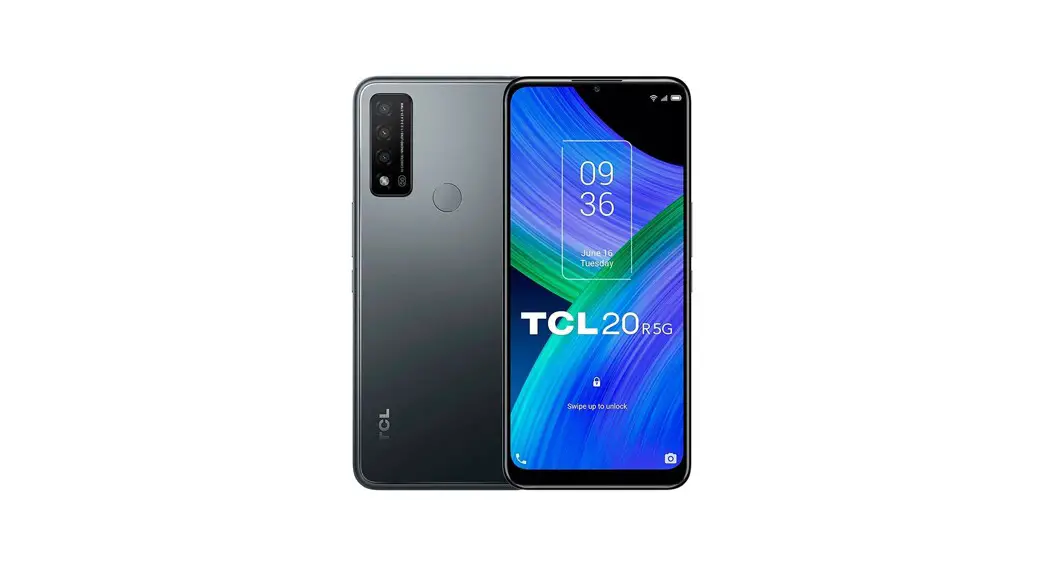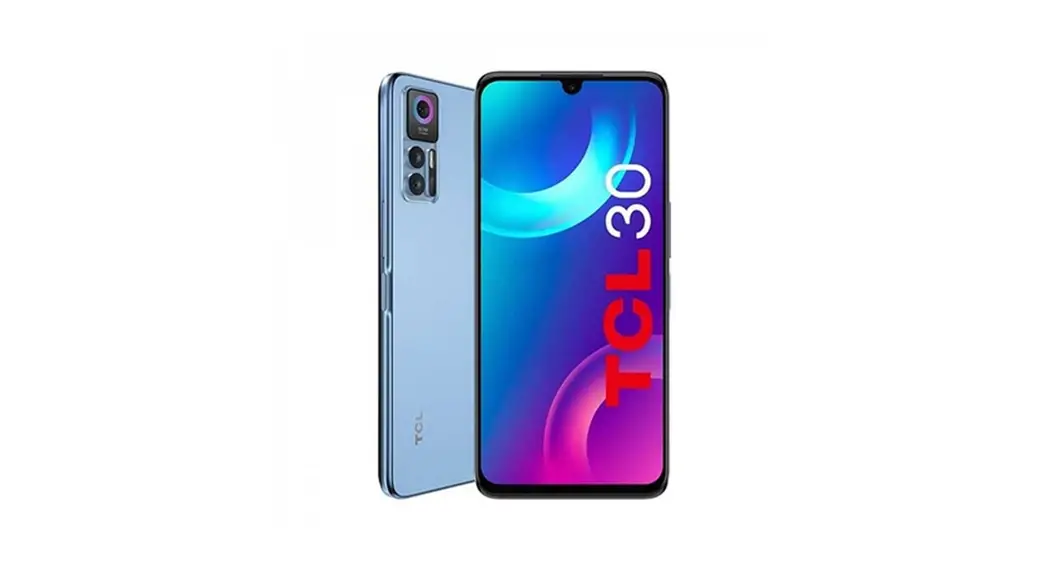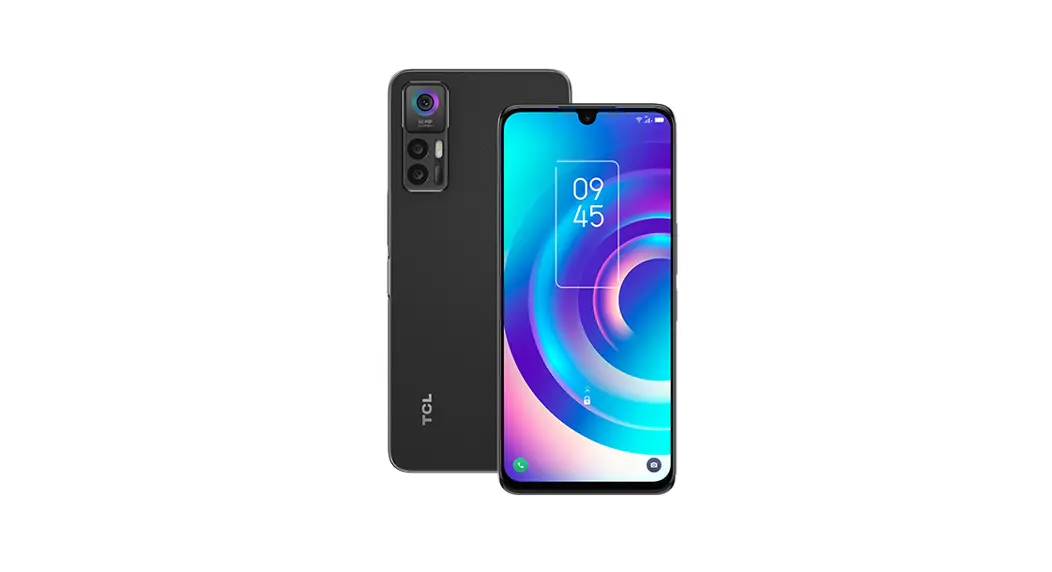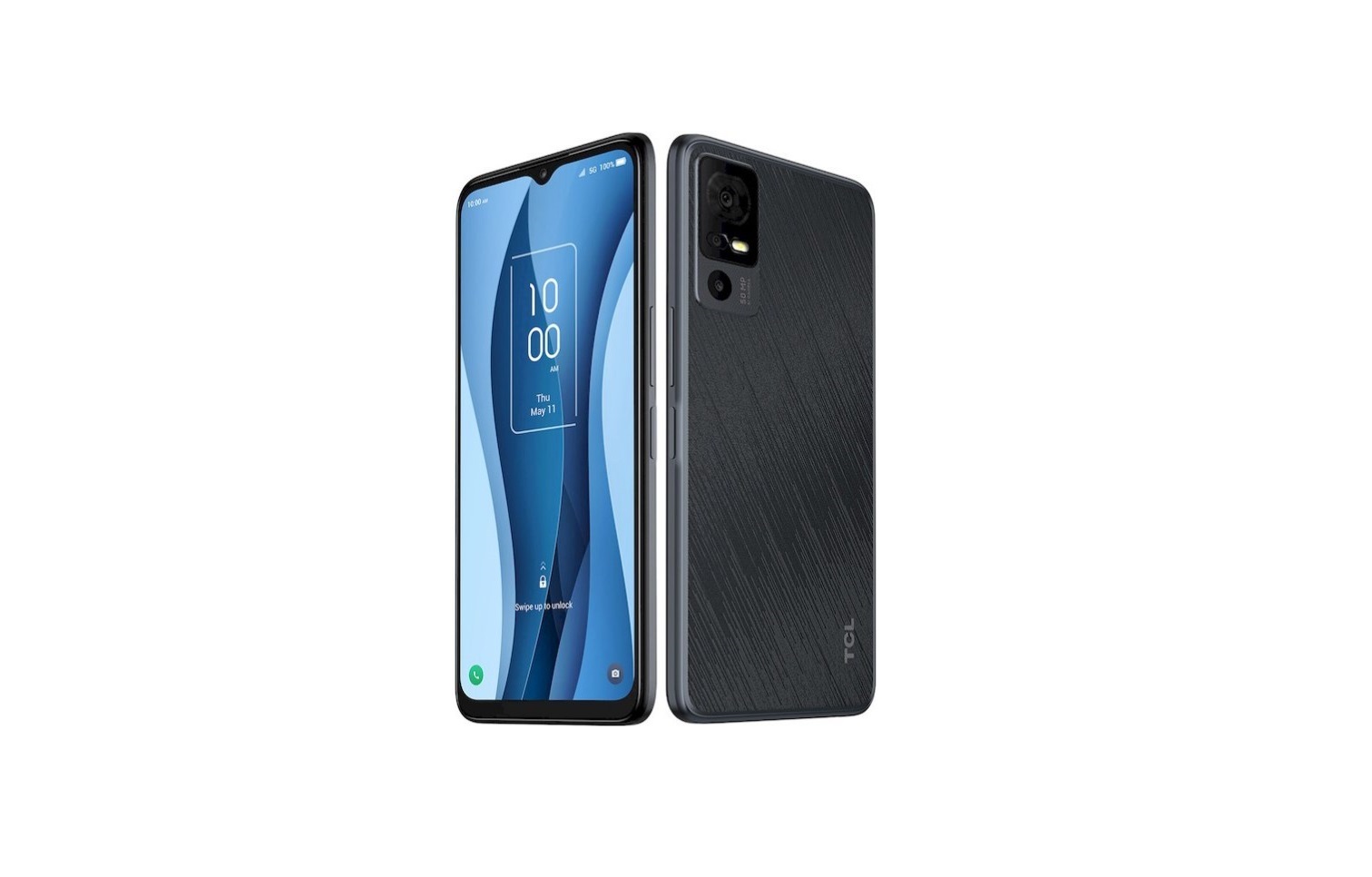
 Communication H156 LTE GSM Mobile phone
User Guide
SAVE PAPER SAVE TREES
PLEASE CONSIDER THE
ENVIRONMENT BEFORE PRINTING us.alcatelmobile.com
 CJB2JC101AAA
Your Mobile
Keys and connectors
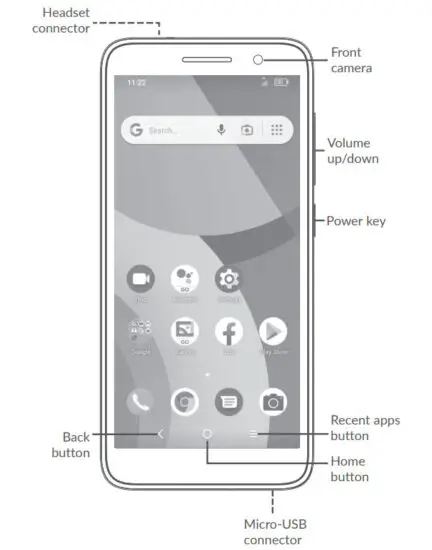
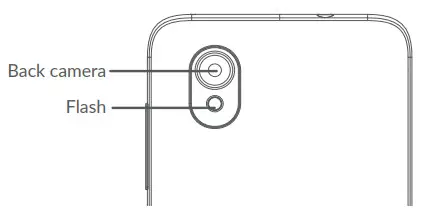
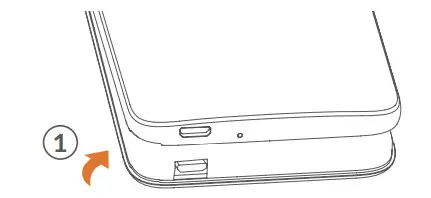
Getting started
- Removing or installing the back cover.

- Installing or removing the battery.

- Insert or remove the microSD card.
- Insert or remove the SIM card.


- Charge the battery.

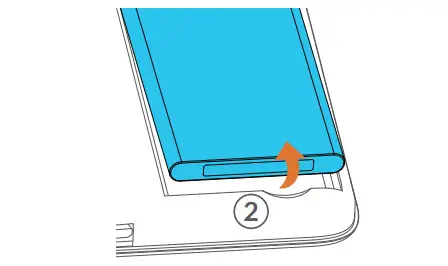
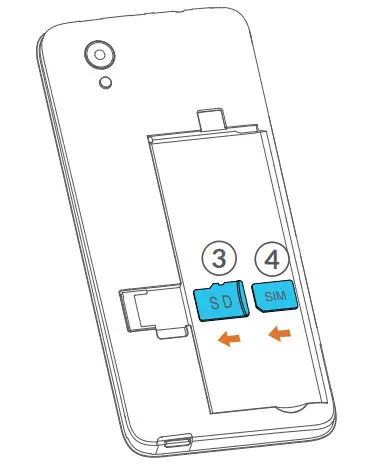
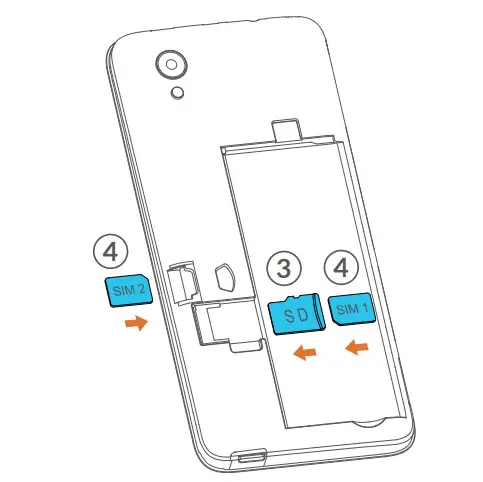
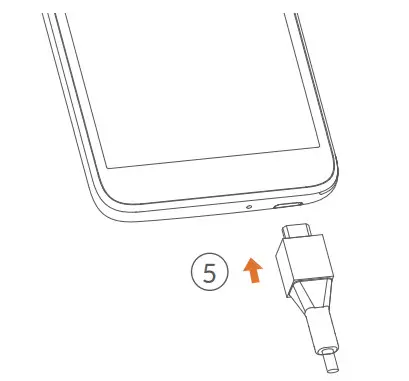
Home screen
You can bring all of the items (applications, shortcuts, folders, and widgets) that you use most frequently to your Home screen for quick access.
Touching the Home button always takes you back to the main Home screen.
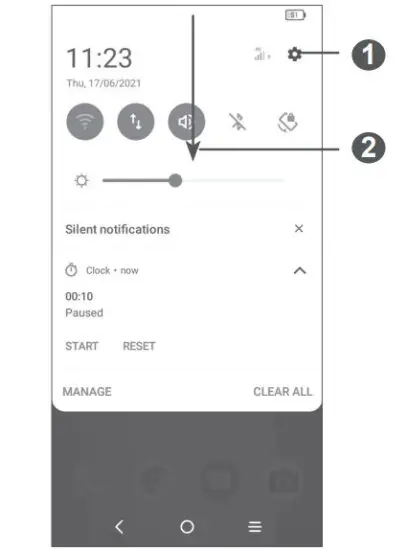
- Open Settings, to view the full list of settings
- Touch and drag down to open the Notification panel
Phone call
Making a call
Enter the desired number from the keyboard and touch to make a call.
Answering a call
When you receive a call, swipe to the right to answer or swipe to the left to reject.
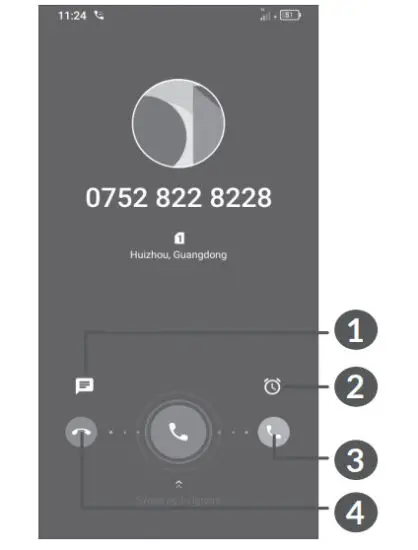
| 1: Reject by SMS | 3: Answer the call |
| 2: Reject by Alarm | 4: Reject the call |
Contacts
You can view and create contacts on your phone and synchronize these with your Gmail contacts or other applications on the web or on your phone.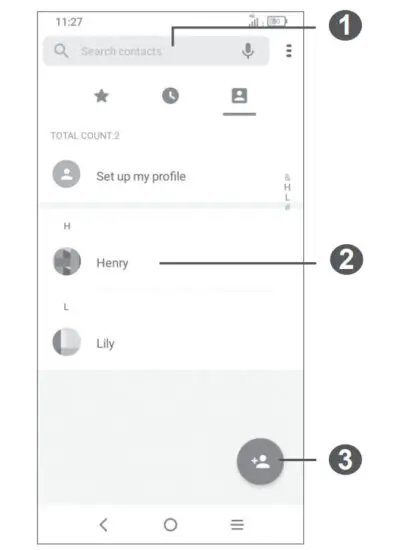
- Search in Contacts
- Open the Quick contact panel
Touch and hold to share or delete the selected contact - Add new contact
Messaging
You can create, edit, and receive SMS and MMS.
An SMS will be converted to MMS automatically when media files (image, video, audio, slides, etc.) are attached or subject or email addresses are added.
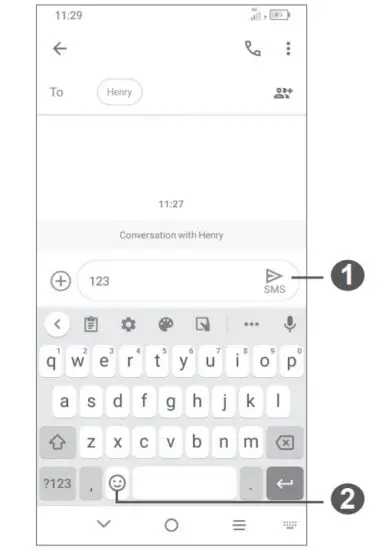
- Send the text message
- Insert emoticons
Gmail
The first time you set up your phone, you can select to use an existing Gmail account or to create a new one.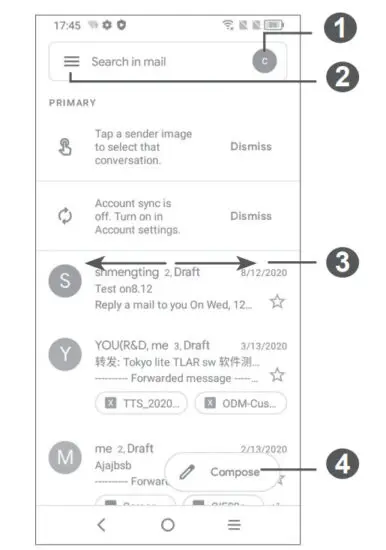
| 1: Account information | 3: Swipe right or left to archive the email |
| 2: See options and settings | 4: Create an email |
Help
To get help:
- View user manual and FAQ www.alcatelmobile.com
- Update your phone’s software Go to Settings > System > System Update to check software updates.
- Back up your personal data Go to Settings > System > Backup > Back up to Google Drive and turn it on.
- Reset your phone Go to Settings > System > Reset > Factory data reset, and then touch to reset your Phone.
Support
- Enter from your Smartphone / Tablet to the application: Support Center.
- Check our frequently asked questions or chat with us through https://www.alcatelmobile.com in the Support section.
- Call the Call Center. Locate your number, below:
Australia: 1-800-218-730 Canada: 855-844-6058 Colombia: 1-800-518-3882 Ecuador: 800-000-635
Mexico: 800-112-4682 New Zealand: 080-045-1708 Peru: 800-55-639
Dominican Republic: 1-800-203-9552 USA: 1-855-368-0829
Venezuela: 800-136-2017
 Home | Alcatel Mobile | Alcatel 1S | Alcatel 1X | Alcatel 3
 Alcatel Mobile | Smartphones, Tablets & Connected Devices : Alcatel Mobile
 Home | Alcatel Mobile | Alcatel 1S | Alcatel 1X | Alcatel 3