


INTEGRATION GUIDE
INTEGRATION for TAHOMA® RTS
VERSION 1.0 | NOVEMBER 2021 | Prepared by PROJECT SERVICES
INTRODUCTION
The Somfy Organization’s strength has been demonstrated with 50 years of experience in motorization.
As leaders in the shading industry with innovative and modern solutions for homes and commercial buildings, Somfy offers the widest range of strong, quiet motors and controls for all types of applications and technologies.
Who is this Guide for?
This guide is aimed at providing support and guidance to Alarm.com homeowners, installers, and dealers for achieving complete automation of Radio Technology Somfy® (RTS) motors and TaHoma® Smartphone and Tablet Interface.
What does this Guide contain?
The sections of this guide contain walkthroughs and methods of controlling RTS motors using the TaHoma® Smartphone and Tablet Interface as the bridge between Alarm.com and Smart Shading by Somfy.
For questions or assistance please contact technical support: (800) 22-SOMFY (76639)
[email protected]
How should this Guide be used?
This guide is intended to be used as a reference manual.
OVERVIEW
DESCRIPTION
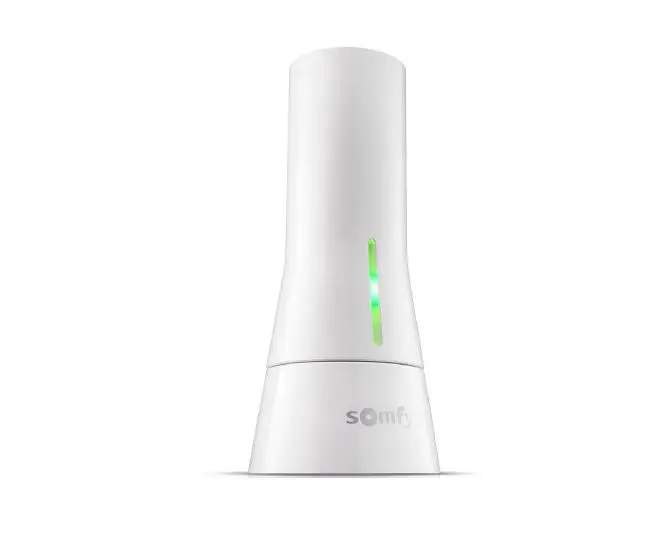
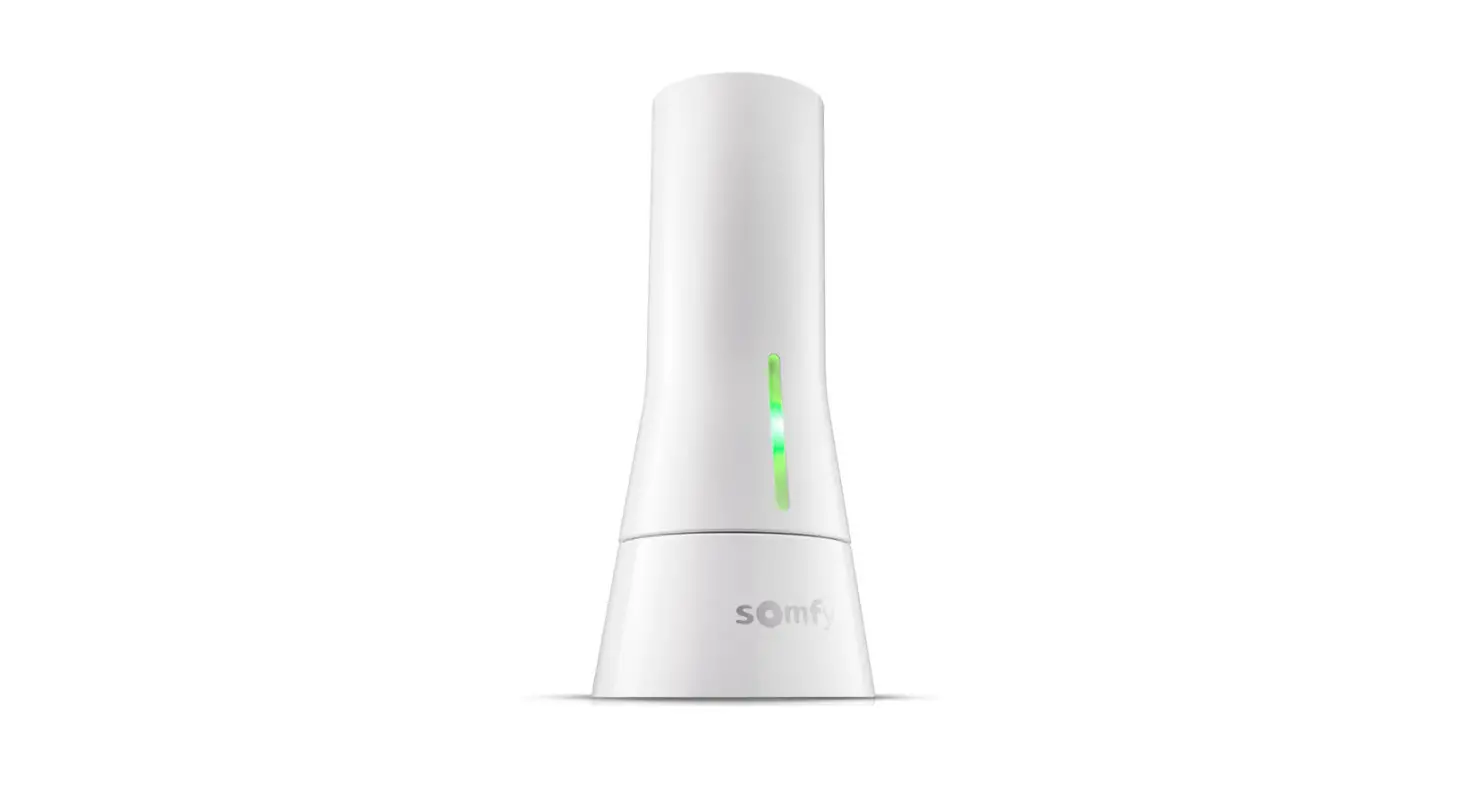
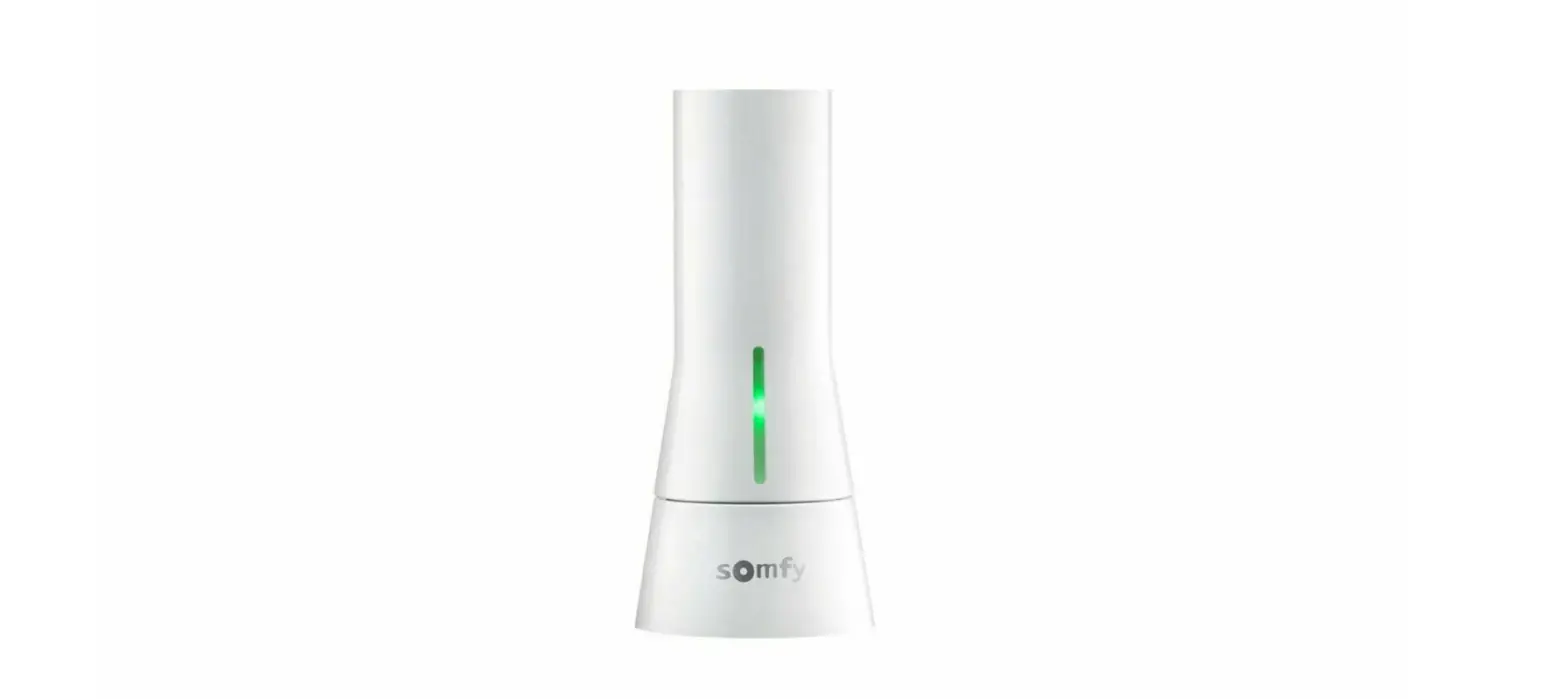
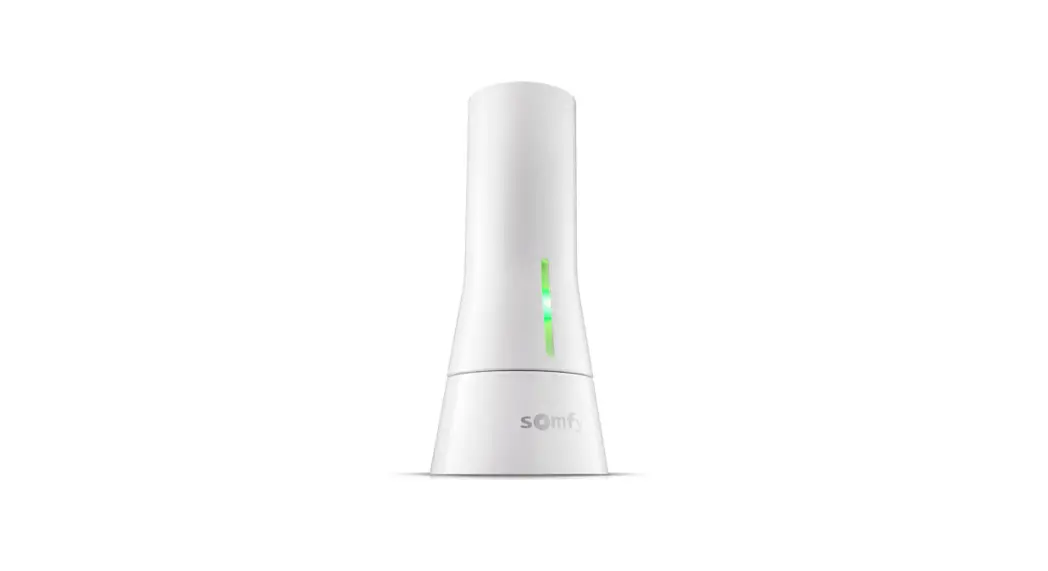
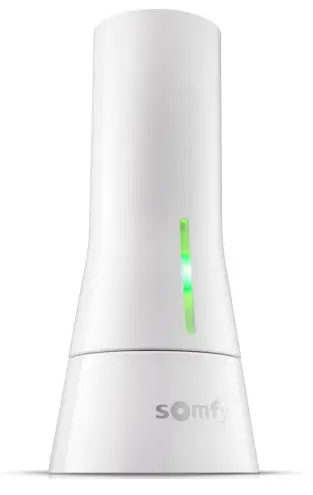
The Somfy TaHoma® Smartphone and Tablet Interface provides a single platform for Somfy RTS and future ecosystems with a wide range of interior and exterior applications.
- The TaHoma Interface supports up to 40 RTS channels
- Install up to 10 TaHoma Interfaces as zone controllers to increase the RTS range
- The TaHoma Interfaces can support a maximum of 40 scenes with schedules per install
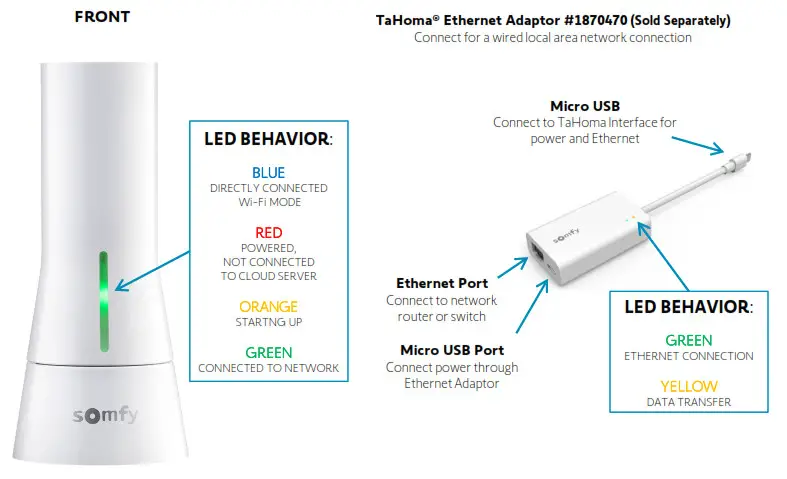
Each TaHoma Interface is connected to Wi-Fi or directly to the local area network by an optional TaHoma Ethernet Adaptor for IP Integration with third-party control systems. TaHoma is compatible with the Somfy Synergy™ API.
Details of this controller and commissioning instructions are available in the Somfy TaHoma Smartphone and Tablet Interface Programming Guide.
RESOURCES & APPLICATIONS
Visit www.somfypro.com for the following guides:
- Somfy TaHoma Smartphone and Tablet Interface Programming Guide
- Somfy RTS Pocket Programming Guide
Subscribe to the Somfy YouTube Channel www.youtube.com/somfysystems
Visit the Google Play or iOS App Store for the latest version of the Somfy TaHoma North America App:
https://apps.apple.com/us/app/tahoma-north-america/id1437975616
https://play.google.com/store/apps/details?id=com.somfy.beecon&hl=en_CA&gl=US
Visit the Google Play or iOS App Store for the latest version of the Alarm.com App:
https://play.google.com/store/apps/details?id=com.alarm.alarmmobile.android&hl=en_CA&gl=US
https://apps.apple.com/us/app/alarm-com/id315010649
SYSTEM REQUIREMENTS
The TaHoma app is compatible with the following operating systems and software versions:
IOS 11.0+
Android 7.0+

INSTALLATION
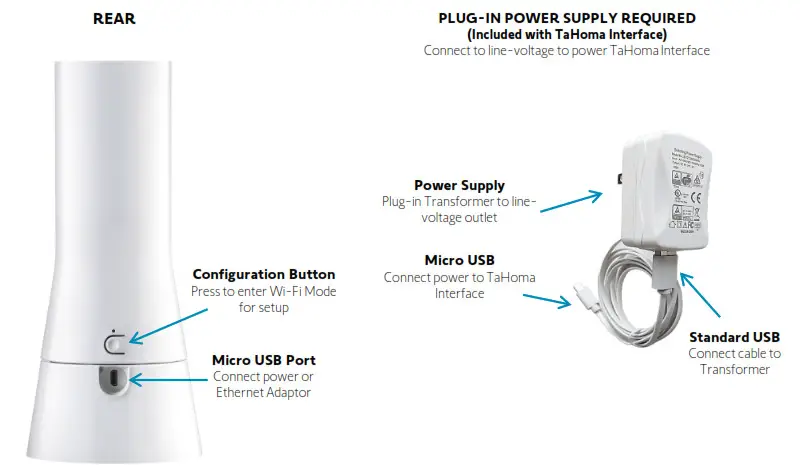
CONNECTIONS & INDICATORS
SYSTEM PREPARATION
SOMFYSYSTEM
A fully operational TaHoma system is required prior to Alarm.com programming. The TaHoma Interface supports up to 40 channels of RTS. RTS devices programmed to an RTS channel will only receive commands from the associated TaHoma Interface.
Interfaces must be placed within 25-35’ of the RTS devices they control.
- Confirm with Shade Commissioning Agent that the TaHoma Interface firmware is up to date
- Must have one Alarm.com account per TaHoma system or project
ALARM.COM SYSTEM
A fully operational Alarm.com system is required prior to TaHoma integration.
- Confirm that Alarm.com is powered on and connected to a network with an internet
- Confirm Alarm.com IOS/Android application is up to date
SETUP
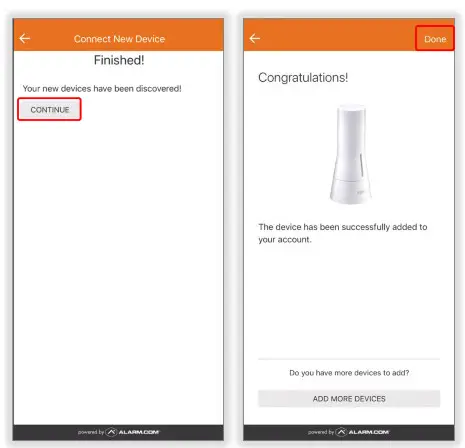
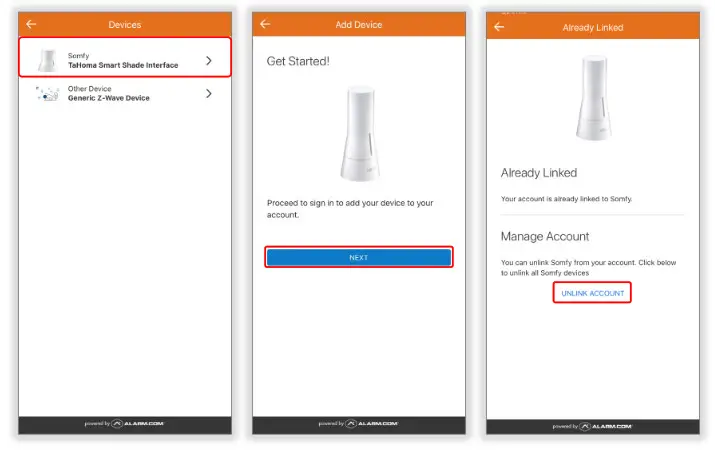
LINK TAHOMA TO ALARM.COM
To enable scenes and motor control from the Alarm.com app, follow the steps below:
Open the Alarm.com App and login to the account.
- SELECT “Menu” icon
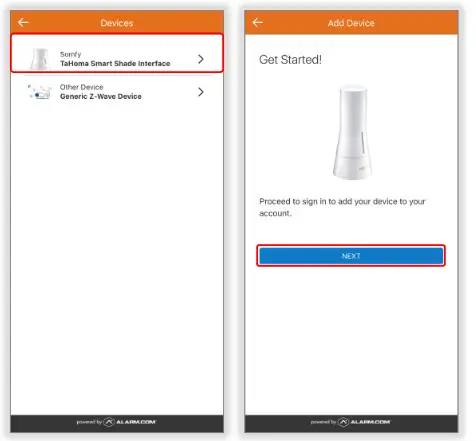
- SELECT “Add Device”
- SELECT “Shade and Shutter”

- SELECT “Somfy Tahoma Smart Shade Interface”
- SELECT “NEXT”

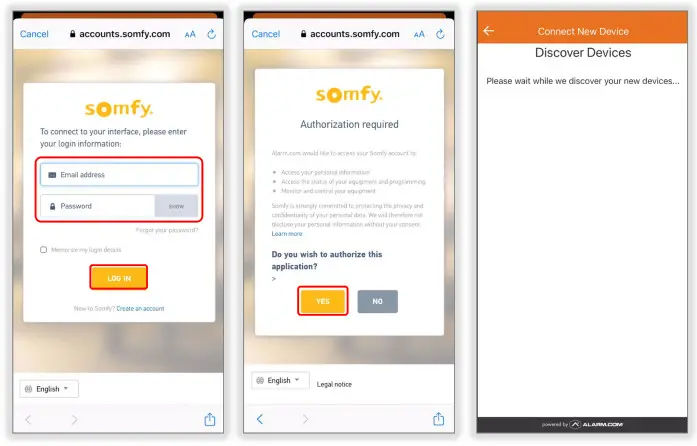
- Enter the Tahoma Login credentials used to register during TaHoma programming
- SELECT “LOG IN”
- SELECT “YES” to authorize Alarm.com access to the Somfy account

- SELECT “CONTINUE”
- SELECT “Done”


CONTROL TAHOMA DEVICES
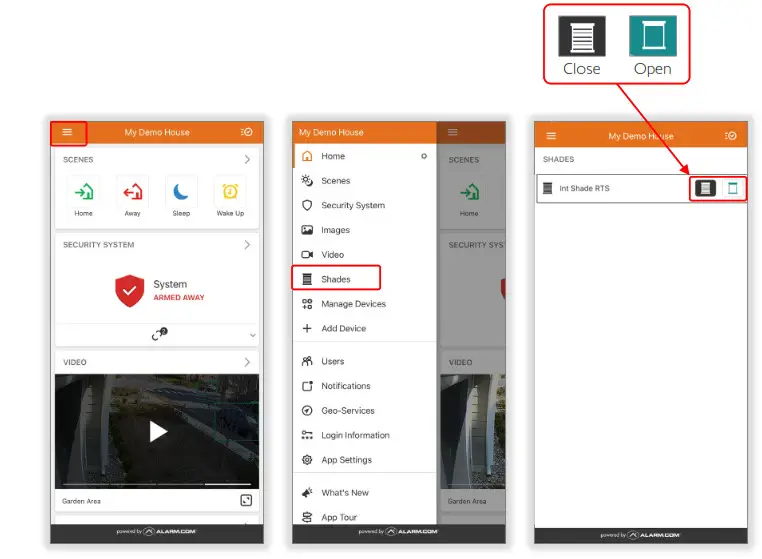
To Open or Close RTS shades, follow the steps below:
Alarm.com does not show shade status because Somfy RTS motors do not report positional feedback.
This integration does not support a Stop command or a “my” position command for RTS motors.
- SELECT “Menu” icon
- SELECT “Shades”
- SELECT the “Open” or “Close” icon

CREATE SCENES
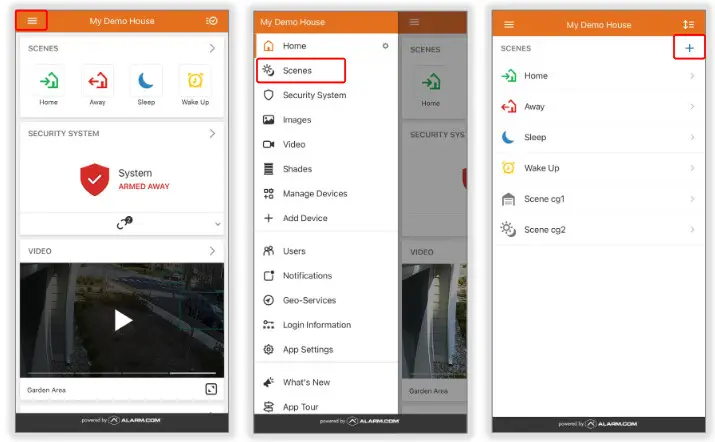
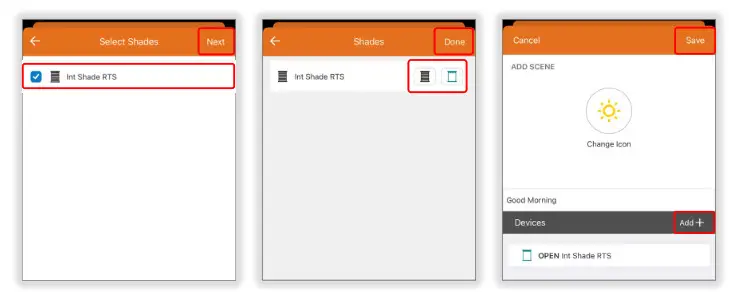
Scenes allow multiple devices to be controlled with various actions. To create scenes, follow the steps below:
- SELECT “Menu” icon
- SELECT “Scenes”
- SELECT “+” icon

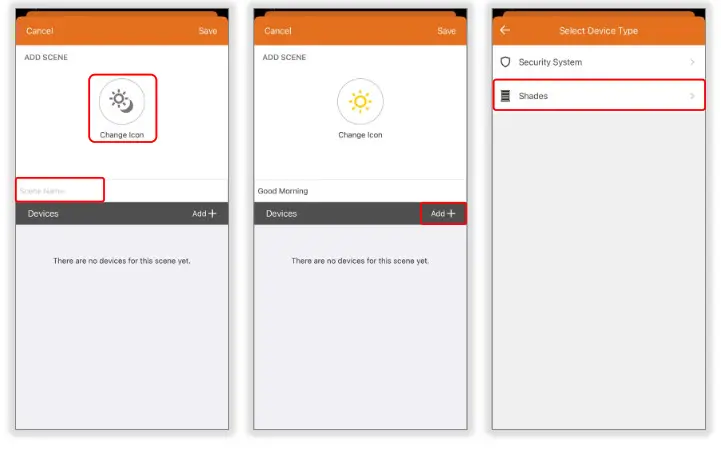
- SELECT “Change Icon” to change the scene’s icon
- ENTER a name for the scene
Example: Good Morning - SELECT “Add +” to add devices to the scene
- SELECT “Shades”

- SELECT the RTS shade to be added to the scene
- SELECT “Next”
- SELECT the “Open” or “Close” icon to set the desired command for the scene
- SELECT “Done”
- SELECT “Add +” to add more devices to the scene
- SELECT “Save” when complete

TEST SCENES
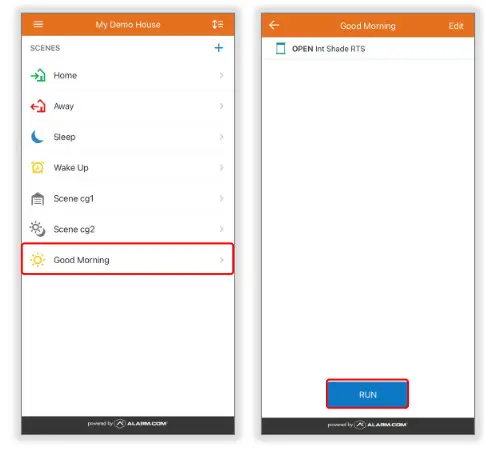
To test scenes, follow the steps below:
- SELECT a scene from the Scenes list
Example: Good Morning - SELECT “RUN” to test the scene

EDIT OR DELETE SCENES
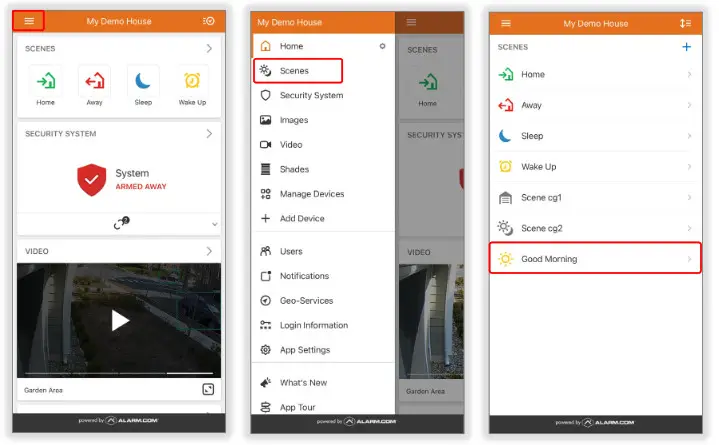
If a scene is no longer required, follow the steps below:
- SELECT “Menu” icon
- SELECT “Scenes”
- SELECT the scene to edit or delete

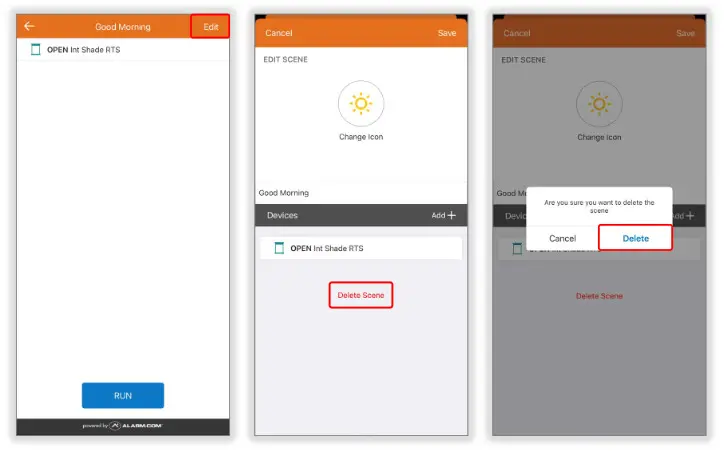
- SELECT “Edit” to edit or delete the scene
To edit the scene, refer to Create Scene section steps 4-10 - SELECT “Delete Scene” to delete the scene
- SELECT “Delete” to confirm deletion

UNLINK TAHOMA FROM ALARM.COM
If Alarm.com integration is no longer required, follow the steps below:
Unlinking TaHoma from Alarm.com will remove all devices. Devices that were part of the scenes will also be removed.
If relinking TaHoma, devices will need to be added back into the scenes.
- SELECT “Menu” icon
- SELECT “Add Device”
- SELECT “Shade and Shutter”
- SELECT “Somfy Tahoma Smart Shade Interface”
- SELECT “NEXT”
- SELECT “UNLINK ACCOUNT”

ADD IOS WIDGET
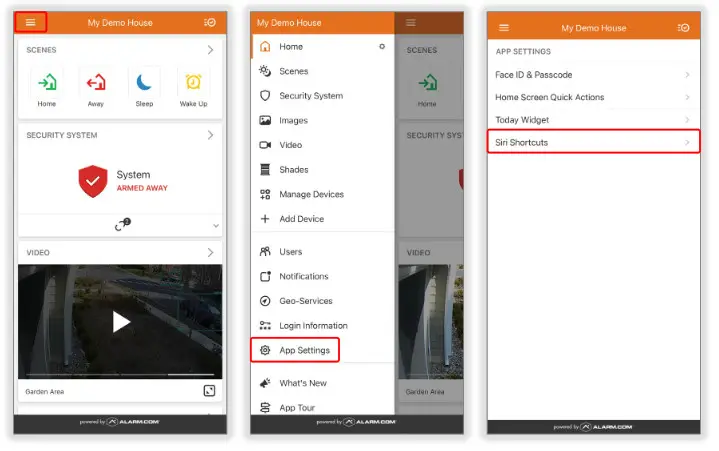
To add a Shortcut Widget for an Alarm.com Scene in an IOS device, follow the steps below:
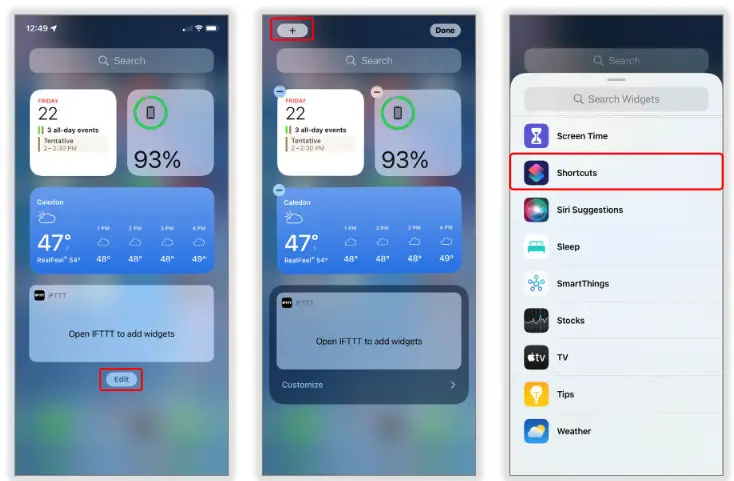
Shortcut Widget for IOS devices can be accessed in the “Today View.” The Shortcut Widget can be pressed to trigger a scene.
- SELECT “Menu” icon
- SELECT “App Settings”
- SELECT “Siri Shortcuts”

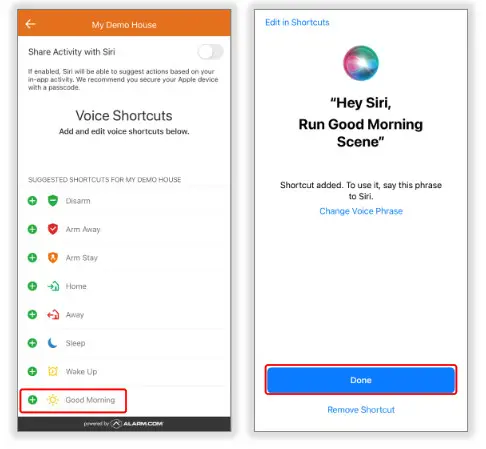
- SELECT “+” next to the scene to create a Shortcut
- SELECT “Done”

- Go to “Today View” on the IOS device, swipe right from the left edge of the Home Screen or Lock Screen
- SELECT “Edit”
- SELECT “+” icon
- SELECT “Shortcuts”

- SELECT “Add Widget”
Example: “Run Good Morning Scene” - SELECT “Done”

ADD ANDROID WIDGET
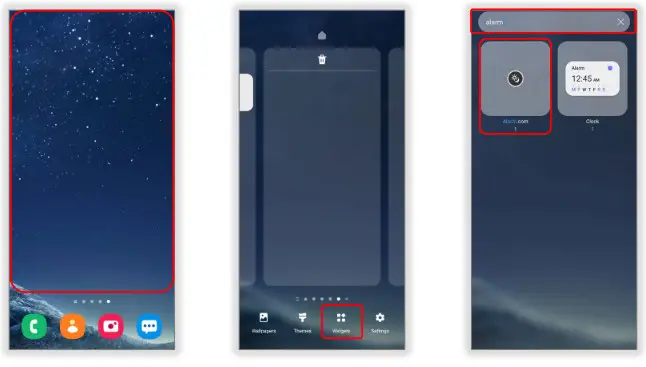
To add an Alarm.com Widget in Android, follow the steps below:
Alarm.com Widget can be added on an Android device home screen as a quick way to trigger scenes.
- On the Home screen, PRESS & HOLD on an empty space
- SELECT “Widgets”
- ENTER alarm.com into the Search field

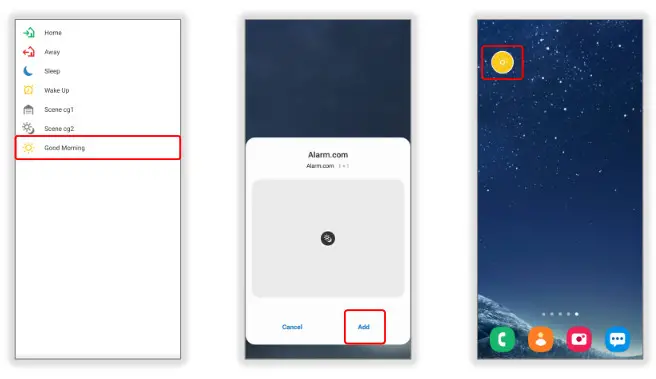
- SELECT the desired scene from the list
Example: Good Morning - SELECT “Add”
- MOVE the widget to the Home screen
- SELECT the Widget to run the scene

APPENDIX
[APPENDIX A] AVAILABLE COMMANDS & ACTIONS
| TAHOMA RTS COMMANDS | |
| Open | Moves blind to the fully open position |
| Close | Moves blind to the fully closed position |
ABOUT SOMFY
SOMFY® has been improving everyday life for more than 270 million people by designing and manufacturing intelligent motorization solutions for interior window coverings and exterior solar protection. Somfy innovates to automate and connect shades, blinds, draperies, awnings, rolling shutters, exterior screens & pergolas for commercial and residential buildings in 58 countries across the globe. With 170+ million motors produced over the last half-century, Somfy is committed to creating reliable and sustainable solutions that promote the best way of living and well-being for all.
FOR QUESTIONS OR ASSISTANCE PLEASE CONTACT TECHNICAL SUPPORT: (800) 22-SOMFY (76639)
[email protected]
| SOMFY SYSTEMS INC SOMFY NORTH AMERICAN HEADQUARTERS 121 Herrod Blvd. Dayton, NJ 08810 P: (609) 395-1300 F: (609) 395-1776 | FLORIDA 1200 SW 35th Ave. Boynton Beach, FL 33426 F: (561) 995-7502 |
| CALIFORNIA 15301 Barranca Parkway Irvine, CA 92618-2201 F: (949) 727-3775 | SOMFY ULC SOMFY Canada Division 6411 Edwards Blvd Mississauga, ON L5T 2P7 P: (905) 564-6446 F: (905) 238-1491 |
A BRAND OF SOMFY GROUP
© Somfy Systems, Inc. 11/2021. All brands, products and trademarks are the property of their respective owners.