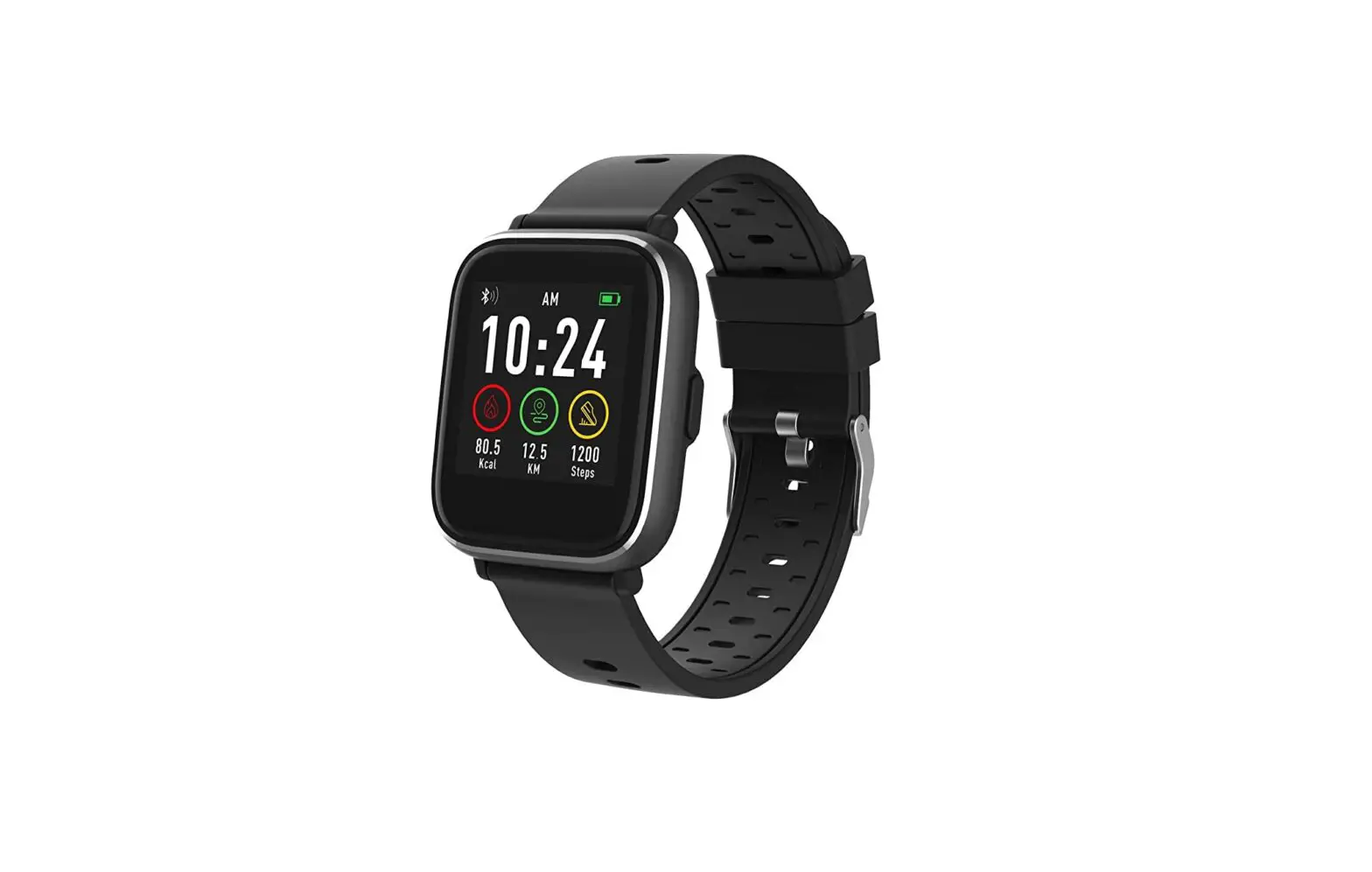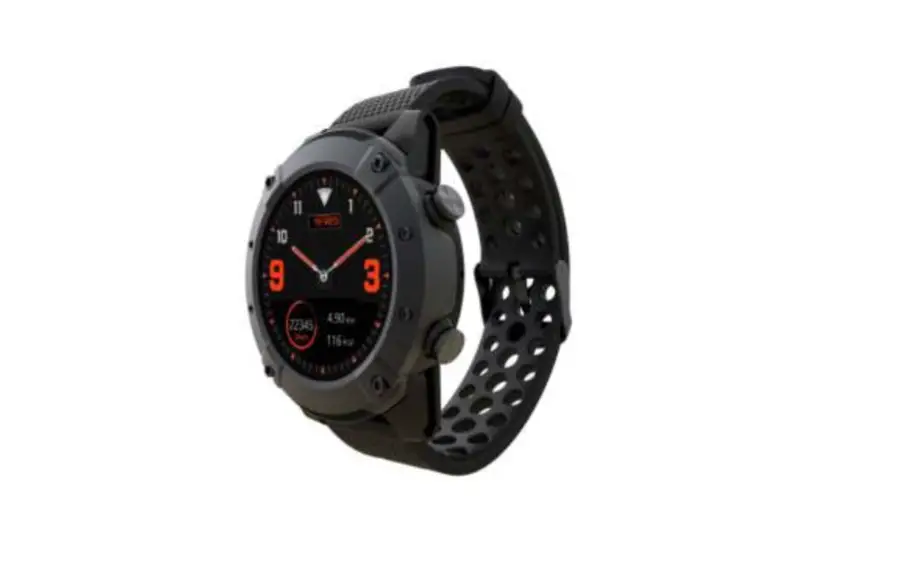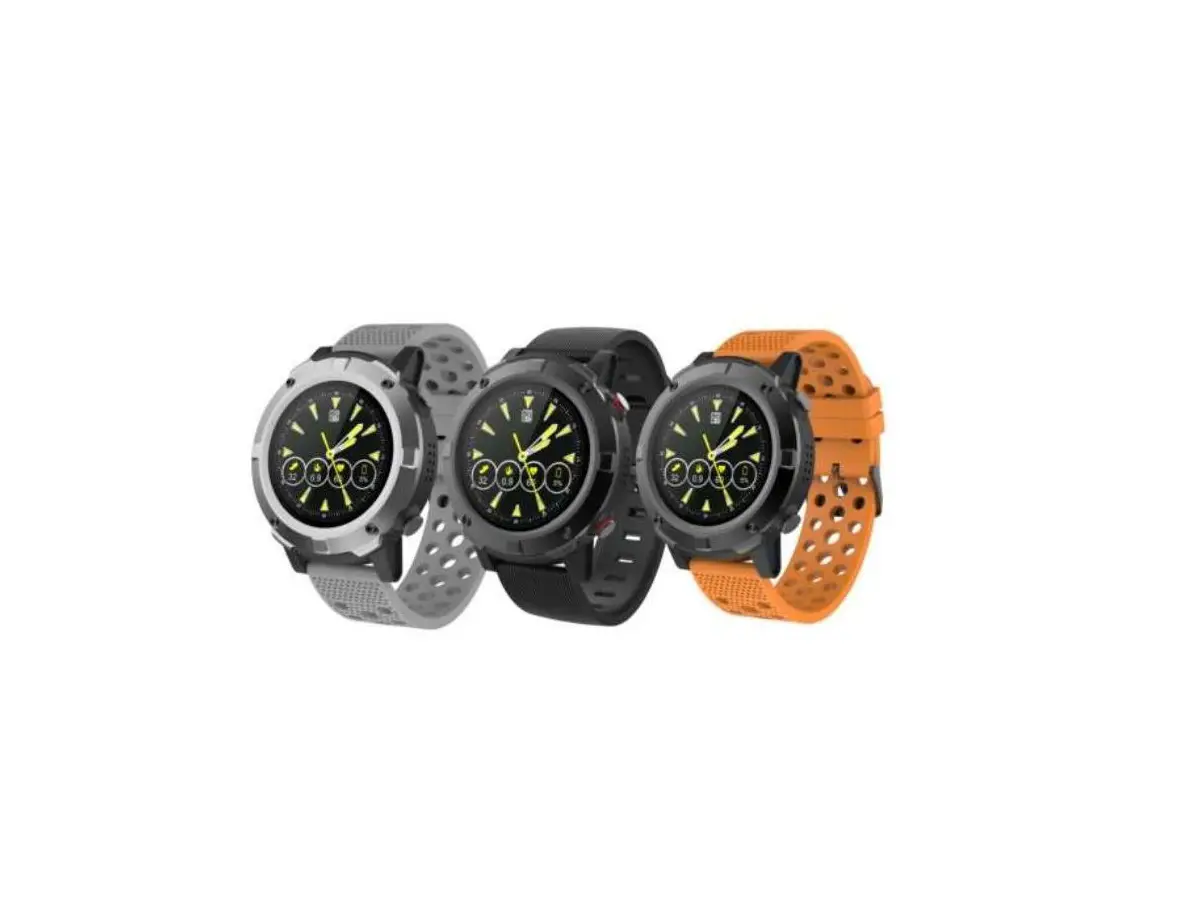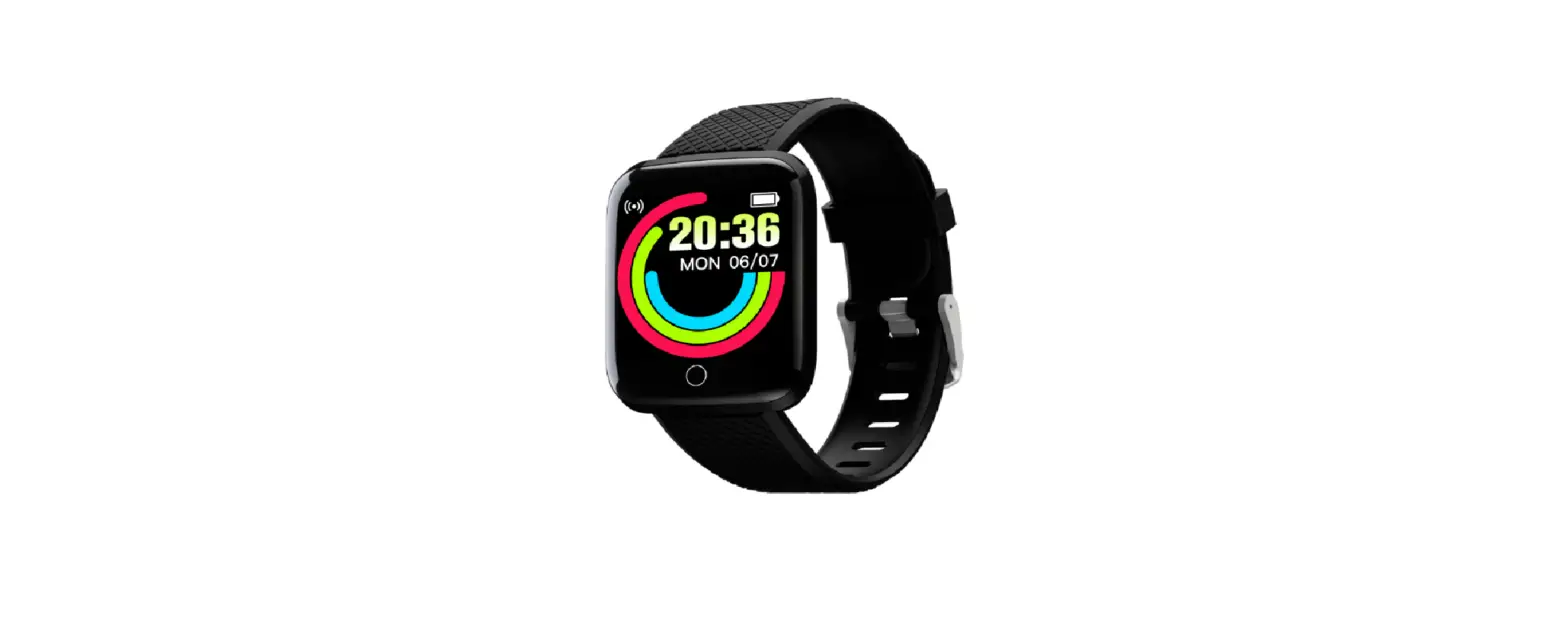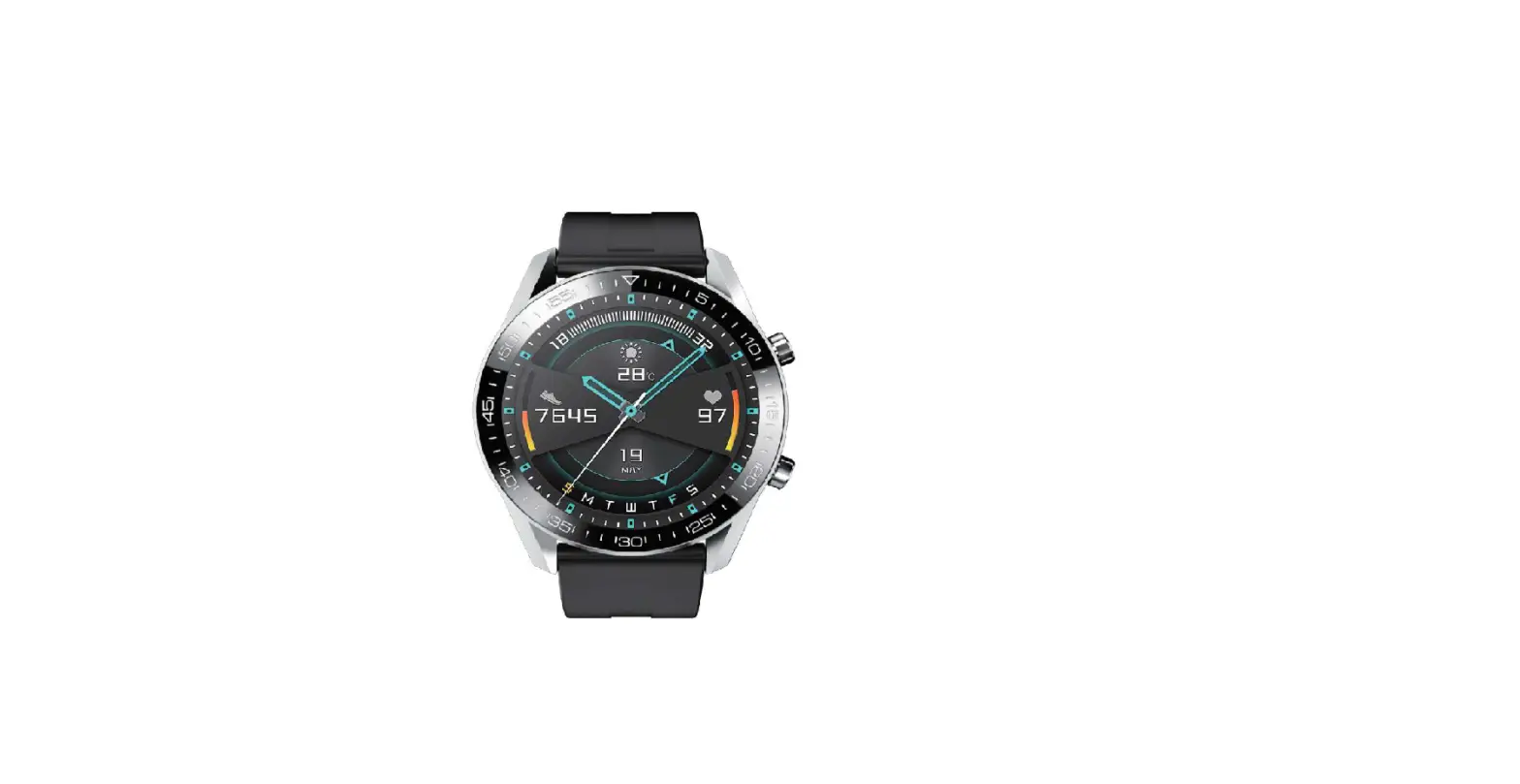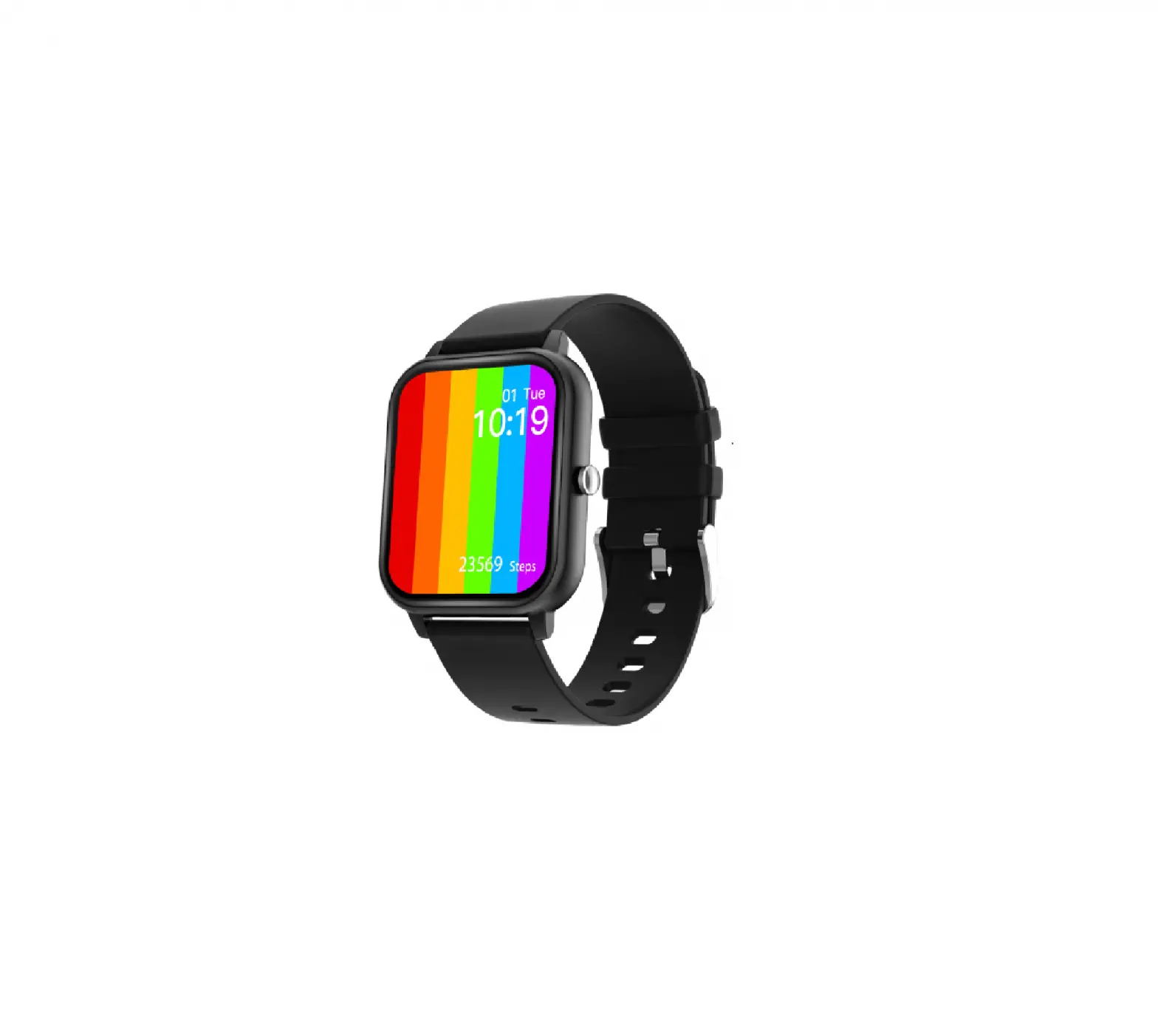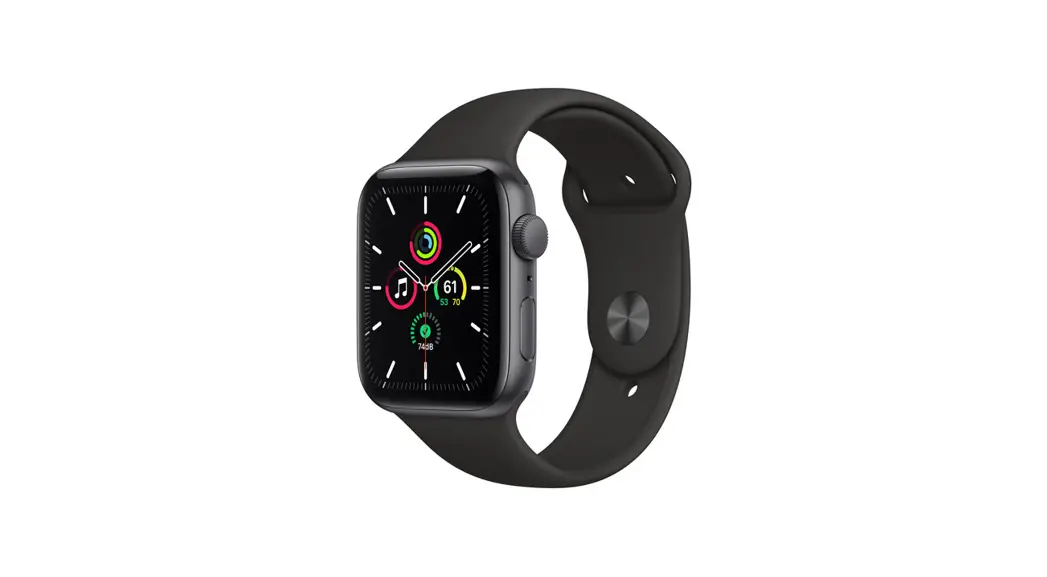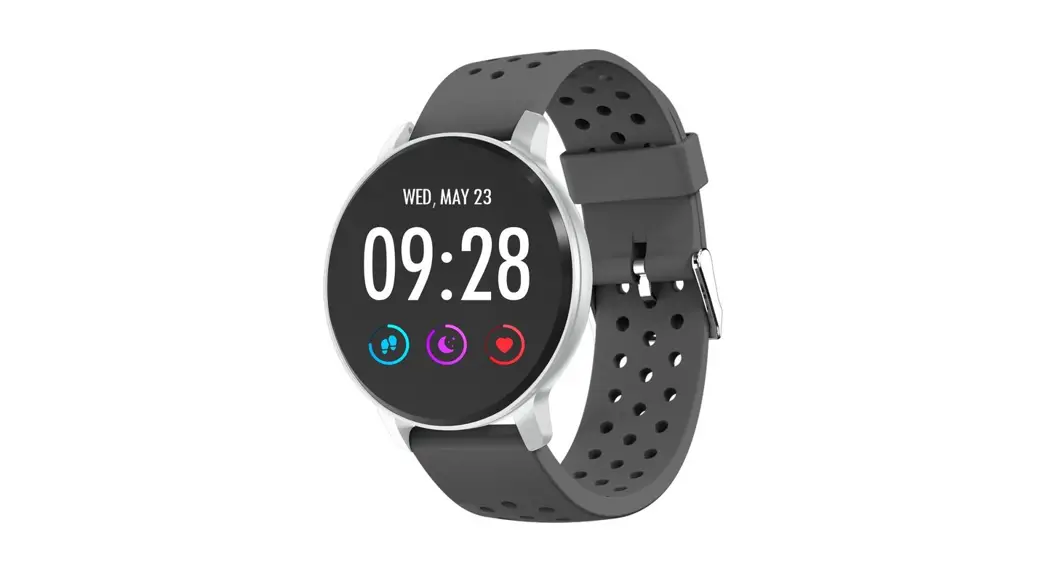

USER MANUAL
SW-170
SMARTWATCH
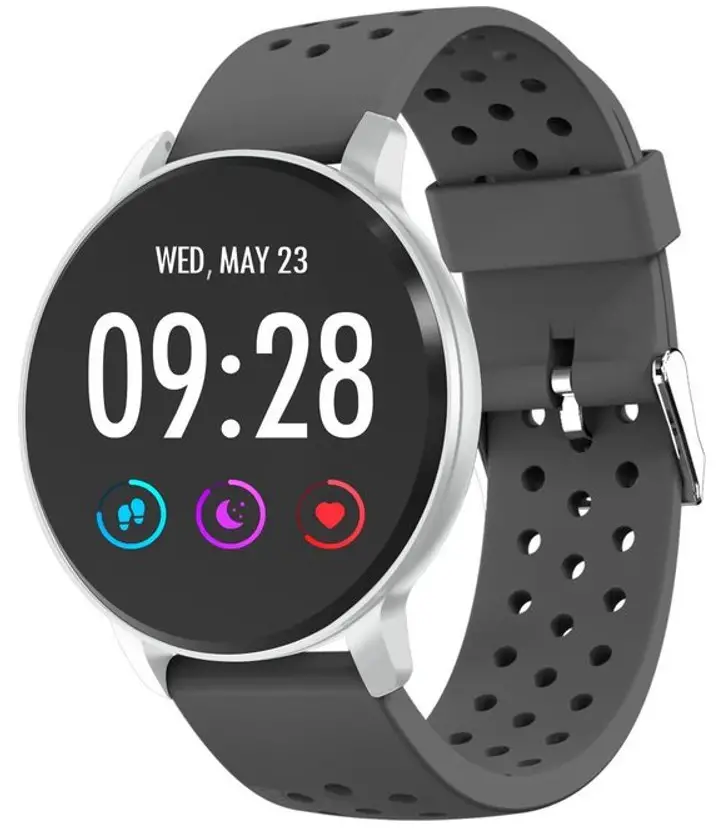
Note: Please upgrade the software to the latest version on the APP before use. Please charge the smartwatch before use.
Download App
Scan the following QR code, download, and install the App.
http://app.crrepa.com/site/download-cn
Scan QR Code and Download
Pairing
Open the App and set up your profile.
Go to the [Device], Click [Add a Device].
Choose your device on the scanning list. Finish
Long press the [time page] on your device, and go to the detail page. The MAC address on the detail page can help you identify your device on the scanning list.
Smartwatch features
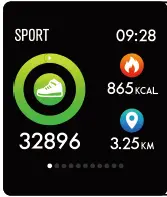
Sports track
The smartwatch automatically measures steps taken, calories burned and distance traveled. The measured data is synchronized to the App.
Note: The sports data stored on the watch is cleared at midnight every day.
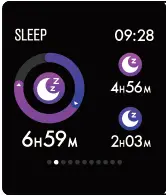
Sleep monitor
By wearing the smartwatch during sleep, it will measure your sleep time and quality. The measured data is synchronized to the App.
Note: The sleep data stored on the watch is cleared at 8:00 pm the next day.
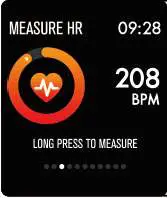
Heart rate monitor
Long press the heart rate page to start measuring your heart rate.
The page can display heart rate data of the latest 7 measurements.
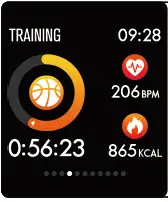
Multi-sport training
Long press the training page to start a new training measure recording. 8 sport modes are available.
The last training data is displayed on the training page.
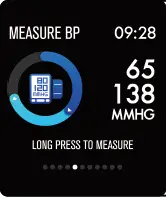
Blood pressure monitor
Long press the blood pressure page to start measuring your blood pressure.
The page can display blood pressure data of the latest 7 measurements.
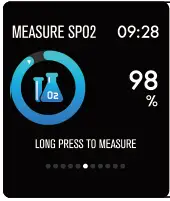
SpO2/blood oxygen monitor
Long press the SpO2 page to start measuring your SpO2/blood oxygen.
The page can display the measured data of the latest 7 measurements.
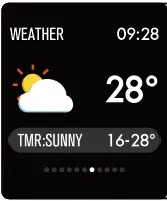
Weather forecast
The weather page displays the weather information of the current and next day.
The latest weather information from the App can be synchronized to the watch if the watch is connected to the App.
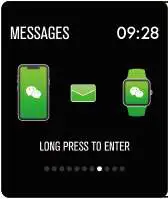
Message reminder
The watch can synchronize incoming notifications from Twitter, Facebook, Whatsapp, Instagram etc.
Latest 3 messages can be stored on the watch.
Note: You can switch on or off the incoming notification in the App.
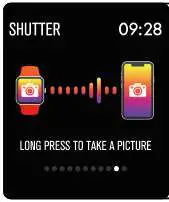
Remote shutter
After the watch is connected to the App, the watch can remotely control the camera from your mobile phone.
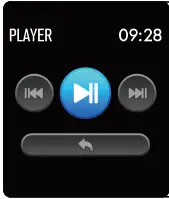
Music play controller
After the watch is connected to the App, the watch can remotely control the music player from your mobile phone.
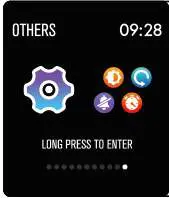
Other features
Other features include a stopwatch, screen brightness adjustment, mute mode, factory resetting, and power off.
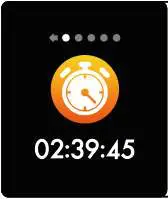
Stopwatch
Long press the stopwatch page to start timing, and long press again to stop timing.
Alarm
If you set and activate the alarm on the App, and the watch is connected to the App, the watch vibrates when the alarm time is up.
Sedentary reminder
The watch vibrates to remind you to walk after 1-hour sitting.
Note: You can switch on or off the feature in the APP.
More information about the smartwatch
Using in wet conditions
The smartwatch is water-resistant, which means it is rain-proof and splash-proof and can stand up to even the sweatiest workout.
Note: Do not swim with the smartwatch. It is not recommended to shower with the smartwatch, though it does not hurt the watch. Remove the watch periodically to allow your skin to dry and breathe. Whenever you get your bracelet wet, dry it thoroughly before putting it back on.
Using the touch key
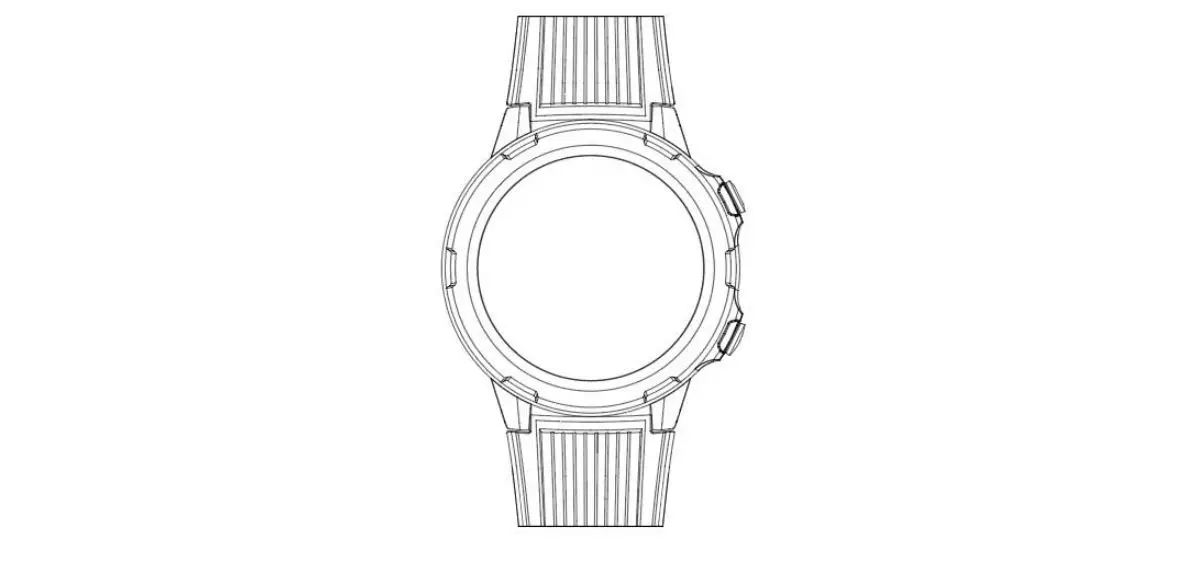
Single tap the touching area on the main screen to wake up the watch, or switch to another function page.
Long press the touching area to enter sub-options of the function page if available.
Using quick view
When the watch screen is turned off, just turn your wrist towards you and the screen turns on for you to check the time and message from your phone. The watch screen automatically turns off after being idle for a few seconds.