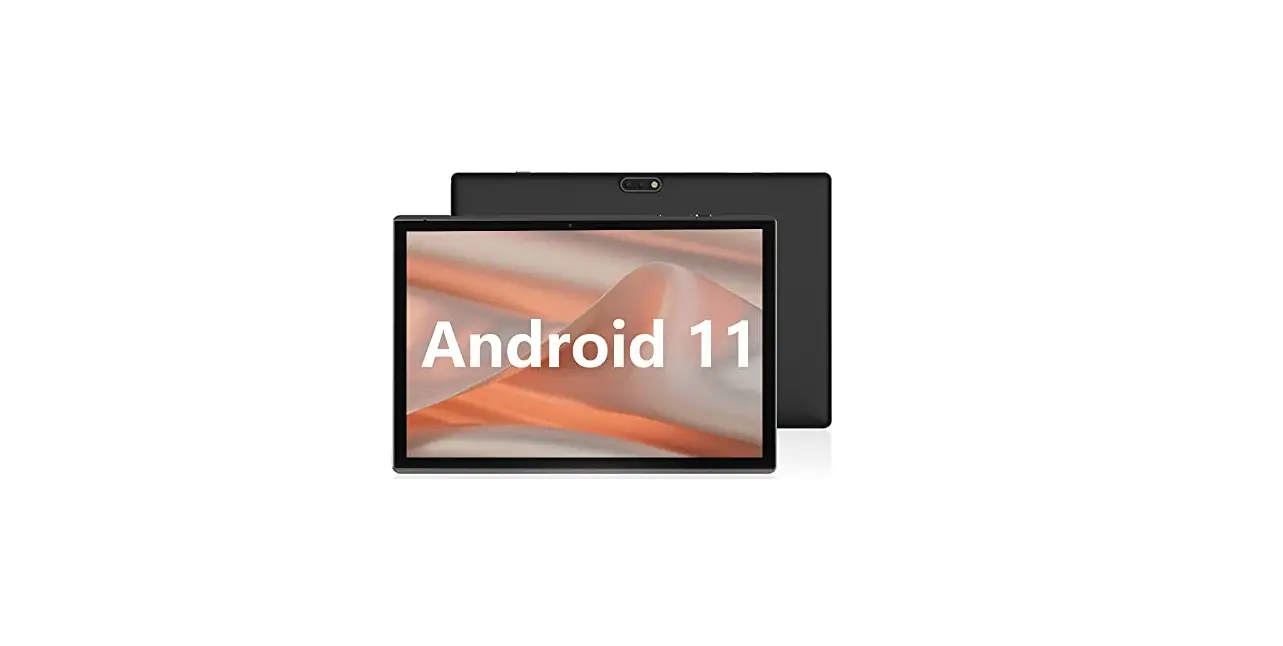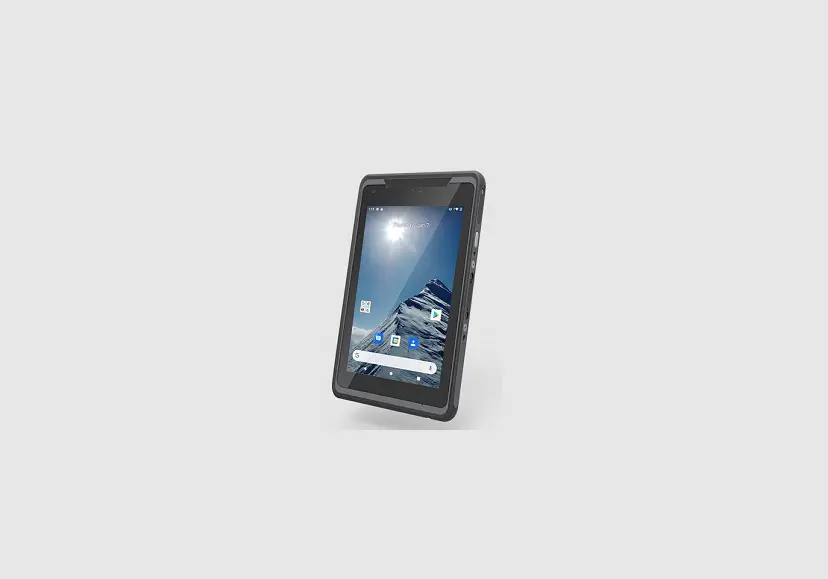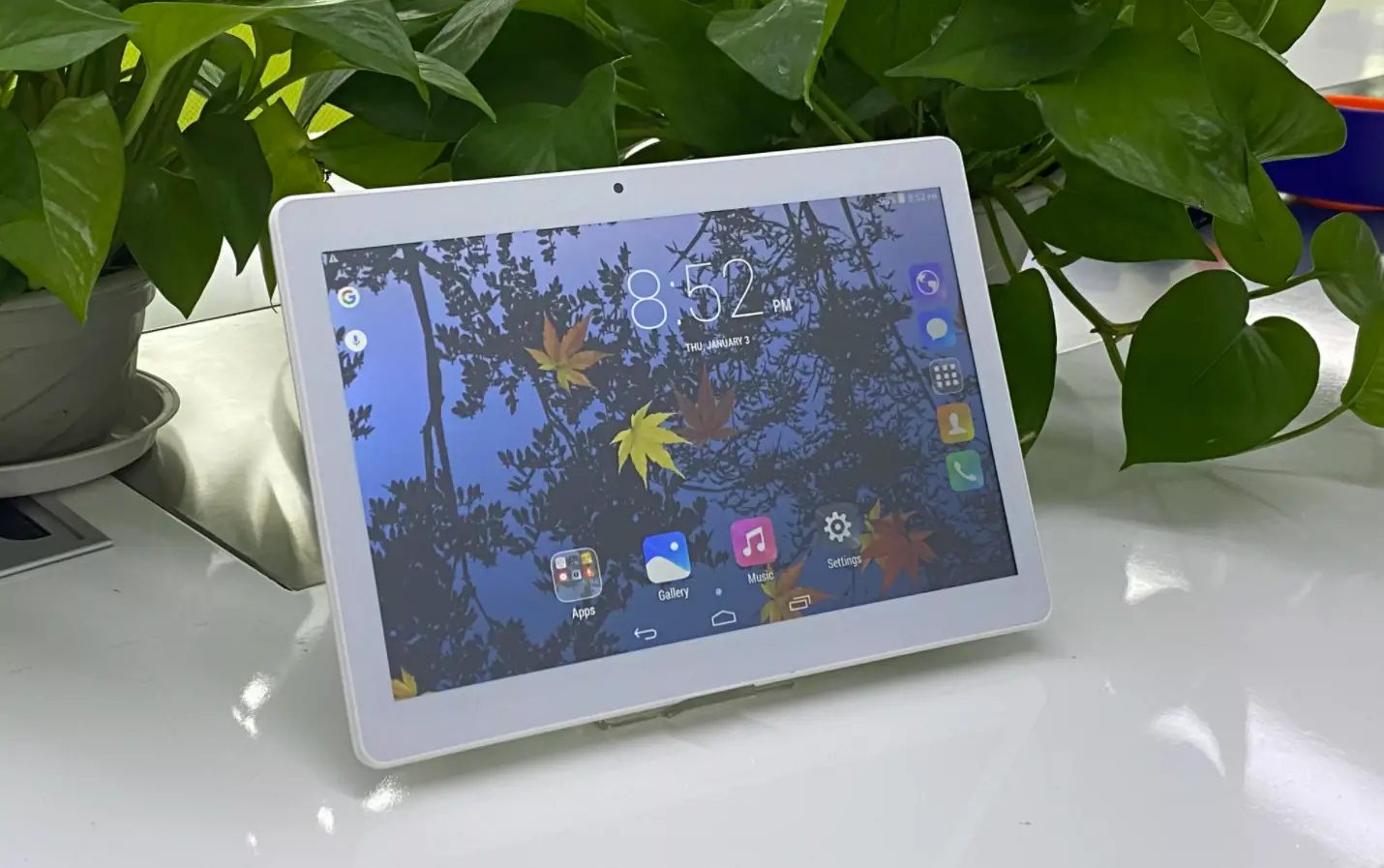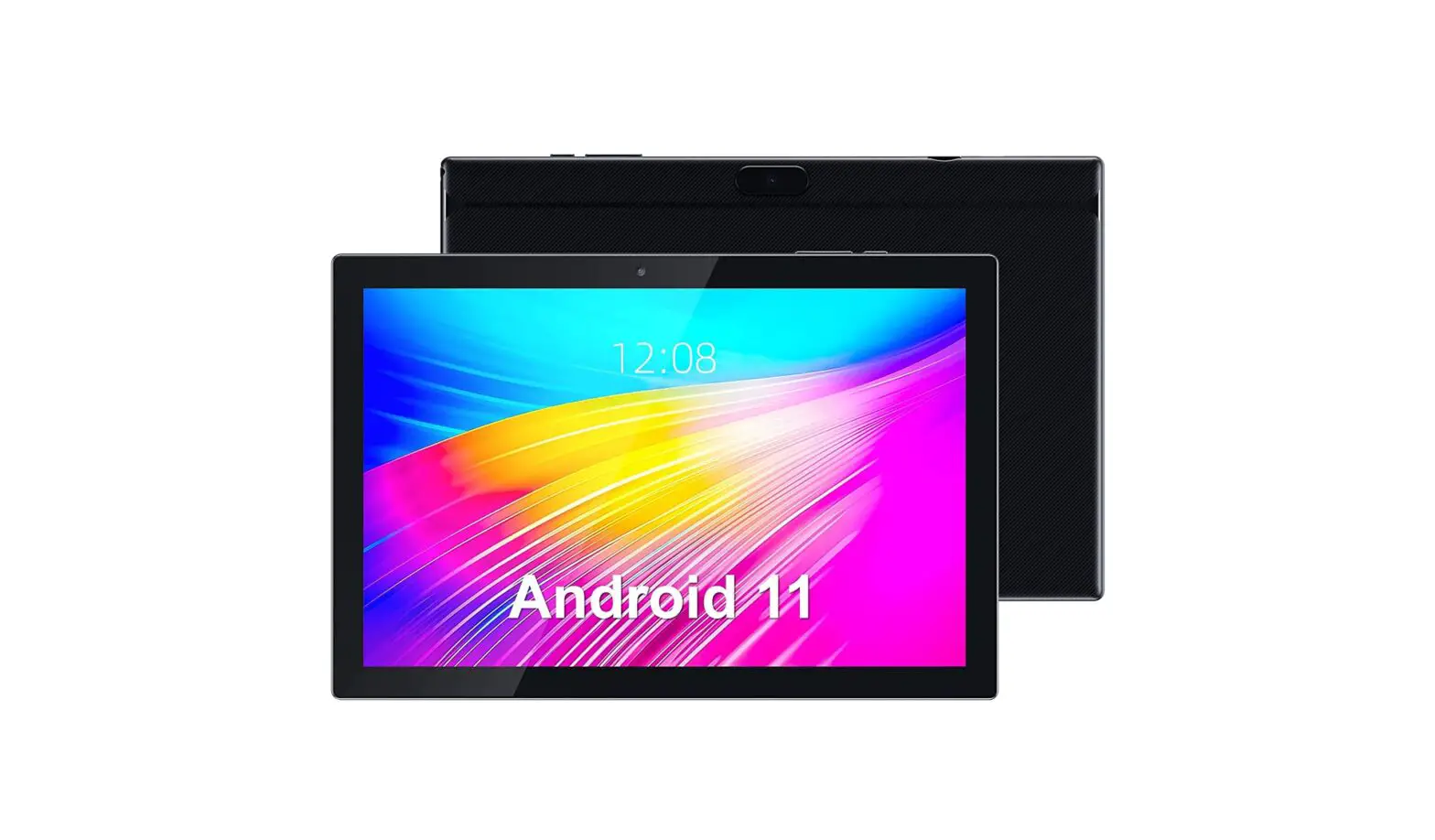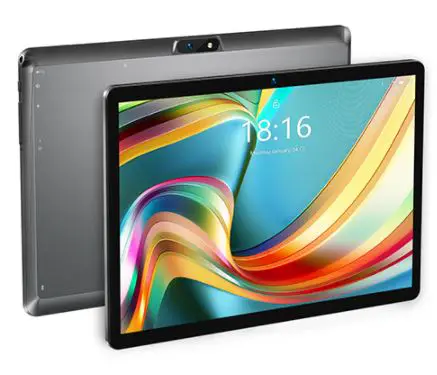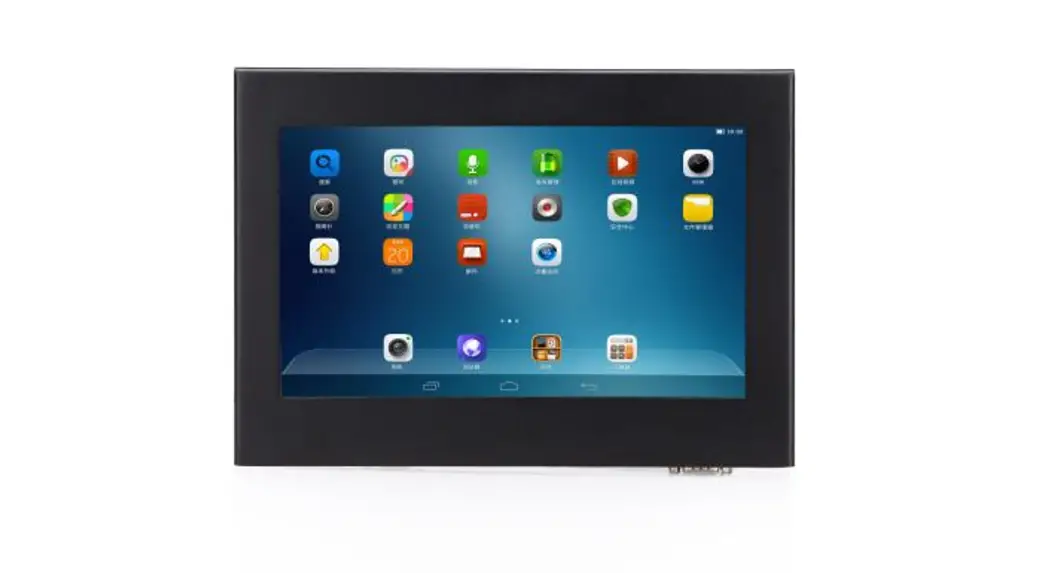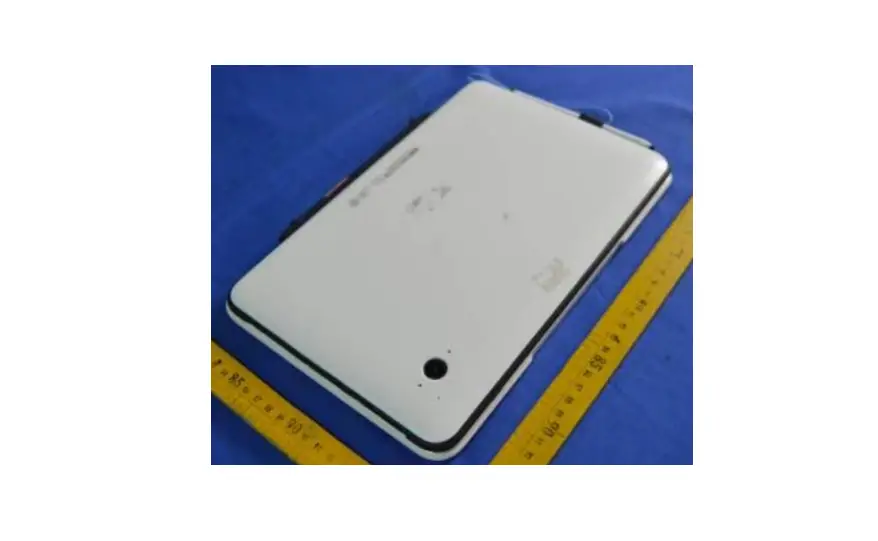

Mps Mayorista De Colombia 1200AS Tablet PC
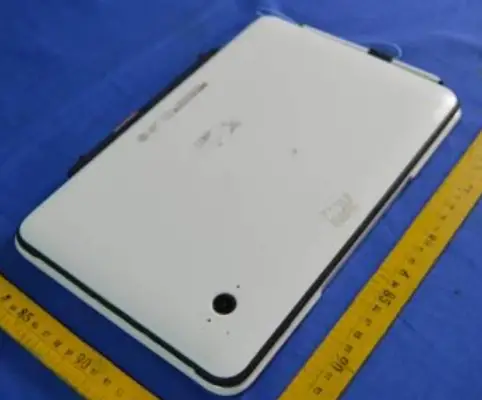
1200AS
Introduction
This operation guide is for the user to understand and familiarize with our products as soon as possible.Herewe briefly introduce the key layout and definition of our products in a graphical way, and give some basic instructions for some basic operations.
Our products have passed Energy Star certification.
The default power management settings of our products have been selected to comply with Energy Star (displayed within 15 minutes of user inactivity), and the Energy Star program recommends the best energy saving mode. By default, the product enters sleep mode within 15 minutes of inactivity.
After the product enters sleep mode, you can press the power button to wake up the device.
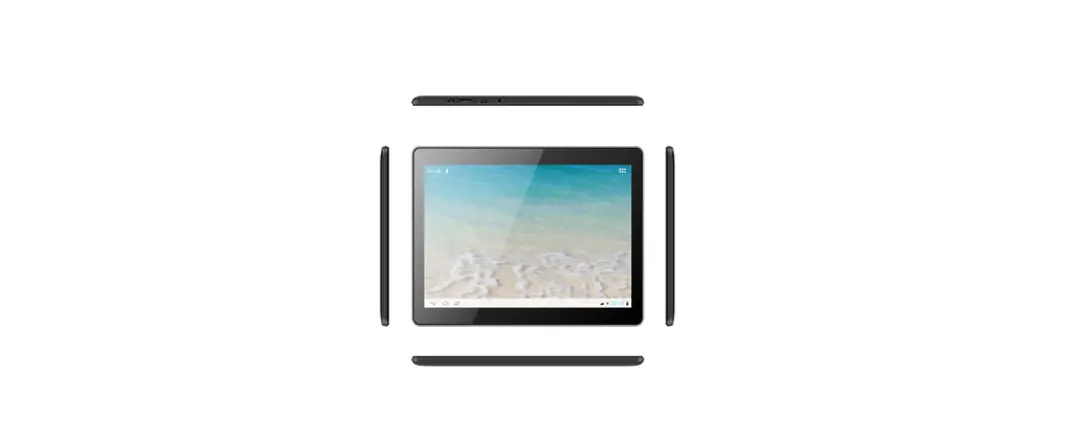
The key layout and definition
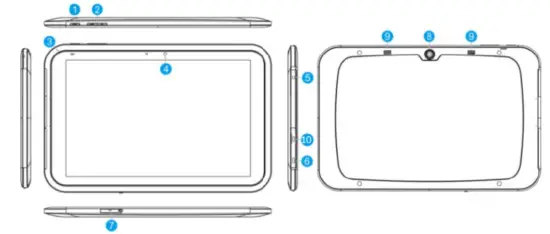
- Power button: Press and hold 3S to switch on/off, short press again to wake up screen.
- Volume button
- MIC
- Front camera
- Earphone seat
- USB charging interface / USB seat / OTG seat: USB line interface; OTG line interface,transfer mobile hard disk, keyboard, mouse.
- TF Card Block & SIM card block
- Rear camera
- Speaker.
- Micro HDMI
Desktop introduction
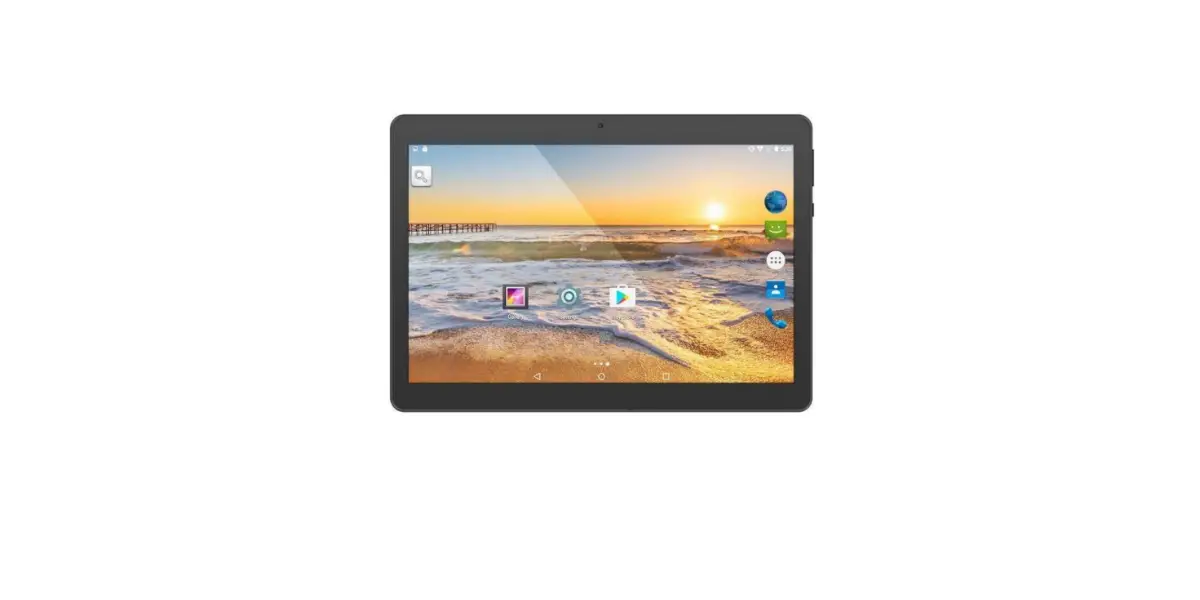
- Main Interface Introduction:

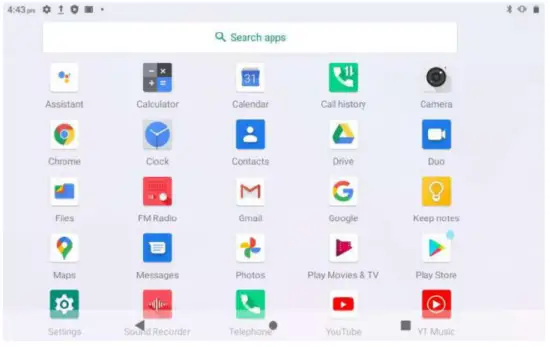
 Touch to enter Google assistant
  Touch to open calculator
 Touch to enter Calendar
  Touch to enter Call history
 Touch to open camera
  Touch to open Google Chrome internet browser
 Touch to open clock
  Touch to enter contacts
 Touch to enterDrive
  Touch to open Google Duo for a video chat
 Touch to browse files
  Touch to enter FM radio
 Touch to open Google Gmail
 Touch to Open Google Go a lighter, faster way to search
 Touch to enter keep notes
  Touch to open map
 Touch to enter messages
  Touch to open photos
 Touch to play videos
  Touch to enter Google store
 Touch to enter phone setting
  Touch to enter sound recorder
 Touch to open telephone
  Touch to open YouTube
 Touch to open YT Music
Navigation Bar

Basic operations
- Boot / shutdown
In the off state, long-press the power button (3 seconds) to boot, the machine after the boot LOGO, enter the main interface. It is also possible to insert the charger when it is turned on (please use the dedicated 5V/2A charger provided by the company).
In the boot state, press and hold the power button for 3 seconds, and the shutdown option will pop up. Touch Shutdown to shutdown.
In the case of crash or inconvenient touch, long-press the power button for 10 seconds to force the shutdown. - Power / USB charging detection
Battery usage indication
When the battery is in use, as the battery power decreases, the white bar on the desktop’s navigation bar battery icon will gradually decrease to the icon
  .
.
 will gradually decrease to the icon
  .
.Charge status indication Connect the USB cable with the USB charger and then connect it to the USB port of the machine to charge it. The battery icon in the navigation bar of the desktop indicates that the battery is being charged. Do not insert or remove the charger during charging. When the battery icon
  fills up (go to the navigation bar application shortcut setting interface, the battery level is displayed as “see icon”
Attention:
- After the machine is powered off, do not perform the firmware upgrade operation. Charge the battery beforehand.
- When the machine is powered off and plugged in, there will be a charging icon.
- When the USB is plugged into the computer, the machine will automatically charge. When the power of the machine is low, don’t do any operations.
Suggestions:
When the user uses and upgrades for the first time, the machine is charged to 100% of the power to make sure the battery level is relatively accurate.
D. Basic parameters
| Processor | Octa‐core2.0GHz |
| DDR | 4GB |
| Flash | 128GB |
| 2G/3G/4G LTE | Support GSM WCDMA FDD‐LTE:B4 B7 |
| Wi‐Fi | IEEE 802.11a /b/ g / n/ac |
| Bluetooth | Support |
| Camera | Front:5MP Rear: 13MP |
| Gravity Sensor | Support |
| Display Screen | 10.1” 800X1280 IPS |
| Touch method | Capacitive multi touch |
| Battery | 7000mAh |
| Audio input | Built‐in MIC |
| Audio output | Plug 3.5mm Left/right channel |
| Speaker: 8Ω/ 1.0W | |
| Function keys | On/Off button Volume+ Volume‐ |
| Power supply | 5V 2A |
| Micro SD / TF card | support 128GB |
| System | Android 11 |
All parameters are subject to physical condition.
Our website: www.mps.com.cn
FCC Statement
This equipment has been tested and found to comply with the limits for a Class B digital device, pursuant to part 15 of the FCC Rules. These limits are designed to provide reasonable protection against harmful interference in a residential installation. This equipment generates, uses and can radiate radio frequency energy and, if not installed and used in accordance with the instructions, may cause harmful interference to radio communications. However, there is no guarantee that interference will not occur in a particular installation. If this equipment does cause harmful interference to radio or television reception, which can be determined by turning the equipment off and on, the user is encouraged to try to correct the interference by one or more of the
following measures:
- Reorient or relocate the receiving antenna.
- Increase the separation between the equipment and receiver.
- Connect the equipment into an outlet on a circuit different from that to which the receiver is connected.
- Consult the dealer or an experienced radio/TV technician for help.
Caution: Any changes or modifications to this device not explicitly approved by manufacturer could void your authority to operate this equipment.
This device complies with part 15 of the FCC Rules. Operation is subject to the following two conditions: (1) This device may not cause harmful interference, and (2) this device must accept any interference received, including interference that may cause undesired operation.
SAR Statement for Monitor
Specific Absorption Rate (SAR) information:
This tablet meets the government’s requirements for exposure to radio waves. The guidelines are based on standards that were developed by independent scientific organizations through periodic and thorough evaluation of scientific studies. The standards include a substantial safety margin designed to assure the safety of all persons regardless of age or health. ISED RF Exposure Information and Statement the SAR limit of Canada(ISED) is 1.6 W/kg averaged over one gram of tissue. Device types: tablet has also been tested against this SAR limit. This device was tested for typical body-worn operations with the back of the tablet kept 0mm from the body. To maintain compliance with ISED RF exposure requirements, use accessories that maintain an 0mm separation distance between the user’s body and the back of the tablet . The use of belt clips, holsters and similar accessories should not contain metallic components in its assembly. The use of accessories that do not satisfy these requirements may not comply with ISED RF exposure requirements, and should be avoided.