Blu-PTT Kodiak User Manual
1. Enter Pairing mode
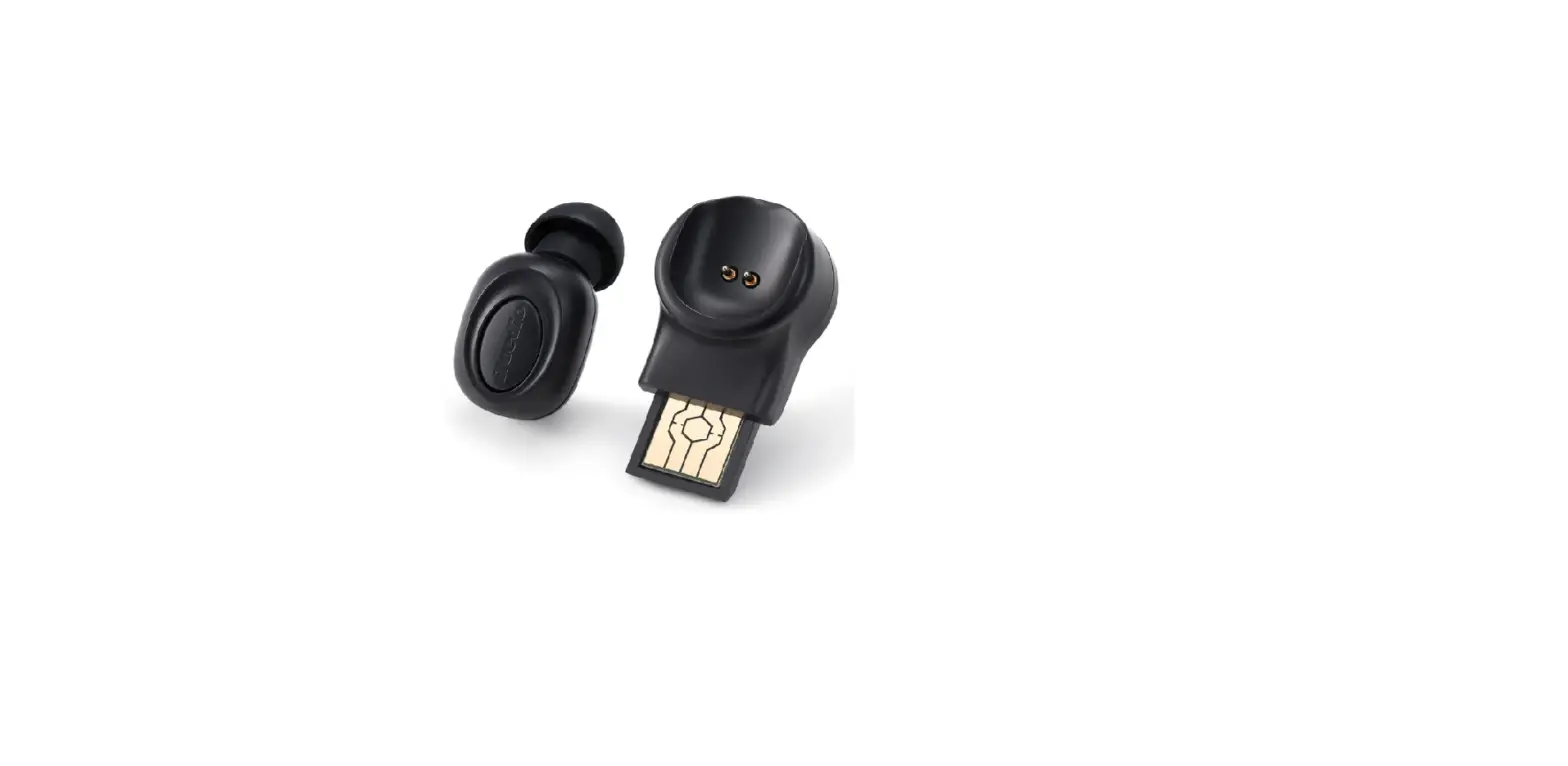
To enter pairing mode, turn on PTT, press PTT button for 10 seconds then release.
Stop all other APP’s which could be occupied your PTT communication.
2. Change PTT pairing to a new phone:
- In phone A, forget(un-pair) the PTT in “Setting” -> “Bluetooth”
- Turn on PTT, make sure it is NOT connected to any phone.
- Press PTT button for 10 seconds then release (like in 1).
- Phone B now can scan the PTT button, pair and connect the PTT.
Part 1: Android phones: L4
L4
1. Go phone’s “Setting”, turn on Bluetooth & Blu-PTT, wait for few seconds, “Blu-PTT” shows up in Bluetooth available device list

tap on it, Blue-PTT will connect to phone

Now Blu-PTT is connect to phone.
2. Run AT&T EPTT, in the main screen

tap “More”(the icon with three dots) on the bottom right, then “Setting” to open the setting menu:

in setting menu, in “Use Bluetooth” field, slide to “ON”

3. Back to main screen, pick an entry of the contact list, then use Blu-PTT to trigger PTT.
Part2 iPhone L4
L4
1. Go to “Setting”, turn on Bluetooth & Blu-PTT, wait for few seconds, “Blu-PTT” shows up in Bluetooth OTHER DEVICES list

tap on it, a message box pops up says Blu-PTT is requesting a pairing
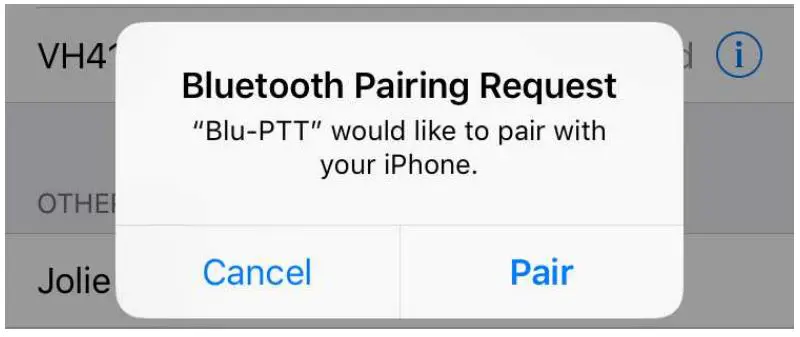 tap on “Pair”, Blu-PTT is now connected to your iPhone

2. Blu-PTT is ready use with your iPhone.