 Health
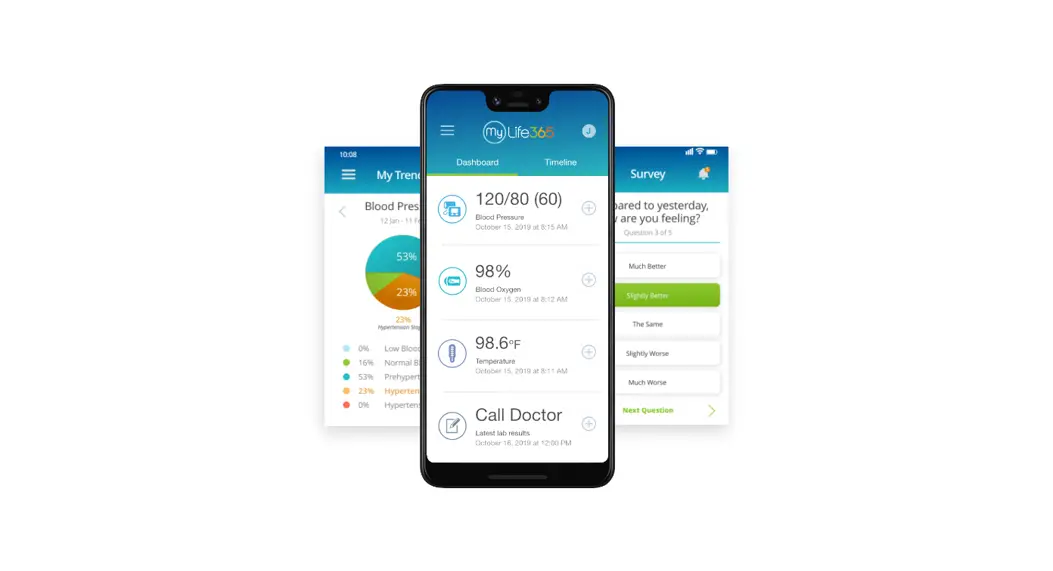
Using the Life365 Health App
with the Zewa Blood Pressure Monitor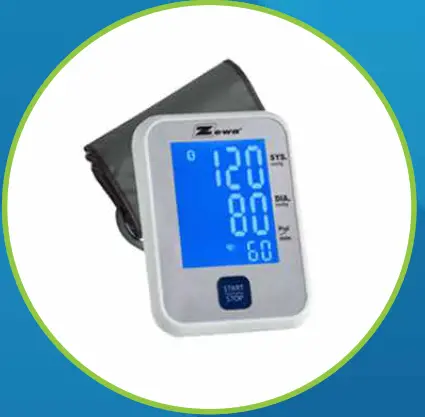
Once the Life365 Health app is installed, make sure the Bluetooth settings on your smart device are enabled by completing the following steps:
 For Apple iOS
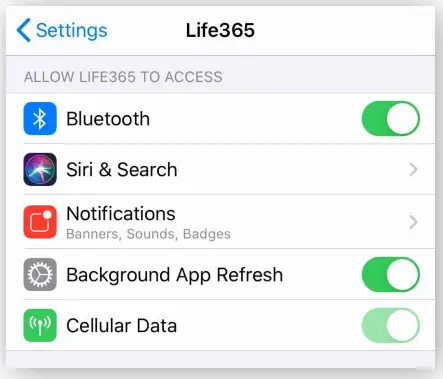
- Access iOS Settings.
- Search for the app Life365 and select whenfound.
- For Bluetooth, enable the toggle button.

 For Android
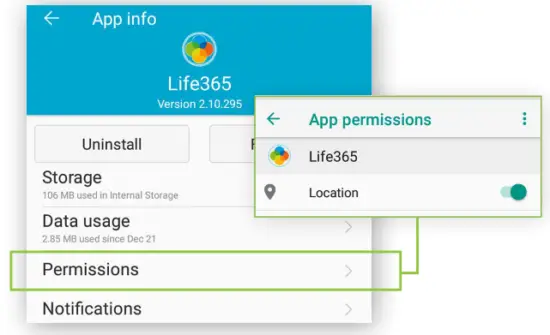
- Access Android Settings.
- Select Apps & Notifications.
- Search for the app Life365 and select when found.
- Select the option Permissions.
- Allow any / all App permissions available.

When complete – your device is ready to pair.
Pairing the Life365 Health App to your device
After account setup, the app will open to your main Dashboard. Refer to the Life365 Health App User Manual for account set-up instructions.
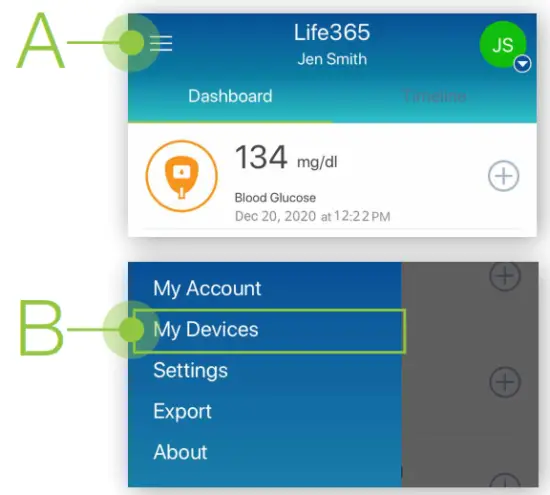
- Tap the Hamburger Menu, located in the upper left of the app screen (A). In the menu list, select My Devices (B).

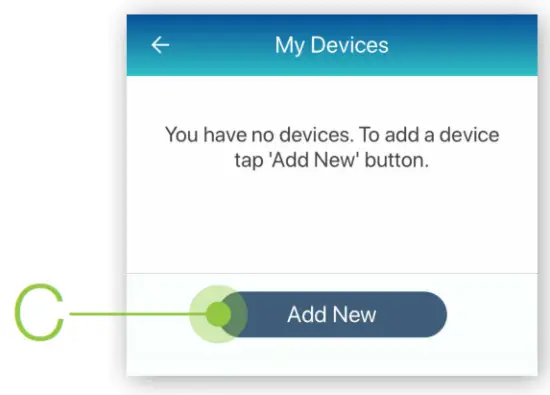
- In My Devices, select the button Add New. The app will search for the Bluetooth device (C).
 Make sure the Bluetooth device is located near the smart device.
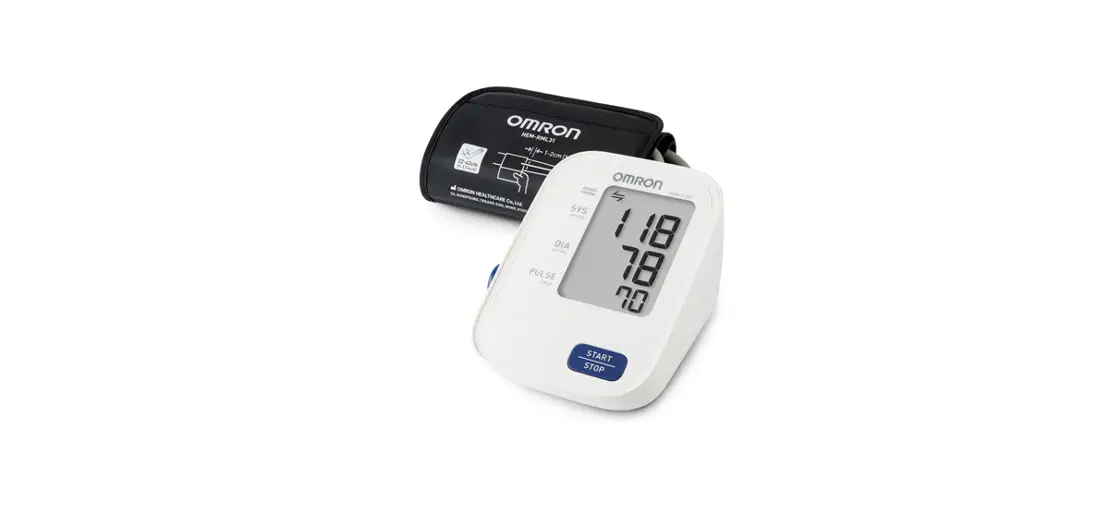
 - To pair, press and hold the START/STOP button for 3-4 seconds (D), until alternating squares appear on the blood pressure monitor screen.
Allow a few moments for the app to find the blood pressure monitor.
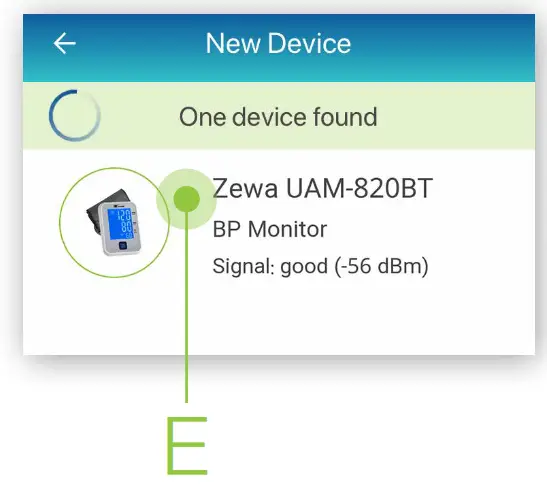
- Once found in the app, select the Bluetooth device name on the app screen (E).

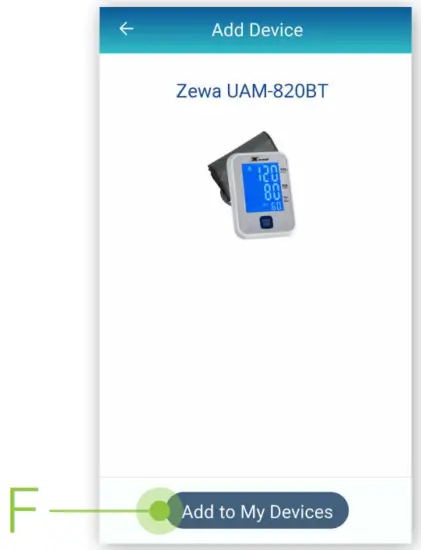
- Select the button Add to My Devices (F).

- To complete pairing, take a blood pressure reading.
The app will return to the My Devices screen.
The new Bluetooth device will now be listed (G).
 Make sure the Bluetooth device is located near the smart device.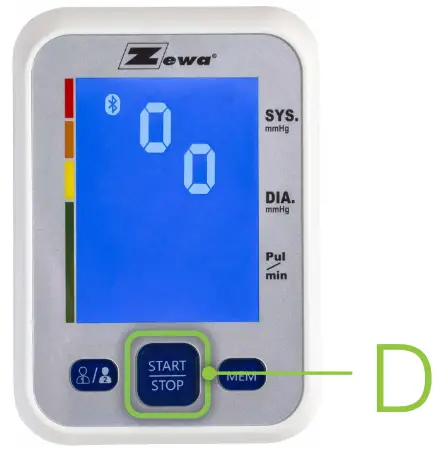

Using the Life365 Health App: Taking a reading with your device
Insert the blood pressure cuff into the blood pressure monitor port (H), located on the left of the blood pressure monitor.
7.1 Take a measurement reading with the blood pressure monitor.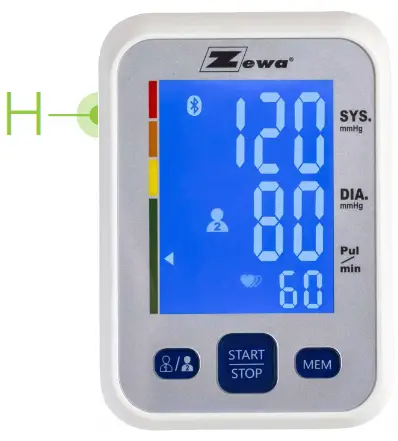
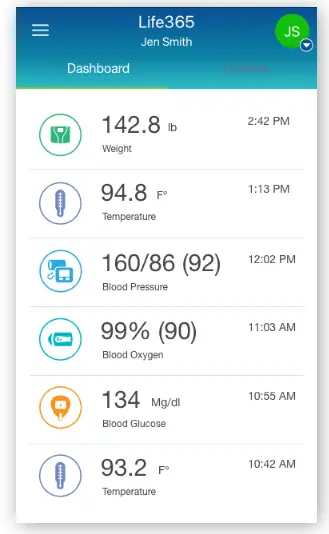
You have successfully paired and taken a measurement reading!
 Always follow manufacturer instructions for use, included with your Bluetooth device.
Visit: https://www.life365.health/en/support/app for instructions and other helpful resources.
©2021 Life365 Inc. / SOP-EXT-301 / RevC-FEB2021
 Life365 App Support Resources