Pro-9900 Automatic Vibration Measurement and Acceptance Instrument
Tecom Pro-9900 Portable Vibration Acceptance Instrument
The TECO Group Pro-9900 Portable Vibration Acceptance Instrument
is designed to analyze and accept vibration problems for rotary
machines. It is an essential tool for technicians working in
technical support, maintenance, repair, and related fields.
Product Contents
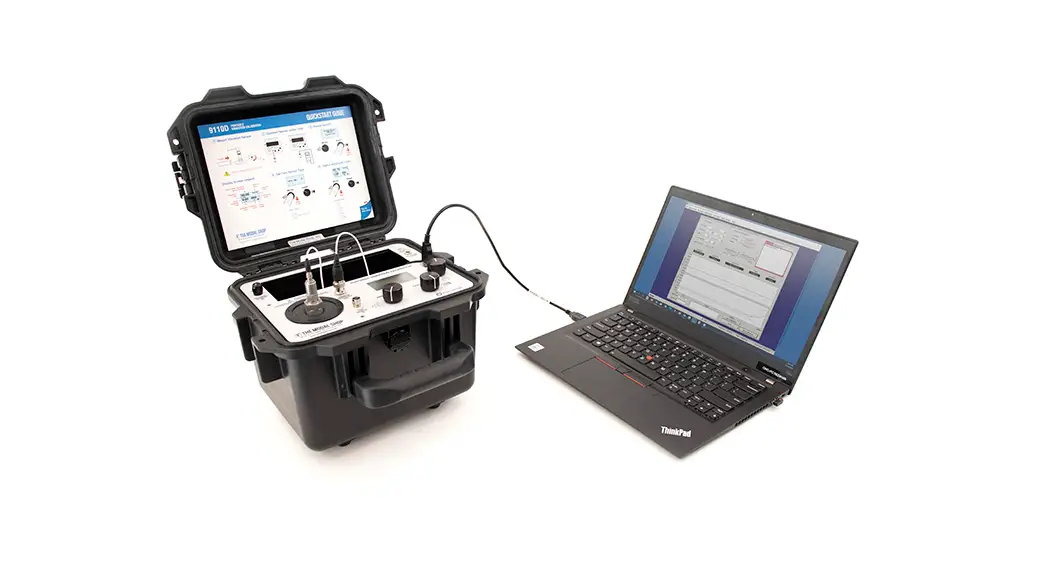
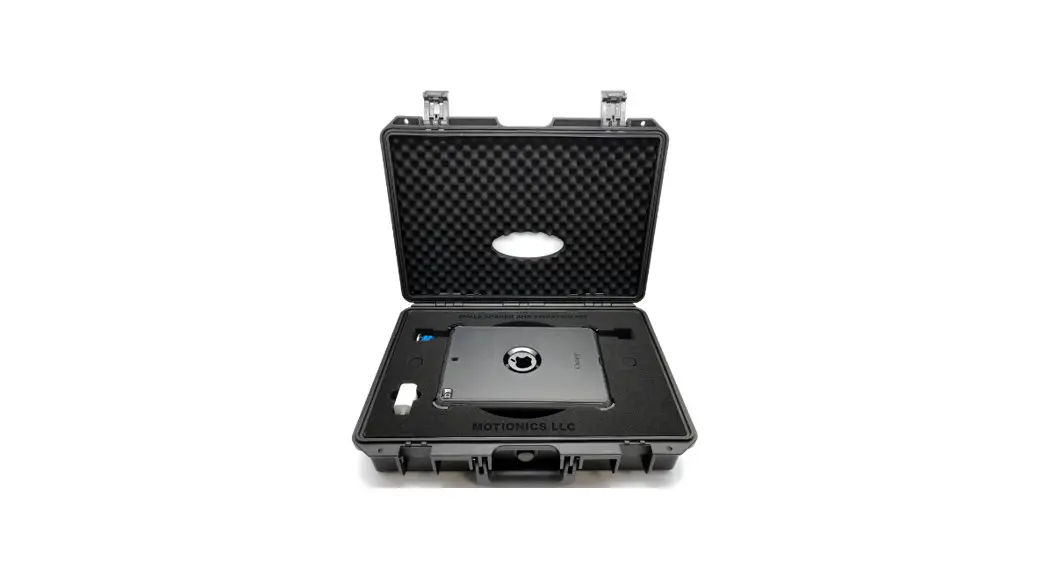
- Tool Box:
- Tablet (with Auto & PMS Software) x1
- Tablet Pack x1
- Action Pack (soft case 2 pieces) x1
- Power Charger (for Tablet) x1
Quick Settings and Connection
- Connect the Power Bank to the power jack (DC) of the Smart IoT
Gateway xDAQ600 and turn on the Power Bank. The default password of
the tablet is demo. - Wait for the WAN LED (orange) to turn on. Then search for Wi-Fi
AP and start the Wi-Fi connection. - On the Tablet, enter Wi-Fi mode to find TECOM_XXXXXX Wi-Fi
SSID. Confirm that XXXXXX 6-digits are exactly the same as the last
6-digits of MAC address printed on the serial number label of the
Smart IoT Gateway. Select TECOM_XXXXXX for network connection. The
Tablet will show Connected to indicate a successful Wi-Fi
connection between the Tablet and the Gateway. This procedure only
needs to be done once. The Tablet will automatically connect to the
Gateway after that. - Install the magnetic vibration gauge (or w/vibration pole) to
the correct position of the device under measure. - After completing steps 1 to 4, the Measure and Acceptance
procedures can be performed using Pro-9900 Auto software on
Tablet.
Toolbox Setup Illustration:
After opening the toolbox, perform the following steps:
- Connect the Power Back to the gateway and wait for about 30
seconds for the gateway to start. - Insert keypro into Type C interface.
- Turn on the power on the tablet.
- Find xDAQ-600 Wi-Fi SSID and connect.
- Select PMS APP to open.
Tecom Pro-9900 Quick Installation Guide
Pro-9900 Quick Installation Guide
TECO Group Pro-9900 Portable Vibration Acceptance Instrumentcan be applied in analysis & acceptance of vibration problems for rotary machines. Setup is quick and easy. Technicians just go thru simple steps with Pro-9900 Auto software running on tablet to understand potential vibration issues.
It is an essential tool for technicians working in technical support, maintenance, repair and related fields.
Product contents
a. Tool Box :
x1
xDAQ-600
x1
IEPE Vibration Gauge x1
Double head screw
x1
Magnet holder
x1
Winding line
x1
Power Bank
x1
Vibration Pole
x1
Power Bank
x1
10″Tablet (with Auto & PMS Software)
b. Tablet Pack
x1
Windows Tablet w/keypro x1
c. Action Pack
(soft case 2 pieces)
x1
d. Power Charger
(for Tablet)
x1
Page 1
Tecom Pro-9900 Quick Installation Guide
Pro-9900
Quick Settings and Connection
1. Connect the Power Bank to the power jack (DC) of the Smart IoT Gateway xDAQ600, and then turn on the Power Bank. The default password of the tablet is demo.
2. After the WAN LED (orange) is on and wait for around 30 seconds. Then search Wi-Fi AP and start the Wi-Fi connection.
3. On the Tablet, please enterWi-Fimode to find TECOM_XXXXXX Wi-Fi SSID. Then, confirm “XXXXXX” 6-digits are exactly the same as the last 6-digits of MAC address, printed on the serial number label of the Smart IoT Gateway. Select “TECOM_XXXXXX” for network connection. The Tablet will show “Connected” to indicate a successful Wi-Fi connection between the Tablet and the Gateway. This procedure only needs to be done once. The Tablet will automatically connect to the Gateway after on.
This 6-digit number must be the same as the TECOM_XXXXXX 6-digit number on the Tablet Wi-Fi network.
4. Install the magnetic vibration gauge (or w/vibration pole) to the correct position of the device under measure.
5. After the completion of steps 1 to 4, the Measure and Acceptance procedures by using Pro-9900 Auto software on Tablet is ready.
Page 2
Tecom Pro-9900 Quick Installation Guide
Illustration: After opening the toolbox, perform the following steps
1. Connect the Power Back to the
2. Insert keypro into Type C interface
the gateway and wait for about 30
seconds for the gateway to start.
3. Turn on the power on the tablet
4. Find xDAQ-600 Wi-Fi SSID and connect. 5. Select PMS APP to open
Page 3
Tecom Pro-9900 Quick Installation Guide
Page 4