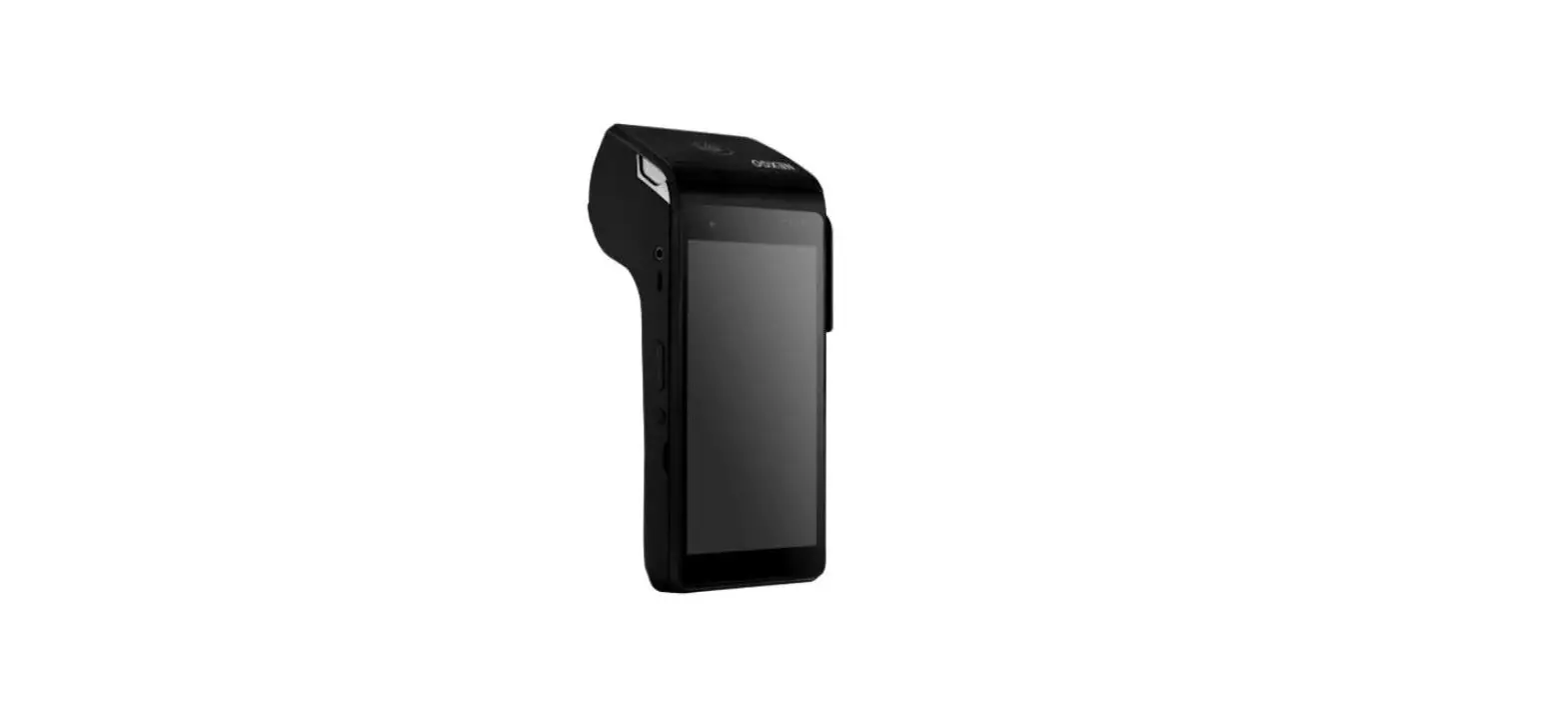
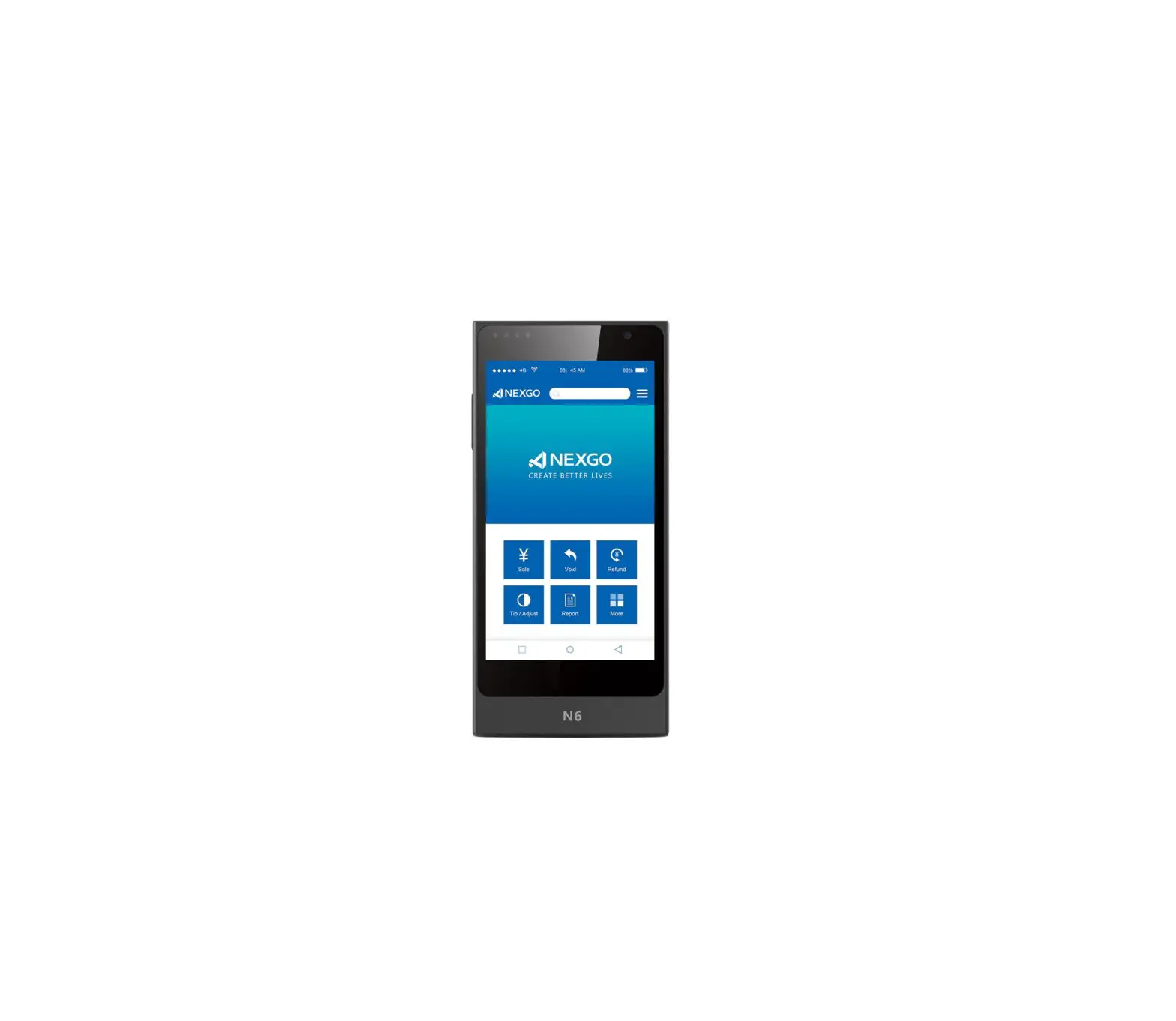
N6 POS Terminal Device
Product Information
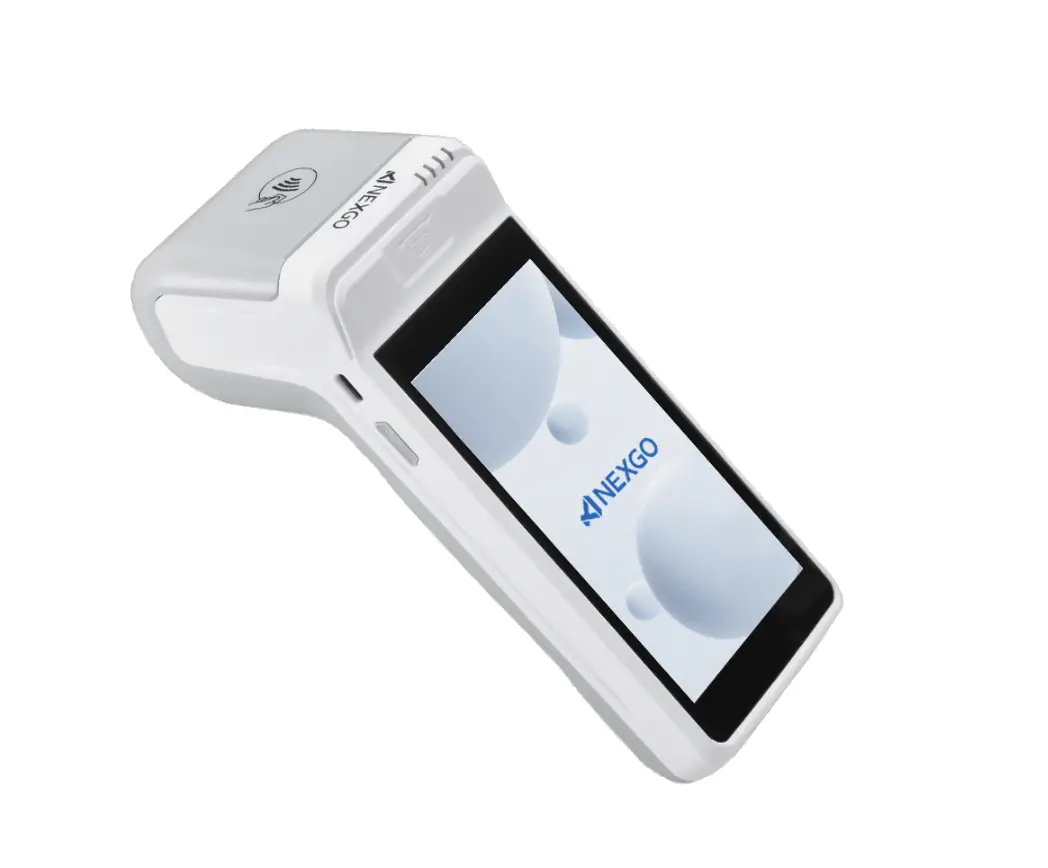
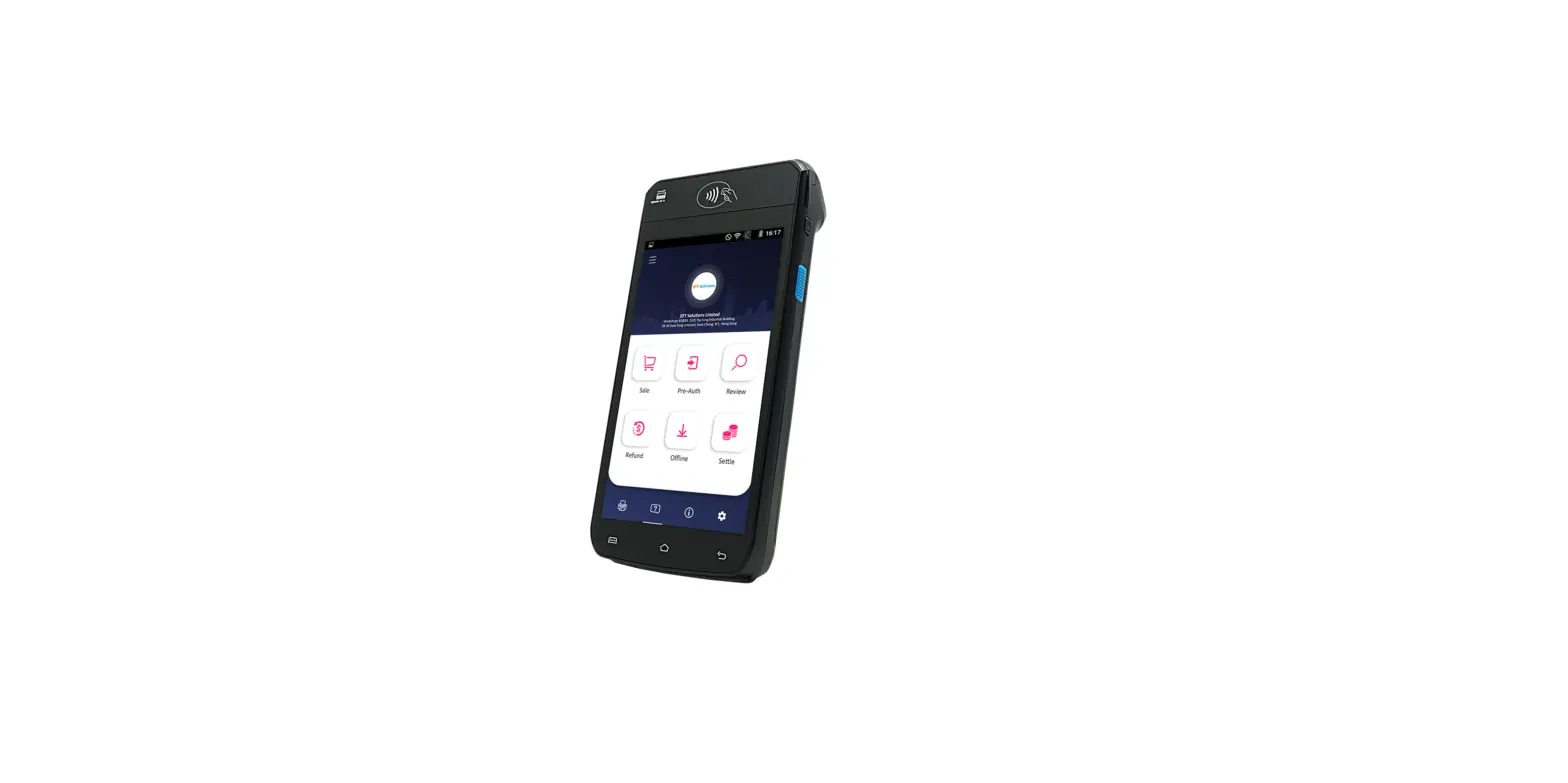
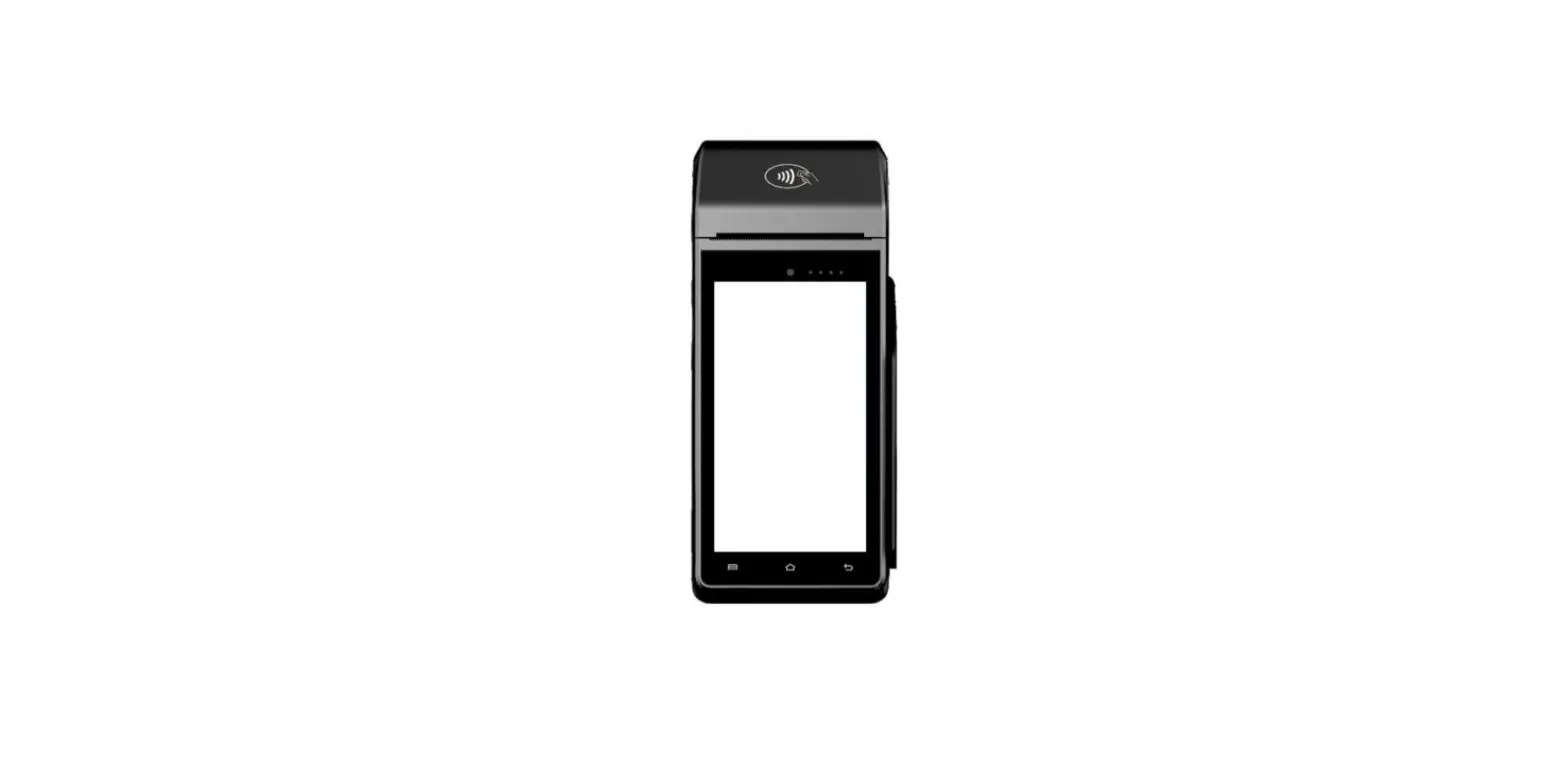
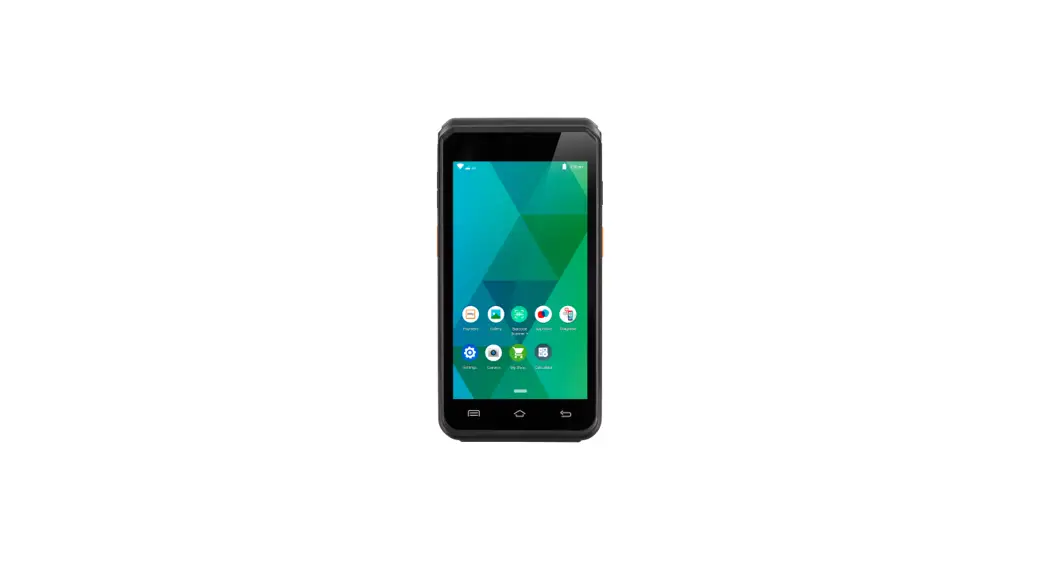
The N6 POS Terminal is a portable device designed for various
transactional operations. It features a contactless card reading
area, a display screen, a front camera, a Type-C port, a speaker,
volume controls, a power key, TF card slot, magcard port, IC card
port, and optional fingerprint identification area, Pro Scanner,
and Fingerprint Module.
Product Appearance
The N6 POS Terminal has the following components:
- Contactless Card Reading Area
- Status Indicator Light
- Front Camera
- Type-C Port
- Speaker
- Volume+/- Controls
- Power Key
- TF Card Slot
- Magcard Port
- Display Screen
- IC Card Port
- Fingerprint Identification Area (Optional)
- Pro Scanner (Optional)
- Fingerprint Module (Optional)
Product Usage Instructions
1. Precautions
Before using the N6 POS Terminal, please take note of the
following precautions:
- Ensure proper handling and storage of the device.
- Avoid exposing the device to extreme temperatures or
humidity. - Do not use the device in wet conditions.
- Avoid dropping or subjecting the device to impact.
- Do not disassemble or modify the device without proper
authorization.
2. Charging
To charge the N6 POS Terminal:
- Connect the Type-C port of the power adapter to the N6
device. - Insert the plug of the power adapter into a power outlet.
- The terminal screen will display the charging progress.
- Once the terminal is fully charged, a “Fully Charged” message
will be displayed on the screen.
3. Swiping Card
To swipe different types of cards on the N6 POS Terminal:
(1) Contact Smart Card
Inserting a contact smart card:
- Hold the end of the card without a chip.
- Ensure the chip side of the card is facing upwards.
- Aim at the smart card slot and insert the card until it reaches
the bottom. - The smart card must remain in the slot throughout the
transaction.
(2) Contactless Smart Card
Swiping a contactless smart card:
- Hold the card in the contactless card reading area for about 1
second. - When you hear a beep sound, it indicates a successful
transaction. - You can then move the card away from the device.
(3) Magnetic Stripe Card
Swiping a magnetic stripe card:
- Place the magnetic stripe card in the magnetic stripe card
reading area at the bottom of the device. - Ensure the magnetic stripe is facing downwards.
- Slide the card smoothly and steadily from left to right or
right to left.
4. Power On/Off
To power on the N6 POS Terminal:
- Press and hold the Power Key on the left side of the device for
3 seconds. - The terminal will power on.
To power off the N6 POS Terminal:
- Under the powered-on status, press and hold the Power Key for 3
seconds. - The screen will display “Power Off” and “Restart”.
- Select “Power Off” and press Enter to confirm.
- The terminal will power off.
5. Assemble/Disassemble Battery
To assemble/disassemble the battery of the N6 POS Terminal:
- Disassemble Battery Cover:
- Remove the battery cover.
- Disassemble Battery:
- Remove the battery from its slot.
- Assemble the Back Cover:
- Place the back cover onto the device.
- Securely attach the back cover.
6. Install SIM/PSAM Card
To install a SIM/PSAM card in the N6 POS Terminal:
- Disassemble Battery Cover:
- Remove the battery cover.
- Insert SIM/PSAM Card:
- Insert the SIM/PSAM card into the designated slot.
- Assemble the Back Cover:
- Place the back cover onto the device.
- Securely attach the back cover.
7. Assemble/Disassemble Accessories (Optional)
To assemble/disassemble optional accessories:
Pro Scanner:
- Disassemble Pro Scanner:
- Remove the Pro Scanner from the device.
- Assemble Pro Scanner:
- Attach the Pro Scanner to the device.
Fingerprint Module (Optional):
- Disassemble Fingerprint Module:
- Remove the Fingerprint Module from the device.
- Assemble Fingerprint Module:
- Attach the Fingerprint Module to the device.
8. Packing List
The package includes the following items:
| No. | Item |
|---|---|
| 1 | Smart POS N6 |
| 2 | Quick Installation Guide |
| 3 | Power Adapter |
9. Troubleshooting
If you encounter any issues with the N6 POS Terminal, please
refer to the following troubleshooting steps:
Power Issue:
| Fault | Reason | Solution |
|---|---|---|
| Unable to power on terminal | 1. Battery exhaust; 2. Battery improperly installed; 3. AC power connection issue; 4. Battery failure. | 1. Connect AC power supply; 2. Confirm proper battery installation; 3. Check AC power supply connection; 4. Replace battery. |
PIN Pad Issue:
If the terminal crashes and does not respond:
- Unplug the power supply.
- Take out the battery.
- Re-insert the battery.
- Restart the terminal.
If you cannot find a solution to your issue, please contact your
sales or technical support for further assistance.
F
NN
E
1 V0 2
NN
N6
N6 POS Terminal
Quick Installation Guide
1. Precautions
The product must be installed and connected in strict compliance with the instructions provided in the manual. Use the specified power adapter, rather than other alternative power sources, as this may cause POS terminal machine to work improperly or even damage it! Do not damage the USB cable or the power adapter. Stop using the damaged USB cable or power adapter. Before plugging the power adapter into an AC socket, check that the power supply to the socket conforms to the set service voltage and that it is well grounded. It is recommended to use a socket with a fuse. Keep away from any liquids, and avoid spilling any liquids or any conductive substances into the machine, as this may lead to a short circuit and cause damage to the product. Do not insert any foreign objects into any interfaces of the machine, otherwise serious damage will be caused. In case of malfunction, please contact professional POS terminal maintainers. Users and other unqualified third parties are not allowed to repair it without authorization. Do not shake the product violently or hit it. Do not use or place any flammable aerosols, paints and coatings and other flammable substances near the product to prevent fires. It is forbidden to dismantle, modify or use the machine for illegal purposes, otherwise, you will be held legally liable.
2. Product Appearance Instruction
Contactless Card Reading Area Status Indicator Light Front Camera Type-C Speaker
Volume+ Volume-
Power Key
TF Card N6
Magcard Port Display Screen IC Card Port
Fingerprint Identification Area (Optional)
Pro Scanner Fingerprint Module
(Optional)
(Optional)
3. Operation Instruction
Charging: Connect the Type-C port of the power adapter to N6, then insert the plug of the power adapter into a power outlet. The terminal screen will display charging progress. After the terminal is fully charged,” “will be displayed on screen.
Swiping card:
(1) Contact smart card:
The smart card slot is located on the right side of the machine. To insert the card, hold the end without chip, with the chip side facing upwards, aim at the slot and insert the card into the slot until it reaches the bottom. The smart card must be kept in the slot throughout the transaction.
(3) Magnetic stripe card
The magnetic stripe card reading area is at the bottom of the machine. When swiping card, place the magnetic stripe card in this area with the magnetic stripe facing downwards and slide the card from left to right or right to left, smoothly and steadily.
Rear Camera Base Contactor
N6
NOTE: If the magnetic stripe is damaged or the way of swiping
NOTE: A damaged or oxidized chip contact on the smart card will
card is improper, a transaction failure may be caused.
likely cause the transaction failure.
4. Assemble/Disassemble Battery
N6
(2) Contactless smart card
Power On/Off:
The contactless card reading area is at the upper part of screen. When swiping the card, hold the card in the swiping area for about 1 sec, and when you hear a “beep” sound, it means transaction is successful, you can then move the card away.
N6
Power on: press the “Power Key” on the left side of the POS
terminal for 3 seconds, it will power on.
Power off: Under the status of powering on, press the “Power Key”
for 3 seconds, then the screen will display “Power Off” and
“Restart”. Select “Power Off” and then the interface will display
“Your smart terminal will power off, <Cancel><Enter>”. Then press
Enter to power off the terminal.
1 Disassemble Battery Cover
2 Disassemble Battery
3 Assemble the back cover
5. Install SIM/PSAM Card
1 Disassemble Battery Cover
2 Insert SIM/PSAM Card
3 Assemble the back cover
6. Assemble/Disassemble Accessories (Optional)
1 Disassemble Pro Scanner 2 Assemble Pro Scanner
1 Disassemble Fingerprint Module 2 Assemble Fingerprint Module
7. Packing List
No.
Item
1
Smart POS N6
2
Quick Installation Guide
3
Power Adapter
Quantity 1 1 1
8. Trouble Shoot
If you cannot find answer from below, please contact your sales or technical support.
Category
Power Issue
Fault
Reason
Solution
Unable to power on terminal
1. Battery exhaust; 1.Connect AC power supply;
2.Battery is installed 2.Confirm whether the
improperly;
battery isinstalled properly;
3.AC power connect 3.Confirm whether the
improperly;
AC power supply is plugged
4.Battery failure in properly;
4.Replace battery.
PIN Pad Issue
No
Terminal crash
response
Unplug power supply and take battery out, then put battery back and restart the terminal
Comm- Display unication “ComIssue munication
Timeout”
1.Weak wireless signal or no signal; 2.SIM card is under poor connection 3.Terminal software issue;
1.Relocate the terminal to a window or open area; 2.Reinsert the SIM card; 3.Restart the terminal.
Display reads: “Please Insert SIM Card” after SIM card is inserted
1.SIM card is damaged; 2.SIM card is inserted improperly;
1.Check if the SIM card is working well or the chip surface is oxidized, wipe the surface with a soft cloth; 2.Reinsert SIM card.
Card Read Error
Display reads: “Swipe Card Error,Pleas e Swipe Again”
1.Magenetic card reader is dirty. 2.The magnetic card is defaced or demagnetized. 3.Card swiped in opposite direction.
1.You can use a piece of hard paper with moderate hardness, place it in the card slot and gently drag it horizontally and vertically a few times to wipe off the dirt of the magnetic head. 2.Wipe off any particles or dirt on the magnetic stripe of the card with soft paper. If the magnetic card is demagnetized or there is a problem with the magnetic card itself, it is recommended to go to the issuing bank to replace it. 3.Please note the direction of magnetic stripe when swiping the card, and the speed should be steady.
Charging Displays red Li-battery was in
If the battery icon displays
Error battery icon storage for a long
red, please continue
after battery time , causing the charging for 15 minutes;
is installed battery to discharge when the battery icon
and power below charging
turns green, this indicates
adapter is voltage. It can recover that the battery is
connected after reactivating. successfully reactivated;
it will perform normally
after a complete recharge.
9. List of Toxic and Hazardous Substances or Elements
Parts
Toxic and harmful substances or elements
Lead Mercury Cadmium Hexavalent Polybrominated Polybrominated
(Pb) (Hg)
(Cd) Chromium Biphenyls Diphenyl Ethers
(CrVI)
(PBB)
(PBDE)
Circuit board components
Description:
1 “O” means that the content of the toxic and hazardous substance in all homogeneous materials of the part is below the limit requirement of the SJ/T11363-2006 standard;
2 “X” means that the content of the toxic and hazardous substance in at least one of the homogeneous materials of the part exceeds the limit requirement of the SJ/T11363-2006 standard; but the parts marked as “X” in the above table are all due to current industry technology The level of development is limited and the substitution of toxic and hazardous substances or elements cannot be achieved.
[Environmental protection reminder] Products that have reached or exceeded the environmental protection service life should be recycled and reused in accordance with the “Administrative Measures for the Control of Electronic Information Products” and should not be discarded at will.
Hereby, [Shenzhen Xinguodu Technology Co., Ltd.] declares that the radio equipment type [N6] is in compliance with Directive 2014/53/EU. The full text of the EU declaration of conformity is available at the following internet address:https://www.xinguodu.com/pdf/?id=200
10. FCC Warning
Any Changes or modifications not expressly approved by the party responsible for compliance could void the user’s authority to operate the equipment. This device complies with part 15 of the FCC Rules. Operation is subject to the following two conditions:(1) This device may not cause harmful interference , and (2) this device must accept any interference received , including interference that may cause undesired operation . Note: This equipment has been tested and found to comply with the limits for a Class B digital device, pursuant to part 15 of the FCC Rules. These limits are designed to provide reasonable protection against harmful interference in a residential installation. This equipment generates uses and can radiate radio frequency energy and, if not installed and used in accordance with the instructions, may cause harmful interference to radio communications. However, there is no guarantee that interference will not occur in a particular installation. If this equipment does cause harmful interference to radio or television reception, which can be determined by turning the equipment off and on, the user is encouraged to try to correct the interference by one or more of the following measures: –Reorient or relocate the receiving antenna. –Increase the separation between the equipment and receiver . –Connect the equipment into an outlet on a circuit different from that to which the receiver is connected . –Consult the dealer or an experienced radio / TV technician for help.
SAR tests are conducted using standard operating positions accepted by the FCC with the device transmitting at its highest certified power level in all tested frequency bands, although the SAR is determined at the highest certified power level, the actual SAR level of the device while operating can be well below the maximum value, in general, the closer you are to a wireless base station antenna, the lower the power output. Before a new device is a available for sale to the public, it must be tested and certified to the FCC that it does not exceed the exposure limit established by the FCC, Tests for each device are performed in positions and locations (e.g. at the ear and worn on the body)as required by the FCC. For body worn operation, this device has been tested and meets the FCC RF exposure guidelines when used with an accessory designated for this product or when used with an accessory that contains no metal . Non-compliance with the above restrictions may result in violation of RF exposure guidelines.
For body worn operation, this device has been tested and meets the FCC RF exposure guidelines when used with an accessory designated for this product or when used with an accessory that contains no metal and that positions the handset a minimum of 1 cm from the body.
11. Special statement Shenzhen Xinguodu Technology Co., Ltd. reserves the right to modify this manual without prior notice, and reserves the right to continuously improve the accuracy, sufficiency and completeness of the information in the manual. Shenzhen Xinguodu Technology Co., Ltd. does not assume any legal responsibility for the adverse consequences caused by the use of this product or the use of accessories not provided by our company in accordance with the requirements of this manual. This manual is copyright©Shenzhen Xinguodu Technology Co., Ltd.
INSPECTION CERTIFICATE
INSPECTOR: PLACE OF ORIGIN: Shenzhen,Guangdong
SHENZHEN XINGUODU TECHNOLOGY CO.,LTD
SHENZHEN XINGUODU TECHNOLOGY CO.,LTD.
Company address: 17B Jin Song Mansion, Terra Industrial Trade Park Chegongmiao, Futian District, Shenzhen Hotline: 86+755+26067135 https://www.nexgoglobal.com
2023.06.20
. : g . : . : xmm . : ± . :
F
E
NS
1:3
g
2023.06.20
V0
 NEXGO
NEXGO N6S_Declaration_of_Conformity