![Visel Italiana Logo [ Download - Logo - icon ] png svg](https://static-data1.manualsee.com/1/img/432/4007953/2022/08/342359.png) QS-FOODBOX
QS-FOODBOX
User Manual for the device
management
QS-FOODBOX
Standalone server for arbitrary queue management with Visel Cloud Digital Signage
Device Management User’s Guide
Overview
Product description and context
QS-FOOD BOX is a box with the Android operating system that allows you to view, suitably connected in HDMI to a monitor, the history of the arbitrary turn numbering. In addition to queue management, you can view a media playlist, enriched by RSS news headlines.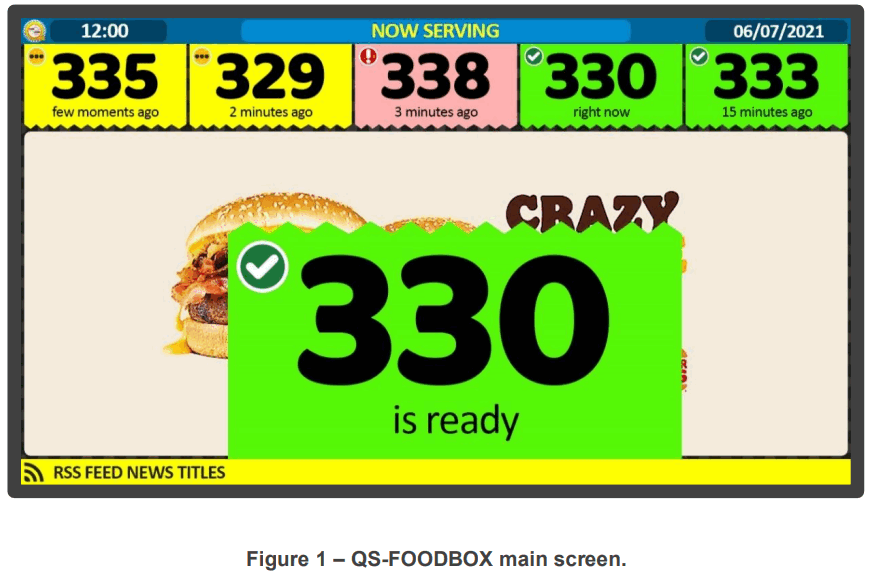
Operation
This product requires a monitor, TV or device that has an HDMI input and possibly speakers to play audio and, if the internet is available, it is able to show the news at the last hour via FEED RSS. This product has been designed for realities where there is a need to manage the flow of users according to priorities other than the one of arrival.
First Installation
Unpackaging
The installation of the QS-FOOD BOX consists of a few simple steps:
- Remove the box from the package and insert the batteries into the supplied remote control
- Connect the box to the power supply
- Connect the network cable
- Connect the monitor’s HDMI cable
- Tune the monitor to your chosen HDMI source
- Wait for the system to load
After initialization, the main screen shown in Figure 1 will appear on the monitor.
These operations are common for every QS-FOOD BOX installed.
System configuration
Visel Sync (Configurator)
Visel Sync is the tool needed to configure this product. It consists of a PC-compatible application with a Windows XP operating system or higher. Visel recommends that you install Visel Sync only on your administrator’s PC to prevent non-professionals from tampering with your system configuration.
- Download Visel Sync from this link: http://www.visel.it/it/download
- Install and launch the application
- Click on the magnifying glass to start searching
QS-FOODBOX
QS-FOOD BOX needs a static IP address on the network.
To configure a static IP, follow these steps:
- Connect a USB mouse to the box
- Press the right mouse button to exit the active application
- Go to the system settings and in the ” Network ” section set network parameters.
- Exit the settings and go to the main menu to launch the Q-LCD application
If QS-FOOD BOX is configured correctly, it will be possible to manage its settings through the Visel Sync application.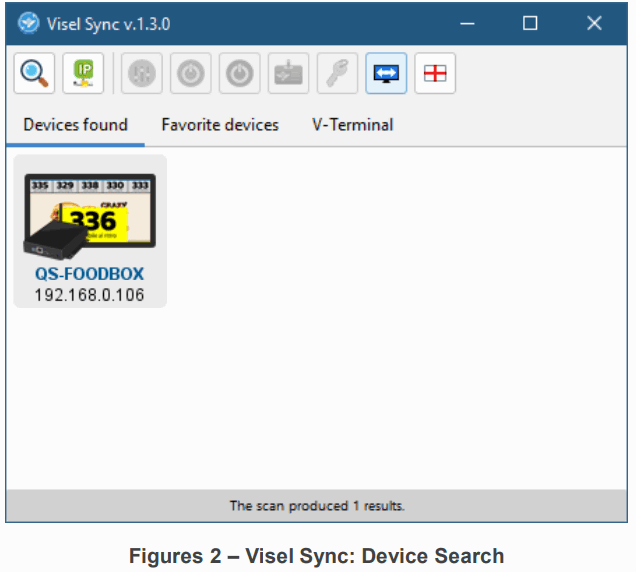
Select QS-FOOD BOX and press the “Settings” button depicted with sliders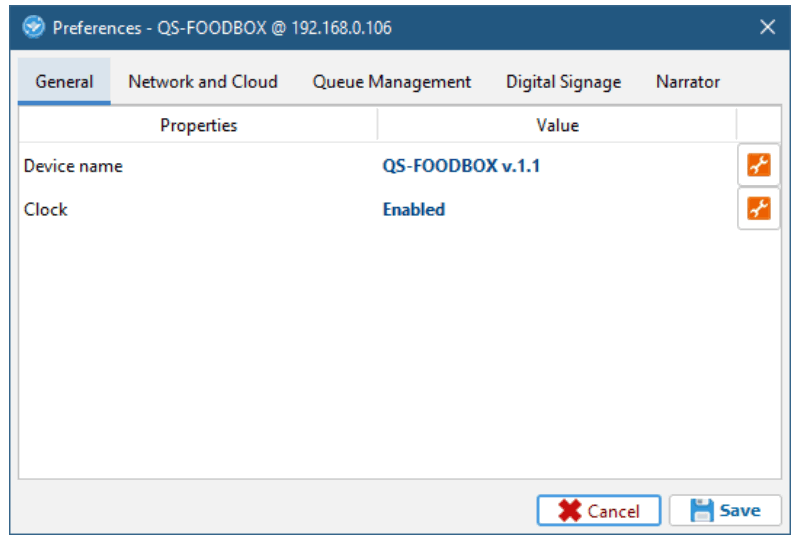
General
| Property | Description |
| Device name | Allows you to name the device so you can quickly recognize it when searching |
| Customer logo | Inserts a custom logo that will be placed above the media playlist |
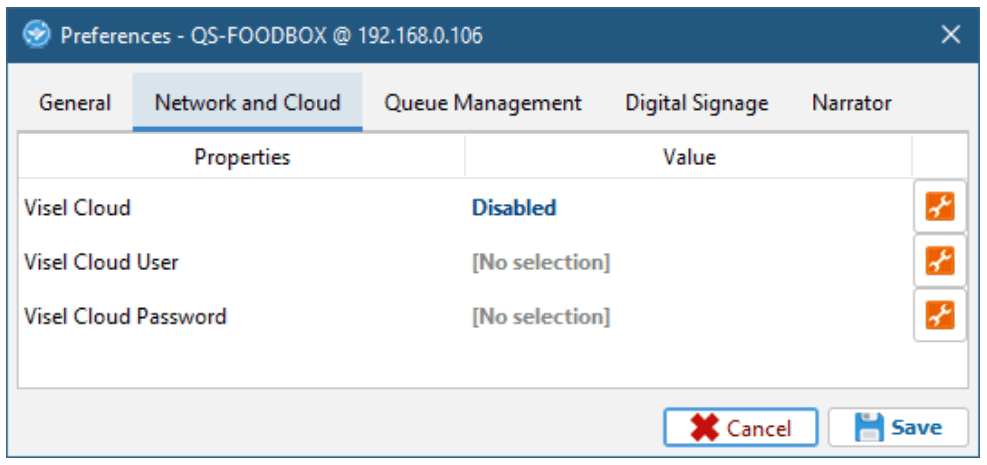
Network and Cloud
| Property | Description |
| Visel Cloud | Enables the Visel Cloud platform for remote media management. For information about Visel Cloud contact our sales department. |
| Visel Cloud User | Set profile username linked to Visel Cloud subscription |
| Visel CloudPassword | Set the password for the profile linked to the Visel Cloud subscription |
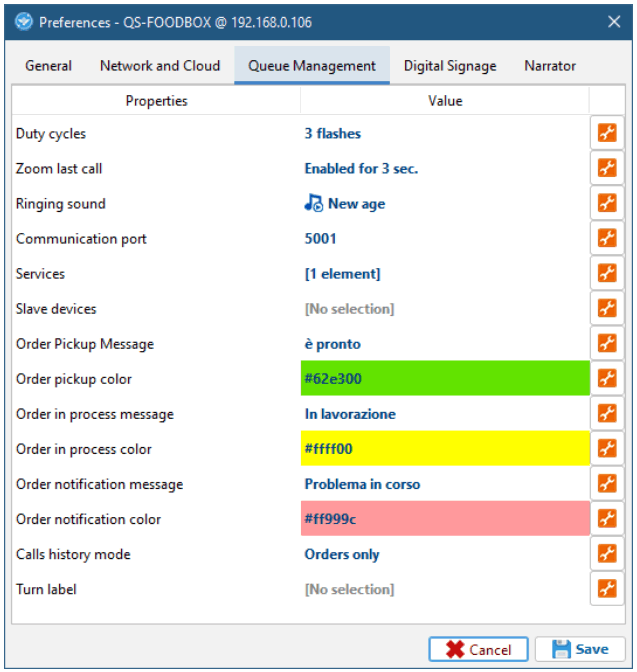
Queue management
| Property | Description |
| Duty cycles | Allows to change the repeat count of the blink animation for the last call |
| Zoom the last call | Let’s you present the latest zoomed-in call to get the attention of waiting users better |
| Ringing sound | Sets the sound type for the shift number call. Press the wrench to change the value. |
| Communication port | Allows to change the communication UDP port for other QS-FOOD BOX slaves |
| Order pickup message | Allows you to change the accompanying message for the order pickup call |
| Services | Allows you to enable the turn services using a manual ticket dispenser |
| Call History Mode | Allows you to show in the calls history only the orders or even the turn numbering |
| Order pickup color | Allows you to change the background color for the order pickup call |
| Order in process message | Allows you to change the accompanying message for the order in progress call |
| Order in process color | Allows you to change the background color for the order in progress call |
| Order notification message | Allows you to change the accompanying message for a notification call |
| Order notification color | Allows you to change the background color for an alert call |
| Turn label | Inserts text that will appear in the right history in each call, above the shift number. |
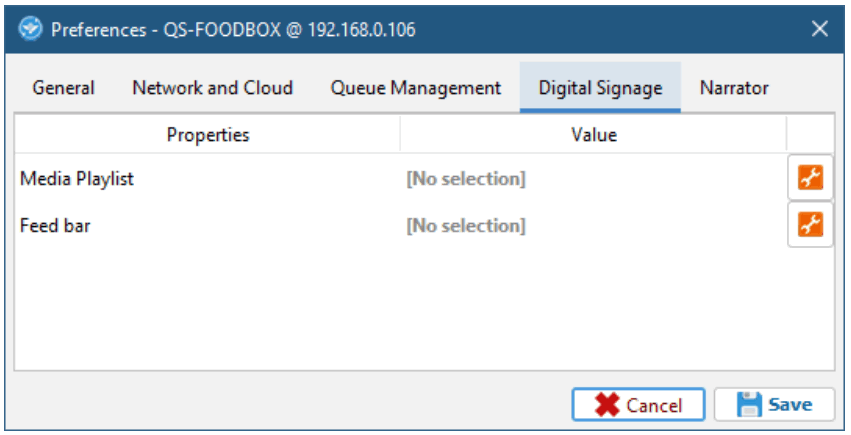
Digital Signage
| Property | Description |
| Media playlist | Allows you to program a media playlist. By clicking on the wrench you will be able to access the multimedia content configuration panel. |
| Feed bar | Sets the list of RSS sources or custom texts to show in the bottom bar of the display. Press the wrench to access the secondary feeds window. |
Warning: In the presence of the active Visel Cloud account, the local media playlist will be disabled and the media files of the remote playlist will be played. For more information about Visel Cloud, we recommend that you contact our sales department. If you have a Visel Cloud license, please consult the platform’s technical manual.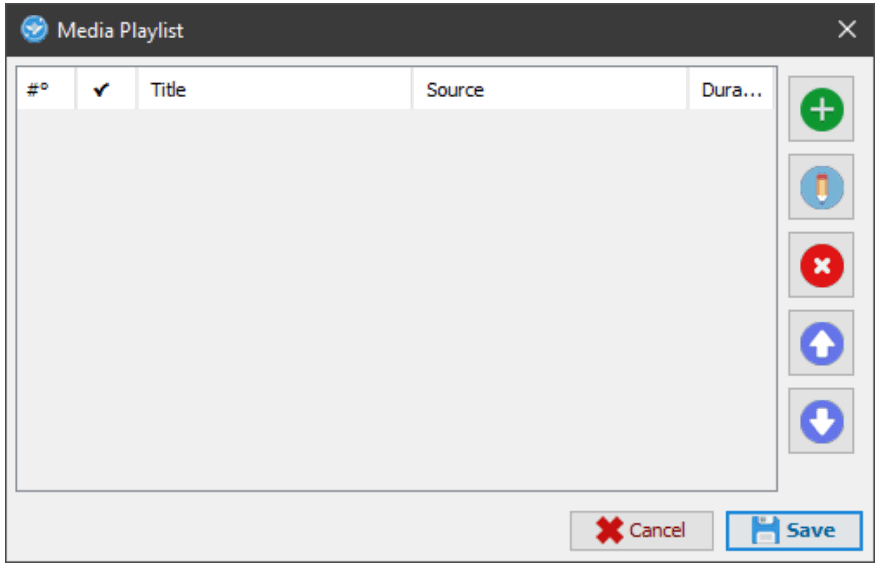
Managing your local media playlist
| Property | Description |
| “+” button | Adds a new media source using local files. |
| “Pencil” button | Edits a source that is already in the list and its playback properties. |
| “X” button | Deletes a source from the list. |
| “Up Arrow” button | Moves a source to the beginning of playback |
| “Down Arrow” button | Moves a source towards the end of playback. |
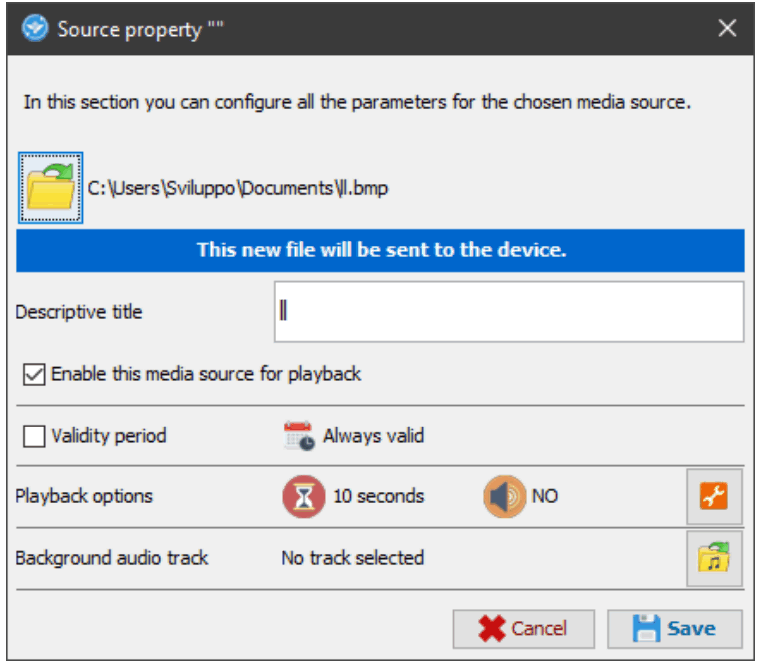
Source properties
| Property | Description |
| file | Chooses the location of the file that will be transferred to the device. |
| Descriptive title | Choose a title for the source to make it easier to identify within the playlist. |
| Enabling | Enables or disables source playback. |
| Period of activity | Enables source playback within a period of time. |
| Playback options | Allows you to change, what was allowed, the time of stay, and the volume of the source. |
| Background audio track | Specifies a background audio track if the source is an image. |
The suggested resolution for each media is 1270×500 pixels. The maximum supported resolution is 1920×1080 pixels.
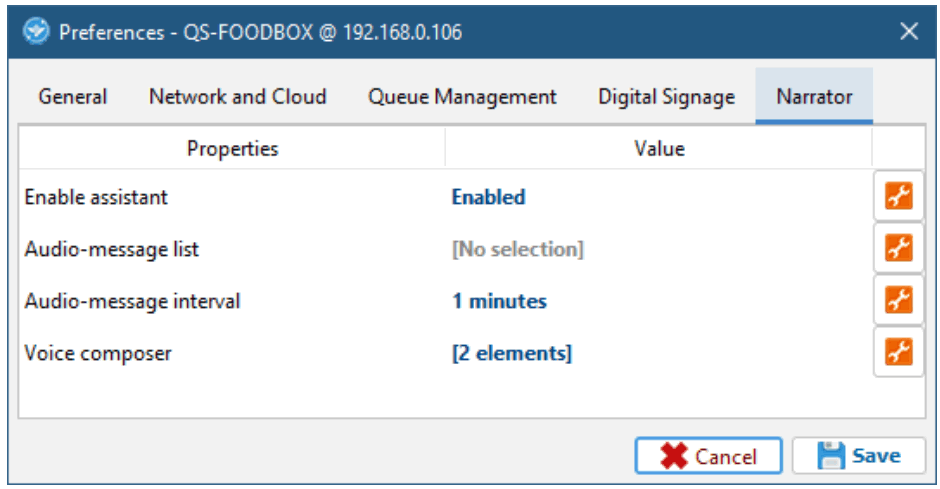
Voice assistant
| Property | Description |
| Narrator | Enables/disables narrator. Click the wrench to enable/disable. |
| Audio-message list | Inserts a playlist of voice messages, spoken at regular intervals of time. Click on the wrench to access the audio-message panel. |
| Audio-message interval | Customizes the time frame for audio messages. Click on the wrench to change this time. |
| Vocal composer | Composes the phrase by inserting the elements that make up the ticket. Press the wrench to change the phrase items. |
Alternative voices
This product takes advantage of the features of Google’s pre-installed text-to-speech engine. If the voice used is not to your liking you can install a different text-to-speech engine directly from Google Play (the Android digital store) upon the addition of a Google account on the BOX. To add a Google account, insert a mouse (or use the supplied remote control) and navigate to Settings -> Accounts and then add your Google account. Among the text-to-speech engines on the market, Visel recommends Vocalizer TTS which provides voices in many more languages than the basic one.
Each item can be purchased directly from the store or within the app itself at the price of about € 4.00 each. To enable an alternative text-to-speech engine, simply go to Settings -> Language and Input -> Text-to-speech output and enable the alternative engine.
For more information about TTS Vocalizers, visit this link:
https://play.google.com/store/apps/details?id=es.codefactory.vocalizertts&hl=en_US
Product usage
Usage with QS-KEYPAD2
QS-KEYPAD2 is the wireless pad used to manage the turn numbering on QS-FOOD BOX.
Following is the function list for each button: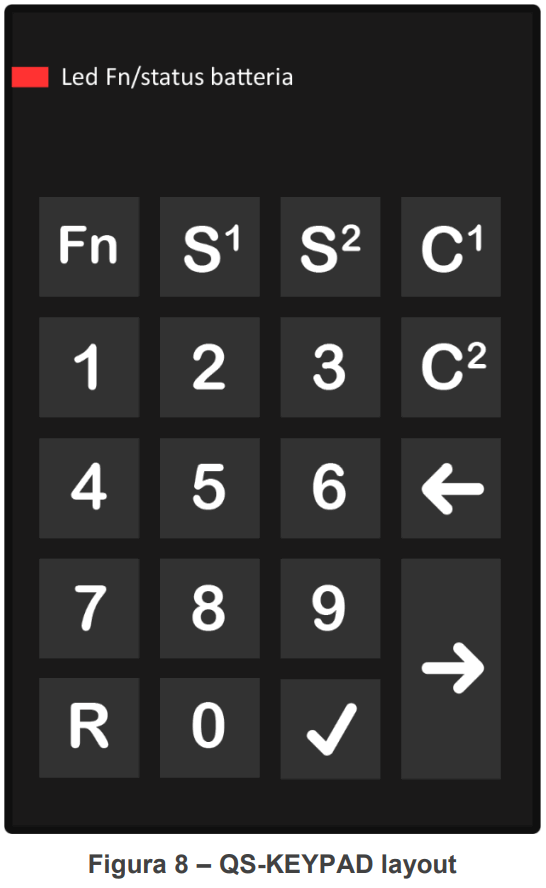
| FN | Not used. |
| 0-9 + S1 | “Order in progress” call |
| 0-9 + S2 | “Order notification” call |
| C1 + V | Clear the number selection |
| C2 + V | Clear the number queue |
| Left arrow | Call the previous turn number decreasing a unit |
| Right arrow | Call the next turn number incrementing a unit |
| 0-9 + V | “Order pickup” call |
| R + V | Repeat the calling of the last order number |
| R + Right arrow | Repeat the last turn number call |
| 0-9 + Right arrow | Set and call a new turn number |
Usage with QS-FOOD KEY
QS-FOOD KEY is a virtual pad for Android devices that allows the user to manage the numbering on QS-FOOD BOX. To use this product is necessary to activate a paid software license.
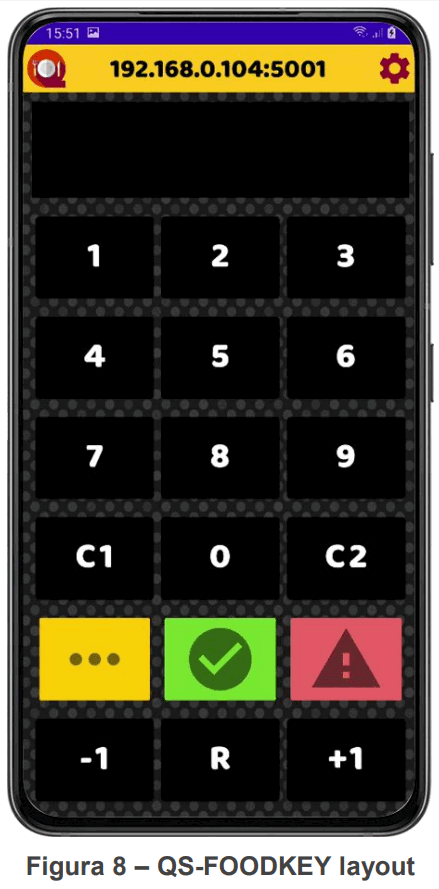
| 0-9 + … | “Order in progress” call |
| 0-9 + ⚠ | “Order notification” call |
| C1 | Clear the number selection |
| C2 | Clear the number queue |
| -1 | Call the previous turn number decreasing a unit |
| +1 | Call the next turn number incrementing a unit |
| 0-9 + ✓ | “Order pickup” call |
| R | Repeat the calling of the last order number |
| Long press on R | Repeat the calling of the last turn number |
The gear icon, on the top right corner, is used to change the master QS-FOOD BOX IP address and the UDP communication port.
Troubleshooting
I cannot find QS-FOOD BOX with Visel Sync
Verify that QS-FOOD BOX and the PC on which you are running Visel Sync are connected to the same network. If so, check your network for firewalls.
Visel Sync does not apply changes
Try starting Visel Sync with Administrator rights
QS-FOOD BOX does not display calls
Verify that you have entered the correct IP address of the Queue Manager in the QS-FOOD BOX configuration panel in Visel Sync.
QS-FOOD BOX does not show RSS news
Verify that QS-FOOD BOX is connected to the internet.
If other types of problems arise, we recommend that you contact our telephone support.
Visel Italiana Srl
Via Maira snc
04100 Latina (LT)
Tel: +39 0773 416058
Email: [email protected]
The document was drawn up on12/11/2020
Visel, QS-FOOD BOX | User’s Guide
 Download - Visel Italiana s.r.l.