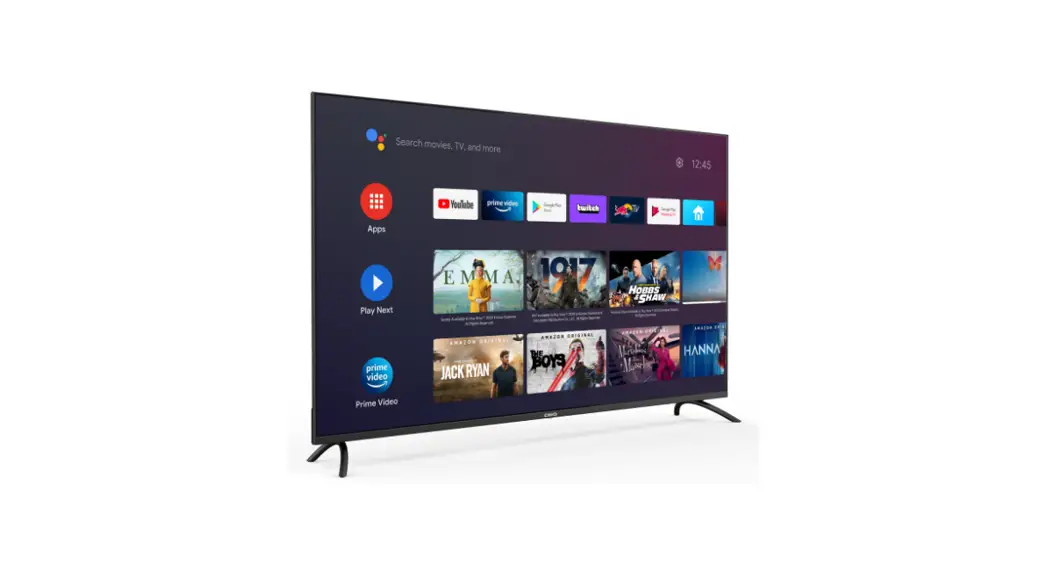
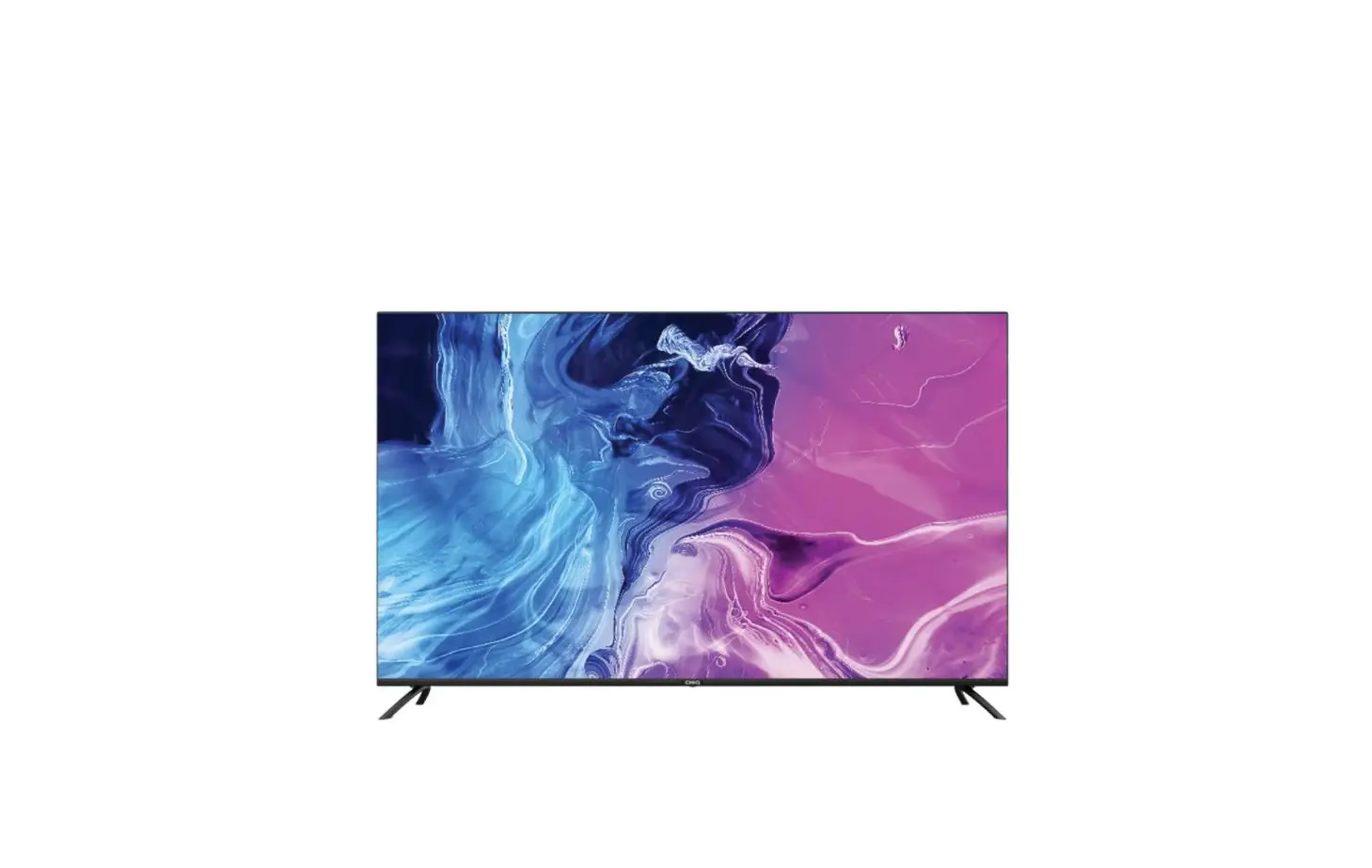
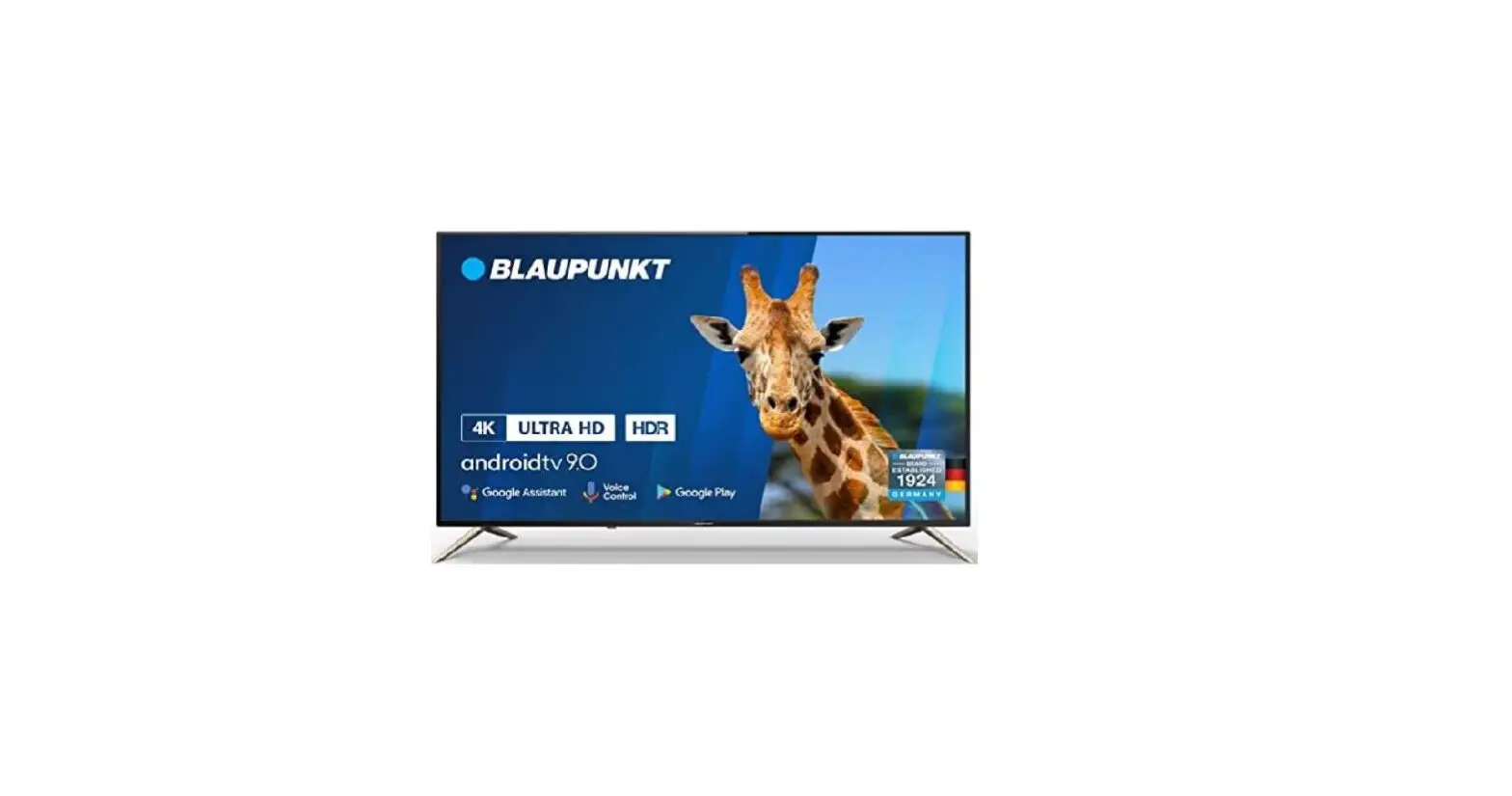
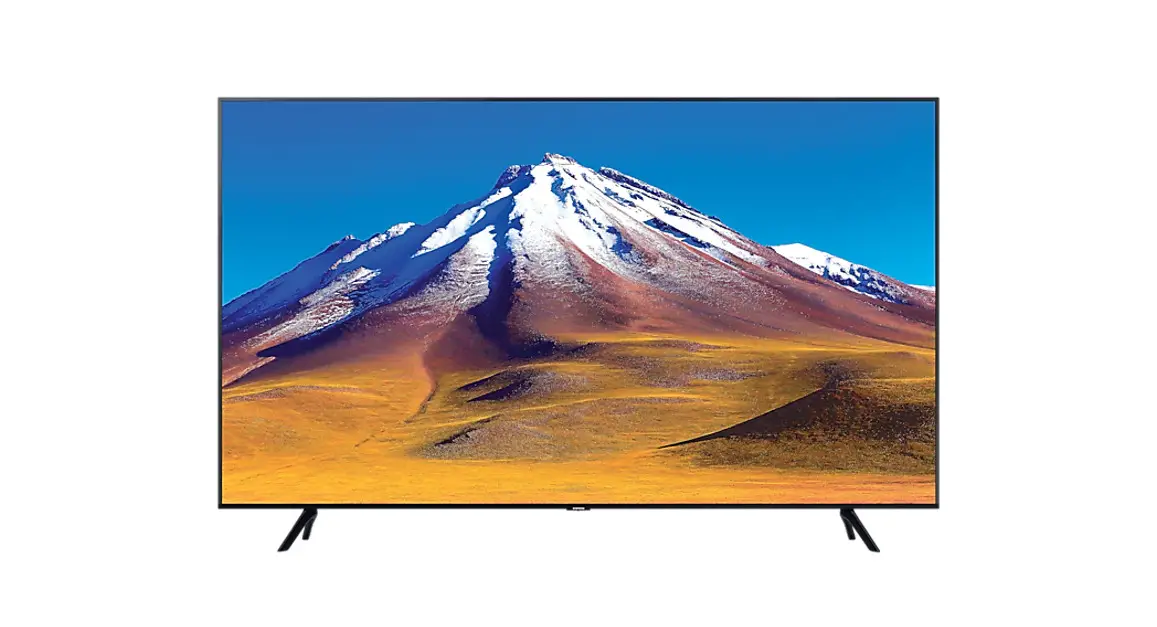
U50G7PG 50 Inch 4K UHD Android TV
Product Information:
The product is a U50G7PG TV with various input ports including
LAN, HDMI4, HDMI3, HDMI2, HDMI1(ARC), ANT, AV R AUDIO L, and
DIGITAL VIDEO AUDIO OUT. It also has a USB 2.0 port for connecting
external devices. The TV is equipped with buttons for power, mute,
number input, account switching, launching the Electronic Program
Guide (EPG), displaying the dashboard menu, accessing the main
menu, navigating menu options with direction buttons, selecting
options with the OK button, returning to previous menus with the
Back button, opening the Android TV homepage, and launching apps
like NETFLIX, YouTube, Prime Video, and Google Play. The TV also
supports voice commands through Google Assistant and has additional
features for adjusting volume, selecting programs and signal
sources, displaying program information, controlling media
playback, and managing accounts.
Product Usage Instructions:
- To turn on/off the TV, press the Power button.
- Use the Mute button to mute or restore the sound.
- Use the Number buttons to input numbers or switch
accounts. - Press EPG to launch the Electronic Program Guide.
- Press Dashboard to display the dashboard menu.
- While on any external input source, press Menu to display the
main menu. - Use the direction buttons to navigate menu options or
settings. - Press OK to select or confirm a menu item.
- Press Back to return to the previous menu or setting.
- Press Home to open the Android TV homepage.
- Open specific apps like NETFLIX, YouTube, Prime Video, and
Google Play by pressing their respective buttons. - Activate the voice command function or Google Assistant by
pressing the Google Play Voice Volume button. - Select programs in ascending or descending order using the
Program button. - Select the signal source using the Source button.
- Display program information and select audio languages and
channels using the Info and Audio buttons, respectively. - Show or hide Teletext using the TTX button.
- Quit the current interface using the EXIT button.
- Control media playback in Media mode according to the Operation
interface instructions. - Access the Account Dashboard by pressing the Account Dashboard
button.
NOTE: It is recommended to watch the TV in HOME
mode. Select Home mode under Select TV mode in the boot guide.
Alternatively, you can go to settings->System->Retail Mode
and set it to Off. If the TV is turned into standby mode during
initial installation setup, it might cause higher standby power
consumption.
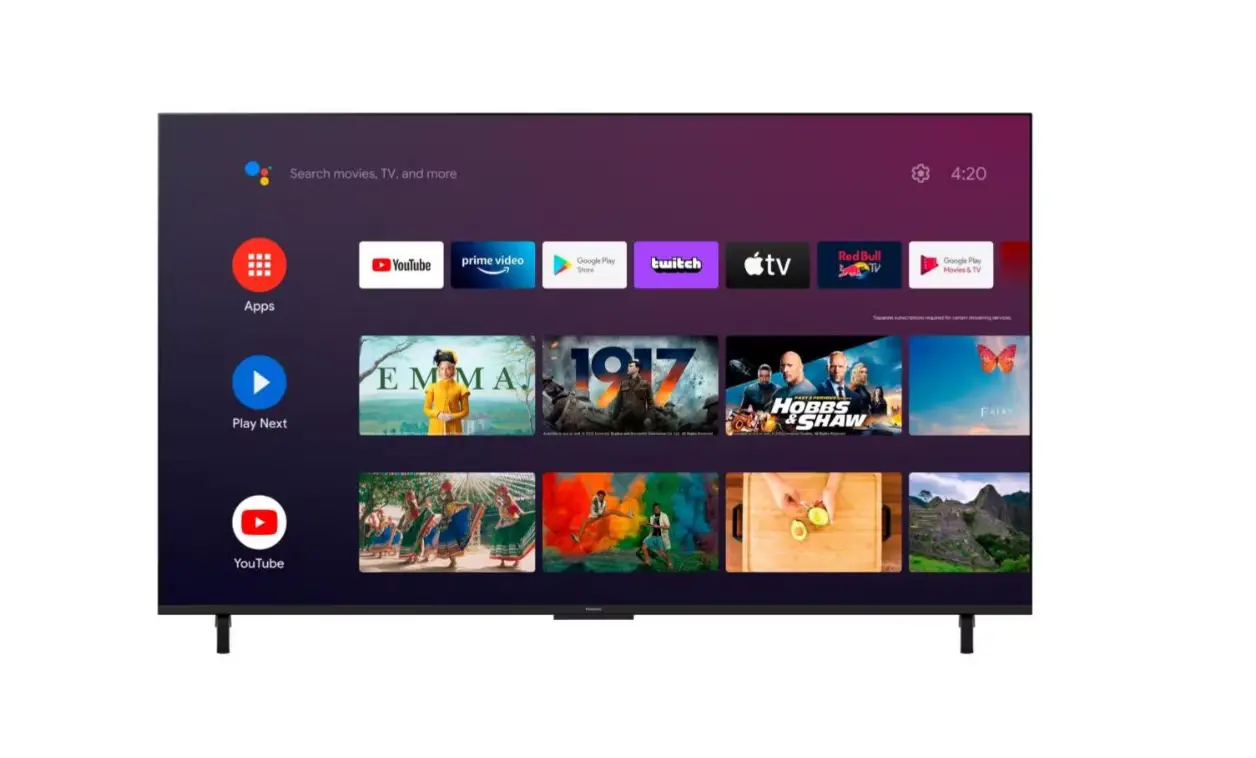
Additional features include using Google Assistant to find
content and get answers, accessing your Google TV homepage through
the Home button, and accessing the App Centre to display all
installed apps through the Apps button. You can also view records
and manage your watch list in the Library.
U50G7PG
LAN HDMI4
HDMI3
HDMI2
HDMI1(ARC)
ANT
AV R AUDIO L
DIGITAL VIDEO AUDIO OUT
USB2.0 (5V 500mA)
Buttons
Description
Power
Turn on/off TV
Mute
Mute or restore sound
Number Number buttons
Account Switch account
EPG
Launch Electronic Program Guide
Dashboard Displays dashboard Menu
Display main menu,while
Menu
on any external input source
Press the direction
Direction/
buttons to select menu options or settings. Press
OK
OK to select or confirm
menu item.
Back
Return to previous menu or setting
Home
Open Android TV Homepage
NETFLIX Open NETFLIX App
YouTube Open YouTube App
Prime video
Open prime video App
Google Play Voice Volume
Program
Source Info
Audio
Open Google Play App
Activate Voice command Function/Google assist Adjust the volume
Select programs in ascending or descending order Select signal source
Display program information Select audio languages and Audio channels
TTX EXIT Media
Color
Show or hide Teletext
Quit the current interface.
Control media playback in Media mode Use in accordance with the Operation interface instructions
Account Dashboard
4
NOTE: It is recommended to watch the TV in HOME mode, Select “Home” mode under Select TV mode in the boot guide ,you can also press in settings->System->Retail Mode ->Set to Off.
If TV is turned into standby mode during initial installation setup, it might cause higher standby power consumption.
Google Assistant Find content and get answers
Home Your Google TV Homepage.
Apps Access the App Centre to display all installed apps.
Lidrary View records, manage watch list.
<RXU apps Customizable for quick access.
Dashboard Dashboard contains user account, settings page, input source list, etc.
Note 7 K H OD RX W DQ G IX Q F WLRQ DOLW RI WK H K RPHSDJH ZLOO F K DQ JH G Q DPLF DOO ZLWK WK H YHUV LRQ RI WK H ODX Q F K HU $ OO LPD JHV LQ WK H X V HU PD Q X D O D UH IRU UHIHUHQ F H RQ O
-Under “Setting”, Select Apps. -Under “Apps” select “see all apps” and choose the app you want to remove. -Select Uninstall.
to select and enter “Apps” to select Help app.
to select Media Player.
select and enter “Apps”
200 x 200
 Chromecast Setup