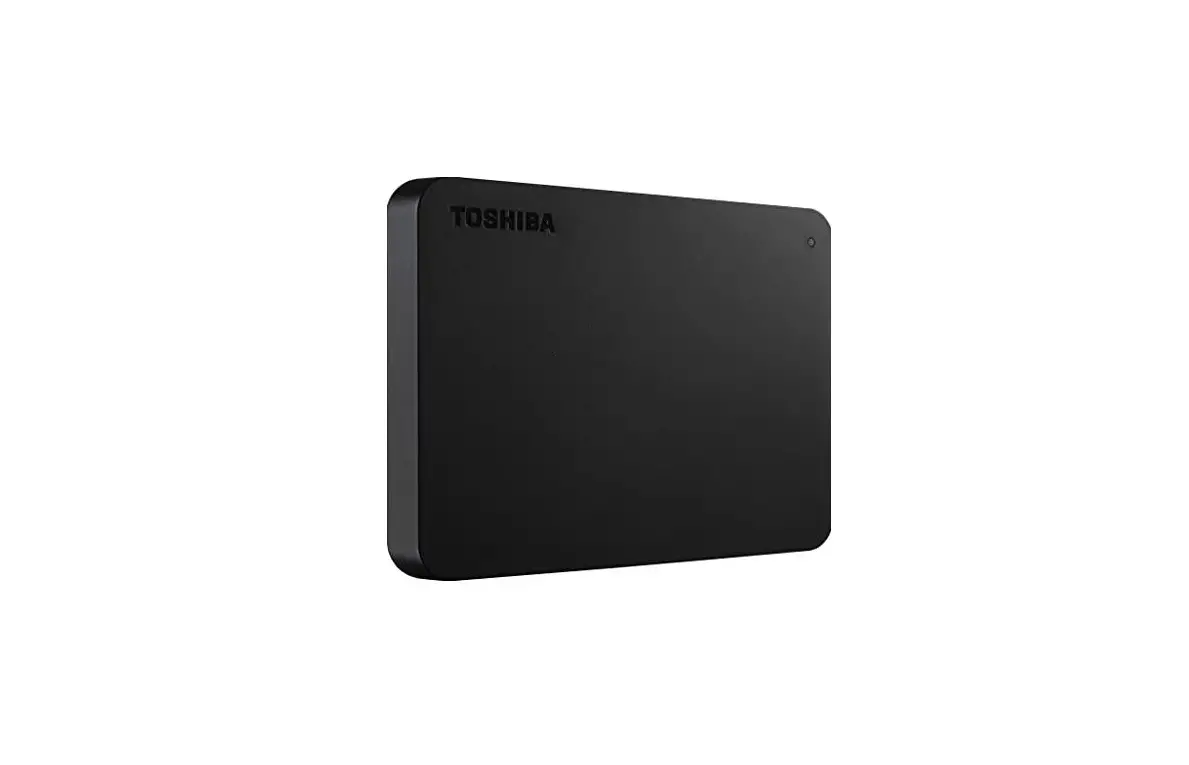
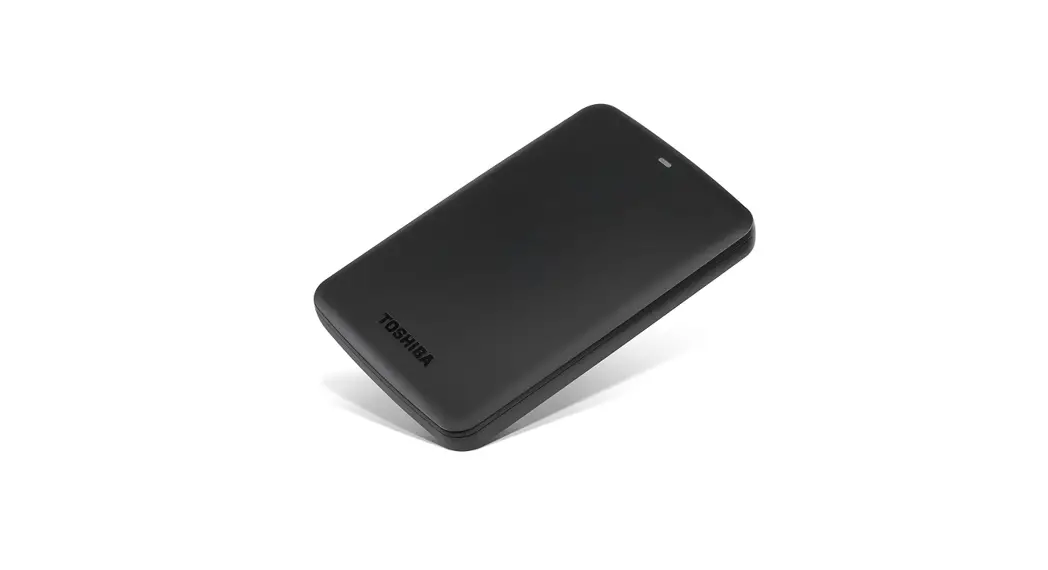
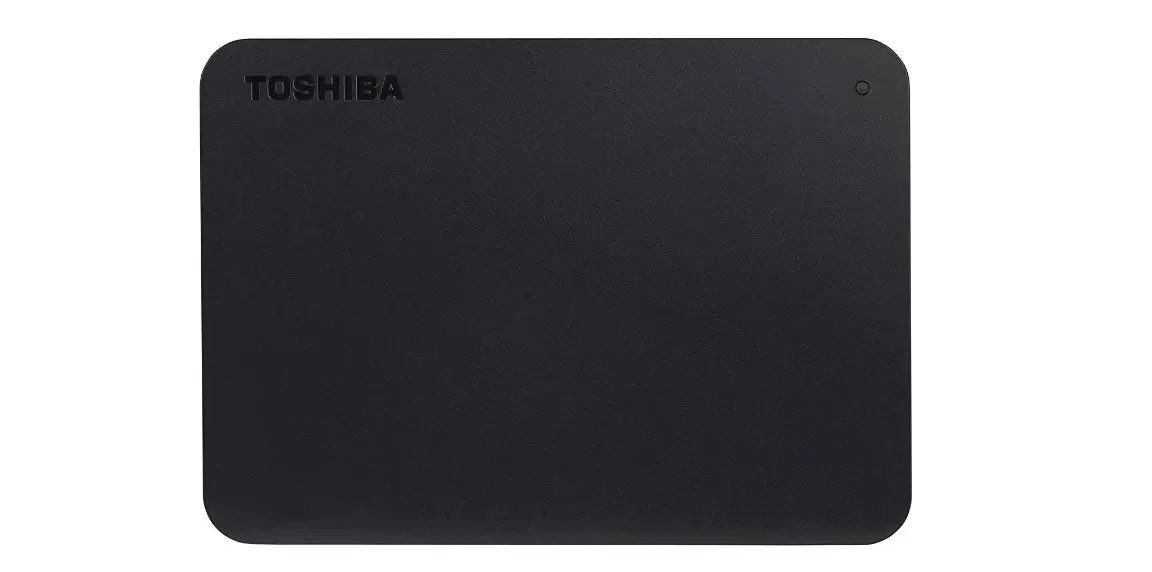
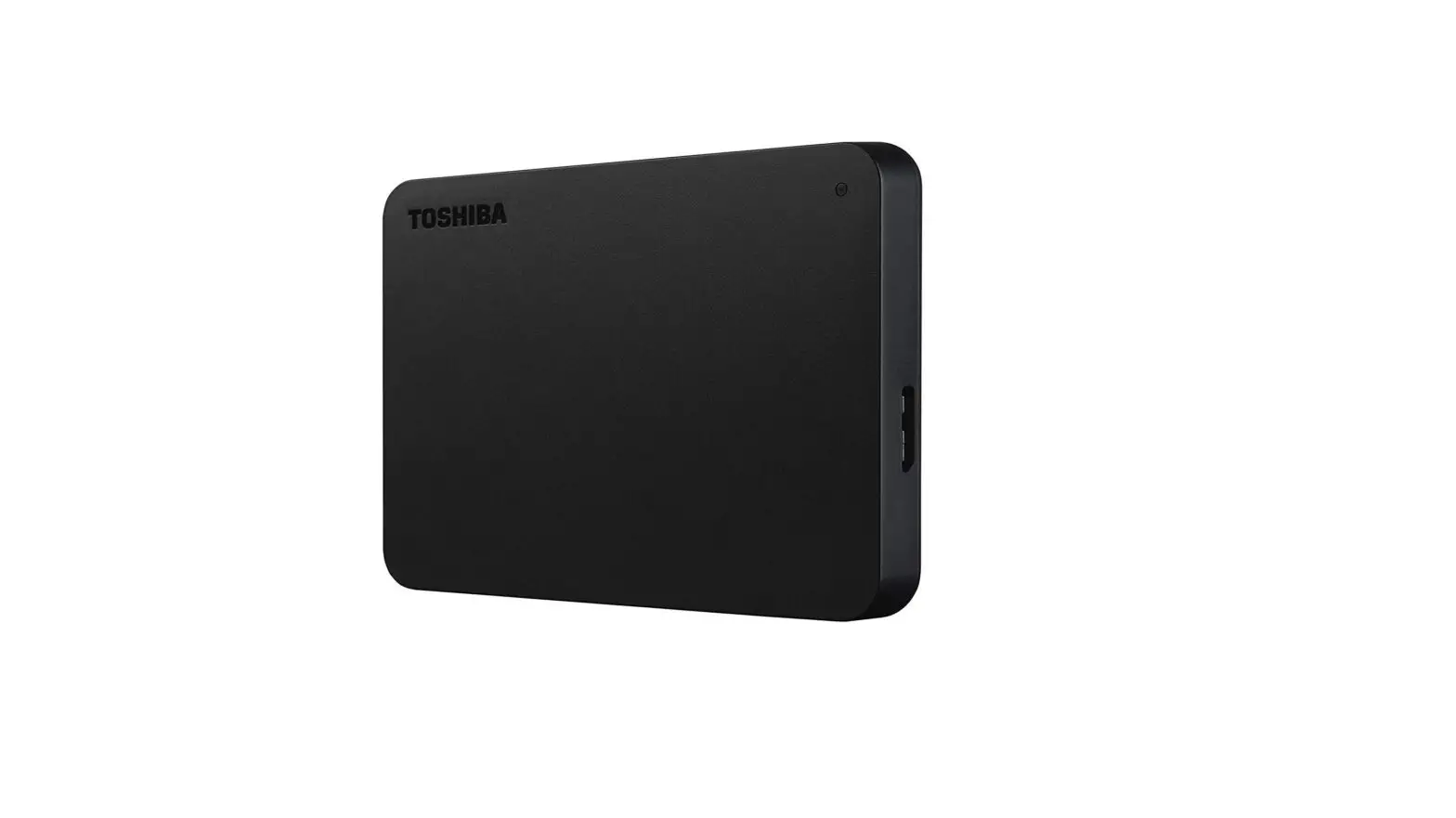
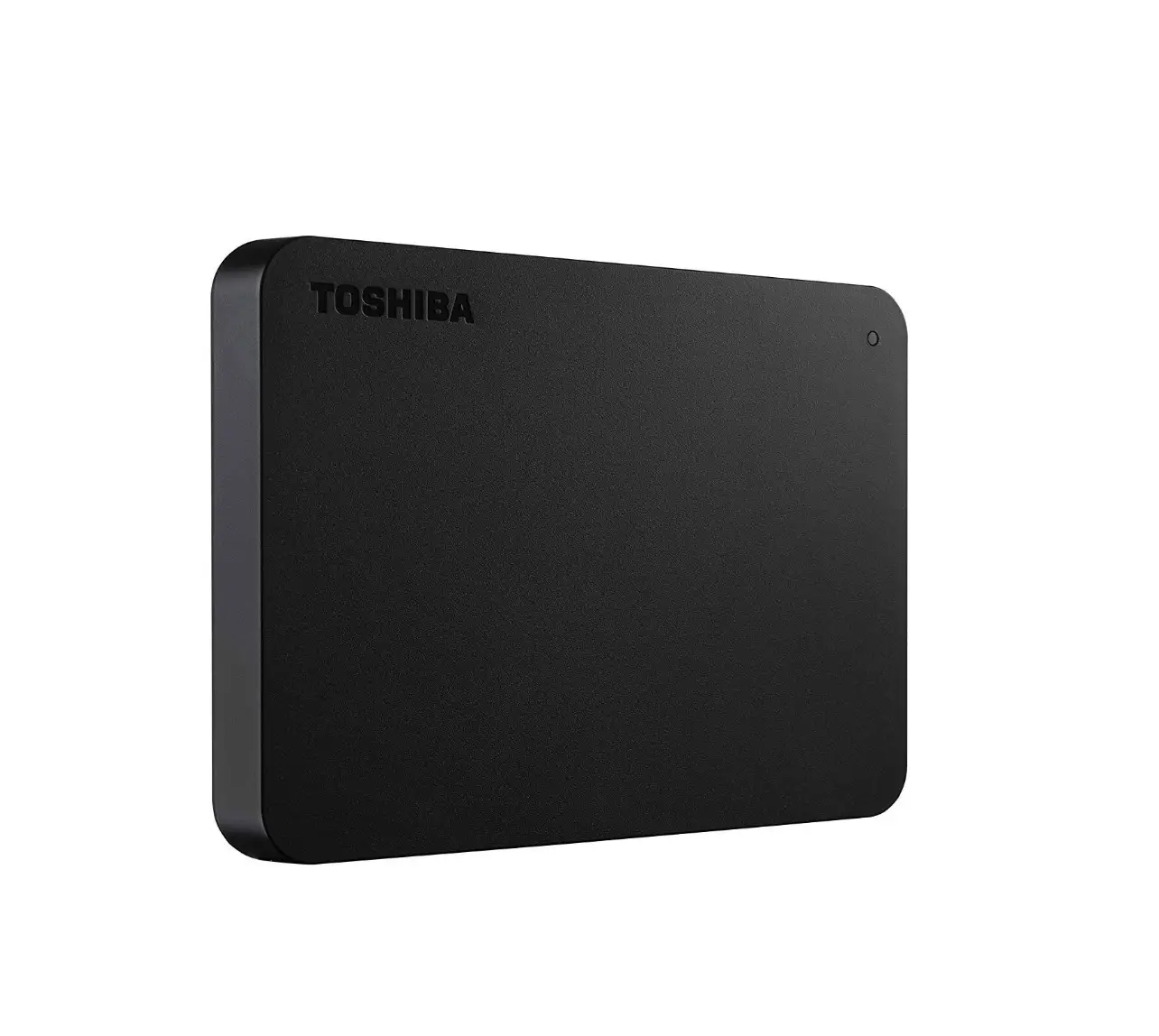
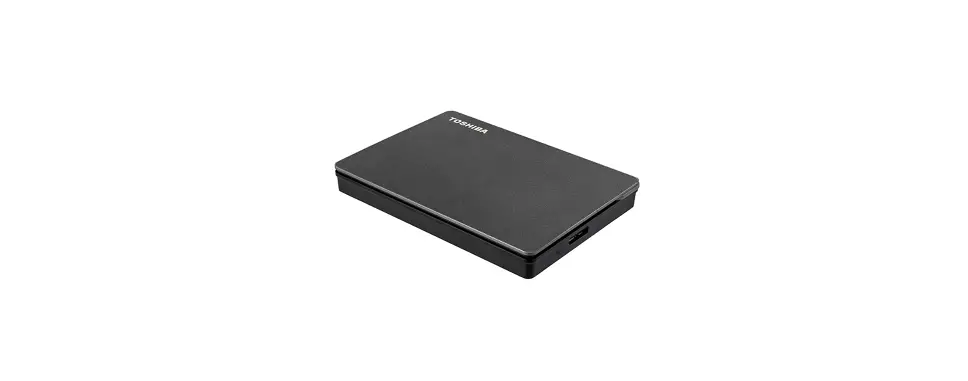
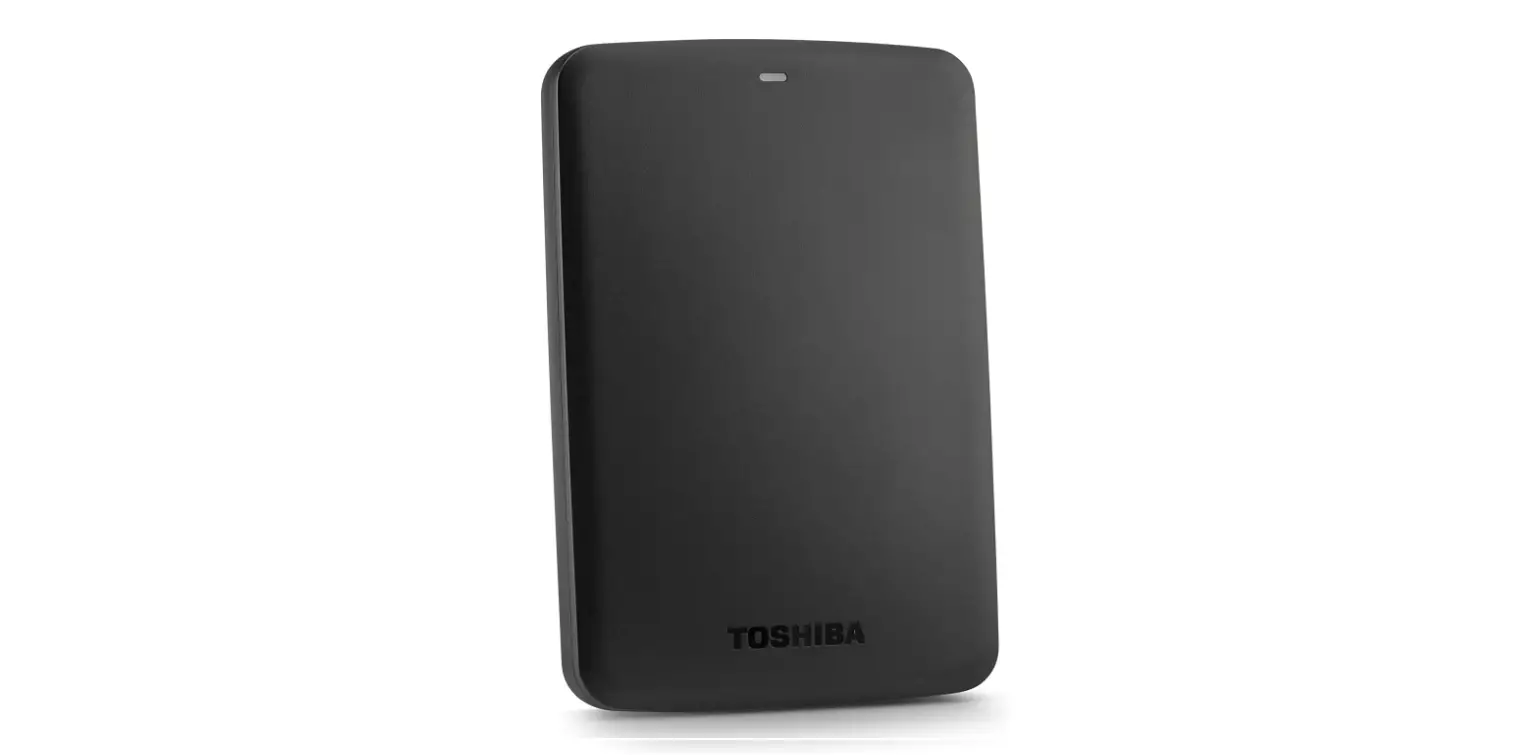
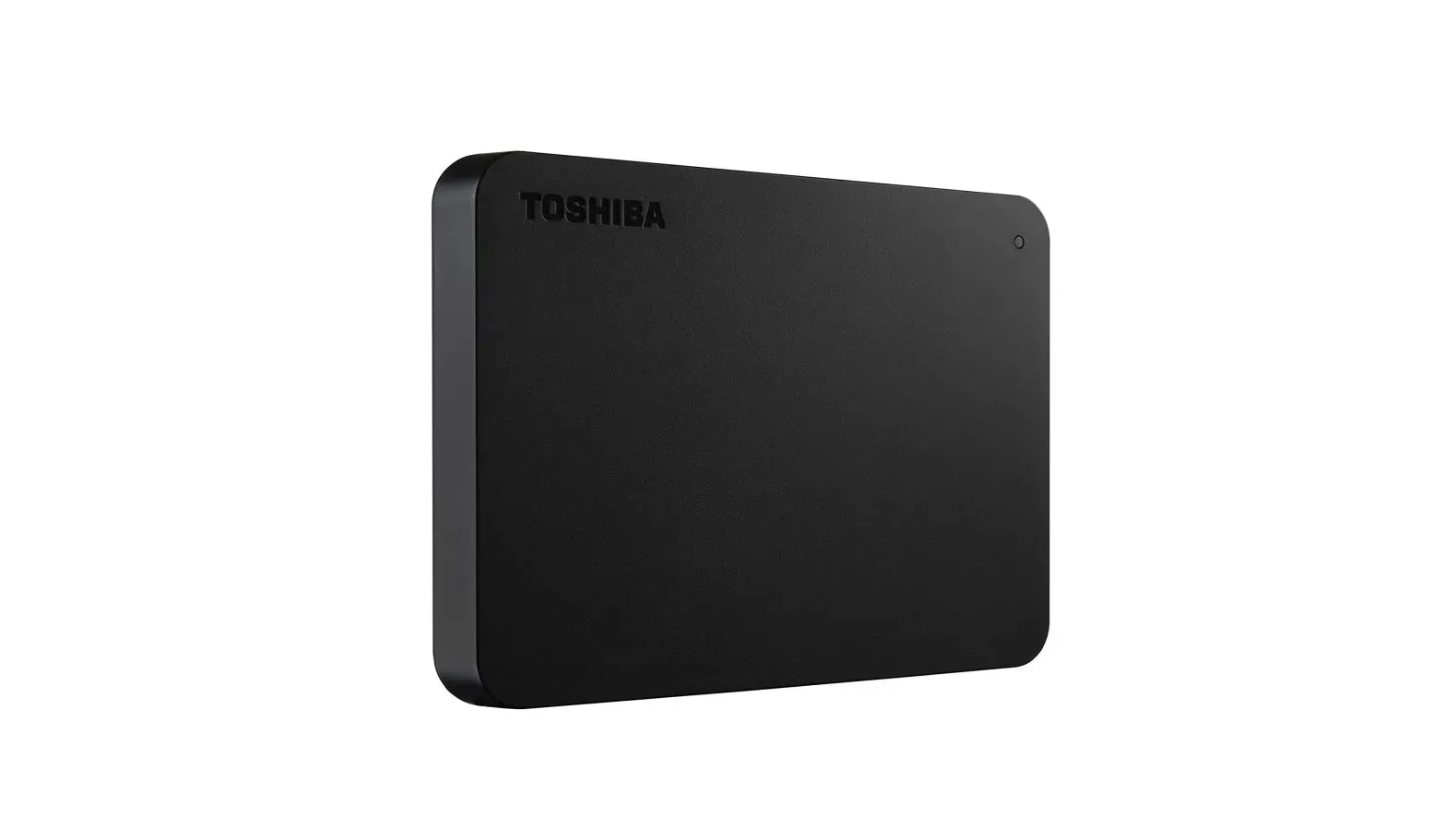
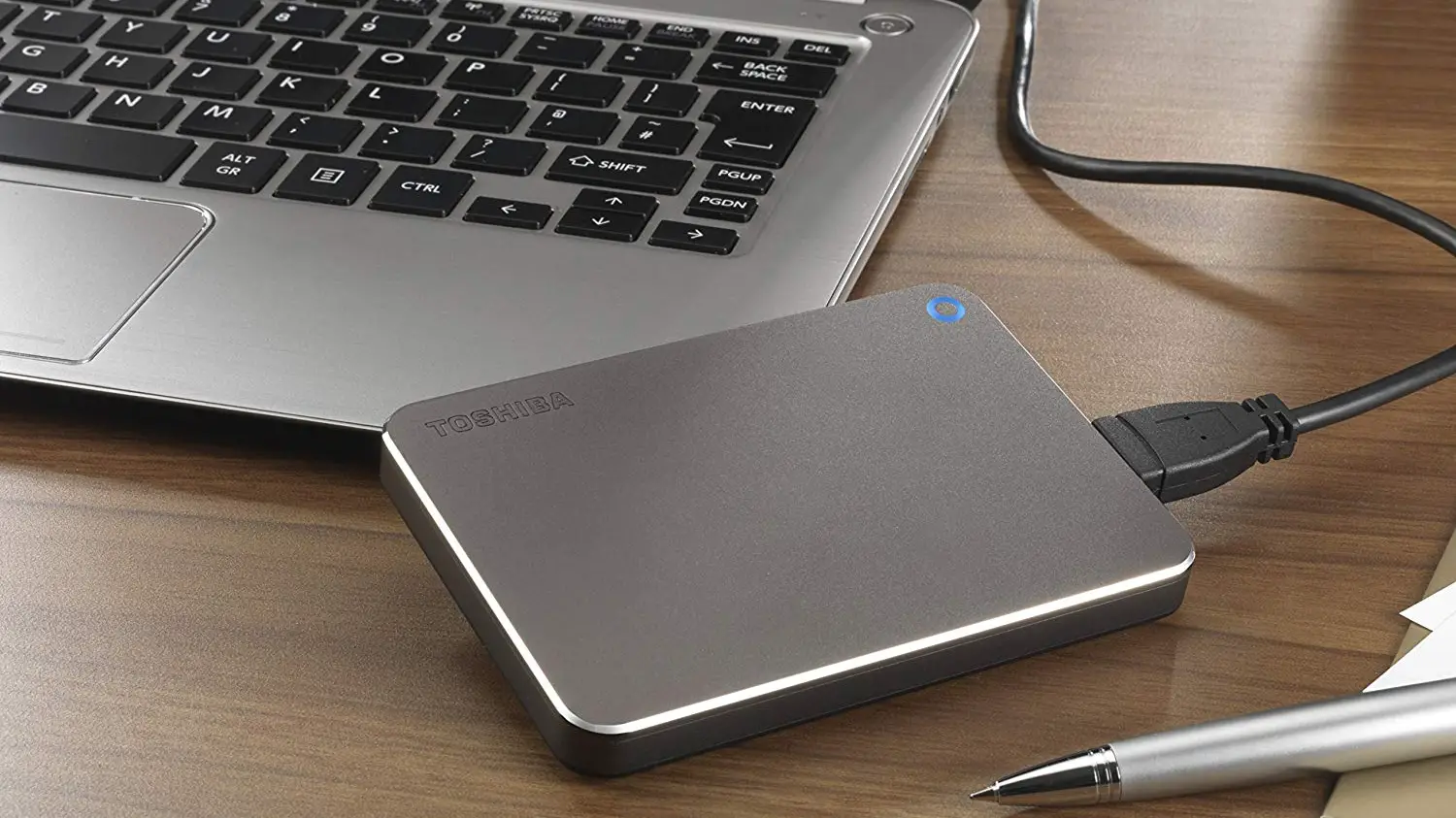
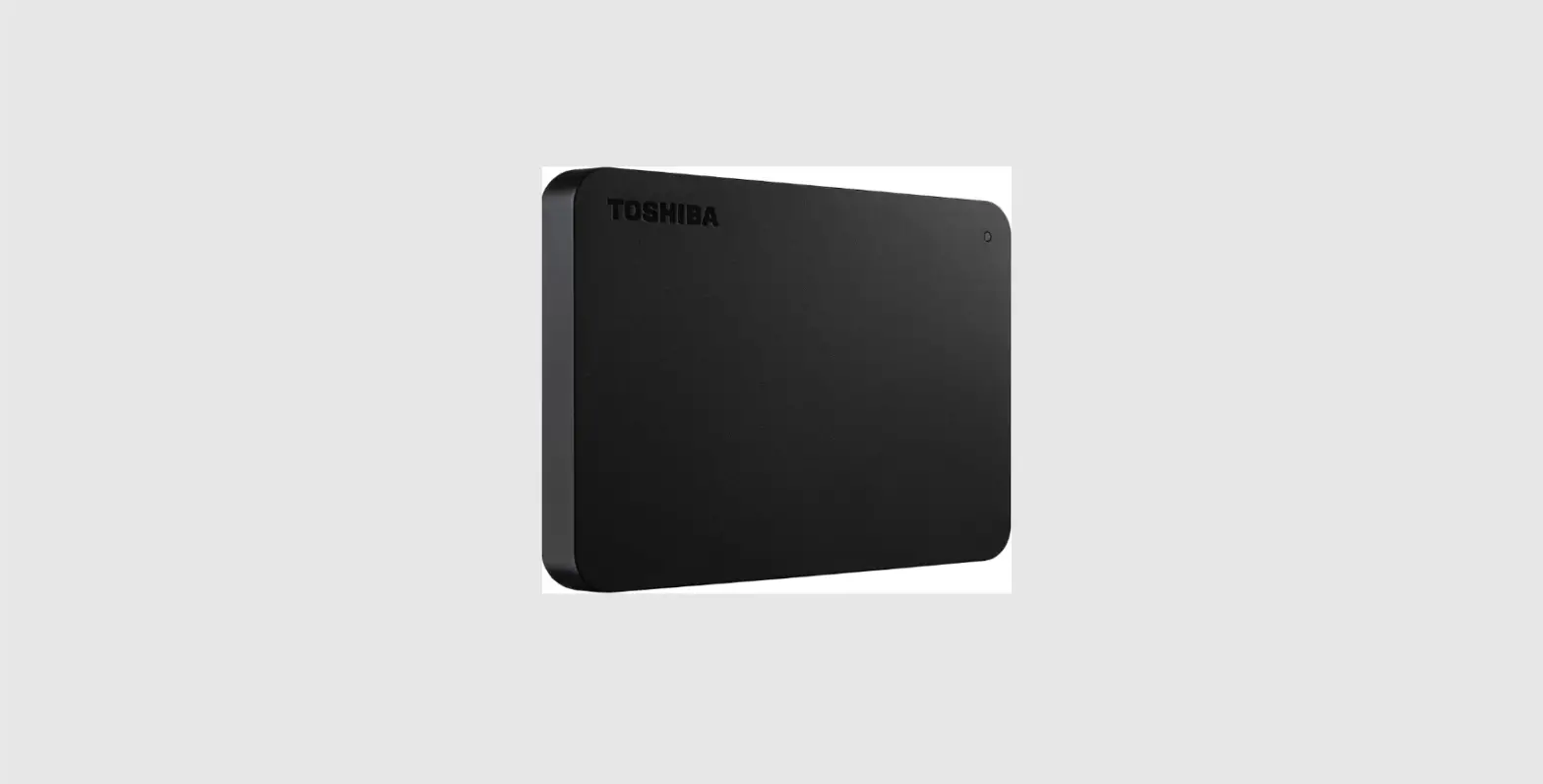
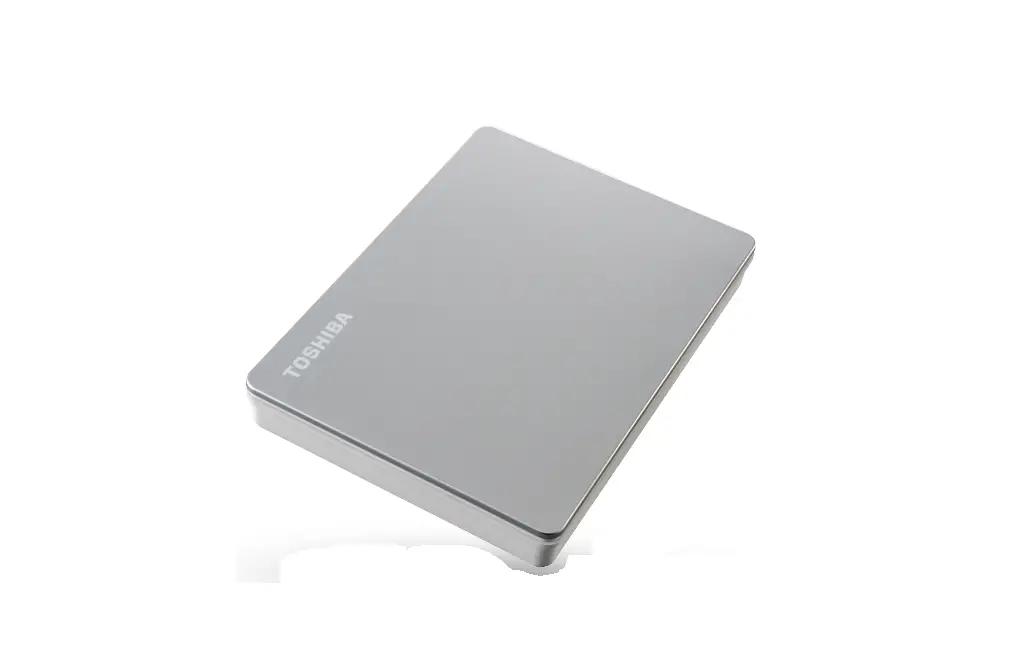
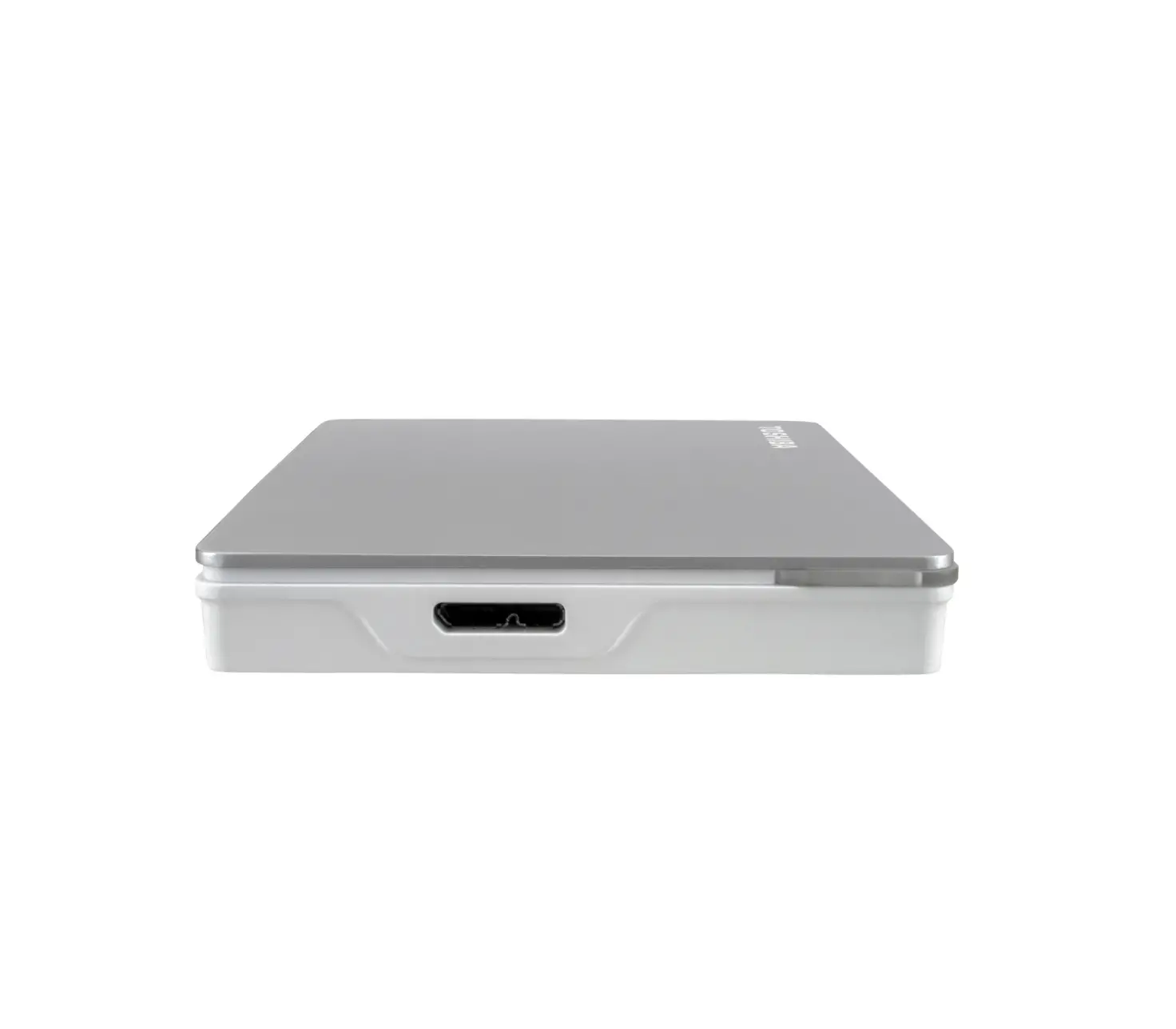
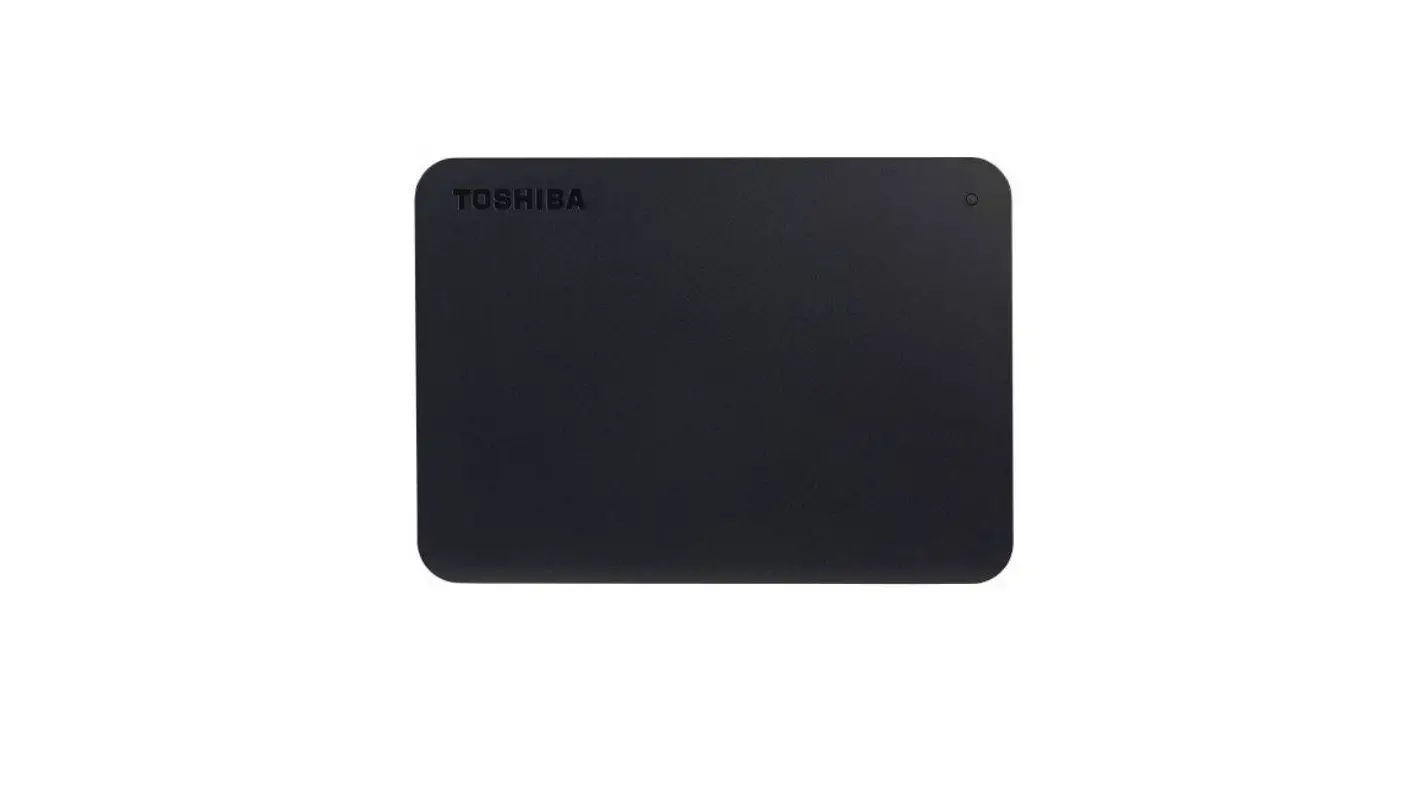
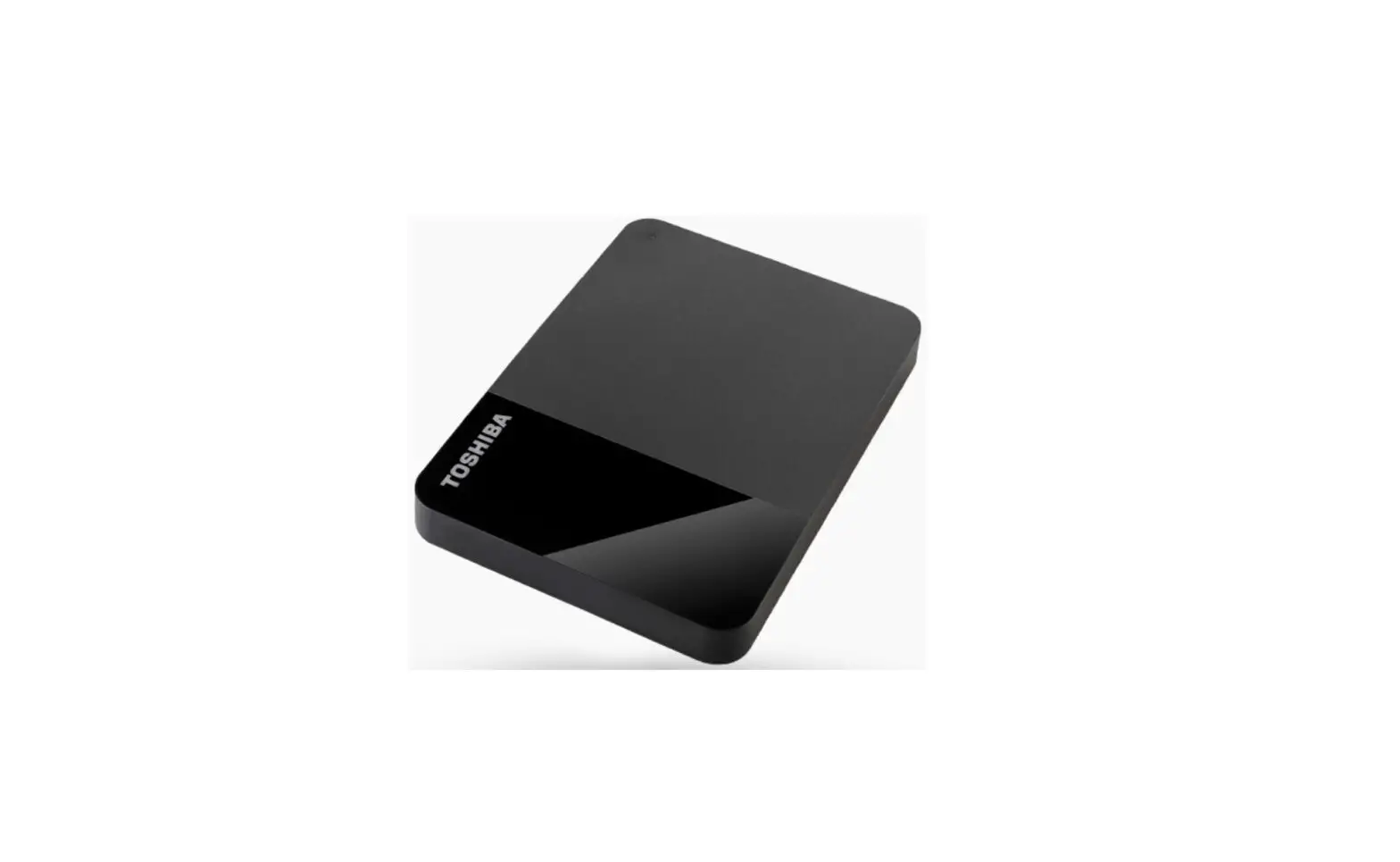
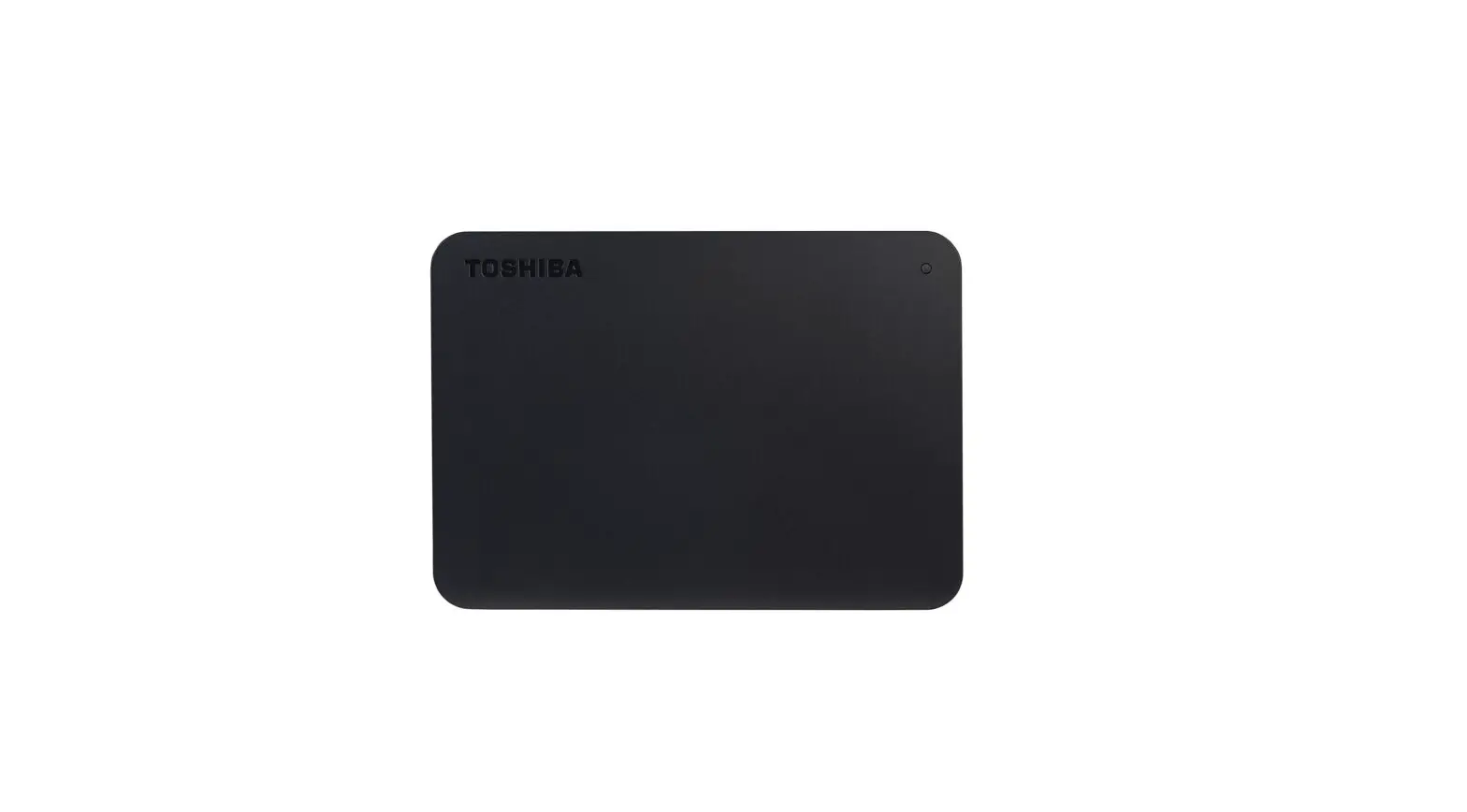
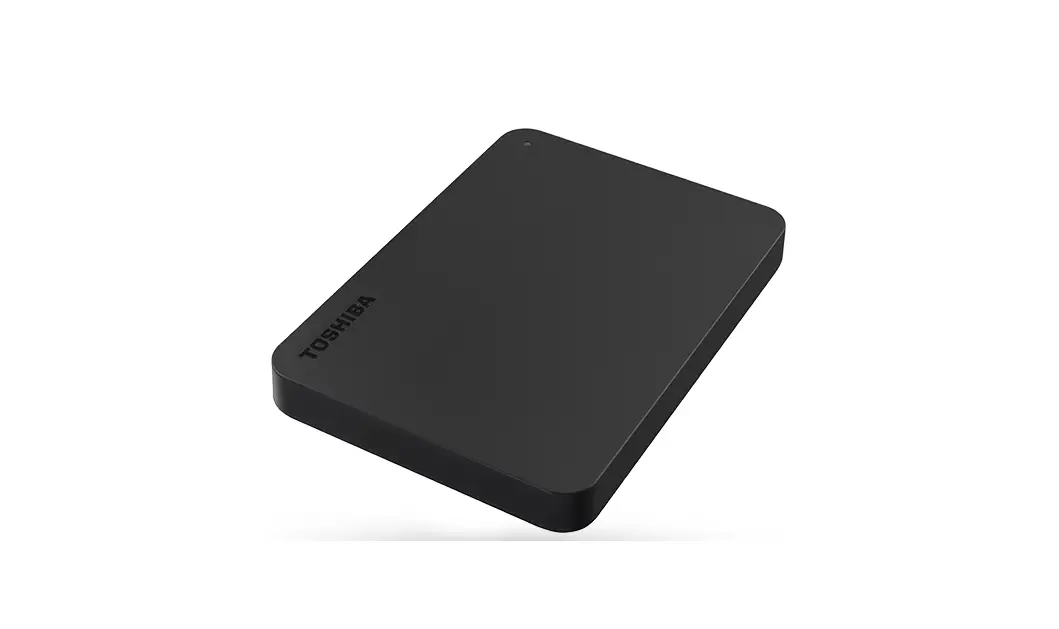
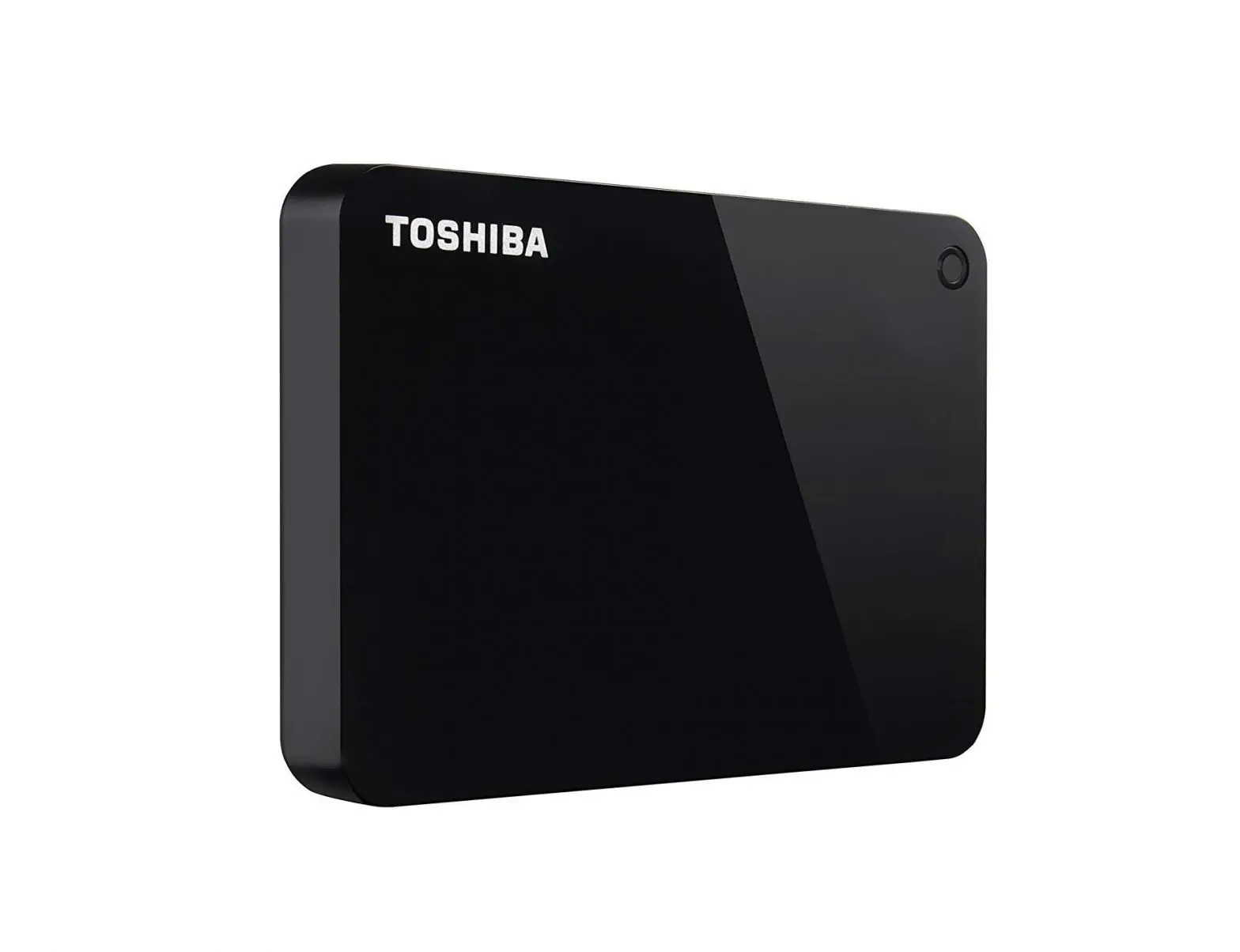
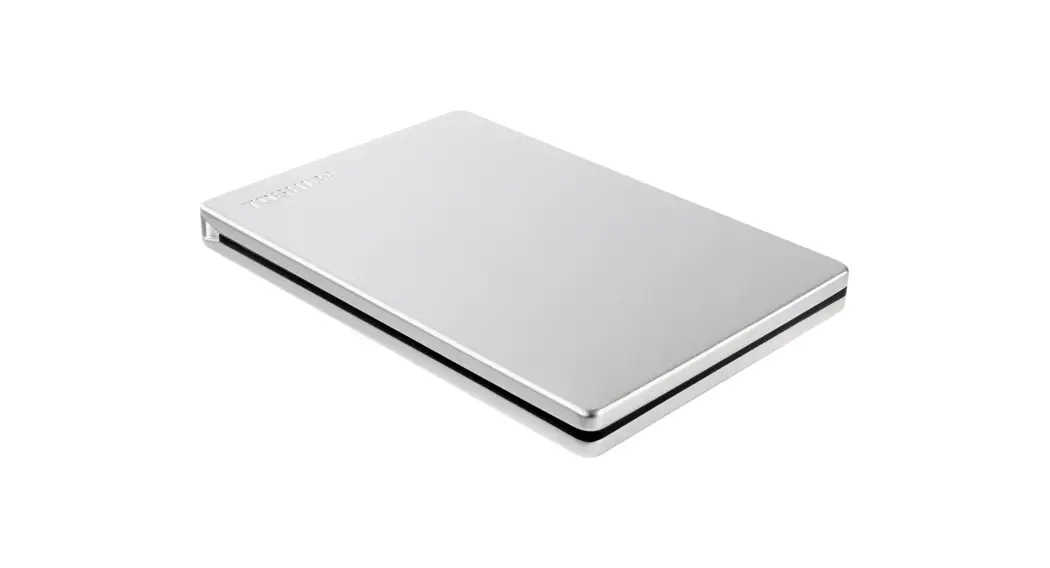
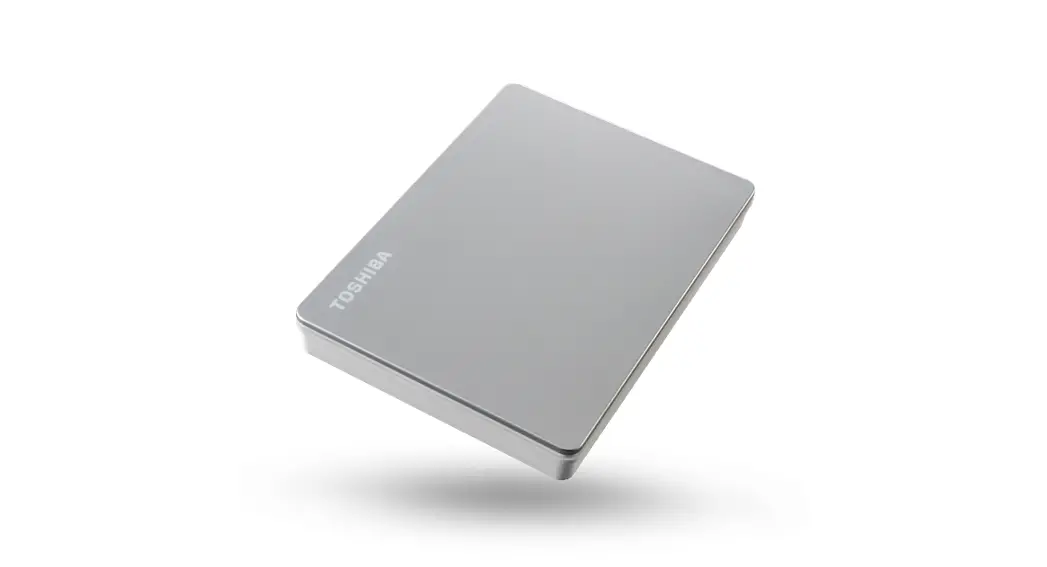
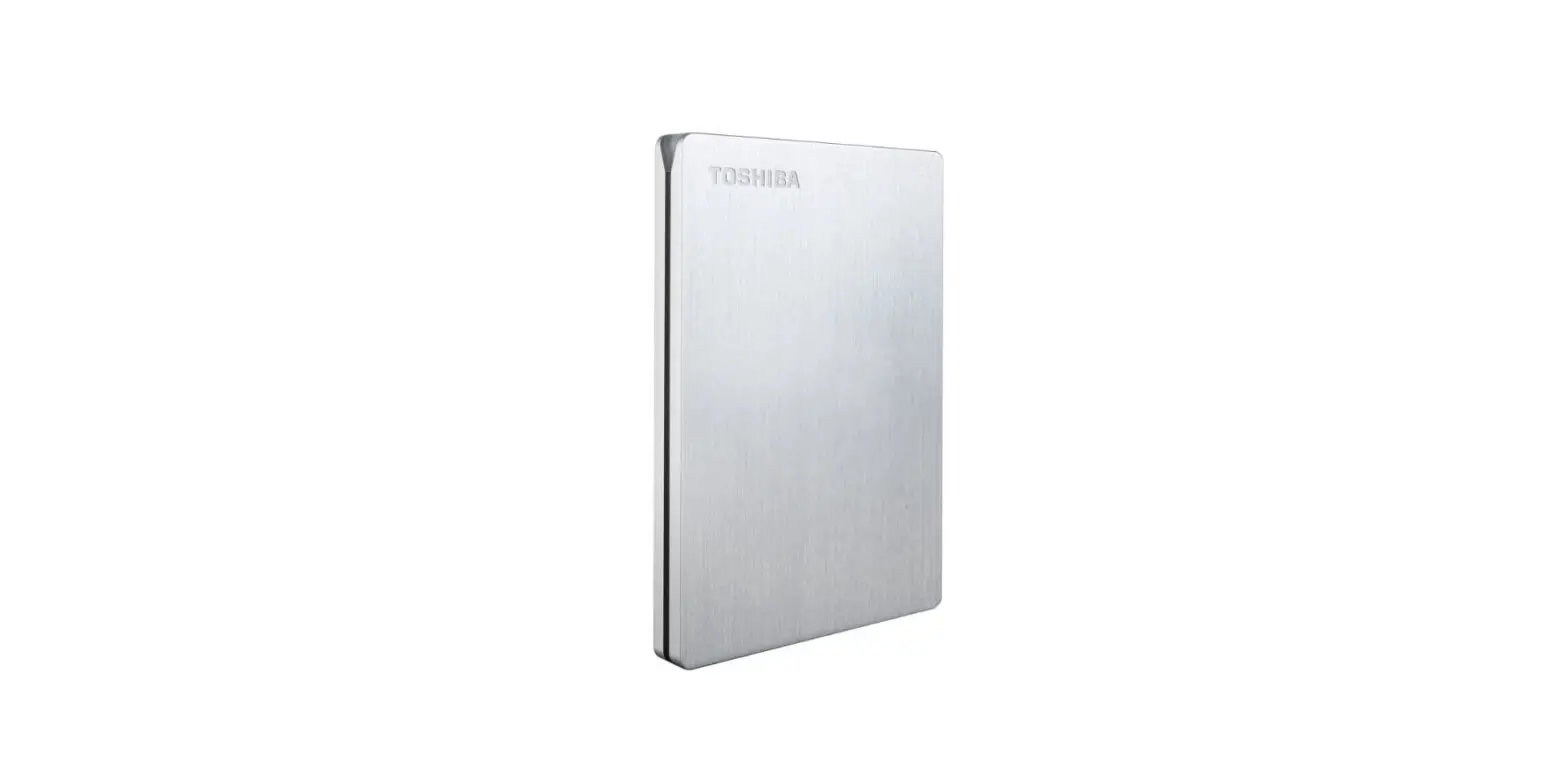
HDTB420XK3AA Canvio Basics Portable External Hard Drive
User’s Manual – CANVIO BASICS
Introduction
The TOSHIBA Canvio Basics Hard Drive is a reliable and portable
external hard drive that allows you to store and access your
important files, documents, and media content. This User’s Manual
contains all the necessary information regarding installation,
usage, and maintenance of the drive, as well as safety and security
advice.
Check the Components
The package contains the following components:
- Canvio Basics hard drive
- USB 3.0 Micro-B cable
- Support document
You can also download this User’s Manual from
www.toshiba-storage.com/downloads/. A preloaded Instruction Manual
for Safety and Comfort is also available on the external hard
drive.
System Requirements
The Canvio Basics hard drive is formatted NTFS for Windows 11 /
Windows 10 / Windows 8.1 and requires reformatting for macOS v12.5
/ v11.6 / v10.15. You need one free port of USB 3.0 or USB 2.0 to
use the drive. Note that USB 3.0 is backward compatible with USB
2.0.
Installing the Drive
Make sure that you follow these instructions for a successful
installation:
- The Canvio Basics hard drive is bus-powered, so you don’t need
to connect an external power supply. - Do not use passive USB hubs or USB connectors like keyboards,
mice, or similar products with the drive. - Ensure that the connectors are inserted correctly. Do not use
pressure when connecting the cables. Check the polarity before
connecting.
Connecting the Drive to Your Computer
Follow these steps to connect the Canvio Basics hard drive to
your computer:
- Plug the USB 3.2 Gen 1 micro-B connector into the corresponding
port of the drive itself. Note that this requires a USB Type-A
port. - With your computer powered on and fully booted up, plug the USB
Type-A connector into a USB Type-A port of your computer. - For Windows PC, the Power/Data indicator light will illuminate
immediately, and the drive will power up. The drive should mount,
and a new drive icon should appear in My Computer. For Mac, the
Power/Data indicator light will illuminate immediately, and the
drive will power up and is ready to use.
Dismount and Disconnect the Drive
It is strongly recommended not to unplug the drive by just
unplugging the cable connection as data may be written to the drive
at that time, and such data will be lost, and the drive may be
damaged physically. Follow these steps for a safe dismount of the
drive:
- A pop-up message box will appear listing the external devices
connected to your computer. - Select the TOSHIBA drive to eject.
- After a few seconds, you will get the notification that it is
now safe to remove the device. - Click OK, and you can unplug the drive now.
For Mac, you can either Ctrl-click on the hard disk icon and
choose Eject or drag the hard disk icon to the trashcan. You can
unplug the drive now.
Cleaning the Drive Case / Enclosure
Before cleaning the drive, make sure that it’s physically
disconnected from the computer. Use standard products to clean it
and wipe off any remaining liquid on the surface.
User’s Manual CANVIO BASICS
EN HR RU CS HU SV DE IT SK DA NL SL ES NO TR FI PL AR FR PT UK EL SR
Table of Contents User’sManual
Introduction . . . . . . . . . . . . . . . . . . . . . . . . . . . . . . . . . . . . . . . . . . . . . . . . . . . . . . . . . . . . . . . . . . . . . . . . . . . . . . . . . . . . . . . . . . . . . . . 3 Check the Components. . . . . . . . . . . . . . . . . . . . . . . . . . . . . . . . . . . . . . . . . . . . . . . . . . . . . . . . . . . . . . . . . . . . . . . . . . . . . . . . . . . . . 3 System Requirements . . . . . . . . . . . . . . . . . . . . . . . . . . . . . . . . . . . . . . . . . . . . . . . . . . . . . . . . . . . . . . . . . . . . . . . . . . . . . . . . . . . . . . 3 Installing the drive. . . . . . . . . . . . . . . . . . . . . . . . . . . . . . . . . . . . . . . . . . . . . . . . . . . . . . . . . . . . . . . . . . . . . . . . . . . . . . . . . . . . . . . . . . 3 Connecting the drive to your computer . . . . . . . . . . . . . . . . . . . . . . . . . . . . . . . . . . . . . . . . . . . . . . . . . . . . . . . . . . . . . . . . . . . . . . 4 Dismount and disconnect the drive. . . . . . . . . . . . . . . . . . . . . . . . . . . . . . . . . . . . . . . . . . . . . . . . . . . . . . . . . . . . . . . . . . . . . . . . . . 5 Cleaning the drive case / enclosure . . . . . . . . . . . . . . . . . . . . . . . . . . . . . . . . . . . . . . . . . . . . . . . . . . . . . . . . . . . . . . . . . . . . . . . . . . 5 Further Advise . . . . . . . . . . . . . . . . . . . . . . . . . . . . . . . . . . . . . . . . . . . . . . . . . . . . . . . . . . . . . . . . . . . . . . . . . . . . . . . . . . . . . . . . . . . . . 5 Frequently Asked Questions . . . . . . . . . . . . . . . . . . . . . . . . . . . . . . . . . . . . . . . . . . . . . . . . . . . . . . . . . . . . . . . . . . . . . . . . . . . . . . . . 6 Troubleshooting . . . . . . . . . . . . . . . . . . . . . . . . . . . . . . . . . . . . . . . . . . . . . . . . . . . . . . . . . . . . . . . . . . . . . . . . . . . . . . . . . . . . . . . . . . . 6 TOSHIBA Support . . . . . . . . . . . . . . . . . . . . . . . . . . . . . . . . . . . . . . . . . . . . . . . . . . . . . . . . . . . . . . . . . . . . . . . . . . . . . . . . . . . . . . . . . . 7 Regulatory statements. . . . . . . . . . . . . . . . . . . . . . . . . . . . . . . . . . . . . . . . . . . . . . . . . . . . . . . . . . . . . . . . . . . . . . . . . . . . . . . . . . . . . . 7
User’s Manual – CANVIO BASICS
EN_2
Introduction
Thank you for choosing our TOSHIBA Canvio Basics Hard Drive. Please read this User’s Manual carefully, as it contains all relevant information for installation, usage and maintenance of the drive, as well as security and safety advice. In case it does not behave as expected, please refer to the “Frequently Asked Questions” section at the end of this manual.
Check the Components
Canvio Basics
USB 3.0 Micro-B cable
Support document
This User’s Manual is also available for download: www.toshiba-storage.com/downloads/ Please refer to “Instruction Manual for Safety and Comfort” that is preloaded on this external hard drive.
System Requirements
Formatted NTFS for Windows 11 / Windows 10 / Windows 8.1 Requires reformatting for macOS v12.5 / v11.6 / v10.15 One free port of USB 3.0 or USB 2.0
NOTE USB 3.0 is backward compatible with USB 2.0.
Installing the drive
Some information about bus-powered operation and the supplied USB cable: Your drive is bus-powered. Therefore, there is no need to connect an external power supply as all needed current
will be supplied by the connected USB port(s). Passive USB hubs or USB connectors like keyboards, mice or similar products cannot be used or connected to
the drive. Make sure that the connectors will be inserted correctly. Never use pressure for connecting the cables. Check the polarity before connecting!
User’s Manual – CANVIO BASICS
EN_3
Connecting the drive to your computer
1. Plug the USB 3.2 Gen 1 micro-B connector into the corresponding port of the drive itself. NOTE Requires USB Type-A port. 2. With your computer powered on and fully booted up, plug the USB Type-A connector into a USB Type-A port of
your computer. < Windows PC > Immediately, the Power/Data indicator light will illuminate the drive will power up the drive should mount and a new drive icon should appear in “My Computer” < Mac > Immediately, the Power/Data indicator light will illuminate the drive will power up and is ready to use
User’s Manual – CANVIO BASICS
EN_4
Dismount and disconnect the drive
It is strongly recommended not to unplug the drive by just unplugging the cable connection as it may be that data is written to the drive at that time. Such data will be lost and the drive may be damaged physically!
Please follow the steps below for a safe dismount of the drive.
< Windows PC > 1. Click the “Hardware and Eject Media icon”.
A pop-up message box will appear listing the external devices connected to your computer. 2. Select the TOSHIBA drive to eject.
After a few seconds, you will get the notification that it is now safe to remove the device. 3. Click “OK” and you can unplug the drive now.
< Mac > Ctrl-click on the hard disk icon and choose “Eject”. OR Drag the hard disk icon to the trashcan. You can unplug the drive now.
Cleaning the drive case / enclosure
Before cleaning the drive, make sure that it’s physically disconnected from the computer. We suggest to use standard products for cleaning it and to make sure that possible remaining liquid on the surface will be wiped off.
Further Advise
For any further action of normal operation such as renaming the drive, backup data, or file management, we suggest to read your operation system user’s manual.
Also for maintenance tasks such as defragmenting and optimisation we suggest to refer to the operating system user’s manual.
We also strongly suggest having anti-virus software installed to protect your data against intended damage caused by virus or trojan programs.
User’s Manual – CANVIO BASICS
EN_5
Frequently Asked Questions
Q: Do I need USB drivers for Windows? A: No, they are already available with your operating system.
Q: Can I boot my system from the drive? A: No, because Windows does not support booting from external hard drives.
Q: Why doesn’t the drive need a fan? A: The drives are designed to have optimal heat dissipation, and therefore no fan is required. This results in a near
silent operation.
Q: Why is the capacity of my drive (as shown in Windows) lower than the drives actual stated capacity? A: This difference can be explained because of the different methods of calculating the capacity.
Hard drive manufacturers calculate on the decimal system, while the operating system calculates in the binary system.
Example decimal: 1TB = 1000GB 1GB = 1000MB = 1 000 000KB = 1 000 000 000 bytes
Example binary: 1GB = 1024MB = 1 048 576KB = 1 073 741 824 bytes As a result, a 1TB (decimal) hard disk appears in Windows to have just 931GB (binary).
Q: Can I use my drive to copy an operating system from one computer to another? A: No, you must follow the operating system supplier instructions for installation. A simple copy does not work.
Troubleshooting
My computer does not recognize the disk drive at all. Make sure all of your connections are secure. If your drive is connected via a USB hub, make sure that it has its own power supply. If using an add-on card, make sure it is working properly and update the software/firmware.
Is it dangerous if the drive feels warm whilst in operation? A: This is normal, and therefore not dangerous.
The drive gives me a “Device cannot start.” A: Two possible reasons. It is either a power problem and you should check the connections, or the drive has a
malfunction and requires service.
User’s Manual – CANVIO BASICS
EN_6
I cannot see my drive in “My Computer”, but it does appear in the Device Manager. A: Follow these instructions: 1. Right-click “My Computer”. 2. Select “Manage” in the pop-up menu. 3. Select “Disk Management”.
You should see a list of available storage devices. 4. Check whether your drive is listed. 5. Right-click the right hand box and select “Delete Partition” in the pop-up menu. 6. Right-click the box and select “Create New Partition” in the pop-up menu. 7. Then select “Primary Partition” in the partition wizard window. Click next. 8. A drive letter will be displayed, which you can change. Click next. 9. Confirm to format the drive.
NOTE When you format the drive all the data on your drive will be deleted.
As I try to format the drive, the drive capacity shows 32GB. A: This can be caused by formatting the drive with FAT32 file system. Try NTFS or exFAT file system. This should
solve the problem.
TOSHIBA Support
Need help? Please contact TOSHIBA’s hard drive and storage products support page: www.toshiba-storage.com/support
For warranty claims, please check: www.toshiba-storage.com/warranty-claims
Regulatory statements
CE Compliance This product is CE marked in accordance with the requirements of the applicable EU Directives. Responsible for CE marking is Toshiba Electronics Europe GmbH, Hansaallee 181, 40549 Düsseldorf, Germany.
UKCA compliance This product is UKCA marked in accordance with the requirements of the applicable UK Standards. Responsible for UKCA marking is Toshiba Electronics Europe GmbH, 1 Pinetrees Chertsey Lane, Staines Upon Thames, TW18 3DU.
User’s Manual – CANVIO BASICS
EN_7
Working Environment The Electromagnetic Compliance (EMC) of this product has been verified typically for this product category for a so called Residential, Commercial & Light Industry Environment. Any other working environment has not been verified by Toshiba and the use of this product in these working environments is maybe restricted or cannot be recommended. Possible consequences of the use of this product in non verified working environments can be: Disturbances of other products or of this product in the nearby surrounding area with temporarily malfunction or data loss/ corruption as result. Example of non verified working environments and related advices: Industrial environment (e. g. where 3-phase 380V mains is being used mainly): Danger of disturbances of this
product due to possible strong electromagnetic fields especially near to big machinery or power units. Medical environment: The compliance to the Medical Product Directive has not been verified by Toshiba,
therefore this product cannot be used as a medical product without further verification. The use in usual office environments e.g. in hospitals should be no problem if there is no restriction by the responsible administration. Automotive environment: Please search the owner instructions of the related vehicle for advices regarding the use of this product (category). Aviation environment: Please follow the instructions of the flight personnel regarding restrictions of use.
Additional Environments not Related to EMC Outdoor use: As a typical home/office equipment this product has no special resistance against ingress of
moisture and is not strong shock proofed. Explosive atmosphere: The use of this product in such special working environment (Ex) is not allowed.
Following information is only valid for EU-member States:
REACH – Compliance Statement Toshiba will meet all REACH (Registration, Evaluation, Authorization and Restriction of Chemicals) requirements and is committed to provide customers with information about the chemical substances in our products according to REACH regulation.
Disposal of products The use of the symbol indicates that this product may not be treated as household waste. By ensuring this product is disposed of correctly, you will help prevent potential negative consequences for the environment and human health, which could otherwise be caused by inappropriate waste handling of this product. For more detailed information about recycling of this product, please contact your local city office, your household waste disposal service or the shop where you purchased the product.
The following information is valid only for Türkiye: Compliant with AEEE Regulation.
User’s Manual – CANVIO BASICS
EN_8
Notices
©2023 TOSHIBA Electronics Europe GmbH. All rights reserved. TOSHIBA reserves the right to make technical changes. TOSHIBA assumes no liability for damages incurred directly or indirectly from errors, omissions or discrepancies between this product and the documentation. The Toshiba name and its logos are registered trademarks of Toshiba. Microsoft and Windows are trademarks of the Microsoft group of companies. macOS is a trademark of Apple Inc. Other company names, product names, and service names may be trademarks of their respective companies. Product specifications, configurations, colours, components and service are subject to change without notice. One Terabyte (TB) means one trillion bytes. Total available capacity will vary based on operating environment, and your results and storage capacity will vary accordingly. A computer operating system, however, reports storage capacity using powers of 2 for the definition of 1GB = 230 = 1 073 741 824 bytes and 1TB = 240 = 1 099 511 627 776 bytes and therefore shows less storage capacity.
NOTE When using this product, use the provided USB cable to connect it directly to the USB port. If sufficient power is not supplied via the USB port, the product will not function. Depending on the specifications of the device you are connecting to, the transfer speed may be that of USB 2.0.
For details, refer to the manual of the device you are connecting to. As a precaution against losing data stored on this product, be sure to regularly back up as much of your data as
possible on another storage device.
Toshiba Electronics Europe GmbH
Hansaallee 181 40549 Düsseldorf, Germany
Further information toshiba-storage.com
Copyright 2023 Toshiba Electronics Europe GmbH. Product specifications are all subject to change without notice. Product design specifications and colours are subject to change without notice and may vary from those shown. One billion bytes, accessible capacity may be less and actual capacity depends on the operating environment and formatting. Errors and omissions excepted.
Obsah Uzivatelská pírucka
Úvod . . . . . . . . . . . . . . . . . . . . . . . . . . . . . . . . . . . . . . . . . . . . . . . . . . . . . . . . . . . . . . . . . . . . . . . . . . . . . . . . . . . . . . . . . . . . . . . . . . . . . . 2 Kontrola dodaných soucástí . . . . . . . . . . . . . . . . . . . . . . . . . . . . . . . . . . . . . . . . . . . . . . . . . . . . . . . . . . . . . . . . . . . . . . . . . . . . . . . . 2 Pozadavky na systém . . . . . . . . . . . . . . . . . . . . . . . . . . . . . . . . . . . . . . . . . . . . . . . . . . . . . . . . . . . . . . . . . . . . . . . . . . . . . . . . . . . . . . . 2 Instalace jednotky . . . . . . . . . . . . . . . . . . . . . . . . . . . . . . . . . . . . . . . . . . . . . . . . . . . . . . . . . . . . . . . . . . . . . . . . . . . . . . . . . . . . . . . . . . 2 Pipojení jednotky k pocítaci . . . . . . . . . . . . . . . . . . . . . . . . . . . . . . . . . . . . . . . . . . . . . . . . . . . . . . . . . . . . . . . . . . . . . . . . . . . . . . . . 3 Logické a fyzické odpojení jednotky . . . . . . . . . . . . . . . . . . . . . . . . . . . . . . . . . . . . . . . . . . . . . . . . . . . . . . . . . . . . . . . . . . . . . . . . . 4 Cistní pouzdra a obalu jednotky . . . . . . . . . . . . . . . . . . . . . . . . . . . . . . . . . . . . . . . . . . . . . . . . . . . . . . . . . . . . . . . . . . . . . . . . . . . . 4 Dalsí rady . . . . . . . . . . . . . . . . . . . . . . . . . . . . . . . . . . . . . . . . . . . . . . . . . . . . . . . . . . . . . . . . . . . . . . . . . . . . . . . . . . . . . . . . . . . . . . . . . . 4 Casto kladené otázky . . . . . . . . . . . . . . . . . . . . . . . . . . . . . . . . . . . . . . . . . . . . . . . . . . . . . . . . . . . . . . . . . . . . . . . . . . . . . . . . . . . . . . . 5 Odstraování závad . . . . . . . . . . . . . . . . . . . . . . . . . . . . . . . . . . . . . . . . . . . . . . . . . . . . . . . . . . . . . . . . . . . . . . . . . . . . . . . . . . . . . . . . 5 Podpora TOSHIBA . . . . . . . . . . . . . . . . . . . . . . . . . . . . . . . . . . . . . . . . . . . . . . . . . . . . . . . . . . . . . . . . . . . . . . . . . . . . . . . . . . . . . . . . . . 6 Regulacní opatení . . . . . . . . . . . . . . . . . . . . . . . . . . . . . . . . . . . . . . . . . . . . . . . . . . . . . . . . . . . . . . . . . . . . . . . . . . . . . . . . . . . . . . . . . 6
Uzivatelská pírucka – CANVIO BASICS
CS_1
Úvod
Dkujeme, ze jste si vybrali nasi jednotku pevného disku TOSHIBA Canvio Basics. Pecliv si pectte tuto Uzivatelskou pírucku, která obsahuje vsechny dlezité informace týkající se instalace, pouzívání a údrzby jednotky a také rady pro zajistní bezpecnosti. V pípad, ze se jednotka nechová podle ocekávání, podívejte se do cásti ,,Casto kladené otázky” na konci této pírucky.
Kontrola dodaných soucástí
Canvio Basics
Mikro-B kabel USB 3.0
Dokument podpory
Tato uzivatelská pírucka je také k dispozici ke stazení: www.toshiba-storage.com/downloads/ Podívejte se do ,,Pírucka s pokyny pro bezpecnost a pohodlí pi práci”, která je nahraná na této externí jednotce pevného disku.
Pozadavky na systém
Ve formátu NTFS pro Windows 11 / Windows 10 / Windows 8.1 Vyzaduje peformátování pro macOS v12.5 / v11.6 / v10.15 Jeden volný port USB 3.0 nebo USB 2.0
POZNÁMKA USB 3.0 je zptn kompatibilní s USB 2.0.
Instalace jednotky
Informace o provozu s napájením ze sbrnice a dodaném USB kabelu: Tato jednotka je napájená ze sbrnice. Není proto nutné pipojovat externí napájecí zdroj, protoze veskerá
potebná energie bude dodávána z pipojeného USB portu. Pasivní USB rozbocovace nebo USB konektory, napíklad klávesnice, mysi a podobná zaízení, není mozné pouzít
pro pipojení jednotky. Dbejte, aby vsechny konektory byly správn zapojeny. Pi pipojování kabel na n pílis netlacte. Ped pipojením zkontrolujte polaritu!
Uzivatelská pírucka – CANVIO BASICS
CS_2
Pipojení jednotky k pocítaci
1. Zapojte konektor USB 3.2 Gen 1 micro-B do píslusného portu v samotné jednotce. POZNÁMKA Vyzaduje port USB Type-A. 2. Kdyz je pocítac zapnutý a pln spustný, zastrcte konektor USB Type-A do portu USB Type-A ve vasem pocítaci. < Windows PC > Okamzit se rozsvítí indikátor napájení/dat, jednotka se zapne, mla by se logicky pipojit a v cásti ,,Tento pocítac” by se mla objevit ikona nové jednotky. < Mac > Okamzit se rozsvítí indikátor napájení/dat, po zapnutí je jednotka pipravená k pouzití
Uzivatelská pírucka – CANVIO BASICS
CS_3
Logické a fyzické odpojení jednotky
Drazn doporucujeme neodpojovat jednotku pouhým vytazením kabelu, protoze se mze stát, ze budou práv v té chvíli penásena data do jednotky. Tato data budou ztracena a mze dojít k fyzickému poskození jednotky!
Pro bezpecné odpojení jednotky provete kroky uvedené dále.
< Windows PC > 1. Kliknte na ikonu ,,Bezpecn odebrat hardware a vysunout médium”.
Objeví se vyskakovací pole se seznamem externích zaízení pipojených k pocítaci. 2. Vyberte jednotku TOSHIBA pro vysunutí.
Po nkolika sekundách dostanete oznámení, ze je mozné bezpecn odebrat zaízení. 3. Kliknte na ,,OK” a mzete odpojit jednotku.
< Mac > Stisknte Ctrl, kliknte na ikonu pevného disku a zvolte moznost ,,Vysunout”. NEBO Petáhnte ikonu pevného disku do kose. Nyní mzete jednotku odpojit.
Cistní pouzdra a obalu jednotky
Ped cistním jednotky ovte, zda je fyzicky odpojená od pocítace. Pro cistní jednotky doporucujeme pouzívat standardní produkty a po vycistní pecliv otít zbytky kapaliny na povrchu jednotky.
Dalsí rady
Pokud jde o dalsí akce v rámci bzného provozu, jako je pejmenování jednotky, zálohování dat nebo správa soubor, doporucujeme pecíst si uzivatelskou pírucku k operacnímu systému.
Také v pípad úkol údrzby, jako je defragmentace a optimalizace, doporucujeme pecíst si uzivatelskou pírucku k operacnímu systému.
Drazn doporucujeme pouzívat antivirový software pro ochranu dat ped úmyslným poskozením viry a trojskými komi.
Uzivatelská pírucka – CANVIO BASICS
CS_4
Casto kladené otázky
D: Potebuji USB ovladace pro Windows? O: Ne, ty jsou k dispozici v operacním systému.
D: Je mozné z této jednotky spoustt systém? O: Ne, protoze systém Windows nepodporuje spoustní z externích pevných disk.
D: Proc jednotka nepotebuje vtrák? O: Jednotky jsou navrzeny tak, aby byl zajistn optimální odvod tepla, a proto není nutný zádný vtrák. Výsledkem je
tém neslysný provoz.
D: Proc je kapacita jednotky (uvádná ve Windows) mensí nez skutecná uvádná kapacita jednotky? O: Tento rozdíl je mozné vysvtlit na základ pouzití rzných metod výpoctu kapacity.
Výrobci pevných disk pocítají v desetinném systému, zatímco operacní systém pracuje s binárním systémem.
Píklad v desetinném systému: 1TB = 1000GB 1GB = 1000MB = 1 000 000KB = 1 000 000 000 bajt
Píklad v binárním systému: 1GB = 1024MB = 1 048 576KB = 1 073 741 824 bajt Výsledkem je, ze 1TB (desetinný) pevný disk se ve Windows jeví jako pouze 931GB (binární).
D: Mohu jednotku pouzít ke zkopírování operacního systému z jednoho pocítace na druhý? O: Ne, musíte se ídit pokyny dodavatele operacního systému pro instalaci. Jednoduché zkopírování nefunguje.
Odstraování závad
Pocítac vbec nerozpoznal diskovou jednotku. Zkontrolujte vsechna zapojení. Jestlize je jednotka pipojena pomocí USB rozbocovace, ovte, zda má rozbocovac vlastní napájení. Jestlize pouzíváte pídavnou (add-on) kartu, ujistte se, ze správn funguje a provete aktualizaci softwaru/
firmwaru.
Je nebezpecné, kdyz se jednotka za provozu zahívá? O: To je normální a není to tedy nebezpecné.
Jednotka hlásí ,,Zaízení nelze spustit”. O: Jsou dva mozné dvody. Bu se jedná o problém s napájením a je poteba zkontrolovat zapojení, nebo jednotka
vykazuje závadu a potebuje servis.
Uzivatelská pírucka – CANVIO BASICS
CS_5
Jednotka není vidt v polozce ,,Tento pocítac”, ale objevuje se ve Správci zaízení. O: Postupujte podle tchto pokyn: 1. Pravým tlacítkem kliknte na polozku ,,Tento pocítac”. 2. Ve vyskakovací nabídce zvolte moznost ,,Správa”. 3. Zvolte moznost ,,Správa disku”.
Ml by se objevit seznam dostupných úlozných zaízení. 4. Zkontrolujte, zda je uvedena vase jednotka. 5. Kliknte pravým tlacítkem do pravého pole a ve vyskakovací nabídce zvolte moznost ,,Odstranit oddíl”. 6. Kliknte pravým tlacítkem na pole a ve vyskakovací nabídce zvolte moznost ,,Vytvoit nový oddíl”. 7. Poté v okn prvodce oddílem vyberte polozku ,,Primární oddíl”. Kliknte na Dalsí. 8. Zobrazí se písmeno jednotky, které je mozné zmnit. Kliknte na Dalsí. 9. Potvrte naformátování jednotky.
POZNÁMKA Pi naformátování jednotky budou vsechna data na disku odstranna.
Kdyz se pokousím naformátovat jednotku, zobrazí se kapacita disku 32 GB. O: Mze to být zpsobeno formátováním jednotky se souborovým systémem FAT32. Vyzkousejte souborový
systém NTFS nebo exFAT. Tím by se ml tento problém vyesit.
Podpora TOSHIBA
Potebujete poradit? Podívejte se na stránku podpory pro pevné disky a úlozist TOSHIBA: www.toshiba-storage.com/support
Ohledn reklamací se podívejte sem: www.toshiba-storage.com/warranty-claims
Regulacní opatení
Splnní CE
Tento produkt je oznacen znackou CE v souladu s pozadavky píslusných smrnic EU. Odpovdnost za oznacení CE nese spolecnost Toshiba Electronics Europe GmbH, Hansaallee 181, 40549 Düsseldorf, Nmecko.
Uzivatelská pírucka – CANVIO BASICS
CS_6
Pracovní prostedí Elektromagnetická kompatibilita (EMC) tohoto produktu byla pro tuto produktovou kategorii ovena pro tzv. bytové a komercní prostedí a prostedí lehkého prmyslu. Vsechna dalsí prostedí nebyla spolecností Toshiba ovena a pouzívání tohoto produktu v tchto pracovních prostedích mze být bu zakázáno nebo je nelze doporucit. Mozné následky pouzití tohoto produktu v neoveném pracovním prostedí mohou být tyto: rusení jiných produkt nebo tohoto produktu v jejich blízkosti s výsledkem docasné nefunkcnosti nebo ztráty/poskození dat. Píklad neoveného pracovního prostedí a souvisejícího zaízení: Prmyslové prostedí (nap. tam, kde se pouzívá pedevsím tífázové naptí 380 V): Nebezpecí rusení tohoto
produktu z dvodu výskytu mozných silných elektromagnetických polí, obzvlást v blízkosti velkých stroj napájecích jednotek. Zdravotnické prostedí: spolecnost Toshiba neovovala splnní naízení pro zdravotnické produkty, tudíz tento produkt nelze pouzívat jako zdravotnický produkt bez dalsího ovení. Pouzití v bzném kanceláském prostedí, nap. v nemocnicích, by nemlo pedstavovat problém, pokud správa nemocnice nevydala zákaz. Automobilové prostedí: vyhledejte pokyny v návodu k obsluze týkající se pouzívání tohoto produktu (kategorie). Letecké prostedí: ite se pokyny letového personálu, které se týkají zákazu pouzití
Dalsí prostedí bez souvislosti s EMC Venkovní pouzití: jako typické domácí/kanceláské zaízení tento produkt nemá zádnou zvlástní odolnost proti
vniknutí vlhkosti a není odolný proti silným nárazm. Explozivní atmosféra: Pouzití tohoto produktu v takovémto speciálním pracovním prostedí (Ex) není dovoleno.
Následující informace jsou urceny pouze pro clenské státy EU:
REACH – Prohlásení o shod Toshiba splní vsechny pozadavky REACH (Registration, Evaluation, Authorization and Restriction of Chemicals) a je zavázána poskytovat zákazníkm informace o chemických látkách ve svých produktech v souladu s pedpisem REACH.
Likvidace produkt Pouzití tohoto symbolu znací, ze s výrobkem nelze nakládat jako s bzným domovním odpadem. Pokud zajistíte, ze výrobek bude správn zlikvidován, pomzete pedejít negativnímu dopadu na zivotní prostedí a zdraví obyvatel, k cemuz by pi nesprávné likvidaci výrobku mohlo dojít. Podrobnjsí informace o recyklaci tohoto produktu získáte na místním obecním úad, u spolecnosti zajisující odvoz bzného odpadu nebo v obchod, ve kterém jste produkt zakoupili.
Následující informace platí pouze pro Turecko: Spluje naízení AEEE.
Uzivatelská pírucka – CANVIO BASICS
CS_7
Poznámky
©2023 TOSHIBA Electronics Europe GmbH. Vsechna práva vyhrazena. TOSHIBA si vyhrazuje právo provádt technické zmny. TOSHIBA nepebírá odpovdnost za skody vzniklé pímo nebo nepímo na základ chyb, opomenutí nebo rozpor mezi tímto produktem a dokumentací. Název Toshiba a její loga jsou registrované obchodní známky spolecnosti Toshiba. Microsoft and Windows are trademarks of the Microsoft group of companies. macOS is a trademark of Apple Inc. Ostatní názvy, názvy produkt a sluzeb mohou být obchodní známky píslusných spolecností. Specifikace, konfigurace, barvy, soucásti a servis produktu se mohou mnit bez pedchozího upozornní.
Jeden terabajt (TB) znamená bilion bajt. Celková dostupná kapacita úlozist se bude lisit podle operacního prostedí a podle toho se budou lisit vase výsledky a kapacita úlozist. Operacní systém pocítace vsak uvádí kapacitu pi uzití mocnin 2, kde je definice 1GB = 230 = 1 073 741 824 bajt a 1TB = 240 = 1 099 511 627 776 bajt, mze tedy zdánliv vykazovat nizsí kapacitu.
POZNÁMKA Pi pouzívání tohoto produktu pouzijte dodaný USB kabel a pipojte jej pímo k USB portu. Nebude-li pomocí USB portu dodáváno dostatecné napájení, produkt nebude fungovat. V závislosti na specifikacích zaízení, které pipojujete, mze penosová rychlost odpovídat USB 2.0.
Podrobnosti uvádí pírucka pipojovaného zaízení. V rámci opatení proti ztrát dat ulozených v tomto produktu nezapomínejte na pravidelné zálohování co
nejvtsího mnozství dat do jiného úlozist.
Toshiba Electronics Europe GmbH
Hansaallee 181 40549 Düsseldorf, Nmecko
Dalsí informace toshiba-storage.com
Copyright 2023 Toshiba Electronics Europe GmbH. Vsechny specifikace produktu podléhají zmnám bez oznámení. Specifikace designu a barvy produktu podléhají zmn bez oznámení a mohou se lisit od vyobrazených specifikací. V pípad hodnoty jedné miliardy bajt mze být pístupná kapacita mensí a skutecná kapacita závisí na operacním prostedí a formátování. Chyby a opomenutí jsou vyhrazeny.
Inhaltsverzeichnis Benutzerhandbuch
Einführung. . . . . . . . . . . . . . . . . . . . . . . . . . . . . . . . . . . . . . . . . . . . . . . . . . . . . . . . . . . . . . . . . . . . . . . . . . . . . . . . . . . . . . . . . . . . . . . . . 2 Überprüfen des Lieferumfangs . . . . . . . . . . . . . . . . . . . . . . . . . . . . . . . . . . . . . . . . . . . . . . . . . . . . . . . . . . . . . . . . . . . . . . . . . . . . . . 2 Systemanforderungen . . . . . . . . . . . . . . . . . . . . . . . . . . . . . . . . . . . . . . . . . . . . . . . . . . . . . . . . . . . . . . . . . . . . . . . . . . . . . . . . . . . . . . 2 Installieren der Festplatte . . . . . . . . . . . . . . . . . . . . . . . . . . . . . . . . . . . . . . . . . . . . . . . . . . . . . . . . . . . . . . . . . . . . . . . . . . . . . . . . . . . 2 Anschließen des Laufwerks an den Computer . . . . . . . . . . . . . . . . . . . . . . . . . . . . . . . . . . . . . . . . . . . . . . . . . . . . . . . . . . . . . . . . 3 Unmounten und Trennen der Festplatte . . . . . . . . . . . . . . . . . . . . . . . . . . . . . . . . . . . . . . . . . . . . . . . . . . . . . . . . . . . . . . . . . . . . . 4 Reinigen des Gehäuses . . . . . . . . . . . . . . . . . . . . . . . . . . . . . . . . . . . . . . . . . . . . . . . . . . . . . . . . . . . . . . . . . . . . . . . . . . . . . . . . . . . . . 4 Weitere Informationen. . . . . . . . . . . . . . . . . . . . . . . . . . . . . . . . . . . . . . . . . . . . . . . . . . . . . . . . . . . . . . . . . . . . . . . . . . . . . . . . . . . . . . 4 Häufig gestellte Fragen . . . . . . . . . . . . . . . . . . . . . . . . . . . . . . . . . . . . . . . . . . . . . . . . . . . . . . . . . . . . . . . . . . . . . . . . . . . . . . . . . . . . . 5 Fehlerbehebung . . . . . . . . . . . . . . . . . . . . . . . . . . . . . . . . . . . . . . . . . . . . . . . . . . . . . . . . . . . . . . . . . . . . . . . . . . . . . . . . . . . . . . . . . . . 5 TOSHIBA-Support . . . . . . . . . . . . . . . . . . . . . . . . . . . . . . . . . . . . . . . . . . . . . . . . . . . . . . . . . . . . . . . . . . . . . . . . . . . . . . . . . . . . . . . . . . 6 Zulassungsbestimmungen . . . . . . . . . . . . . . . . . . . . . . . . . . . . . . . . . . . . . . . . . . . . . . . . . . . . . . . . . . . . . . . . . . . . . . . . . . . . . . . . . . 6
Benutzerhandbuch – CANVIO BASICS
DE_1
Einführung
Vielen Dank für den Kauf einer TOSHIBA Canvio Basics Festplatte. Lesen Sie dieses Benutzerhandbuch bitte aufmerksam durch. Es enthält alle wichtigen Informationen zur Installation, Verwendung und Wartung der Festplatte sowie Sicherheitshinweise. Wenn sich die Festplatte nicht wie erwartet verhält, lesen Sie den Abschnitt ,,Häufig gestellte Fragen” in diesem Handbuch.
Überprüfen des Lieferumfangs
Canvio Basics
USB-3.0-Micro-B-Kabel
Supportdokument
Dieses Benutzerhandbuch können Sie auch herunterladen: www.toshiba-storage.com/downloads/ Lesen Sie dazu das Handbuch für sicheres und angenehmes Arbeiten, das auf diese externe Festplatte geladen wurde.
Systemanforderungen
Als NTFS formatiert für Windows 11 / Windows 10 / Windows 8.1 Für macOS v12.5 / v11.6 / v10.15 ist eine Neuformatierung erforderlich Ein freier USB-3.0- oder USB-2.0-Anschluss
HINWEIS USB 3.0 ist abwärts kompatibel mit USB 2.0.
Installieren der Festplatte
Einige Hinweise zum Bus-Betrieb und zum mitgelieferten USB-Kabel: Die Festplatte wird über den Bus betrieben. Es ist deshalb nicht notwendig, die Festplatte an eine externe
Stromquelle anzuschließen. Die benötigte Energie wird über den USB-Anschluss bzw. die USB-Anschlüsse bereitgestellt. Passive USB-Hubs oder USB-Anschlüsse von Tastaturen, Mäusen oder ähnlichen Geräten können nicht mit der Festplatte verwendet bzw. daran angeschlossen werden. Achten Sie darauf, die Anschlüsse richtig zu verbinden. Drücken Sie Stecker nie mit großer Kraft in die Anschlüsse. Überprüfen Sie vor dem Anschließen die Polarität!
Benutzerhandbuch – CANVIO BASICS
DE_2
Anschließen des Laufwerks an den Computer
1. Schließen Sie jetzt den USB 3.2 Gen 1 micro-B-Anschluss an den entsprechenden Anschluss der Festplatte an. HINWEIS USB Type-A-Anschluss erforderlich. 2. Nachdem Sie den Computer eingeschaltet und das Betriebssystem geladen haben, schließen Sie den USB
Type-A-Anschluss an einen USB Type-A-Anschluss Ihre Computers an. < Windows PC > Ohne Verzögerung geschieht Folgendes: Die Power/Daten-Anzeige leuchtet Die Festplatte wird eingeschaltet Die Festplatte wird gemountet und unter ,,Arbeitsplatz” wird ein neues Laufwerksymbol angezeigt < Mac > Ohne Verzögerung geschieht Folgendes: Die Power/Daten-Anzeige leuchtet Die Festplatte wird eingeschaltet und ist einsatzbereit
Benutzerhandbuch – CANVIO BASICS
DE_3
Unmounten und Trennen der Festplatte
Es wird dringend davon abgeraten, die Festplatte durch Abziehen des Steckers vom Computer zu trennen, da zu diesem Zeitpunkt eventuell Daten auf die Festplatte geschrieben werden. Diese Daten gehen dann verloren und die Festplatte kann beschädigt werden!
Gehen Sie wie nachstehend beschrieben vor, um die Festplatte sicher vom Computer zu trennen.
< Windows PC > 1. Klicken Sie auf das Symbol ,,Hardware und Medien entfernen”.
Es wird ein Popup-Fenster mit einer Liste der an den Computer angeschlossenen externen Geräte eingeblendet. 2. Wählen Sie die TOSHIBA-Festplatte zum Auswerfen aus.
Nach wenigen Sekunden werden Sie benachrichtigt, dass Sie das Gerät jetzt sicher entfernen können. 3. Klicken Sie auf ,,OK” und trennen Sie die Festplatte vom Computer.
< Mac > Klicken Sie bei gedrückter Ctrl-Taste auf das Festplattensymbol und wählen Sie ,,Auswerfen”. ODER Ziehen Sie das Festplattensymbol in den Papierkorb. Sie können die Festplatte jetzt entfernen.
Reinigen des Gehäuses
Bevor Sie die Festplatte reinigen, vergewissern Sie sich, dass sie physisch vom Computer getrennt wurde. Am besten reinigen Sie das Gehäuse mit einem herkömmlichen Reinigungsmittel. Wischen Sie ggf. auf dem Gehäuse verbliebene Flüssigkeit sorgfältig ab.
Weitere Informationen
Informationen zu üblichen Vorgängen wie zum Umbenennen der Festplatte, zum Sichern von Daten oder zur Dateiverwaltung entnehmen Sie bitte der Dokumentation zum Betriebssystem.
Auch Hinweise zu Wartungsaufgaben wie zum Defragmentieren und Optimieren finden Sie in der Hilfe oder im Benutzerhandbuch des Betriebssystems.
Des Weiteren empfehlen wir dringend, ein Antivirenprogramm zu installieren, um Ihre Daten vor Schäden durch Viren oder Trojaner zu schützen.
Benutzerhandbuch – CANVIO BASICS
DE_4
Häufig gestellte Fragen
F: Brauche ich USB-Treiber für Windows? A: Nein, die Treiber sind bereits im Betriebssystem verfügbar.
F: Kann das System von der Festplatte gestartet werden? A: Nein, Windows unterstützt das Starten von einer externen Festplatte nicht.
F: Warum braucht die Festplatte keinen Lüfter? A: Die Festplatten sind für eine optimale Wärmeableitung konzipiert, deshalb ist kein Lüfter erforderlich. Der Betrieb
ist somit nahezu lautlos.
F: Warum ist die Kapazität der Festplatte, die in Windows angezeigt wird, geringer als die angegebene Kapazität? A: Der Unterschied ergibt sich aus den unterschiedlichen Methoden zur Berechnung der Kapazität.
Festplattenhersteller verwenden das Dezimalsystem zur Berechnung der Kapazität, während das Betriebssystem das Binärsystem verwendet.
Beispiel Dezimalsystem: 1TB = 1000GB 1GB = 1000MB = 1 000 000KB = 1 000 000 000 Byte
Beispiel Binärsystem: 1GB = 1024MB = 1 048 576KB = 1 073 741 824 Byte Deshalb wird eine Festplatte mit 1TB (dezimal) unter Windows mit lediglich 931GB (binär) angezeigt.
F: Kann die Festplatte dazu verwendet werden, ein Betriebssystem von einem Computer auf einen anderen zu kopieren?
A: Nein, Sie müssen sich an die Installationsanleitungen des Betriebssystemherstellers halten. Einfaches Kopieren ist hierbei nicht möglich.
Fehlerbehebung
Der Computer erkennt die Festplatte nicht. Stellen Sie sicher, dass alle Stecker fest angeschlossen sind. Wenn Sie die Festplatte über einen USB-Hub angeschlossen haben, muss dieser über eine eigene
Stromversorgung verfügen. Wenn Sie eine Add-on-Karte verwenden, stellen Sie sicher, dass sie korrekt funktioniert, und aktualisieren Sie die
Software/Firmware.
Ist es bedenklich, wenn sich die Festplatte während des Betriebs warm anfühlt? A: Das ist normal und keineswegs gefährlich.
Für die Festplatte wird ,,Gerät kann nicht starten” angezeigt. A: Dafür gibt es zwei mögliche Gründe. Entweder liegt ein Problem mit der Stromversorgung vor und Sie sollten die
Verbindungen prüfen, oder die Festplatte weist eine Fehlfunktion auf und muss repariert werden.
Benutzerhandbuch – CANVIO BASICS
DE_5
Die Festplatte wird unter ,,Arbeitsplatz” nicht angezeigt, erscheint aber im Geräte-Manager. A: Gehen Sie folgendermaßen vor: 1. Klicken Sie mit der rechten Maustaste auf ,,Arbeitsplatz”. 2. Wählen Sie im Popupmenü ,,Verwalten”. 3. Wählen Sie ,,Datenträgerverwaltung”.
Sie sollten eine Liste der verfügbaren Speichergeräte sehen. 4. Überprüfen Sie, ob die Festplatte aufgeführt ist. 5. Klicken Sie mit der rechten Maustaste auf das rechte Feld und wählen Sie im Popupmenü ,,Partition löschen”. 6. Klicken Sie mit der rechten Maustaste auf das Feld und wählen Sie im Popupmenü ,,Neue Partition erstellen”. 7. Wählen Sie im Fenster des Partitionsassistenten ,,Primäre Partition”. Klicken Sie auf ,,Weiter”. 8. Es wird ein Laufwerkbuchstabe angezeigt, den Sie ändern können. Klicken Sie auf ,,Weiter”. 9. Bestätigen Sie die Formatierung der Festplatte.
HINWEIS Wenn Sie das Laufwerk formatieren, werden alle Daten darauf gelöscht.
Beim Versuch, das Laufwerk zu formatieren, wird mir eine Laufwerkskapazität von 32GB angezeigt. A: Dies kann durch Formatieren des Laufwerks mit dem FAT32-Dateisystem verursacht werden.
Probiere mit NTFS- oder exFAT-Dateisystem. Dann sollte das Problem damit gelöst werden.
TOSHIBA-Support
Brauchen Sie Hilfe? Besuchen Sie die Support-Website für Festplatten und Speichergeräte von TOSHIBA: www.toshiba-storage.com/support
Im Garantiefall besuchen Sie: www.toshiba-storage.com/warranty-claims
Zulassungsbestimmungen
Erfüllung von CE-Normen Dieses Produkt trägt die CE-Kennzeichnung in Übereinstimmung mit den geltenden EU-Richtlinien. Verantwortlich für die CE-Kennzeichnung ist Toshiba Electronics Europe GmbH, Hansaallee 181, 40549 Düsseldorf, Deutschland.
Benutzerhandbuch – CANVIO BASICS
DE_6
Arbeitsumgebung Die elektromagnetische Konformität (EMC) dieses Produkts wurde für diese Produktkategorie für Wohn- und Geschäfts- und Leichtindustrieumgebungen getestet. Alle anderen Arbeitsumgebungen wurden nicht von Toshiba getestet und die Verwendung dieses Produkts in diesen Arbeitsumgebungen ist möglicherweise eingeschränkt oder kann nicht empfohlen werden. Mögliche Konsequenzen der Verwendung dieses Produkts in nicht getesteten Arbeitsumgebungen sind: Störungen anderer Produkte in der Nähe, die temporäre Fehlfunktionen oder Datenverluste/-beschädigungen zur Folge haben. Beispiele nicht getesteter Arbeitsumgebungen und Empfehlungen: Industrieumgebungen (z. B. Bereiche, in denen mit einer Netzspannung von 380 V und drei Phasen gearbeitet
wird): Gefahr von Störungen dieses Produkts aufgrund starker elektromagnetischer Felder, besonders in der Nähe großer Maschinen oder Generatoren. Medizinische Umgebungen: Die Erfüllung der Richtlinie für medizinische Produkte wurde von Toshiba nicht überprüft, deshalb darf dieses Produkt nicht ohne weitere Überprüfung als medizinisches Produkt eingesetzt werden. Die Verwendung in den üblichen Büroumgebungen z. B. in Krankenhäusern sollte kein Problem sein, falls es keine anderslautenden Einschränkungen der zuständigen Verwaltung gibt. Fahrzeugumgebungen: Bitte informieren Sie sich in der Bedienungsanleitung des entsprechenden Fahrzeugs über Hinweise zur Verwendung dieses Produkts/dieser Produktkategorie. Flugzeuge: Bitte beachten Sie die Anweisungen des Bordpersonals bezüglich der eingeschränkten Verwendung.
Weitere Umgebungen ohne EMV-Bezug Verwendung im Freien: Als typisches Heim-/Büroprodukt verfügt dieses Produkt über keinen besonderen Schutz
vor dem Eindringen von Feuchtigkeit und ist nicht stoßunempfindlich. Explosive Umgebungen: Die Verwendung dieses Produkts in besonderen Arbeitsumgebungen, in denen
Explosionsgefahr besteht, ist nicht zulässig.
Die folgenden Informationen gelten nur für die Mitgliedstaaten der EU:
REACH – Konformitätserklärung Toshiba erfüllt alle REACH-Anforderungen (Registration, Evaluation, Authorization and Restriction of Chemicals) und ist verpflichtet, Kunden gemäß REACH-Verordnung über die chemischen Substanzen in Toshiba-Produkten zu informieren.
Entsorgung von Produkten Dieses Symbol zeigt an, dass dieses Produkt nicht als normaler Hausmüll behandelt werden darf. Indem Sie dafür sorgen, dass dieses Produkt korrekt entsorgt wird, tragen Sie dazu bei, negative Folgen für die Umwelt und Gesundheitsrisiken zu vermeiden, welche durch die falsche Entsorgung des Produkts verursacht werden könnten. Wenn Sie ausführliche Informationen zum Recycling dieses Produkts wünschen, wenden Sie sich bitte an die örtlichen zuständigen Behörden oder den Händler, bei dem Sie dieses Produkt erworben haben.
Die folgenden Informationen gelten nur für die Türkei: Konform mit der AEEE-Vorschrift.
Benutzerhandbuch – CANVIO BASICS
DE_7
Hinweise
©2023 TOSHIBA Electronics Europe GmbH. Alle Rechte vorbehalten. TechnischeÄnderungen durch TOSHIBA vorbehalten. TOSHIBA übernimmt keine Haftung für Schäden, die direkt oder indirekt aus Fehlern, Auslassungen oder Abweichungen zwischen Produkt und Dokumentation resultieren. Der Name Toshiba und dessen Logos sind eingetragene Marken von Toshiba. Microsoft and Windows are trademarks of the Microsoft group of companies. macOS is a trademark of Apple Inc. Andere Firmen-, Produkt- oder Dienstnamen sind möglicherweise Marken der jeweiligen Unternehmen. Produktspezifikationen, Konfigurationen, Farben, Komponenten und Dienstleistungen können ohne vorherige Ankündigung geändert werden. Ein Terabyte (TB) bedeutet eine Billion Byte. Die gesamte verfügbare Kapazität variiert je nach Betriebsumgebung und Ihre Ergebnisse und die Speicherkapazität können dementsprechend variieren. Ein Computerbetriebssystem gibt die Speicherkapazität jedoch unter Verwendung von Zweierpotenzen an, was eine Definition von 1GB= 230 = 1 073 741 824 bytes und 1TB = 240 = 1 099 511 627 776 Byte ergibt und somit ein geringerer Speicherplatz anzeigt wird.
HINWEIS Wenn Sie dieses Produkt verwenden, nutzen Sie das mitgelieferte USB-Kabel, um es direkt mit einem
USB-Anschluss zu verbinden. Wenn über den USB-Anschluss nicht genug Energie bereitgestellt wird, funktioniert das Produkt nicht. Je nach Spezifikation des Geräts, an das Sie die Festplatte anschließen, ist die Übertragungsgeschwindigkeit
möglicherweise nur USB 2.0. Ausführliche Informationen hierzu finden Sie im Benutzerhandbuch des Geräts, an das Sie die Festplatte anschließen. Als Vorsichtsmaßnahme und zum Schutz vor Datenverlust sollten Sie die auf der Festplatte gespeicherten Daten regelmäßig auf einem anderen Speichergerät sichern.
Toshiba Electronics Europe GmbH
Hansaallee 181 40549 Düsseldorf, Deutschland
Weitere Informationen toshiba-storage.com
Copyright 2023 Toshiba Electronics Europe GmbH. Änderungen vorbehalten. Die Produktdesignspezifikationen und Farben können ohne vorherige Ankündigung geändert werden und von den hier beschriebenen abweichen. Eine Milliarde Byte; die verfügbare Kapazität kann geringer sein und ist von der Betriebsumgebung und der Formatierung abhängig. Fehler und Auslassungen ausgenommen.
Indholdsfortegnelse Brugerhåndbog
Introduktion . . . . . . . . . . . . . . . . . . . . . . . . . . . . . . . . . . . . . . . . . . . . . . . . . . . . . . . . . . . . . . . . . . . . . . . . . . . . . . . . . . . . . . . . . . . . . . . 2 Kontroller komponenterne. . . . . . . . . . . . . . . . . . . . . . . . . . . . . . . . . . . . . . . . . . . . . . . . . . . . . . . . . . . . . . . . . . . . . . . . . . . . . . . . . . 2 Systemkrav . . . . . . . . . . . . . . . . . . . . . . . . . . . . . . . . . . . . . . . . . . . . . . . . . . . . . . . . . . . . . . . . . . . . . . . . . . . . . . . . . . . . . . . . . . . . . . . . 2 Installation af drevet. . . . . . . . . . . . . . . . . . . . . . . . . . . . . . . . . . . . . . . . . . . . . . . . . . . . . . . . . . . . . . . . . . . . . . . . . . . . . . . . . . . . . . . . 2 Tilslutning af drevet til computeren. . . . . . . . . . . . . . . . . . . . . . . . . . . . . . . . . . . . . . . . . . . . . . . . . . . . . . . . . . . . . . . . . . . . . . . . . . 3 Fjernelse og frakobling af drevet. . . . . . . . . . . . . . . . . . . . . . . . . . . . . . . . . . . . . . . . . . . . . . . . . . . . . . . . . . . . . . . . . . . . . . . . . . . . . 4 Rengøring af drevkabinettet. . . . . . . . . . . . . . . . . . . . . . . . . . . . . . . . . . . . . . . . . . . . . . . . . . . . . . . . . . . . . . . . . . . . . . . . . . . . . . . . . 4 Yderligere råd . . . . . . . . . . . . . . . . . . . . . . . . . . . . . . . . . . . . . . . . . . . . . . . . . . . . . . . . . . . . . . . . . . . . . . . . . . . . . . . . . . . . . . . . . . . . . . 4 Ofte stillede spørgsmål . . . . . . . . . . . . . . . . . . . . . . . . . . . . . . . . . . . . . . . . . . . . . . . . . . . . . . . . . . . . . . . . . . . . . . . . . . . . . . . . . . . . . 5 Fejlfinding . . . . . . . . . . . . . . . . . . . . . . . . . . . . . . . . . . . . . . . . . . . . . . . . . . . . . . . . . . . . . . . . . . . . . . . . . . . . . . . . . . . . . . . . . . . . . . . . . 5 TOSHIBA-support . . . . . . . . . . . . . . . . . . . . . . . . . . . . . . . . . . . . . . . . . . . . . . . . . . . . . . . . . . . . . . . . . . . . . . . . . . . . . . . . . . . . . . . . . . 6 Regelerklæringer . . . . . . . . . . . . . . . . . . . . . . . . . . . . . . . . . . . . . . . . . . . . . . . . . . . . . . . . . . . . . . . . . . . . . . . . . . . . . . . . . . . . . . . . . . . 6
Brugerhåndbog – CANVIO BASICS
DA_1
Introduktion
Tak, fordi du har valgt vores TOSHIBA Canvio Basics-harddisk. Læs venligst denne brugerhåndbog omhyggeligt. Den indeholder alle relevante oplysninger om installation, brug og vedligeholdelse af drevet samt råd om sikkerhed. Hvis drevet ikke fungerer som forventet, bør du læse afsnittet “Ofte stillede spørgsmål” i slutningen af denne håndbog.
Kontroller komponenterne
Canvio Basics
USB 3.0 Micro-B-kabel
Supportdokument
Denne brugervejledning kan også downloades: www.toshiba-storage.com/downloads/ Se “Betjeningsvejledning for sikkerhed og komfort”, som er forudindlæst på denne eksterne harddisk.
Systemkrav
Formatteret NTFS til Windows 11 / Windows 10 / Windows 8.1 Kræver omformatering til macOS v12.5 / v11.6 / v10.15 En ledig USB 3.0- eller USB 2.0-port
BEMÆRK USB 3.0 er bagudkompatibel med USB 2.0.
Installation af drevet
Diverse oplysninger om busstrømforsyning og det medfølgende USB-kabel: Drevet strømforsynes via en bus. Det er derfor ikke nødvendigt at tilslutte en ekstern strømforsyning, da de
tilsluttede USB-porte sørger for al den strøm, der er behov for. Passive USB-hubs eller USB-enheder som f.eks. tastaturer, mus eller lignende produkter kan ikke bruges eller
tilsluttes drevet. Sørg for, at stikkene indsættes korrekt. Tryk aldrig hårdt til, når du tilslutter kablerne. Tjek polariteten, inden du tilslutter kablerne!
Brugerhåndbog – CANVIO BASICS
DA_2
Tilslutning af drevet til computeren
1. Tilslut USB 3.2 Gen 1 micro-B-stikket til den tilsvarende port på drevet. BEMÆRK Kræver en USB Type-A-port. 2. Når computeren er tændt og startet, skal du tilslutte USB Type-A-stikket til en USB Type-A-port på din computer. < Windows-pc > Følgende sker med det samme: Lampen Power/Data tændes Drevet starter Drevet bør blive tilknyttet, og der bør vises et nyt drevikon i “Denne computer” < Mac > Følgende sker med det samme: Lampen Power/Data tændes Drevet starter og er klar til brug
Brugerhåndbog – CANVIO BASICS
DA_3
Fjernelse og frakobling af drevet
Det anbefales kraftigt ikke at frakoble drevet blot ved at fjerne kablet, da det er muligt, at der skrives data til drevet, mens kablet fjernes. Sådanne data vil gå tabt, og drevet kan blive beskadiget fysisk!
Brug fremgangsmåden nedenfor til at fjerne drevet på en sikker måde.
< Windows-pc > 1. Klik på ikonet “Sikker fjernelse af hardware og udskubning af medier”.
Der vises en pop op-meddelelse, som viser de eksterne enheder, der er tilsluttet computeren. 2. Vælg at fjerne TOSHIBA-drevet.
Efter et par sekunder vises der en meddelelse om, at det nu er sikkert at fjerne enheden. 3. Klik på “OK”. Du kan nu frakoble drevet.
< Mac > Ctrl-klik på harddiskikonet, og vælg “Skub ud”. ELLER Træk harddiskikonet til papirkurven. Nu kan du fjerne harddisken.
Rengøring af drevkabinettet
Inden du rengør drevet, skal du sørge for, at det er koblet fysisk fra computeren. Vi anbefaler, at du bruger standardprodukter til at rengøre det og at du sørger for, at eventuel tilbageværende væske bliver tørret af.
Yderligere råd
Hvis du har brug for oplysninger om andre almindelige opgaver som f.eks. omdøbning af drevet, sikkerhedskopiering af data eller filhåndtering, anbefaler vi, at du læser brugervejledningen til dit operativsystem.
Hvis du har brug for oplysninger om vedligeholdelsesopgaver som f.eks. defragmentering og optimering, anbefaler vi, at du læser i brugerhåndbogen til dit operativsystem.
Vi anbefaler også kraftigt, at du sørger for at have antivirussoftware installeret for at beskytte dine data mod at blive beskadiget af virus eller trojanske heste.
Brugerhåndbog – CANVIO BASICS
DA_4
Ofte stillede spørgsmål
Sp.: Skal jeg bruge USB-drivere til Windows? Sv.: Nej, de findes allerede i dit operativsystem.
Sp.: Kan jeg starte mit system fra drevet? Sv.: Nej. Windows understøtter ikke start fra eksterne harddiske.
Sp.: Hvorfor har drevet ikke brug for en blæser? Sv.: Drevene er designet til at have en optimal varmeafledning, og der kræves derfor ingen blæser. Dette betyder,
at drevet er næsten lydløst.
Sp.: Hvorfor vises drevets kapacitet i Windows som lavere end den kapacitet, der ellers er angivet for drevet? Sv.: Denne forskel skyldes, at der anvendes forskellige metoder til at beregne kapaciteten.
Harddiskproducenter bruger 10-talssystemet, mens operativsystemet bruger det binære talsystem.
Eksempel på brug af 10-talssystemet: 1TB = 1000GB 1GB = 1000MB = 1 000 000KB = 1 000 000 000 byte
Eksempel på brug af det binære talsystem: 1GB = 1024MB = 1 048 576KB = 1 073 741 824 byte Dette betyder, at en harddisk på 1TB (i 10-talssystemet) i Windows ser ud til kun at være på 931GB (i det binære talsystem).
Sp.: Kan jeg bruge drevet til at kopiere et operativsystem fra én computer til en anden? Sv.: Nej. Du skal følge operativsystemleverandørens installationsvejledning. En simpel kopi vil ikke fungere.
Fejlfinding
Min computer finder slet ikke harddisken. Kontroller, at alle kabler er tilsluttet solidt. Hvis drevet er tilsluttet via en USB-hub, skal du kontrollere, at den har sin egen strømforsyning. Hvis du bruger et udvidelseskort, skal du kontrollere, at det fungerer korrekt og opdatere softwaren/firmwaren.
Er det farligt, hvis drevet føles varmt, mens det arbejder? Sv.: Dette er normalt, og det er derfor ikke farligt.
Drevet viser meddelelsen “Enheden kan ikke starte.” Sv.: Der er to mulige årsager. Det kan være et strømproblem, og du skal i så fald kontrollere tilslutningerne.
Eller der kan være noget galt med drevet, og drevet kræver i så fald service.
Brugerhåndbog – CANVIO BASICS
DA_5
Jeg kan se mit drev i “Denne computer”, men det vises ikke i Enhedshåndtering. Sv.: Følg disse instruktioner: 1. Højreklik på “Denne computer”. 2. Vælg “Administrer” i pop op-menuen. 3. Vælg “Diskhåndtering”.
Der bør vises en liste med tilgængelige lagerenheder. 4. Tjek, om dit drev vises på listen. 5. Højreklik på feltet til højre, og vælg “Slet partition” i pop op-menuen. 6. Højreklik i feltet, og vælg “Opret ny partition” i pop op-menuen. 7. Vælg derefter “Primær partition” i partitionsguidevinduet. Klik på Næste. 8. Der vises et drevbogstav, som du kan ændre. Klik på Næste. 9. Bekræft for at formatere drevet.
BEMÆRK Når du formaterer drevet, slettes alle dataene på det.
Når jeg forsøger at formatere drevet, viser drevkapaciteten 32 GB. Sv.: Dette kan skyldes formatering af drevet med FAT32-filsystemet. Prøv NTFS eller exFAT filsystem. Dette skal
løse problemet.
TOSHIBA-support
Brug for hjælp? Kontakt TOSHIBAs webside med support til harddiske og lagerprodukter: www.toshiba-storage.com/support
Oplysninger om garantikrav finder du her: www.toshiba-storage.com/warranty-claims
Regelerklæringer
CE-overensstemmelse Dette produkt er CE-mærket i overensstemmelse med de relevante EU-direktivers krav. Ansvarlig for CE-mærkningen er Toshiba Electronics Europe GmbH, Hansaallee 181, 40549 Düsseldorf, Tyskland.
Brugerhåndbog – CANVIO BASICS
DA_6
Arbejdsmiljø Den elektromagnetiske overensstemmelse (EMC) for dette produkt er blevet kontrolleret typisk for denne produktkategori for et såkaldt bolig-, erhvervs- og letindustrimiljø. Ingen andre arbejdsmiljøer er blevet kontrolleret af Toshiba, og anvendelse af dette produkt i andre arbejdsmiljøer kan være underlagt begrænsninger eller anbefales ikke. De mulige konsekvenser af at anvende dette produkt i arbejdsmiljøer, der ikke er kontrolleret, kan være: forstyrrelse af andre produkter eller af dette produkt i nærtliggende omgivelser med midlertidig fejlfunktion eller datatab/databeskadigelse til følge. Eksempel på ikke-kontrollerede arbejdsmiljøer og relaterede råd: Industrimiljøer (f.eks. hvor der primært anvendes 3-faset 380 V lysnet): fare for forstyrrelse af dette produkt som
følge af muligheden for kraftige elektromagnetiske felter, især i nærheden af store maskiner eller kraftanlæg. Medicinske miljøer: Overensstemmelse med medicinalproduktdirektivet er ikke kontrolleret af Toshiba, og dette
produkt kan derfor ikke bruges som et medicinalprodukt uden yderligere kontrol. Anvendelse i almindelige kontormiljøer på f.eks. hospitaler bør ikke være noget problem, hvis den ansvarlige administration ikke har fastsat nogen begrænsninger. Bilmiljøer: Læs ejervejledningen til den pågældende bil med henblik på at finde råd om brugen af dette produkt (denne produktkategori). Flymiljøer: Følg flypersonalets instruktioner vedrørende begrænsninger for brugen.
Yderligere miljøer, der ikke er relateret til EMC Udendørs brug: Dette produkt er et typisk produkt til brug i hjemmet/på kontorer, og det har derfor ikke
nogen særlig modstandsdygtighed over for indtrængen af væske, og det har heller ikke nogen kraftig beskyttelse mod slag. Eksplosive atmosfærer: Brug af dette produkt i sådanne særlige arbejdsmiljøer (Ex) er ikke tilladt.
Nedenstående information gælder kun for EU-lande:
REACH overensstemmelseserklæring Toshiba vil overholde alle REACH-krav og tilstræber at give kunderne oplysninger om de kemiske stoffer i vores produkter i overensstemmelse med REACH-reglerne.
Bortskaffelse af produkter Anvendelsen af dette symbol betyder, at dette produkt ikke må behandles som almindeligt affald. Ved at sikre at dette produkt bortskaffes korrekt er du med til at forhindre eventuel negativ påvirkning af miljø og sundhed, som ellers kunne forekomme på grund af forkert bortskaffelse af dette produkt. Hvis du ønsker yderligere oplysninger om genbrug af dette produkt, bedes du kontakte din kommune, det lokale genbrugsanlæg eller den forretning, hvor du købte produktet.
Følgende information er kun gældende for Tyrkiet: Overholder AEEE-regulativet.
Brugerhåndbog – CANVIO BASICS
DA_7
Meddelelser
©2023 TOSHIBA Electronics Europe GmbH. Alle rettigheder forbeholdes. TOSHIBA forbeholder sig retten til at foretage tekniske ændringer. TOSHIBA påtager sig intet ansvar for skader, der opstår direkte eller indirekte som følge af fejl, udeladelser eller uoverensstemmelser mellem dette produkt og dokumentationen. Toshiba-navnet og dets logoer er registrerede varemærker, der tilhører Toshiba. Microsoft and Windows are trademarks of the Microsoft group of companies.
macOS is a trademark of Apple Inc. Andre virksomhedsnavne, produktnavne og tjenestenavne kan være varemærker, der tilhører deres respektive virksomheder. Produktspecifikationer, konfigurationer, farver, komponenter og tjenester kan ændres uden varsel.
En terabyte (TB) betyder en billion bytes. Den totale kapacitet til rådighed varierer afhængigt af brugsmiljøet, og dine resultater og lagerkapacitet vil variere i overensstemmelse hermed. En computers styresystem vil dog angive lagerplads vha. potensopløftningen af 2. Det giver definitionen på 1GB = 230 = 1 073 741 824 bytes og 1TB = 240 = 1 099 511 627 776 bytes, og der vises derfor mindre lagerplads.
BEMÆRK Når du bruger dette produkt, skal du bruge det medfølgende USB-kabel til at tilslutte det direkte til USB-porten. Hvis der ikke leveres nok strøm via USB-porten, vil produktet ikke fungere. Afhængigt af specifikationerne for den enhed, du tilslutter, kan overførselshastigheden svare til USB 2.0.
Du kan finde flere oplysninger i vejledningen til den enhed, du tilslutter. For at undgå risikoen for at miste data, der er gemt på dette produkt, skal du sørge for jævnligt at
sikkerhedskopiere så mange af dine data som muligt til en anden lagringsenhed.
Toshiba Electronics Europe GmbH
Hansaallee 181 40549 Düsseldorf, Tyskland
Yderligere oplysninger toshiba-storage.com
Copyright 2023 Toshiba Electronics Europe GmbH. Alle produktspecifikationer kan ændres uden varsel. Produktdesign,specifikationer og farver kan ændres uden varsel og kan variere fra de viste. Én milliard billion byte, den tilgængelige kapacitet kan være mindre, og den faktiske kapacitet afhænger af driftsmiljøet og formateringen. Fejl og udeladelser kan forventes.
Contenido Manual del usuario
Introducción . . . . . . . . . . . . . . . . . . . . . . . . . . . . . . . . . . . . . . . . . . . . . . . . . . . . . . . . . . . . . . . . . . . . . . . . . . . . . . . . . . . . . . . . . . . . . . . 2 Compruebe los componentes. . . . . . . . . . . . . . . . . . . . . . . . . . . . . . . . . . . . . . . . . . . . . . . . . . . . . . . . . . . . . . . . . . . . . . . . . . . . . . . 2 Requisitos del sistema . . . . . . . . . . . . . . . . . . . . . . . . . . . . . . . . . . . . . . . . . . . . . . . . . . . . . . . . . . . . . . . . . . . . . . . . . . . . . . . . . . . . . . 2 Instalación de la unidad . . . . . . . . . . . . . . . . . . . . . . . . . . . . . . . . . . . . . . . . . . . . . . . . . . . . . . . . . . . . . . . . . . . . . . . . . . . . . . . . . . . . 2 Conexión de la unidad al ordenador . . . . . . . . . . . . . . . . . . . . . . . . . . . . . . . . . . . . . . . . . . . . . . . . . . . . . . . . . . . . . . . . . . . . . . . . . 3 Desmonte y desconecte la unidad . . . . . . . . . . . . . . . . . . . . . . . . . . . . . . . . . . . . . . . . . . . . . . . . . . . . . . . . . . . . . . . . . . . . . . . . . . . 4 Limpieza de la carcasa de la unidad . . . . . . . . . . . . . . . . . . . . . . . . . . . . . . . . . . . . . . . . . . . . . . . . . . . . . . . . . . . . . . . . . . . . . . . . . 4 Información adicional . . . . . . . . . . . . . . . . . . . . . . . . . . . . . . . . . . . . . . . . . . . . . . . . . . . . . . . . . . . . . . . . . . . . . . . . . . . . . . . . . . . . . . 4 Preguntas frecuentes . . . . . . . . . . . . . . . . . . . . . . . . . . . . . . . . . . . . . . . . . . . . . . . . . . . . . . . . . . . . . . . . . . . . . . . . . . . . . . . . . . . . . . . 5 Solución de problemas . . . . . . . . . . . . . . . . . . . . . . . . . . . . . . . . . . . . . . . . . . . . . . . . . . . . . . . . . . . . . . . . . . . . . . . . . . . . . . . . . . . . . 5 Soporte técnico de TOSHIBA . . . . . . . . . . . . . . . . . . . . . . . . . . . . . . . . . . . . . . . . . . . . . . . . . . . . . . . . . . . . . . . . . . . . . . . . . . . . . . . . 6 Información sobre legislaciones vigentes . . . . . . . . . . . . . . . . . . . . . . . . . . . . . . . . . . . . . . . . . . . . . . . . . . . . . . . . . . . . . . . . . . . . 6
Manual del usuario – CANVIO BASICS
ES_1
Introducción
Gracias por elegir nuestra unidad de disco duro TOSHIBA Canvio Basics. Lea detenidamente el Manual del usuario, ya que contiene toda la información pertinente sobre la instalación, el uso y el mantenimiento de la unidad, así como consejos de seguridad. En el caso de que no se comporte de la forma esperada, consulte la sección “Preguntas frecuentes” incluida al final de este manual.
Compruebe los componentes
Canvio Basics
Cable USB 3.0 Micro-B
Documento de soporte técnico
Este Manual del usuario también puede descargarse de: www.toshiba-storage.com/downloads/ Consulte el “Manual de instrucciones de seguridad y comodidad” precargado en esta unidad de disco duro externo.
Requisitos del sistema
Formato NTFS para Windows 11 / Windows 10 / Windows 8.1 Requiere reformateo para macOS v12.5 / v11.6 / v10.15 Un puerto USB 3.0 o USB 2.0 libre
NOTA USB 3.0 ofrece compatibilidad retroactiva con USB 2.0.
Instalación de la unidad
Información sobre el funcionamiento con alimentación mediante bus y el cable USB suministrado: Su unidad se alimenta mediante bus. Por consiguiente, no es necesario conectar ninguna fuente de alimentación
externa, ya que toda la corriente necesaria la suministra el puerto o los puertos USB conectados. No es posible utilizar ni conectar a la unidad concentradores USB pasivos o conectores USB como teclados,
ratones o productos similares. Asegúrese de que los conectores se introducen correctamente. No fuerce nunca los cables al intentar conectarlos. ¡Compruebe la polaridad antes de establecer la conexión!
Manual del usuario – CANVIO BASICS
ES_2
Conexión de la unidad al ordenador
1. Conecte el conector USB 3.2 Gen 1 micro-B al puerto correspondiente de la propia unidad. NOTA Requiere puerto USB Type-A. 2. Con el ordenador recibiendo alimentación y totalmente arrancado, conecte el conector USB Type-A al puerto
USB Type-A de su ordenador. < Windows PC > De forma inmediata, se encenderá el indicador luminoso de alimentación/datos se encenderá la unidad la unidad debería montarse y debería aparecer un nuevo icono de unidad en “Mi PC” < Mac > De forma inmediata, se encenderá el indicador luminoso de alimentación/datos la unidad se encenderá y estará lista para su uso
Manual del usuario – CANVIO BASICS
ES_3
Desmonte y desconecte la unidad
Se recomienda encarecidamente no desconectar la unidad simplemente desconectando el cable, ya que es posible que se estén grabando datos en la unidad en ese momento. ¡Los datos se perderán y la unidad podría resultar dañada físicamente!
Siga los pasos que se indican a continuación para desmontar la unidad de forma segura.
< Windows PC > 1. Haga clic en el icono “Quitar hardware de forma segura y expulsar el medio”.
Aparecerá un cuadro de mensaje emergente en el que se enumerarán los dispositivos conectados al ordenador. 2. Seleccione la unidad TOSHIBA que desea expulsar.
Tras unos segundos, obtendrá notificación de que puede extraer el dispositivo de forma segura. 3. Tras hacer clic en “Aceptar”, podrá desconectar la unidad.
< Mac > Haga Ctrl-clic en el icono del disco duro y elija “Expulsar”. O BIEN Arrastre el icono de disco duro a la papelera. Ya puede desconectar la unidad.
Limpieza de la carcasa de la unidad
Antes de limpiar la unidad, asegúrese de que esta se encuentra desconectada físicamente del ordenador. Le sugerimos que utilice productos estándar para su limpieza y que se asegure de que no quedan restos de líquido en la superficie.
Información adicional
Para realizar cualquier otra operación normal, como el cambio de nombre de la unidad, la realización de copias de seguridad de datos o la administración de archivos, le sugerimos que lea el manual del usuario del sistema operativo.
Asimismo, para tareas de mantenimiento como la desfragmentación y la optimización, le sugerimos que consulte el manual del usuario del sistema operativo.
También le recomendamos encarecidamente tener instalado software de antivirus para proteger sus datos contra daños intencionados provocados por virus o programas troyanos.
Manual del usuario – CANVIO BASICS
ES_4
Preguntas frecuentes
P: ¿Necesito controladores USB para Windows? R: No, ya están disponibles con el sistema operativo.
P: ¿Puedo arrancar el sistema desde la unidad? R: No, porque Windows no admite el arranque desde unidades de disco duro externas.
P: ¿Por qué no necesita ventilador la unidad? R: Las unidades están diseñadas para ofrecer una disipación óptima del calor y, por consiguiente, no precisan
ventilador. Esto da como resultado un funcionamiento prácticamente sin ruido.
P: ¿Por qué la capacidad de la unidad (que muestra Windows) es inferior a la capacidad declarada real de la unidad? R: Esta diferencia se debe a los diferentes métodos de cálculo de la capacidad.
Los fabricantes de unidades de disco duro calculan empleando el sistema decimal, mientras que el sistema operativo calcula empleando el sistema binario.
Ejemplo decimal: 1TB = 1000GB 1GB = 1000MB = 1 000 000KB = 1 000 000 000 bytes
Ejemplo binario: 1GB = 1024MB = 1 048 576KB = 1 073 741 824 bytes Como resultado, un disco duro de 1TB (en el sistema decimal) aparece en Windows como si solo tuviera 931GB (en el sistema binario).
P: ¿Puedo usar la unidad para copiar un sistema operativo de un ordenador a otro? R: No, debe seguir las instrucciones de instalación del proveedor del sistema operativo. No basta con realizar una
simple copia.
Solución de problemas
Mi ordenador no reconoce la unidad de disco. Asegúrese de que se hayan establecido correctamente todas las conexiones. Si la unidad está conectada a través de un concentrador USB, asegúrese de que dispone de fuente de
alimentación propia. Si utiliza una tarjeta complementaria, asegúrese de que ésta funciona correctamente y actualice el software/
firmware.
¿Es peligroso que la unidad se caliente durante su funcionamiento? R: Esto es normal y, por tanto, no es peligroso.
La unidad emite el mensaje “No se puede iniciar el dispositivo.” R: Existen dos motivos posibles. Puede ser un problema de alimentación, que exigirá comprobar las conexiones,
o que la unidad tenga un problema de funcionamiento y necesite reparación.
Manual del usuario – CANVIO BASICS
ES_5
No veo la unidad en “Mi PC”, aunque sí aparece en el Administrador de dispositivos. R: Siga estas instrucciones: 1. Haga clic con el botón derecho del ratón en “Mi PC”. 2. Seleccione “Administrar” en el menú emergente. 3. Seleccione “Administración de discos”.
Debería mostrarse una lista de los dispositivos de almacenamiento disponibles. 4. Compruebe si aparece la unidad en la lista. 5. Haga clic con el botón derecho del ratón en el cuadro de la derecha y seleccione “Eliminar partición” del menú
emergente. 6. Haga clic con el botón derecho del ratón en el cuadro y seleccione “Crear nueva partición” en el menú emergente. 7. Seguidamente, seleccione “Partición primaria” en la ventana del asistente para particiones. Haga clic en Siguiente. 8. Se mostrará una letra de unidad que podrá modificar. Haga clic en Siguiente. 9. Confirme para formatear la unidad.
NOTA Al formatear la unidad, se borran todos los datos de la unidad.
Cuando intento formatear la unidad, la capacidad indicada es de 32 GB. R: Esto puede deberse a que esté intentando formatear la unidad con el sistema de archivos FAT32. Pruebe a
hacerlo con el sistema de archivos NTFS o exFAT. Esto debería resolver el problema.
Soporte técnico de TOSHIBA
¿Necesita ayuda? Visite la página de ayuda para unidades de disco duro y productos de almacenamiento de TOSHIBA: www.toshiba-storage.com/support
Para reclamaciones de la garantía, consulte: www.toshiba-storage.com/warranty-claims
Información sobre legislaciones vigentes
Homologación CE Este producto incorpora la marca CE de conformidad con los requisitos de las Directivas de la UE aplicables. La obtención de la marca CE es responsabilidad de Toshiba Electronics Europe GmbH, Hansaallee 181, 40549 Düsseldorf, Alemania.
Manual del usuario – CANVIO BASICS
ES_6
Entorno de trabajo La compatibilidad electromagnética (EMC) de este producto ha sido comprobada típicamente para esta categoría de producto para los entornos conocidos como domésticos, comerciales y de industria ligera. Toshiba no ha comprobado ningún otro entorno de trabajo, por lo que el uso de este producto en otros entornos de trabajo puede estar restringido y no puede recomendarse. Las consecuencias derivadas del uso de este producto en entornos no verificados pueden ser: Interferencias en otros productos situados en el área circundante o en este producto que pueden provocar un funcionamiento erróneo temporal o pérdidas/daños en los datos. Ejemplos de entornos de trabajo no comprobados y avisos relacionados: Entornos industriales (por ejemplo, entornos en los que se utilice principalmente una toma con tensión trifásica
de 380V): Peligro de interferencias de este producto debidas a posibles campos electromagnéticos intensos, especialmente en las proximidades de maquinaria de gran tamaño y unidades de alimentación. Entornos médicos: Toshiba no ha comprobado el cumplimiento de la Directiva de productos médicos, por lo que este producto no puede utilizarse como producto médico sin la realización de verificaciones adicionales. El uso en entornos de oficina normales, como por ejemplo, hospitales, no debería suponer ningún problema a no ser que exista una restricción por parte de la administración responsable. Entornos de automoción: Consulte las instrucciones del propietario del vehículo en cuestión para obtener información sobre el uso de esta categoría de productos. Entornos aeronáuticos: Siga las instrucciones del personal de vuelo en relación con las restricciones de uso.
Entornos adicionales no relacionados con EMC Uso en exteriores: como equipo doméstico/de oficina típico, este producto no presenta resistencia especial a la
entrada de humedad y no cuenta con gran protección contra golpes. Atmósferas explosivas: No se permite el uso de este producto en estos entornos de trabajo especiales (Ex).
La siguiente información sólo es válida para los estados miembros de la UE:
REACH – Declaración de cumplimiento Toshiba cumplirá todos los requisitos exigidos por el reglamento REACH (registro, evaluación, autorización y restricción de sustancias químicas) y tiene el compromiso de ofrecer a sus clientes información relativa a las sustancias químicas contenidas en sus productos, de conformidad con el reglamento REACH.
Eliminación de productos El uso del símbolo indica que este producto no puede tratarse como residuo doméstico. Al garantizar el desechado correcto de este producto, ayudará a evitar posibles consecuencias negativas para el medio ambiente y la salud humana que podrían derivarse de una manipulación inadecuada del mismo. Para más información sobre el reciclaje de este producto, póngase en contacto con el ayuntamiento o el servicio de recogida de basuras de su localidad o con el comercio en el que adquirió el producto.
La siguiente información solo es válida para Turquía: Cumple la normativa AEEE.
Manual del usuario – CANVIO BASICS
ES_7
Avisos
©2023 TOSHIBA Electronics Europe GmbH. Todos los derechos reservados.
TOSHIBA se reserva el derecho a efectuar modificaciones técnicas. TOSHIBA no asume ninguna responsabilidad por daños ocasionados directa o indirectamente debido a errores, omisiones o diferencias entre el producto y la documentación. El nombre Toshiba y sus logotipos son marcas comerciales registradas de Toshiba. Microsoft and Windows are trademarks of the Microsoft group of companies.
macOS is a trademark of Apple Inc.
Otros nombres de empresas, productos y servicios pueden ser marcas comerciales de las empresas correspondientes.
Las especificaciones, configuraciones, colores, componentes y mantenimiento del producto están sujetos a cambios sin previo aviso.
Un terabyte (TB) significa un billón de bytes. La capacidad total disponible variará según el entorno operativo y, por consiguiente, también lo harán los resultados y la capacidad de almacenamiento. Sin embargo, el sistema operativo del ordenador registra la capacidad de almacenamiento mediante potencias de 2 para la definición de 1GB = 230 = 1 073 741 824 bytes y 1TB = 240 = 1 099 511 627 776 bytes y, por tanto, muestra una capacidad de almacenamiento inferior.
NOTA Cuando utilice este producto, utilice el cable USB proporcionado para conectarlo directamente al puerto USB. Si no se suministra energía suficiente a través del puerto USB, el producto no funcionará. Dependiendo de las especificaciones del dispositivo al que lo conecte, la velocidad de transferencia puede ser la
de USB 2.0. Para obtener detalles, consulte el manual del dispositivo al que lo vaya a conectar. Como precaución para evitar la pérdida de los datos almacenados en este producto, realice regularmente una
copia de seguridad de la mayor cantidad posible de los datos en otro dispositivo de almacenamiento.
Toshiba Electronics Europe GmbH
Hansaallee 181 40549 Düsseldorf, Alemania
Información adicional toshiba-storage.com
Copyright 2023 Toshiba Electronics Europe GmbH. Todas las especificaciones de productos están sujetas a modificaciones sin previo aviso. Las especificaciones de diseño y los colores del producto están sujetos a cambios sin previo aviso y pueden diferir de los mostrados. La capacidad accesible puede ser inferior a mil millones de bytes, ya que la capacidad real depende del entorno operativo y el formato. Quedan exceptuados posibles errores y omisiones.
Sisältöluettelo Käyttöohje
Johdanto . . . . . . . . . . . . . . . . . . . . . . . . . . . . . . . . . . . . . . . . . . . . . . . . . . . . . . . . . . . . . . . . . . . . . . . . . . . . . . . . . . . . . . . . . . . . . . . . . . 2 Tarkista toimitussisältö . . . . . . . . . . . . . . . . . . . . . . . . . . . . . . . . . . . . . . . . . . . . . . . . . . . . . . . . . . . . . . . . . . . . . . . . . . . . . . . . . . . . . 2 Järjestelmävaatimukset . . . . . . . . . . . . . . . . . . . . . . . . . . . . . . . . . . . . . . . . . . . . . . . . . . . . . . . . . . . . . . . . . . . . . . . . . . . . . . . . . . . . 2 Aseman asentaminen . . . . . . . . . . . . . . . . . . . . . . . . . . . . . . . . . . . . . . . . . . . . . . . . . . . . . . . . . . . . . . . . . . . . . . . . . . . . . . . . . . . . . . 2 Aseman yhdistäminen tietokoneeseen . . . . . . . . . . . . . . . . . . . . . . . . . . . . . . . . . . . . . . . . . . . . . . . . . . . . . . . . . . . . . . . . . . . . . . 3 Aseman irrottaminen . . . . . . . . . . . . . . . . . . . . . . . . . . . . . . . . . . . . . . . . . . . . . . . . . . . . . . . . . . . . . . . . . . . . . . . . . . . . . . . . . . . . . . . 4 Aseman ulkopintojen puhdistaminen. . . . . . . . . . . . . . . . . . . . . . . . . . . . . . . . . . . . . . . . . . . . . . . . . . . . . . . . . . . . . . . . . . . . . . . . 4 Lisätietoja . . . . . . . . . . . . . . . . . . . . . . . . . . . . . . . . . . . . . . . . . . . . . . . . . . . . . . . . . . . . . . . . . . . . . . . . . . . . . . . . . . . . . . . . . . . . . . . . . 4 Usein kysytyt kysymykset . . . . . . . . . . . . . . . . . . . . . . . . . . . . . . . . . . . . . . . . . . . . . . . . . . . . . . . . . . . . . . . . . . . . . . . . . . . . . . . . . . . 5 Ongelmanratkaisu. . . . . . . . . . . . . . . . . . . . . . . . . . . . . . . . . . . . . . . . . . . . . . . . . . . . . . . . . . . . . . . . . . . . . . . . . . . . . . . . . . . . . . . . . . 5 TOSHIBA-tuotetuki . . . . . . . . . . . . . . . . . . . . . . . . . . . . . . . . . . . . . . . . . . . . . . . . . . . . . . . . . . . . . . . . . . . . . . . . . . . . . . . . . . . . . . . . . 6 Asetusten vaatimat ilmoitukset. . . . . . . . . . . . . . . . . . . . . . . . . . . . . . . . . . . . . . . . . . . . . . . . . . . . . . . . . . . . . . . . . . . . . . . . . . . . . . 6
Käyttöohje – CANVIO BASICS
FI_1
Johdanto
Kiitos TOSHIBA Canvio Basics -kiintolevyn valitsemisesta. Lue tämä käyttöohje huolellisesti, sillä siinä on tietoja aseman asentamisesta, käyttämisestä ja kunnossapidosta sekä turvallisuudesta. Jos asema ei toimi odotetulla tavalla, katso lisätietoja tämän käyttöohjeen lopusta Usein kysyttyjä kysymyksiä -kohdasta.
Tarkista toimitussisältö
Canvio Basics
USB 3.0 Micro-B -johto
Tukiasiakirja
Tämän käyttöohjeen voi ladata myös osoitteesta www.toshiba-storage.com/downloads/ Tähän ulkoiseen kiintolevyyn tallennetussa käyttömukavuudesta ja -turvallisuudesta kertovassa ohjeessa on lisätietoja.
Järjestelmävaatimukset
Alustettu NTFS-muotoon Windows 11 / Windows 10 / Windows 8.1 -käyttöjärjestelmälle Vaatii uudelleenalustuksen macOS v12.5 / v11.6 / v10.15 -käyttöjärjestelmiä varten Yksi vapaa USB 3.0- tai USB 2.0 -liitäntä
HUOMAUTUS USB 3.0 on taaksepäin USB 2.0 -yhteensopiva.
Aseman asentaminen
Tietoja väylästä virtaa saavasta asemasta ja mukana toimitetusta USB-johdosta: Tämä asema saa virtaa väylästä. Siksi sitä ei tarvitse yhdistää muuntajaan. Asemaan ei voi yhdistää passiivisia USB-keskittimiä eikä näppäimistön kaltaisia USB-laitteita. Varmista, että liittimet yhdistetään oikein. Älä käytä liikaa voimaa, kun yhdistät johtoja. Tarkista napaisuus ennen yhdistämistä.
Käyttöohje – CANVIO BASICS
FI_2
Aseman yhdistäminen tietokoneeseen
1. Yhdistä USB 3.2 Gen 1 micro-B -liitin aseman liitäntään. HUOMAUTUS USB Type-A -portti tarvitaan. 2. Kun tietokone on käynnistetty, yhdistä USB Type-A -liitin tietokoneen USB Type-A -porttiin. < Windows PC > Heti Virran/tietojen merkkivalo syttyy. Asema käynnistyy. Asema tunnistetaan, ja sen kuvake tulee näkyviin Oma tietokone-näkymään. < Mac > Heti Virran/tietojen merkkivalo syttyy. Asemaan kytketään virta ja se on käyttövalmis.
Käyttöohje – CANVIO BASICS
FI_3
Aseman irrottaminen
Asemaa ei pidä irrottaa vetämällä johto irti, sillä tietoja saatetaan kirjoittaa asemaan parhaillaan. Muutoin tietoja katoaa ja asema voi vaurioitua!
Irrota asema turvallisesti seuraamalla näitä ohjeita.
< Windows PC > 1. Napsauta Laitteiston ja median poistaminen -kuvaketta.
Tietokoneeseen yhdistetyt oheislaitteet näkyvät näyttöön tulevassa ikkunassa. 2. Valitse TOSHIBA-asema poistettavaksi.
Muutaman sekunnin kuluttua näkyviin tulee ilmoitus, jonka mukaan laite voidaan poistaa turvallisesti. 3. Napsauta OK-painiketta. Nyt voit irrottaa aseman.
< Mac > Pidä Ctrl-näppäintä painettuna, napsauta kiintolevyn kuvaketta ja valitse Eject (Poista) -vaihtoehto. TAI Vedä kiintolevyn kuvake roskakoriin. Nyt voit katkaista asemasta virran.
Aseman ulkopintojen puhdistaminen
Ennen aseman puhdistamista varmista, että se on irrotettu tietokoneesta. On suositeltavaa käyttää puhdistamisessa tavallisia puhdistusaineita. Kuivaa nesteet aseman pinnalta.
Lisätietoja
Käyttöjärjestelmän käyttöohjeessa on lisätietoja aseman nimen vaihtamisesta, tietojen varmuuskopioimisesta ja tiedostojen hallinnasta.
Siinä kerrotaan myös aseman kiintolevyn eheyttämisestä ja optimoimisesta.
On erittäin suositeltavaa käyttää virustorjuntaohjelmaa tietojen suojaamiseksi viruksilta ja Troijan hevosilta.
Käyttöohje – CANVIO BASICS
FI_4
Usein kysytyt kysymykset
K: Tarvitaanko Windows-käyttöjärjestelmässä USB-ohjaimia? V: Ei, sillä käyttöjärjestelmä sisältää ne.
K: Voinko käynnistää tietokoneeni aseman avulla? V: Et, sillä Windows ei tue käynnistämistä ulkoisista kiintolevyistä.
K: Miksi asemassa ei ole tuuletinta? V: Asema haihduttaa ylimääräisen lämmön muulla tavalla, joten tuuletinta ei tarvita. Siksi se toimii lähes
äänettömästi.
K: Miksi aseman kapasiteetti näkyy Windowsissa todellisuutta pienempänä? V: Kapasiteetin laskentamenetelmän vaihtelevat.
Kiintolevyjen valmistajat käyttävät desimaalijärjestelmää, mutta käyttöjärjestelmä laskee kapasiteetin binaarisesti.
Desimaalijärjestelmä: 1Tt = 1000Gt 1Gt = 1000Mt = 1 000 000kt = 1 000 000 000 tavua
Binaarijärjestelmä: 1Gt = 1024Mt = 1 048 576kt = 1 073 741 824 tavua Siksi desimaalijärjestelmän mukaan 1Tt:n kiintolevy näyttää sisältävän Windowsissa vain 931Gt (binaarinen).
K: Voiko aseman avulla kopioida käyttöjärjestelmän yhdestä tietokoneesta toiseen? V: Ei. Seuraa käyttöjärjestelmän asennusohjeita. Pelkkä kopio ei toimi.
Ongelmanratkaisu
Tietokoneeni ei tunnista levyasemaa. Varmista, että kaikki liitännät ovat tiukkoja. Jos käytät USB-keskitintä, varmista, että siihen syötetään virtaa. Jos käytät laajennuskorttia, tarkista, että se toimii oikein. Päivitä laiteohjelmisto tarvittaessa.
Jos asema lämpenee käytön aikana, onko se vaarallista? V: Se on normaalia.
Asema tuo näyttöön Device cannot start (Laitetta ei voi käynnistää) -ilmoituksen. V: Mahdollisia syitä on kaksi. Asemaan ei syötetä virtaa, jolloin yhteydet on tarkistettava, tai asemassa on vika,
jolloin se on toimitettava huoltoon.
Käyttöohje – CANVIO BASICS
FI_5
Asemaa ei näy Oma tietokone -kansiossa, mutta se näkyy laitehallinnassa. V: Toimi seuraavasti. 1. Napsauta Oma tietokone -kuvaketta hiiren kakkospainikkeella. 2. Valitse ponnahdusvalikosta Hallinta-vaihtoehto. 3. Valitse Levyn hallinta -vaihtoehto.
Näet luettelon käytettävissä olevista tallennuslaitteista. 4. Tarkista, näkyykö asema luettelossa. 5. Napsauta hiiren kakkospainikkeella oikeanpuoleista ruutua ja valitse avautuvasta valikosta Poista osio
-vaihtoehto. 6. Napsauta hiiren kakkospainikkeella ruutua ja valitse avautuvasta valikosta Luo uusi osio -vaihtoehto. 7. Valitse ohjatussa toiminnossa Ensisijainen osio -vaihtoehto. Napsauta Seuraava-painiketta. 8. Näkyviin tulee aseman kirjain. Voit muuttaa sen Napsauta Seuraava-painiketta. 9. Vahvista aseman alustaminen.
HUOMAUTUS Kun alustat aseman, kaikki tiedot poistetaan siitä.
Kun yritän alustaa asemaa, aseman kapasiteetti näyttää 32 Gt. V: Tämä voi johtua aseman alustamisesta FAT32-tiedostojärjestelmällä. Kokeile NTFS- tai exFAT-tiedostojärjestelmää.
Tämän pitäisi ratkaista ongelma.
TOSHIBA-tuotetuki
Tarvitsetko apua? Lisätietoja on TOSHIBA-kiintolevyjen ja -tallennuslaitteiden tukisivulla osoitteessa www.toshiba-storage.com/support
Lisätietoja takuusta: www.toshiba-storage.com/warranty-claims
Asetusten vaatimat ilmoitukset
CE-vaatimukset Tälle tuotteelle on myönnetty CE-merkintä asianomaisten EU-direktiivien mukaisesti. CE-merkinnästä vastaa Toshiba Electronics Europe GmbH, Hansaallee 181, 40549 Düsseldorf, Saksa.
Käyttöohje – CANVIO BASICS
FI_6
Työskentely-ympäristö Tämä tuote on suunniteltu täyttämään sähkömagneettista yhteensopivuutta koskevat vaatimukset (EMC) asuinympäristöissä, kaupallisissa ympäristöissä ja kevyen teollisuuden ympäristöissä. Toshiba ei ole perehtynyt tämän laitteen käyttämiseen muualla. Käyttämistä muualla ei suositella, ja tällainen käyttäminen voi olla rajoitettua. Tämän laitteen käyttäminen muualla voi voi aiheuttaa häiriöitä muille lähellä oleville laitteille, toimintavirheitä tai tietojen katoamista. Laitteen käyttämistä ei ole tutkittu esimerkiksi seuraavissa ympäristöissä: Teollinen ympäristö (käytetään lähinnä 3-vaiheista 380 voltin virtaa): Suurien koneiden aiheuttamat voimakkaat
sähkömagneettiset kentät voivat häiritä tämän laitteen toimintaa. Lääketieteelliset ympäristöt: Toshiba ei ole tutkinut, noudattaako tämä laite lääketieteellisiä laitteita säätevän
direktiivin vaikutuksia. Siksi tämän laitteen ei katsota täyttävän lääketieteen asettamia vaatimuksia. Laitteen käyttäminen esimerkiksi sairaalan toimistotiloissa ei aiheuta ongelmia, jos sitä ei ole kielletty. Autot: Tarkista auton käyttöohjeesta, mitä siinä sanotaan tällaisten tuotteiden käyttämisestä. Ilmailu: Noudata matkustamohenkilöstön antamia ohjeita käyttämisestä lennon aikana.
Muut ympäristöt Käyttäminen ulkona: Koska tämä laite on suunniteltu käytettäväksi kotona tai toimistossa, sitä ei ole suojattu
kosteudelta eikä voimakkailta iskuilta. Käyttäminen räjähtävien aineiden lähellä: Tämän tuotteen käyttäminen ei ole sallittua paikoissa, joissa vallitsee
räjähdysvaara.
Seuraavat tiedot on tarkoitettu vain EU-jäsenmaiden asukkaille:
REACH-vaatimustenmukaisuusvakuutus Toshiba täyttää kaikki REACH-vaatimukset (Registration, Evaluation, Authorization and Restriction of Chemicals) ja sitoutuu antamaan asiakkaille tietoja tuotteissaan käytettävistä kemikaaleista REACH-määräysten mukaisesti.
Tuotteiden hävittäminen Tämä merkki ilmaisee, että tätä tuotetta ei saa hävittää kotitalousjätteiden mukana. Autat estämään tämän tuotteen epäasianmukaisen hävittämisen aiheuttamia mahdollisia vahingollisia seurauksia ympäristölle ja ihmisten terveydelle varmistamalla, että tämä tuote kierrätetään oikein. Lisätietoja tuotteen kierrättämisestä saa asianmukaisilta viranomaisilta, kotitalousjätteen kierrätyspalvelulta tai liikkeestä, josta tuote ostettiin.
Seuraavat tiedot koskevat vain Turkkia: Täyttää AEEE-säädöksen määräykset.
Käyttöohje – CANVIO BASICS
FI_7
Ota huomioon
©2023 TOSHIBA Electronics Europe GmbH. Kaikki oikeudet pidätetään.
TOSHIBA pidättää itsellään oikeuden tehdä teknisiä muutoksia. TOSHIBA ei vastaa virheistä, jotka aiheutuvat suoranaisesti tai epäsuorasti tämän tuotteen ja sen dokumentaation välisistä virheistä tai puutteista. Toshiba-nimi ja -logot ovat Toshiban rekisteröityjä tavaramerkkejä.
Microsoft and Windows are trademarks of the Microsoft group of companies.
macOS is a trademark of Apple Inc.
Muut yritysnimet, tuotenimet ja palveluiden nimet voivat olla niiden omistajayritysten tuotemerkkejä.
Tuotetiedot, kokoonpanot, värit, komponentit ja palvelut voivat muuttua ilman ennakkoilmoitusta.
Yksi teratavu (Tt) tarkoittaa biljoonaa tavua. Käytettävissä oleva kokonaiskapasiteetti vaihtelee käyttöympäristön mukaan, ja tulokset ja tallennuskapasiteetti vaihtelevat vastaavasti. Tietokoneen käyttöjärjestelmä kuitenkin ilmoittaa tallennuskapasiteetin käyttämällä 2 potensseja 1Gt = 230 = 1 073 741 824 tavua ja 1Tt = 240 = 1 099 511 627 776 tavun määrittämiseen, ja näyttää siksi vähemmän tallennuskapasiteettia.
HUOMAUTUS Kun käytät tätä tuotetta, yhdistä sen mukana toimitettu USB-johto suoraan USB-porttiin. Jos USB-portti ei syötä riittävästi virtaa, tuote ei toimi. Yhdistettävän laitteen ominaisuudet saattavat rajoittaa siirtonopeuden USB 2.0 -tasolle. Katso lisätietoja
yhdistettävän laitteen käyttöohjeesta. Laitteeseen tallennettujen tietojen suojaamiseksi varmista mahdollisimman suuri osa niistä toiseen
tallennuslaitteeseen säännnöllisesti.
Toshiba Electronics Europe GmbH
Hansaallee 181 40549 Düsseldorf, Germany
Lisätiedot toshiba-storage.com
Copyright 2023 Toshiba Electronics Europe GmbH. Tiedot voivat muuttua ilman ennakkoilmoitusta. Tuotteen malli, tekniset tiedot ja värit voivat muuttua ilman ennakkoilmoitusta ja poiketa kuvissa esitetyistä. Miljardi tavua, käytettävissä oleva kapasiteetti voi olla pienempi. Todellinen kapasiteetti määräytyy käyttöympäristön ja alustamisen mukaan. Emme vastaa virheistä tai puutteista.
Table des matières Manueldel’utilisateur
Introduction . . . . . . . . . . . . . . . . . . . . . . . . . . . . . . . . . . . . . . . . . . . . . . . . . . . . . . . . . . . . . . . . . . . . . . . . . . . . . . . . . . . . . . . . . . . . . . . 2 Vérification des composants . . . . . . . . . . . . . . . . . . . . . . . . . . . . . . . . . . . . . . . . . . . . . . . . . . . . . . . . . . . . . . . . . . . . . . . . . . . . . . . . 2 Configuration requise . . . . . . . . . . . . . . . . . . . . . . . . . . . . . . . . . . . . . . . . . . . . . . . . . . . . . . . . . . . . . . . . . . . . . . . . . . . . . . . . . . . . . . 2 Installation du lecteur . . . . . . . . . . . . . . . . . . . . . . . . . . . . . . . . . . . . . . . . . . . . . . . . . . . . . . . . . . . . . . . . . . . . . . . . . . . . . . . . . . . . . . 2 Connexion du lecteur à l’ordinateur . . . . . . . . . . . . . . . . . . . . . . . . . . . . . . . . . . . . . . . . . . . . . . . . . . . . . . . . . . . . . . . . . . . . . . . . . 3 Démontage et déconnexion du lecteur. . . . . . . . . . . . . . . . . . . . . . . . . . . . . . . . . . . . . . . . . . . . . . . . . . . . . . . . . . . . . . . . . . . . . . . 4 Nettoyage du boîtier du disque dur . . . . . . . . . . . . . . . . . . . . . . . . . . . . . . . . . . . . . . . . . . . . . . . . . . . . . . . . . . . . . . . . . . . . . . . . . . 4 Autres conseils . . . . . . . . . . . . . . . . . . . . . . . . . . . . . . . . . . . . . . . . . . . . . . . . . . . . . . . . . . . . . . . . . . . . . . . . . . . . . . . . . . . . . . . . . . . . . 4 Foire Aux Questions . . . . . . . . . . . . . . . . . . . . . . . . . . . . . . . . . . . . . . . . . . . . . . . . . . . . . . . . . . . . . . . . . . . . . . . . . . . . . . . . . . . . . . . . 5 Résolution des problèmes . . . . . . . . . . . . . . . . . . . . . . . . . . . . . . . . . . . . . . . . . . . . . . . . . . . . . . . . . . . . . . . . . . . . . . . . . . . . . . . . . . 5 Assistance TOSHIBA . . . . . . . . . . . . . . . . . . . . . . . . . . . . . . . . . . . . . . . . . . . . . . . . . . . . . . . . . . . . . . . . . . . . . . . . . . . . . . . . . . . . . . . . 6 Règlements . . . . . . . . . . . . . . . . . . . . . . . . . . . . . . . . . . . . . . . . . . . . . . . . . . . . . . . . . . . . . . . . . . . . . . . . . . . . . . . . . . . . . . . . . . . . . . . . 6
Manuel de l’utilisateur – CANVIO BASICS
FR_1
Introduction
Merci d’avoir choisi notre disque dur TOSHIBA Canvio Basics. Veuillez lire attentivement le présent manuel de l’utilisateur, car il contient toutes les informations nécessaires à l’installation, l’utilisation et la maintenance du lecteur, ainsi que des conseils de sécurité. Si le disque dur semble ne pas fonctionner normalement, consultez la section « Foire Aux Questions » à la fin de ce manuel.
Vérification des composants
Canvio Basics
Câble USB 3.0 micro-B
Document d’assistance
Le présent manuel de l’utilisateur est également disponible en téléchargement : www.toshiba-storage.com/downloads/ Veuillez consulter le « Manuel d’instructions pour votre sécurité et votre confort » qui est préchargé sur ce disque dur externe.
Configuration requise
NTFS formaté pour Windows 11 / Windows 10 / Windows 8.1 Formater avant d’utiliser sous macOS v12.5 / v11.6 / v10.15 Un port USB 3.0 ou USB 2.0 disponible
REMARQUE USB 3.0 est compatible en amont avec USB 2.0.
Installation du lecteur
Informations concernant l’alimentation par bus et le câble USB fourni : Votre périphérique est alimenté par le bus de données (USB). Par conséquent, il est inutile de le brancher sur une
prise murale, dans la mesure où le courant nécessaire est fourni par le ou les ports USB connectés. Les concentrateurs USB passifs ou les connecteurs USB tels que les claviers, les souris et produits similaires ne
peuvent pas être connectés directement sur le périphérique. Assurez-vous que les connecteurs sont insérés correctement. Ne forcez jamais pendant la connexion des câbles. Vérifiez la polarité avant la connexion !
Manuel de l’utilisateur – CANVIO BASICS
FR_2
Connexion du lecteur à l’ordinateur
1. Branchez ensuite le connecteur USB 3.2 Gen 1 micro-B sur le lecteur. REMARQUE Nécessite un port USB Type-A. 2. Une fois l’ordinateur démarré, branchez le connecteur USB Type-A sur le port USB Type-A de votre ordinateur. < Windows PC > Le voyant d’alimentation s’allume immédiatement et le disque dur démarre ce disque dur est alors monté automatiquement et une icône s’affiche dans la section « Poste de travail » < Mac > Le voyant d’alimentation s’allume immédiatement le disque se met sous tension et est prêt à l’emploi
Manuel de l’utilisateur – CANVIO BASICS
FR_3
Démontage et déconnexion du lecteur
Ne déconnectez pas le lecteur en débranchant directement son câble, dans la mesure où des données peuvent être en cours d’écriture. Dans ce cas, les données risquent d’être perdues et le lecteur endommagé physiquement.
Suivez les instructions ci-dessous pour démonter le lecteur en toute sécurité.
< Windows PC > 1. Cliquez sur l’icône « Retirer le périphérique en toute sécurité et éjecter le média ».
Une fenêtre contextuelle s’affiche et présente les périphériques externes connectés à l’ordinateur. 2. Sélectionnez le lecteur TOSHIBA à éjecter.
Au bout de quelques secondes, une notification indique si le lecteur peut être retiré en toute sécurité. 3. Cliquez sur « OK » et déconnectez le lecteur.
< Mac > Effectuez un ctrl-clic sur l’icône de disque dur et sélectionnez « Ejecter ». OU Faites glisser l’icône de disque dur sur la corbeille. Vous pouvez débrancher le disque à ce stade.
Nettoyage du boîtier du disque dur
Avant de nettoyer le lecteur, assurez-vous qu’il est déconnecté physiquement de l’ordinateur. Nous suggérons d’utiliser des produits standard pour le nettoyage et de s’assurer que toute trace de liquide est nettoyée.
Autres conseils
Pour toutes les actions normales de nettoyage du lecteur, de sauvegarde des données ou de gestion des fichiers, il est recommandé de lire la documentation de votre système d’exploitation.
Cette documentation devrait également comporter toutes les informations nécessaires quant à la défragmentation et à l’optimisation du disque dur.
Nous recommandons également d’installer des logiciels antivirus afin de protéger vos données contre les dommages des virus et les chevaux de Troie.
Manuel de l’utilisateur – CANVIO BASICS
FR_4
Foire Aux Questions
Q : Dois-je installer des pilotes USB pour Windows ? R : Non, le système d’exploitation dispose de tous les pilotes nécessaires.
Q : Puis-je démarrer mon ordinateur à partir du disque dur externe ? R : Non, car Windows ne prend pas en charge le démarrage à partir des disques durs externes.
Q : Pourquoi le disque dur est-il dépourvu d’un ventilateur ? R : Nos disques durs sont conçus de façon à optimiser la dissipation de la chaleur et par conséquent ne nécessitent
pas de ventilateur. L’utilisation est ainsi quasiment silencieuse.
Q : Pourquoi la capacité du lecteur telle qu’elle s’affiche sous Windows est-elle inférieure à sa capacité réelle annoncée ?
R : Cette différence s’explique en raison des différents modes de calcul de la capacité. Les fabricants de disque dur appliquent le système décimal, tandis que le système d’exploitation emploie le système binaire.
Exemple décimal : 1To = 1000Go 1Go = 1000Mo = 1 000 000Ko = 1 000 000 000 octets
Exemple binaire : 1Go = 1024Mo = 1 048 576Ko = 1 073 741 824 octets Par conséquent, un disque dur de 1To (décimal) apparaît sous Windows comme ayant 931Go (binaire).
Q : Puis-je utiliser le lecteur pour copier un système d’exploitation d’un ordinateur à un autre ? R : Non, vous devez suivre les instructions de l’éditeur du système d’exploitation pour l’installation. Une simple copie
ne suffit pas.
Résolution des problèmes
Mon ordinateur ne reconnaît pas du tout le disque dur. Vérifiez les connexions et assurez-vous que les câbles sont fermement fixés. Si votre disque est connecté au moyen d’un concentrateur USB, assurez-vous que ce concentrateur est lui-même
alimenté. Si vous utilisez une carte d’extension, assurez-vous qu’elle fonctionne correctement et mettez à jour le logiciel et
le microprogramme.
Est-ce dangereux si le lecteur semble chaud au toucher ? R : Ceci est normal et sans danger.
Le disque dur renvoie le message suivant : « Impossible de démarrer le périphérique ». R : Deux causes sont possibles : il peut s’agir d’un problème d’alimentation et vous devez alors vérifier les
connexions, ou le lecteur subit un dysfonctionnement et nécessite une réparation.
Manuel de l’utilisateur – CANVIO BASICS
FR_5
Mon lecteur ne figure pas dans la section « Ordinateur » du Gestionnaire de périphériques. R : Appliquez les instructions suivantes : 1. Cliquez du bouton droit sur « Ordinateur ». 2. Sélectionnez « Gérer » dans le menu contextuel. 3. Sélectionnez « Gestion des disques ».
La liste des périphériques de stockage disponibles s’affiche. 4. Recherchez le disque dur dans la liste. 5. Cliquez dessus du bouton droit, dans la zone de droite, et sélectionnez « Supprimer la partition » dans le menu
contextuel. 6. Cliquez avec le bouton droit dans la zone de droite et sélectionnez « Nouvelle partition » dans le menu contextuel. 7. Sélectionnez ensuite « Partition primaire » dans l’Assistant Partition. Cliquez sur Suivant. 8. La lettre d’identification du lecteur s’affiche et vous pouvez la modifier. Cliquez sur Suivant. 9. Confirmez le formatage du lecteur.
REMARQUE Le formatage du disque efface l’ensemble de ses données.
La capacité du disque affiche 32 Go lorsque j’essaie de le formater. R : Le problème peut provenir du formatage du disque avec le système de fichiers FAT32. Je vous conseille
d’essayer le système de fichiers NTFS ou exFAT. Cela devrait résoudre le problème.
Assistance TOSHIBA
Vous avez besoin d’aide ? Consultez la page relative aux disques durs et aux produits de stockage TOSHIBA : www.toshiba-storage.com/support
Pour toute réclamation dans le cadre de la garantie, consultez la page : www.toshiba-storage.com/warranty-claims
Règlements
Homologation CE Ce produit porte la marque CE conformément à la directive européenne applicable. La partie responsable pour la marque CE est Toshiba Electronics Europe GmbH, Hansaallee 181, 40549 Düsseldorf, Allemagne.
Manuel de l’utilisateur – CANVIO BASICS
FR_6
Environnement de travail Ce produit a été conçu conformément à la norme EMC (compatibilité électromagnétique) et pour des applications de type résidentiel, commercial et industrie légère. Tout autre environnement de travail n’a pas été vérifié par Toshiba et l’utilisation de ce produit dans ces environnements de travail peut être limitée ou déconseillée. Conséquences possibles de l’utilisation de ce produit dans un environnement de travail non vérifié : perturbation du fonctionnement d’autres produits ou de ce produit du fait de son environnement, avec des risques de dysfonctionnement temporaires ou de perte/corruption des données. Exemples d’environnements de travail non vérifiés et conseils : Environnement industriel (environnements où la tension nominale du secteur est de 380 V triphasé),
dysfonctionnement du produit dû à de forts champs magnétiques, notamment près de machines puissantes ou de générateurs. Environnements médicaux : ce produit Toshiba n’a pas été homologué en tant que produit médical aux termes de la directive sur les Produits médicaux, par conséquent il ne peut pas être utilisé dans un cadre médical sans autre vérification. L’utilisation dans les locaux administratifs des hôpitaux est possible à condition de disposer d’une autorisation des autorités compétentes. Automobile : veuillez consulter les instructions du véhicule concernant l’usage de ce type de produit. Avion : suivez les instructions du personnel de bord concernant les restrictions d’utilisation.
Autres environnements non concernés directement par la directive EMC Utilisation en extérieur : cet appareil a été conçu essentiellement pour un usage familial ou de bureau.
Il ne dispose d’aucune protection spéciale contre l’humidité ou les chocs. Atmosphère explosive : l’utilisation de ce produit dans ce type d’environnement (Ex) est interdite.
Informations spécifiques aux pays de l’Union Européenne :
REACH – Déclaration de conformité Toshiba s’engage à se mettre en conformité avec toutes les dispositions des règlements REACH (enregistrement, évaluation et autorisation des substances chimiques) et à fournir aux clients des informations sur les substances chimiques de nos produits conformément aux règlements REACH.
Mise au rebut des produits L’utilisation de ce symbole indique que ce produit ne pourra pas être traité en tant que déchet ordinaire à la fin de son cycle de vie. En disposant de ce produit de façon responsable, vous participerez à la protection de l’environnement et de la santé. Pour plus de détails sur le recyclage de ce produit, contactez votre mairie, le service de ramassage des déchets ou le magasin où vous avez acheté le produit.
Les informations suivantes concernent uniquement la Turquie Conforme aux règlements AEEE.
Manuel de l’utilisateur – CANVIO BASICS
FR_7
Avis
©2023 TOSHIBA Electronics Europe GmbH. Tous droits réservés. TOSHIBA se réserve le droit d’apporter des modifications techniques. TOSHIBA n’accepte aucune responsabilité pour les dommages liés directement ou indirectement à des erreurs, des omissions ou des différences entre l’ordinateur et la présente documentation. Le nom Toshiba et ses logos sont des marques déposées de Toshiba. Microsoft and Windows are trademarks of the Microsoft group of companies. macOS is a trademark of Apple Inc. Les autres noms de société, de produits et de services peuvent être des marques commerciales de leurs sociétés respectives. Les spécifications, les configurations, les couleurs, les composants et les services liés au produit sont susceptibles d’être modifiés sans préavis. Un téraoctet (To) équivaut à un billion d’octets. La capacité totale disponible varie en fonction de l’environnement d’exploitation, et vos résultats et la capacité de stockage sont susceptibles de varier en conséquence. Le système d’exploitation d’un ordinateur, cependant, affiche la capacité de stockage en puissances de 2 selon la définition 1Go = 2³ = 1 073 741 824 octets et 1To = 240 = 1 099 511 627 776 octets ; la capacité de stockage peut donc sembler plus faible.
REMARQUE Lors de l’utilisation de ce produit, utilisez le câble USB fourni pour le connecter au port USB. Si le port USB ne fournit pas la puissance nécessaire, le produit ne peut pas fonctionner. Selon les spécifications de l’appareil auquel vous vous connectez, la vitesse de transfert peut être équivalente
à USB 2.0. Pour plus de détails, consultez le manuel de l’appareil auquel vous allez vous connecter. Par précaution contre la perte de données stockées sur ce produit, sauvegardez vos données aussi régulièrement
que possible sur un autre appareil de stockage.
Toshiba Electronics Europe GmbH
Hansaallee 181 40549 Düsseldorf, Allemagne
Informations supplémentaires toshiba-storage.com
Copyright 2023 Toshiba Electronics Europe GmbH. Les spécifications du produit sont toutes sujettes à modification sans préavis. La conception du produit, ses spécifications et ses couleurs sont sujettes à modification sans préavis et peuvent différer des illustrations. Un milliard d’octets, la capacité accessible peut être inférieure et la capacité réelle dépend de l’environnement d’exploitation et du mode de formatage. Erreurs et omissions exceptées.
. . . . . . . . . . . . . . . . . . . . . . . . . . . . . . . . . . . . . . . . . . . . . . . . . . . . . . . . . . . . . . . . . . . . . . . . . . . . . . . . . . . . . . . . . . . . . . . . . . 2 . . . . . . . . . . . . . . . . . . . . . . . . . . . . . . . . . . . . . . . . . . . . . . . . . . . . . . . . . . . . . . . . . . . . . . . . . . . . . . . . . . 2 . . . . . . . . . . . . . . . . . . . . . . . . . . . . . . . . . . . . . . . . . . . . . . . . . . . . . . . . . . . . . . . . . . . . . . . . . . . . . . . . . . . . 2 . . . . . . . . . . . . . . . . . . . . . . . . . . . . . . . . . . . . . . . . . . . . . . . . . . . . . . . . . . . . . . . . . . . . . . . . . . . 2 . . . . . . . . . . . . . . . . . . . . . . . . . . . . . . . . . . . . . . . . . . . . . . . . . . . . . . . . . . . 3 . . . . . . . . . . . . . . . . . . . . . . . . . . . . . . . . . . . . . . . . . . . . . . . . . . . . . . . . . . . . . . 4 / . . . . . . . . . . . . . . . . . . . . . . . . . . . . . . . . . . . . . . . . . . . . . . 4 . . . . . . . . . . . . . . . . . . . . . . . . . . . . . . . . . . . . . . . . . . . . . . . . . . . . . . . . . . . . . . . . . . . . . . . . . . . . . . . . . . . 4 . . . . . . . . . . . . . . . . . . . . . . . . . . . . . . . . . . . . . . . . . . . . . . . . . . . . . . . . . . . . . . . . . . . . . . . . . . . . . . . . . . . . . . . . . . 5 . . . . . . . . . . . . . . . . . . . . . . . . . . . . . . . . . . . . . . . . . . . . . . . . . . . . . . . . . . . . . . . . . . . . . . . . . . . . . . . . 5 TOSHIBA . . . . . . . . . . . . . . . . . . . . . . . . . . . . . . . . . . . . . . . . . . . . . . . . . . . . . . . . . . . . . . . . . . . . . . . . . . . . . . . . . . . 6 . . . . . . . . . . . . . . . . . . . . . . . . . . . . . . . . . . . . . . . . . . . . . . . . . . . . . . . . . . . . . . . . . . . . . . . . . . . . . . . . . . . . . 6
– CANVIO BASICS
EL_1
Canvio Basics TOSHIBA. , , . , ” ” .
Canvio Basics
Micro-B USB 3.0
: www.toshiba-storage.com/downloads/ ” ” .
NTFS Windows 11 / Windows 10 / Windows 8.1 macOS v12.5 / v11.6 / v10.15 USB 3.0 USB 2.0
USB 3.0 USB 2.0.
USB: . ,
, () USB. USB USB .. , . . . !
– CANVIO BASICS
EL_2
1. USB 3.2 Gen 1 micro-B . USB Type-A. 2. , USB Type-A
USB Type-A . < Windows PC > , /
” ” < Mac > , /
– CANVIO BASICS
EL_3
, . !
.
< Windows PC > 1. ” / “.
. 2. TOSHIBA .
, . 3. “” .
< Mac > Ctrl “”. . .
/
, . .
, , .
, .
, , .
– CANVIO BASICS
EL_4
: USB Windows; A: , .
: ; A: , Windows .
: ; A:
. .
: ( Windows) ;
A: . , .
: 1TB = 1000GB 1GB = 1000MB = 1 000 000KB = 1 000 000 000 bytes
: 1GB = 1024MB = 1 048 576KB = 1 073 741 824 bytes , 1TB () Windows 931GB ().
: ;
A: , . .
. . USB,
. , /
.
; A: .
. A: . ,
.
– CANVIO BASICS
EL_5
” “, .
A: : 1. ” “. 2. “” . 3. ” “.
. 4. . 5. ” ” . 6. ” ” . 7. ” ” . . 8. , . . 9. .
, .
, 32 GB. A: FAT32.
NTFS exFAT. .
TOSHIBA
; TOSHIBA: www.toshiba-storage.com/support
, : www.toshiba-storage.com/warranty-claims
CE CE . CE Toshiba Electronics Europe GmbH, Hansaallee 181, 40549 Düsseldorf, .
– CANVIO BASICS
EL_6
(EMC) , . Toshiba . : / . : (..
380V): . : Toshiba, , . .. , , . : (). : , .
:
. :
.
:
REACH – Toshiba REACH (, , ) REACH.
. , . , , .
: .
– CANVIO BASICS
EL_7
©2023 TOSHIBA Electronics Europe GmbH. . TOSHIBA . TOSHIBA , . Toshiba Toshiba. Microsoft and Windows are trademarks of the Microsoft group of companies. macOS is a trademark of Apple Inc. , . , , , . terabyte (TB) byte. . , 2, 1GB = 230 = 1 073 741 824 bytes 1TB = 240 = 1 099 511 627 776 byte, .
, USB
USB. USB, . ,
USB 2.0. , . ,
.
Toshiba Electronics Europe GmbH
Hansaallee 181 40549 Düsseldorf, Germany
toshiba-storage.com
Copyright 2023 Toshiba Electronics Europe GmbH. . . byte, . .
Sadrzaj Korisnicki prirucnik
Uvod . . . . . . . . . . . . . . . . . . . . . . . . . . . . . . . . . . . . . . . . . . . . . . . . . . . . . . . . . . . . . . . . . . . . . . . . . . . . . . . . . . . . . . . . . . . . . . . . . . . . . . 2 Provjerite dijelove . . . . . . . . . . . . . . . . . . . . . . . . . . . . . . . . . . . . . . . . . . . . . . . . . . . . . . . . . . . . . . . . . . . . . . . . . . . . . . . . . . . . . . . . . . 2 Zahtjevi sustava . . . . . . . . . . . . . . . . . . . . . . . . . . . . . . . . . . . . . . . . . . . . . . . . . . . . . . . . . . . . . . . . . . . . . . . . . . . . . . . . . . . . . . . . . . . . 2 Instalacija pogona. . . . . . . . . . . . . . . . . . . . . . . . . . . . . . . . . . . . . . . . . . . . . . . . . . . . . . . . . . . . . . . . . . . . . . . . . . . . . . . . . . . . . . . . . . 2 Prikljucivanje pogona na racunalo. . . . . . . . . . . . . . . . . . . . . . . . . . . . . . . . . . . . . . . . . . . . . . . . . . . . . . . . . . . . . . . . . . . . . . . . . . . 3 Skidanje i odspajanje pogona . . . . . . . . . . . . . . . . . . . . . . . . . . . . . . . . . . . . . . . . . . . . . . . . . . . . . . . . . . . . . . . . . . . . . . . . . . . . . . . 4 Cisenje kuista pogona/kuista. . . . . . . . . . . . . . . . . . . . . . . . . . . . . . . . . . . . . . . . . . . . . . . . . . . . . . . . . . . . . . . . . . . . . . . . . . . . . 4 Detaljni savjet . . . . . . . . . . . . . . . . . . . . . . . . . . . . . . . . . . . . . . . . . . . . . . . . . . . . . . . . . . . . . . . . . . . . . . . . . . . . . . . . . . . . . . . . . . . . . . 4 Cesta pitanja . . . . . . . . . . . . . . . . . . . . . . . . . . . . . . . . . . . . . . . . . . . . . . . . . . . . . . . . . . . . . . . . . . . . . . . . . . . . . . . . . . . . . . . . . . . . . . . 5 Otklanjanje poteskoa. . . . . . . . . . . . . . . . . . . . . . . . . . . . . . . . . . . . . . . . . . . . . . . . . . . . . . . . . . . . . . . . . . . . . . . . . . . . . . . . . . . . . . 5 TOSHIBA podrska . . . . . . . . . . . . . . . . . . . . . . . . . . . . . . . . . . . . . . . . . . . . . . . . . . . . . . . . . . . . . . . . . . . . . . . . . . . . . . . . . . . . . . . . . . 6 Regulativne izjave . . . . . . . . . . . . . . . . . . . . . . . . . . . . . . . . . . . . . . . . . . . . . . . . . . . . . . . . . . . . . . . . . . . . . . . . . . . . . . . . . . . . . . . . . . 6
Korisnicki prirucnik – CANVIO BASICS
HR_1
Uvod
Hvala na odabiru naseg tvrdog diska TOSHIBA Canvio Basics. Molimo pazljivo procitajte Korisnicki prirucnik, u njemu se nalaze sve vazne informacije o instalaciji, koristenju i odrzavanju pogona, kao i sigurnosne upute. U slucaju da se ne ponasa kao sto se ocekuje, molimo pogledajte odjeljak ,,Cesta pitanja”, na kraju ovog prirucnika.
Provjerite dijelove
Canvio Basics
USB 3.0 Micro-B kabel
Dokument podrske
Ovaj korisnicki prirucnik dostupan je i za preuzimanje na: www.toshiba-storage.com/downloads/ Pogledajte ,,Korisnicki prirucnik za sigurnost i udobnost” koji se nalazi ucitan na vanjskom pogonu za tvrdi disk.
Zahtjevi sustava
Formatiran u NTFS sustavu za Windows 11 / Windows 10 / Windows 8.1 Potrebno je ponovno formatiranje za macOS v12.5 / v11.6 / v10.15 Jedan slobodan USB 3.0 ili USB 2.0 prikljucak
NAPOMENA USB 3.0 je unatrag kompatibilan s USB2.0.
Instalacija pogona
Neki podaci o radu sa sabirnicom s napajanjem i prilozenom USB kabelu: Vas pogon ima sabirnicu s napajanjem. Stoga, nema potrebe za spajanjem vanjskog izvora napajanja jer svu
potrebnu struju osiguravaju spojeni USB prikljucci. Pasivni USB koncentratori ili USB konektori kao sto su tipkovnice, mis ili slicni proizvodi se ne mogu koristiti ili
spojiti na pogon. Pobrinite se da se konektori umetnu ispravno. Nemojte koristiti pritisak za spajanje kabela. Provjerite polaritete prije spajanja!
Korisnicki prirucnik – CANVIO BASICS
HR_2
Prikljucivanje pogona na racunalo
1. Prikljucite USB 3.2 Gen 1 micro-B konektor u odgovarajui prikljucak samog pogona. NAPOMENA Potreban je prikljucak USB Type-A. 2. Uz ukljuceno i potpuno pokrenuto racunalo, spojite USB Type-A konektor u USB Type-A prikljucak vaseg
racunala. < Windows PC > Odmah e se dogoditi sljedee: zasvijetlit e signalno svjetlo napajanja/podataka ukljucit e se pogon pogon se mora postaviti i ikona za novi pogon mora se pojaviti u ,,Moje racunalo” < Mac > Odmah e se dogoditi sljedee: zasvijetlit e signalno svjetlo napajanja/podataka pogon e se ukljuciti i biti spreman za rad
Korisnicki prirucnik – CANVIO BASICS
HR_3
Skidanje i odspajanje pogona
Strogo se preporuca da ne iskopcavate pogon na nacin da samo odspojite kabel, jer je mogue da se u to vrijeme zapisuju podaci na pogon. Ti podaci e biti izgubljeni, a pogon se moze fizicki ostetiti!
Molimo slijedite sljedee korake za sigurno uklanjanje pogona.
< Windows PC > 1. Kliknite ikonu ,,Hardver i izbacivanje medija”.
Pojavit e se poruka u skocnom okviru s popisom vanjskih ureaja spojenih na racunalo. 2. Odaberite TOSHIBA pogon za izbacivanje.
Nakon nekoliko sekundi, dobit ete obavijest da je sada sigurno ukloniti ureaj. 3. Kliknite ,,U redu” i sada mozete iskopcati pogon.
< Mac > Ctrl-klik na ikonu tvrdog diska i odaberite ,,Otvori”. ILI Odvucite ikonu tvrdog diska u kantu za smee. Sada mozete iskopcati pogon.
Cisenje kuista pogona/kuista
Prije cisenja pogona, pobrinite se da bude fizicki odvojen od racunala. Predlazemo da koristite standardne proizvode za cisenje i pobrinite se da obrisete mogue preostale tekuine.
Detaljni savjet
Za sve radnje koje se ne ubrajaju u normalan rad kao sto je preimenovanje pogona, stvaranje sigurnosne kopije podataka ili upravljanje datotekama, predlazemo da procitate korisnicki prirucnik vaseg operativnog sustava.
Za zadatke odrzavanja kao sto su defragmentacija ili optimizacija, takoer predlazemo da pogledate korisnicki prirucnik operativnog sustava.
Takoer cvrsto preporucamo instalaciju antivirusnog softvera, za zastitu podataka od namjernog osteivanja uzrokovanog virusom ili trojanskim programima.
Korisnicki prirucnik – CANVIO BASICS
HR_4
Cesta pitanja
P: Jesu li mi potrebni USB upravljacki programi za Windows? O: Ne, oni su ve dostupni s vasim operativnim sustavom.
P: Mogu li pokrenuti sustav s pogona? O: Ne, zato sto Windows ne podrzava pokretanje s vanjskih pogona tvrdog diska.
P: Zasto pogon ne treba ventilator? O: Pogoni su dizajnirani tako da imaju optimalne gubitke topline, te stoga ventilator nije potreban. Ovo rezultira
skoro necujnim radom.
P: Zasto je kapacitet mog pogona (kako je prikazan u sustavu Windows), manji od njegova stvarnog nazivnog kapaciteta?
O: Ova razlika se moze objasniti razlicitim metodama izracunavanja kapaciteta. Proizvoaci pogona tvrdog diska racunaju u decimalnom sustavu, dok operativni sustav racuna u binarnom sustavu.
Decimalni primjer: 1TB = 1000GB 1GB = 1000MB = 1 000 000kB = 1 000 000 000 bajtova
Binarni primjer: 1GB = 1024MB = 1 048 576kB = 1 073 741 824 bajta Kao rezultat, tvrdi disk velicine 1TB (decimalno) se u sustavu Windows pojavljuje kao samo 931GB (binarno).
P: Mogu li pogon upotrijebiti za kopiranje operativnog sustava s jednog na drugo racunalo? O: Ne, morate slijediti upute dobavljaca operativnog sustava za instalaciju. Jednostavno kopiranje ne radi.
Otklanjanje poteskoa
Moje racunalo uope ne prepoznaje pogon diska. Provjerite jesu li svi spojevi cvrsti. Ako je vas pogon spojen preko USB koncentratora, pobrinite se da ima vlastiti izvor napajanja. Ako koristite dodatnu karticu, provjerite radi li ispravno i azurirajte softver/firmver.
Je li opasno ako je pogon topao za vrijeme rada? O: To je normalno i nije opasno.
Pogon mi javlja ,,Ureaj se ne moze pokrenuti”. O: Mogua su dva razloga. Problem je u napajanju i morate provjeriti spojeve ili se radi o kvaru pogona i zahtjeva
popravak.
Korisnicki prirucnik – CANVIO BASICS
HR_5
Ne mogu pronai pogon u ,,Moje racunalo”, ali pojavljuje se u upravitelju ureaja. O: Slijedite ove upute: 1. Kliknite desnom tipkom na ,,Moje racunalo”. 2. Odaberite ,,Upravljanje” u skocnom izborniku. 3. Odaberite ,,Upravljanje diskom”.
Morate vidjeti popis dostupnih ureaja za pohranjivanje. 4. Provjerite je li vas pogon na popisu. 5. Kliknite desnom tipkom na desni okvir i odaberite ,,Izbrisi particiju” u skocnom izborniku. 6. Kliknite desnom tipkom na okvir na okvir i odaberite ,,Kreiraj novu particiju” u skocnom izborniku. 7. Zatim odaberite ,,Primarna particija” u prozoru carobnjaka za particije. Kliknite dalje. 8. Prikazat e se slovo pogona koje mozete promijeniti. Kliknite dalje. 9. Potvrdite za formatiranje pogona.
NAPOMENA Prilikom formatiranja pogona, svi podaci na pogonu bit e izbrisani.
Prilikom pokusaja formatiranja pogona on pokazuje kapacitet od 32 GB. O: To moze biti zbog formatiranja pogona FAT32 datotecnim sustavom. Pokusajte s NTFS ili exFAT datotecnim
sustavom. To bi trebalo rijesiti problem.
TOSHIBA podrska
Trebate li pomo? Posjetite stranicu za podrsku za TOSHIBINE tvrde diskove i ureaje za pohranu: www.toshiba-storage.com/support
U vezi popravaka u jamstvenom roku potrazite: www.toshiba-storage.com/warranty-claims
Regulativne izjave
CE sukladnost Ovaj proizvod nosi CE oznaku sukladno zahtjevima vazeih direktiva EZ. Toshiba Electronics Europe GmbH, Hansaallee 181, 40549 Düsseldorf, Njemacka odgovorna je za CE oznake.
Korisnicki prirucnik – CANVIO BASICS
HR_6
Radno okruzenje Elektromagnetska sukladnost (EMC) ovog proizvoda se obicno verificira za kategoriju ovog proizvoda i vrijedi za takozvana stambena, komercijalna i lakoindustrijska okruzenja. Sva druga okruzenja u Toshibi nisu verificirana i upotreba ovog proizvoda u tim radnim okruzenjima moze biti ogranicena ili se ne preporucuje. Mogue posljedice koristenja ovog proizvoda u neverificiranim okruzenjima mogu biti: ometanje rada drugih ureaja ili ovog ureaja u blizem okolnom podrucju, posljedica cega je povremeni neispravan rad ili gubitak/osteenje podataka. Primjeri neverificiranih radnih okruzenja i odgovarajui savjeti: Industrijsko okruzenje (npr. gdje se pretezno koristi trofazna mreza od 380 V): opasnost od smetnji na ovom
ureaju zbog moguih snaznih elektromagnetskih polja osobito u blizini velikih strojeva ili jedinica za napajanje. Medicinska okruzenja: sukladnost s direktivom o medicinskim proizvodima nije verificirana u Toshibi, te se stoga
ovaj proizvod bez daljnih verifikacija ne smije koristiti kao medicinski proizvod. Upotreba u uobicajenim uredskim okruzenjima, npr. u bolnicama ne predstavlja problem ako odgovarajua administracija nije nametnula odgovarajua ogranicenja. Automobilska oprema: molimo vas potrazite savjete o upotrebi ovog proizvoda (kategorije) u vlasnickim uputama svakog pojedinog vozila. Zrakoplovna oprema: drzite se uputa koje ete dobiti od zrakoplovnog osoblja u vezi ogranicenja uporabe.
Dodatna okruzenja koja nisu u vezi s EMC Upotreba na otvorenom: kao tipicni kuanski/uredski ureaj, ovaj proizvod nema posebnu otpornost na prodor
vlage i nije otporan na snazne udarce. Eksplozivna okruzenja: nije dozvoljeno koristenje ovog proizvoda u takvim posebnim radnim okruzenjima (Eks.).
Ove informacije vrijede samo za zemlje clanice EU
Izjava o sukladnosti REACH Toshiba e zadovoljiti sve REACH (Registration, Evaluation, Authorization and Restriction of Chemicals) zahtjeve i obvezuje se da e korisnicima osigurati podatke o kemijskim tvarima u nasim proizvodima skladu s propisom REACH.
Zbrinjavanje dotrajalih proizvoda Ovaj znak oznacava da se ovaj proizvod ne smije smatrati kunim otpadom. Propisnim zbrinjavanjem ovog ureaja pomoi ete u prevenciji moguih negativnih posljedica po okolis i ljudsko zdravlje, do kojih bi u protivnom moglo doi nepropisnim zbrinjavanjem ovog proizvoda u otpad. Vise pojedinosti o recikliranju ovog proizvoda zatrazite od lokalnih vlasti, vase lokalne organizacije za zbrinjavanje otpada ili trgovine u kojoj ste kupili ovaj proizvod.
Sljedee informacije vrijede samo za Tursku U sukladnosti s propisom AEEE.
Korisnicki prirucnik – CANVIO BASICS
HR_7
Napomene
©2023 TOSHIBA Electronics Europe GmbH. Sva su prava zadrzana. TOSHIBA zadrzava pravo na tehnicke izmjene. TOSHIBA ne snosi odgovornost za posrednu ili neposrednu stetu proizaslu iz gresaka, propusta ili proturjecnosti izmeu ovog ureaja i prirucnika. Toshibin naziv i logotip su registrirani zastitni znaci tvrtke Toshiba. Microsoft and Windows are trademarks of the Microsoft group of companies. macOS is a trademark of Apple Inc. Ostali nazivi tvrtki, proizvoda i usluga mogu biti zastitni znaci njihovih odgovarajuih tvrtki. Specifikacije, konfiguracije, boje, komponente i servis proizvoda podlozni su izmjenama bez prethodne obavijesti.
Jedan terabajt (TB) je jedan bilijun bajtova. Ukupni raspolozivi kapacitet mijenja se ovisno o operacijskom sustavu, a u skladu s time mijenjat e se i vasi rezultati i kapacitet pohrane. Meutim, racunalni operacijski sustav pokazuje kapacitet pohrane koristei potenciranje 2 za definiciju 1GB = 230 = 1 073 741 824 bajta, a 1TB = 240 = 1 099 511 627 776 bajta i stoga pokazuje manji kapacitet pohrane.
NAPOMENA Kada koristite ovaj proizvod, upotrijebite USB kabel za njegovo povezivanje s USB prikljuckom. Ako se preko USB prikljucka ne dobije dovoljno napajanja, proizvod nee raditi Ovisno o specifikacijama ureaja na koji se spajate, brzina prijenosa moze biti kao za USB 2.0. Pojedinosti
potrazite u prirucniku ureaja na koji se spajate. Kao mjera opreza od gubitka podataka pohranjenih na ovom proizvodu, sto cese izraujte sigurnosnu kopiju na
drugom ureaju za pohranu.
Toshiba Electronics Europe GmbH
Hansaallee 181 40549 Düsseldorf, Njemacka
Detaljni podaci toshiba-storage.com
Copyright 2023 Toshiba Electronics Europe GmbH. Svi tehnicki podaci mogu se promijeniti bez prethodne najave. Podaci o izvedbi proizvoda i boje mogu se promijeniti bez prethodne obavijesti i mogu se razlikovati od prikazanog. Jedna milijarda bajtova, dostupan kapacitet moze biti manji i stvarni kapacitet ovisi o radnom okruzenju i formatiranju. Greske i propusti su iznimka.
Tartalomjegyzék Felhasználói kézikönyv
Bevezetés. . . . . . . . . . . . . . . . . . . . . . . . . . . . . . . . . . . . . . . . . . . . . . . . . . . . . . . . . . . . . . . . . . . . . . . . . . . . . . . . . . . . . . . . . . . . . . . . . . 2 A csomag tartalmának ellenrzése . . . . . . . . . . . . . . . . . . . . . . . . . . . . . . . . . . . . . . . . . . . . . . . . . . . . . . . . . . . . . . . . . . . . . . . . . . 2 Rendszerkövetelmények . . . . . . . . . . . . . . . . . . . . . . . . . . . . . . . . . . . . . . . . . . . . . . . . . . . . . . . . . . . . . . . . . . . . . . . . . . . . . . . . . . . . 2 A meghajtó telepítése . . . . . . . . . . . . . . . . . . . . . . . . . . . . . . . . . . . . . . . . . . . . . . . . . . . . . . . . . . . . . . . . . . . . . . . . . . . . . . . . . . . . . . 2 A meghajtó csatlakoztatása a számítógéphez . . . . . . . . . . . . . . . . . . . . . . . . . . . . . . . . . . . . . . . . . . . . . . . . . . . . . . . . . . . . . . . . 3 A meghajtó logikai és fizikai leválasztása . . . . . . . . . . . . . . . . . . . . . . . . . . . . . . . . . . . . . . . . . . . . . . . . . . . . . . . . . . . . . . . . . . . . . 4 A meghajtó házának/burkolatának tisztítása . . . . . . . . . . . . . . . . . . . . . . . . . . . . . . . . . . . . . . . . . . . . . . . . . . . . . . . . . . . . . . . . . 4 További tanácsok . . . . . . . . . . . . . . . . . . . . . . . . . . . . . . . . . . . . . . . . . . . . . . . . . . . . . . . . . . . . . . . . . . . . . . . . . . . . . . . . . . . . . . . . . . 4 Gyakran ismételt kérdések . . . . . . . . . . . . . . . . . . . . . . . . . . . . . . . . . . . . . . . . . . . . . . . . . . . . . . . . . . . . . . . . . . . . . . . . . . . . . . . . . . 5 Hibaelhárítás . . . . . . . . . . . . . . . . . . . . . . . . . . . . . . . . . . . . . . . . . . . . . . . . . . . . . . . . . . . . . . . . . . . . . . . . . . . . . . . . . . . . . . . . . . . . . . 5 TOSHIBA támogatás . . . . . . . . . . . . . . . . . . . . . . . . . . . . . . . . . . . . . . . . . . . . . . . . . . . . . . . . . . . . . . . . . . . . . . . . . . . . . . . . . . . . . . . . 6 Megfelelséggel kapcsolatos nyilatkozatok. . . . . . . . . . . . . . . . . . . . . . . . . . . . . . . . . . . . . . . . . . . . . . . . . . . . . . . . . . . . . . . . . . . 6
Felhasználói kézikönyv – CANVIO BASICS
HU_1
Bevezetés
Köszönjük, hogy a TOSHIBA Canvio Basics merevlemez-meghajtót választotta. Figyelmesen olvassa el ezt a felhasználói kézikönyvet, mivel minden fontos tudnivaló megtalálható benne a meghajtó telepítésével, használatával és karbantartásával kapcsolatban, valamint biztonsági tanácsokkal is szolgál. Ha az eszköz nem a várakozásnak megfelelen mködik, akkor lapozza fel a ,,Gyakran ismételt kérdések” cím részt a kézikönyv végén.
A csomag tartalmának ellenrzése
Canvio Basics
USB 3.0 micro-B-kábel
Támogatási dokumentum
Jelen felhasználói kézikönyv szintén letölthet a következ oldalról: www.toshiba-storage.com/downloads/ Olvassa el a küls merevlemez-meghajtóra feltöltött ,,Biztonsági és kényelmi utasítások kézikönyve” cím dokumentumot.
Rendszerkövetelmények
NTFS formázás Windows 11 / Windows 10 / Windows 8.1 rendszerekhez. Újraformázás szükséges a macOS v12.5 / v11.6 / v10.15 rendszer esetén. Egy szabad USB 3.0-s vagy USB 2.0-s port.
MEGJEGYZÉS Az USB 3.0 visszamenlegesen kompatibilis az USB 2.0-val.
A meghajtó telepítése
Tudnivalók a buszról táplált mködésrl és a mellékelt USB-kábelrl: Ez a meghajtó buszról táplált eszköz. Nem kell tehát küls tápforráshoz csatlakoztatni, mivel a szükséges áramot
megkapja az USB-port(ok)on keresztül. A meghajtóhoz nem használható és ahhoz nem csatlakoztatható passzív USB-hub, illetve billentyzet, egér vagy
hasonló termékek USB-csatlakozója. Ügyeljen a csatlakozók helyes csatlakoztatására. Soha ne erltesse a kábelek csatlakoztatását. A csatlakoztatás eltt ellenrizze a polaritást!
Felhasználói kézikönyv – CANVIO BASICS
HU_2
A meghajtó csatlakoztatása a számítógéphez
1. Csatlakoztassa az USB 3.2 Gen 1 micro-B csatlakozót az eszköz megfelel portjához. MEGJEGYZÉS A használathoz USB Type-A-portra van szükség. 2. Ha a számítógép operációs rendszere teljesen betöltdött, csatlakoztassa az USB Type-A-csatlakozót a
számítógép egyik USB Type-A-portjához. < Windows PC > Azonnal világítani kezd az Áramellátás/adat jelzfény, bekapcsol a meghajtó, végbemegy a meghajtó csatolása a fájlrendszerhez, és új meghajtóikon jelenik meg a ,,Számítógép” vagy
,,Sajátgép” mappában. < MAC > Azonnal világítani kezd az Áramellátás/adat jelzfény, a meghajtó bekapcsol és készen áll a használatra.
Felhasználói kézikönyv – CANVIO BASICS
HU_3
A meghajtó logikai és fizikai leválasztása
Határozottan javasoljuk, hogy a meghajtót ne pusztán a kábel kihúzásával válassza le, mert elfordulhat, hogy éppen adatokat ír. Az ilyen adatok elveszhetnek, és a meghajtó fizikai sérülést szenvedhet!
A meghajtó az alábbi eljárással választható le biztonságosan.
< Windows PC > 1. Kattintson a ,,Hardver biztonságos eltávolítása és az adathordozó kiadása” ikonra.
Megjelenik egy elugró üzenetpanel a számítógéphez csatlakoztatott küls eszközök listájával. 2. Válassza a TOSHIBA meghajtó kiadását.
Néhány másodpercen belül értesítés jelenik meg arról, hogy az eszköz biztonságosan eltávolítható. 3. Kattintson az ,,OK” gombra. Kihúzhatja a meghajtó kábelét.
< Mac > Tartsa nyomva a Ctrl billentyt és kattintson a merevlemez ikonjára, majd válassza az ,,Eject” (Kiadás)
lehetséget. VAGY Húzza a merevlemez ikonját a lomtárba. Ezután leválaszthatja a meghajtót.
A meghajtó házának/burkolatának tisztítása
A meghajtó tisztítása eltt válassza le azt fizikailag a számítógéprl. A tisztításhoz a szokásos termékek használatát javasoljuk. A mvelet befejezése után törölje szárazra a meghajtó felületét.
További tanácsok
A normál használathoz kapcsolódó további mveletek a meghajtó átnevezése, adatok biztonsági mentése, fájlkezelés végrehajtásához olvassa el az operációs rendszer felhasználói útmutatóját.
A töredezettségmentesítés, az optimalizálás és egyéb karbantartási feladatok elvégzéséhez ugyancsak az operációs rendszer felhasználói útmutatójának használatát javasoljuk.
Határozottan javasoljuk továbbá víruskeres telepítését, amely a vírusok és trójai programok szándékos kártevésétl védi az adatokat.
Felhasználói kézikönyv – CANVIO BASICS
HU_4
Gyakran ismételt kérdések
K: Szükség van USB-illesztprogramokra a Windows operációs rendszerekhez? V: Nem, ezek már rendelkezésre állnak az operációs rendszerben.
K: Betölthet a rendszer a meghajtóról? V: Nem, a Windows ugyanis nem támogatja a küls merevlemezrl történ rendszerbetöltést.
K: Miért nincs szüksége a meghajtónak ventilátorra? V: A meghajtó kialakítása optimális helvezetést biztosít, ezért nincs szükség ventilátorra. Ennek köszönheten
az eszköz szinte teljesen zajmentesen mködik.
K: Miért mutat a Windows a meghajtó megadott kapacitásánál kisebb kapacitást? V: A különbség a kapacitás számításának eltér módszereibl fakad.
Míg a merevlemezgyártók tízes számrendszerben számolnak, az operációs rendszer kettes számrendszert használ.
Példa tízes számrendszerre: 1TB = 1000GB 1GB = 1000MB = 1 000 000kB = 1 000 000 000 bájt
Példa kettes számrendszerre: 1GB = 1024MB = 1 048 576kB = 1 073 741 824 bájt Az 1TB-os (tízes számrendszer) merevlemez ezért a Windows rendszer számára csupán 931GB-os (kettes számrendszer).
K: Átmásolható a meghajtó segítségével a számítógép operációs rendszere egy másik számítógépre? V: Nem, a telepítéshez az operációs rendszer gyártójának útmutatását kell követni. A puszta másolás nem elegend.
Hibaelhárítás
A számítógép egyáltalán nem ismeri fel a meghajtót. Ellenrizze, hogy rendben vannak-e a csatlakozások. Ha USB-hubon keresztül csatlakoztatta a meghajtót, a hubnak saját táplálással kell rendelkeznie. Bvítkártya esetén bizonyosodjon meg róla, hogy a kártya helyesen mködik, és frissítse a szoftvert/firmware-t.
Veszélyes, ha a meghajtó mködés közben felmelegszik? V: Ez normális jelenség, ennélfogva nem veszélyes.
,,Az eszköz nem indítható el.” szöveg üzenet jelenik meg. V: Ennek két oka lehet. Vagy a táplálással van gond, és ezért a csatlakozásokat kell ellenrizni, vagy a meghajtó
meghibásodott, és ezért szervizelést igényel.
Felhasználói kézikönyv – CANVIO BASICS
HU_5
A ,,Számítógép” vagy ,,Sajátgép” mappában megtalálható a meghajtó, az Eszközkezel listáján azonban nem. V: Hajtsa végre az alábbi eljárást: 1. Kattintson jobb gombbal a ,,Számítógép” vagy ,,Sajátgép” ikonra. 2. Válassza a helyi menü ,,Kezelés” elemét. 3. Válassza a ,,Lemezkezelés” elemet.
Megjelenik az elérhet tárolóeszközök listája. 4. Ellenrizze, hogy szerepel-e a listán a meghajtó. 5. Kattintson jobb gombbal a jobb oldali mezbe, és válassza a helyi menü ,,Partíció törlése” elemét. 6. Kattintson jobb gombbal a mezbe, és válassza a helyi menü ,,Új partíció létrehozása” elemét. 7. A partícióvarázsló ablakában válassza a
 EMEA Region – Toshiba Storage Solutions
 Downloads & Product Archive - EMEA Region – Toshiba Storage Solutions