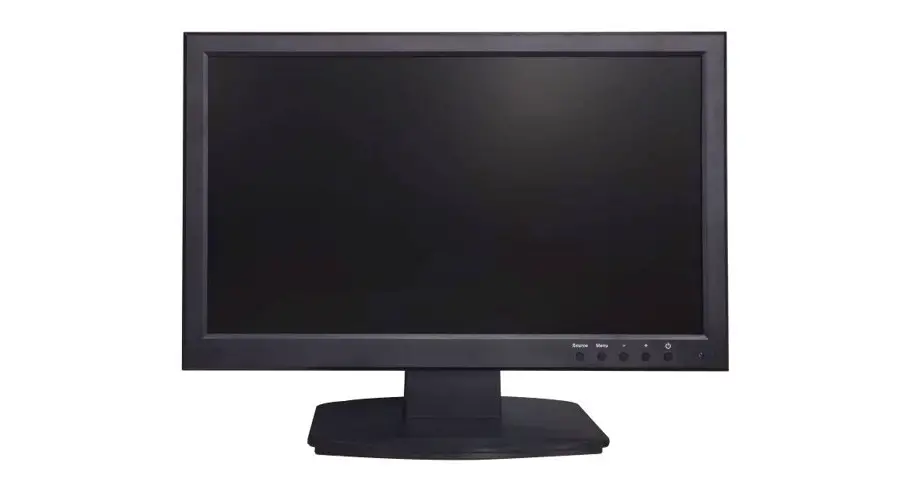

Analogue HD Monitor
User manual
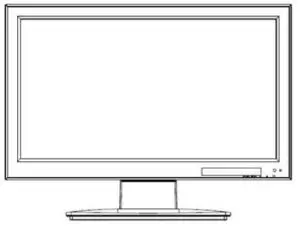
The manufacturer reserves the right to upgrade the product without notice.
IMPORTANT SAFETY INFORMATION
ENVIRONMENT
- Do not install the monitor outdoors or in any extreme environments.
- To prevent fire or electric shock, do not expose the monitor to rain or moisture. Avoid placing the monitor in areas subject to extreme temperatures such as direct sunlight or near heating appliances/equipment (such as amplifiers, etc) as this may result in overheating and damage.
- This monitor is designed to be used in an office or at home. Do not subject it to vibration, dust or corrosive gases.
- To obtain a clear picture, do not expose the screen to direct illumination or sunlight. Using the monitor against a bright background or where sunlight and other light sources can shine directly on to the monitor can increase eye strain.
POWER CORD
- Neither the monitor nor any other heavy objects should rest on the power cord.
- Protect the power cord from being walked on or pinched.
- Firmly grasp the plug when disconnecting the power cord. Do not pull the power cord itself.
- Do not modify or damage the cord. Damage to a power cord can cause fire or electric shock.
- This monitor is designed to operate on a 100-240V AC supply. Take caution in connecting it to the correct supply using the correct power cord.
MOUNTING
- Always place the monitor on a secure table or have it properly mounted to the wall. Do not hang anything on the monitor.
- Ensure the monitor is located close to a power outlet that is easily accessible, as removing the power cord is the only way to isolate power.
USING A WALL MOUNT
Caution: Any wall mount must bear a minimum of 5x the monitor’s net weight mount safely. The stand must be removed first before mounting this way.
- Place the monitor face down on a surface that is soft, yet enough to hold the monitor.
- Use a screwdriver to remove the screws from the four holes on side of the bottom of the monitor’s base.
- Make sure all cables are already connected to the monitor.
- Follow the directions included with the wall mount to fix the monitor the wall.
STORAGE
- Unplug the monitor if it will not be used for a long period.
VENTILATION
- Never cover or block the ventilation slots in the monitor. A minimum distance of at least 10 cm should be maintained around the unit for sufficient ventilation.
- Never insert any foreign object, metal or liquid into the ventilation slotsas this could result in fire or electric shock.
- Avoid installing a DVR or other equipment too close to the monitor. Keep such equipment at least 30 cm away from the monitor.
WATER AND MOISTURE
- The monitor should not be exposed to any moisture or liquid.
- Do not use the monitor near water.
- Do not touch the monitor or cable with wet hands as this may cause electric shock or damage.
CLEANING
- Unplug the unit from the wall outlet before cleaning.
- Do not use liquid or aerosol cleaners. Use a dry soft lint-free cloth for cleaning. If dust is persistent, wipe with a slightly damp cloth.
IN THE BOX
1 x LCD Monitor, 1 x AC adapter, 1 x HDMI cable, 1 x User Manual
1 x Remote control(optional)
CONNECTIONS
Rear Interface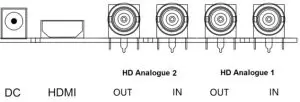
DC: Only use the 12v DC power supply included with the monitor.
HDMI: High-Definition Multimedia Interface connections.
HD Analogue 1 IN: BNC connections supports CVBS/CVI/TVI/AHD.
HD Analogue 1 OUT: Video loop through output.
HDA1 Does not support coaxial control protocol.
HD Analogue 2 IN: BNC connections support CVBS/CVI/TVI/AHD.
HD Analogue 2 OUT: Video loop through output.
HDA2 Support for coaxial control protocol.
CONTROL LAYOUT
The control buttons are located on the right-hand rear side of the monitor.
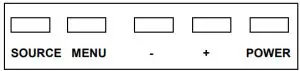
SOURCE: Select input mode – HDA1, HDA2, HDMI.
MENU: Access the On-Screen Display (OSD) menu.
+ and -: Controls left/right, Change the size of the value.
POWER: Turns the monitor on or off.
HOW TO CONNECT YOUR MONITOR
- Connecting using HDA – Analogue HD Video
Connect your video cable with a BNC connector to the HDA1/HDA2 connector on the rear of the monitor, and the other end to your camera.
Connect power to the monitor and video source, and switch on. Using the SOURCE button, press repeatedly until either ‘HDA1/HDA2’ (depending on the connection used) is on the display at the top of the monitor’s screen. - Connecting using HDMI
Connect one end of an HDMI cable to the HDMI connector on the rear of the monitor, and the other to the HDMI out connector on the PC/DVR. This connection will support video transmission.
Connect power to the monitor and video source, and switch on. Using the SOURCE button, press repeatedly until ‘HDMI’ is on the display at the top of the monitor’s screen.
*Ensure all cable connections are secure – tighten all cable screws. Movement and vibration may dislodge cables that are improperly connected. Route all wiring and cabling away from any heat sources and sharp metal edges to avoid damage.
BASIC ON-SCREEN DISPLAY SETUP
- To access the OSD menu press ‘MENU’.
- Use the ‘SOURCE’ buttons to select the required menu item, then
press the ‘+’ or ‘-’ button to select the Submenu. - Continue to use the ‘SOURCE’ button to highlight the required field, then
Press ‘+’ or ‘-’ to adjust the setting. - Press the ‘MENU’ button to return to the previous menu.
- Press the ‘MENU’ button again to exit the OSD menu completely.
Remote control(OPTIONAL)
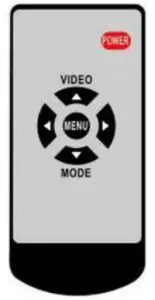
POWER | Turn on & off the monitor |
| MENU | Display or exit the main menu |
| VIDEO/UP | VIDEO Source switching / Cursor up when OSD appears |
| MODE/DOWN | MODE no effect / Cursor down when OSD appears |
| LEFT | Enter the submenu to reduce the value |
| RIGHT | Enter the submenu to increase the value |
The layout of the OSD will change depending on the input that is selected.
HDA1/HDA2 Input Configuration
- PICTURE
 Picture: Setting the image brightness (0-100).
Contrast: Setting the image contrast (0–100).
Saturation: Setting the image Saturation (0–100).
Hue: Setting the image hue (0–100). - MENU
 Language: OSD language selection.
OSD H Pos.: OSD horizontal position adjustment (0-100).
OSD V Pos.: OSD vertical position adjustment (0-100).
OSD Time: OSD display dwell time selection (5-30s).
Reset: OSD setting data recovery factory settings. - Information
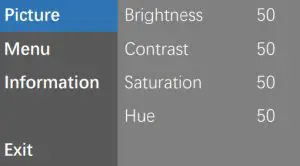 Picture: Setting the image brightness (0-100).
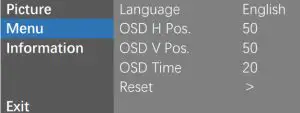 Language: OSD language selection.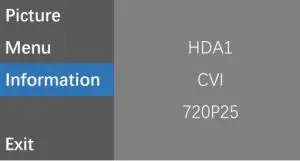
Display information about the current source.
HDMI Input Configuration
- PICTURE
 Picture: Setting the image brightness (0-100).Contrast: Setting the image contrast (0–100).
Saturation: Setting the image Saturation (0–100).
Hue: Setting the image hue (0–100). - MENULanguage: OSD language selection.
OSD H Pos.: OSD horizontal position adjustment (0-100).
OSD V Pos.: OSD vertical position adjustment (0-100).
OSD Time: OSD display dwells time selection (5-30 seconds)Reset: OSD setting data recovery factory settings. - Information
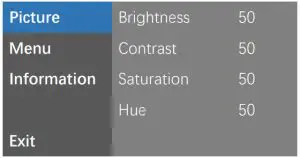 Picture: Setting the image brightness (0-100).Contrast: Setting the image contrast (0–100).
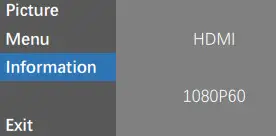 Display information about the current source.
HDA1/2 has tested the list of supported devices and modes
Brand | Model | Resolution | AHD | TVI | CV! |
| Dahua | DH-HAC-HDW 1120E | 720P25 | OK | OK | OK |
| 720P30 | OK | OK | OK | ||
| HD-HAC-HDW 1020E | 720P25 | – | – | OK | |
| 720P30 | – | – | OK | ||
| 720P50 | – | OK | |||
| 720P60 | – | – | OK | ||
| H D-HAC-H FW 1200M-I1 | 720P25 | – | – | OK | |
| 720P30 | – | – | OK | ||
| 720P50 | – | – | OK | ||
| 720P60 | – | – | OK | ||
| DH-HAC-HFW1400M-I1 | 720P25 | – | OK | ||
| 720P30 | – | – | OK | ||
| 1080P25 | – | – | OK | ||
| 1080P30 | – | – | OK | ||
| 4M30 | – | – | OK | ||
| 4M25 | – | OK | |||
| H IKVISION | DS-2CE16GOT-IT3 | 1080P25 | – | OK | – |
| 4 M25 | – | OK | – | ||
| DS-2CE16F1T-IT | 3M18 | – | OK | – | |
| DS-2CE56COT-IT3 | 720P25 | – | OK | – | |
| Longse | LBH3OTHC500ESL | 1080P25 | OK | OK | OK |
| 1080P30 | OK | OK | OK | ||
| 3M/25 | OK | OK | OK | ||
| 3M/30 | OK | OK | OK | ||
| 5M/20 | OK | OK | – | ||
| RUSSIAN | RS-HD258-A0 | 1080P25 | OK | OK | OK |
| 1080P30 | OK | OK | OK | ||
| XM(Xiongmai ) | XAG-53X50PS-U | 4M25 | OK | OK | OK |
| TVT | TD-7555AE | 5M20 | OK | OK | – |
| 4M25 | OK | OK | OK | ||
| 4M30 | OK | OK | OK |
HDMI-supported DVR/NVR brand and the model list has been tested
Dahua/HIKVISION/XM/TVT/Uniview/WAPA/TOPSEE/Sunell
Resolution | Frequency ( Hz ) |
| 800X600 | 60 |
| 1024X768 | 60 |
| 1280X720 | 50/60 |
| 1280X800 | 60 |
| 1280X1024 | 60 |
| 1366X768 | 60 |
| 1440X900 | 60 |
| 1600X1200 | 60 |
| 1920X1080 | 24/25/30/50/60 |
| 2560×1440 | 30/60 |
If your Device can’t be displayed in the right way, pls contact our distributors to add your device info to our support list. Thanks
END