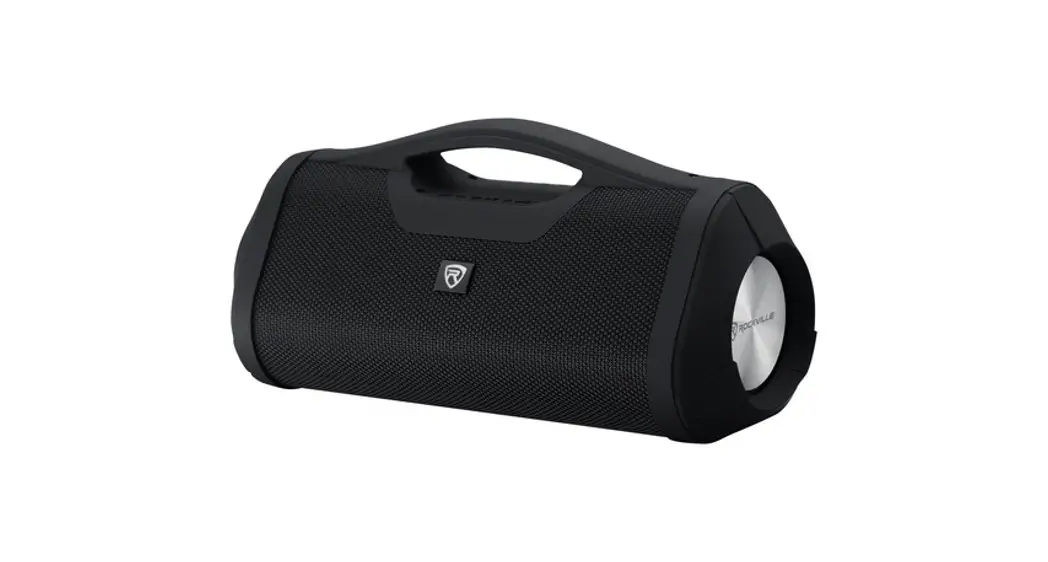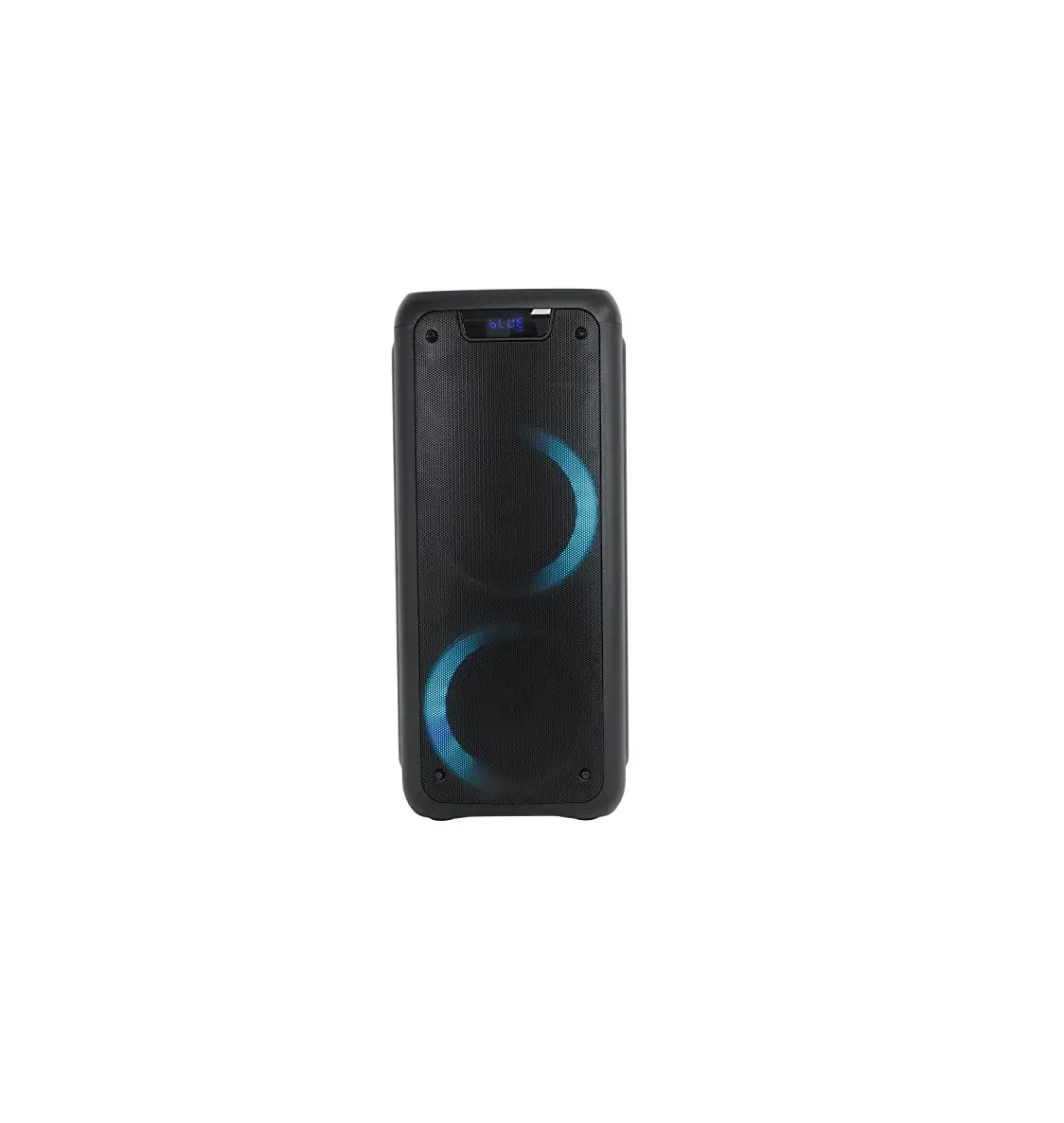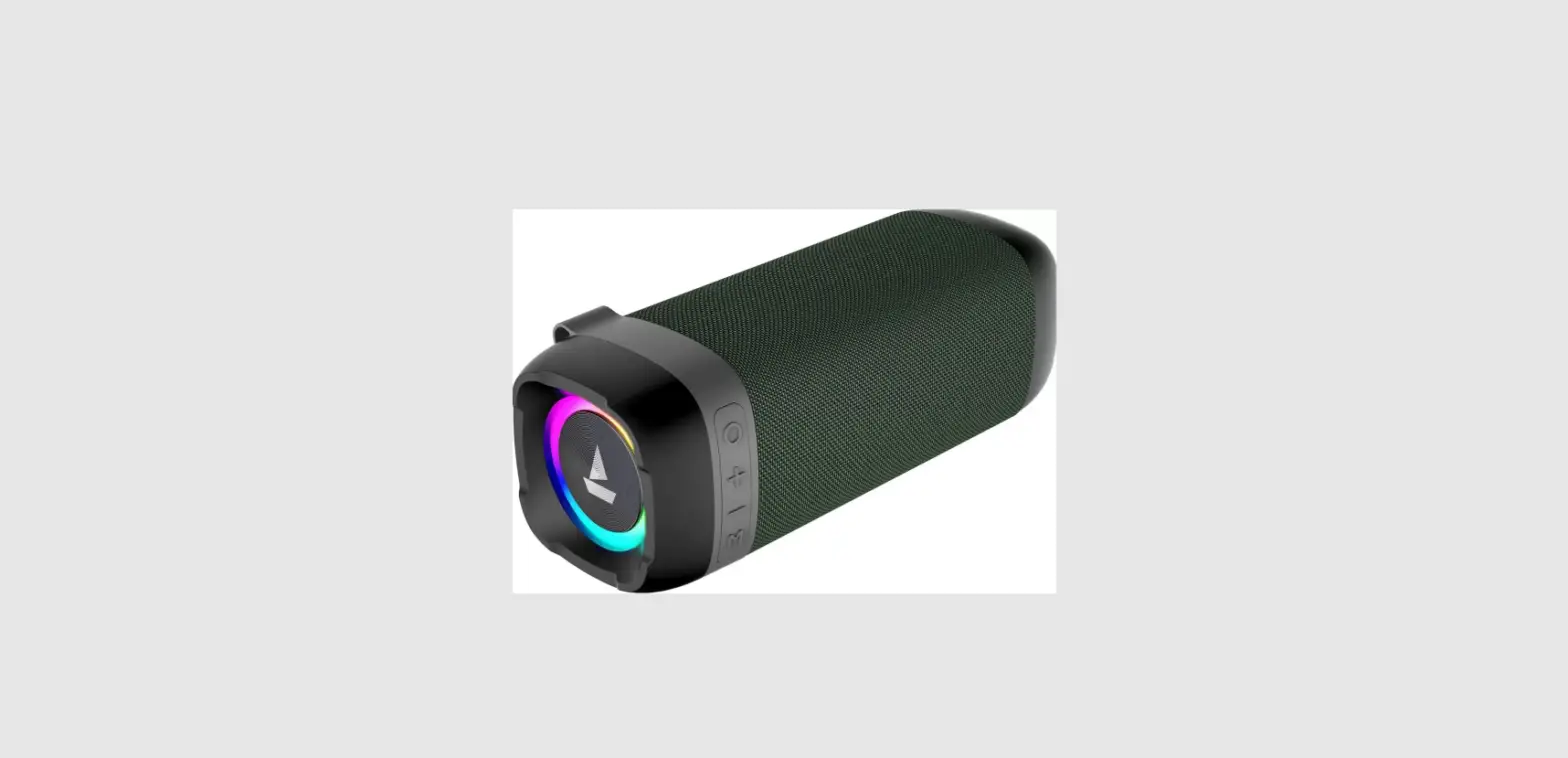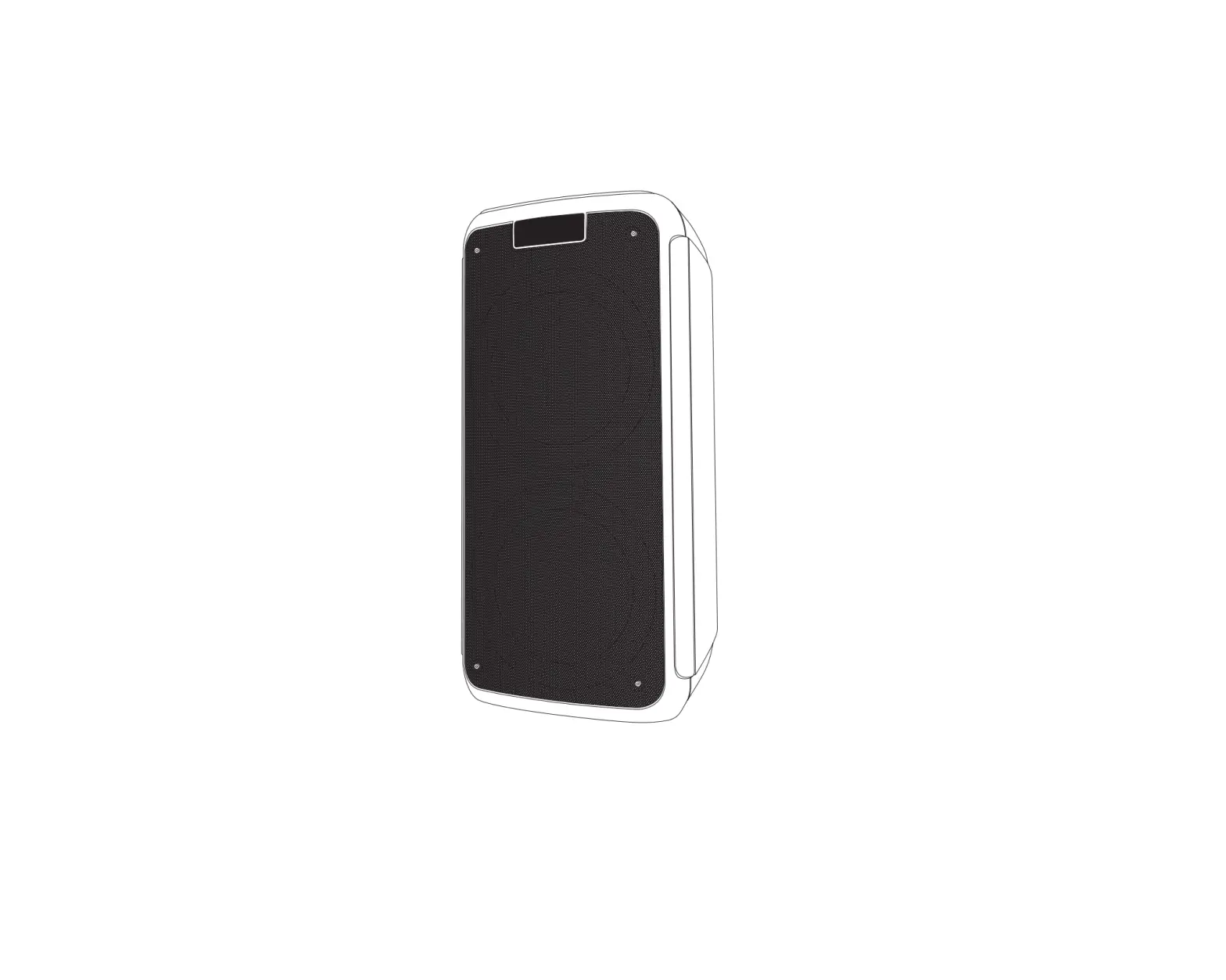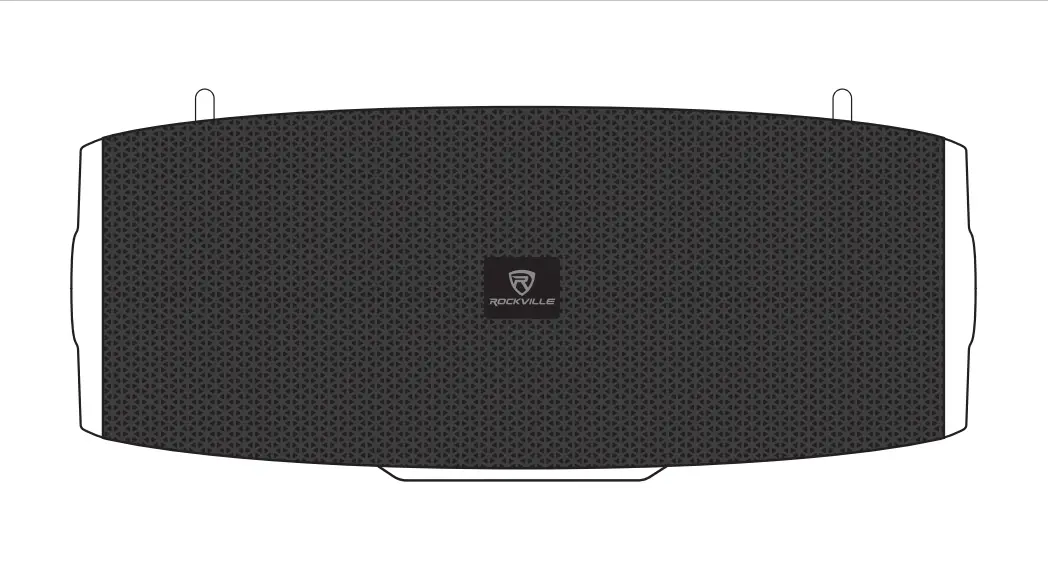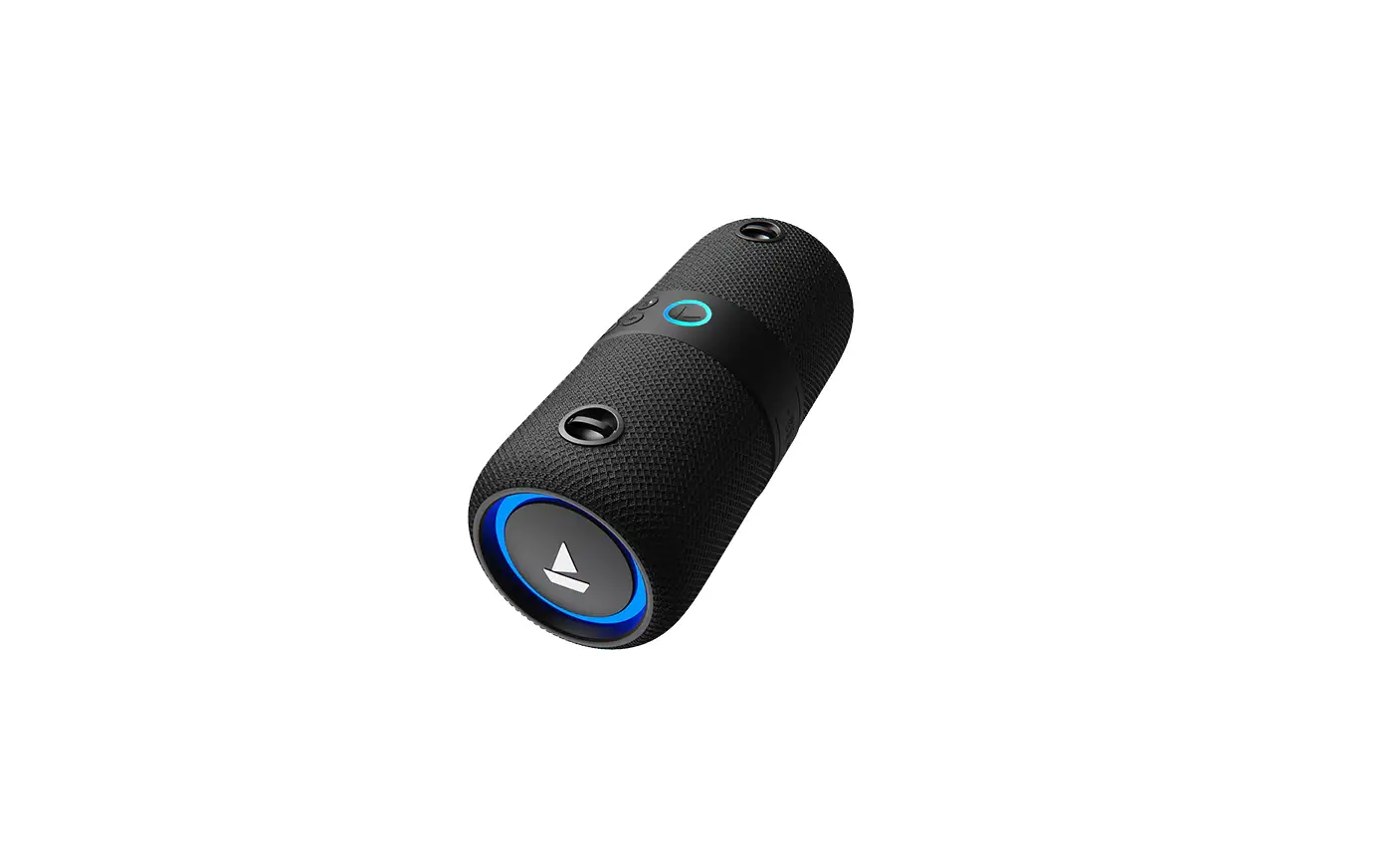

Rockville RockShip Portable Bluetooth Speaker
Overview
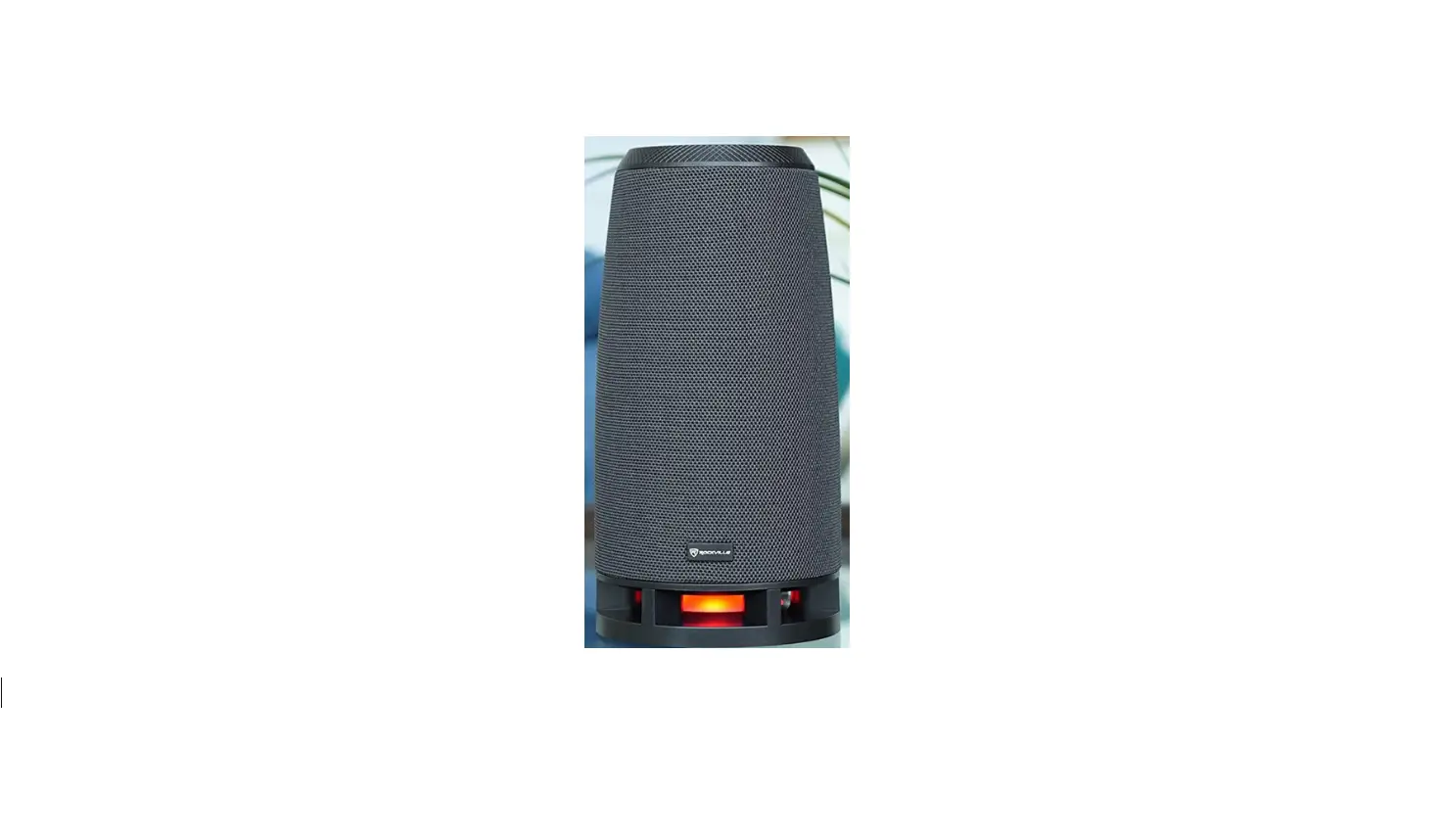
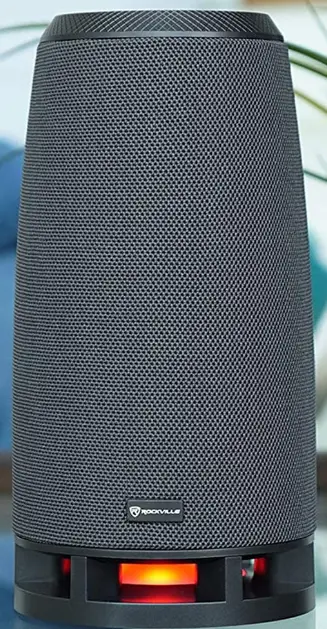
Rockville is proud to introduce the all-new RockShip, a rechargeable Bluetooth speaker with huge power and a unique space-saving design. Every Bluetooth speaker we manufacture has a purpose and application in mind. This one is made to be the perfect speaker for your bedroom, office desk, or kitchen, It is als0 perfect to take with you Outside or to the beach since it is rechargeable. Please read this guide carefully for proper use of your Rockville RockShip rechargeable Bluetooth speaker. Should you need, assistance please call our technical helpline at 1-646-758-0144, 24 hours a day/7 days a week.
FEATURES
- Rockville RockShip 50 Watt Bluetooth Speaker w/USB+SD+Aux In+FM
- 50 watts peak power
- 17 watts continuous RMS
- True 2-channel stereo sound delivers top-notch sound quality
- Battery charges with included USB cable
- 2x 1800 mAH batteries! (Total 3,600 mAH) Supports 10 hours of playback at 70%
- volume and 24 hours at 25% volume
- Quick Charge time: 2.5 Hours
- Extremely loud and powerful with industry-leading bass!
- True Wireless Stereo (TWS) allows you to pair two speakers for stereo sound
- Bluetooth version 5.0 with EDR (enhanced data rate)
- Bluetooth quick-connect technology pairs with your phone in 5 seconds
- A2DP audio streaming with 32-foot max Bluetooth range
- Automatically remembers and syncs with previously synced devices
- Playback Controls – Play, Pause, Skip Forward, Skip Back, Volume Up, Volume Down
- Control the next song, pause, and play on popular apps like Pandora, Spotify, Youtube, and others
- Cool LED light strip on the bottom of the speaker with controls for on/off, color, and mode
- A built-in mic allows you to make and receive phone calls hands-free
- Compatible with any Bluetooth-capable devices
- Input power Input: DC5V/1.5A
- Plays back SD cards up to 32GB
- It Plays USB thumb drives up to 32GB
- 3.5MM aux input (aux cable included)
- Built-in FM radio with auto scan (must plug in aux cable to be used as an antenna to get good radio reception)
- Dual 2.25-inch high-quality speaker drivers with, rubber surround, and high exCursion
- No distortion can be heard even at top volume
- Distortion: Less than 1%
- Auto turn off after 15 minutes of no music to conserve battery life
- Frequency Response: 50HZ- 20KHZ
- Signal to noise ratio: 75dB
- Unit weight: 2.6 pounds
- Dimensions of Unit (L x Wx H): 2.76″ x 2.68″x 7.76″
INCLUDES
- Bluetooth speaker
- Micro USB charging cable
- 3.5mm to 3.5mm auxiliary cable
- Manual
- Warranty card
FUNCTIONS
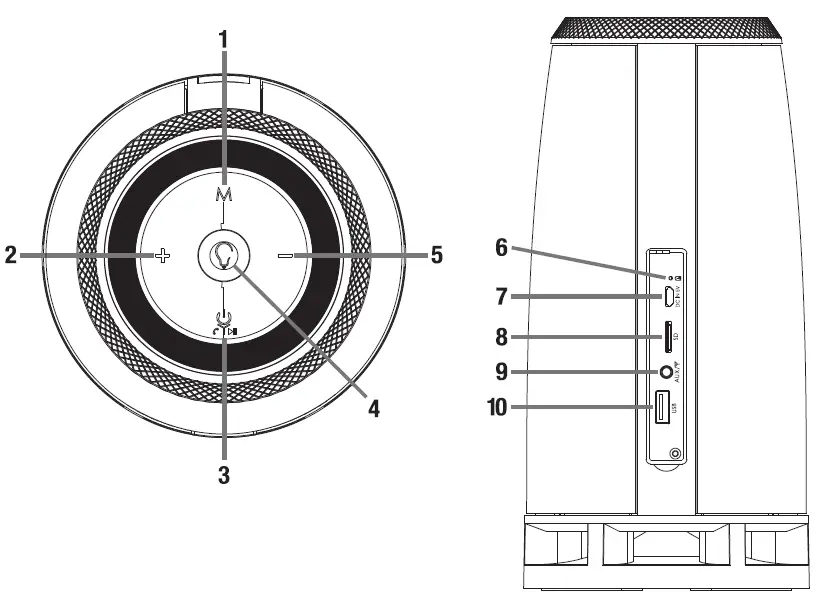
- Function button
- Volume +/Next
- Power, Pause/Play, Answer/End call
- LED lighting control/TWS
- Volume -/Previous
- Charging indicator LED
- Micro USB DC 5V charging port
- SD card slot
- 3.5mm AUX in/FM antenna/Reset
- USB port
ATTENTION
WATCH THIS VIDEO BEFORE FIRST USE!
Who reads manuals?
Scan the QR code or go to rockvillesupport.com/rockship to access the how-to video(s), the owner’s manual, and other important information you may need to get the most out of your item. If you prefer written instructions, please read ahead! With Rockville, you get many options.
OPERATION
Power ON Long press the Power button. The unit will automatically go into Bluetooth pairing mode.
Bluetooth
Pairing Power ON the unit or press the M button to switch to Bluetooth mode. Look for and select Rockship on your Bluetooth device’s list of available devices. You will hear a tone if the pairing has been successful. If there is no Bluetooth input, the unit will automatically power OFF after 10 minutes.
Volume Control Press the +Or – button to increase or decrease the volume.
Skip Songs Long and press the +or – button for the next or previous track.
Answering/Ending Calls Double press the Play/Pause button to answer incoming calls. Press the press Play/Pause button once to end the conversation.
Disconnect Bluetooth Long press the M button to unpair from the Bluetooth device.
TWS
Pairing Power ON both units and ensure they are in Bluetooth mode. Long press the LED button on one of the units to initiate TWS pairing. This will be the primary unit and Will control all functions. 1o exit IWS mode, long press the primary unit’s LED Dutton.
FM Radio
Radio mode Press the M button to switch to Radio mode.
Antenna Plug the included 3.5mm to 3.5mm cable into the AUX port. This will act as an antenna.
Station Autoscan Press the Play/Pause button to start auto scan. Stations will be automatically saved.
Volume Control Press the + button to increase the volume or press the button to decrease the volume.
Stations Long press the + button for the next station. Long press the – button for the previous station.
USB/SD
Insert a USB flash drive or SD card (up to 32GB) into the corresponding port at the rear of the unit. The unit will automatically begin playing music. Press the Play/Pause button to pause the music.
Volume Control PresS the +or -button to increase or decrease the volume.
Skip Songs Long and press the + or – button for the next or previous track.
Please do not remove the USB drive or SD card while in use. Doing so may damage them.
Auxillary
Press the M button to switch to AUX mode. Use the included 3.5mm to 3.5mm cable to Connect your external audio device.
LED Lights
Press the LED lighting button to turn on the LED lights. To switch between the different lighting modes, press the LED lighting button again. There are 7 colors and 2 modes: Steady LED light or LED flashes to the beat of the music.
Charging
When the battery charge is low, you will hear a tone indicating that the unit must be charged as soon as possible. Connect the included micro USB cable to the micro USB port at the rear of the unit. Connect the other to an AC adapter (not included). The charging voltage is 5V/2A. The indicator LED will remain on while charging and will turn off once the unit is fully charged.
Reset
The unit can be reset to its original factory via a button inside the 3.5mm jack. Insert a pin and long press to reset.
TROUBLESHOOTING
FCC COMPLIANCE INFORMATION
Responsible party name Rockville
Address 600 Bayview Ave, Entrance A, Inwood, NY 11096
Hereby declares that the product Rockville RockShip Bluetooth speaker complies with FCC rules as mentioned in the following paragraph: the device complies with Part 15 of the FCC rules. Operation is subject to the following two conditions:
- this device may not cause harmful interference, and
- this device must accept any interference received, including interference that may cause undesired operation.
Note This equipment has been tested and found to comply with the limits for a Class B digital device, pursuant to Part 15 of the FCC rules. These limits are designed to provide reasonable protection against harmful interference in a residential installation. This equipment generates, uses, and can radiate radio frequency energy and, f not installed and used in accordance with the instructions may cause harmful interference to radio Communications. However, there is no guarantee that interference will not occur in a particular installation. If this equipment does cause harmful interference to radio or television reception, which can be determined by turning the equipment off and on, the user is encouraged to try to correct the interference by one or more of the following measures:
- Reorient or relocate the receiving antenna.
- Increase the separation between the equipment and receiver.
- Connect the equipment to an outlet on a circuit different from that to which the receiver is Connected.
- Consult the dealer or an experienced radio/TV technician for help.
FAQs
Two speakers are on the front of the one I have. To get the optimum sound, you must turn the device’s front towards you.
The Rockville is mine.
Despite not owning this specific Rockville speaker, I occasionally experience pairing issues. Make sure your phone’s Bluetooth pairing is complete and not just “like calls but not media” by checking the settings on your phone. You might need to look online for the device and troubleshooting advice if restarting or turning Bluetooth off on the device and back on to reconnect doesn’t work. Many helpful people may be found on YouTube who can assist with these problems by providing step-by-step guidance!
You can use the product while it’s charging, but keep in mind that you won’t get a complete charge because you used some of it while playing.
Even though it says 50 Watts, I’ve seen speakers that were 40 Watts that sound more louder and clearer, thus in my opinion, this speaker isn’t a true 50 Watt speaker.
Make sure your device’s Bluetooth is turned on and in the “discoverable” mode. Once you are in Bluetooth mode, press the Mode button on your Power Gig device. As soon as the gadget is in Bluetooth mode, it should appear on your device. You may now choose it from your list of available devices.
You may take your speakers into the shower because they are entirely waterproof if they have a water resistance rating of 8 or higher!
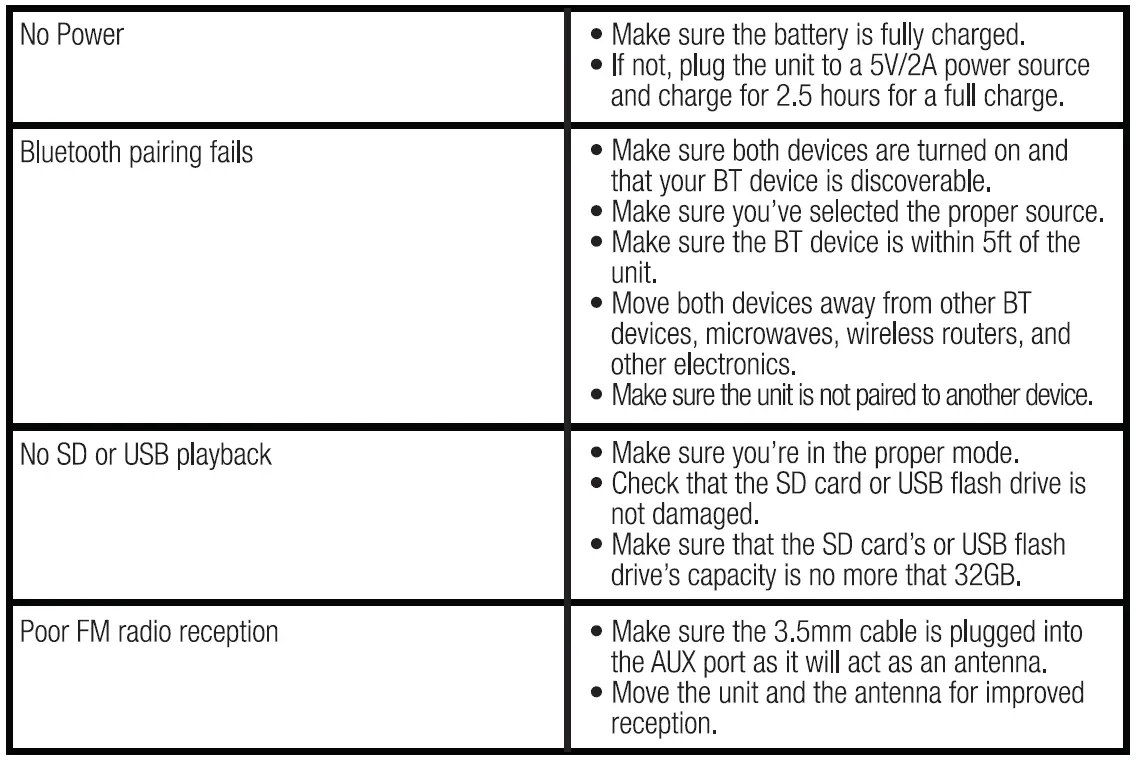
Verify that your failed Bluetooth device is discoverable and that both devices are turned on. Restart both devices after turning them off. Ensure that the source you choose is the right one. Ensure that the Bluetooth device is 5 feet or less away from the device.
Through the RCA connectors or the optical input, you may effortlessly connect it to any TV. Using Bluetooth or the 3.5mm aux input on your phone or MP3 player, you may listen to all of your music.
To drain the accumulated water within the speaker, place the speaker on a dry, soft cloth with the speaker section facing down. After that, dry the speaker at ambient temperature until no moisture is left. If your hands are covered in hand cream, avoid touching. Rinse the speaker lightly with tap water if it becomes very dirty.
Alternately, set a conventional speaker or your phone to a volume that will allow you to hear it over the sound of running water while outside your shower. To account for the possibility of water splashing out, make sure it is a few feet away from your shower. Try putting your phone in a glass to increase the loudness if it is too quiet.
Your phone may not be “discoverable” even if Bluetooth is enabled. Therefore, a Bluetooth device that you haven’t yet associated with is unable to view your phone. Open the primary Bluetooth settings to make it visible to other devices. As long as you are on that screen, Android phones continue to be discoverable.
As you are now aware, water, electronics, and electricity do not mix well. The water results in corrosion and creates electrical circuit routes that were not intended for the speaker’s operation and could harm its components.
The summer sun poses other dangers to your priceless portable speakers besides just high temperatures. Delicate electronics can suffer major harm from humidity, which also promotes fungus growth that may cause a complete malfunction.