
USER MANUAL
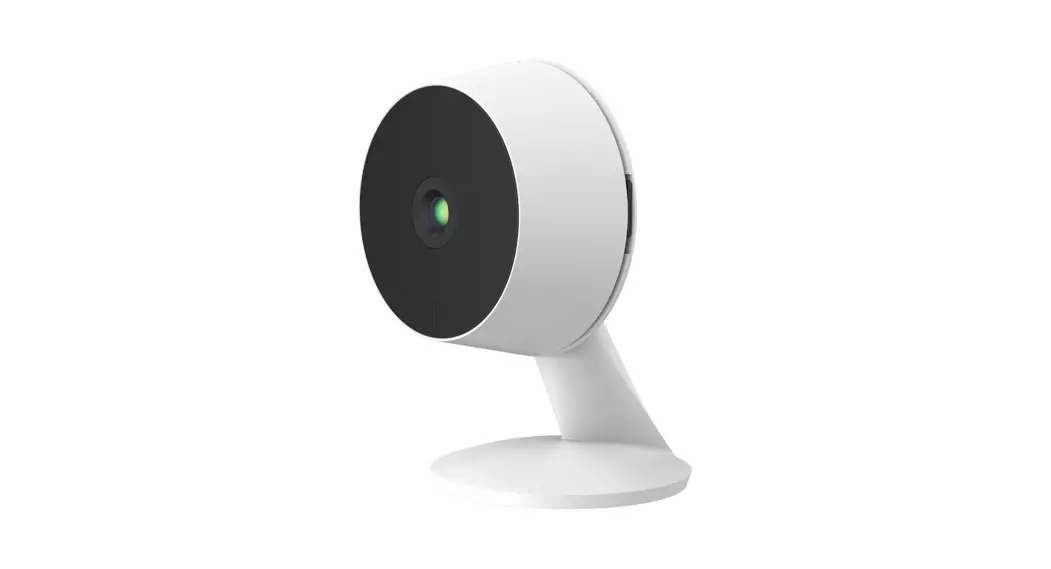
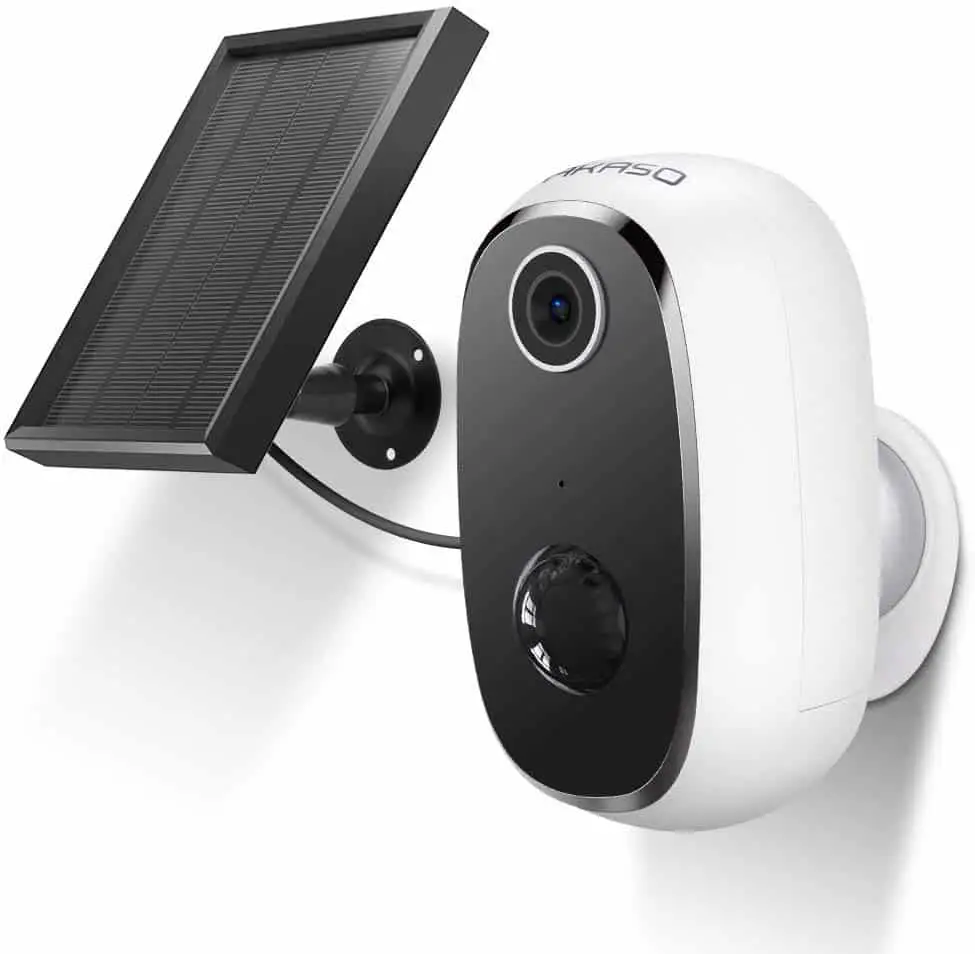
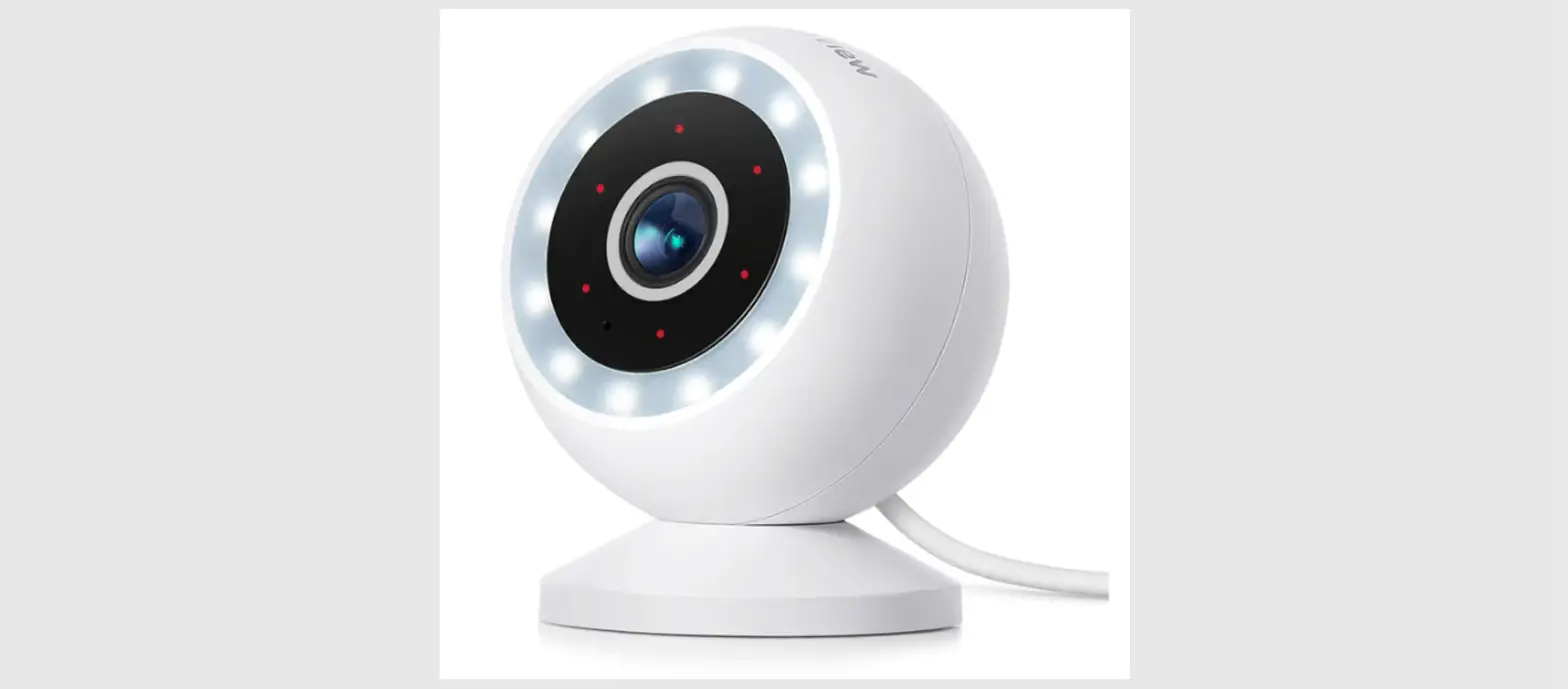
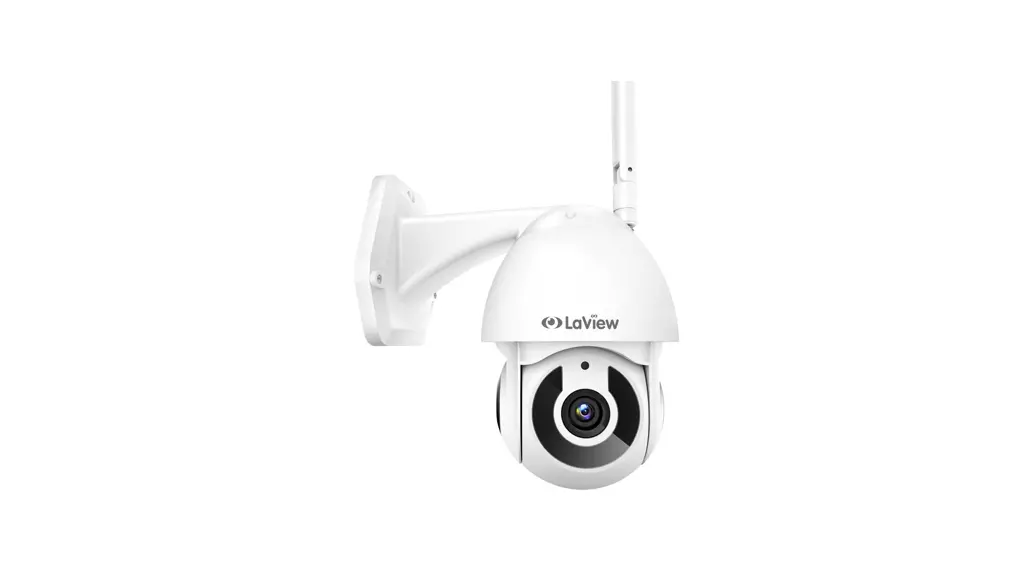
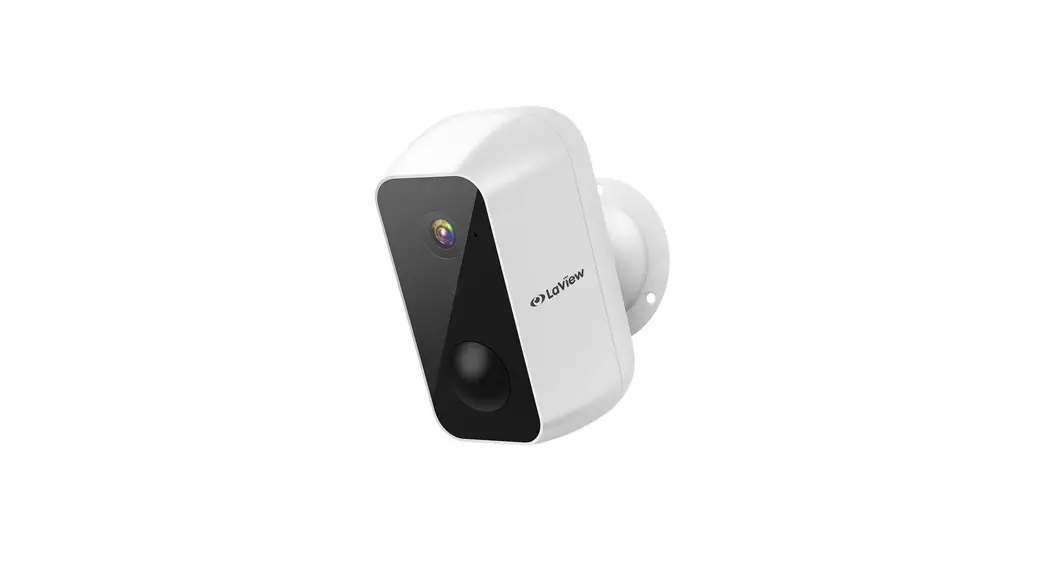
N11 WIRE-FREE SECURITY CAMERA
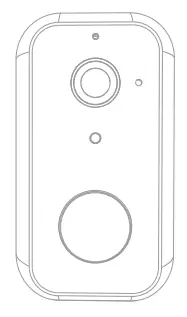
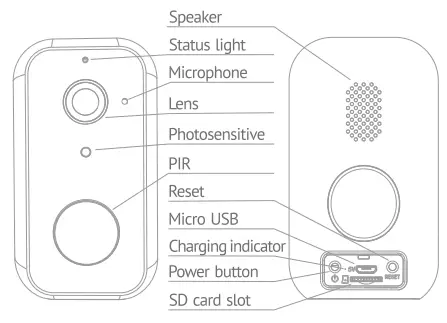
| Power | DC SV ± 10% |
| Power on/off | press the button for 3 seconds to turn on / off the camera |
| Status light |  Solid Red Light: the camera network is abnormal Solid Red Light: the camera network is abnormal
|
| Microphone | Capture sound for your video |
| SD card slot | Support local SO Card storage ( Max.128G ) |
| Reset | Press and hold on for 5 seconds to reset the camera |
| Charging | Solid Red Light: the battery is charging
|
| indicator |  Solid Blue Light: charging complete Solid Blue Light: charging complete |
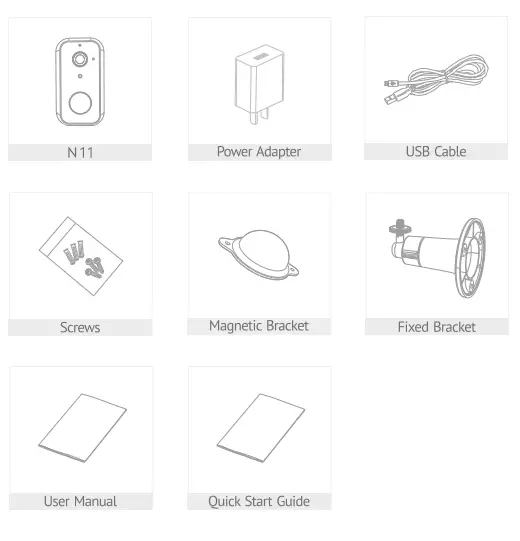
WHAT’S IN THE BOX
PLEASE CONSULT THIS CHECKLIST FOR ALL PARTS.
APP SET UP
For step-by-step Mobile APP set up instructions, please read the Quick Start Guide included in the package or check out our Youtube tutorials
- DOWNLOAD AND INSTALL APP
LaView App is available for both iOS and Android OS. Search the name ‘LaView; in App Store or Google Play. ( The other LaView apps, such as LaView Connect, LaView ONE, LaView Life do NOT support N11 camera )
Please download the LaView App from the App Store or Scan the QR Code below LaView
http://app.appurl.me/79818229623 - MAKE SURE YOUR PHONE IS CONNECTED TO A 2.4GHZ WIFI NETWORK
- COMPLETE THE APP REGISTRATION PROCESS
- FOLLOW THE IN-APP INSTRUCTION TO PAIR THE CAMERA

 LaView
- Click on the ‘+’ sign to add the camera. Continue to click Video Surveillance”» ‘Smart Camera’
Power On the camera by pressing the Power Button ( If you are not setting up the camera for the very first time, press the Reset button instead for 5 seconds until you hear a beep.)’
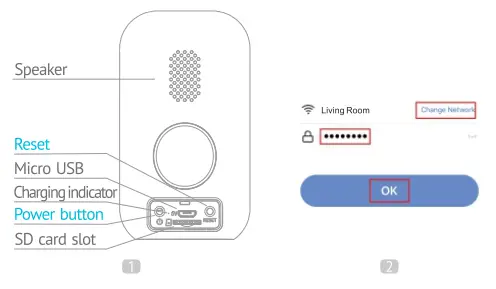
- Wait until the LED indicator is flashing rapidly, which means the camera is ready for pairing
- Enter the WiFi Password to generate a QR code that carries your WiFi information’
- Use the camera to scan the QR code on the phone ( keep the camera 6-8 inches away from the phone)
- Press ‘I Heard a Prompt after the camera receives the QR code and beeps. The camera will start pairing
- When connecting, you should make sure your router, mobile phone, and camera are as dose as possible
- Wait until the camera is connected online
- Customize the camera name to differentiate cameras in different Locations and finish and paring process
- If the pairing is not successful, press the Reset button for 5 seconds until you hear a beep and start again. Or check the FAQ section for more troubleshooting steps
INSTALLATION
After the camera is set up, check the battery status in the LaView APR Ensure the battery is fully charged before mounting the camera
 FIND A GOOD MOUNTING SPOT
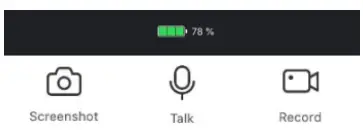
- Use the WiFi Signal Indicator
 in the APP live view screen to test the WiFi signal strength. Move the camera as close to the router as possible if the WiFi signal is poor
 - Hang the N11 6-10ft (2-3m) above the ground for maximum detection range and accuracy. Avoid direct sunlight to the N11.
 in the APP live view screen to test the WiFi signal strength. Move the camera as close to the router as possible if the WiFi signal is poor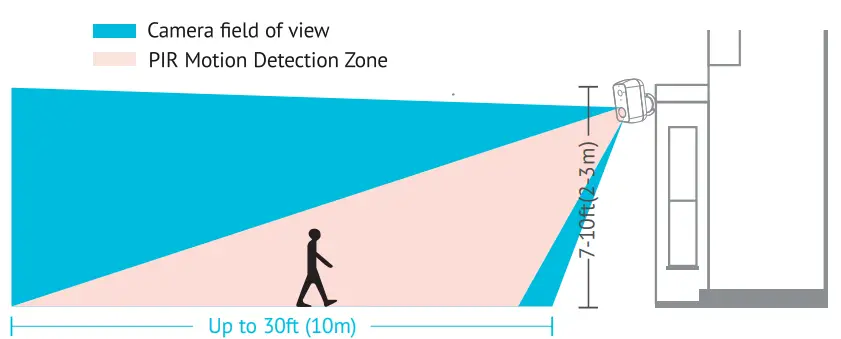
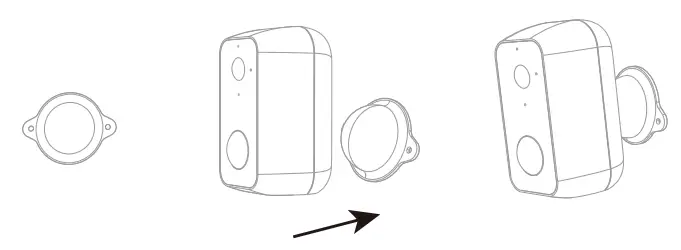
MOUNTING THE CAMERA WITH A MAGNETIC BRACKET ( EASIER INSTALLATION )
- Fix the bracket on the wall with included screws
- Attach the camera to the bracket

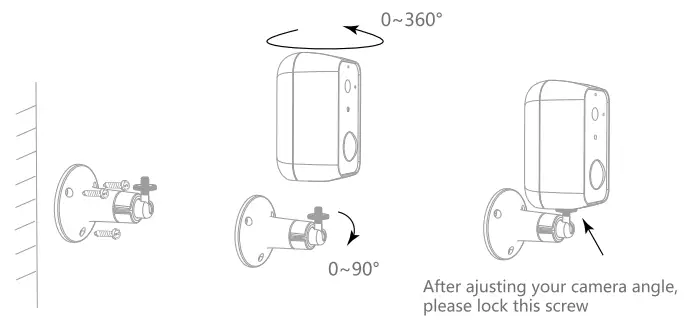
MOUNTING THE CAMERA WITH A FIXED BRACKET(RECOMMENDED FOR THEFT PREVENTION )
- Fix the bracket on the wall with included screws
- Turn the nut and fix the bracket
TROUBLESHOOTING
IF YOU CANNOT CONNECT THE CAMERA TO THE INTERNET, CHECK THE FOLLOWING STEPS
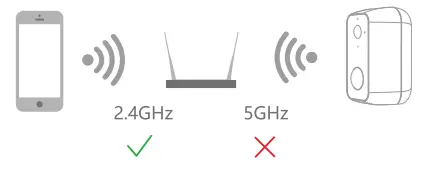
- Ensure you are connecting to a 2.4GHz WIFI, not a 5GHz

- Ensure WiFi password or 5510 is correct
- Ensure the camera is placed as close to the router as possible
- Ensure the camera is powered on and the indicator is blinking rapidly before scanning the QR code
- Charge the camera for some time to ensure the battery is not completely out
- Ensure you are using the correct APP ( LaView ) Ensure the camera is scanning the QR code on the phone in the correct way
- If the above steps don’t help, reset the camera and start pairing again
WHAT CAN I DO IF THE CAMERA STOPPED WORKING?
- Close the APP and Restart the APP again
- Check if the WIFI password or router is changed. if so please reset the camera
- Ensure the router is powered on and online
- Ensure the camera has power
- Ensure the phone has decent network bandwidth
- Check the app is on Latest version
CHARGING
Use the included microUS8 cable to connect the N11 to the included USB charger. Charging time may be longer if you use a universal USB charger and cable.
- Ensure the camera is fully charged before you mount it to the bracket
- To charge the battery unplug the camera from the bracket and connect it to the included USB charger via the USB cable
- Due to the large battery capacity, it could take up to 12-14 hours to fully charge the battery
- The LED indicator will turn to Blue when the camera is fully charged
- You can check the battery level in the LaView APP
- Maximum battery life for each charge varies based on the actual environment and scenario
| Maximum Recording Time
| Recording Frequency
| Length of Each Recording Clip |
| Up to 90 days | 12 clips per day | 30 seconds per clip |
| Up to 45 days | 24 clips per day | 30 seconds per clip |
HUMAN AND MOTION DETECTION
HOW TO TURN ON AND OFF MOTION DETECTION?
- To turn on or off motion detection and Human detection setting, go to the camera menu and dick on Detection Alarm Settings
WHAT CAN I DO IF I CANNOT RECEIVE NOTIFICATIONS?
- LaView camera uses the advanced 3D Al Humanoid Analysis technology that only sends notifications when a human is detected
- Ensure your phone notification setting is enabled for LaViewAPP
- Ensure the phone has decent network bandwidth
- Ensure the camera is online
WHAT CAN I DO IF I RECEIVE TOO MANY NOTIFICATIONS?
- Ensure the Human Al detection filter is enabled
- If the camera is placed at a location with large traffic, we recommend relocating it to a place with less traffic to receive fewer alerts and extend battery life
- Objects with human body shape such as stuffed toys may be detected as human and trigger the alerts, remove those if they constantly show up in the camera
OTHERS
WHAT CAN I DO IF THE IMAGE IS NOT CLEAR?
- The camera is equipped with a 1080p Full HD lens and sensor to produce a superior image, however, the image quality may be affected by the lighting condition
- Ensure the camera is NOT facing to environments with poor lighting conditions or with extremely high contrast. Ensure it is NOT facing directly to bright lighting sources such as sunlight
- Ensure your phone and your router has enough bandwidth to stream HD video. A minimum of 2MBps is required to stream each 1080p camera. If the network does not meet this requirement, the live view stream will be downgraded to SD automatically
NIGHT VISION
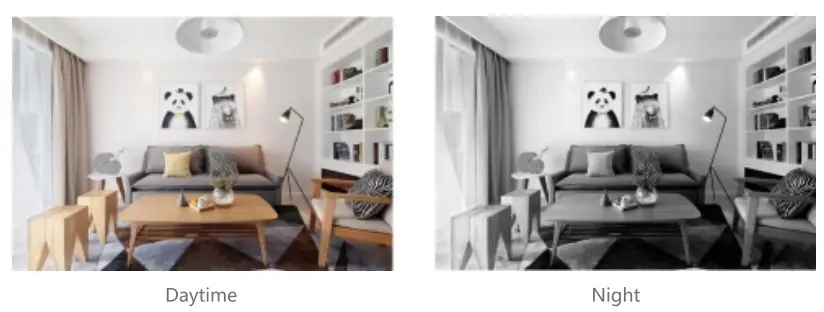
- The camera is equipped with Infrared LED technology to capture black and white night vision images in detail at night. However, the night vision image quality may be affected by the following factor:
- There are high contrast light sources such as car headlights pointing to the camera
WATERPROOF AND OUTDOOR USE
- The camera is IP65 rated for totally dust tight and protection against low-pressure jets of directed water from any angle. The camera can operate between -4°F – 122 °F for all-weather use. We recommend placing the camera under the eave and avoiding heavy rain or snow to maximize the camera life span
- For more technical questions or tutorials such as Alexa setup, Cloud Storage setting, please follow the in-APP tutorial section in the LaView APP or visit our Youtube tutorials
- We proudly offer a manufacture 1-year warranty on all LaView products
- If you wish to return a product within the return period, please message us directly in your Amazon account or on our website
FCC COMPLIANCE
This device complies with Part 15 of the FCC Rules. Operation is subject to the following two conditions: 1- this device may not cause harmful interference, 2- this device must accept any interference received, including interference that may cause undesired operation. The manufacturer is not responsible for any radio or tv interference caused by unauthorized modifications or changes to this equipment. Such modifications or changes could void the user’s authority to operate the equipment This equipment has been tested and found to comply with the limits for a Class B digital device, pursuant to part 15 of the FCC Rules. These limits are designed to provide reasonable protection against harmful interference in a residential installation. This equipment generates, uses, and can radiate radio frequency energy and, if not installed and used in accordance with the instructions, may cause harmful interference to radio communications. However, there is no guarantee that interference will not occur in a particular installation. If this equipment does cause harmful interference to radio or television reception, which can be determined by turning the equipment off and on, the user is encouraged to try to correct the interference by one or more of the following measures:
– Reorient or relocate the receiving antenna.
– Increase the separation between the equipment and receiver.
– Connect the equipment into an outlet on a circuit different from that. which the receiver is connected.
– Consult the dealer or an experienced radio/TV technician for help. RF warning statement:
To maintain compliance with FCC’s RF exposure guidelines, this equipment should be installed and operated with a minimum distance of 20 cm between the radiator and your body. which can be determined by turning the equipment off and on, the user is encouraged to correct the interference by one or more of the following measures:
– Reorient or relocate the receiving antenna.
– Increase the separation between the equipment and receiver.
– Connect the equipment into an outlet on a circuit different from that ta which the receiver is connected
– Consult the dealer or an experienced radio/TV technician for help. RF warning statement
To maintain compliance with FCCs RF exposure guidelines, this equipment should be installed and operated with a minimum distance of 20 cm between the radiator and your body
CUSTOMER SERVICE
 | TEL: 626-566-7550 Monday-Friday Hours: 9:OOAM-6:OOPM PST
|
 | Email: [email protected] Our professional technicians are committed to replying to all your requests within 24 hours
|
 | If you purchased from Amazon, you can also contact our professional customer service team in your Amazon account
|
PARAMETER
| Camera | |
| Image sensor | 1/ 2.9″ Processive Scan CMOS |
| IR Distance | 33ft |
| Lens | 3.2mm FOV 130° |
| Da & ni ht | IR Cut Filter with auto switch |
| System | |
| Processor | High-Performance Embedded SOC Processor |
| Wireless | Built-in 2.4G Wi-Fi |
| Audio | |
| Input | Built-in Omni-direction microphone |
| Output Video Compression Standard | Built-in loudspeaker H.264 |
| Max. Resolution | 1920 x 1080 |
| Frame Rate | 1∼25fps adaptive frame rate of network transmission |
| WDR | DWDR |
| Interface | |
| Cloud Starase Interface Local Storage | Laview Cloud Storage Micro SD Card ( Max. 128G ) |
| PIR | PIR Motion Sensor |
| General | |
| Operating conditions | -4°F∼122 °F ( -20°C∼50°C ) humidity 95% or less (non-condensing) |
| Power Supply | 9000mAh Rechargeable Lithium Battery and 5V DC |
| Power Consumption | Max. 5W |
| Ingress Protection | IP 65 |
| Dimensions | 2.24.x 2.45’x 3.93″ ( 57x 62.3x 99.9mm ) |
| Weight | 11.3oz ( 320q ) |
PRODUCT WARRANTY CARD
You LaView product is by a 1-year warranty from the purchase date. For more information on repairs, exchanges, and other policies, please visit www.layiewsecurity.com.
Please send all inquiries through the Contact Form on our website, or email us at [email protected]. And our technicians would be glad to assist you.
To register your product, please visit: www.laviewsecurity.com/product-registration