

 QUICK GUIDE
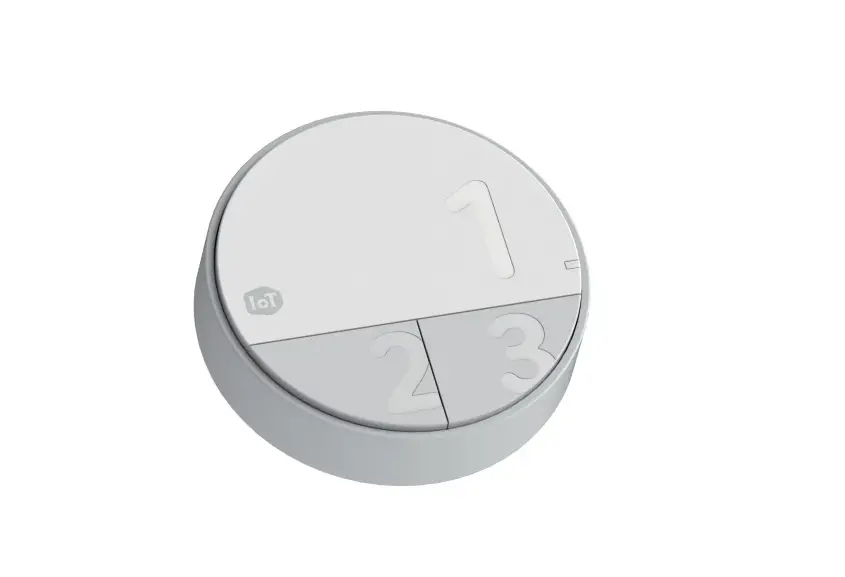
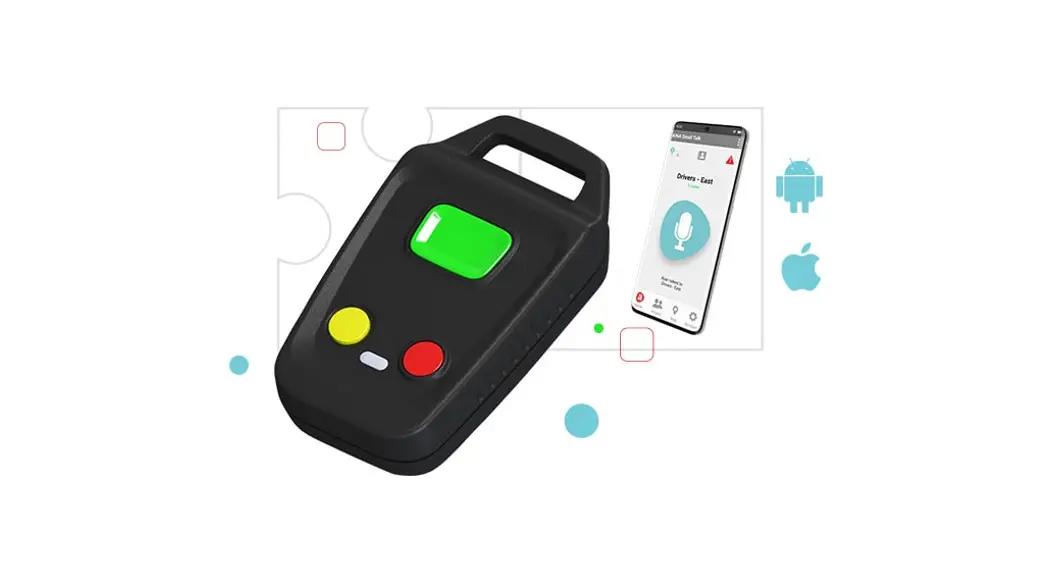
Connecting your PTT Smart Button to Sonim XP8 (Android)
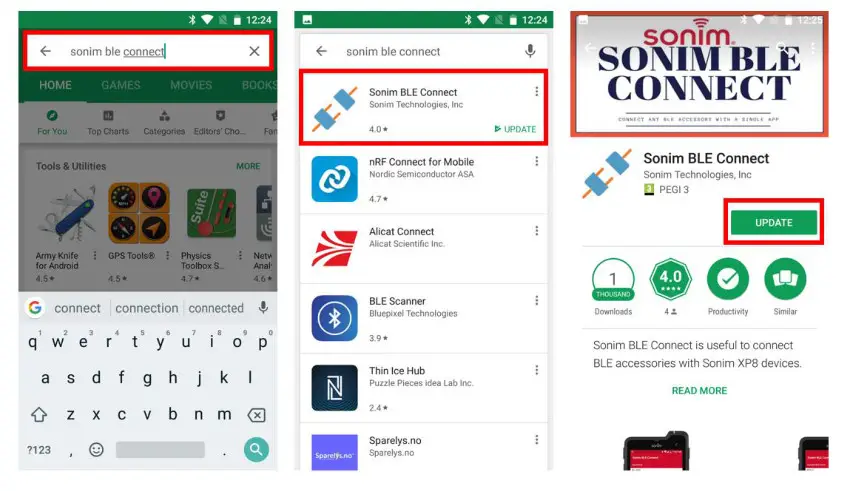
Download/update the Sonim BLE application
- Go to the Google Play store and search for ‘Sonim BLE Connect
- Select the ‘Sonim BLE Connect’ application
- Download/update the application
Pair the AINA Accessory to the Sonim XP8
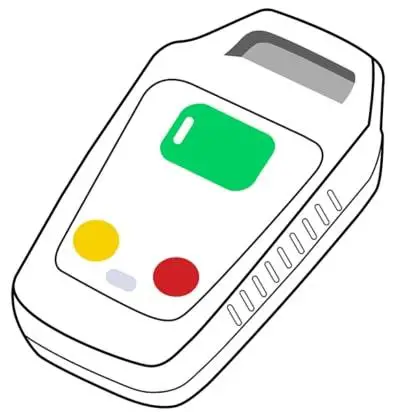
- Press all 3 buttons on the PTT Smart Button simultaneously
- Go to the phone’s Settings and select ‘Bluetooth’
- Select your PTT Smart Button from the list of available devices
- Wait for your device to move from Available devices to Paired devices
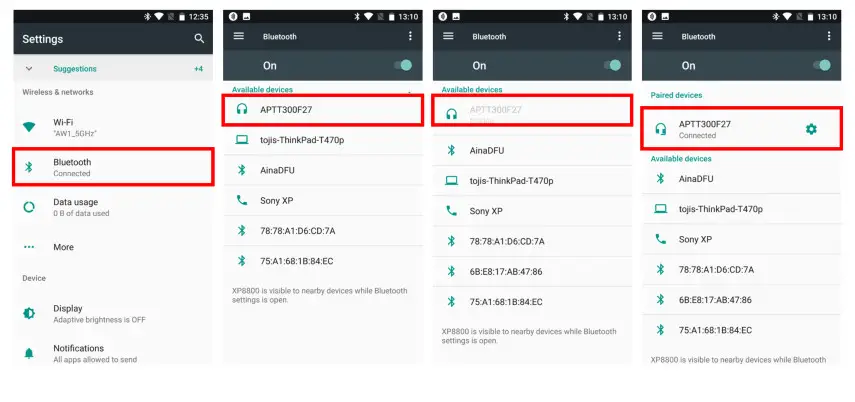
NOTE: The Smart Button can only be paired with one device at a time.
Connect the AINA accessory to the Sonim BLE application
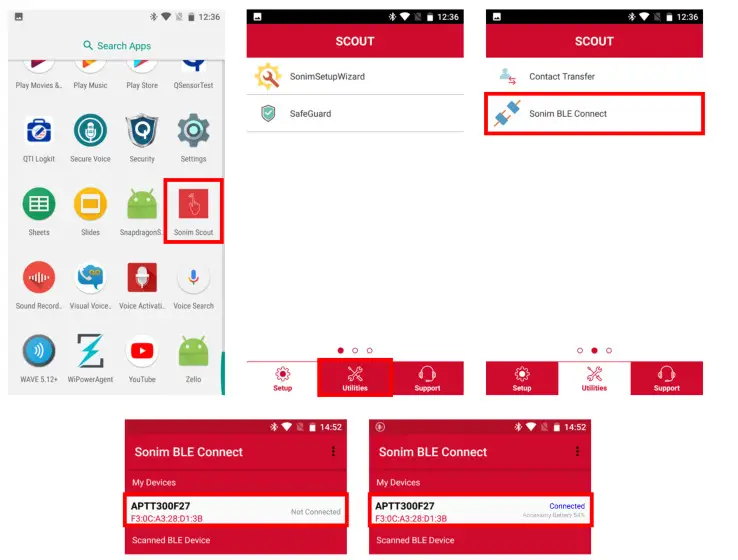
- Search for and open the ‘Sonim Scout’ application from your phone
- Select the ‘Utilities’ tab
- Select ‘Sonim BLE Connect
- Select your PTT Smart Button from the list
- Wait for the application to show that your accessory is “Connected” and its battery level
Visit www.ainaptt.com to find additional accessories, an extended user manual of the AINA PTT Smart Button and more user guides. If you have any further questions, you can also email us at: [email protected]