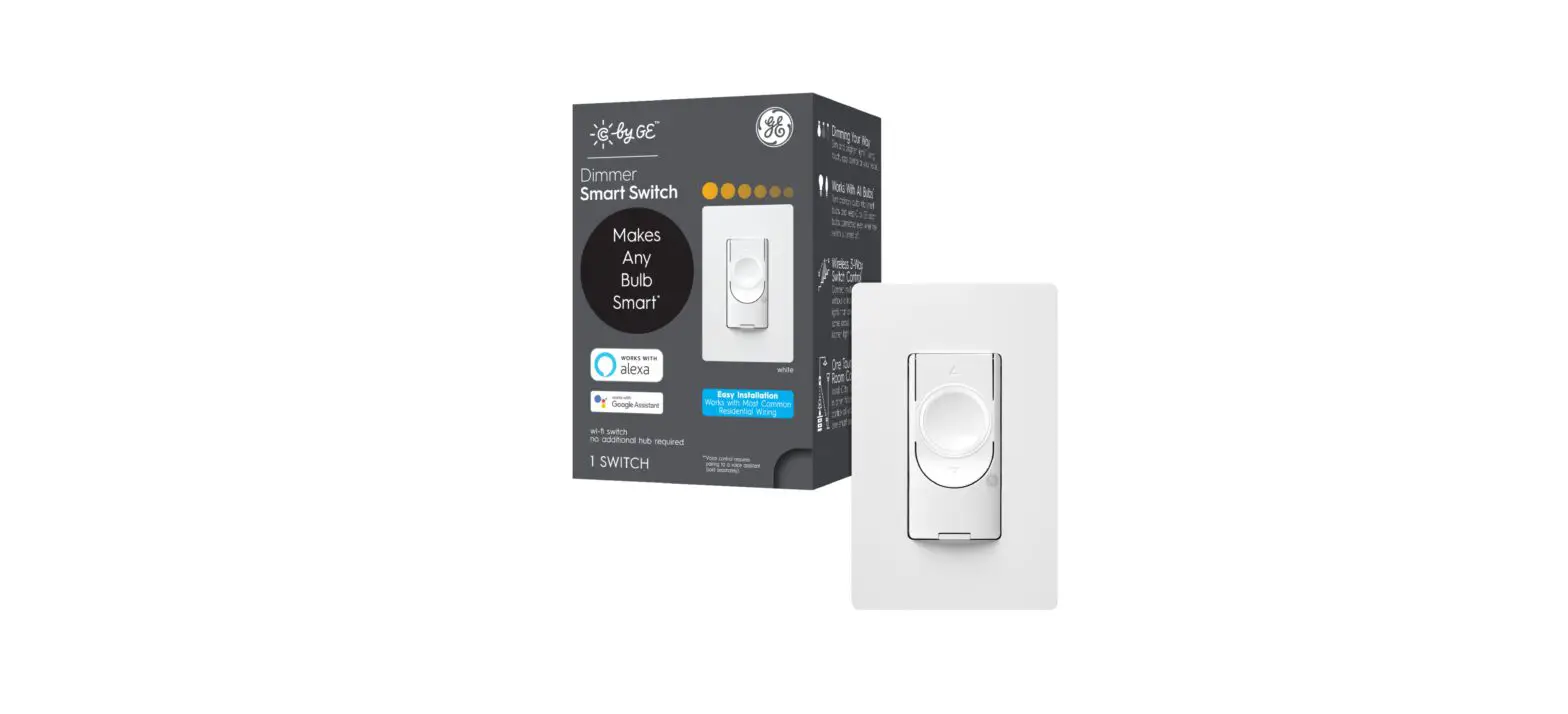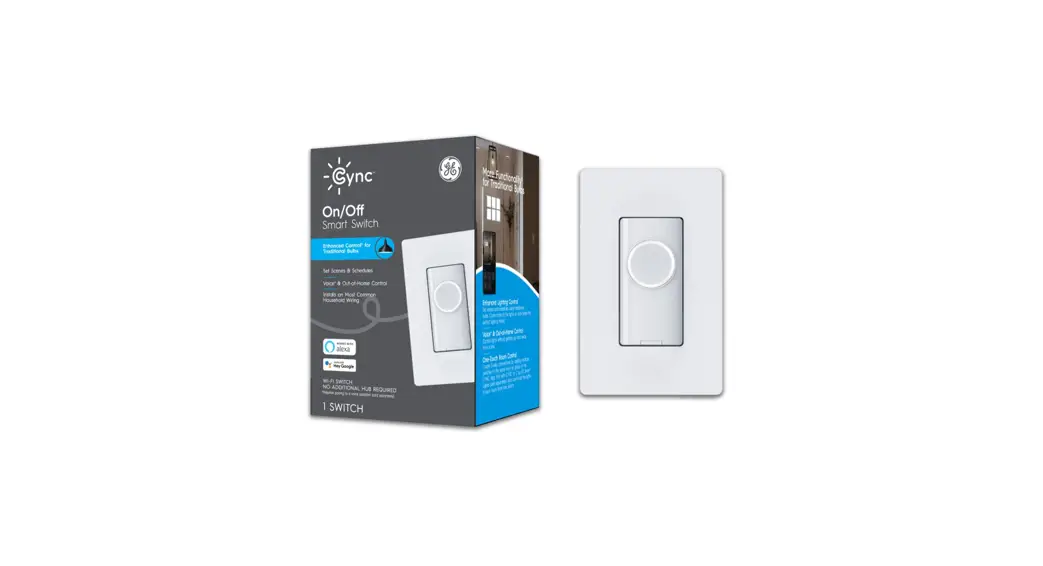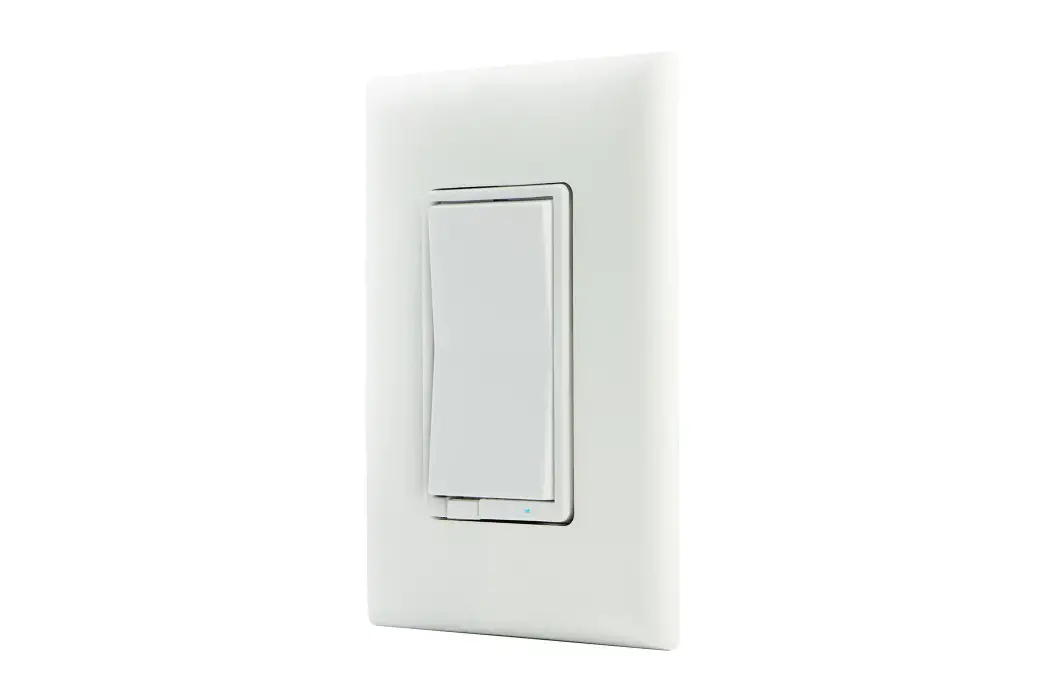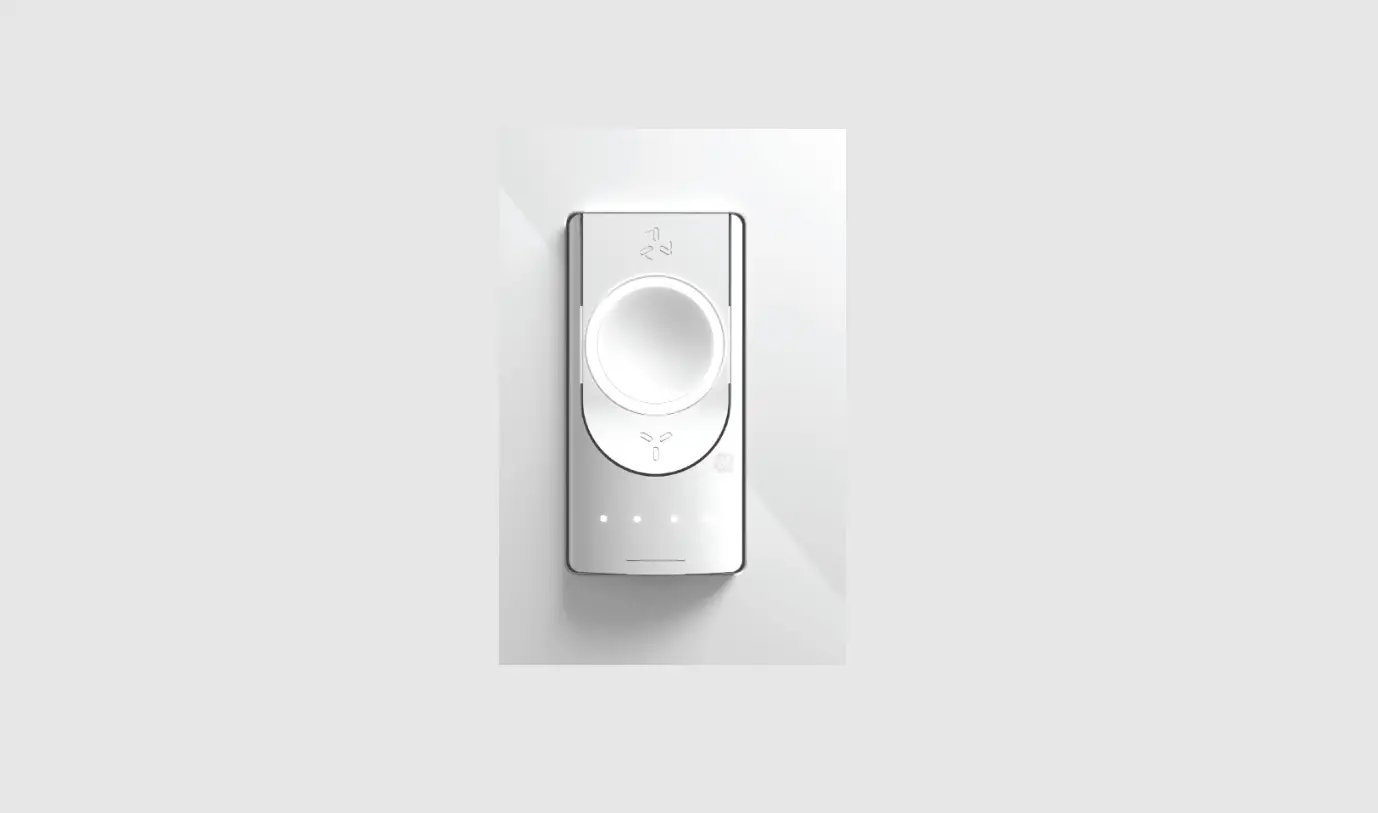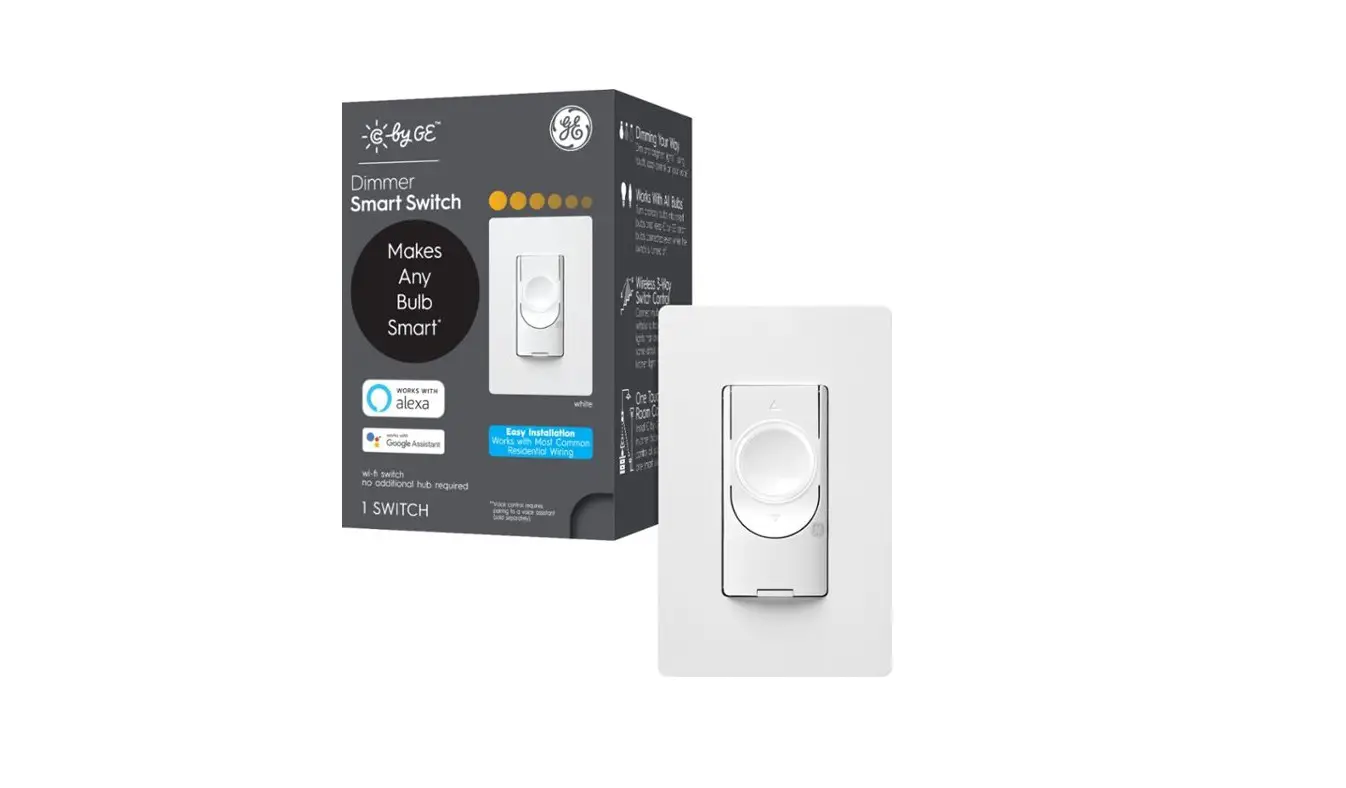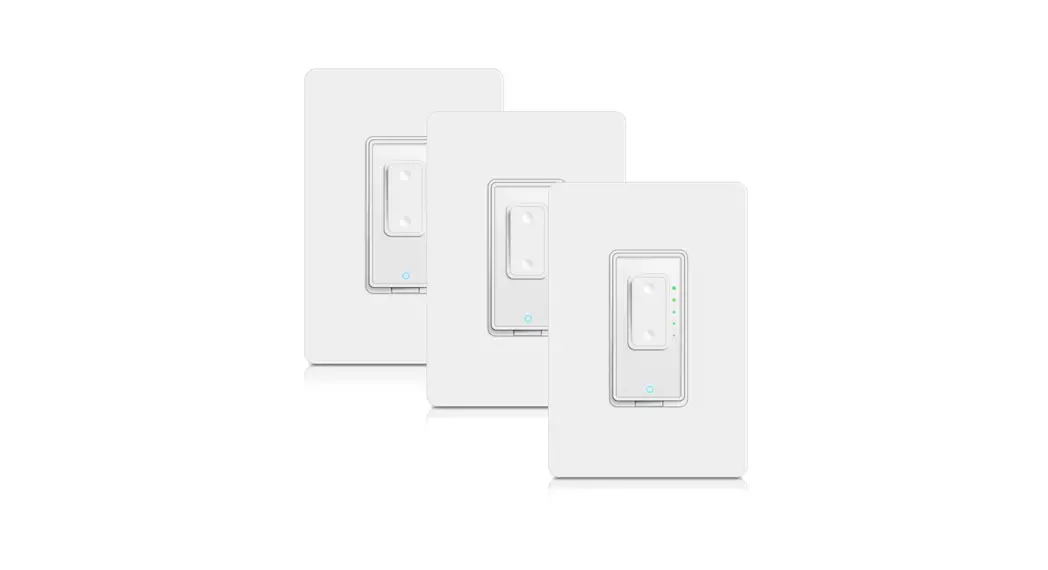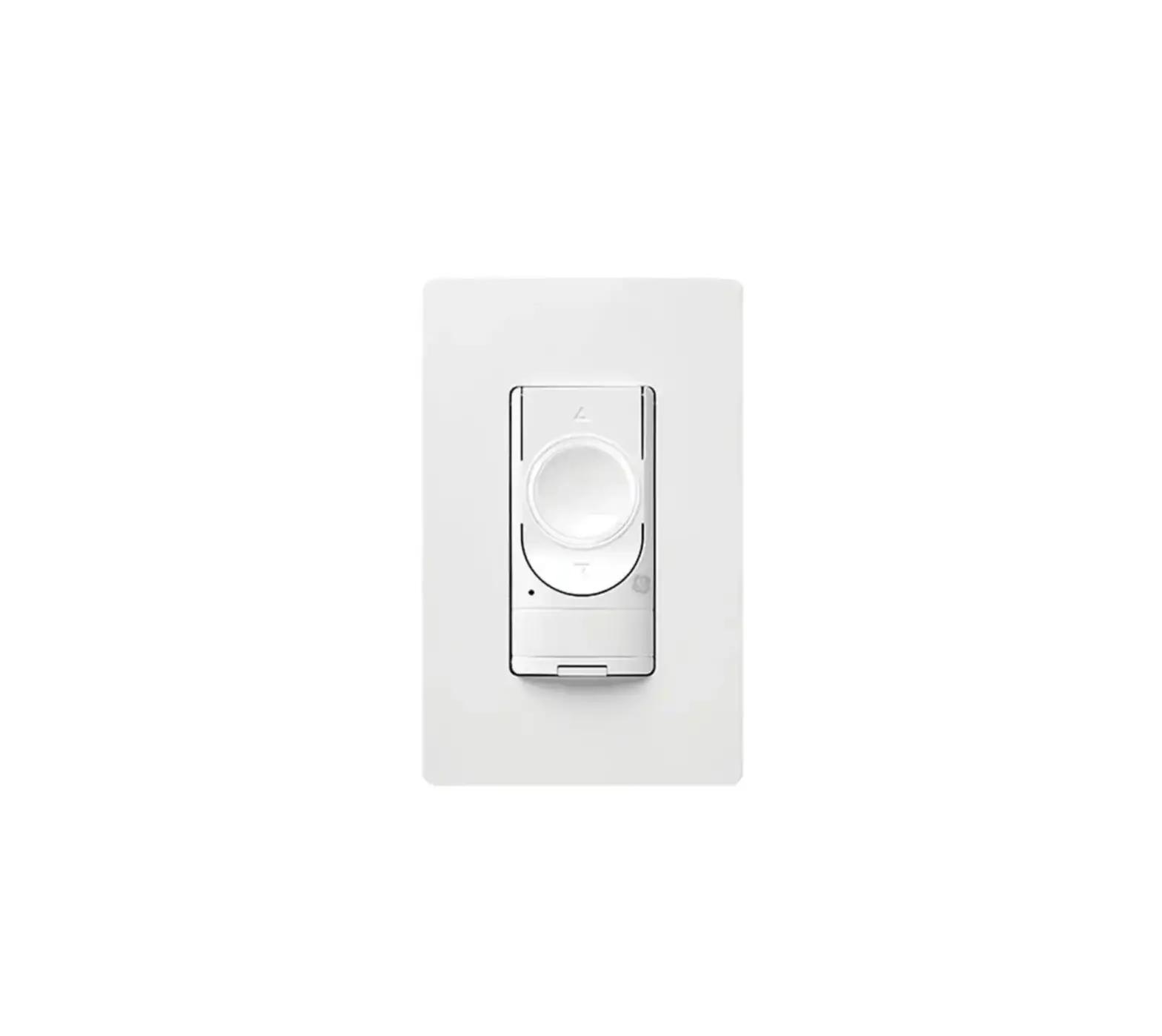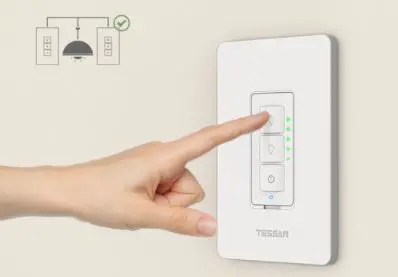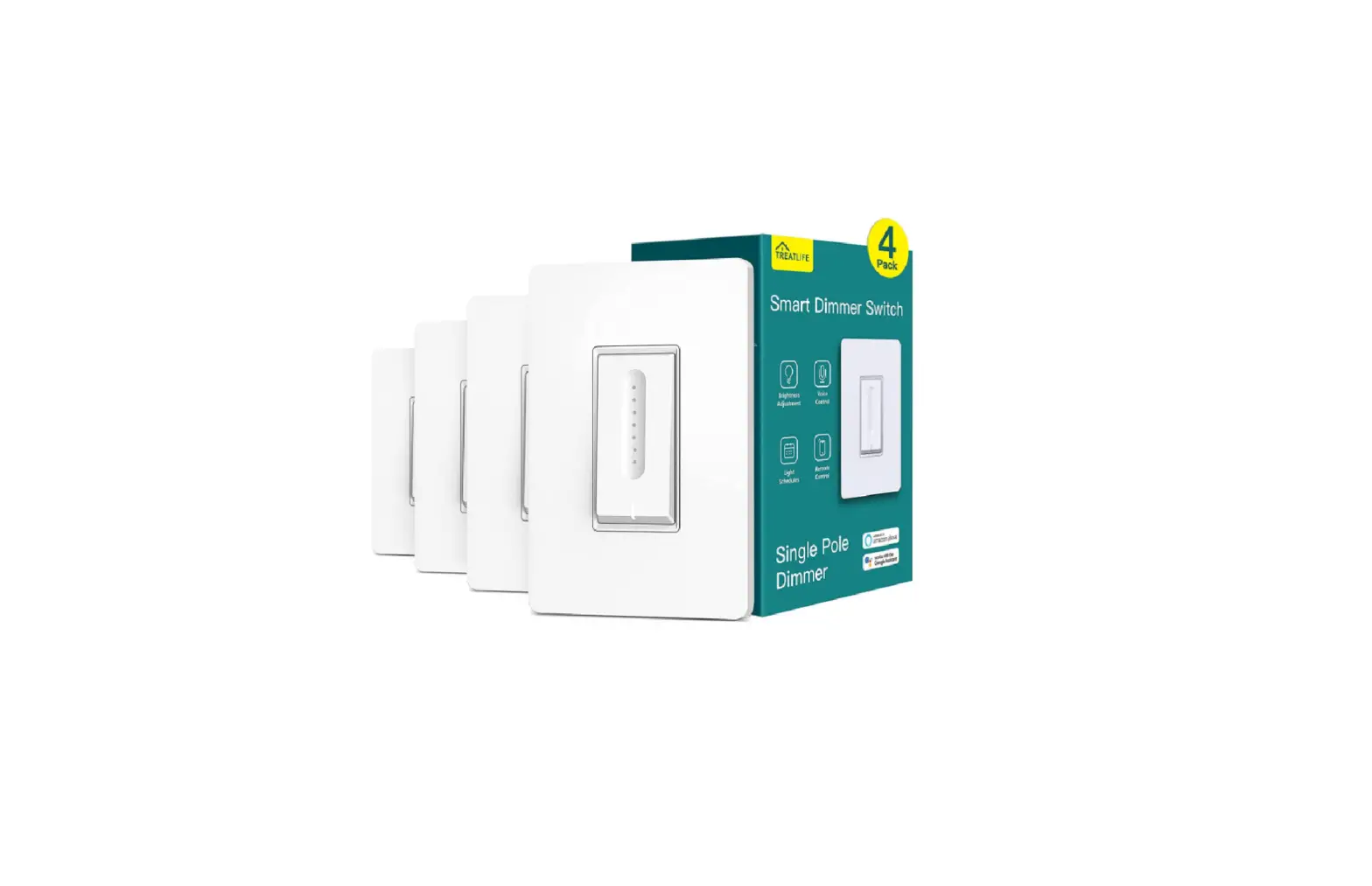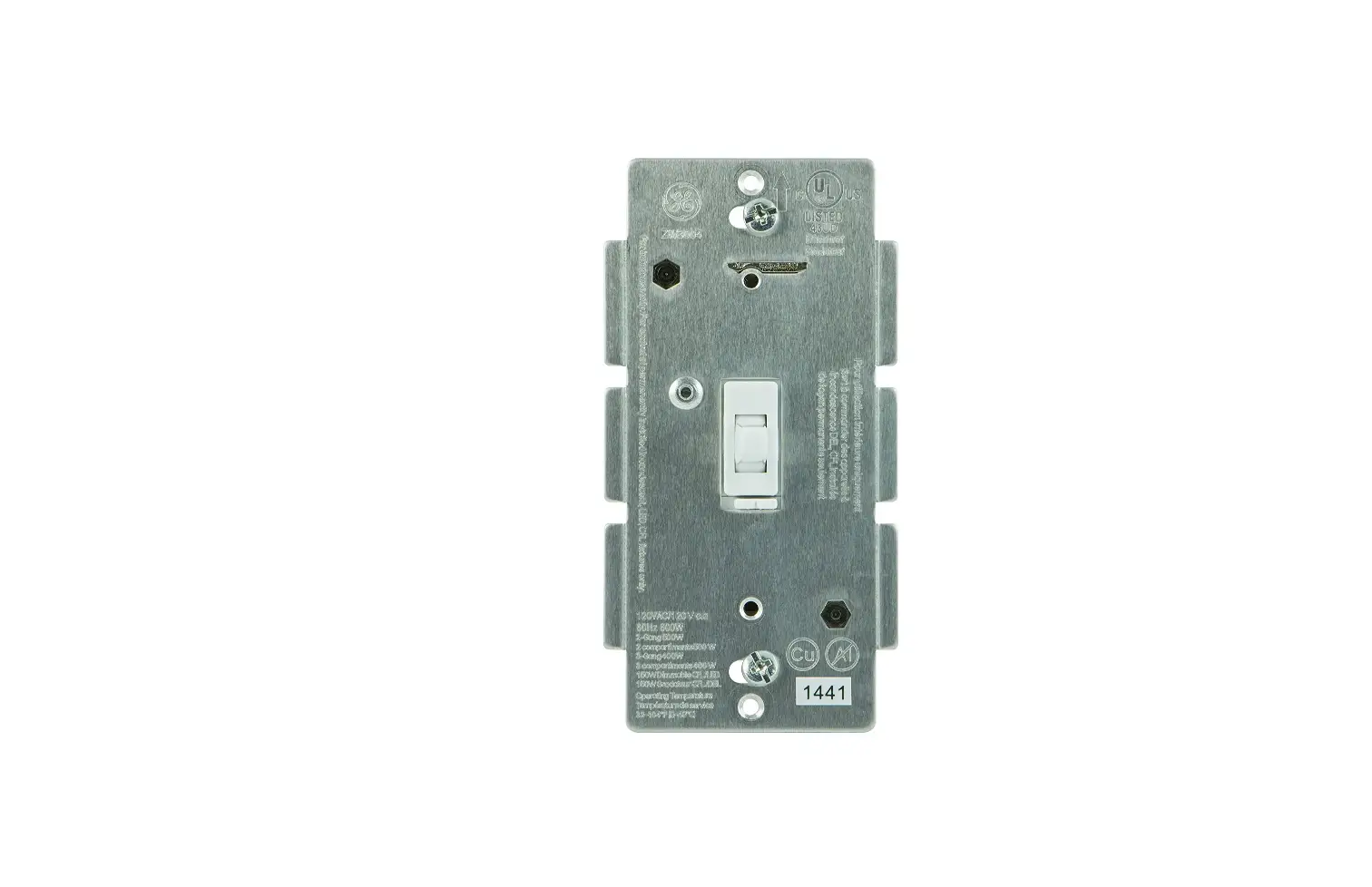
GE CSWDMOCBWF1/ST1P CYNC Smart Dimmer Light Switch
Specifications
- ITEM WEIGHT: 9.1 ounces
- PRODUCT DIMENSIONS: 4 x 3.5 x 6 inches
- SIZE: Neutral Wire
- STYLE: Dimmer + Motion Sensor
- SHAPE: Rectangular
- POWER SOURCE: AC
- VOLTAGE: 120 Volts
- USAGE INDOOR: Use Only
- SWITCH STYLE TOGGLE: Switch
- TERMINAL: Spst
- MOUNTING TYPE: Wall Mount
- ACTUATOR TYPE: Push Button
- CONTROLLER TYPE: Google Assistant, vera, Amazon Alexa
- CONTROL METHOD: Voice
- CONNECTIVITY PROTOCOL: Bluetooth, Wi-F
- OPERATION MODE: ON-OFF-ON
- BRAND: GE Lighting
Introduction
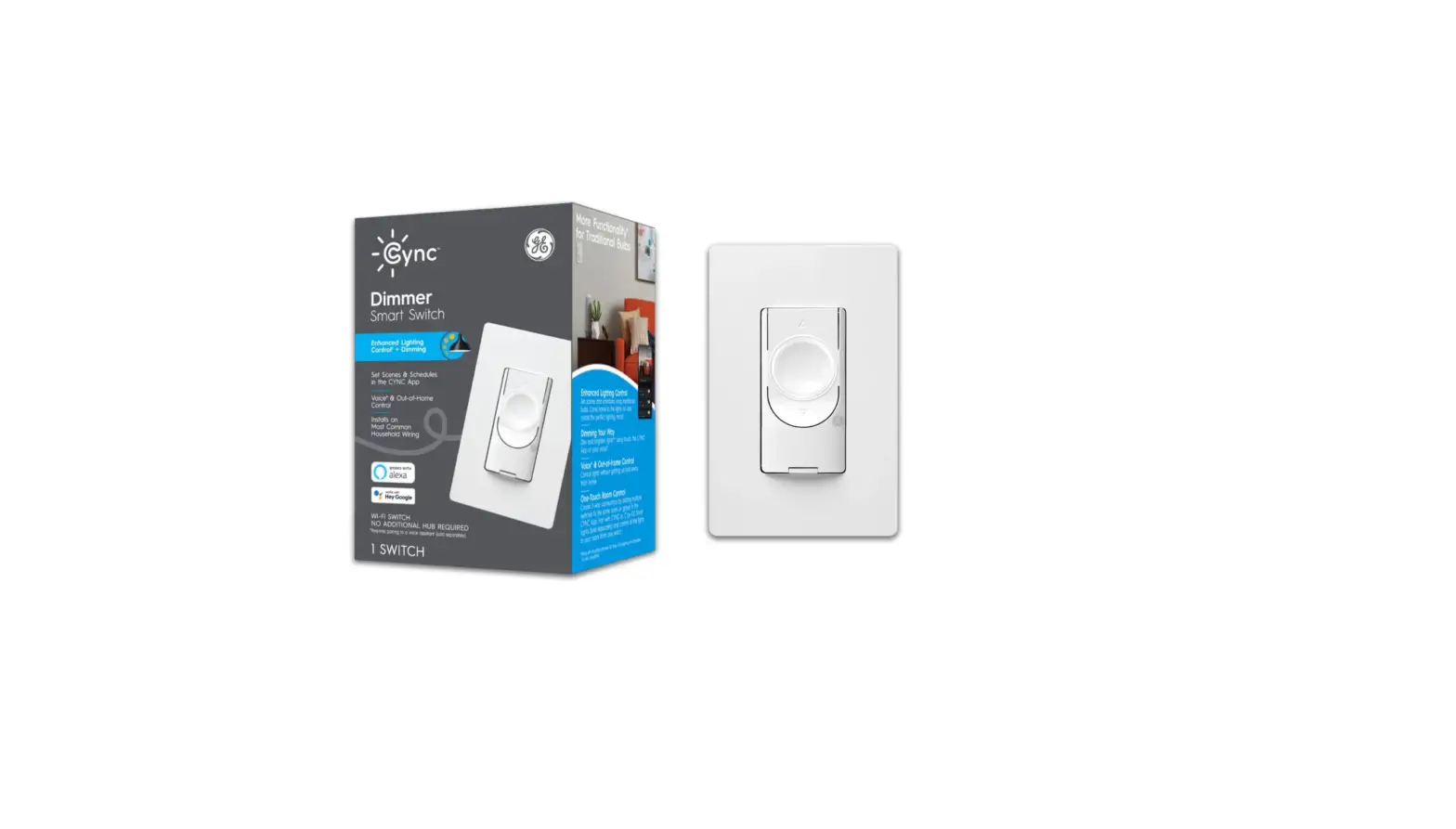
Traditional light bulbs can now serve as smart lights thanks to the Smart Motion Sensing and Dimmer switch. Motion detection, out-of-home control, scheduling, and scene creation are additional features added to the traditional bulb functioning by the smart Wi-Fi switch, which also functions as a dimmer switch. Experience voice control without the need for an additional hub by partnering with a voice assistant like the Google Assistant or Amazon Alexa. The smart switch, when used with Cync or C by GE smart bulbs, enables app or voice control even when the power is off at the switch. Set lights to switch on or off based on ambient light and motion in the room using motion sensors and ambient light detection. Motion sensing is turned off via smart scheduling when you don’t want to be disturbed. You can now control your lights by voice, motion, an app, or touch to get more out of your lighting.
What’s In the Box?
- Dimmer Switch
- Occupancy
- User Manual
IMPORTANT NOTE ON 3-WAY WIRING
If you are installing the C by GE Smart Switch on a 3-way or multi-way circuit, all switches on this circuit must be a C by GE Smart Switch. The C by GE Smart switch will only work with other C by GE Smart switches on the same circuit.
WARNING
RISK OF ELECTRIC SHOCK
This product installation requires handling 120 volt wiring. Follow each step carefully.
If any concerns handling wiring, hire a qualified electrician. Ensure all work meets local and federal regulations.
Simple DIY Setup

Compatibility Requirements
- Rating 120V AC 60Hz
- Neutral wire is required (Wire is usually white or grey)
- Ground wire is required (Wire is usually green, green with a yellow stripe, or copper)
- Wi-Fi 802.11 b/g/n @ 2.4 GHZ is required
- Works with compatible LED bulbs, including C by GE smart LED bulbs. Visit cbyge.com/compatibility
- LED up to 150 watts
- Incandescent/halogen up to 450 watts
Let’s Do It
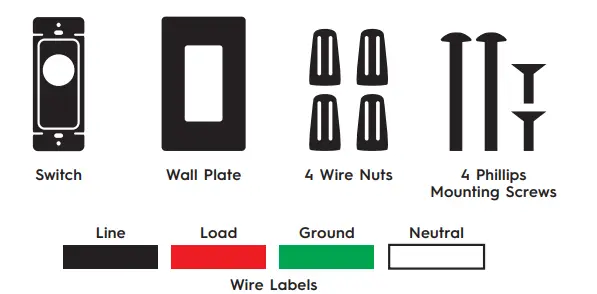
INCLUDED (PER SWITCH)
YOU’LL NEED
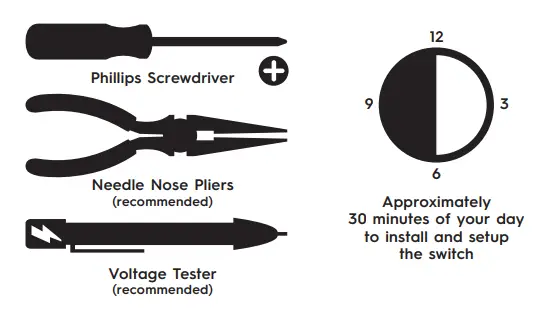
You Got This!
And we’re here to help. For in-depth instructional videos and a guided tour through the installation, go to cbyge.com/switch-support.
BEFORE YOU DO ANYTHING: Step 1
Turn Off The Power!
Turn off the power for the switch location at the circuit breaker box.
Test existing switch by toggling switch on/off, ensuring lights do not turn on.
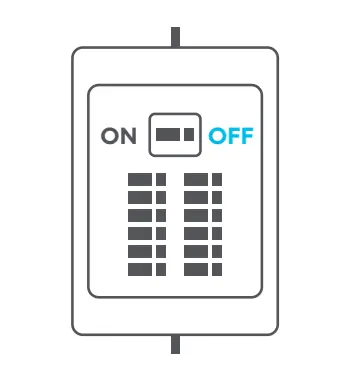
Now, follow these setup steps for a 3-way switch installation.
STEP 2
Remove Your Old Switch
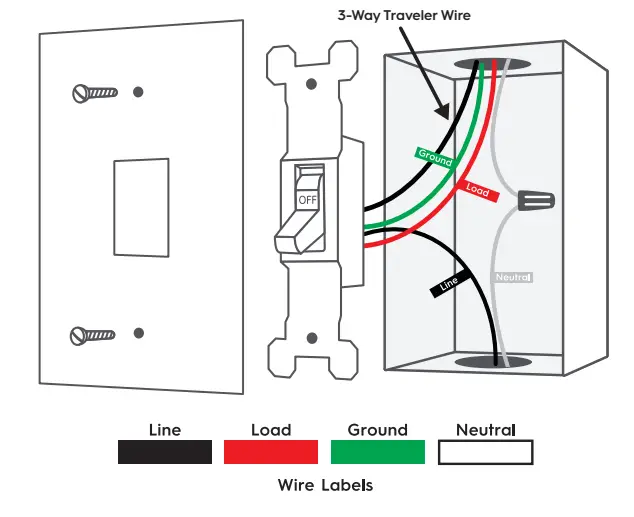
- Remove the existing wall plate and switch from the wall.
- Use voltage tester on the black wire to confirm power to the switch is off (recommended).
- Before disconnecting the wires from the wall, label each with the provided wire labels.
Neutral and ground wires are required. If you DON’t have either wire, the C-Start switch is not compatible.
You may see a 5th wire connected to your existing switch. This may be the 3-way traveler wire (black or white). This wire is not needed and will be addressed in the next step.
- Disconnect wires and remove existing switch.
STEP 3
Connect The Wires: The First Switch
- Connect the neutral (white) wire on the switch to the neutral (white label) wire from the wall.
- Connect the line (black) wire on the switch to the line (black label) wire from the wall.
- Connect the load (red) wire on the switch with the load (red label) wire from the wall.
- Connect the ground (green) wire on the switch with the ground (green label) wire from the wall.
- If there is a 5th wire in the wall box (traveler wire), cap the wire. This wire is not needed for the C by GE switch.
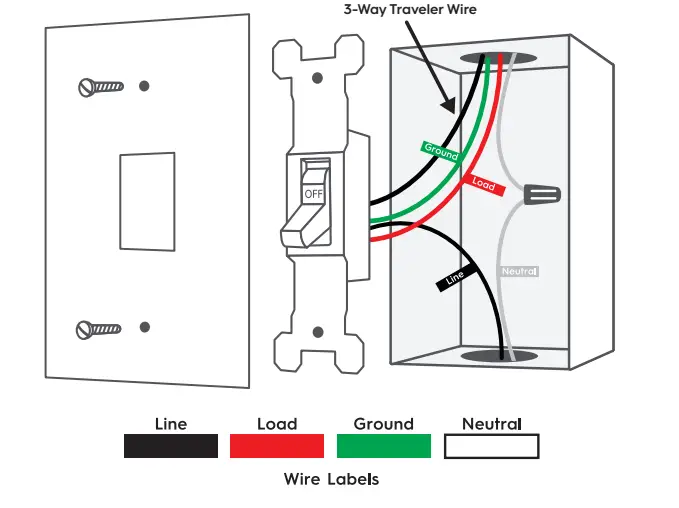
Incorrectly connecting the neutral or ground wire from the wall to the line or load wire on the switch will damage the product.
USING WIRE NUTS
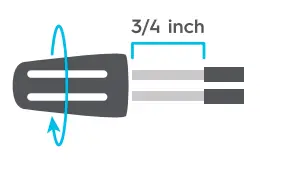
- Insert wires into wire nuts.
- Turn wire nut clockwise
- Pull gently on wires to test connection.
STEP 4
Connect The Wires:
The Second Switch If you have more than two switches controlling your 3-way circuit, this step can be repeated for any additional switch on that circuit.
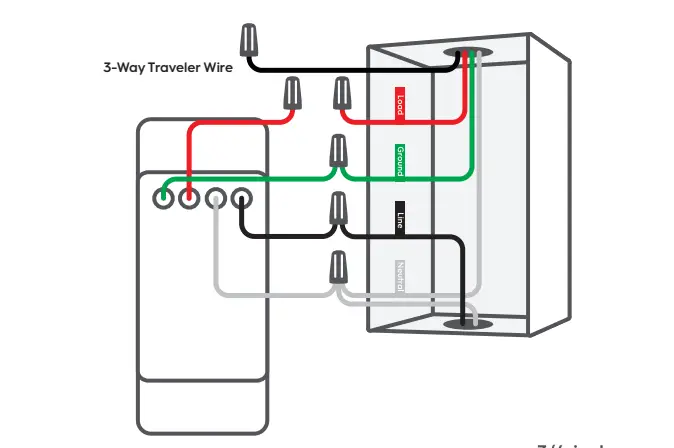
- Connect the neutral (white) wire on the switch to the neutral (white label) wire from the wall.
- Connect the line (black) wire on the switch to the line (black label) wire from the wall.
- Connect the ground (green) wire on the switch with the ground (green label) wire from the wall.
- Do NOT connect the load (red) wire on the switch with the load (red or black) wire from the wall. Cap both wires separately using two wire nuts.
- If there is a 5th wire in the wall box (traveler wire), cap the wire. This wire is not needed for the C by GE switch.
USING WIRE NUTS
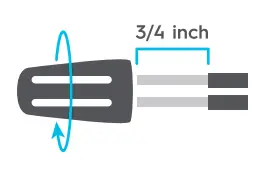
- Insert wires into wire nuts.
- Turn wire nut clockwise
- Pull gently on wires to test connection.
STEP 5
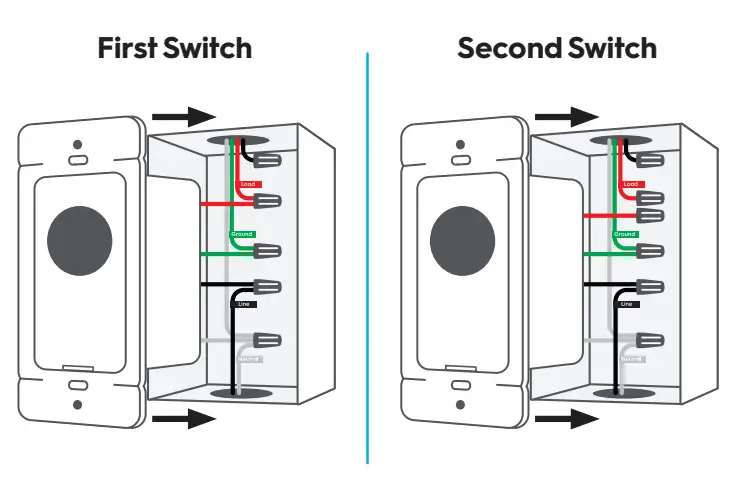
Fit Wires Into Wall Box
Neatly push the wires back into the box, rotating the switch so its oriented according to the image.
STEP 6
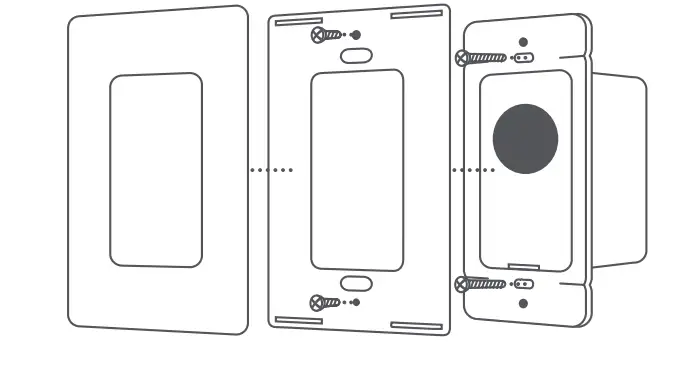
Secure The Switch
Using a Phillips screwdriver and the screws provided, secure the switch to the wall until level and flush. Screw on the faceplate bracket, then snap the faceplate cover onto the bracket.
STEP 7
Turn The Power Back On
After the switch is secured and faceplate mounted, turn the power back on at the circuit breaker box.
At the switch, the light ring will flash blue indicating the device is wired correctly and the device is in setup mode.
Light ring will continuously flash blue until the switch is added to the C by GE app.
Light ring will flash red if the circuit is overloaded.
Max load rating 150W LED and 450W incandescent/halogen.
Light ring will not illuminate if wired incorrectly.
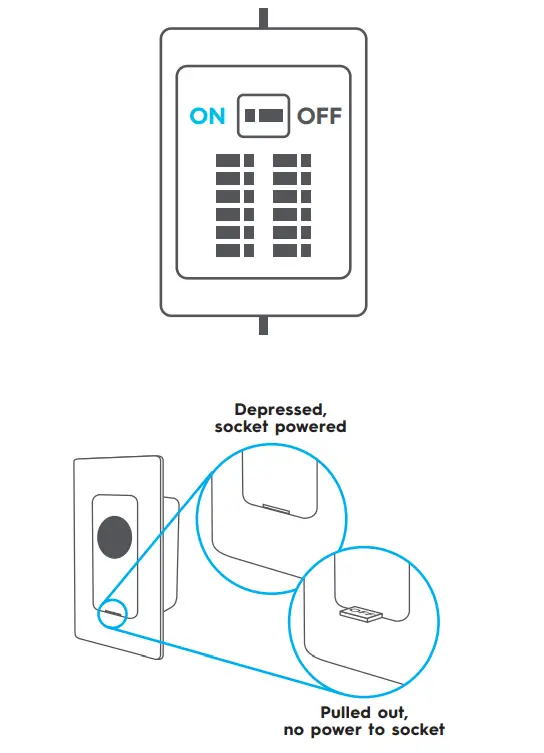
IF THE LIGHT WON’T TURN ON:
- Check that air gap switch is depressed.
- Check that power to the switch is on at the breaker.
- Turn power off at the breaker, return to the switch to confirm the wires are securely and properly wired according to the installation guide.
- Go to cbyge.com/switch-support for more troubleshooting.
STEP 8 Enable 3-Way Control in the C by GE App
Now that your switches are installed, you have one more step to complete the 3-way connection. Next, you must enable 3-way control by grouping the switches together in the C by GE app.
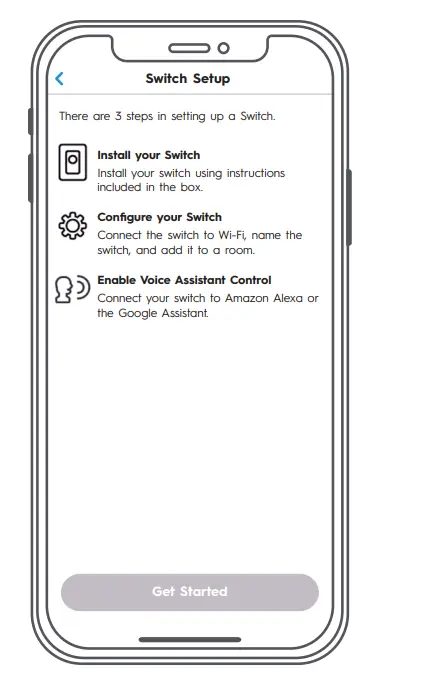
- Download the C by GE app.
- Add both switches to the C by GE app.
- Create a Room in the C by GE app.
- Add both switches to that Room.
This process virtually groups your switches together, allowing for 3-way control. Test that your 3-way switch operates correctly.
Congratulations!
You’ve completed the C-Start Switch installation.
Next
Enable Your Voice Assistant Amazon Alexa
To setup, open the Alexa app, search for the C by GE skill, follow the setup instructions.
Try this
- Alexa, turn off the living room.
- Alexa, turn on the bedroom.
- Alexa, set kitchen to 50%.
Google Assistant
To setup, open the Google Assistant or Google Home app, search for the C by GE action, follow the setup instructions.
Try this
- Hey Google, turn on the lights.
- Hey Google, good morning.
- Hey Google, I’m leaving.
Additional Information and Warnings
FCC Compliance Statement Compliance Notice:
This equipment has been tested and found to comply with the limits for a Class B digital device, pursuant to part 15 of the FCC Rules. These limits are designed to provide reasonable protection against harmful interference in a residential installation. This equipment generates, uses and can radiate radio frequency energy and, if not installed and used in accordance with the instructions, may cause harmful interference to radio communications. However, there is no guarantee that interference will not occur in a particular installation. If this equipment does cause harmful interference to radio or television reception, which can be determined by turning the equipment off and on, the user is encouraged to try to correct the interference by one or more of the following measures:
- Reorient or relocate the receiving antenna.
- Increase the separation between the equipment and receiver.
- Connect the equipment into an outlet on a circuit different from that to which the receiver is connected.
- Consult the dealer or an experienced radio/TV technician for help.
This device complies with part 15 of FCC rules. Operation is subject to the following two conditions:
- This device may not cause harmful interference.
- This device must accept any interference received, including interference that may cause undesired operation. Changes or modifications that are not expressly approved by the manufacturer could void the user’s authority to operate the equipment.
RF Exposure Information
This equipment complies with FCC radiation exposure limits set forth for an uncontrolled environment. In order to avoid the possibility of exceeding the FCC radio frequency exposure limits, human proximity to the antenna shall not be less than 8 inches during normal operation.
RF Exposure Statement
This equipment complies with IC RSS-102 radiation exposure limits set forth for an uncontrolled environment. This transmitter must be installed to provide a separation distance of at least 8 inches from all persons and must not be collocated or operating in conjunction with any other antenna or transmitter.
CAUTION
To reduce the risk of overheating and possible damage to other equipment, do not install to control a receptacle or motor-operated appliance or transformer-supplied appliance.
For supply connections, use copper wire only rated at 75C.
Frequently Asked Questions
This will not function as intended if the switch used to control your ceiling fan and the lights it is connected to.
This switch has three settings, but none of them offers an option for a gentle fade.
Yes. I can operate independent fans and lights in addition to a fan and light combination. With this switch, you might notice that some bulbs flicker. Even with the adaptor that comes with the switch, I discovered that several lamps continued to flicker. However, purchasing a replacement bulb for the non-flickering light component is not difficult. The majority of the LED models I tried flickered, but not CFL.
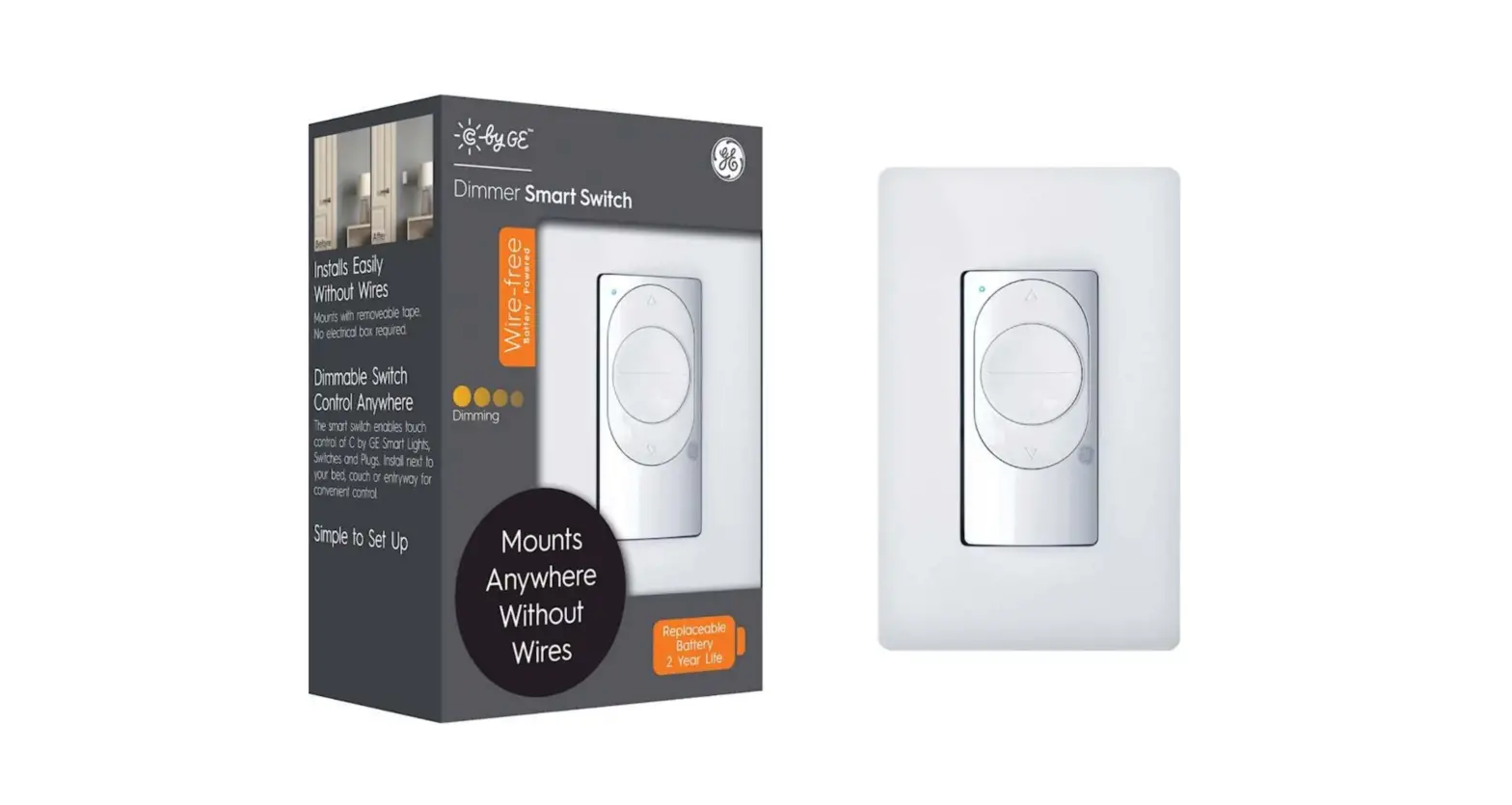
The Cync Smart LED Light Strip may be controlled by our Wire Free Smart Switch.
Yes, using voice commands, Alexa will be able to dim the 3-wire dimmer switch.
Our switches must first be configured in the C by GE app before they can be connected to the Alexa or Google Home apps.
Yes, our light strip will function with the wire-free dimmer switch.
As long as your phone has data connectivity, you can control this device and any lights that are associated with it when you are away from home.
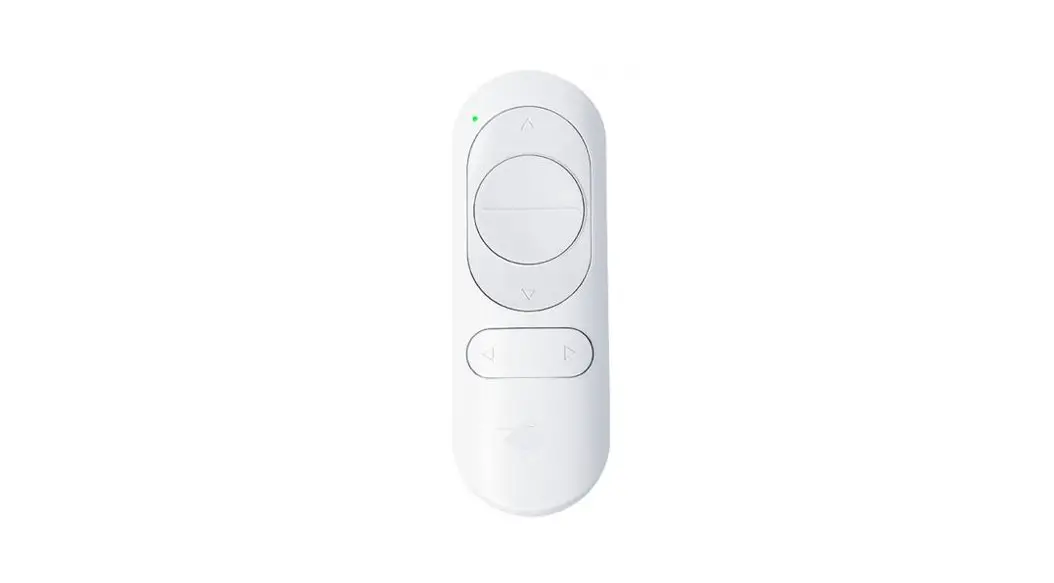
This switch, which is wire-free, can only control C by GE lights and light strips; it cannot be connected to an outside app and only functions within the C by GE app. The wired switch can control other bulbs in addition to C by GE bulbs.
It is necessary to attach a ground wire to this switch. If there is a metal gang box nearby and you don’t have a copper wire to ground it to, you can do so. The ground wire can also be attached to some boxes’ metal screws on the rear.
Yes, when you set up the device in the C by GE app, you will inform the switch that you are installing non-dimmable bulbs. The switch will then turn off its dimming capability.