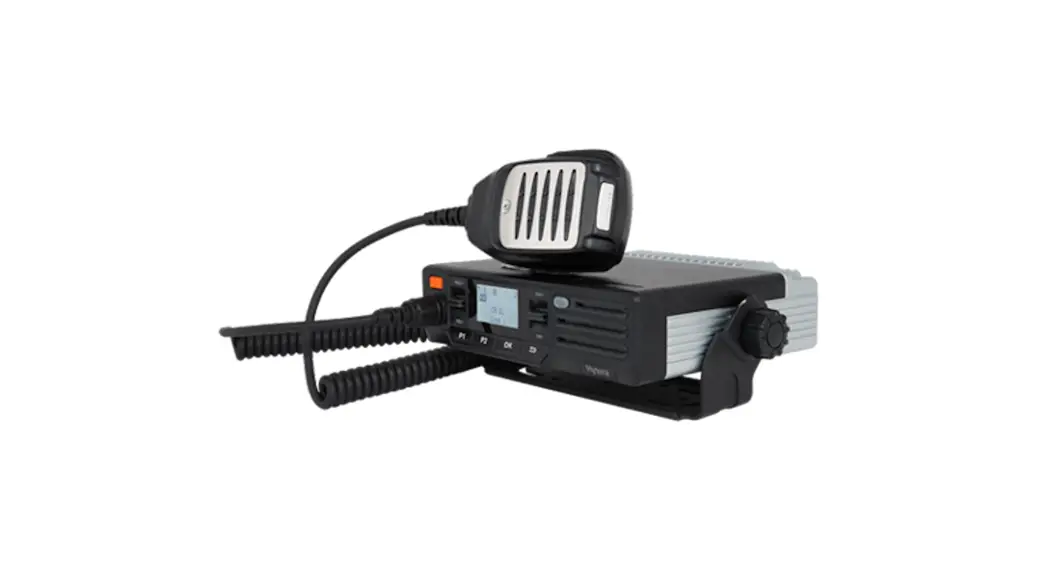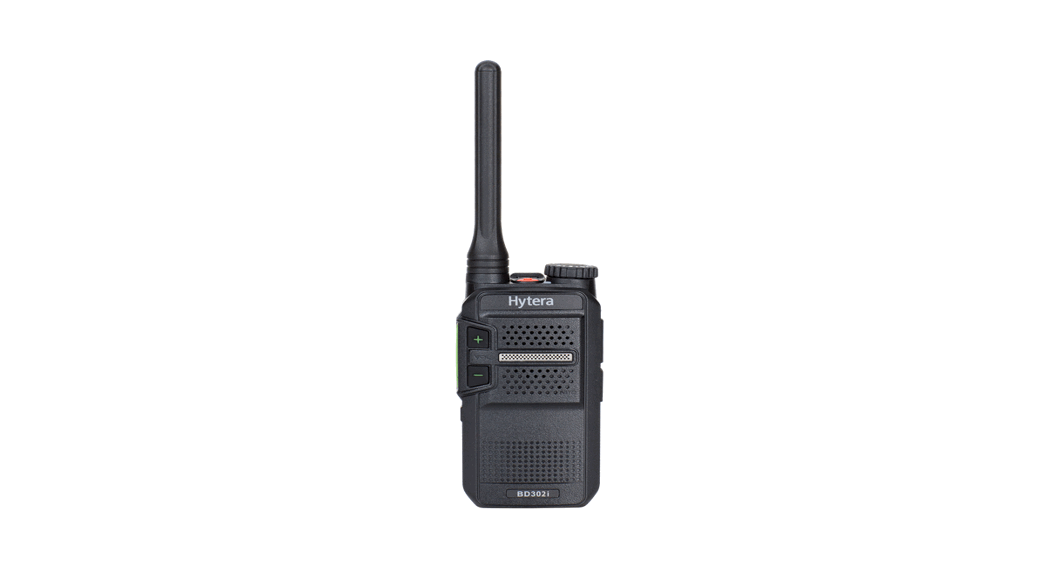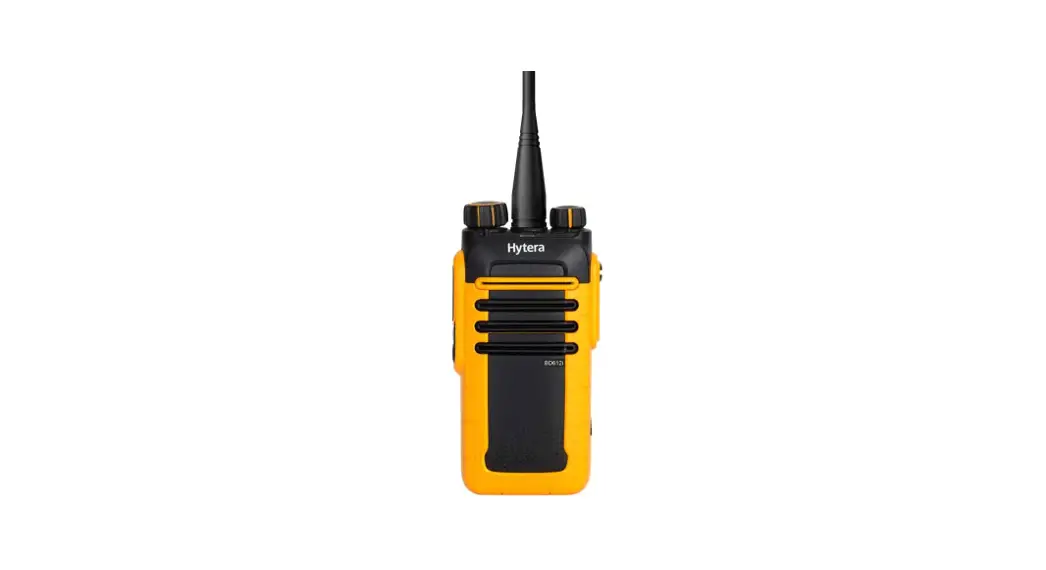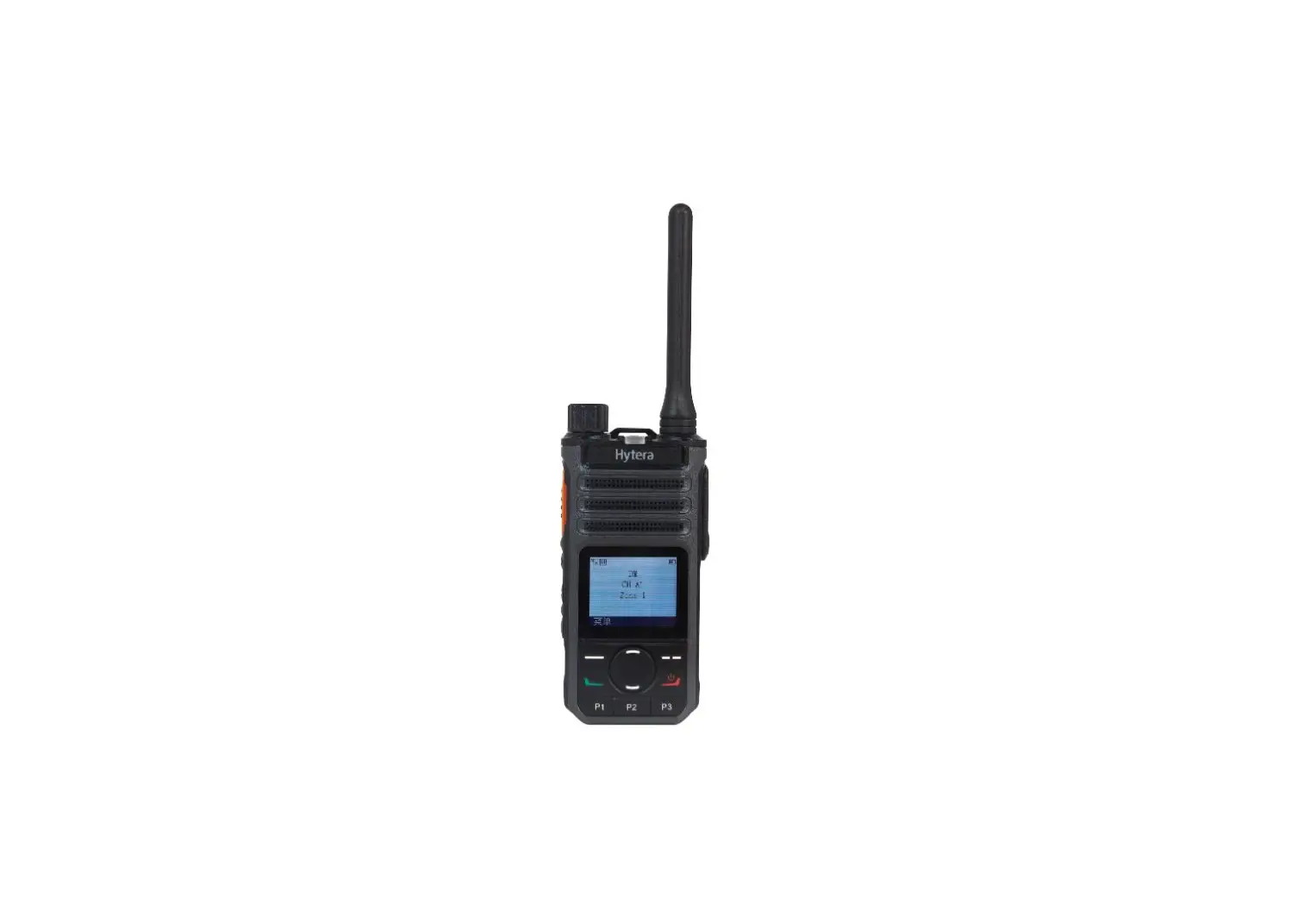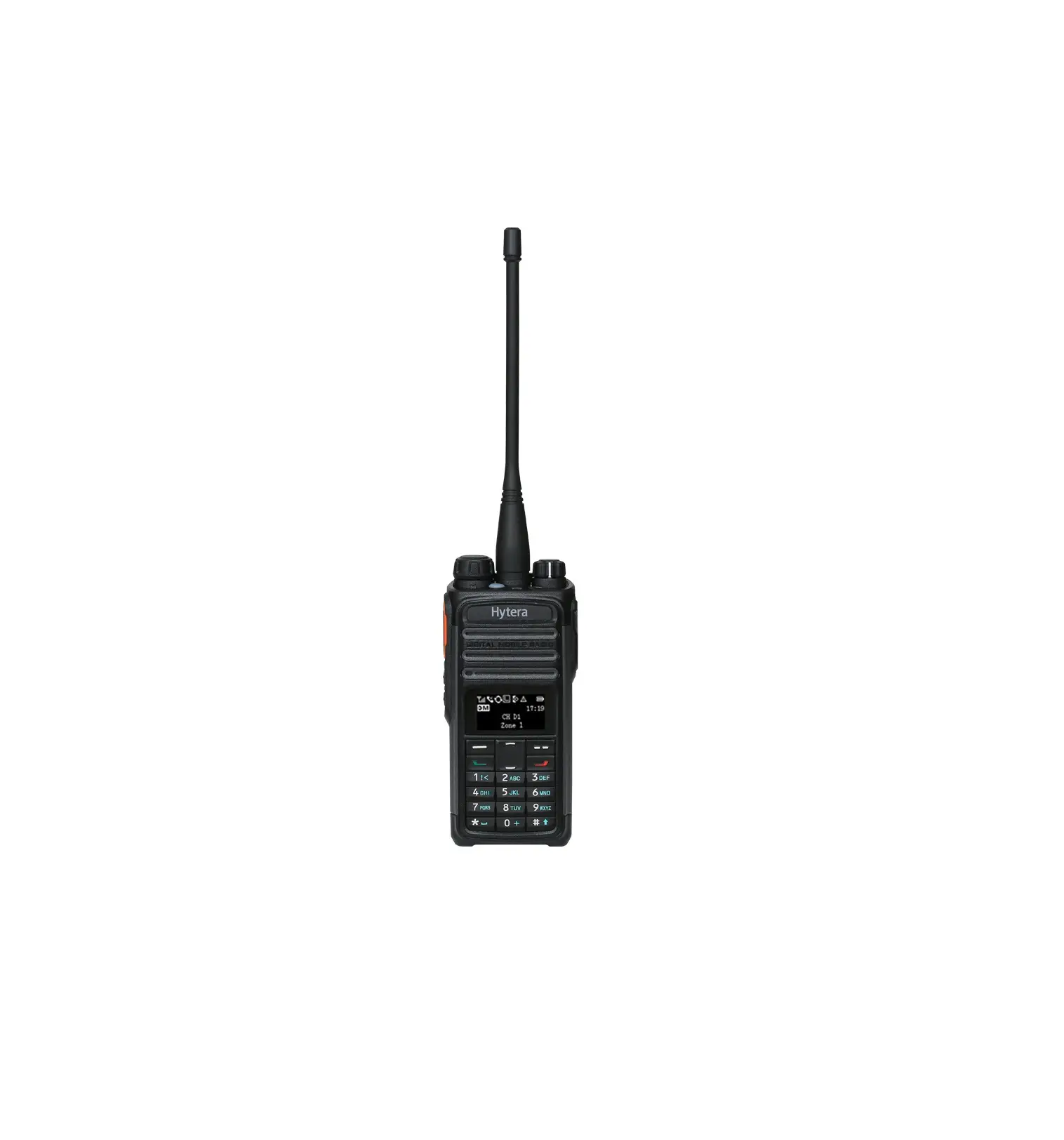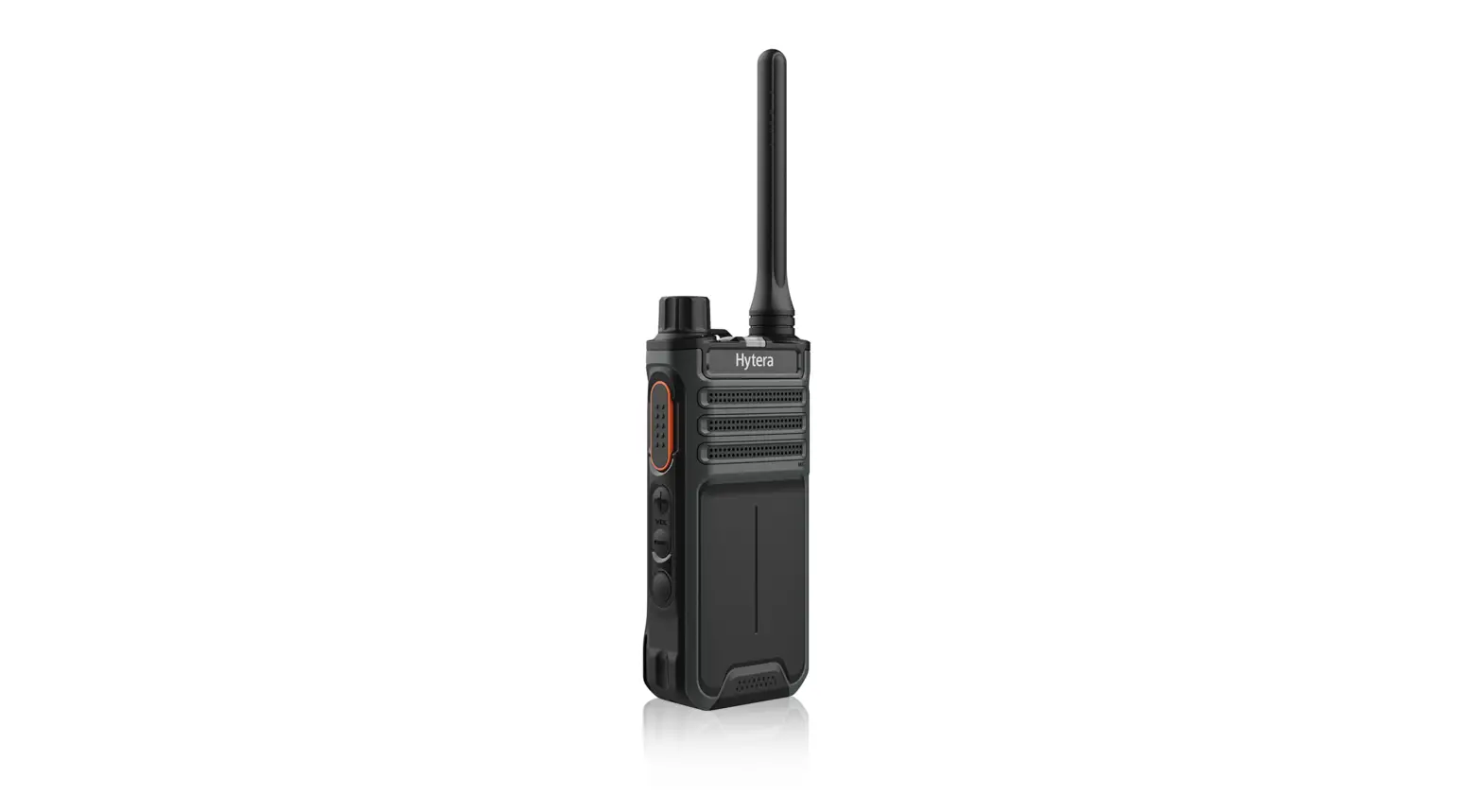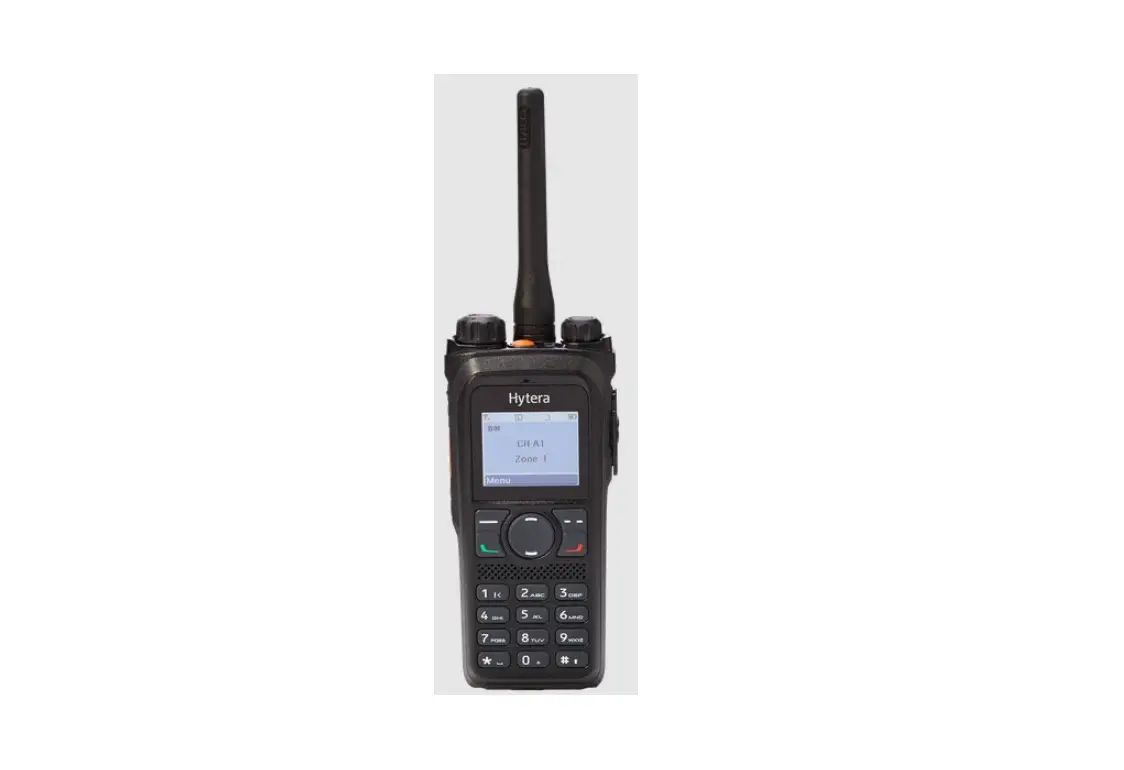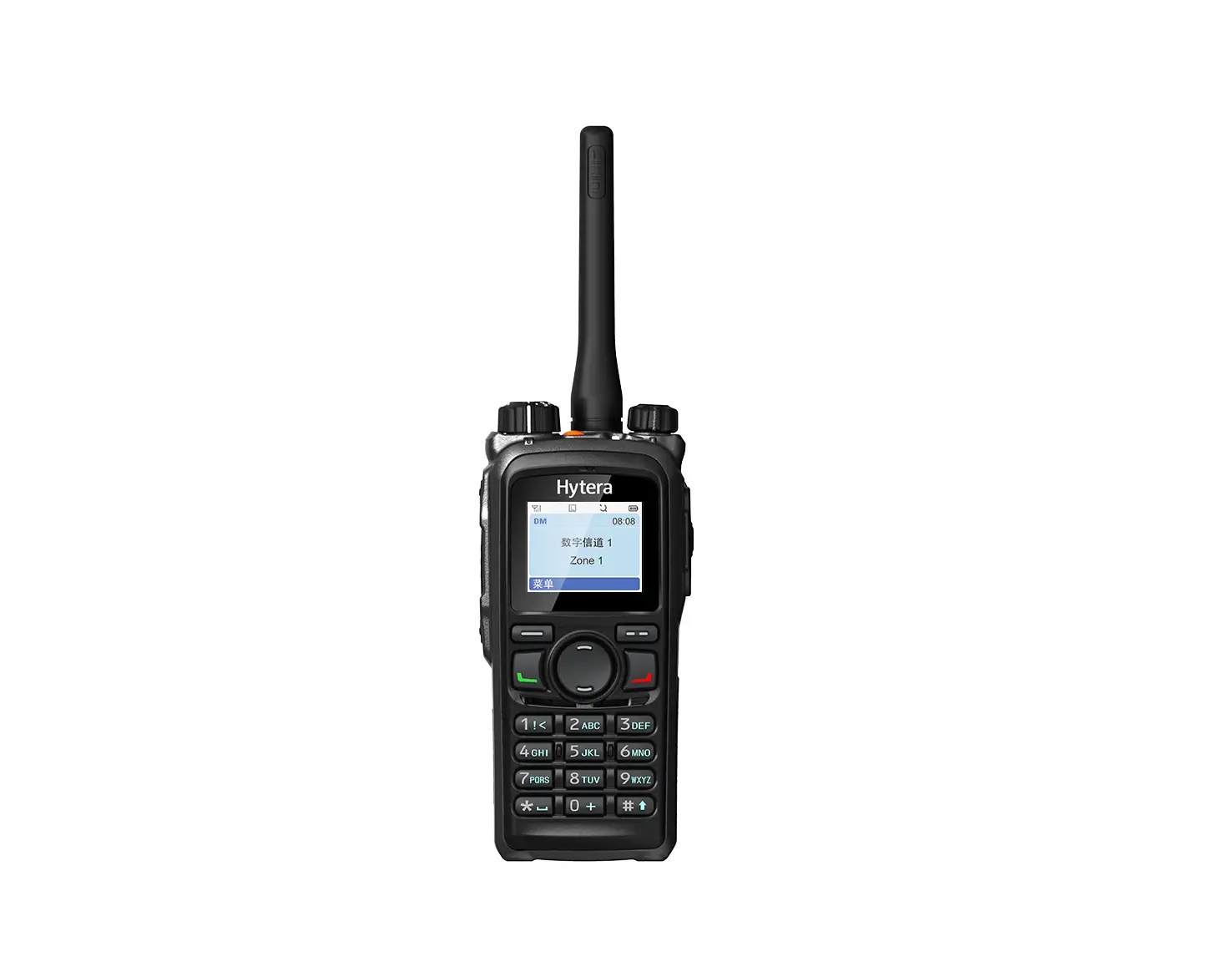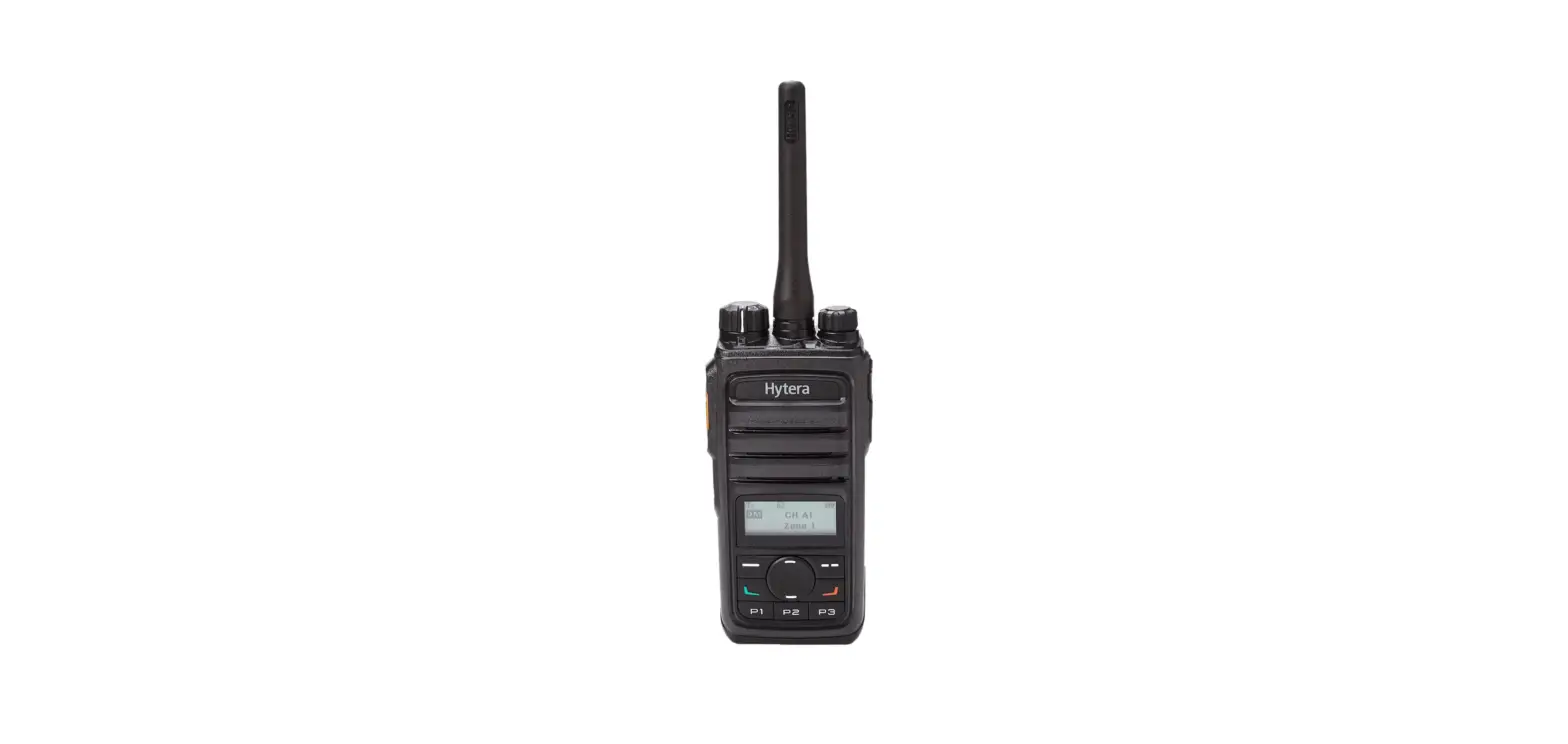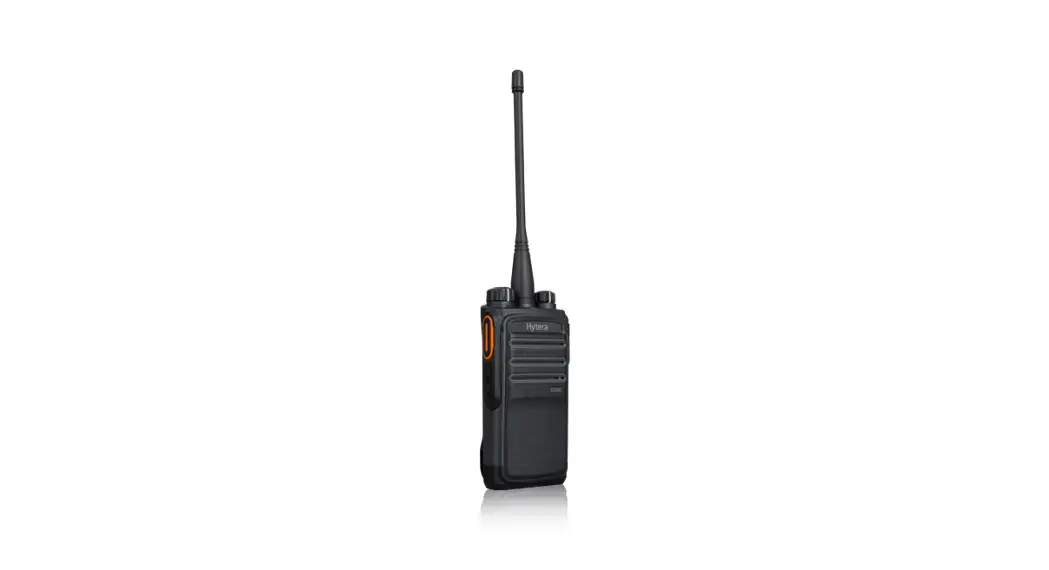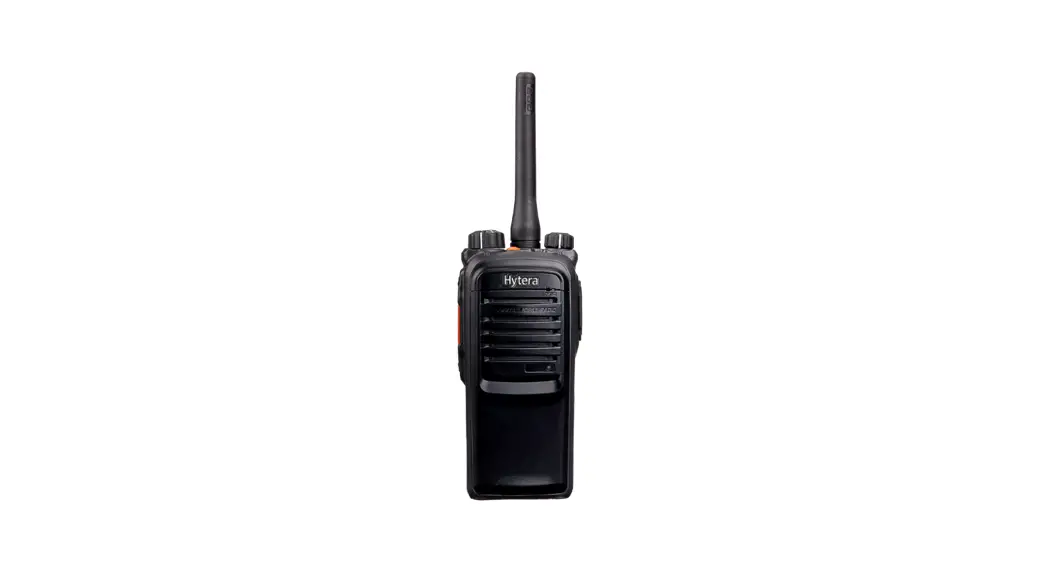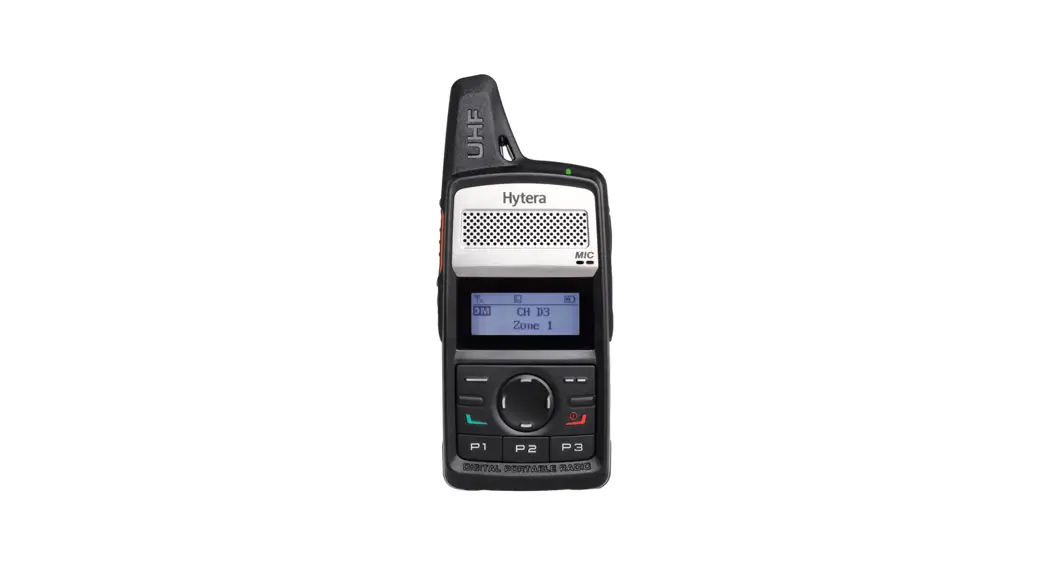
 PD362i Digital Portable Radio
Owner’s Manual

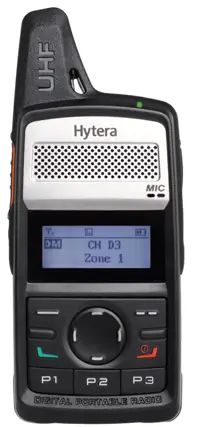
PD362i Digital Portable Radio
Preface
Thanks for your favor in our product. This manual is helpful for you to quickly know how to use the product.
This manual is applicable to the following product: PD362i Digital Portable Radio
Instructional Icons
 : Indicates functions that are available on digital channel only.
 : Indicates functions that are available on analog channel only.
Functions marked with no function icons are available on both analog and digital channels.
Disclaimer
Hytera Communications Corporation Limited (the Company) endeavors to achieve the accuracy and completeness of this manual, but no warranty of accuracy or reliability is given. All the specifications and designs are subject to change without notice due to continuous technology development. No part of this manual may be copied, modified, translated, or distributed in any manner without the express written permission of us.
We do not guarantee, for any particular purpose, the accuracy, validity, timeliness, legitimacy or completeness of the Third Party products and contents involved in this manual.
If you have any suggestions or would like to learn more details, please visit our website at: http://www.hytera.com.
RF Radiation Information
This product must be restricted to operations in an Occupational/Controlled RF exposure Environments. Users must be fully aware of the hazards of the exposure and able to exercise control over their RF exposure to qualify for the higher exposure limits.
RF Radiation Profile
Radio Frequency (RF) is a frequency of electromagnetic radiation in the range at which radio signals are transmitted. RF technology is widely used in communication, medicine, food processing and other fields. It may generate radiation during use.
RF Radiation Safety
In order to ensure user health, experts from relevant industries including science, engineering, medicine and health work with international organizations to develop standards for safe exposure to RF radiation.
These standards consist of:
- United States Federal Communications Commission, Code of Federal Regulations; 47CFR part 2 sub-part J;
- American National Standards Institute (ANSI)/Institute of Electrical and Electronic Engineers (IEEE) C95. 1-1992;
- Institute of Electrical and Electronic Engineers (IEEE) C95.1-1999;
- International Commission on Non-Ionizing Radiation Protection (ICNIRP) 1998.
FCC Regulations
Federal Communication Commission (FCC) requires that all radio communication products should meet the requirements set forth in the above standards before they can be marketed in the U.S, and the manufacturer shall post a RF label on the product to inform users of operational instructions, so as to enhance their occupational health against
exposure to RF energy.
Operational Instructions and Training Guidelines
To ensure optimal performance and compliance with the occupational/ controlled environment RF energy exposure limits in the above standards and guidelines, users should transmit not more than 50% of the time and always adhere to the following procedures:
- RF energy will be generated only when the radio is transmitting.
- The radio must be 2.5 centimeters away from human body when transmitting.
EU Regulatory Conformance
As certified by the qualified laboratory, the product is in compliance with the essential requirements and other relevant provisions of the Directive 1999/5/EC.
Please note that the above information is applicable to EU countries only.
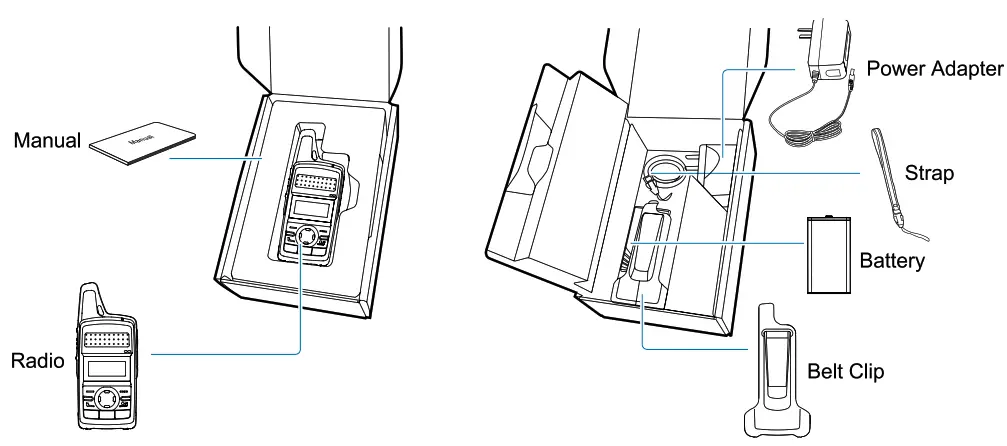
Items in the Package
Please unpack carefully and check that all items listed below are received. If any item is missing or damaged, please contact your dealer.
Product Overview
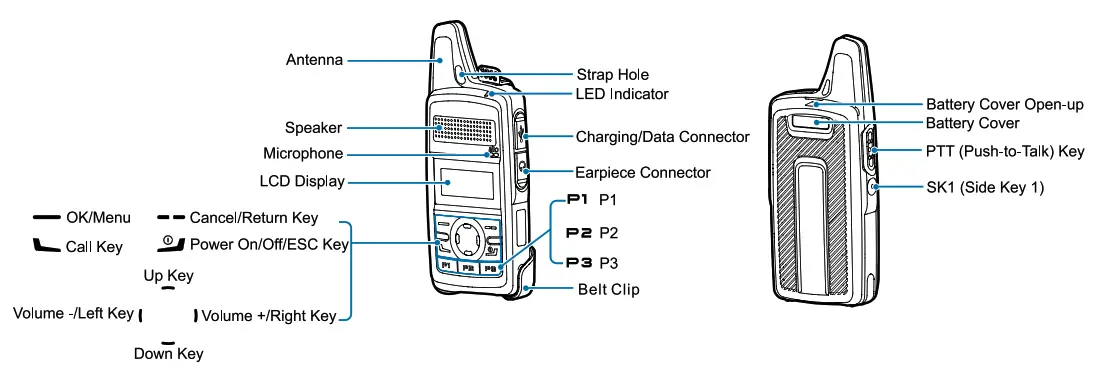
Product Controls
Product Overview
Programmable Keys
For enhanced convenience, you may request your dealer to program the SK1, P1, P2 and P3 as shortcuts to certain feature.
Before Use
Assembling the Radio
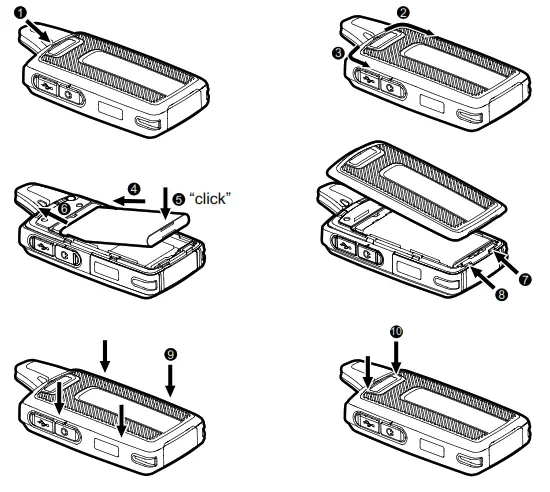
- Attaching the Battery
To attach the battery, perform the following steps. Turn off the radio before removing the battery.
 NOTE
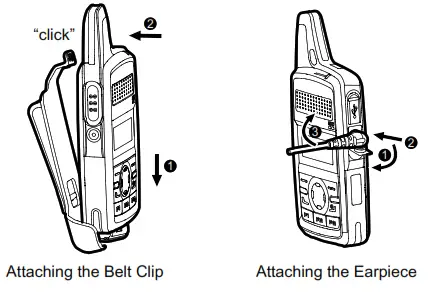
NOTE - Attaching the Earpiece
1. Open the connector cover as ① shown.
2. Align the index of the earpiece with that of the radio and connect the earpiece to the radio as ② shown.
3. Turn the earpiece clockwise as ③ shown to fasten it.
3. Attaching the Belt Clip
To attach the belt clip, perform the following steps.
 Turn off the radio before removing the battery.
 |  |
 NOTE
NOTE
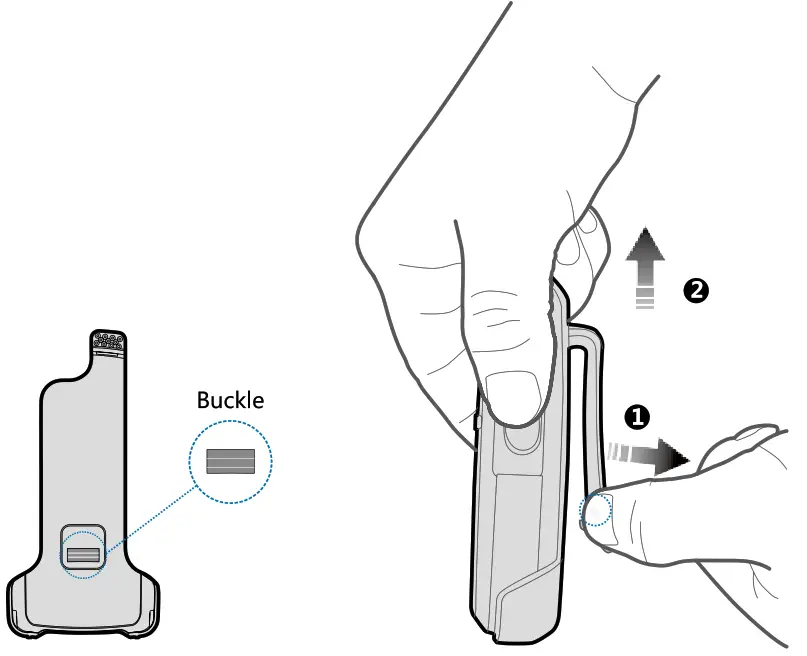
After the belt clip is assembled to the radio, you can wear the radio to a certain fixture (such as a belt). The belt clip is designed with a buckle to ensure the fixing performance. To take out the belt clip, press and hold the buckle in the direction as arrow ① shows and lift up the belt clip in the direction as arrow ② shows. See the figure above.
Charging the Battery CAUTION
- Make sure the radio is powered off before charging. Read the Safety Information Booklet in advance to get necessary safety information.
- To achieve optimal battery performance, please charge the battery for at least 5 hours before initial use.
Using the Power Adapter (Standard)
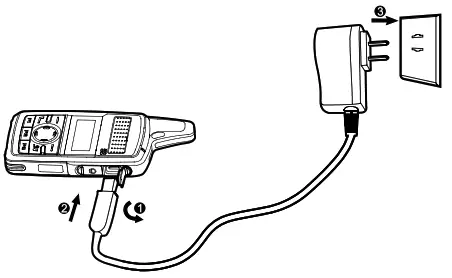
Please use the power adapter specified by the Company to charge the radio (with battery attached). Charging Diagram is listed below.
Charging Indication:
Charging Status Indication on the radio
| Radio Status | Icon | Charging Status |
| Power On | Display in a cycle: | Charging |
 | Fully charged | |
| Power Off | Display in a cycle: | Charging |
 | Fully charged |
CAUTION
- Do not detach the battery during charging, otherwise, the radio will display an invalid Fully Charged icon
 .
. - Upon being charged after the radio is powered off due to low battery voltage, the radio displays a black screen.
Using the Rapid-rate Charger (Optional)
Please use the rapid-rate charger specified by the Company to charge the battery. Charging Diagram is listed below.
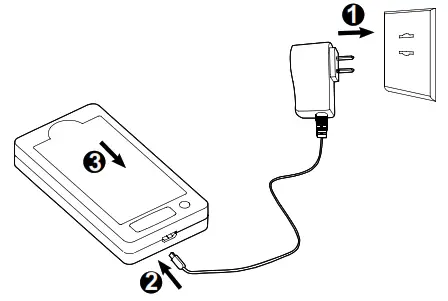
Charging Status Indication on the charger:
| LED Indication | Charging Status |
| The LED flashes red slowly | Standby (no load) |
| The LED indicator glows red | Charging |
| The LED Indicator glows green | Fully charged |
| The LED flashes red rapidly | Charging failure |
Status Indication
LCD Icon
| con Name | Icon | Radio Status |
| Battery Power Icon |  | More bars indicate more battery power. |
| TX Power Icon |  | Low power for the current channel. |
 | High power for the current channel. | |
| Accessory Icon |  | An accessory is connected |
| Operation Mode Icon | DM | Direct Mode Operation: Under this mode, radios can communicate with each other directly. |
| RM | Repeater Mode Operation: Under this mode, radios communicate with each other via a repeater. | |
| Monitor Icon |  | The Monitor feature is enabled. |
| Scan Icon |  | The radio is scanning. |
 | The radio stays on a non-priority channel. | |
 | The radio stays on Priority Channel 1. | |
 | The radio stays on Priority Channel 2. | |
| Missed Call Icon |  | A call is missed. |
| Message Icon |  | Unread message(s). |
 | Inbox is full. |
| RSSI Icon |  | No signal. |
 | More bars indicate better signal strength. | |
| Speaker Icon |  | The speaker is unmuted. |
| Call/Contact Icon |  | ● Indicates Private Call during a call. ● Indicates Private Contact in the contact list. |
 | ● Indicates Group Call during a call. ● Indicates Group Contact in the contact list. | |
 | ● Indicates All Call during a call. ● Indicates All Call Contact in the contact list. |
LED Indicato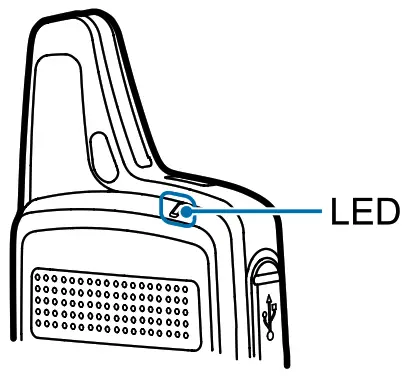
| LED Indication | Radio Status | |
 | The LED indicator flashes green. | Emergency. |
| The LED indicator glows green. | Powering on. | |
| The LED indicator glows red. | Receiving. | |
| The LED indicator flashes orange slowly. | Transmitting. | |
| The LED indicator flashes orange rapidly. | Scanning. | |
| The LED indicator glows orange. | During a call, you can hold down the PTT key to talk to the other party before the call hang time expires. |
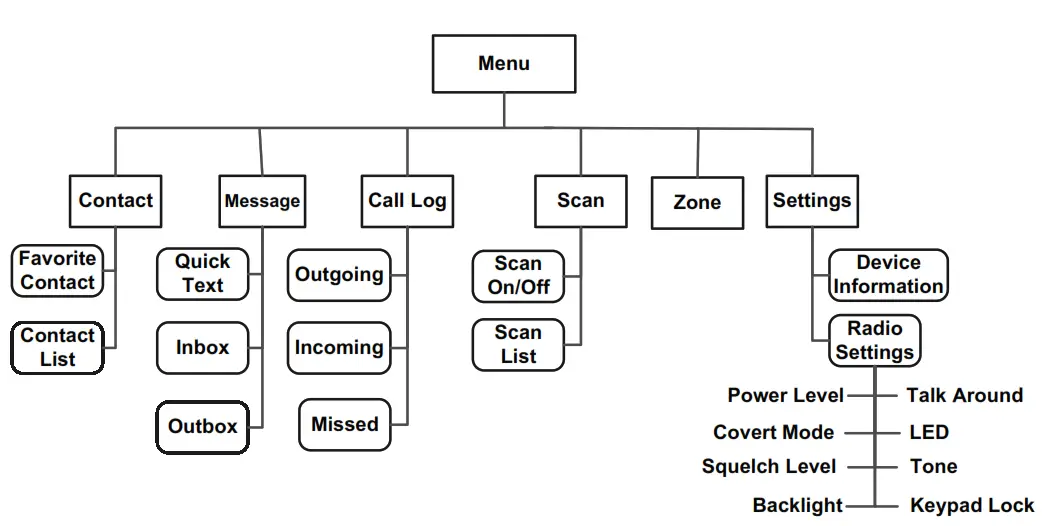
The following menu list shows all the menus of the radio. You can customize the menu item in the radio via your dealer.
To select and confirm the options shown in the menu, press the OK/ Menu key and then press the Up or Down key to select your needed option, finally press the OK/Menu key. This manual only describes the path to the menus, for example, to access the contact list, go to “Contact -> Contact List”.
The radio supports menu reset function .When you do not operate the menu for a preset time period configured by the dealer, the radio will automatically return to the home screen. You may request the dealer to change the auto reset time or disable the feature.
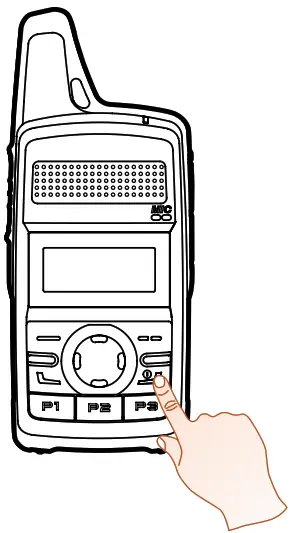
Basic Operation
Powering On/Off
Long press the Power On/Off/ESC key
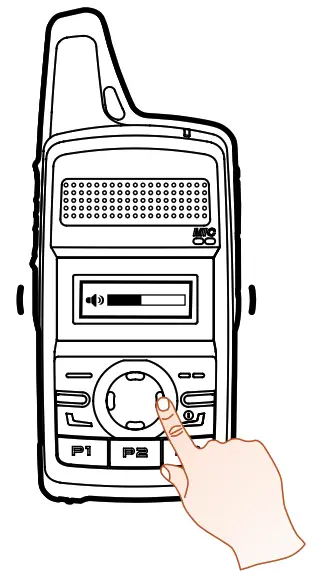
Adjusting the Volume
Selecting a Zone
You can include a group of channels with the same property into a zone for convenient management. The radio supports 16 zones, each of which consists of up to 16 channels. You can select a zone through any of the following ways:
- Via the menu: Go to “Menu -> Zone”, press the Up or Down key to select an appropriate zone, and then press the OK/Menu key to confirm it.
- Via Programmable Keys: You can toggle to the appropriate zone by pressing the programmed Zone Up or Zone Down key preset by your dealer.
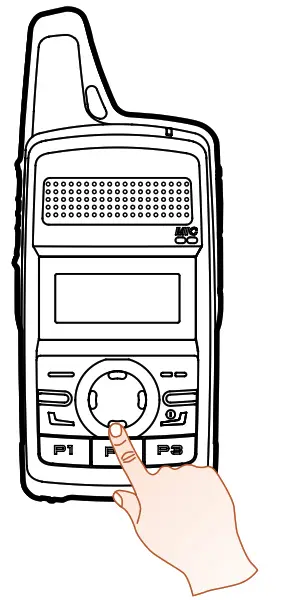
Selecting a Channel
Locking and Unlocking the Keypad
When the keypad is not in use, you can lock the keypad to avoid mishandling. You can lock/unlock the keypad through any of the following methods:
- Key Combination: press the OK/Menu key and P1 to lock the keypad; press any key (other than PTT, SK1, Volume -/Left key, Volume +/ Right key and Power On/Off/ESC key) and P1 to unlock it.
- Programmable Keys: Press the programmed Keypad Lock key preset by your dealer.
- Via the menu: Go to “Settings -> Radio Settings -> Keypad Lock” to enable or disable the feature.
» Enable: The keypad will be locked if there is no radio operation within the preset time.
» Disable: The keypad will not be locked automatically. But you can lock/unlock the keypad via methods mentioned above.
Call Services
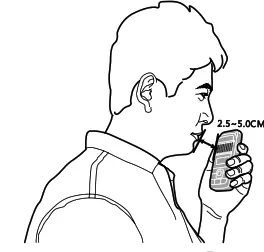
After the radio is powered on, you can make and receive calls. To ensure
optimal volume of the receiving radio, keep the microphone about 2.5 to
5 centimeters away from your mouth when transmitting.
- Private call: It is a voice call between individual user and another individual user.
- Group call: It is a voice call between one individual user and a predefined group of users. All parties in the group can communicate with each other.
- All call: It is a one-way voice call from any user to all users on a channel.
Calling on Digital Channel
You can initiate a private call, group call or all call (programmed by your dealer) through the same operations on digital channel.
Here we take the private call as example to illustrate the call process:
Preset contact
- Radio A and Radio B select the same digital channel.
You may ask your dealer to preset a regular private call/group call/all call contact for each digital channel. - Radio A holds down the PTT key to initiate a call.
- By holding down the PTT key, Radio A can talk to the microphone when the LED indicator glows red and the radio displays the icon
 .
. - Radio B can receive the call without any operation. When receiving, the LED indicator glows green and the radio displays the icon.
 Radio B can hold down the PTT key to talk when the LED indicator glows orange and the radio displays the icon
 .
.
If Radio B does not respond it, the radio will display appropriate indications. - Radio A can receive the call without any operation. When receiving, the LED indicator glows green and the radio displays the icon. Radio A can hold down the PTT key to talk when the LED indicator glows orange and the radio displays the icon.
 .
. Radio B can hold down the PTT key to talk when the LED indicator glows orange and the radio displays the icon
Contact List or Call Log
- Radio A and Radio B select the same digital channel.
- Radio A accesses the contact list via menu “Contact -> Contact List”, “Contact -> Favorite Contact” or “Call Log -> Outgoing/Incoming/ Missed”.
- Radio A presses the Up or Down key to select Radio B.
- Radio A holds down the PTT key to initiate a call.
- By holding down the PTT key, Radio A can talk to the microphone when the LED indicator glows red and the radio displays the icon.
- Radio B can receive the call without any operation. When receiving, the LED indicator glows green and the radio displays the icon. Radio B can hold down the PTT key to talk when the LED indicator glows orange and the radio displays the icon. If Radio B does not respond it, the radio will display appropriate indications.
- Radio A can receive the call without any operation. When receiving, the LED indicator glows green and the radio displays the icon. Radio A can hold down the PTT key to talk when the LED indicator glows orange and the radio displays the icon.
NOTE
The duration of LED indicator glowing orange (Call Hang Time) is preset by your dealer. The call will end if neither party talks before this duration expires.
Calling on Analog Channel (No Signaling)
On the analog channel without signaling, the calling operations are the same as that on the digital channel. The difference is that the called parties are all the users on the channel, rather than the preset contact for the channel.
Features and Operations
Home Screen
The feature allows the radio to return to the home screen directly.
To return to the home screen directly, press .
.
Contact
You can manage the contacts via the “Contact” menu.
Contact List
The Contact List is used to save the Call Alias, Call Type and Call ID of Private Call/Group Call/All Call contacts which is preset by the dealer.
You can access the “Contact List” menu via the ‘Contact’ menu or by pressing or the programmed Contact List key.
In the “Contact List” menu, you can check the detailed contact information (such as Call ID).
Favorite Contact
You can add or delete a contact in the “Favorite Contact” menu.
Message
You can send the Quick Text message directly. In the inbox, you can reply, forward or delete the text message, and in the outbox you can also resend, forward or delete the message.
Operation: Press the OK/Menu key and select the “Message” menu.
Quick Text
The radio supports a maximum of 10 Quick Text messages programmed by your dealer. You can select a Quick Text message and send it directly.
Inbox
The radio saves the received messages into the Inbox and gives every
message a corresponding icon to indicate its status.
 : Read message
 : Unread message
 : Read message
The inbox can save up to 10 received messages. When the Inbox is full, the icon will appear on the LCD, and the earliest message will be overwritten by the latest one automatically.
Outbox
The radio saves the successfully sent messages into the Outbox.
The outbox can save up to 10 sent messages. When the Outbox is full, the earliest message will be overwritten by the latest one automatically.
Call Log
The radio keeps track of all recent outgoing, incoming and missed private calls only.
It can store up to 10 call logs. When the Call Log is full, the earliest call log will be overwritten by the latest one automatically.
Operation: To access this menu, press the OK/Menu key and select the “Call Log” menu; or press the programmed Call Log key directly.
In the call log list, you can select a call log and hold down the PTT key to initiate a call or delete it. To delete all the call logs, go to “Call Log -> Outgoing/Incoming/Missed -> Delete All”.
Scan
The Scan feature allows you to listen to communication activities on other channels so that you can keep a close track of your team members. You can enable and disable the Scan feature, select and view the scan list via the following operations:
Operation: To enable the Scan feature, go to “Menu -> Scan -> Scan On/Off” and select “On”. To view or select a scan list, go to “Menu -> Scan -> Scan List”.
In the home screen, you can press the programmed Scan key to enable and disable the scan feature. The radio will start scanning automatically, when you select a channel with the Auto Scan feature enabled (programmed by your dealer).
After the feature is enabled, your radio will scan all the channels in the scan list set for the channel on which scanning starts. The scanning process is as follows:
- During scanning, you can see the icon on the LCD, and the LED indicator flashes orange slowly.
- When activities are detected on a channel, the radio will stay on the channel to receive current activities, and the LED indicator will glow green.
If your radio stays on a non-priority channel, you can see the icon on the LCD. If your radio is on Priority Channel 1 or Priority Channel 2, you can see the icon
  or
or on the LCD accordingly.
 - If you want to continue listening to the activities on the channel, press the programmed Monitor or Squelch Off Momentary key during scan stay
 .
. - To stop scanning, go to “Menu -> Scan -> Scan On/Off” and select “Off”, or press the programmed Scan key again.
NOTE
The radio cannot scan analog channel and digital channel at the same time.
Radio Settings
You can optimize performance of your radio via the following configuration according to your actual needs and preferences. Operation: Go to “Settings -> Radio Settings” to configure the corresponding features.
Talk Around
You can continue to communicate in DMO by pressing the programmed Talk Around key when your repeater malfunctions, or when your radio is out of the repeater’s coverage but still within the coverage of the other radio.
You can enable and disable this feature via the “Settings” menu or by pressing the programmed Talk Around key.
Power Level
You can set the TX power level to high or low. High power can extend the signal coverage, enabling you to communicate with farther radios.
Generally, we recommend you to adopt low power for battery saving. However, if you cannot communicate with radios located at a distant place with low power, please select high power.
Besides the menu, you can also toggle the power level by pressing the programmed Adjust Power Level key in the home screen. On the LCD, high power is indicated by and low power is indicated by.
Squelch
You can adjust the squelch threshold required for the radio to be unmuted.
Generally, the higher squelch level requires stronger signal. If the squelch level is set to “Open”, the speaker will keep unmuted irrespective of the decoding conditions.
Besides the menu, you can switch the level among “Tight”, “Normal” and “Open” by pressing the programmed Adjust Squelch Level key.
Backlight
You can set the backlight. Activating the backlight can illuminate the LCD and the keypad, so as to facilitate your operation under dim light conditions. The menu has the following options:
- Off: the backlight will remain off.
- On: the backlight will remain on.
- Timed: If no operation or signal transmission/receipt occurs within the time preset by the dealer, the backlight will be turned off automatically.
LED Indicator
You can set whether to activate the LED indicator. You can set the LED indication for specific features such as TX, RX, Scan, Low Battery, and the like.
Tone
You can turn the tone on and off. If it is set to Silent, the radio will give no tones at all.
Covert Mode
When Covert Mode is enabled, the radio will disable any visible or audible indications set by your dealer, such as the LED indicator, vibration and tone. This feature is mainly used in special missions. NOTE
If an audio accessory is connected to the radio, it will output the tone when the Covert Mode is enabled.
Besides the menu, you can also enable or disable this feature by pressing the programmed Covert Mode key.
Device Information
You can view basic information of the radio, including Radio ID, Radio Alias, Serial Number, Model Name, Frequency Range, Firmware Version, Radio Data Version, Boot Loader Version, etc. Operation: Go to “Settings -> Device Info”.
One Touch Call
This feature allows you to make calls or send messages to the predefined contact easily. By pressing the programmed One Touch Call key, you can make the following services:
- To initiate group calls or send messages to the group call contact.
- To initiate private calls or send messages to the private contact.
Operation
| Service | Operation |
| To initiate private calls or group | Press the programmed One Touch Call |
| calls on the digital channel. | key and then hold down the PTT key. |
| To send messages. | Press the programmed One Touch Call key. |
Time-Out-Timer
The feature is to prevent you from occupying a channel for an extended period. If the TX time (60s preset by dealer) expires, the radio will automatically terminate transmission and keep beeping. To stop beeping, please release the PTT key. You must wait for a certain time period which you can configure via the “TOT Re-key Time” menu before you can press and hold down the PTT key to transmit again.
Transmission Management
This feature can prevent your radio from interfering with other transmitting radios on the same channel. If you hold down the PTT key while the channel is in use, your radio will keep beeping, alerting you to transmission prohibition. It can be programmed via the CPS.
TX Admit on digital channel includes the followings:
- Always Allow: You can hold down the PTT key to transmit all the time, no matter whether the channel is being interfered or not.
- Channel Free: The radio is allowed to transmit when the channel is not being interfered.
- Color Code Free: The radio can transmit only when the channel is not being interfered or the color code is not matched. TX Admit on analog channel includes the followings:
- Always Allow: You can hold down the PTT key to transmit all the time, no matter whether the channel is being interfered or not.
- Channel Free: The radio is allowed to transmit when the channel is not being interfered.
- CTCSS/CDCSS Match: The radio is allowed to transmit when CTCSS/ CDCSS is matched.
- CTCSS/CDCSS Mismatch: The radio is allowed to transmit when CTCSS/CDCSS is mismatched.
Monitor
With the Monitor feature enabled, you can adjust the match conditions for signal receiving.
Operation
- Press the programmed Monitor key to enable the feature, then the radio displays the icon
 ; press this key again to disable the feature.
 - Hold down the programmed Monitor Momentary key to enable the feature, then the radio displays the icon ; release this key to disable the feature.
Squelch Off Momentary
With the Squelch Off Momentary feature enabled, your radio’s speaker will keep unmuted no matter whether carrier is present.
Operation: Hold down the programmed Squelch Off Momentary key to enable this feature, then the radio displays the icon and sounds background noise. To disable the feature, release this key.
Troubleshooting
If the solutions below cannot fix the problems, or there are other questions, please contact us or your local dealer for more technical support.
| Phenomena | Analysis | Solution |
| Power-on Failure. | The battery may be improperly installed. | Remove the battery and then attach it. |
| The battery power may be used up. | Recharge or replace the battery. | |
| The battery may be poorly connected due todirtied or damaged battery contacts. | Clean the battery contacts. If the problem cannot be solved, contact your dealer or authorized service center for inspection and repair. | |
| During receiving, the voice is weak, discontinuous or totally inactive. | The battery voltage may be low. | Recharge or replace the battery. |
| The volume level may be low. | Increase the volume by pressing the Volume +/Right key. | |
| The speaker may be blocked or damaged. | Clean the surface of the speaker. If the problem cannot be solved, contact your dealer or authorized service center for inspection and repair. | |
| Unable to communicate with other members. | The frequency or signaling may not match that of other members. | Set your TX/RX frequency and signaling to the same as that of other members. |
| The channel type (digital/analog) may be set inconsistently. | Make sure all members are on the same digital/analog channel. | |
| You may be too far away from the group members. | Move towards other members. | |
| Irrelevant communication or noise is heard on the channel. | You may be interrupted by radios using the same frequency. | Change the frequency, or adjust the squelch level. |
| The radio may be set with no signaling. | Set signaling for all member radios to avoid interference at the same frequency. And change the signaling settings for all portable radios at the same time. | |
| The noise is too loud. | You may be too far away from other members. | Move towards other members. |
| You may locate in an unfavorable position. For example, your communication may be blocked by high buildings or frustrated in the underground areas. | Move to an open and flat area, and restart the radio to try again. | |
| You may suffer from external disturbance (such as electromagnetic interference). | Stay away from equipment that may cause interference. |
Care and Cleaning
To guarantee optimal performance as well as a long service life of the product, please follow the tips below.
Product Care
 | Do not pierce or scrape the product. |
 | Keep the product far away from substances that can corrode the circuit. |
 | Do not hold the product by its antenna directly. |
 | Do not hold the product by its earpiece cable directly. |
 | Attach the accessory connector cover when the accessory is not in use. |
Product Cleaning CAUTION
Turn off the product and remove the battery before cleaning.
- Clean up the dust and fine particles on the product surface and charging piece with a clean and dry lint-free cloth or a brush regularly.
- Use neutral cleanser and a non-woven fabric to clean the keys and front case after long-time use. Do not use chemical preparations such as stain removers, alcohol, sprays or oil preparations, so as to avoid surface case damage.
- Make sure the product is completely dry before use.
Optional Accessories
The following item is the main optional accessories for the radio. For more information of other accessories, please consult your local dealer. CAUTION
Use the accessories specified by the Company only. If not, The Company shall not be liable for any loss or damage arising out of use of unauthorized accessories.
 | Power Supply: CH10L20 Rapid-Rate Charger (for LiIon Battery) |
 | Audio: EHS16 C-Earset with in-line MIC |
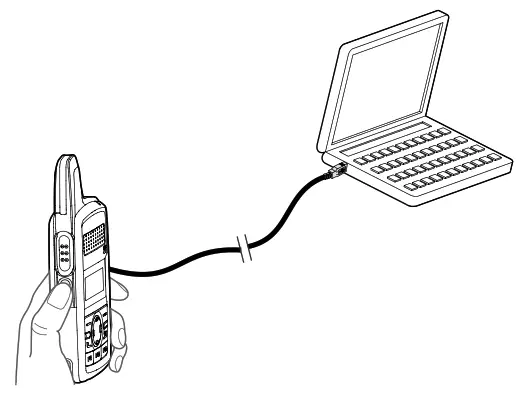
 | Cable: PC69 Data Cable (COM Port) |
is the trademark or registered trademark of Hytera Communications Corporation Limited.
© 2018 Hytera Communications Corporation Limited.All Rights Reserved.
Address: Hytera Tower,Hi-Tech Industrial Park North,9108#Beihuan Road,
Nanshan District,shenzhen,People’s Republic of China
Postcode:518057
http://www.hytera.com
 Hytera | Official Site - Trusted Two Way Radio and Critical Communications Solution