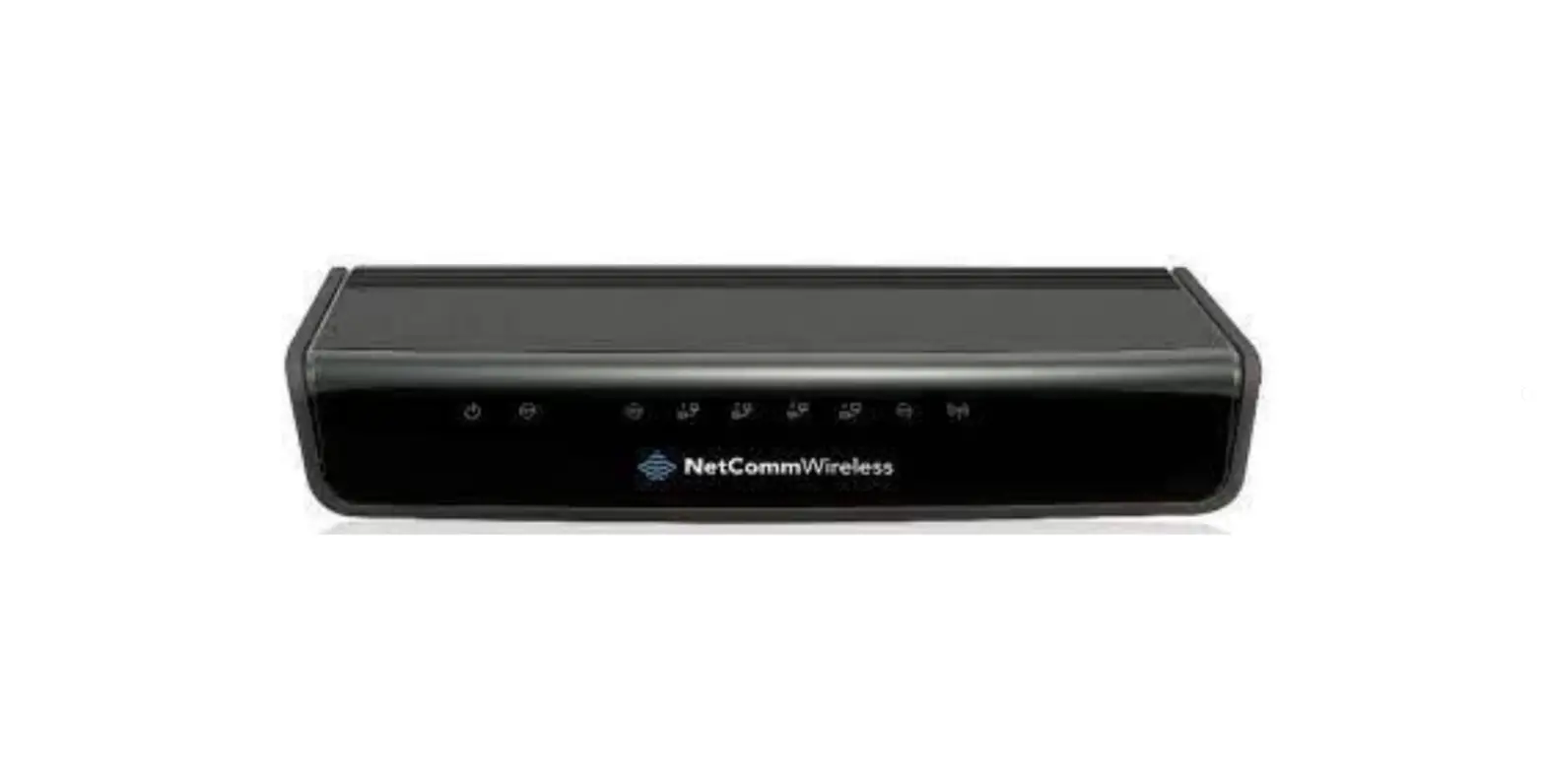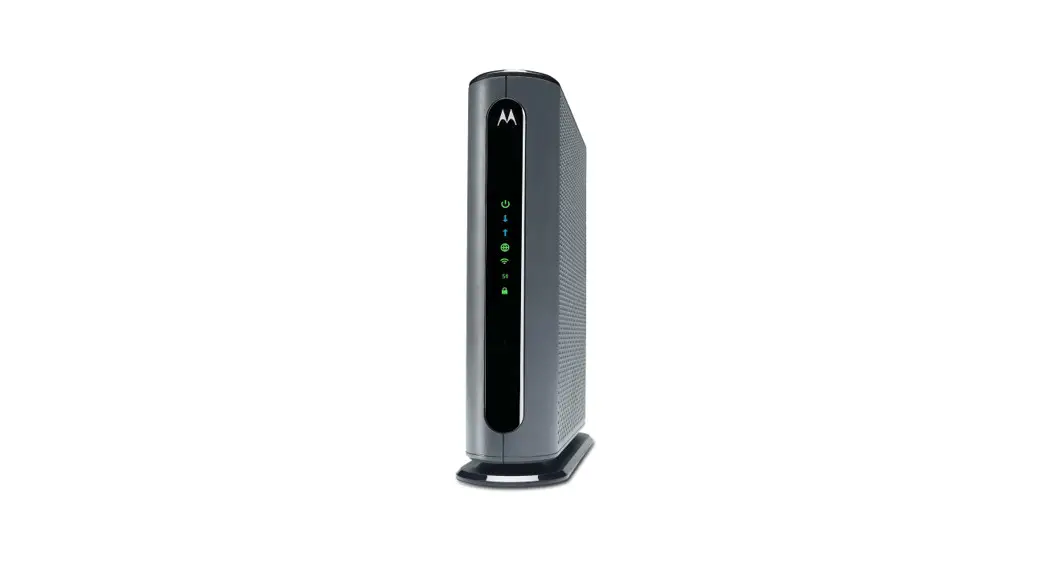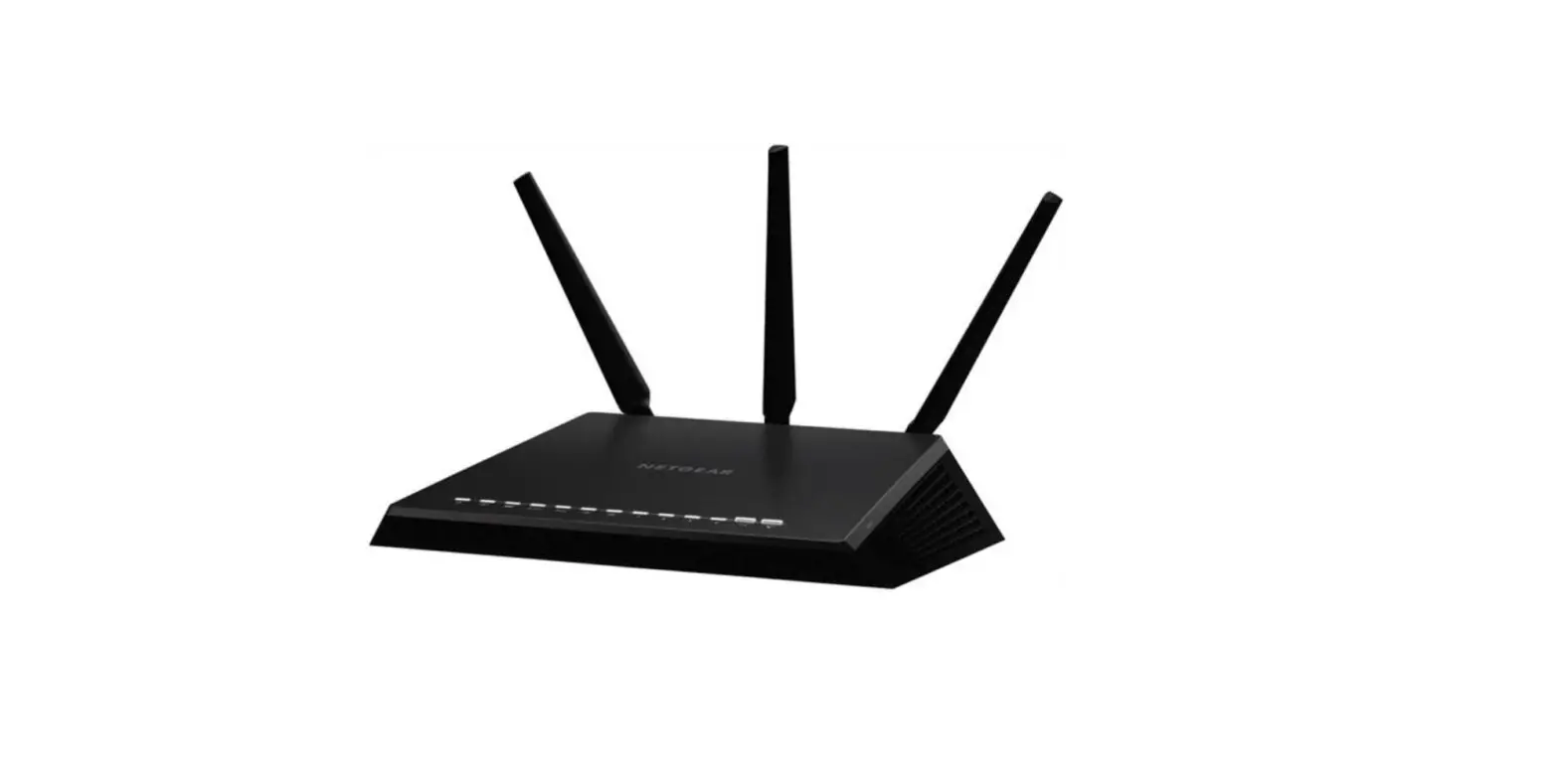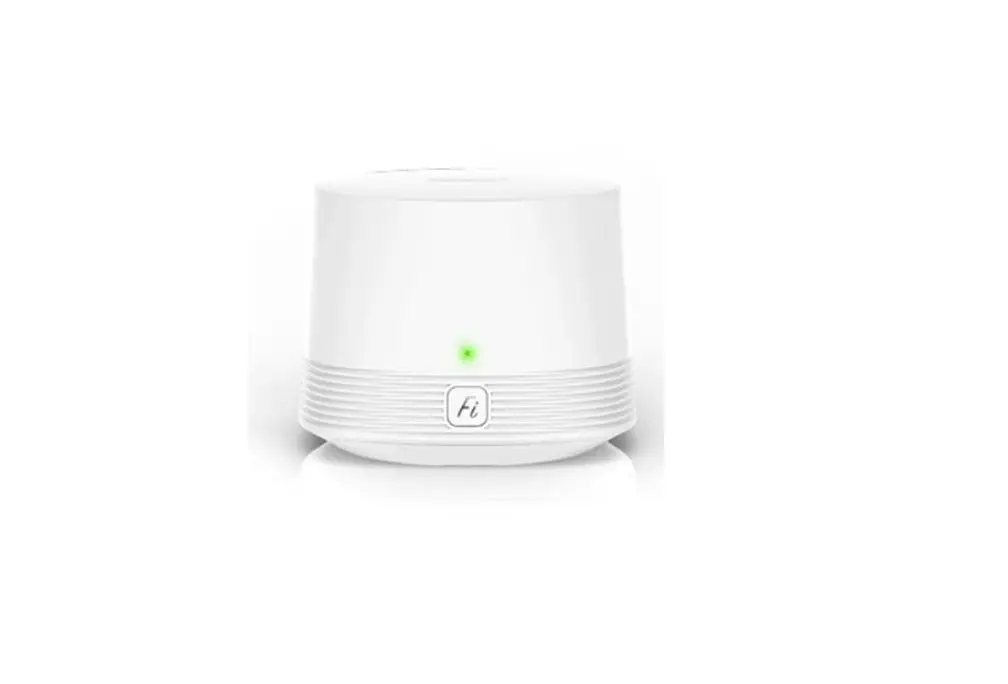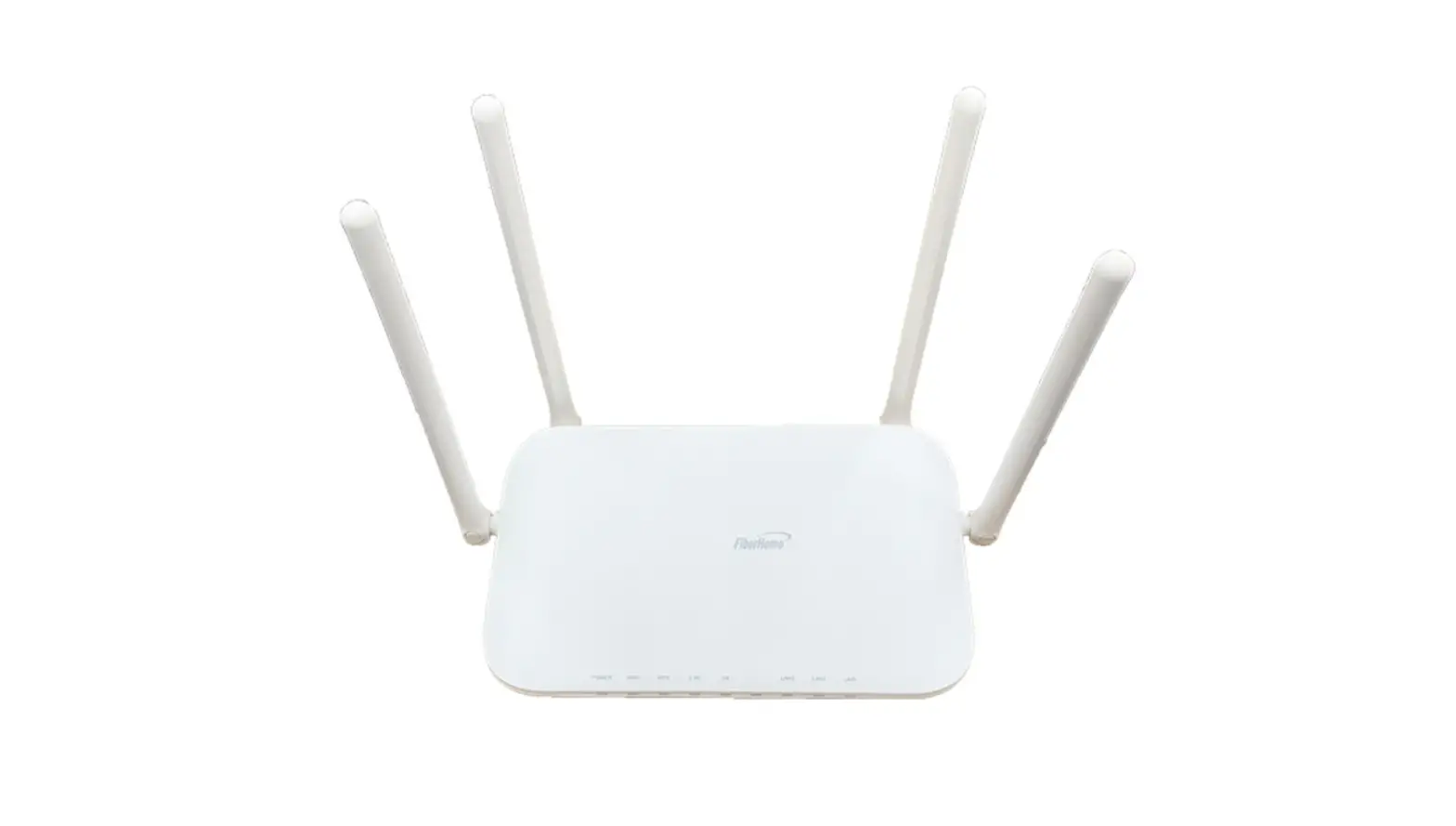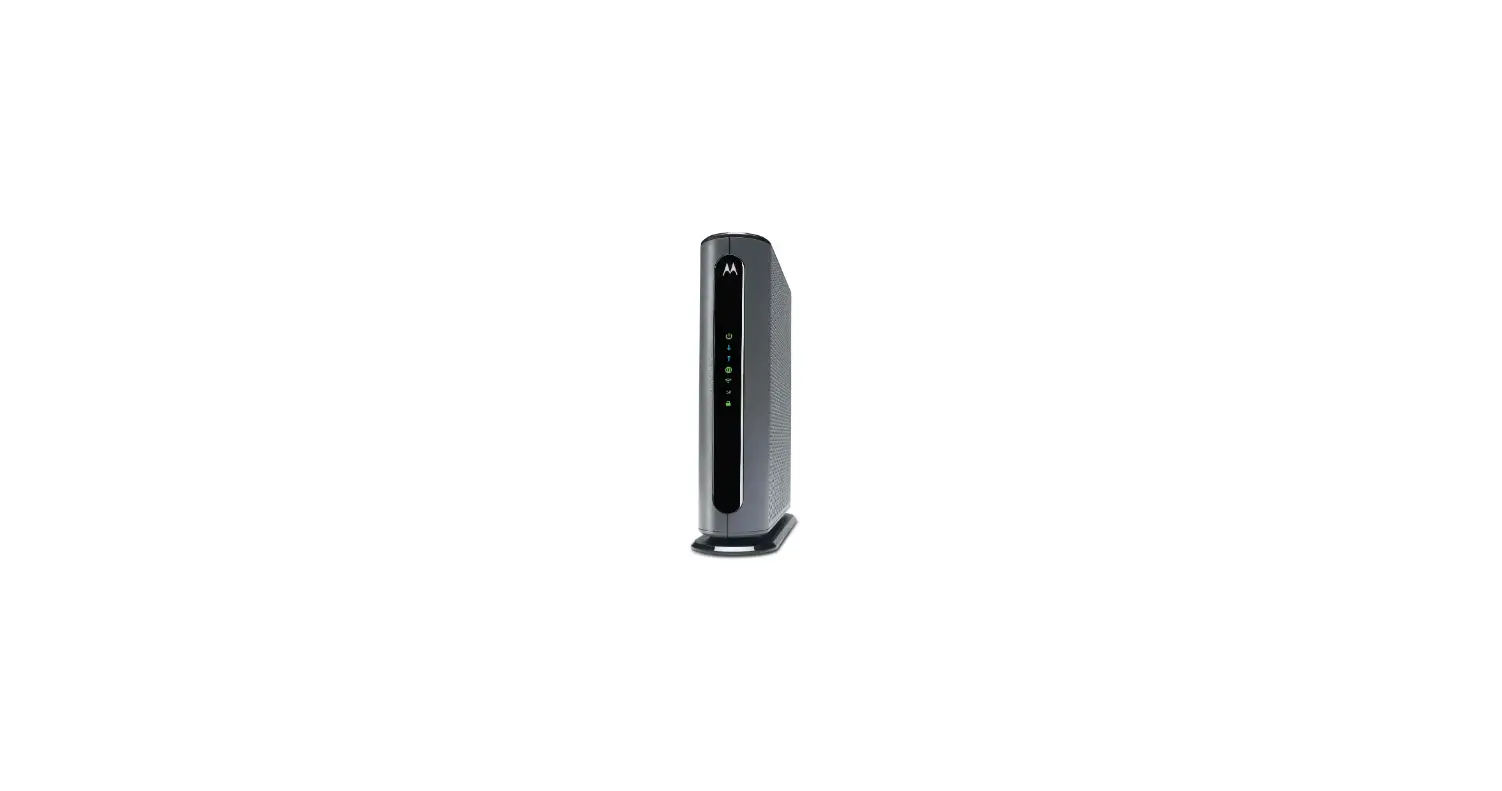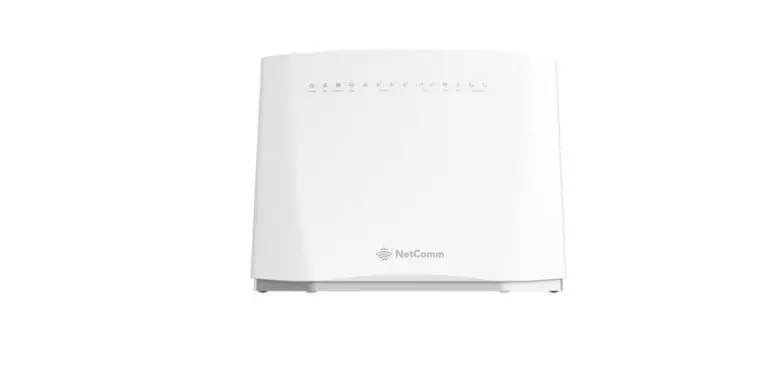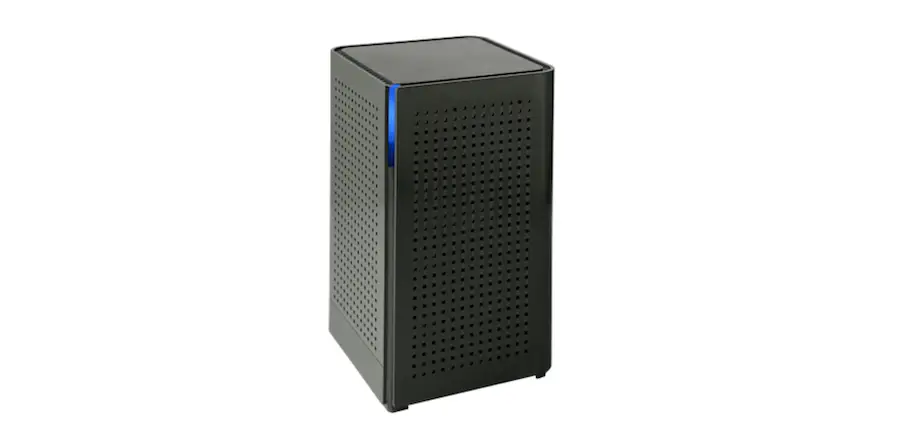

CUMBERLAND CONNECT GM1020 GigaMesh Router
Instruction
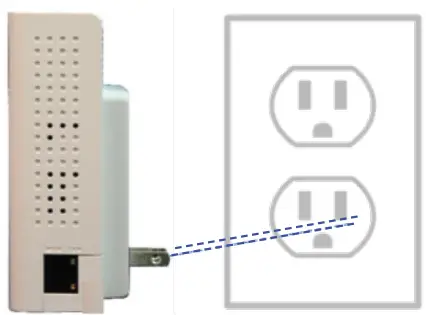
Connect GigaMesh to a power outlet.
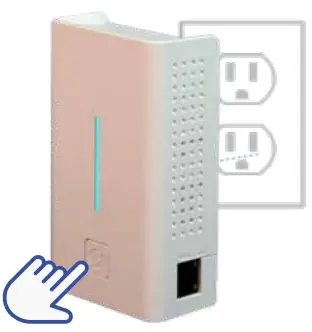
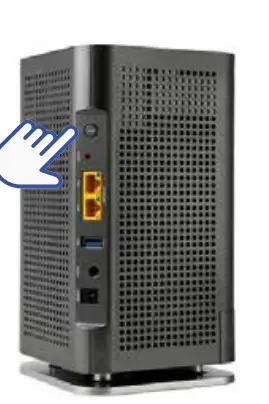
When the LED is flashing red, you can pair the GigaMesh with the GigaSpire. Press and hold the WPS buttons on the GigaMesh and then on the GigaSpire for 3 seconds each (less than 30 seconds apart). The LEDs flash green
while attempting to pair.
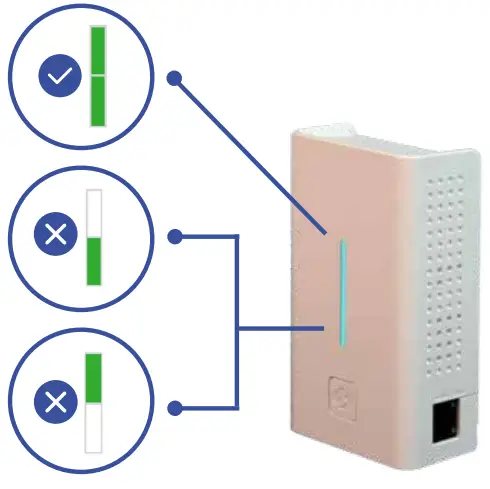
Use the solid green LED indicator (displays for 60 seconds at end of the pairing cycle) to determine the ideal location for the GigaMesh. If necessary, relocate it to a more ideal distance from the GigaSpire and confirm successful pairing after the GigaMesh reboots (repeating steps 2-3 as needed).
Note
Once successful pairing is complete, the GigaSpire and GigaMesh LEDs will both show a solid cyan (light blue) color. It may take several minutes to reach this state.
- GigaMesh location is ideal distance from GigaSpire.
- Move GigaMesh closer to GigaSpire.
- Move GigaMesh farther away from GigaSpire.
If applicable, use the CCFiber SmartIQ app to set up the GigaSpire. See the CCFiber SmartIQ Quick Start Guide for guidance.
Need help?
Contact Technical Support: 1-800-987-2362 or [email protected]