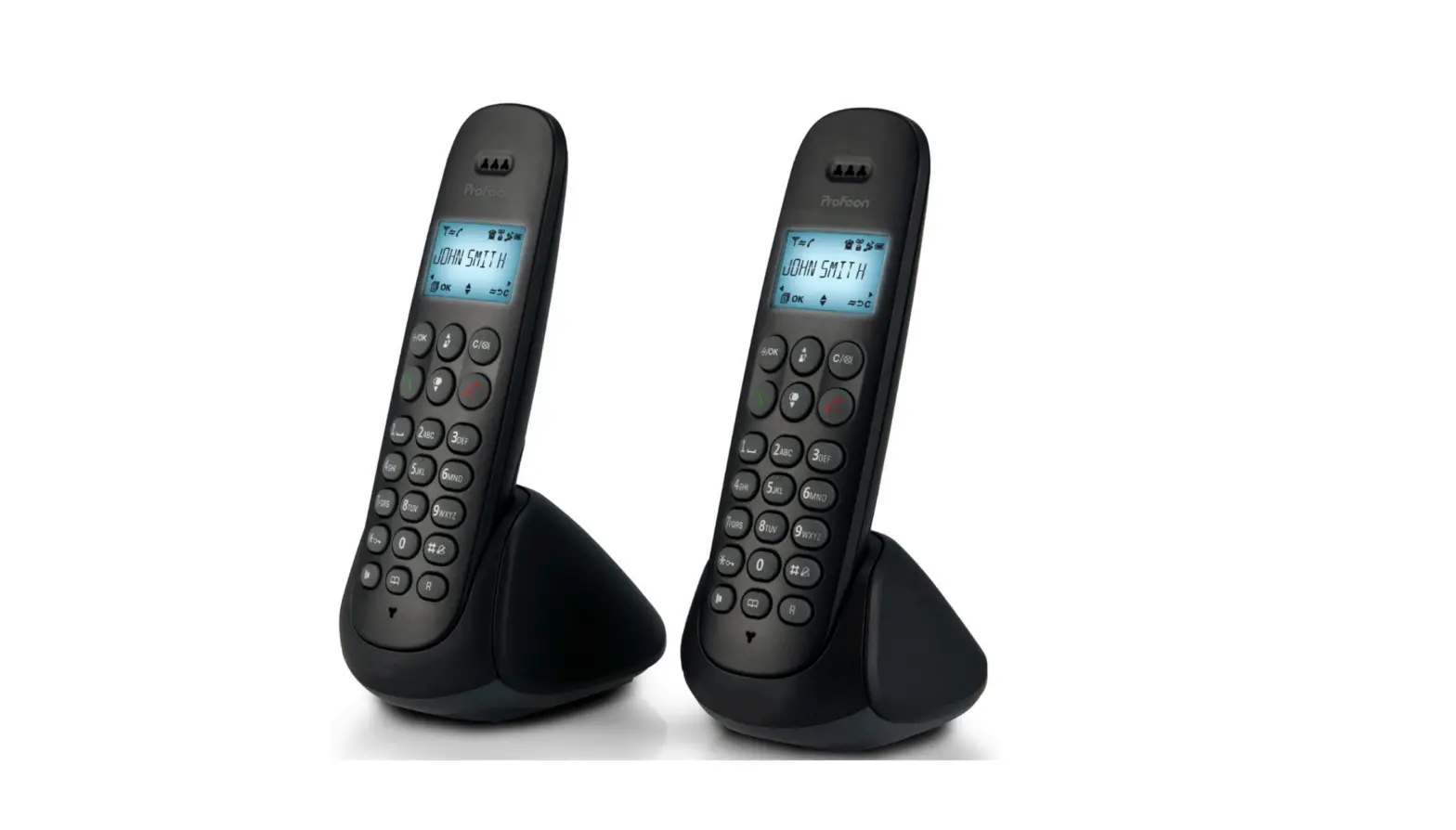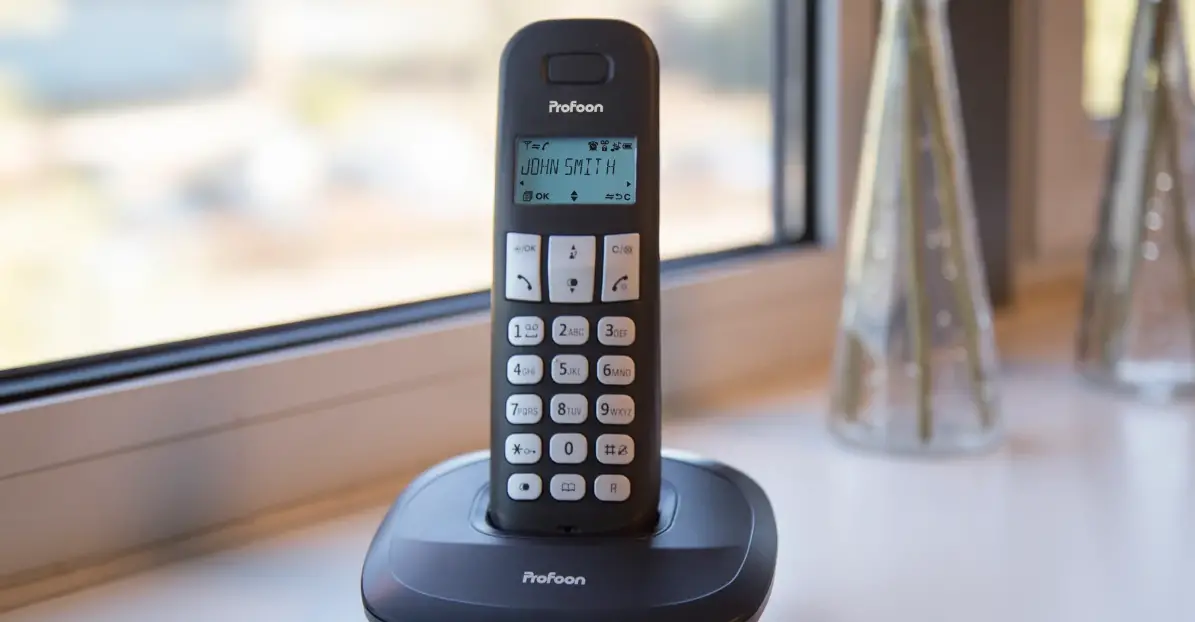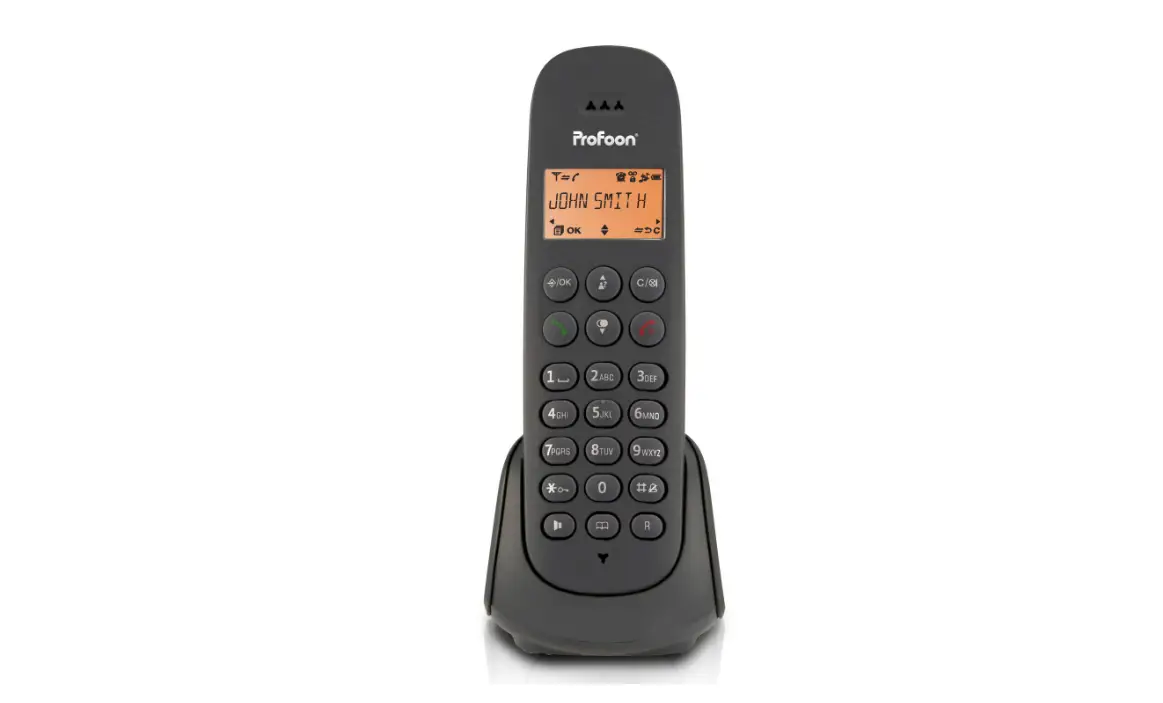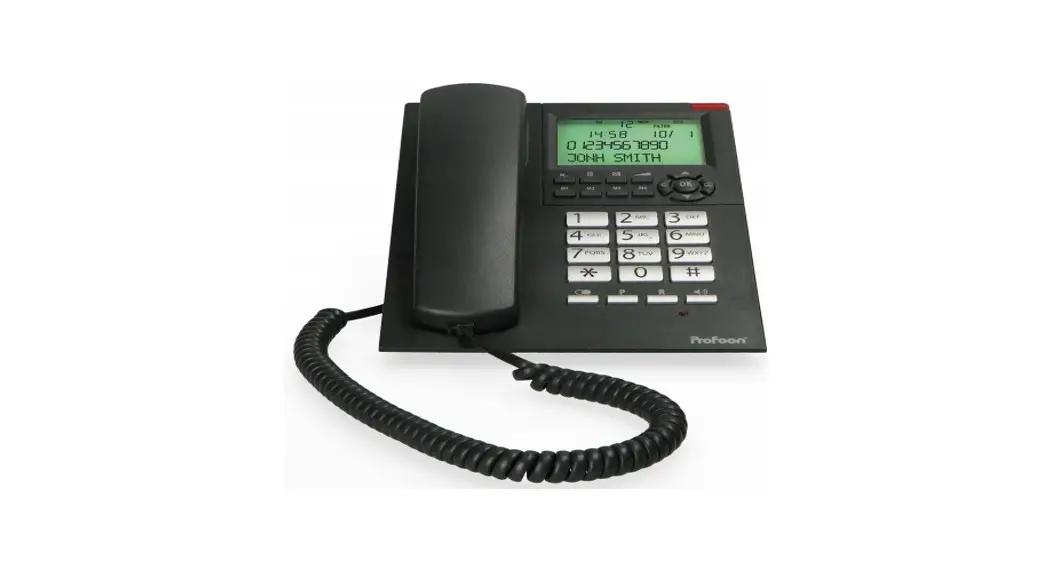
Profoon PDX-1100 Series Home Telephone User Manual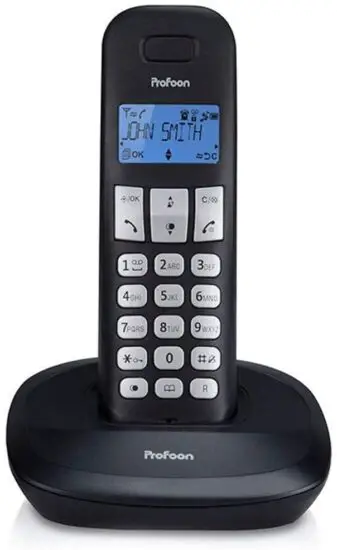
DECLARATION OF CONFORMITY
Hereby, Hesdo declares that the radio equipment type Profoon PDX1100 is in compliance with directive 2014/53/EU. The full text of the EU declaration of conformity is available at the following internet address:
http://DOC.hesdo.com/PDX-1100-DOC.pdf
INSTALLATION
Base station:
- Plug the small connector at the phone cable into the back of the base station (press the connector until you hear a click).
- Plug the phone connector into the phone socket.
- Plug the low voltage connector of the adapter into the backside of the phone, and plug the adapter into a 230 Volt mains socket.
Handset:
- Open the battery compartment of the handset, by sliding the battery cover down and insert the batteries into the battery compartment; at this, pay attention to the polarity (+ and -).
- Slide the battery cover back onto the handset and place the handset on the base station. Leave the handset continuously during 15 hours on the base station, to charge the batteries properly.
Extra handsets and chargers:
If your phone has been delivered with multiple handsets, 2 batteries and a charger with adapter will be included for every handset. Plug the adapter of these chargers in a 230 Volt mains socket, insert the batteries into the handset(s) and place the handset(s) on the charger(s) to charge the batteries.
 ONLY CONNECT THE INCLUDED ADAPTER. CONNECTING OTHER ADAPTERS MAY RESULT IN DANGEROUS SITUATIONS OR MAY CAUSE DAMAGE TO THE ELECTRONICS OF THE PHONE.
INSERT ONLY RECHARGEABLE NiMH (NICKEL METAL HYDRIDE) BATTERIES. THE USE OF NOT RECHARGEABLE BATTERIES MAY CAUSE DANGEROUS SITUATIONS OR EXPLOSION HAZARD.
OPERATION
Answering calls:
- Press the key phone-on to accept a call. See chapter PHONE SETTINGS to accept a call directly by only taking the handset from the base station or the charger.
Making calls:
Block dialing:
- Enter the phone number through the keyboard.
You can delete an incorrect entry with key
Press key 0 for a dial-pause - Press the phone-on key to dial the number
Direct dialing:
- Press the phone-on key and wait for the dial tone.
- Enter the phone number through the keyboard; this number will be dialed directly.
End the call:
- Press the key phone-off to end a call
The end the call, you can also place the handset back on the base station or the charger.
Key lock:
- To enable the key lock, keep the key
 pressed for more than 2 seconds.
 - To disable the key lock, keep the key pressed for more than 2 seconds again.
Handset volume:
- During the call, press the keys
 or
or  , to increase or decrease the volume.
R/Flash:
- Press the key R to give a FLASH pulse. The interruption time the FLASH pulse is adjustable; see for this the chapter PHONE SETTINGS.
Mute (microphone off):
- To disable the microphone, shortly press the key
 during the call.
You can still hear the other party, but they cannot hear you. - To enable the microphone again, shortly press the key again.
Search handset:
- Shortly press the key
 on the base station.
During 60 seconds, a signal will sound from the handset, and the word ‘PAGING’ flashes on the display of the handset. Press the key phone-off to end the signal prematurely.
Call timer:
- During the phone call, the elapsed call duration is displayed on the display.
Quick key bell off:
- To disable the bell of the handset, press key
 for more than 2 seconds.
 - To enable the bell again, press key for more than 2 seconds.
PHONE BOOK MEMORY
Introduction:
Every handset has a phone book memory with a capacity of 50 phone numbers of at most 20 digits. You can program a name of at most 12 characters with each number.
The phone book memory in the handset is connected to the function Caller Identification. When you are called by somebody, whose name and number you have programmed in the memory, the name of this person is also displayed beside the number on the display of your handset. However, for this you need to subscribe to the service Caller Identification.
Programming:
- Press the key
 once and the key
 twice.
 - Enter the name through the keyboard (see the ABC on the dial keys).
You can delete an incorrect input with key - Press the key
- Enter the number through the keyboard.
You can delete an incorrect input with key
You can add a dial pause with key 0 - Press the key
- Select the desired VIP ring tone for this number, using and
- Press the key to store the memory
Dialing:
- Press the key
- Search the desired memory, using keys and .
- Press on the phone key to dial this number.
Changes:
- Press the key
- Search the desired memory, using keys and .
- Press the key
- Search the option [EDIT] with the keys and , press the key
- Use key to delete the old name and enter the new name through the keyboard.
- Press the key .
- Use key to delete the old number and enter the new number through the keyboard.
- Press the key
- Select the desired VIP ring tone for this number with and .
- Press the key to save the corrected memory.
Delete memory selectively:
- Press the key
- Search the desired memory, using keys and .
- Press the key
- Search the option [DELETE] with the keys and .
- Press key to delete this memory.
Delete memory completely:
- Press the key
- Press the key
- Search the option [DELETE ALL] with the keys and .
- Press key twice to delete the memory completely.
Memory status:
You can see how many storage locations you have used of the 50 available:
- Press the key
- Press the key
- Search the option [PB STATUS] with the keys and .
- Press the key , for example, the following appears on the display: 15/50 OCCUPIED (15 of the 50 memories are in use).
- Press the key phone-off thrice to return to the idle mode of the handset.
LAST NUMBER MEMORY
The handset will remember the last 5 numbers dialled with it.
Redialing:
- Press the key , the last number you dialed appears on the display.
- Search the desired number with and .
- Press on the phone key to dial this number.
Copying to the phone book memory:
- Press the key
 .
. - Search the desired number with and .
- Press the key twice
- Enter the name through the keyboard.
- Press the key twice
- Select the desired VIP ring tone for this number with and .
- Press the key to store the memory
Delete last dialed number selectively:
- Press the key .
- Search the desired number with and .
- Press the key
- Select the option [DELETE] with and .
- Press the key to delete this memory
Delete the complete last number memory:
- Press the key .
- Press the key
- Select the option [DELETE ALL] with and .
- Press the key twice, to delete the complete last number memory
Tip: you can also open the last number memory by pressing the key from the idle mode of the handset.
CALLER IDENTIFICATION
Introduction:
If you have the service Caller Identification at your disposal, the number of the calling party is displayed on the display of your handset(s). If your carrier also transmits names, or you have programmed this number including name and the phone book memory of the handset, the name is also displayed on the display. The Caller Identification memory has a capacity of 10 numbers. Attention: when this memory is full, every following incoming call will overwrite the oldest call in the memory.
New calls:
This display indicates whether and how many new calls are stored in the Caller Identification memory that you have not seen yet. As soon as you have viewed the memory, this notification goes off.
View memory and callback:
- Press the key ; the name or the number of the last received call appears on the display.
- Browse through the memory by using and .
When a name is displayed, press the key # to view the number. Press the key and select DETAILS, to view the time and date of the call. - Press the phone key to call back this subscriber.
Copying to the phone book memory:
- Press the key : the name of the number of the last received call appears on the display.
- Search the desired call with and .
- Press the key twice, and enter the name through the keyboard.
- Press they key twice, and select the desired VIP ring tone with and .
- Press the key to store the memory.
- Press the key phone-off to return to the idle mode of the handset.
Delete call selectively:
- Press the key ; the name or the number of the last received call appears on the display.
- Search the desired call with and .
- Press the key and select the option [DELETE] with and .
- Press the key to delete this call.
Delete complete call history:
- Press the key ; the name or the number of the last received call appears on the display.
- Press the key and select the option [DELETE ALL] with and .
- Press the key twice, to delete the complete call history.
Voicemail indication: ( )
)
In case the carrier left a Voicemail message for you, this is shown on the display with an illuminating envelope. This symbol goes off as soon as you have listened to this message.
Attention: this function is only available on the FSK system and when this is supported by the carrier.
MULTIPLE HANDSETS
Introduction:
You can connect (register) up to 5 wireless handsets to the PDX-1100 serie. With multiple registered handsets, you can call each other for free in and around the house and forward calls or even call with three people.
If the phone has been delivered with one handset, u can purchase extra handsets (*), which you shall register first (see the concerning instructions further in this user manual). If the phone has been delivered with multiple handsets, you can make internal calls and forward calls directly.
Pay attention to the fact that these shall be ‘GAP COMPATIBLE’ handsets. GAP means that handsets and base stations of other types and/or brands are interchangeable.
Intercom:
- Press the key
- 2 handsets in use:
In case 2 handsets have been registered with your phone, the other handset will ring immediately. - You can make the intercom call, as soon as the called handset answers.
More than 2 handsets in use:
In case more than 2 handsets have been registered with your phone, you need to enter the number of the desired handset (of press key 9 to call all handsets)
Forwarding/conference:
- During the call with the outside line, press the key twice.
- 2 handsets in use:
In case 2 handsets have been registered with your phone, the other handset will ring immediately. - Forwarding:
As soon as the called handset answers, press the phone-off key; the outside line is now forwarded.
More than 2 handsets in use:
In case more than 2 handsets have been registered with your phone, you need to enter the number of the desired handset (of press key 9 to call all handsets).
Conference:
As soon as the called handset answers, press the key * (star) during 2 seconds; the outside line is now included.