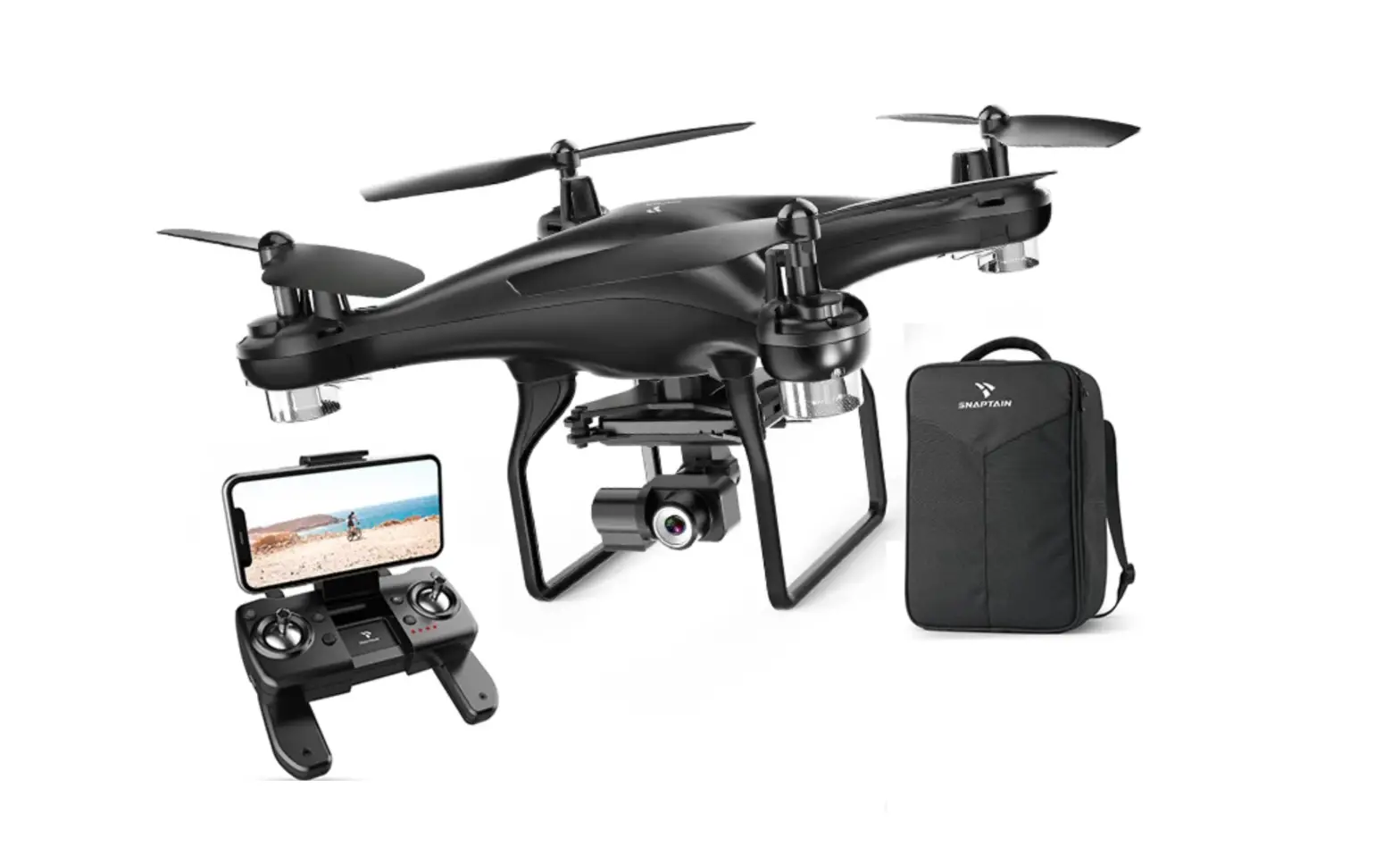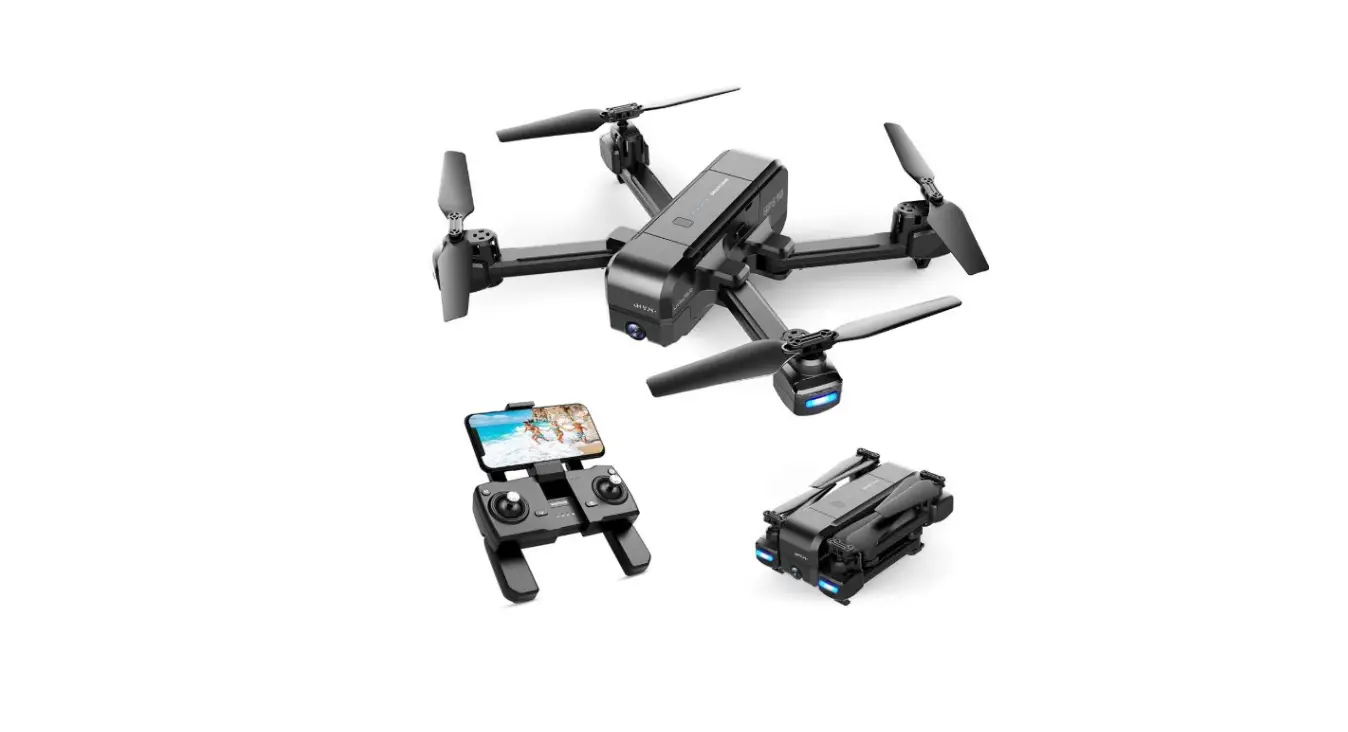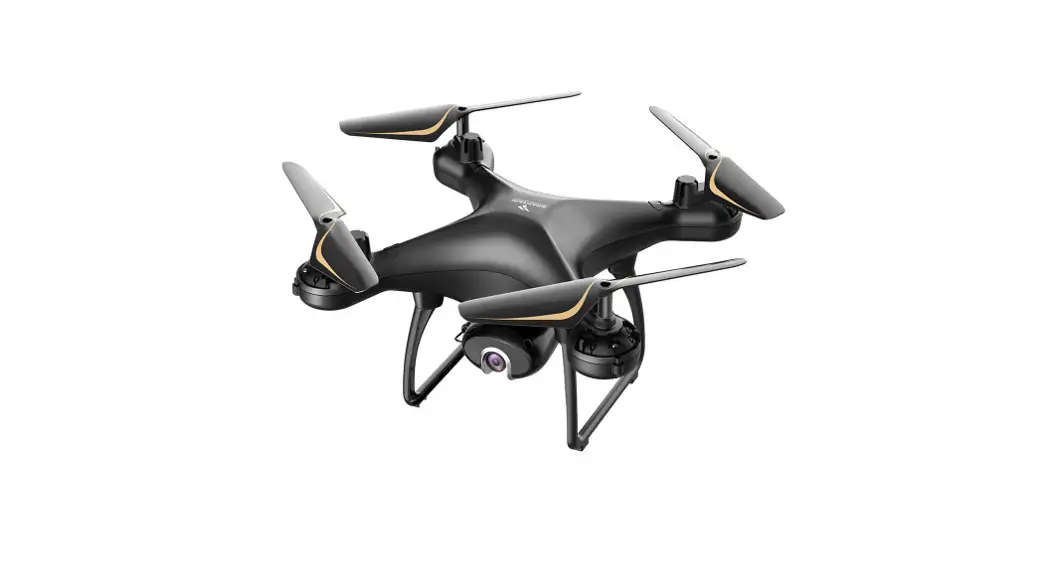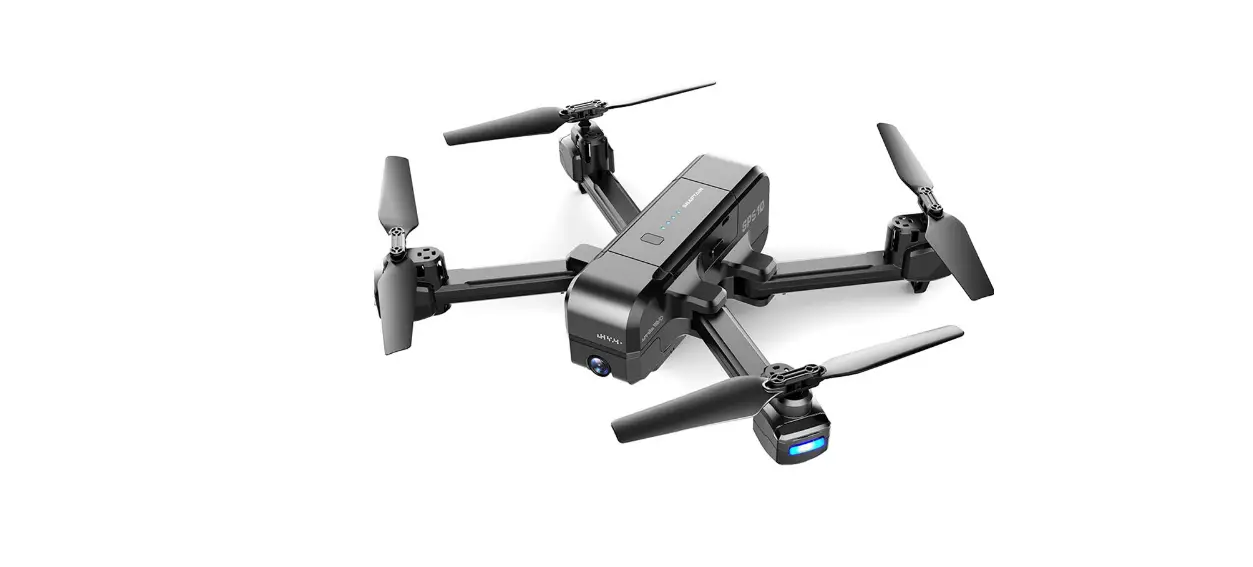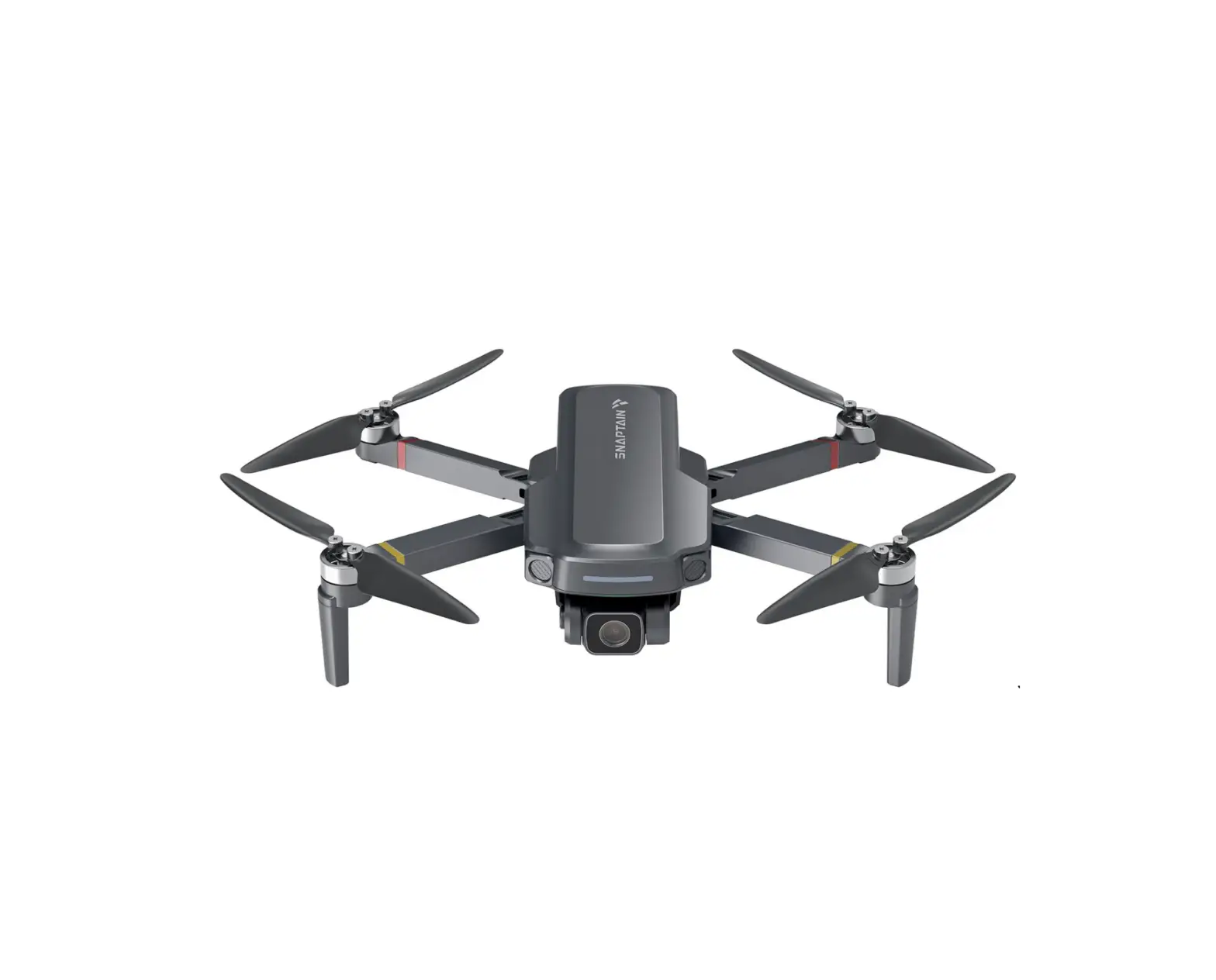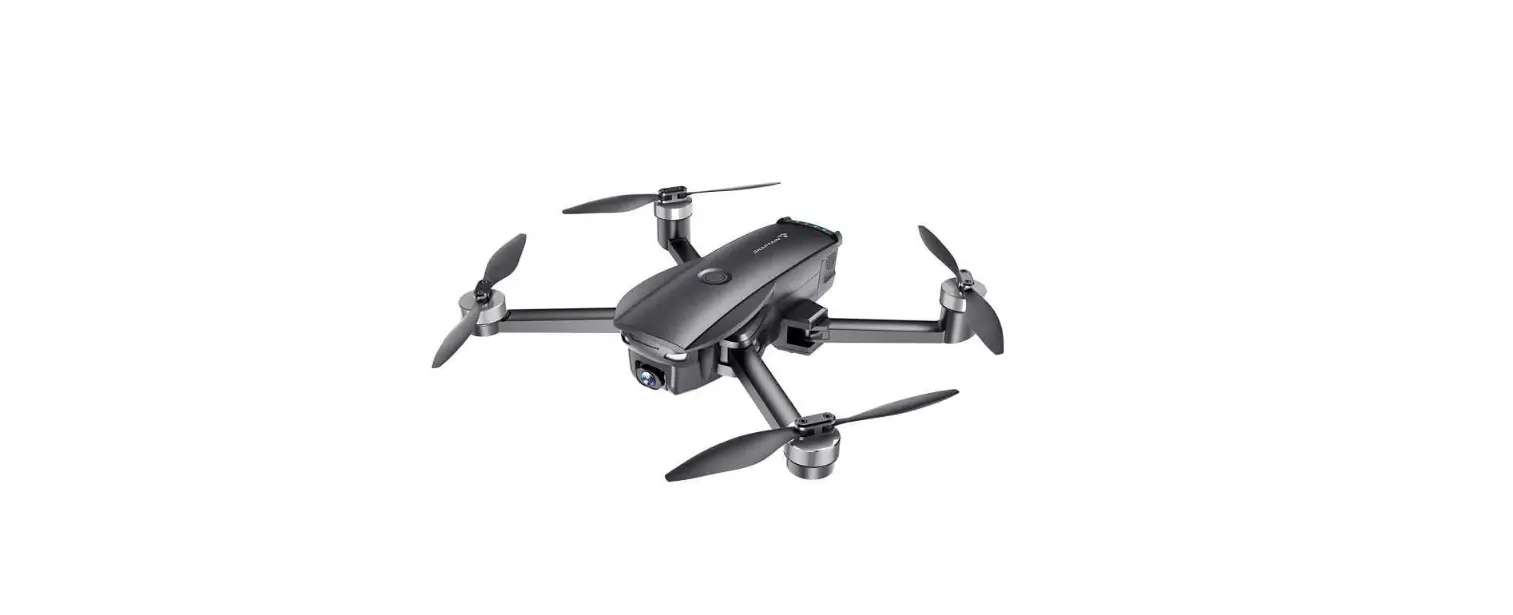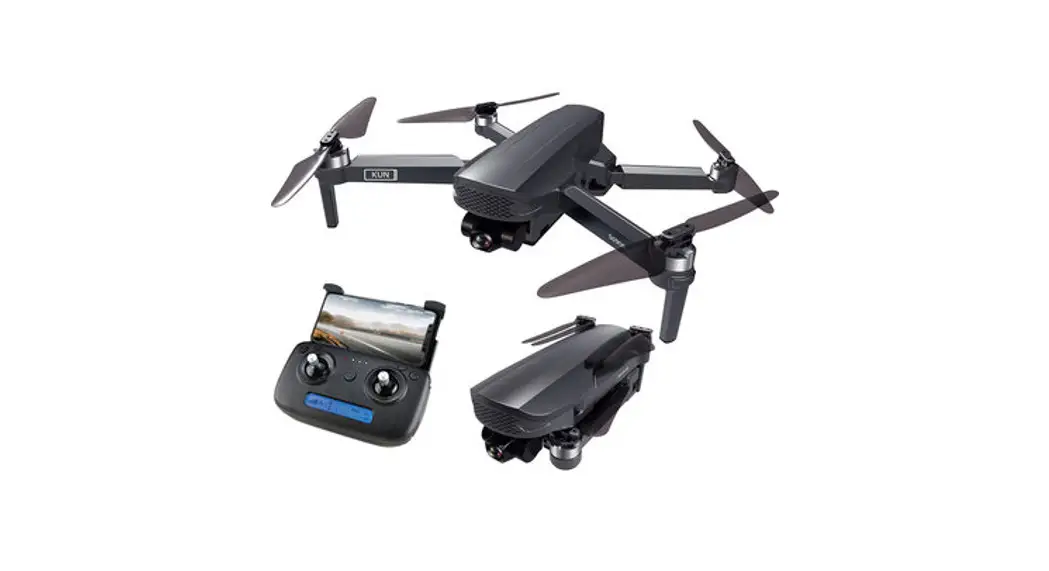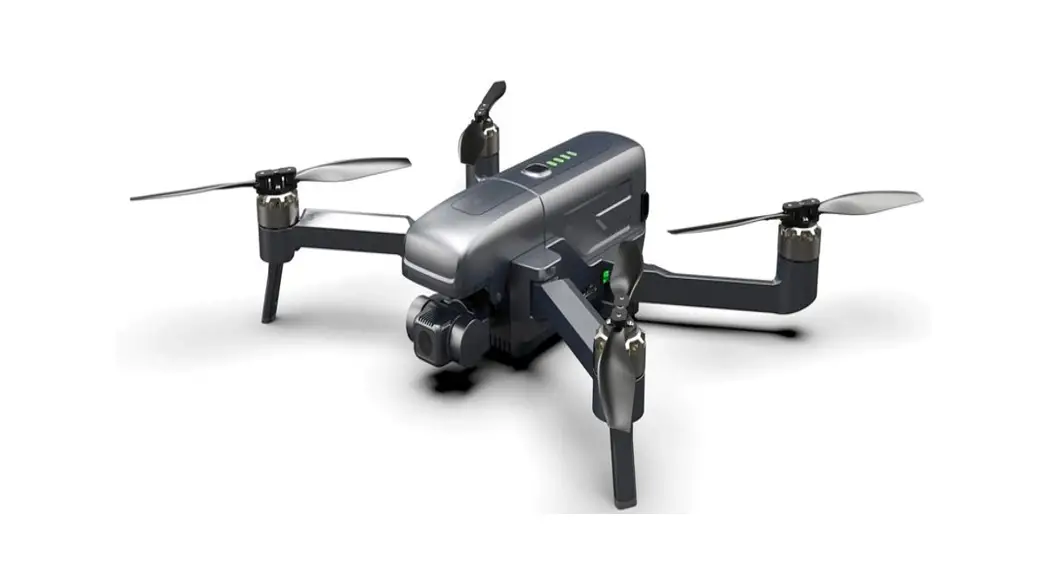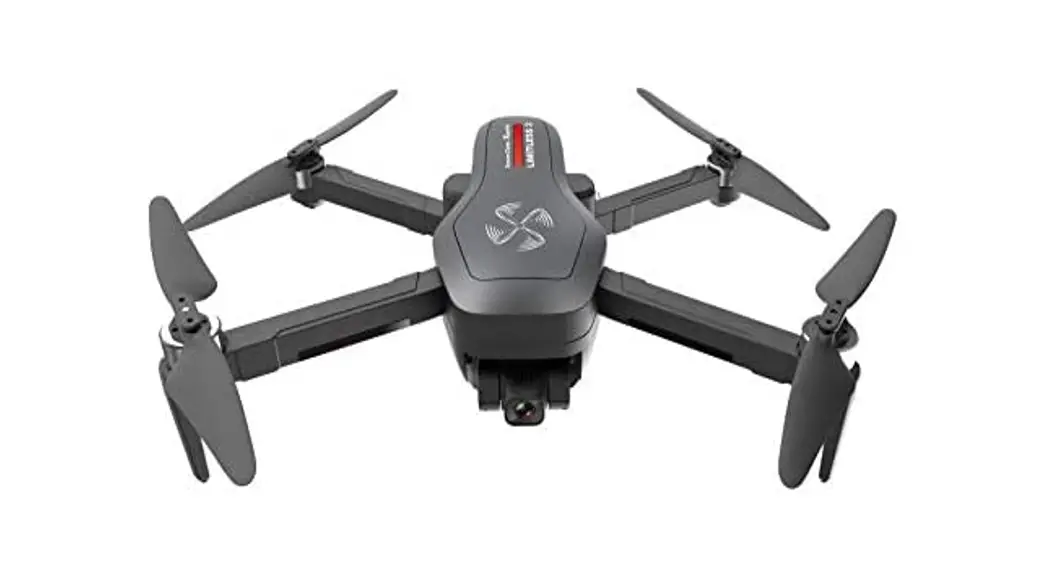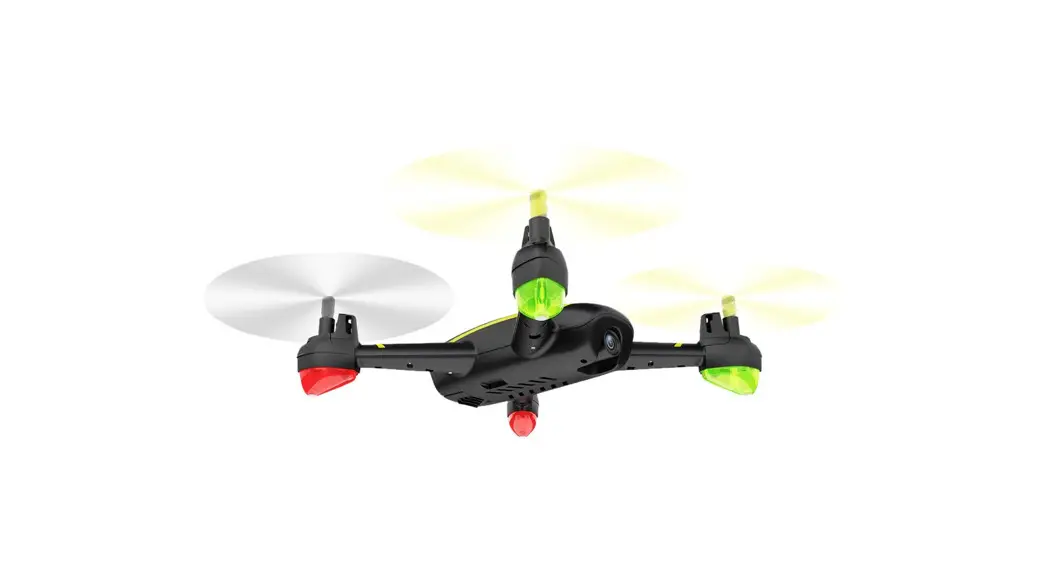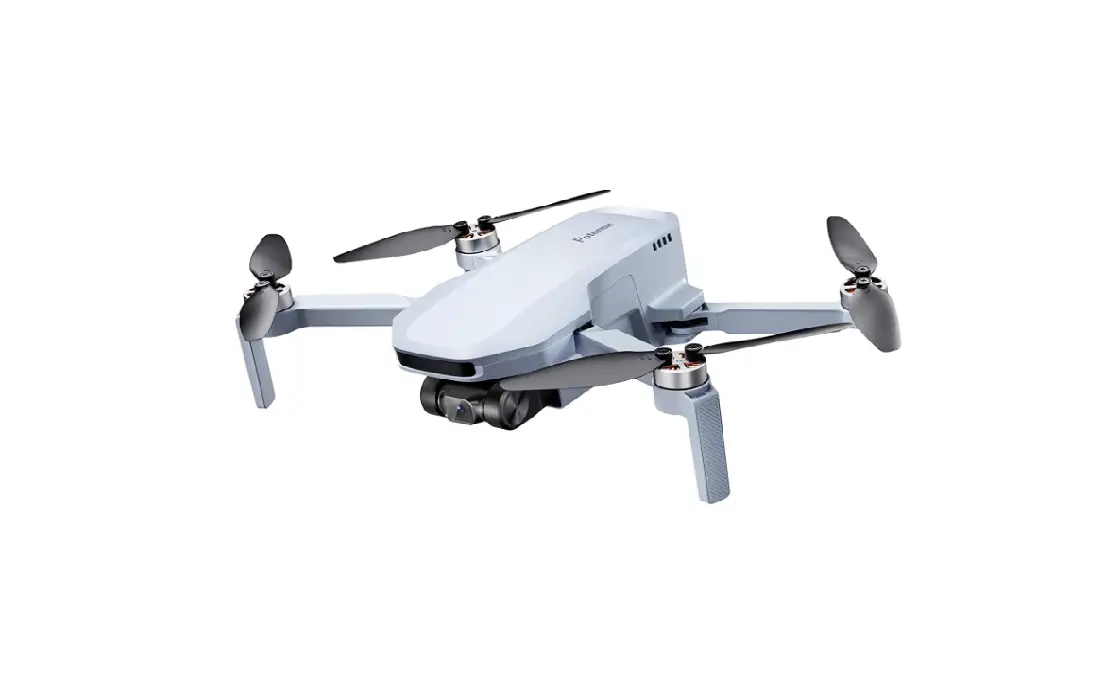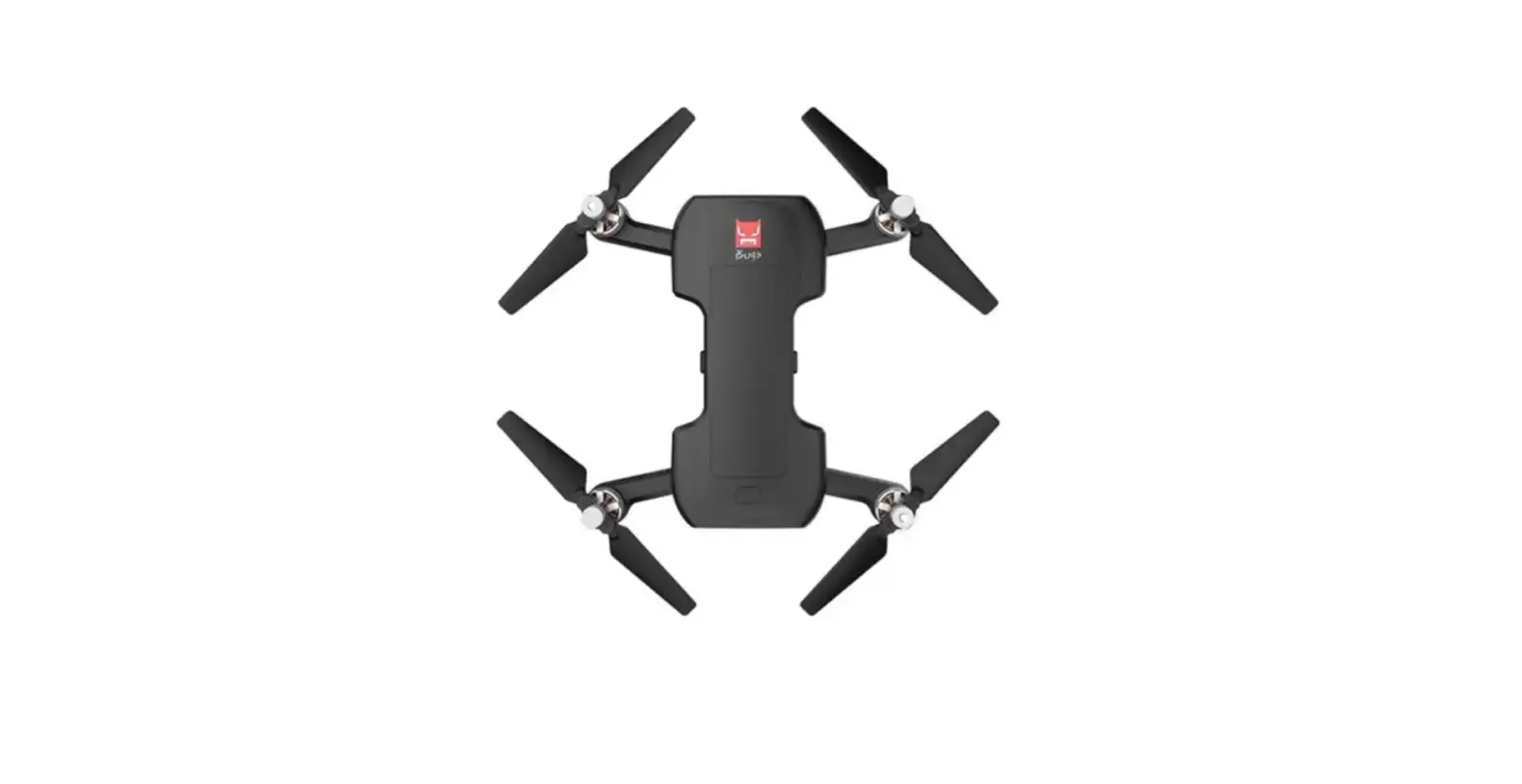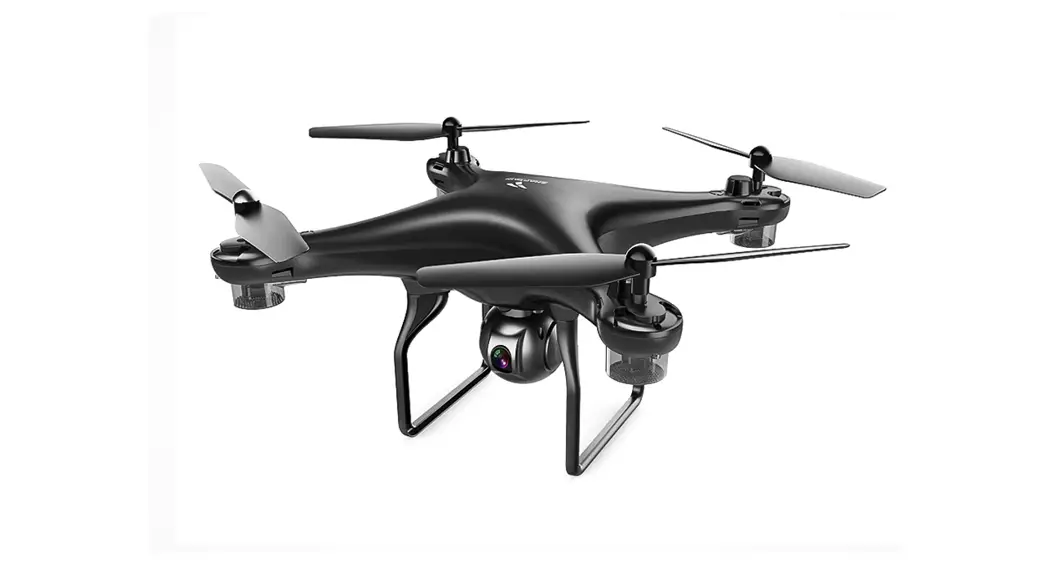

 SP600N
GPS Drone with gimble
User Manual  Please read this manual carefully before flying and keep it well for future reference.
DISCLAIMER AND SAFETY GUIDELINES
Please read the disclaimer carefully before using this product. By using it, you hereby agree to this disclaimer and signify that you have read them fully.
- Before flying, please make practice with a simulator or seek instruction from a professional.
- DO NOT fly above or near obstacles, crowds, open water, public road, high voltage power lines, or trees.

- DO NOT use the drone in severe weather conditions, such as a rainy day or windy day (the wind speed is more than 5.5m/s), snow, hail, lightning, tornadoes, hurricanes, etc.

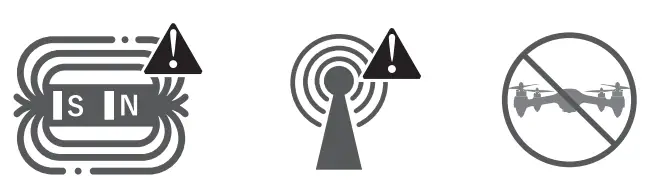
- DO NOT fly the drone in the magnetic interference area, radio interference area, and government-regulated no-fly zones.

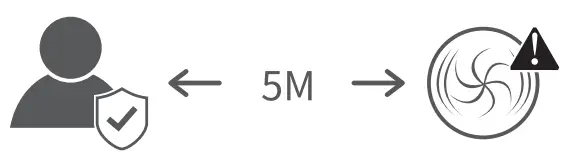
- The fast-rotating motors and propellers are a potential hazard to cause serious damage and injury. A safe distance of 5m must be maintained from the drone at all times while it is operational. Fly with responsibility.

- Please maintain the line of sight of your drone at all times after it is powered up. Do not rely on the camera image to control your drone.

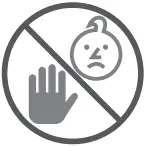
- This product is not a toy and is not recommended for users under age 14.

- All parts must be kept out of the reach of children to avoid CHOKE HAZARD.

- CAUTION: Dispose of drone and batteries in accordance with local regulations. DO NOT treat it as household waste.

- Be sure to observe all local regulations, obtain appropriate authorizations and understand risks. Please note it is solely your responsibility to comply with all flight regulations.




CAPTAIN accepts no liability for damage, injury, or any legal responsibility incurred directly or indirectly from the use of this product. The user shall observe safe and lawful practices including, but not limited to, those set forth in these Disclaimer and Safety Guidelines. CAPTAIN reserves the right to update this user manual.
MAINTENANCE AND CARE
- Thoroughly check the drone after a crash or a violent impact.
- Do not use or store the battery near the fire.
- Do not charge the battery if it is hot. Let it cool down first.
- Do not charge the battery next to inflammable materials, such as carpet, wood floors, etc., or on surfaces that are electrically conductive. Do not leave the battery unattended while charging.
- ONLY use the original USB cable provided. Unplug the charger once the battery is fully charged.
- Remove the battery from the drone if it will not be used for a long time.
- Store the drone and remote in a cool, dry place away from direct sunlight.
- Be sure to clean off your drone with a dry cloth to prevent any moisture from getting onto the electronics.
- Do not try to disassemble or repair the product yourself. Please contact SNAPTAIN for more help.
- Please use the original battery provided. Using an incorrect type of battery may lead to fire hazards.
- Do not dispose of the battery in a fire or a hot oven, cut or mechanically crush the battery, as this may cause explosions.
- Do not leave the battery in an extremely high-temperature environment that can result in an explosion or the leakage of flammable liquid or gas.
- Do not expose the battery to extremely low air pressure, as this may result in an explosion or the leakage of flammable liquid or gas.
PRODUCT OVERVIEW
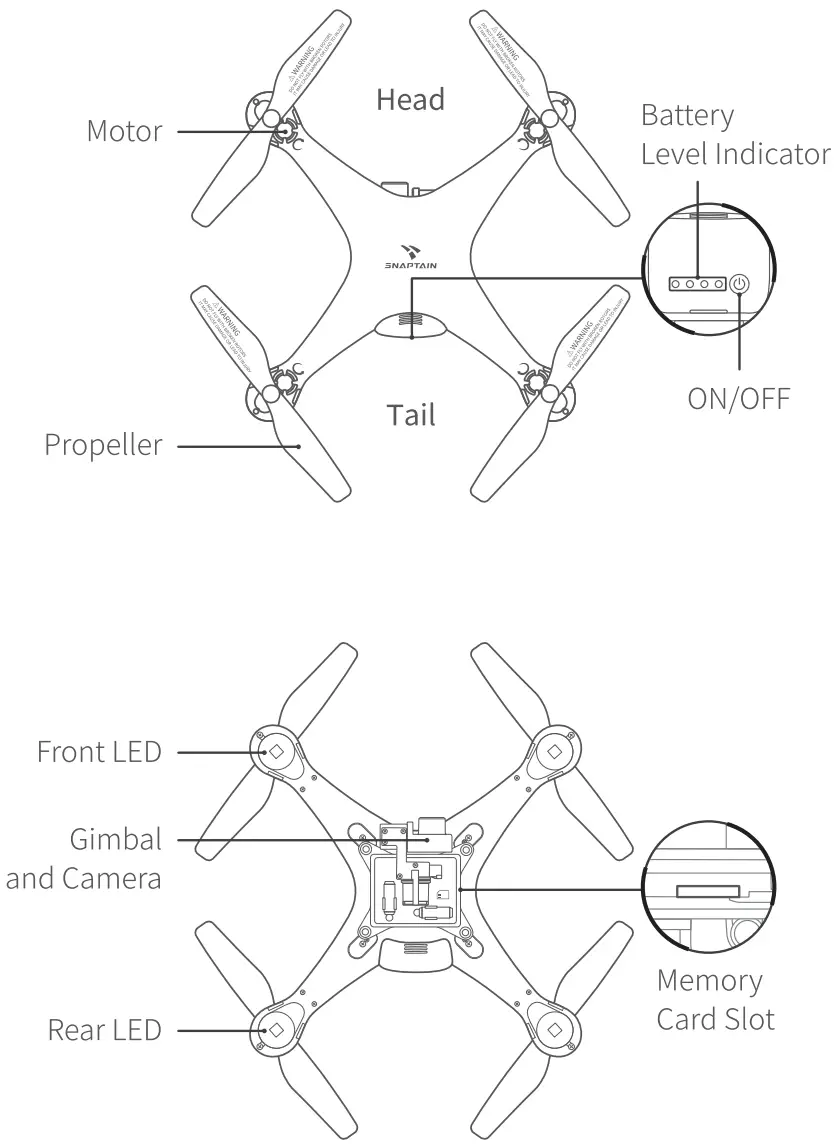
SP600N Drone
Remote
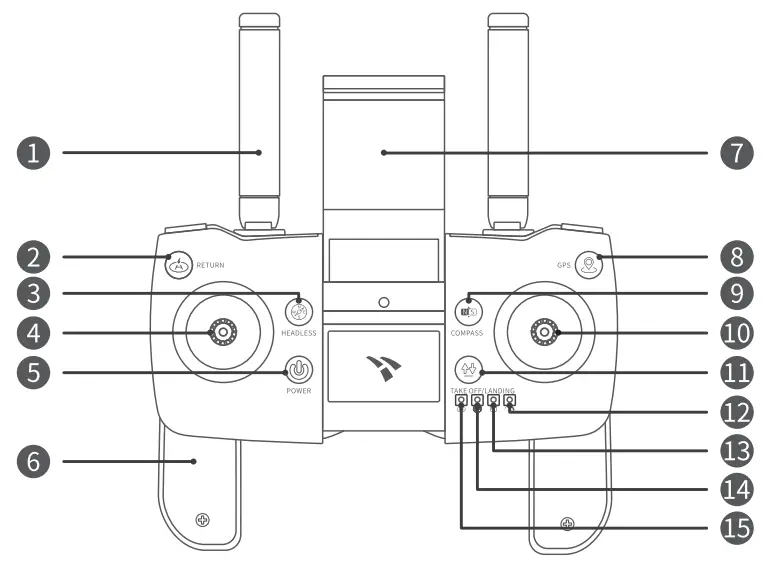
| 1. Antenna 2. Smart RTH (Return-to-Home) 3. Headless Mode 4. Left Control Stick 5. ON/OFF 6. Handle 7. Phone Clamp 8. GPS Mode On/Off (long press) | 9. Compass Calibration (long press) 10. Right Control Stick 11. One Key Take-off/Landing 12. Speed Indicator 13. Photo/Video Indicator 14. Headless Mode Indicator 15. RTH Indicator |
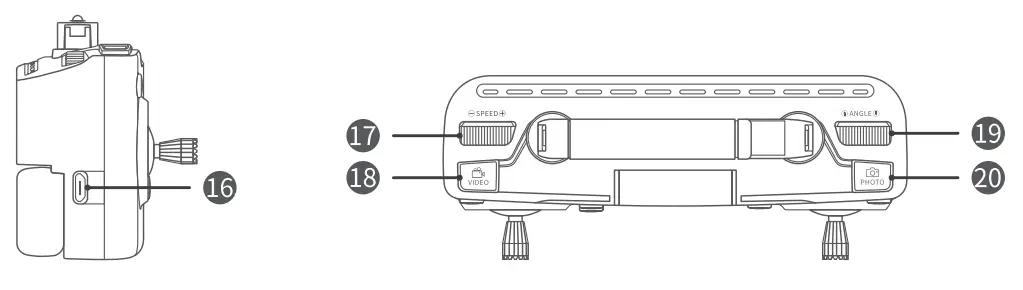
| 16. Charging Port 17. Speed Switch 18. Video | 19. Camera Tilt 20. Photo |
FLIGHT PREPARATION
1. Install the landing skids and propeller guards into the drone, then tighten the screws.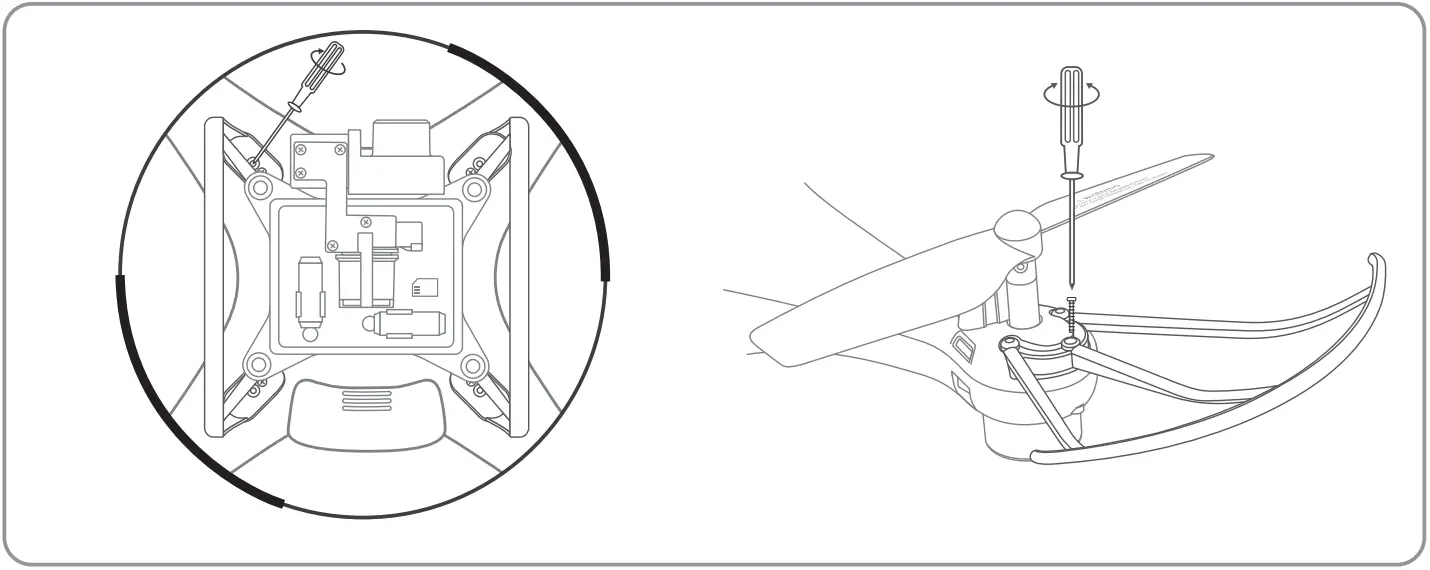
2. Charge the battery of the drone.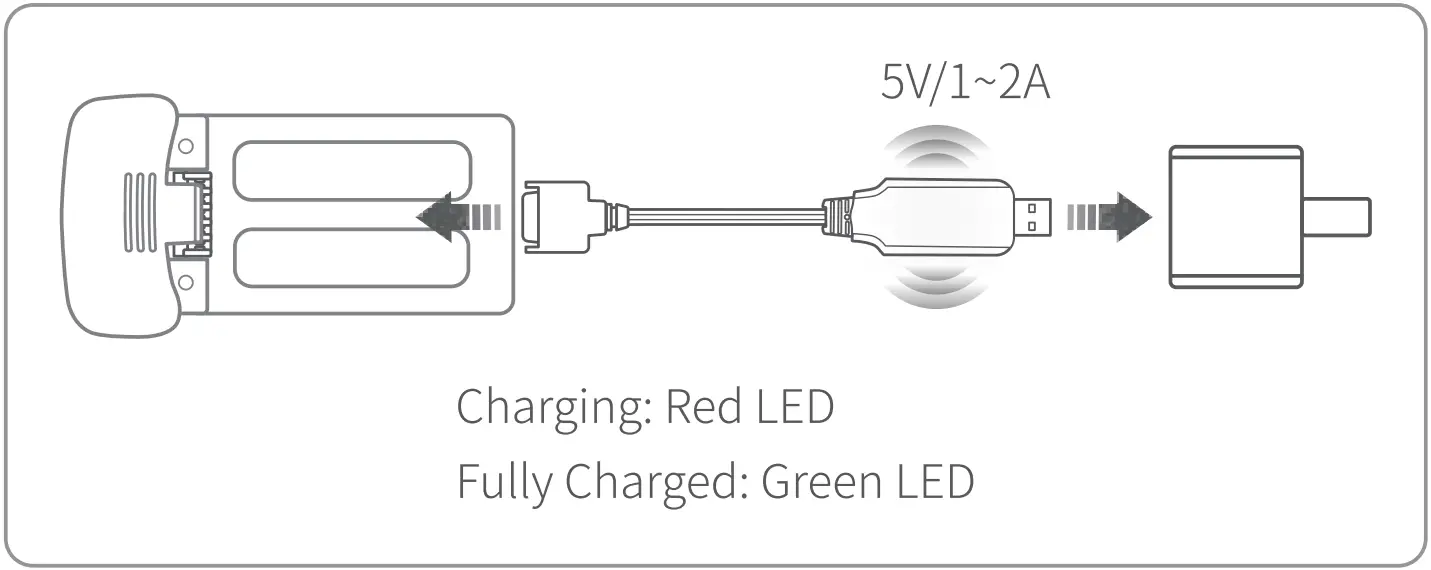
 Notes:
- Please use the original battery and USB cable provided.
- Keep the battery away from any sharp objects that could puncture the battery to avoid risks of explosion and fire.
- It’s not recommended that you charge the battery from the USB port of the PC.
- Flight time may be reduced when flying in low-temperature environments.
3. Install the battery into the drone after it’s fully charged.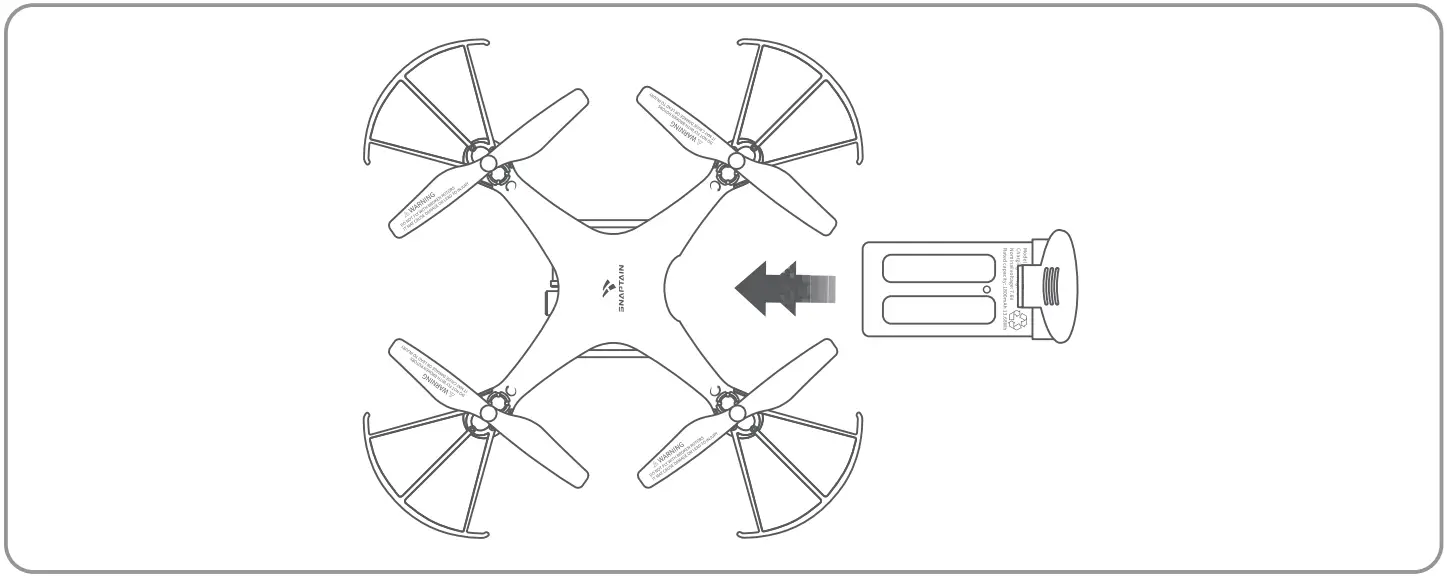
4. Insert a memory card (not included) into the drone.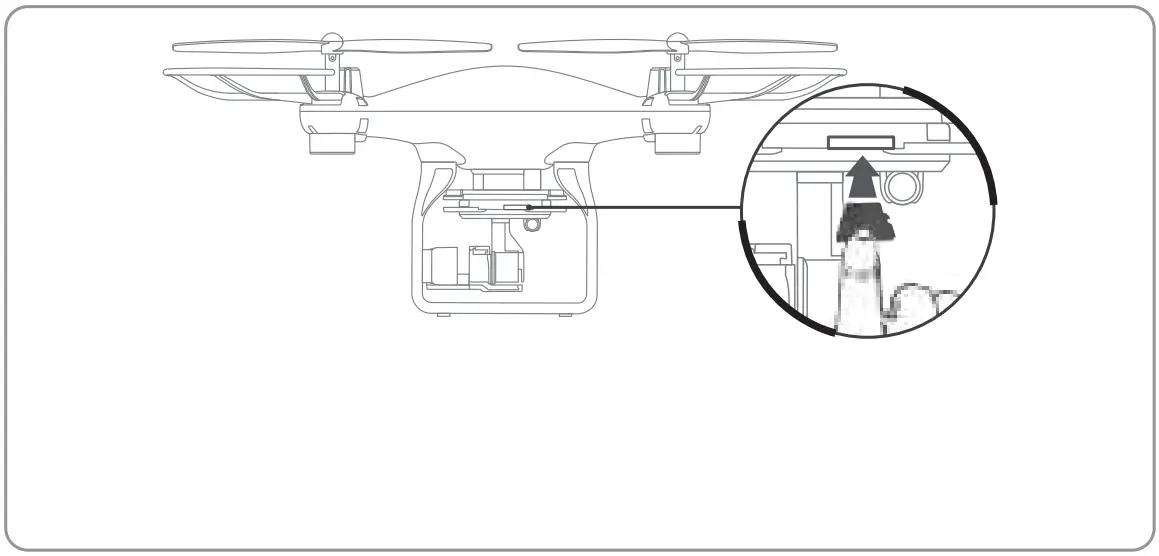
* Support up to 128GB.
* Memory card of FAT32 format is recommended.
* Please use a high-speed memory card of a reliable brand.
5. Charge the remote.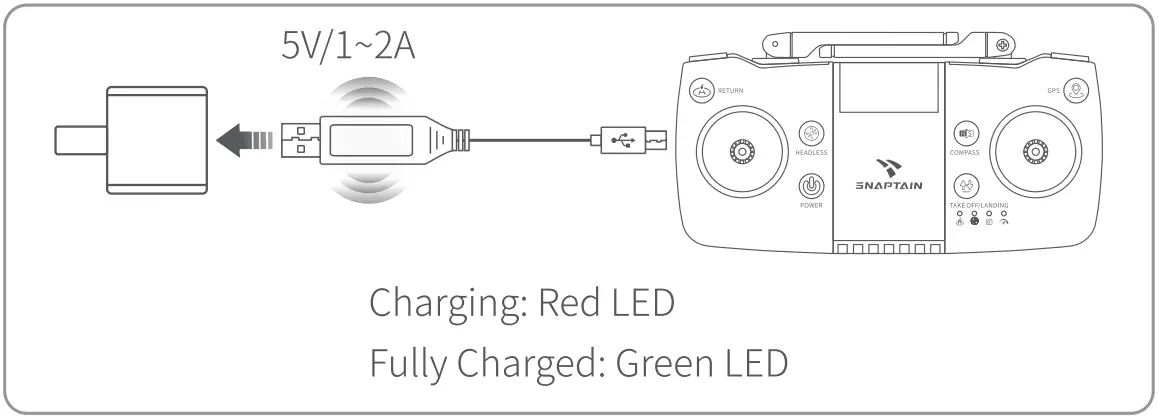
* Check the remote battery status on Snaptain Atlas App. There are continuous beeps from the remote when the remote battery is low.
6. Unfold the Handle and Antenna.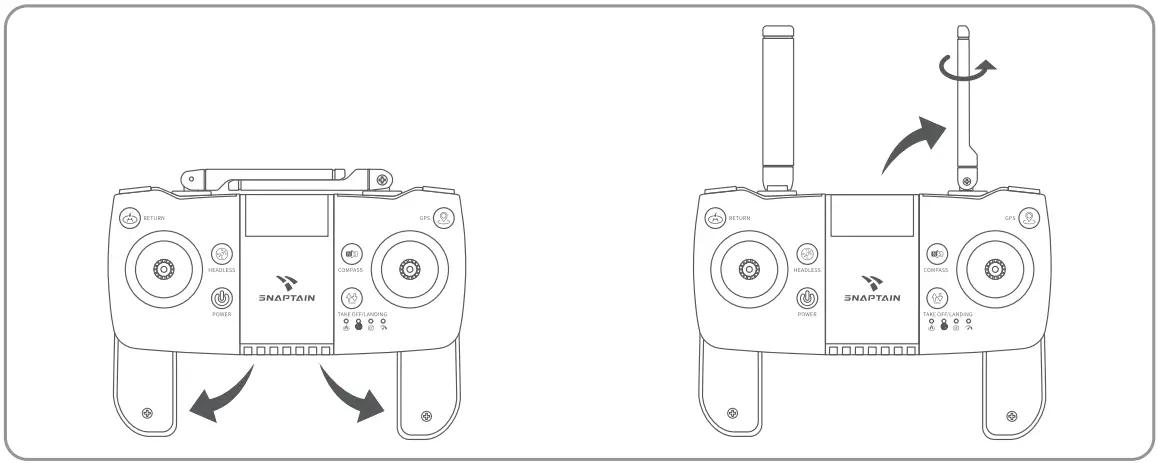
7. Unfold the Phone Clamp and mount your mobile device.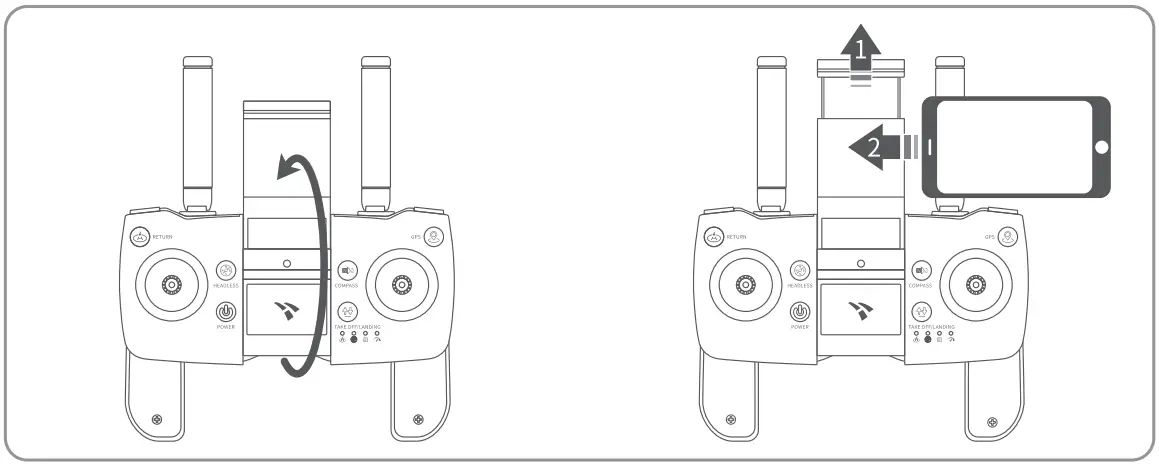
8. Replace the propeller when it’s needed. (Optional) 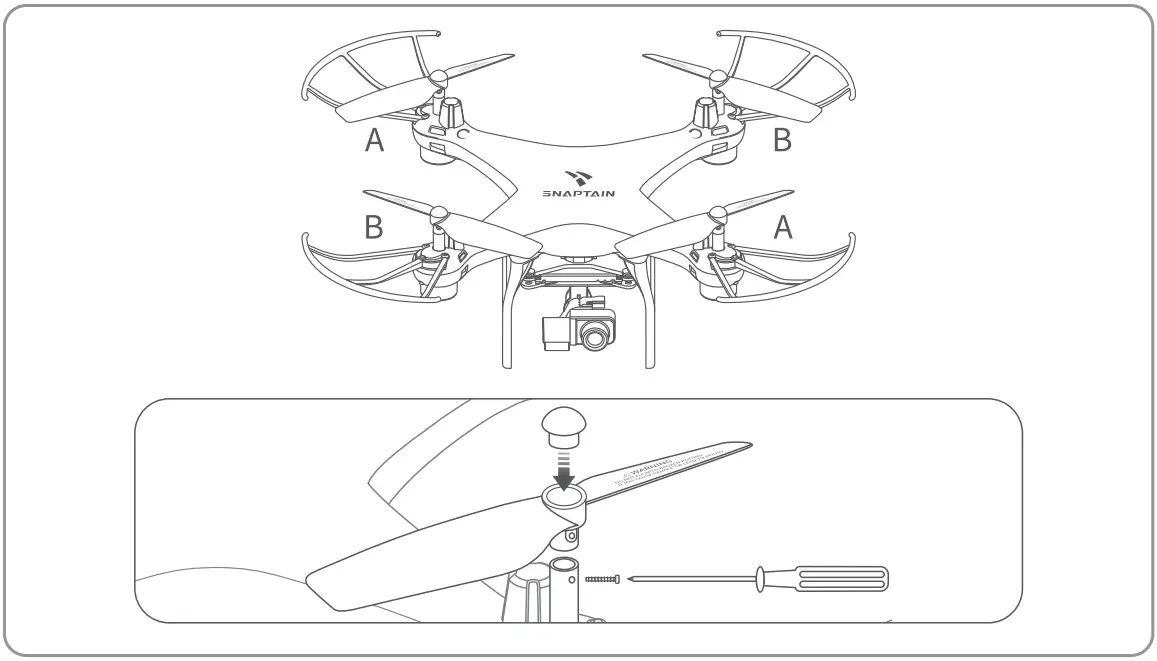
- Remove the cap on the propeller.
- Loosen the screw to remove the propeller.
- Fit the spare propeller into the drone according to the mark (A/B) on the back of it.
- Tighten the screw and install the cap.
FLIGHT OPERATION GUIDE
 IMPORTANT
* Make sure you power on the drone first, then the remote on each flight.
* Do repeat the pairing procedure each time when the drone or remote is restarted.
* For all flight functions and modes, the operator and tail of the drone must be aligned.
* We recommend flying in the open air and within the control range.
Remote Operation Guide
Pair the Remote with the Drone
Step 1:
Long press the ON/OFF button for 3s until the four Battery Level Indicators light up to turn on the drone. The front LEDs flash red and the rear LEDs flash green when the drone is powered on. Place the drone on a flat surface with the head forward.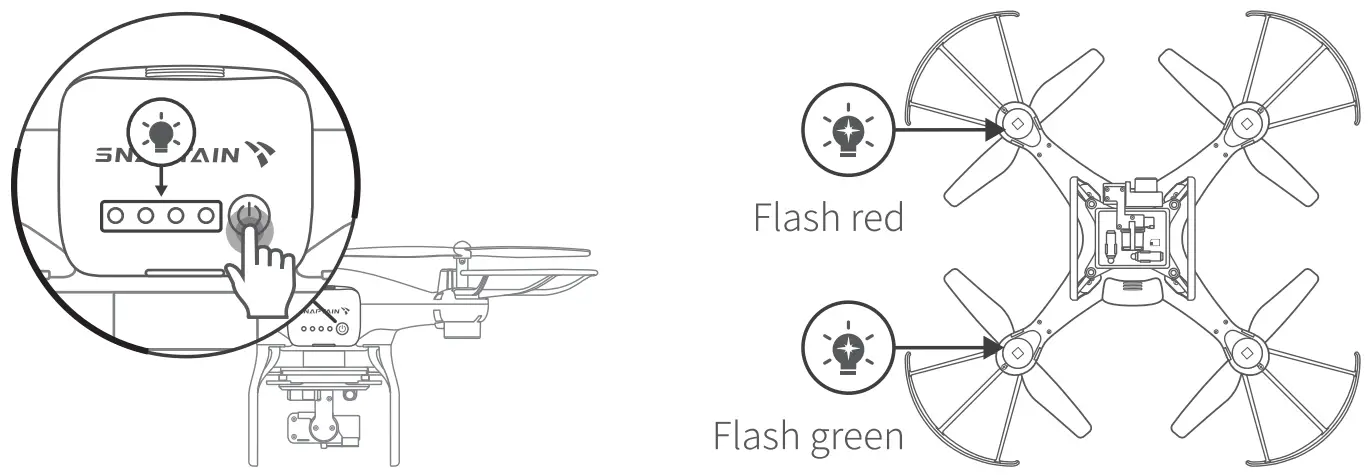
 Tip:
Tip:
Long press the ON/OFF button to turn off the drone.
Step 2:
Press the ON/OFF button down to turn on the remote, and you’ll hear a beep from it.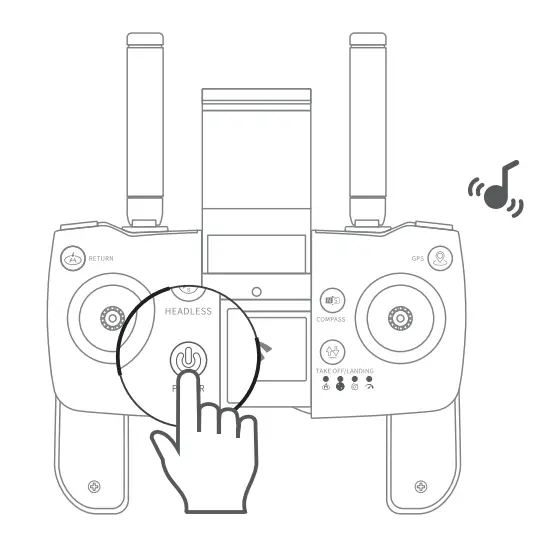
Tip:
Press the ON/OFF button again to turn off the remote.
Step 3:
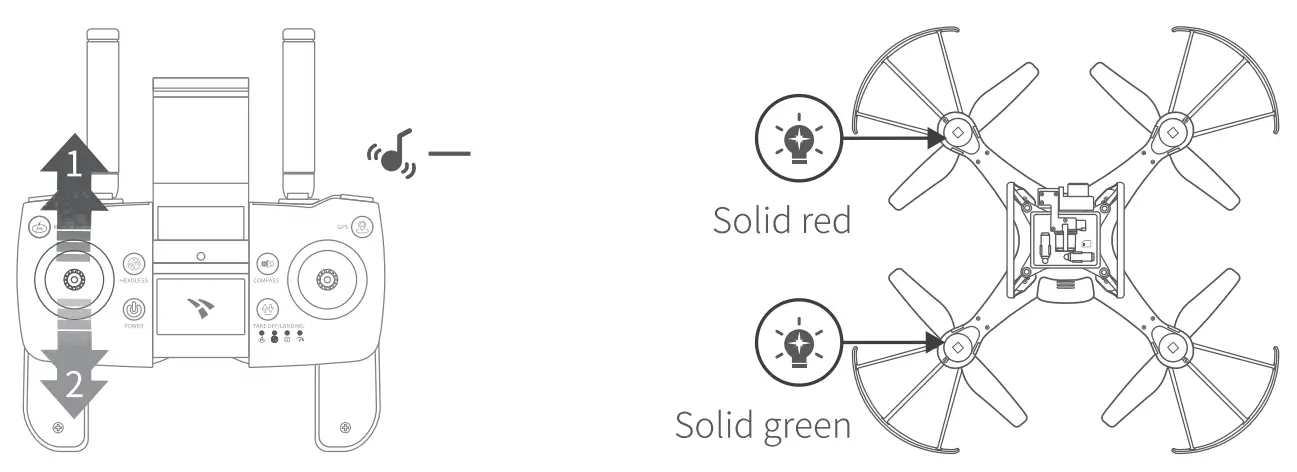
Push the Left Control Stick forward to the top, then pull it back to the bottom. Pairing is completed when you hear a long beep from the remote; the front LEDs of the drone turn solid red and the rear LEDs solid green.
Flight Calibration
1. Compass Calibration
Step 1:
Long press the  button until you hear a beep from the remote to start compass calibration. The front LEDs of the drone flash red and the rear LEDs flash green.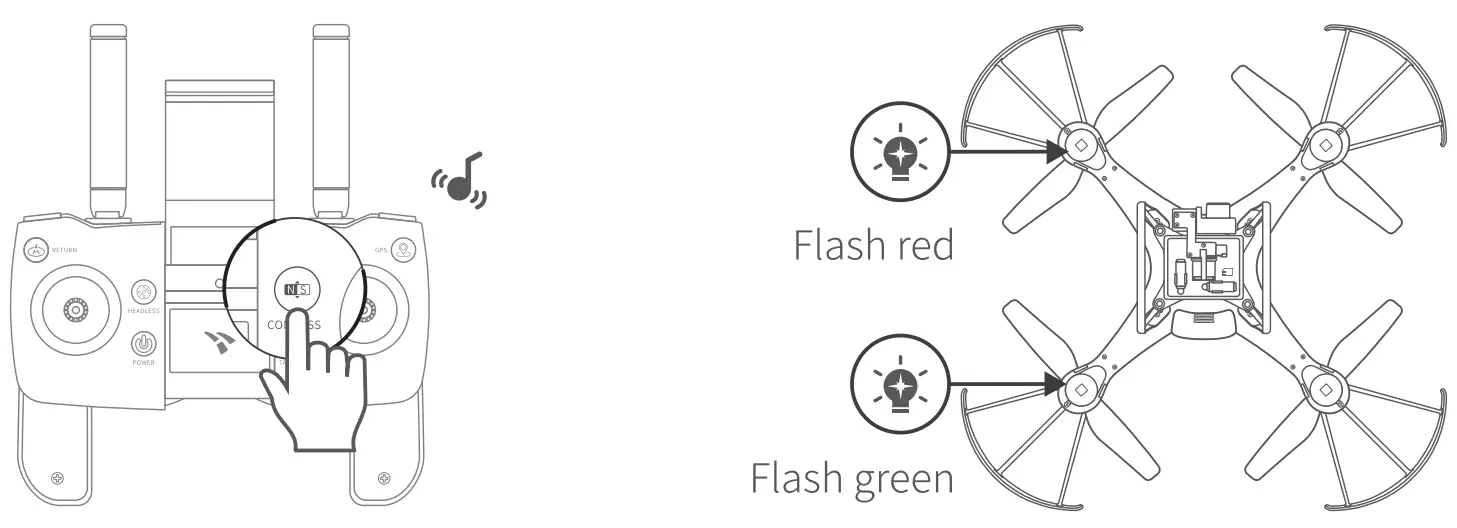
Step 2:
Hold the drone horizontally and make a full rotation at least twice until you hear a beep from the remote, which indicates a successful horizontal calibration. The front LEDs of the drone turn solid red.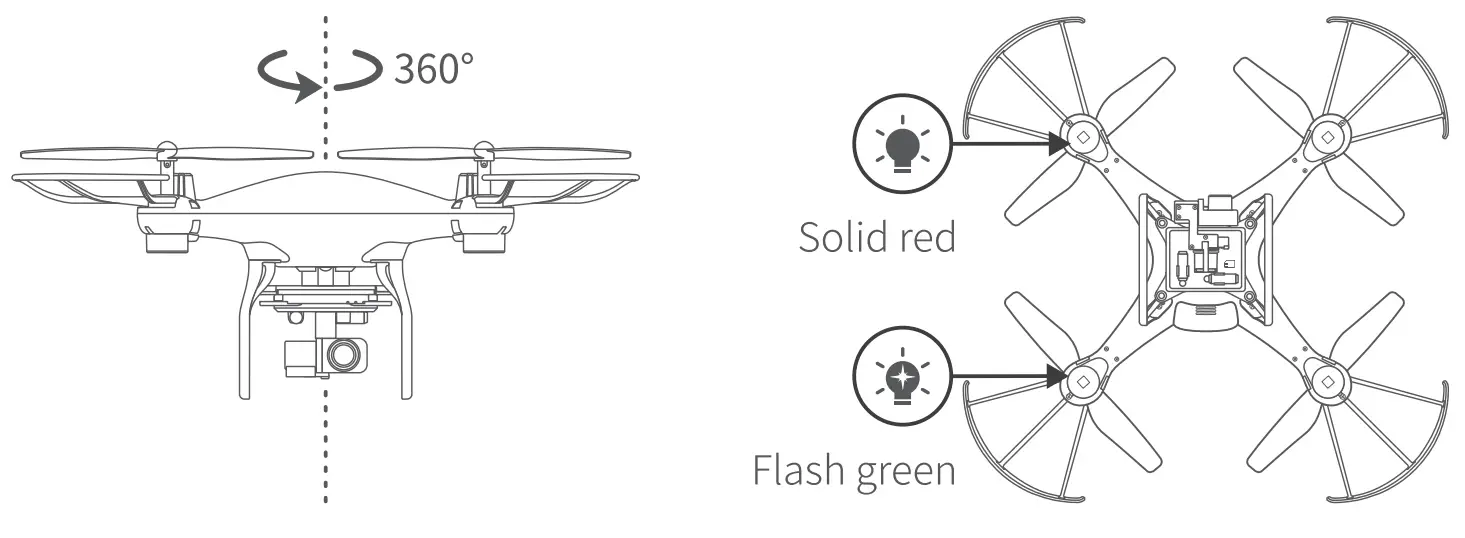
Step 3:
Hold the drone vertically with its head facing down and make a full rotation at least twice until you hear a beep from the remote, which indicates a successful vertical calibration. The rear LEDs of the drone turn solid green.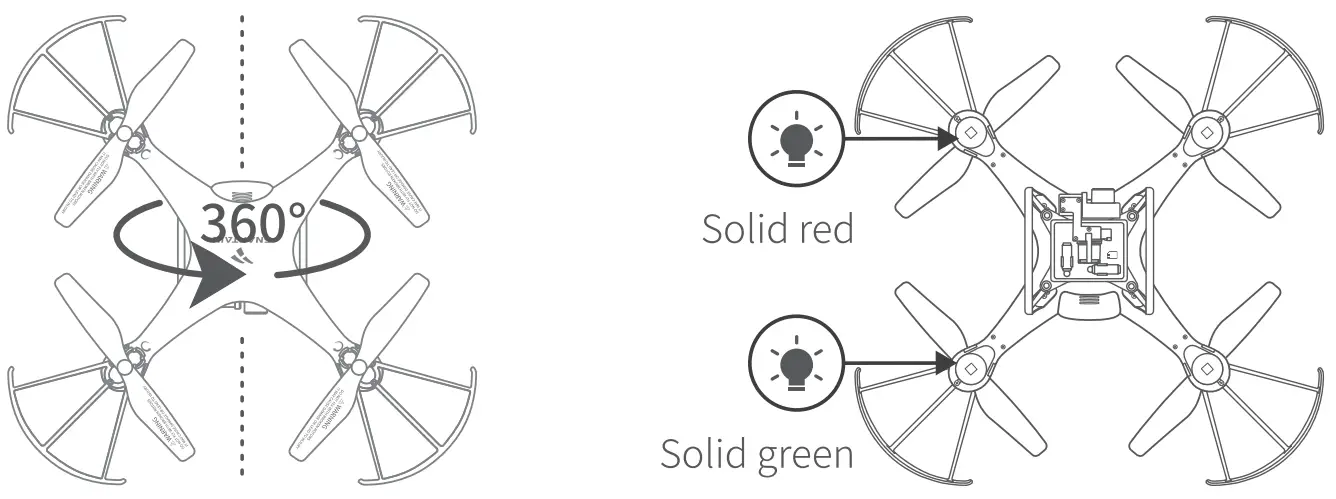
2. Gyro Calibration
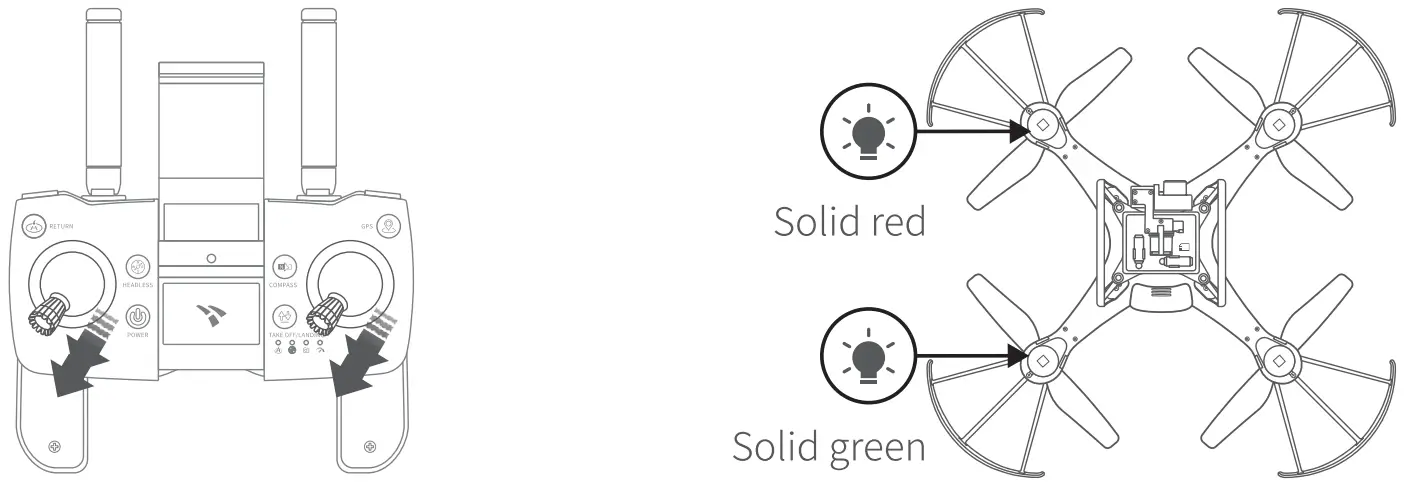
Place the drone on a flat surface after finishing compass calibration. Push both control sticks to the lower left at 45° and there is a beep from the remote. Gyro calibration completes when the front LEDs turn solid red and the rear LEDs solid green.
GPS Satellites Searching
Wait for the drone to search satellites. When you hear a long beep from the remote and the drone’s rear LEDs turn to flash green, the drape has „ found enough satellites and is ready to take off in GPS Mode.
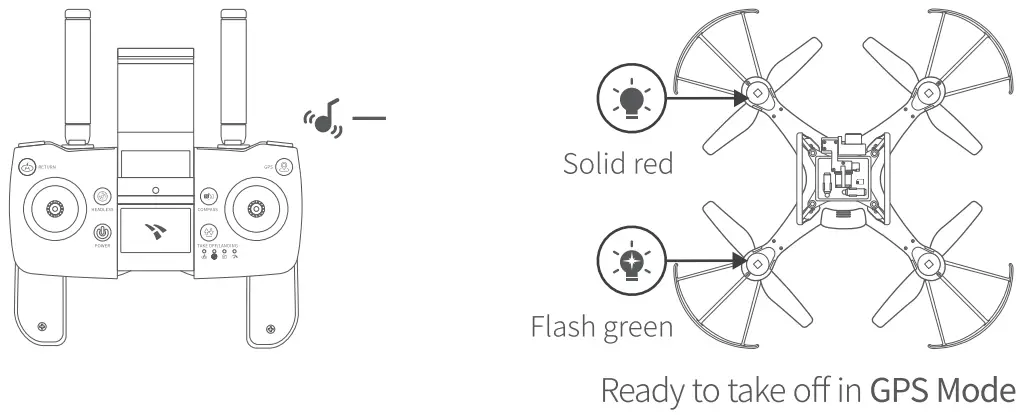
The drone is set to GPS Mode by default. In this mode, the drone utilizes the GPS module to locate itself and make a precise hovering flight. Notes:
- GPS Mode works only when there is a strong GPS signal. Please fly the drone outdoors.
- We strongly recommend this mode for beginners.
The rear LEDs remain solid green if the drone can’t find enough satellites. Please go to another place to fly the drone if you want it to take off in GPS Mode.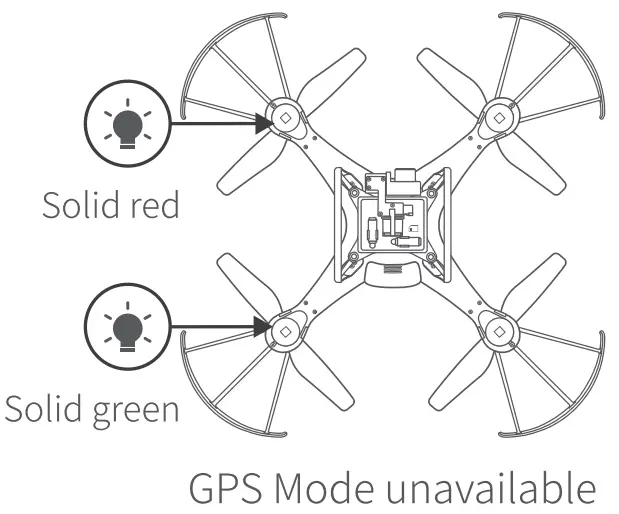
If you still want the drone to take off when GPS Mode is unavailable, you can switch it to Attitude (ATTI) Mode (refer to Page 20).
Connecting to Your Mobile
Device App Downloading and Installation
Download and install Snaptain Atlas into your mobile device on App Store/Google PIay™ or by scanning the QR code below.
 https://qrs.ly/d9besn3 https://qrs.ly/d9besn3for Android 4.6 and later |  https://qrs.ly/9rbesnj https://qrs.ly/9rbesnjfor iOS 8.0 and later |
Note: Google Play” is a trademark of Google Inc., and App store™ is a trademark of App Inc.
App Launch
Step 1:
Go to the Wifi settings of your mobile device and connect to the drone’s wifi SNAPTAIN-SP600N-xxxxxx.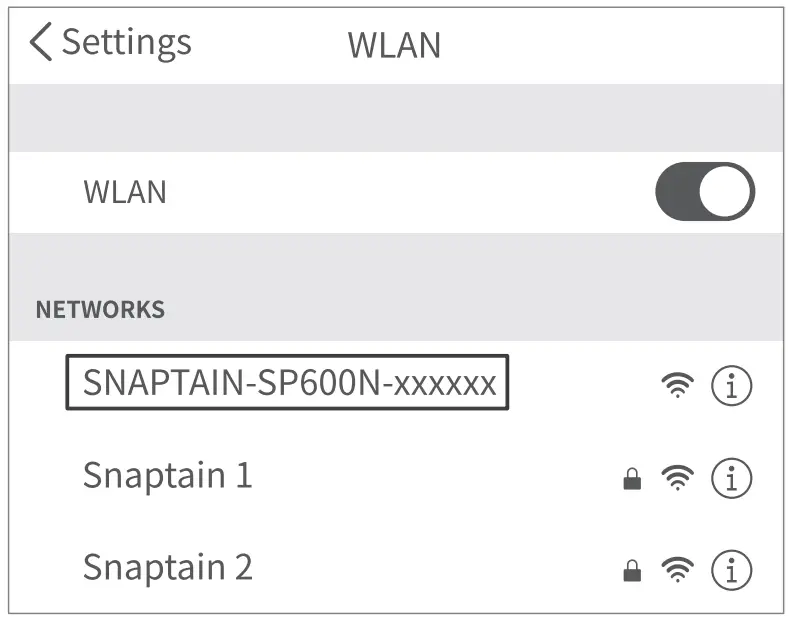
Step 2:
Open Snaptain Atlas and tap Go to enter the operation interface.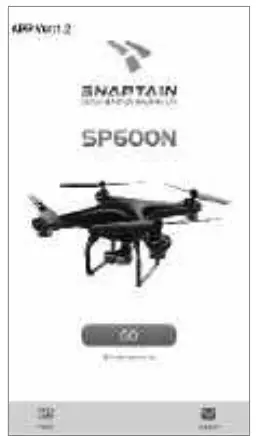
Notes:
- If you can’t see the live map, please disconnect to the drone’s wifi, then turn on cellular data and location service on your mobile device to preload the map. Next, turn off cellular data and reconnect to the drone’s wifi, then launch the App.
- The drone’s Wifi has no internet access. It’s recommended that you turn off the cellular data when connecting to the drone’s Wifi. Otherwise, your mobile device may automatically switch to cellular data and disconnect from the drone’s Wifi.
- If the Wifi SNAPTAIN-SP600N-xxxxxx is not listed in your Wifi list or the App does not show the preview image, please restart the drone, then repeat the pairing and calibration procedures (refer to Page 09-12).
- Make sure the Wifi SNAPTAIN-SP600N-xxxxxx is only connected to ONE mobile device.
Flight Instructions
Take-off
Option 1:
Simultaneously move the LeftControl Stick to the lower left at 45° and the Right Control Stick to the lower right at 45° until the four rotor blades start rotating, then press the  buttons to take off.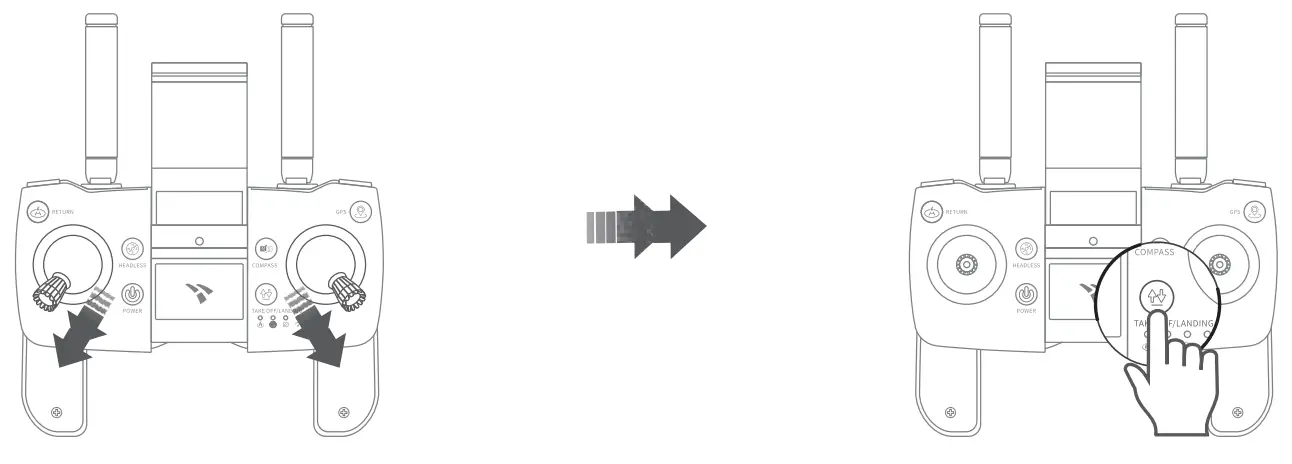
Option 2:
Simultaneously move the Left Control Stick to lower left at 45° and the Right Control Stick to lower right at 45° until the four rotor blades start rotating, then slowly push the Left Control Stick forward to take off.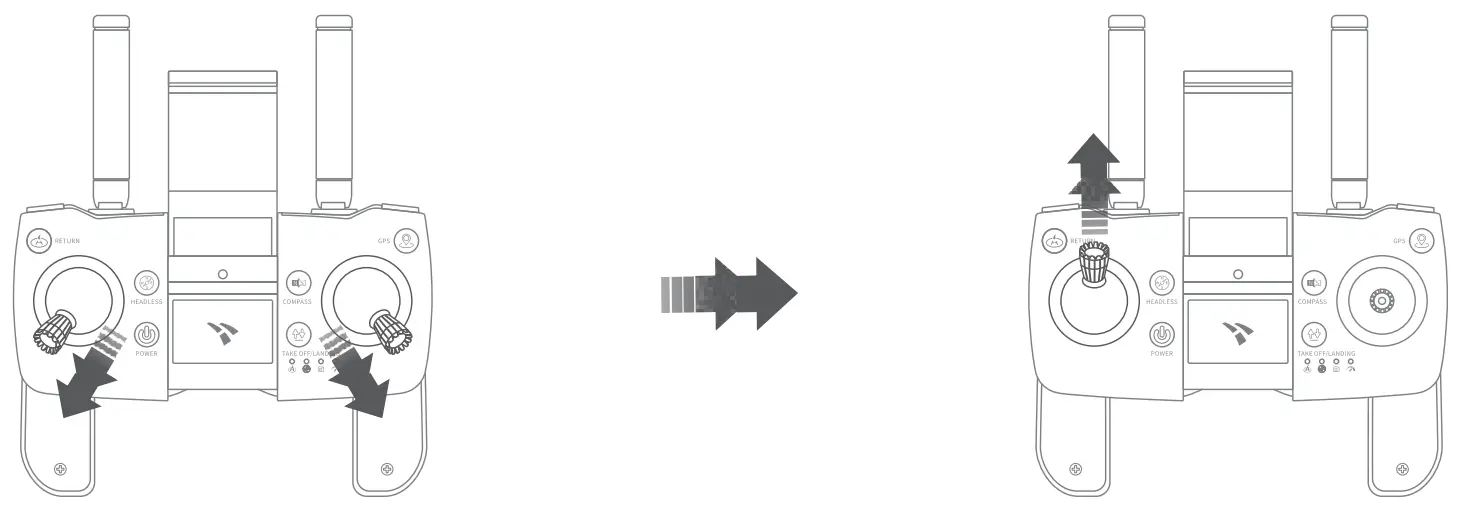
Tip:
Simultaneously move the Left Control Stick to the lower left at 45° and the Right Control Stick to the lower right at 45° (  ) again to make the propellers stop rotating if you don’t want the drone to take off after unlocking it.
Flight Directions
Left Control Stick
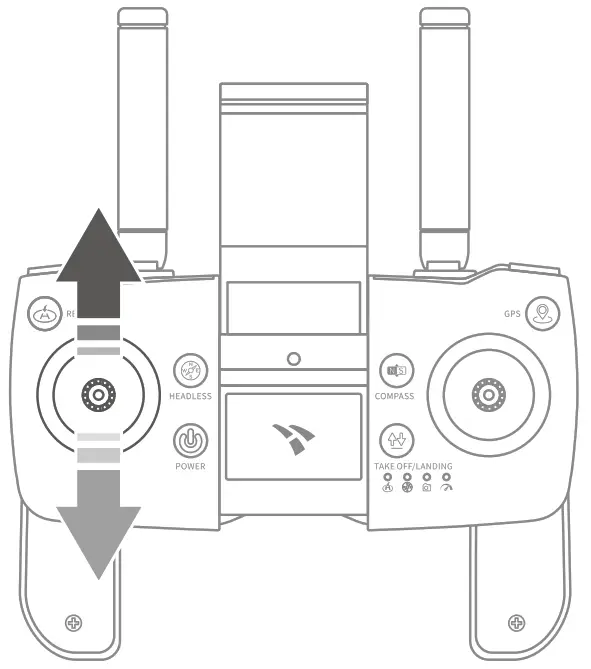 | 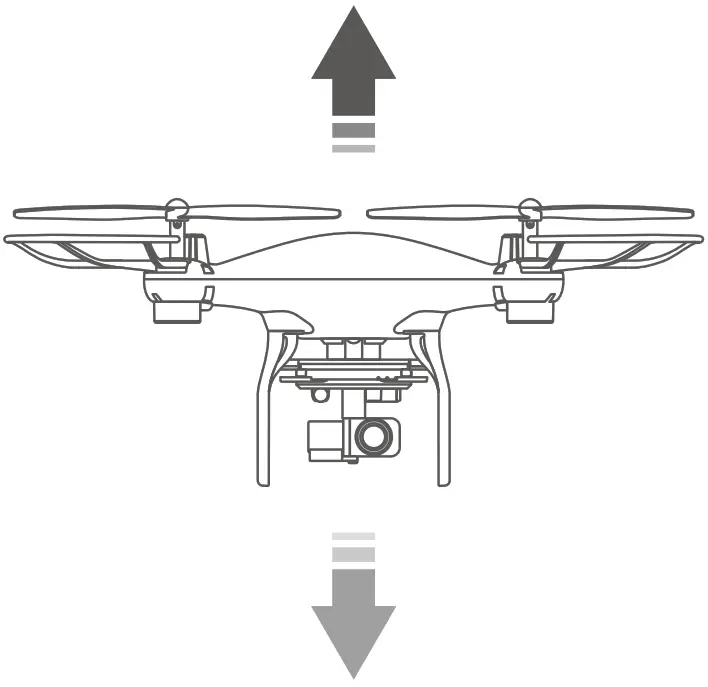 | Push the Left Control Stick forward and the drone will ascend; pull it backward and the drone will descend. |
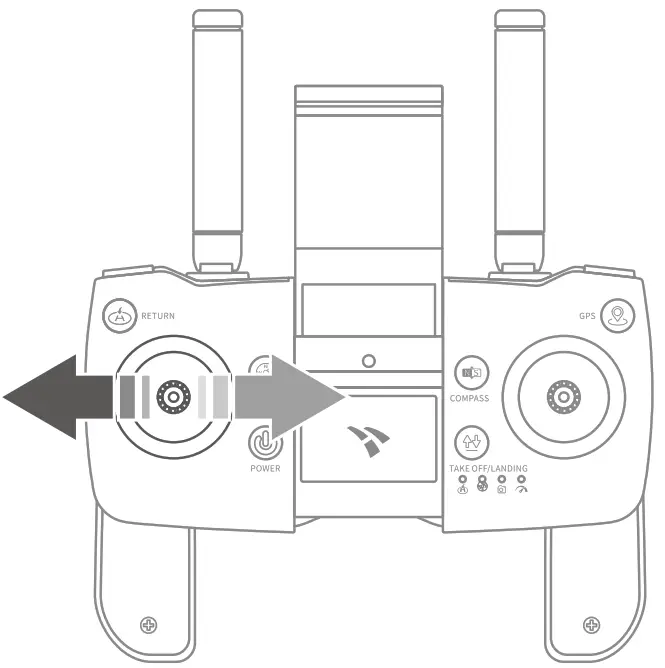 | 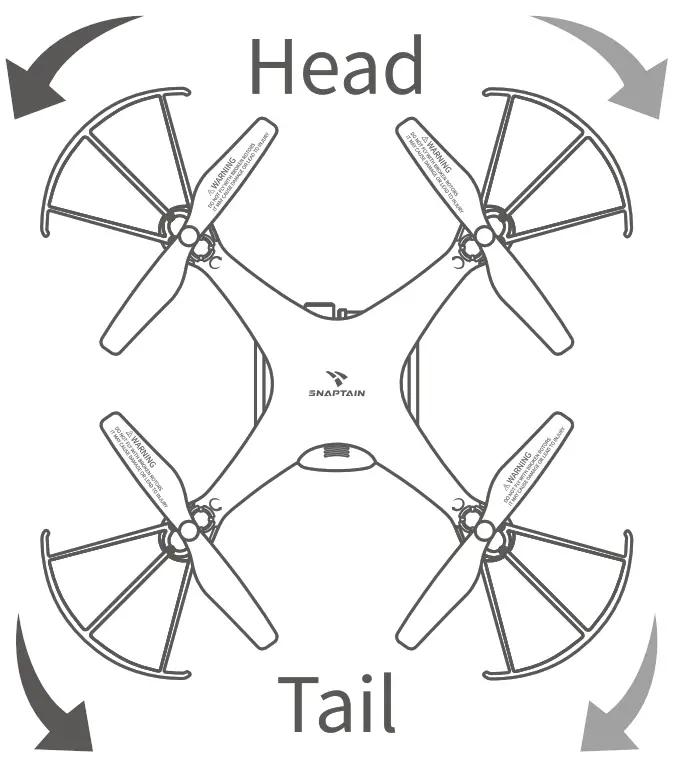 | Pull the Left Control Stick leftward and the drone will rotate to the left; pull it rightward and the drone will rotate to the right. |
Right Control Stick
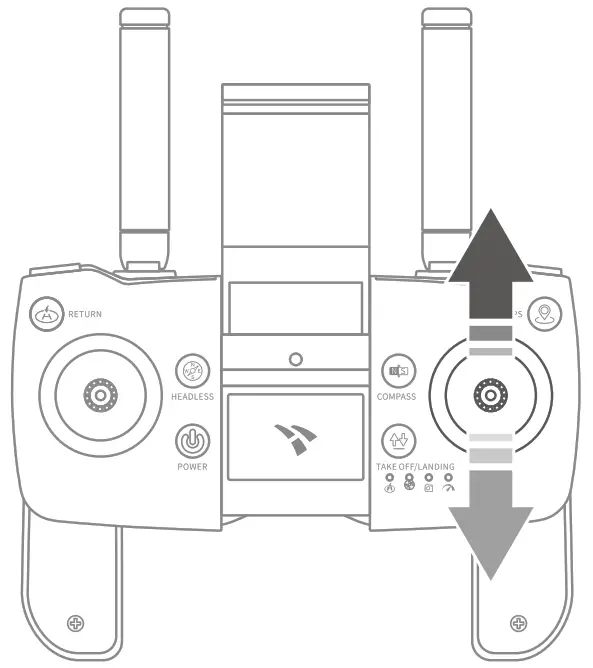 | 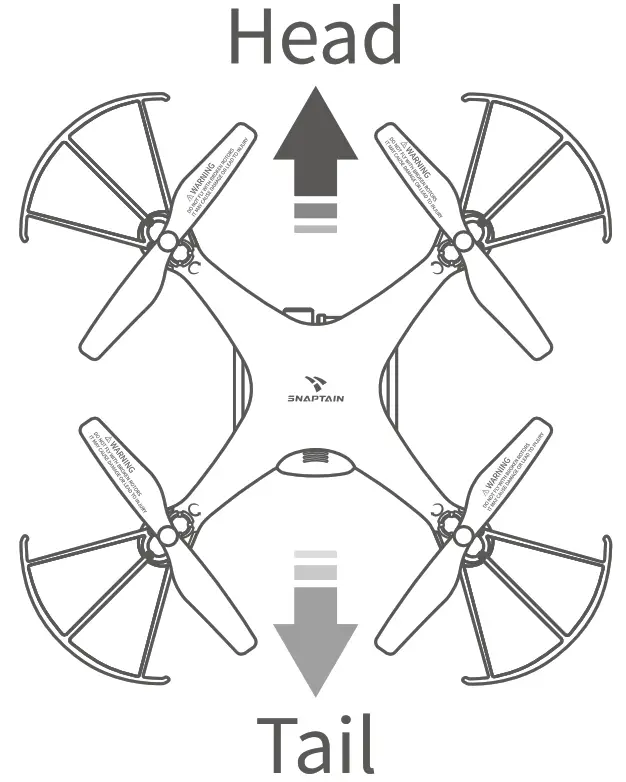 | Push the Right Control Stick forward and the drone will fly forward; pull it backward and the drone will fly backward. |
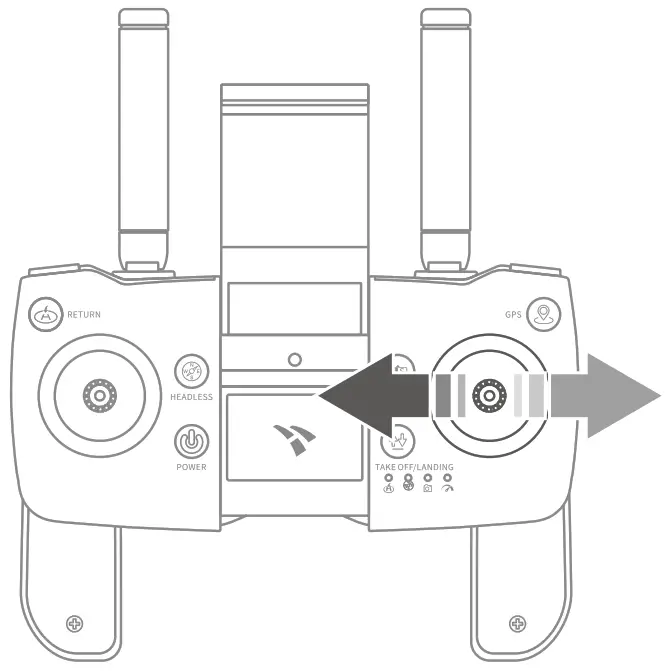 | 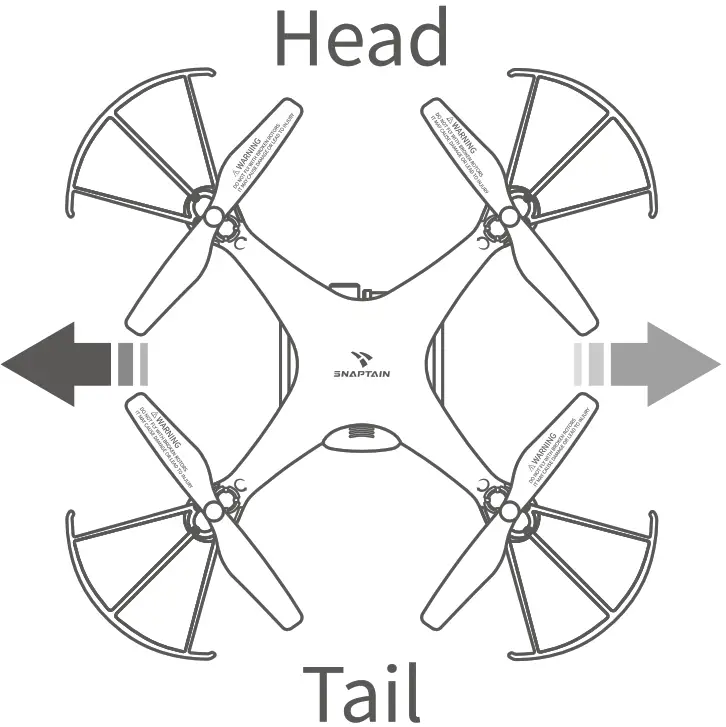 | Pull the Right Control Stick leftward and the drone will fly leftward; pull it rightward and the drone will fly rightward. |
Photo/Video
Press the  button to take a photo.
Press the  button to start recording a video. Press it again to stop and save the video to your mobile device and memory card.
| Photo/Video Indicator: Taking a photo: flash once Recording a video: flash slowly | 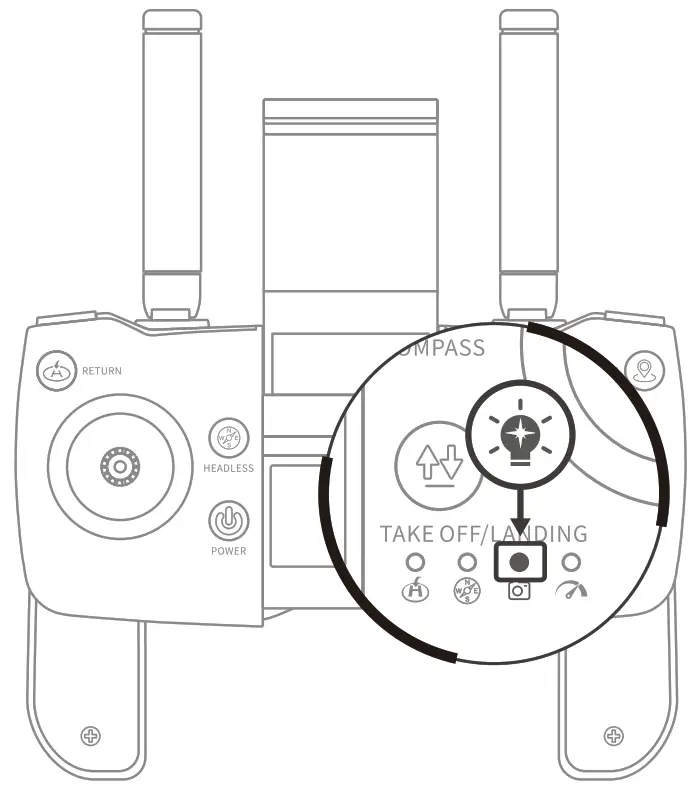 |
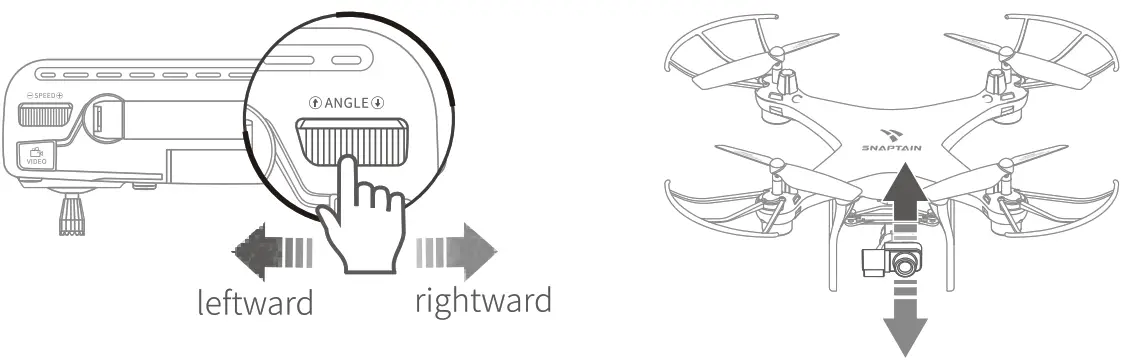
Camera Tilt
Push  leftward to tilt the camera upward; push it rightward to tilt the camera downward.
Speed Switch
The speed of the drone is set to Low speed by default.
Push  rightward to switch to Medium speed and there are two beeps from the remote.
Push it rightward again to switch to High speed and there are three beeps from the remote.
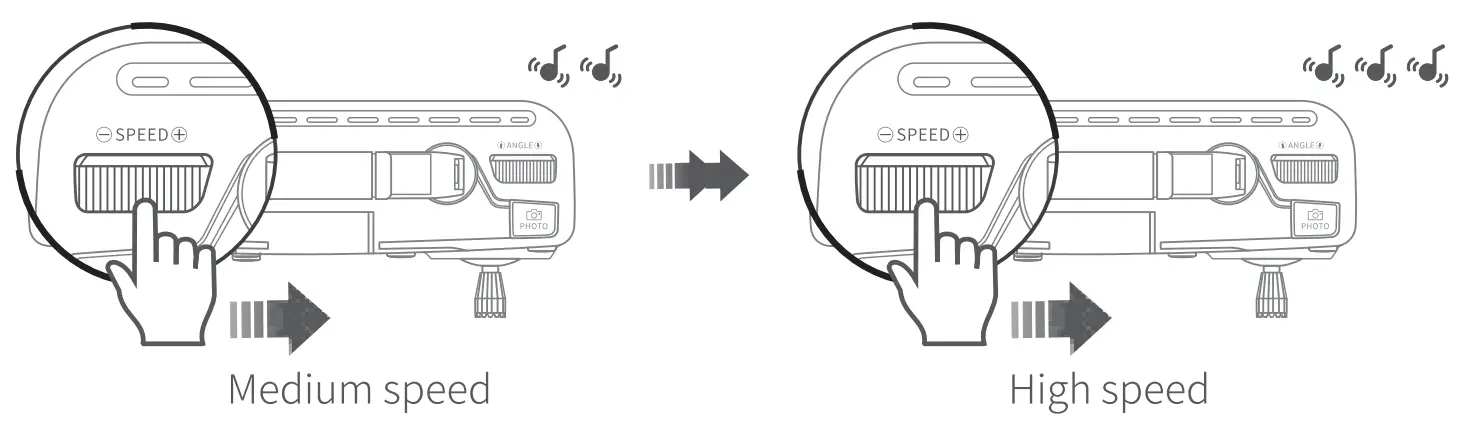
Push leftward to switch to Medium (two beeps) or Low speed (one beep).
| Speed Switch Indicator Low speed: Solid on Medium speed: flash slowly High speed: flash quickly | 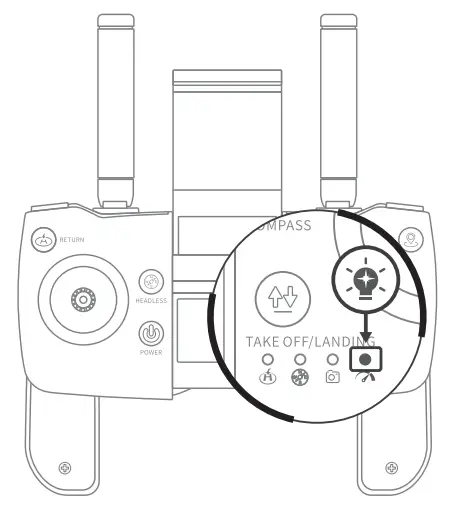 |
Headless Mode
Press the  button to activate Headless Mode, and the Headless Mode Indicator on the remote starts flashing.
In this mode, the drone will fly following the direction of the Right Control Stick regardless of the position of your drone’s head or the tail.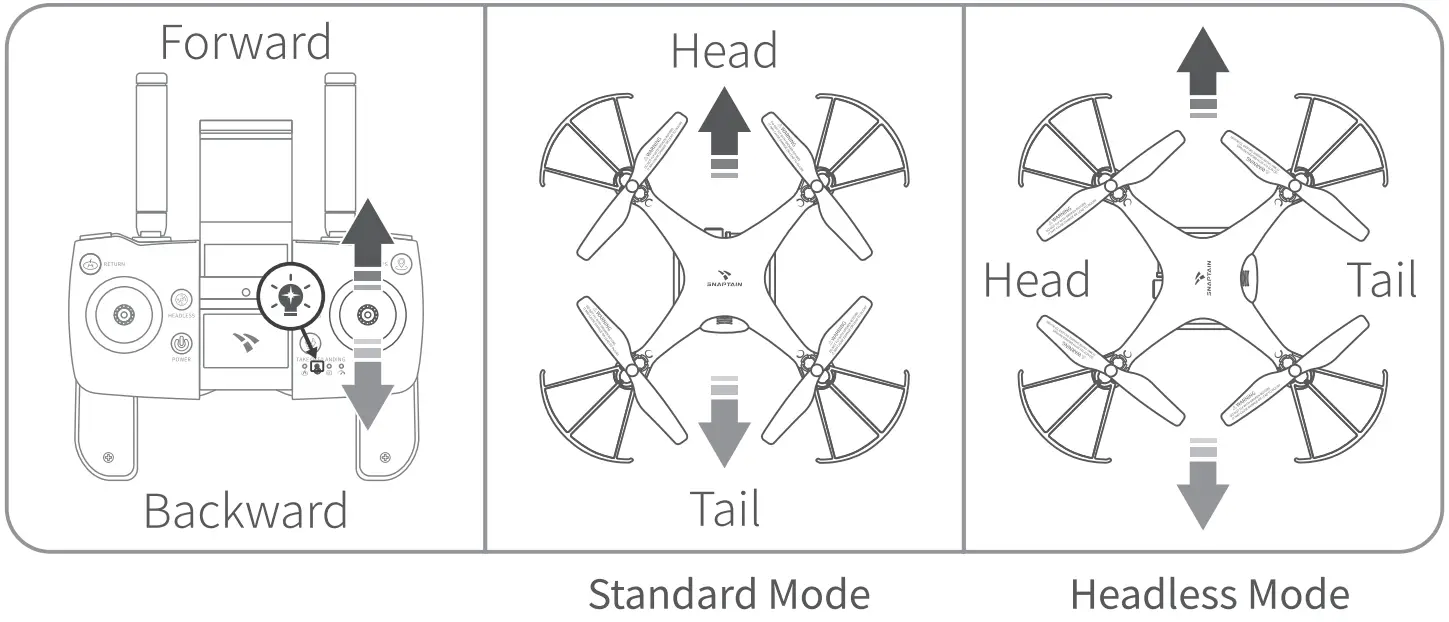 Press the same button again to cancel this mode.
Attitude (ATTI) Mode
In ATTI Mode, the drone will maintain a specific flight altitude, but it will drift around in the wind.
Option 1:
Before take-off, long press the  button for 3s until you hear two beeps from the remote to activate ATTI Mode.
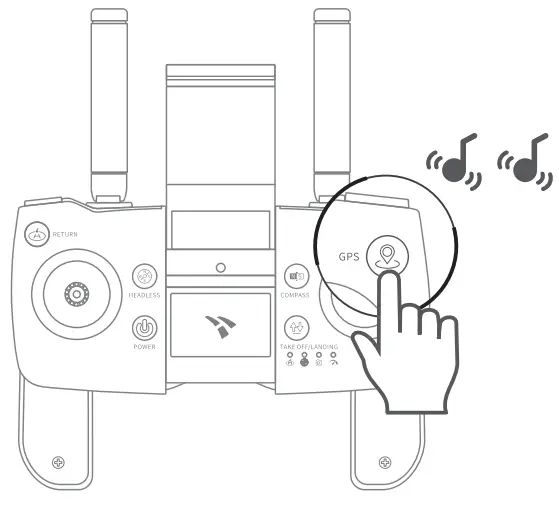
Long press the button again to cancel ATTI Mode.
Option 2:
During the outdoor flight, the ATTI Mode will be automatically on if the drone flies to a place where the GPS signal is weak. Notes:
- In ATTI Mode, functions based on GPS Mode, including RTH, Follow Me, Waypoints, and POI, can’t be activated.
- We recommend ATTI Mode only when the pilot has proficient skills in operating the drone.
Return-to-Home (RTH)
The Return-to-Home(RTH) function brings the drone back to the last recorded Home Point where the drone took off last time. RTH works only when the GPS signal is strong enough and the compass functions normally.
Smart RTH
Press the  button on the remote to initiate Smart RTH.
* RTH Distance:
The distance between the drone and the last recorded Home Point where the drone took off last time.
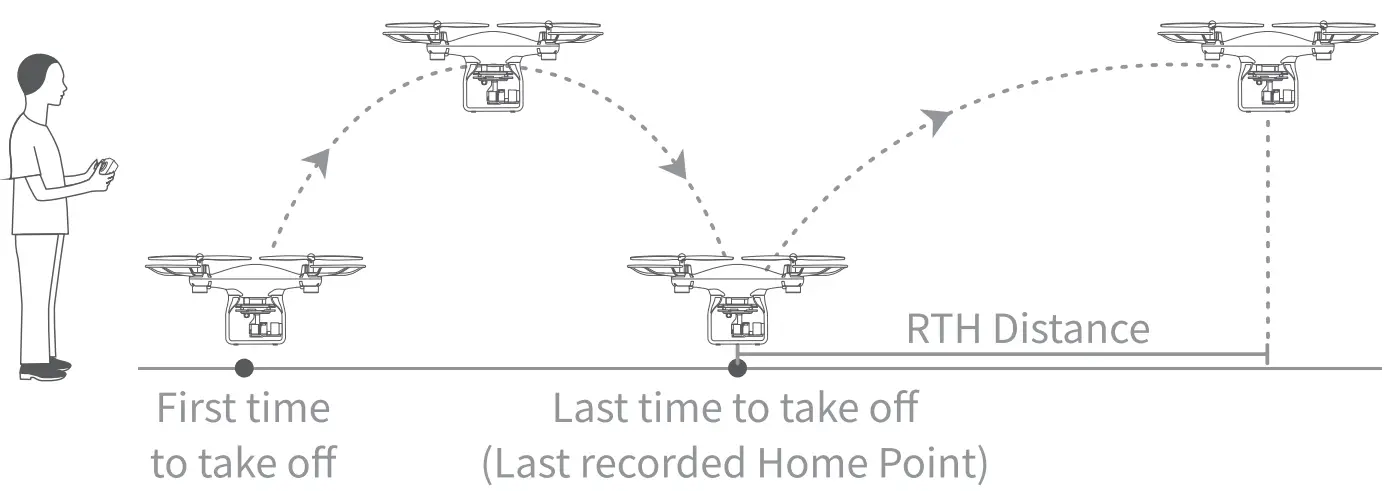
1. Current Flight Altitude<Preset RTH Altitude
The drone will first ascend to the preset RTH altitude, then fly back and land.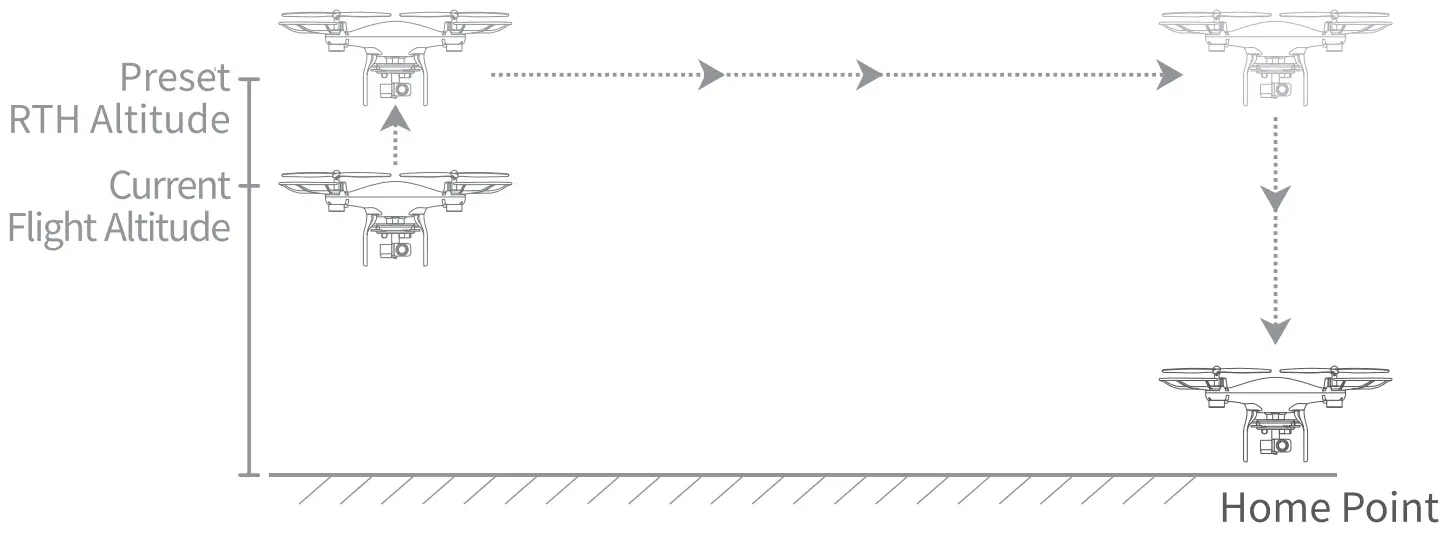
2. Current Flight Altitude ≥ Preset RTH Altitude
The drone will directly fly back at its current flight altitude and land.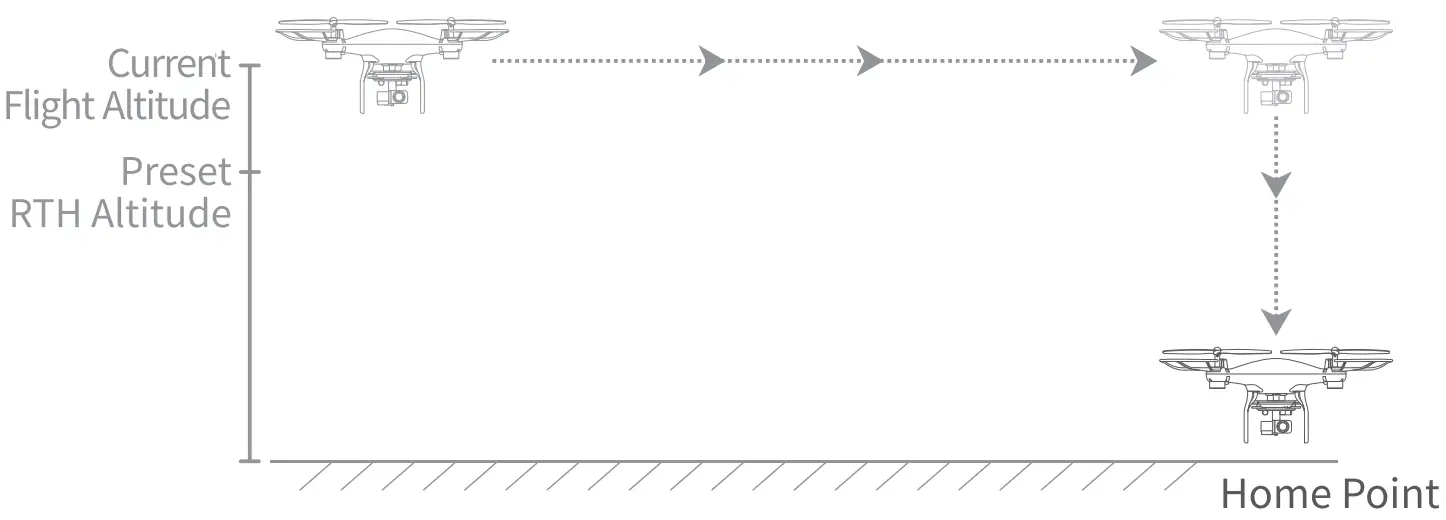
Press the button again to cancel RTH and regain control of the drone.
Notes:
- The RTH altitude is 15m by default. You can reset it in the Settings of the Snaptain Atlas App.
- During RTH, there are continuous beeps from the remote and the RTH Indicator keeps flashing.
Failsafe RTH
Failsafe RTH will be activated automatically when the drone disconnects with the remote. The drone will fly back to the last recorded Home Point under the control of the flight system itself.
The process of Failsafe RTH is the same as Smart RTH.
If the connection between the remote and the drone is re-established, the pilot can cancel RTH by pressing the button and regain control of the drone. If no operation is performed, the RTH process will continue.
When the remote disconnects with the drone and the GPS Mode are not available, the drone will slowly descend from the current altitude till landing.
Low Battery RTH
1. The Low Battery RTH will be triggered when the drone battery is low.
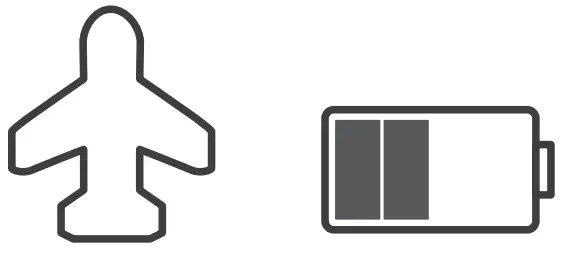 | 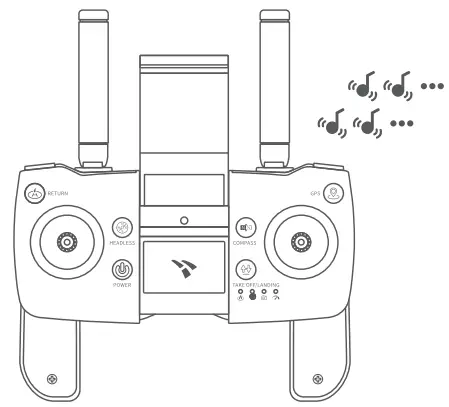 |
| Drone battery status shows 2 bars on the App. | There are continuous beeps from the remote. |
The drone will fly back to where RTH distance is 20m and hover, and RTH will be canceled automatically. The drone can’t fly beyond 20m anymore no matter how the pilot operates.
Note: If you cancel Low Battery RTH, it won’t be triggered again unless the battery is critically low.
2. The Critical Low Battery RTH will be triggered when the drone battery is critically low. The drone will automatically fly back and land on the last recorded Home Point.
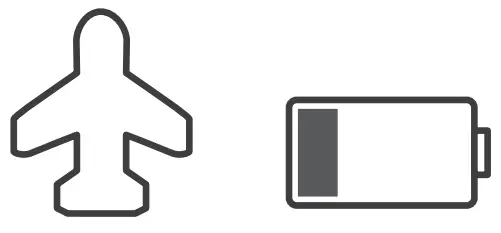 | 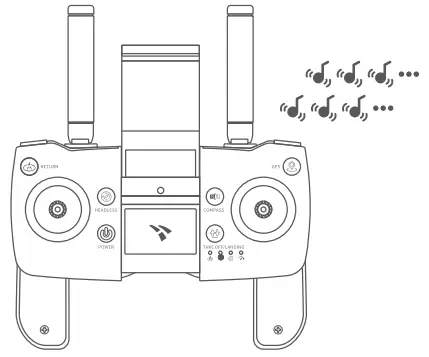 |
| Drone battery status shows 1 bar on the App. | There are continuous beeps from the remote |
Note: The drone can’t avoid obstacles automatically during RTH.
Landing
Option 1: Press the button to land the drone.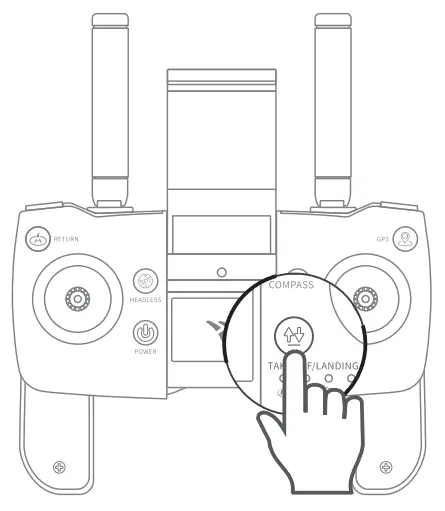
Option 2: Slowly pull the Left Control Stick backward to land the drone until the propellers stop rotating.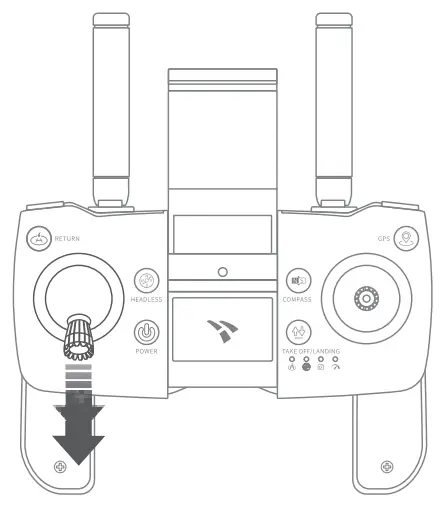 App Operation Guide
Function Overview of the App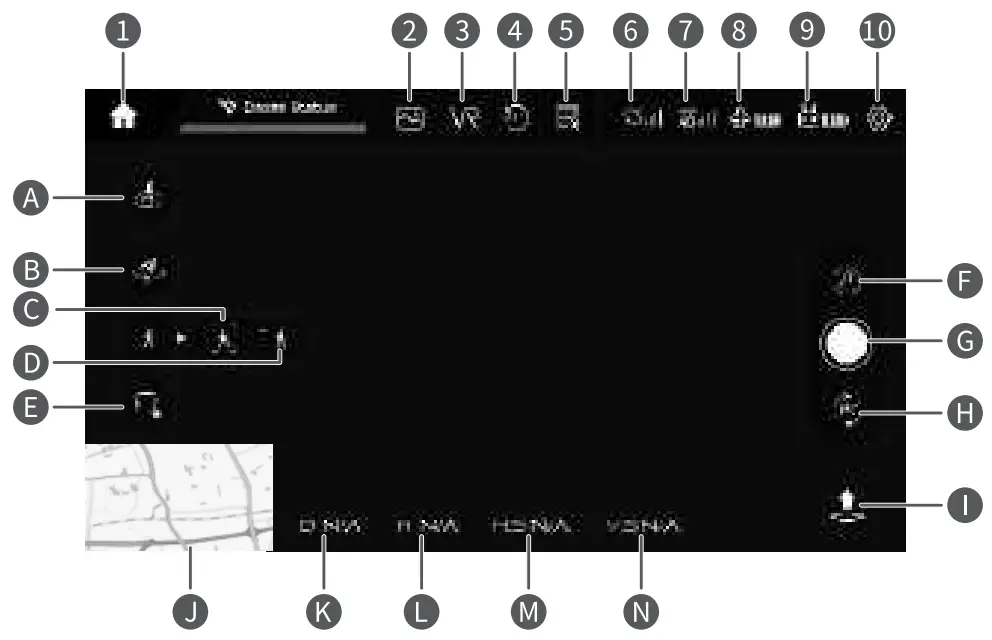
| 1. Home | 6. GPS Signal |
| 2. Media Gallery | 7. Wifi Signal |
| 3. VR Mode | 8. Drone Battery Status |
| 4. Flip Image | 9. Remote Battery Status |
| 5. Flight Records | 10. Settings |
| A. Return-to-Home (RTH) | H. Photo/Video Mode |
| B. Point of Interest (POI) | I. One Key Take-off/Landing |
| C. Mark and Track | J. Live Map |
| D. Follow Me | K. Flight Distance |
| E. Waypoints | L. Flight Altitude |
| F. Gestures for Photo/Video | M. Horizontal Flight Speed |
| G. Shutter | N. Vertical Flight Speed |
► Media Gallery:
Tap to check the photos and videos saved.
► VR Mode:
Tap  to activate VR mode(VR device is not supplied).
► Flip Image:
Tap  to flip the image 180°.
► Flight Records:
Check the flight records here.
► GPS Signal:
Check the signal of the GPS satellites.
► Wifi Signal:
Check the Wifi signal strength to avoid losing control of the drone. When it shows low signal strength (Cl bar), please fly the drone back immediately.
► Drone Battery Status:
Check the battery status of the drone.
► Remote Battery Status:
Check the battery status of the remote.
Settings
Tap  to start setting up your drone.
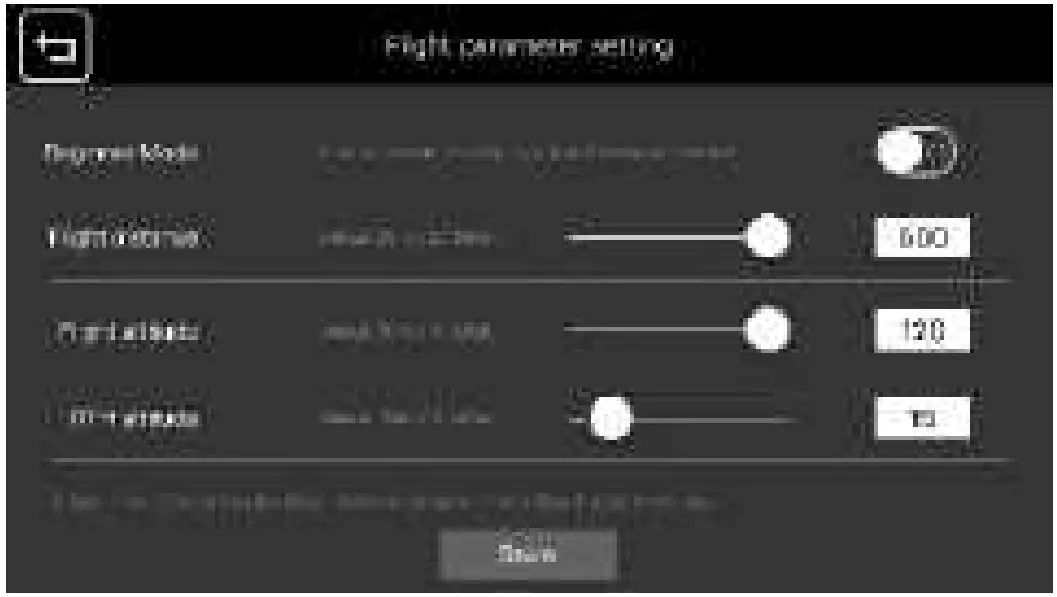
► Beginner Mode:
Beginner mode with preset flight parameters is recommended for beginners.
► Flight distance:
Reset the maximum flight distance between the drone and the last recorded Home Point.
► Flight altitude:
Reset the maximum flight altitude.
► RTH altitude:
Reset the RTH altitude.
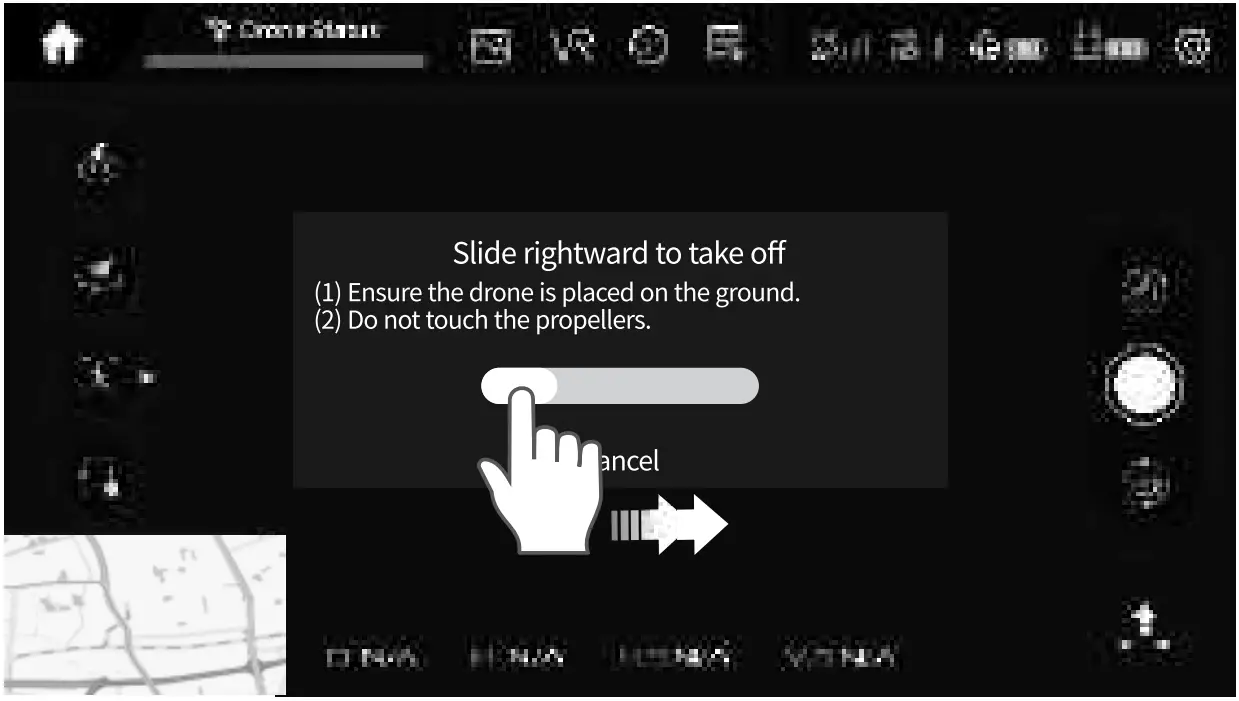
Take-off
Tap  and slide rightward on the pop-up window to take off.
Point of Interest (POI)
Tap  to activate Point of Interest (POI) during the flight, enter the POI radius, and tap YES to start. The drone will circle around the current point of the drone while keeping that point centered in the frame.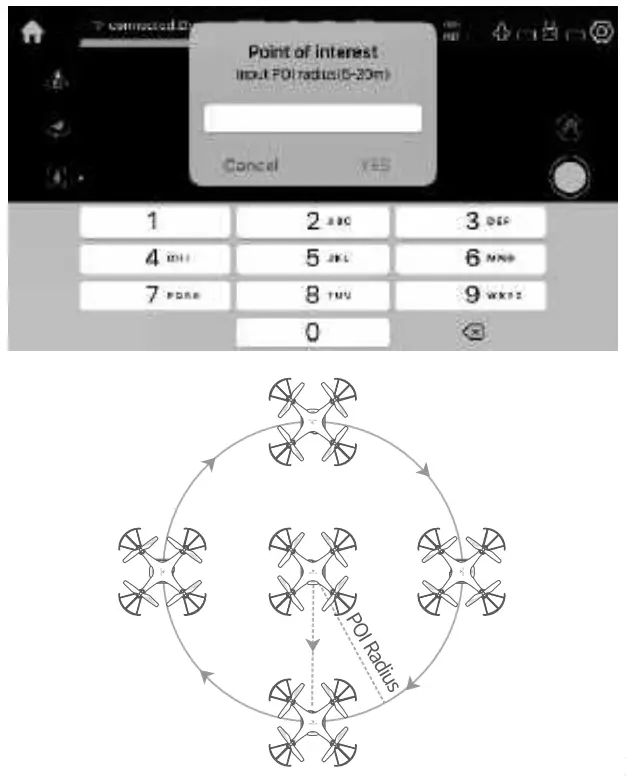
Tap again during the flight to cancel this mode and regain control of the drone.
Note:
* This function can’t be activated when the battery of the drone is low.
Mark and Track
When Mark and Track are enabled during the flight, the drone’s camera lens will keep pointing at the chosen object. Please make sure you’re operating in a light-filled environment.
Step 1: Tap  , then tap
  to enable Mark and Track.
Step 2: Tap on an object that is framed on the screen. The red frame will turn green once the object is selected.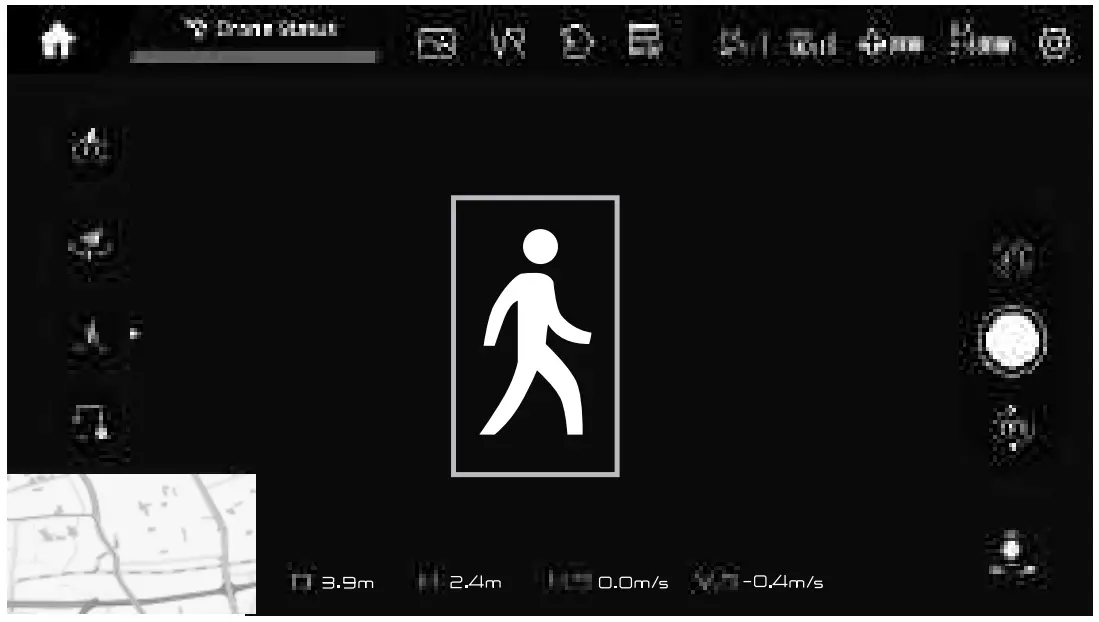
Tap again during the flight to cancel this mode and regain control of the drone.
Notes:
- Please maintain a safe and effective distance between the object and the drone when enabling this function.
- This function is not working if the chosen object is moving in a dim circumstance, blocked or out of sight, out of effective distance, etc.
- This function can’t be activated when the drone battery is low.
Follow Me
When Follow Me is enabled during the flight, the drone will fly and follow your mobile device with its camera lens pointing at it.
Tap , then tap  to enable Follow Me.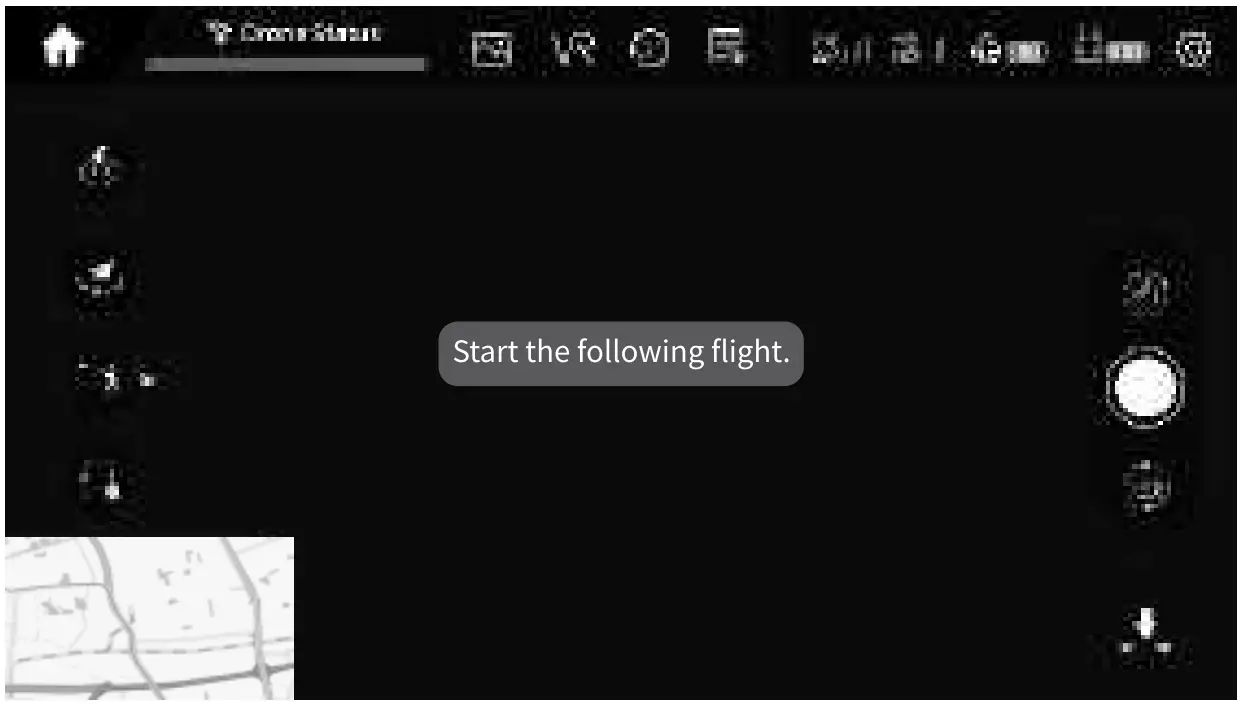
Tap again during the flight to cancel this mode and regain control of the drone.
Notes:
- The function Follow Me may have deviation due to the GPS Signal. Please maintain a safe distance between you and the drone when enabling this function.
- Activate this function only when there is no obstacle around you in case of unexpected accidents.
- This function can’t be activated when the battery of the drone is low.
Waypoints
Waypoints function allows you to define an exact flying route on a map during the flight. Tap  to enter the interface of waypoints.
Option 1: Select Waypoints
Step 1:
Tap  , then tap some desired waypoints on the map. Tap
  to delete waypoints if you want to reset.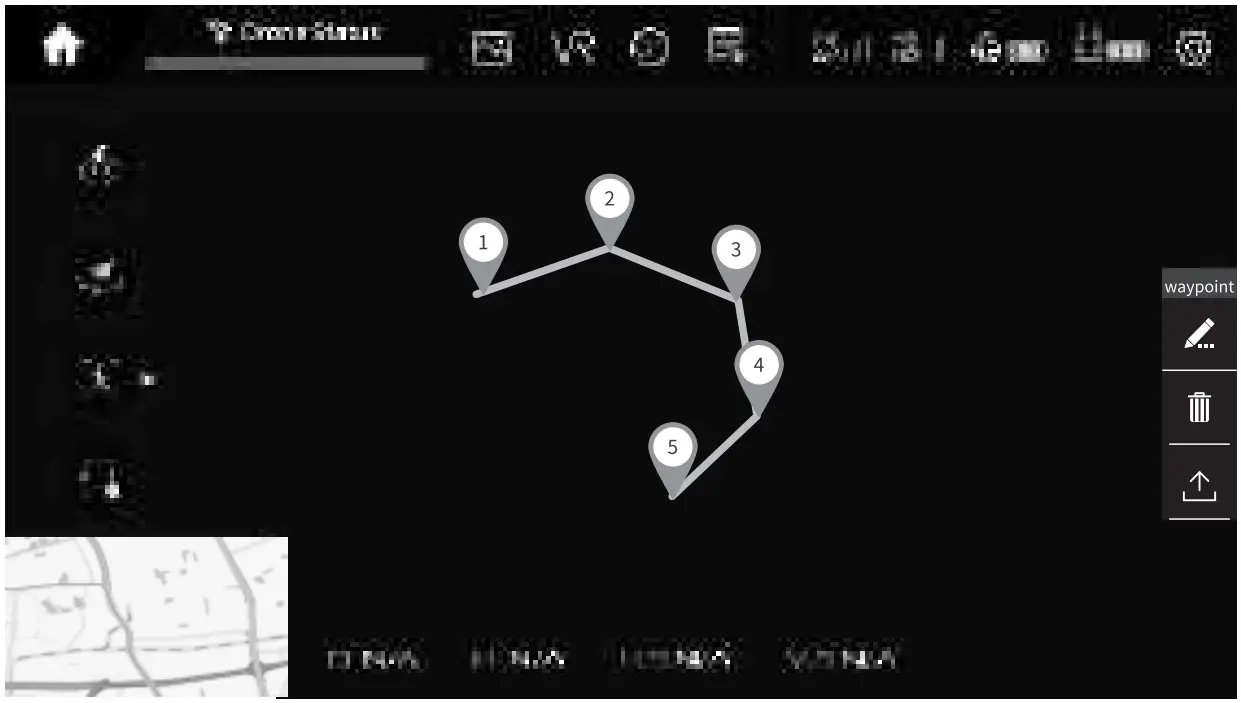
Step 2:
Tap  to upload waypoints.
Step 3:
Slide rightward on the pop-up window to start to fly following the route of waypoints.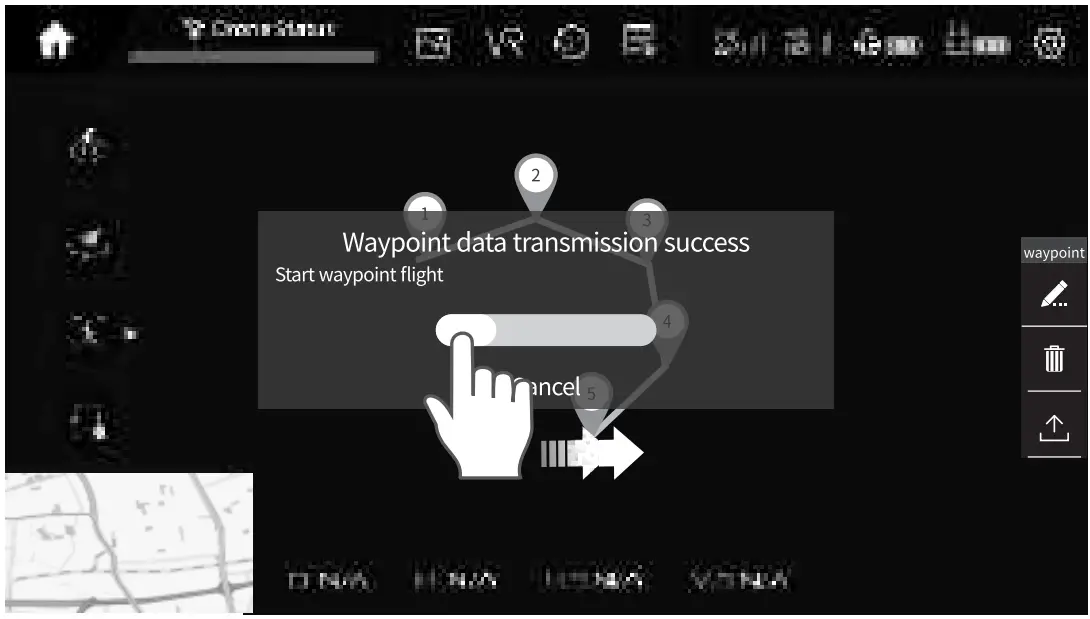
Option 2: Draw a Trajectory
Step 1:
Tap , then tap  and draw a path on the map.
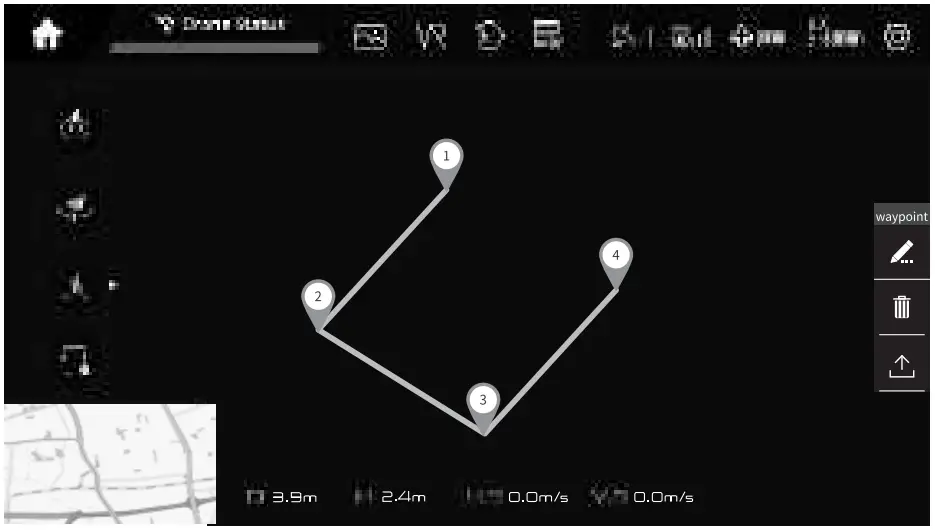 Step 2:
Tap to upload waypoints.
Step 3:
Slide rightward on the pop-up window to start to fly following the route of waypoints.
Tap again to cancel this mode and regain control of the drone.
Note:
This function can’t be activated when the battery of the drone is low.
Photo/Video
Tap  to take a photo.
Tap  to switch to video mode. Tap to start recording a video, then tap it again to stop and save the video to your memory card and mobile device.
Go to Media Gallery to check the photo and videos saved. Select the photos or videos preferred to share with others.
Gestures for Photo/Video
Tap  to activate this function. In the light-filled environment, please stand in front of the camera and make a
  gesture with your Right Hand to take a photo, a
  gesture to start/stop recording a video.
Smart RTH
Tap  to activate Smart RTH during the flight and have the drone returned to the last recorded Home Point. Slide rightward on the pop-up window to start RTH.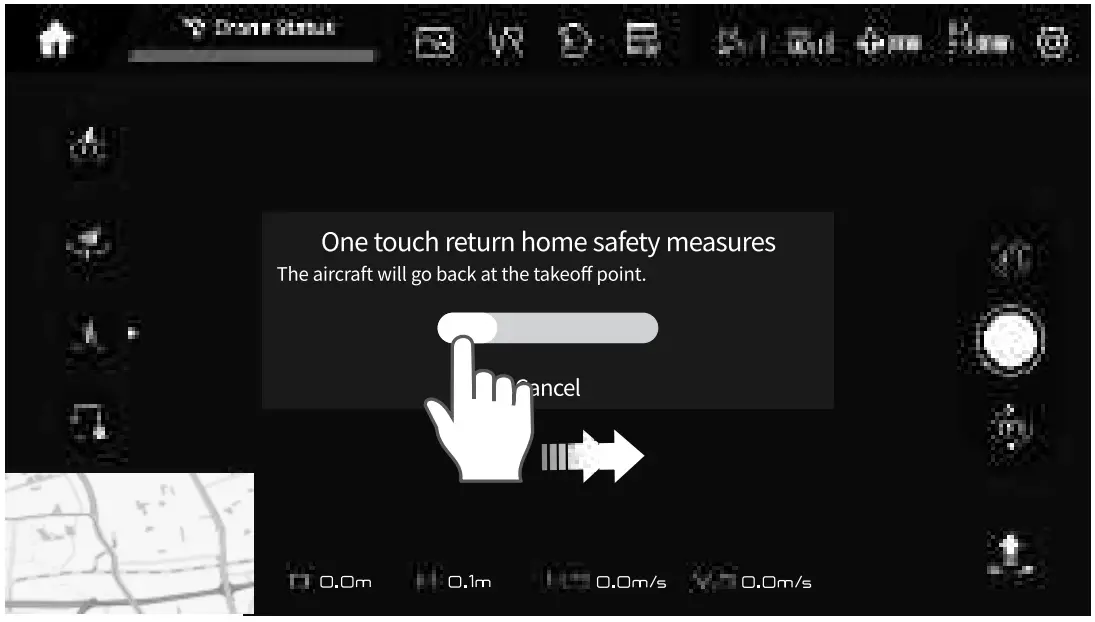
Tap again to cancel this mode and regain control of the drone.
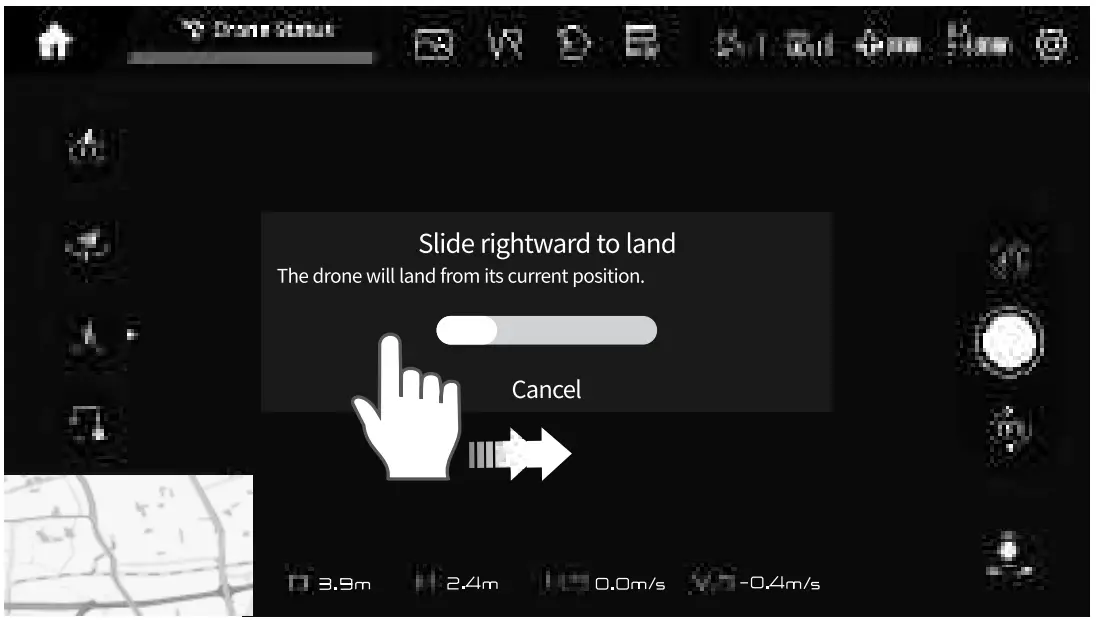
Landing
Tap  and slide rightward on the pop-up window to land the drone during the flight.
TROUBLESHOOTING
Ql. The four LEDs of the drone keep flashing.
* Ensure you’ve paired the drone with the remote.
* Ensure the drone battery has enough power.
Q2. Fail to power on the remote.
* Ensure the remote has enough power.
Q3. The drone can’t take off after I power on it outdoors.
* Ensure the drone has found enough satellites (check if the rear LEDs are flashing green). If not, please wait for the drone to search satellites. Move to another place to fly the drone if the GPS signal is weak.
Q4. Why can’t I connect to the drone’s Wifi?
* Ensure only ONE device is connecting to the drone’s Wifi.
Q5. Why can’t I see the map after launching the App?
* Ensure you’ve installed a map App on your mobile device.
* The drone’s Wifi has no Internet access. Please disconnect to it and turn on your cellular data to preload the map, then turn off your cellular data and connect to the drone’s wifi again.
Q6. The drone can’t take off indoors.
* The drone is set to GPS Mode by default. Please switch to ATTI Mode (long-press the button on the remote) if you would like to fly the drone indoors.
Q7. The FOLLOW ME function doesn’t work.
* Ensure you’ve turned on the location service on your mobile device, and the drone is flying in GPS Mode.
Q8. How can I fly the drone back when I can’t tell the head or tail of the drone?
* Ensure you’ve turned on GPS Mode, press the button to trigger the RTH function, then the drone will automatically fly back home.
Q9. How to cancel Failsafe RTH?
* Press the button to cancel Failsafe RTH when the remote receives the signal from the drone again.
Q10. Is it necessary to fly the drone back when the drone battery is low?
* When the battery is low, please fly the drone within a distance of 20m. The drone will automatically fly back home when the battery is critically low.
SPECIFICATIONS
| Gimbal | ||
| Controllable Range | Tilt -90° to 0 | |
| USB Cable | ||
| For Drone Battery | For Remote | |
| Input | 5V = 2A | 5V = 2A |
| Output | 4.2Vx2 = 1.5A 5V = 2A | 5V = lA |
| Rated Power | 12.6W | 5W |
FCC Caution
Any Changes or modifications not expressly approved by the party responsible for compliance could void the user’s authority to operate the equipment. This device complies with part 15 of the FCC Rules. Operation is subject to the following two conditions: (1) This device may not cause harmful interference, and (2) this device must accept any interference received, including interference that may cause undesired operation.
NOTE: This equipment has been tested and found to comply with the limits for a Class B digital device, pursuant to part 15 of the FCC Rules. These limits are designed to provide reasonable protection against harmful interference in a residential installation. This equipment generates, uses and can radiate radio frequency energy and, if not installed and used in accordance with the instructions, may cause harmful interference to radio communications. However, there is no guarantee that interference will not occur in a particular installation. If this equipment does cause harmful interference to radio or television reception, which can be determined by turning the equipment off and on, the user is encouraged to try to correct the interference by one or more of the following measures:
—Reorient or relocate the receiving antenna.
—Increase the separation between the equipment and receiver.
—Connect the equipment into an outlet on a circuit different from that to which the receiver is connected.
—Consult the dealer or an experienced radio/TV technician for help. For R/C QUADCOPTER This equipment complies with FCC radiation exposure limits set forth for an uncontrolled environment. This equipment should be installed and operated with a minimum distance 20cm between the radiator& your body. This transmitter must not be co-located or operating in conjunction with any other antenna or transmitter.
ISEDC Warning
This device complies with Industry Canada licence-exempt RSS standard(s). Operation is subject to the following two conditions:
(1) this device may not cause interference, and (2) this device must accept any interference, including interference that may cause undesired operation of the device.
For R/C QUADCOPTER
The device is in compliance with RF exposure guidelines, users can obtain Canadian information on RF exposure and compliance. The minimum distance from the body to use the device is 20cm.
The operation of this device in the band 5150-5250 MHz is restricted to indoor use only.
CAUTION RISK OF EXPLOSION IF BATTERY IS REPLACED BY AN INCORRECT TYPE DISPOSE OF USED BATTERIES ACCORDING TO THE INSTRUCTIONS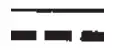 The symbol indicates DC voltage
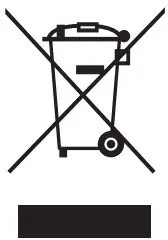 RECYCLING
This product bears the selective sorting symbol for Waste electrical and electronic equipment (WEEE). This means that this product must be handled pursuant to European directive 2012/19/EU in order to be recycled or dismantled to minimize its impact on the environment. The user has the choice to give his product to a competent recycling organization or to the retailer when he buys a new electrical or electronic equipment. This product can be used across EU member states. BATTERY MUST BE RECYCLED OR DISPOSED OF PROPERLY
 Refer to the user manual and relevant text.
 operate the product according to the instructions.
Manufacturer
Shenzhen VanTop Technology & Innovation Co., Ltd. Manufacturer address: 502, 5th Flr. BLDG 4, MinQi Technology Park, No. 65 Lishan Road, Taoyuan Street, Nanshan District, Shenzhen, China
EC REP
BellaCocool GmbH
Pettenkoferstralle 18,10247,
Berlin, Germany
[email protected]
SNAPTAIN SUPPORT
US [email protected]
CA [email protected]
UK [email protected]
ES [email protected]
 https://qrs.ly/9rbesnj https://qrs.ly/9rbesnj |  https://qrs.ly/3zbd6ne https://qrs.ly/3zbd6ne |  https://qrs.ly/epbd6na https://qrs.ly/epbd6na |