F02U.V02.929-01 RaceConnect DirectLink
Product Information: – Product Name: RaceConnect DirectLink
– Version: 2.1 – Date of Release: 03/11/2022 – Manufacturer: Bosch
Motorsport Table of Contents: – Introduction – Part List –
Installation – Firewall and Proxy – Adding a Data Stream – Settings
– Pit Network Setup 1. Introduction: The RaceConnect
DirectLink is a product developed by Bosch Motorsport. 2. Part
List: The product is available in different versions with the
following part numbers and descriptions: – EU: – F02U.V02.929-01:
Racer Subscription, 500 MB/20 h (1 year) – F02U.V02.930-01: Pro
Subscription, 2 GB/60 h (1 year) – F02U.V02.931-01: Pro-High
Subscription, 10 GB/100 h (1 year) – JP: – F02U.V02.929-01: Racer
Subscription, 500 MB/20 h (1 year) – F02U.V02.930-01: Pro
Subscription, 2 GB/60 h (1 year) – F02U.V02.931-01: Pro-High
Subscription, 10 GB/100 h (1 year) – US: – F02U.V0U.355-01: Racer
Subscription, 500 MB/20 h (1 year) – F02U.V0U.357-01: Pro
Subscription, 2 GB/60 h (1 year) – F02U.V0U.358-01: Pro-High
Subscription, 10 GB/100 h (1 year) 3. Installation: To
install the RaceConnect DirectLink, follow the installation
instructions provided by Bosch Motorsport. 4. Firewall and
Proxy: If your company uses a proxy server to access the
internet, you may need to contact your IT department to identify
any prerequisites for telemetry data transmission over a public
internet connection. The DirectLink system can use your system
proxy automatically. If necessary, you can manually enter your
proxy information in the Global Settings / Proxy Settings. 5.
Adding a Data Stream: To add a data stream, follow these steps:
1. Go to the Configure Menu. 2. Click on “Add New.” 3. Choose the
desired option from DirectLink, Standard LTE65 car, or HST LTE65
car. 4. The data streams will appear in the window. 5. Click the
green play button to configure the stream. Please refer to the
complete RaceConnect DirectLink Quick Start Guide for more detailed
information on settings and pit network setup.
RaceConnect DirectLink
Quick Start Guide
Version 2.1 03/11/2022
Table of Contents
Table of Contents
1 Introduction …………………………………………………………………………………………………………………………………………………
3
2 Part List………………………………………………………………………………………………………………………………………………………..
4
3 Installation …………………………………………………………………………………………………………………………………………………..
5
4 Firewall and Proxy………………………………………………………………………………………………………………………………………..
6
5 Adding a Data Stream ………………………………………………………………………………………………………………………………….
7
6 Settings……………………………………………………………………………………………………………………………………………………….. 10
7 Pit Network Setup……………………………………………………………………………………………………………………………………….. 11
ii / 12
RaceConnect_DirectLink_Quick_Start_Guide
Bosch Motorsport
Introduction | 1
1 Introduction
RaceConnect DirectLink is a feature that exists within the RaceConnect cloud platform to transfer telemetry data without an LTE65 Modem as a receiver. Only a stable internet connection is required at the PC receiving the data. RaceConnect DirectLink uses the WDServer v3 program as the interface between RaceConnect and your PC. The DirectLink data plan must be ordered from your Bosch dealer or sales representative prior to using receiverless telemetry. Each data stream is given a secure token that is used to identify the stream. RaceConnect DirectLink works just like traditional telemetry with a receiver and WDServer.
Only one laptop can receive and decode the data stream at a time. The decoded data stream can be networked to other PCs. The stream is secured by a seed and key file (INI).
Bosch Motorsport
RaceConnect_DirectLink_Quick_Start_Guide
3 / 12
2 | Part List
2 Part List
EU
Part Number F02U.V02.929-01 F02U.V02.930-01 F02U.V02.931-01
JP
Part Number F02U.V02.929-01 F02U.V02.930-01 F02U.V02.931-01
US
Part Number F02U.V0U.355-01 F02U.V0U.357-01 F02U.V0U.358-01
Description Racer Subscription, 500 MB/20 h (1 year) Pro Subscription, 2 GB/60 h (1 year) Pro-High Subscription, 10 GB/100 h (1 year)
Description Racer Subscription, 500 MB/20 h (1 year) Pro Subscription, 2 GB/60 h (1 year) Pro-High Subscription, 10 GB/100 h (1 year)
Description Racer Subscription, 500 MB/20 h (1 year) Pro Subscription, 2 GB/60 h (1 year) Pro-High Subscription, 10 GB/100 h (1 year)
4 / 12
RaceConnect_DirectLink_Quick_Start_Guide
Bosch Motorsport
Installation | 3
3 Installation
Download and install the latest version of WDServer v3 From the folder it was installed in, launch WDServer.exe (can also be found via the
start menu) A cmd prompt window will open when it launches, no interaction is needed
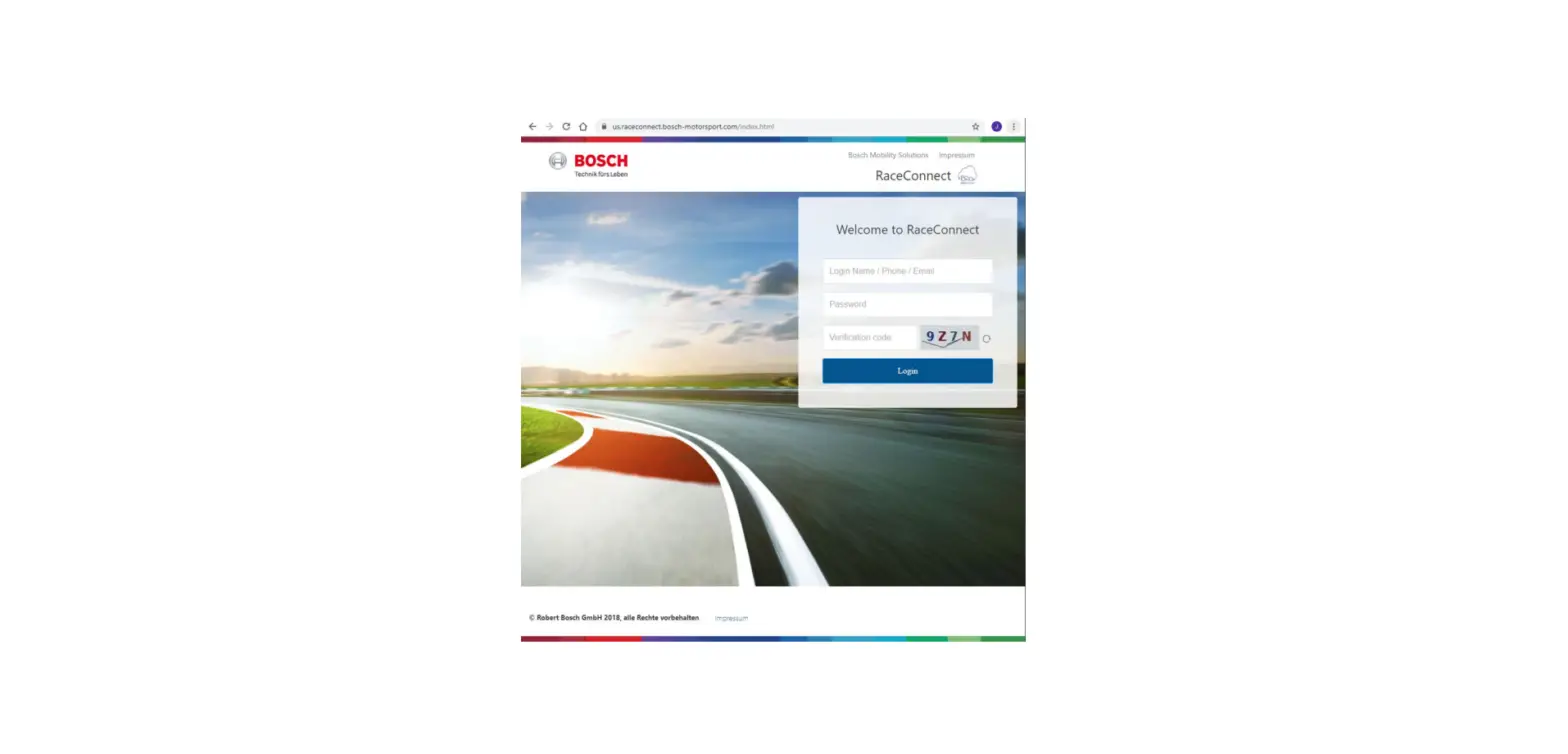
A web browser will automatically open and navigate to the Direct Link portal. Log in using the following credentials: Default User: admin Default Pass: password Note that this is only a local device login and does not impact device security settings. You are free to change the password. This is changed at Global Settings / Login Name and Password.
To run WDServer v3, launch the WDServer app and open a web browser and navigate to http://localhost:5000/
Bosch Motorsport
RaceConnect_DirectLink_Quick_Start_Guide
5 / 12
4 | Firewall and Proxy
4 Firewall and Proxy
Many companies use a proxy server to access the internet. In some cases, it may be necessary to contact your IT department in order to identify what other prerequisites may exist prior to taking in telemetry data over a public internet connection.
DirectLink is able to natively use your system proxy. Additionally, you can enter your proxy information manually if needed. All proxy settings are at Global Settings / Proxy Settings.
6 / 12
RaceConnect_DirectLink_Quick_Start_Guide
Bosch Motorsport
Adding a Data Stream | 5
5 Adding a Data Stream
Set up the remote client in the Configure Menu. 1. Click on Add New. There are options for DirectLink, Standard LTE65 car and HST LTE65
car.
DirectLink: Receiverless telemetry, you will have a secure token to identify the stream. Add your token and select the region for the transmitting device. Data streams will appear in the window.
Data streams will appear in the window. Click the green play button to configure the stream.
Bosch Motorsport
RaceConnect_DirectLink_Quick_Start_Guide
7 / 12
5 | Adding a Data Stream
Bytes / sec (B/s) is the raw data stream.
Packets/ sec (P/s) is the decoded data. (If you have Bytes but not Packets, check the Project Key and .INI file)
If the LTE65 is connected to the logger via Ethernet and the logger has the appropriate firmware, the .INI file will be passed automatically from the logger to WDServer on your PC. When the .ini file is passed automatically, the INI-Folder field will not be available. The Key still needs to be correct.
LTE65 Car: A receiver is being used to receive data from the car.
Configure the Project Key and .INI File. The .INI file must be on the local machine with receiver based telemetry.
Enter the Port Settings and LAN IP of the receiver.
8 / 12
RaceConnect_DirectLink_Quick_Start_Guide
Bosch Motorsport
Adding a Data Stream | 5
To change stream properties later, simply click on the gear to re-enter the Settings menu.
Bosch Motorsport
RaceConnect_DirectLink_Quick_Start_Guide
9 / 12
6 | Settings
6 Settings
To view the client PCs that are viewing decoded telemetry data from your DirectLink session, go to Monitor / Client Sessions.
To write a WinDarab file at the end of each lap of the telemetry data, configure the Export Settings. This is under Configure / Export Settings.
10 / 12
RaceConnect_DirectLink_Quick_Start_Guide
Bosch Motorsport
Pit Network Setup | 7
7 Pit Network Setup
Bosch recommends using a private pit network with router for connection to online telemetry. WinDarab searches the connected networks of a PC for active data streams created by WDServer. When using an internet-connected network to receive data from WDServer and Direct Link, please ensure that the network is protected from public internet.
Bosch Motorsport
RaceConnect_DirectLink_Quick_Start_Guide
11 / 12
Bosch Engineering GmbH Motorsport Robert-Bosch-Allee 1 74232 Abstatt
www.bosch-motorsport.com
 We set the pace | Bosch Motorsport