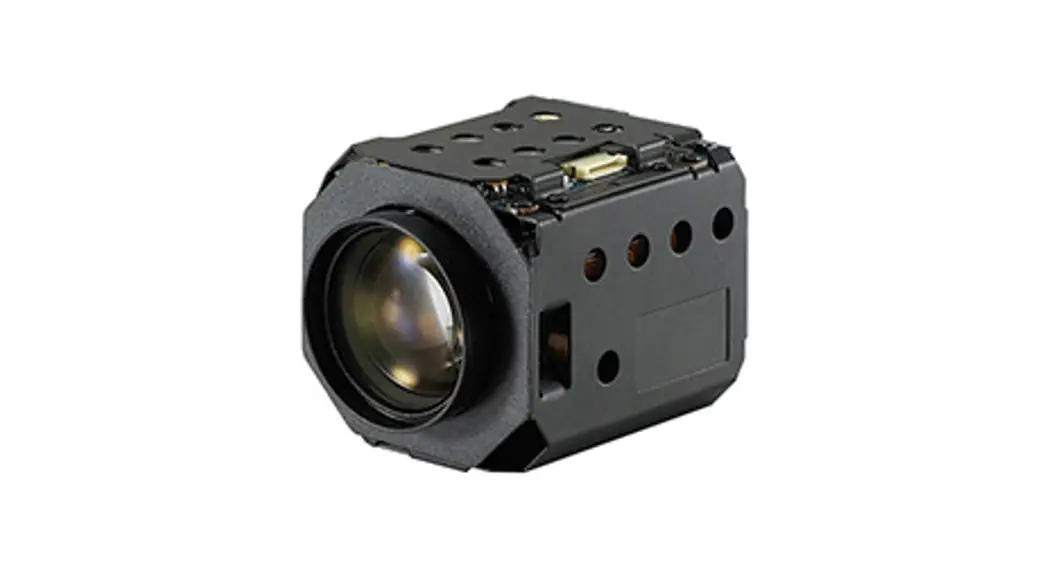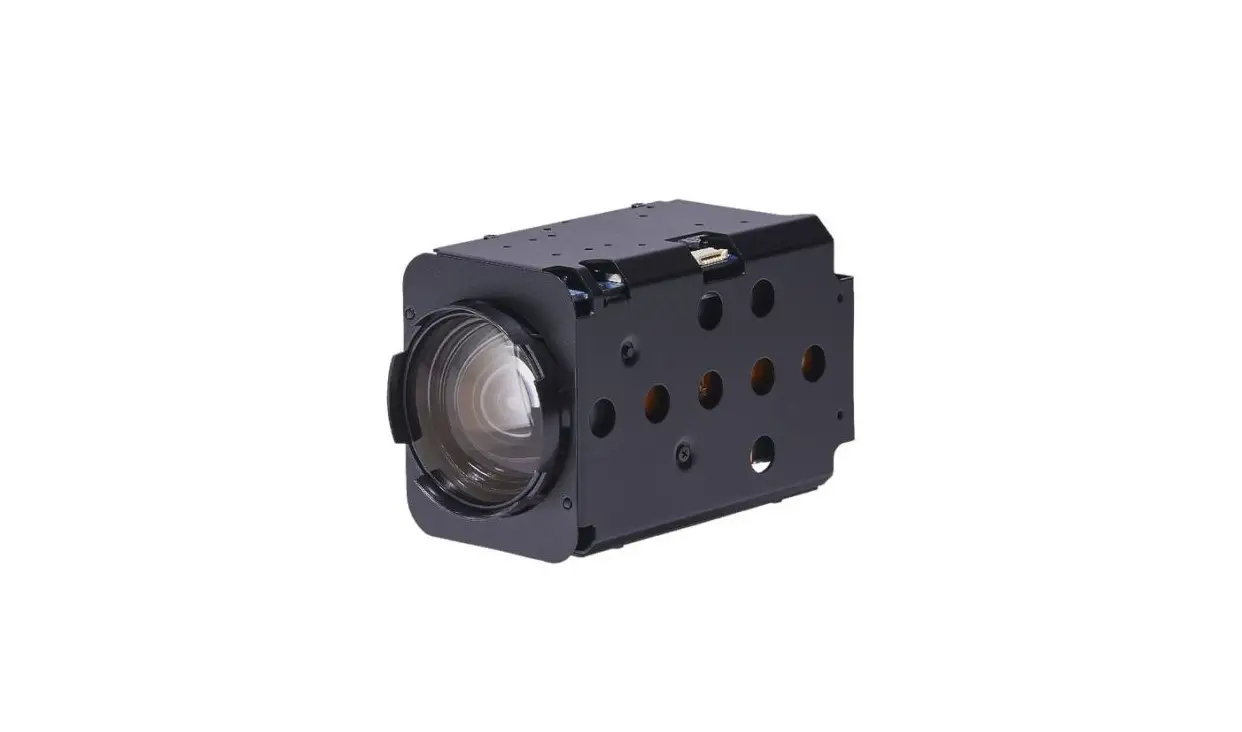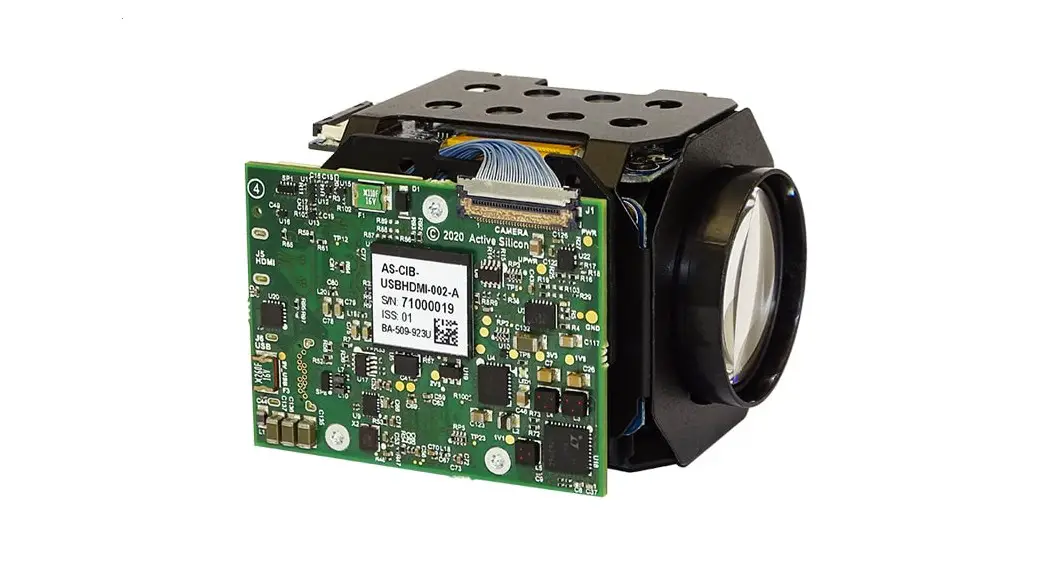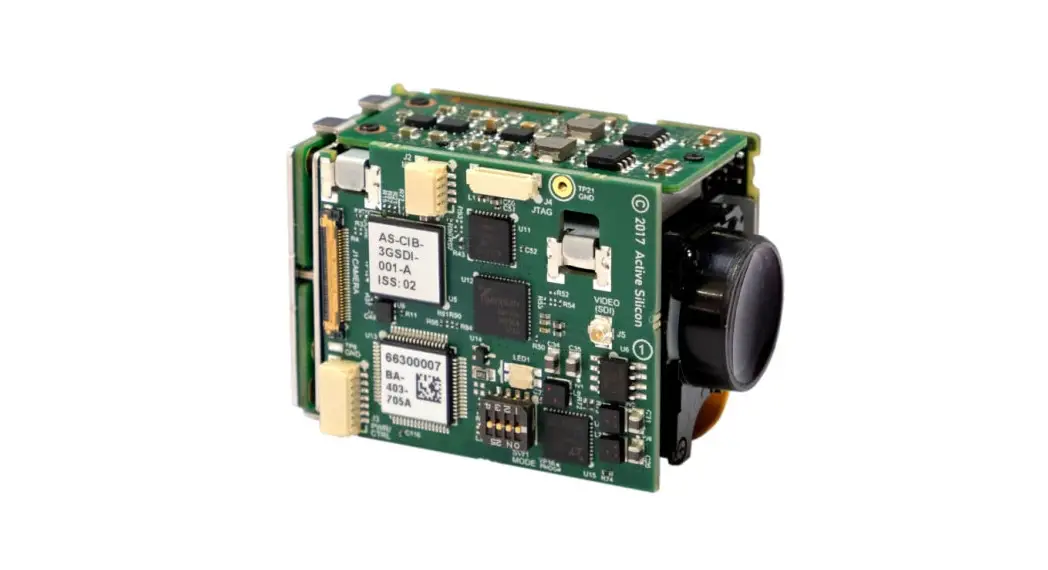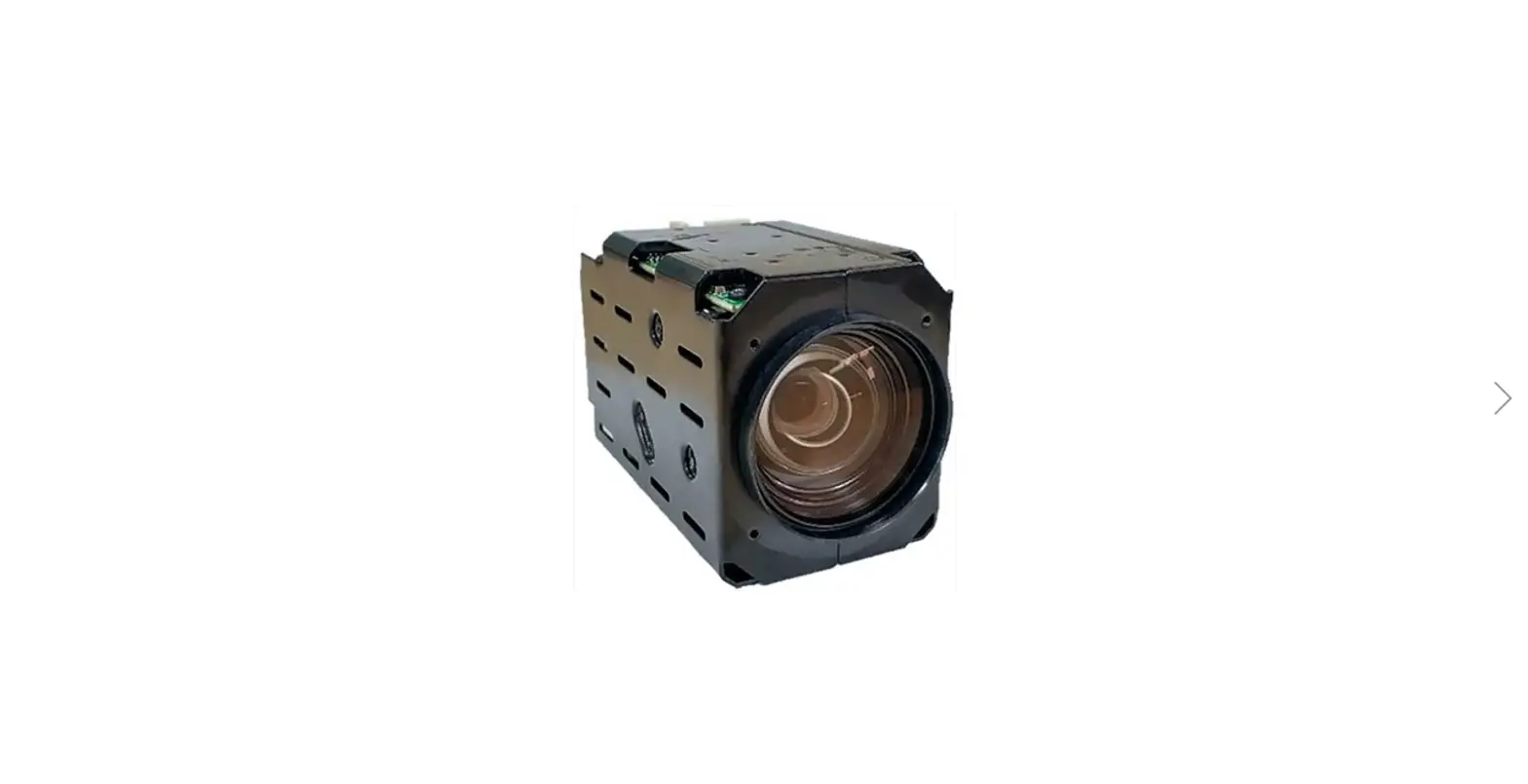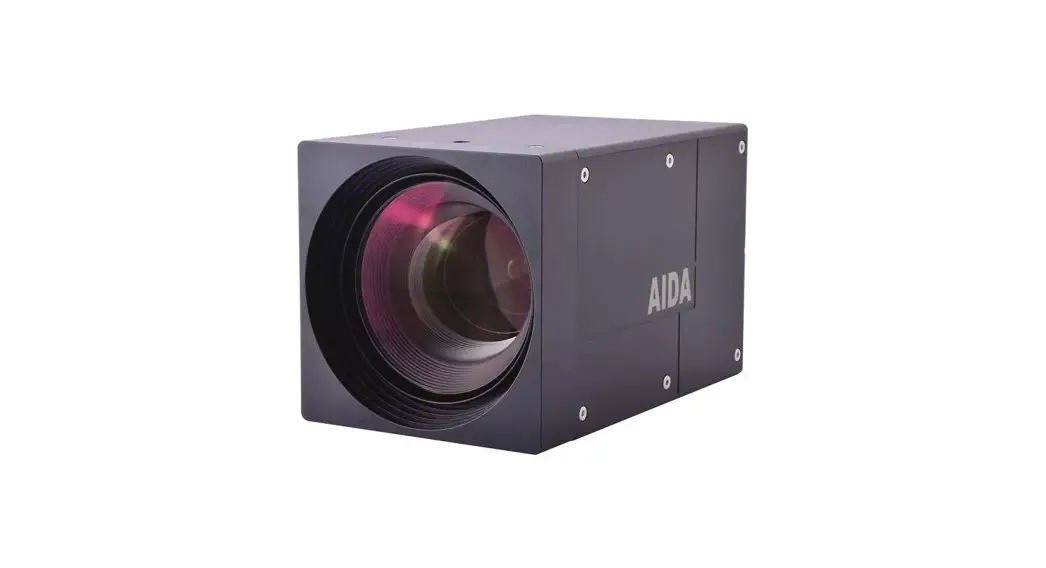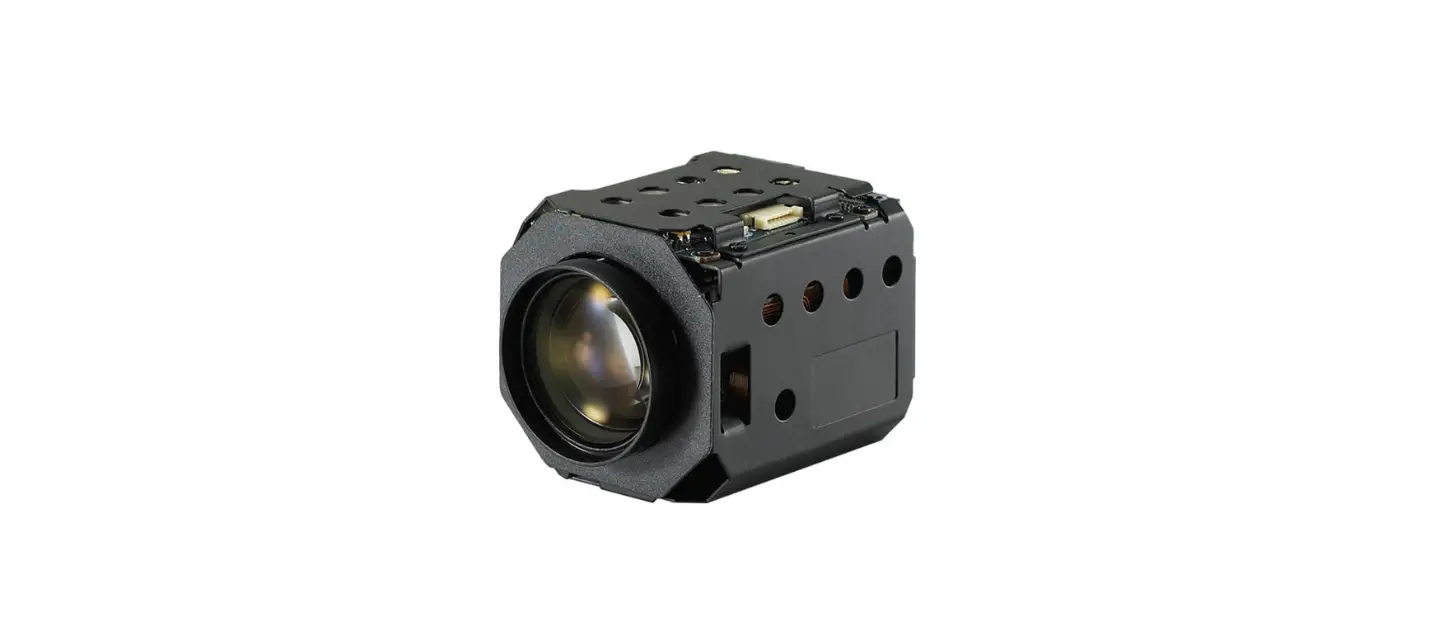

Active Silicon AS-CIB-HDSDI-002-36LGHD-A Harrier AFZ SDI Cameras 
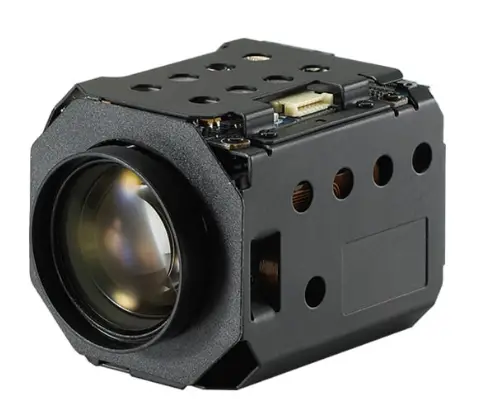
FRONT VIEW
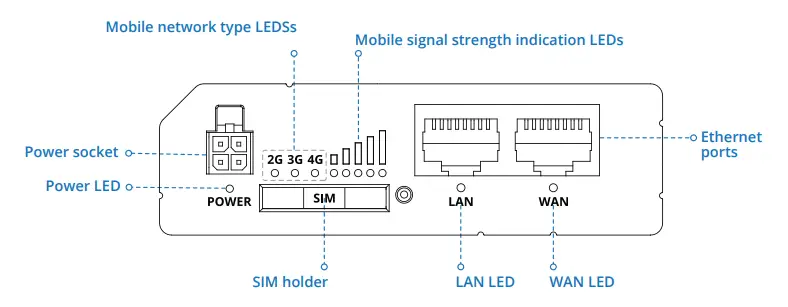
BACK VIEW
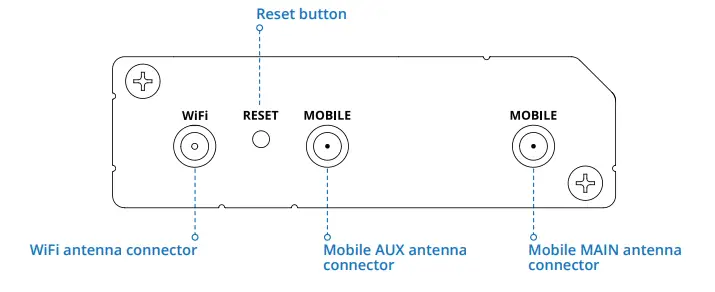
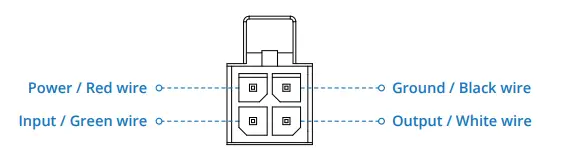
POWER SOCKET PINOUT
HARDWARE INSTALLATION
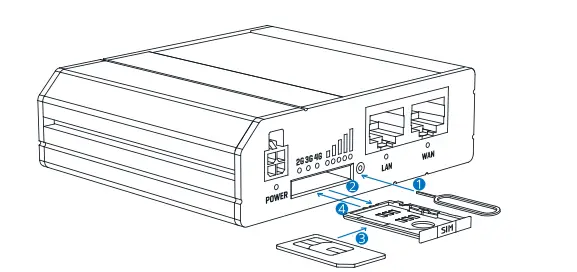
- Push the SIM holder button with the SIM needle.
- Pull out the SIM holder.
- Insert your SIM card into the SIM holder.
- Slide the SIM holder back into the router.
- Attach all antennas.
- Connect the power adapter to the socket on the front of the device. Then plug the other end of the power adapter into a power outlet.
- Connect to the device wirelessly using SSID and password provided on the device information label or use an Ethernet cable connected to LAN port.

LOGIN TO DEVICE
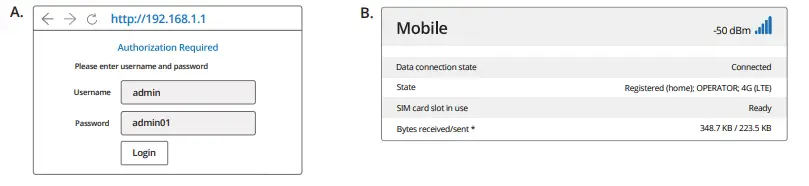
- To enter the router’s Web interface (WebUI), type http://192.168.1.1 into the URL field of your Internet browser.
- Use login information shown in image A when prompted for authentication.
- After you login, you will be prompted to change your password for security reasons. The new password must contain at least 8 characters, including at least one uppercase letter, one lowercase letter and one digit. This step is mandatory and you will not be able to interact with the router’s WebUI before you change the password.
- When you change the router’s password, the Configuration Wizard will start. The Configuration Wizard is a tool used to setup some of the router’s main operating parameters.
- Go to the Overview page and pay attention to the Signal Strength indication (image B). To maximize the cellular performance try adjusting the antennas or changing the location of your device to achieve the best signal conditions.

TECHNICAL INFORMATION
| Especificaciones de radio | |
| RF technologies | 2G, 3G, 4G, WiFi |
| Max RF power | 33 dBm@GSM, 24 dBm@WCDMA, 23 dBm@LTE, 20 dBm@ WiFi |
| Bundled accessories specifications* | |
| Power adapter | Input: 0.4 A@100-200 VAC, Output: 9 VDC, 1A, 4-pin plug |
| Mobile antenna | 698~960/1710~2690 MHz, 50 Ω, VSWR<3, gain** 3 dBi, omnidirectional, SMA male connector |
| WiFi antenna | 2400~2483,5 MHz, 50 Ω, VSWR<2, gain** 5 dBi, omnidirectional, RP-SMA male connector |
SAFETY INFORMATION
RUT240 router must be used in compliance with any and all applicable national and international laws and with any special restrictions regulating the utilization of the communication module in prescribed applications and environments. Hereby, TELTONIKA NETWORKS declares that this RUT240 is in compliance with the essential requirements and other relevant provisions of Directive 2014/53/EU.
Instruction Manual: Connect the power adapter to turn on the device. Open 192.168.1.1 in your web browser to configure it. More information on https://wiki.teltonika-networks.com/
 Imaging products, embedded systems & solutions | Active Silicon
 D2XX Drivers - FTDI